Overview of the CareVision Portal
The CareVision web portal provides access to tools used to manage care, staff, and operations within one system. Understanding how to use the portal helps you navigate sections, access records, and complete tasks within the platform.
Keywords: carevision portal, carevision login, navigate carevision, carevision dashboard, carevision schedules, carevision reports, carevision actions, carevision people management, carevision settings, carevision navigation guide
I. Access Your CareVision Account
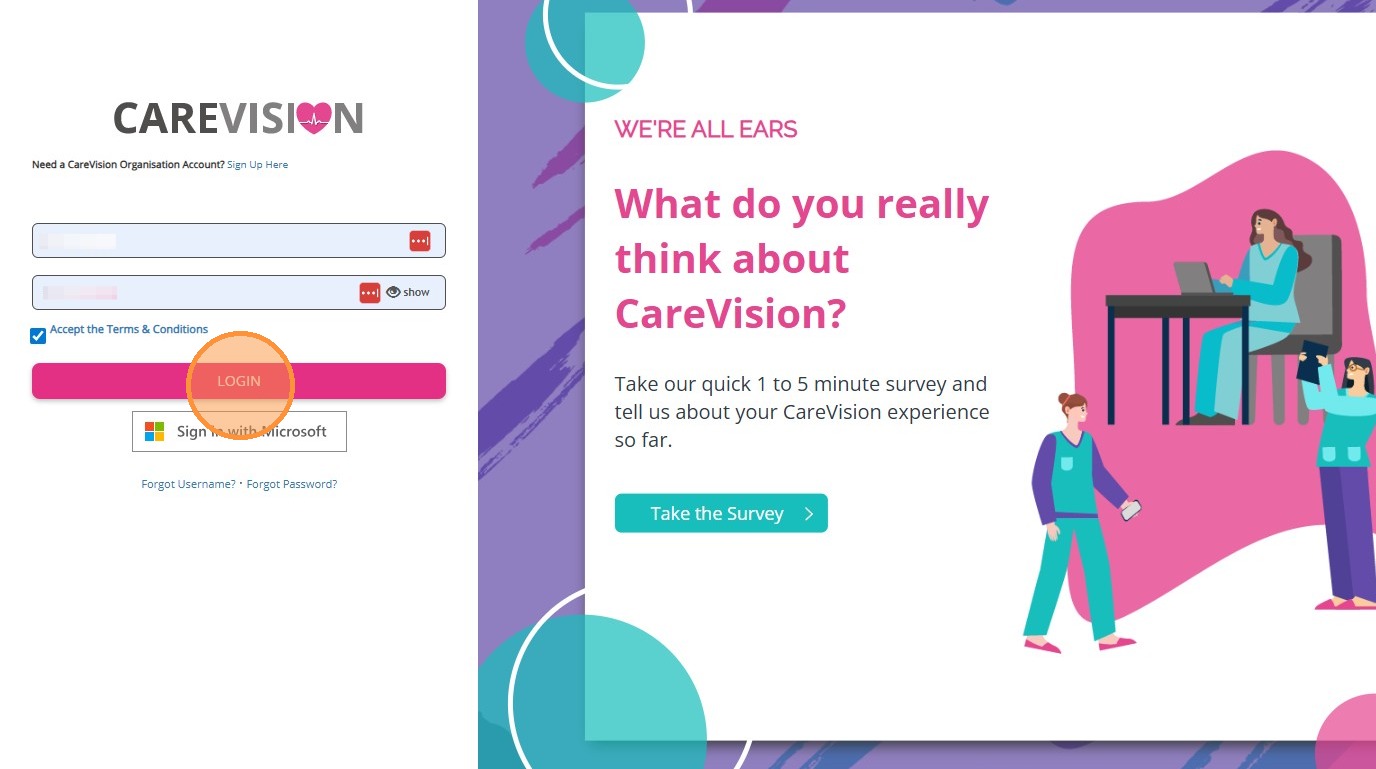
- Open the CareVision Portal at https://webportal.carevision.com/
- Enter your username and password.
- Check the box to agree to the terms and conditions.
- Click Login.

II. Navigate the CareVision Portal
Once you’ve logged in, you will land on the Home page. This is your starting point for accessing all features within the CareVision Portal.
This section introduces the key areas of the interface so you can quickly understand how to move around the system.
A. Top Navigation Overview
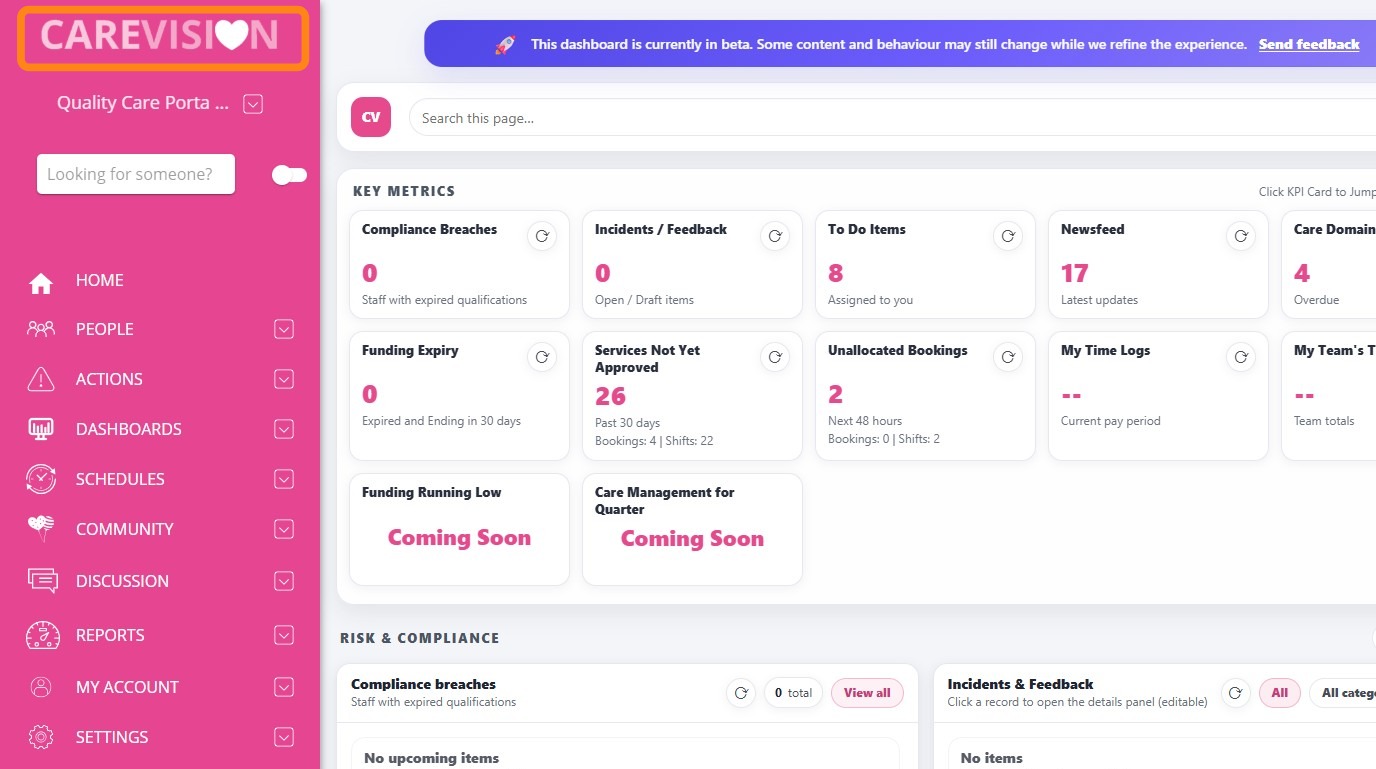
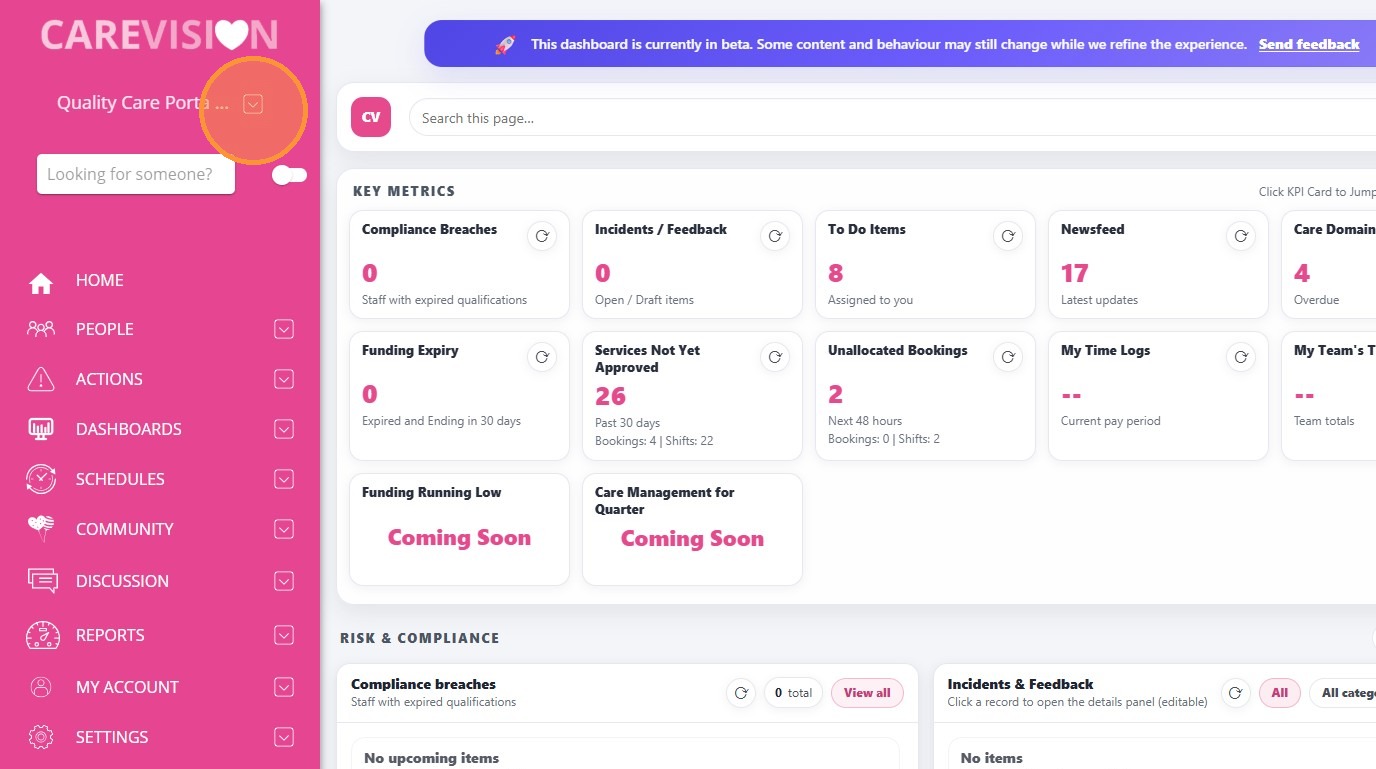
- In CareVision, both Head Office and Branches are set up as organisations. These are connected through a parent–child relationship, where the Head Office is the parent organisation and each Branch is linked as a child organisation.
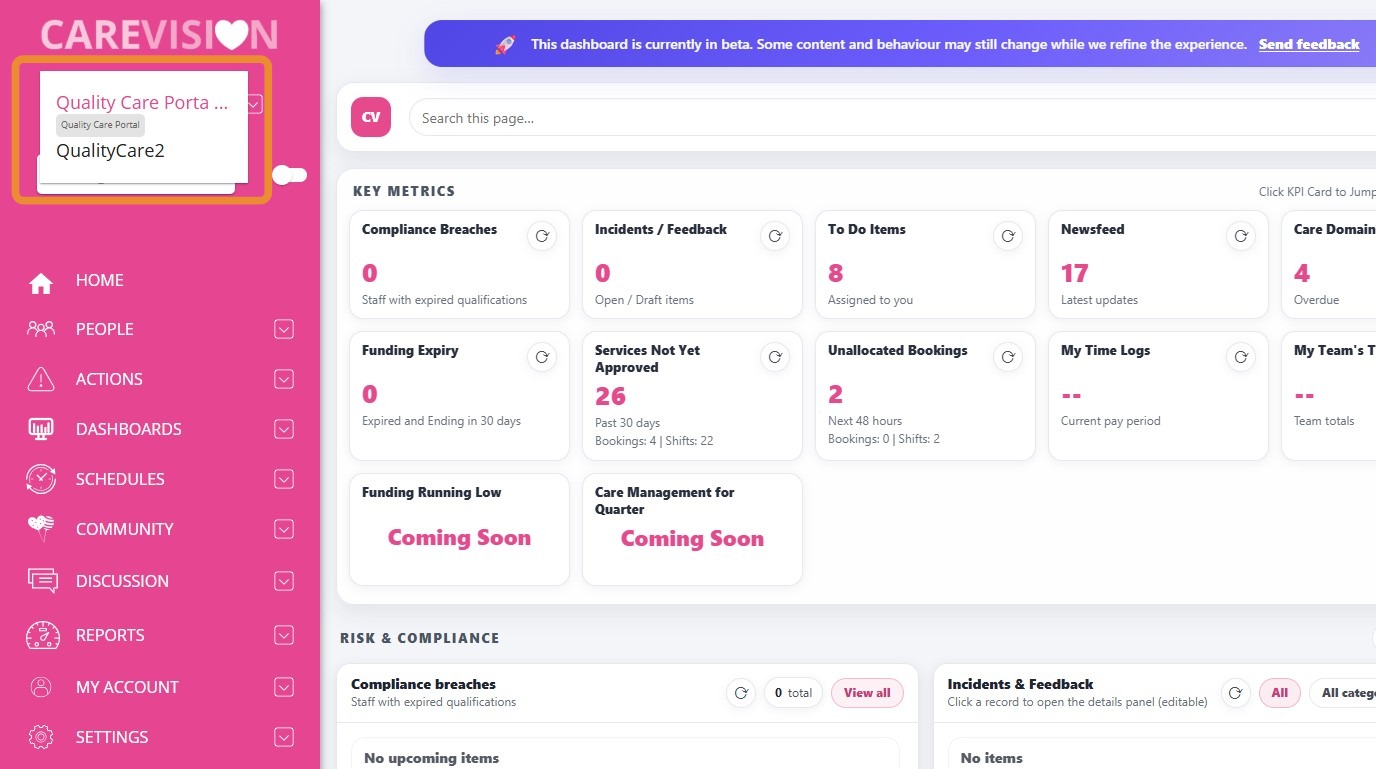
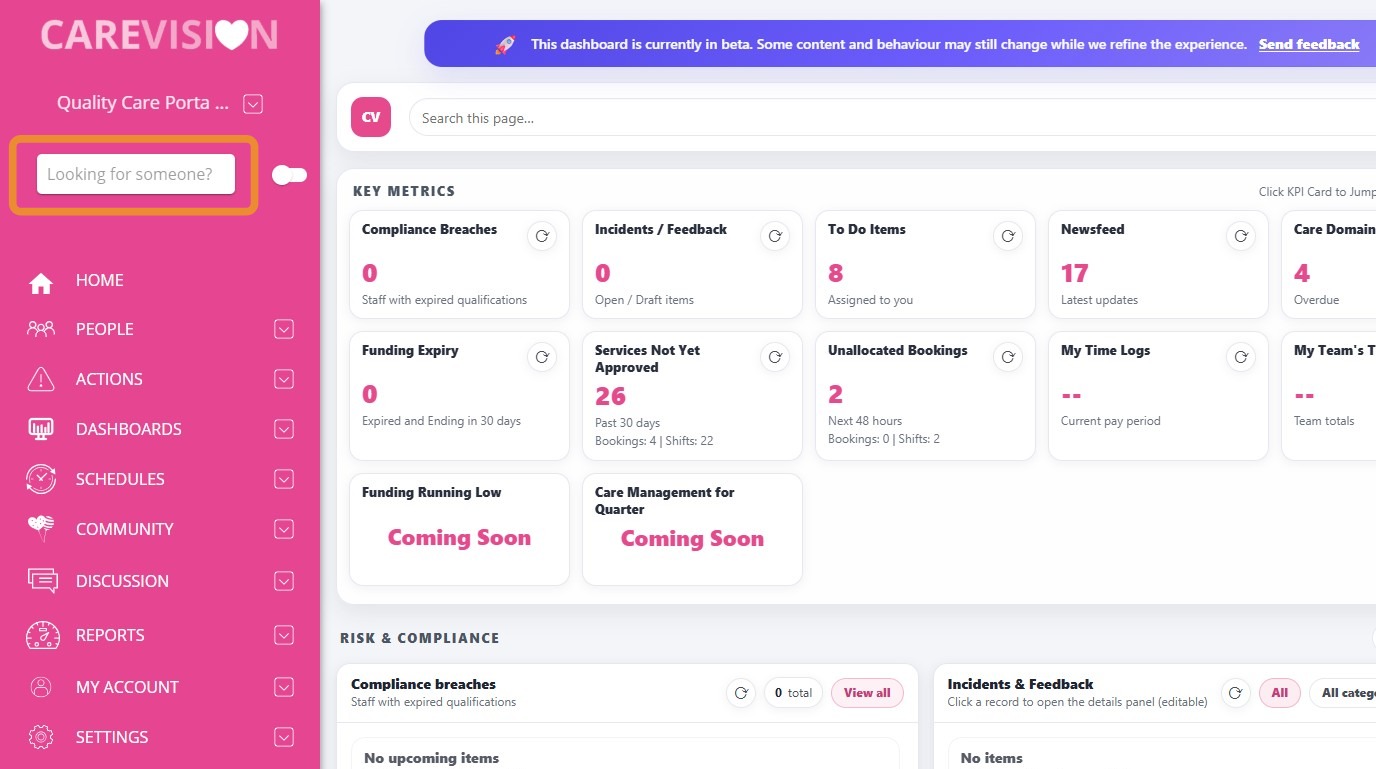
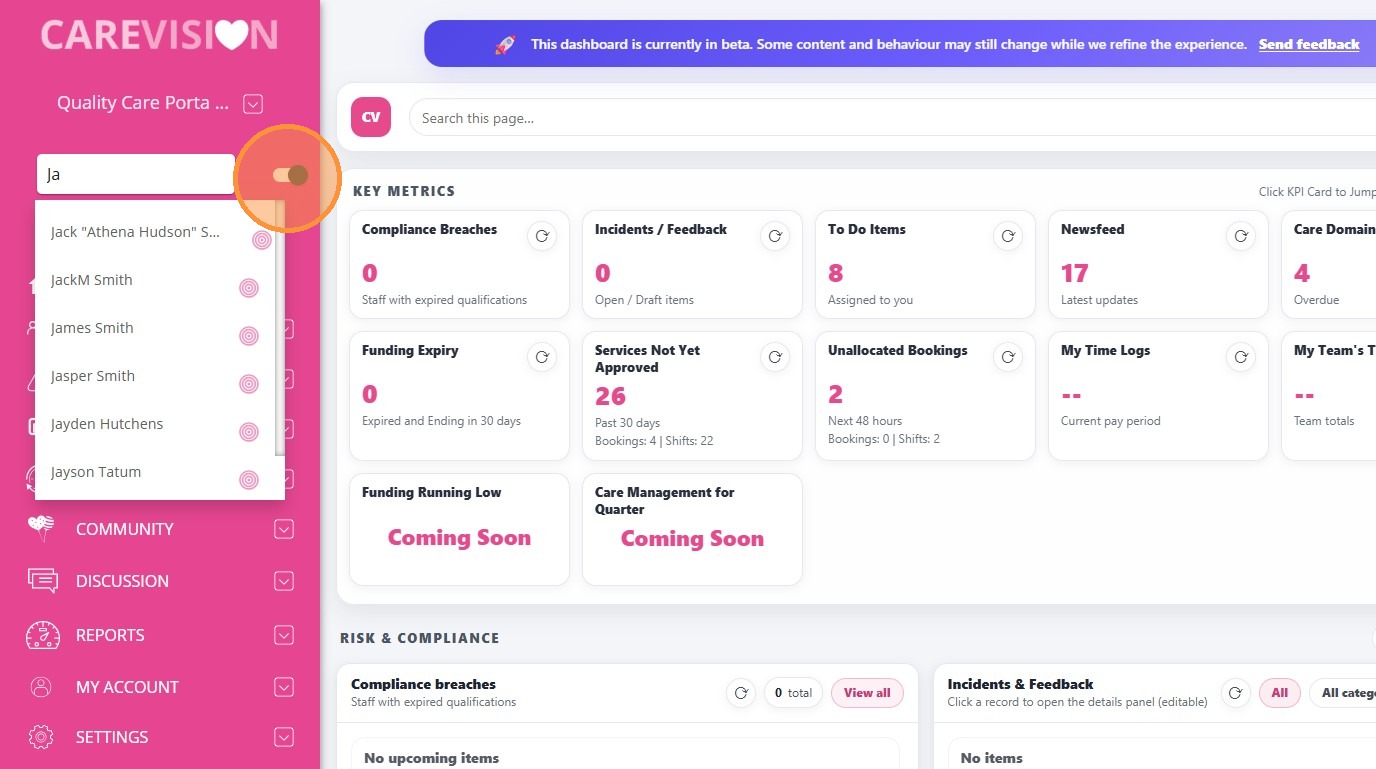
3. Search Bar: The Search Bar allows you to quickly find information within the CareVision Portal, such as people, records, or other relevant data.
Basic Search: Use the search bar to perform a quick search by entering keywords such as a name or identifier. This will return matching results within your current organisation.
Advanced Search: The Advanced Search feature is designed to help Head Office users locate staff members or clients across all branches more efficiently. It allows you to search using multiple identifiers, such as Name, User ID, Phone number, making it easier to find the correct record.
B. Left Navigation Menu
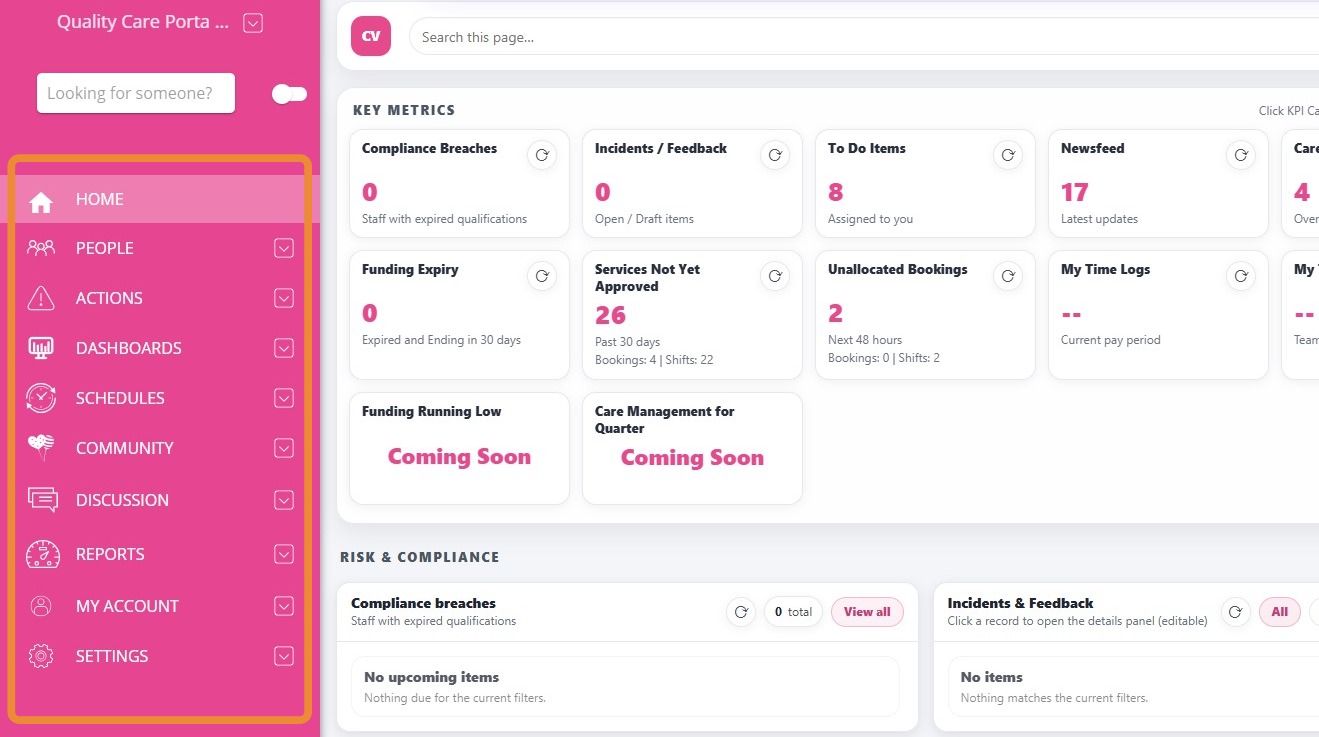
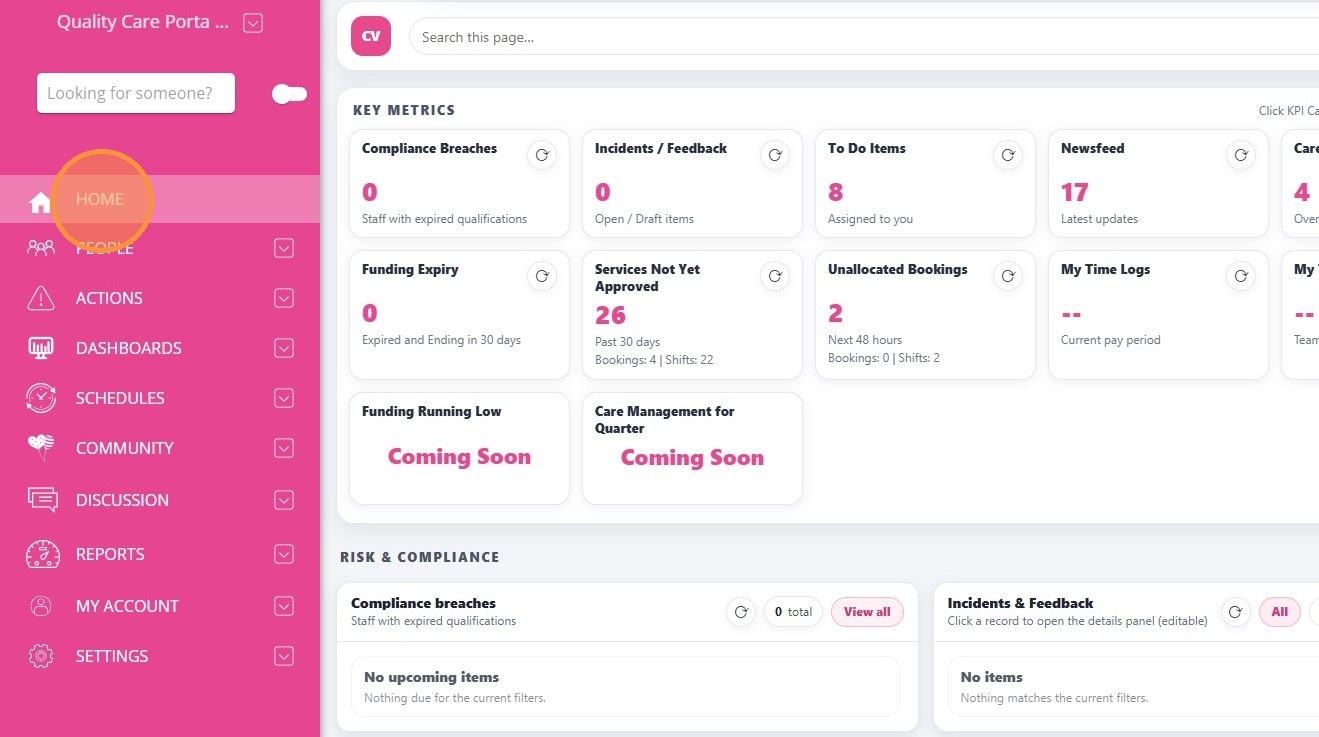
1. Home: The Home page is the default landing page when you log in to the CareVision Portal. It displays key sections related to care operations, compliance, and staff activity.
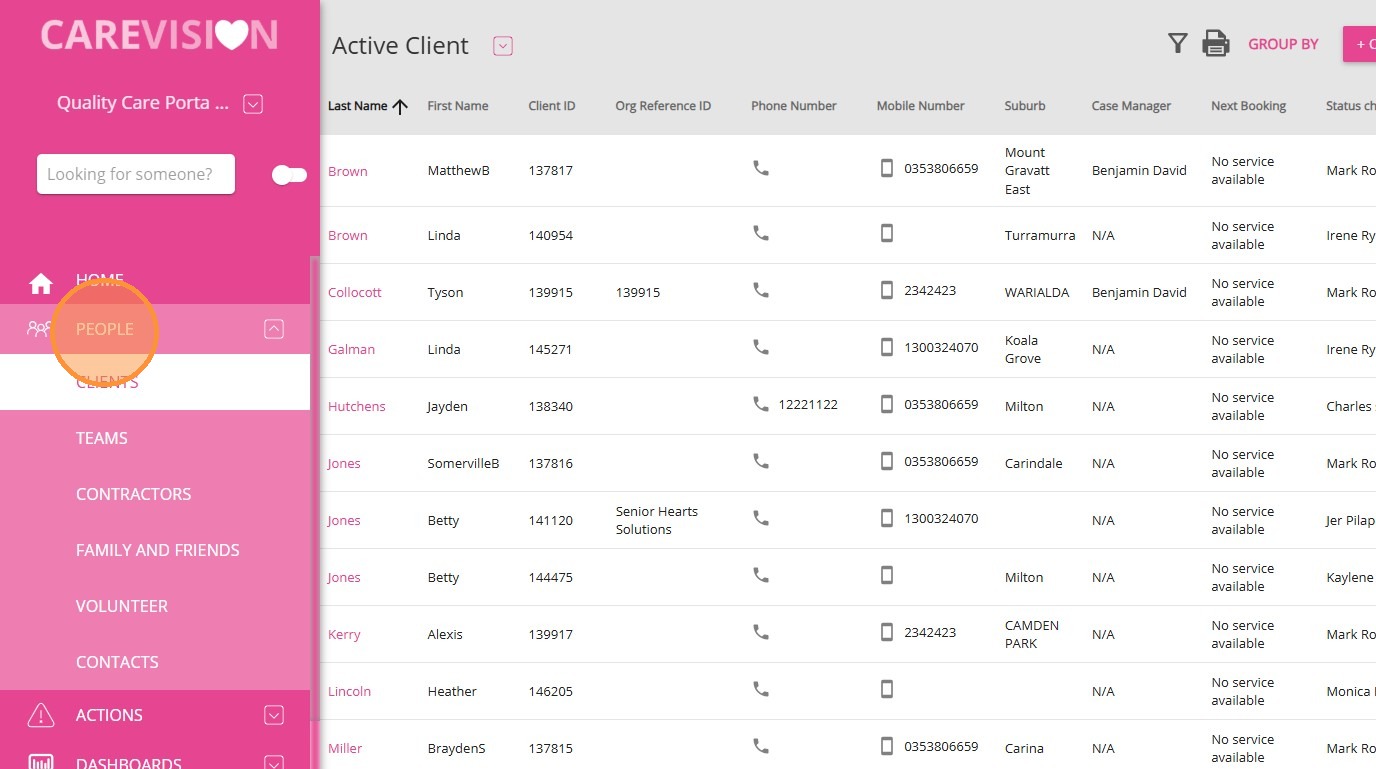
2. People: The People section allows you to view and manage all individuals connected to your organisation within CareVision. This includes clients, teams, contractors, family and friends, volunteers, and other contacts. From this section, you can access profiles, view key details, and manage records related to each person, depending on your permissions.
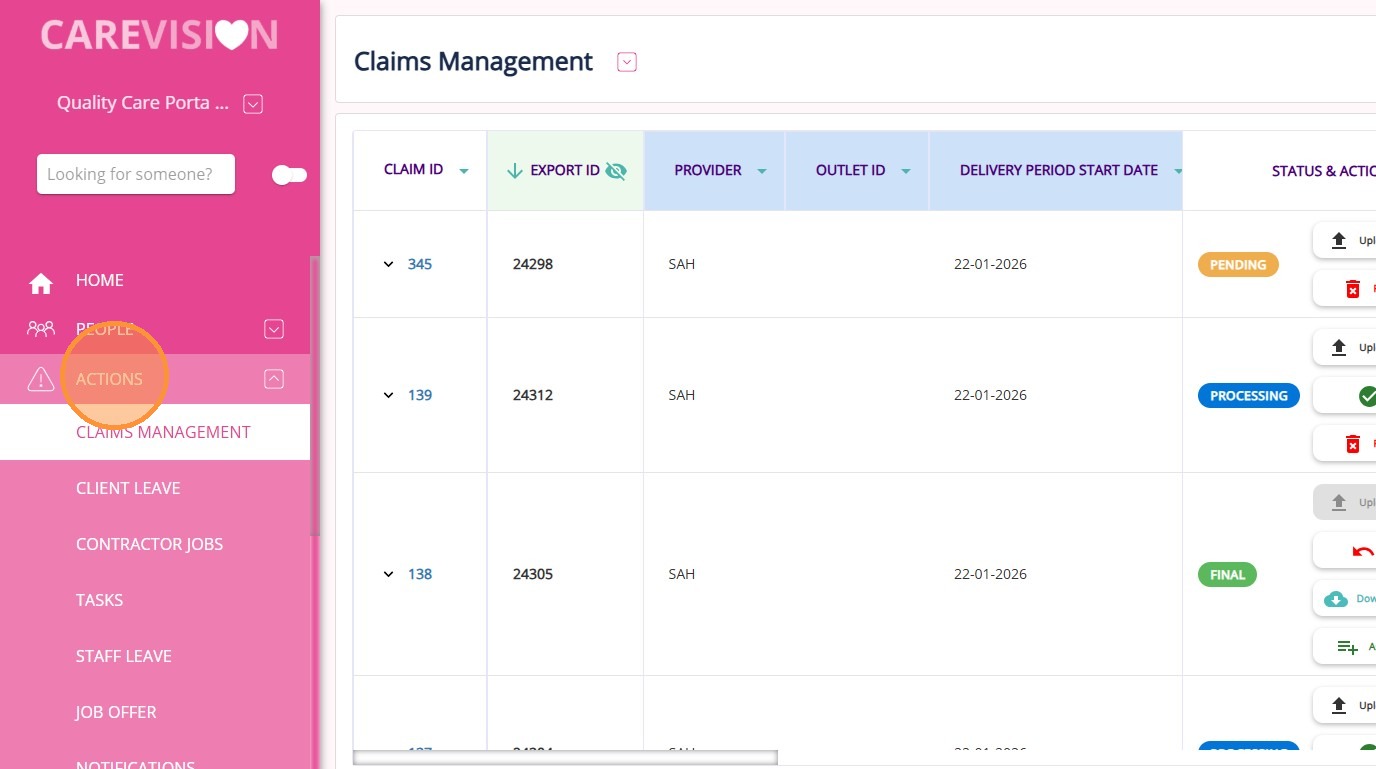
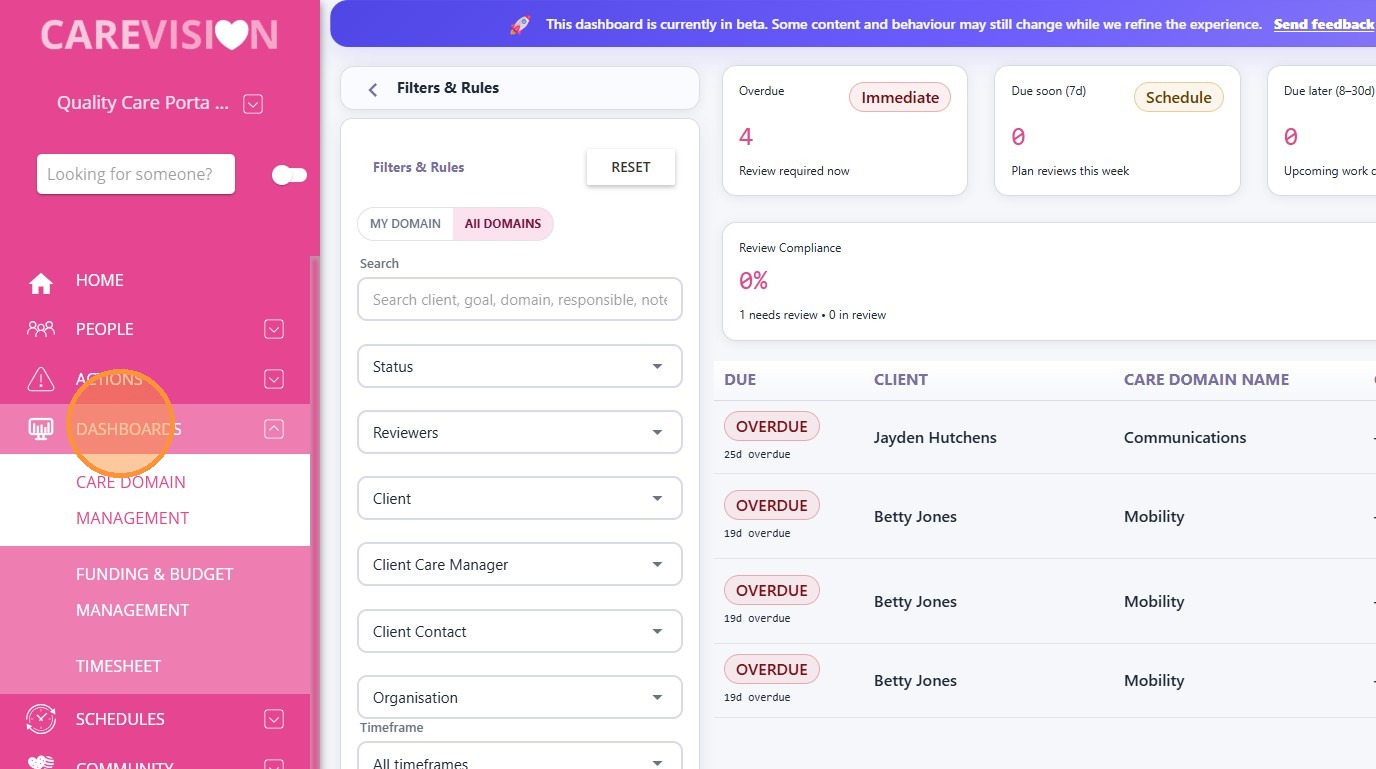
4. Dashboards: The Dashboards section provides a view of key operational areas within CareVision, allowing you to access and monitor Care Domain Management, Funding & Budget Management, and Timesheets. Dashboards present summaries and insights into data, helping you track performance and activity for day-to-day oversight and decision-making.
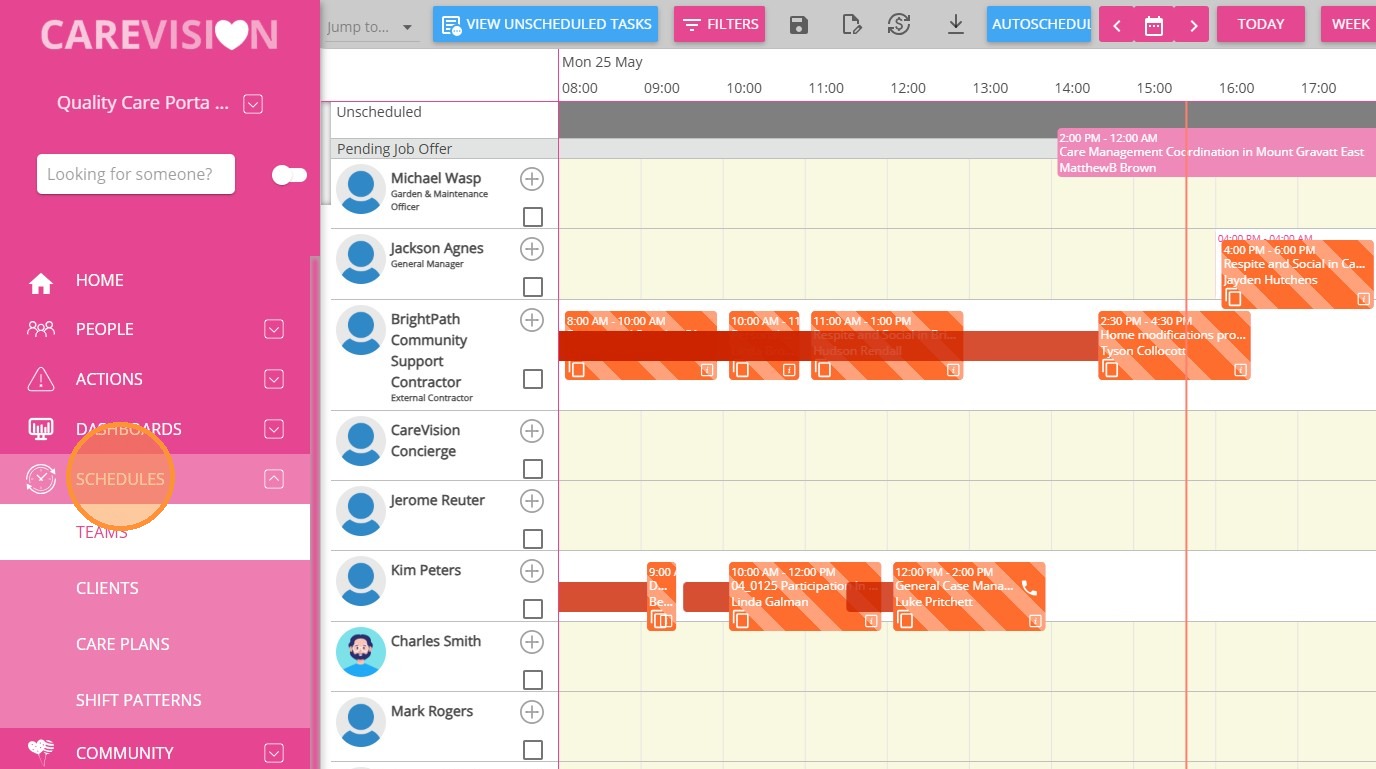
5. Schedules: The Schedules section is used to manage scheduling and rostering activities across the organisation. It includes teams, clients, care plans, and shift patterns to support the planning, coordination, and allocation of services.
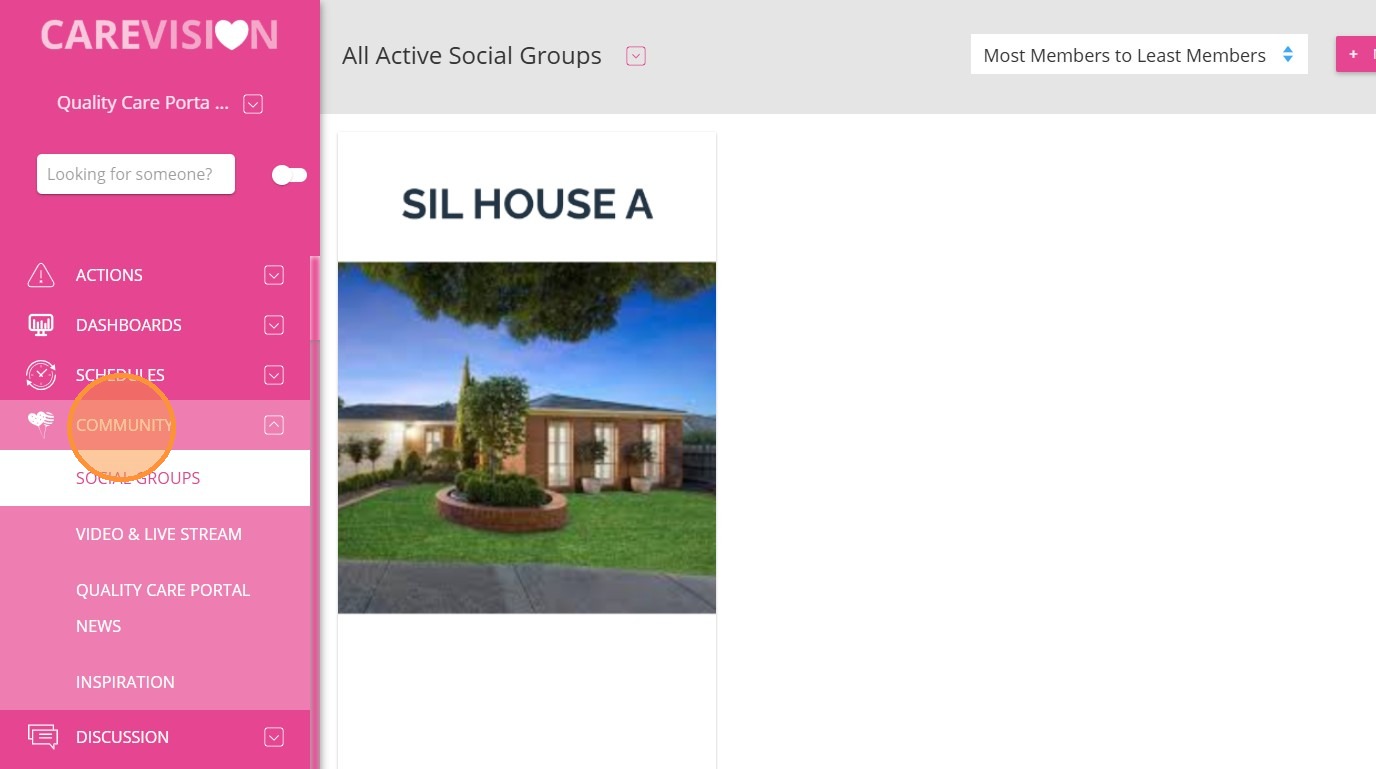
6. Community: The Community section supports engagement across the organisation through social groups, video and live stream, and organisation news. It allows users to share updates, participate in content, and stay informed.
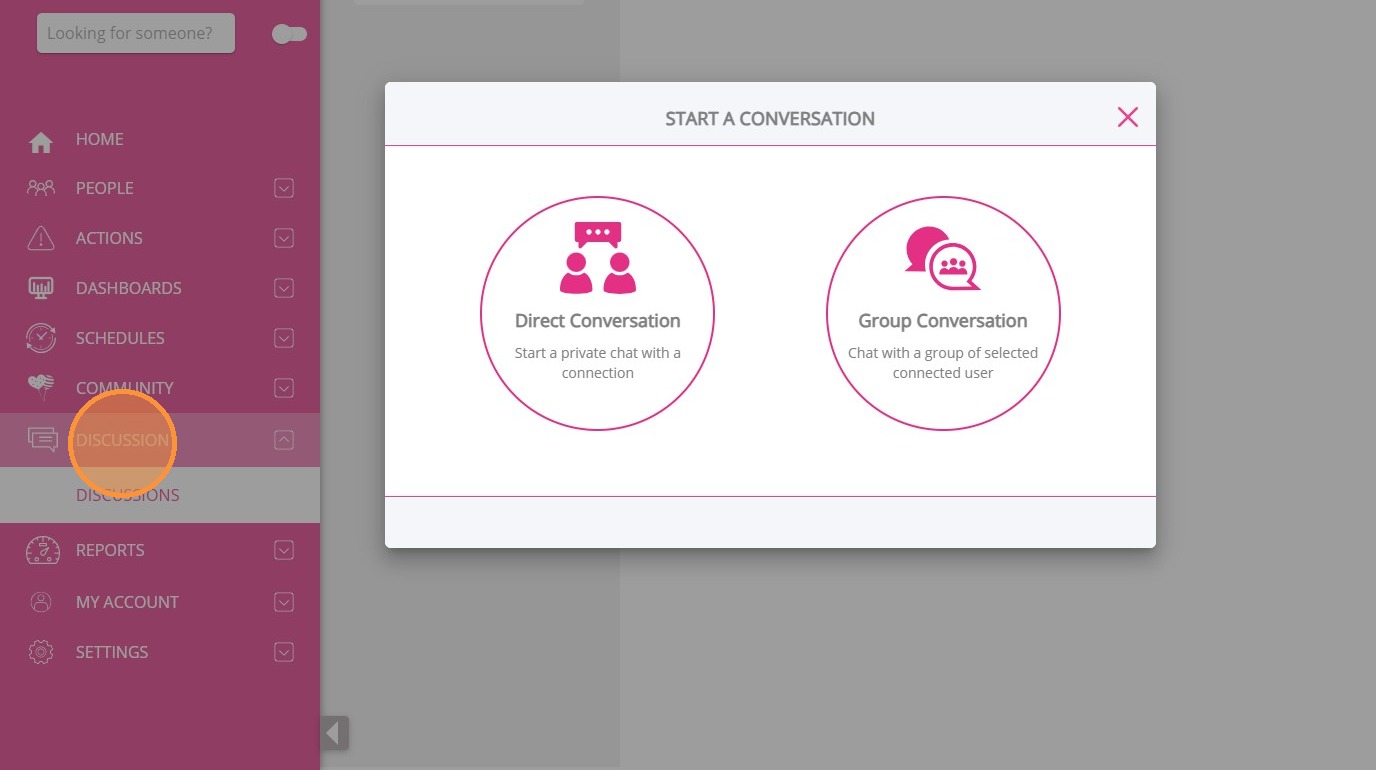
7. Discussion: The Discussion section is used for communication through discussion threads, direct conversations, private chat with a connection, and group conversations. It supports ongoing communication between users for coordination and information sharing.
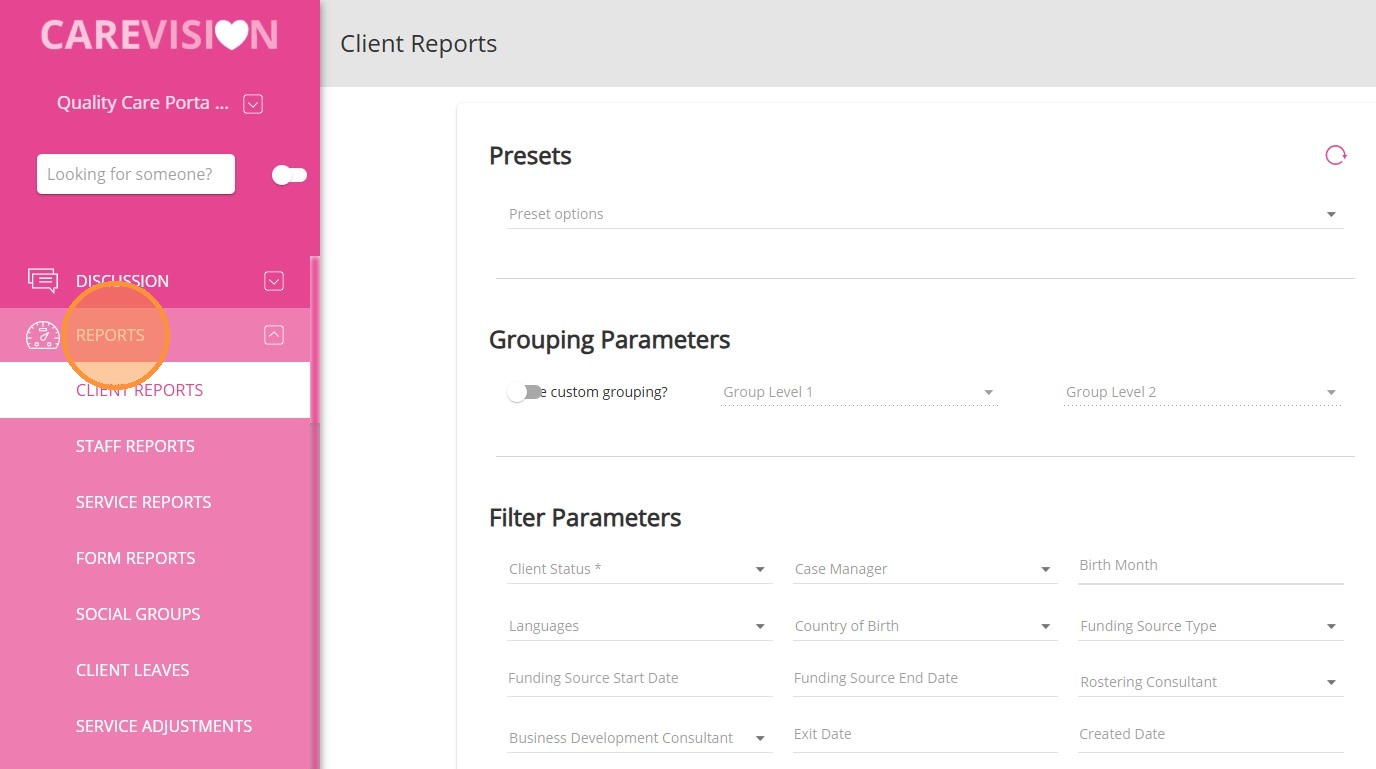
8. Reports: The Reports section provides access to generating and viewing reports, including client reports, staff reports, service reports, and HR reports across the system. It is used to review data, monitor activity, and support operational decisions.
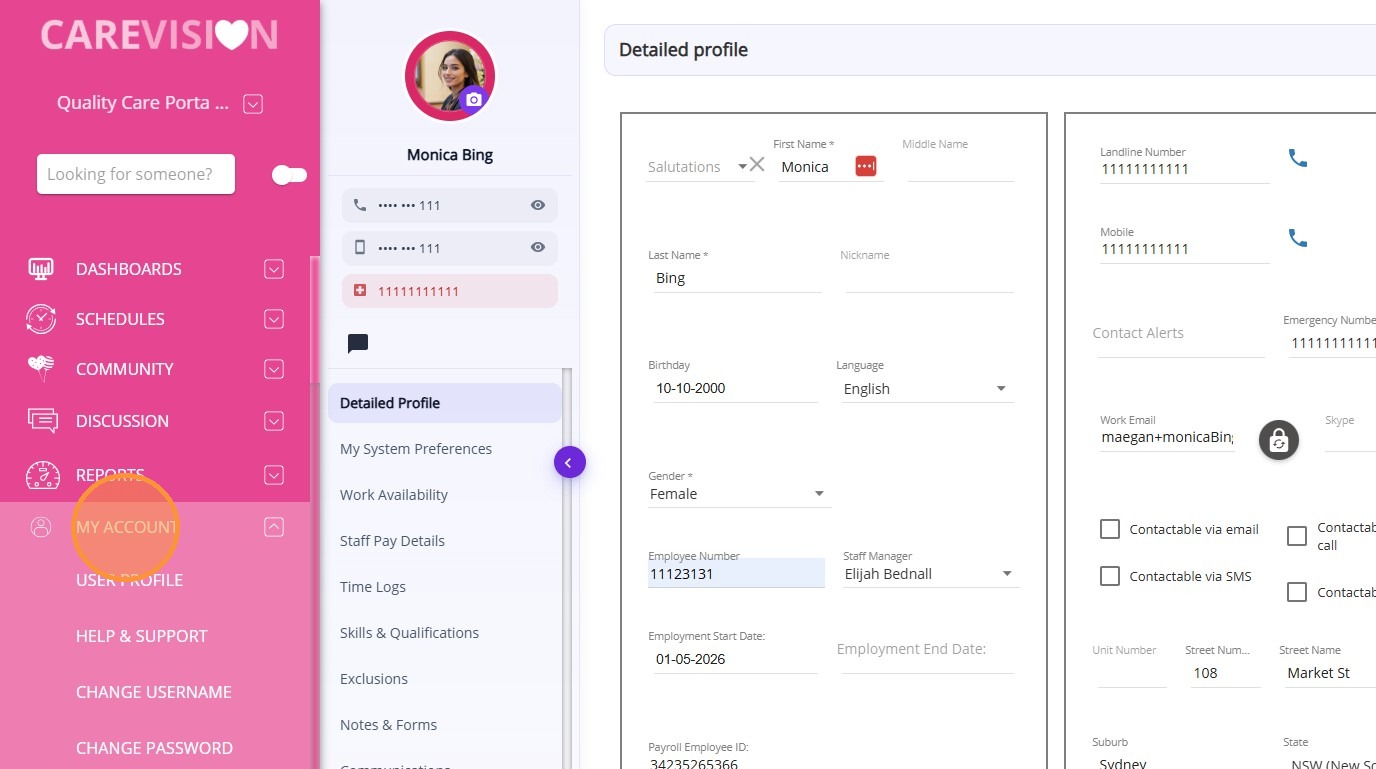
9. My Account: This section allows users to manage their user profile and account settings. It includes help and support, change username, change password, and logout functions.
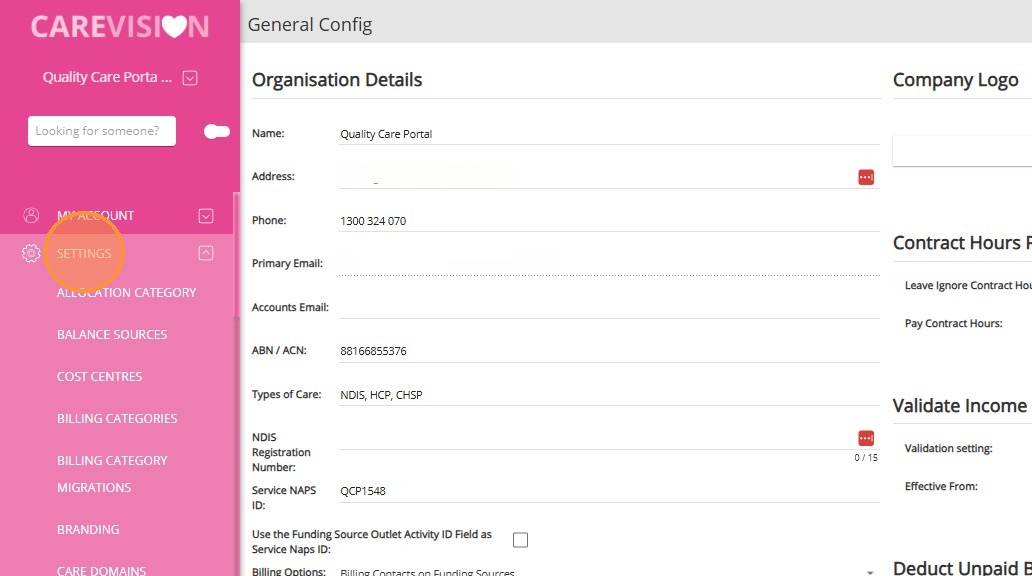
10. Settings: The Settings section is used to configure system setup and operational preferences. It includes general configuration, exports, payroll, and integrations to support system management.
Related Articles
Home Page of the CareVision Portal
The Home Page of the CareVision Portal is the default page that users see when they log into the system. It shows sections related to care operations, compliance, and staff activities. By bringing important information into a single view, the home ...