Home Page of the CareVision Portal
The Home Page of the CareVision Portal is the default page that users see when they log into the system. It shows sections related to care operations, compliance, and staff activities.
 Note: The Home page is currently in beta. Some behavior may still change as we continue refining it. Please try out this feature and share your feedback with us by emailing hello@carevision.com with the subject Dashboard Demo.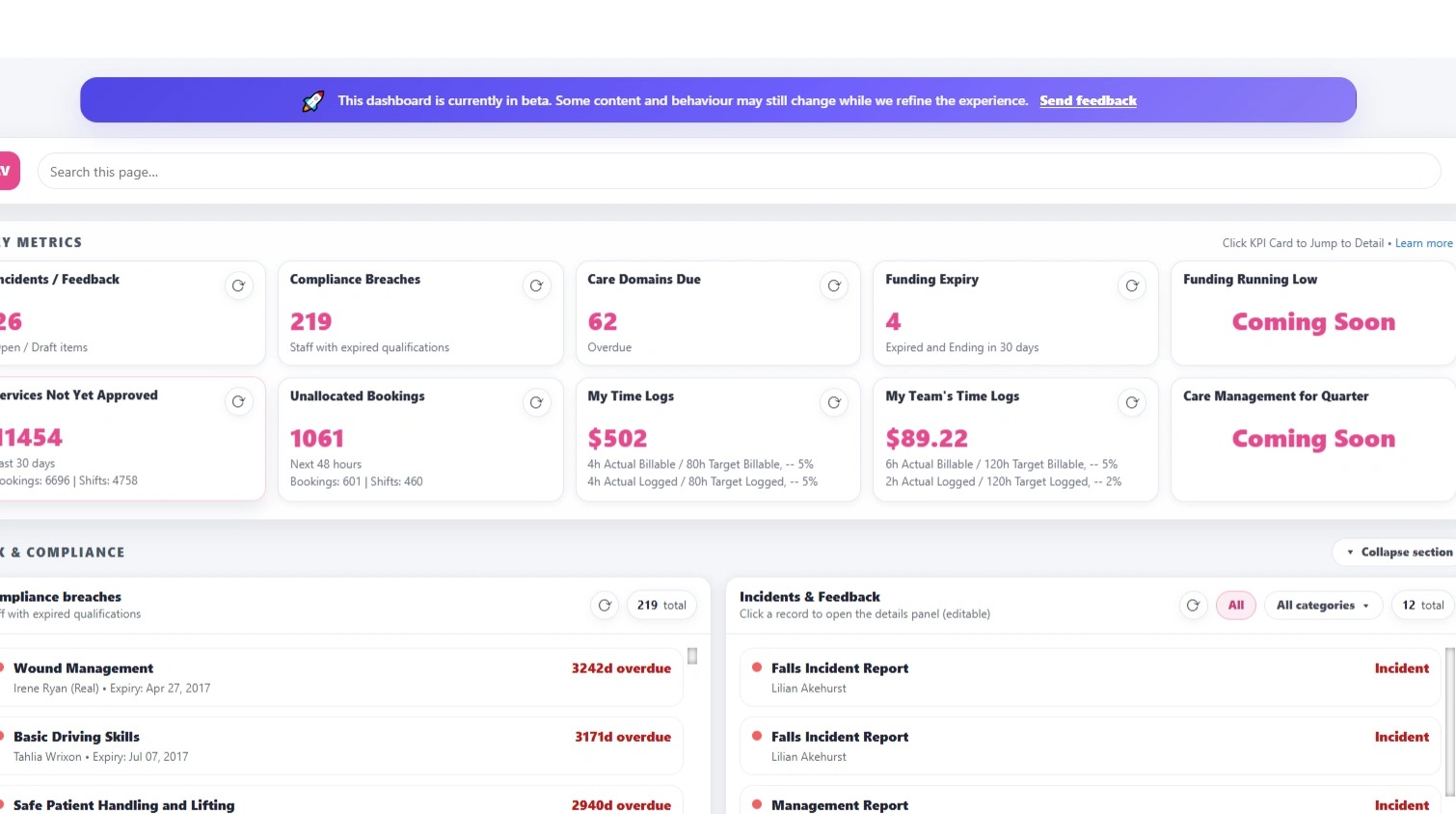
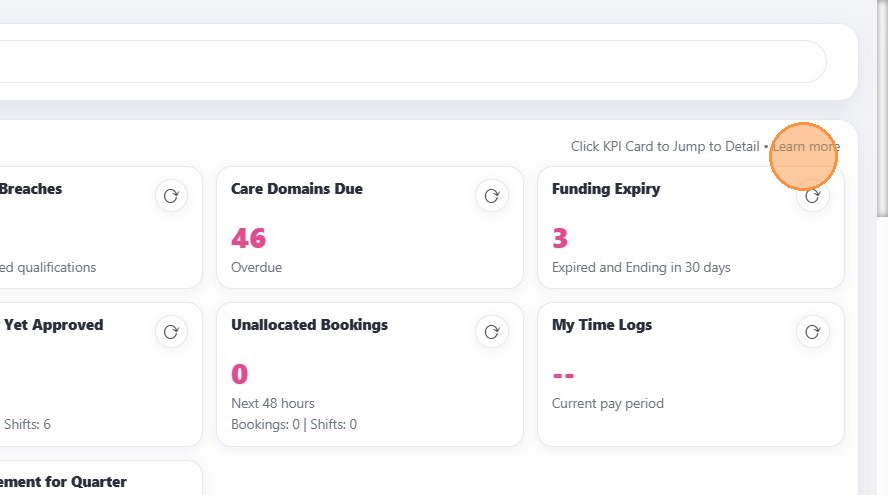
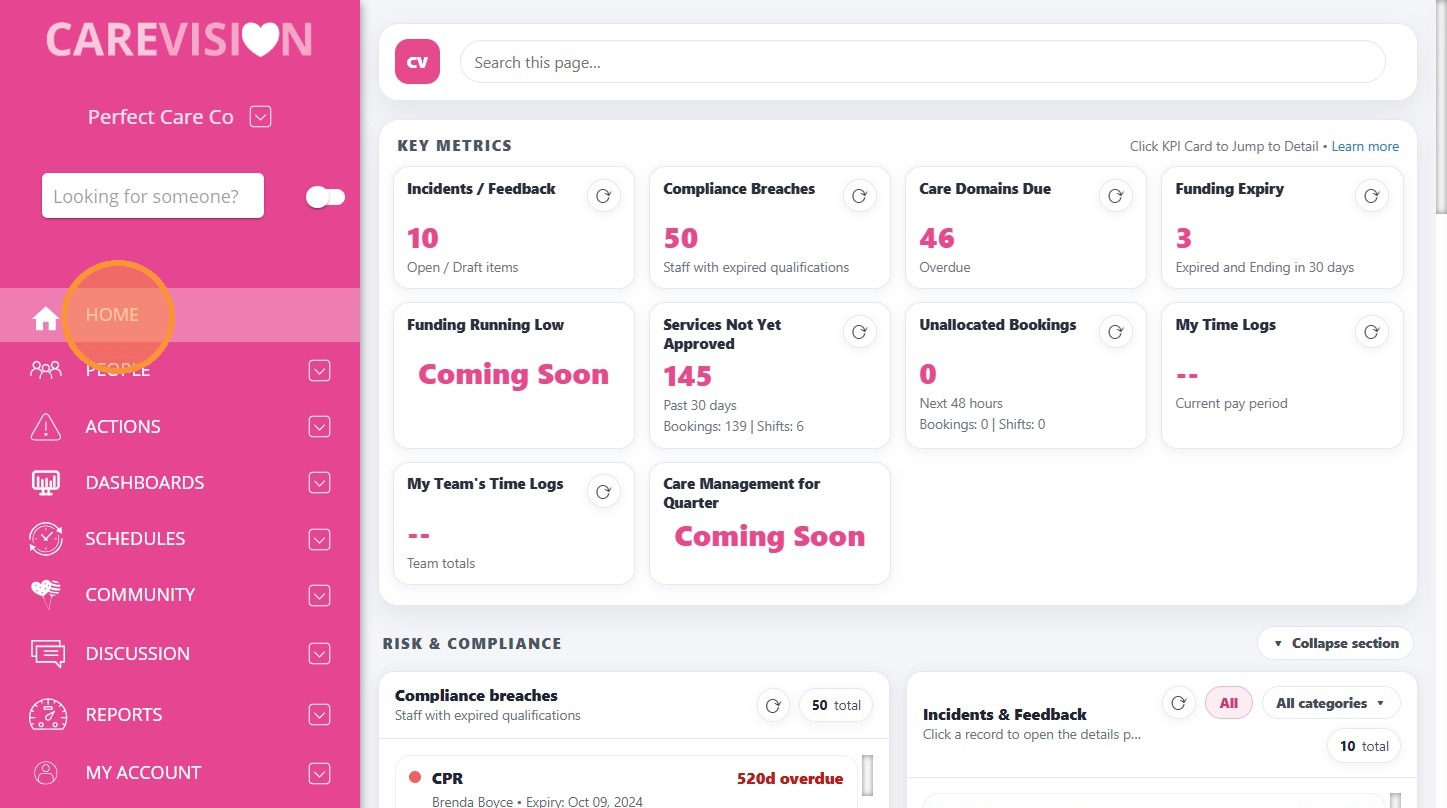
The Home section is located on the left navigation pane.
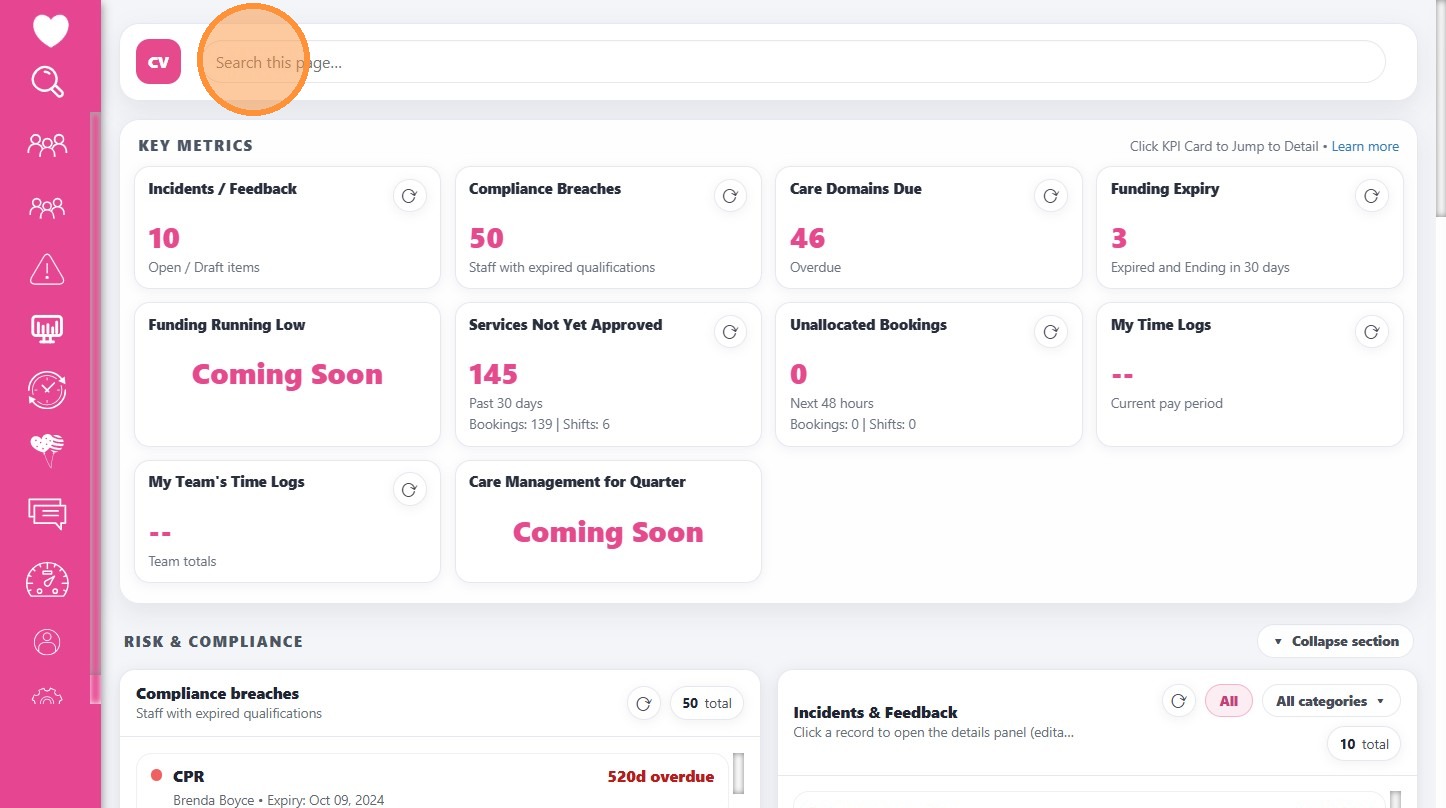
I. Search Bar
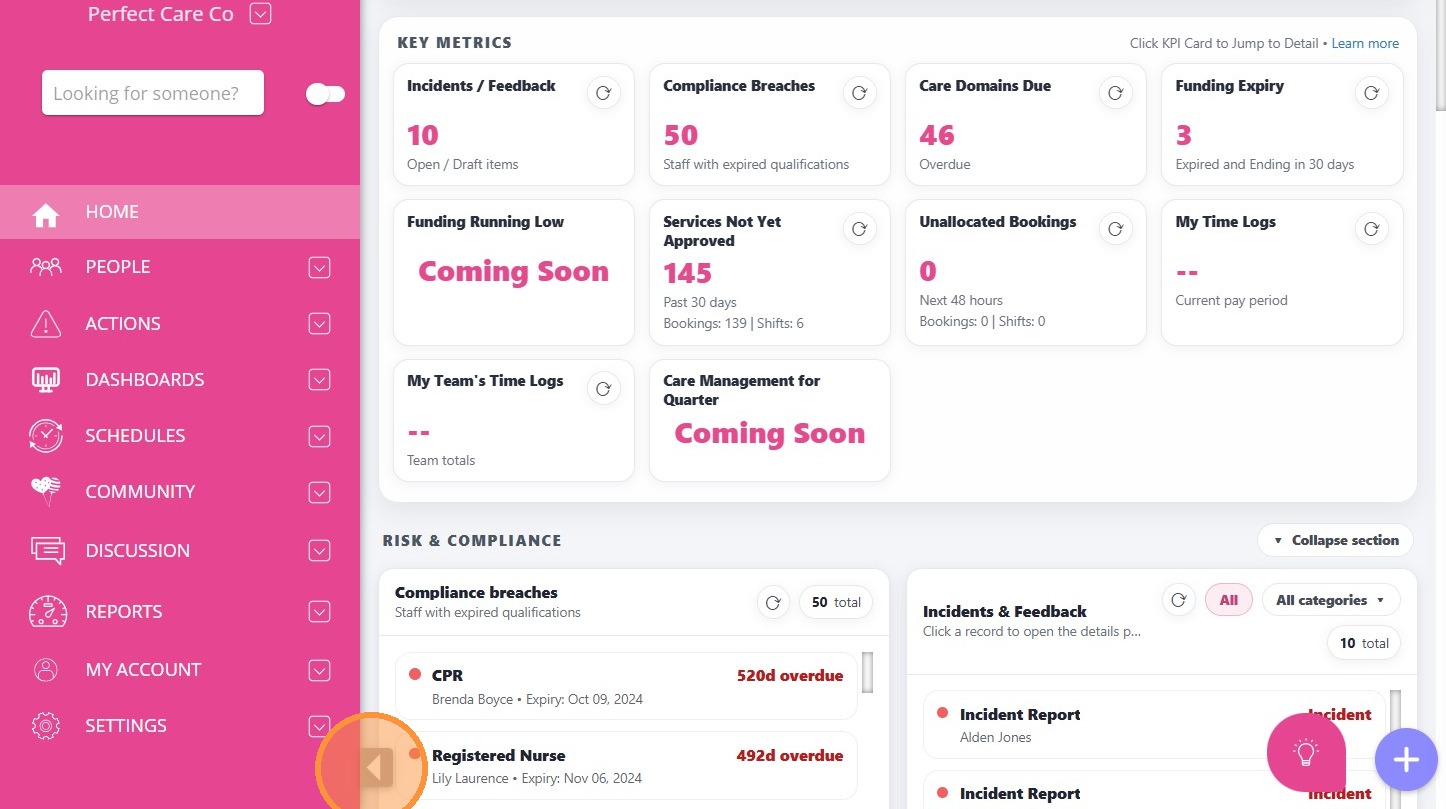
Located at the top of the home page, the search bar allows users to quickly locate records within the page.
II. Key Metrics
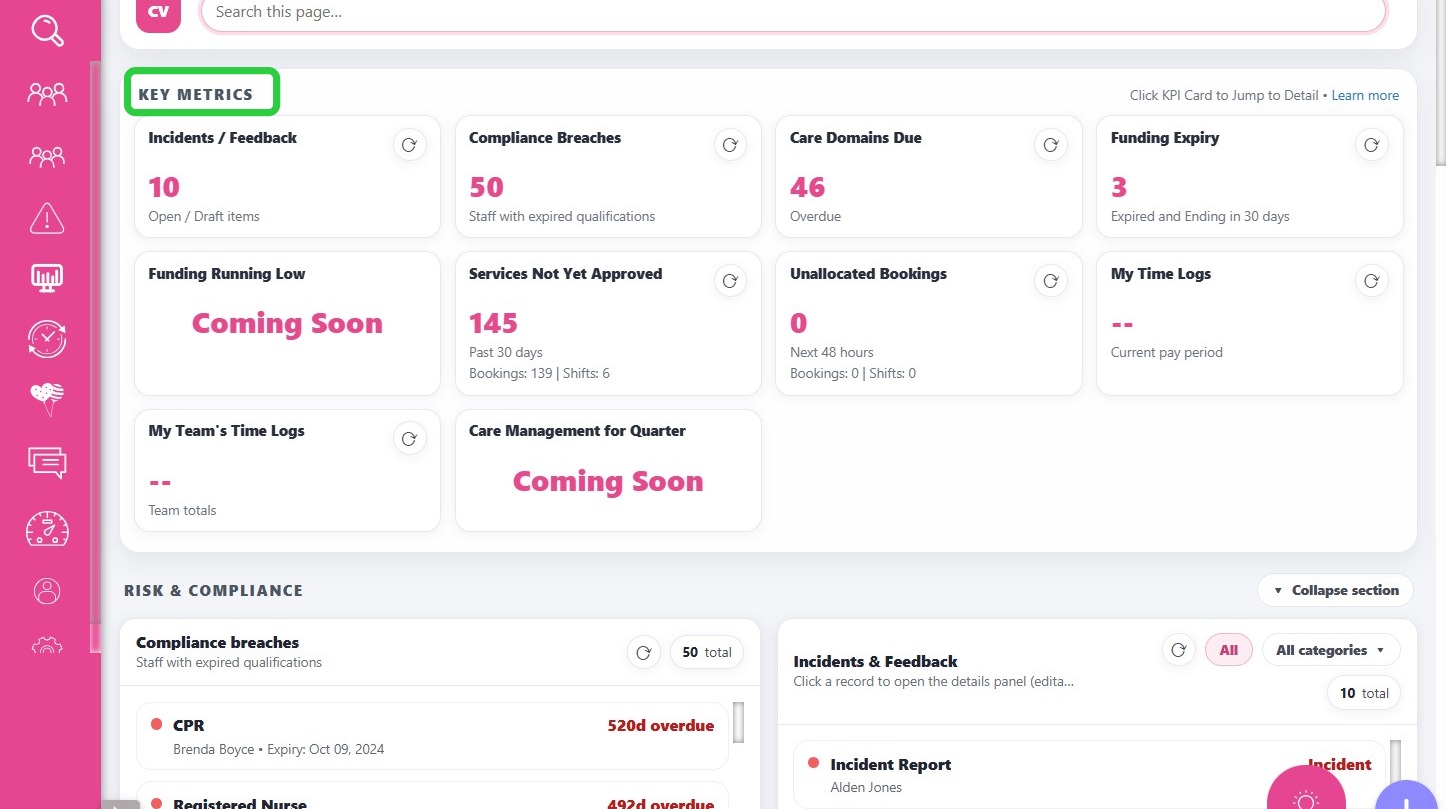
The Key Metrics section shows summary cards that highlight important operational metrics. Each card displays a count or summary value. Clicking on a card takes the user directly to the detailed section further down the dashboard where the full list of records can be reviewed.
III. Risk & Compliance
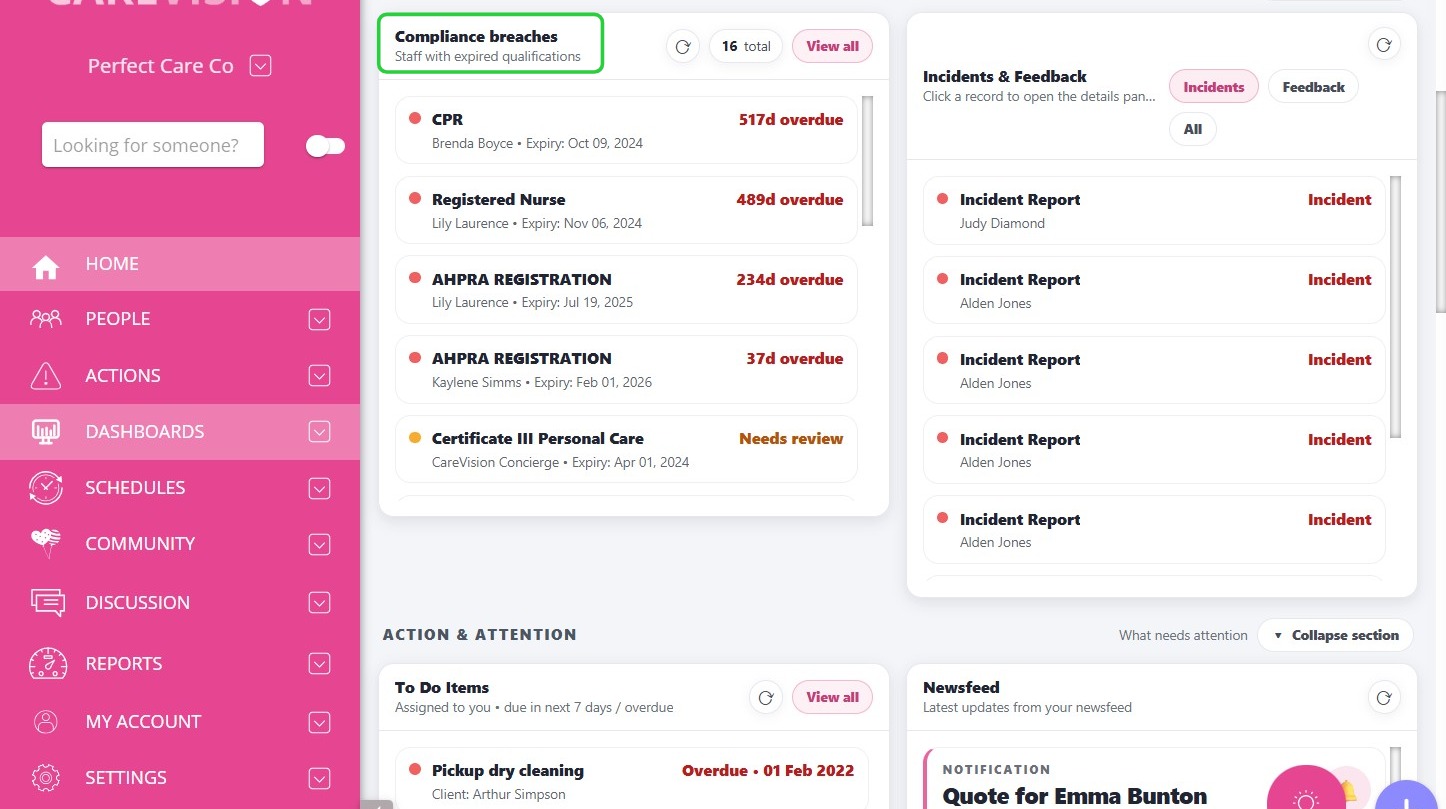
A. Compliance Breaches
For example, if a staff member’s AHPRA registration has expired or a qualification requires review, the system displays the staff member’s name along with the number of days the qualification is overdue. This helps organisations maintain regulatory compliance and ensure that all staff credentials remain valid.
B. Incidents & Feedback
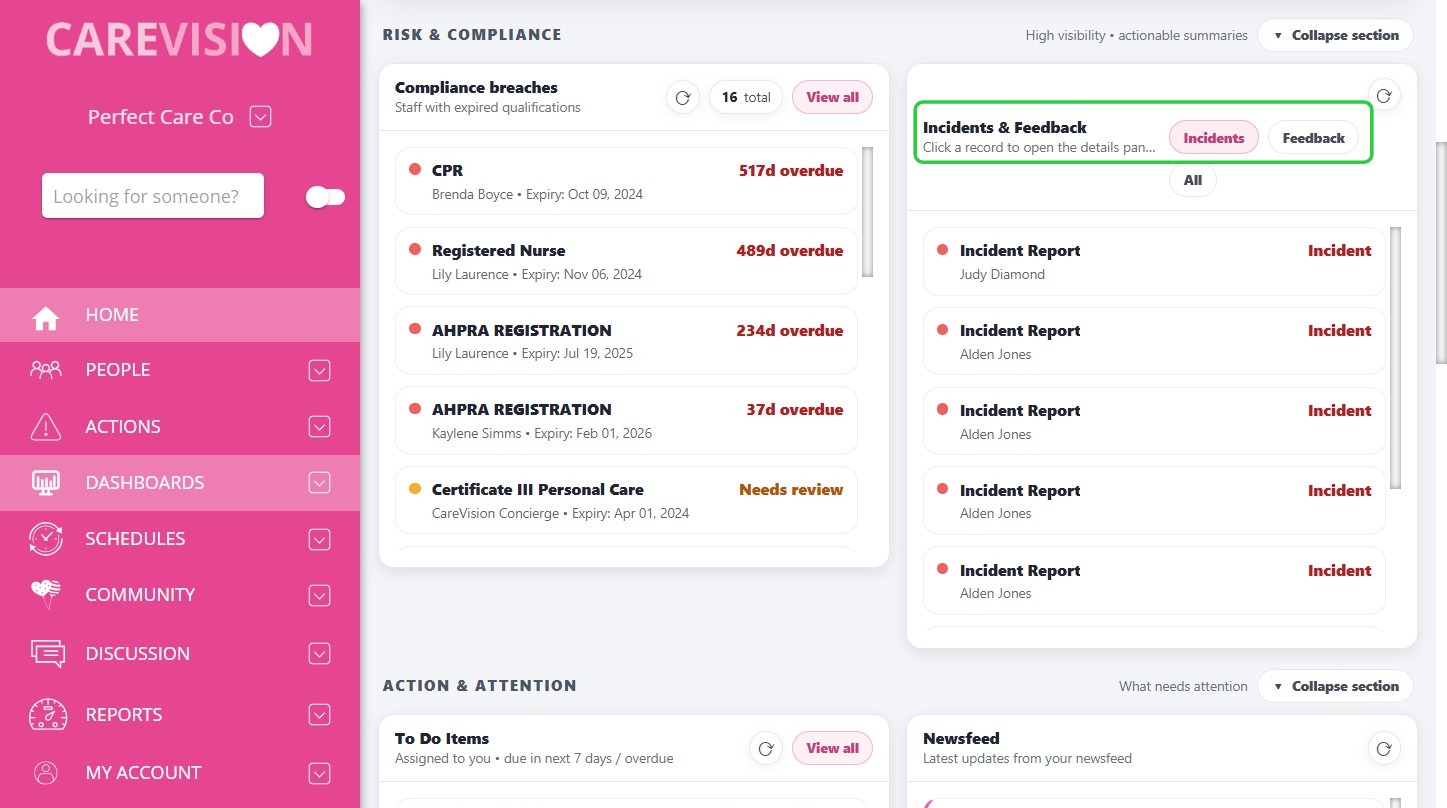
This section provides visibility into reported incidents and submitted feedback. Users can switch between the Incidents and Feedback views to review records.
When opening an incident record, users can view detailed information including:
- Incident report details
- Incident status
- Date and time of the incident
- The injured client’s name
- Associated documentation
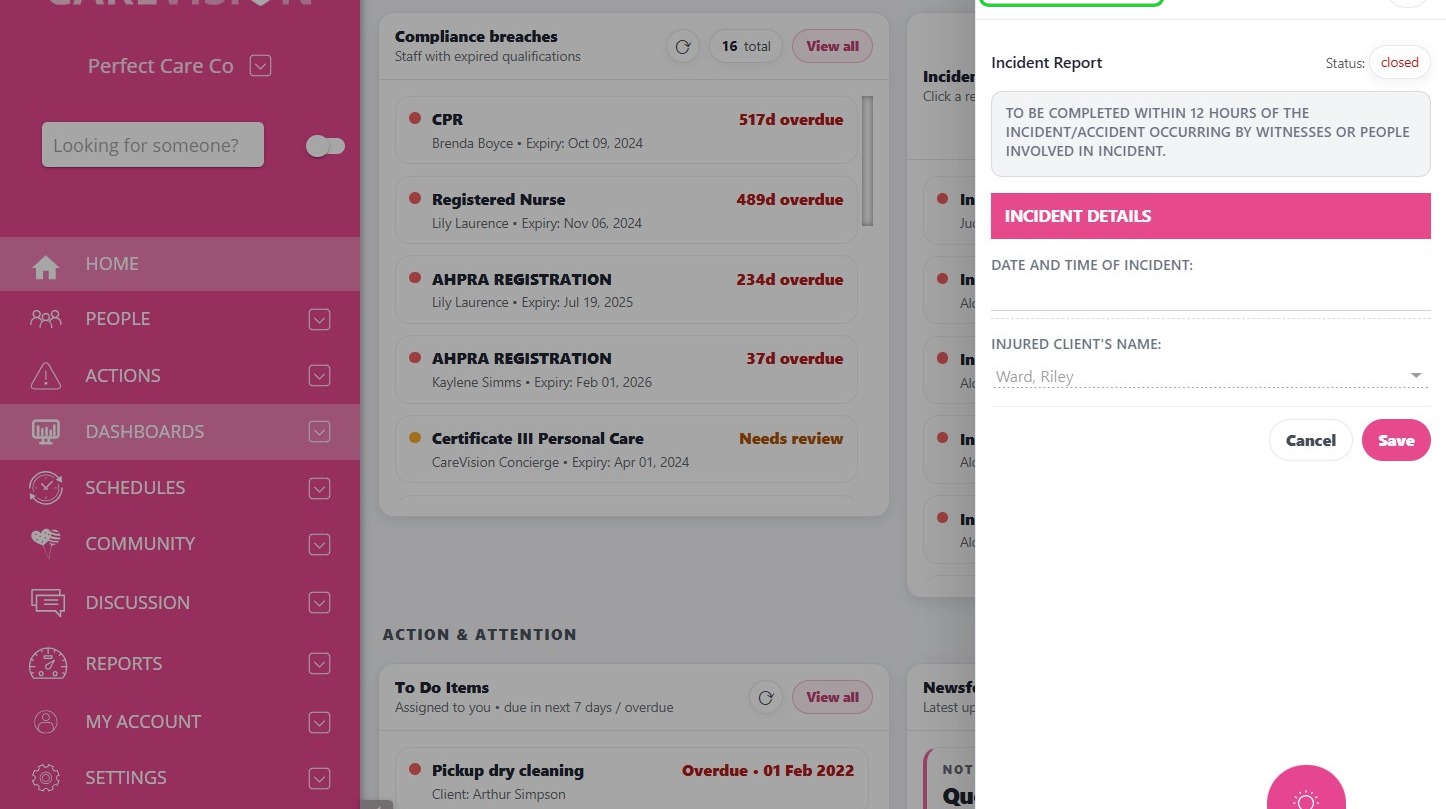
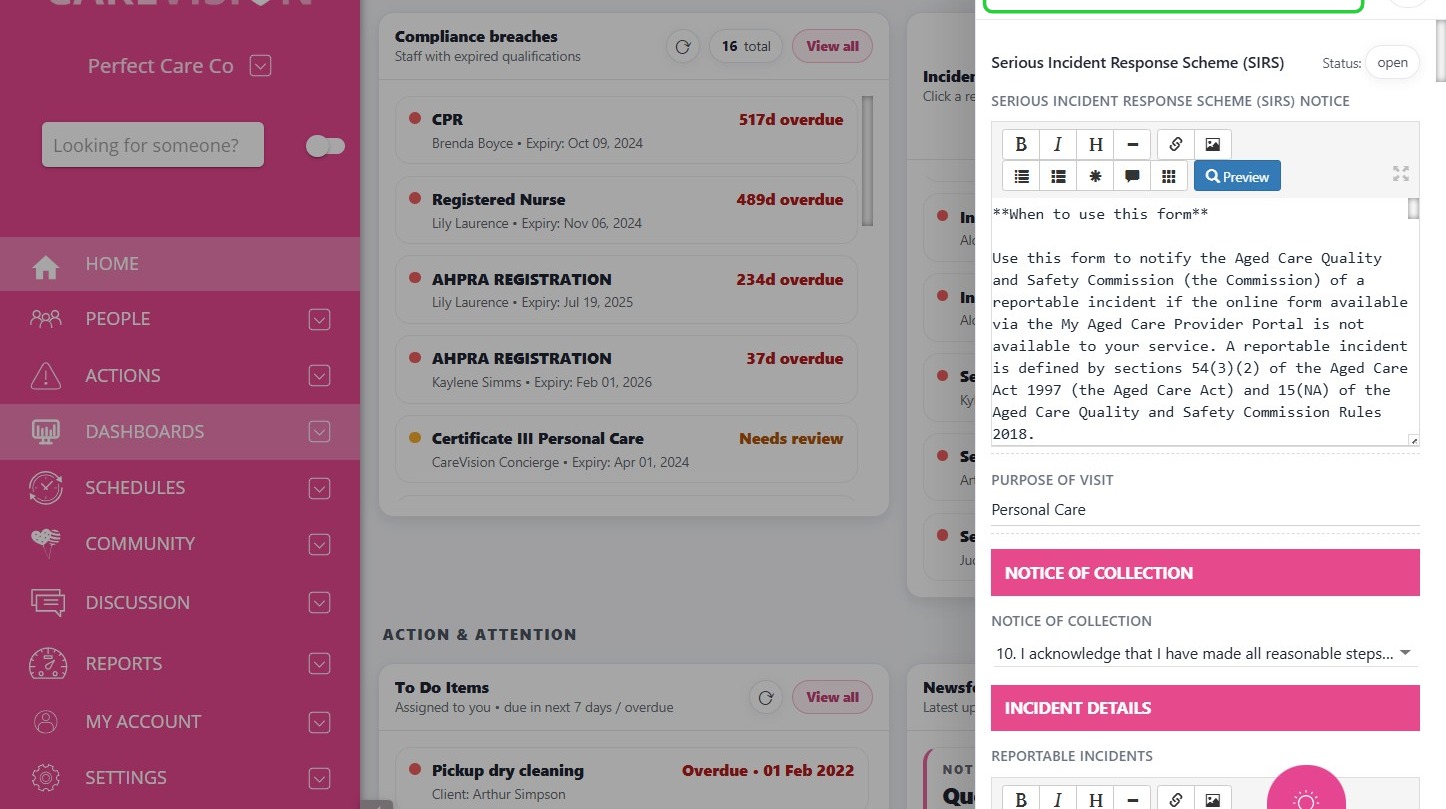
If applicable, the system may also display the related Serious Incident Response Scheme (SIRS) form. This allows organisations to monitor incidents and complete reporting and follow‑up actions to meet compliance requirements for aged care providers to manage incidents and take reasonable steps to prevent them.
IV. Action & Attention
A. To Do Items
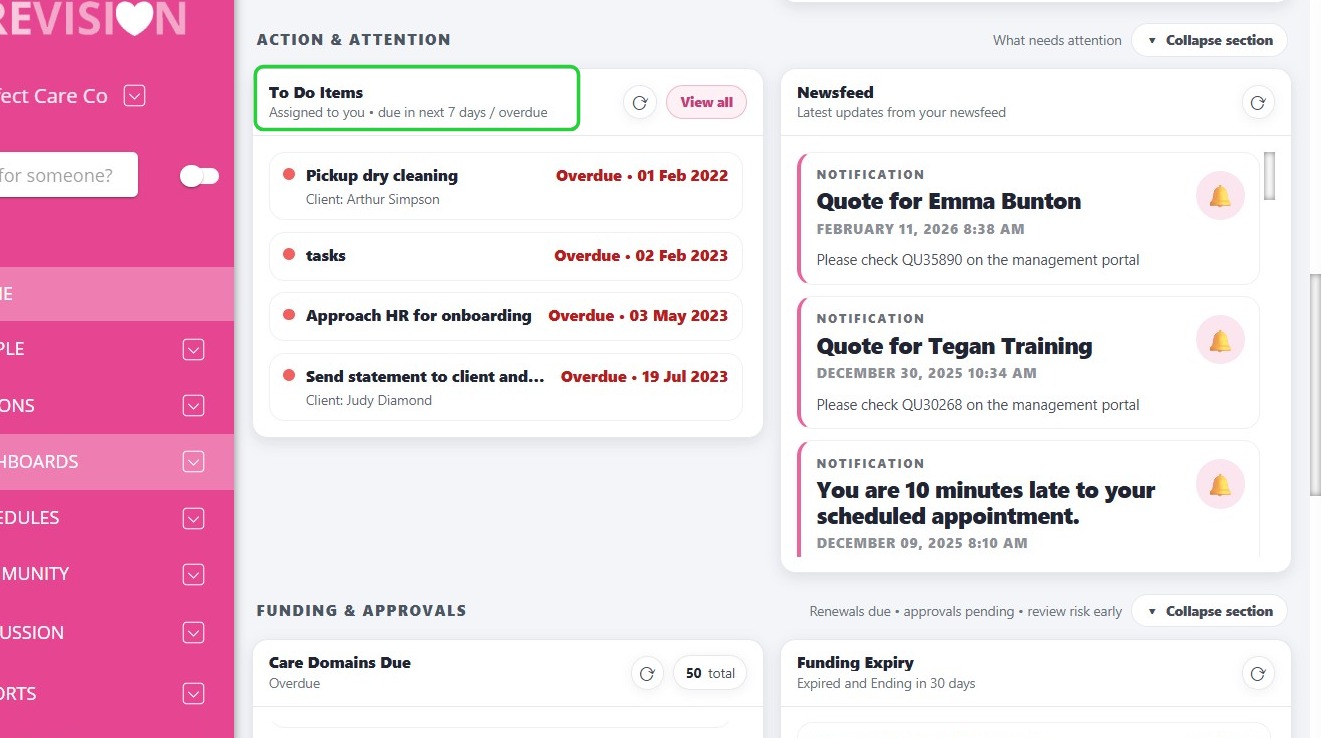
The To Do Items section lists tasks that have been assigned to the currently signed‑in staff member. Users can easily see which tasks are pending and whether any items are overdue. This helps staff manage responsibilities and stay on top of required actions.
B. Newsfeed
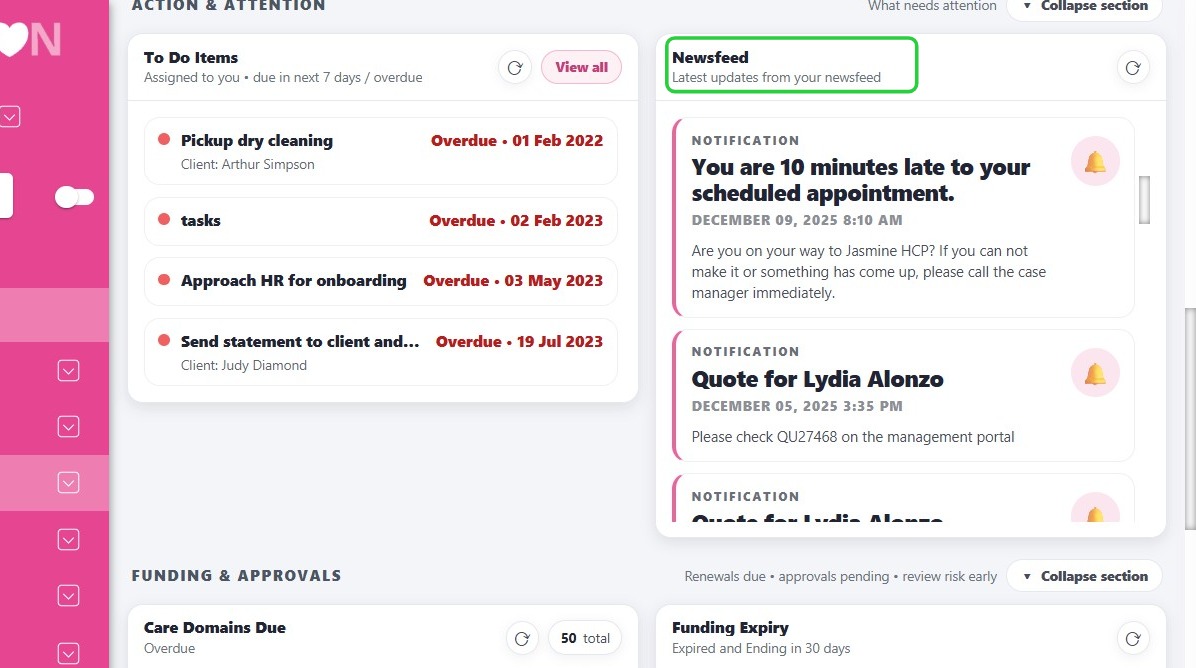
The Newsfeed section provides real‑time updates and alerts that may require user attention. System notifications are similar to those displayed in the CareVision Plus mobile app
Examples include:
- Quotes created for clients
- Notifications about upcoming or missed appointments
V. Funding & Approvals
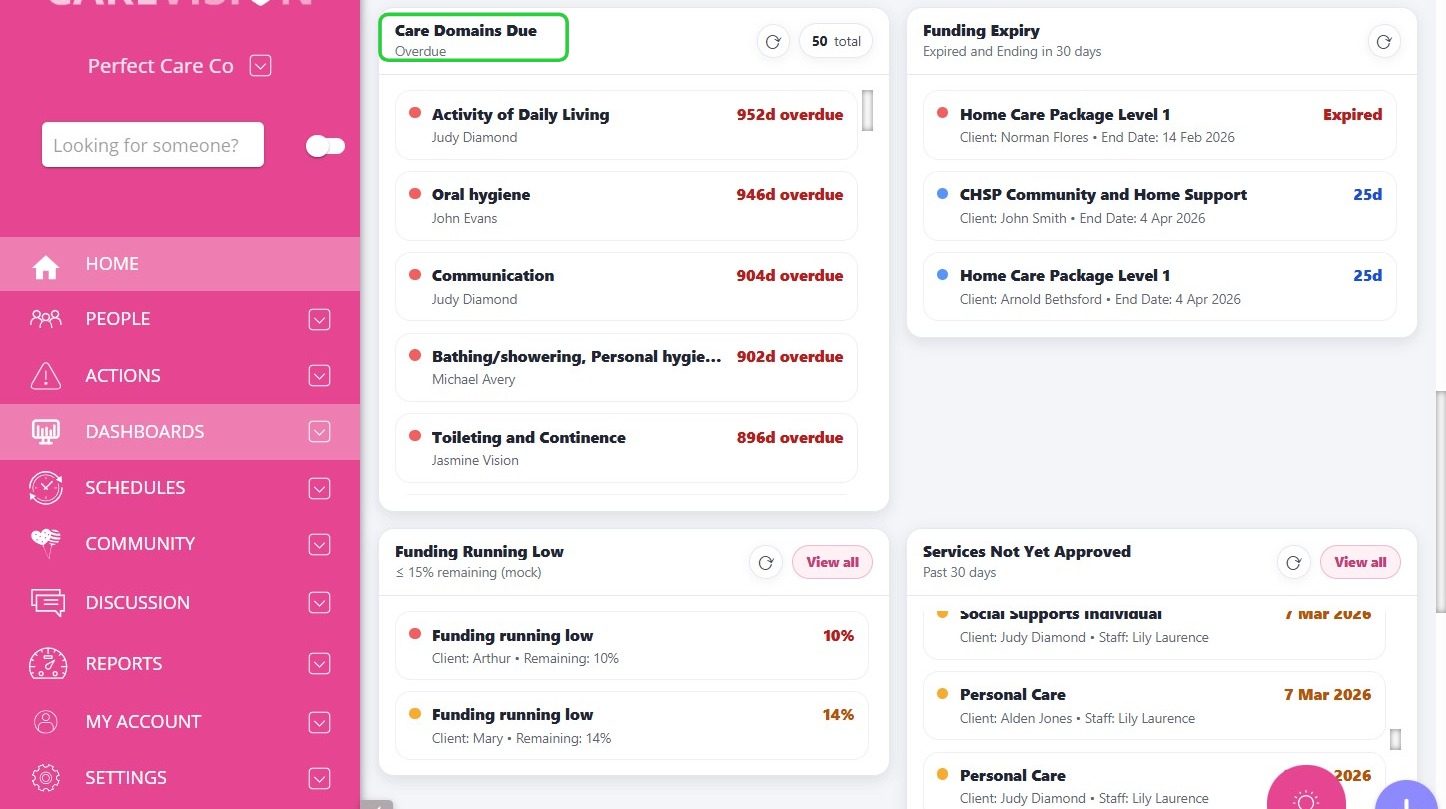
A. Care Domains Due
This section displays care domains that are due for review or update, helping staff maintain accurate and up‑to‑date care planning.
Care domains refer to specific areas of care that relate to a client’s needs, such as mobility, nutrition, oral hygiene, or other aspects of personal support. The available care domains may vary depending on the organisation’s service focus, such as aged care, disability support, or home care.
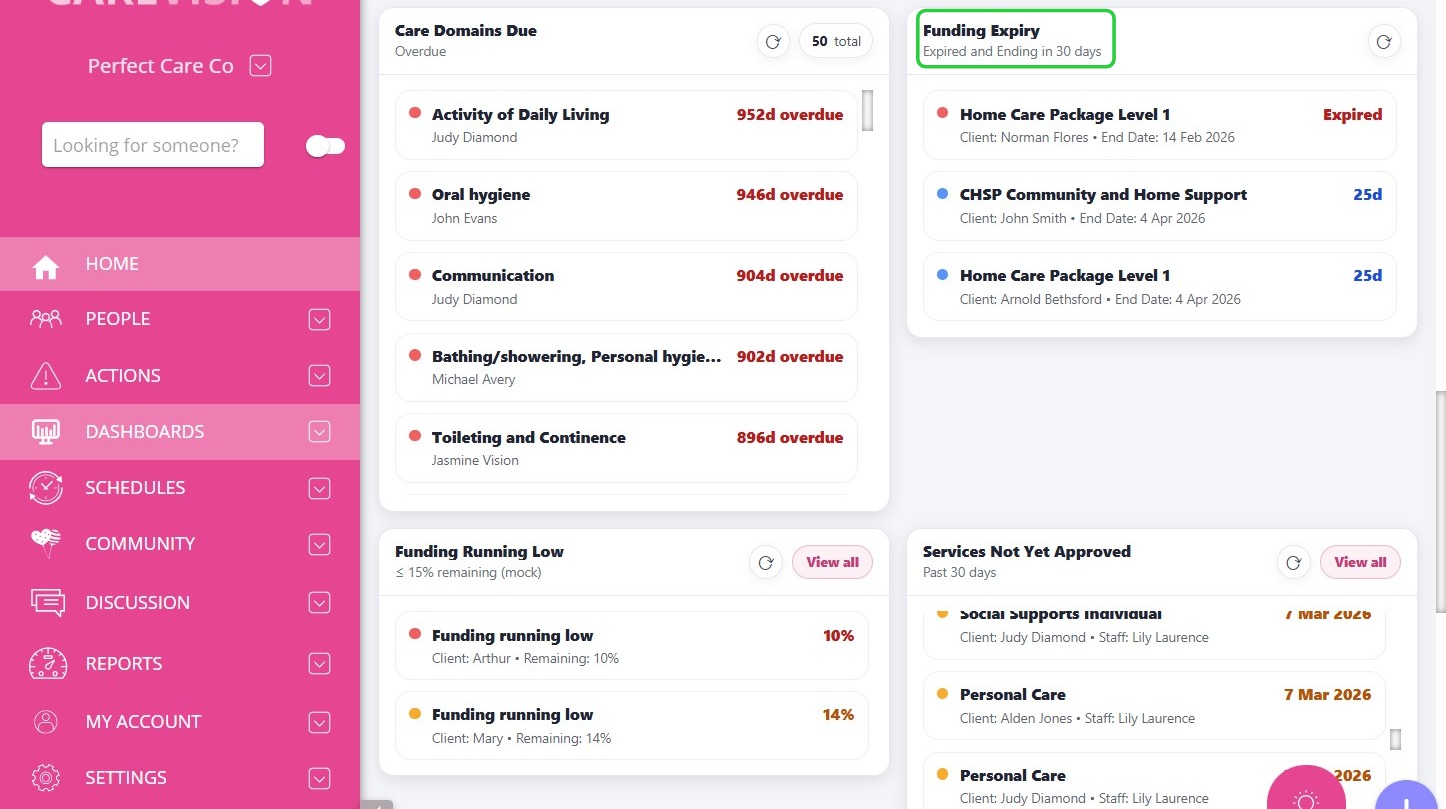
B. Funding Expiry
The Funding Expiry section highlights funding sources for clients that have expired within the past 30 days or will expire within the next 30 days, allowing staff to take timely action and avoid disruptions to service delivery.
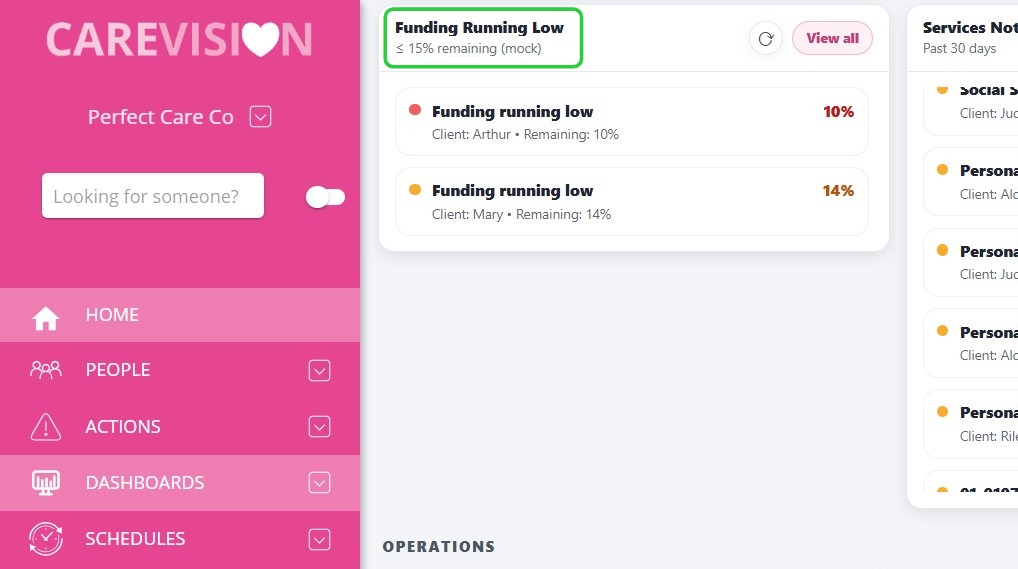
C. Funding Running Low
This section identifies funding sources that are approaching depletion. The system displays the client’s funding source and the remaining percentage of available funding. A threshold of 15% remaining funding is used to flag low balances, helping teams proactively manage funding before services are impacted.
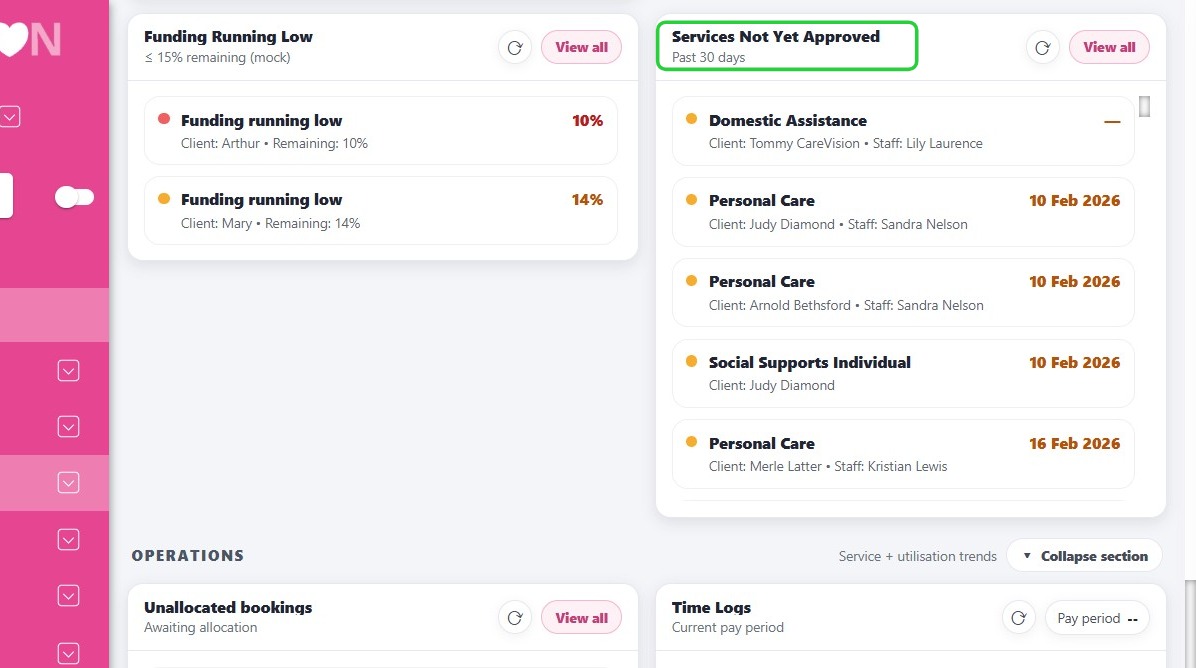
D. Services Not Yet Approved
The Services Not Yet Approved section lists services recorded within the past 30 days that have not yet received approval. It includes relevant client and staff details, allowing administrators to review pending approvals and confirm that services are processed correctly.
VI. Operations
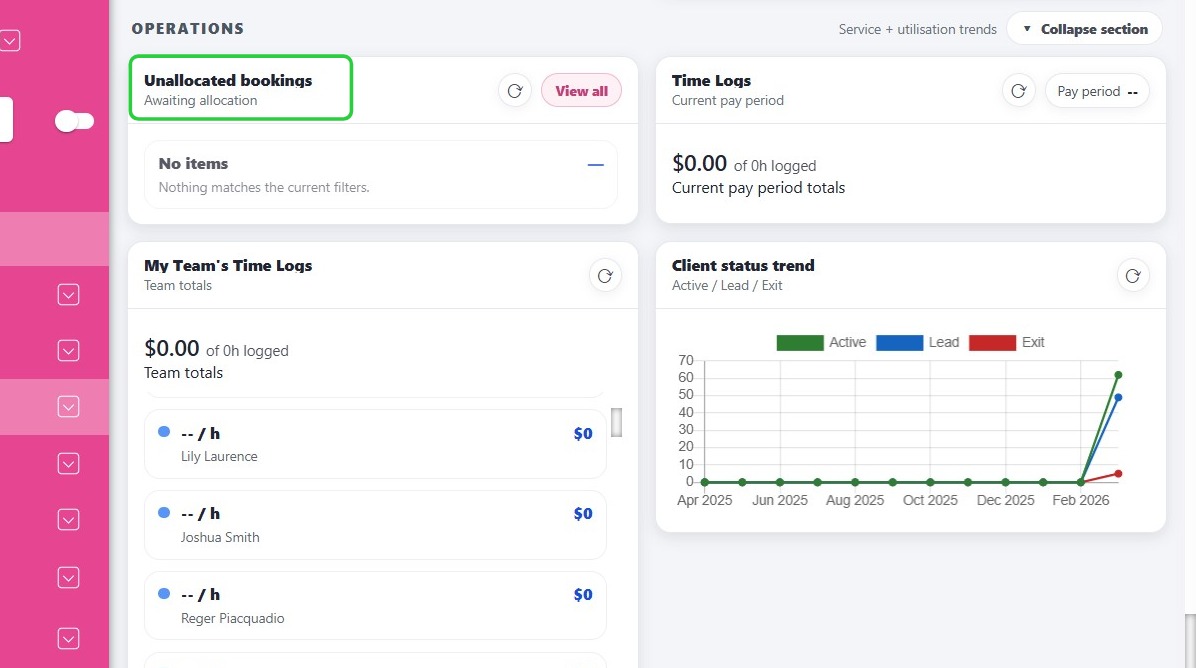
A. Unallocated Bookings
This section displays bookings that have not yet been assigned to staff members. These bookings require allocation to ensure services are delivered as scheduled. Reviewing this section helps coordinators quickly identify and assign outstanding shifts or appointments.
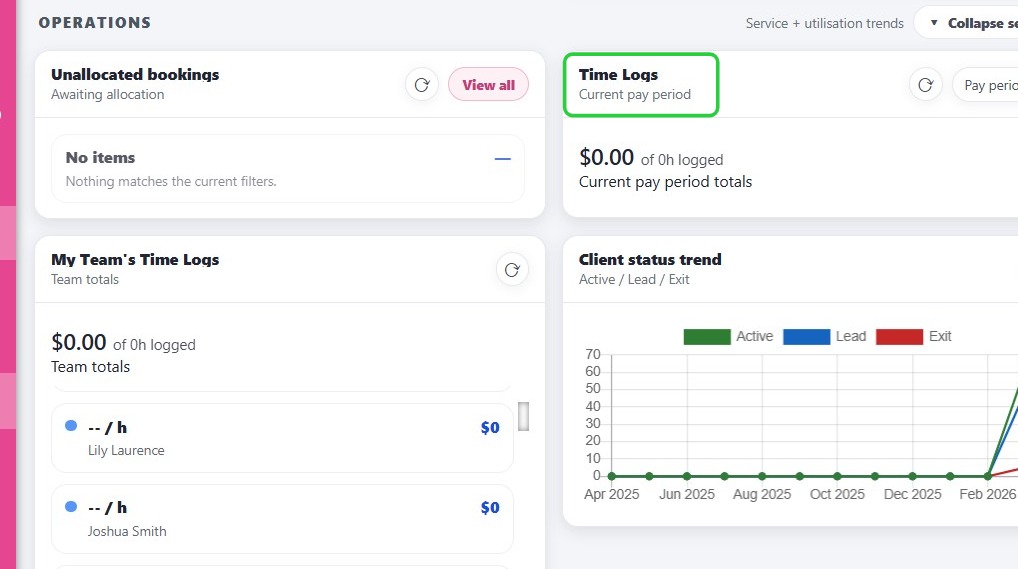
B. Time Logs
The Time Logs section displays information related to the current pay period, including the total hours logged and the corresponding dollar value. This allows staff to track their logged work hours and supports accurate payroll processing.
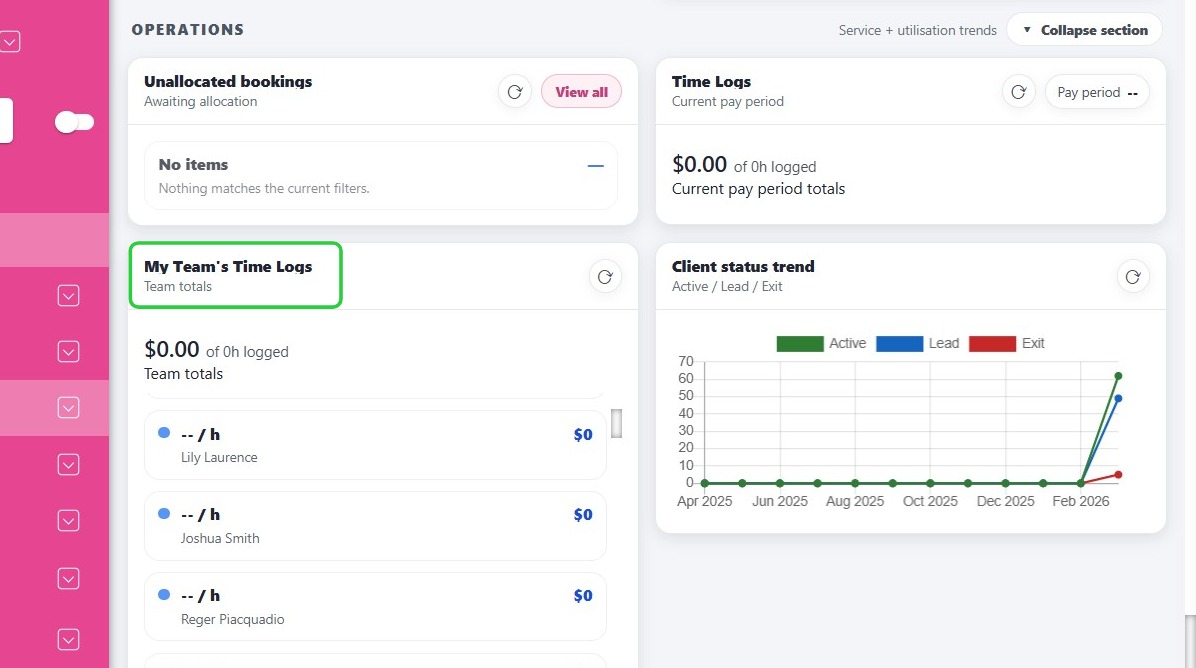
C. My Team’s Time Logs
Managers can view team activity through the My Team’s Time Logs section. This section displays total hours worked and total dollar values for the team, along with a list of individual staff members. This provides visibility into workforce activity and productivity.
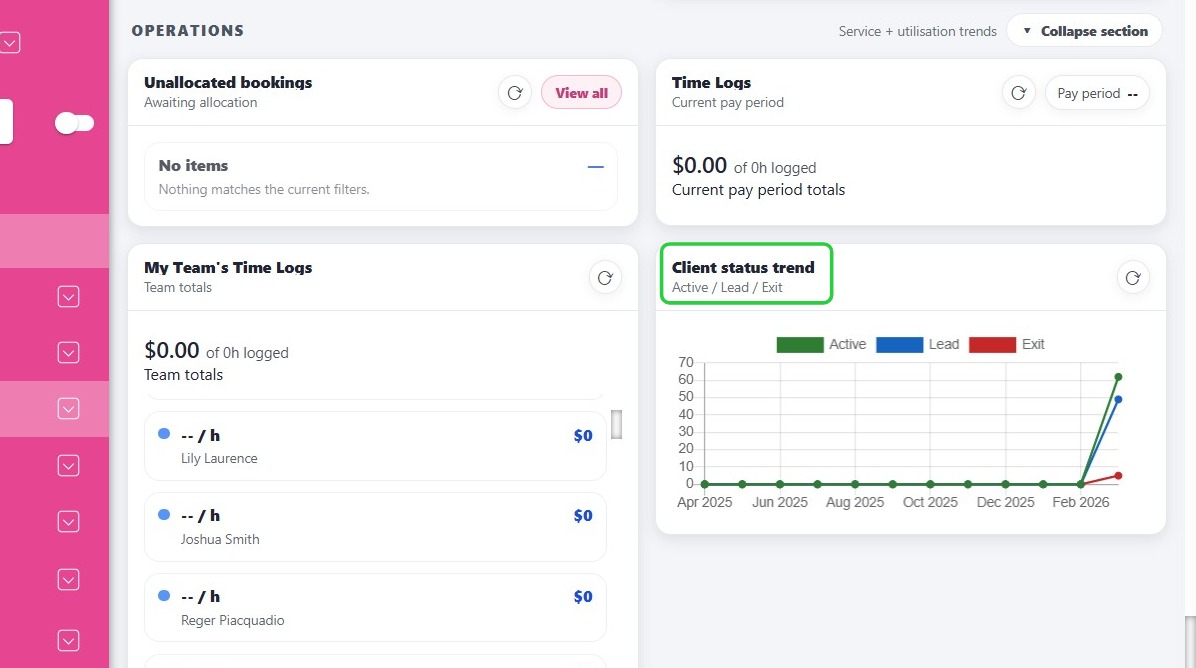
D. Client Status Trend
The Client Status Trend displays clients categorized as Active, Lead, or Exit. The chart tracks these categories across months and years, helping organisations understand client distribution and trends within the system.
Future Improvements
- User‑specific settings allowing individuals to control which dashboard cards appear
- Improved sorting and export functionality
- Performance optimizations for organisations operating across multiple branches