Service Review
Service Review is a section in the left navigation pane of the CareVision portal, found under Actions > Service Review. In this section, teams handle all service processing and approvals. Users often refer to this area as the Service Review Board or Service Review Action Board.
This topic describes the Service Review Board and guides you on how to use it.
Keywords: service review, service review board, actions, bookings, approvals, warnings, filters, bulk approve, billing, claims
I. What is the Service Review Board?
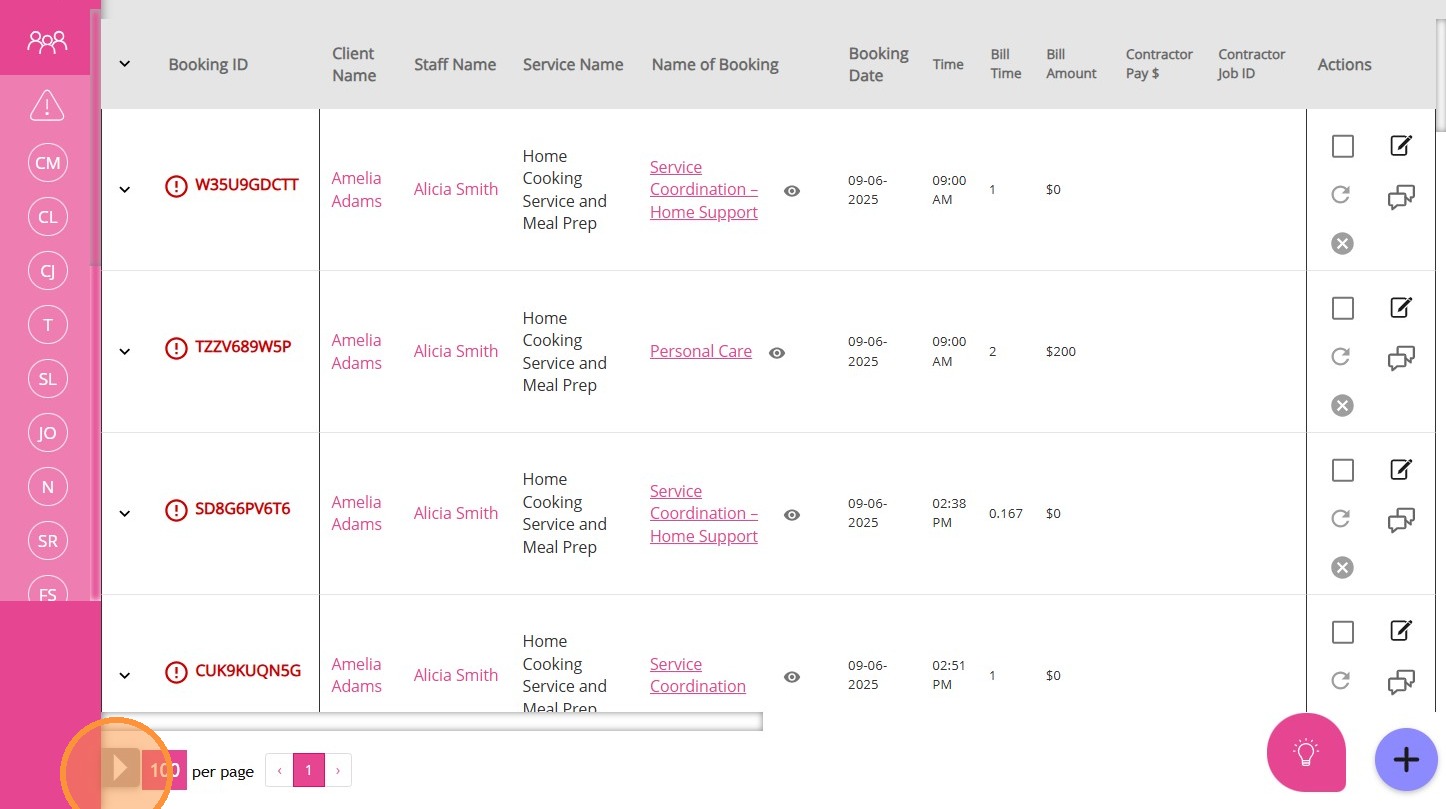
The Service Review Board is a tool that displays all your service bookings within a selected timeframe. It helps teams review, validate, and approve bookings before moving forward with billing and claiming. By default, it shows only items that are not yet approved, so you can quickly identify bookings needing attention.
II. Who Uses the Service Review Board?
The Service Review Board is used by internal administrative and operations teams, including:
- Scheduling coordinators and admin staff: Review, approve, or adjust bookings before billing or payroll.
- Finance and billing teams: Verify bookings, resolve anomalies, and ensure data accuracy before generating claims or invoices.
- Managers or team leads: Oversee service delivery and review any warnings or issues flagged during the review process.
III. How to Use the Service Review Board
A. Access the Service Review Board
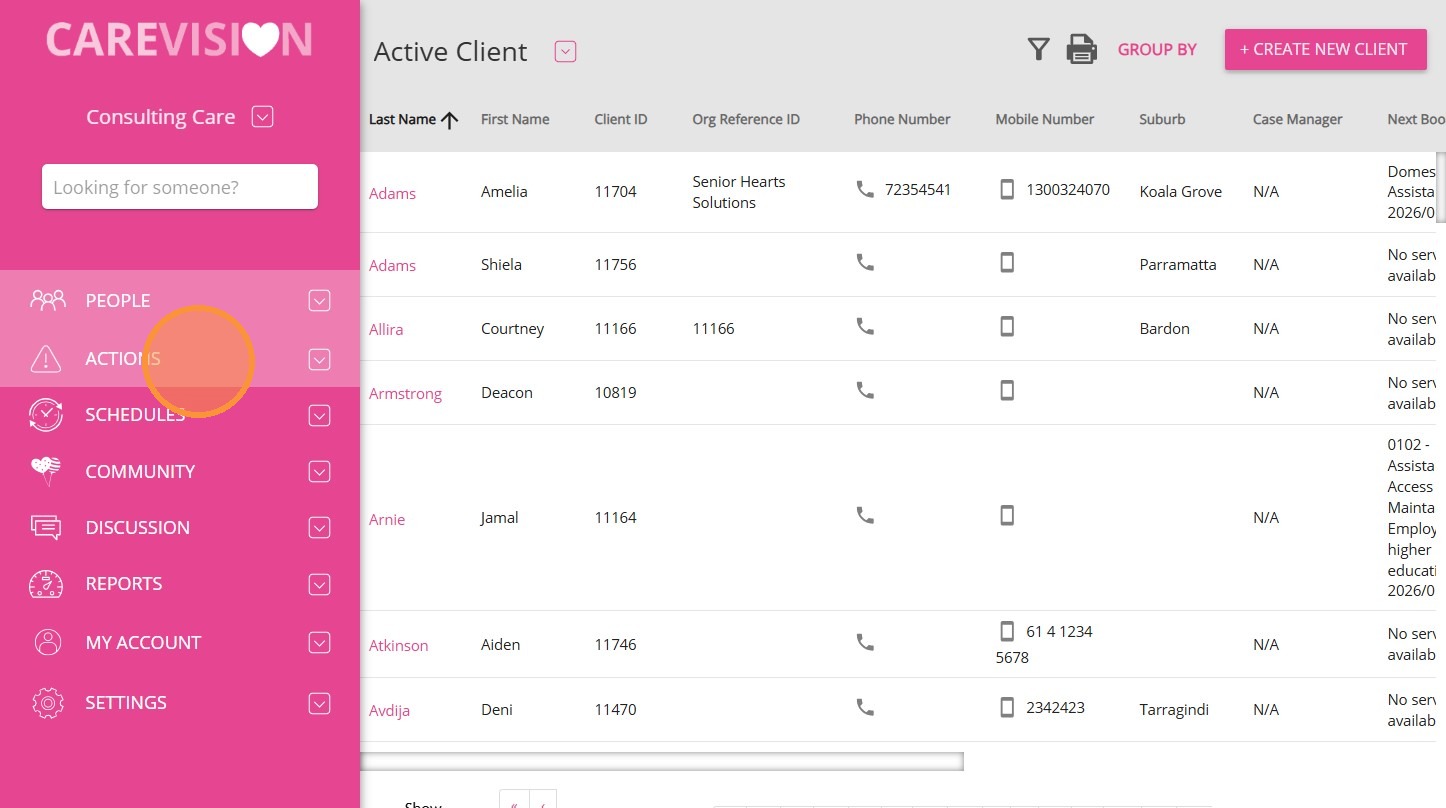
1. On the left menu bar, click Actions.
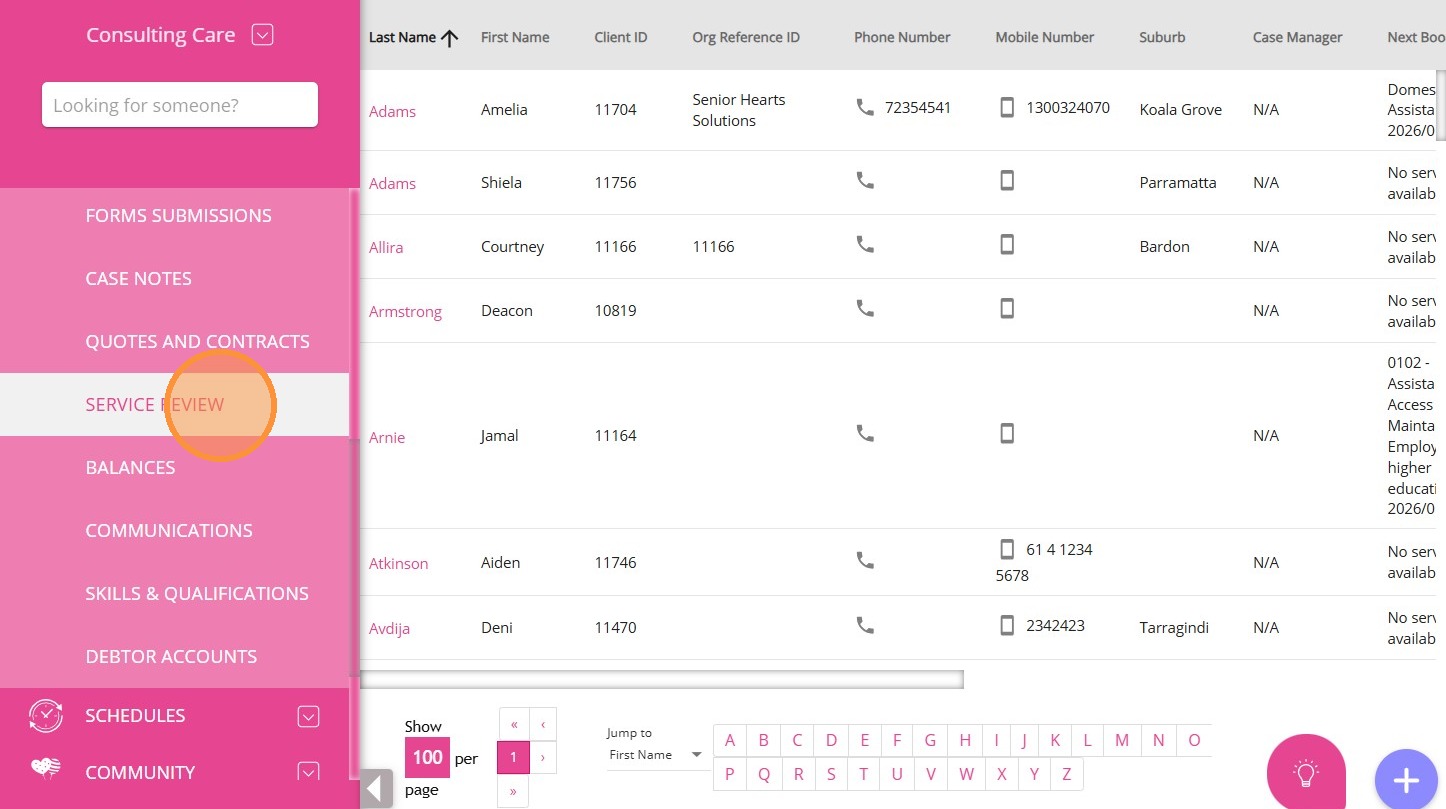
2. Select Service Review.

B. Select a Date Range
1. In the upper right, set the From date to the start of your pay period.
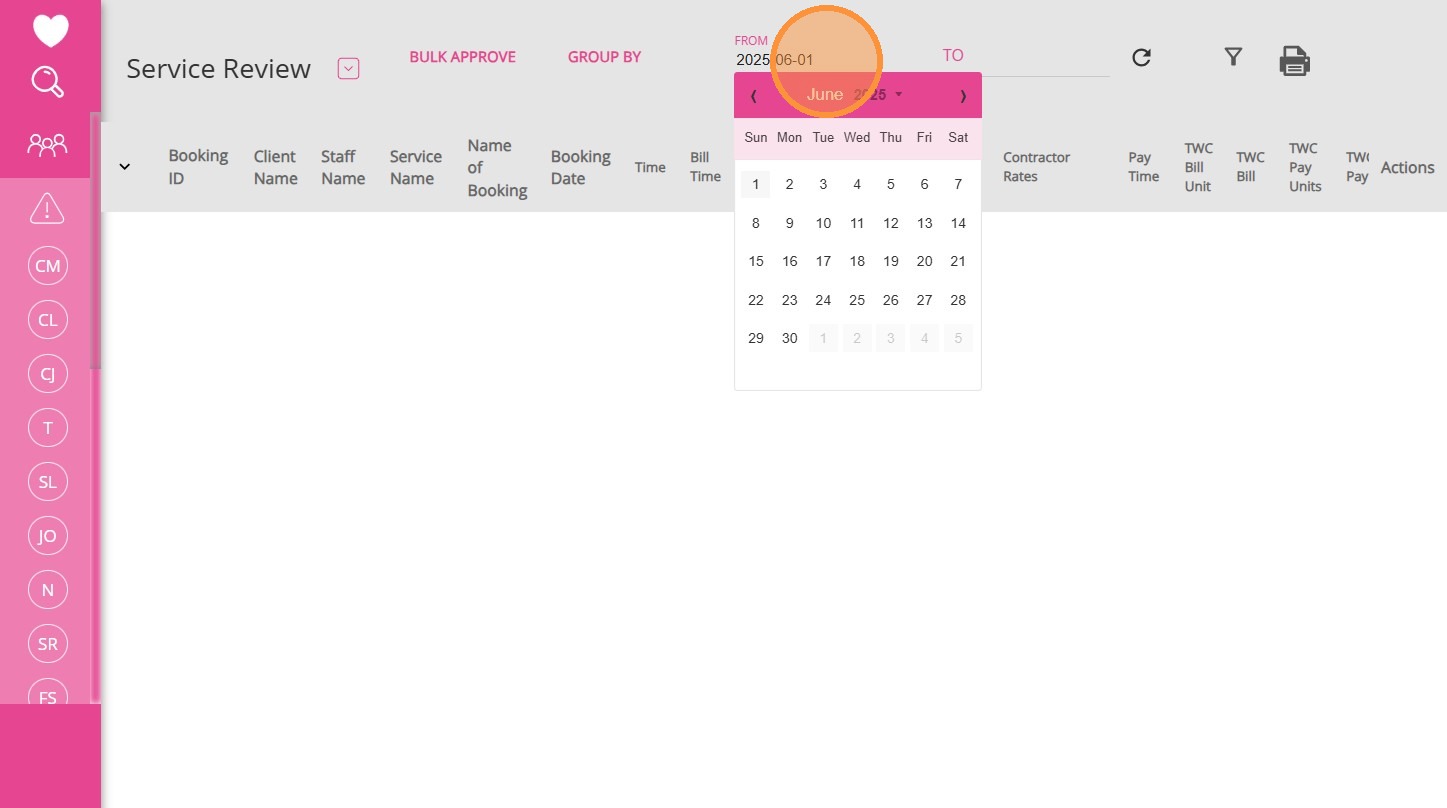
2. Set the To date to the end of your pay period.
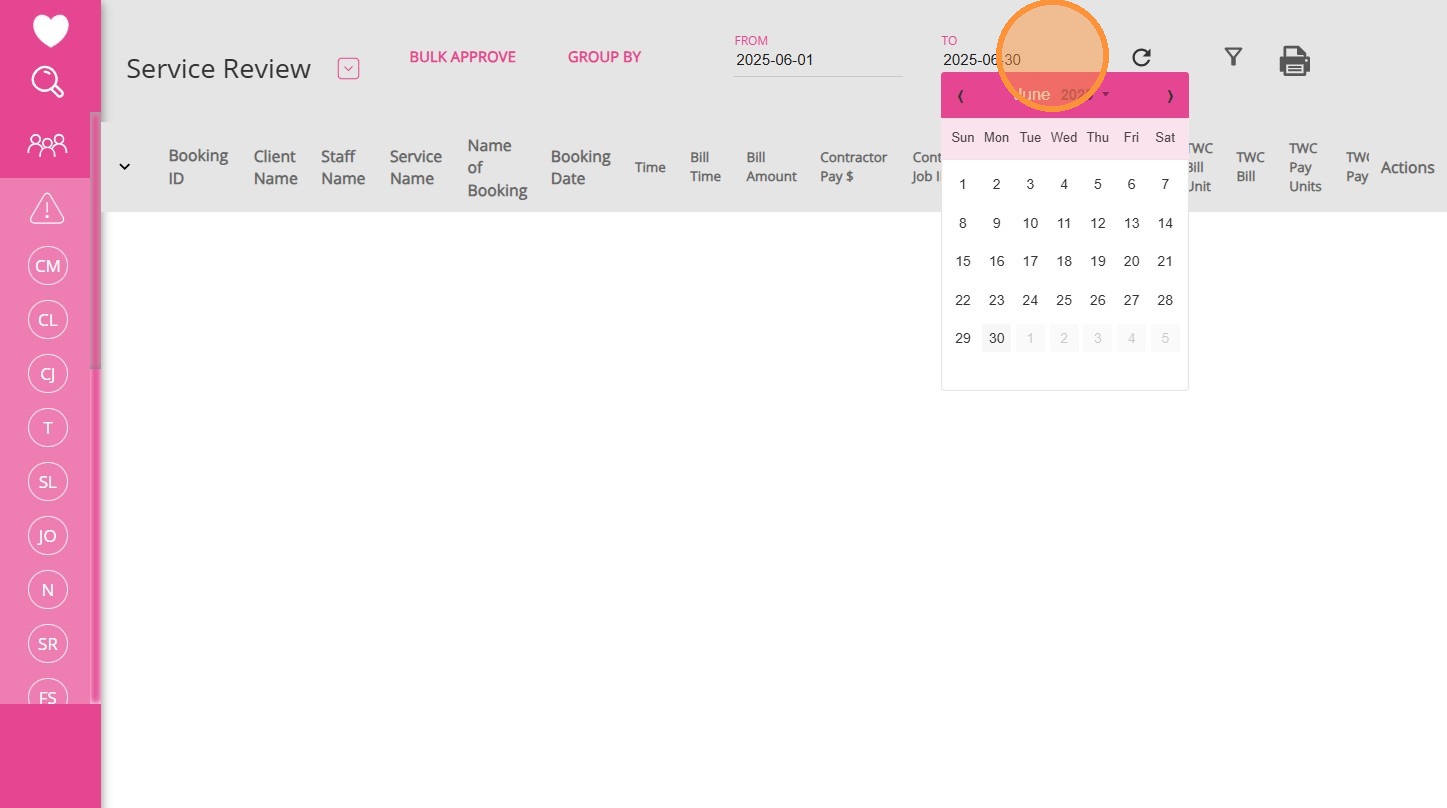
3. Click the Refresh button to load the bookings.
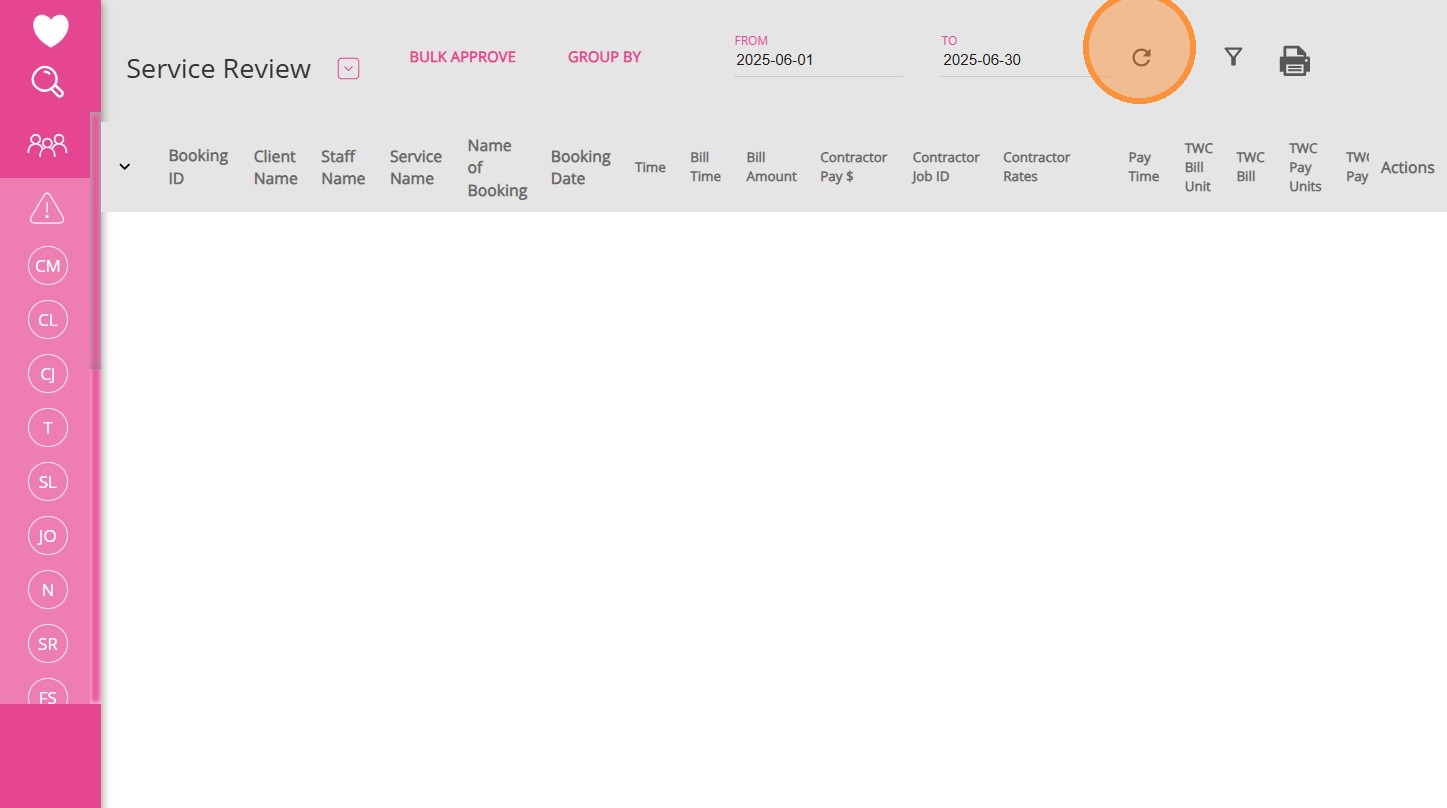
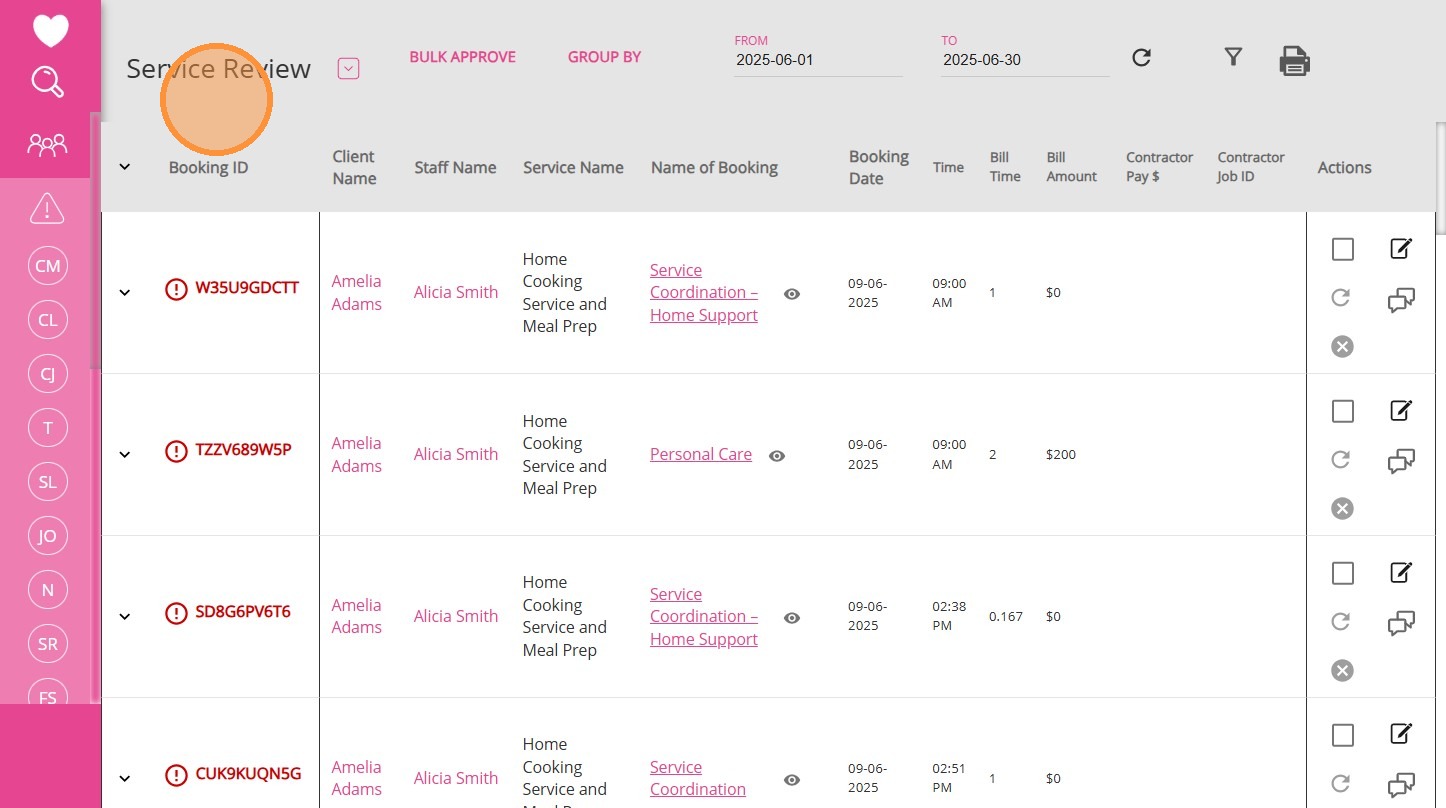
The Service Review board will display all bookings for the period you select.
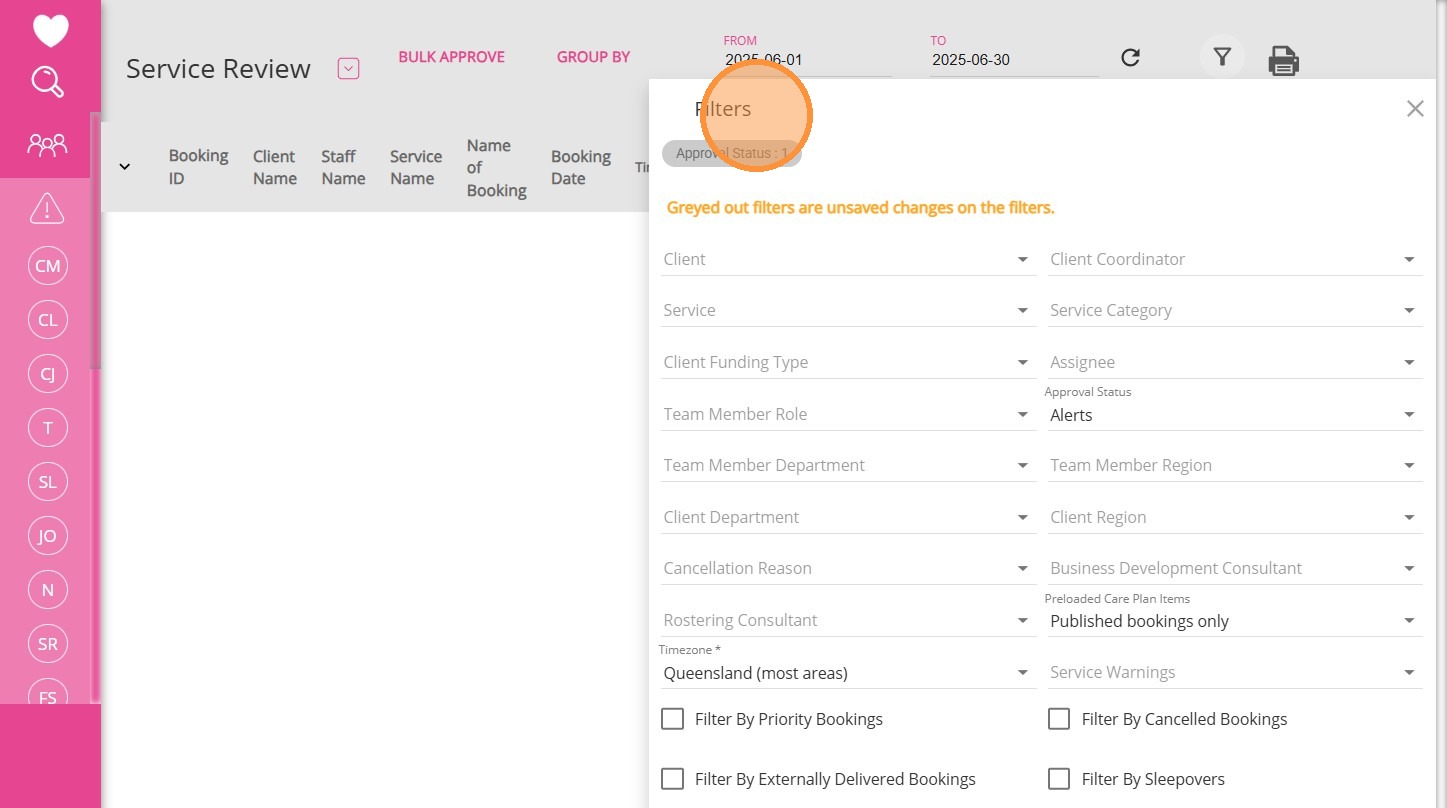
C. Filters on the Service Review Board
D. Identify Warnings on the Service Review Board
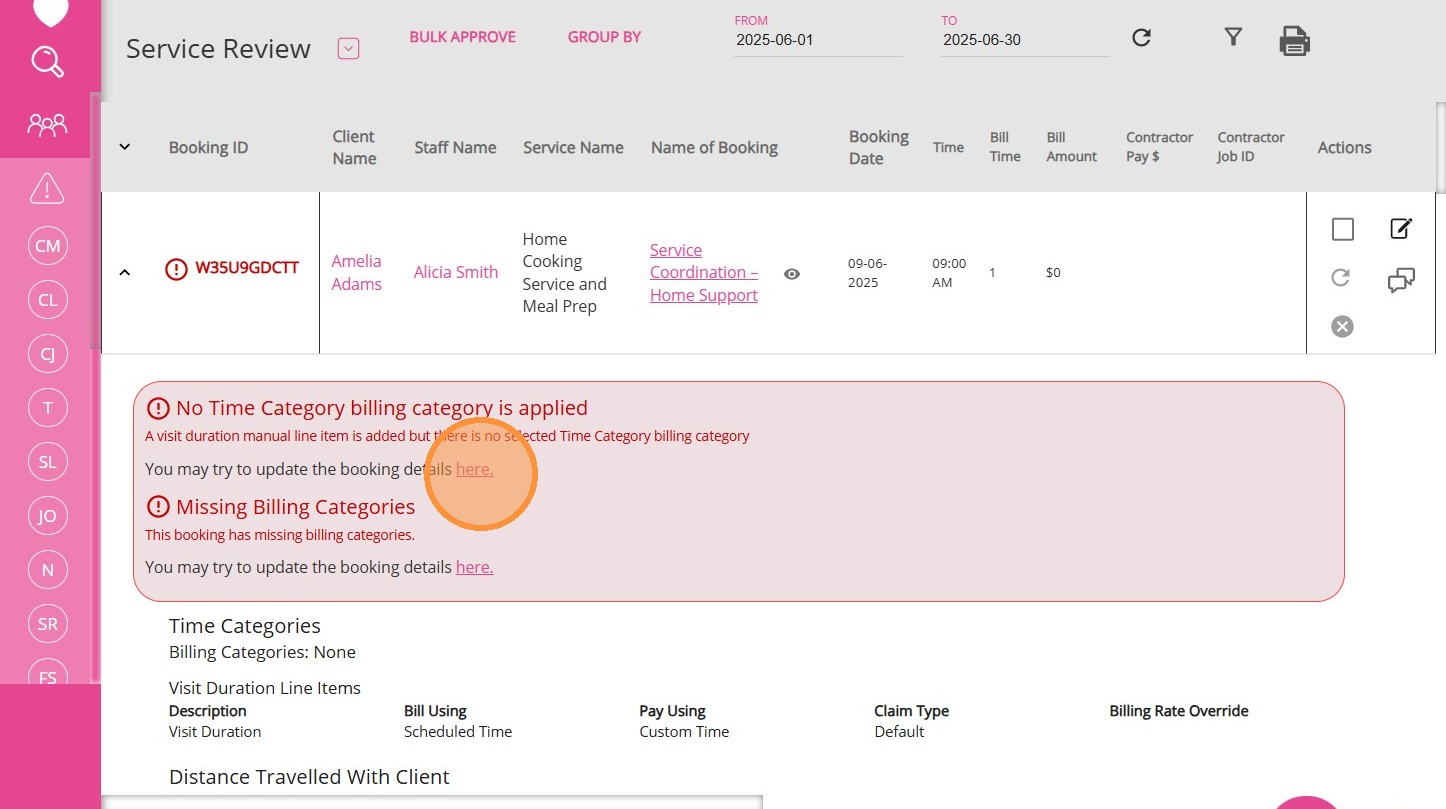
Bookings with warnings have their booking IDs highlighted in red.
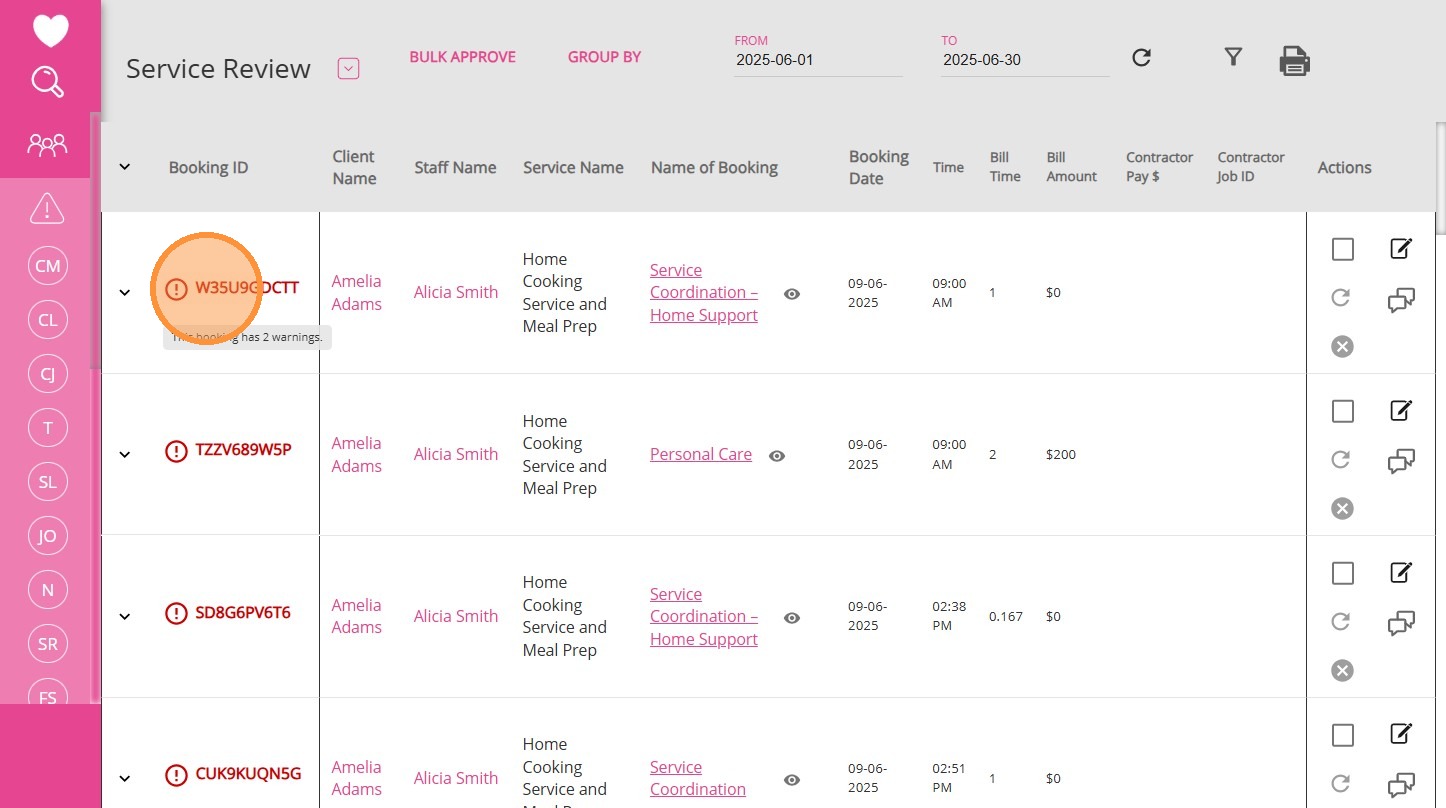
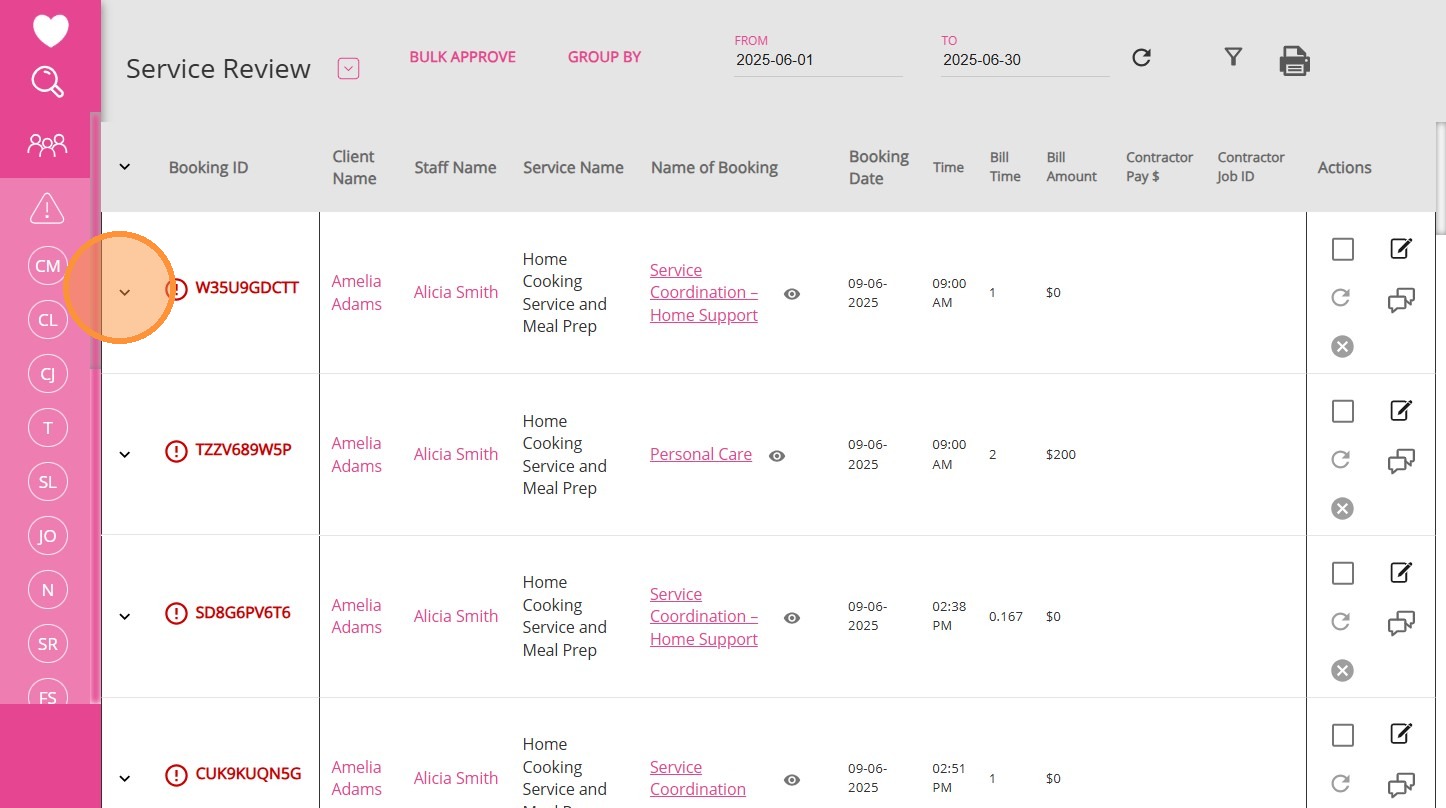
1. For each red booking ID, click the downward arrow next to the booking ID to expand and view the alert details.
2. Review the name and details of the issue provided in the alert.
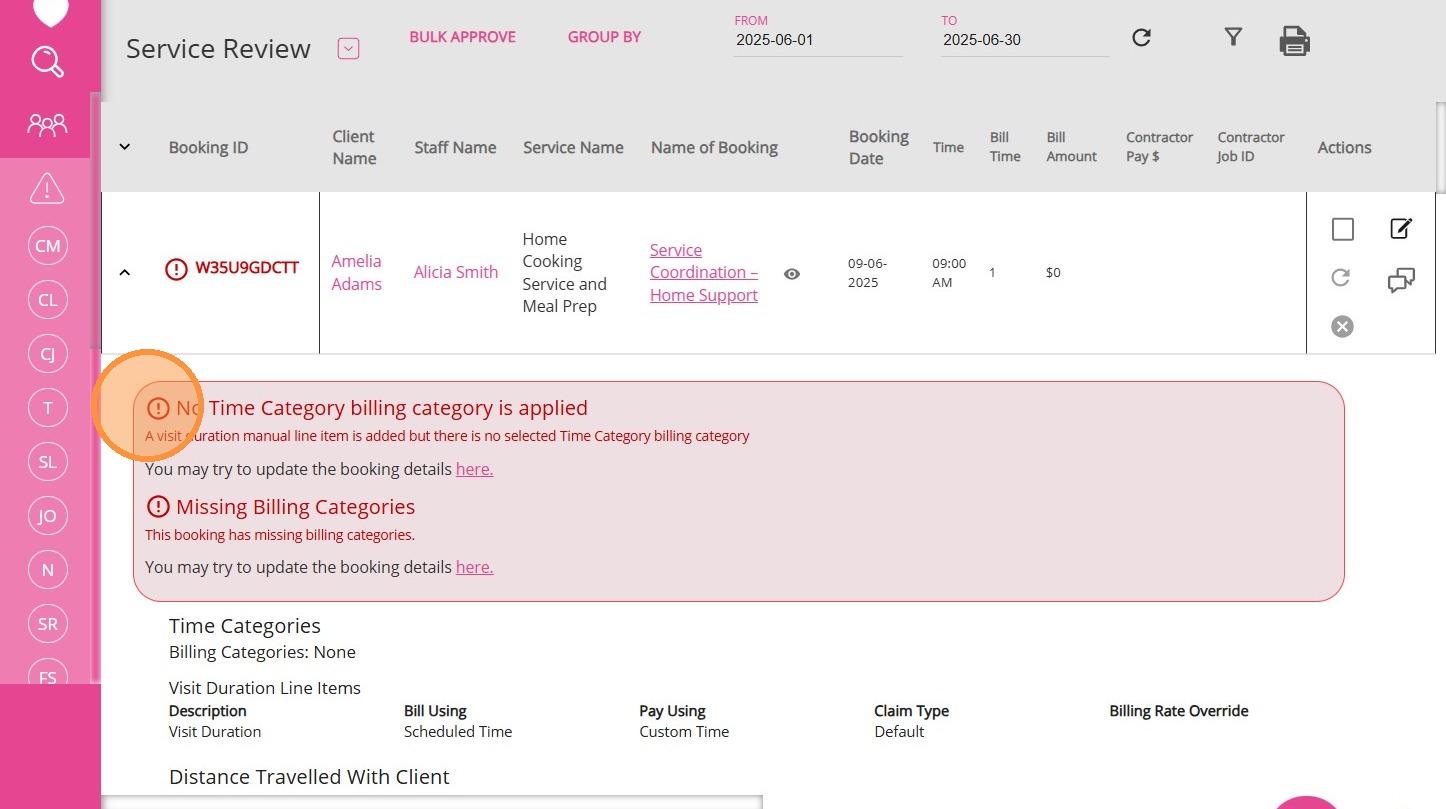
E. Resolve Warnings in the Service Review Board
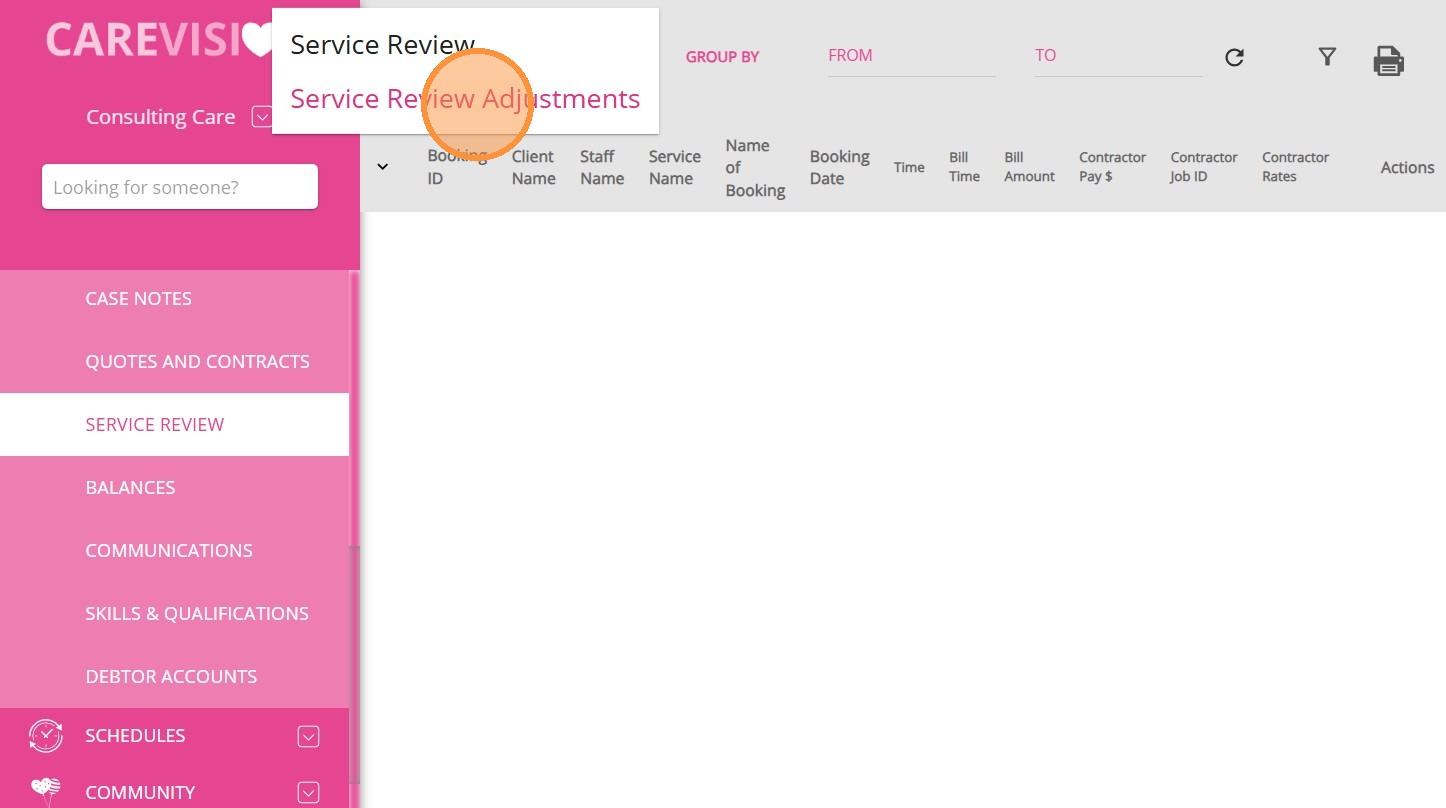
F. Service Review Adjustments
The Service Review Adjustments board is used for reviewing items that were delivered before the period but adjusted during the selected period. Repeat the review process on the Service Review Adjustments board. This step is important if you limit exports to approved items, as there may be adjustments that require approval for billing/claiming to process. Even if you do not rely on approvals, we recommend that you check for any alerts on this page, as unresolved issues may affect your exports.
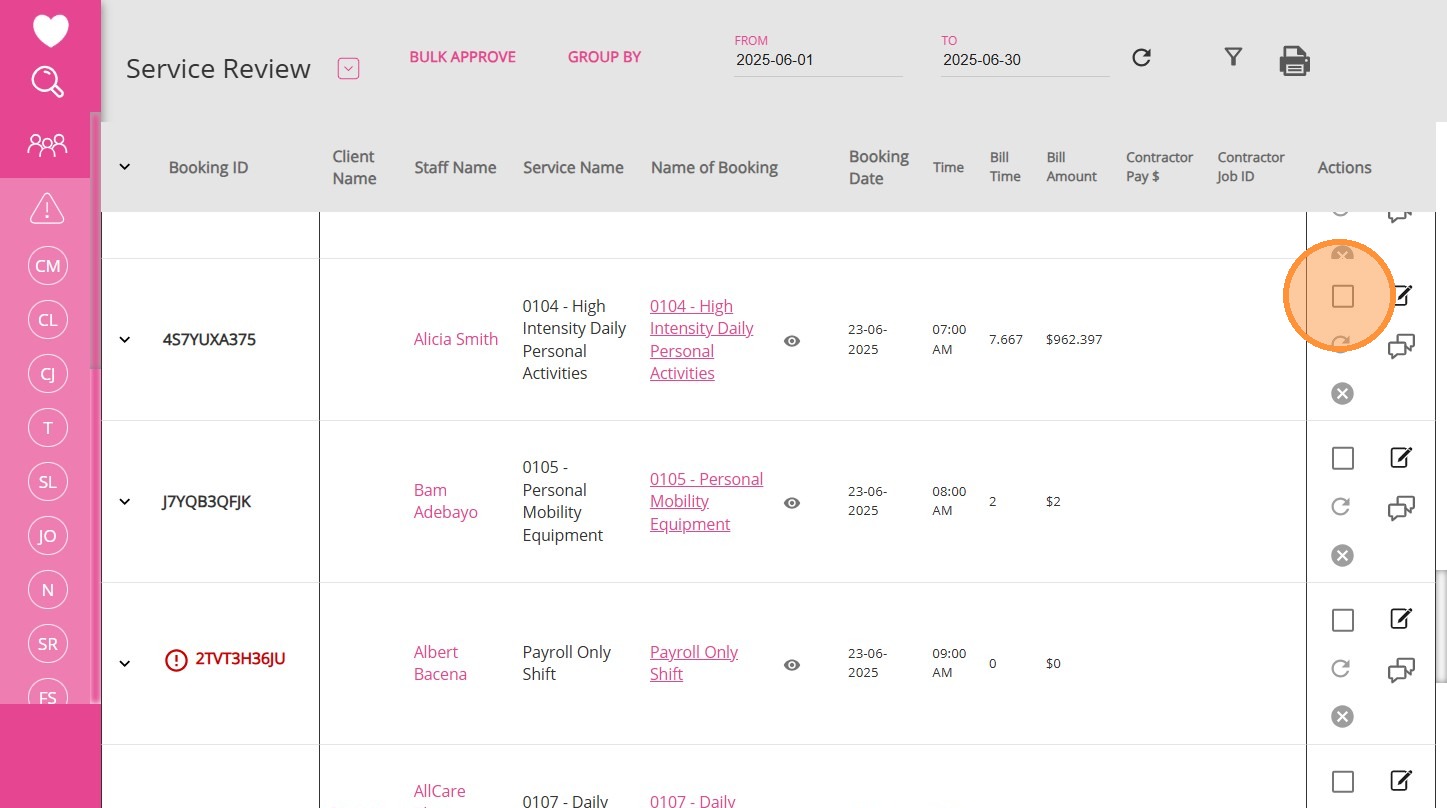
G. Approve Bookings
1. After you have verified that a booking is correct, you can approve it. Under the Actions column, click the checkbox to approve a booking.
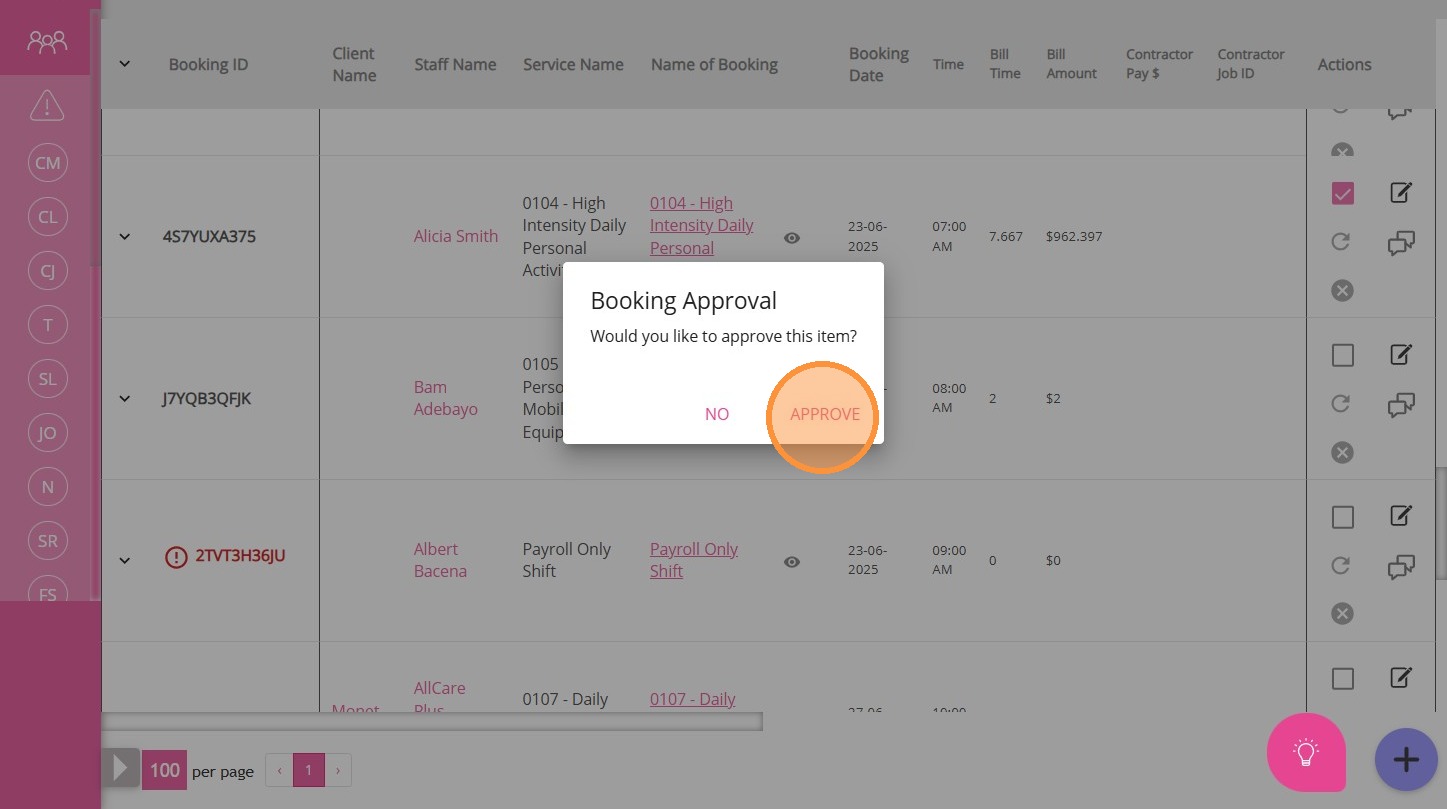
2. A prompt will appear asking you to confirm whether you want to approve the booking. Click Approve to proceed.
3. You can use the Bulk Approve feature to quickly approve multiple bookings once you have verified they are correct.
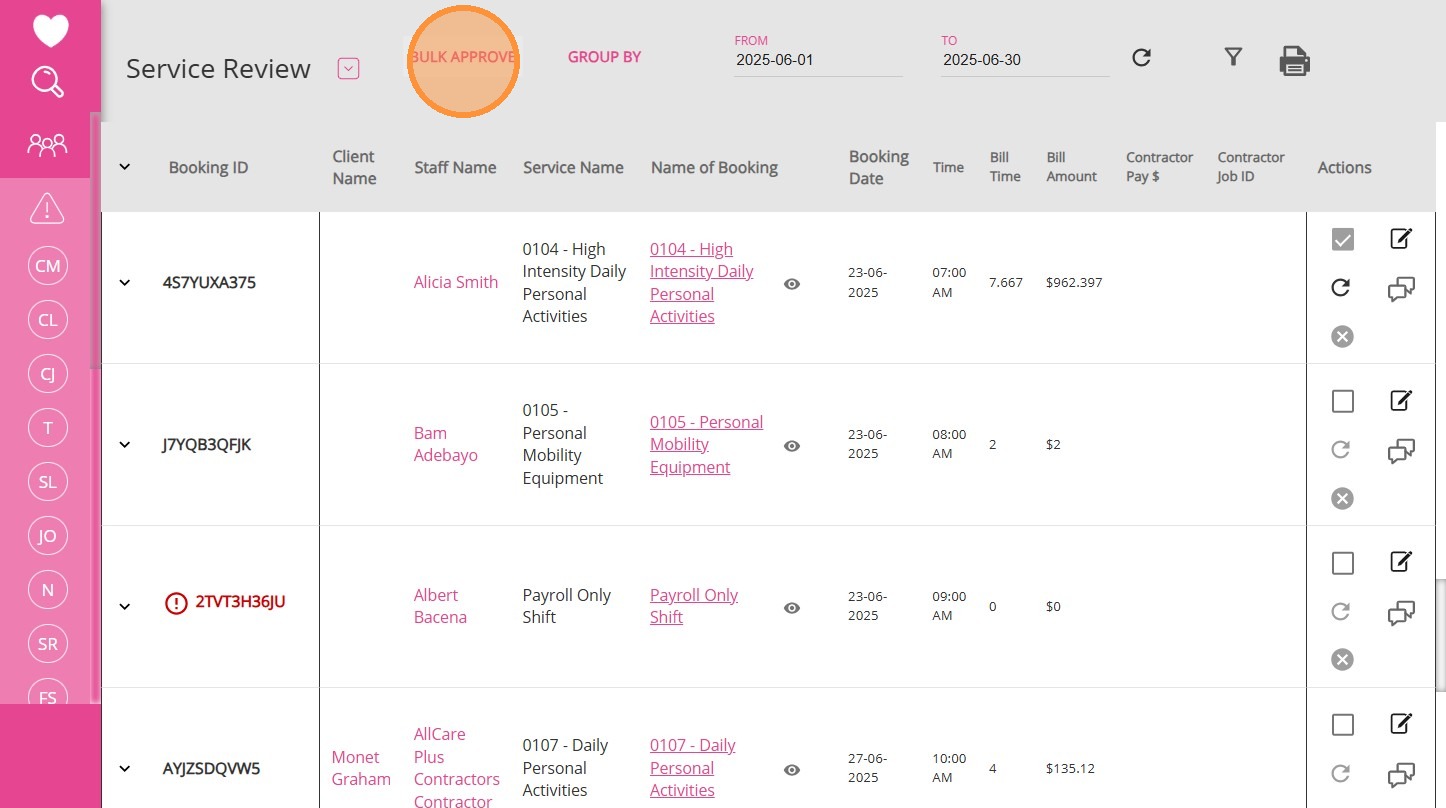
H. Manage External Booking Details
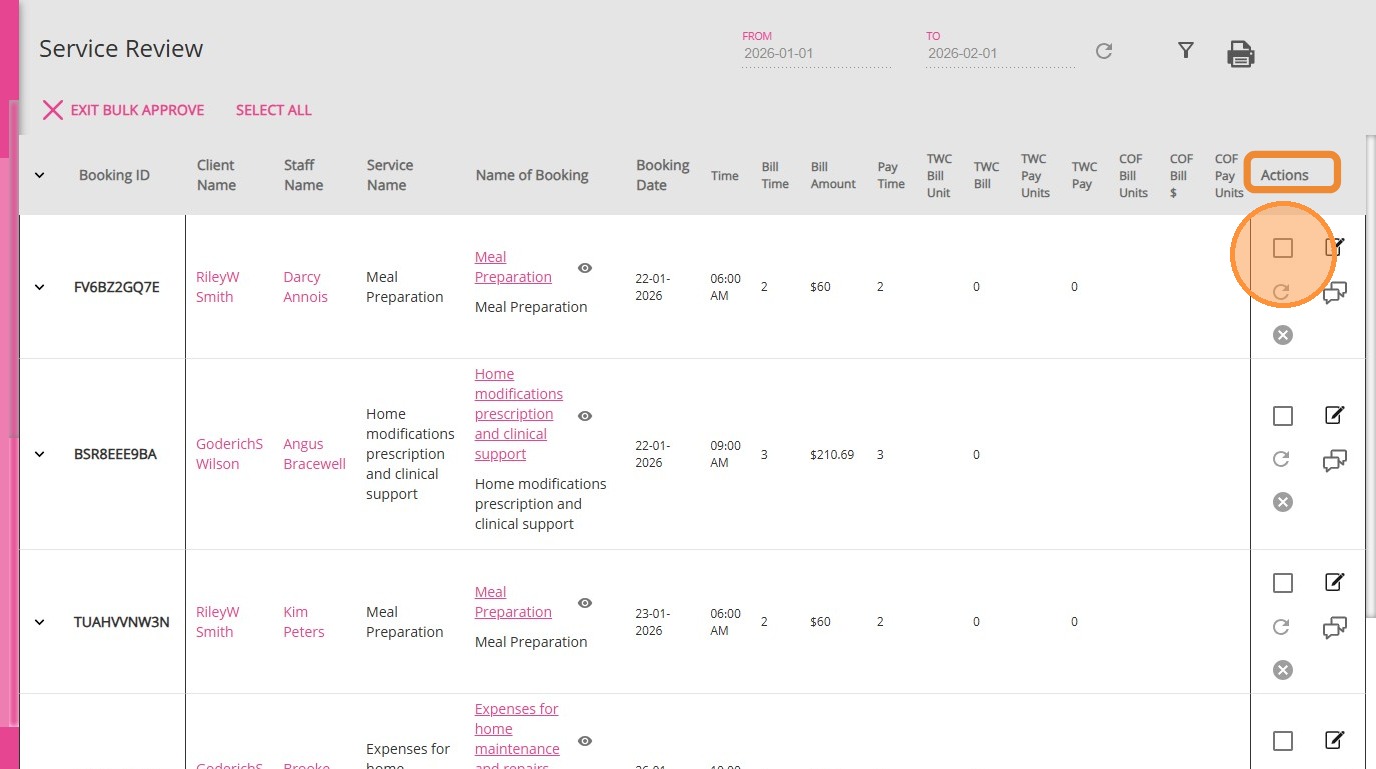
1. Under the Actions column, tick the boxes to select all relevant service review items you want to process in bulk.
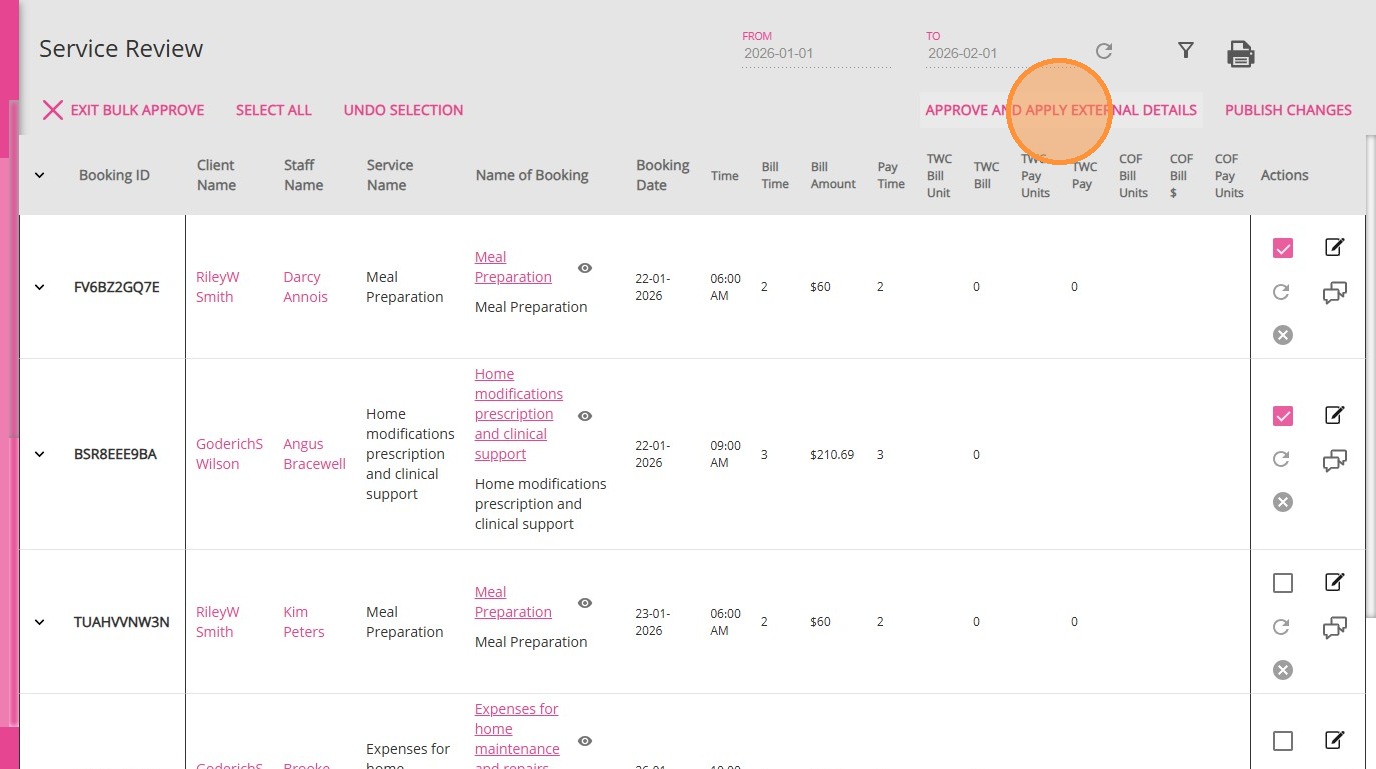
2. Click the Approve & Apply External Details button.
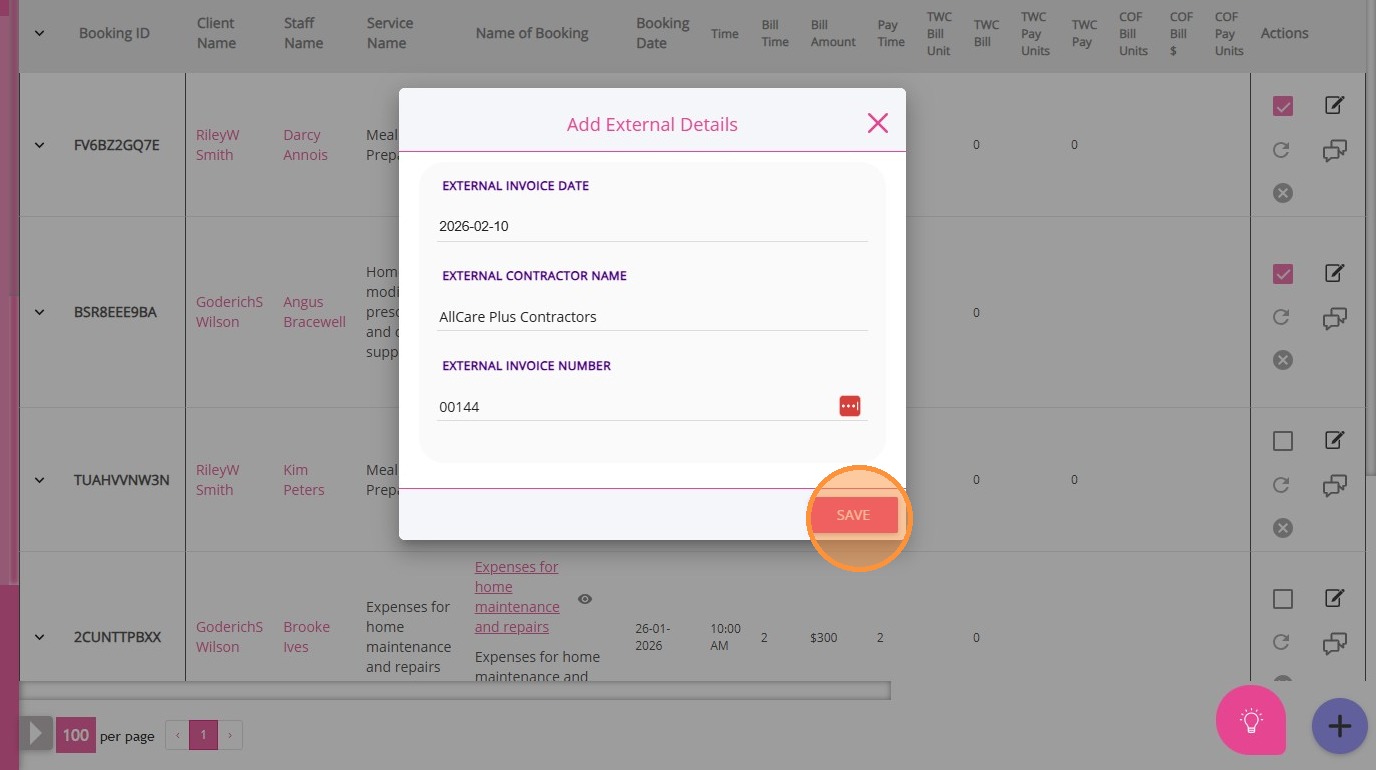
3. Enter the required details: External Contractor Name and External invoice Number.
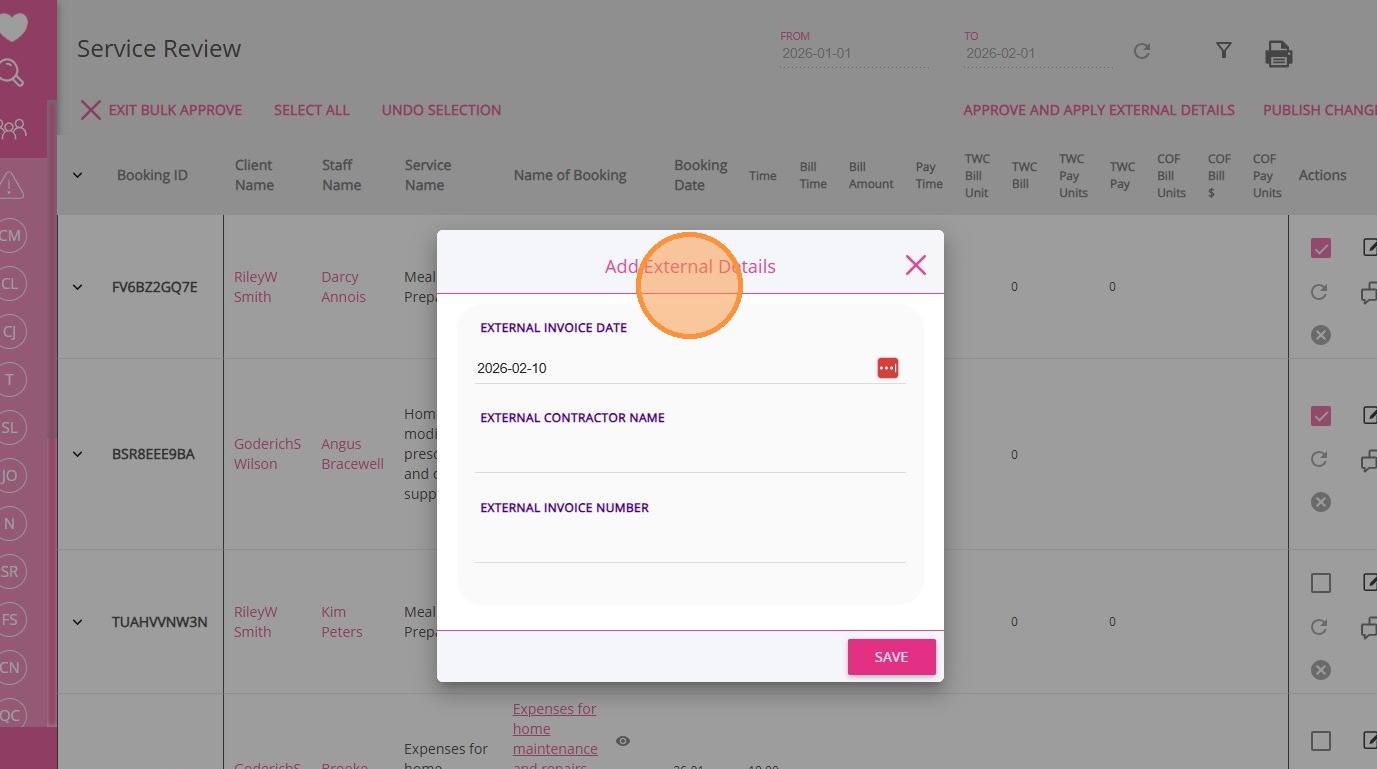
4. Click Save.
5. Click Proceed.
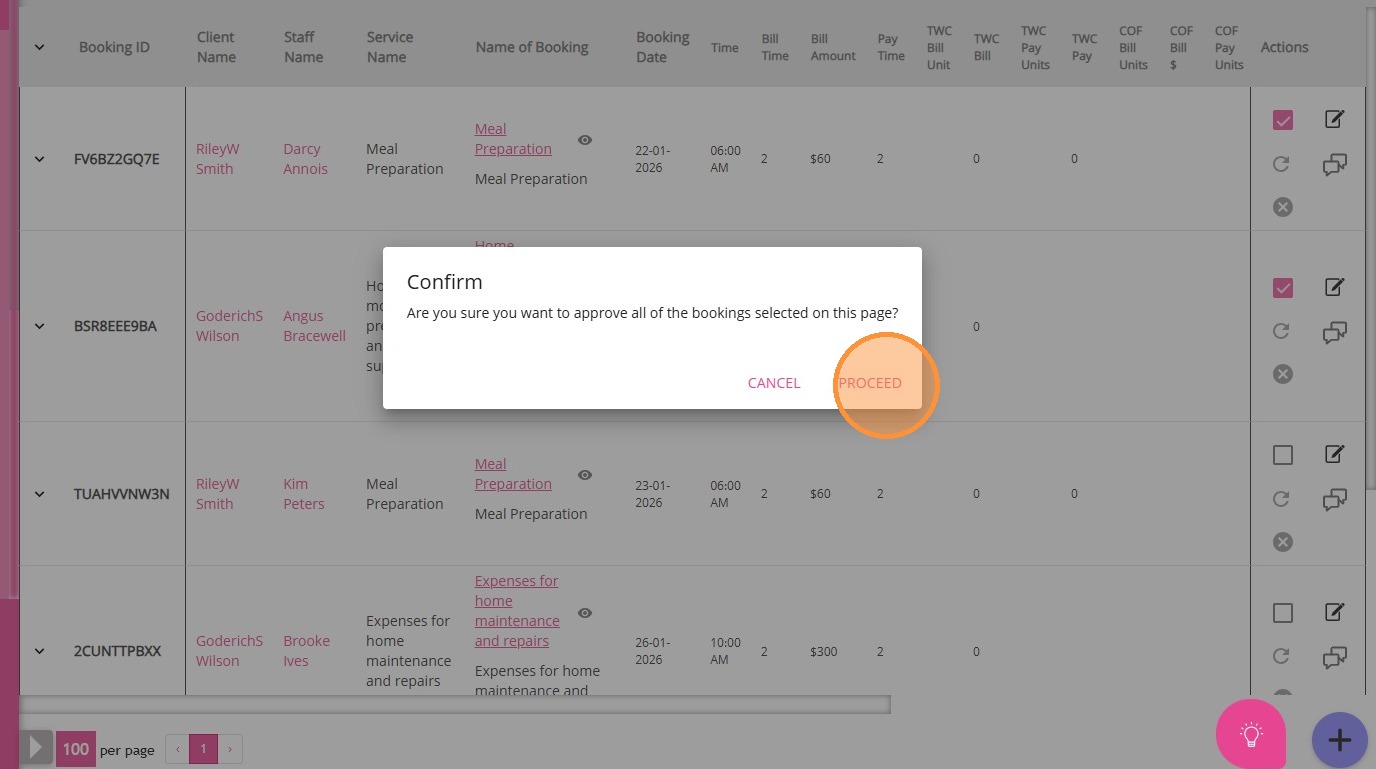
- All selected items are approved.
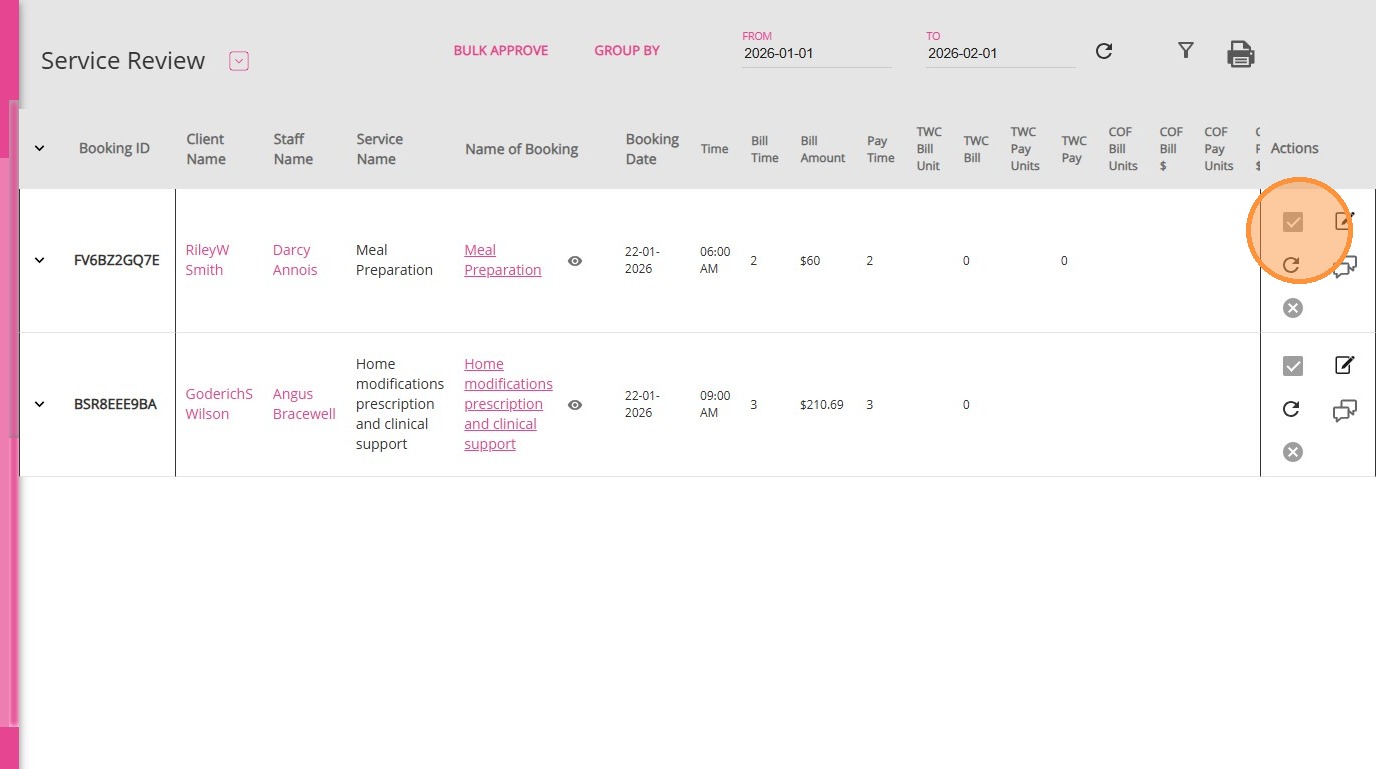
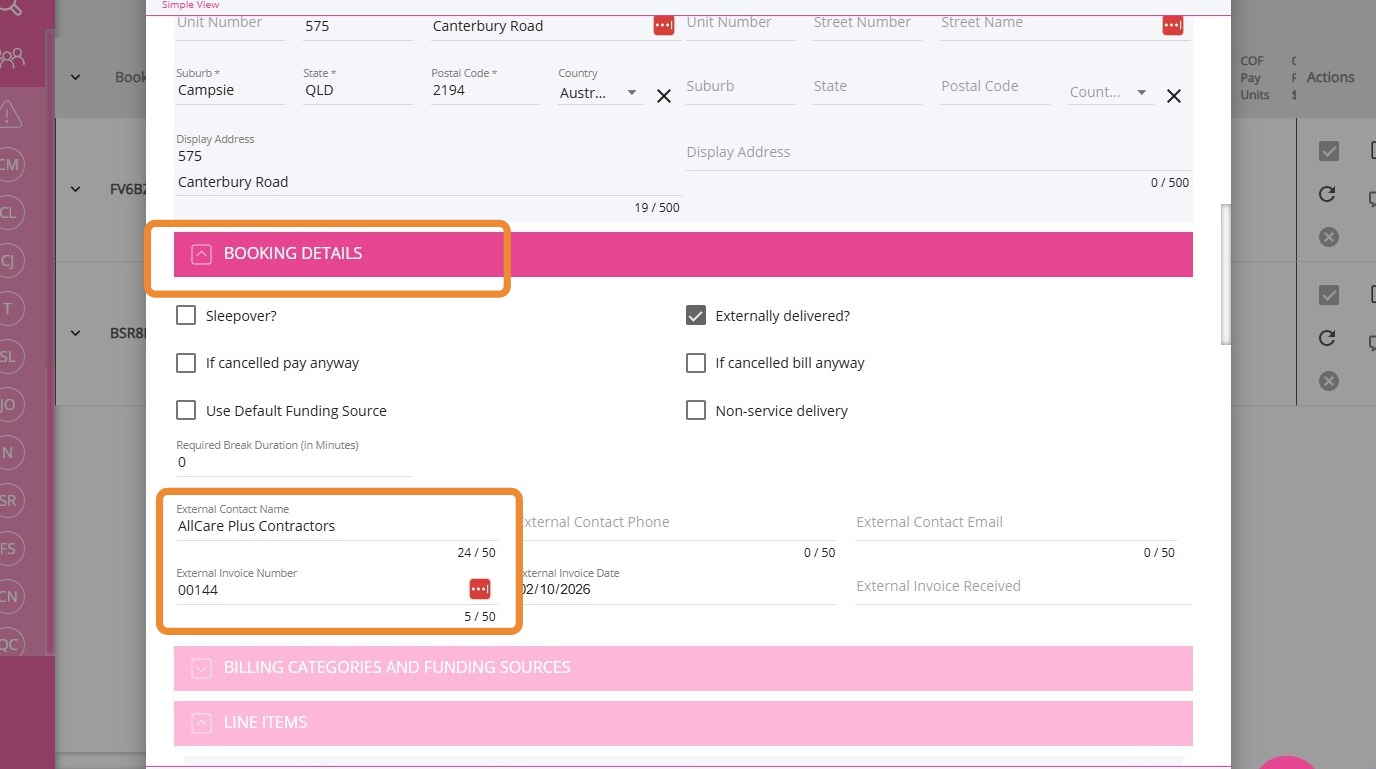
- The external details are applied to each item. When you open the booking details, the information you entered for the External Contractor Name and External Invoice Number fields will appear in the booking details.