Filters on the Service Review Board

Filters on the Service Review Board

You can use filters on the Service Review Board to quickly narrow down your results and find the information you need as you process bookings before export. This topic describes the available filter options on the Service Review Board.

Keywords: filters, service review board, client, service, funding type, team member, department, cancellation, approval status, priority bookings
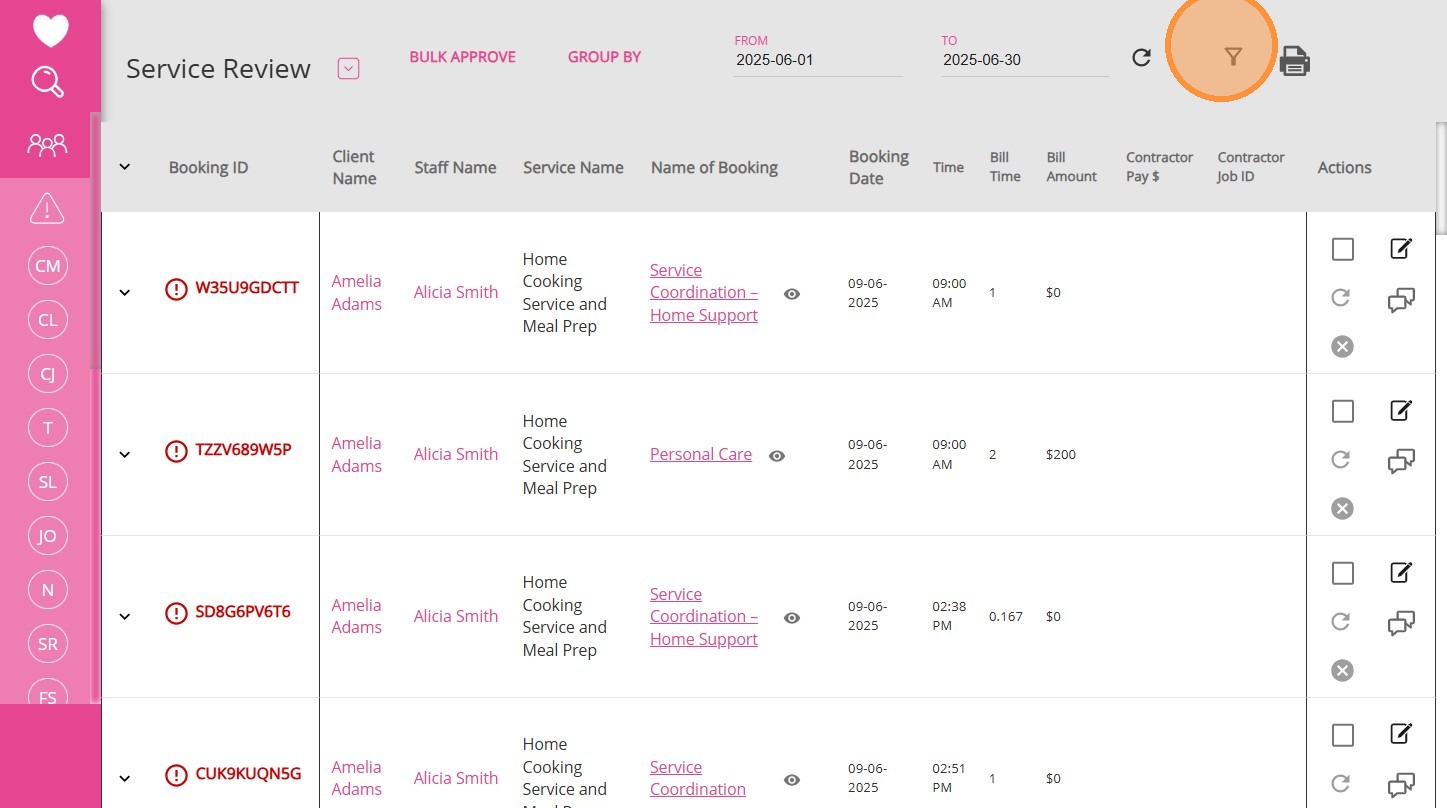

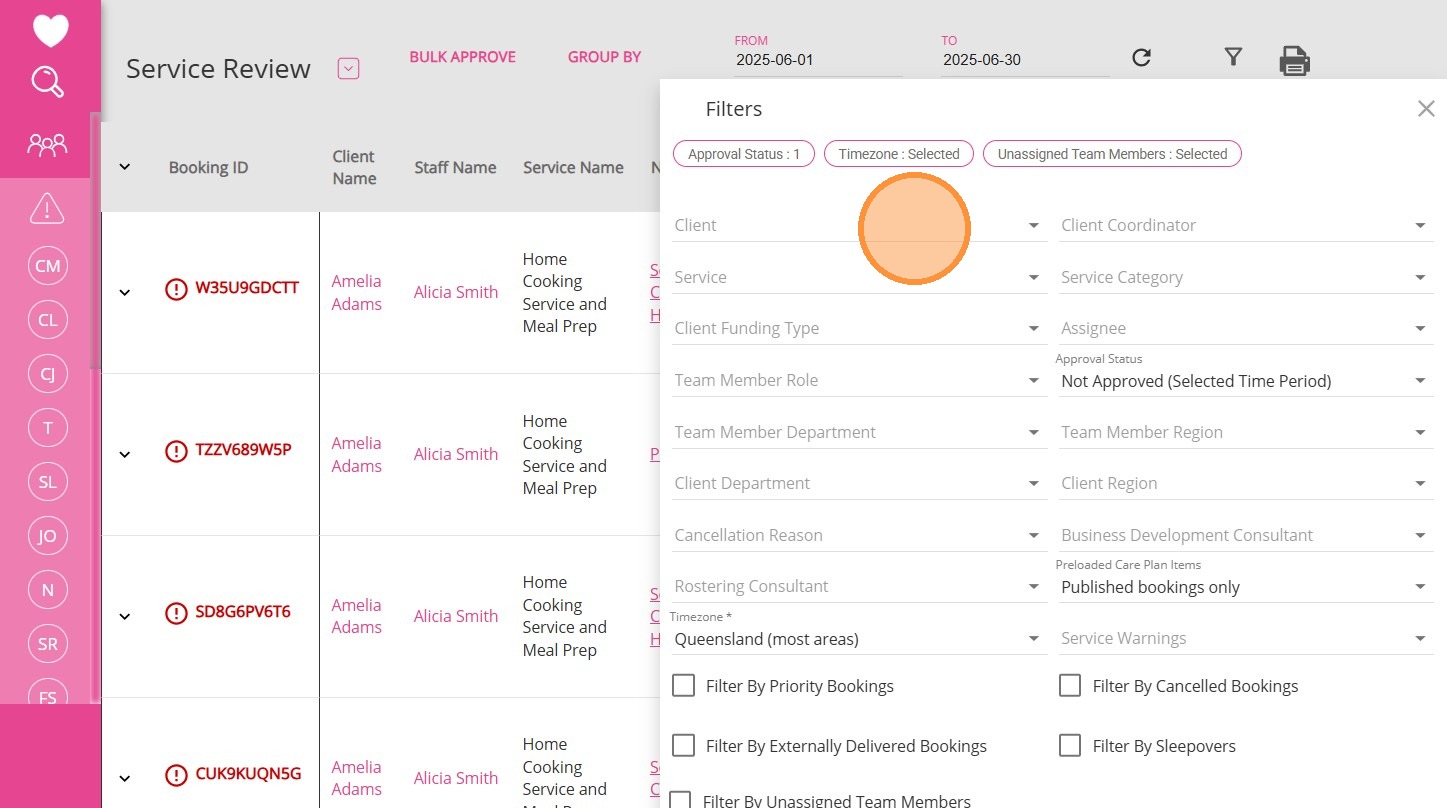
1. In the Service Review board, click the filter icon at the top of the screen to view your filter options.

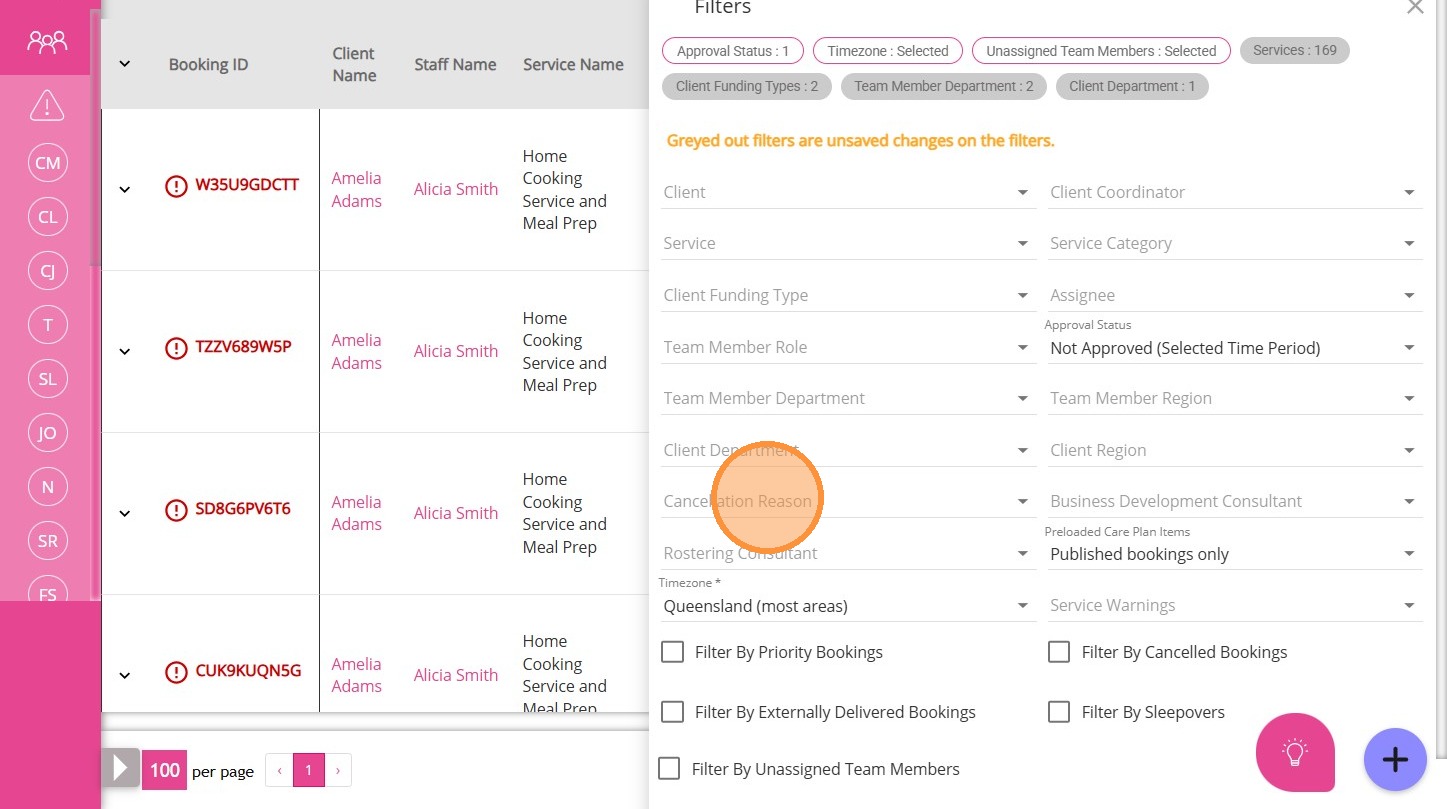
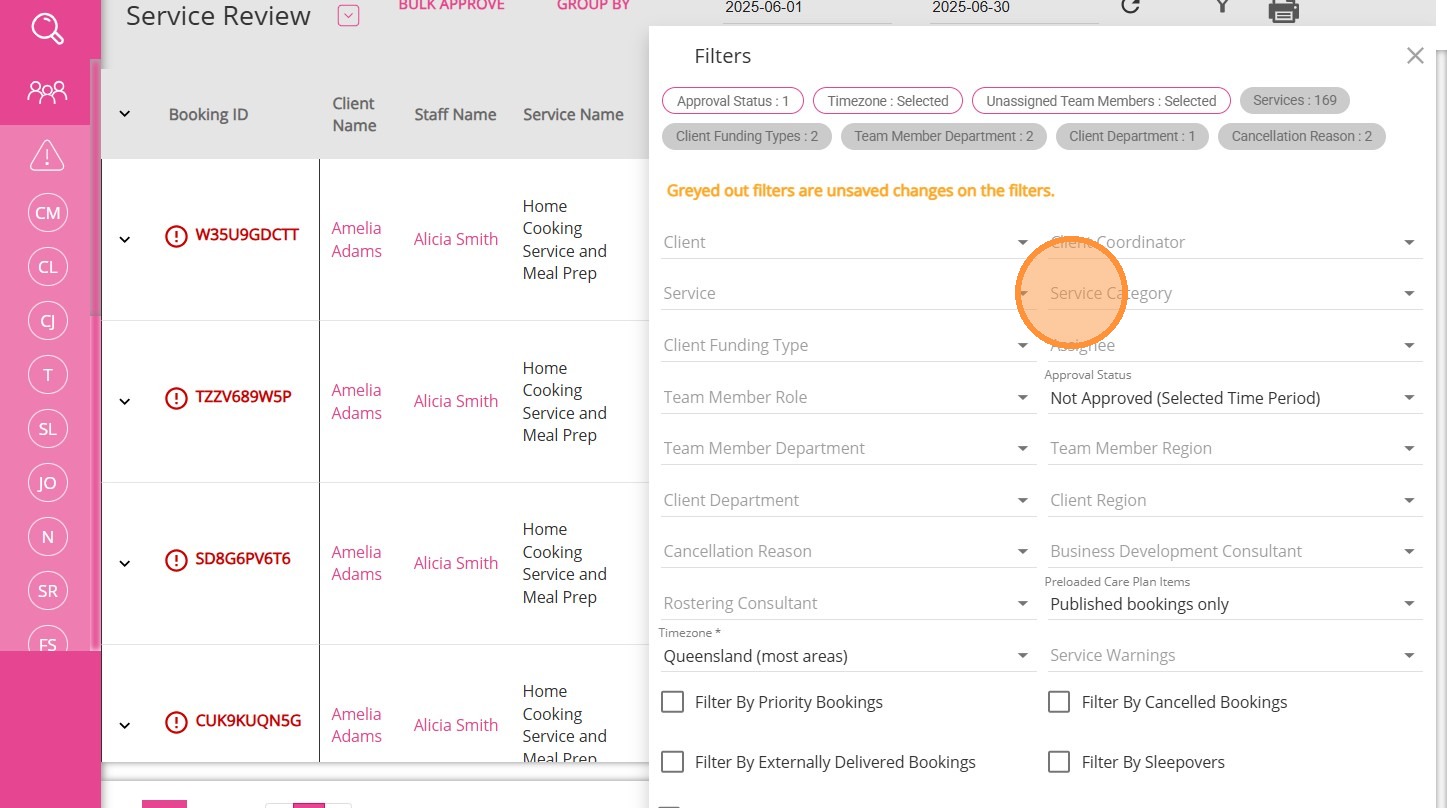
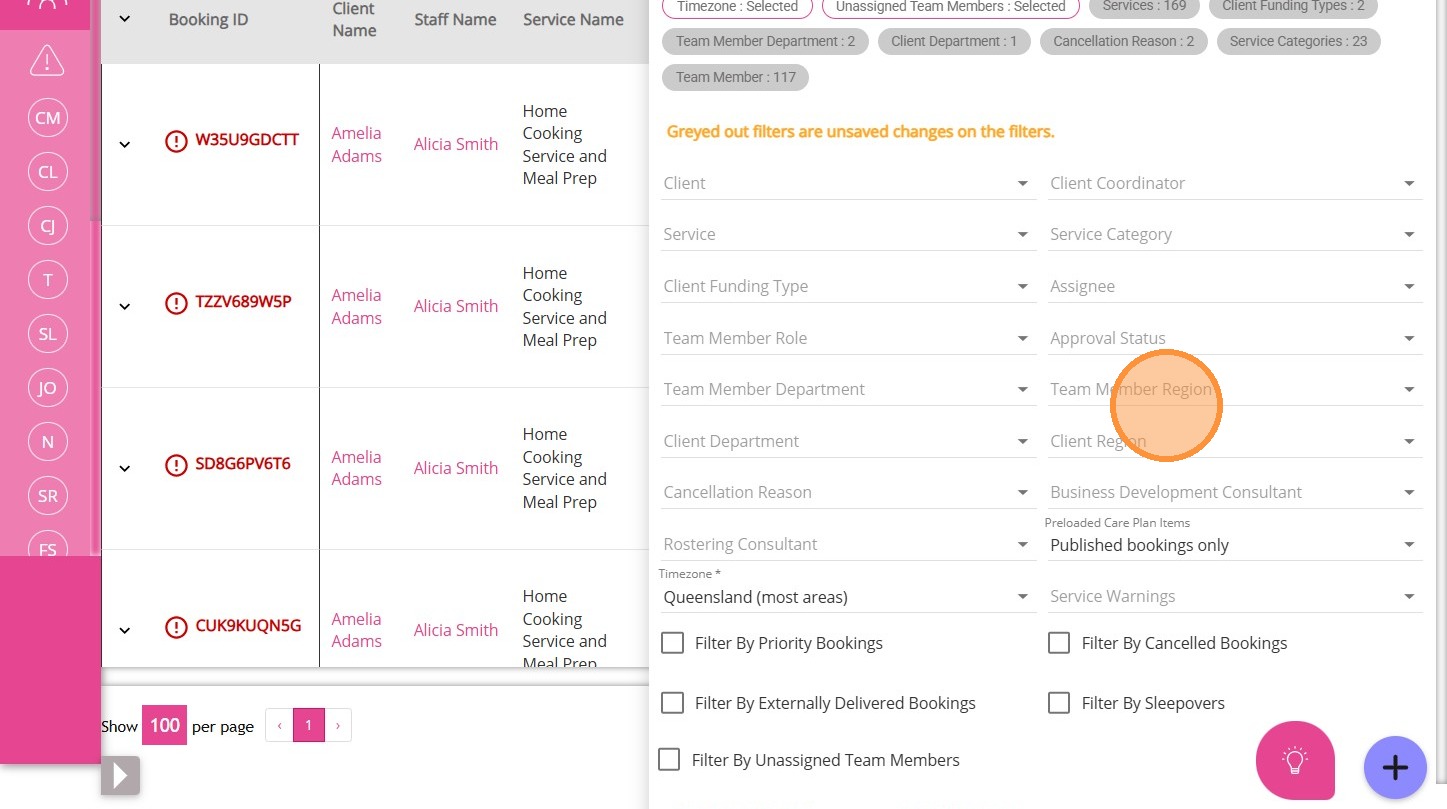
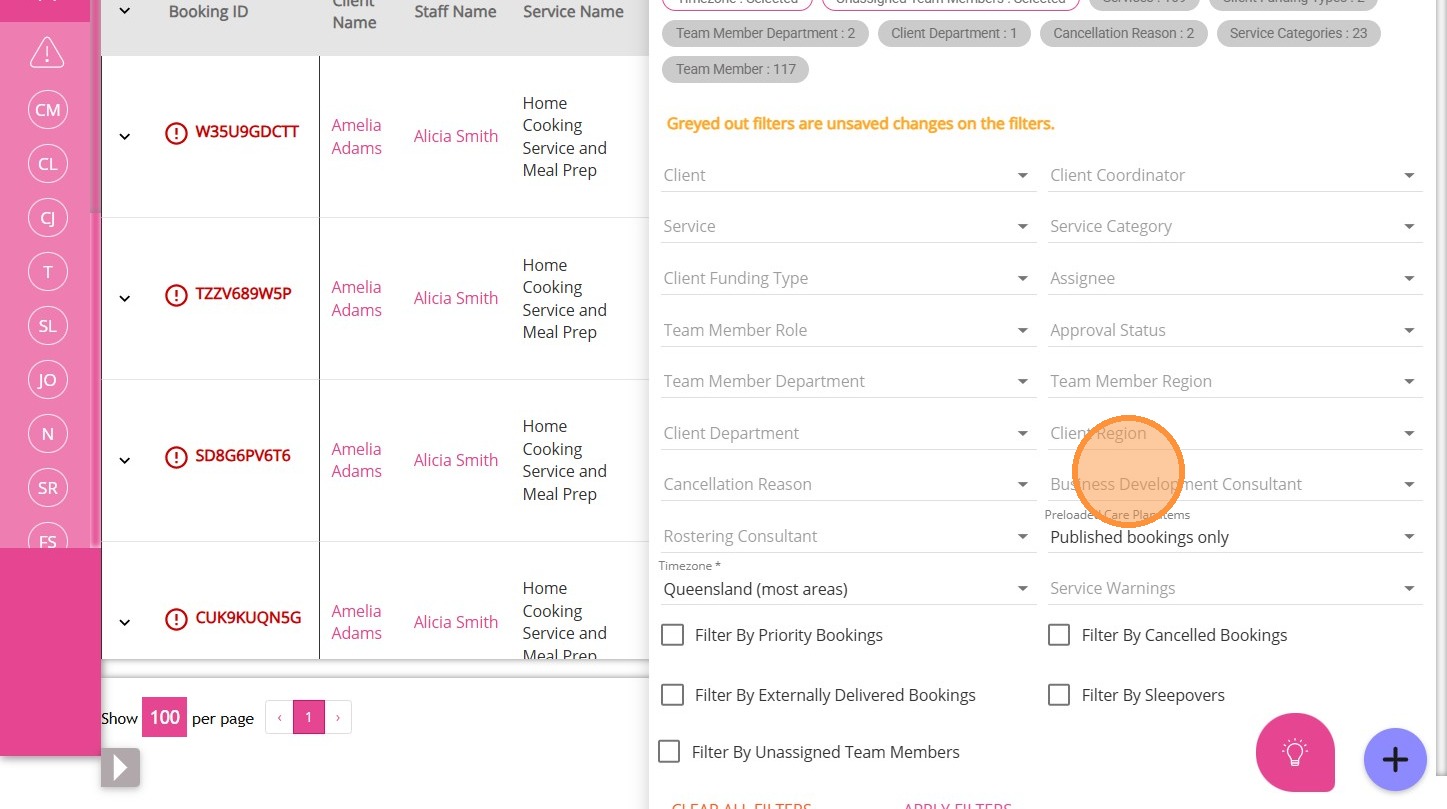
2. The Filters pop-up will appear, allowing you to select filters to narrow down results based on your business needs.
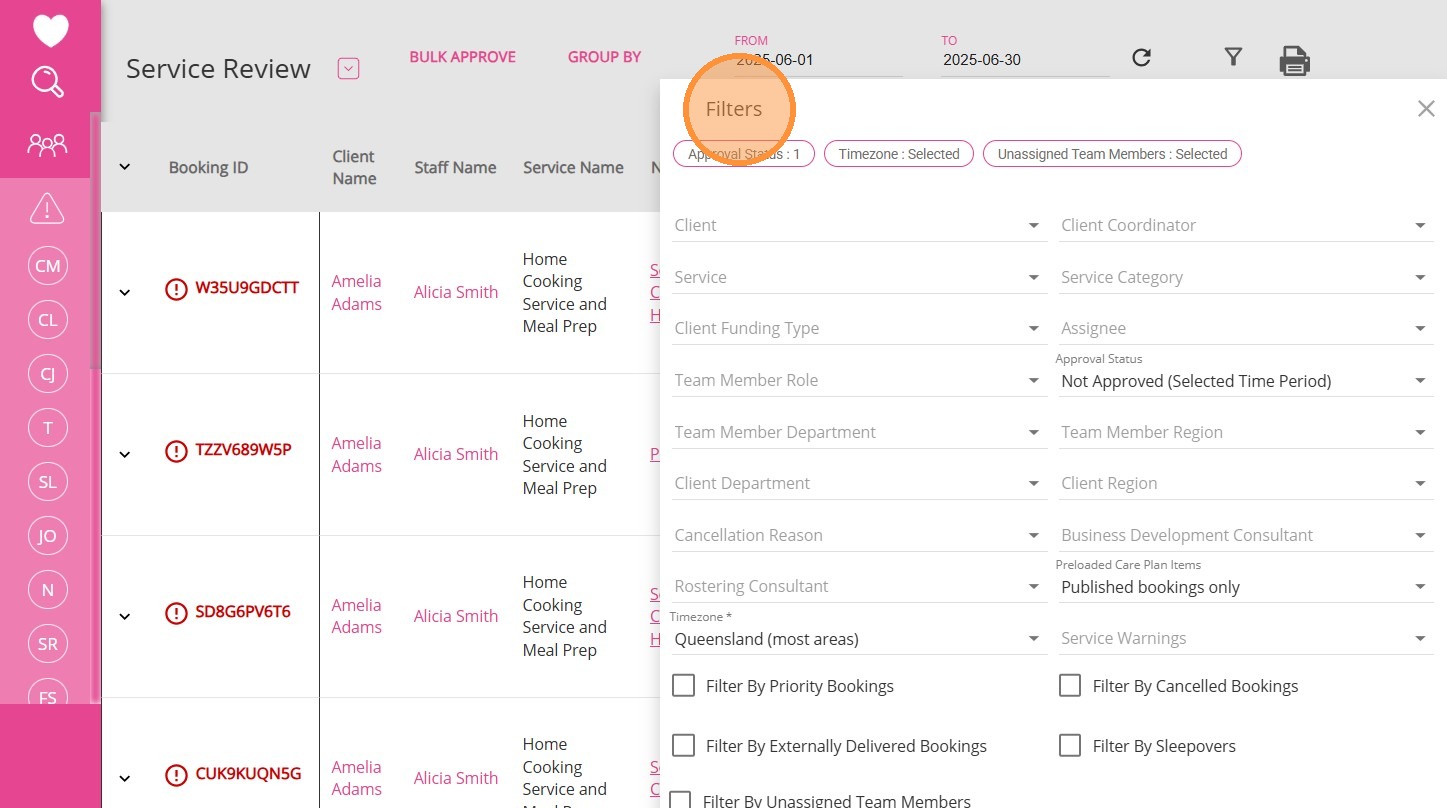
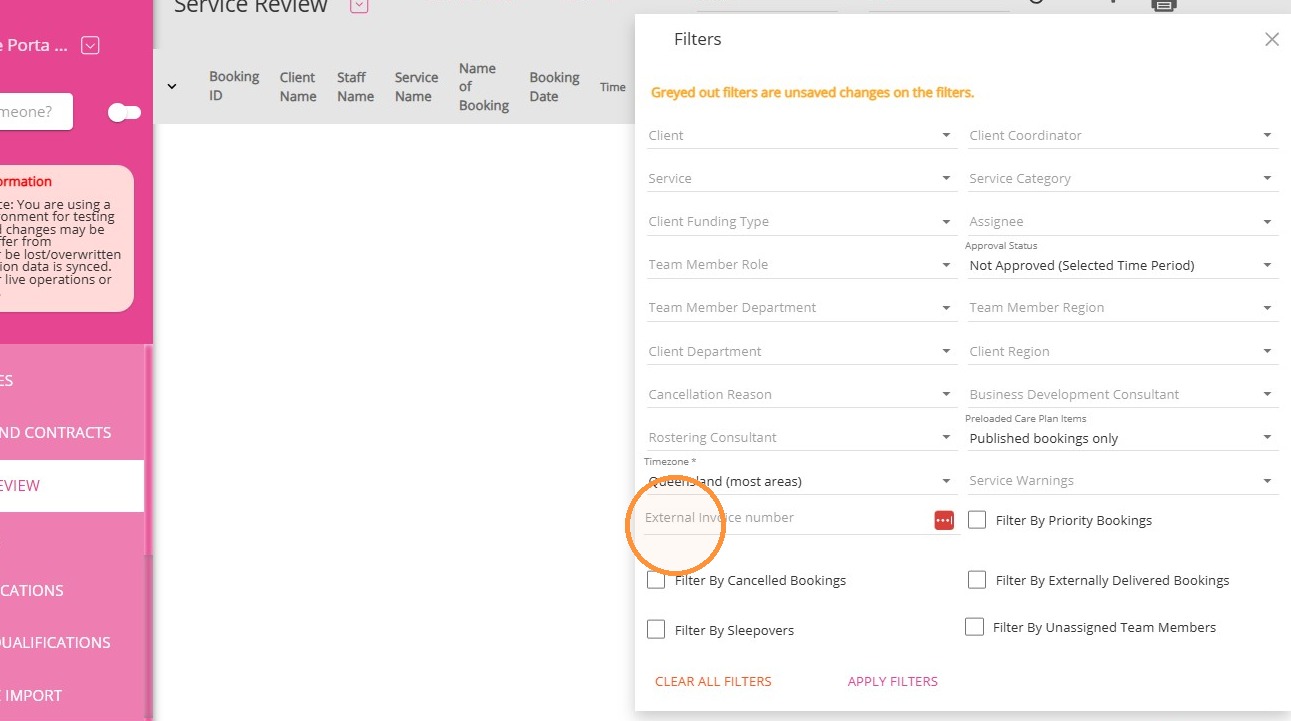
3. You can filter using the following criteria to help you easily find what you need. Click the description of each filter below to learn more about it.
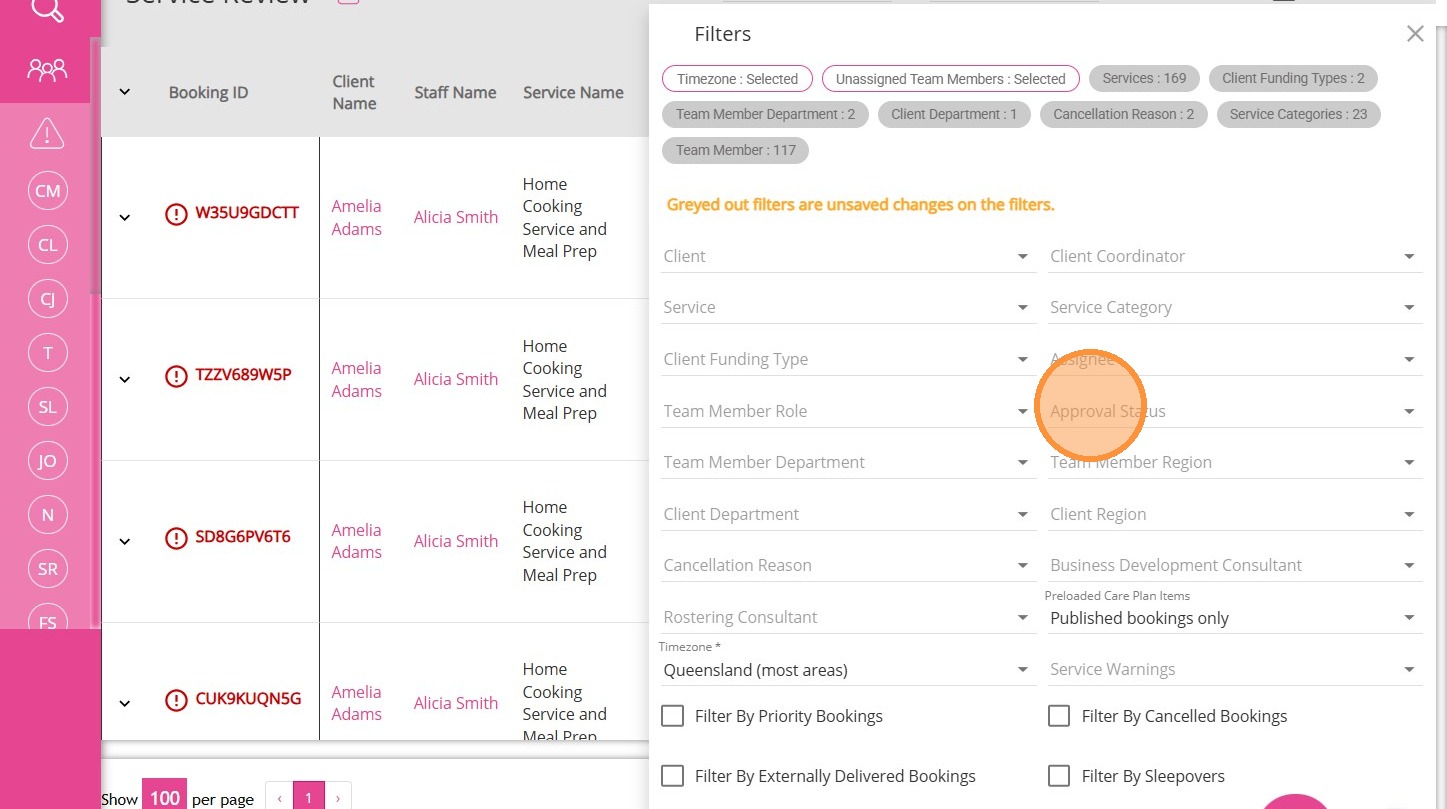
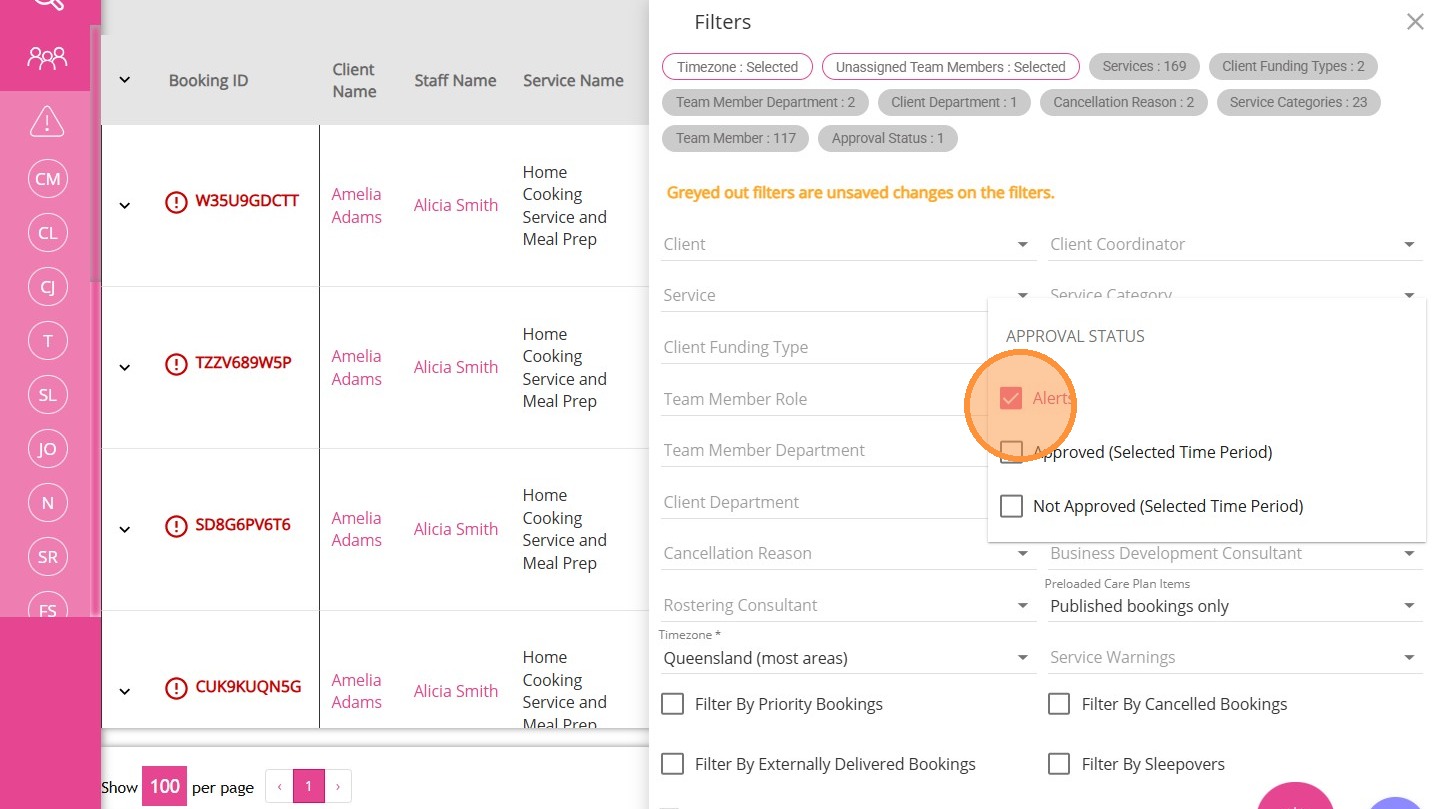
Filter By Approval Status
You can filter bookings by their approval status. 

Options:

  1. Alerts: Filters bookings where changes have been made after approval, but the new version has not yet been approved. Only the previously approved version is included in exports until approval of the changes. For more information, see FAQ: What does the "Alert" filter mean on the Service Review Board?
  2. Approved: Filters bookings that have been reviewed and approved for the selected time period.
  3. Not Approved: Filters bookings that have not yet been reviewed or approved for the selected time period. By default, the Service Review Board shows only items that are not yet approved
Filter By Service Warnings

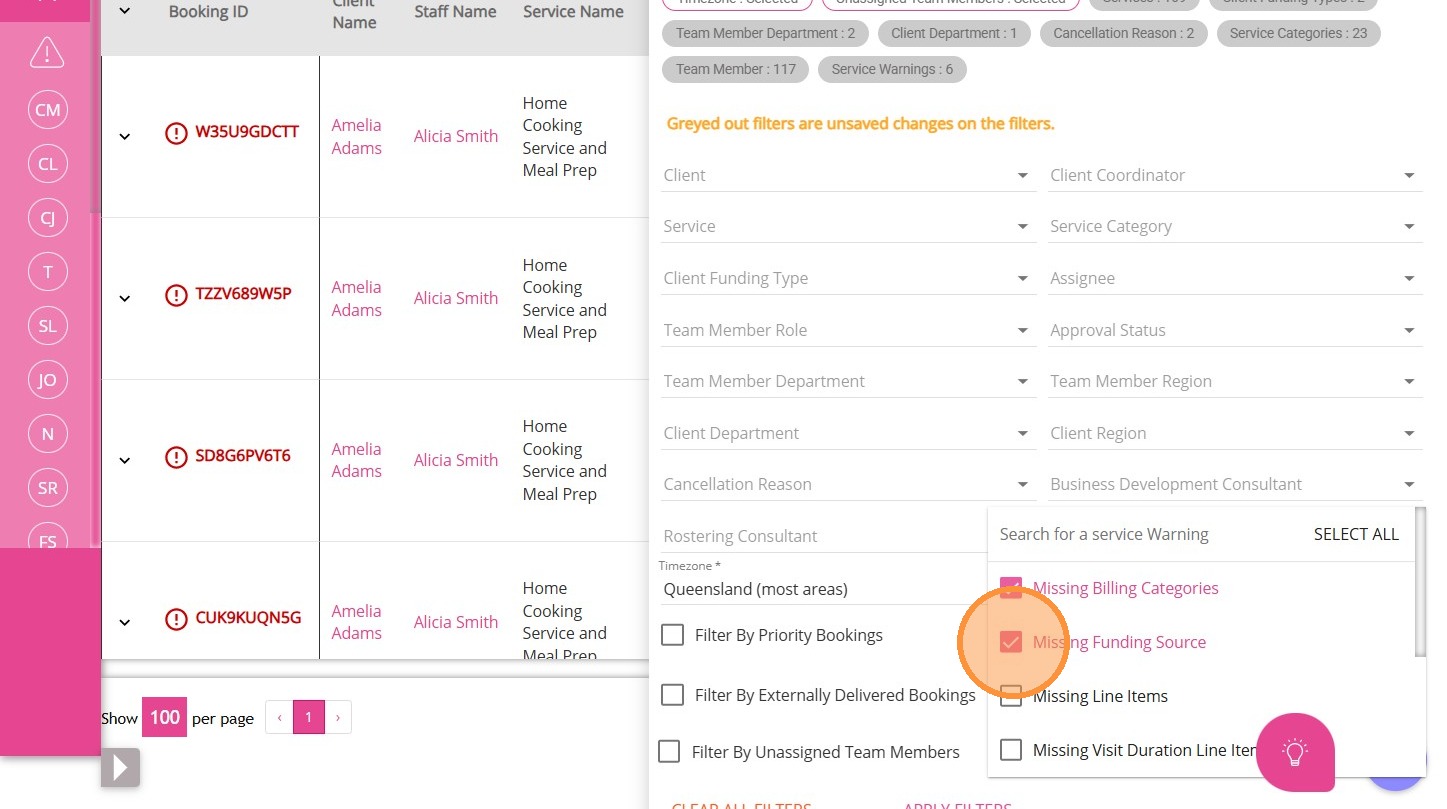
This filter shows bookings with specific service warnings, such as missing billing categories or manual line items.
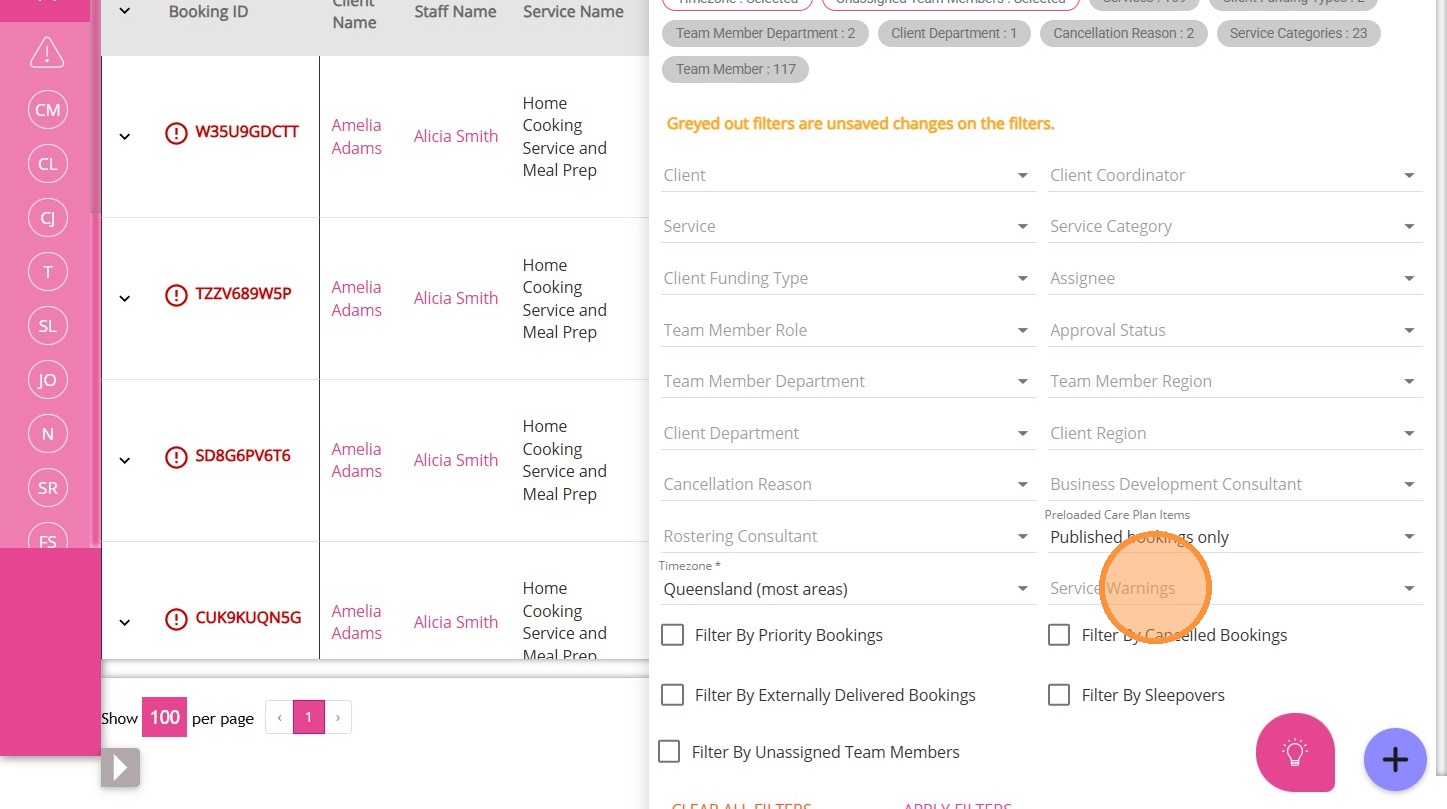
1. Click Service Warnings.

2. Use the dropdown and tick box to select warnings.
Filter By Client
This filter allows you to narrow down results to specific clients only. 
1.. Click Client.

2. Select one or more clients from the list to display results for those individuals only.
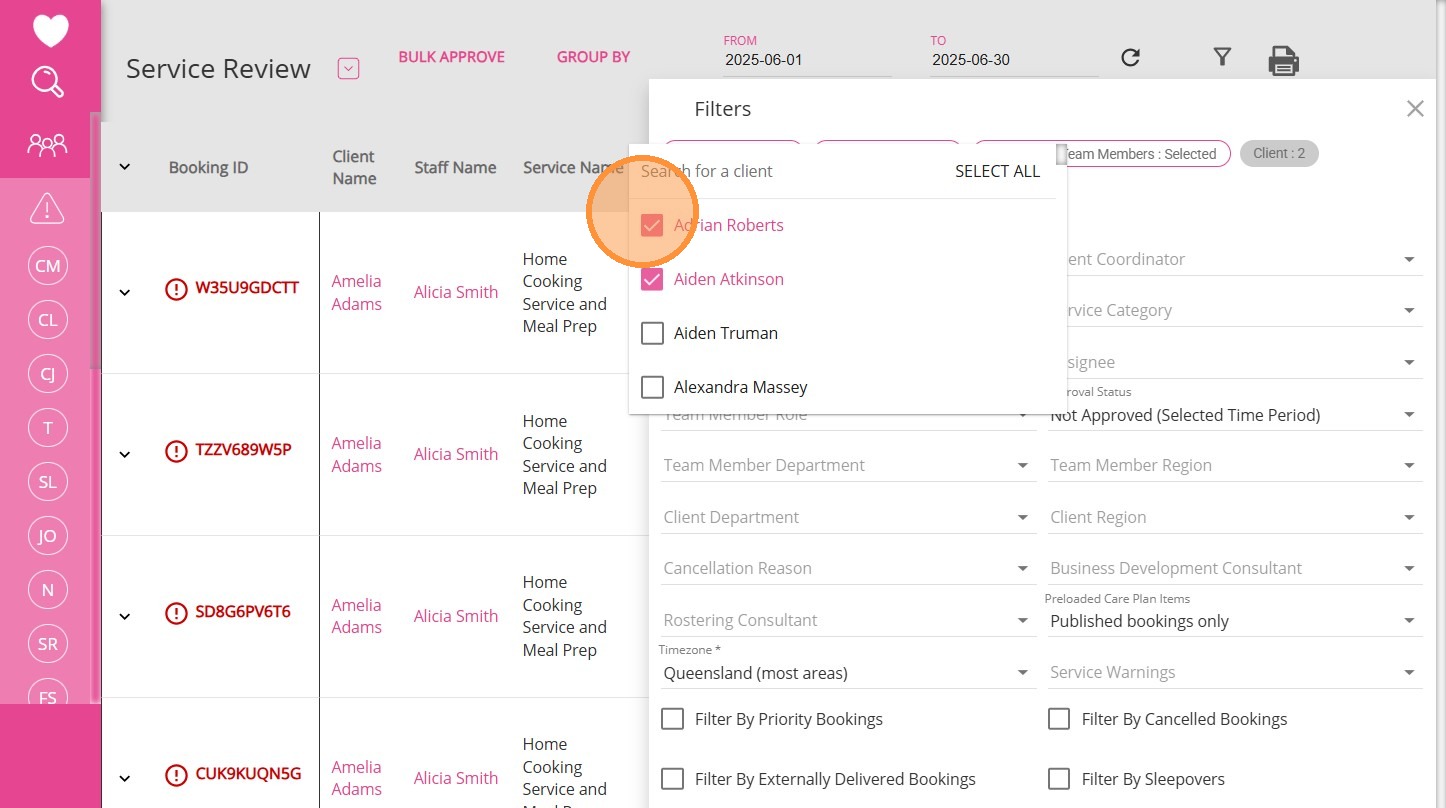
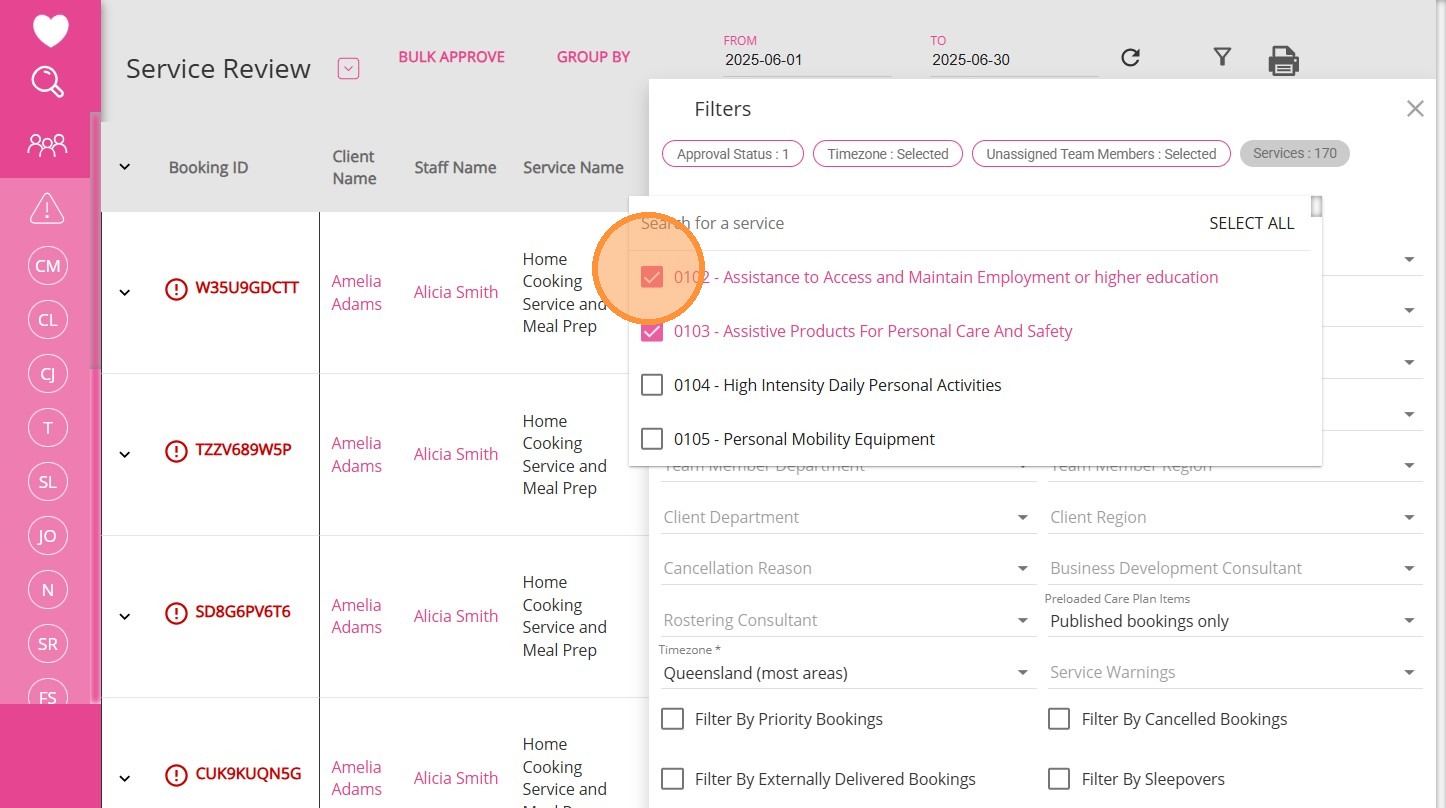
Filter By Service
This filter narrows results to specific services. 
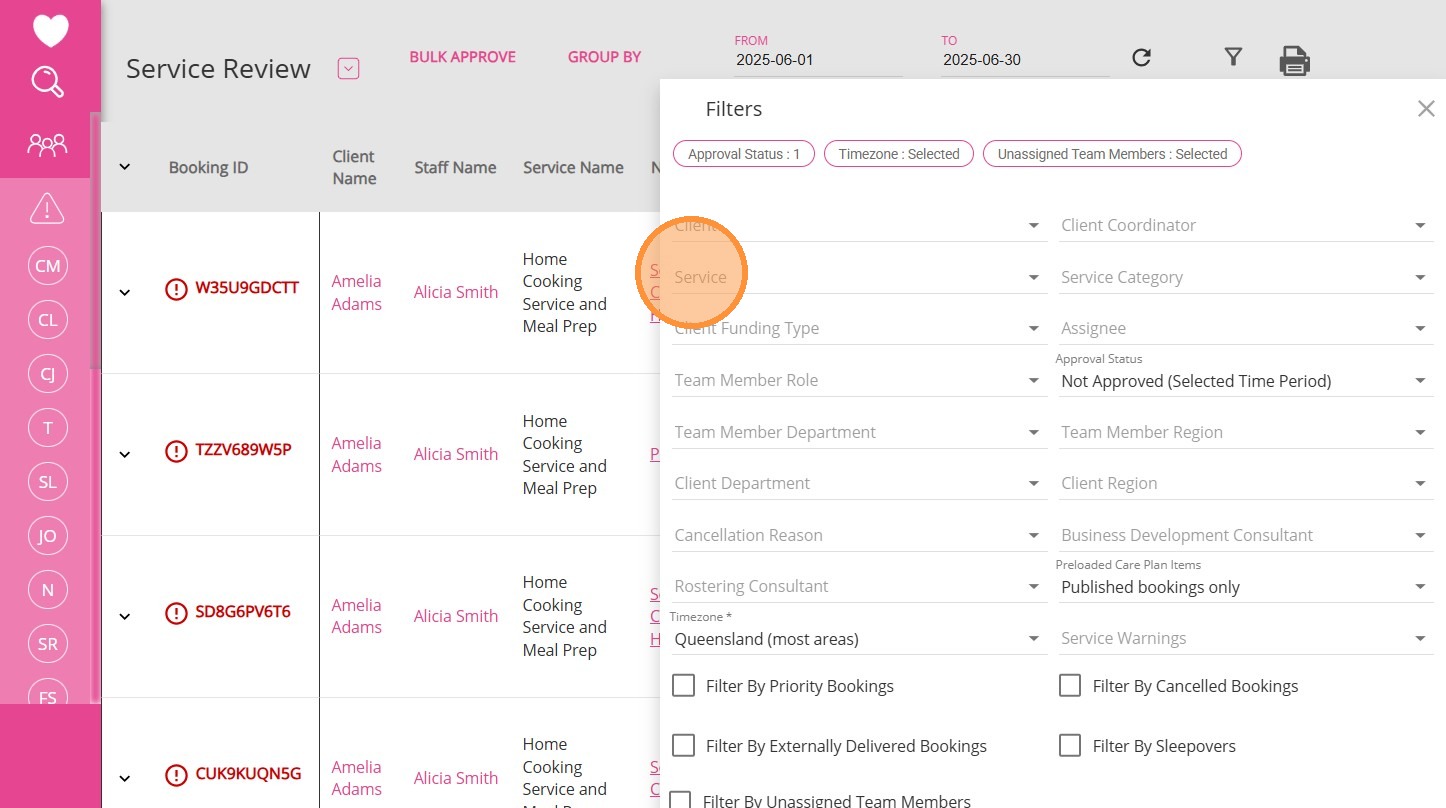
1. Click Service.

2. Select one or more services to display only those in your results.
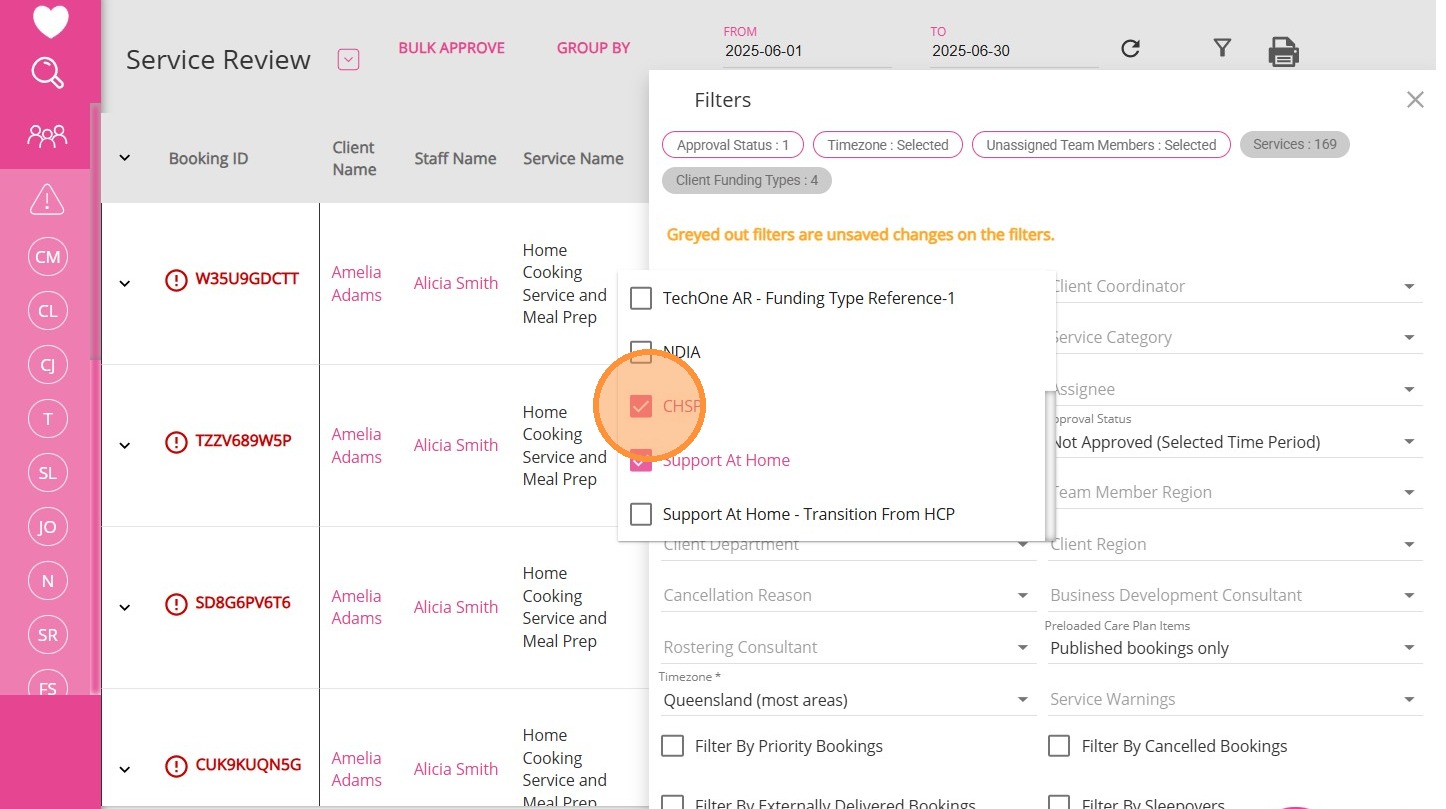
Filter By Client Funding Type
This filters bookings by funding type (such as Support at Home, NDIS, private). 
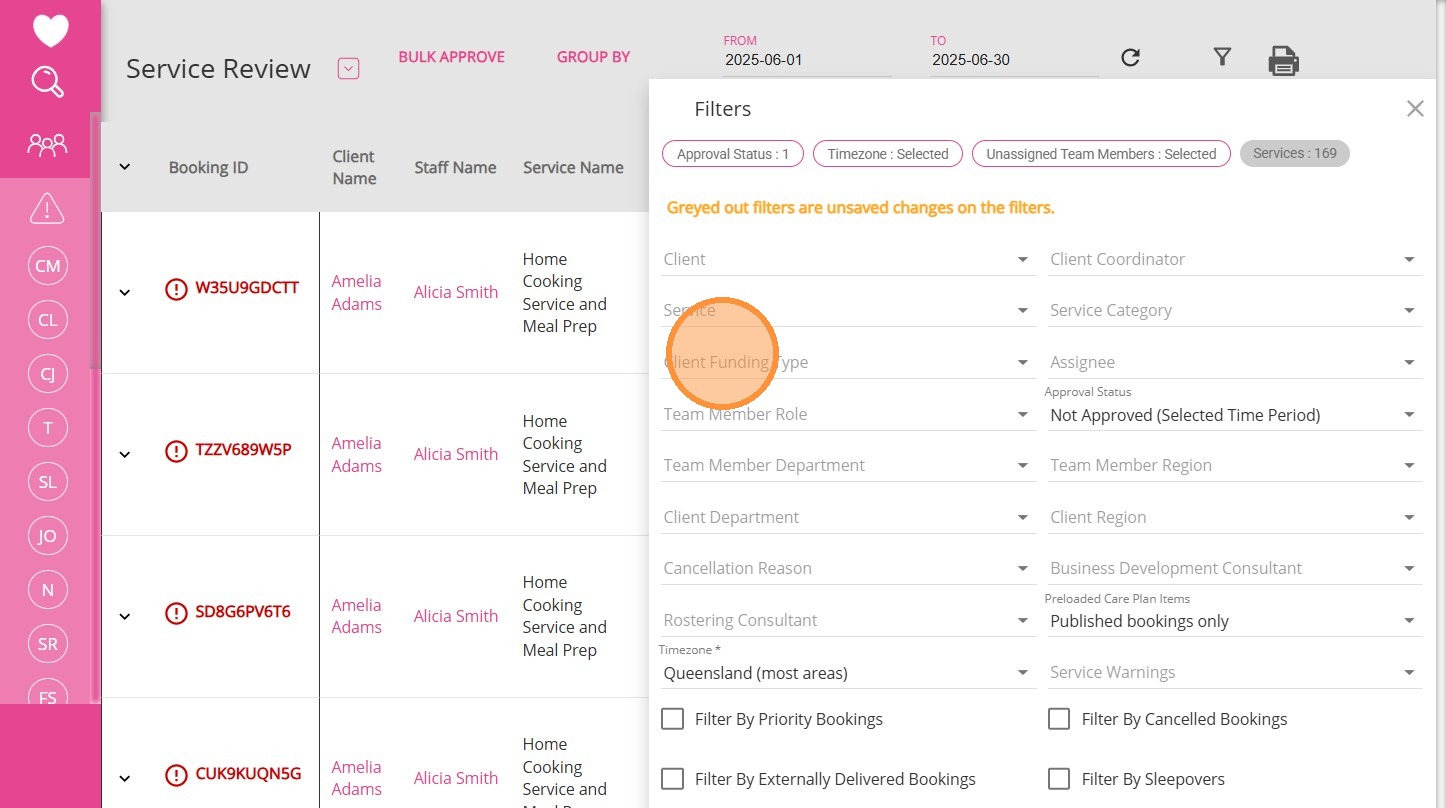
1. Click Client Funding Type.

2. Use the dropdown and tick box to select relevant types.
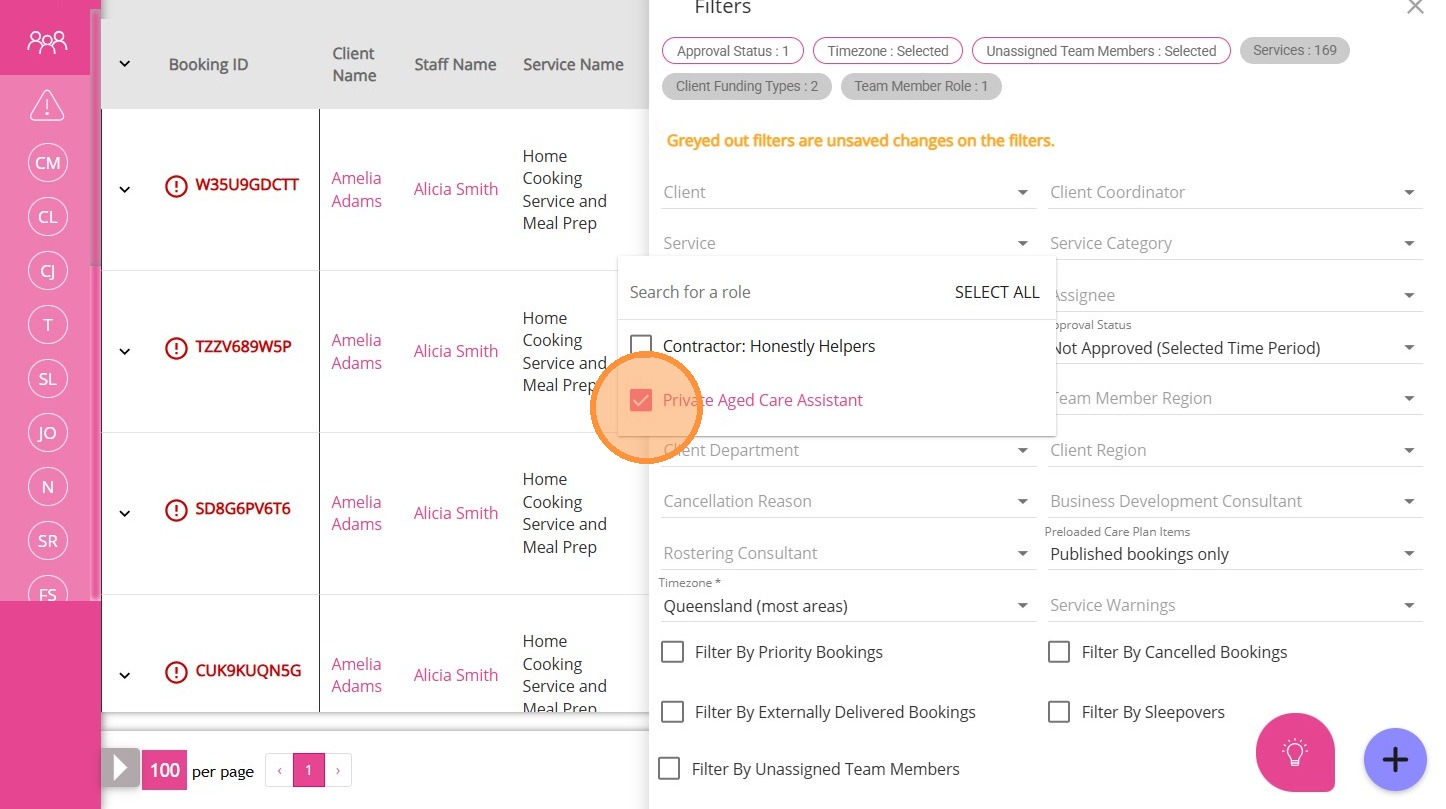
Filter By Team Member Role

This filters results by staff roles.

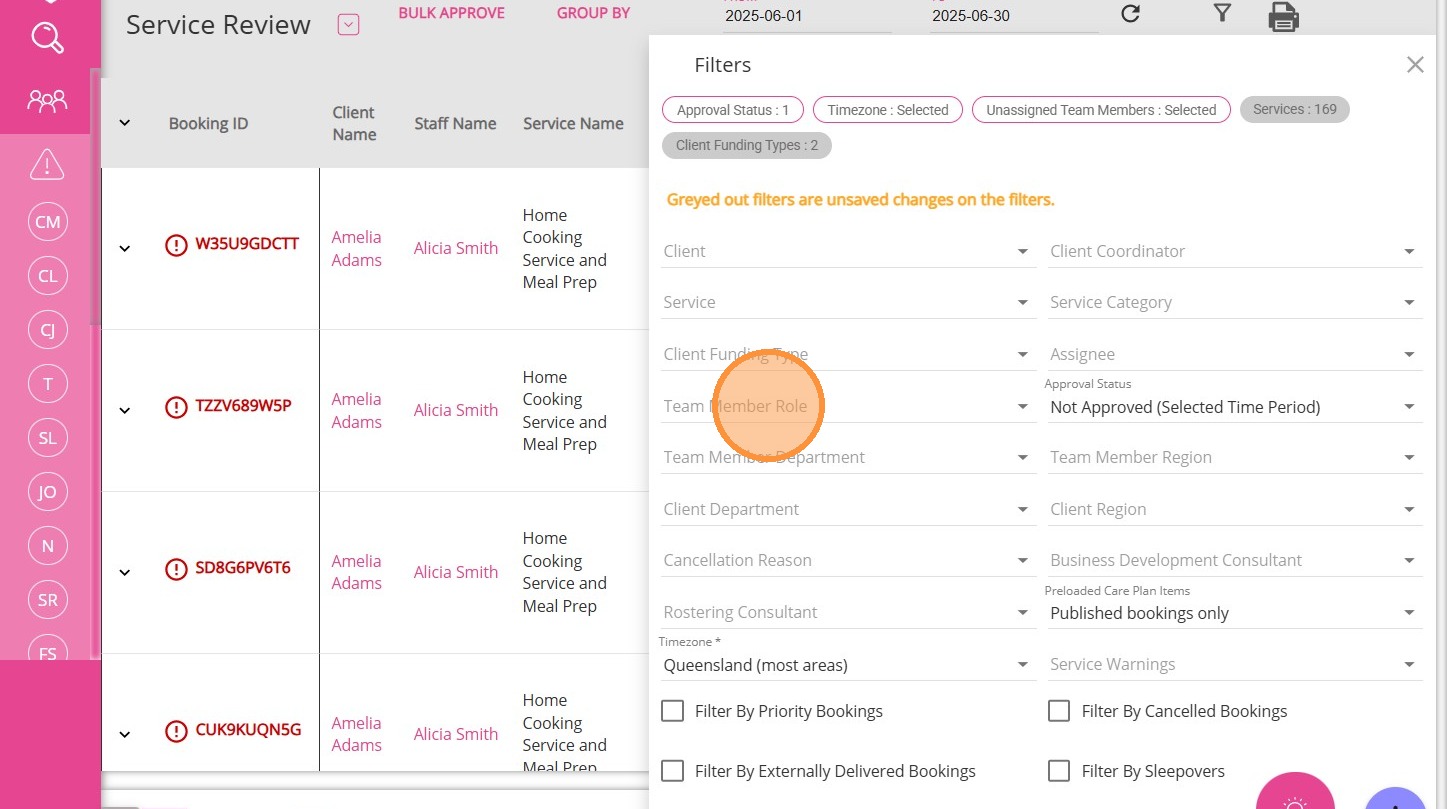
1. Click Team Member Role.

2. Select one or more roles from the dropdown to show results for those roles.
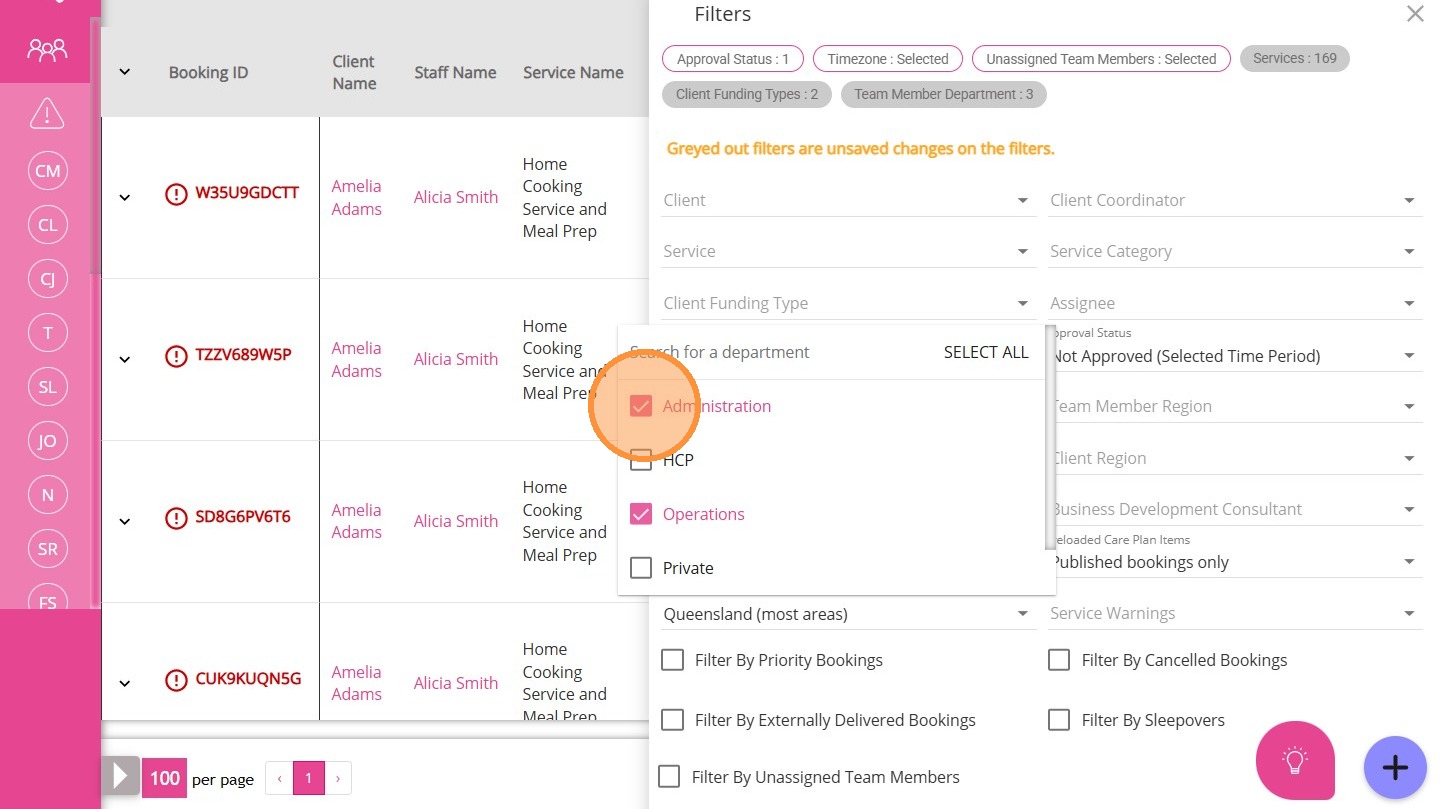
Filter By Team Member Department

This narrows your view to specific staff departments.
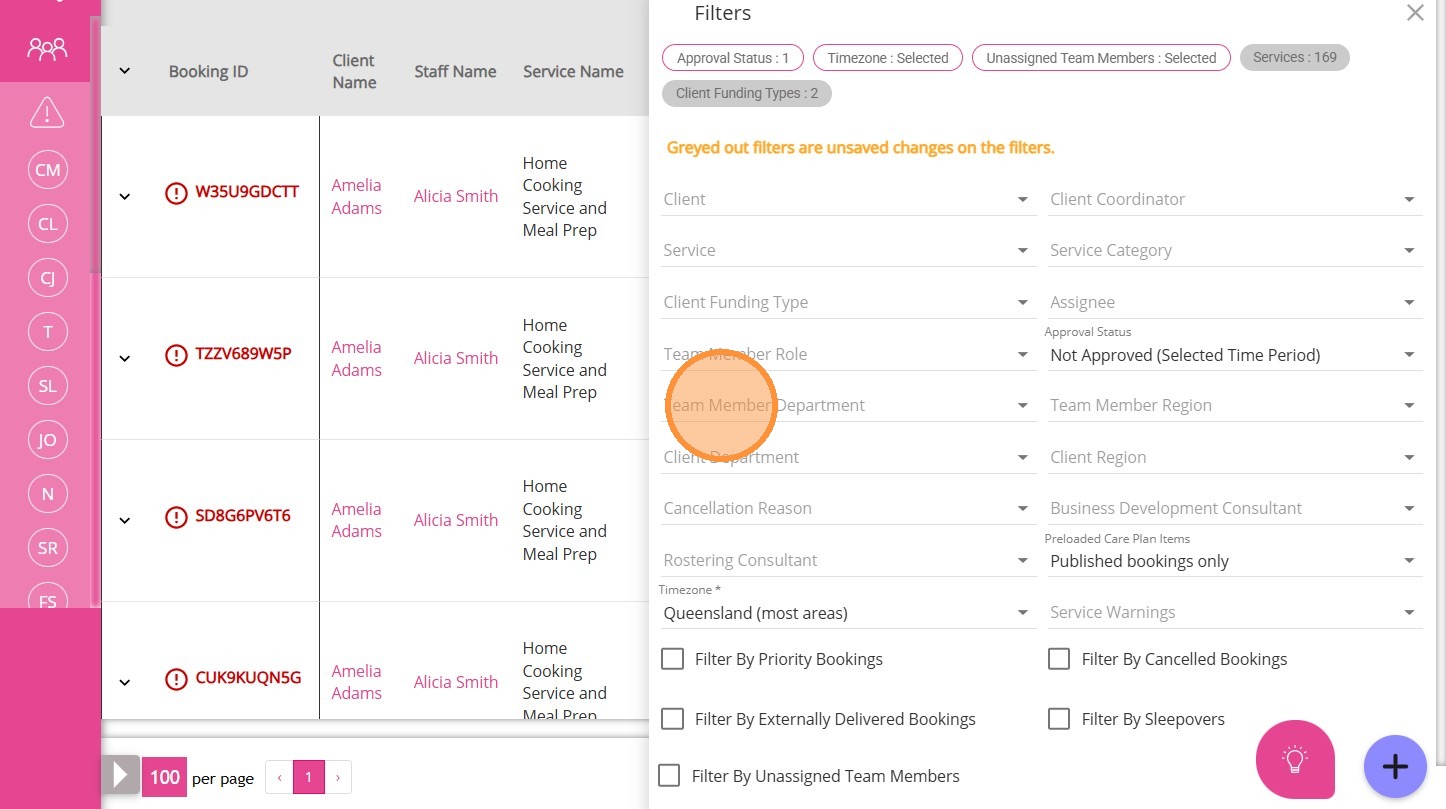
1. Click Team Member Department.

2. Select department(s) to filter your results.
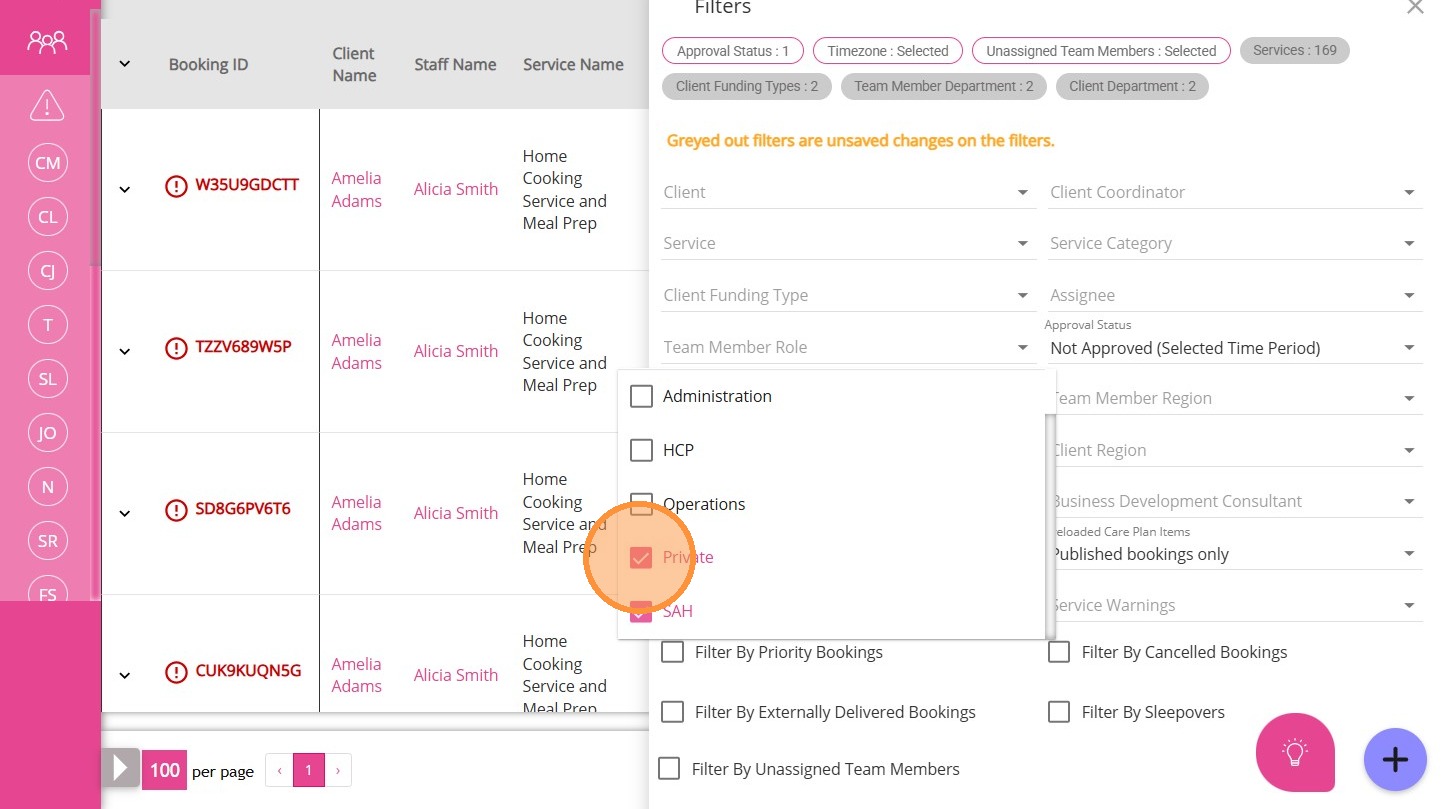
Filter By Client Department

This filters results by client departments.
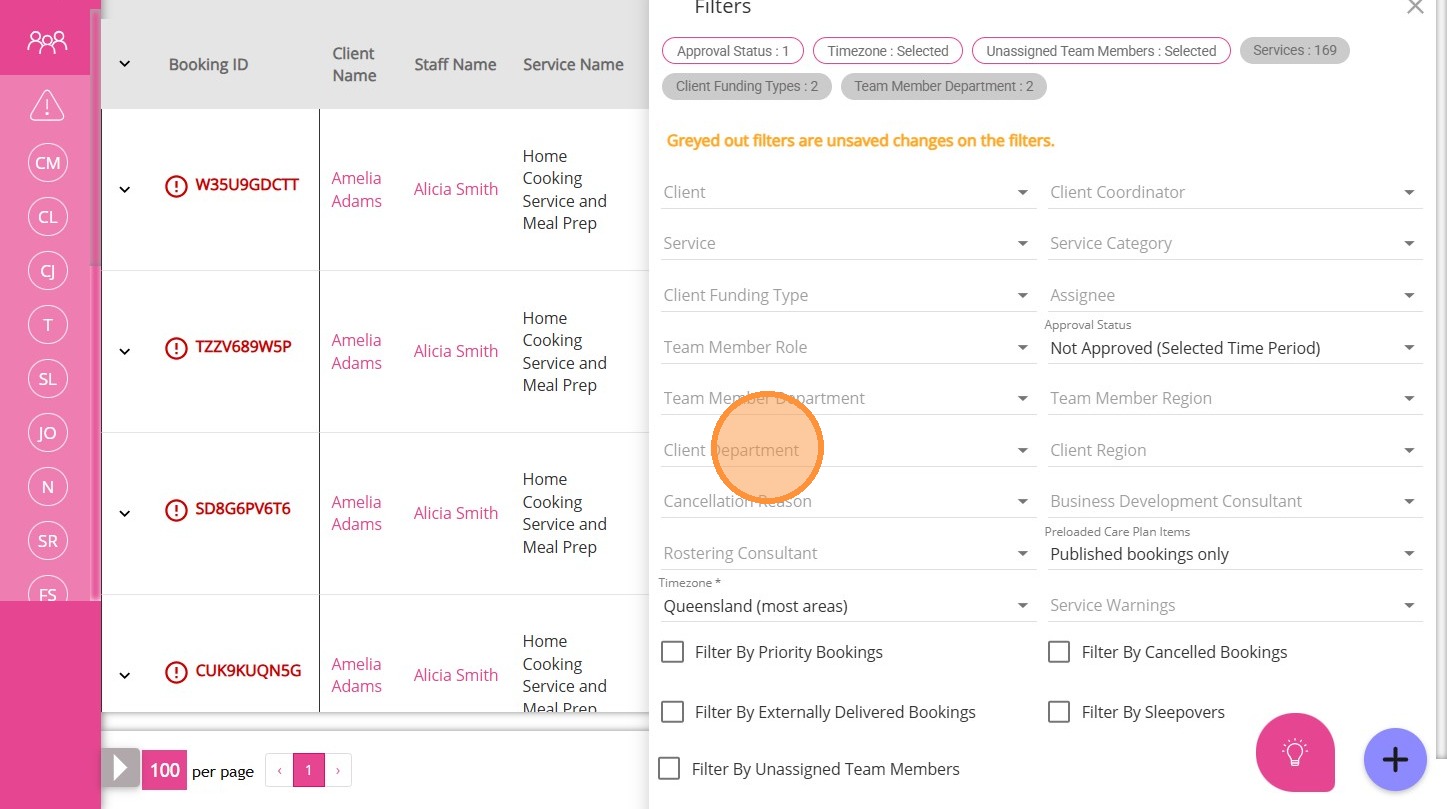
1. Click Client Department.

2.  Select department(s) from the dropdown to display those results.
Filter By Cancellation Reason
This allows you to narrow down results based on the reason an appointment or event was cancelled.
1. Click Cancellation Reason.

2. Select one or more reasons for cancellation.
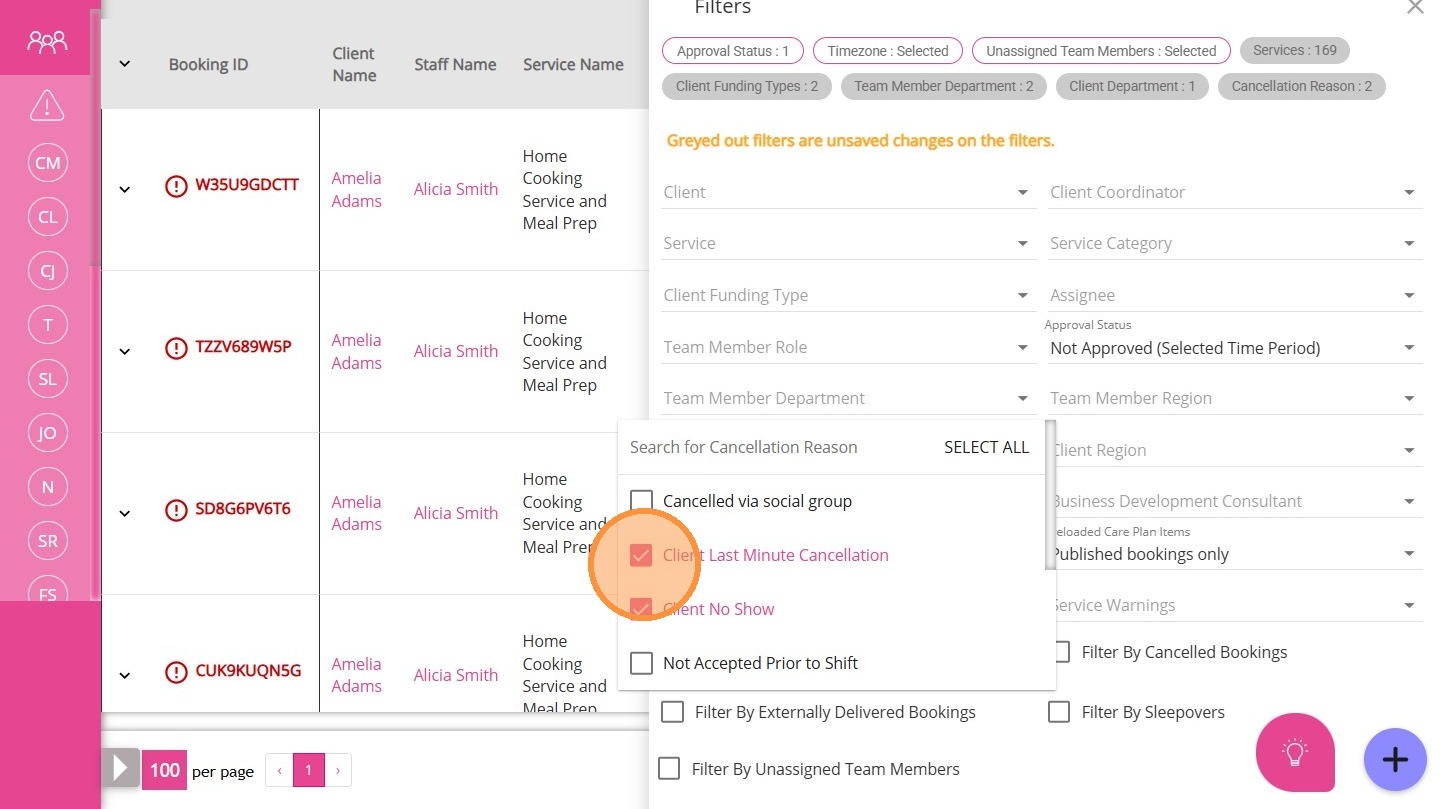
Example:

  1. Client no show: The client missed the appointment without prior notice.
  2. Staff no show: The staff member missed the appointment.
  3. Scheduled incorrectly: The appointment was cancelled due to a booking error. 
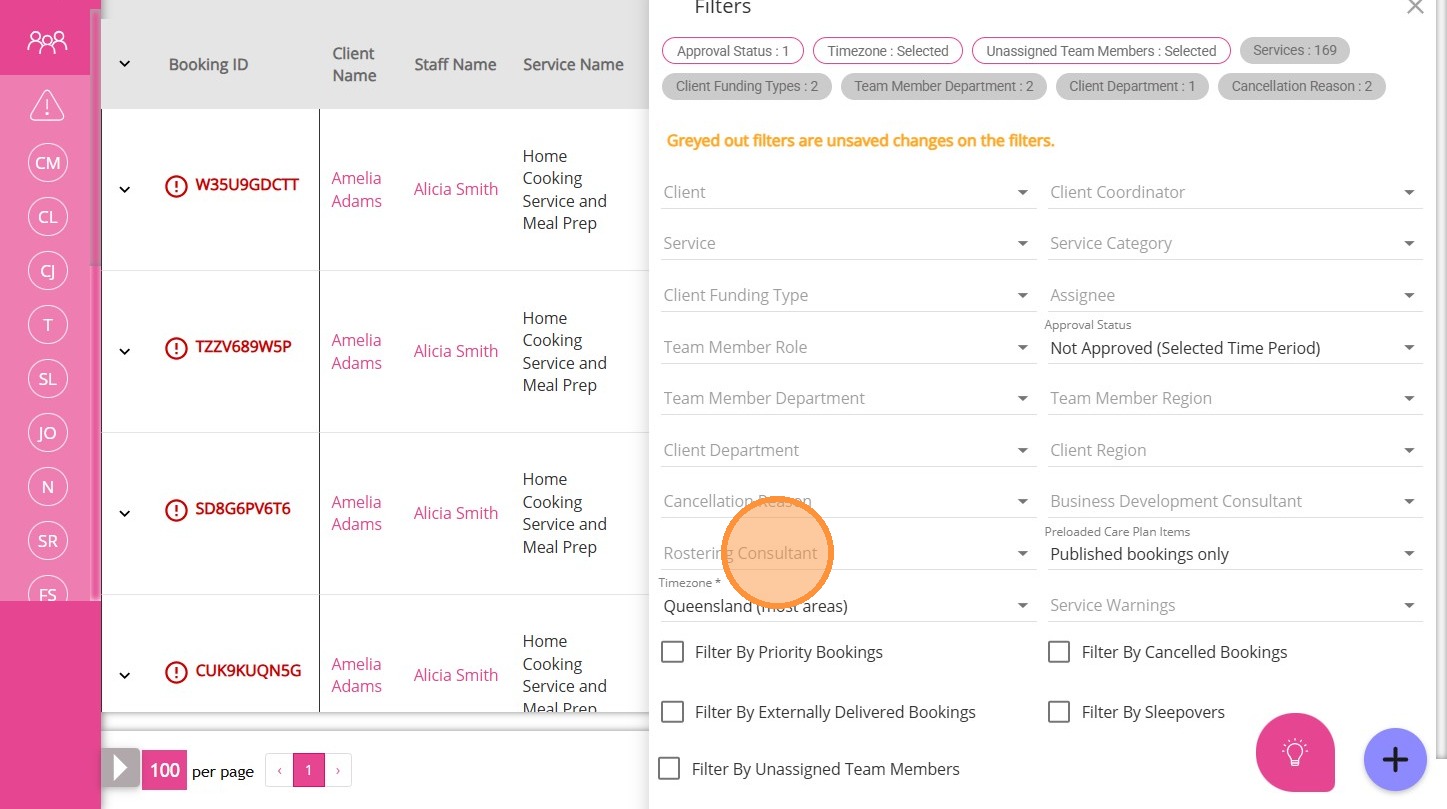
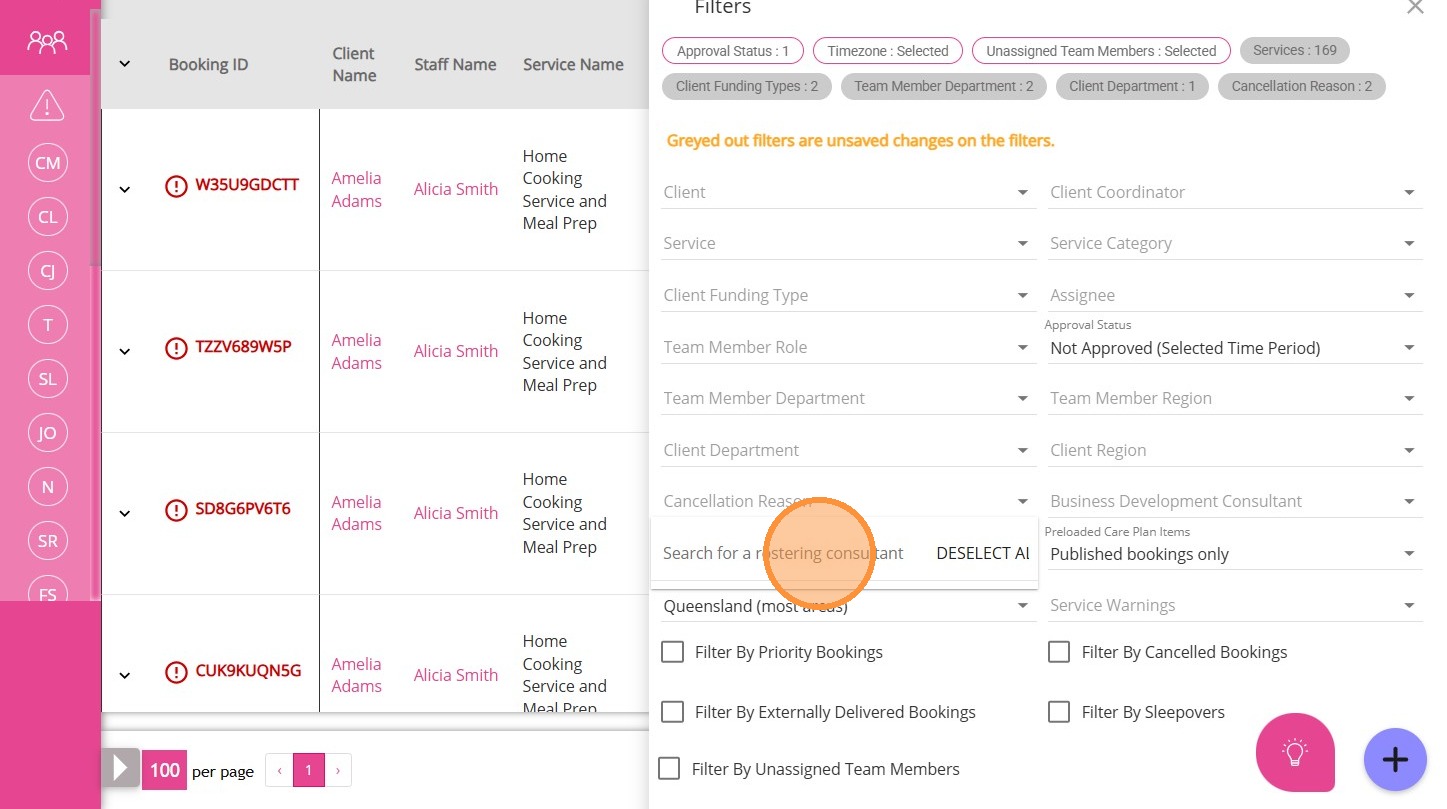
Filter By Rostering Consultant
This filters results by the rostering consultant assigned to a booking.
1..Click Rostering Consultant.

2. Type the consultant’s name and select from the search results.
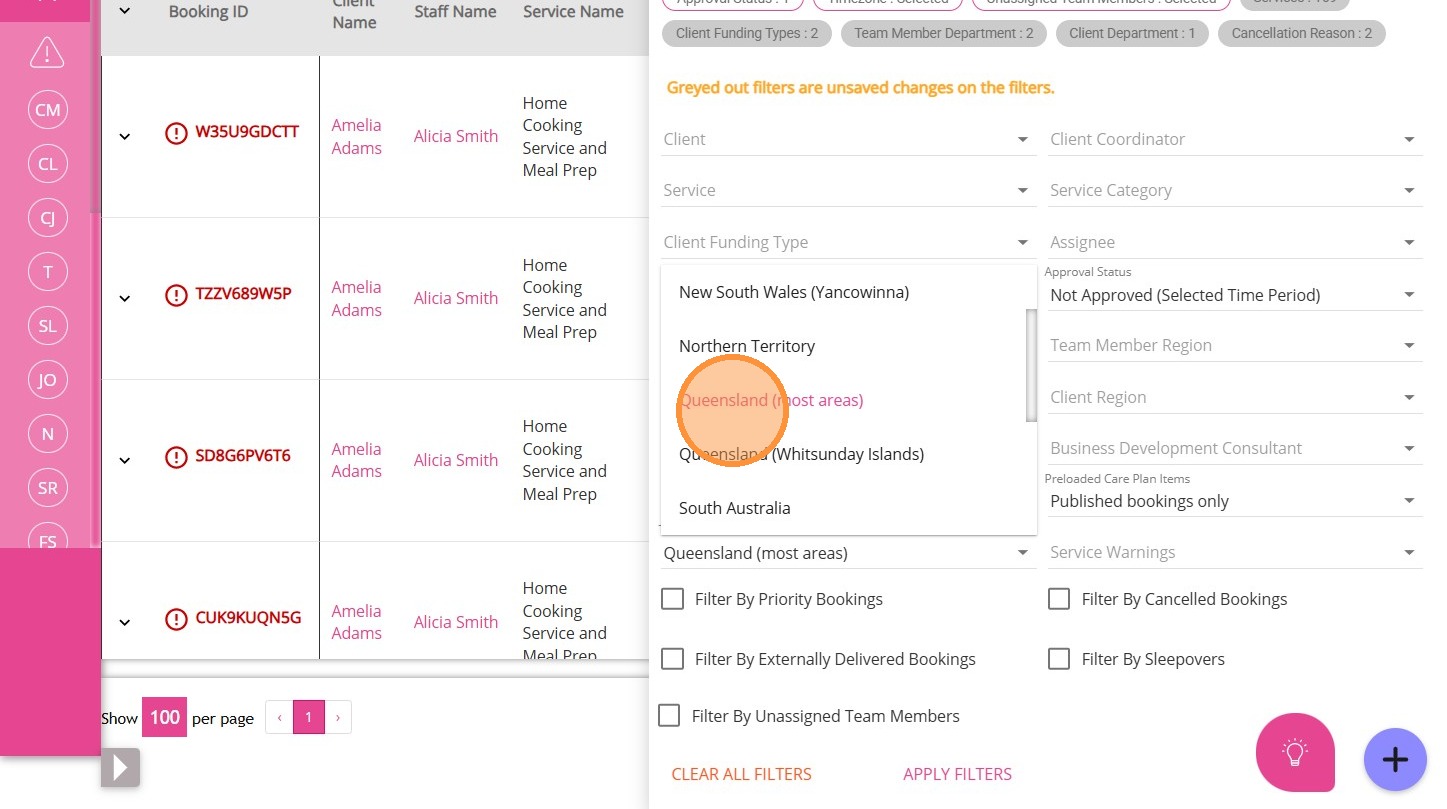
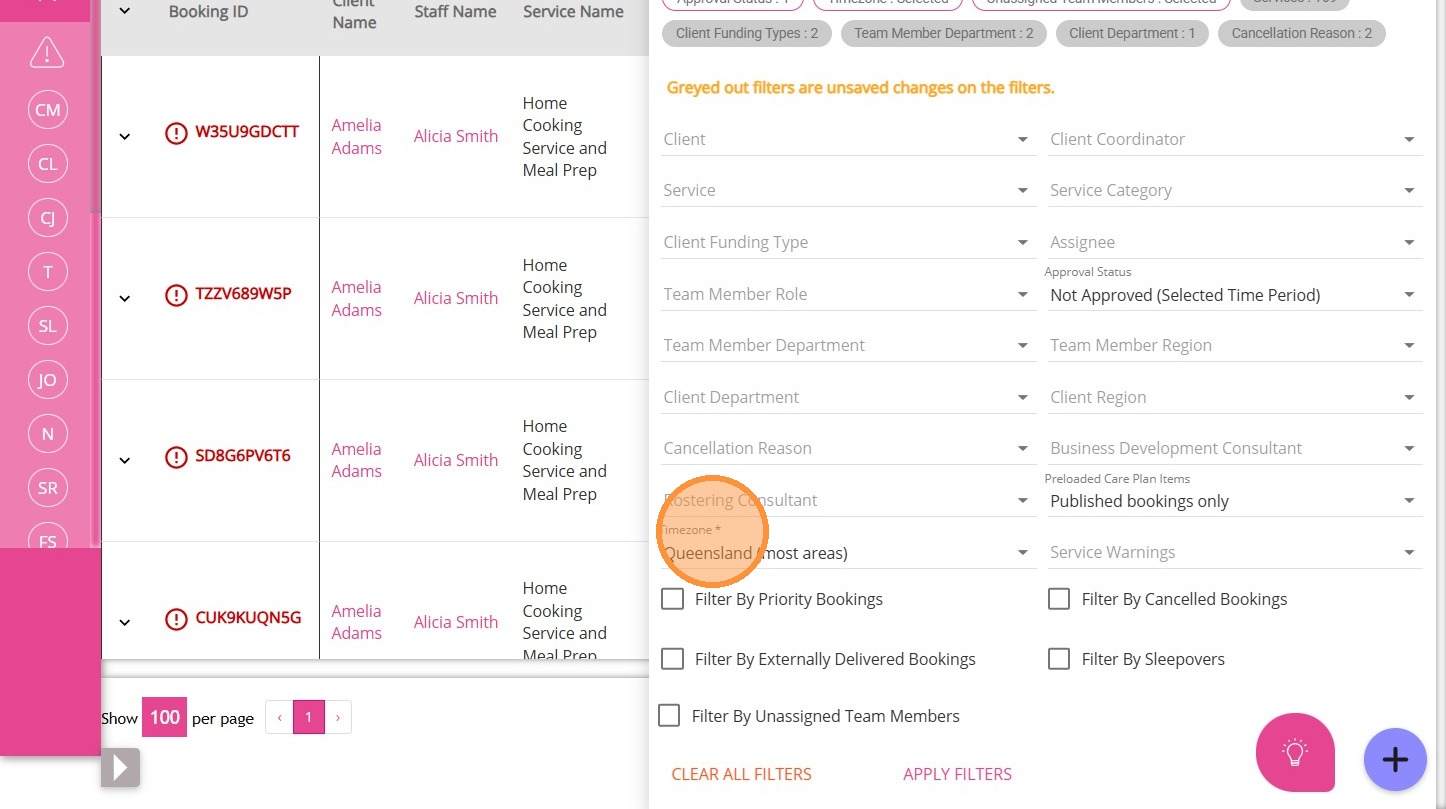
Filter By Timezone
This filter narrows bookings to those in a specific timezone.
1.Click Timezone.

2. Select the relevant timezone from the list.

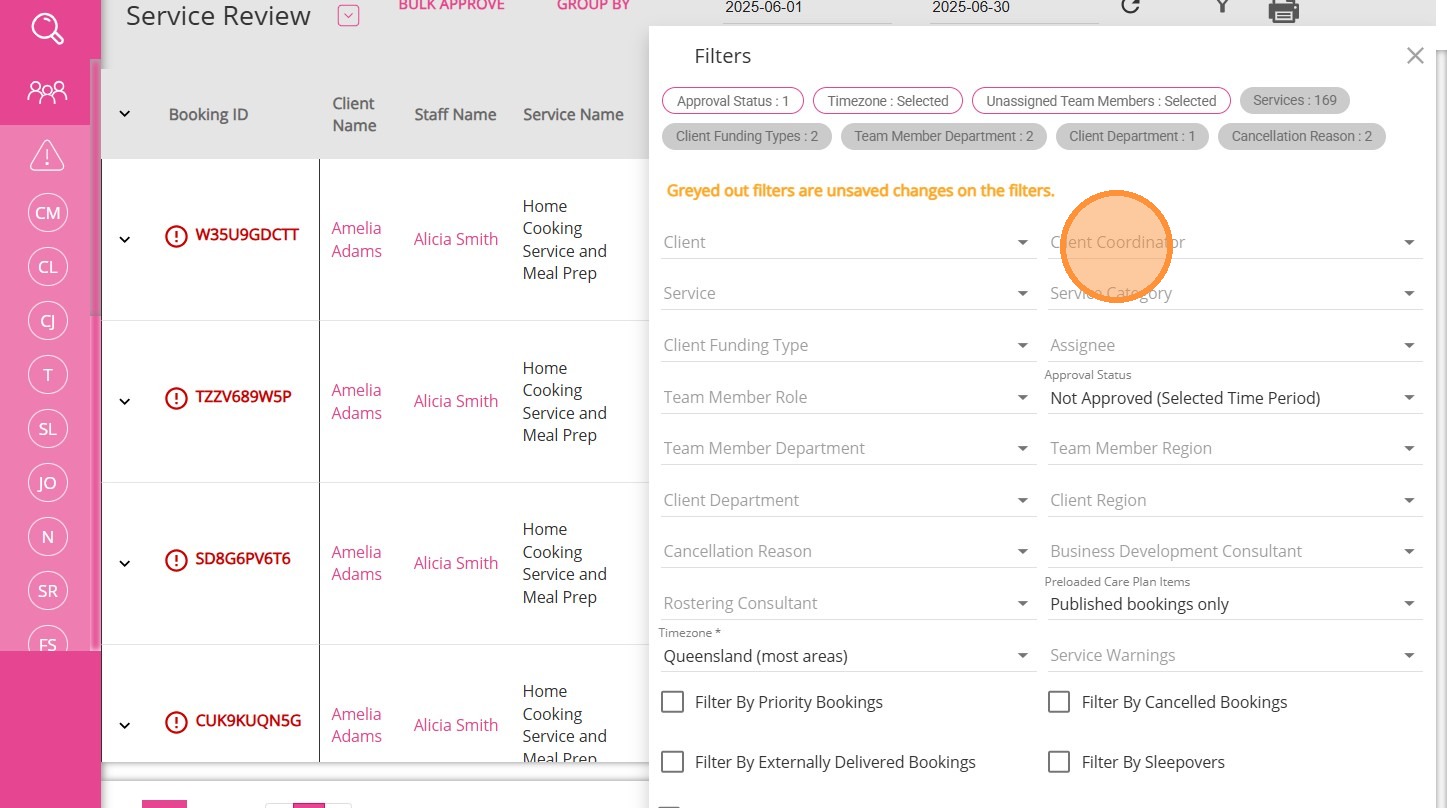
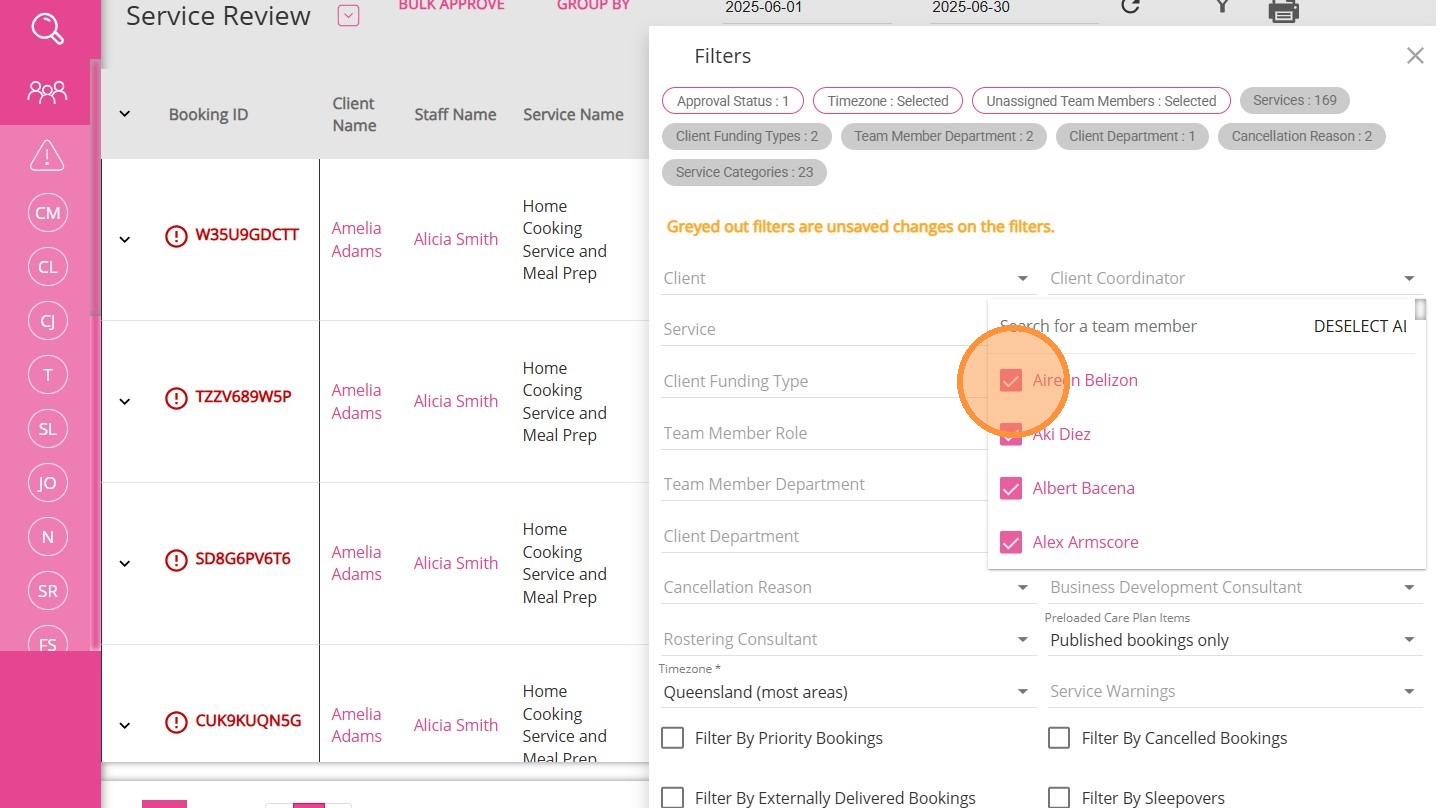
Filter By Client Coordinator

This filters results by the client coordinator assigned.

1. Click Client Coordinator.

2. Use the dropdown and tick box to choose one or more coordinators

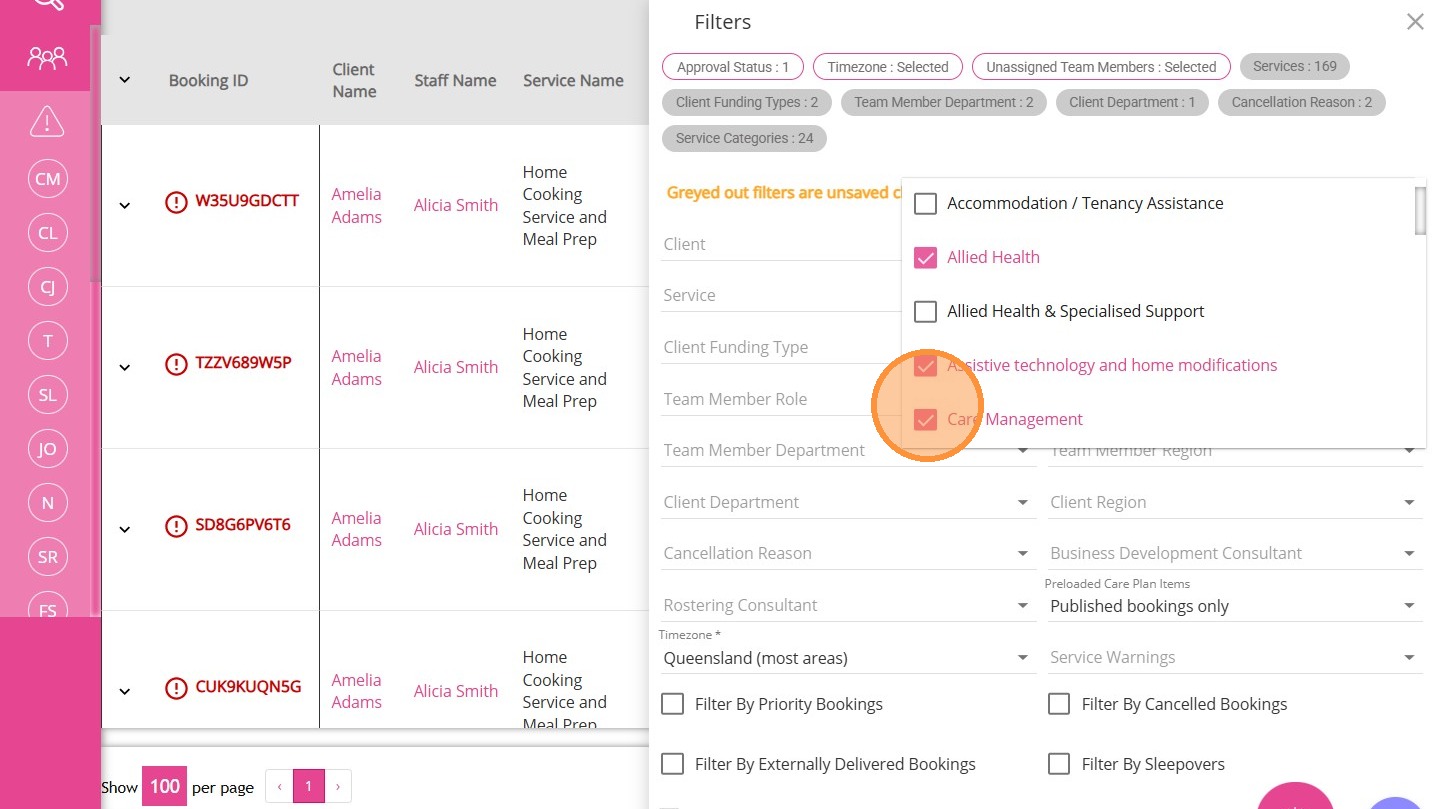
Filter By Service Category
This narrows results to specific service categories.
1. Click Service Category.

2. Choose one or more categories using the dropdown and tick box.

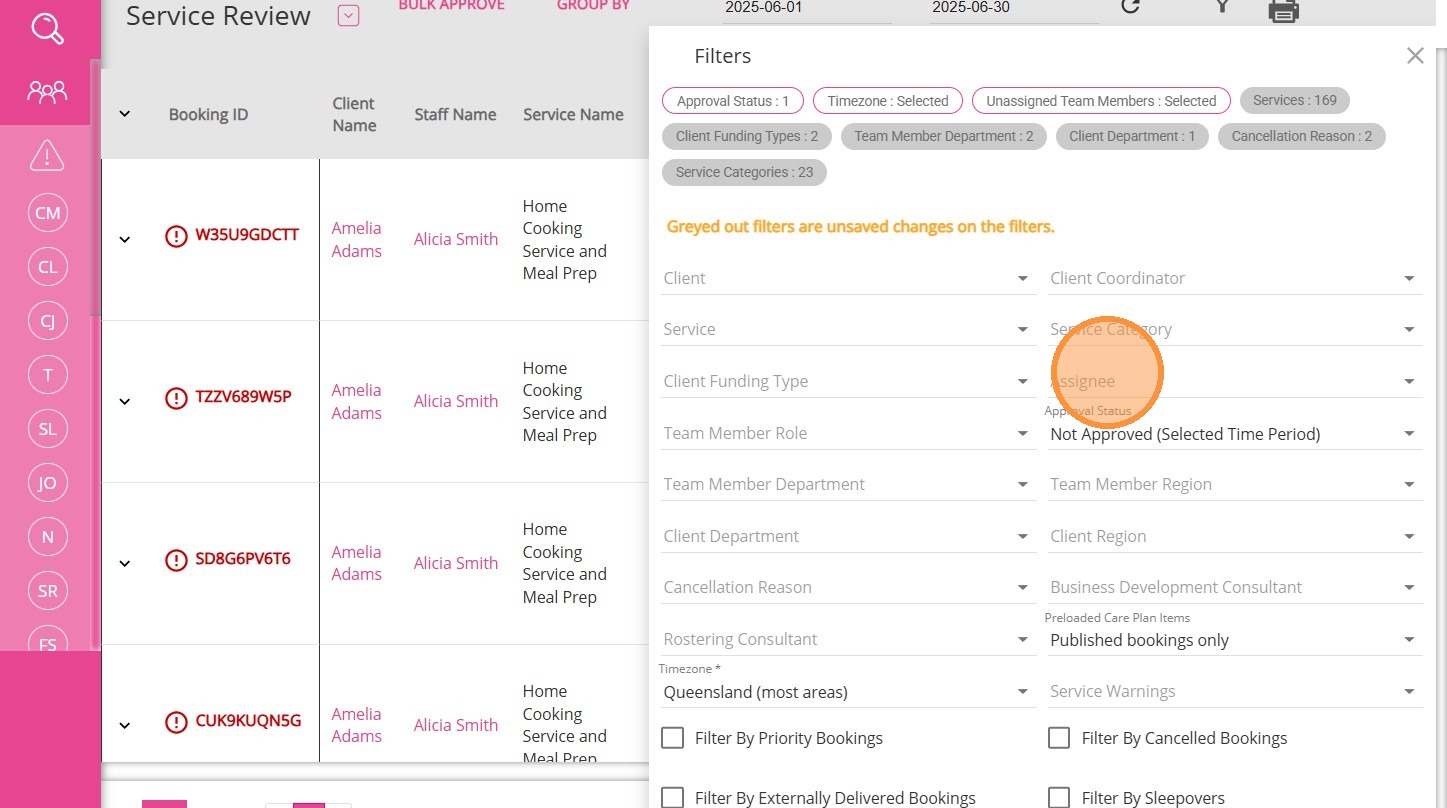
Filter By Assignee
This narrow down a list of bookings, tasks to specific staff members.
1. Click Assignee.

2. Select the assignee from the dropdown menu.

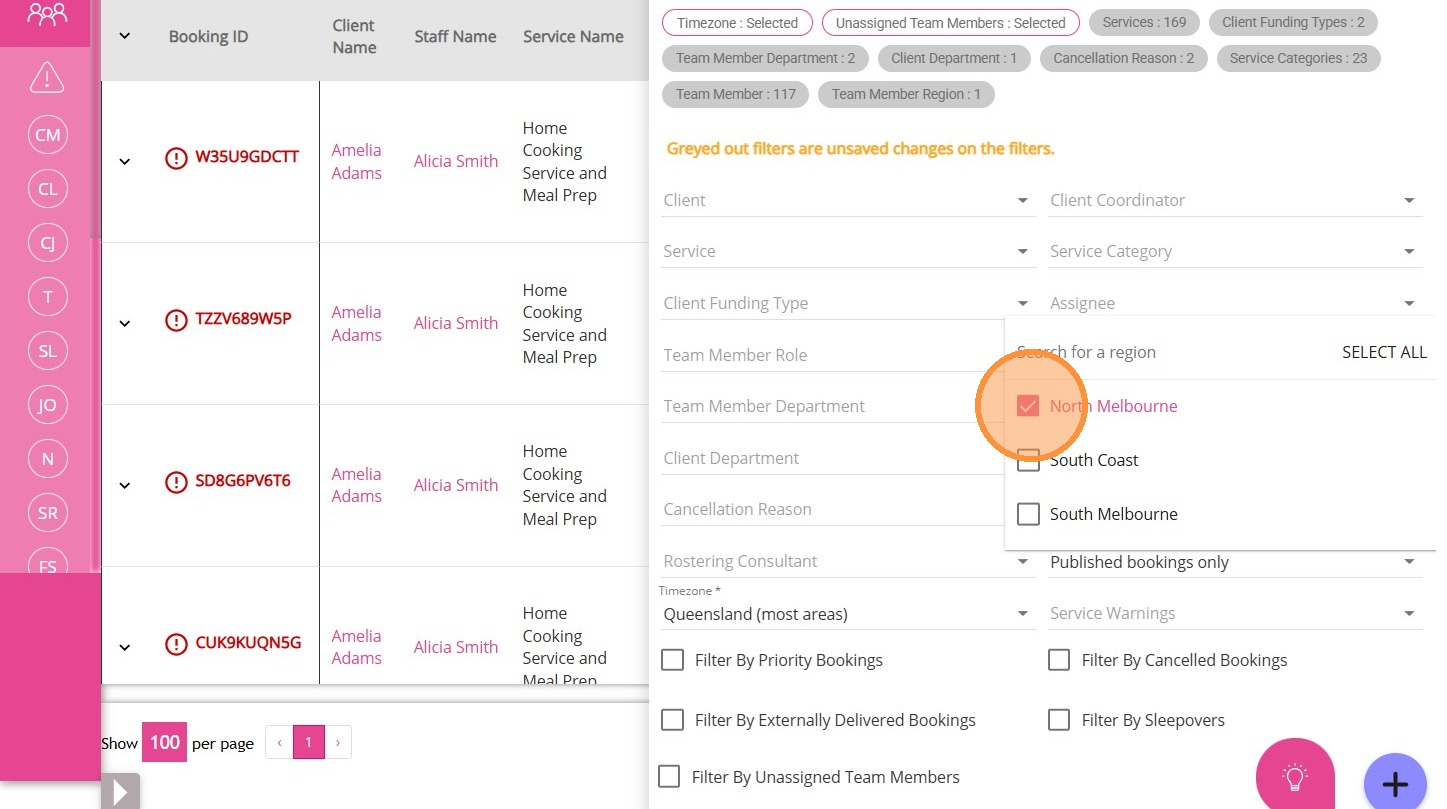
Filter By Team Member Region

This  filters records based on the geographic region assigned to each team member.

1. Click Team Member Region.

2. Select the region from the dropdown menu.

Filter By Business Development Consultant
This filters results by the business development consultant assigned. 
1. Click Business Development Consultant.
2. Then, type the consultant’s name and select from the search results.
Filter By Preloaded Care Plan Items

This filters bookings by care plan item publication status.
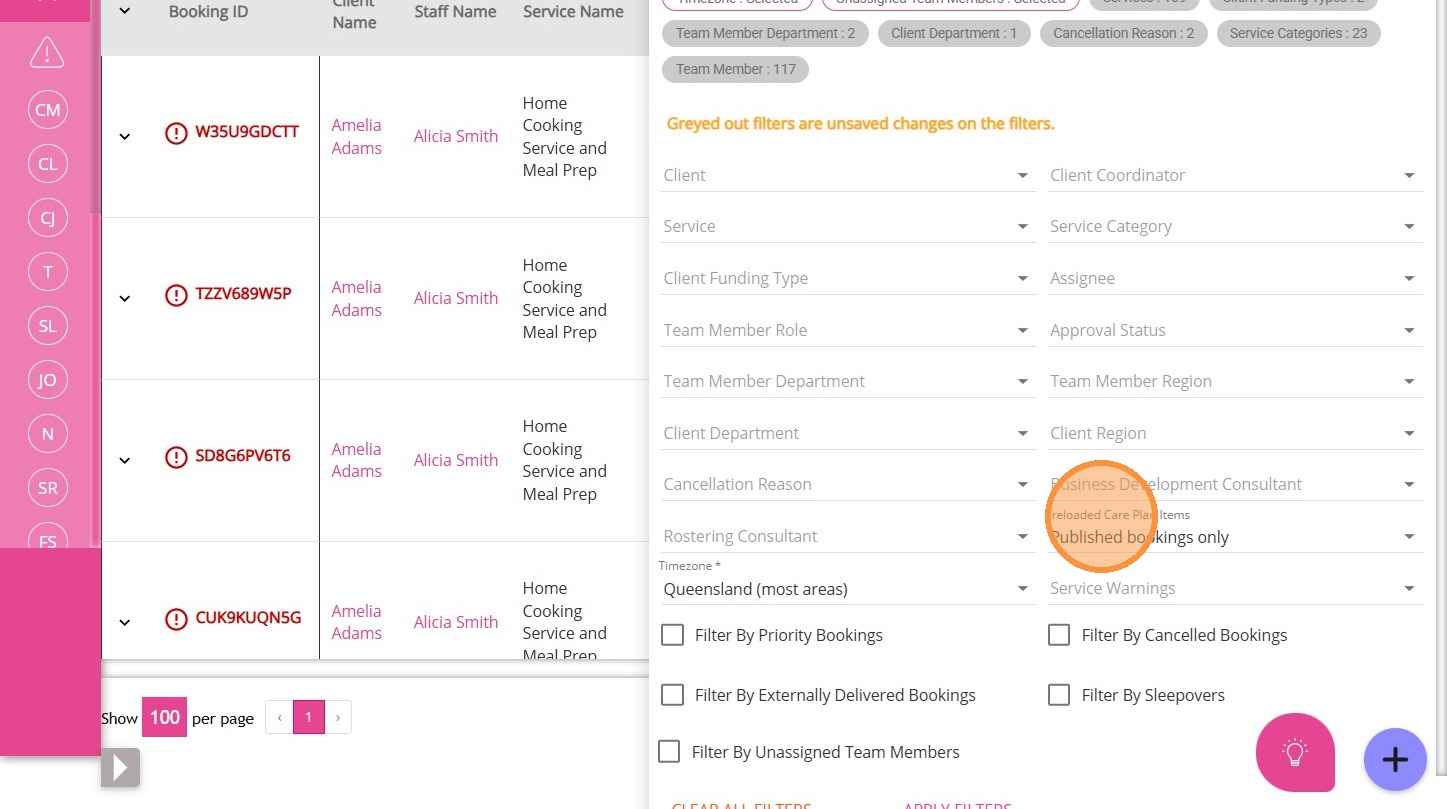
1. Click Preloaded Care Plan Items.

 2. Select from the list: published only, both, or unpublished only.
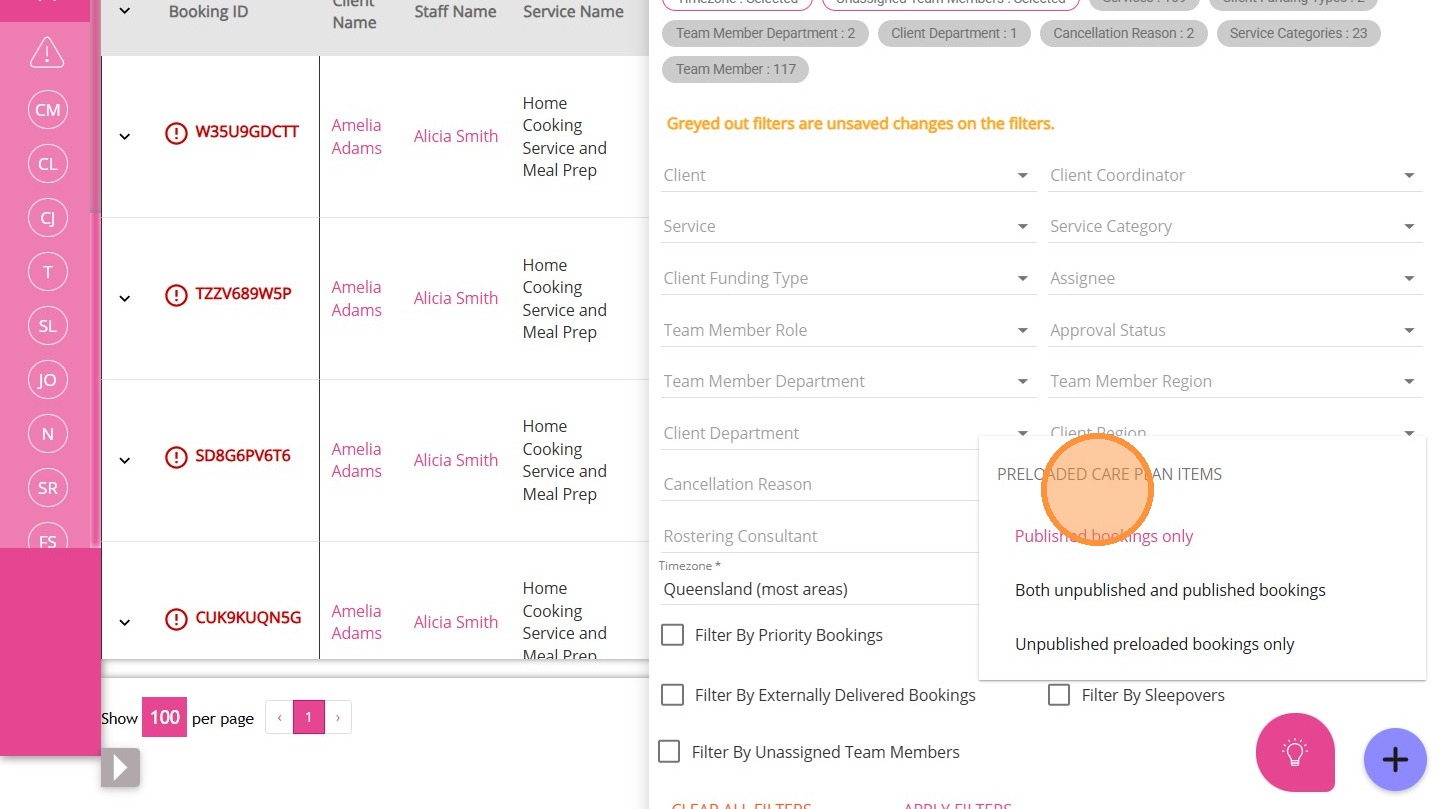
Filter By Priority Bookings

This displays only bookings marked as priority.
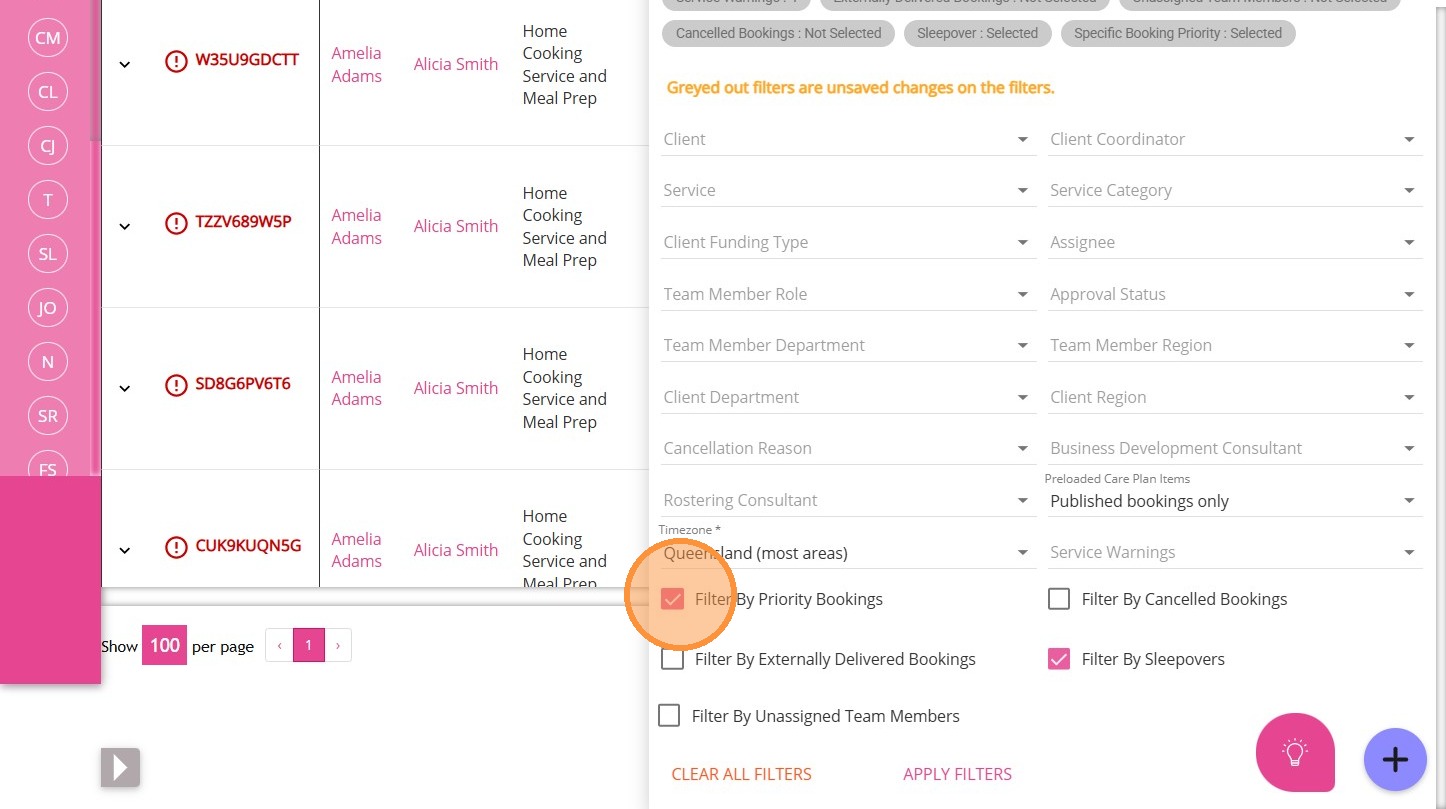
1. Tick this box to filter for priority bookings.

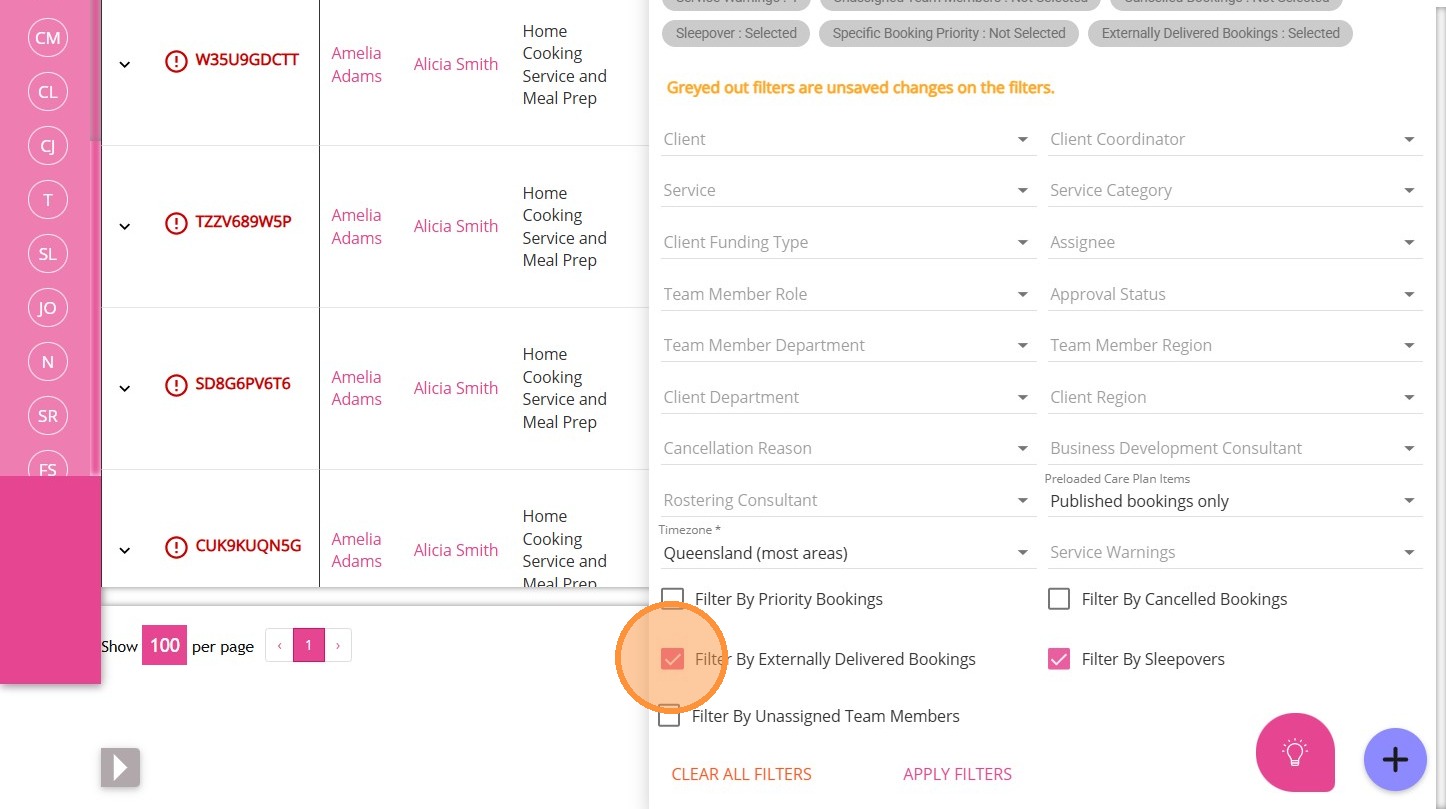
Filter By Externally Delivered Bookings
This shows only bookings delivered by external providers.
1. Tick this box to filter for externally delivered bookings.

Filter By Unassigned Team Members

This displays bookings with no team members assigned.
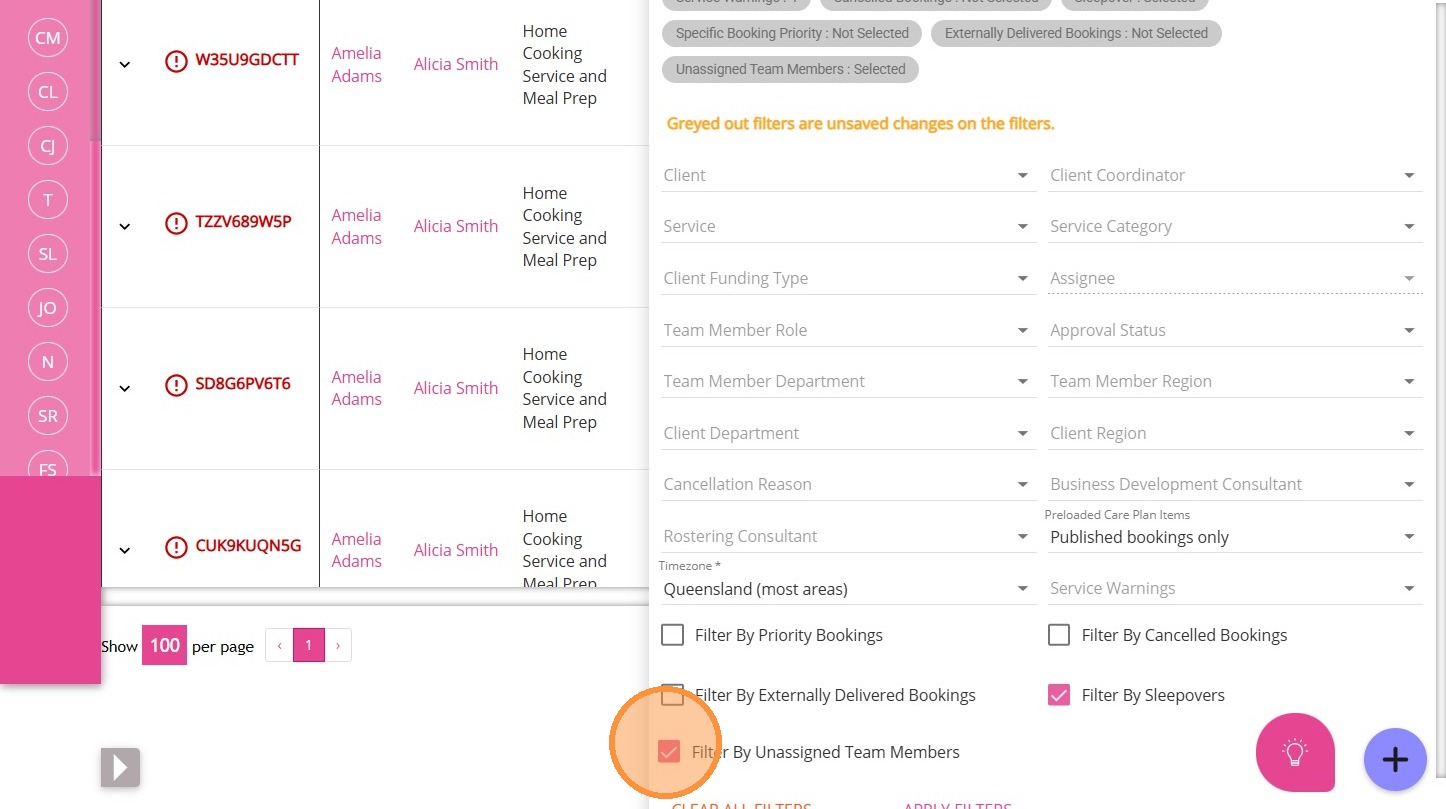
1. Tick this box to show only unassigned bookings.

Filter By Cancelled Bookings

This shows only bookings that have been cancelled.
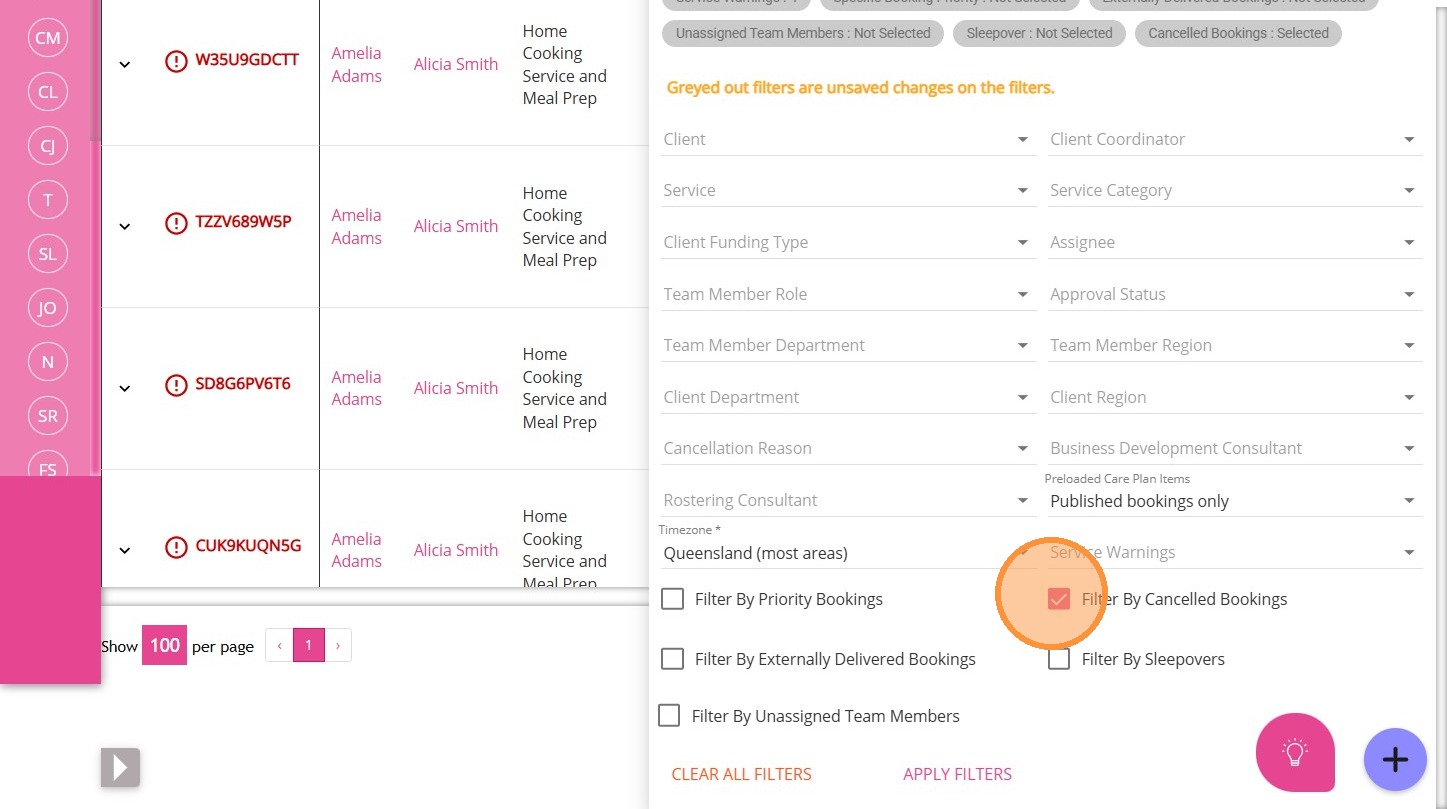
1. Tick this box to filter for cancelled bookings.


Filter By Sleepovers

This displays only sleepover bookings.
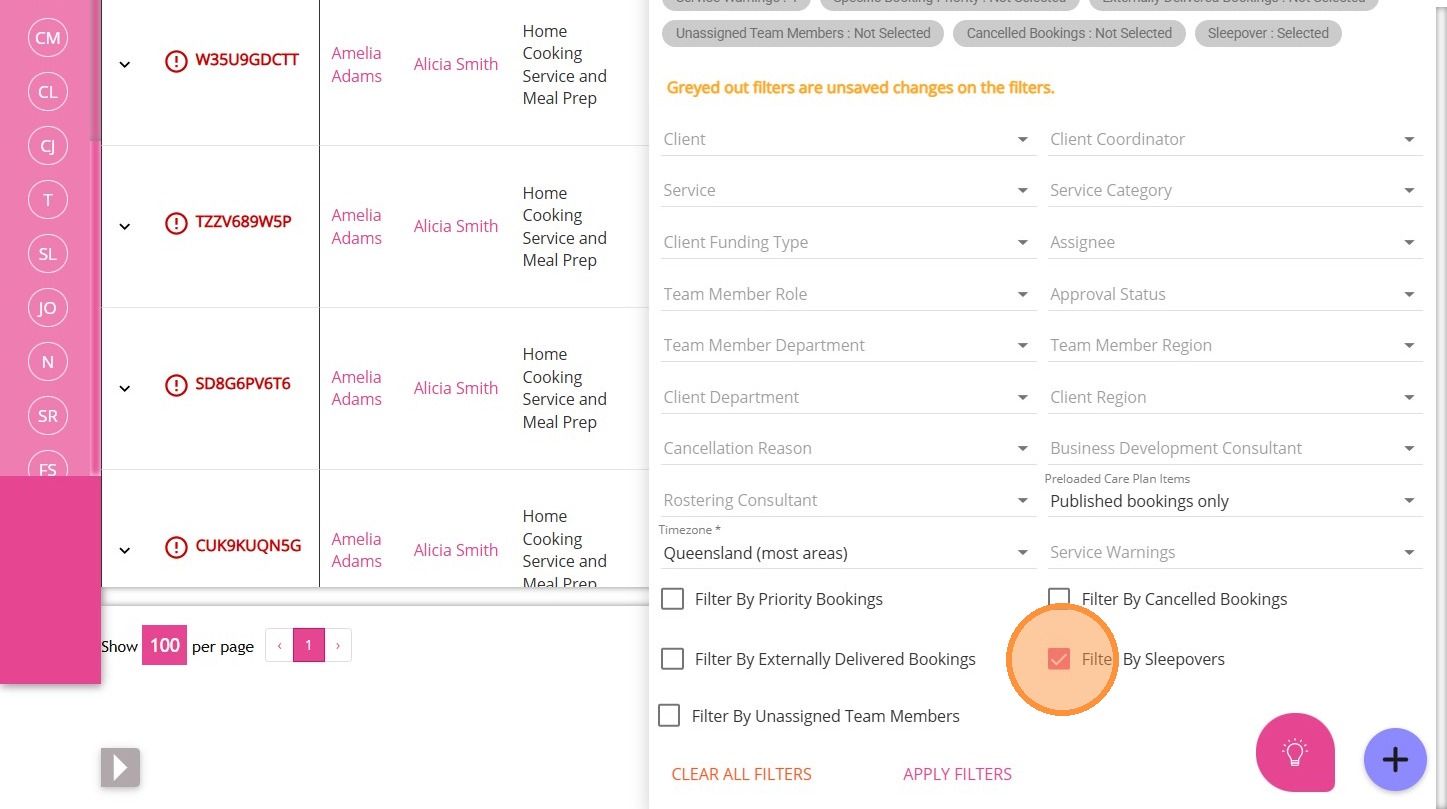
1. Tick this box to show sleepover bookings only.

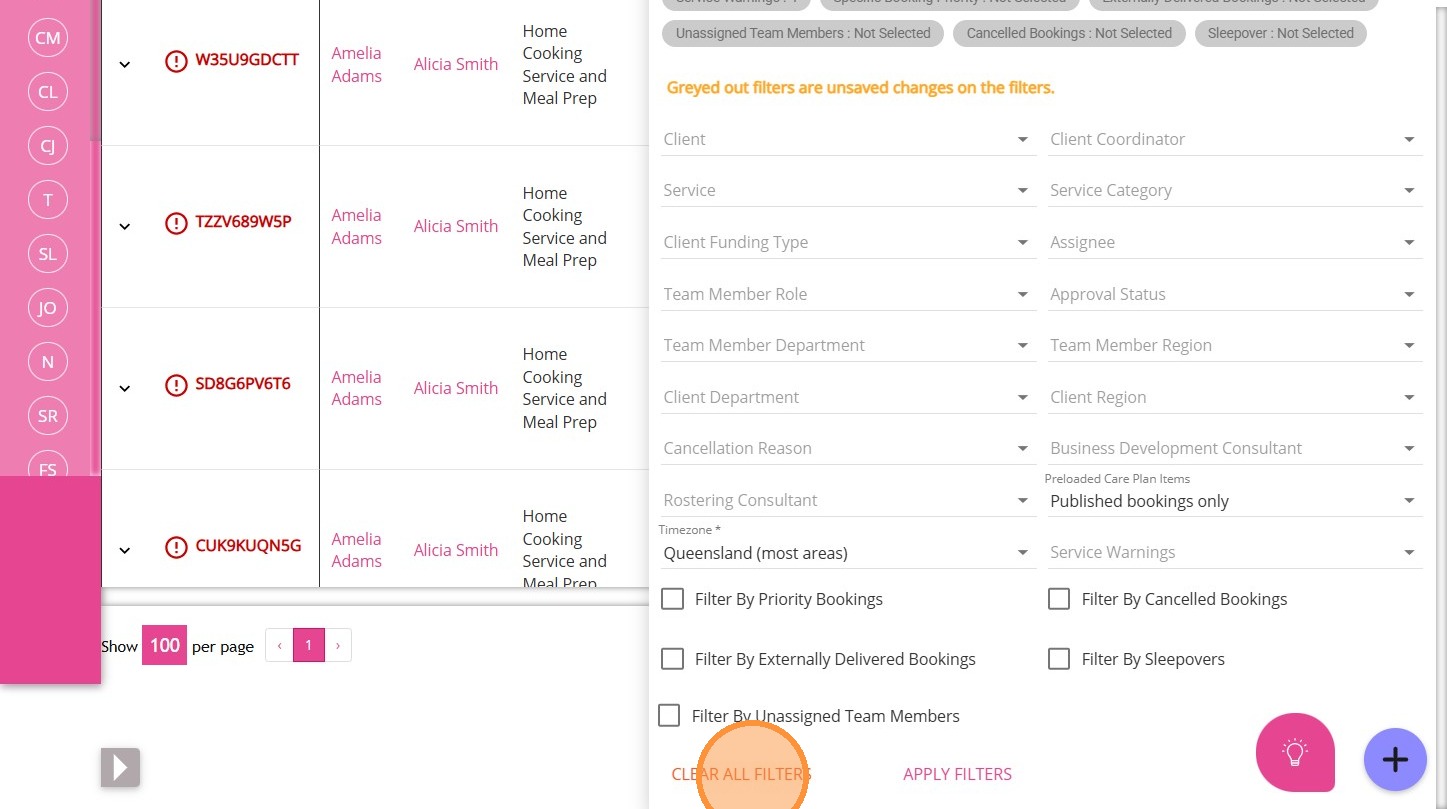
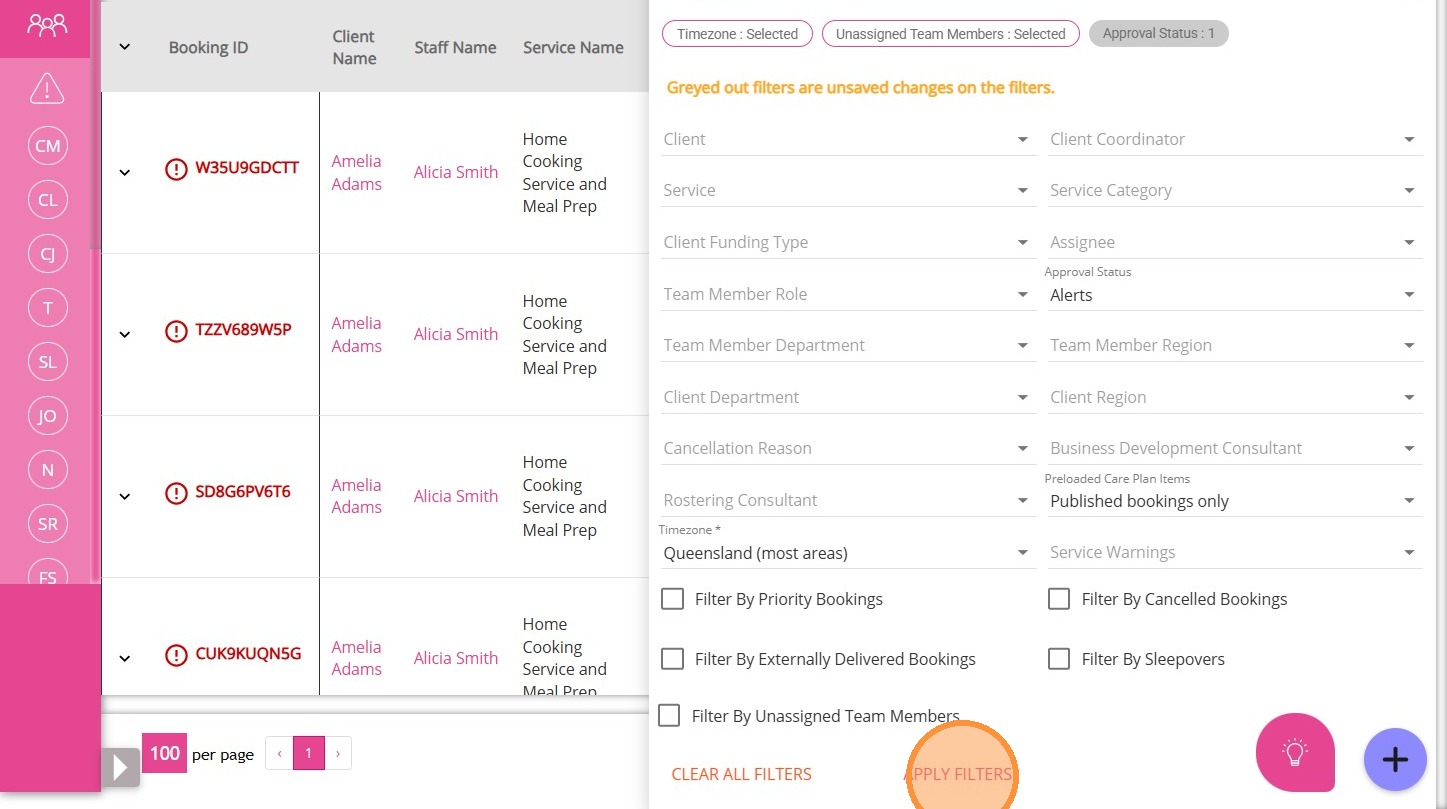
4. If you want to remove all selections, click Clear All Filters.

5. Click Apply Filters to view results based on your selected filters.
This topic described how to use and manage filters on the Service Review Board to help you find and review relevant information as you process bookings before export. For more information about the Service Review Board, contact the CareVision Team.
    • Related Articles

    • Resolve Warnings in the Service Review Board

      The Service Review Board highlights warnings when there are issues with a booking. It is important to resolve these issues before exporting your data. This topic describes the most common warnings that may appear in the Service Review Board and ...
    • Service Review

      Service Review is a section in the left navigation pane of the CareVision portal, found under Actions > Service Review. In this section, teams handle all service processing and approvals. Users often refer to this area as the Service Review Board or ...
    • Feature Overview: Cancellation Reasons

      Overview When working with the Consumer Directed Care industry, some clients will inevitably decide to cancel or postpone their bookings due to a crisis, an emergency or personal matters. And there are times this will affect your internal workflow ...
    • Configure Interim Funding Client Group for SAH

      This topic describes how to configure the Interim Funding client group in the portal to ensure the correct percentage of each participant’s approved budget is allocated within the new Support at Home (SAH) funding setup. By following these steps, SAH ...
    • Support at Home Q&A

      This document compiles questions submitted by participants in the Q&A box during Support at Home Training Sessions and provides corresponding answers. For each training session, click the topic to expand. Questions and answers are organised under ...

    Request an Article or Guide

    We are keen to know what you want to know more about? Let us know on chat or raise a ticket for an article or topic you would like covered in more detail. We have a team of technical writers and learning content creators keen for your suggestions.