Resolve Warnings in the Service Review Board
The Service Review Board highlights warnings when there are issues with a booking. It is important to resolve these issues before exporting your data.
This topic describes the most common warnings that may appear in the Service Review Board and provides steps to resolve them.
Keywords: service review board, booking warnings, missing line items, billing categories, funding source, sleepover issue, visit duration, archived categories, unallocated booking, social group error, resolving alerts
Solutions to the Most Common Warnings in the Service Review Board
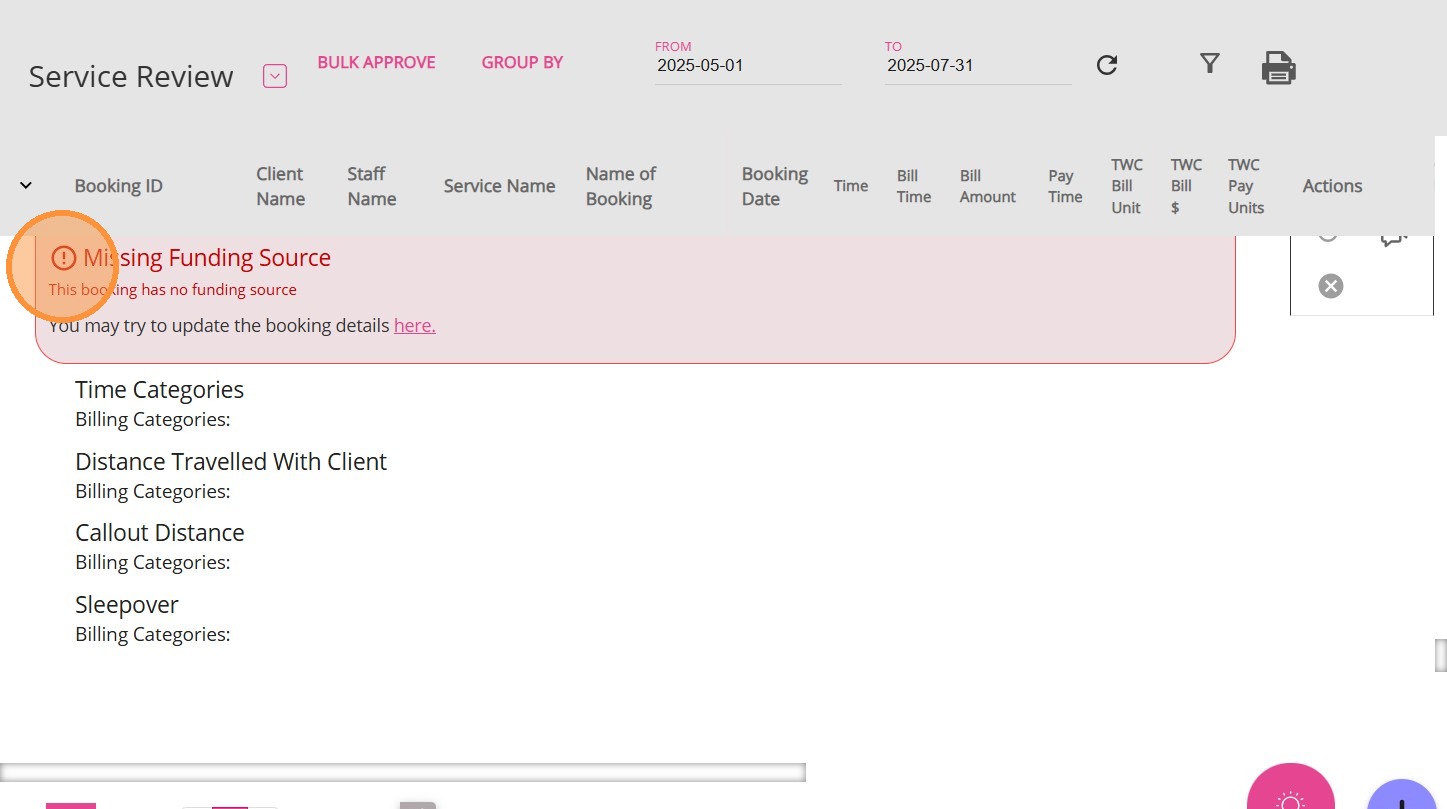
To resolve the issue:
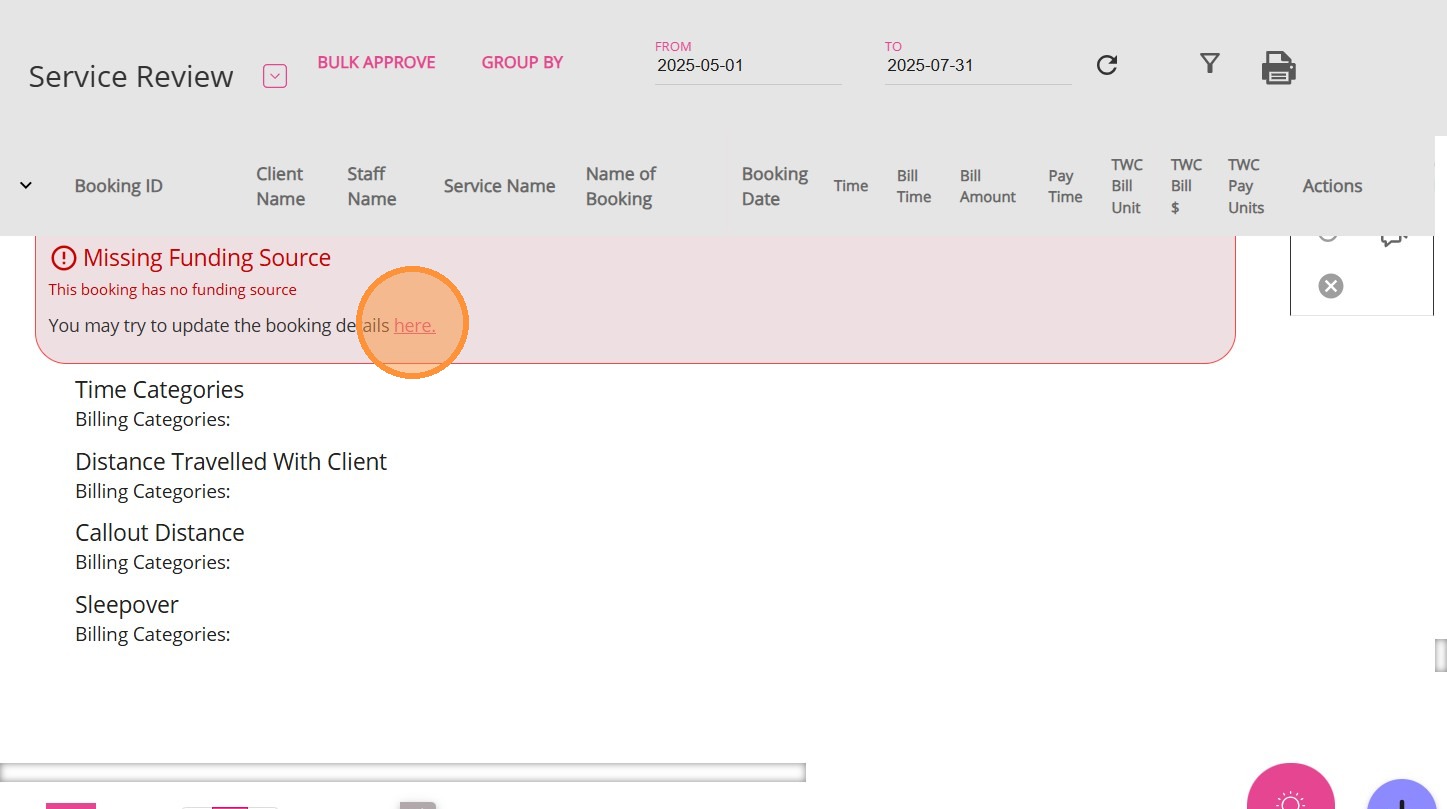
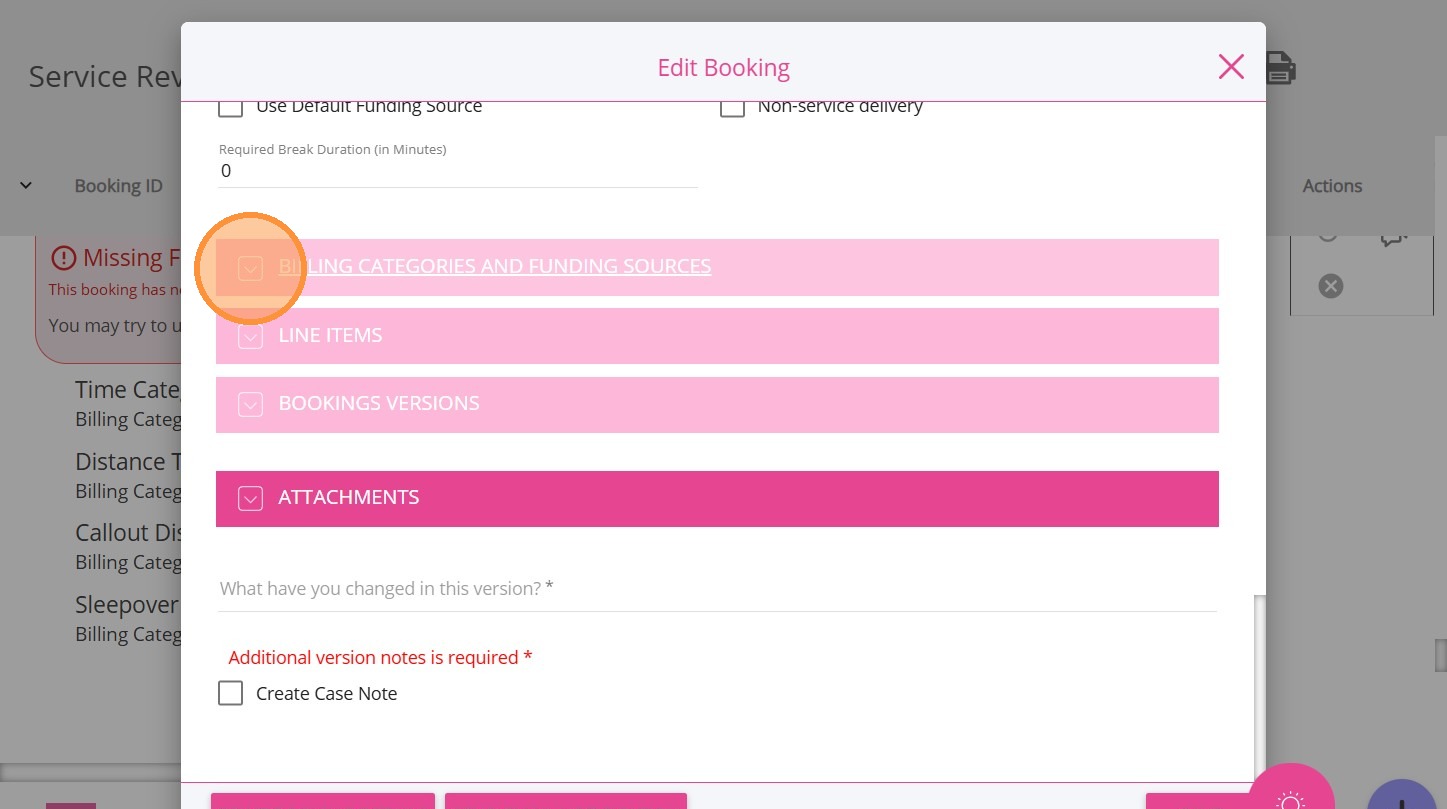
2. Go to the Billing Categories and Funding Sources section.
3. Select the appropriate funding source.
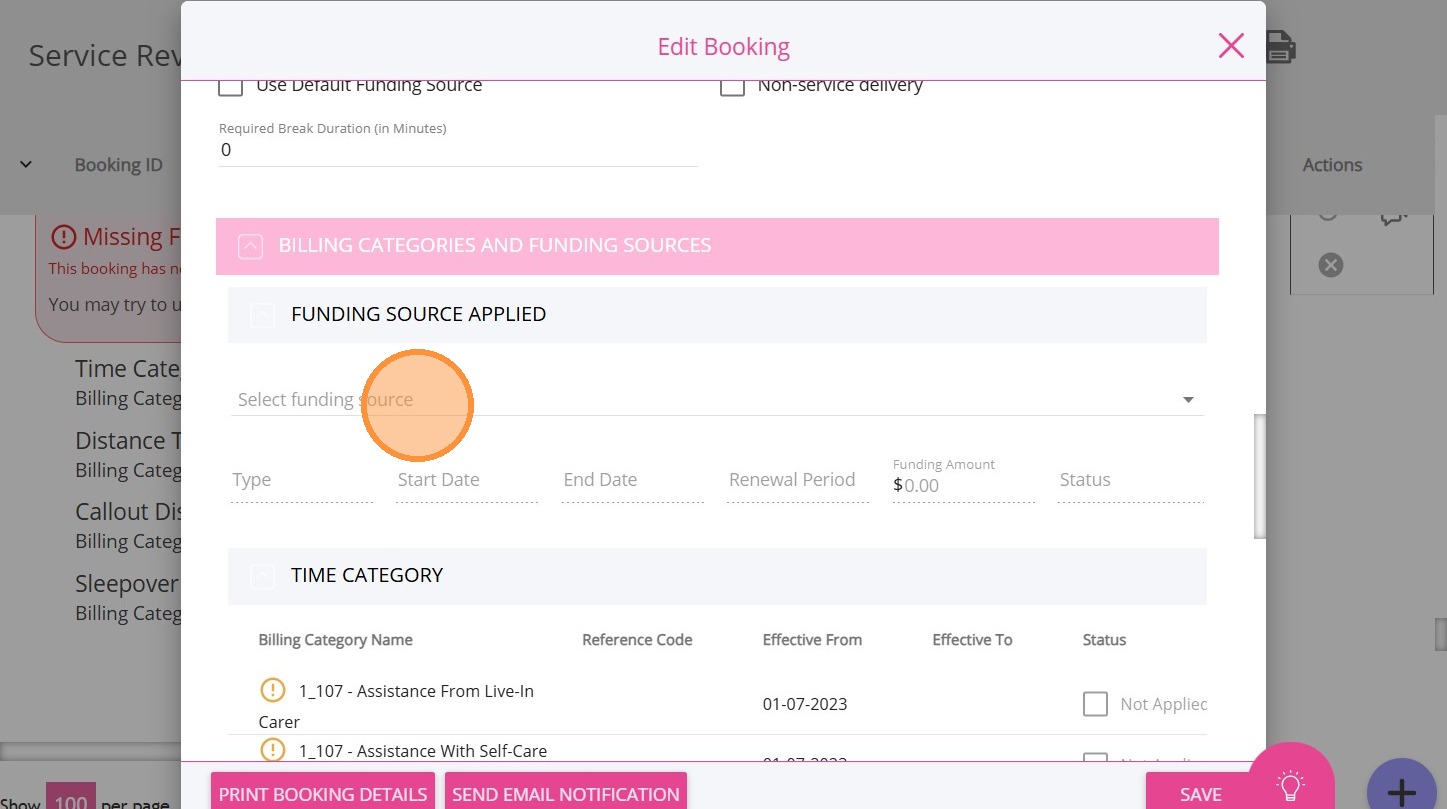
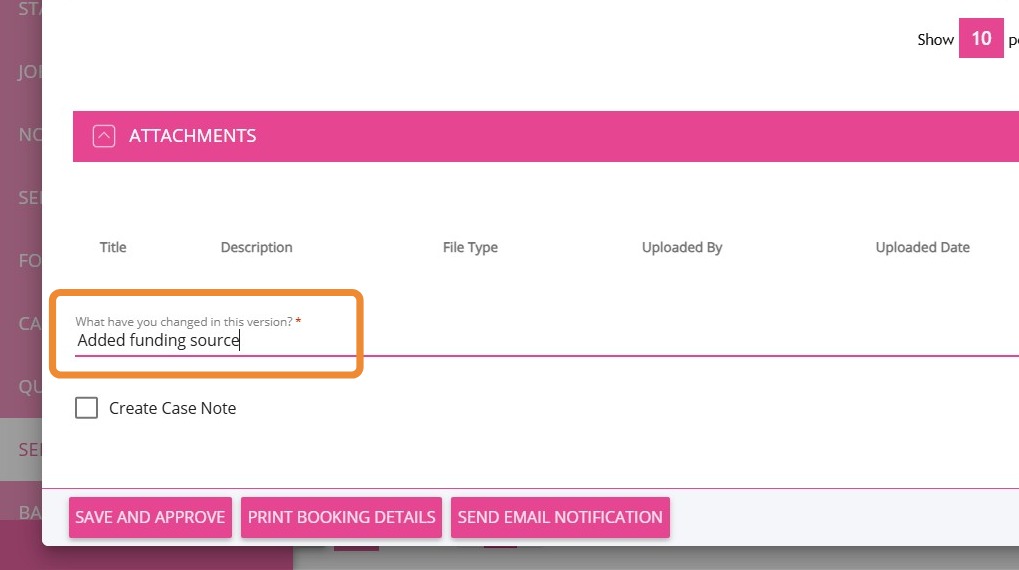
5. Click Save.
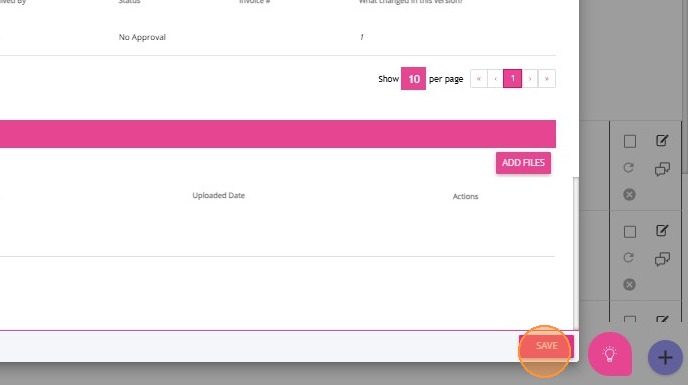
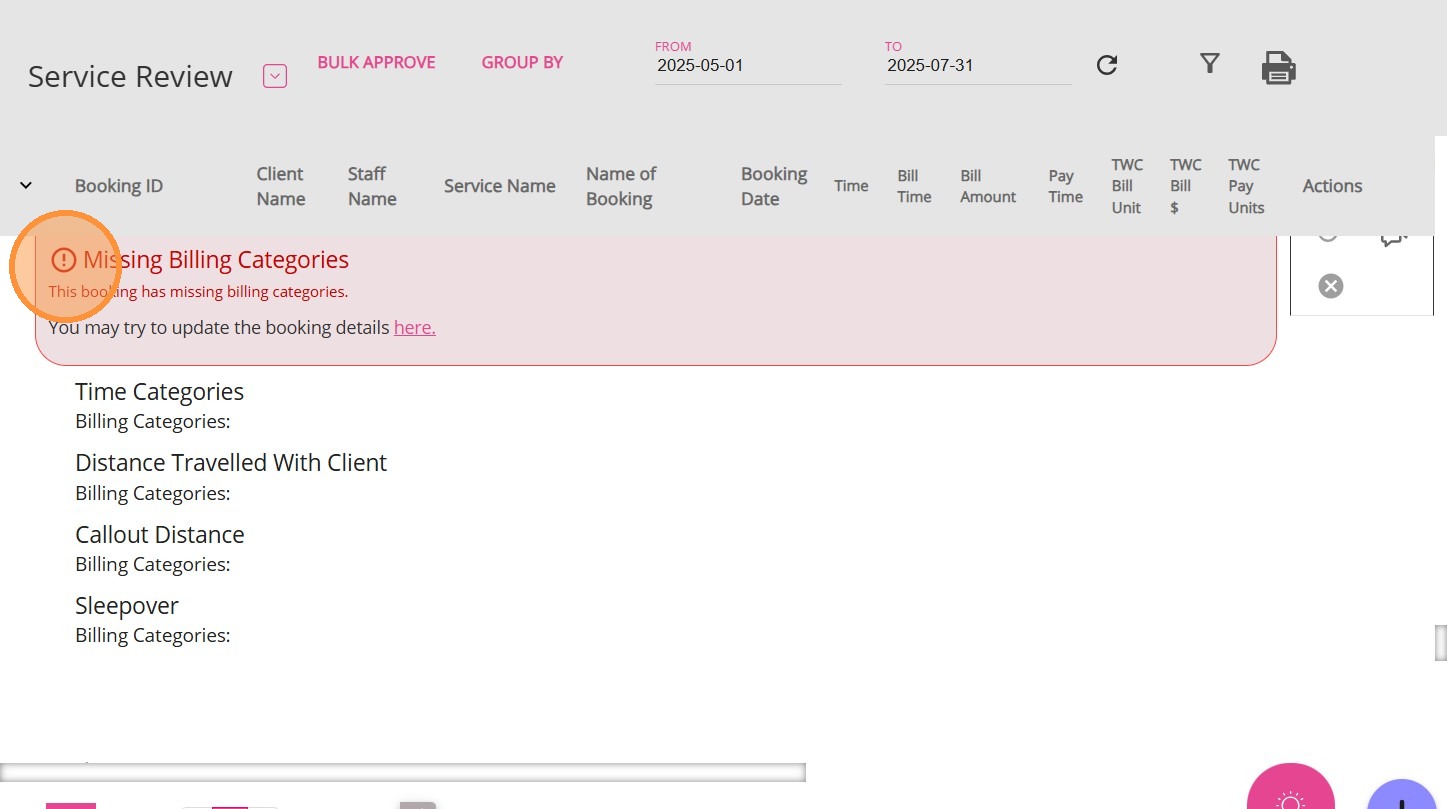
To resolve the issue:
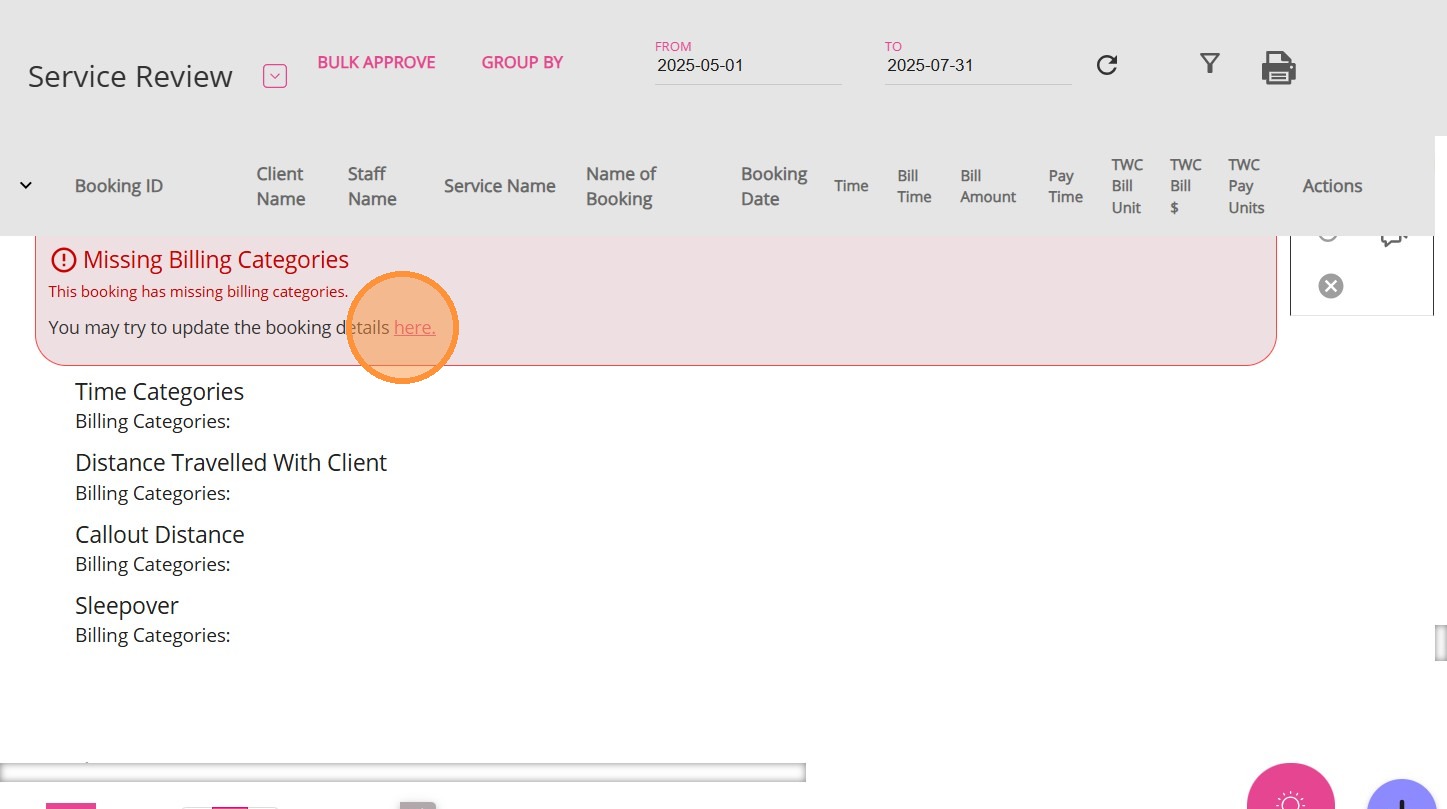
2. Go to the Billing Categories and Funding Sources section.
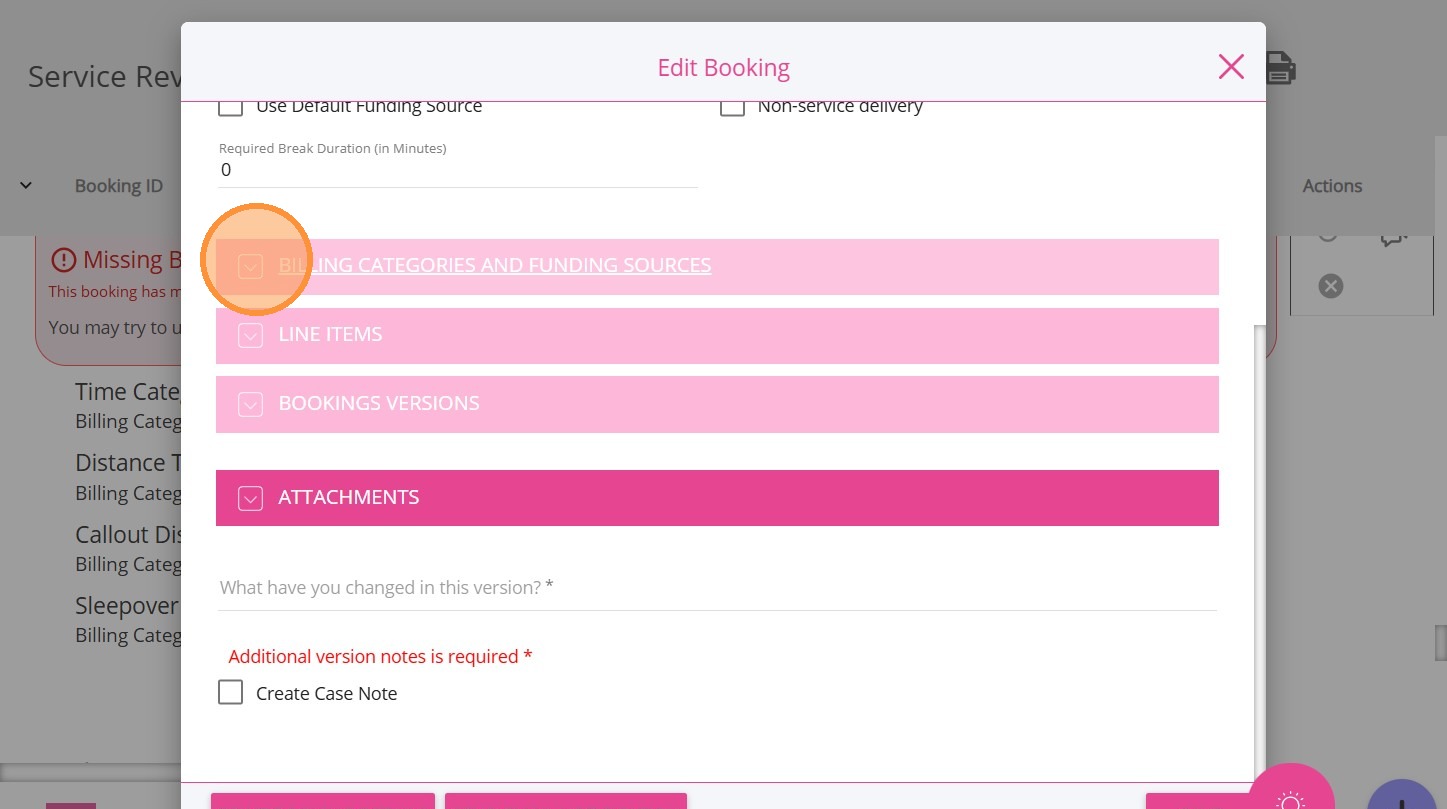
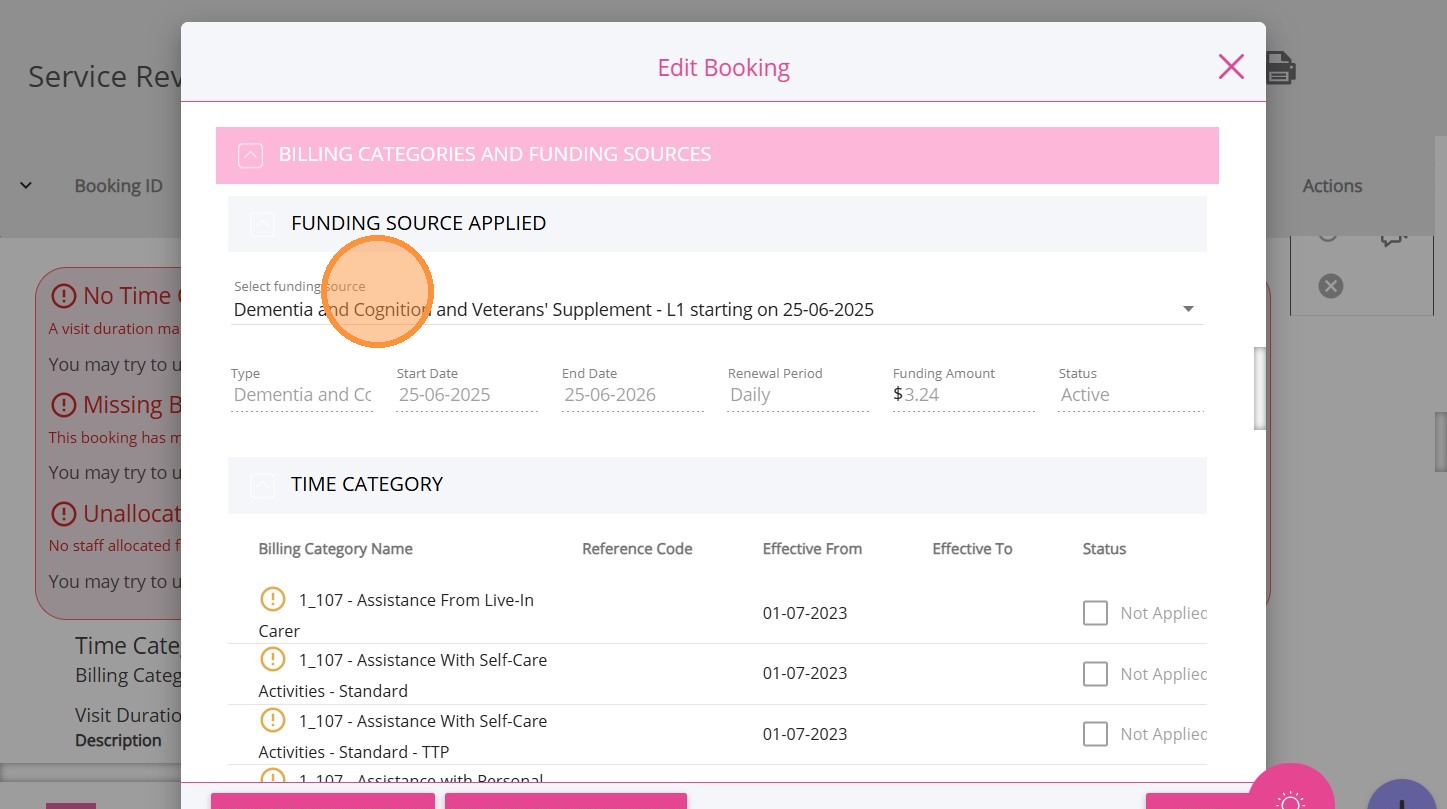
3. Check the Funding Source section to ensure the client is using the correct funding source.
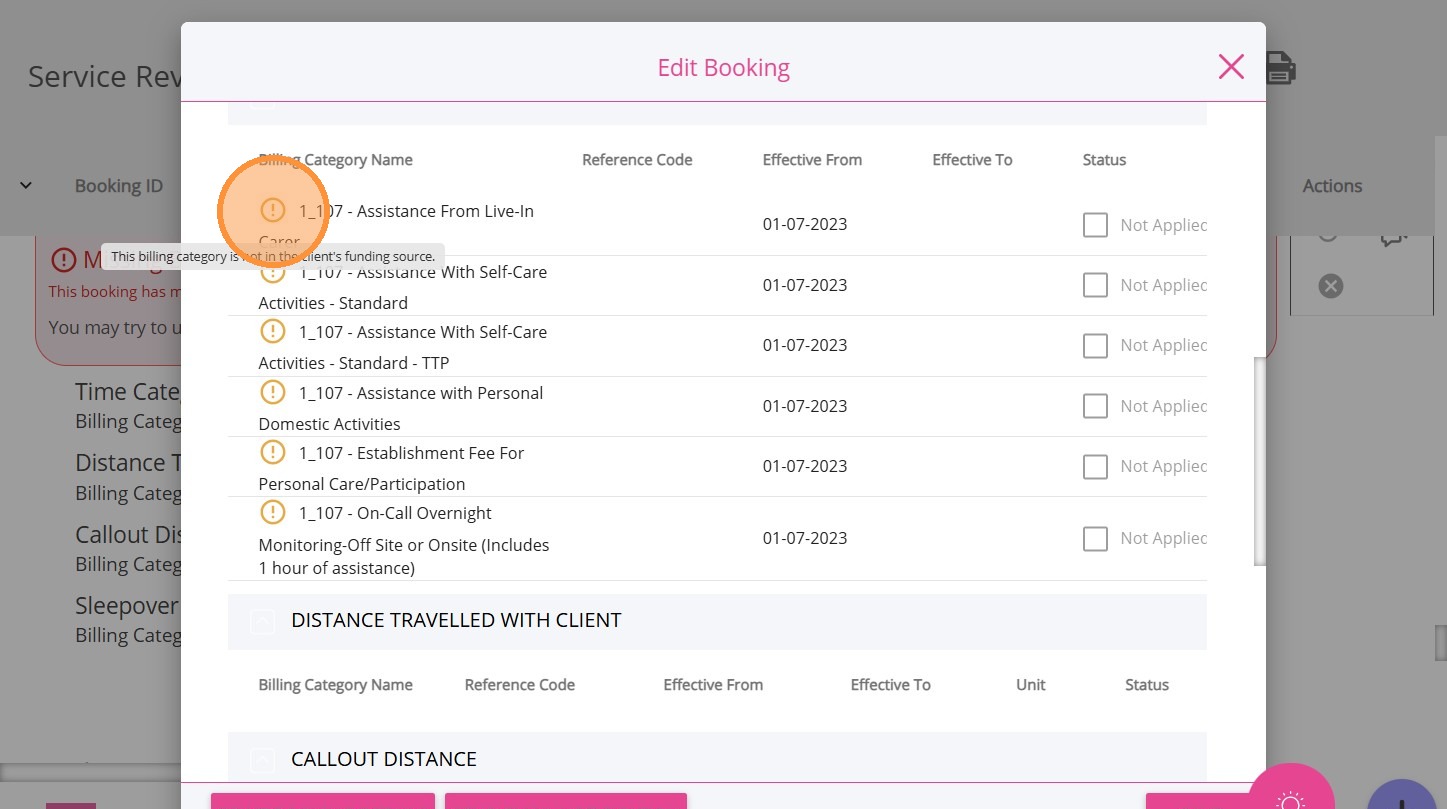
4. Scroll down to each flagged billing category. An exclamation mark indicates that the billing category is not available under the client’s current funding source. For example, the billing category Assistance from Live-In Carer may appear in the client’s booking, but it is not covered by their current funding source.
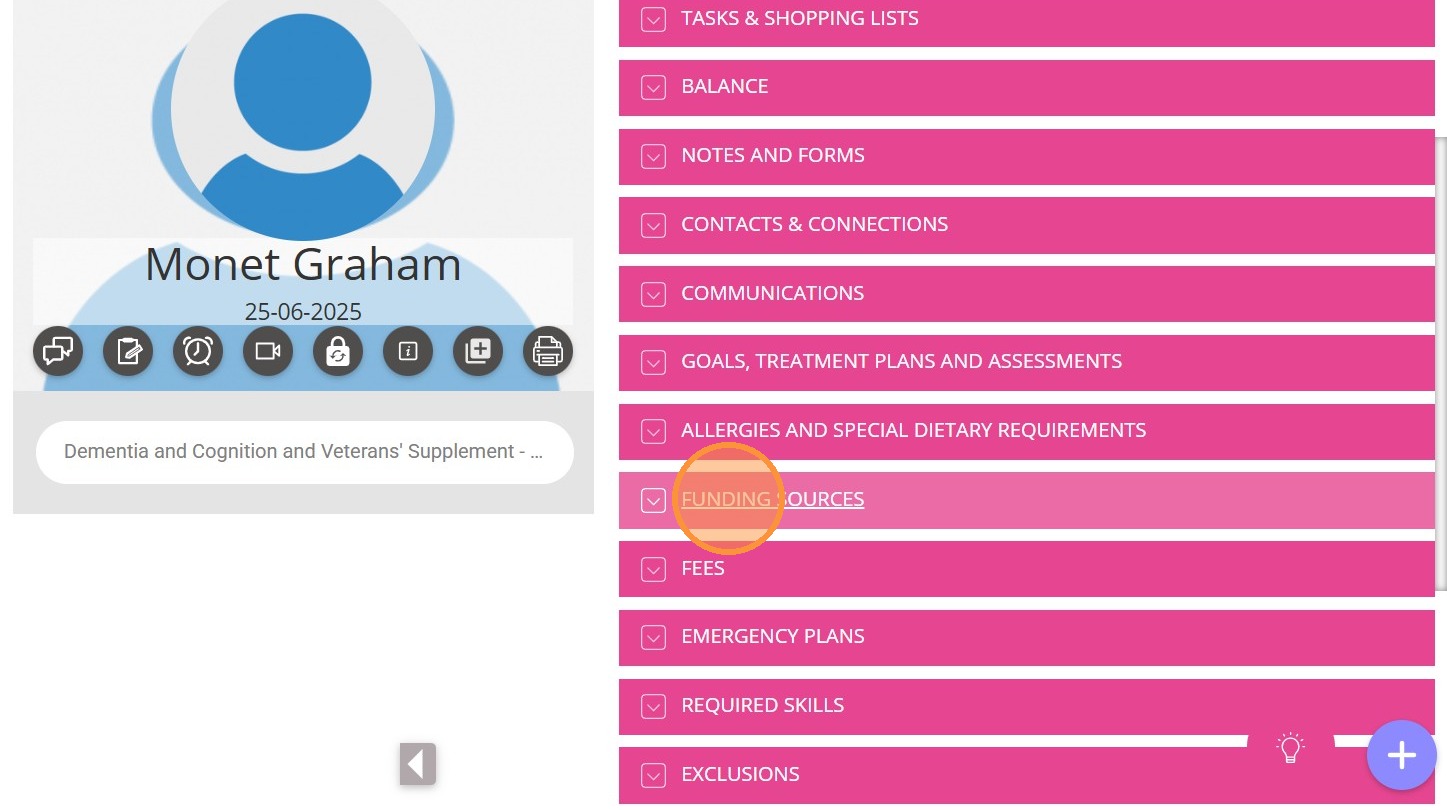
5. To resolve the issue, go to the client’s profile and navigate to the Funding Sources section.
6. Click the current funding source to edit it.
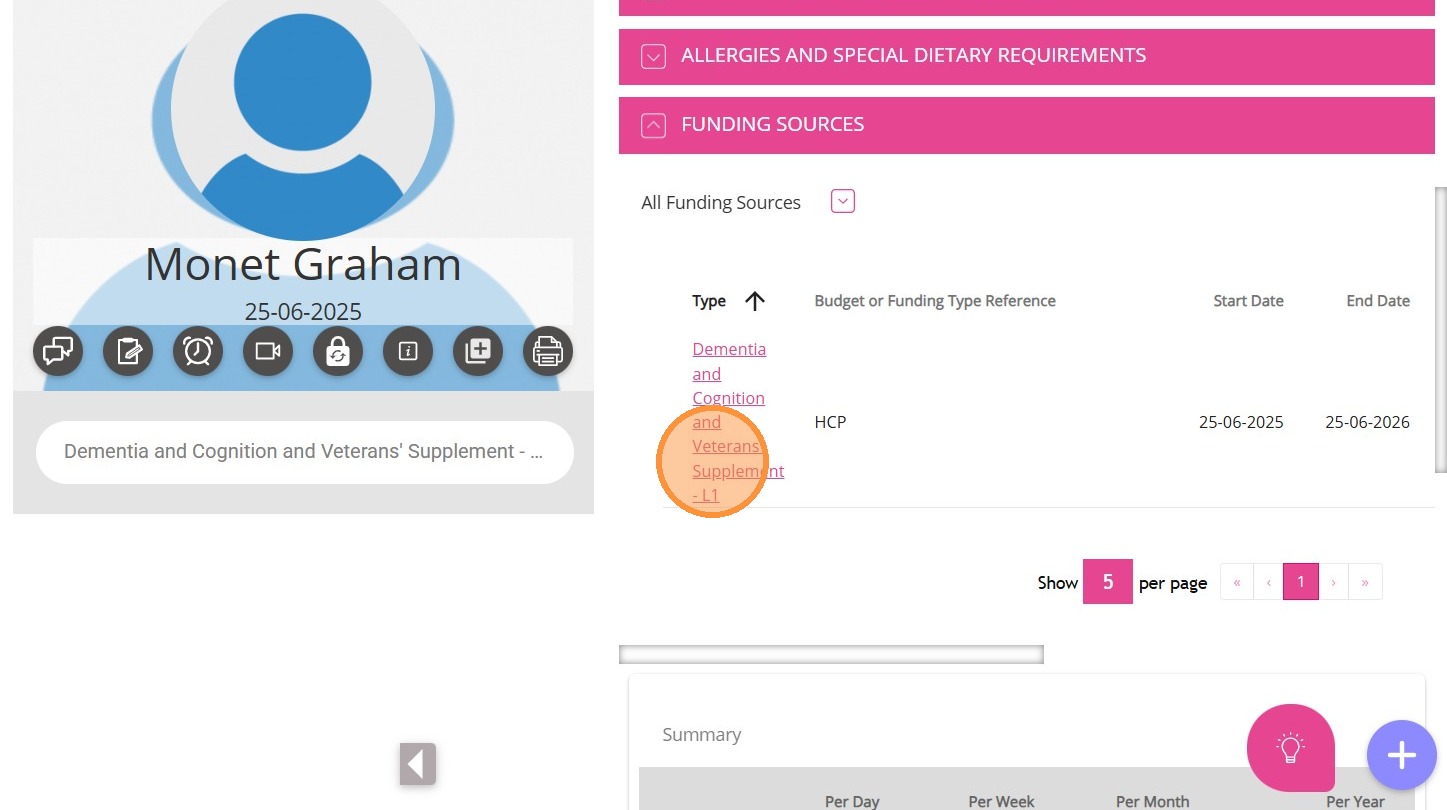
7. Go to the Billing Categories field.
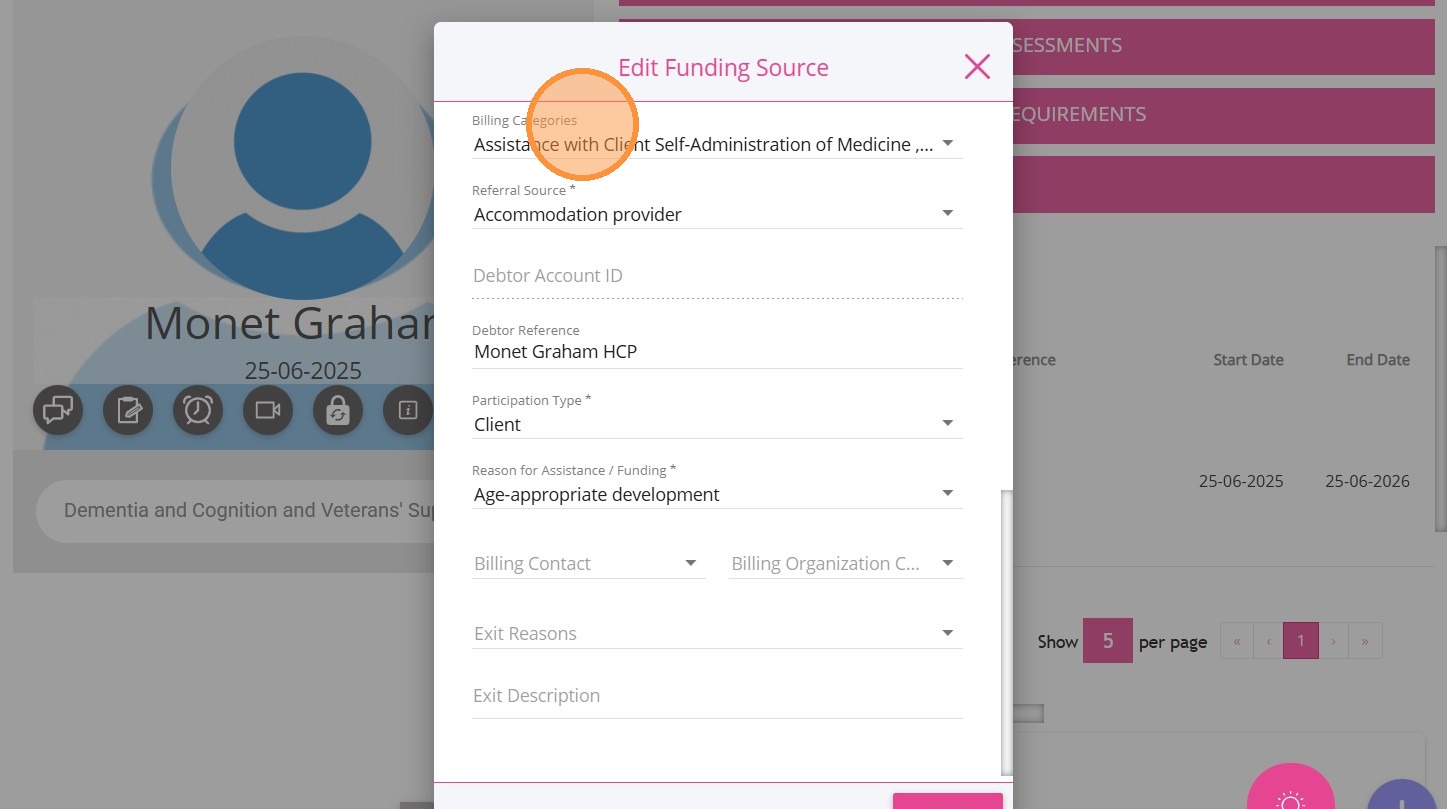
8. Search for the flagged billing category, for example, Assistance from Live-In Carer. As shown here, it is not checked, which means it is not included in the current funding source.
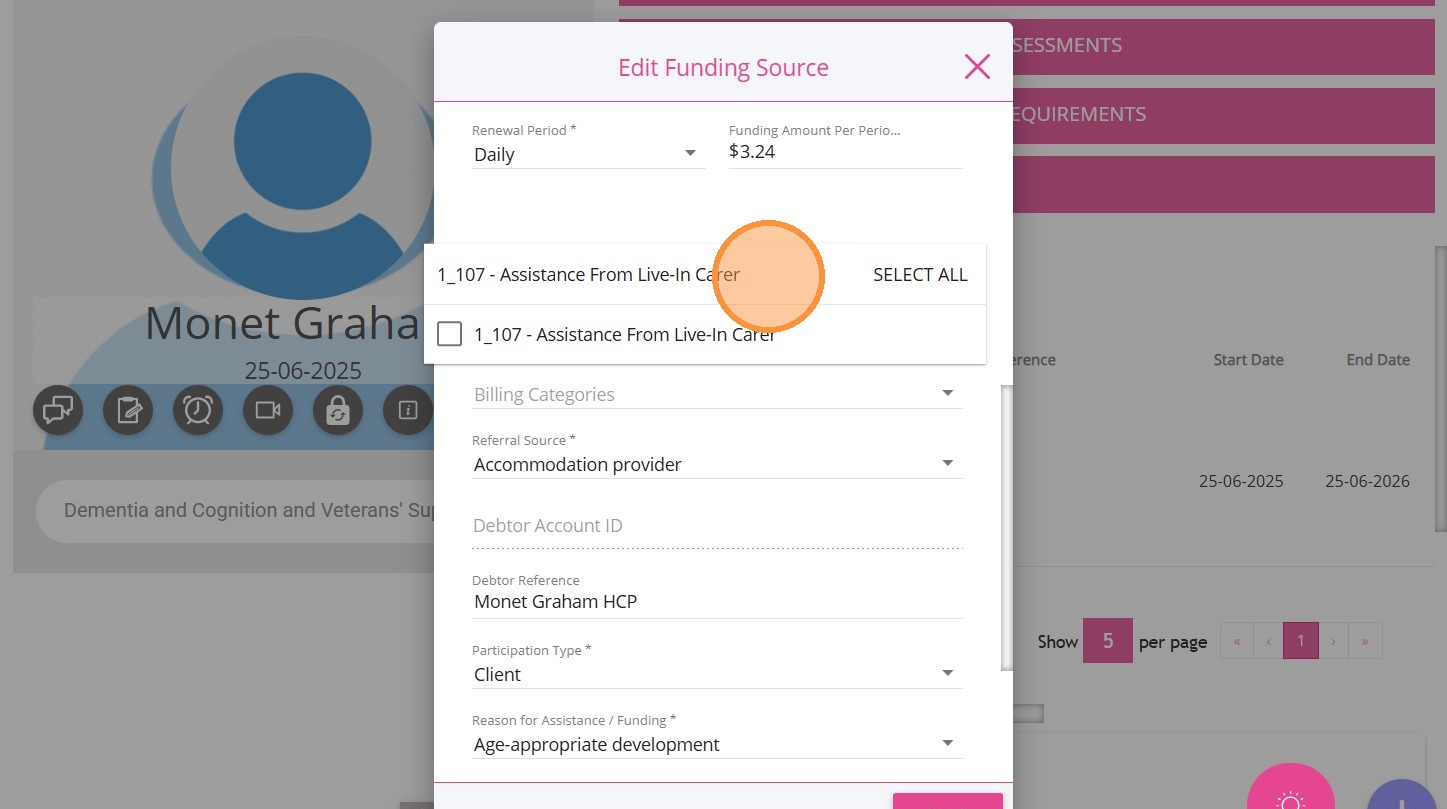
9. Check the flagged billing category Assistance from Live-In Carer to include it in the current funding source. Then, click Save.
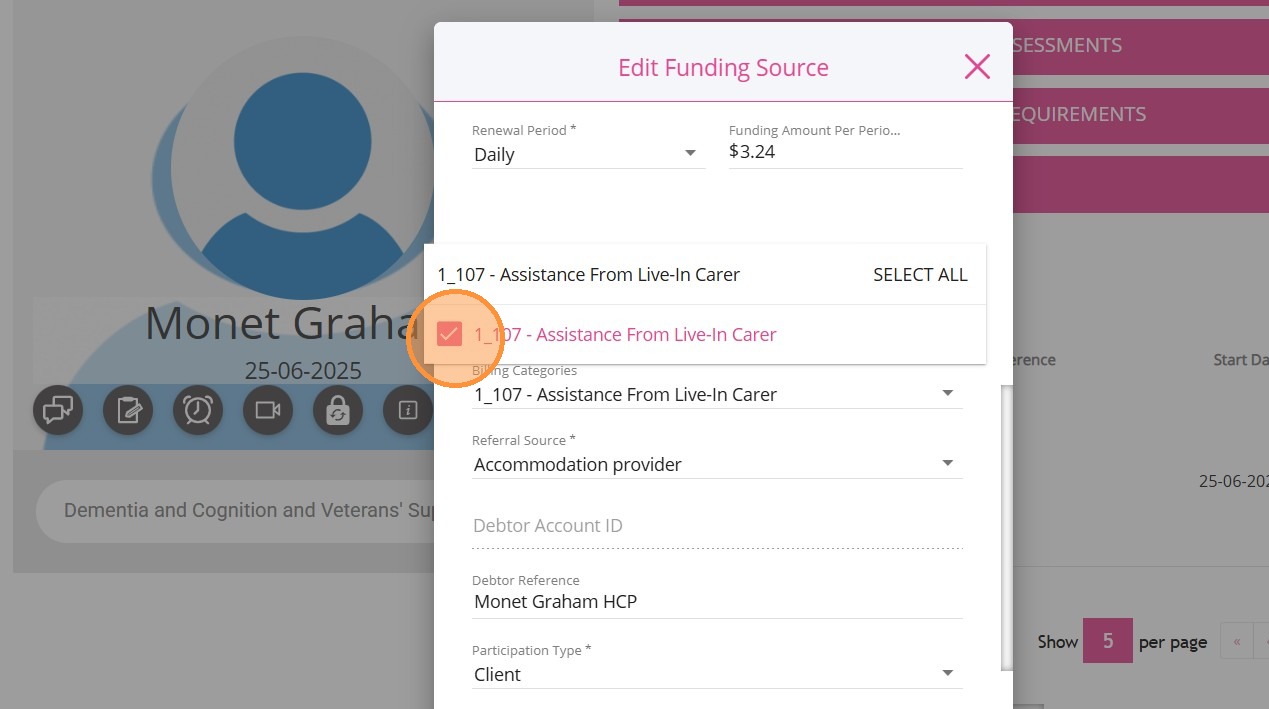
10. Then, return to the Service Review Board where you are editing the booking. You will see that the billing category Assistance from Live-In Carer no longer has an exclamation mark, indicating it is now included in the client’s funding source.
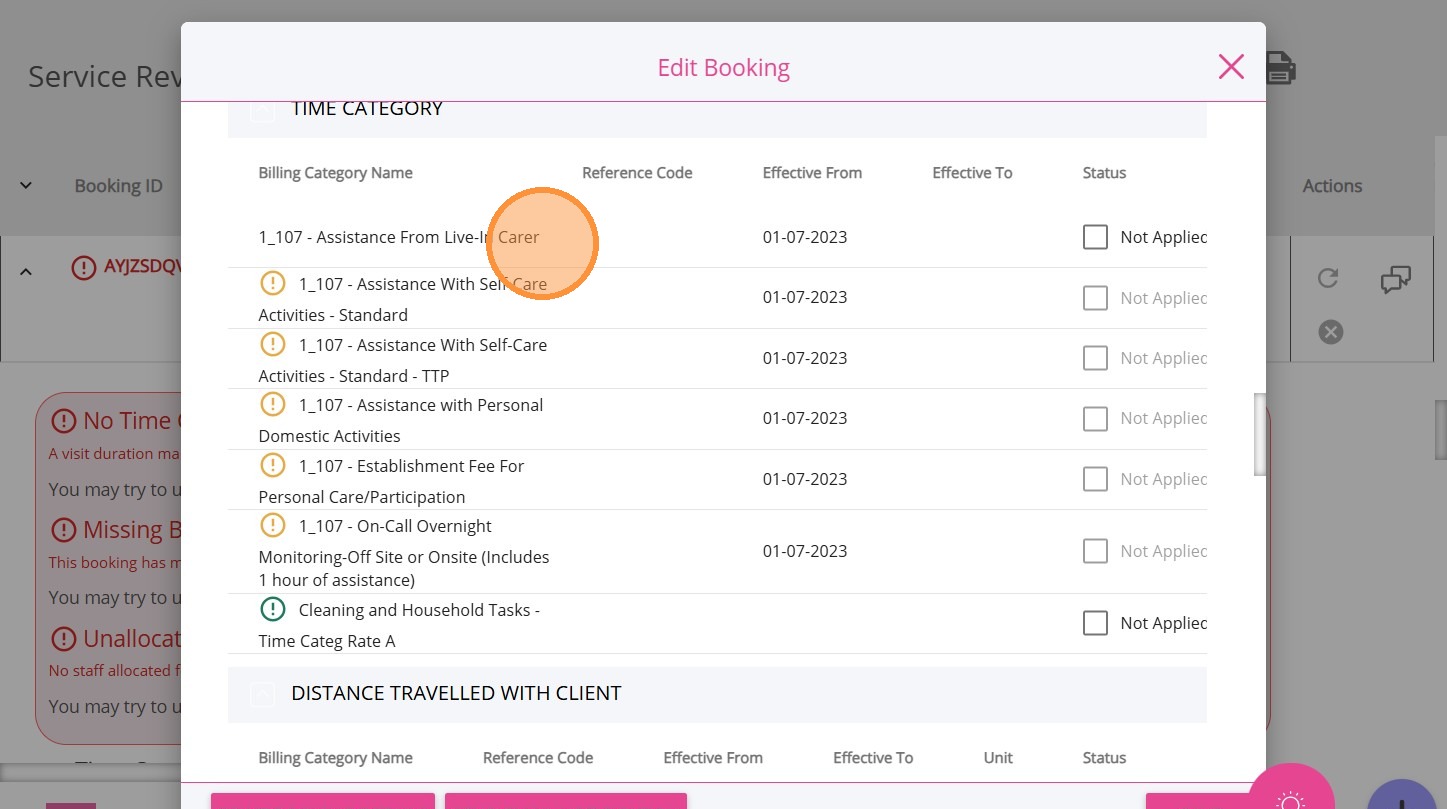
11. Under the Status column, check the box if you determine it is appropriate to apply the billing category to the client’s booking. Use your discretion and ensure the selection is accurate.
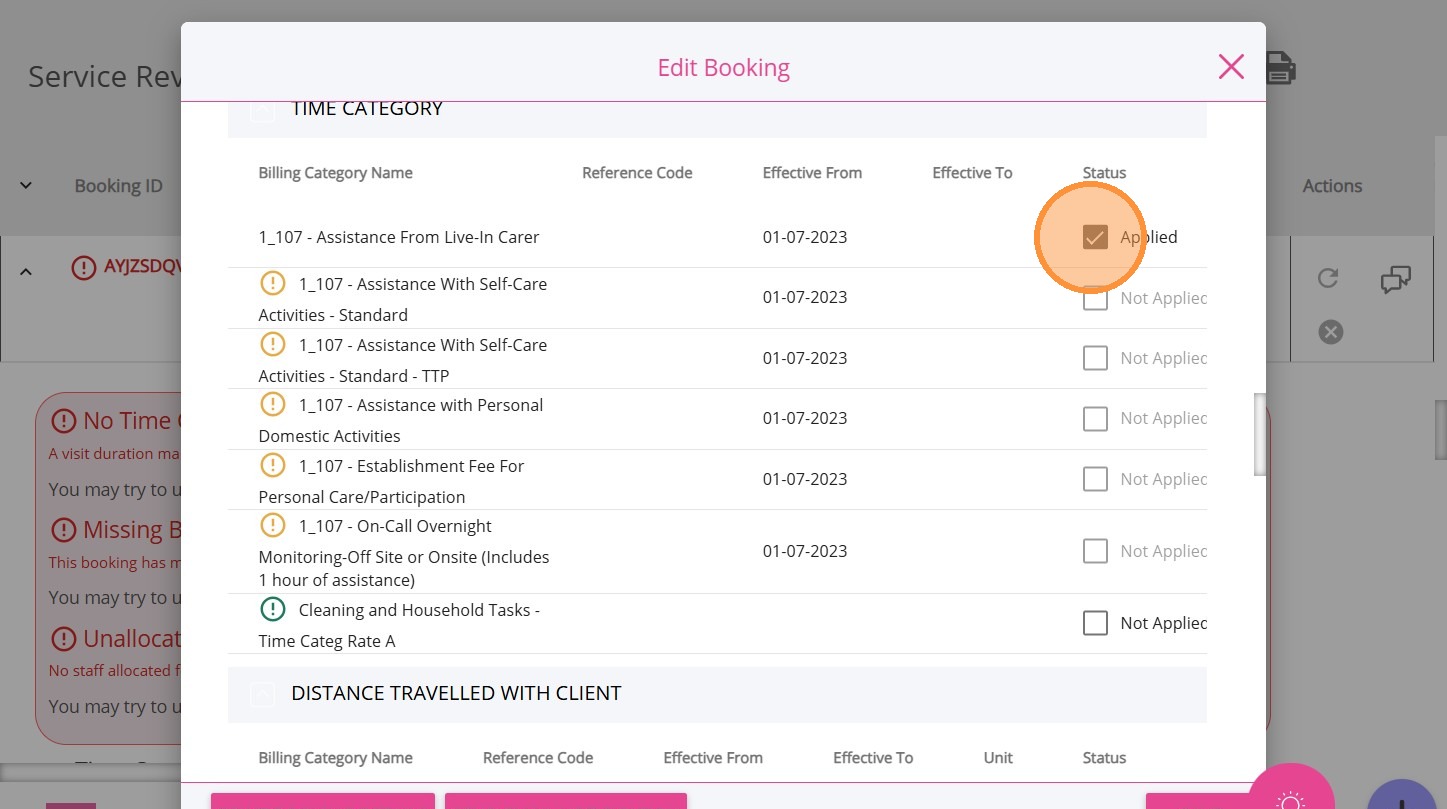
12. Repeat the same steps for any other billing categories that are flagged.
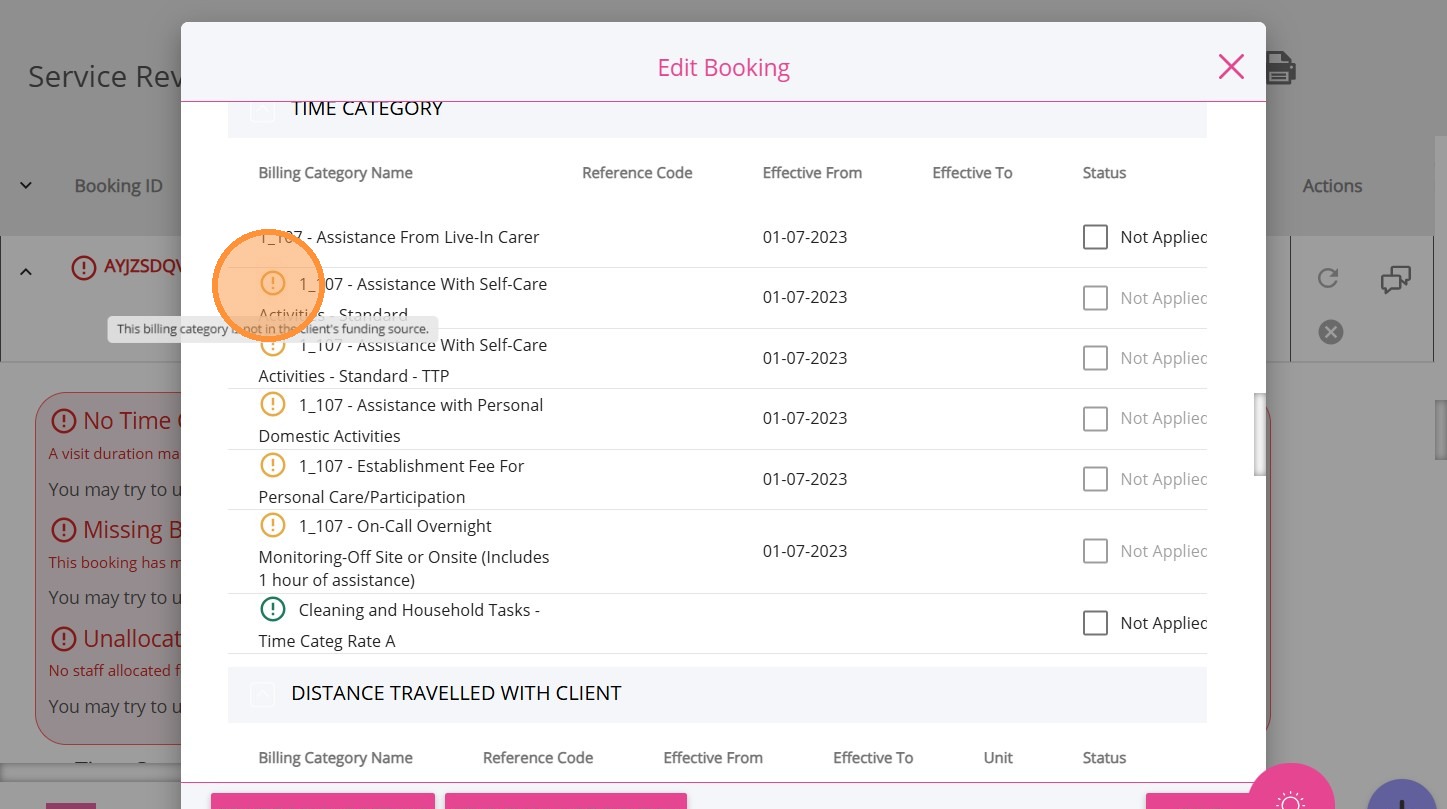
13. Scroll to the lower part of the Edit Booking page and specify your changes in the What have you changed in this version field.
14. Click Save.
You will be redirected back to the Service Review Board. The warning should now be removed.
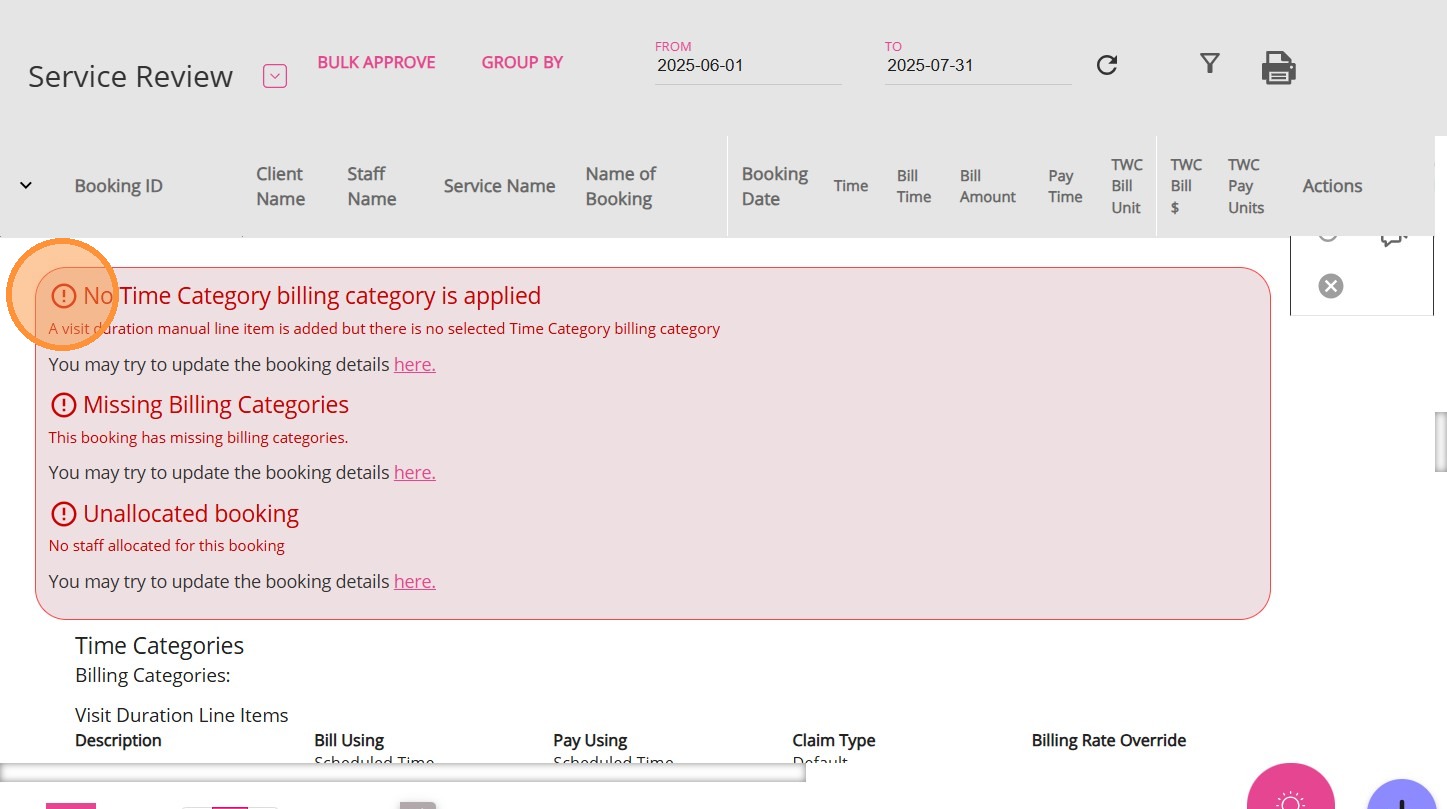
To resolve the issue:
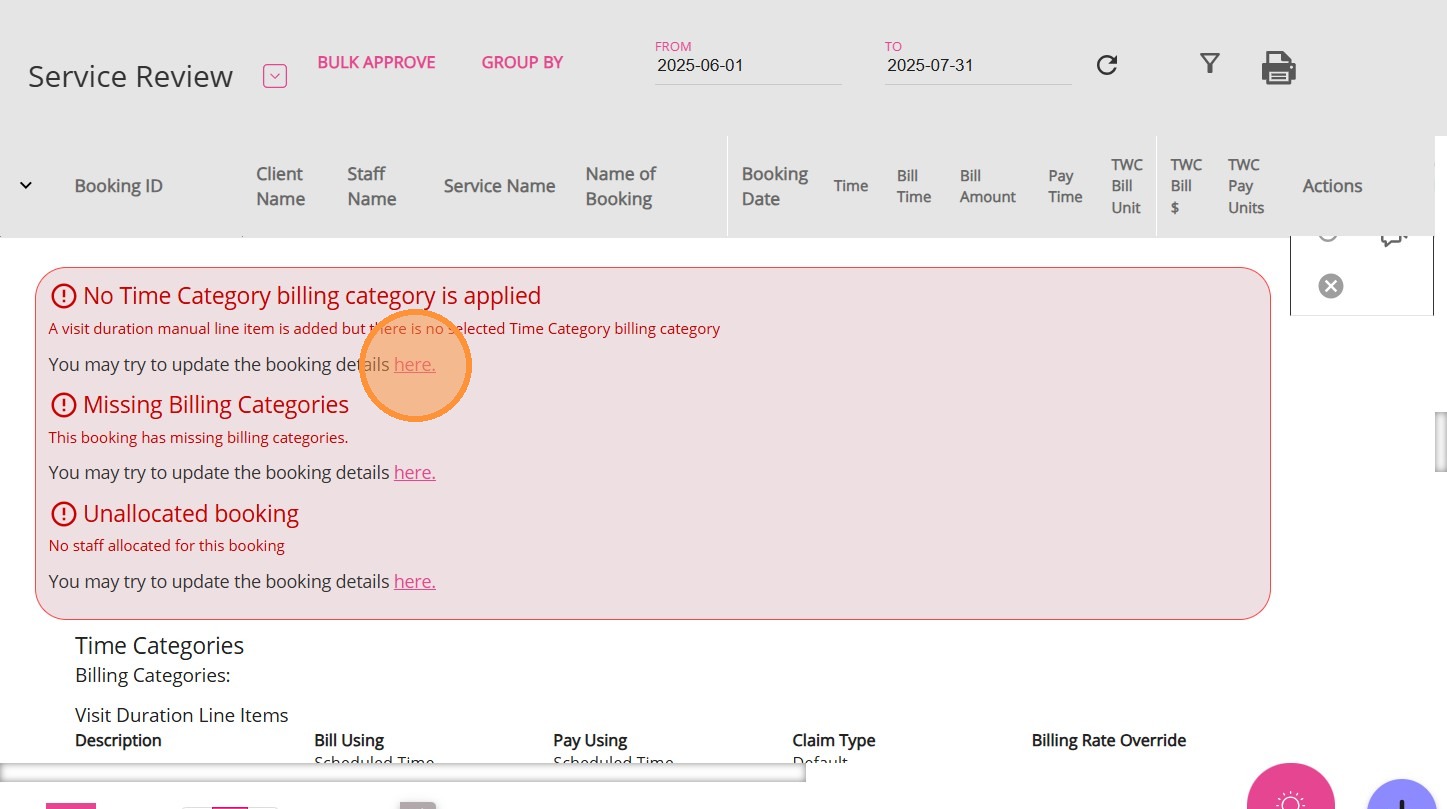
2. Go to the Billing Categories and Funding Sources section.
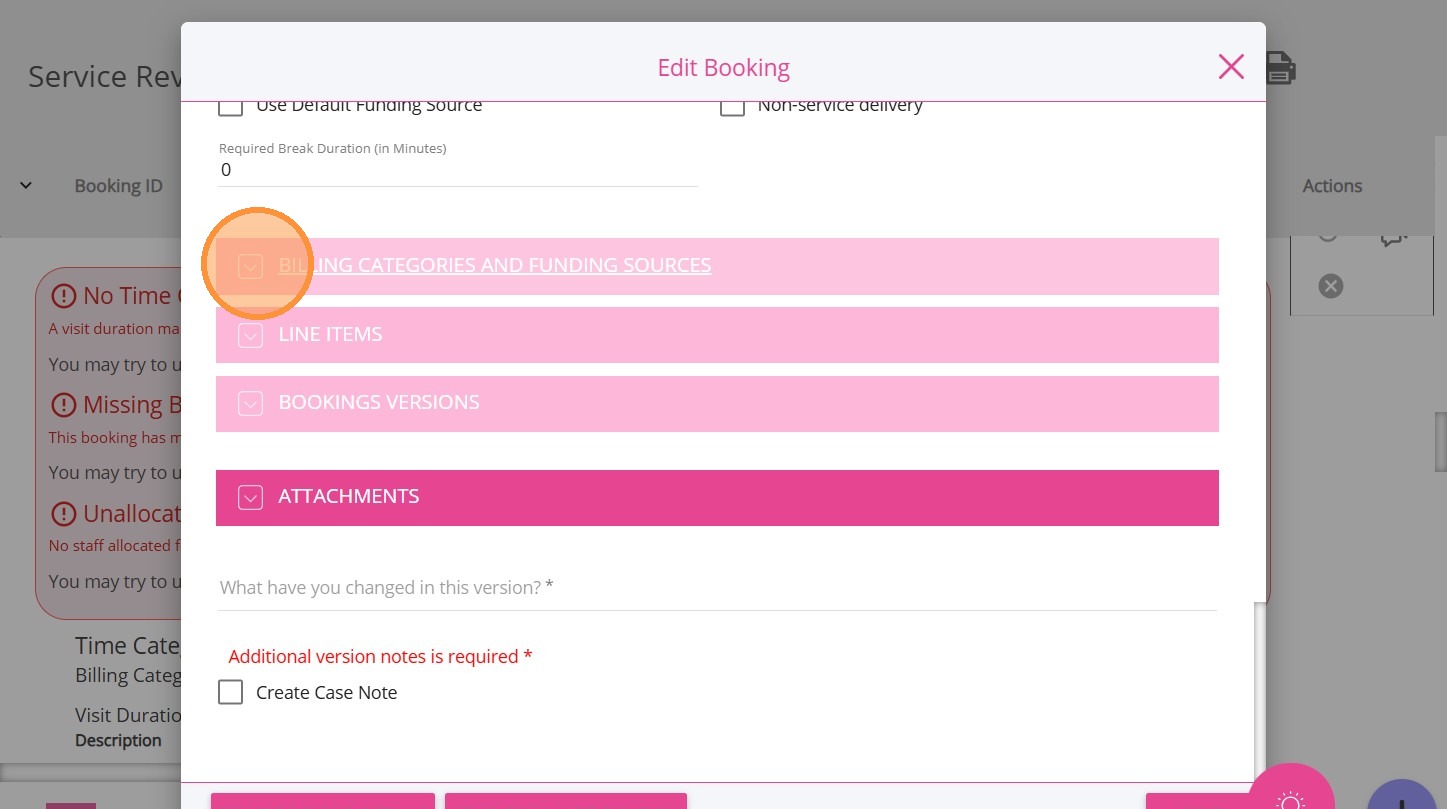
3. In the Time Category section, locate the relevant billing category for the booking.
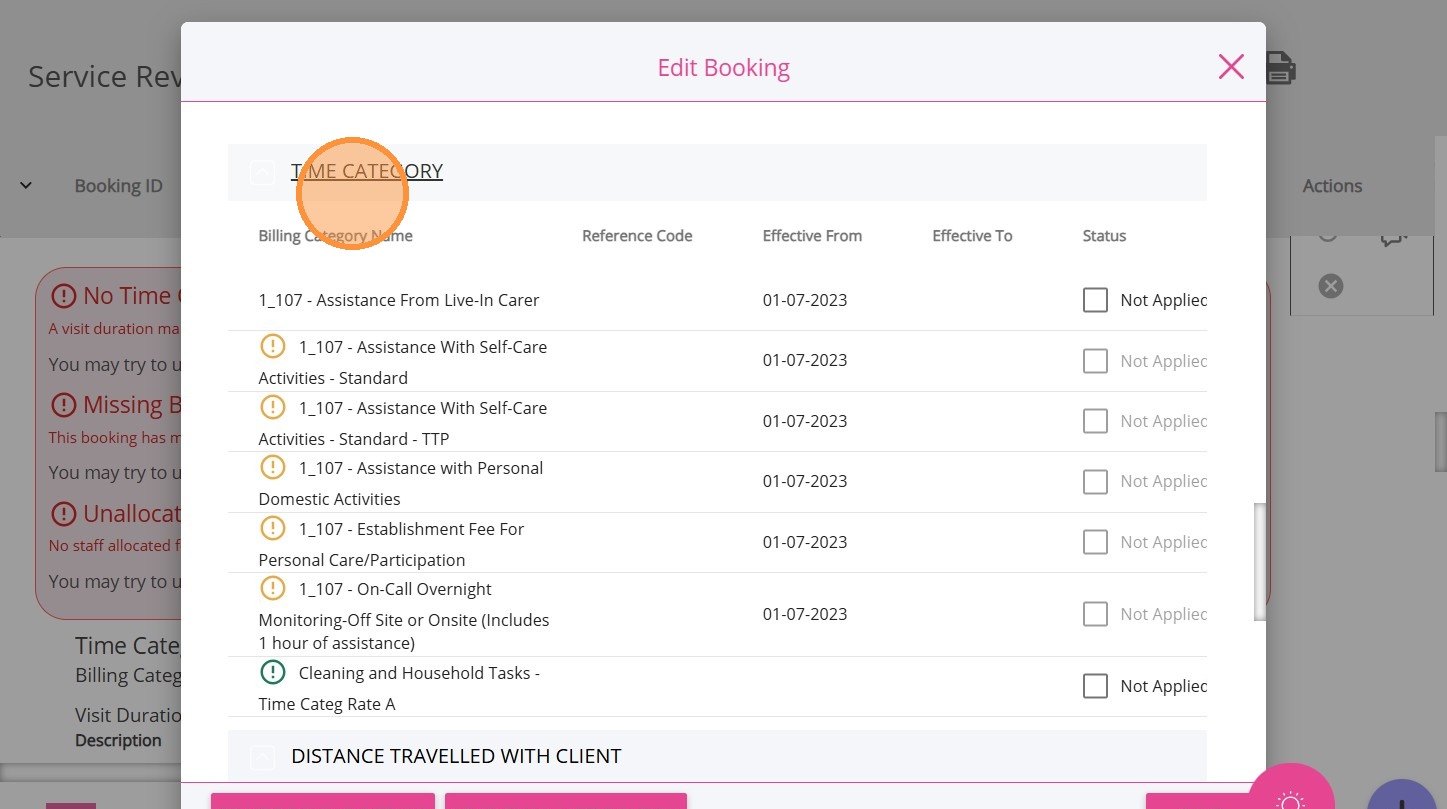
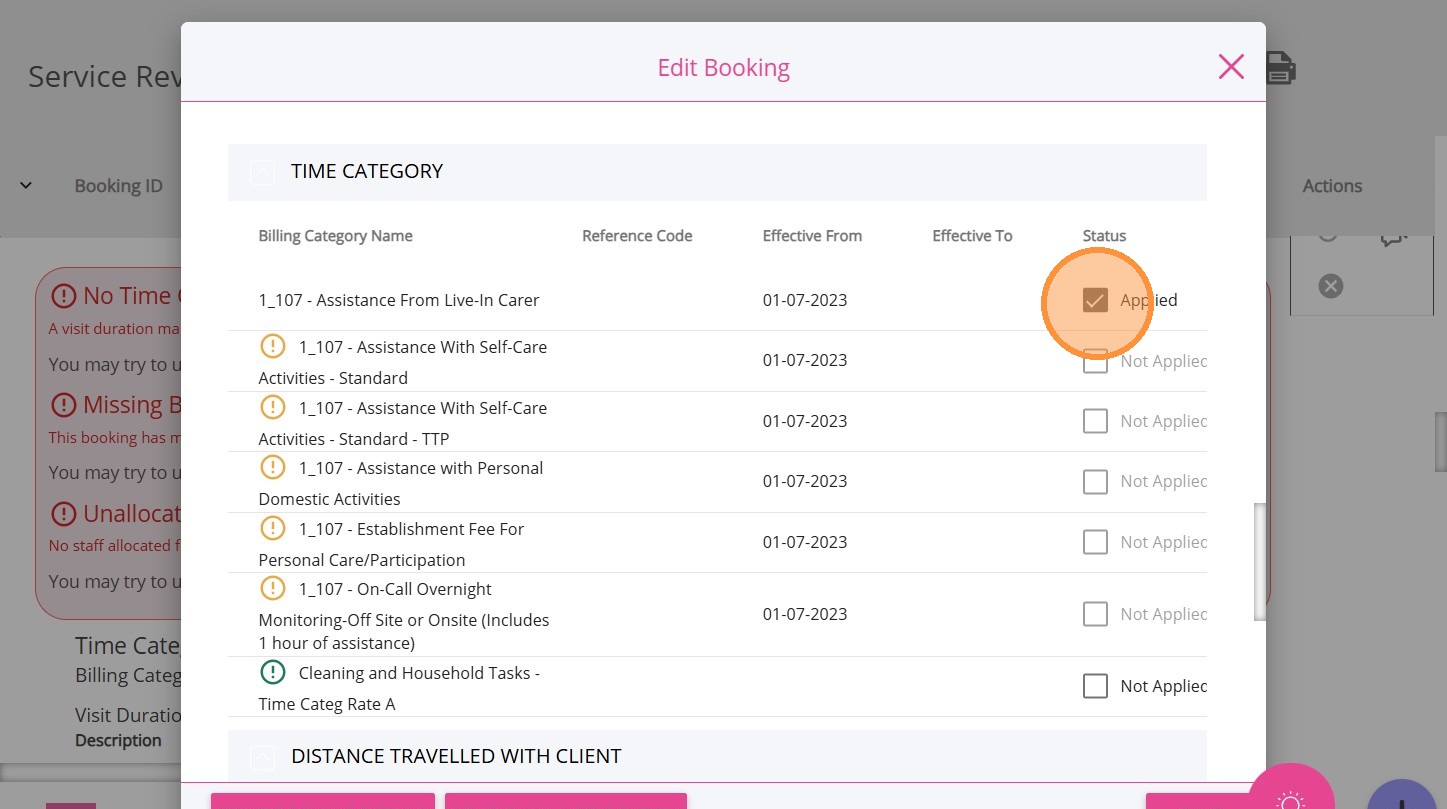
4. Under the Status column, check the box if you determine it is appropriate to apply the billing category to the client’s booking. Use your discretion and ensure the selection is accurate.
5. Scroll to the lower part of the Edit Booking page and specify your changes in the What have you changed in this version field.
6. Click Save.
1. Click the link in the alert to open the affected booking.
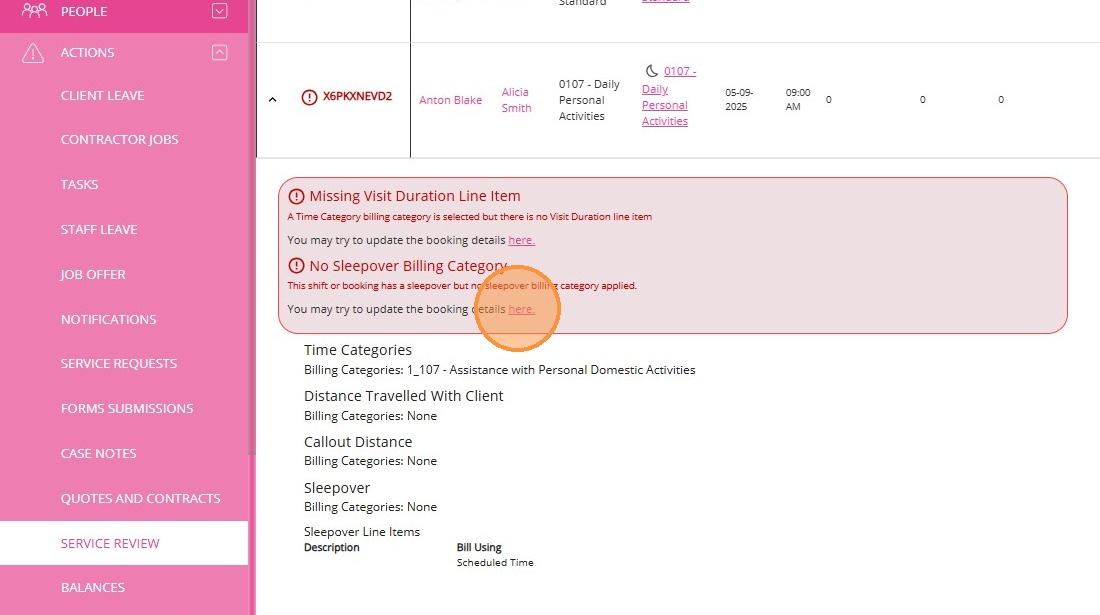
2. Go to the Billing Categories and Funding Sources section.
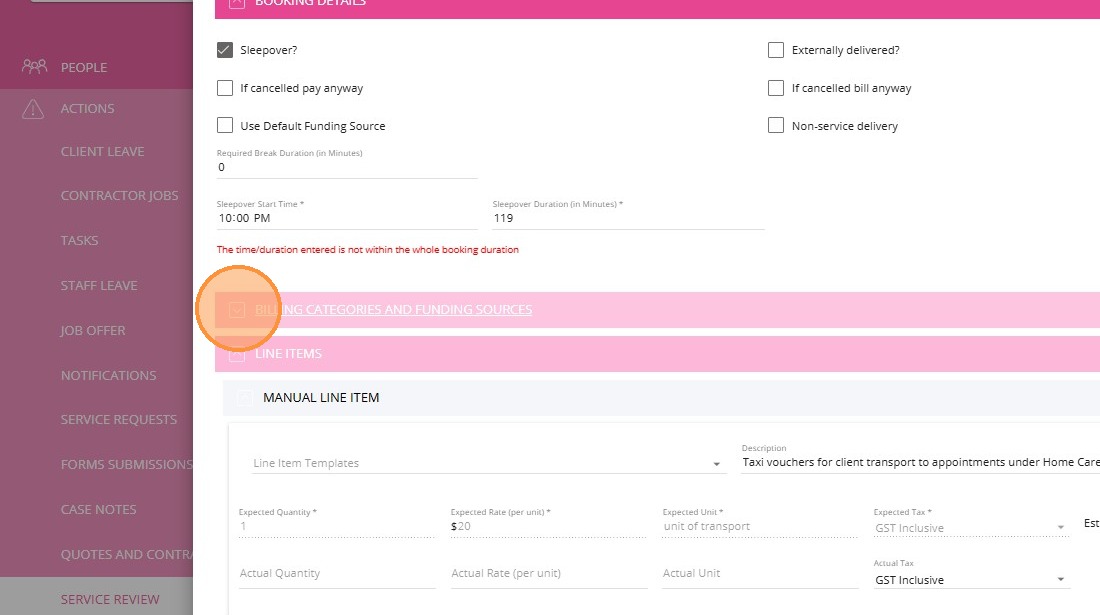
3. In the Sleepover section, select the appropriate sleepover billing category.
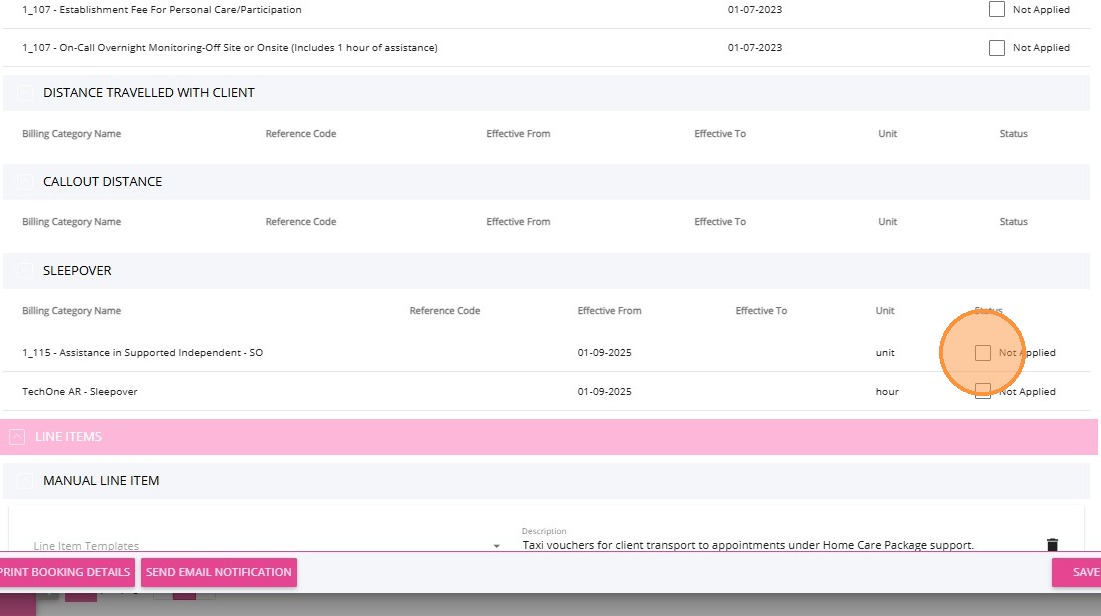
4. Scroll to the bottom of the Edit Booking page and describe your changes in the What have you changed in this version field.
5. Click Save.
The “No Sleepover Billing Category” warning should no longer appear for this booking.
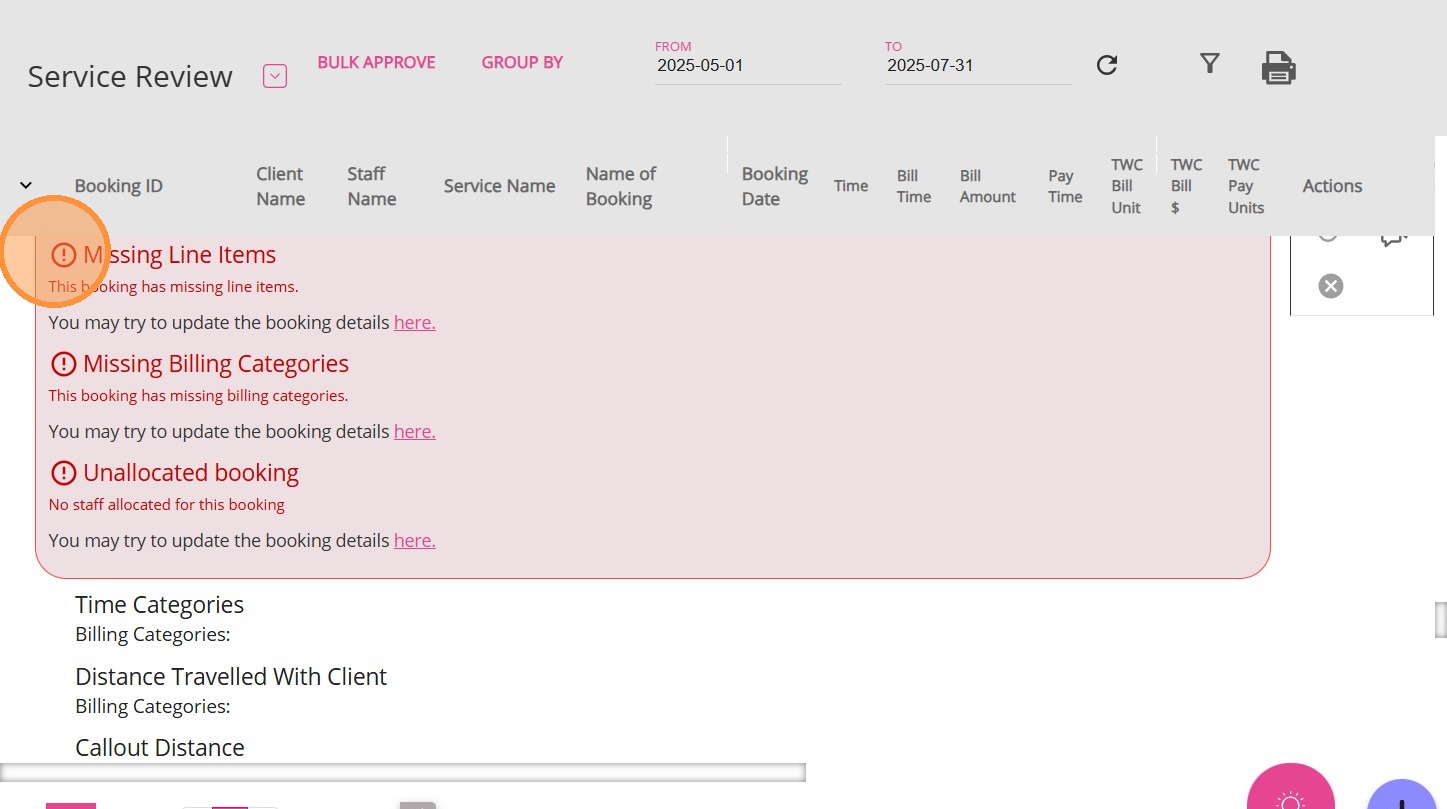
To resolve the issue:
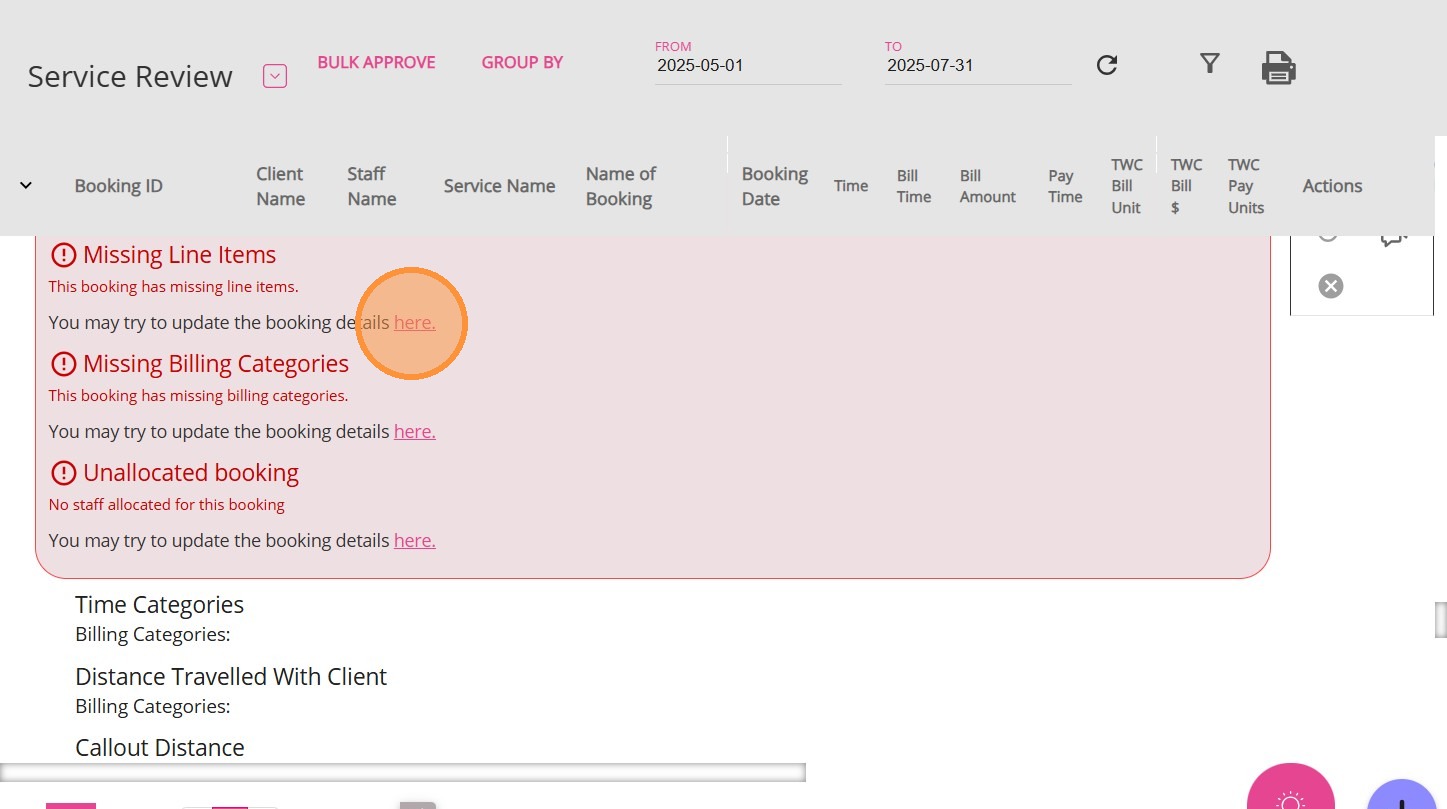
2. Select the line item that is relevant to the booking.
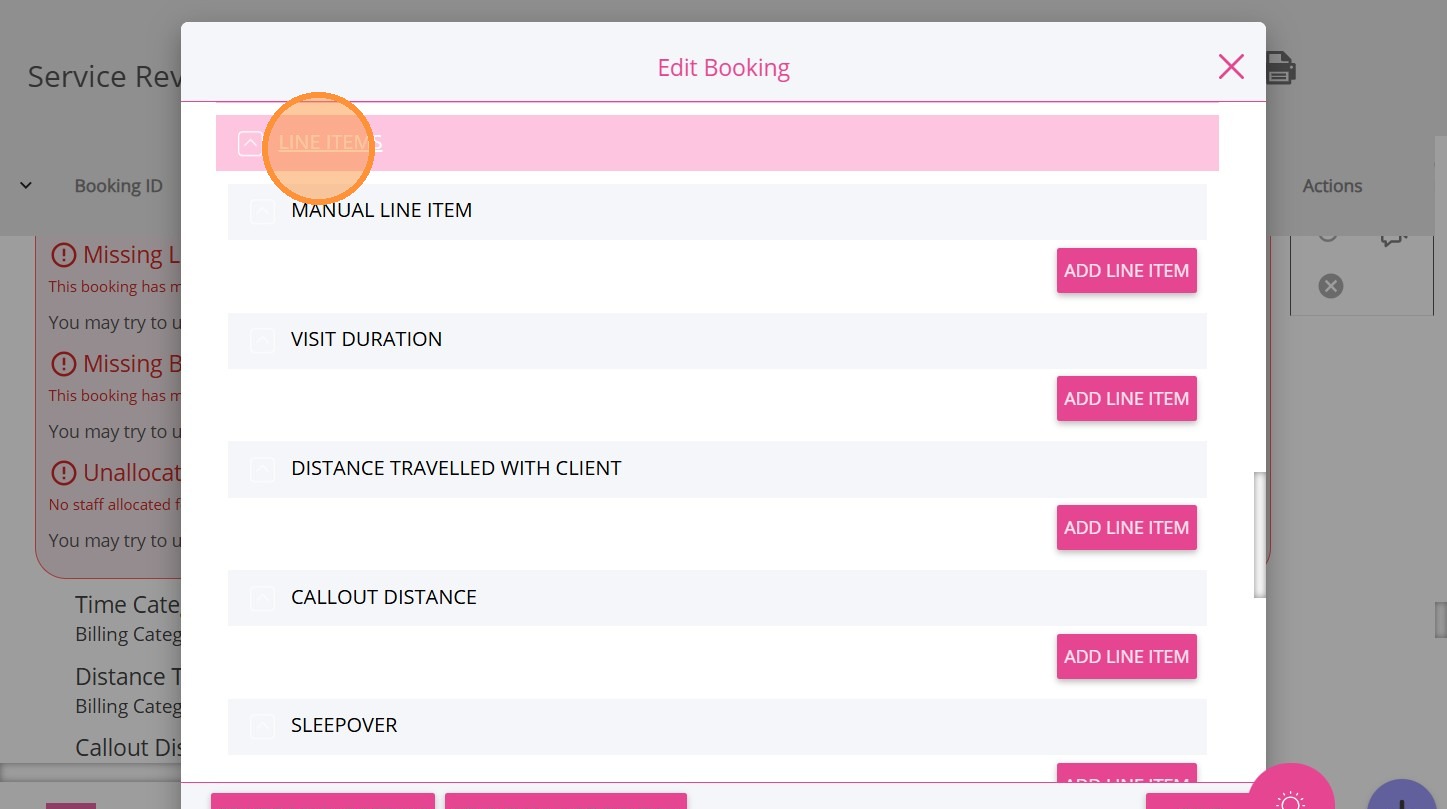
3. Click Add Line Item next to the corresponding line item.
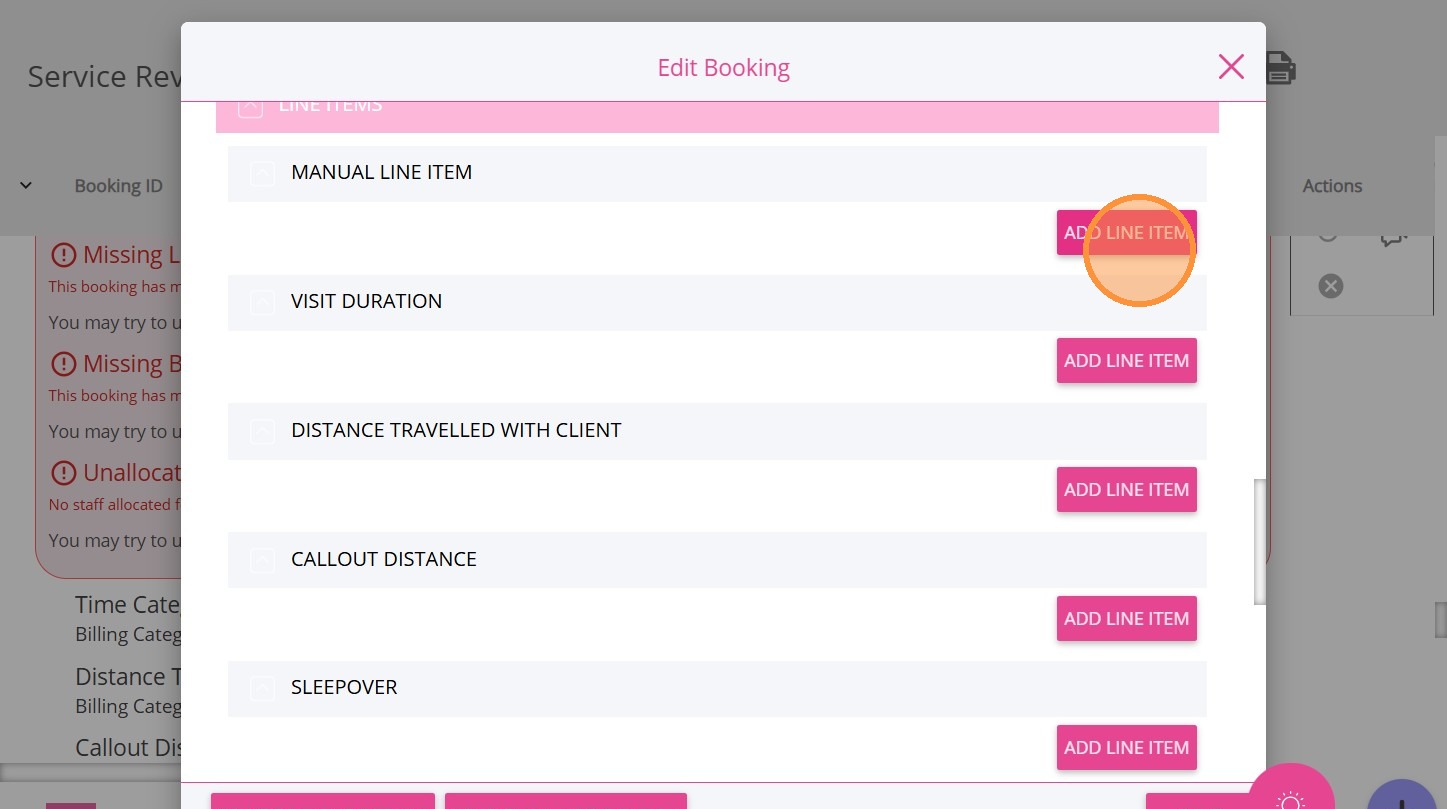
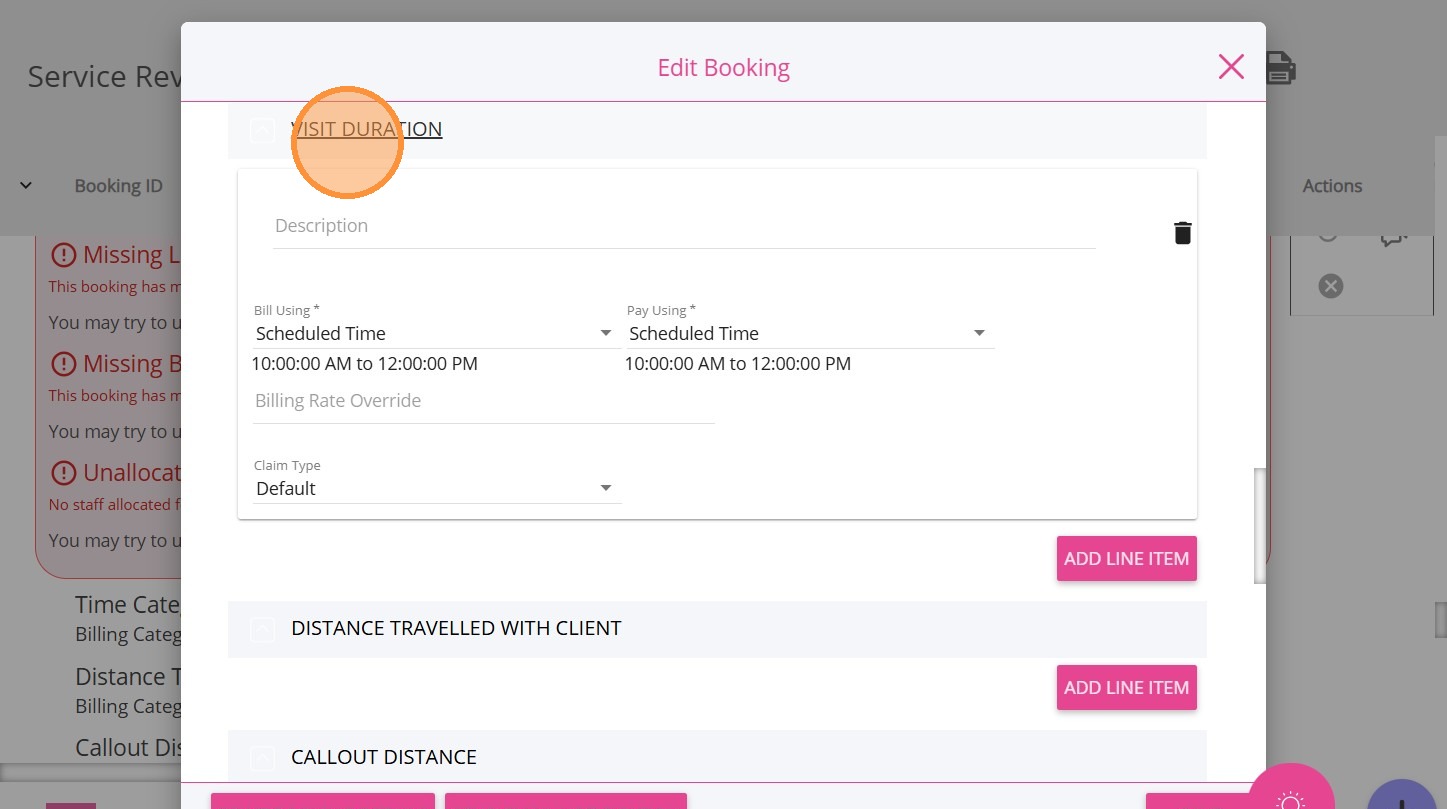
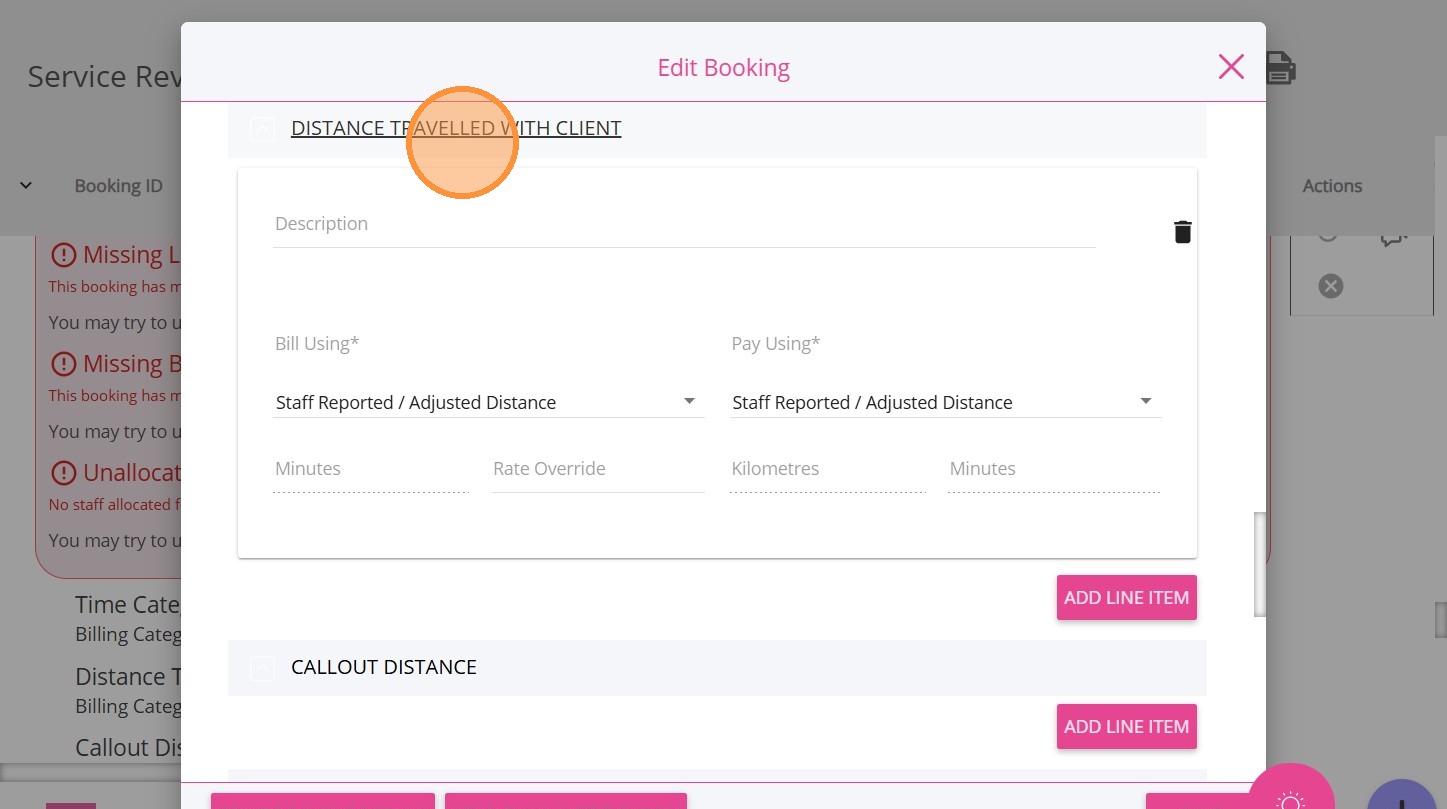
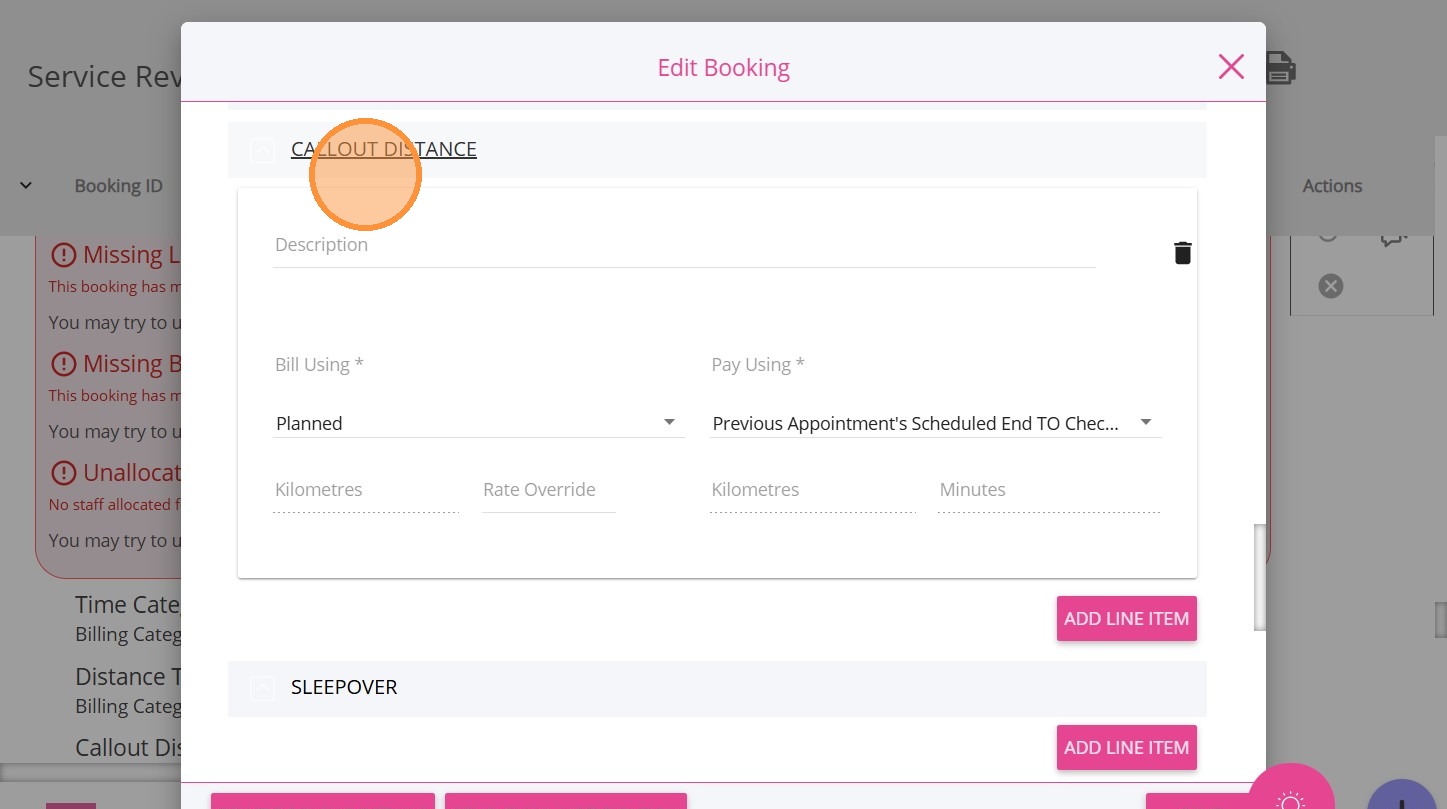
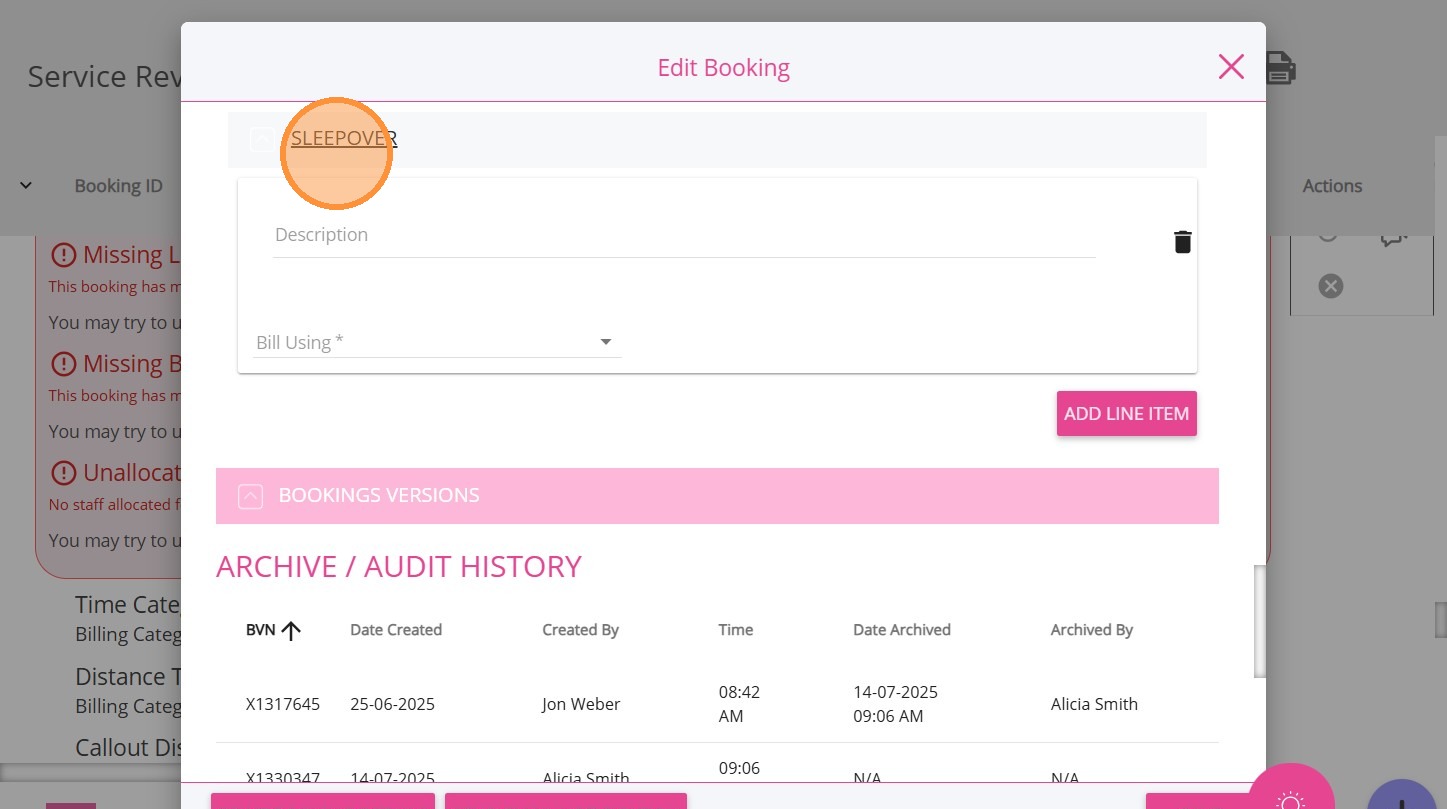
4. Complete the required fields for the selected line item, such as
- Manual Line Item
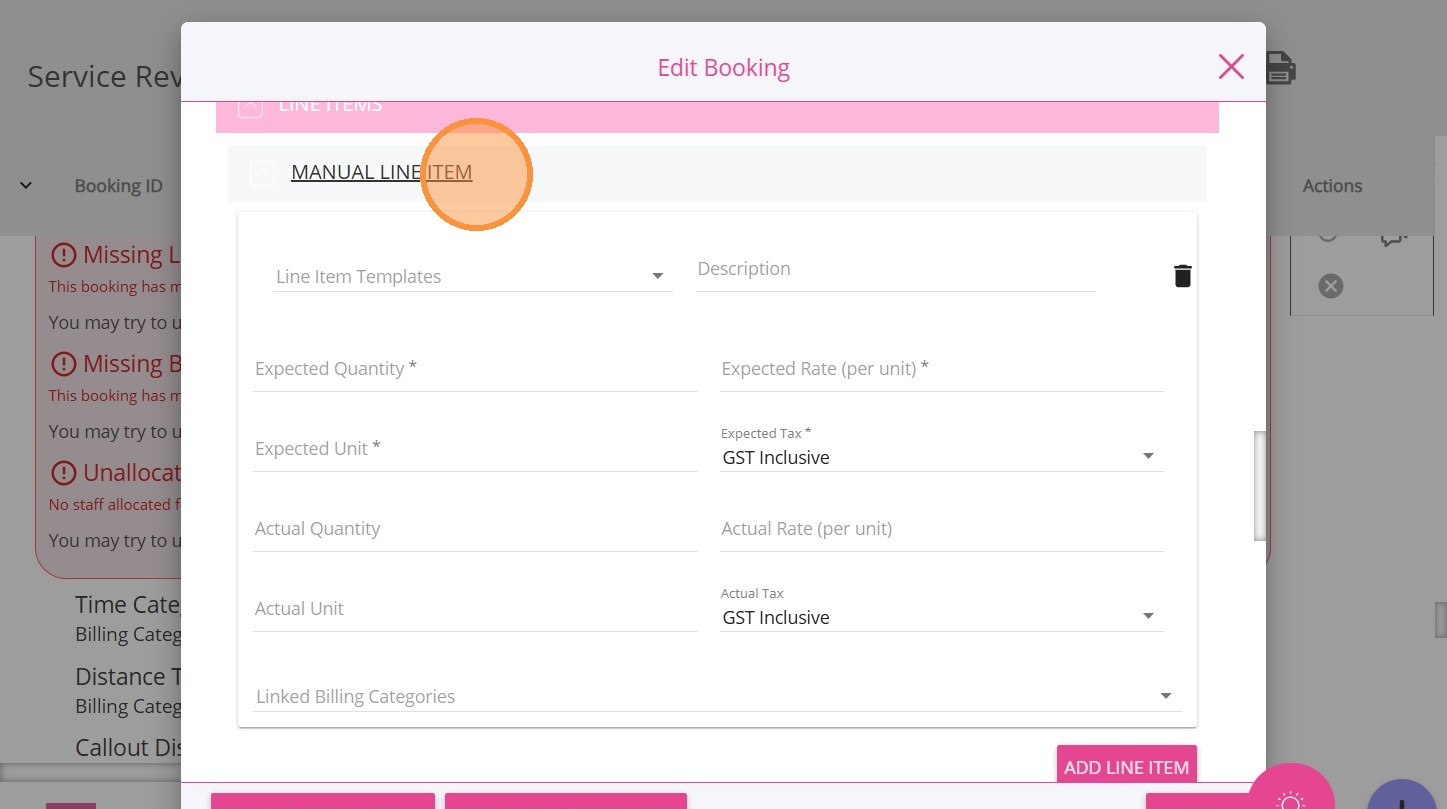
- Visit Duration
- Distance Travelled with Client
- Callout Distance
- or Sleep Over. Review and add any missing line items as needed.
5. Scroll to the lower part of the Edit Booking page and specify your changes in the What have you changed in this version field.
6. Click Save.
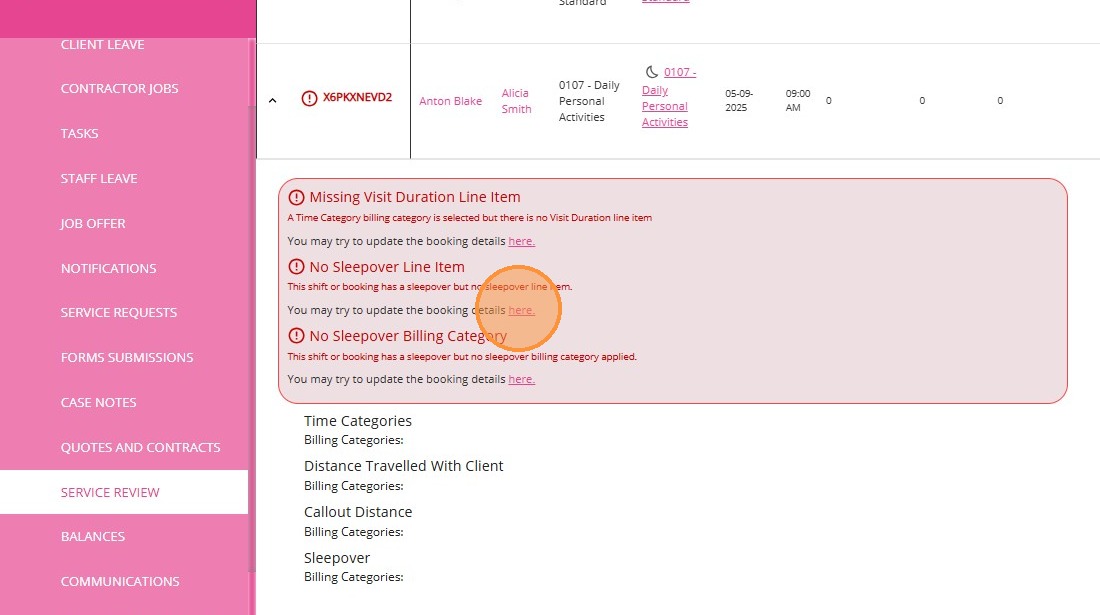
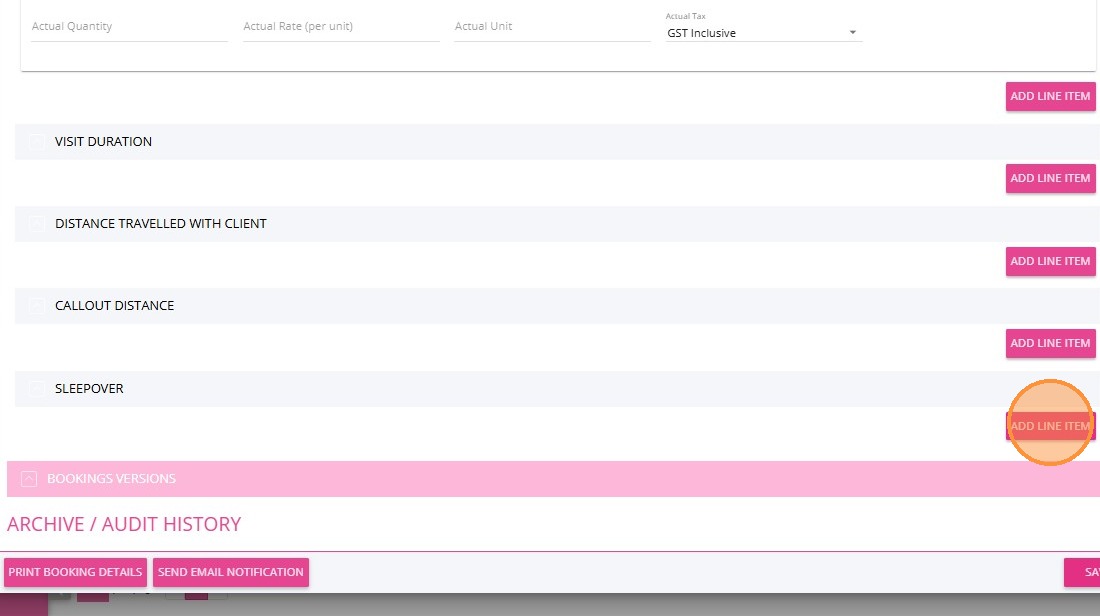
2. In the Line Items section, click Add Line Item under the Sleepover section.
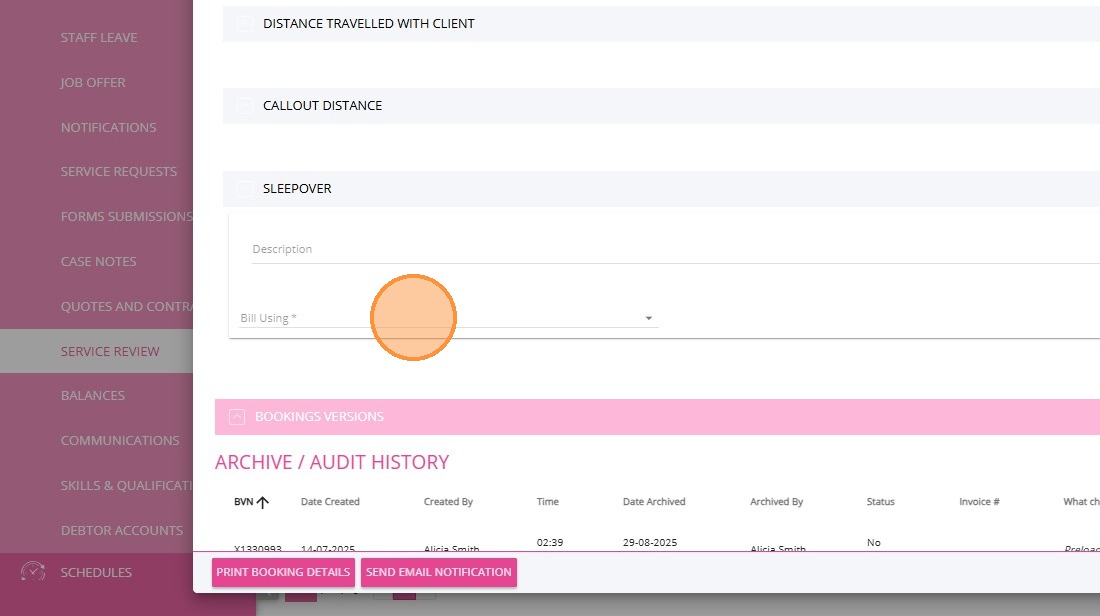
3. Specify the Bill Using field.
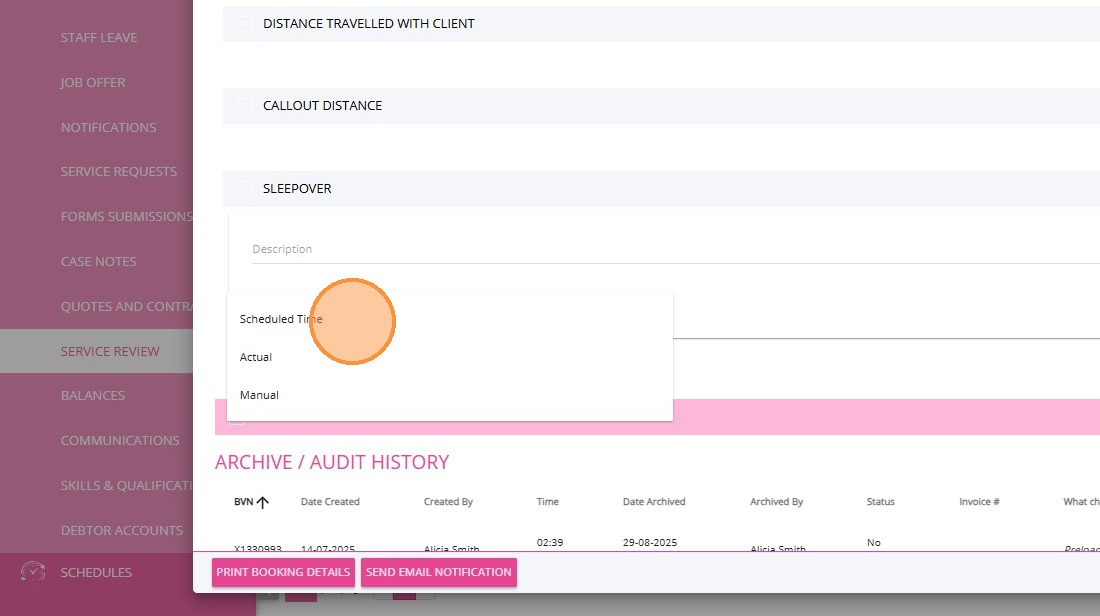
4. Specify the billing method by selecting either Scheduled Time, Actual, or Manual, based on your business requirements.
5. Scroll to the lower part of the Edit Booking page and specify your changes in the What have you changed in this version field.
6. Click Save.
The “No Sleepover Line Item” warning should no longer appear for this booking.
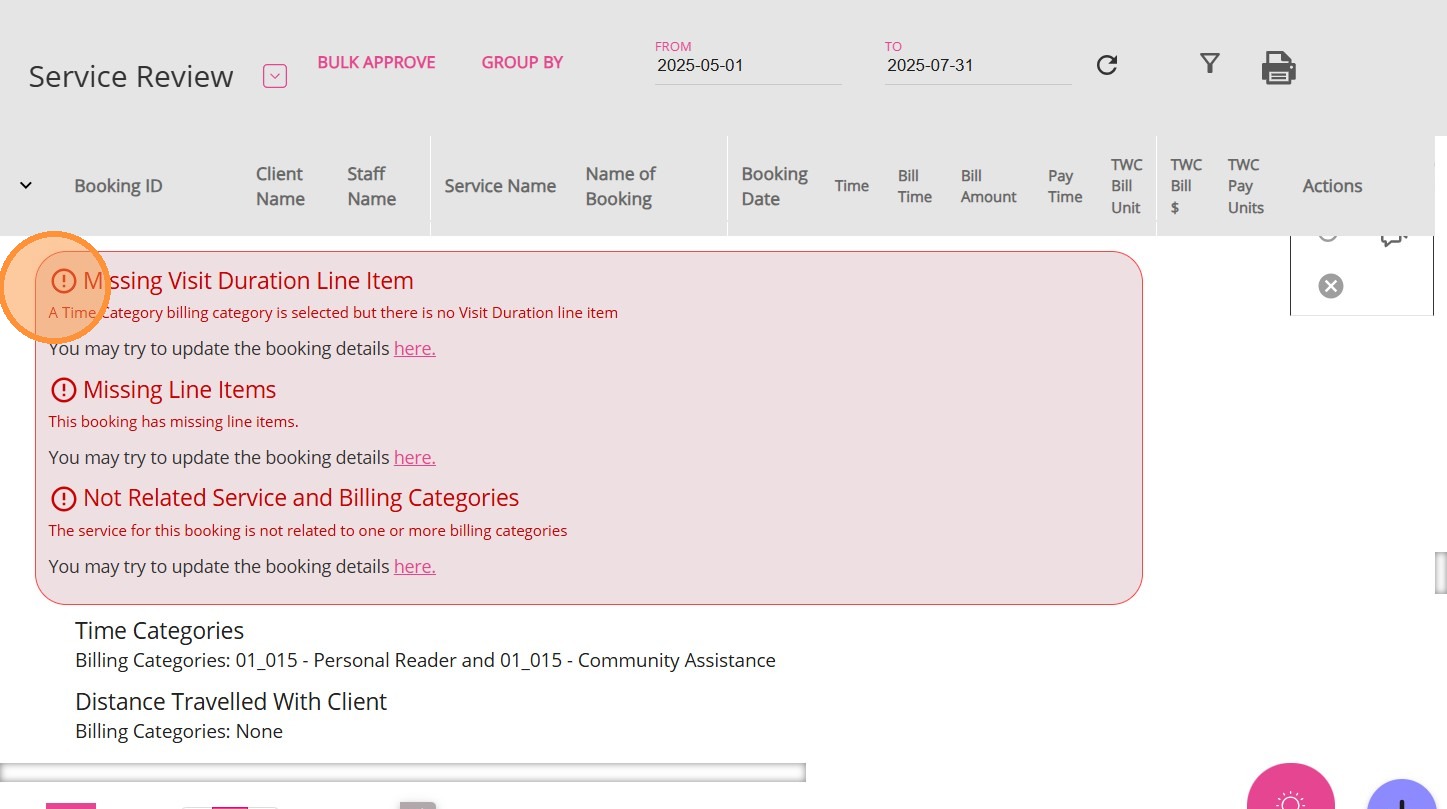
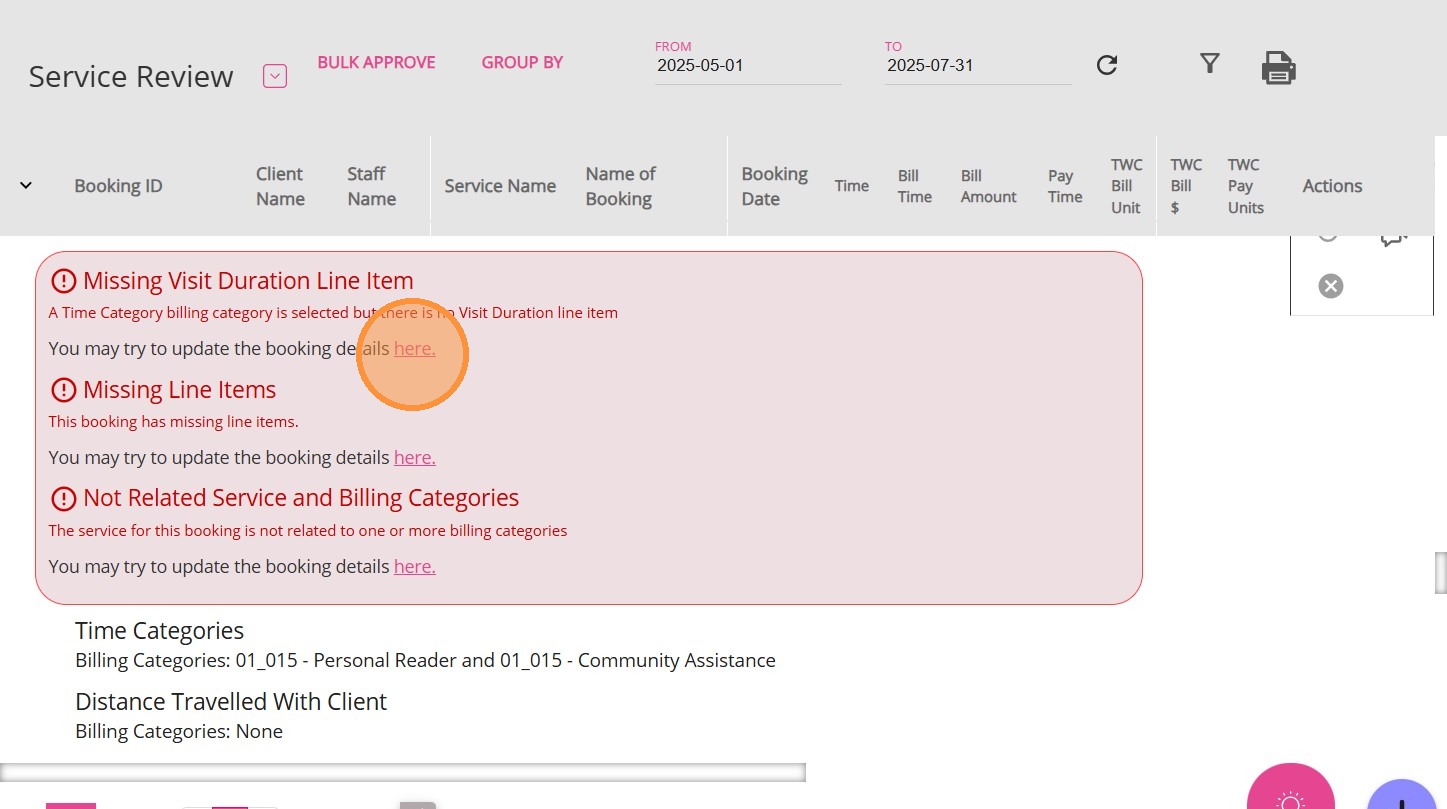
To resolve the issue:
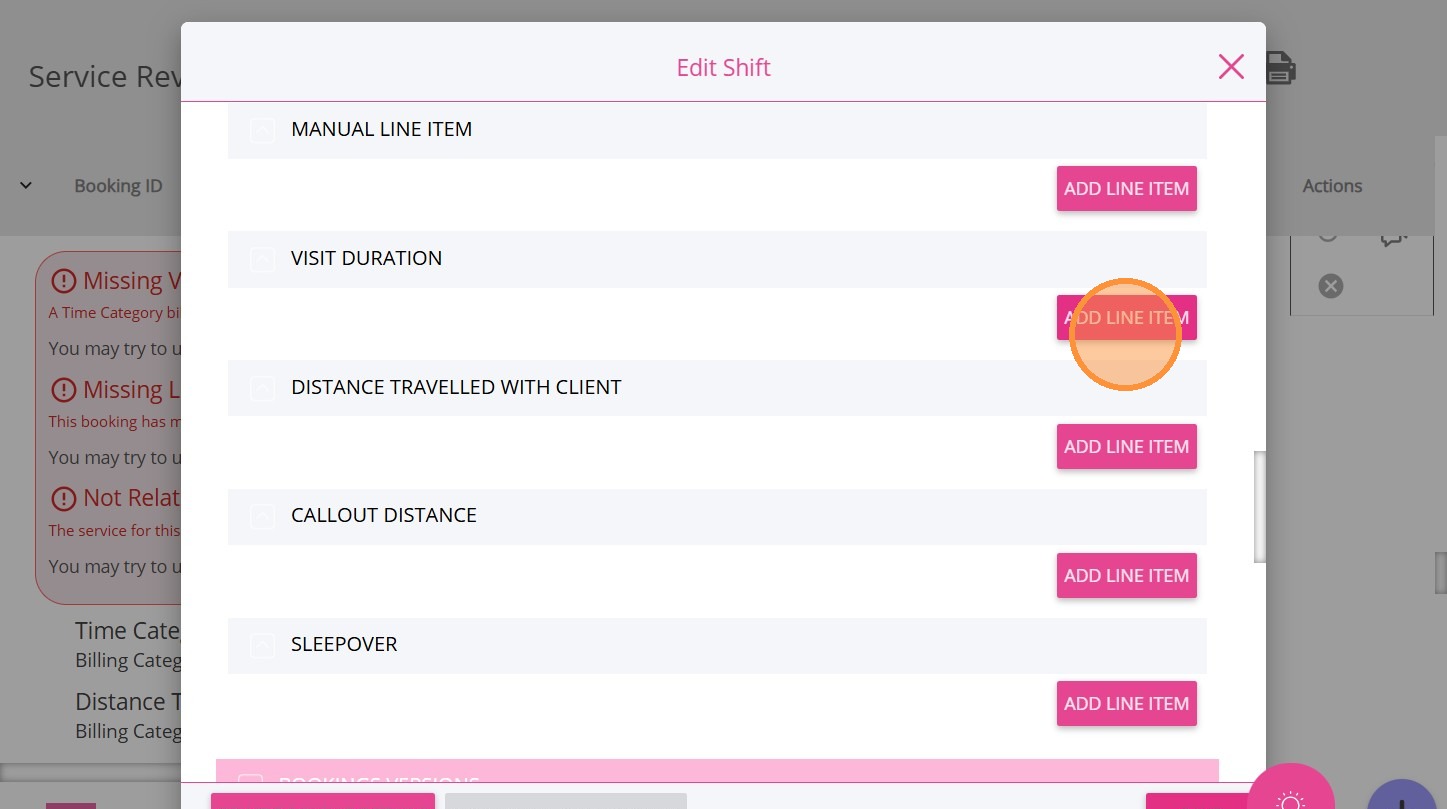
2. Go to the Line Items section and click Add Line Item under the Visit Duration section.
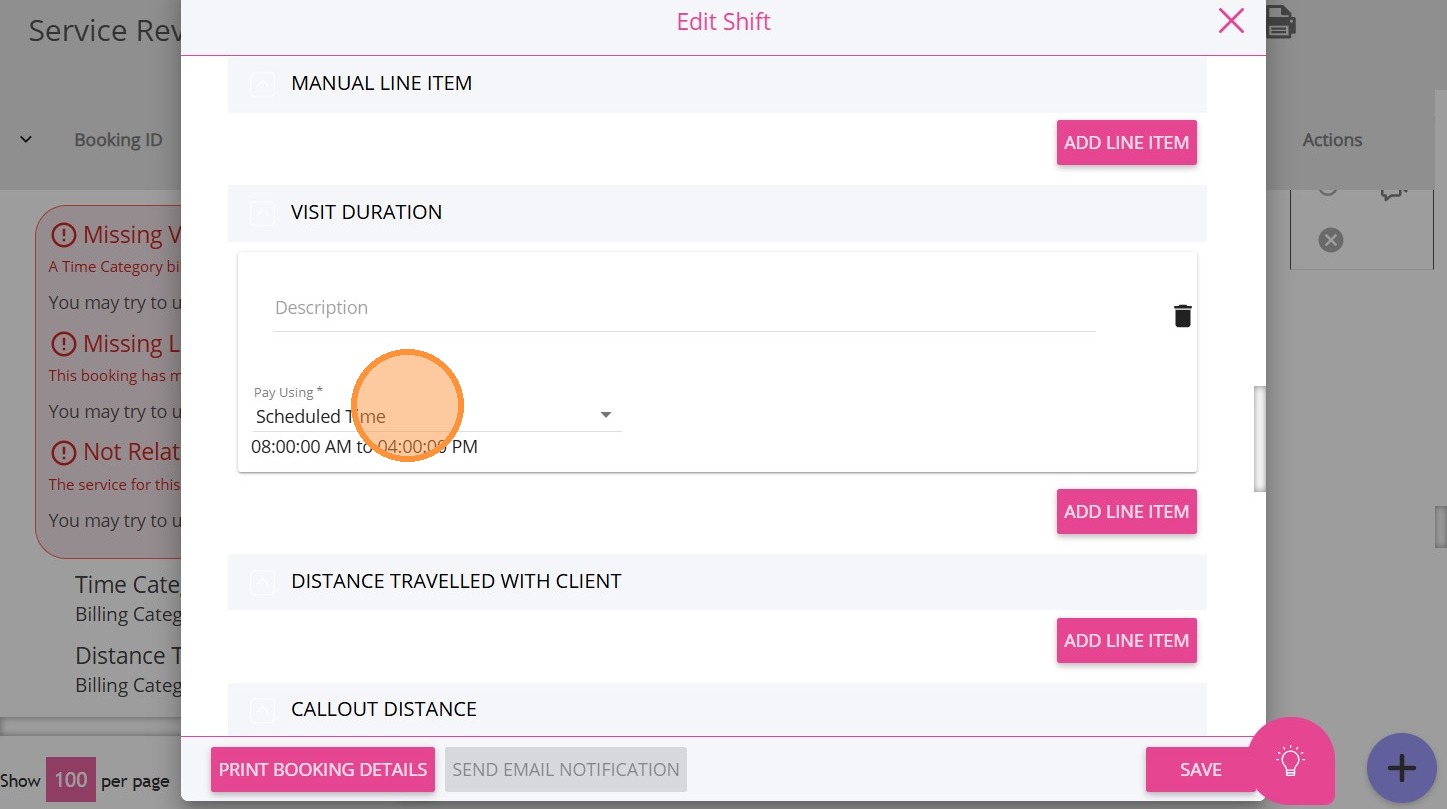
3. Check the Bill Using and Pay Using fields and ensure they are set to Scheduled Time. Most organisations use this setting by default.
4. Scroll to the lower part of the Edit Booking page and specify your changes in the What have you changed in this version field.
5. Click Save.
The booking will be updated, and the warning should no longer be displayed.
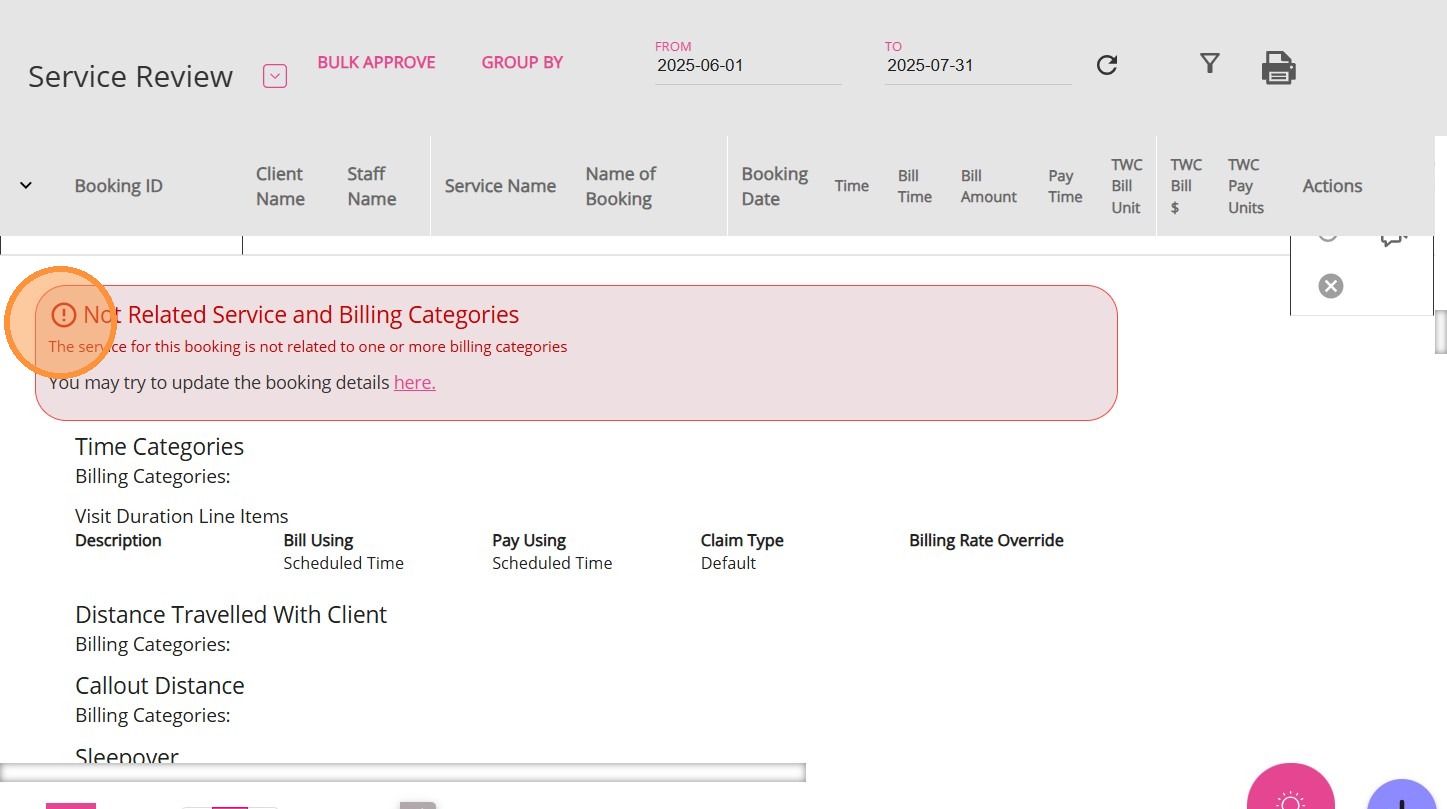
To resolve the issue:
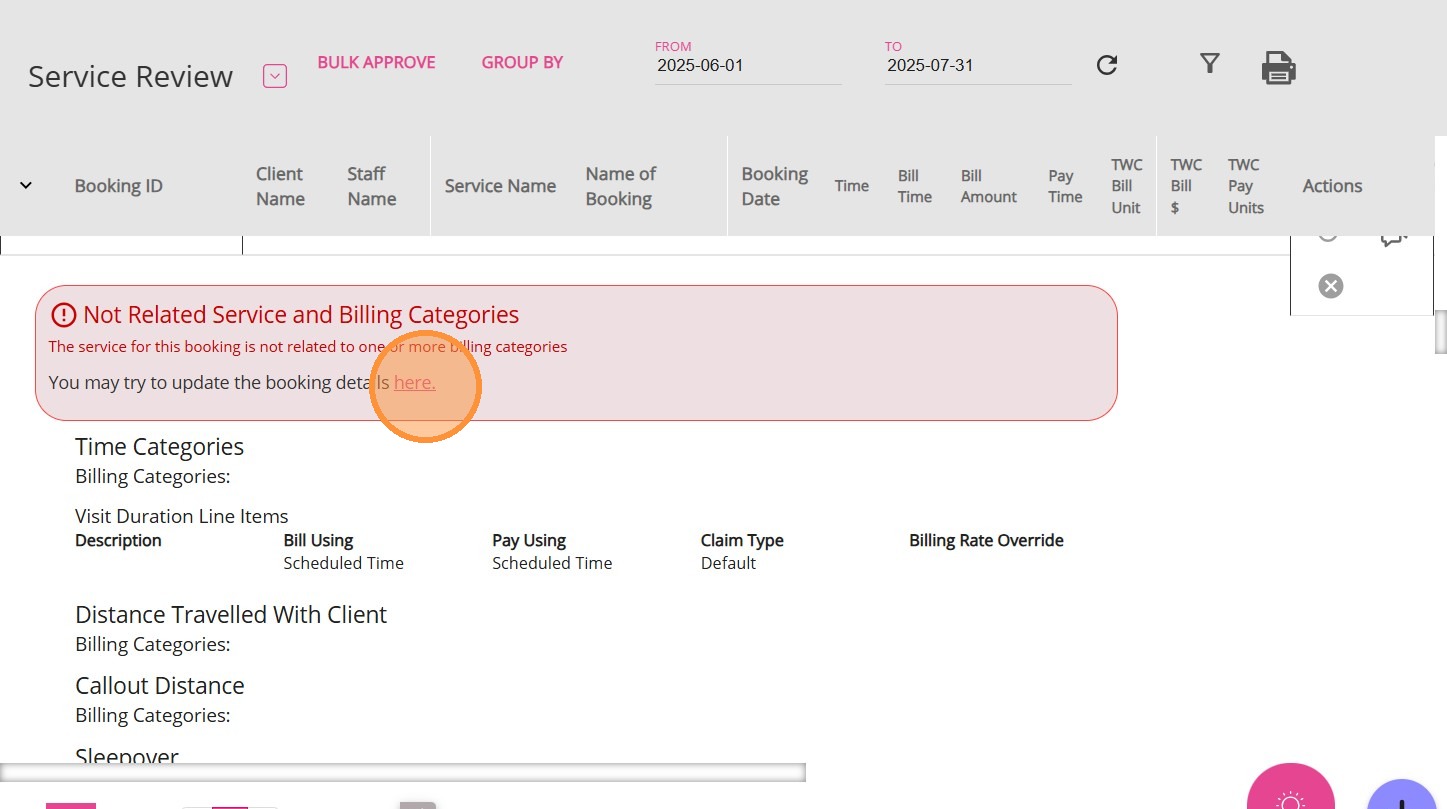
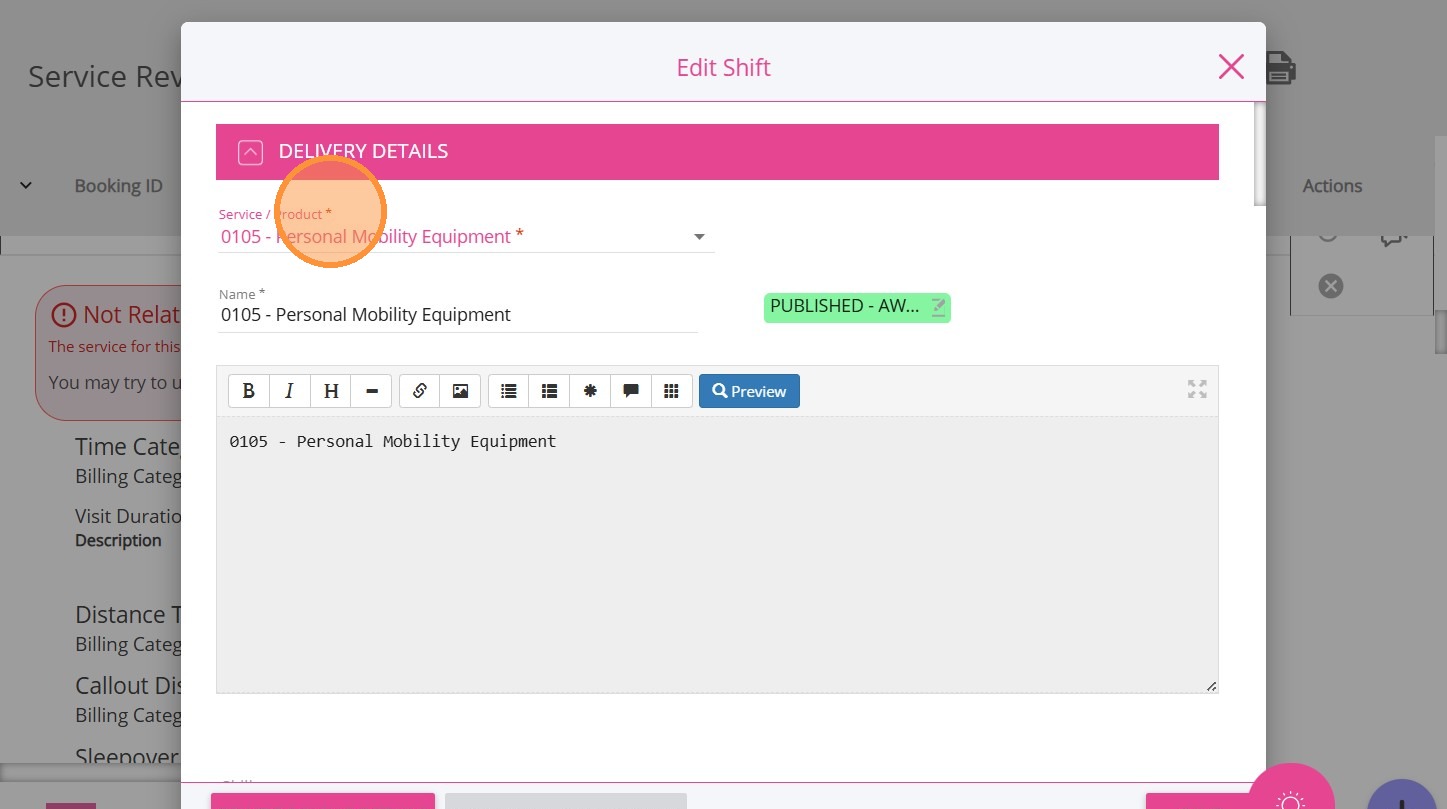
2. In the Delivery Details section, check the Service/Product field to identify the service included in the client’s booking.
3. Go to the Billing Categories section to verify that the billing categories are appropriate for the service included in the client’s booking.
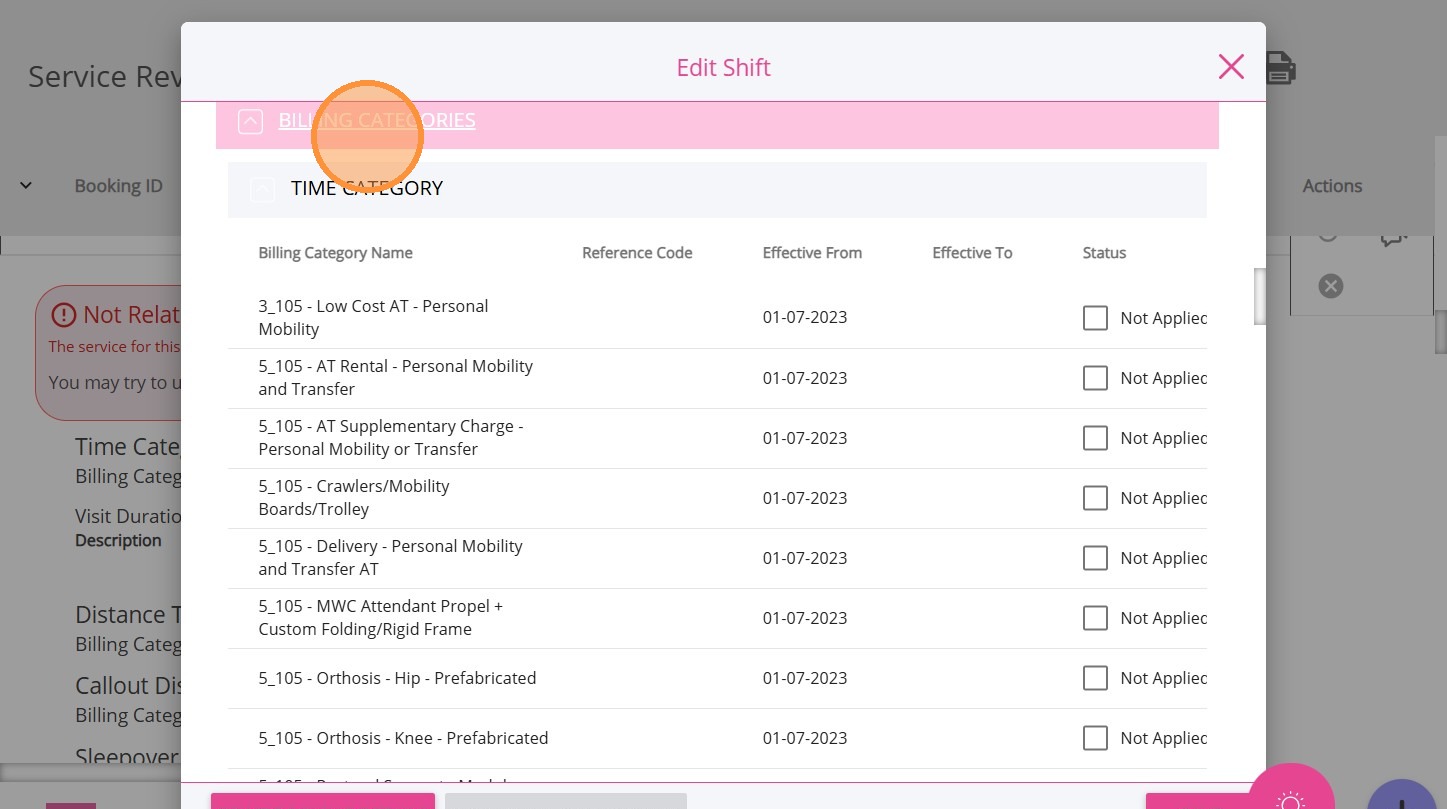
4. Under the Status column, check the box if you determine it is appropriate to apply the billing category to the client’s booking. Use your discretion and ensure the selection is accurate.
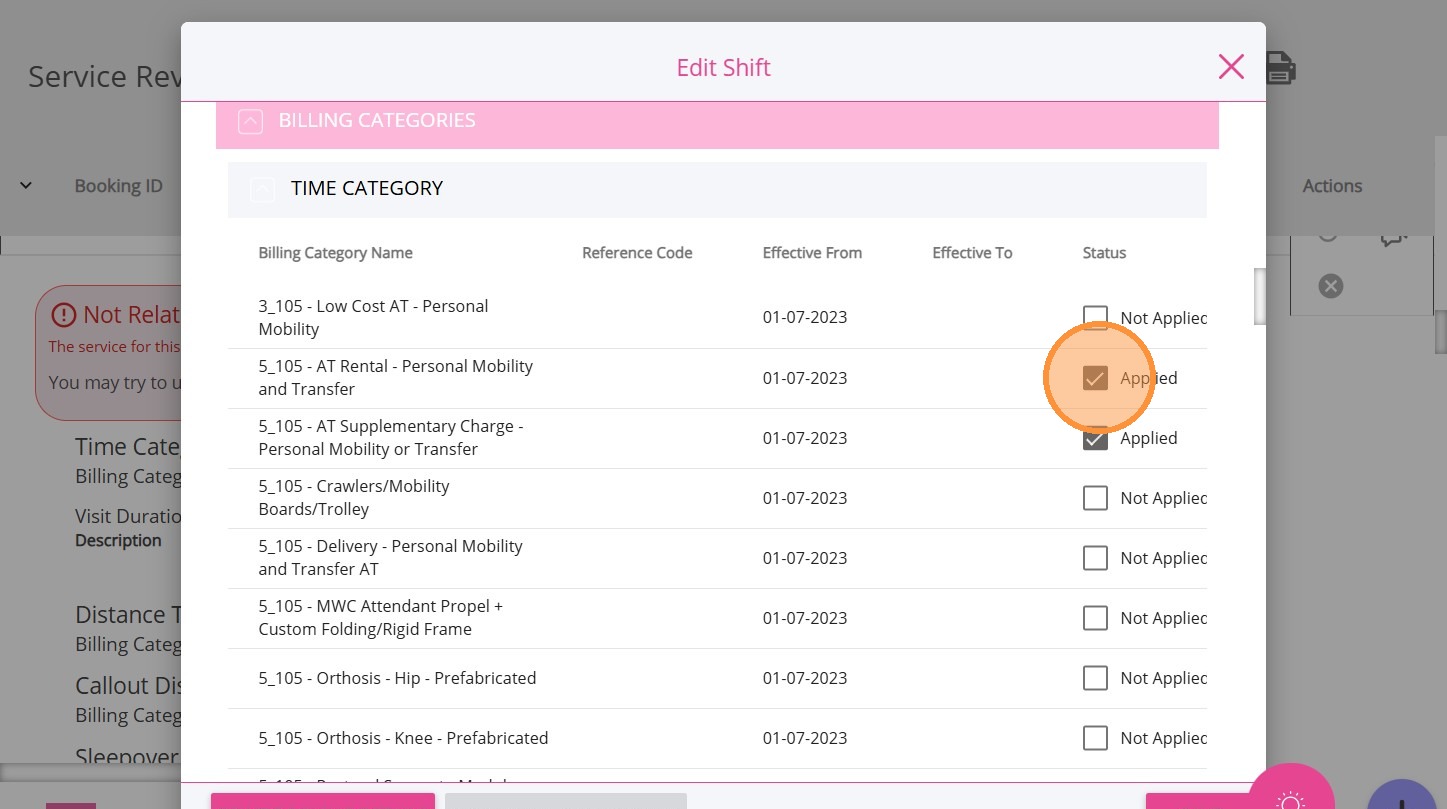
5. Scroll to the lower part of the Edit Booking page and specify your changes in the What have you changed in this version field.
6. Click Save.
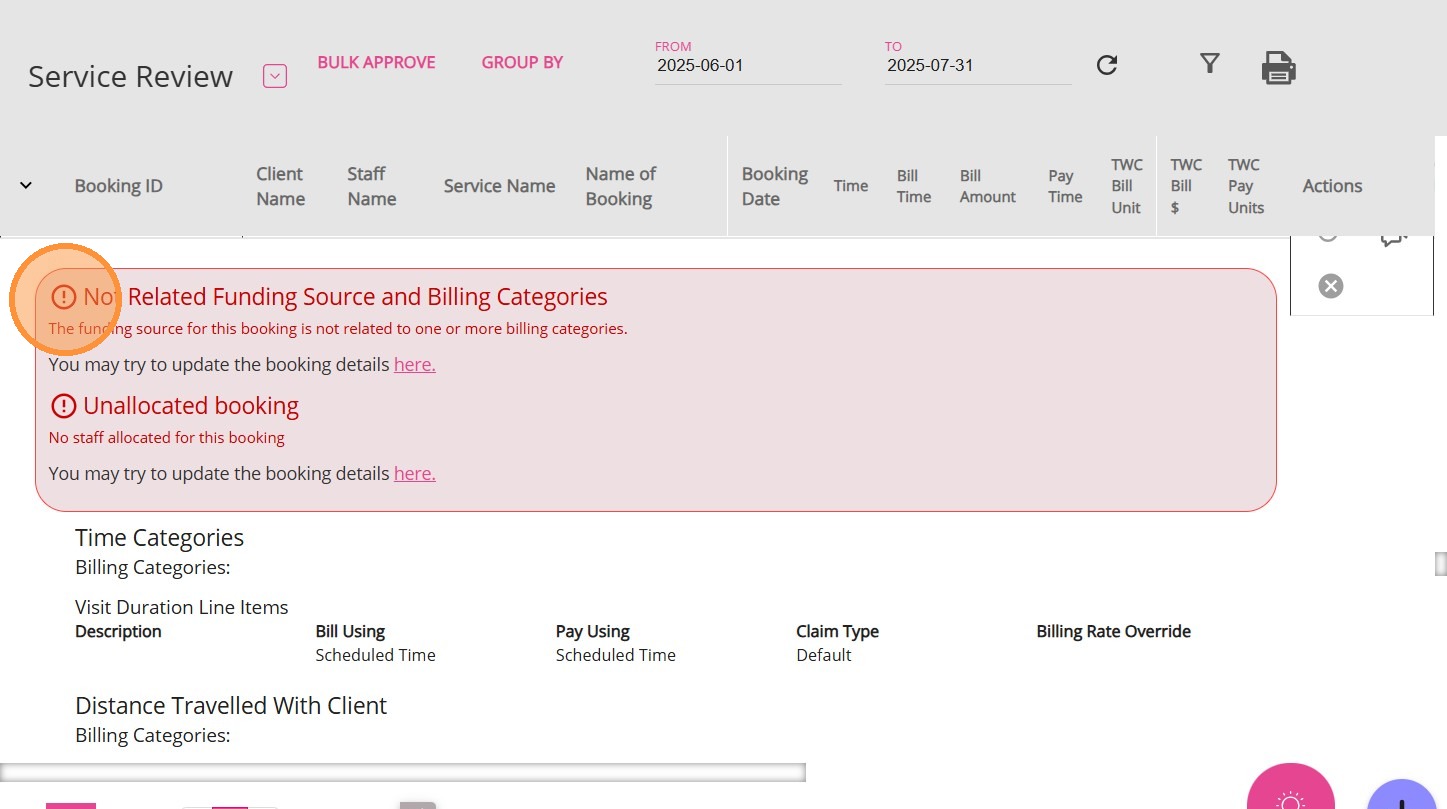
To resolve the issue:
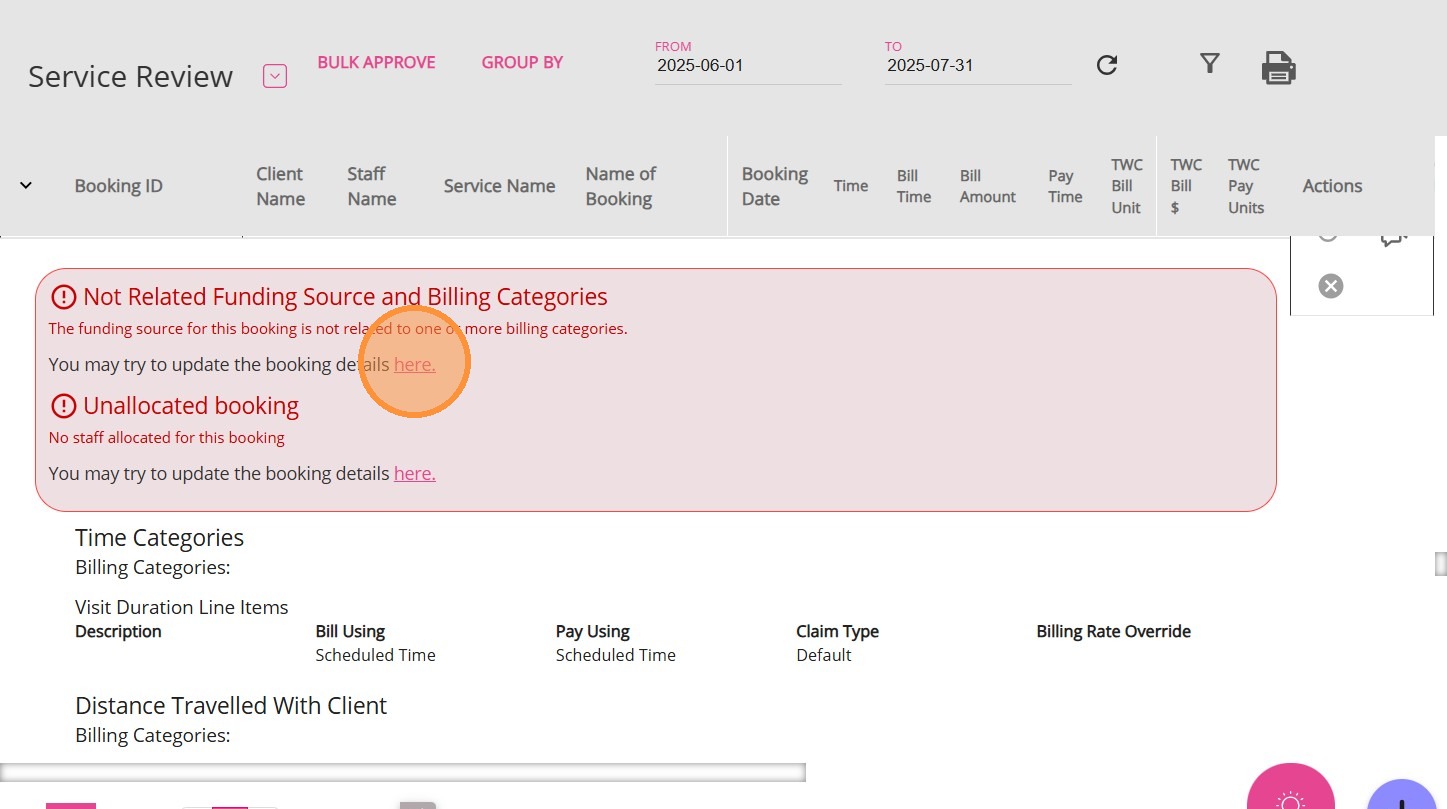
2. Check the Funding Source section to ensure the client is using the correct funding source.
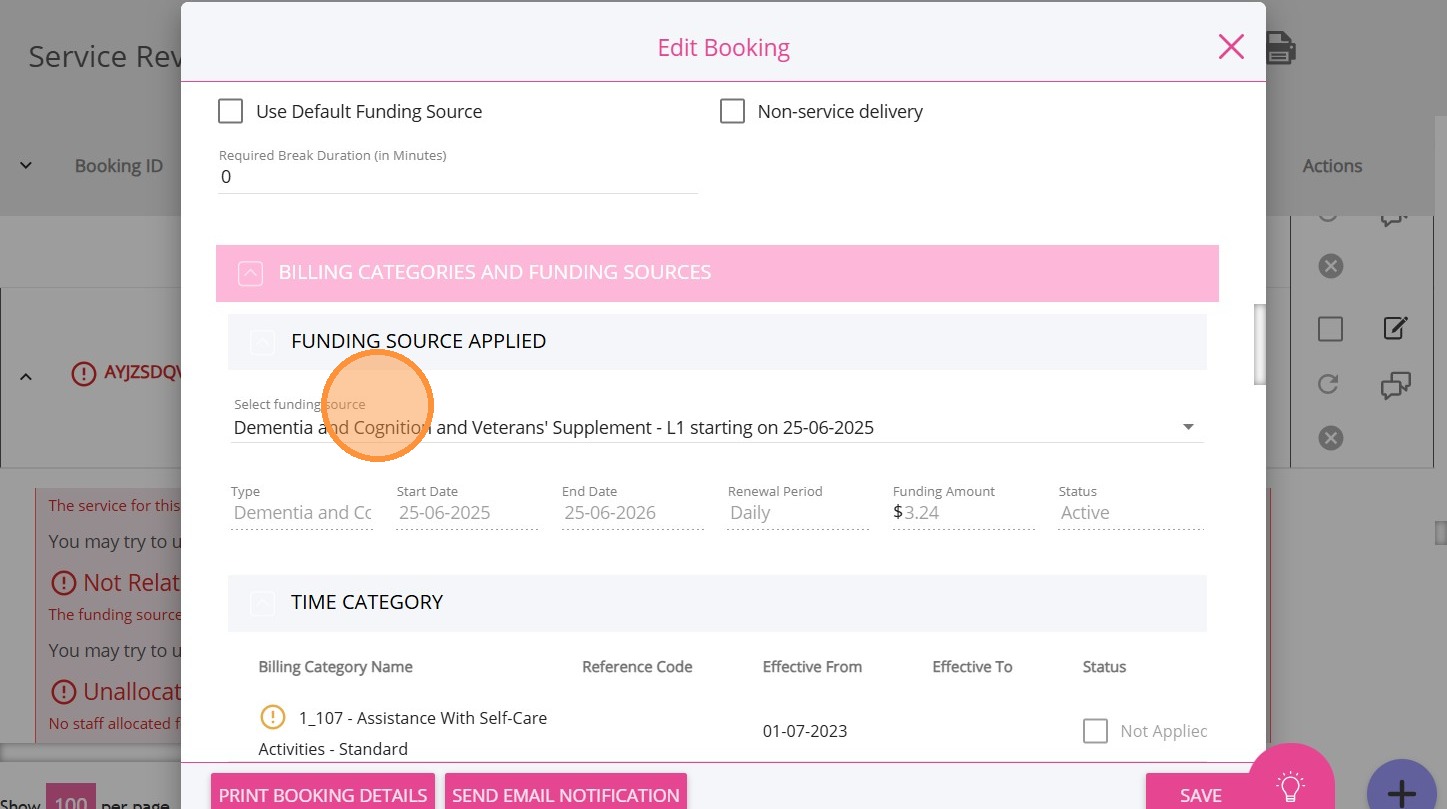
3. Check the alerts in the Billing Categories section and scroll to each flagged category.
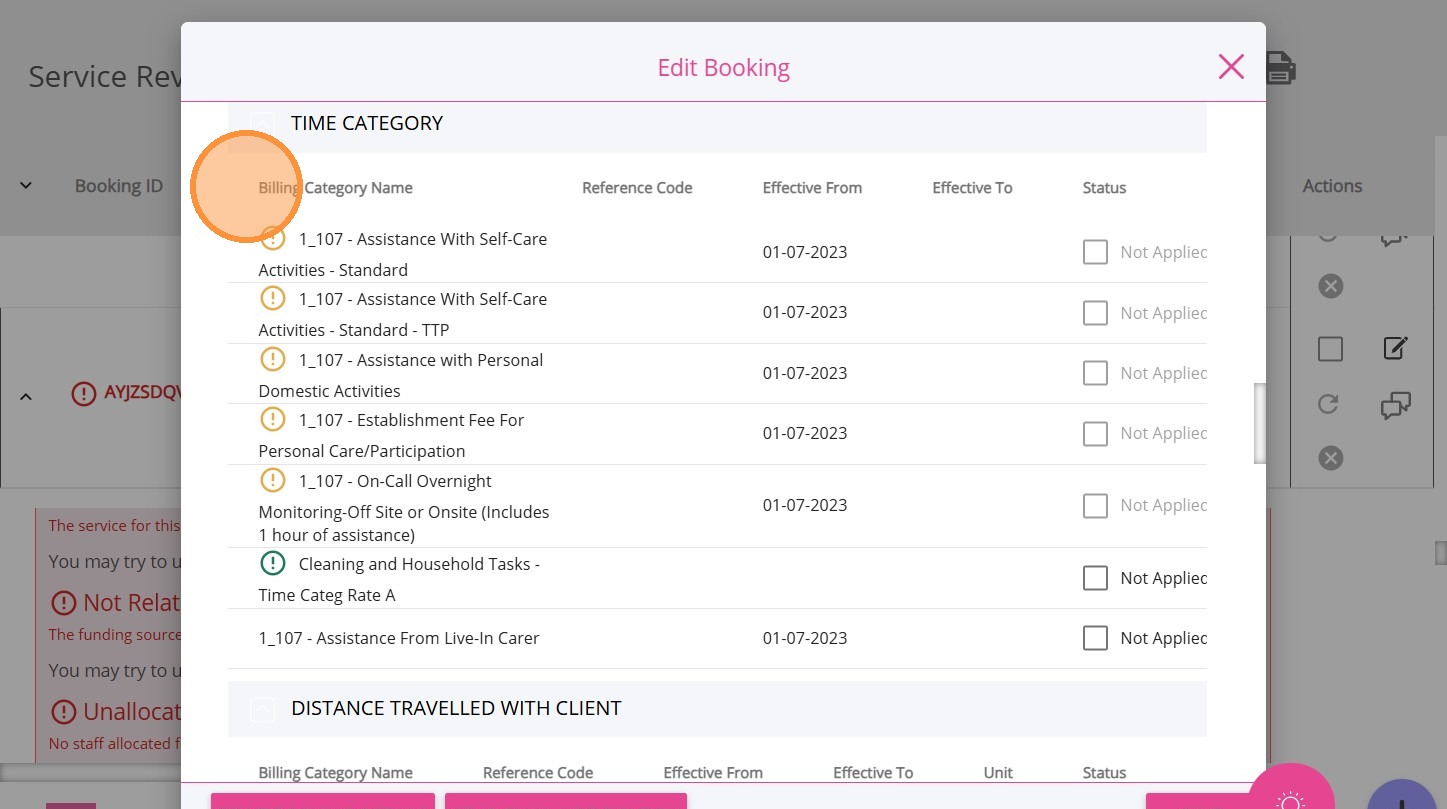
4. An exclamation mark indicates that the billing category is not available under the client’s current funding source. For example, the billing category Assistance with Self-Care Activities - Standard may appear in the client’s booking, but it is not covered by their current funding source.
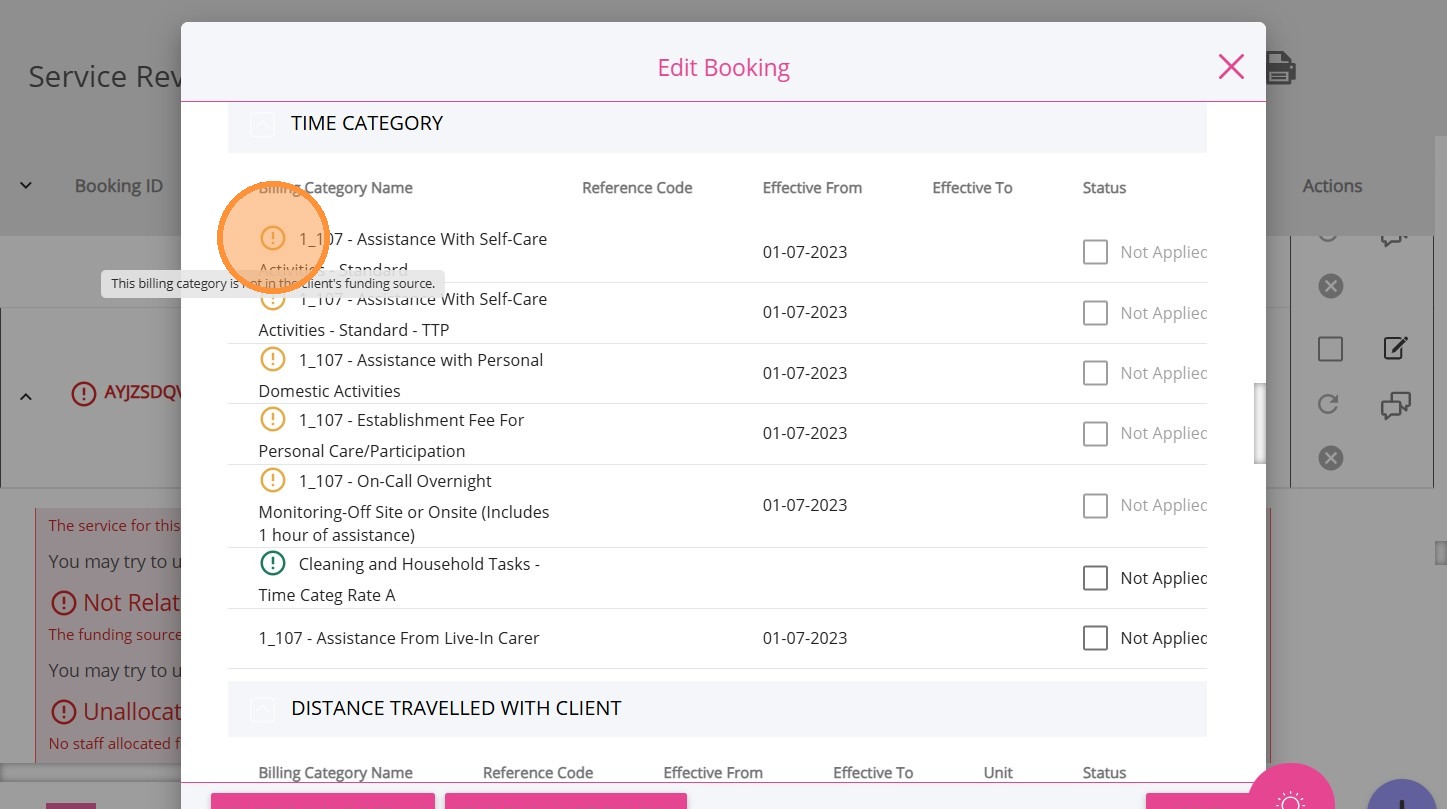
5. To resolve the issue, go to the client’s profile and navigate to the Funding Sources section.
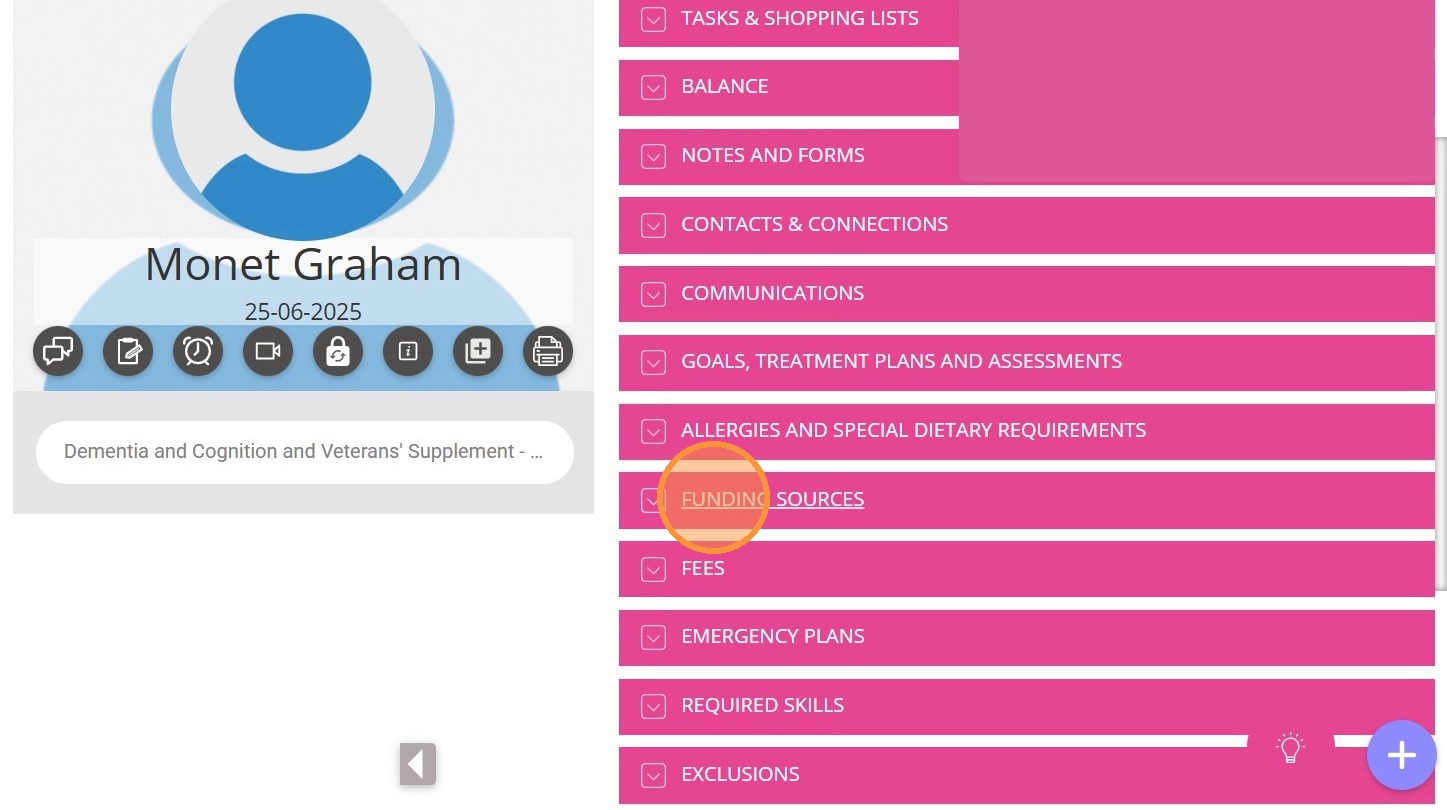
6. Click the current funding source to edit it.
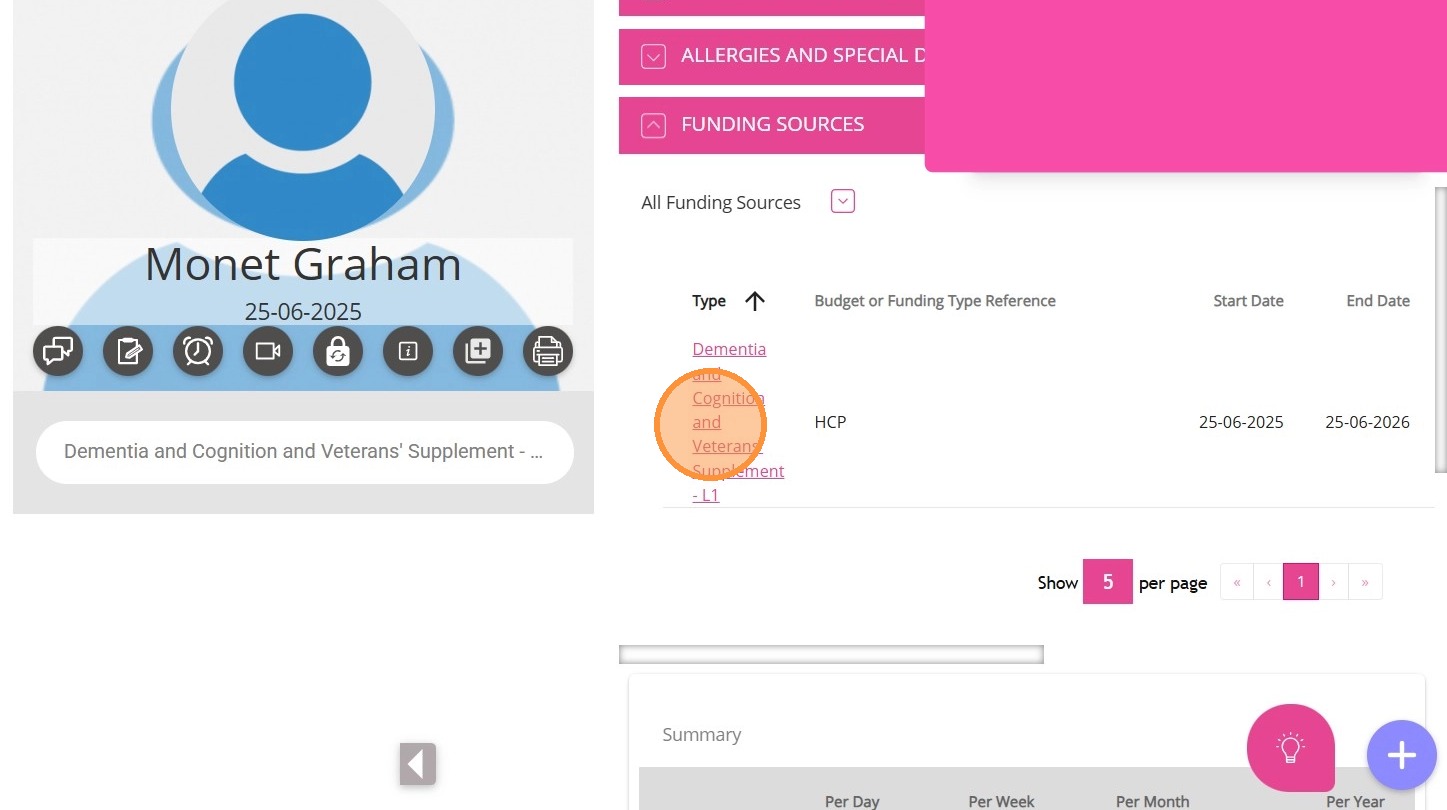
7. Go to the Billing Categories field.
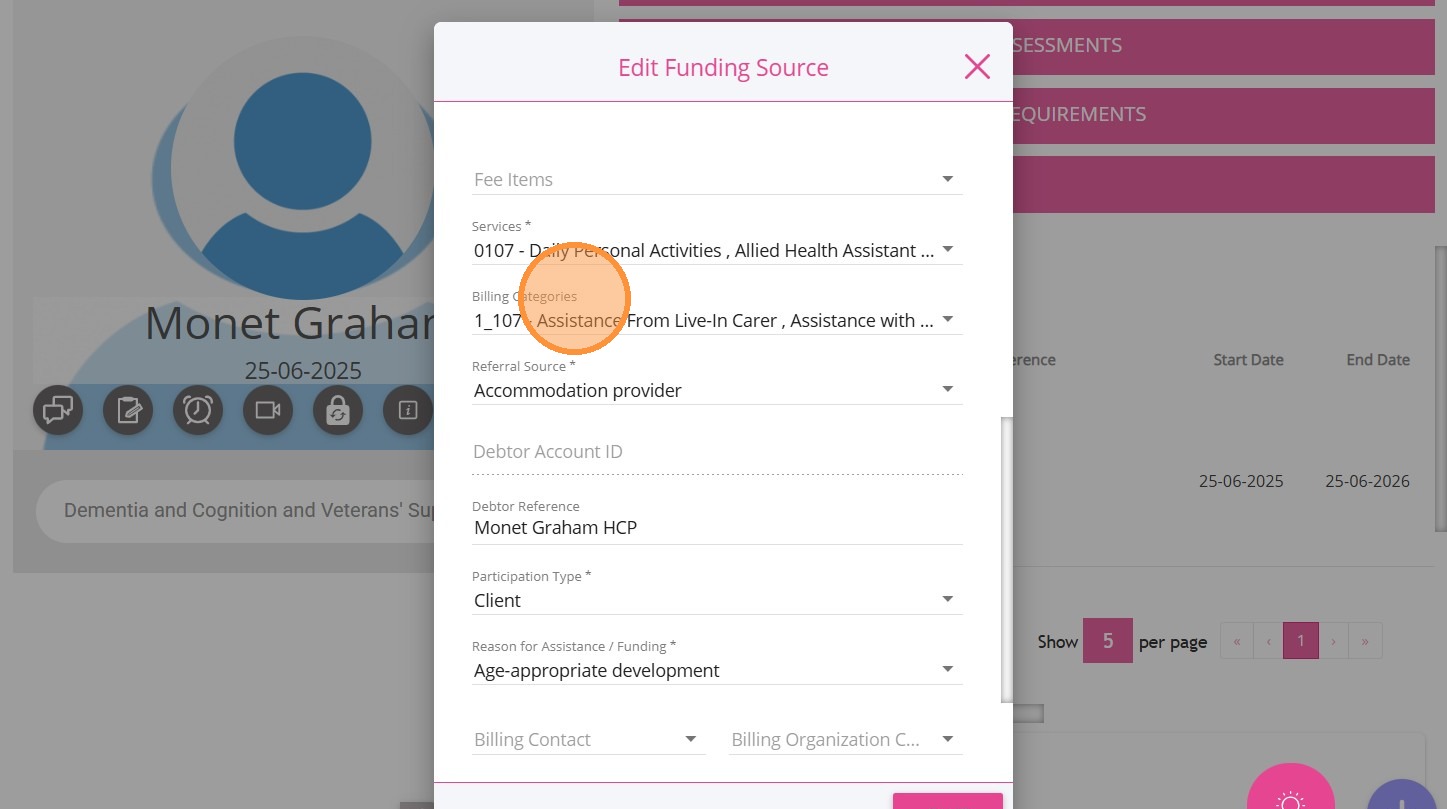
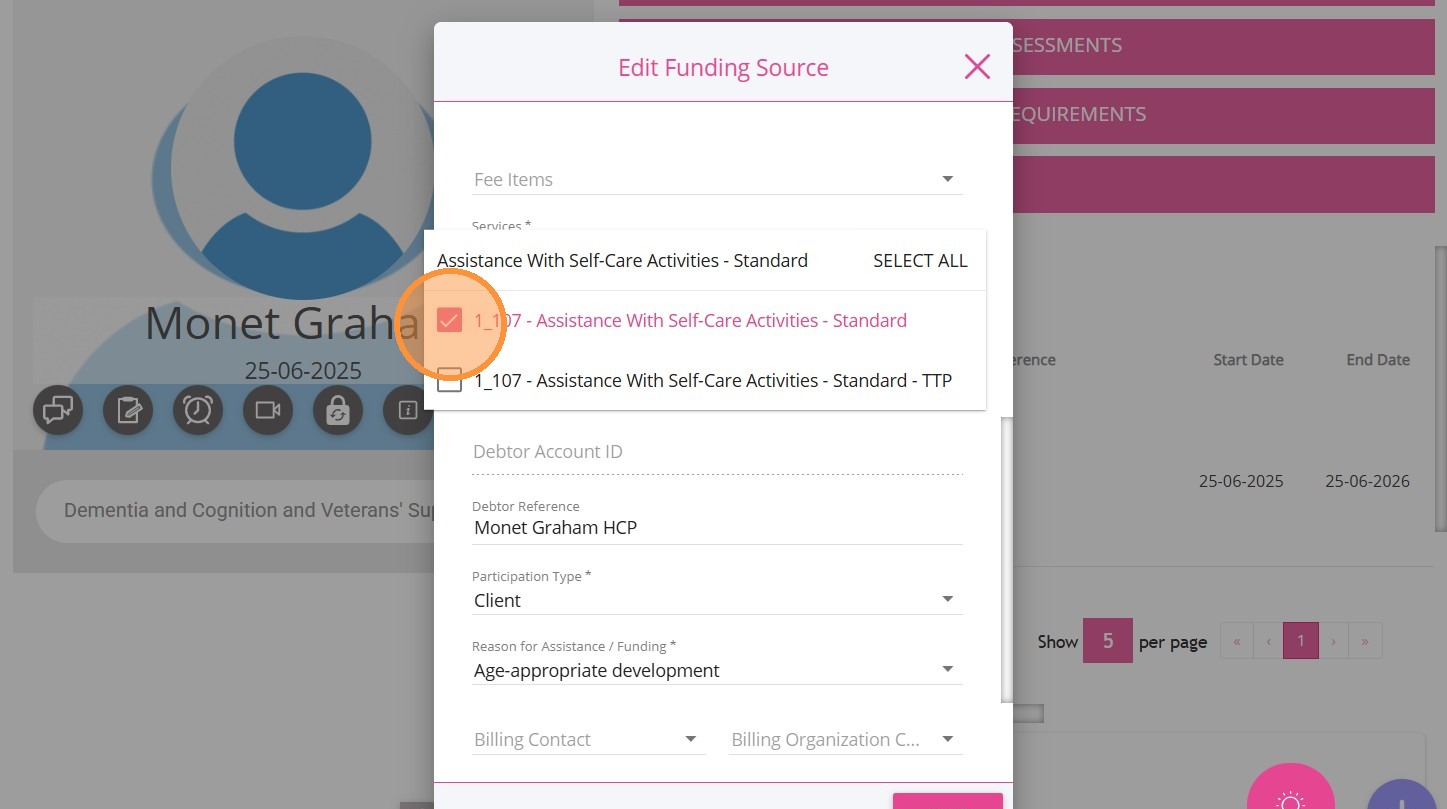
8. Search for the flagged billing category, for example, Assistance With Self-Care Activities-Standard. Check the billing category to include it in the current funding source.
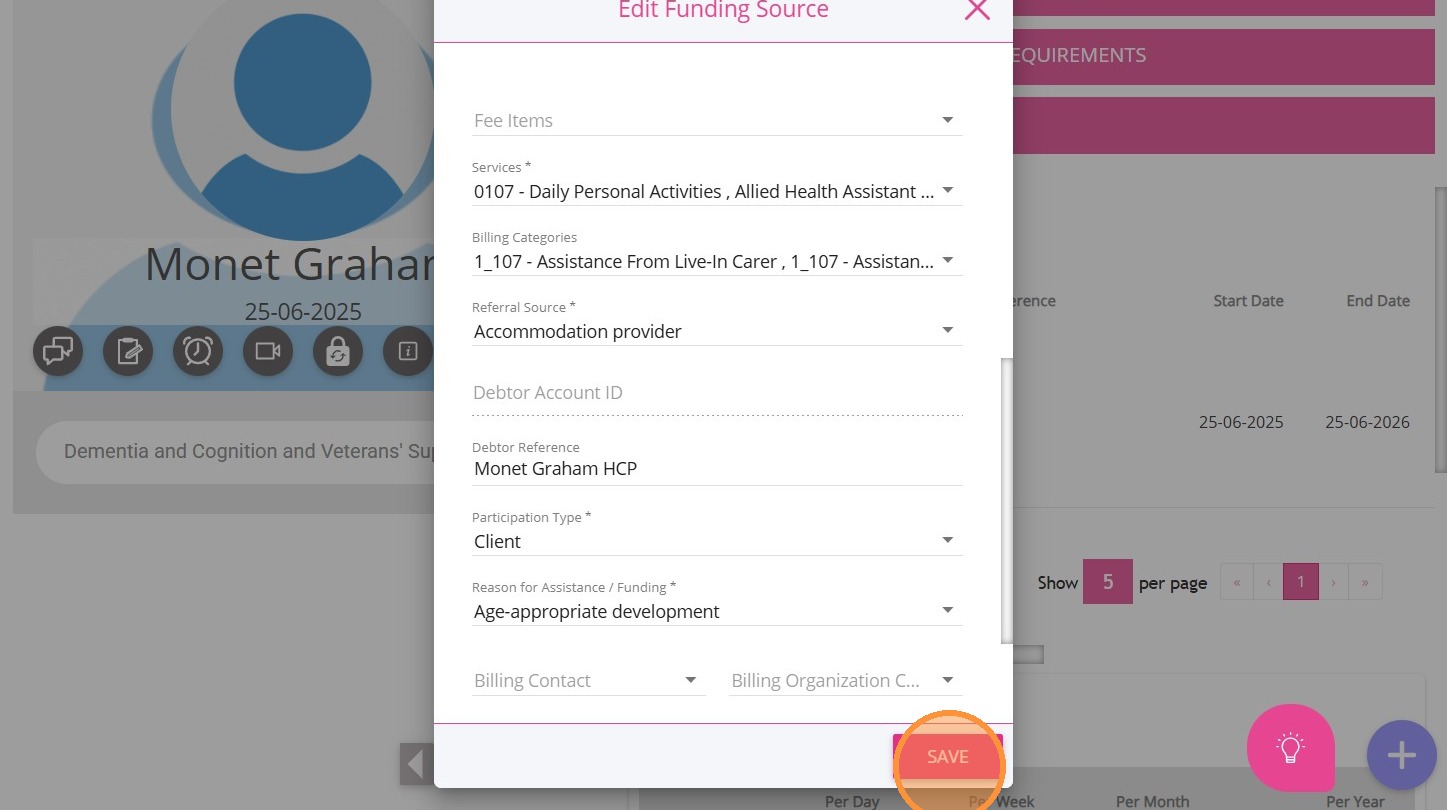
9. Click Save.
10. Then, return to the Service Review Board where you are editing the booking. You will see that the billing category Assistance With Self-Care Activities-Standard no longer has an exclamation mark, indicating it is now included in the client’s funding source.
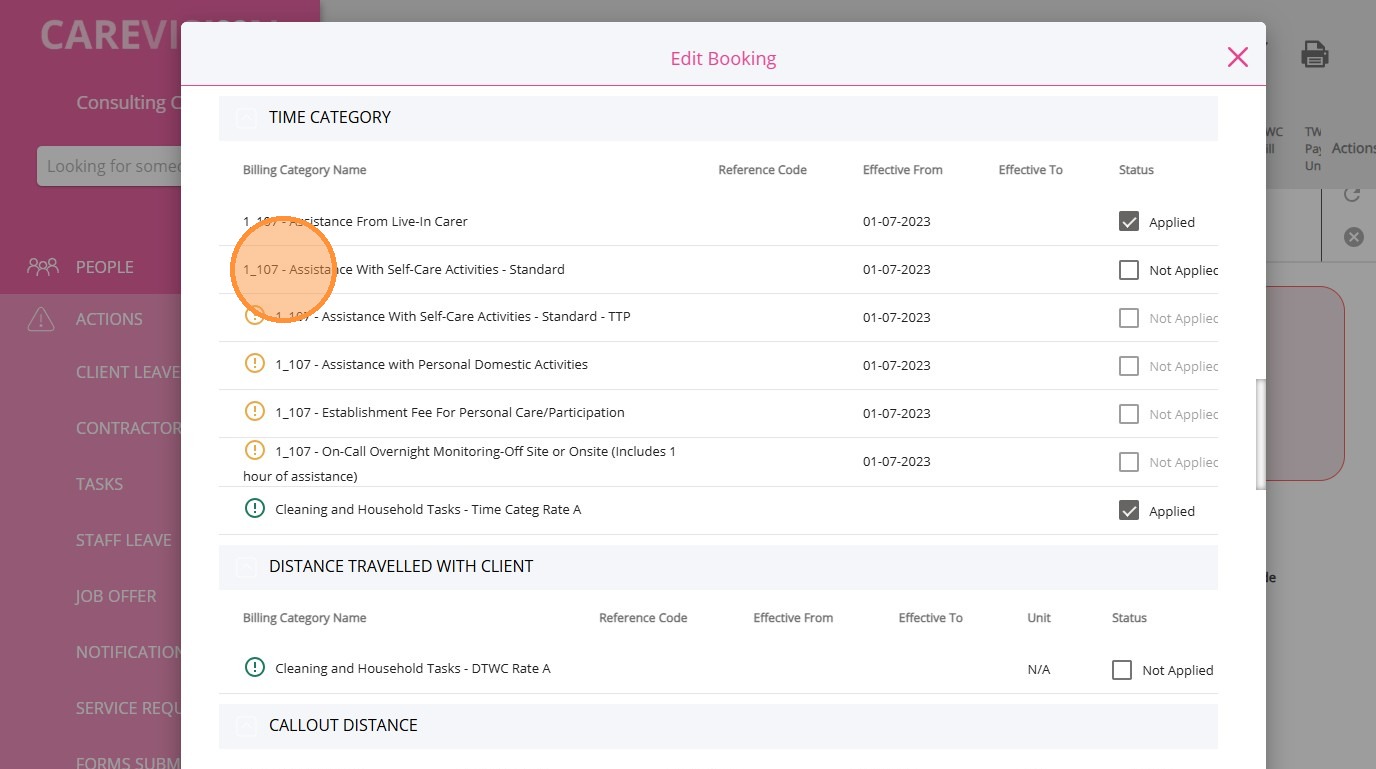
11. Under the Status column, check the box if you determine it is appropriate to apply the billing category to the client’s booking. Use your discretion and ensure the selection is accurate.
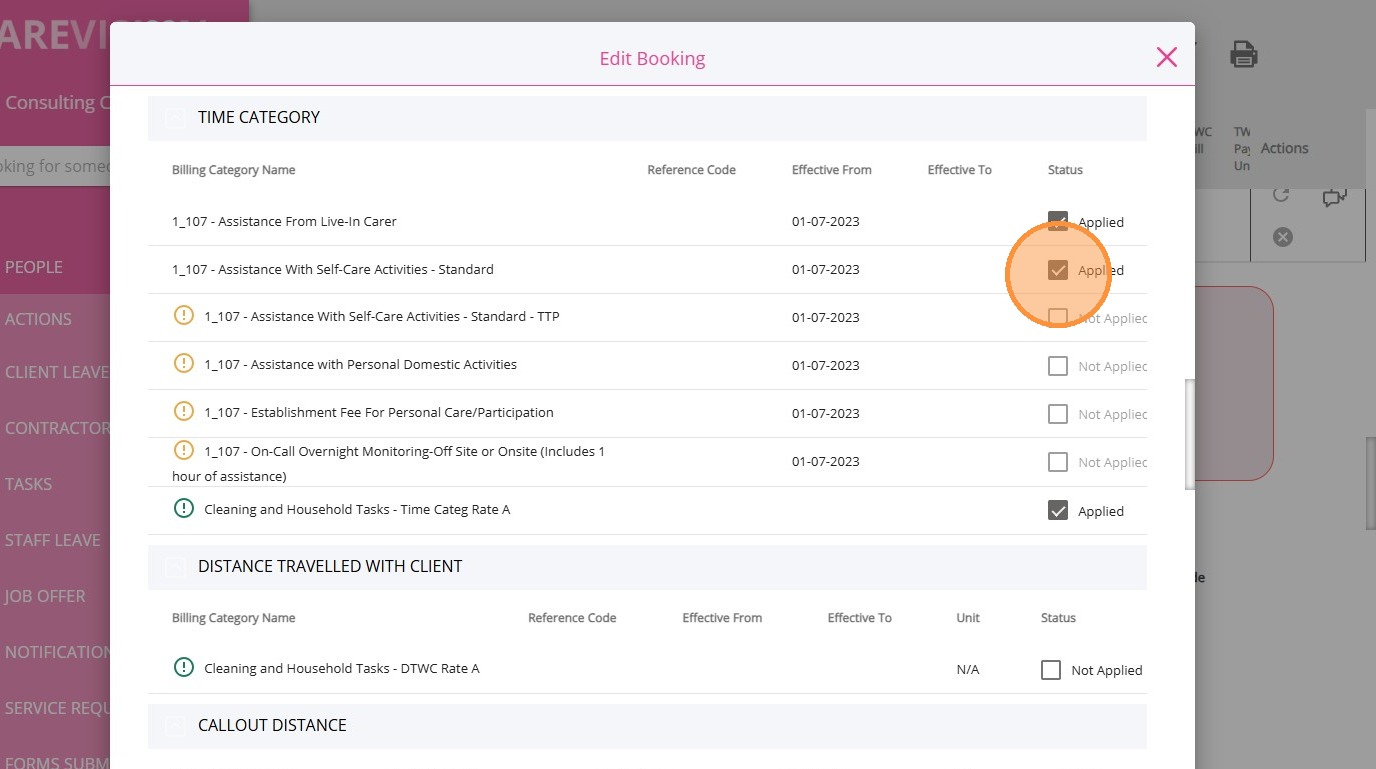
12. In the lower part, an alert with an exclamation point stating This billing category is from a contractor means the selected billing category is linked to a contractor and is not included in the client’s current funding source, so it cannot be billed.
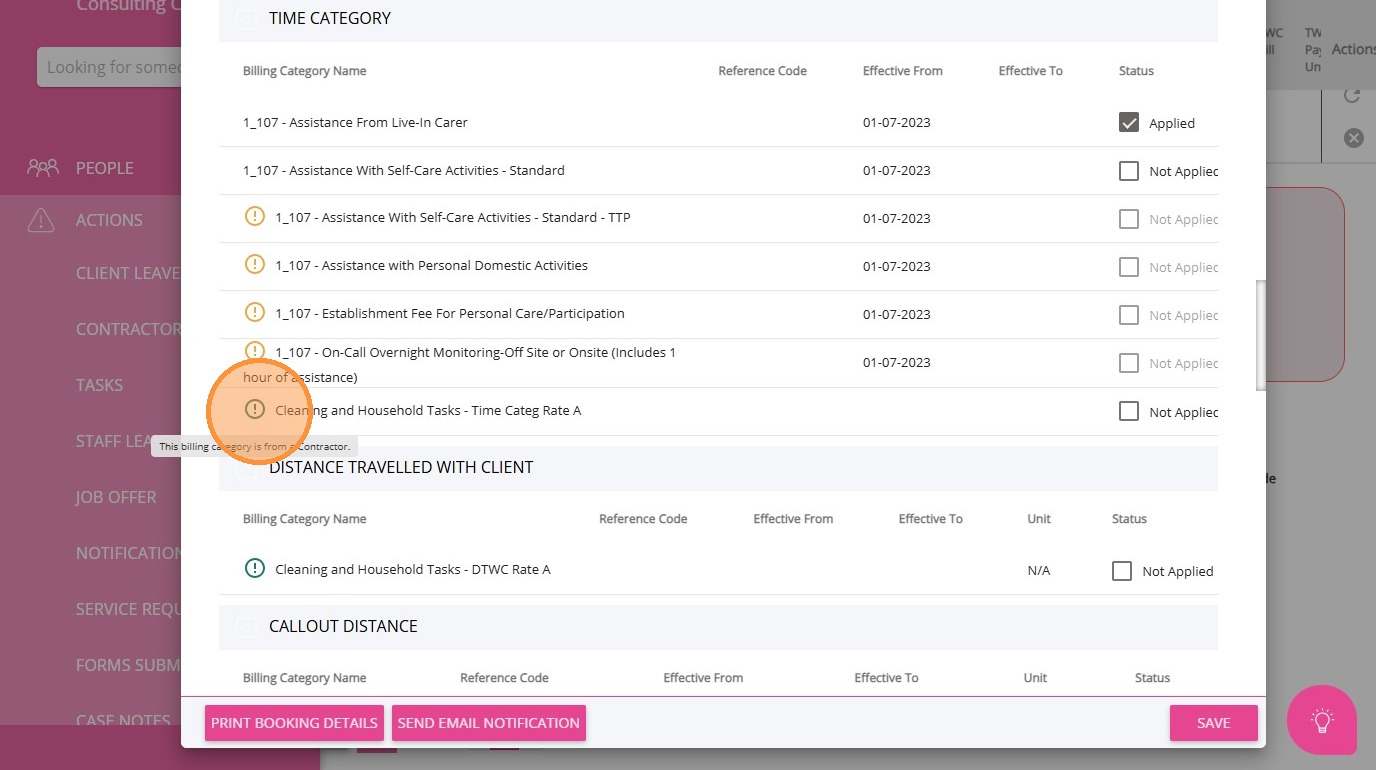
13. To resolve this, either update the client’s funding source to include the contractor’s billing category, or select a different billing category that matches the client’s funding source.
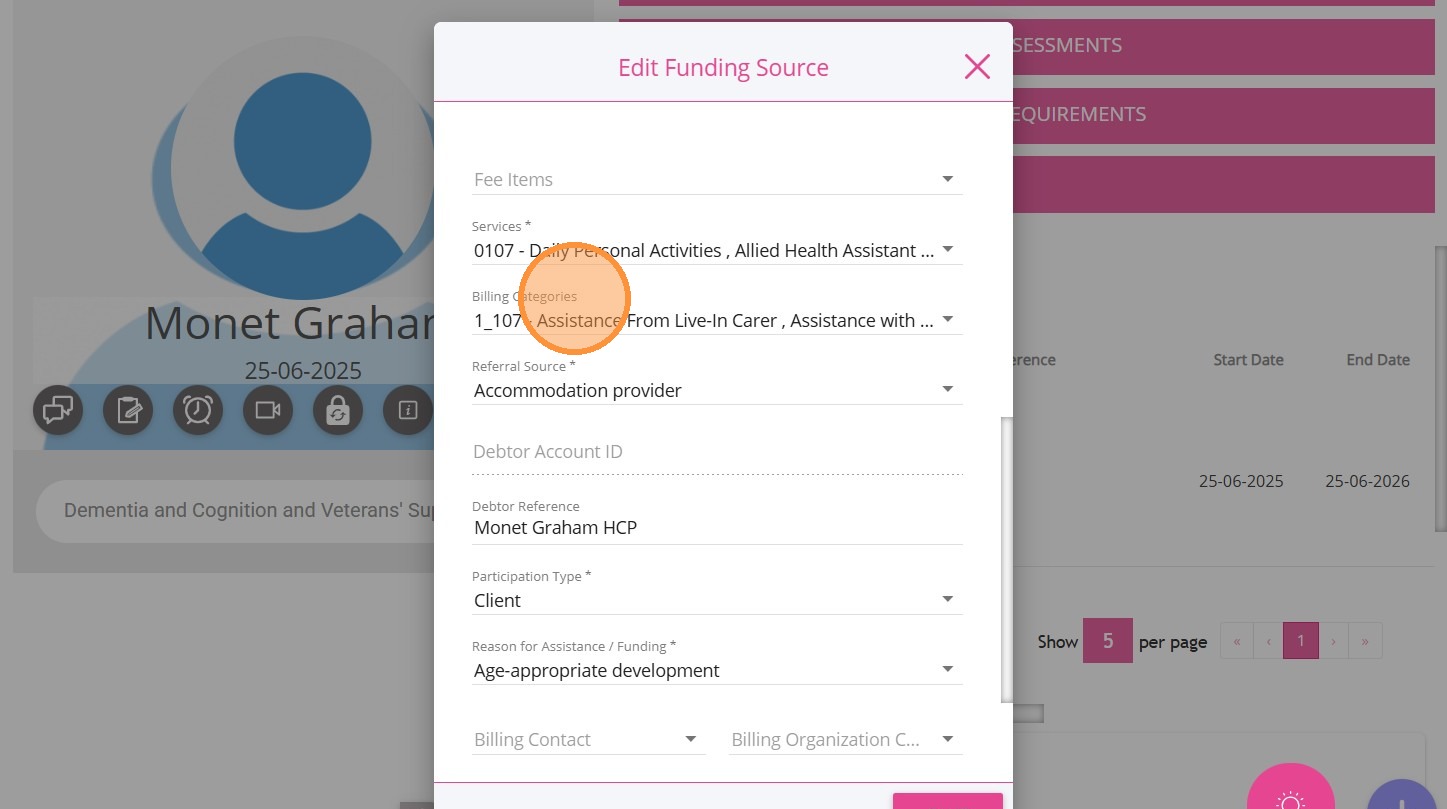
14. Scroll to the lower part of the Edit Booking page and specify your changes in the What have you changed in this version field.
15. Click Save.
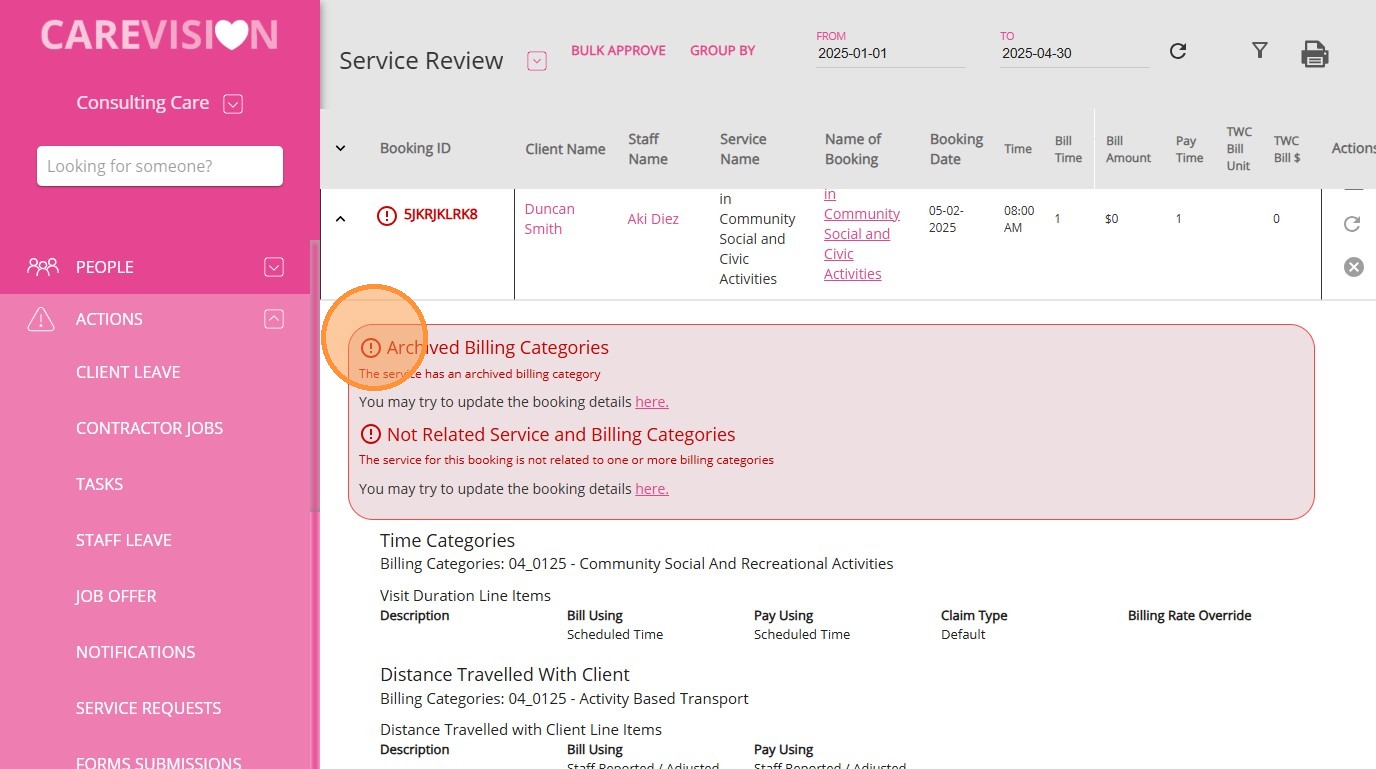
To resolve the issue:
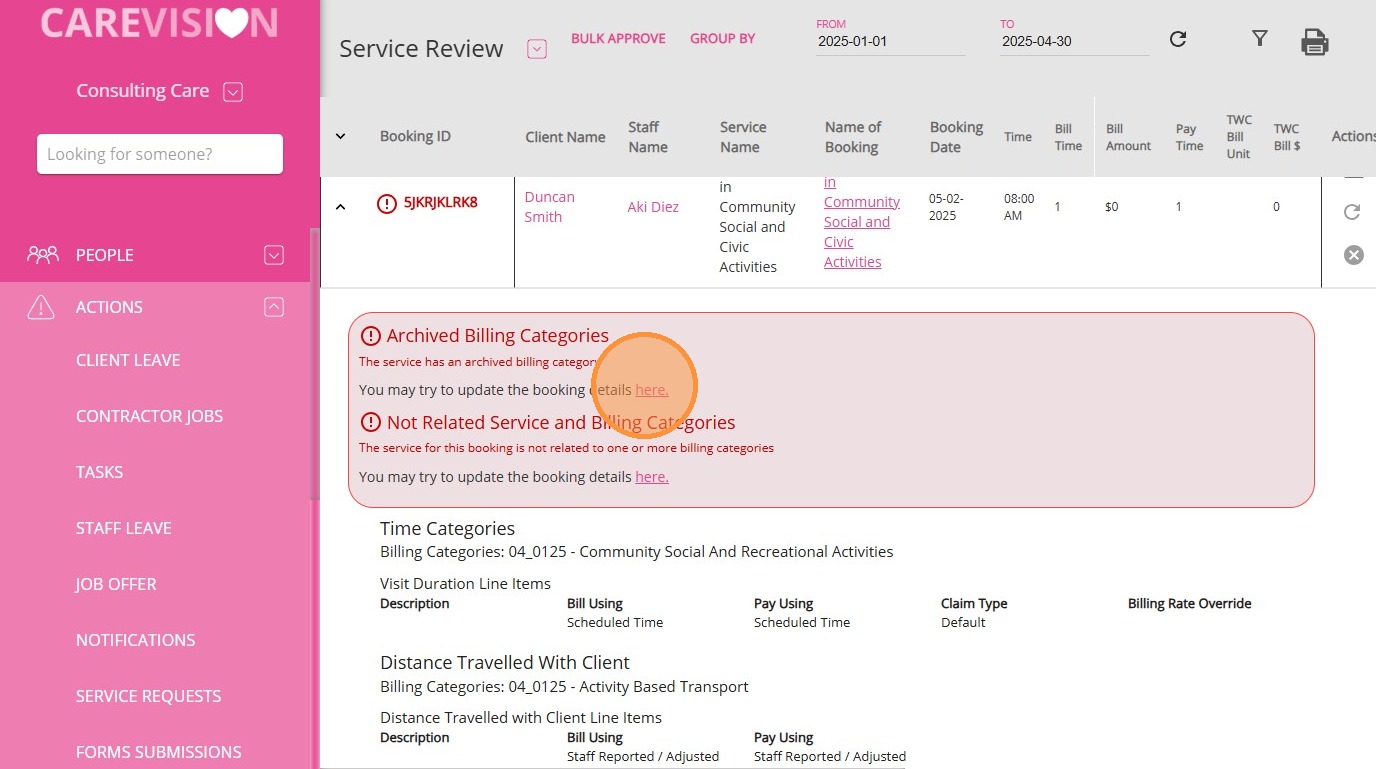
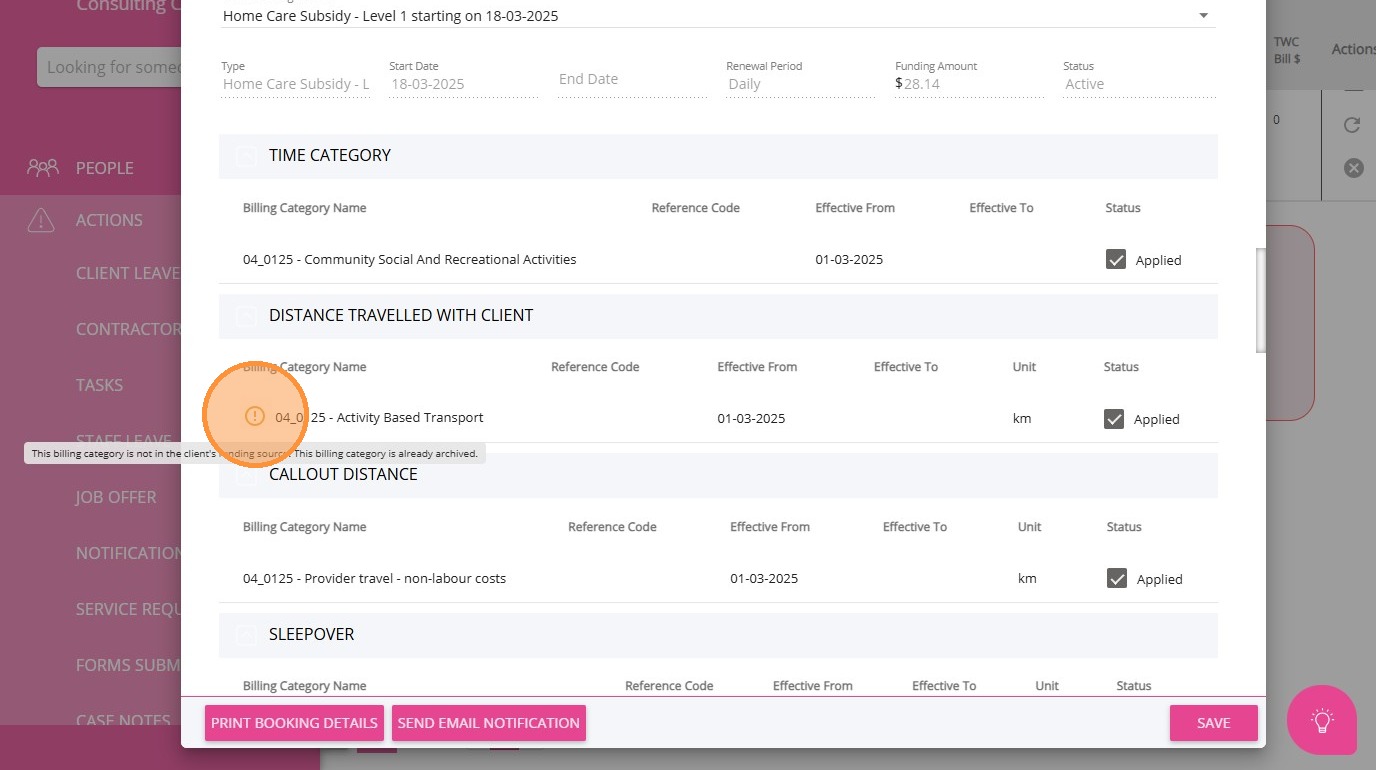
2. Identify the billing category with an alert. When you click the description, it indicates, "The billing category is not in client’s funding source. This billing category is already archived", meaning the billing category is no longer available for use.
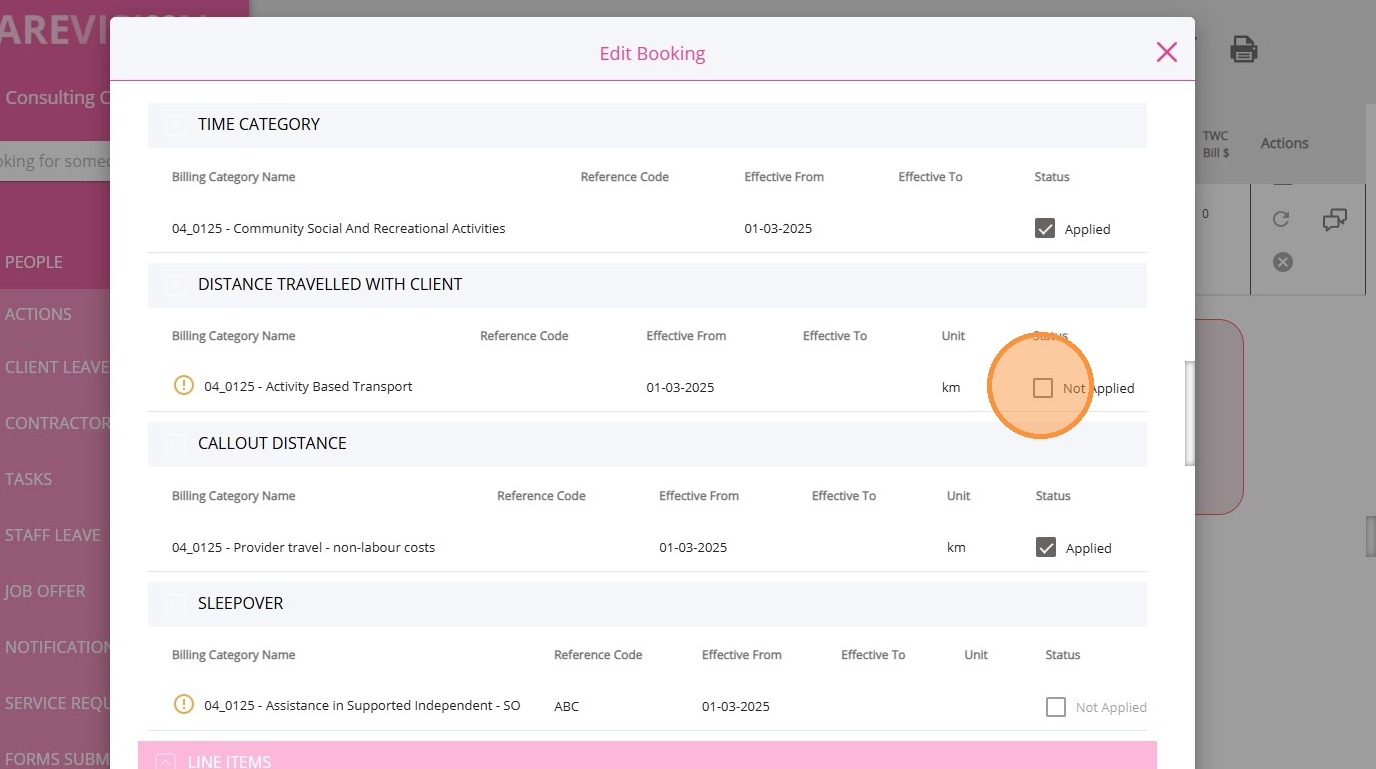
3. If the billing category has been archived, deselect it to remove it from the booking and ensure it is no longer applied. Review the booking to confirm that only active billing categories are selected.
4. Scroll to the lower part of the Edit Booking page and specify your changes in the What have you changed in this version field.
5. Click Save.
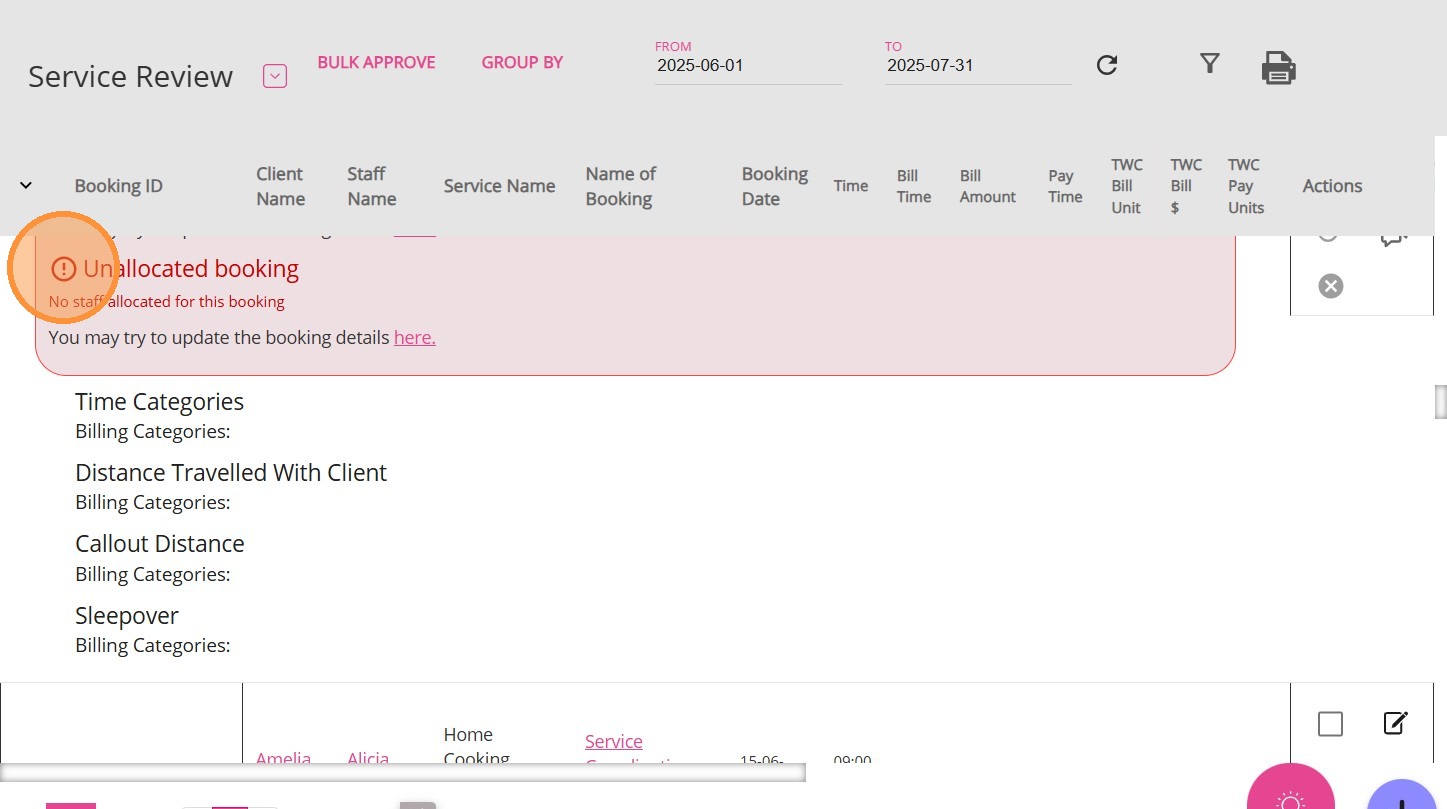
To resolve the issue:
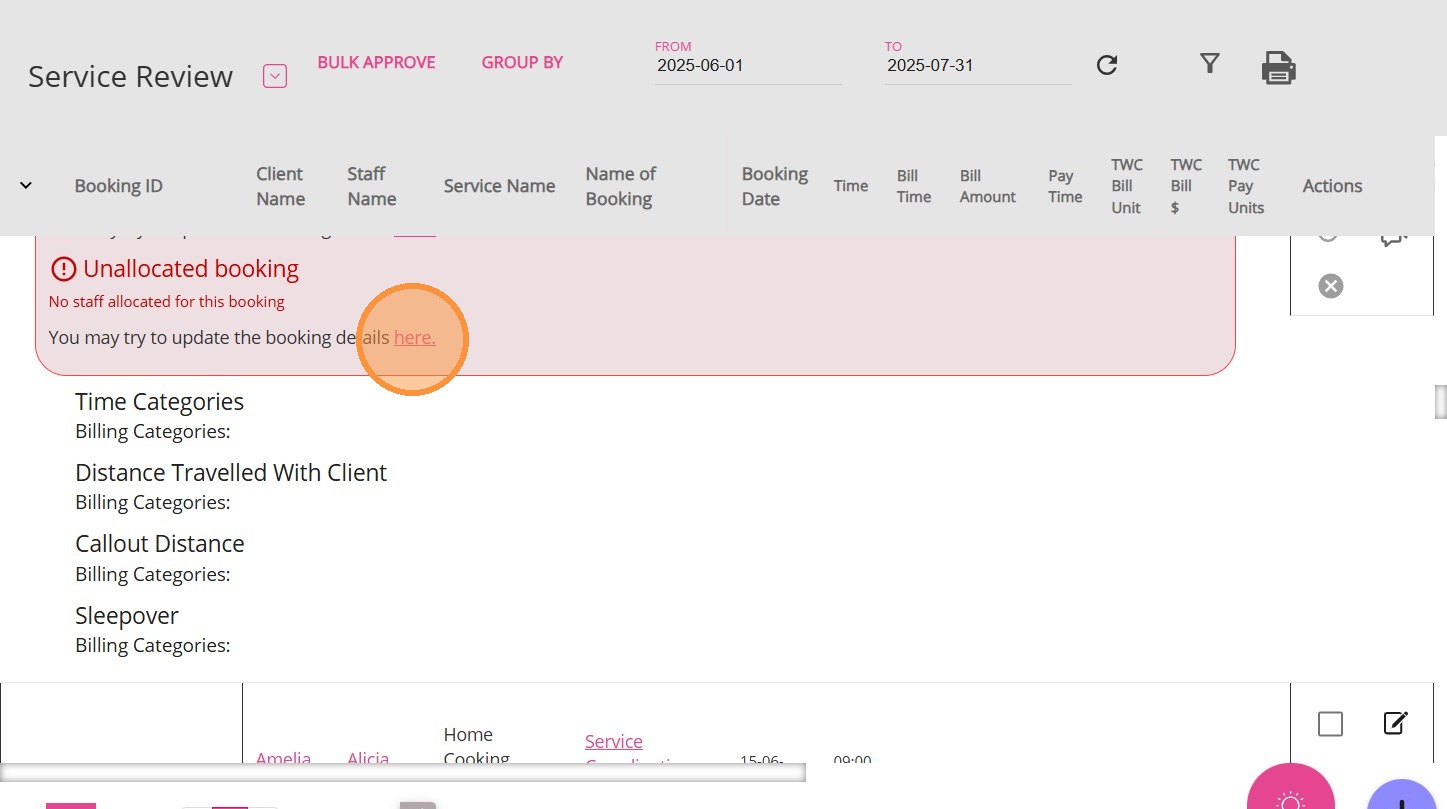
2. In the Delivery Details section, find the Allocated To field and select the appropriate staff member from the dropdown to allocate to the booking.
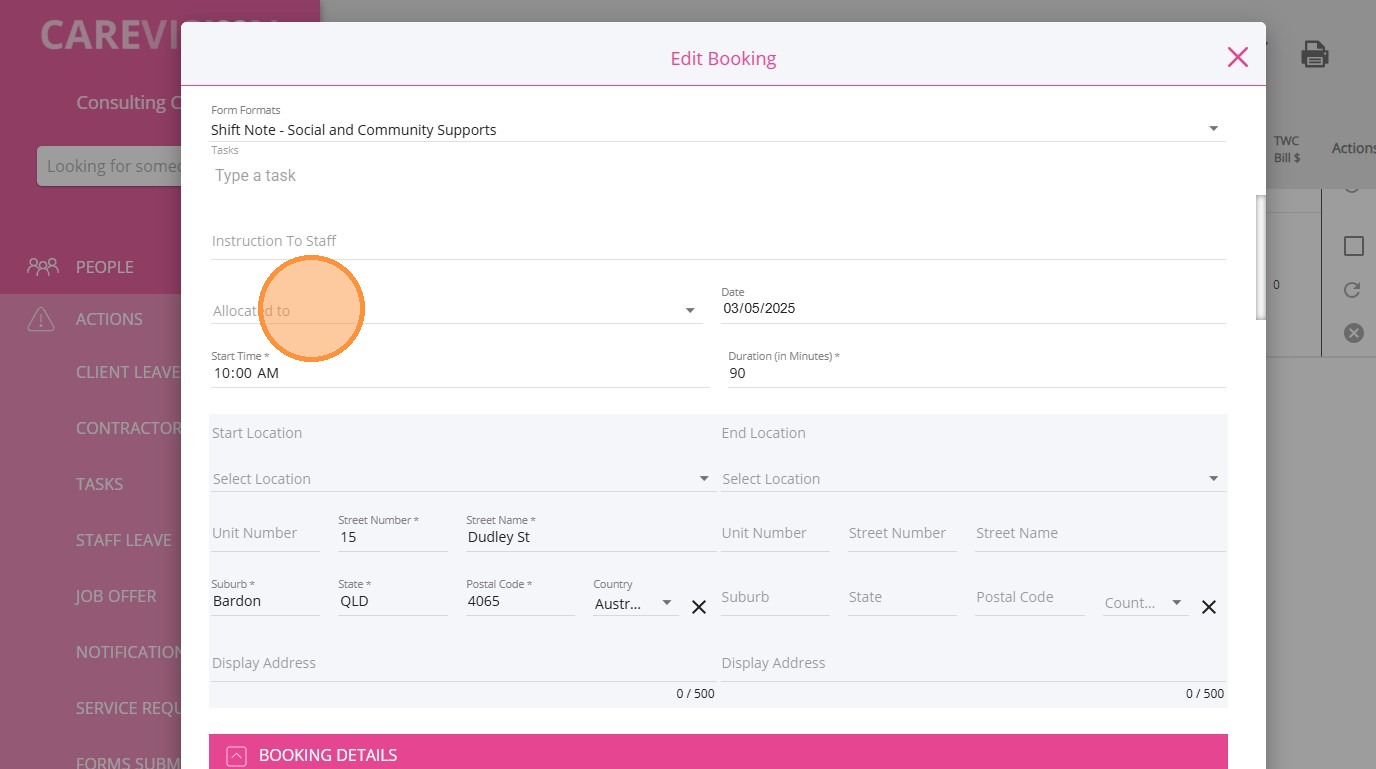
3. Scroll to the lower part of the Edit Booking page and specify your changes in the What have you changed in this version field.
4. Click Save.
Other Issues
Issue | What to Review in Booking | How to Resolve |
Staff did not check in, and pay is set to check in/out time | Service Review board shows missing check-in/out times. Pay defaults to scheduled time if not checked in/out. | Manually enter check-in/out times if staff missed them, or approve pay based on scheduled time if policy allows. Document any manual changes. |
Staff forgot to log kilometers (KMs) and called into office | Service Review board and booking line items for missing KM entries. | Edit the booking to add the reported KMs as a custom line item, then save and document the correction. |
Staff performed extra time or tasks not in original booking | Review line items and notes for discrepancies or staff-reported changes. | Adjust the shift duration or add extra line items for additional approved work. Update billing and pay accordingly, documenting the approval. |
Booking Status
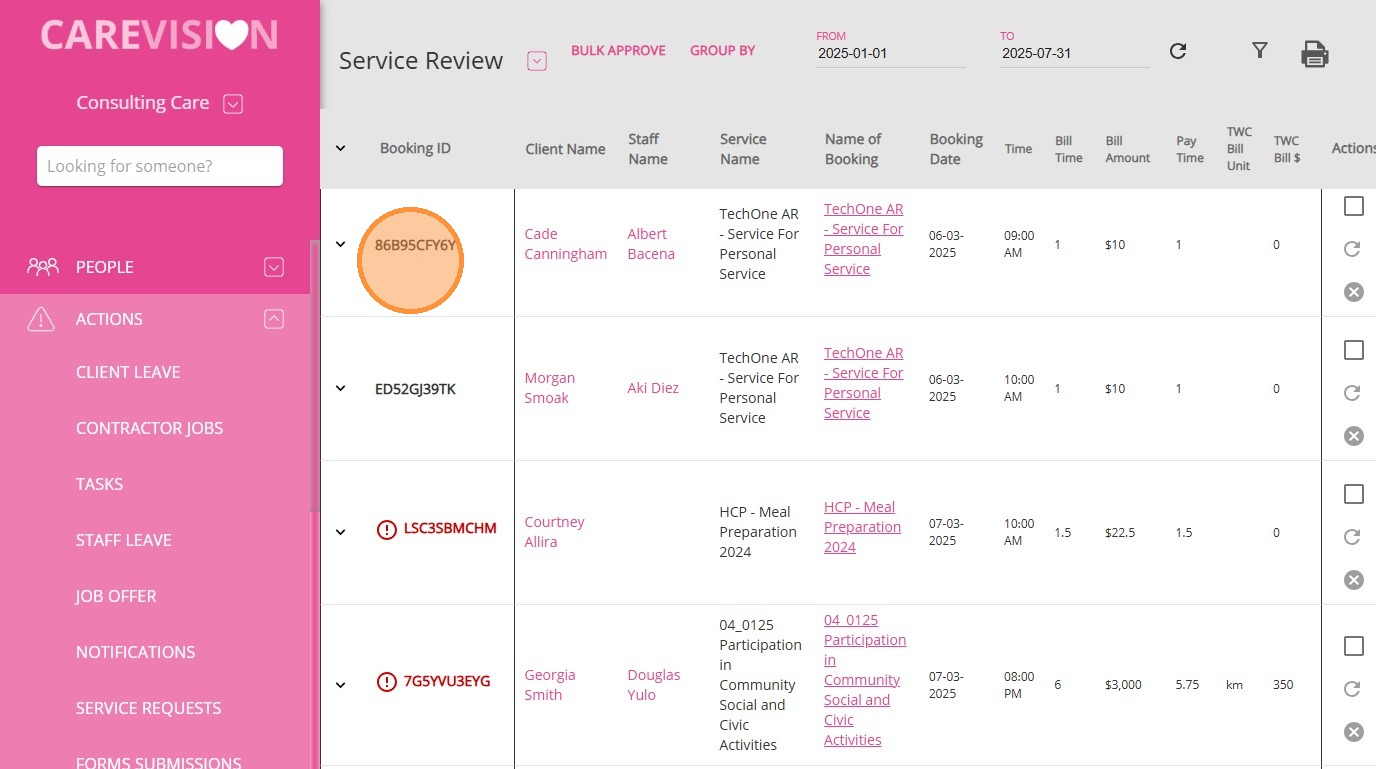
While those in red still have issues. Please resolve all remaining issues before approving.
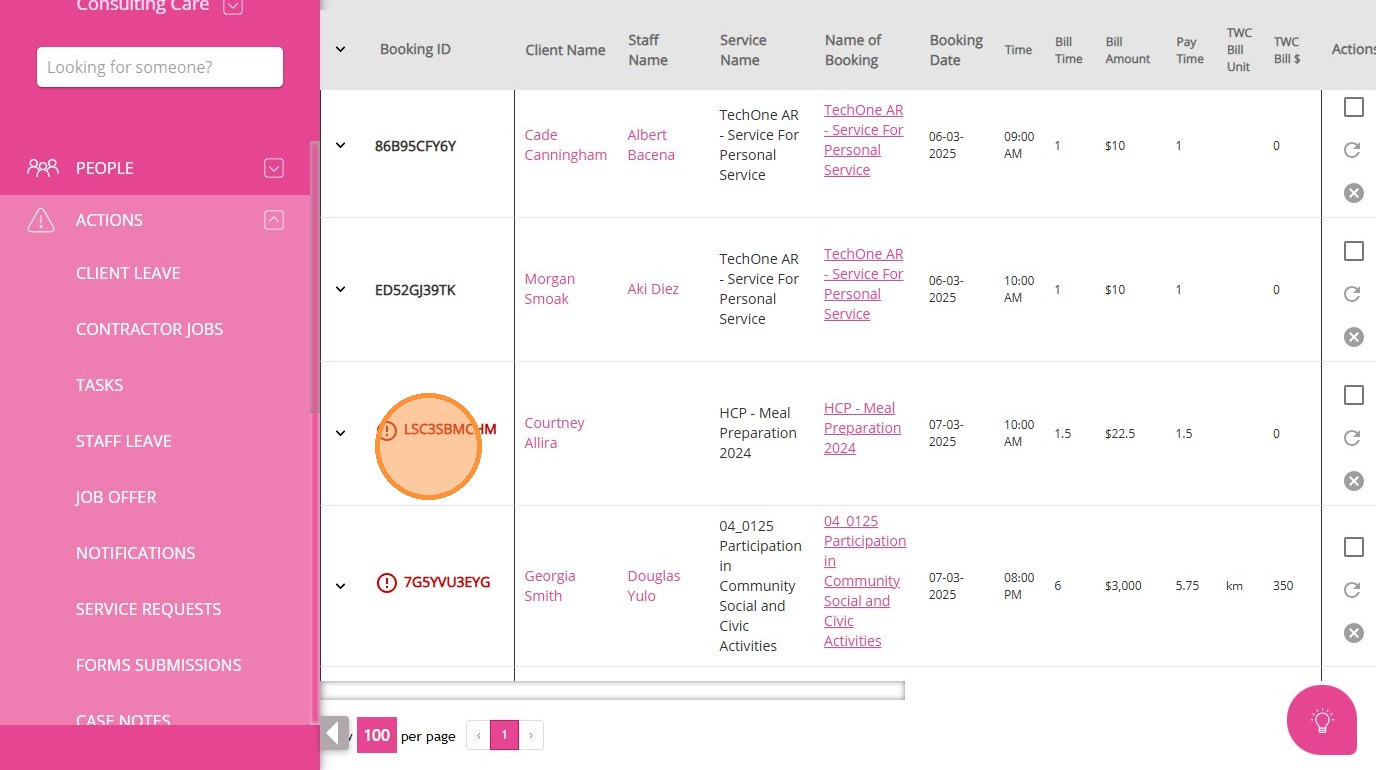
This topic guides you through resolving warnings in the Service Review Board. Once all issues are addressed and bookings are approved, you can proceed with the export. For more information about Service Review warnings and solutions, contact the CareVision Support Team.