Claims Management

Claims Management

The Claims Management Dashboard allows you to manage, review, and reconcile Support at Home claims against Services Australia payment statements. It supports the claiming workflow, from uploading payment statements and reviewing variances to finalizing claims and generating statement files.


This article provides an overview of the key sections and functionalities of the dashboard, including Claims Management, Statement Periods, and Claim ID details. For detailed workflows, please refer to the Related Articles section below.

Keywords: claims management dashboard, support at home claims, carevision claims, services australia reconciliation, claim id management, payment statement processing, claim reconciliation, aged care billing, statement periods, funding reconciliation

Key Support at Home Files

FileDescription
Support at Home Claim File (CareVision)Generated from CareVision with invoice references aligned to the finance system and grouped under a claim ID for reconciliation. Submitted to Services Australia.
Support at Home Payment Statement (Services Australia)Record of claims, payments, adjustments, and held amounts for a selected period, with item-level details. Available in CSV, XML, or PDF.
Support at Home Statement FileGenerated after claim finalization, grouping claims into a statement period, recalculating funding, and producing statements for distribution.
Invoice FileGenerated after claim validation is complete and contains funded invoices for the finance system and co-payment invoices for clients, based on the selected export format (Example: DEX CHSP, Xero, MYOB, Epicor, TechOne)

I. Claims Management Section

This section is where you upload the Support at Home Payment Statement (Services Australia) to allow automated reconciliation and validation of claims against CareVision data.

A. How to Access

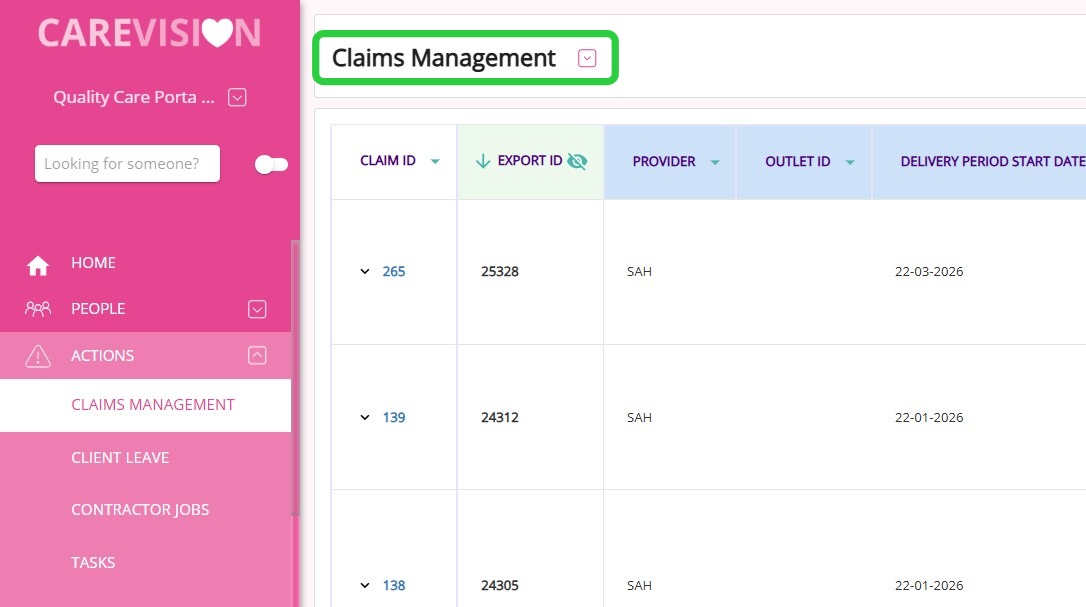
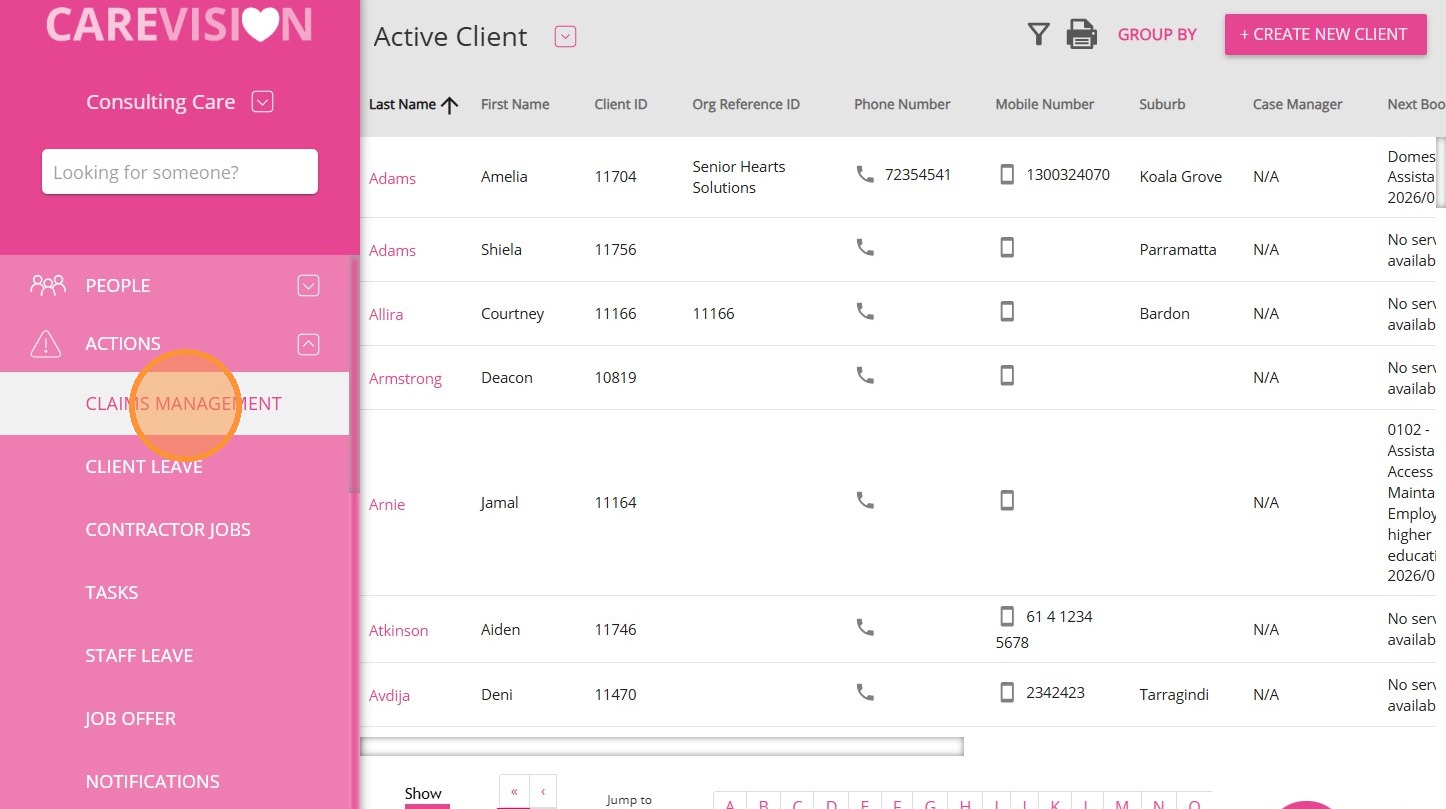
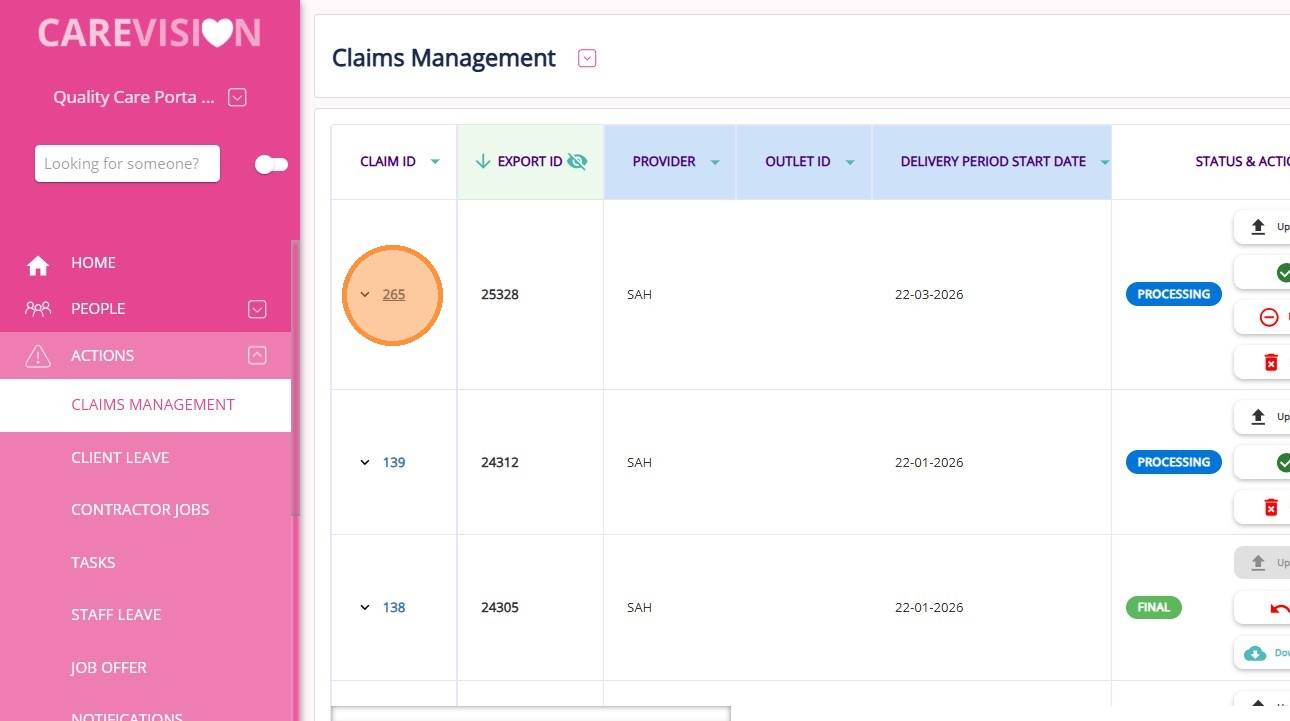
The Claims Management Dashboard is available in the portal under Actions Claims Management in the left navigation pane. This dashboard allows you to review claim records and upload payment files for each claim.

Expand the Dashboard View

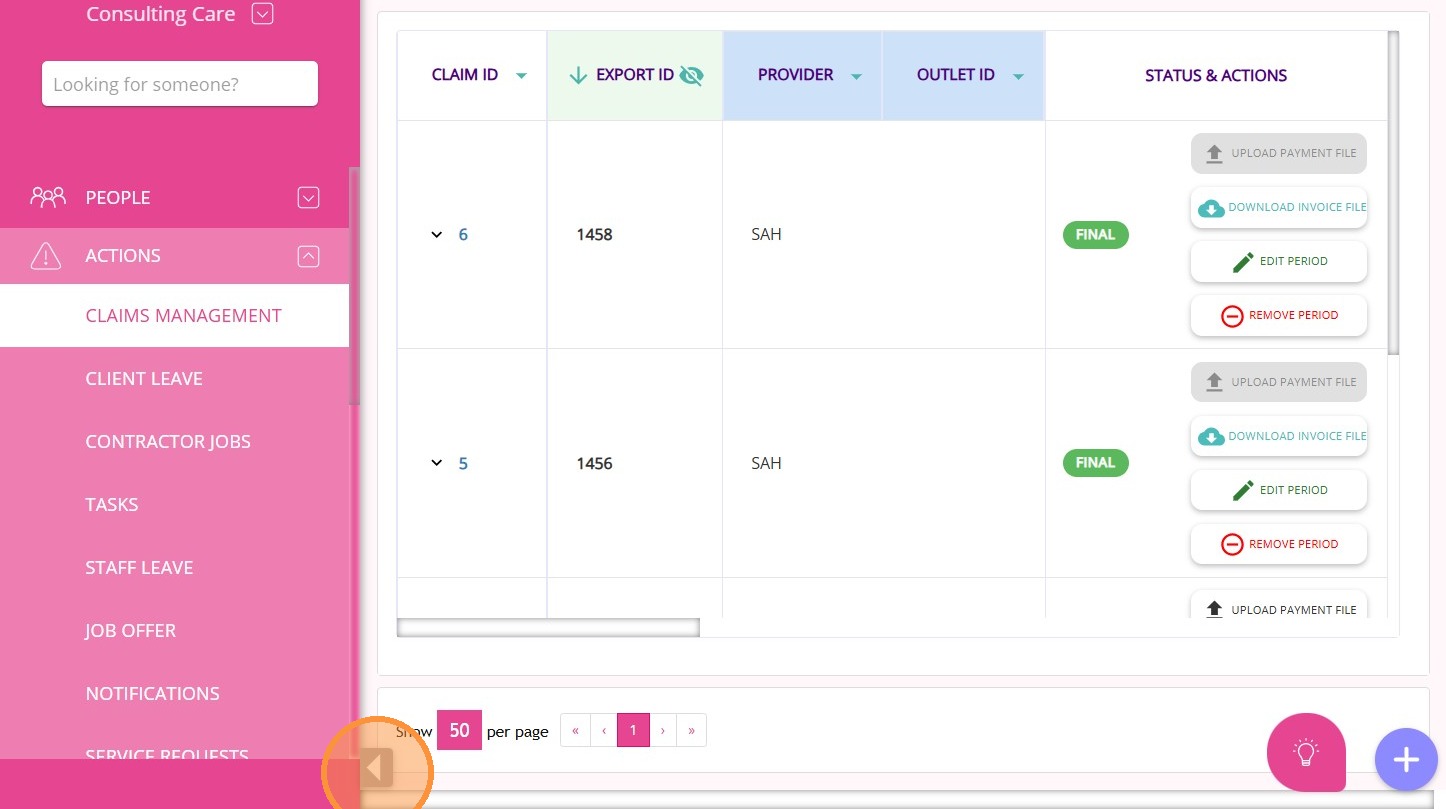
To analyze large volumes of claims easily, click the gray arrow in the lower-left corner of the screen to expand the Claims Management Dashboard to full-screen mode.

Refreshing Claim Data

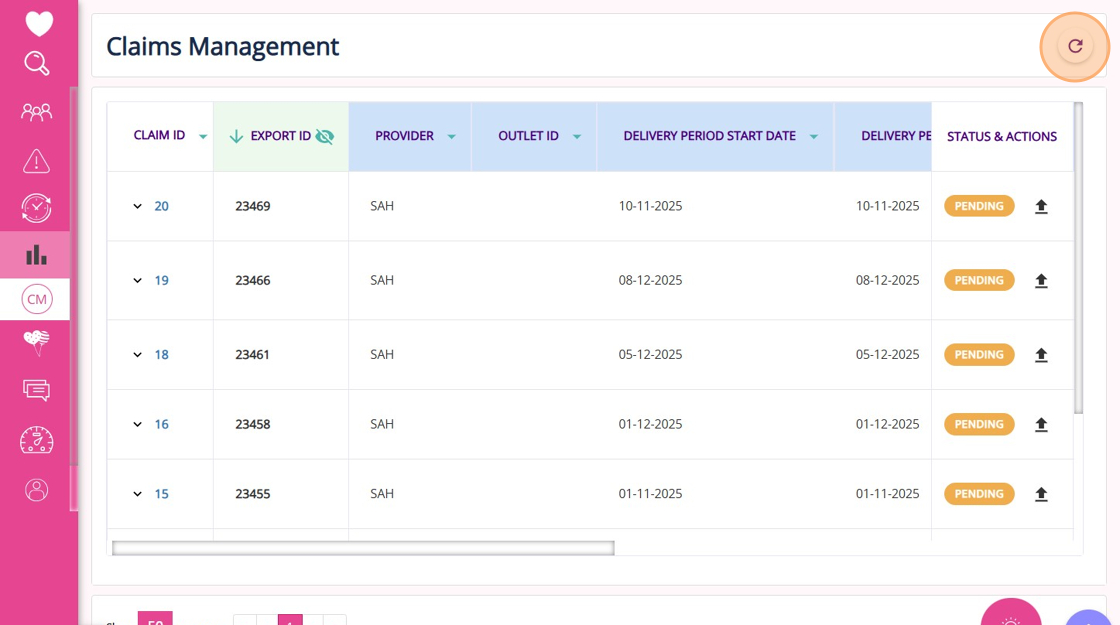
Use the Refresh button at the top of the dashboard to update and view the latest claim information.

B. Key Columns

ColumnDescription
Claim IDUnique identifier for each claim.
Export IDIdentifier linked to the exported claim file, generated when the claim file is marked as "Final" in the Billing Exports History section.

You can expand or collapse the Export ID column by clicking the “eye” icon. When expanded, the following columns are shown: Gauges, Period, Created By, Created Date.
ProviderThe name of the program related to the claim, such as SAH.
Outlet IDA unique code that identifies and links specific transactions to a particular outlet location within your organization.
Delivery Period Start DateThe start date of the period in which services were delivered, in the format DD-MM-YYYY
Delivery Period End DateThe end date of the period in which services were delivered, in the format DD-MM-YYYY
Adjustment From Date/TimeThe start of the adjustment window, indicating when changes such as late approvals, cancellations, or corrections begin to be captured in the claim, in the format DD-MM-YYYY HH:MM AM/PM.

Example: 30-01-2026 12:00 AM
Adjustment To Date/TimeThe end of the adjustment window, indicating the cut-off point up to which changes are included in the claim, in the format DD-MM-YYYY HH:MM AM/PM

Example: 02-02-2026 12:00 AM
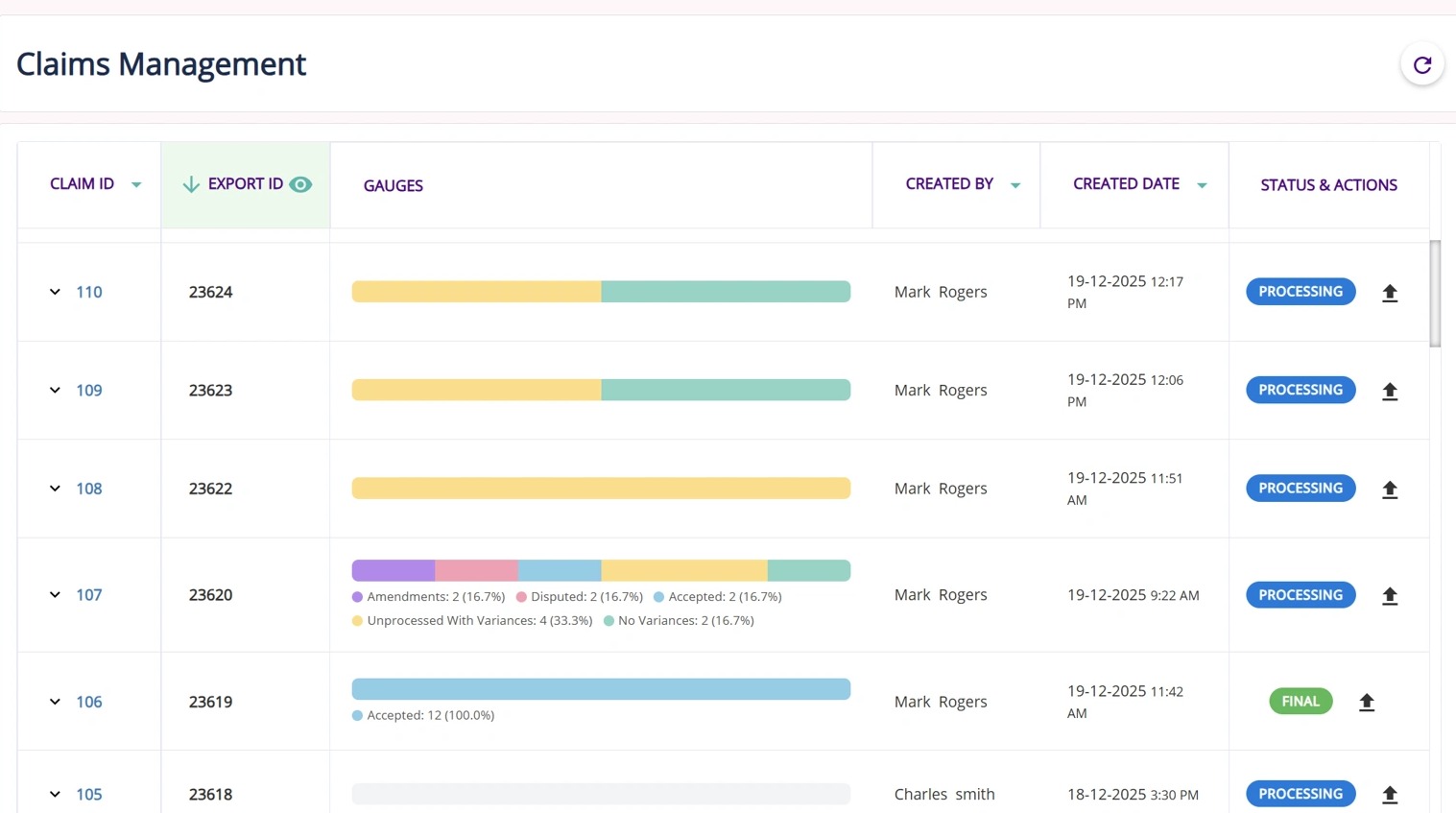
GaugesVisual indicators that show the status and progress of items within a claim based on variances and actions taken. The gauge updates as items are processed, helping track progress toward finalisation.

Purple: Amendments
Pink: Disputed
Blue: Accepted
Yellow: Unprocessed with variances
Green: No variances
PeriodThe statement period the claim is assigned to.
Created ByName of the person who created the claim entry.
Created DateDate when the claim was initially created in the system.
Status and ActionsThis column displays the current processing status of a claim and provides the available actions based on that status.
StatusDescription
PendingThe payment statement has not yet been uploaded, and the claim has not started reconciliation.
ProcessingThe payment statement has been uploaded, and the claim is under review with outstanding variances or actions to resolve.
FinalAll claim items have been reviewed and resolved, and the claim is ready for invoice generation and statement processing.


C. Key Actions
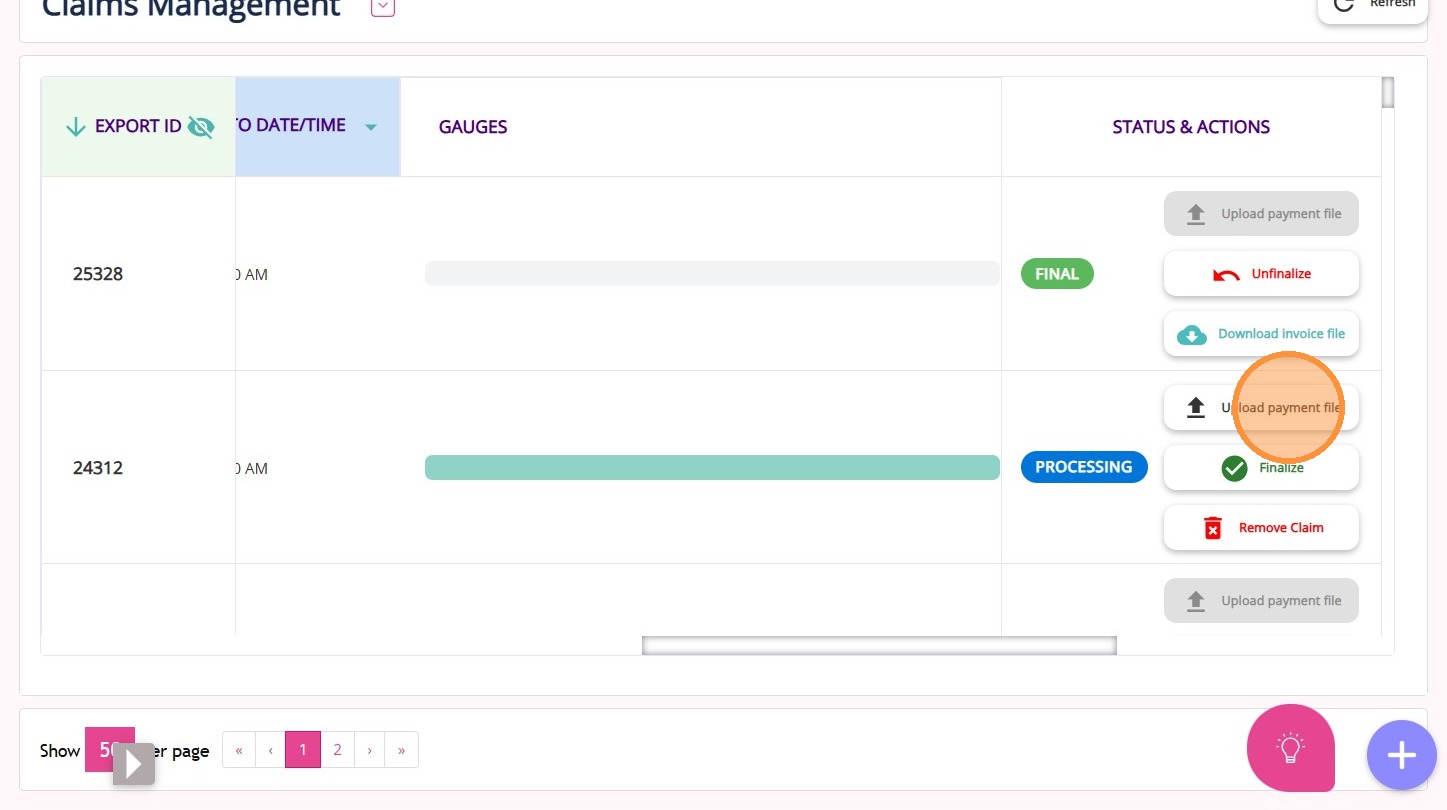
Upload Payment File
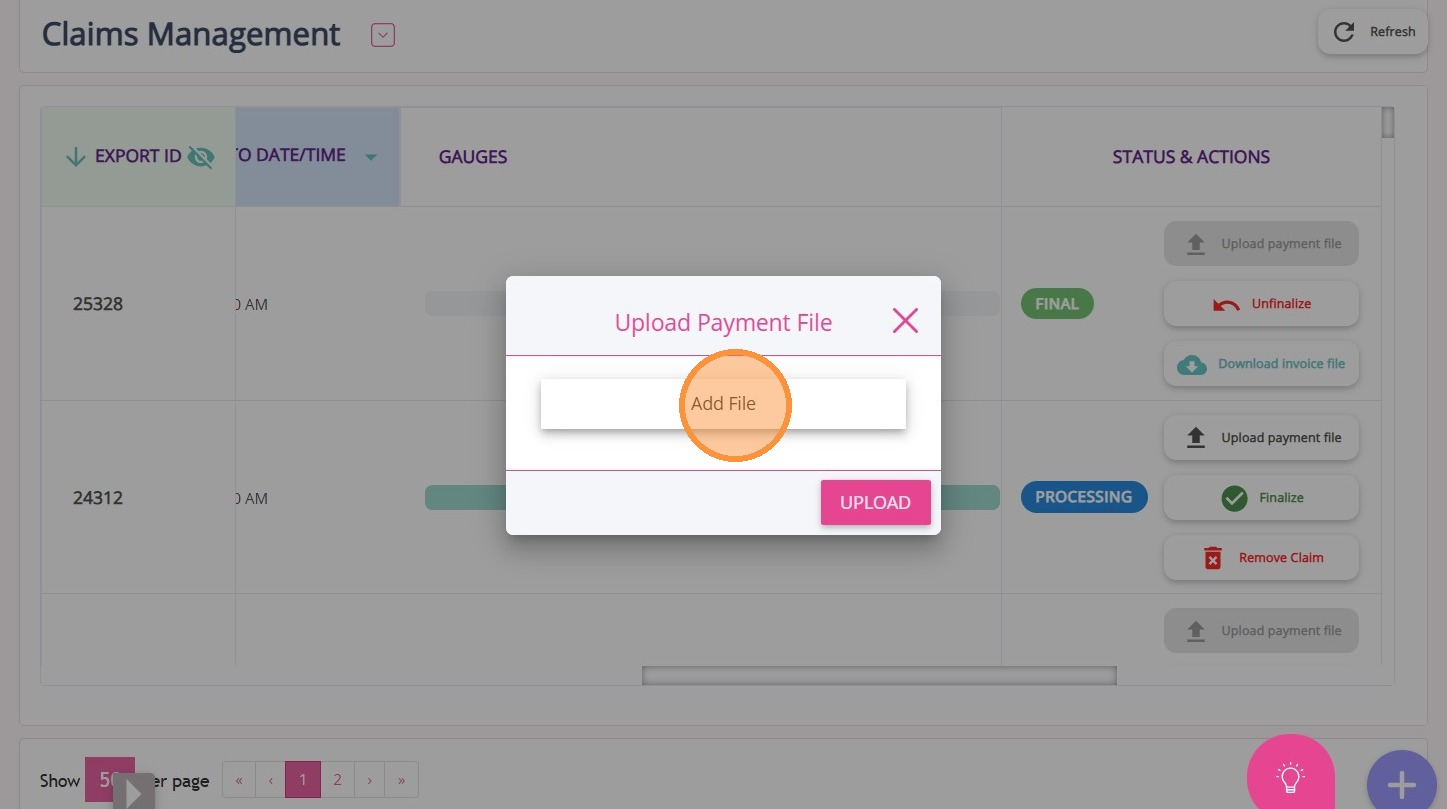
Click Upload Payment File to upload the payment statement file received from Services Australia for reconciliation.


Select the correct file from your computer and click Upload. The claim status will update to Processing, which means your team can now begin processing the claim.

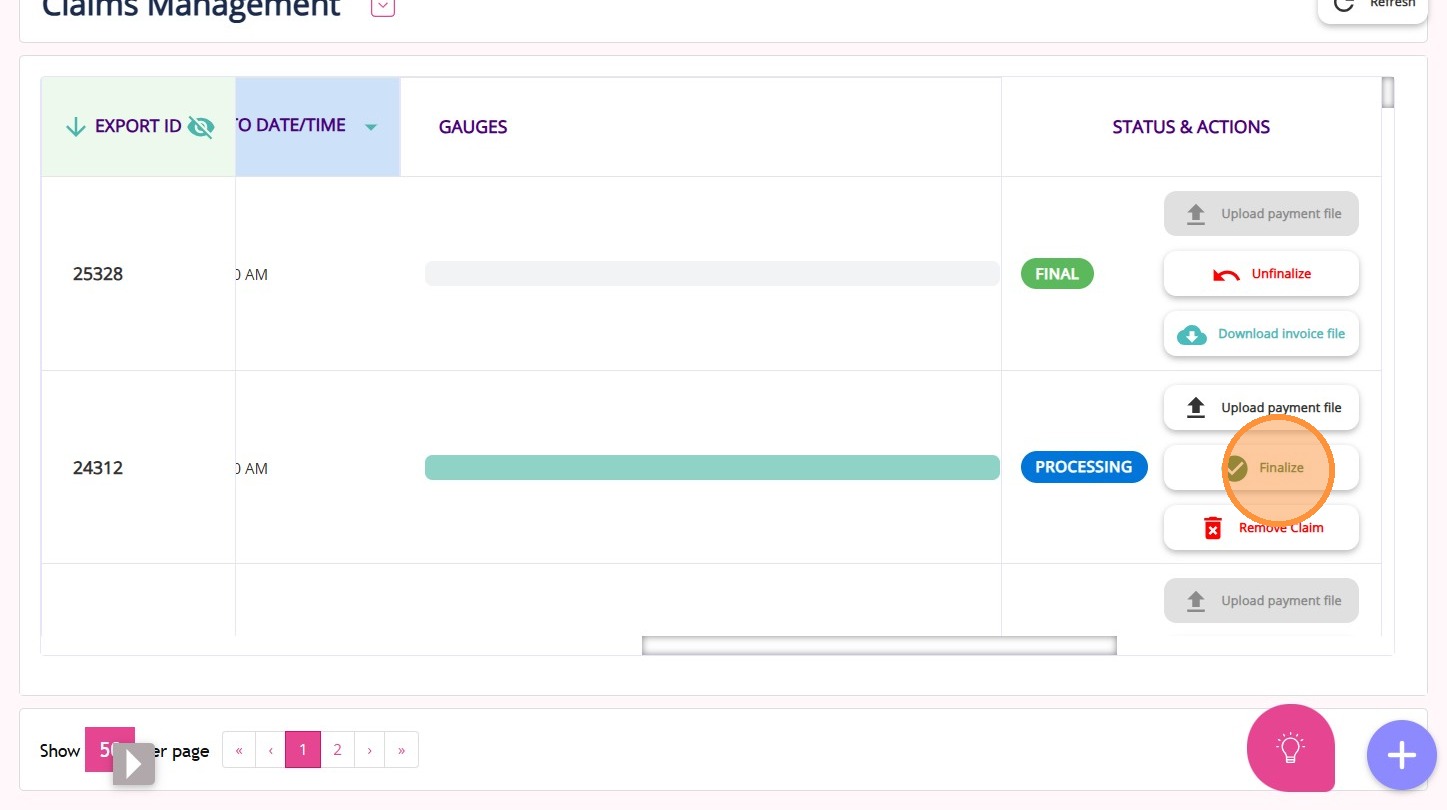
Finalize
Click Finalize to mark the claim as final once all variances are processed and accepted, which locks the claim from further editing.

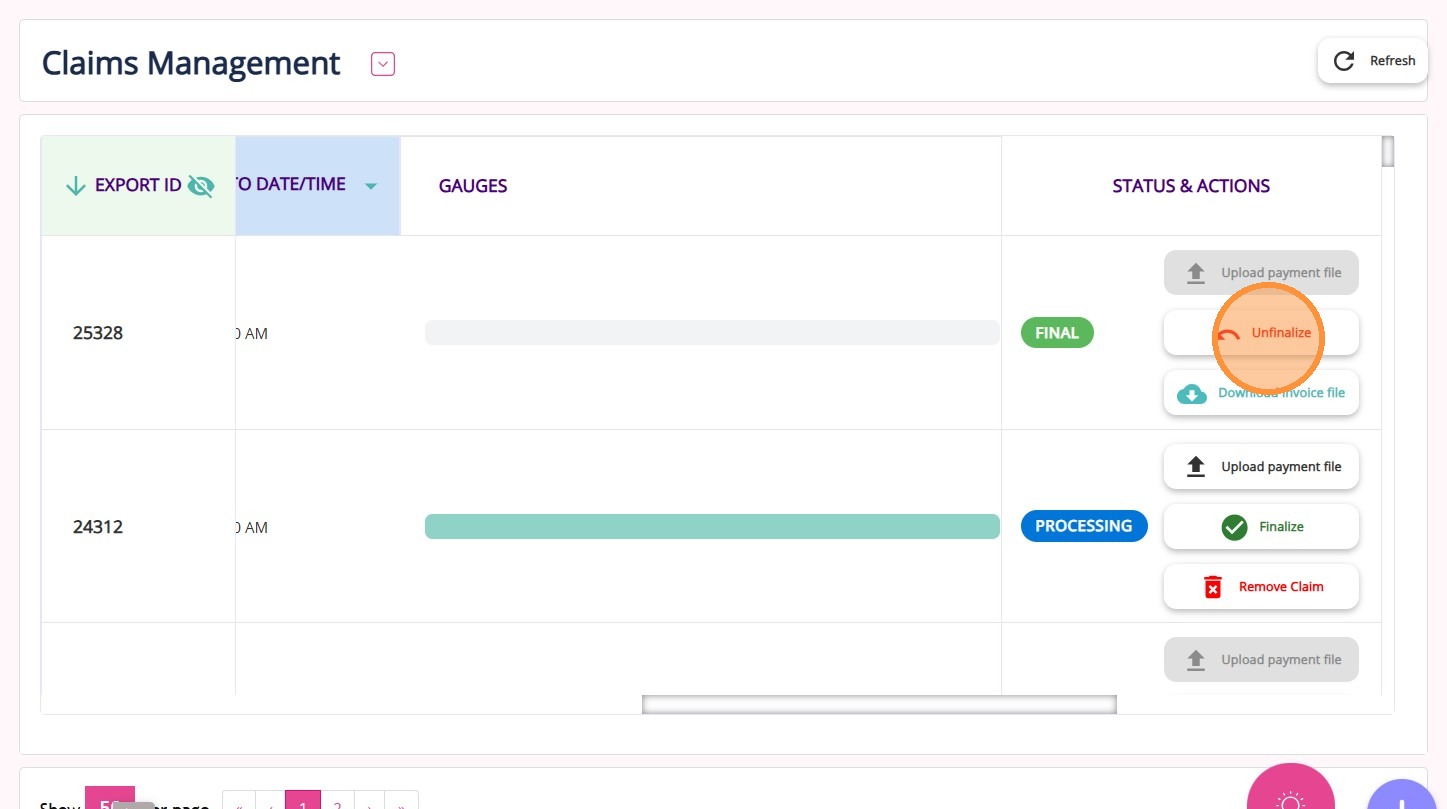
Unfinalize
Click Unfinalize if you want to revert a claim from Final to an editable state and allow further changes; this option is available only when the claim status is Final.


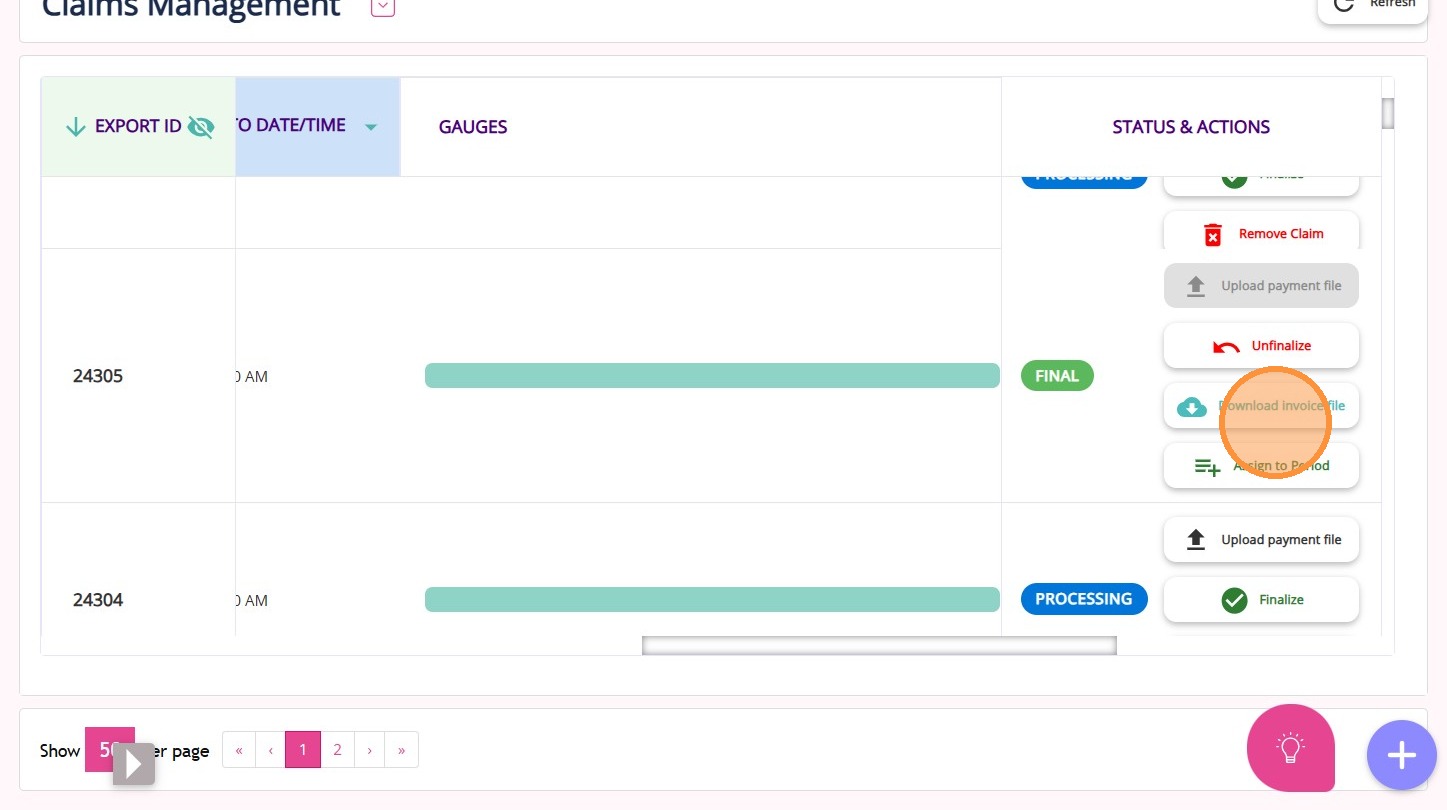
Download Invoice File
Click Download Invoice File if you want to generate invoice files for finalized claims in the required format.

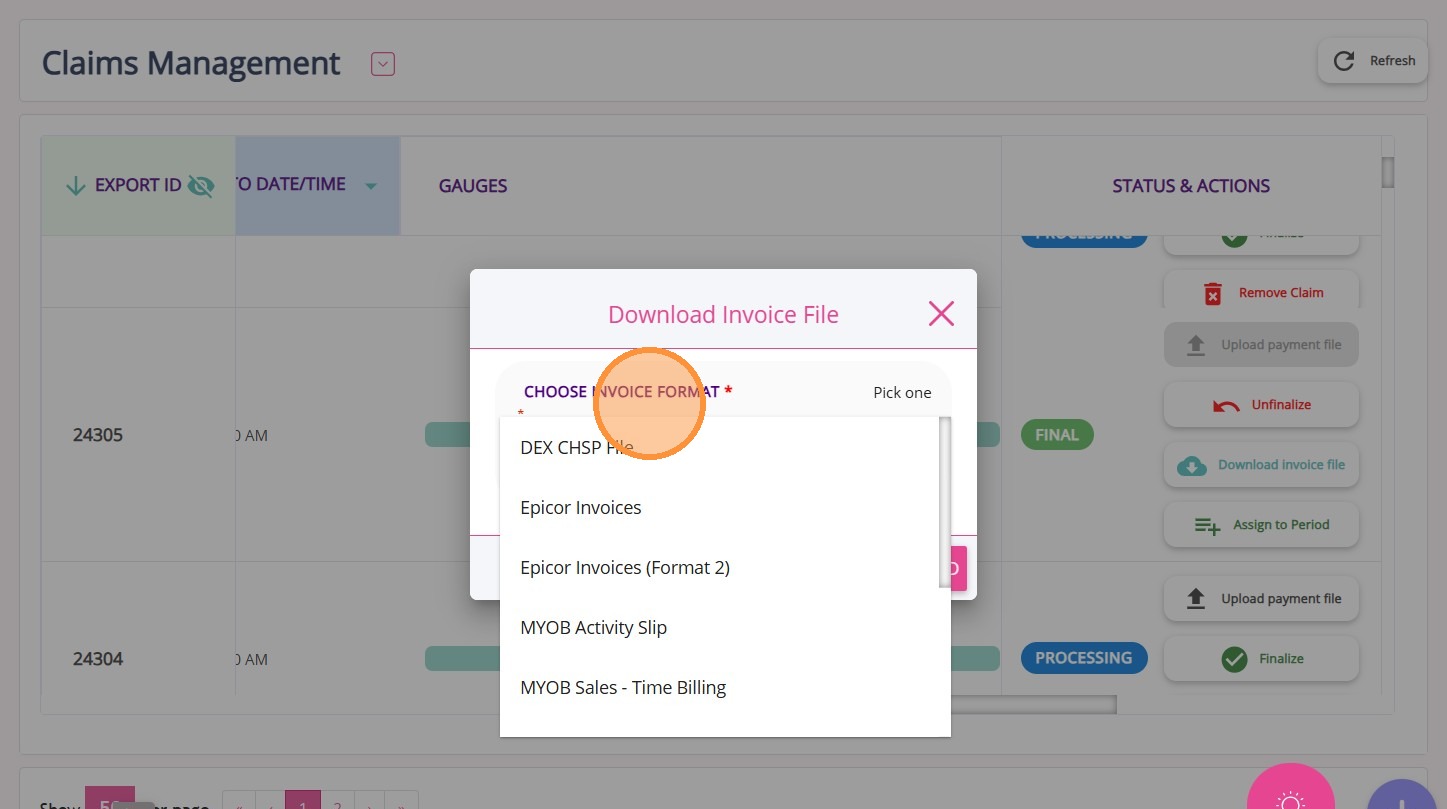
Select the appropriate export format for your finance system (Example: Dex CHSP File, Xero Invoices, MYOB, Epicor, or TechOne).  For example, TechOne, this will generate both the government invoices and the co-contribution invoices.
 
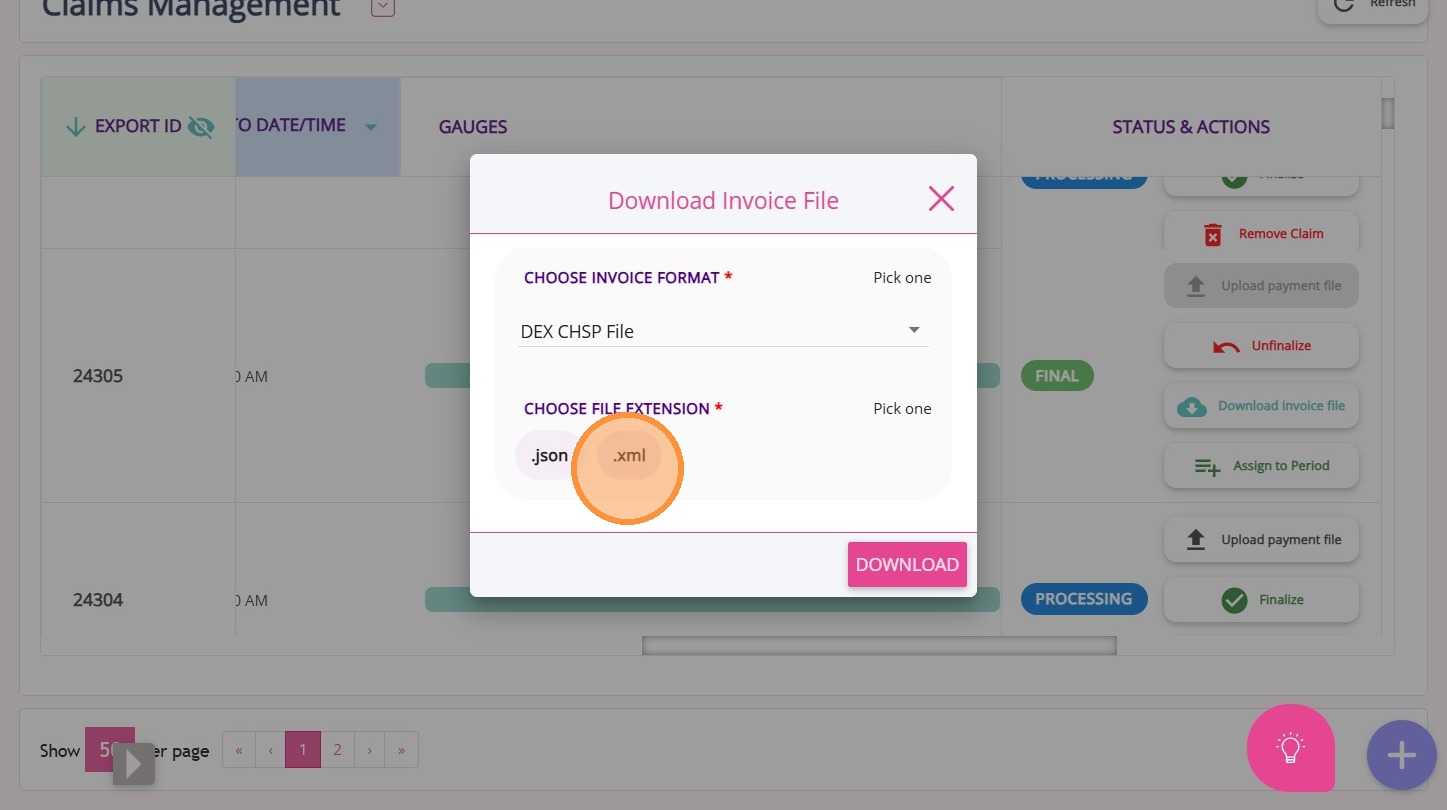
Choose the required file extension (.son or .xml) before downloading.

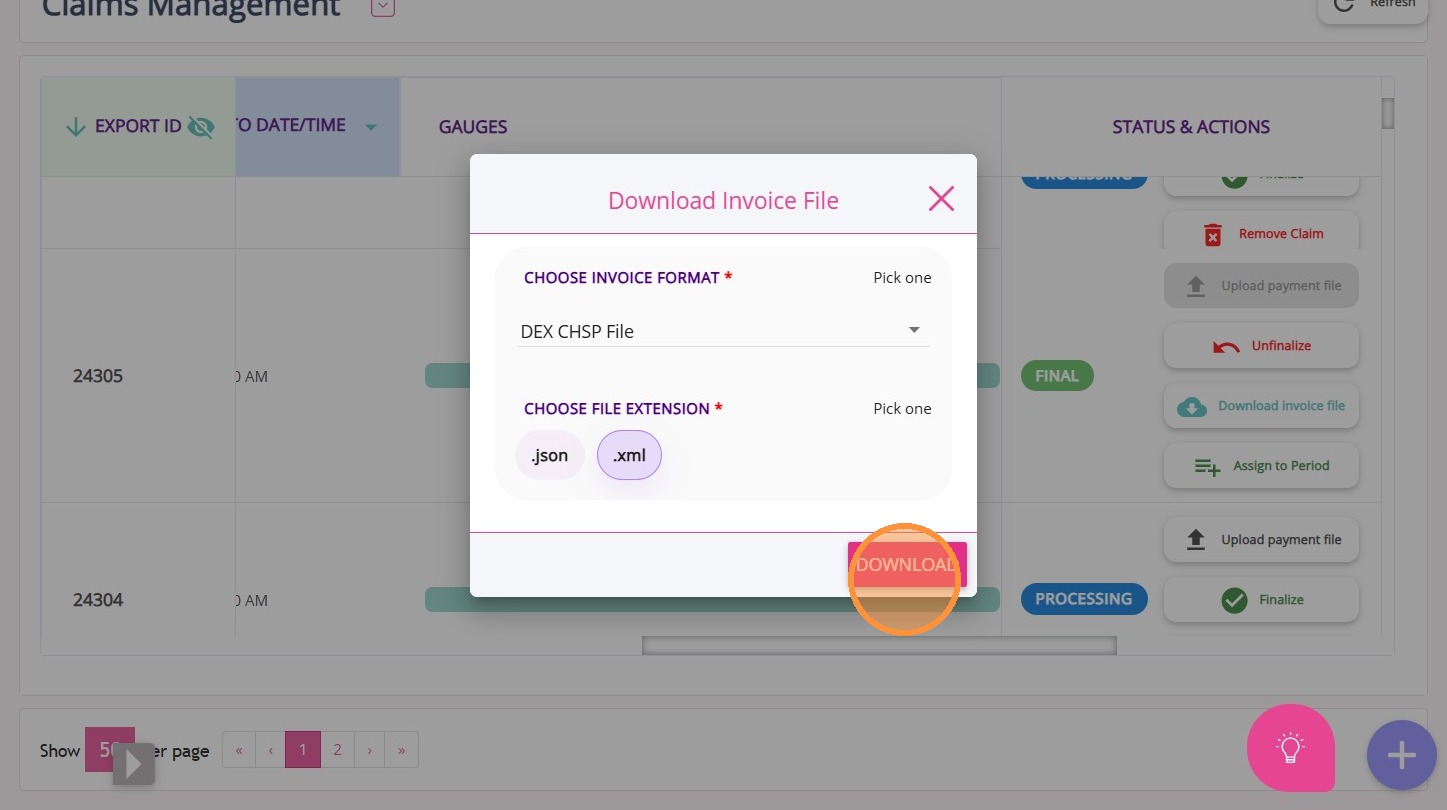
Click Download

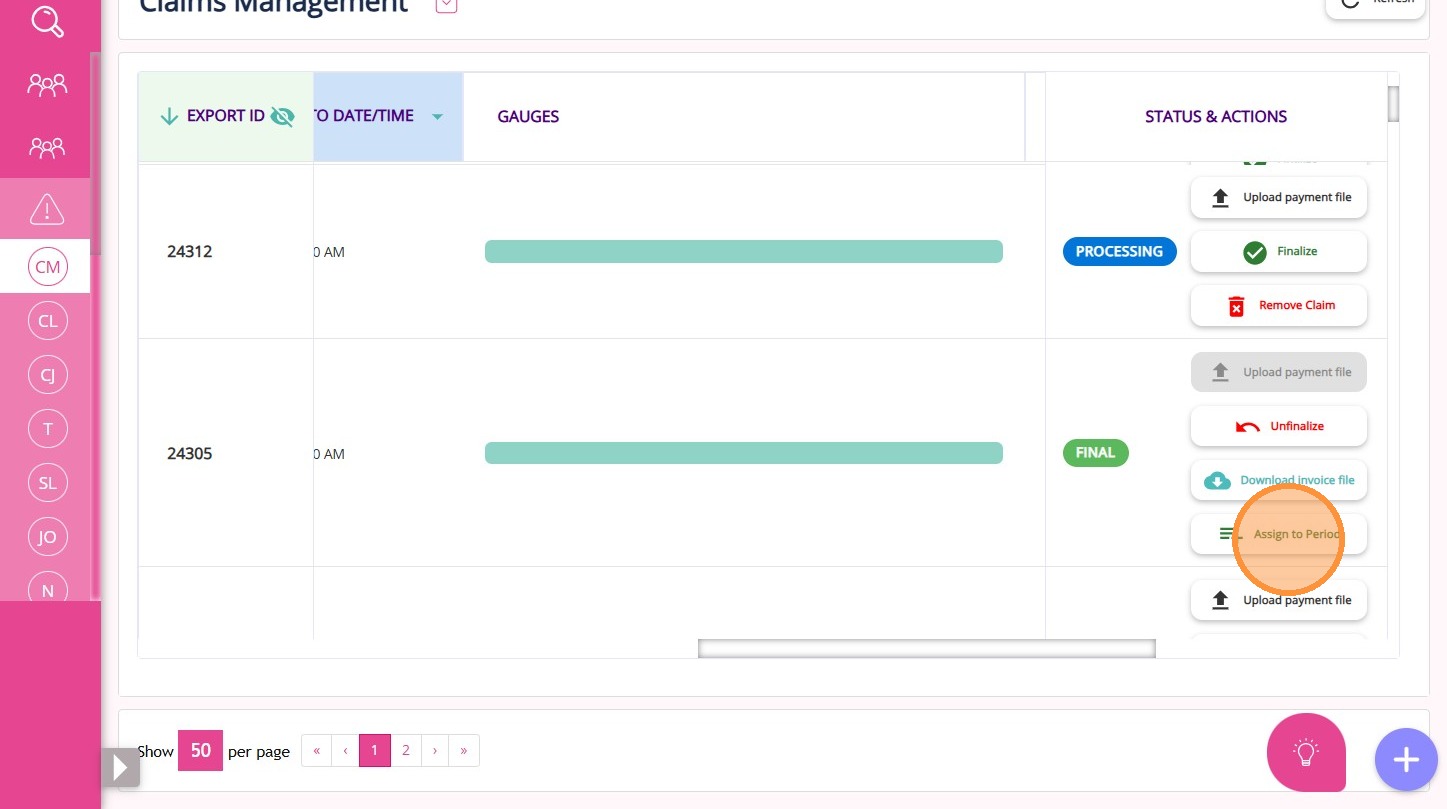
Assign to Period

Click Assign to Period to assign a finalized claim to a statement period for statement generation; this option is available only for Final claims.

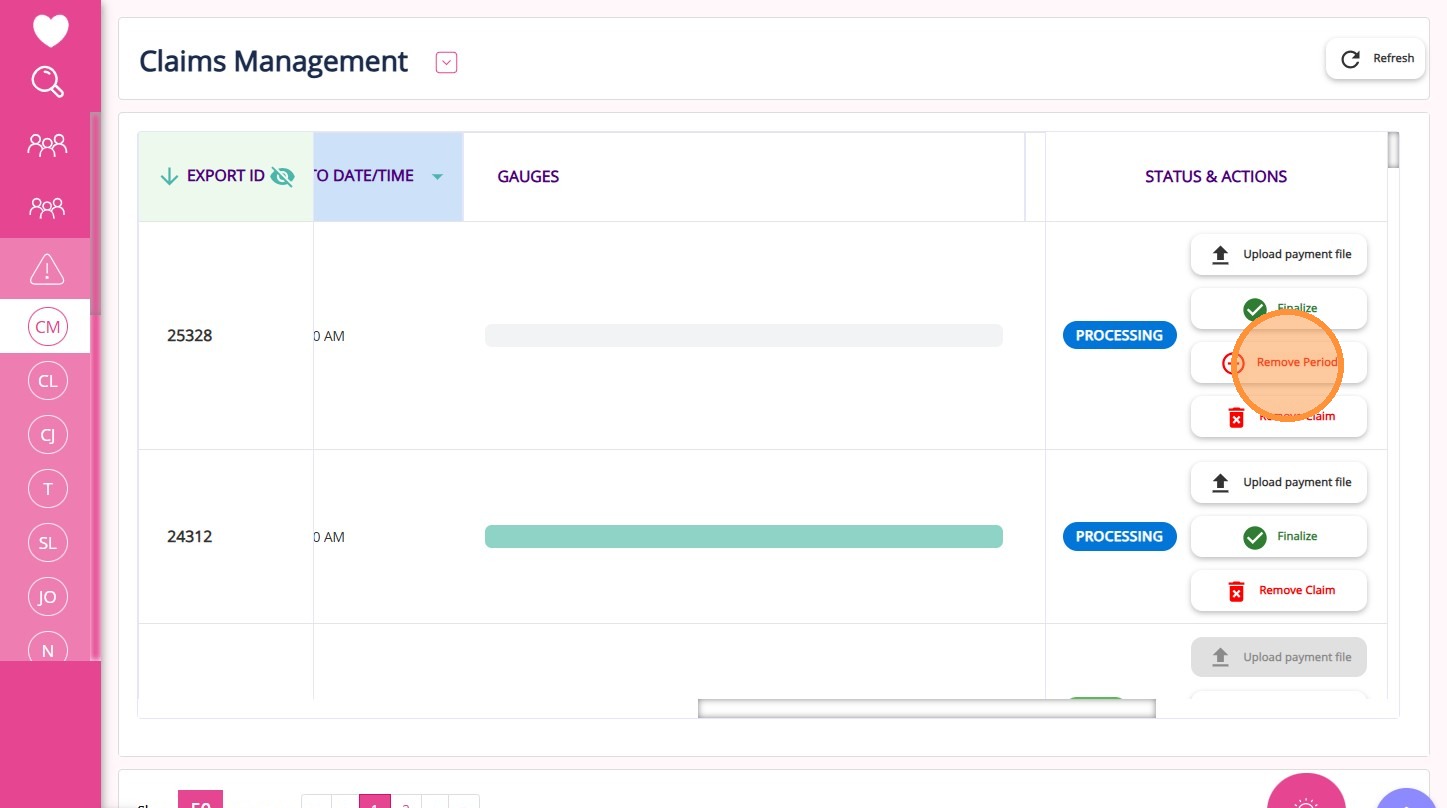
Remove Period

Click Remove Period if you want to remove a claim from a statement period and allow it to be reassigned if needed.

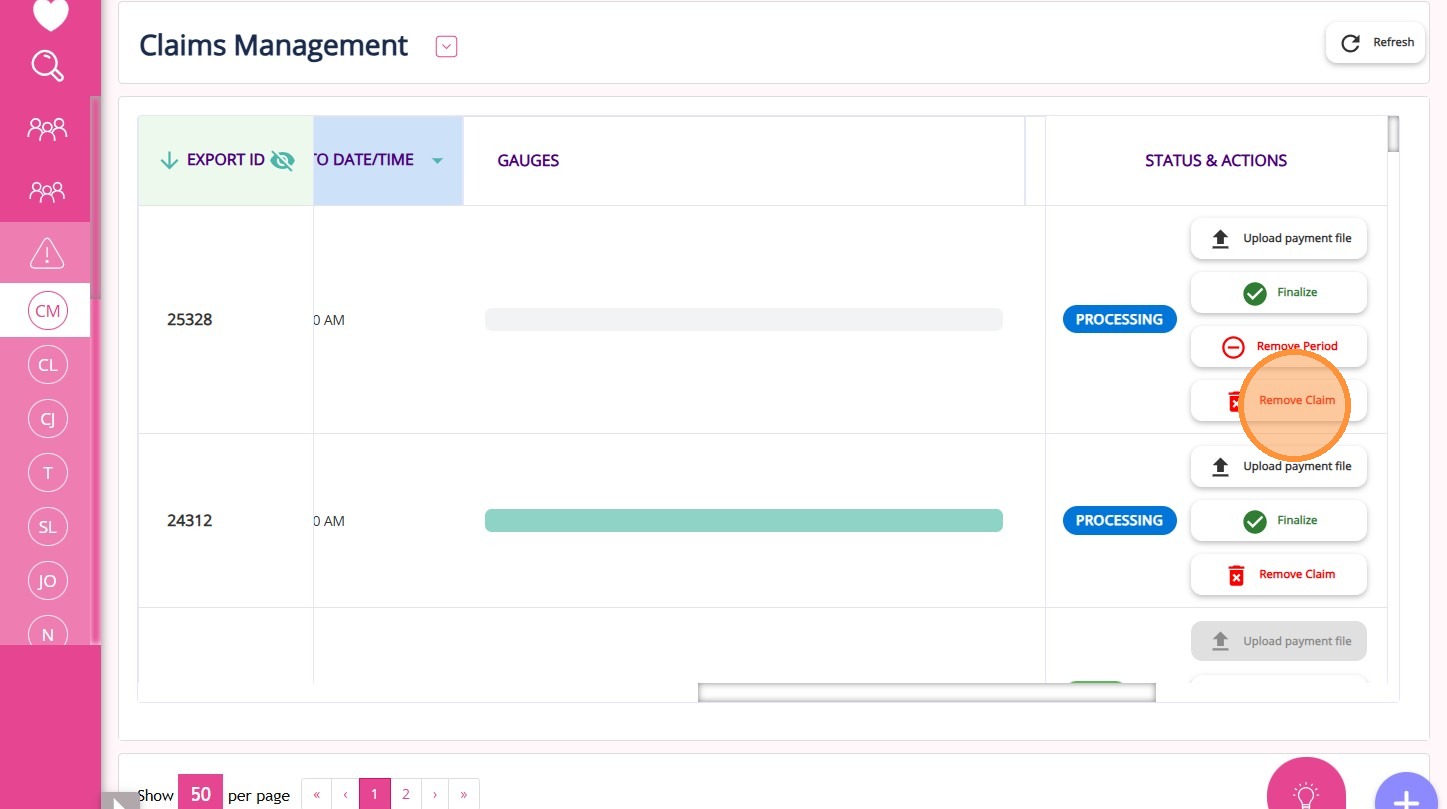
Remove Claim

Click Remove Claim if you want to remove a claim before finalization; this option is not available once the claim is marked as Final.


D. Gauges
Gauges

You can see gauges that visually indicate the status of items within each claim. The color changes based on how many items matched with no variance, how many have variances, and how many variances have been processed.

As you work through the claim, the gauge updates to reflect your progress and helps you track how close you are to finalizing the claim.
  • Purple: Amendments
  • Pink: Disputed
  • Blue: Accepted
  • Yellow: Unprocessed with variances
  • Green: No variances

II. Statement Periods Management Section

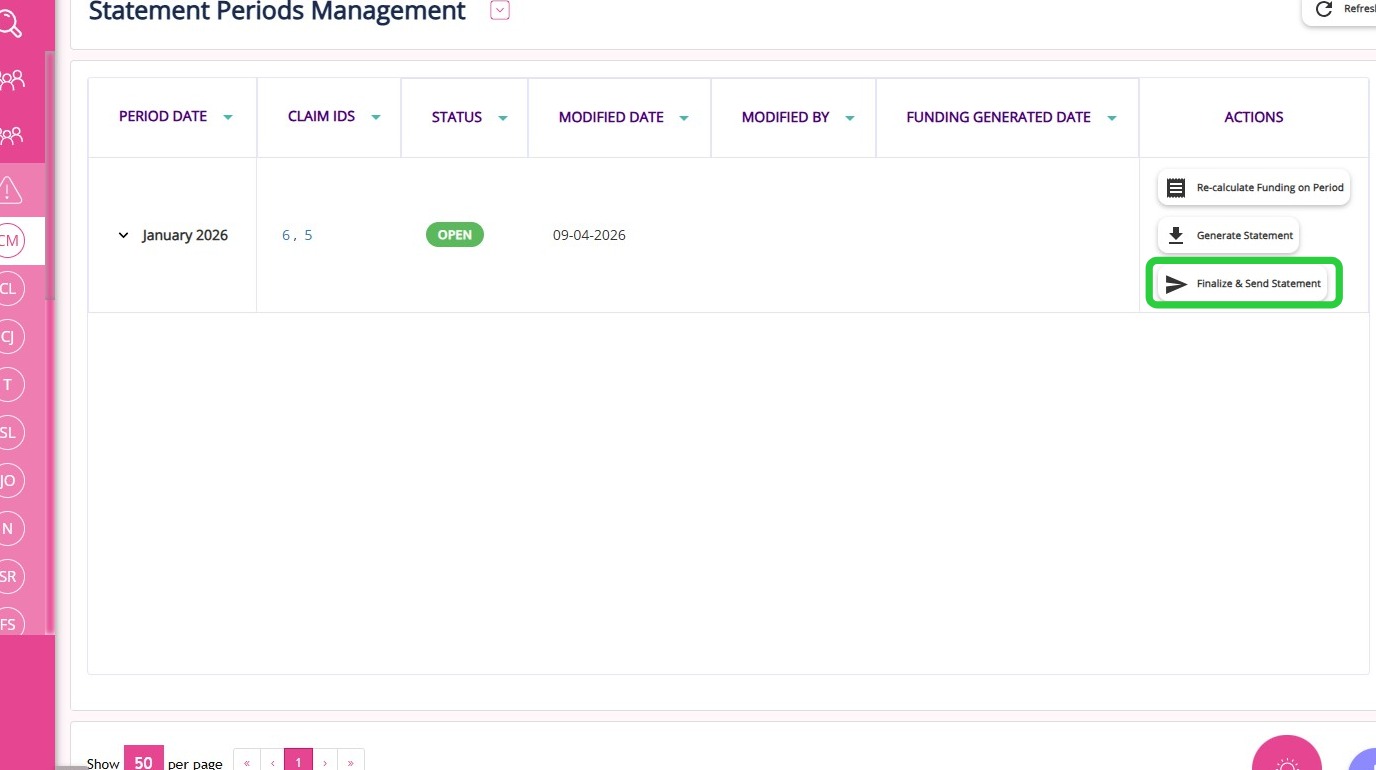
This section is where the Support at Home Statement File is generated by grouping finalised claims into a statement period. It allows you to recalculate funding and produce statements for distribution.

A. How to Access
How to Access

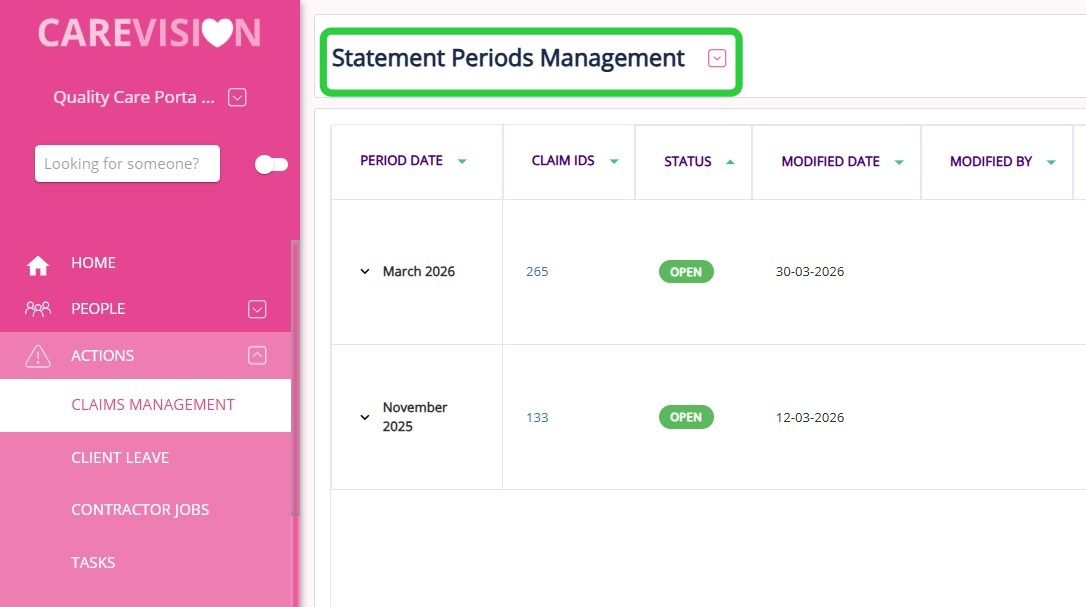
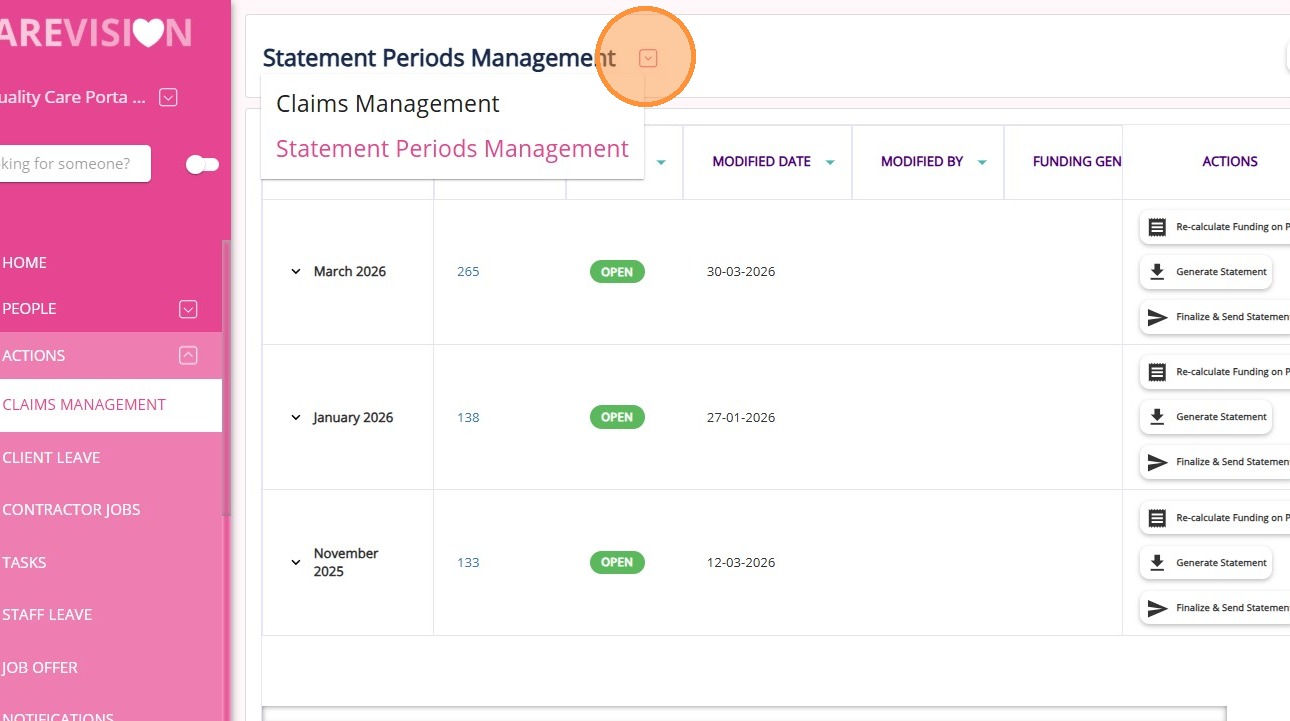
Go to Actions > Claims Management, and then click Statement Periods Management at the top of the page.


B. Key Columns

ColumnDescription
Period DateDisplays only periods that have associated claims. A claim must be finalized and assigned to a period to appear. Each claim can be assigned to one period only.
Claim IDsLists all claim IDs assigned to the period. Clicking a claim ID opens detailed claim information in a new tab.
StatusIndicates the state of the period: Open (editable, allows recalculation and statement generation) or Closed (locked, no further changes allowed).
Modified DateThe most recent date when the period or its associated data was updated.
Modified ByThe user who last modified the period or performed an action on it.
Funding Generated DateThe date when funding was generated.
ActionsProvides options to manage the period, including recalculating funding, generating statements, downloading statements, and finalizing the period.

C. Key Actions
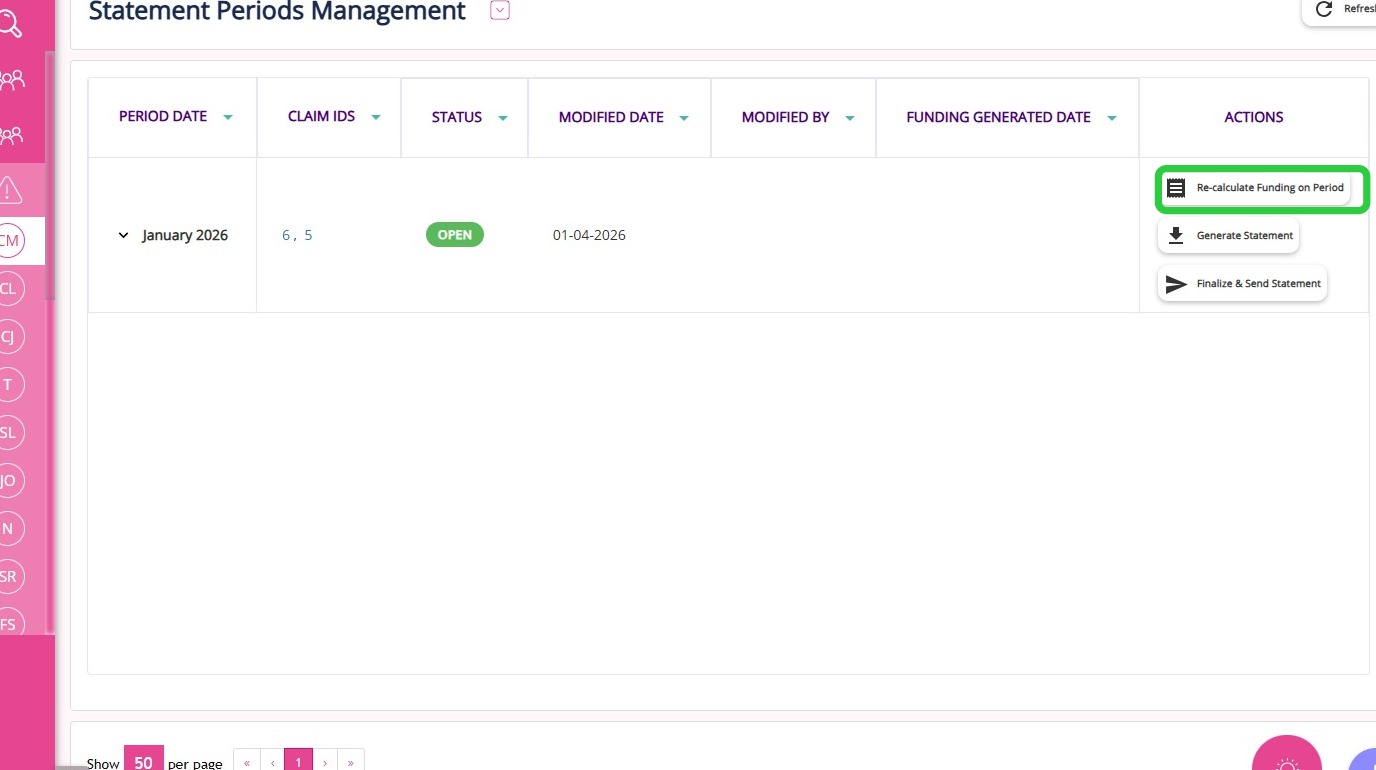
Re-calculate Funding on Period

Click Re-calculate Funding on Period to refresh funding data for all claims and clients within the period. We recommend that you use this after updates to funding or client profiles.

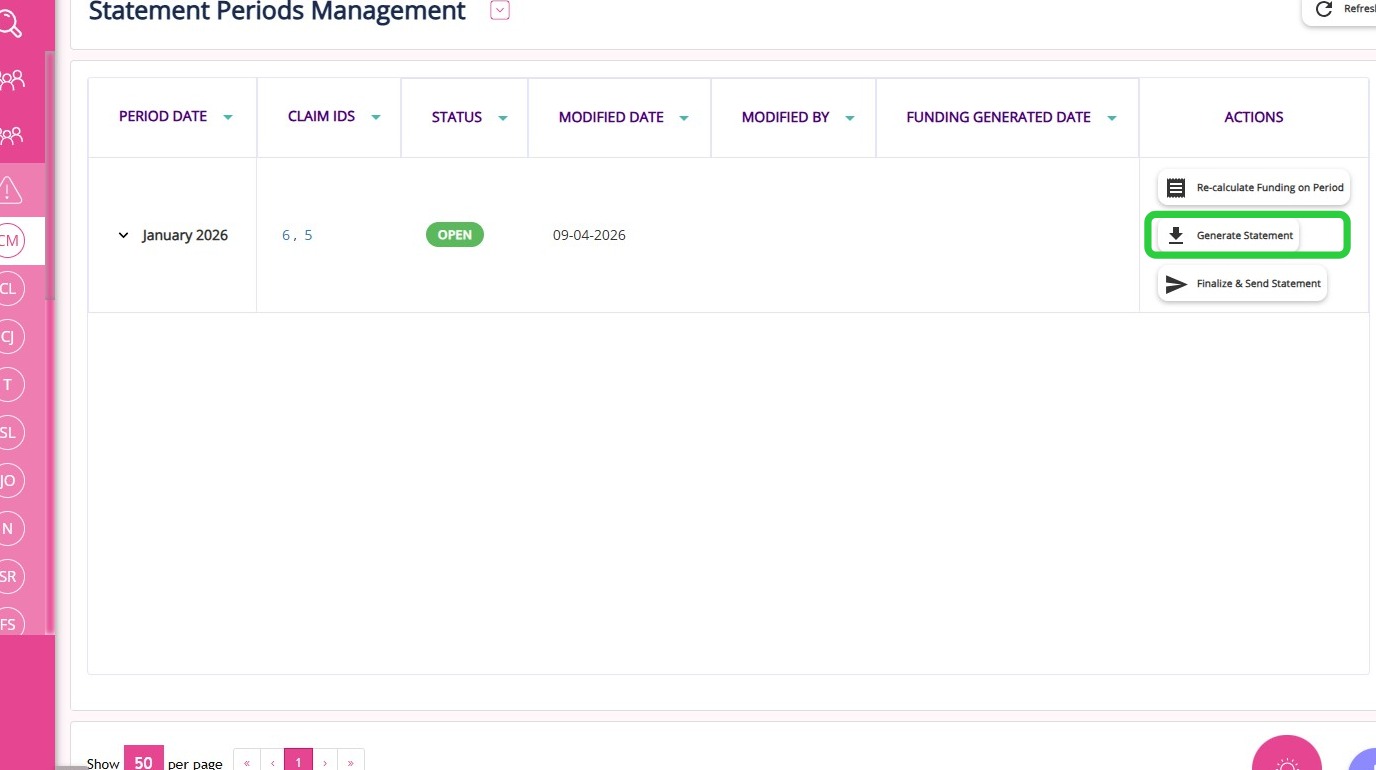
Generate Statement
Clicking Generate Statement generates a zip file of client statements for open periods, reflecting the latest funding data.

Download Statement
  1. Download Statement button: You can use this button for closed periods to download the final statements. You cannot generate new statements or recalculate funding for closed periods because the data is locked.
Finalize & Send Statement

Click the Finalize & Send Statement button to lock the period and prepare statements for distribution.


Notes
Note: This action will not email the Statements to your clients. Instead, it will download a zip file containing the Statements, which you can then send or print as needed.

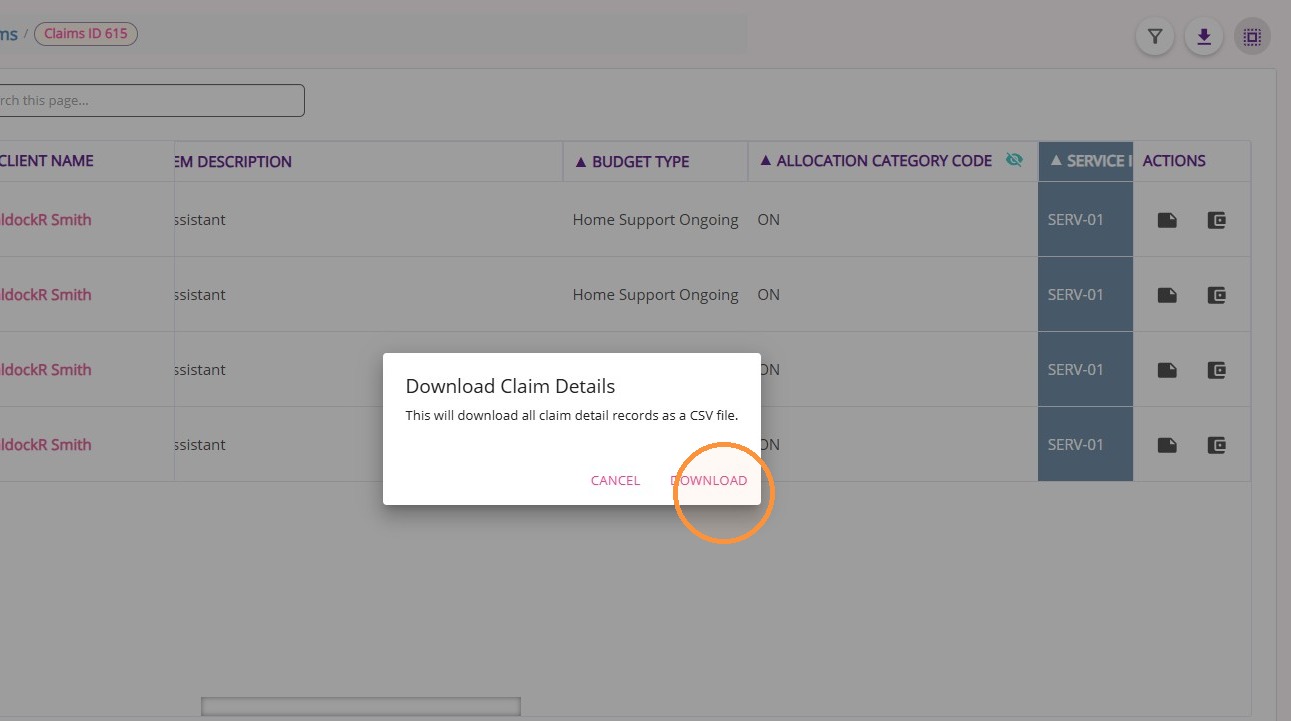
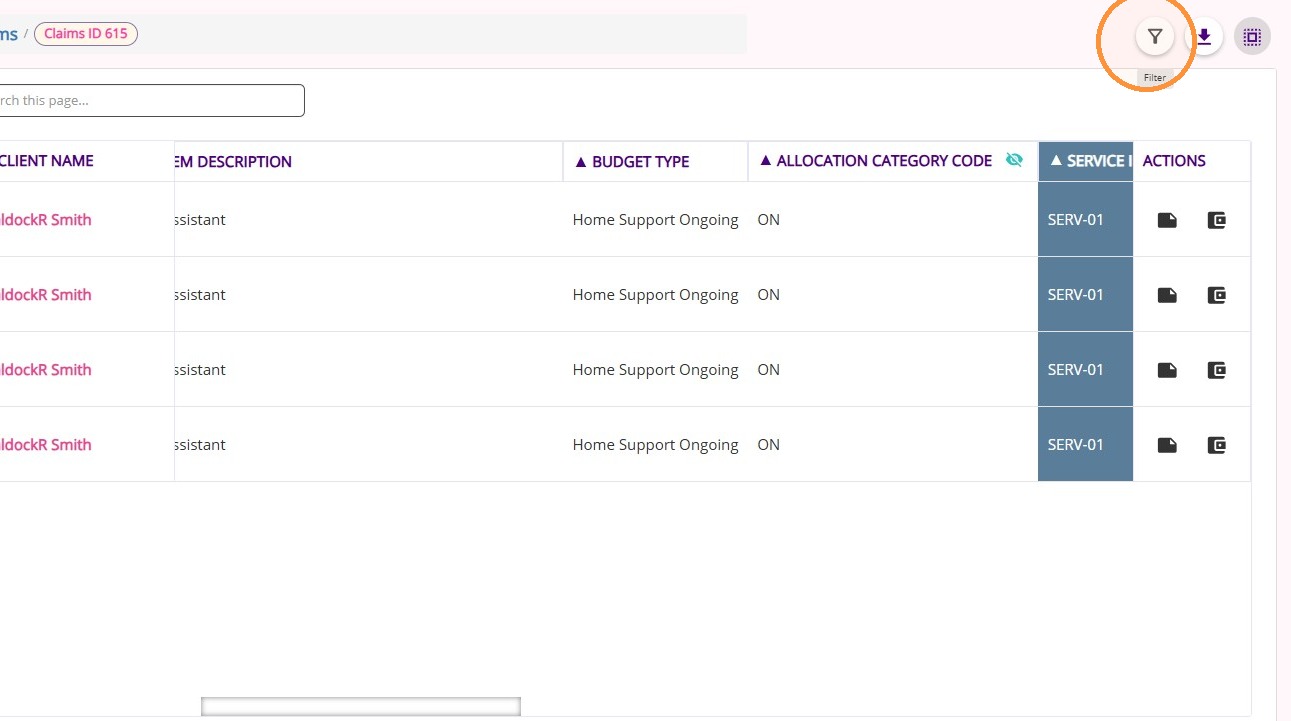
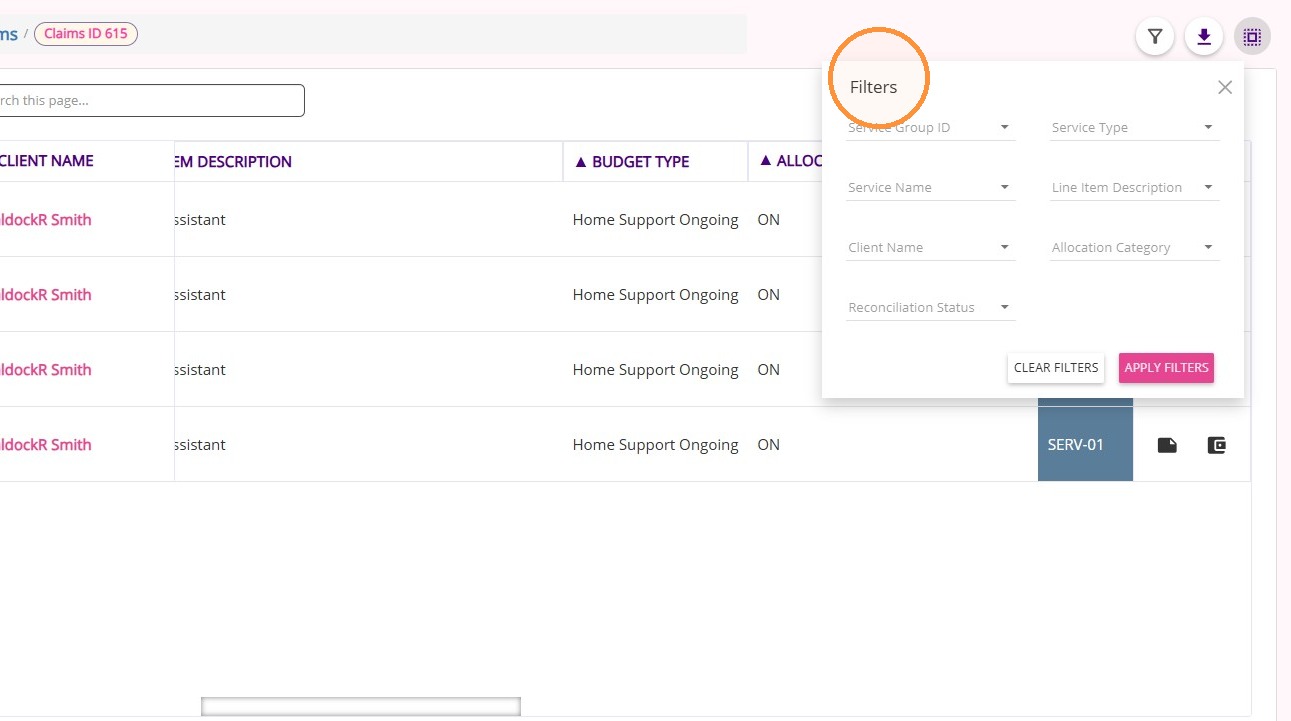
III. Claim IDs Section

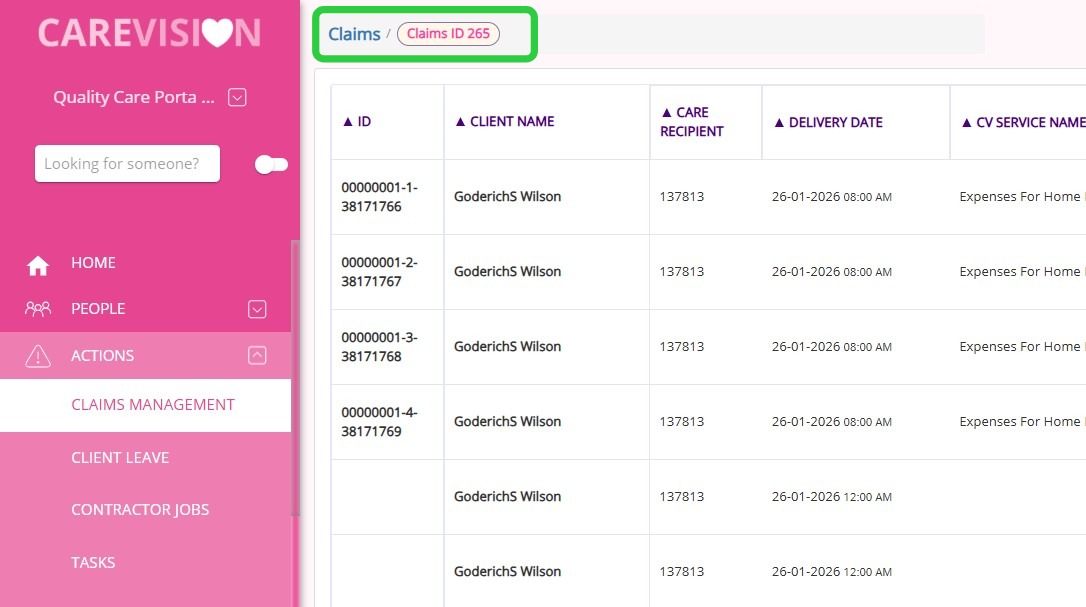
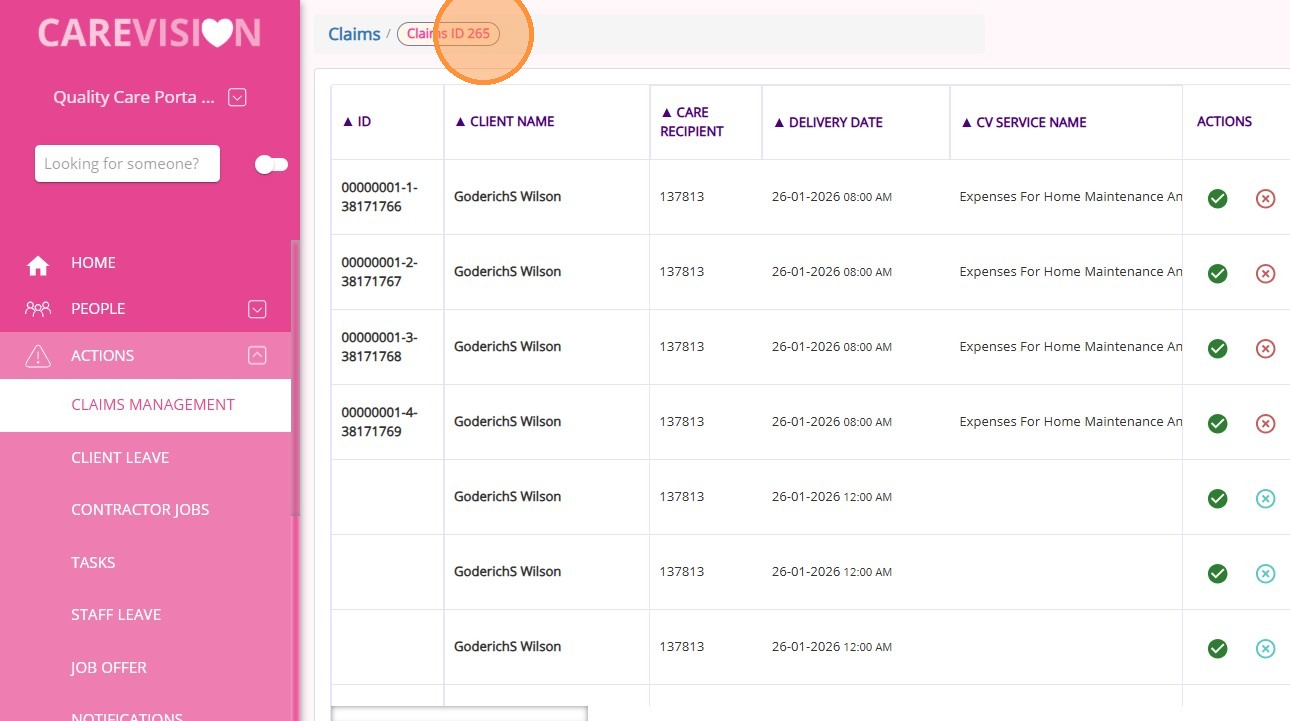
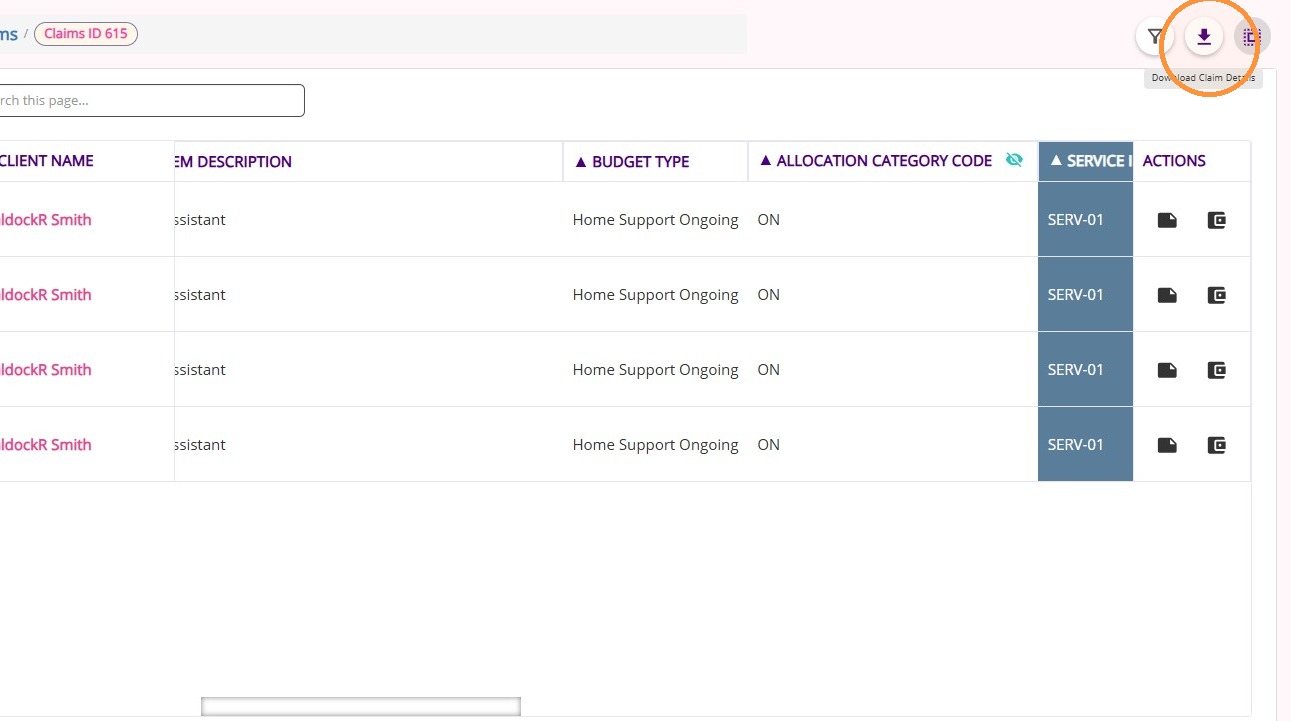
This section provides a detailed, item-level view of a claim, comparing CareVision claim data with the Services Australia payment statement for reconciliation.

A. How to Access
Click any Claim ID.

The detailed information for that claim will open in a new tab.

B. Key Columns
ColumnDescription
IDUnique identifier for the claim line item, used to reference specific billing entries.
Client NameName of the individual receiving Support at Home services.
Care RecipientUnique ID of the care recipient.
Delivery DateDate the service was delivered.
CV Service NameService name as recorded in CareVision.
Line Item DescriptionDescription entered in the manual line item template.
Budget TypeIndicates which budget the service is drawn from.
Allocation Category CodeCode representing the funding category. Expand to view breakdown:

ON (Home Support Ongoing)
AT (Assistive Technology)
CM (Care Management)
EL (End of Life)
HM (Home Modifications)
RC (Restorative Care)
AS (Assistive Technology - Specified Needs)
Breakdown of Budget AllocationsShows how funding is distributed across categories, including participant contribution amounts.
Service IdentifierUnique service code (format: SERV-XXXX).
Service Type IdentifierUnique service type code (format: SERT-XXXX).
Service GroupGroups related services (Example: Home Support, Assistive Technology).
Service TypeService type aligned with Services Australia (Ref 33).
Service NameOfficial service name matching Services Australia and CareVision billing.
Item CodeUnique item identifier (Ref 30), aligned with SAH Business Service ID.
Item DescriptionDescripton from the manual line item template.
Wrap Around CodeCode for additional or wraparound services.
Wraparound DescriptionDescription of wraparound support provided.
Entitlement TypeA classification that identifies the status of a claim.
CurrentThe entitlement that is currently active and being claimed
PreviousAn entitlement that was claimed or applied in the past.
AmendmentA change or update made to an existing entitlement (Example: correcting or adjusting a prior claim).
RateRate applied per unit of service.
QuantityNumber of units delivered.
UnitUnit of measure (Example: hours, visits).
Invoice AmountTotal amount invoiced for the claim line.

Calculation:
Invoice Amount = Rate × Quantity
Compensation ReductionDisplays final value or variance for compensation adjustments.
Compensation Reduction – Govt CalculatedValue from payment file (CSV PaymentItems column 25).
Compensation Reduction – CV CalculatedCurrently set to 0 (not calculated).
Compensation Reduction – VarianceDifference between government and CV values.

Calculation:
Compensation Reduction Variance = (Compensation Reduction Govt Calculated) − (Compensation Reduction CV Calculated)
Compensation Reduction – FinalFinal value based on reconciliation outcome.
Individual ContributionDisplays the final value where available; otherwise, displays the variance between calculated values.
Individual Contribution - Govt CalculatedValue sourced from payment file [CSV - PaymentItems], column 26 ($fields[25]).
Individual Contribution - CV CalculatedCalculated individual contribution amount based on defined rules using expected_remaining_co_contribution, previous_remaining_co_contribution, and allocated_co_contribution_amount.
Individual Contribution - VarianceCalculation:
Individual Contribution Variance = (Individual Contribution Govt Calculated) − (Individual Contribution CV Calculated)
Individual Contribution FinalThis value displays either the CV-calculated or government-calculated amount, depending on the reconciliation status:

If reconciliation status is disputed, then the CV-calculated value is used
If reconciliation status is accepted or no variance, then the Government-calculated value is used
Fee ReductionDisplays the final value where available; otherwise, displays the variance between calculated values.
Fee Reduction - Govt CalculatedValue sourced from payment file [CSV - PaymentItems], column 30 ($fields[29]).
Fee Reduction - CV CalculatedValue currently set to 0 (not computed).
Fee Reduction VarianceDifference between government and CV calculated values.

Calculation: Fee Reduction Variance = (Fee Reduction Govt Calculated) − (Fee Reduction CV Calculated).
Fee Reduction FinalThis value displays either the CV-calculated or government-calculated amount, depending on the reconciliation status:

If reconciliation status is disputed, then the CV-calculated value is used

If reconciliation status is accepted or no variance, then the Government-calculated value is used
Reduction TypeDisplays the final value where available; otherwise, displays the variance between calculated values.
Reduction Type - Govt CalculatedValue currently null (not available).
Reduction Type - CV CalculatedValue currently null (not available).
Reduction Type VarianceDifference between government and CV calculated values.

Calculation:
Reduction Type Variance = (Reduction Type Govt Calculated) − (Reduction Type CV Calculated).
Reduction Type FinalThis value displays either the CV-calculated or government-calculated amount, depending on the reconciliation status:

If reconciliation status is disputed, then the CV-calculated value is used

If reconciliation status is accepted or no variance, then the Government-calculated value is used
Payment DeterminationDisplays the final value where available; otherwise, displays the variance between calculated values.
Payment Determination - Govt CalculatedValue sourced from payment file [CSV - PaymentItems], column 27 ($fields[26]).
Payment Determination - CV CalculatedCalculated payable amount after co-contribution.

Calculation:
($claimDetail['quantity'] * $claimDetail['rate']) - $claimDetail['actual_co_contribution']
Payment Determination VarianceDifference between government and CV calculated values.

Calculation:
Payment Determination Variance = (Payment Determination Govt Calculated) − (Payment Determination CV Calculated).
Payment Determination FinalThis value displays either the CV-calculated or government-calculated amount, depending on the reconciliation status:

If reconciliation status is disputed, then the CV-calculated value is used.

If reconciliation status is accepted or no variance, then the Government-calculated value is used.
Budget Drawn DownDisplays the final value where available; otherwise, displays the variance between calculated values.
Budget Drawn Down - Govt CalculatedValue sourced from payment file [CSV - PaymentItemBudget], column 4 ($fields[3]).
Budget Drawn Down - CV CalculatedCalculated budget usage based on service delivery.

Calculation:
$claimDetail['rate'] * $claimDetail['quantity']
Budget Drawn Down VarianceDifference between government and CV calculated values.

Calculation:
Budget Drawn Down Variance = (Budget Drawn Down Govt Calculated) − (Budget Drawn Down CV Calculated).
Budget Drawn Down FinalThis value displays either the CV-calculated or government-calculated amount, depending on the reconciliation status:

If reconciliation status is disputed, then the CV-calculated value is used.

If reconciliation status is accepted or no variance, then the Government-calculated value is used.
Final DeterminationDisplays the final value where available; otherwise, displays the variance between calculated values.
Final Determination - Govt CalculatedValue sourced from payment file [CSV - PaymentItems], column 28 ($fields[27]).
Final Determination - CV CalculatedCalculated final payable amount after co-contribution.

Calculation:
($claimDetail['quantity'] * $claimDetail['rate']) - $claimDetail['actual_co_contribution']
Final Determination VarianceDifference between government and CV calculated values.

Calculation:
Final Determination Variance = (Final Determination Govt Calculated) − (Final Determination CV Calculated).
Final Determination FinalThis value displays either the CV-calculated or government-calculated amount, depending on the reconciliation status:

If reconciliation status is disputed, then the CV-calculated value is used.

If reconciliation status is accepted or no variance, then the Government-calculated value is used.
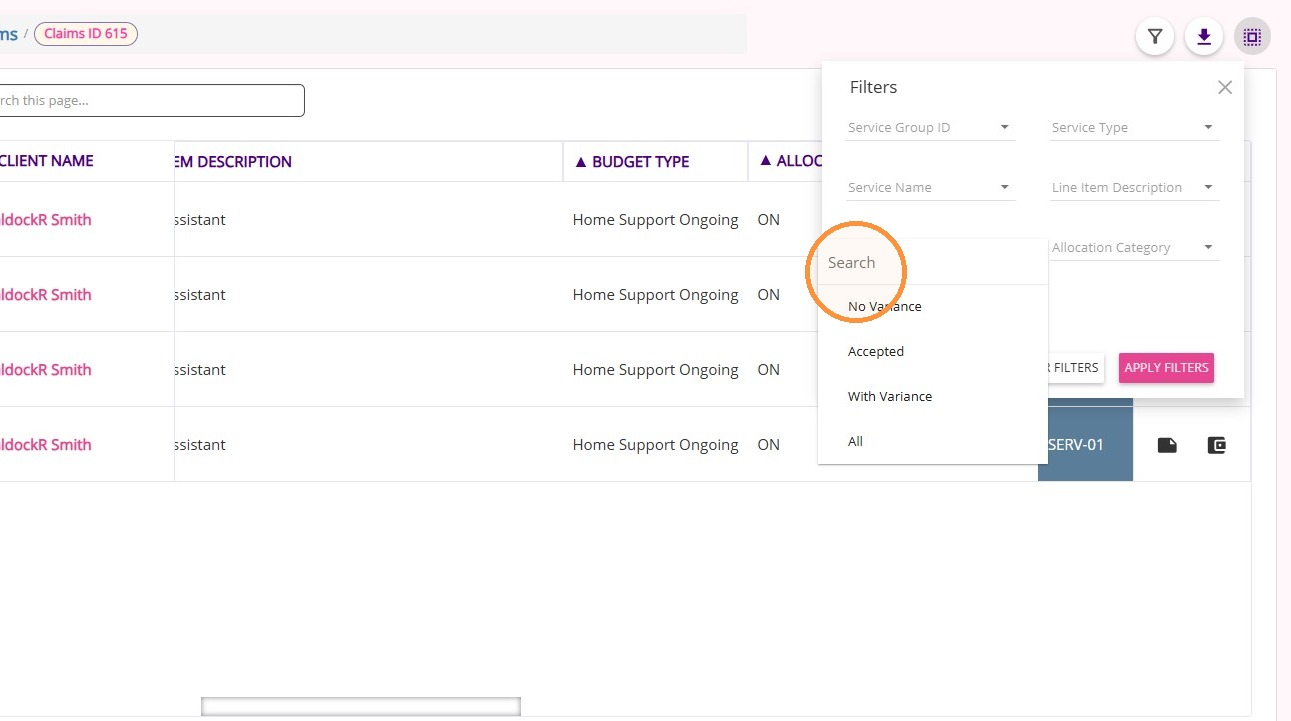
Reconciliation StatusIndicates the reconciliation outcome and determines which calculated value is used.

C. Key Actions
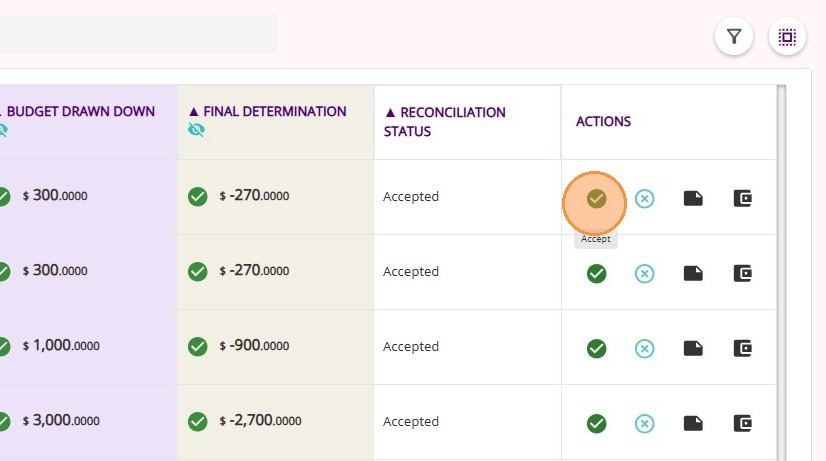
Accept
Click Accept to confirm you agree with the value given by the government, as reflected in the Support at Home (SAH) payment statement file from Services Australia. If no action is taken (no Accept or Dispute), the system will automatically accept this value.

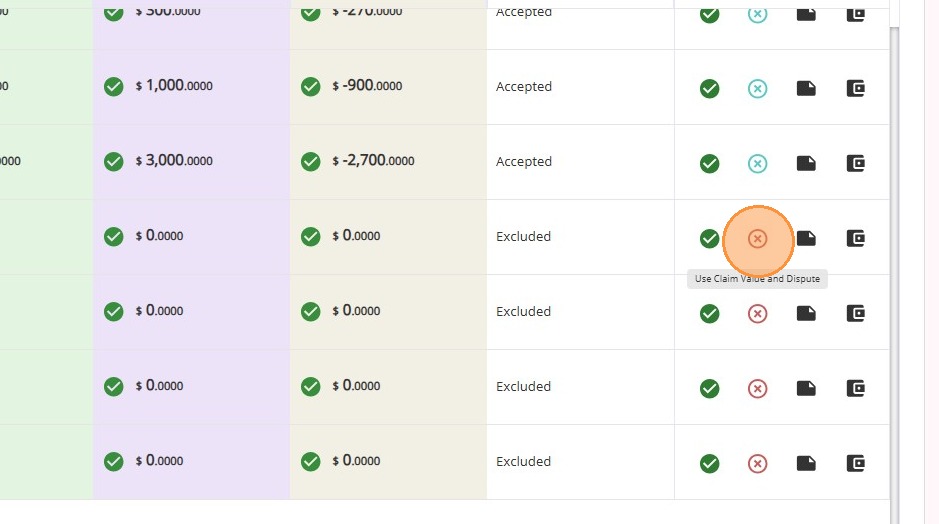
Use Claim Value and Dispute
Click Use Claim Value and Dispute to indicate you do not agree with the value given by the government (as reflected in the SAH payment statement file) and will instead use CareVision’s calculated claim value.

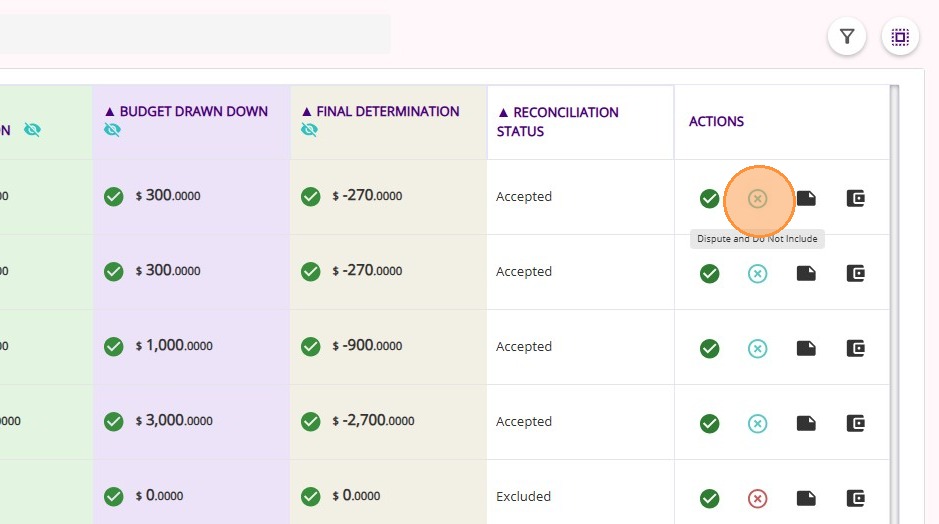
Dispute and Do Not Include
Click Dispute and Do Not Include to reject the value given by the government and exclude the claim from the Support at Home Statement File.


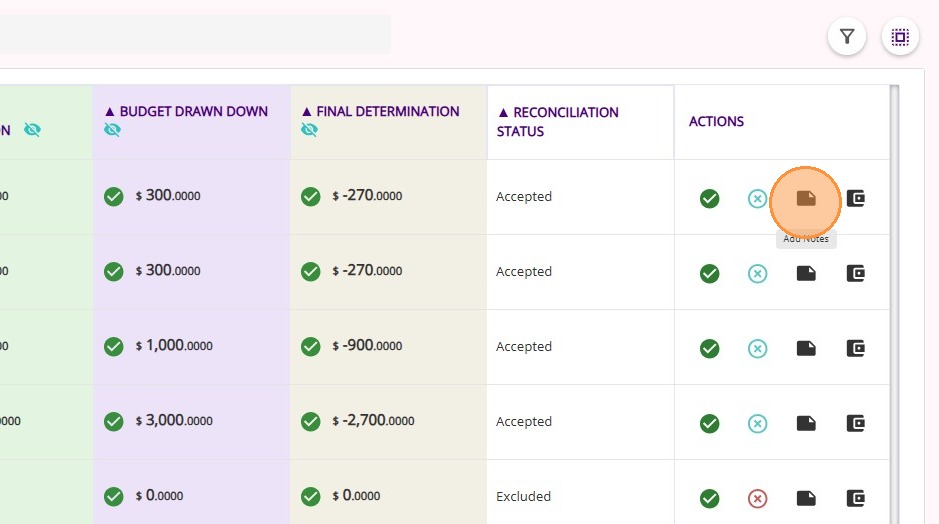
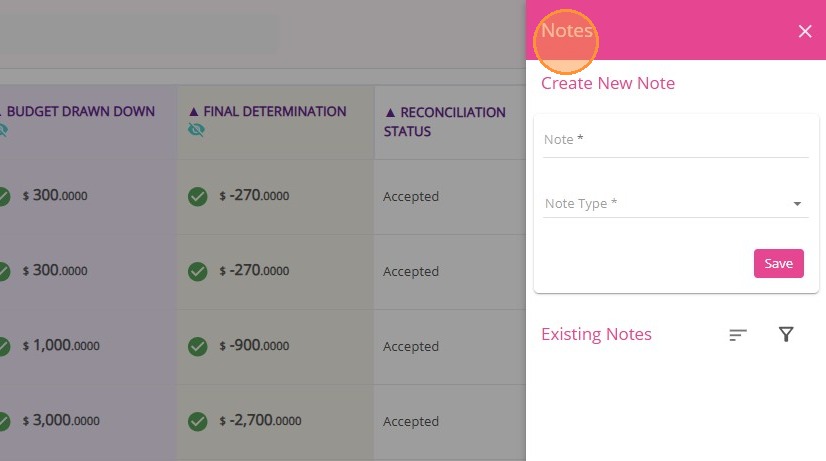
Add Notes
  1. Add NotesYou can now add explanatory notes directly to a claim. 

  1. This functionality makes it easy to document important information within the claim record, helping your team keep all relevant details organized and accessible for future reference and collaboration.

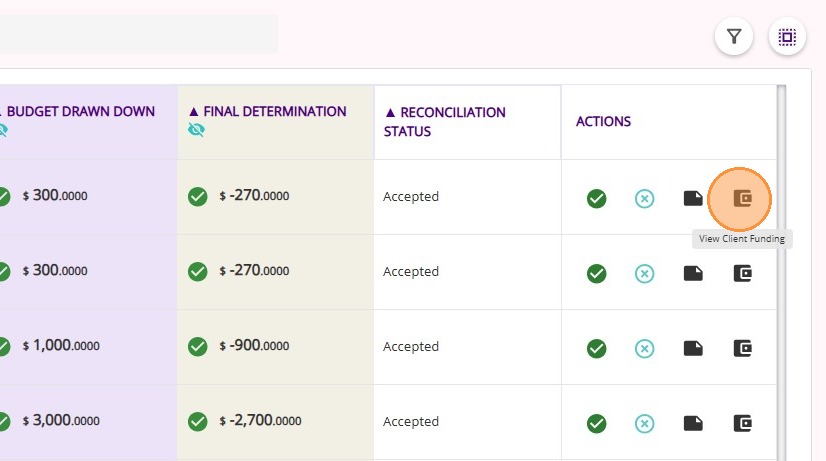
View Client Funding
Click View Client Funding to view the client’s funding details. 

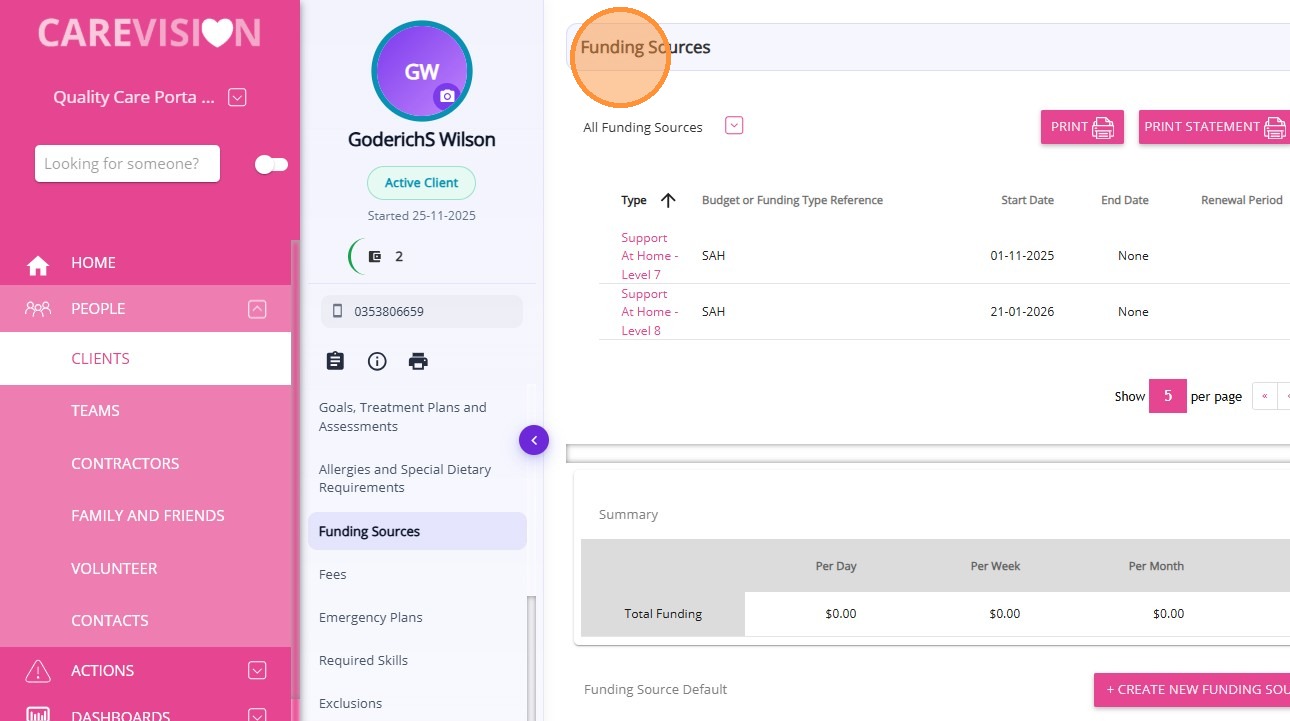
You will be redirected to the client profile, specifically the Funding Sources section.

 D. Reconciliation Status

Reconciliation StatusDescription
AcceptedThe government-calculated value is used as the final value.
ExcludedThe claim is excluded from the Support at Home Statement File and not included in reporting.
No VarianceNo difference exists between government and CareVision calculated values.
DisputedThe CareVision-calculated value is used as the final value instead of the government value.
PendingThe claim has not yet been reviewed or finalised.
AdjustmentApplies to Amendment or Previous entitlement types, indicating a revised or historical claim.

Related Articles

  1. Support at Home Billing and Claiming Workflow
  2. How to Generate SAH Statements
  3. Handling Negative Claim Adjustments from Service Cancellations
  4. Handling Claims with Multiple Budget Allocations and Contributions
  5. Handling Claims with Underpayment (With Co-Contribution)
  6. Handling Claims with Underpayment (No Co-Contribution)
    • Related Articles

    • Service Review

      Service Review is a section in the left navigation pane of the CareVision portal, found under Actions > Service Review. In this section, teams handle all service processing and approvals. Users often refer to this area as the Service Review Board or ...
    • Filters on the Service Review Board

      You can use filters on the Service Review Board to quickly narrow down your results and find the information you need as you process bookings before export. This topic describes the available filter options on the Service Review Board. Keywords: ...
    • Resolve Warnings in the Service Review Board

      The Service Review Board highlights warnings when there are issues with a booking. It is important to resolve these issues before exporting your data. This topic describes the most common warnings that may appear in the Service Review Board and ...
    • Notifications for Staff Leave Management

      Staff Leave Workflow Organisations regularly receive new staff leave requests and it is important that the proper team is notified at the appropriate stage of the staff leave process so they can follow up and complete any required actions. Timely ...
    • Create Staff Leave in Bulk

      A new feature has been added to support bulk creation and approval of staff leave. This feature is designed to streamline leave management, especially for public holidays or other scenarios requiring leave entries for multiple staff members at once. ...

    Request an Article or Guide

    We are keen to know what you want to know more about? Let us know on chat or raise a ticket for an article or topic you would like covered in more detail. We have a team of technical writers and learning content creators keen for your suggestions.