Handling Claims with Multiple Budget Allocations and Contributions
Scenario A. Multiple Budget Allocations (No Co-contribution)
Example
You deliver a service for 2 hours at $16.58 per hour, totalling $33.16 in the SAH Claim File (CareVision).
In the SAH Payment Statement Summary (Services Australia), the same $33.16 is split into:
- Home Support Ongoing = $20.00
- Home Care Account = $13.16
- (No co-contribution applied)
How It Appears in the Claims Management Dashboard
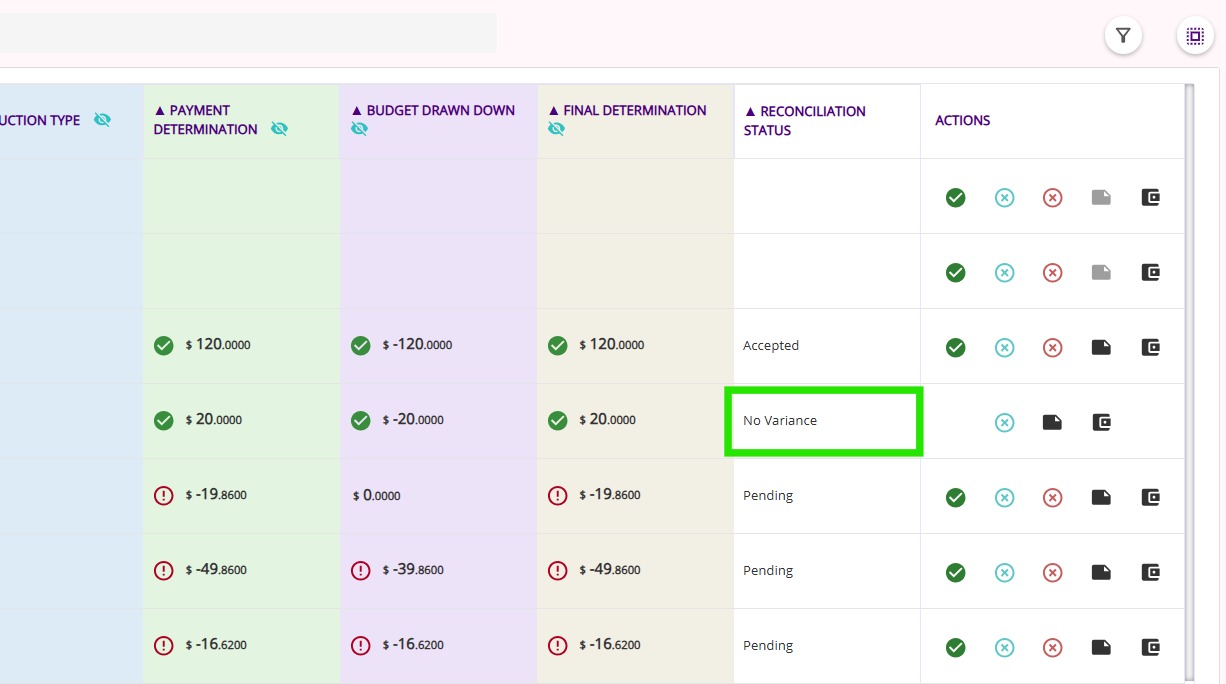
After uploading the SAH Payment Statement Summary (Services Australia) to CareVision, the dashboard shows:
Reconciliation Status: No variance
Reconciliation Status: No variance
How It Appears in the Invoice
The $33.16 is split into two rows in the Invoice:
- 1.2063 hours x $16.58 = $20.00 (Home Support Ongoing)
- 0.7937 hours x $16.58 = $13.16 (Home Care Account)

Note: Calculated values in the Invoice may display up to 5 decimal places. These values are rounded up to 2 decimal places in the SAH Monthly Statement File.
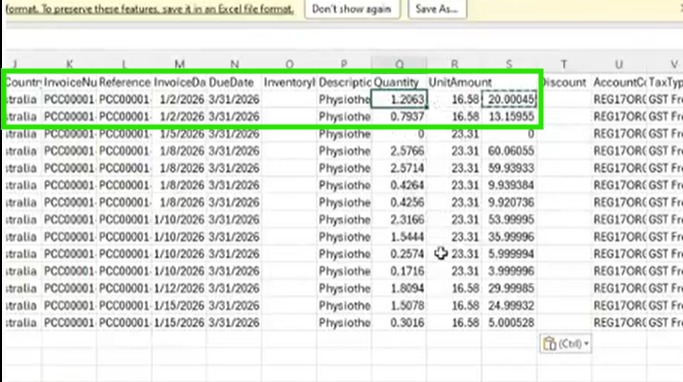
Note: For Xero Invoices, the Quantity and Unit Amount columns reflect these allocated amounts.
How It Appears in the SAH Monthly Statement File
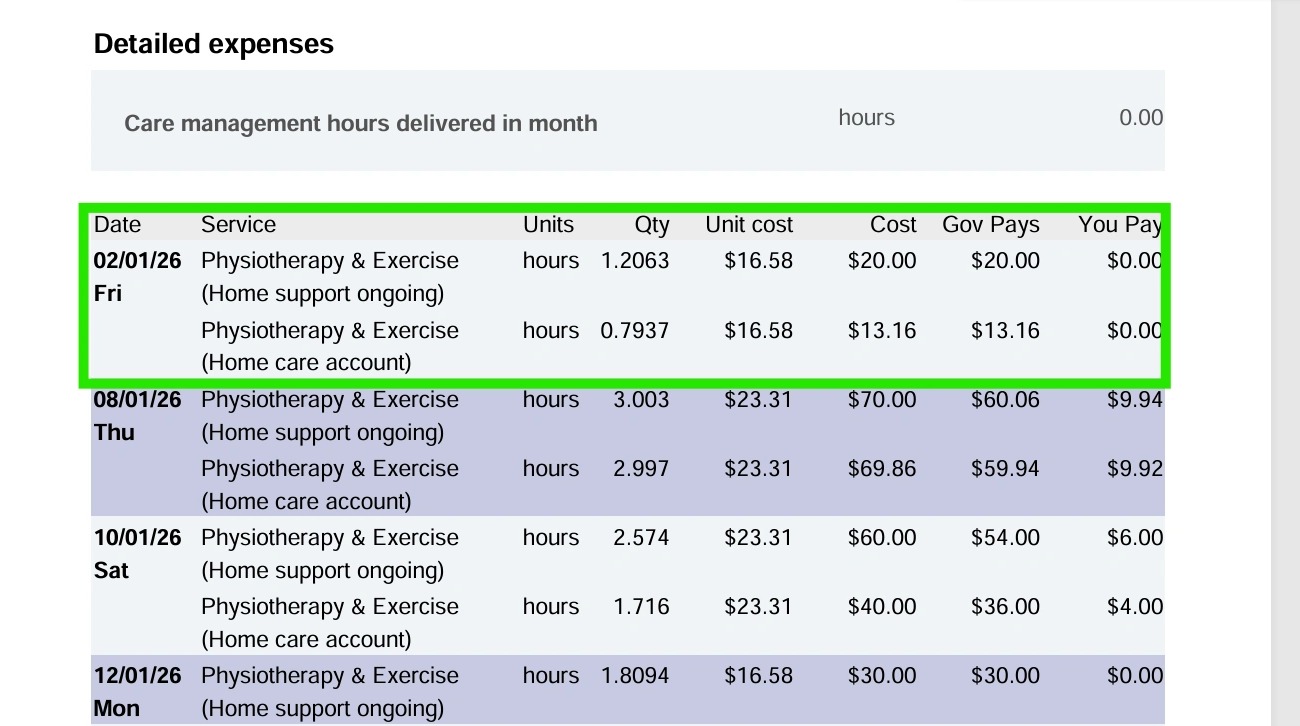
From the $33.16 total in the SAH Monthly Statement File:
- 1.2063 hours x $16.58 = $20.00 (Home Support Ongoing)
- 0.7937 hours x $16.58 = $13.16 (Home Care Account)
Scenario B. Multiple Budget Allocations (with Co-contribution)
Example
You deliver a service for 6 hours at $23.31 per hour, totalling $139.86 in the SAH Claim File (CareVision).
You deliver a service for 6 hours at $23.31 per hour, totalling $139.86 in the SAH Claim File (CareVision).
In the SAH Payment Statement Summary (Services Australia), the same $139.86 is split into:
- Ongoing Support = $70.00
- Home Care = $69.86
- Co-contribution = $19.86
How It Appears in the Claims Management Dashboard
After uploading the SAH Payment Statement Summary (Services Australia) to CareVision, the dashboard shows:
Reconciliation Status: No variance
After uploading the SAH Payment Statement Summary (Services Australia) to CareVision, the dashboard shows:
Reconciliation Status: No variance
How It Appears in the Invoice
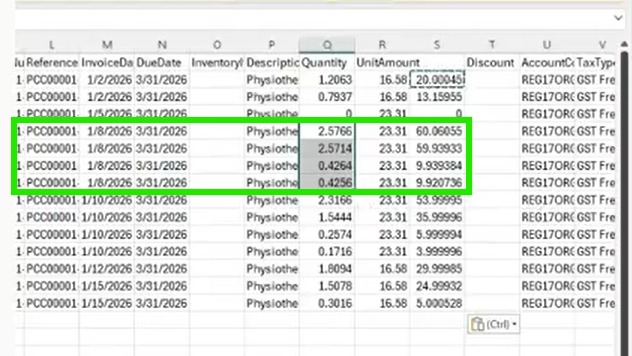
The $139.86 is split into four rows in the Invoice:
- 2.5766 hours x $23.31 = $60.06 (Home Support Ongoing)
- 2.5714 hours x $23.31 = $59.94 (Home Care Account)
- 0.4264 hours x $23.31 = $9.94 (Home Support Ongoing - Co-contribution)
- 0.4256 hours x $23.31 = $9.92 (Home Care Account - Co-contribution)
How It Appears in the SAH Monthly Statement File
From the $139.86 total in the SAH Monthly Statement File:
From the $139.86 total in the SAH Monthly Statement File:
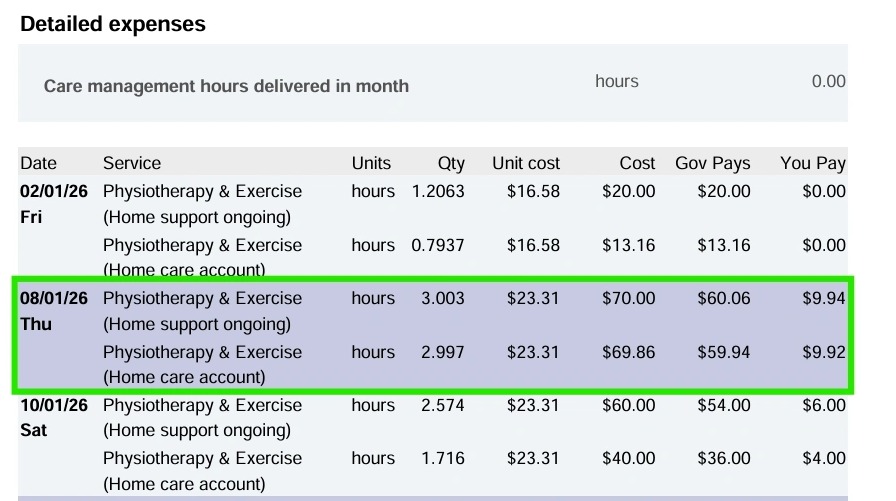
3.0030 hours x $23.31 = $70.00 (Home Support Ongoing)
- Govt Pay = $60.06
- You Pay = $9.94
2.9970 hours x $23.31 = $69.86 (Home Care Account)
- Govt Pay = $59.94
- You Pay = $9.92
Scenario C. Multiple Budget Allocations (with Co-contribution and Variance)
Example
You deliver a service for 6 hours at $23.31 per hour, totalling $139.86 in the SAH Claim File (CareVision).
In the SAH Payment Statement Summary (Services Australia), the returned amounts are:
- Home Support Ongoing = $60.00
- Home Care Account = $40.00
- Co-contribution = $10.00
- Variance = $39.86
How It Appears in the Claims Management Dashboard
After uploading the SAH Payment Statement Summary (Services Australia) to CareVision, the dashboard shows:
Reconciliation Status: Accepted
Reconciliation Status: Accepted
How It Appears in the Invoice
The Invoice is split into four rows:
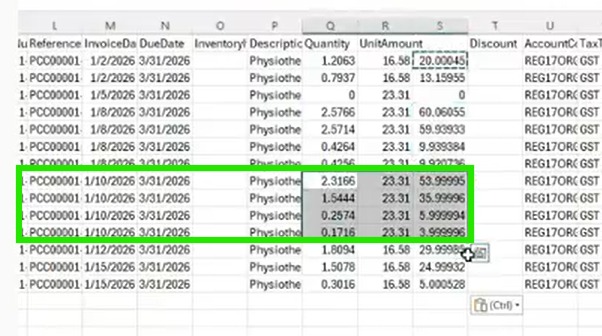
- 2.3166 hours x $23.31 = $54.00 (Home Support Ongoing)
- 1.5444 hours x $23.31 = $36.00 (Home Care Account)
- 0.2574 hours x $23.31 = $6.00 (Home Support Ongoing - Co-contribution)
- 0.1716 hours x $23.31 = $4.00 (Home Care Account - Co-contribution)
How It Appears in the SAH Monthly Statement File
From the returned amounts in the SAH Monthly Statement File:
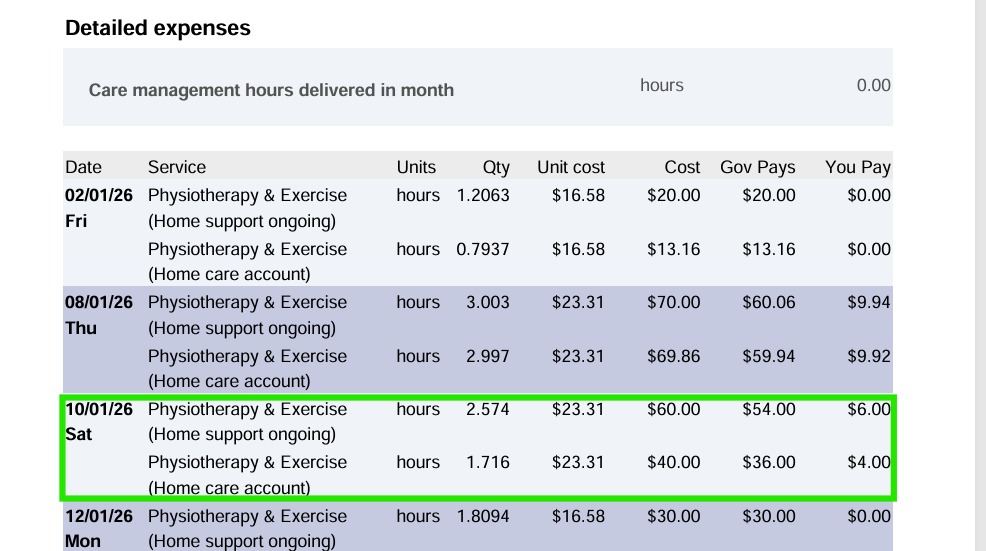
2.5740 hours x $23.31 = $60.00 (Home Support Ongoing)
- Govt Pay = $54.00
- You Pay = $6.00
1.7160 hours x $23.31 = $40.00 (Home Care Account)
- Govt Pay = $36.00
- You Pay = $4.00
Variance Handling
The unpaid $39.86 is:
- Recorded as a payment difference
- Not included in the Invoice
- Not included in the SAH Monthly Statement File
For more information, see Support at Home Billing and Claiming Workflow.