Handling Negative Claim Adjustments from Service Cancellations
This scenario occurs when services that were previously scheduled or already claimed are later cancelled. These changes create adjustment transactions (credits), which appear as negative line items in the SAH Claim File generated from CareVision.
Why do I need to take action?
Services Australia does not accept negative values in claim uploads. Any negative line items must be removed from the claim file, and the corresponding adjustments must be made manually in the Services Australia portal.
What files are involved?
- SAH Claim File (CareVision): The original file generated for submission
- Adjusted SAH Claim File (CareVision): The updated file with all negative line items removed
- SAH Payment Statement Summary (Services Australia): The results file showing processed payments and adjustments
Steps to Handle Negative Claim Adjustments from Service Cancellations
Step 1: Generate the SAH Claim File in CareVision for the relevant period.
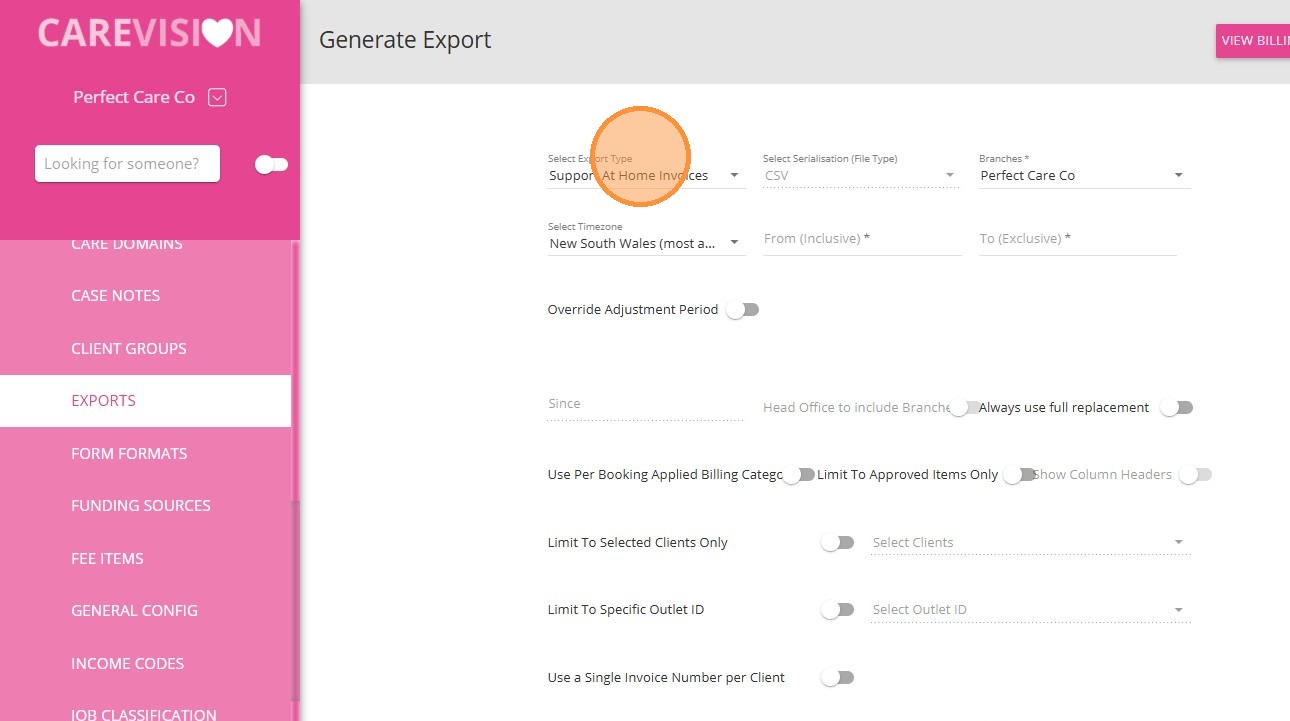
Step 2: Review and remove negative line items
Open the SAH Claim File and identify any negative values caused by cancellations or booking changes. These are indicated in Column A with the message: Adjustment transaction. Negative not allowed. Remove all identified negative line items and save the file as the Adjusted SAH Claim File.
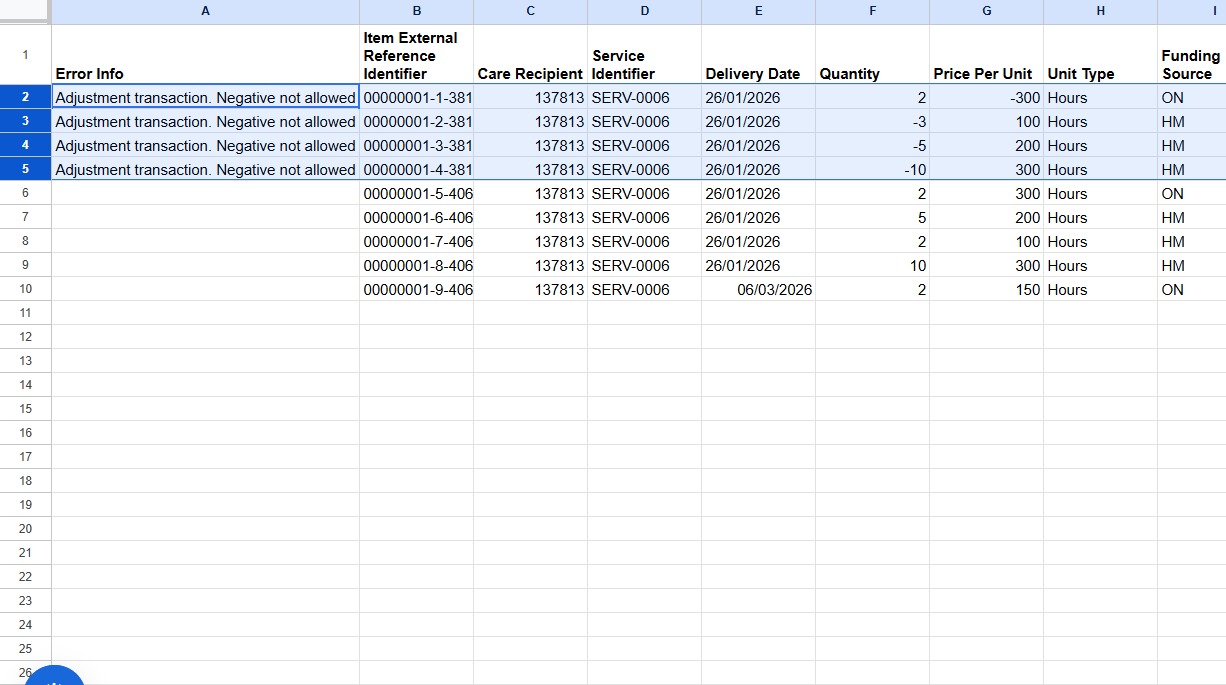
Step 3: Upload the Adjusted SAH Claim File to Services Australia
Make sure the file contains only valid (positive) line items.
Step 4: Mark the claim file you uploaded to Services Australia as “final.”
In CareVision, mark the claim file that was uploaded to Services Australia as “Final.”
 For detailed steps, refer to Step 6 in the Support at Home Billing and Claiming Workflow.
Step 5: Manually adjust in Services Australia
In the Services Australia portal:
In the Services Australia portal:
- Find the original claim
- Set affected line items to $0 (manual adjustment).
Step 6: Download the SAH Payment Statement Summary from Services Australia.
Step 7: Upload the SAH Payment Statement Summary into CareVision for reconciliation.
For detailed steps, refer to Step 8 in the Support at Home Billing and Claiming Workflow.What is the expected outcome?
CareVision reconciles the Adjusted SAH Claim File with the SAH Payment Statement Summary. Removed line items (negative values) will not be invoiced, as they are excluded from billing during reconciliation.
- In the Claims Management dashboard, these items display Entitlement Type as Previous, indicating they relate to past claims.
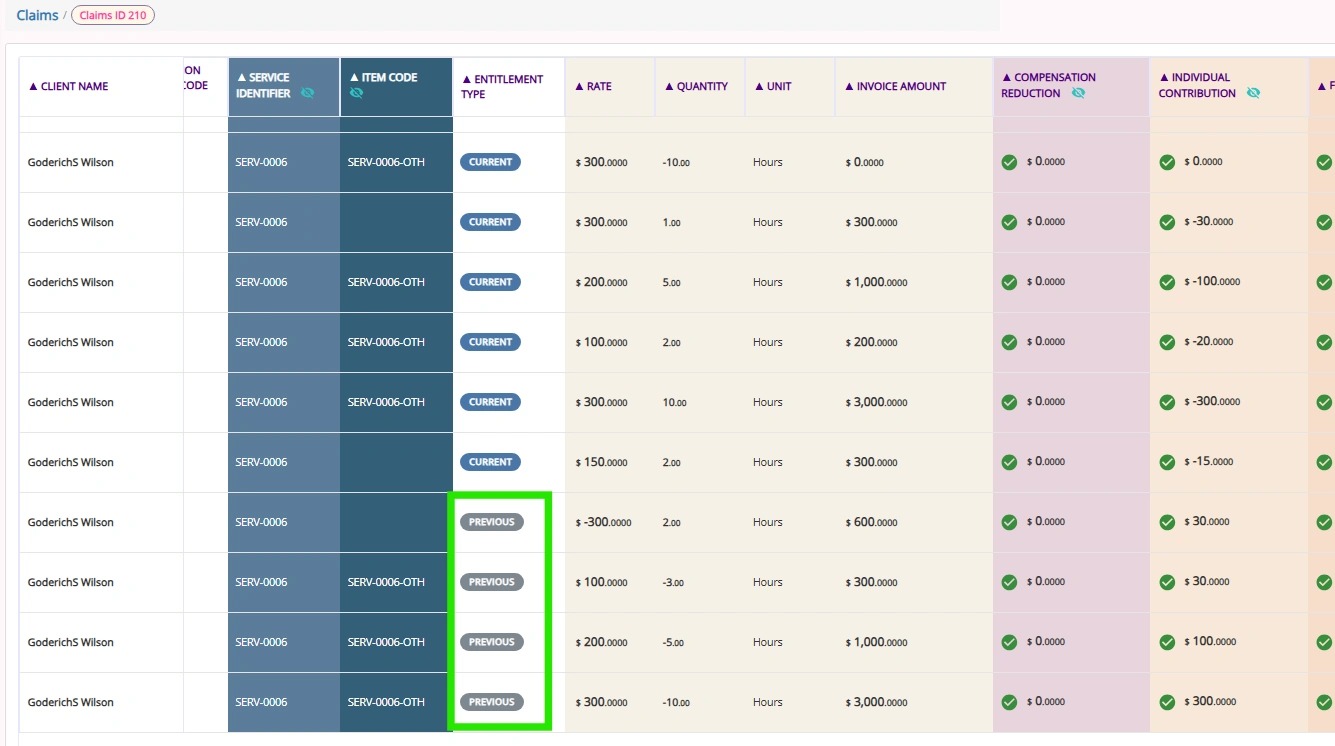
- These items also display Reconciliation Status as Excluded, confirming they are not included in current billing outcomes.
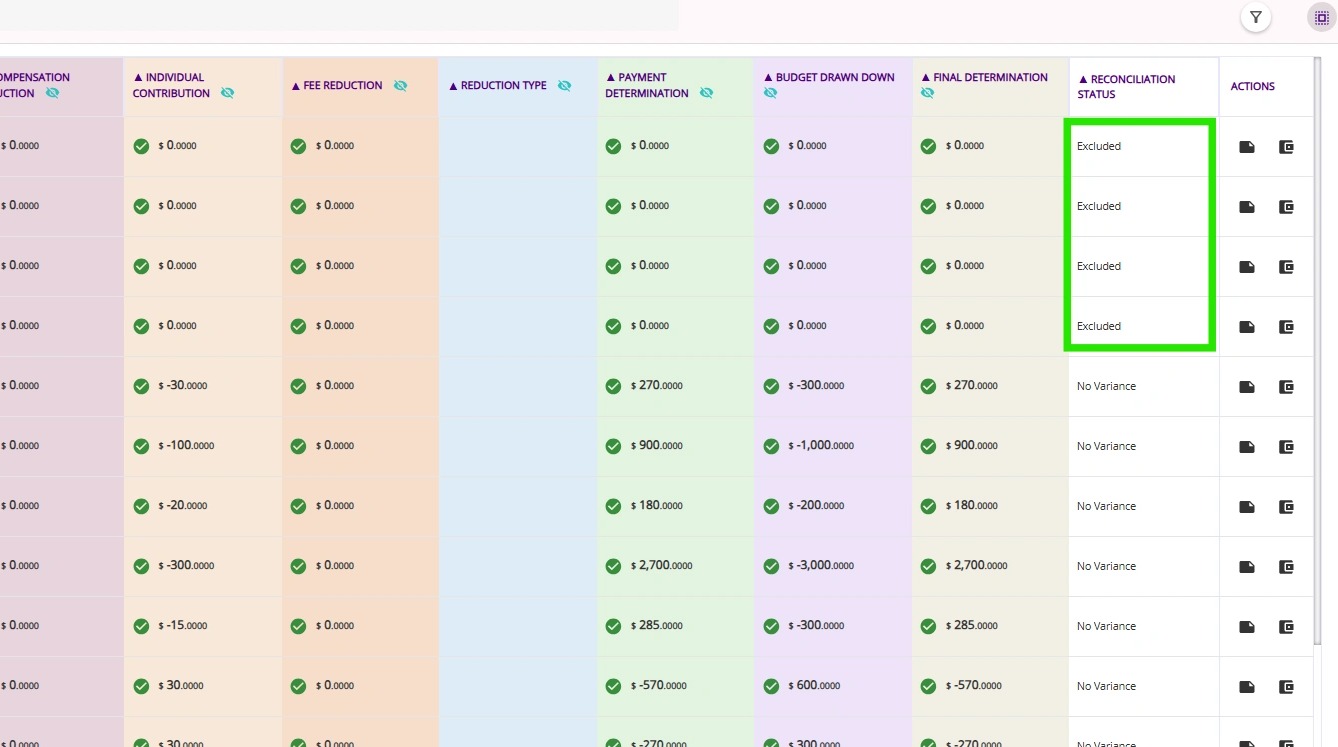
- In the SAH Statements, adjustments appear as negative values under Variations from past calendar months, showing corrections applied to earlier claims.
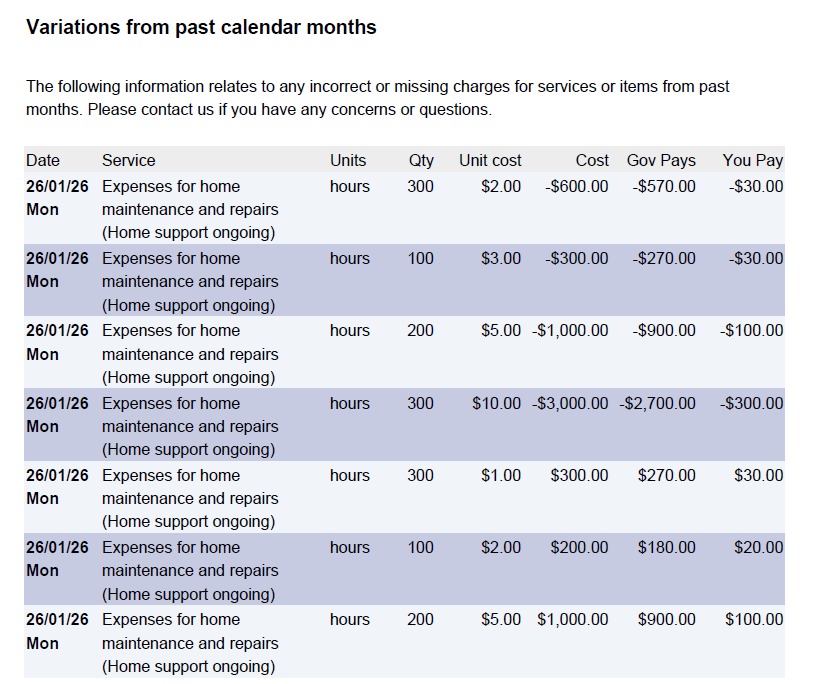
Previously overclaimed or changed services are correctly adjusted without affecting current valid charges.
For more information, see Support at Home Billing and Claiming Workflow.