The Support at Home billing and claiming workflow in CareVision guides you through reviewing services, generating and checking your claim file, and submitting it to Services Australia. After you receive the Services Australia CSV payment statement, upload it back into CareVision for automatic checks and corrections. Once data is validated and finalized, you’re ready to send invoices to your finance systems and customers.
This topic describes the step-by-step process for billing and claiming under Support at Home program.
Keywords: support at home billing, carevision claiming process, sah claim file, services australia upload, data sanitation checks, carevision export steps, claim validation carevision, services australia csv, invoice generation carevision, client statements carevision
Step 1: Service Review Process Completed
Under Support at Home, you will continue to follow the service review process. Make sure all services for the claim period are reviewed and approved, and resolve any warnings flagged by the system. For more information, see Service Review.
Step 2: Run the Claim File for the Same Period
Generate the SAH claim file for the selected period. The system allows you to set parameters and will produce draft files for review.
Run the Claim File for the Same Period
1. Click Settings in the left menu, then click Exports.
2. Set the Select Export Type field to the relevant value. For example, Support At Home Invoices.
3. Set the Branches field to the relevant branch.
4. Set the Select Timezone field to the appropriate Australia time zone.
5. Set the From (Inclusive) date field to the start of the period.
6. Set the To (Exclusive) date field to the end of the period.
This field is exclusive. If you enter a date here, bookings on that date will not be included. Only bookings up to, but not including, the specified date will be included.
7. (Optional)
Turn on the Override Adjustment Period toggle to allow extra days after your export period for capturing late changes. This ensures all updates up to your selected Adjustment To date are automatically included, keeping your reports accurate and complete.
Specify the Adjustment From (Inclusive) and Adjustment To (Exclusive) fields, along with the appropriate start and end times.
 Note: Always set the Adjustment From (inclusive) date and time for the new billing period to exactly match the Adjustment To (exclusive) date and time from the previous billing period. This ensures seamless billing with no gaps or overlaps, preventing both missed charges and double billing.
Example: If the Adjustment To (exclusive) date for the previous period is December 10, 8:00 pm, then the Adjustment From (inclusive) date for the next period must also be December 10, 8:00 pm.
We recommend that you keep track of these dates from period to period.
8. (Recommended) For Support at Home, turn on the Always Use Full Replacement toggle. This ensures adjustments appear clearly on invoices, with both the original and corrected amounts shown side by side.
For example, if a service is adjusted from 3 hours to 1 hour, the invoice will display a full credit for 3 hours and a separate charge for 1 hour. This provides clear visibility of both the original and updated amounts, making the billing easier for clients to understand.
9. (Recommended) Turn on the Use Per Booking Applied Billing Category toggle. This ensures each booking uses the correct billing category for the client, which is important for accurate billing.
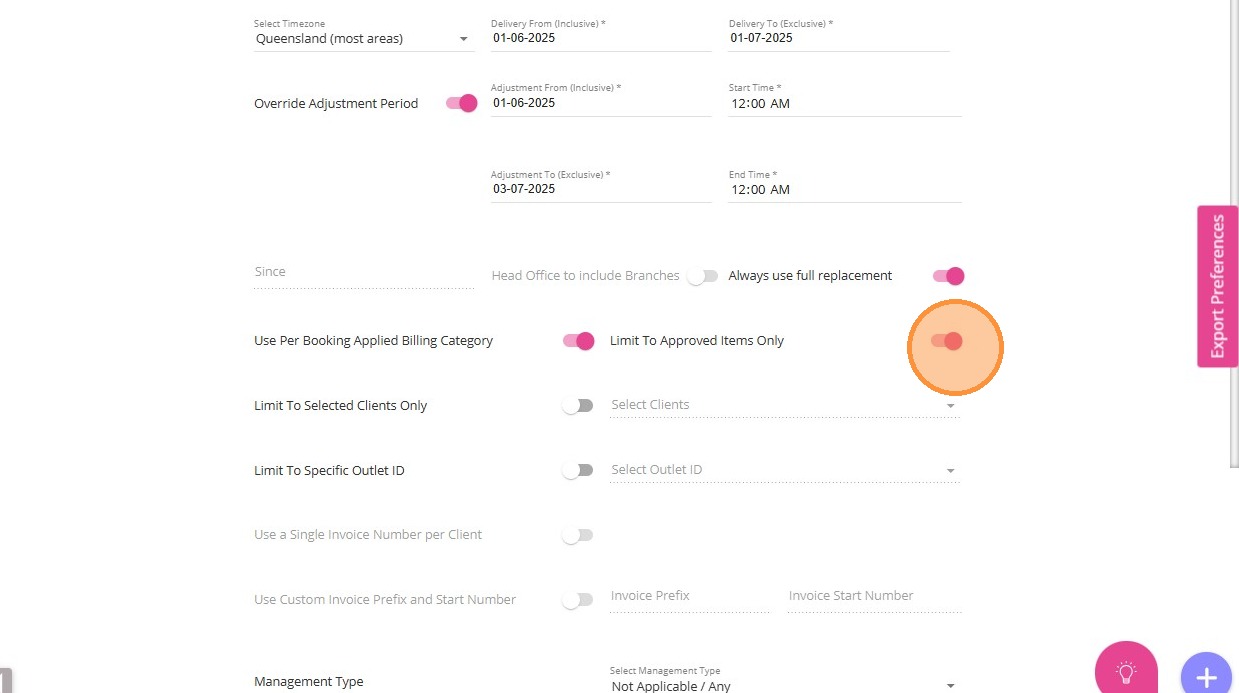
10. (Recommended) Turn on the Limit to Approved Items Only. During service review, only bookings and shifts approved within the selected date range are exported. If you approve a past booking in a later month, it will appear in the claim and statement for the month it was approved, not when the booking originally occurred.
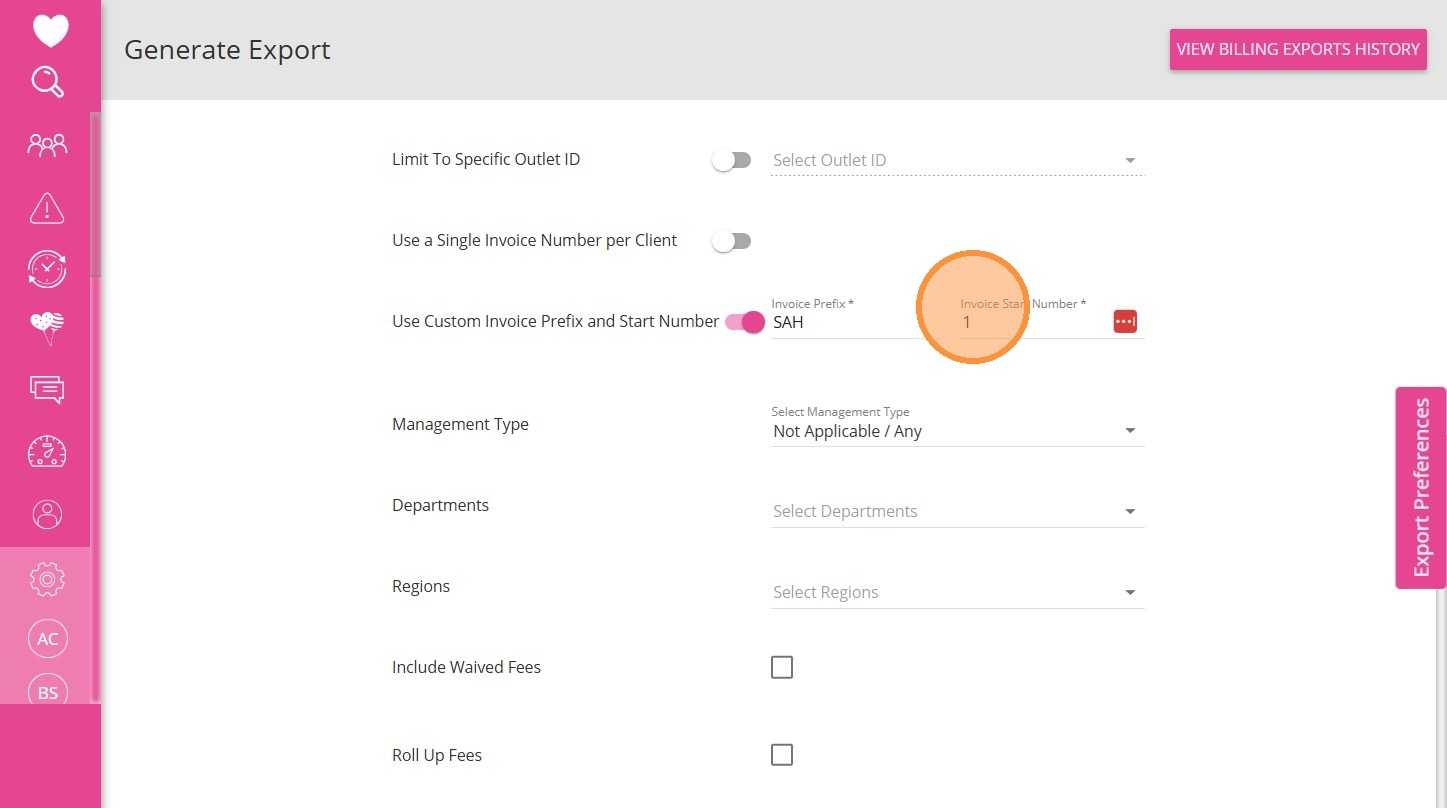
11. If you want to restrict exports to specific clients, turn on the Limit To Selected Clients Only toggle and select the desired clients from the dropdown on the right.

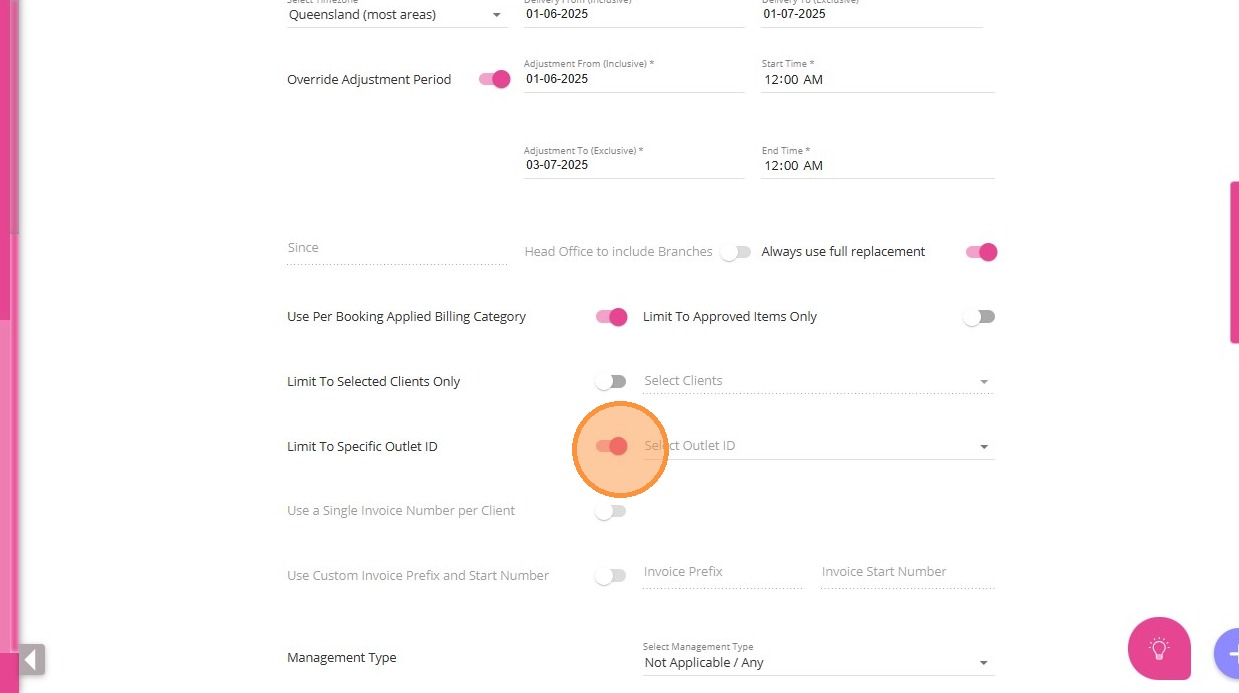
12. (Recommended) Turn on the Limit to Specific Outlet ID toggle to restrict the export to SAH items only.
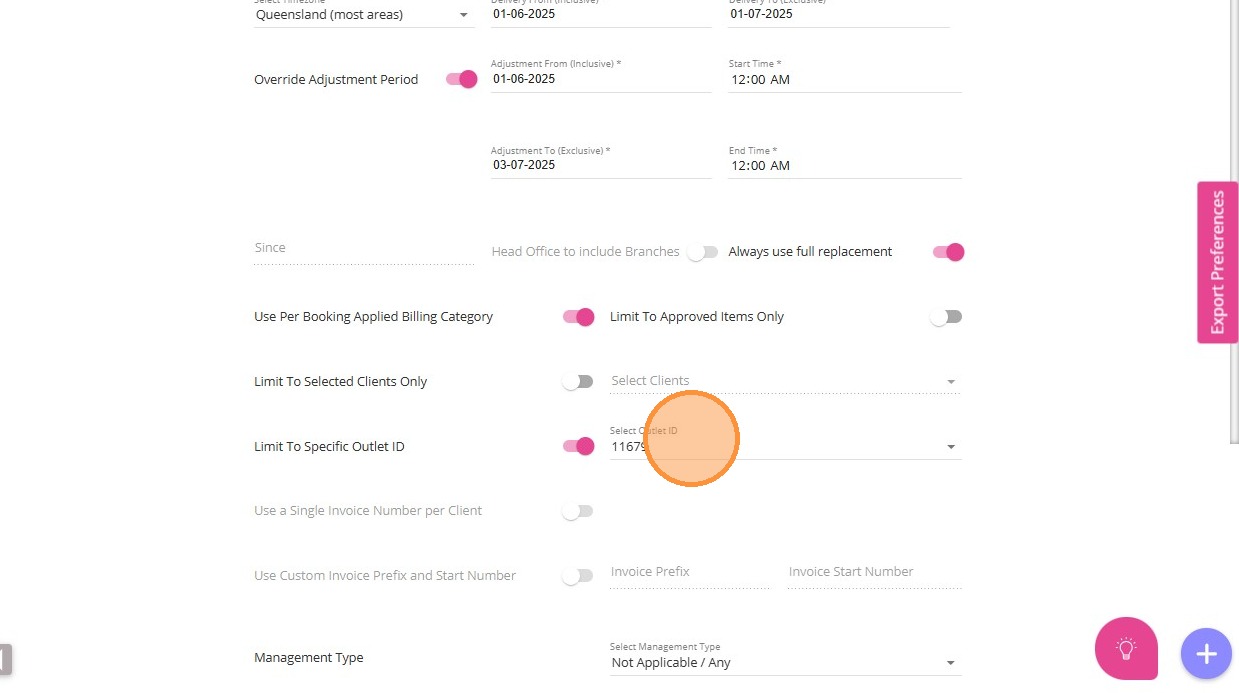
13. Then, select the desired outlet ID in the Select Outlet ID field.
14. Use Custom Invoice Prefix and Start Number: In most cases, organizations use a prefix that matches the type of invoice. For example, they may use "SAH" for Support at Home invoices. For this example, use the prefix "SAH" and set the invoice start number to 1.
15. Review all settings. If you verify that all settings are correct, click Generate Export.
If you want to save your export settings, click Save Export Preference. Step 3: Data Sanitation Checks and Corrections
The system automatically checks for data issues such as invalid account codes, missing debtor references, incorrect SAH claiming codes, and missing evidence. All flagged issues must be corrected in CareVision before proceeding. Do not manually edit the downloaded claim file to avoid downstream errors.
Steps:
Review the client file and note any errors flagged by the system.
Correct all identified errors directly in CareVision.
Once all errors are resolved, export the claim file again.
Perform a new export using the adjustment period to capture any recent changes.
Turn on the Override Adjustment Period toggle to allow extra days after your export period for capturing late changes. This ensures all updates up to your selected Adjustment To date are automatically included, keeping your reports accurate and complete.
Specify the Adjustment From (Inclusive) and Adjustment To (Exclusive) fields, along with the appropriate start and end times.
Note: Always set the Adjustment From (inclusive) date and time for the new billing period to exactly match the Adjustment To (exclusive) date and time from the previous billing period. This ensures seamless billing with no gaps or overlaps, preventing both missed charges and double billing.
Example: If the Adjustment To (exclusive) date for the previous period is December 10, 8:00 pm, then the Adjustment From (inclusive) date for the next period must also be December 10, 8:00 pm.
Step 4: Download the Claim File
Once all data sanitation issues are resolved, click Generate Export to download the SAH claim file.
Step 5: Upload the Claim to Services Australia
Submit your claims through the Services Australia Aged Care Provider Portal (ACPP).
In the Claim confirmation screen, make sure that you:
- Check the I confirm box if the services you are claiming are accurate and complete.
- Click the Claim invoices button to submit all invoices for approval by Services Australia before payment can be made to your account.
Note: If you open the CSV file before uploading it to Services Australia Aged Care Provider Portal, you must format the date as yyyy-mm-dd.
Step 6: Mark the Final Claim File as "Final"
In CareVision, mark the claim file you uploaded to Services Australia as “final.” This step is critical for audit and reconciliation purposes.
Mark the Final Claim File as "Final"
1. In the left menu bar, click Settings > Exports.
2. Click View Billing Exports History.
3. Find the claim file you previously exported. In the Actions column and mark an entry as final by clicking the Mark as Final box.
Take note of the Export ID for your reference.
Once a claim file is marked as Final in the Billing Exports History section, it will appear on the Claiming Management Dashboard. The dashboard only displays claims that have been marked as final. The file will then have a status of Pending under the Claiming Management Dashboard.
Step 7: Receive the Services Australia CSV Statement
After processing, Services Australia will provide a payment statement summary in CSV format. This statement will detail amounts that have been paid, partially paid, or rejected.
Step 8: Upload the CSV to CareVision
Upload the Services Australia CSV statement into CareVision. This allows automated reconciliation and further validation.
Steps:
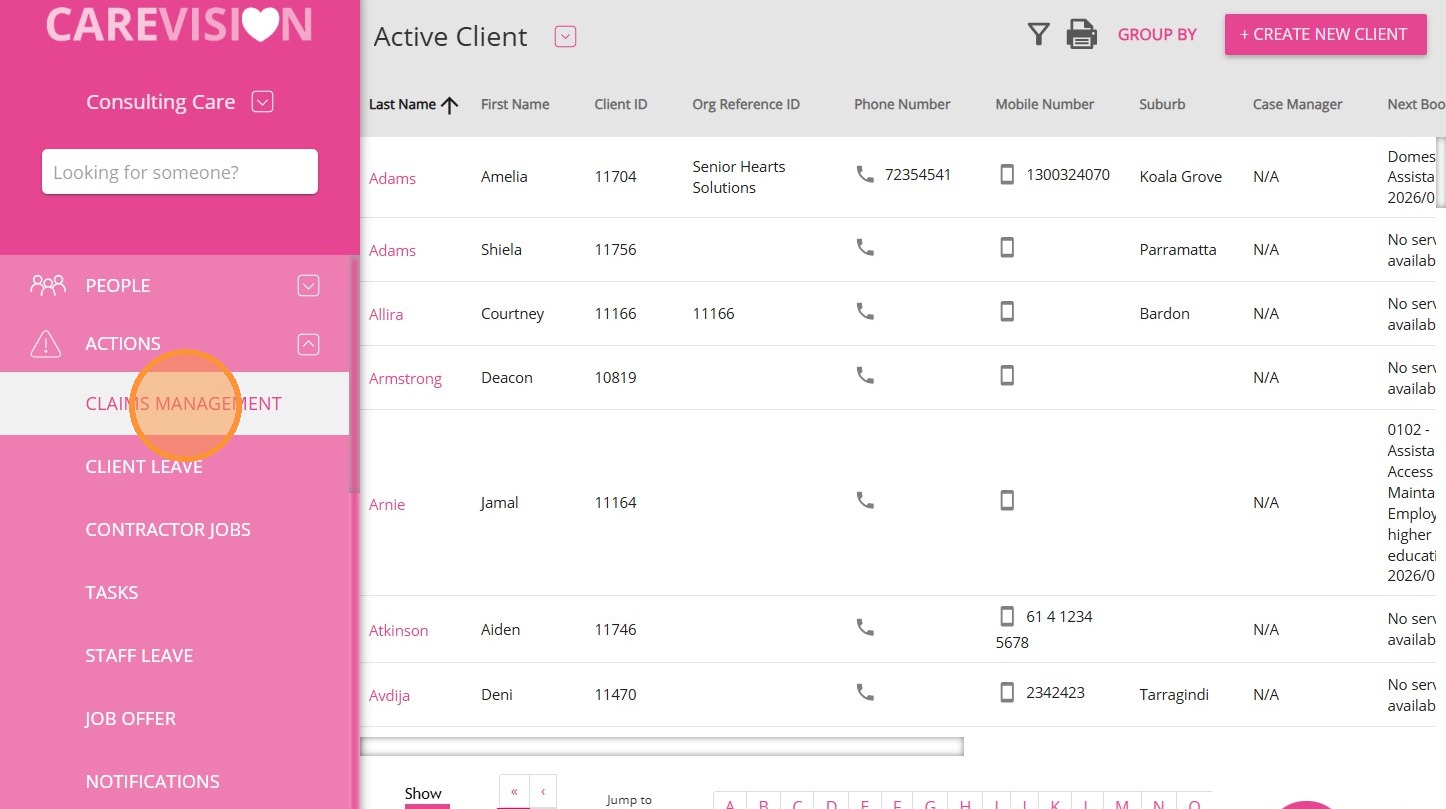
1. In the left menu bar, click Actions > Claims Management.
2. In the lower left, click the arrow to expand the Claims Management dashboard for easier viewing.
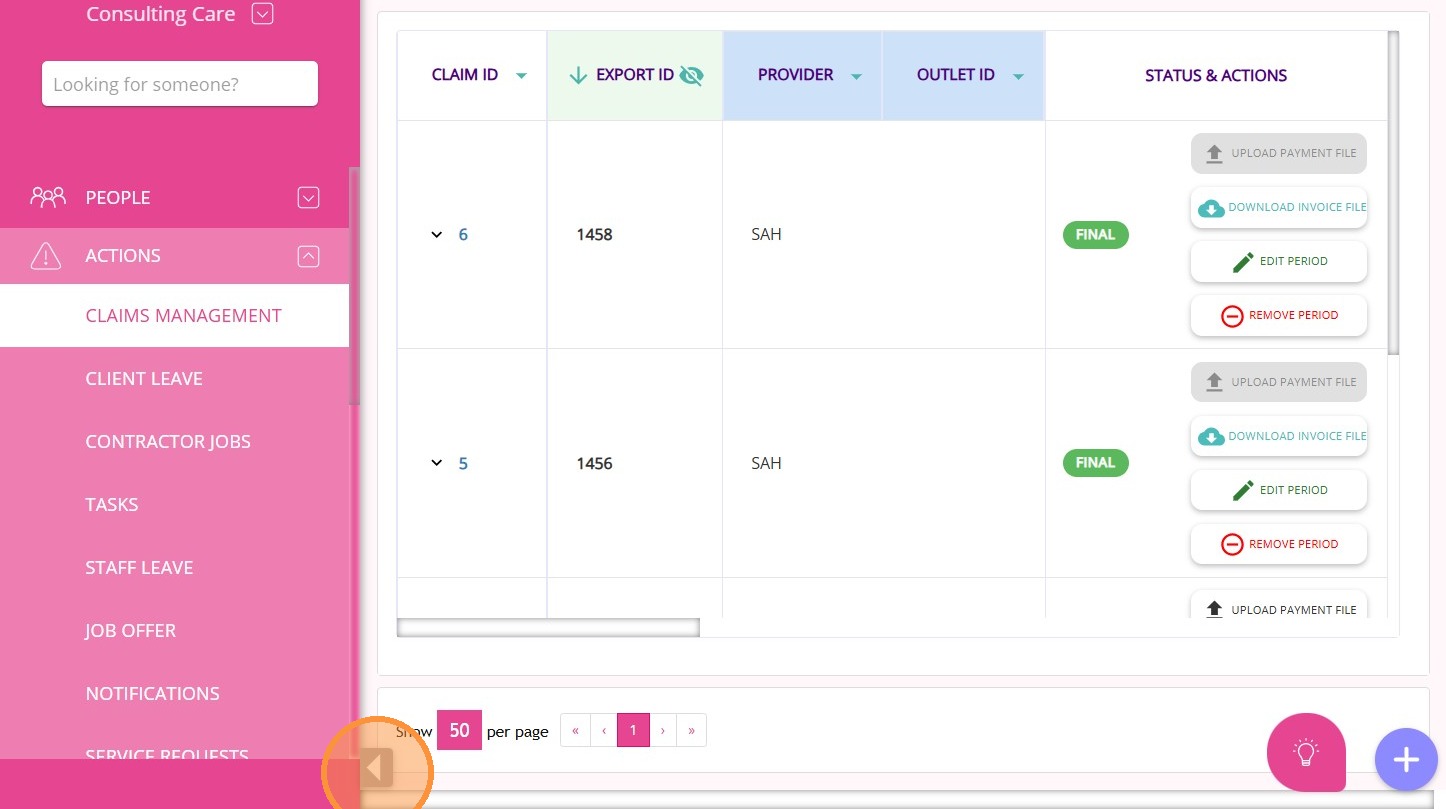
3. Locate the finalized SAH claim by referencing the export ID you previously recorded.
4. In the Status & Actions section, click the upward arrow to upload the payment file.
5. Click Add File.
6. Select the correct file from your computer and click Upload. The claim status will update to Processing, which means your team can now begin processing the claim.
7. To work on the claim, click the claim ID.
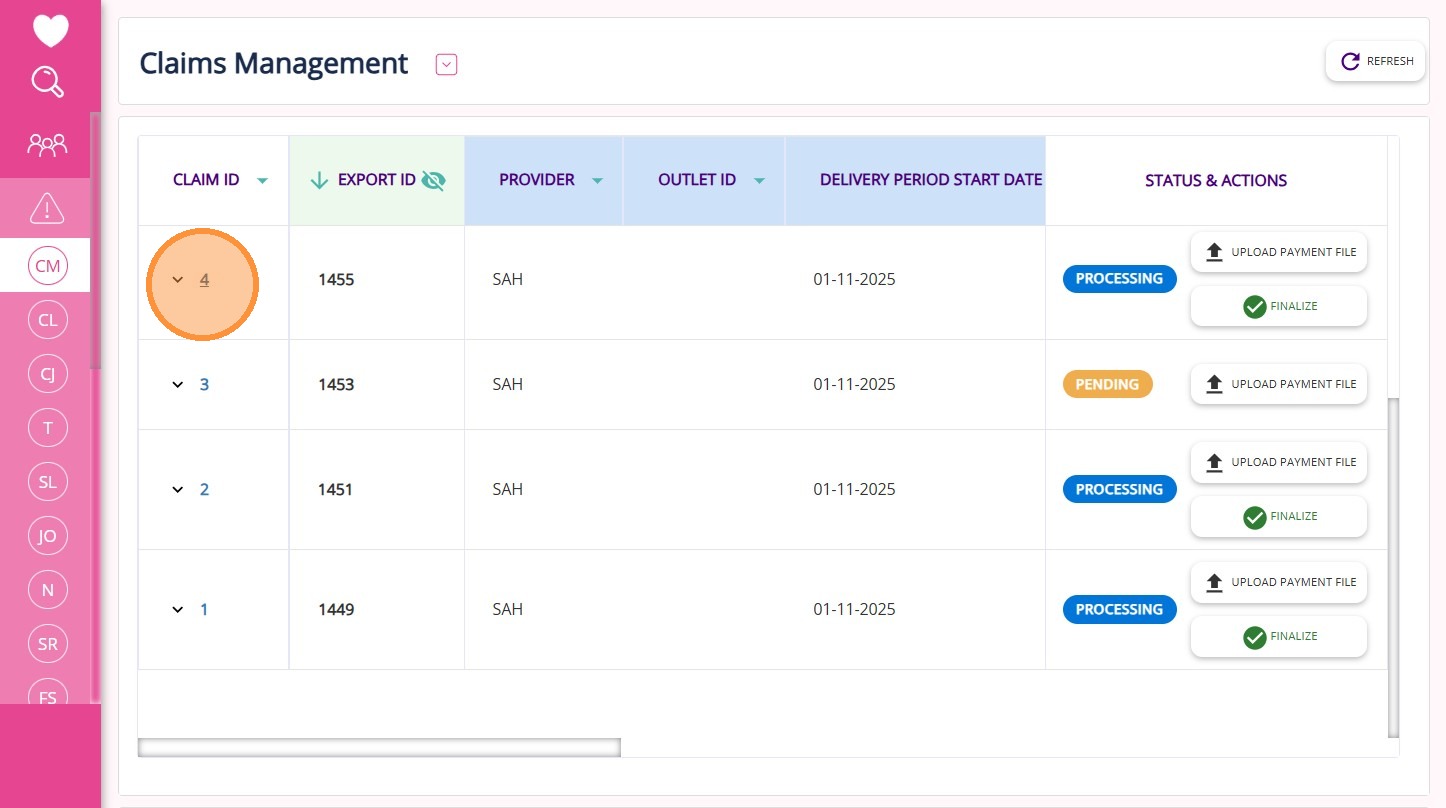
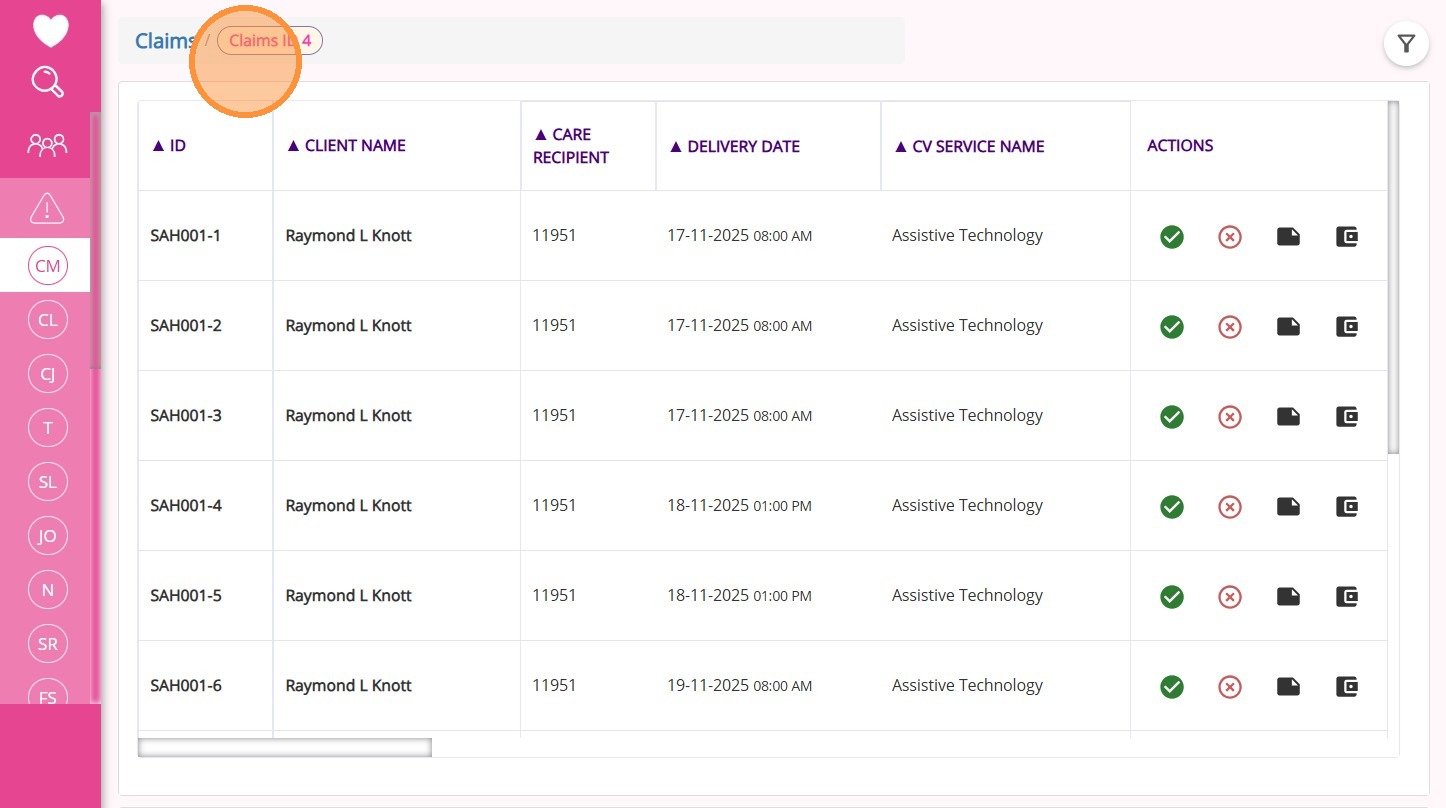
Then, it will open in a new tab for you to process the items. See Step 10 for more details.
Step 9: CareVision Processes and Runs Data Checks
CareVision will process the uploaded CSV, running checks to compare government-calculated and system-calculated amounts, and flagging any variances or issues for review.
Step 10: Review the Claim Validation
Use the Claims Management Dashboard in CareVision to review discrepancies, accept or dispute claim items as needed, move items between funded and co-payment files, and ensure all amounts align with Services Australia’s determinations.
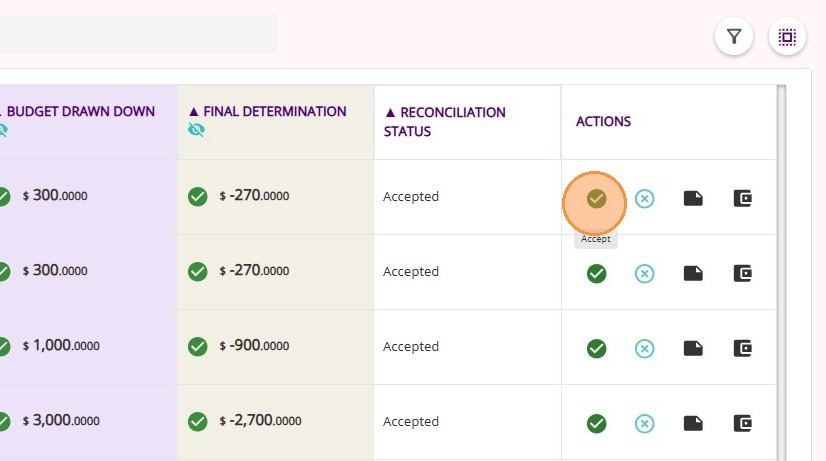
Click Accept to confirm you agree with the value given by the government, as reflected in the Support at Home (SAH) payment statement file from Services Australia. If no action is taken (no Accept or Dispute), the system will automatically accept this value.
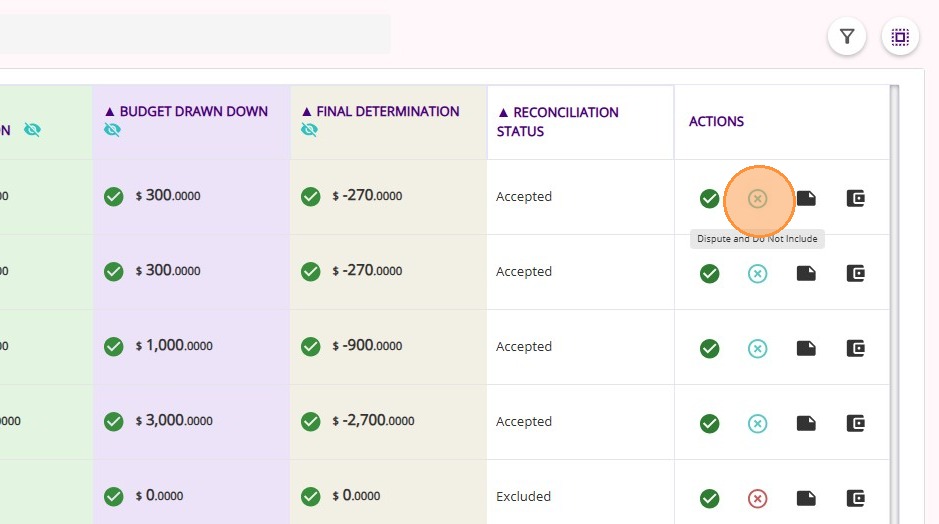
Click Dispute and Do Not Include to reject the value given by the government and exclude the claim from the Support at Home Statement File.
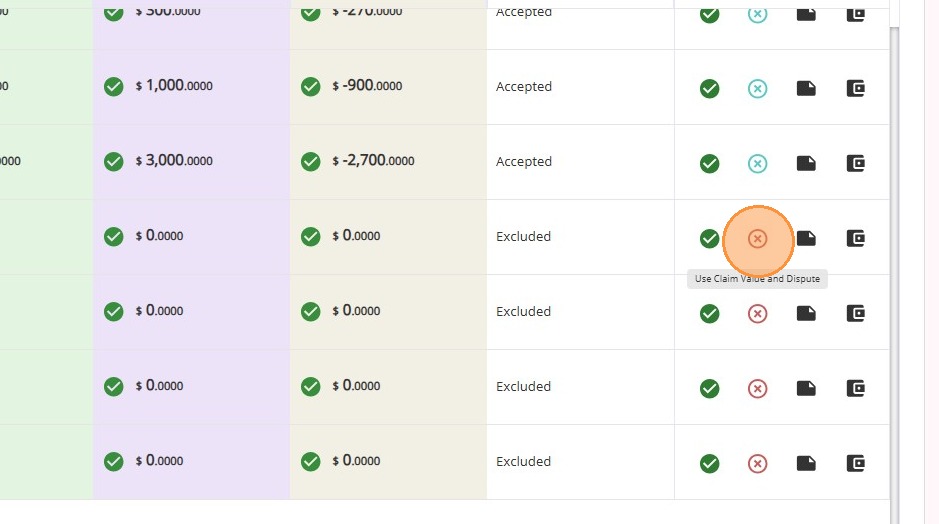
Click Use Claim Value and Dispute to indicate you do not agree with the value given by the government (as reflected in the SAH payment statement file) and will instead use CareVision’s calculated claim value.
Other Actions
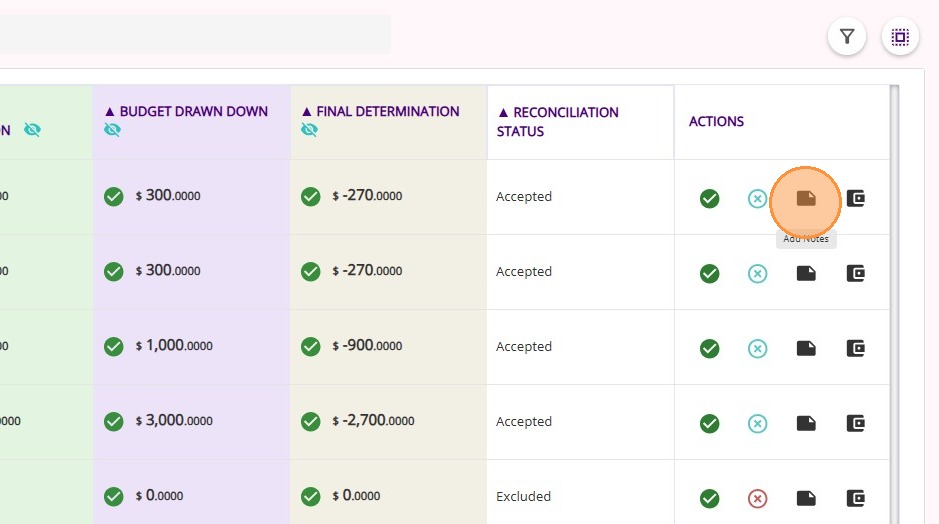
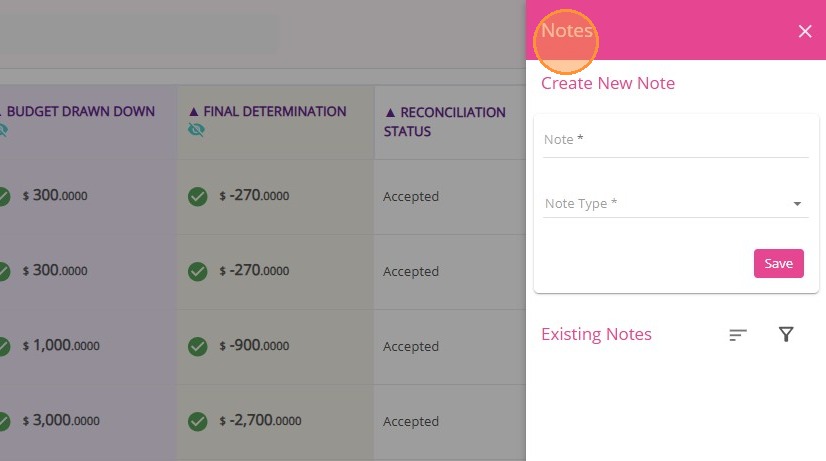
Add Notes: You can now add explanatory notes directly to a claim.
This functionality makes it easy to document important information within the claim record, helping your team keep all relevant details organized and accessible for future reference and collaboration.
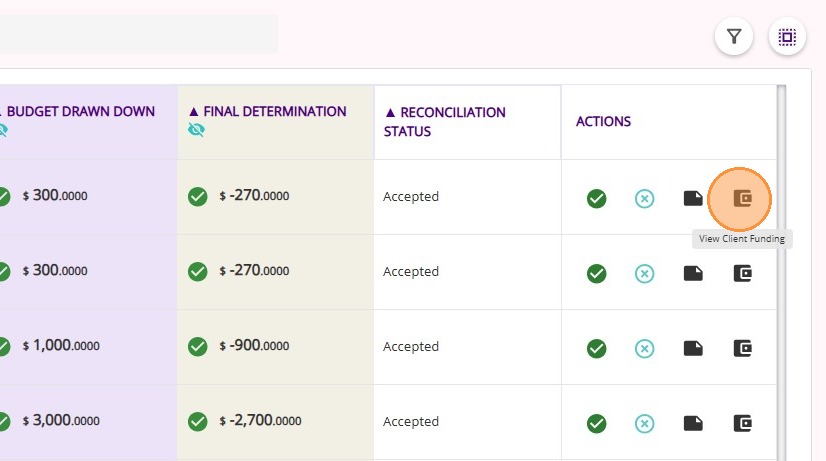
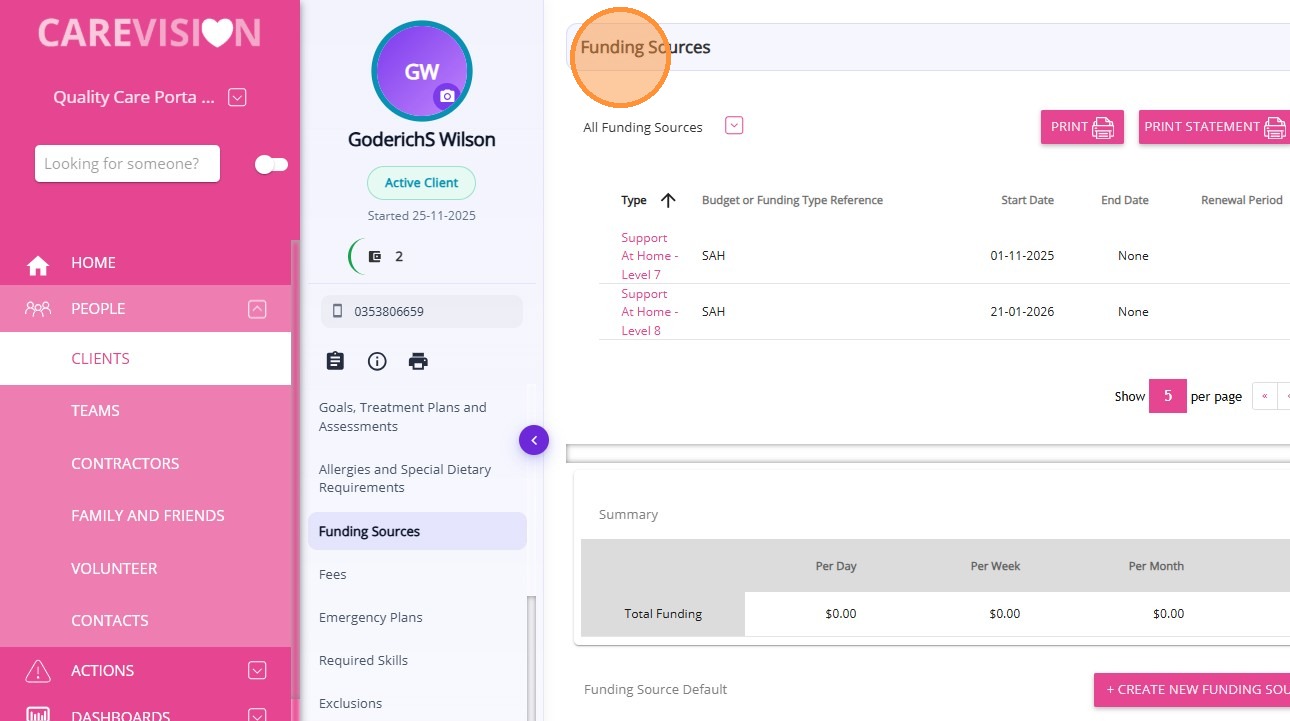
Click View Client Funding to view the client’s funding details.
You will be redirected to the client profile, specifically the Funding Sources section.
Finalize a Claim
1. In the Claims Management Dashboard, locate the claim where all variances have been processed and accepted (there are no remaining variances).
2. In the Status & Actions column for that claim, click the Finalize button.
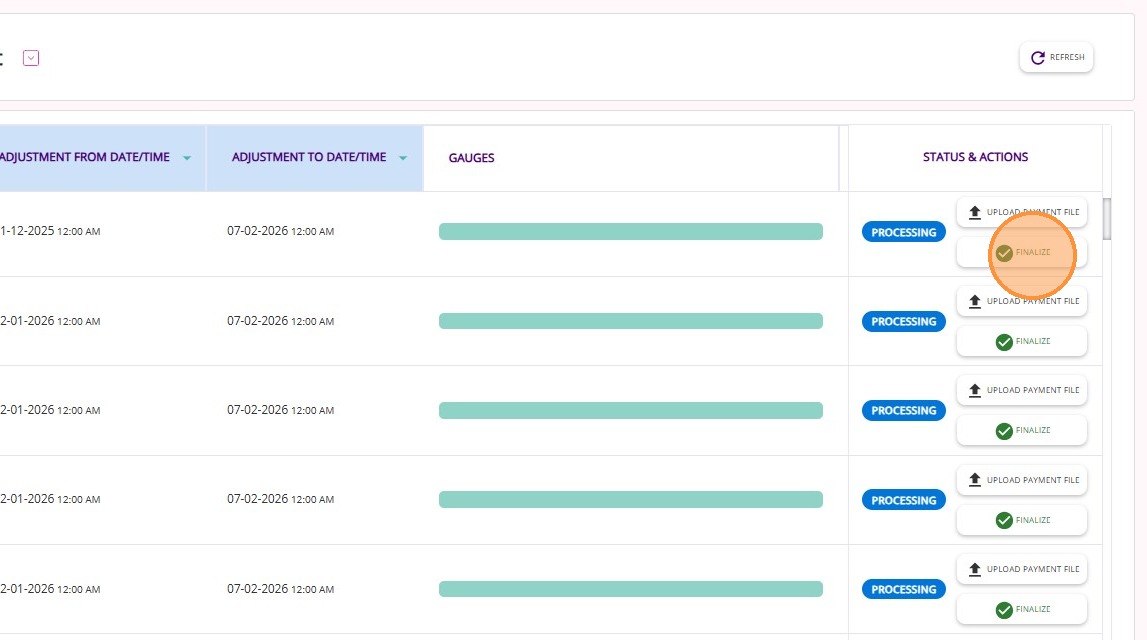
3. Click Yes to confirm. This action will mark the claim as final.
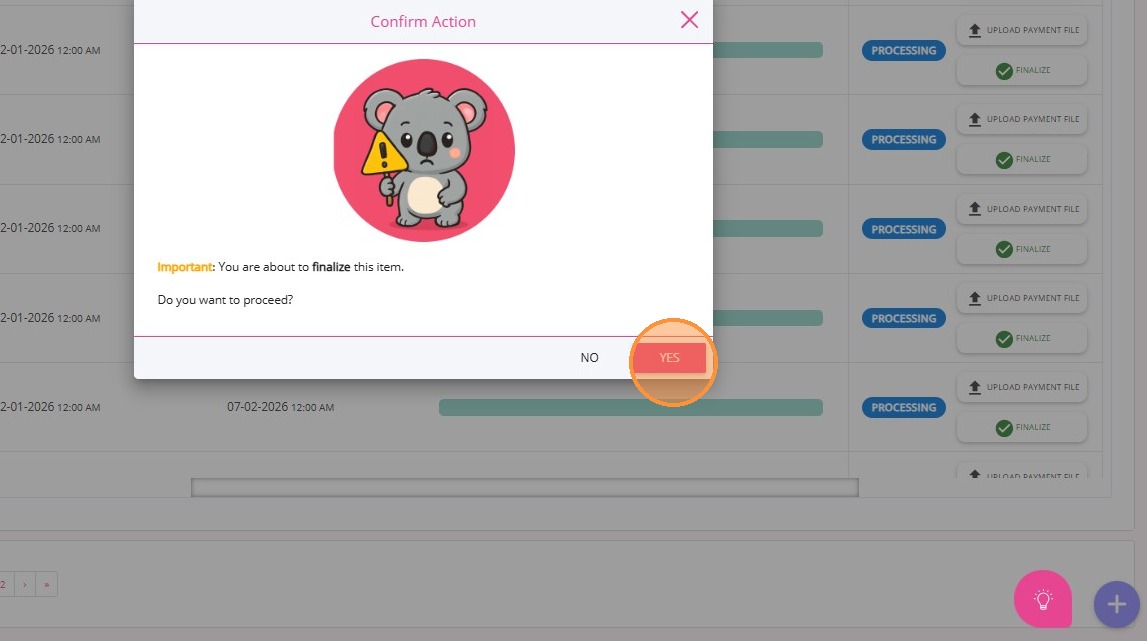
Step 11: Correct and Recalculate as Needed
Make any necessary corrections in the system and use the recalculate/validate function to confirm all issues are resolved. Repeat as needed until all variances are resolved.
Step 12: Send Invoices to Finance Systems and Customers
Once validation is complete, generate and send funded invoices to your finance system. Generate co-payment invoices for clients as required. Do not send invoices until after claim validation is complete.
Steps:
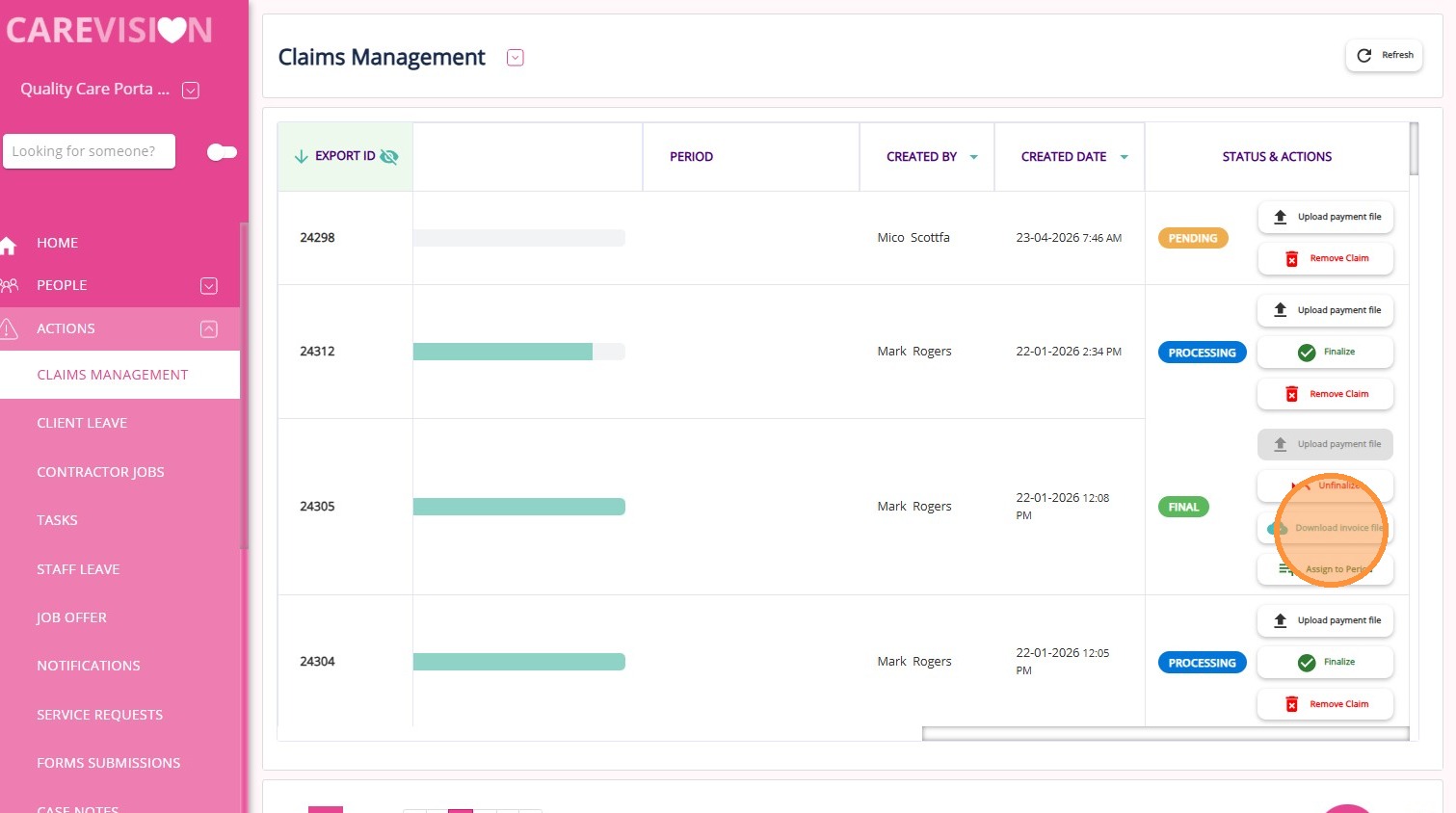
1. In the left navigation pane, go to Actions> Claims Management.
2. Locate the relevant claim ID in the list.
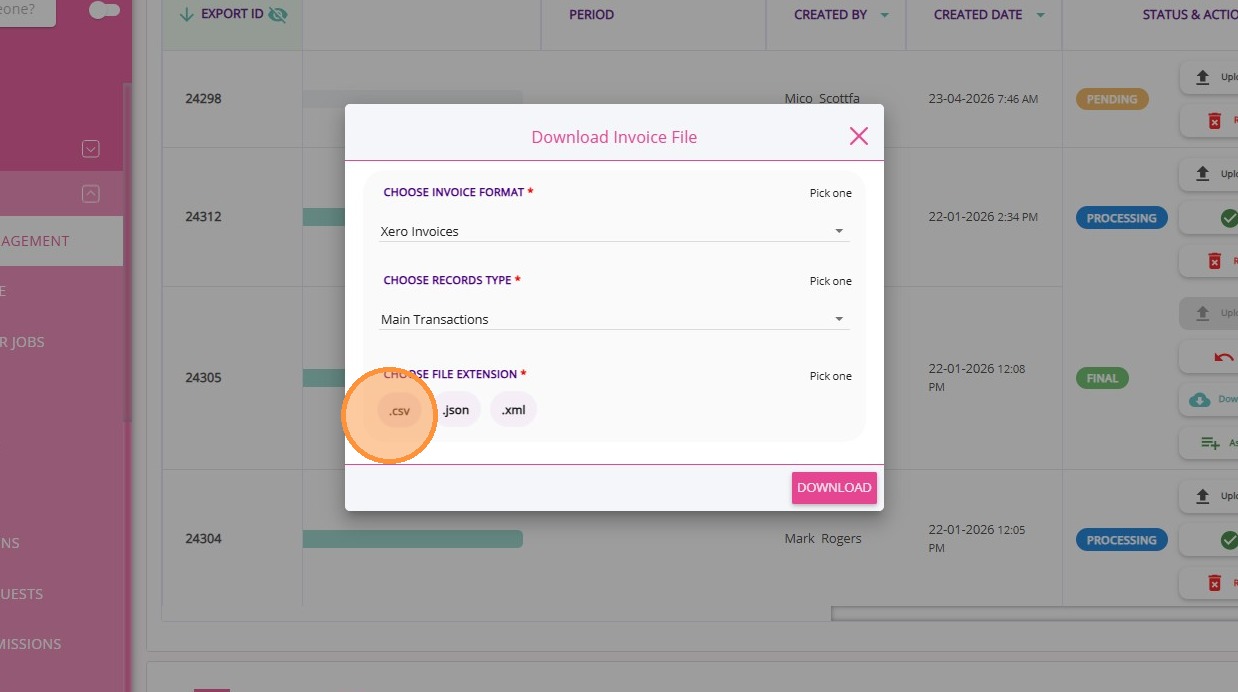
3. In the Status & Actions column for that claim ID, click the Download Invoice file icon.
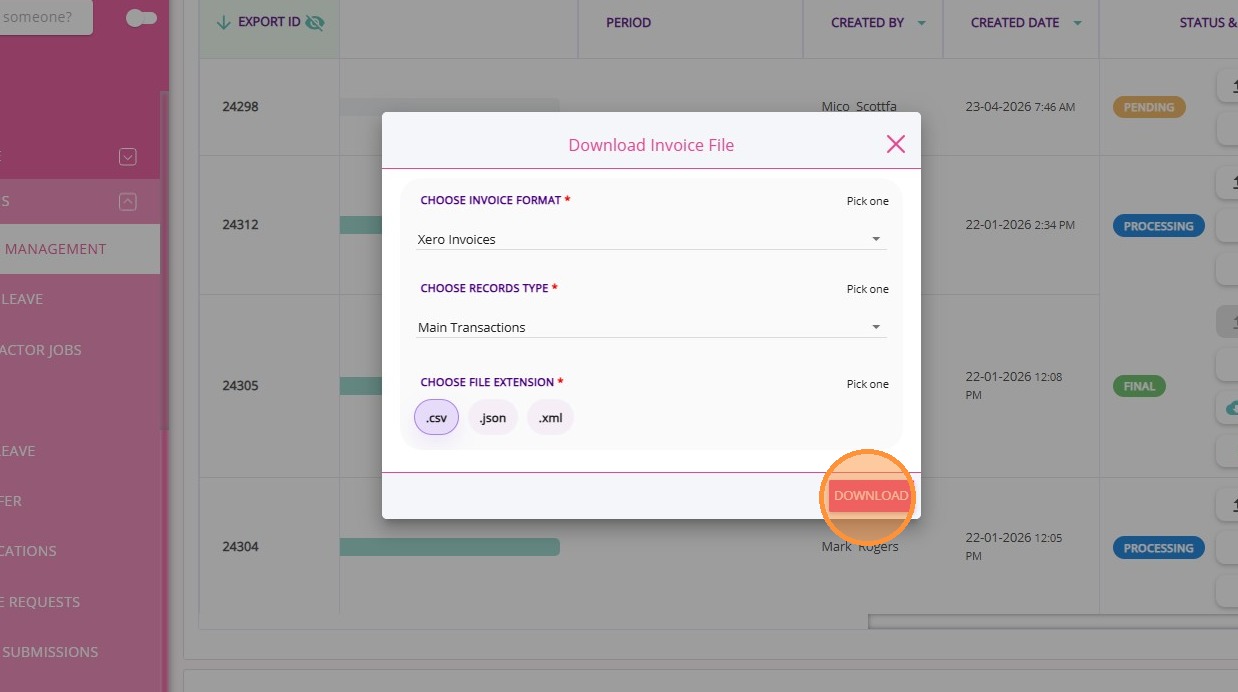
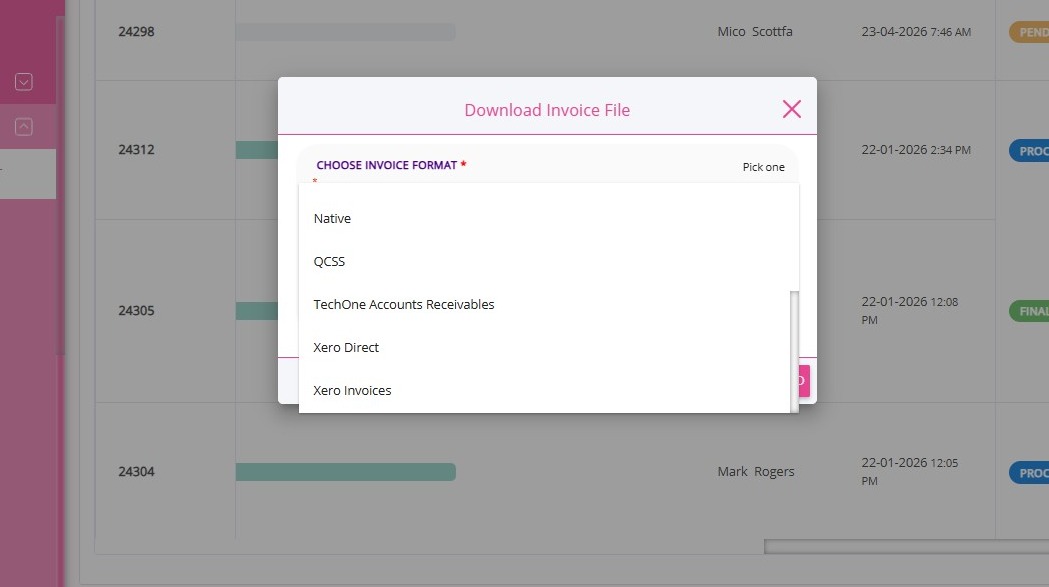
4. Select the appropriate export format for your finance system (Example: Dex CHSP File, Xero Invoices, MYOB, Epicor, or TechOne). For example, TechOne, this will generate both the government invoices and the co-contribution invoices.
5. Select Main Transactions.
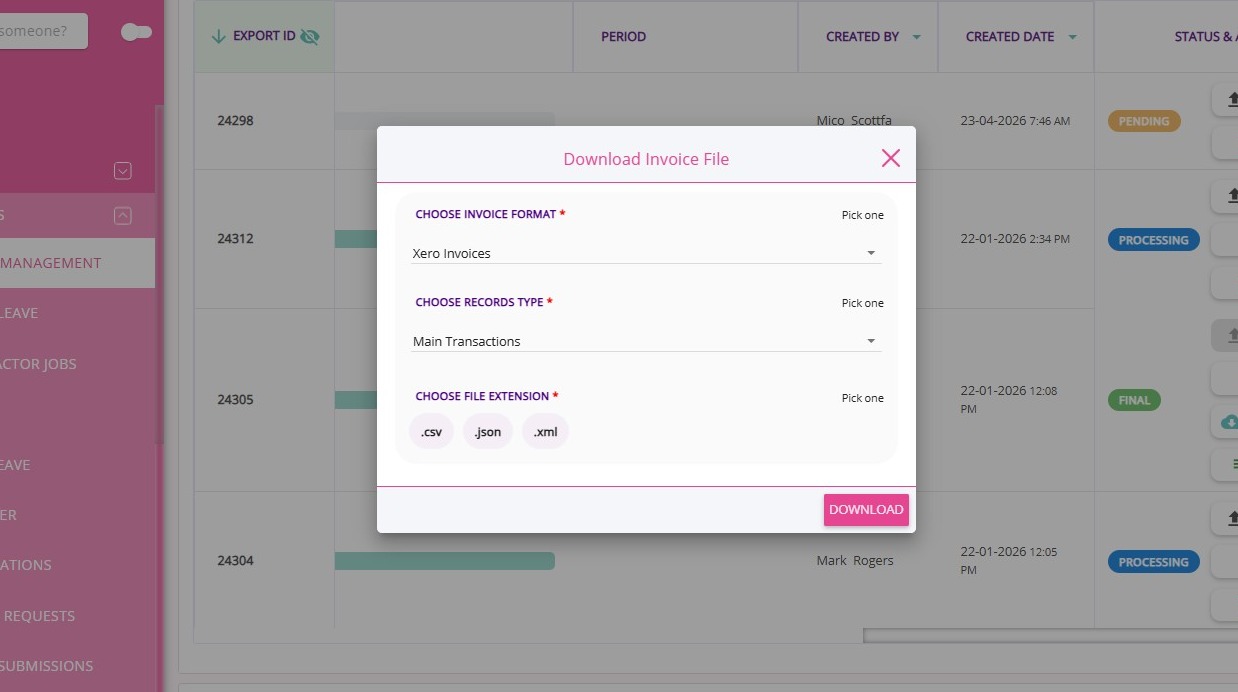
6. Choose the required file extension before downloading.
Note: Make sure you have exported the correct claim file. For example, invoice files for DEX CHSP cannot be downloaded if the Outlet ID used in SAH.
Step 13: Produce Statements
Produce client statements reflecting the final, validated amounts for the period. Statements should match the reconciled data from CareVision and Services Australia.
This topic provides the step-by-step process for billing and claiming under the Support at Home program. For more information about the billing and claiming process, contact the CareVision Support Team.



 For detailed instructions, refer to Submit a Support at Home Claim