Manage Transport Services for Support at Home
This topic describes how to configure and manage transport services for Support at Home. It explains how to correctly set up and link billing categories, services, and funding source templates to support a smooth quoting and export process.
1. Set Up Billing Categories
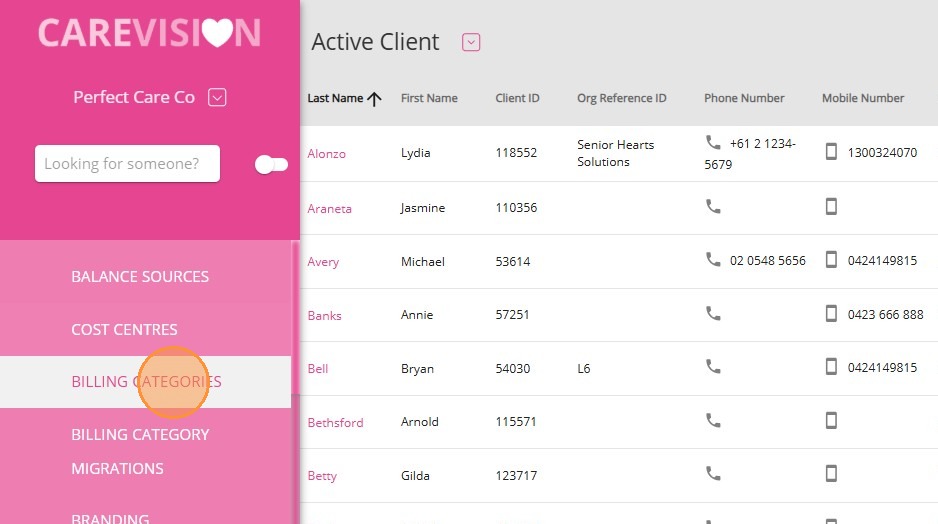
2. Check if a billing category for transport already exists:
- If it exists, open the billing category and set the Amount to 0.
- If it does not exist, click +Create New Billing Category and proceed with the setup steps below.
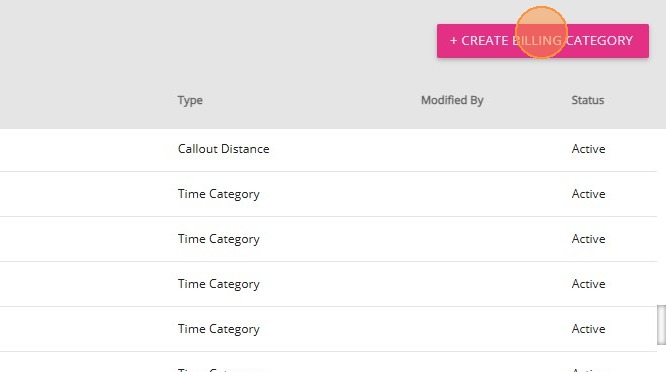
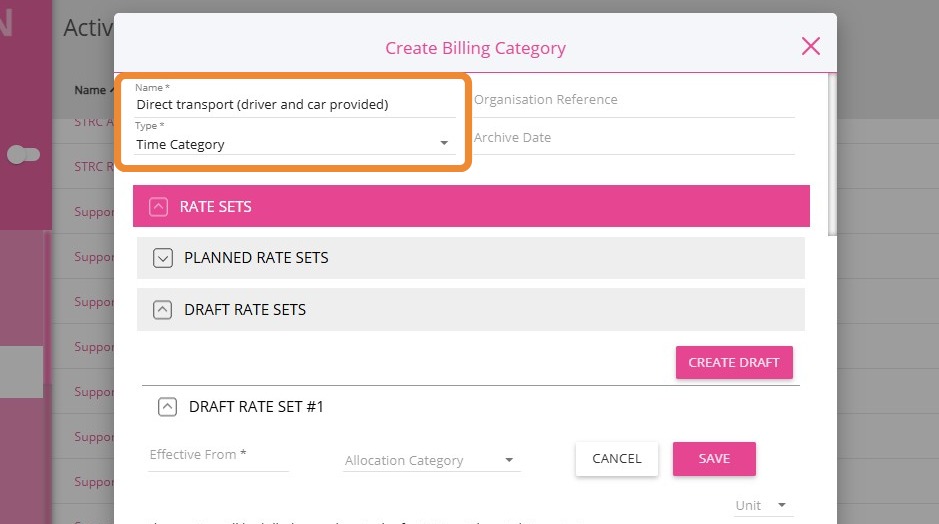
3. Enter the following details for the new billing category. Example:
- Name: Enter Direct transport (driver and car provided)
- Type: Select Time Category
4. Under Draft Rate Sets, specify the Effective From date.
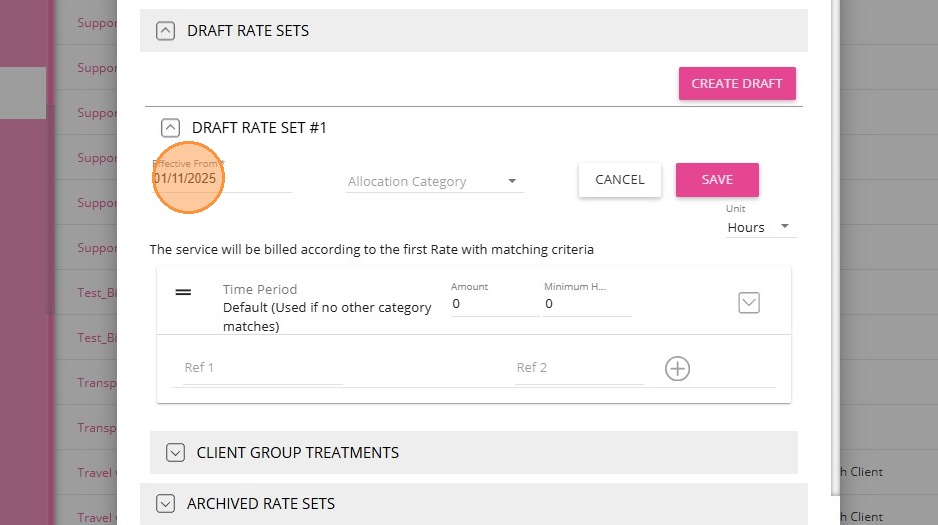
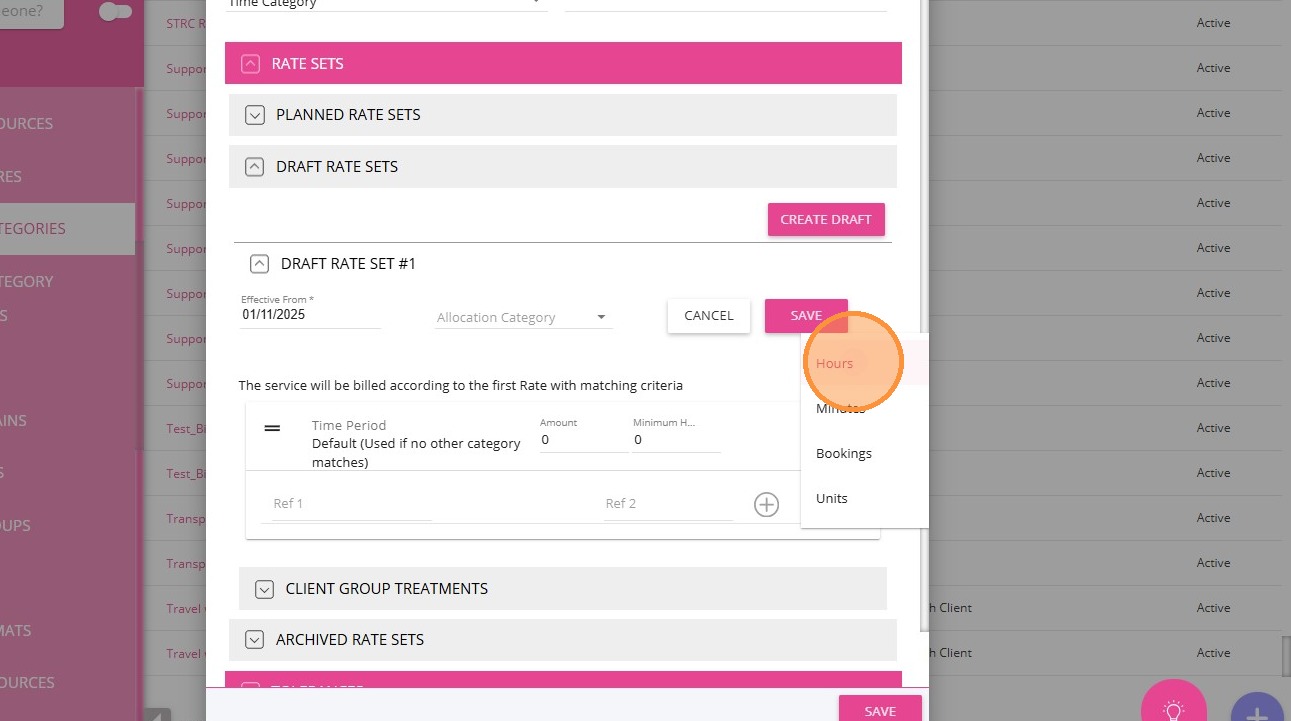
5. Set the Unit field to Hours.
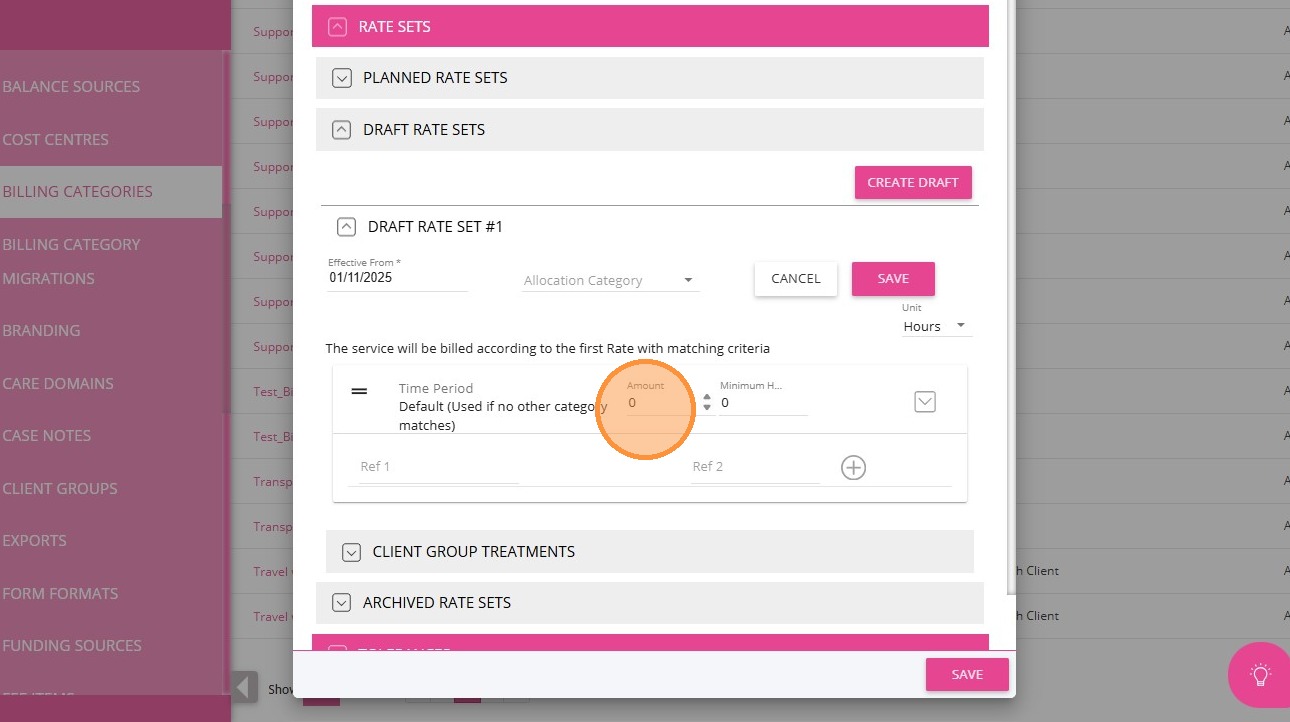
6. Set the Amount field to 0. This prevents export errors or claim rejections.
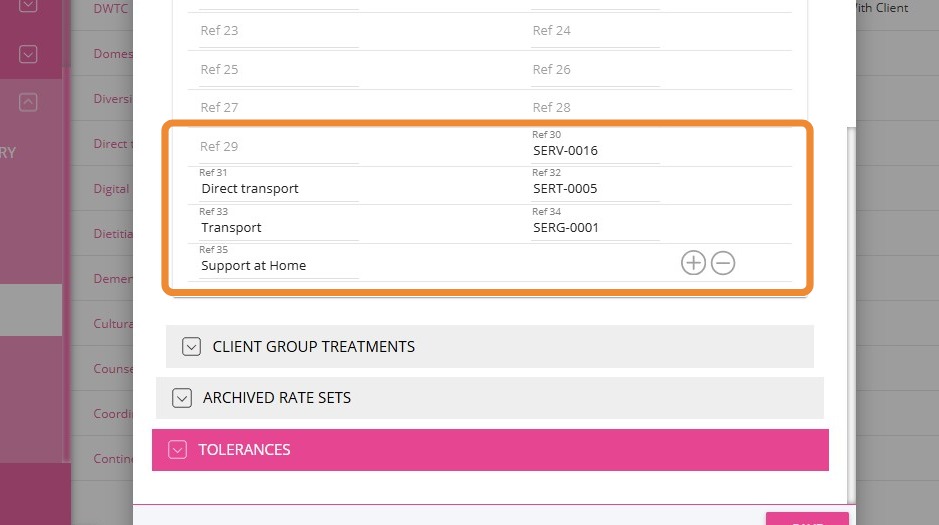
7. Add Reference codes:
- Use your organisation’s standard income and cost codes.
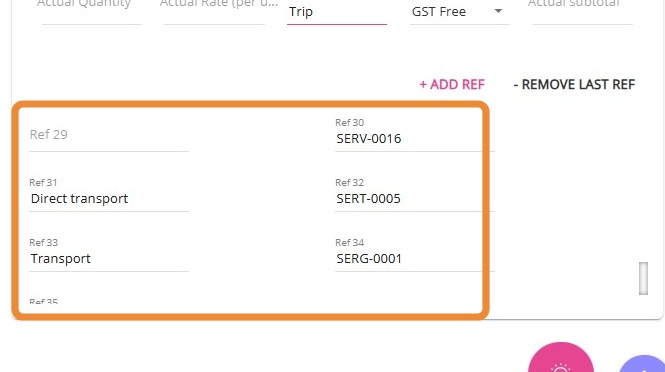
- For reference, the Support at Home Ref codes under Ref 30 to 35 are:
- Ref 30: SERV-0016
- Ref 31: Direct transport
- Ref 32: SERT-0005
- Ref 33: Transport
- Ref 34: SERG-0001
- Ref 35: PROG-0003
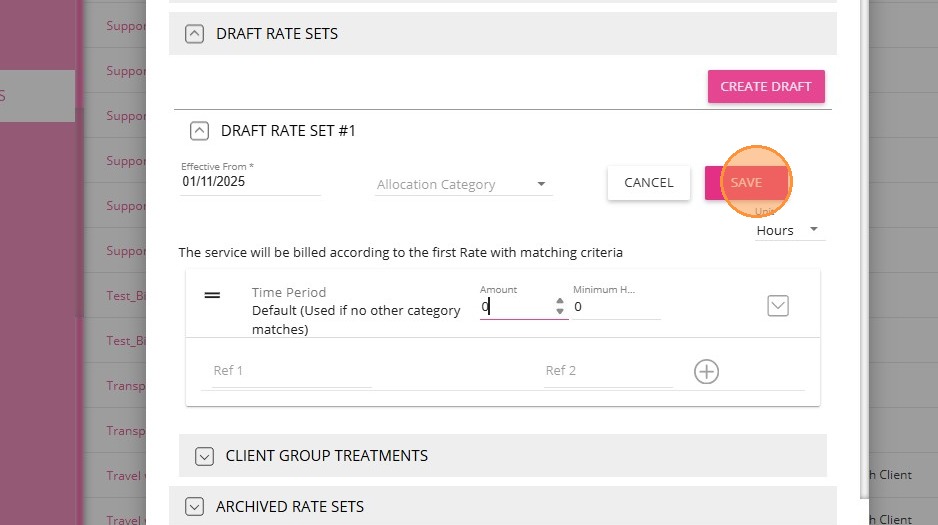
8. Click Save.
9. Click Publish.
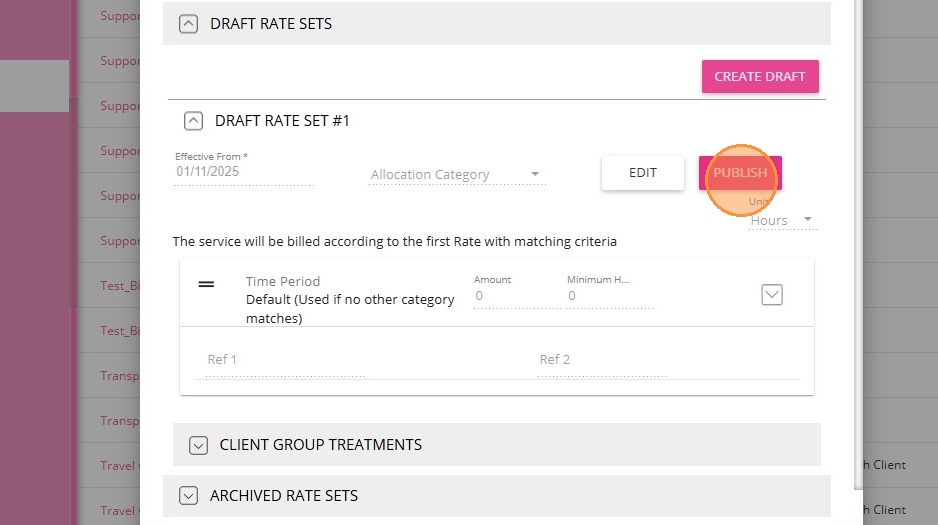
10. Then, click Save again.
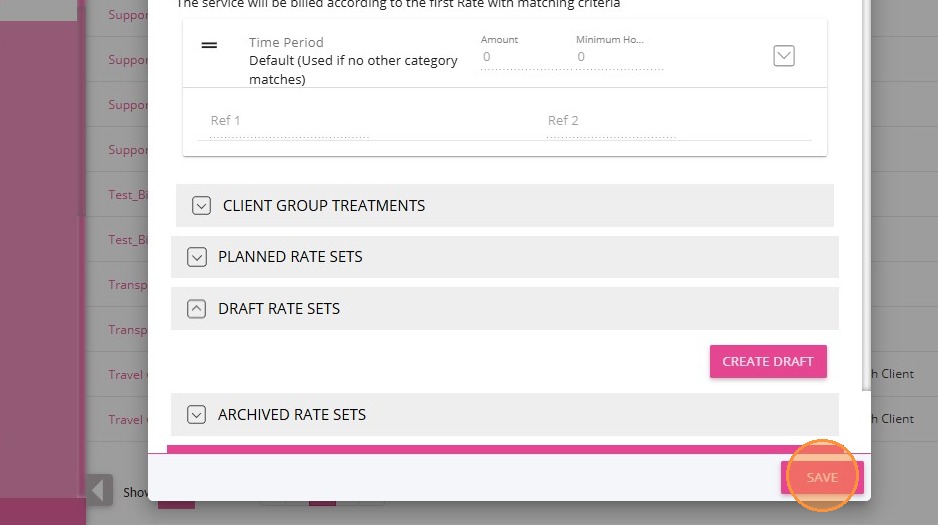
Set up a Non-billable Distance Travelled With Client Billing Category
- In the left navigation pane, go to Settings > Billing Categories.
- Check if a Non-billable Distance Travelled With Client billing category already exists:
- If it exists, open the billing category and set the Amount to 0.
- If it does not exist, click +Create New Billing Category and proceed with the setup steps below.
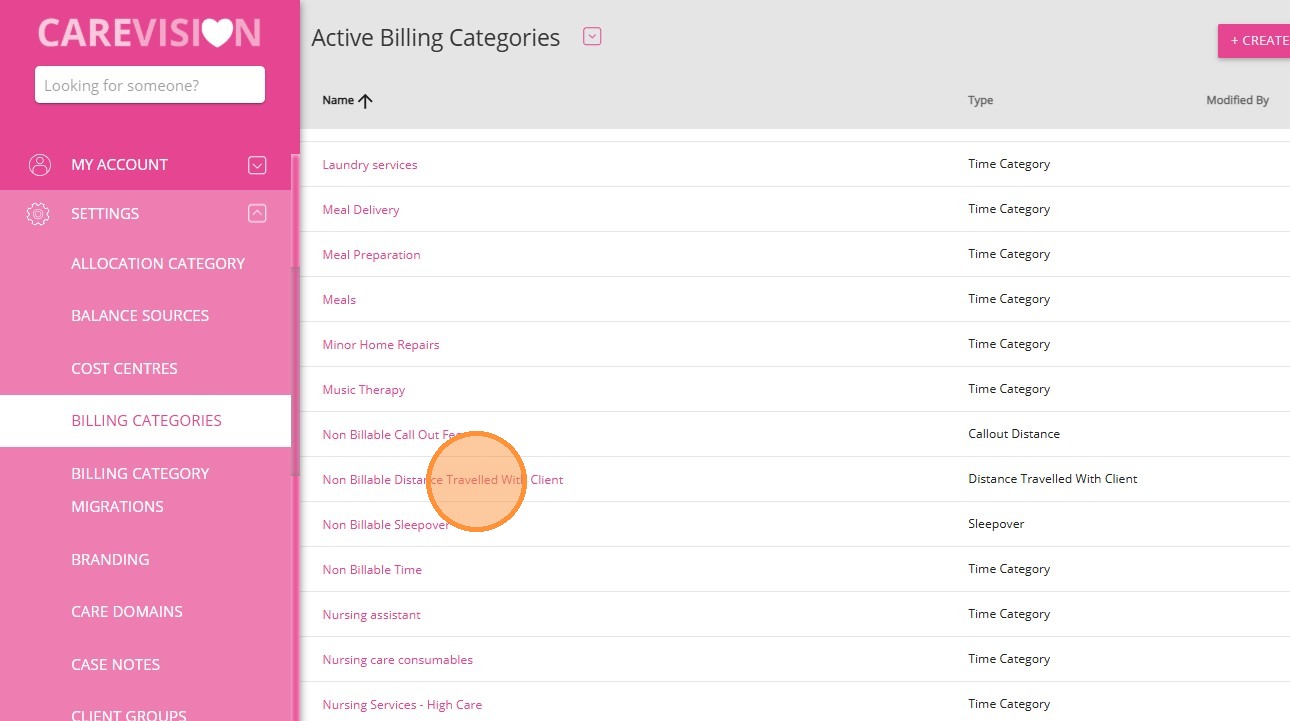
3. Enter the following details for the new billing category. Example:
- Name: Enter Non-billable Distance Travelled With Client
- Type: Select Distance Travelled With Client
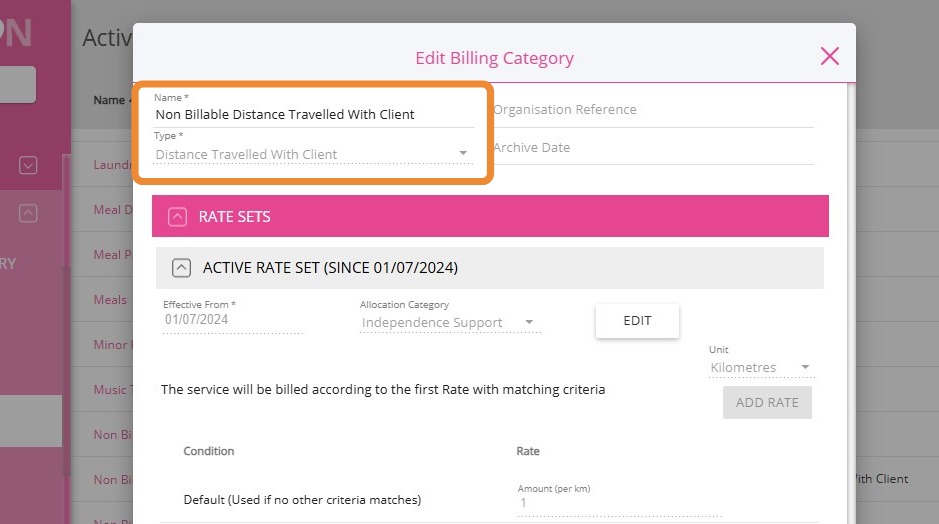
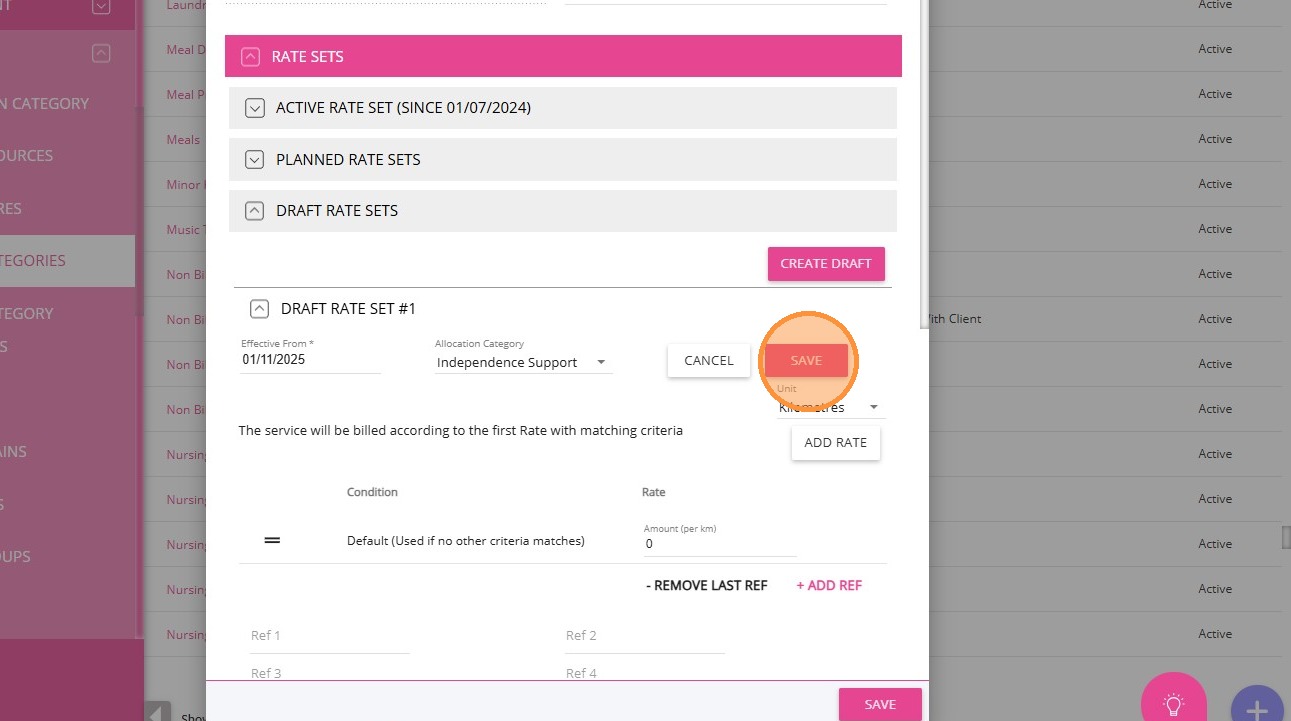
4 Under Draft Rate Sets, specify the Effective From date.
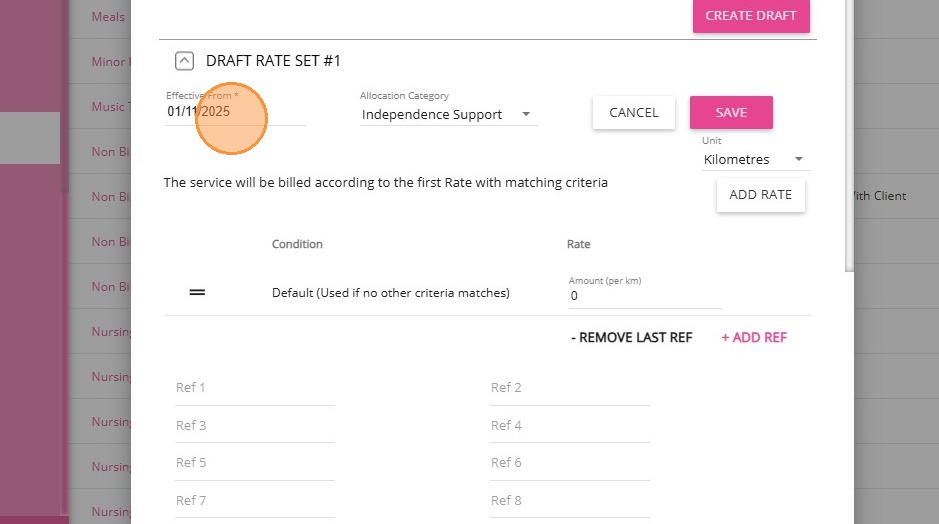
5. Set the Unit field to Kilometers.
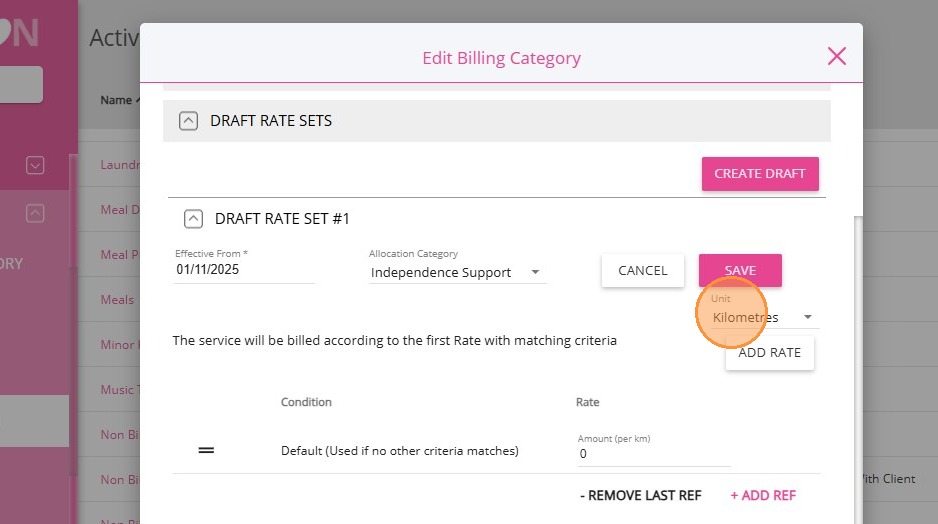
6. Set the Amount field to 0.
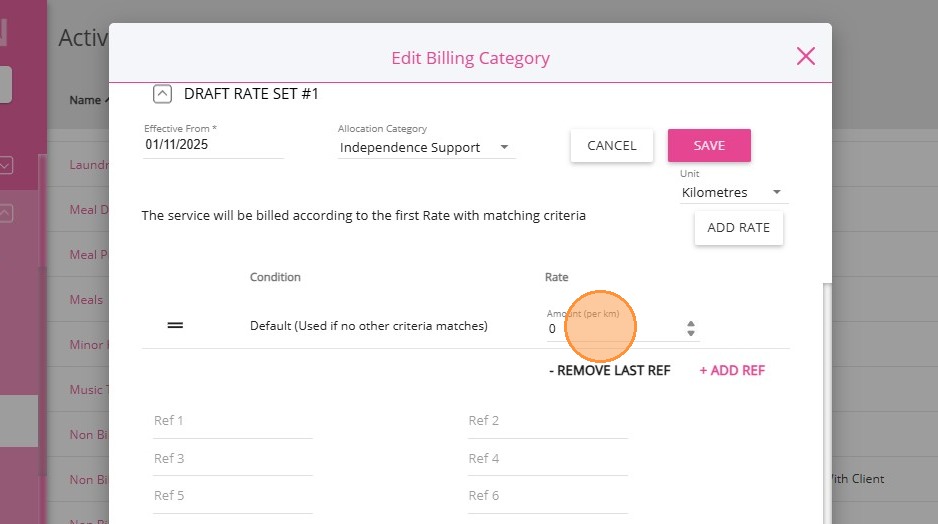
7. Use your organisation’s standard Reference code for Ref 2.
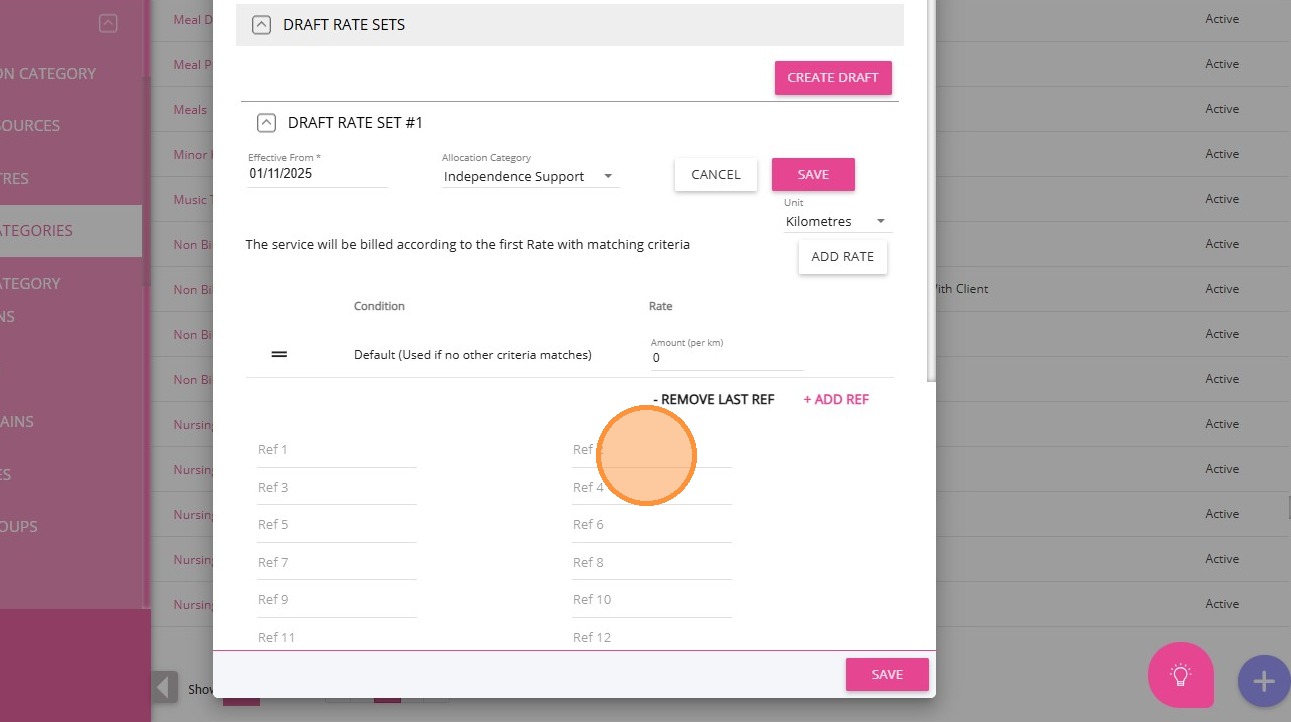
8. Click Save.
9. Click Publish.
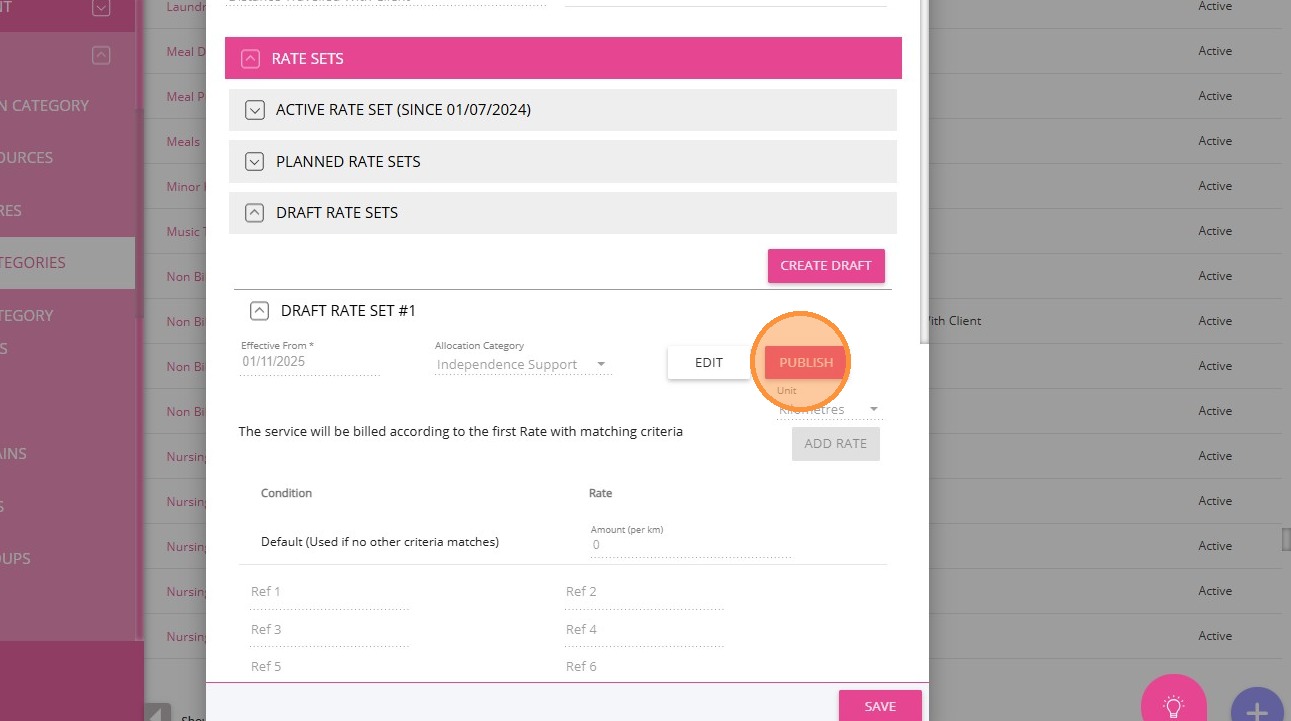
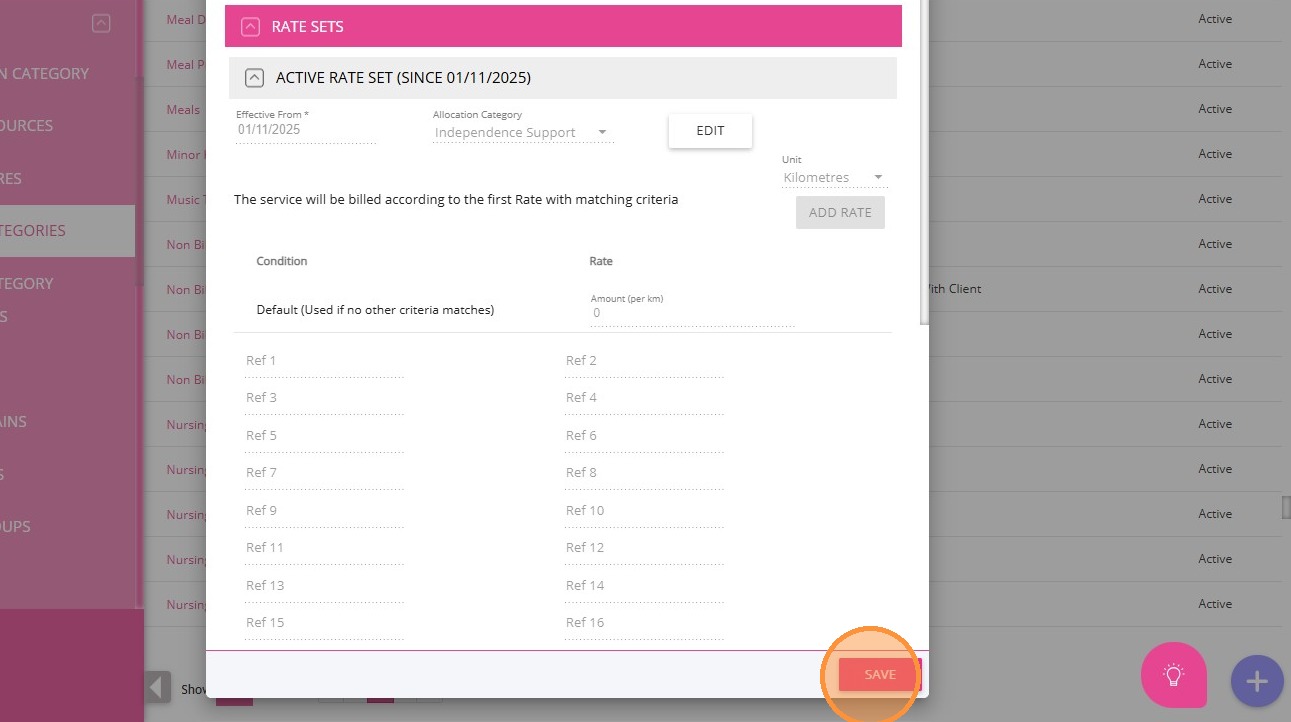
10. Then, click Save again.
Set up a Non-billable Callout Fee Billing Category
1. In the left navigation pane, go to Settings > Billing Categories.
- If it exists, open the billing category and set the Amount to 0.
- If it does not exist, click +Create New Billing Category and proceed with the setup steps below.
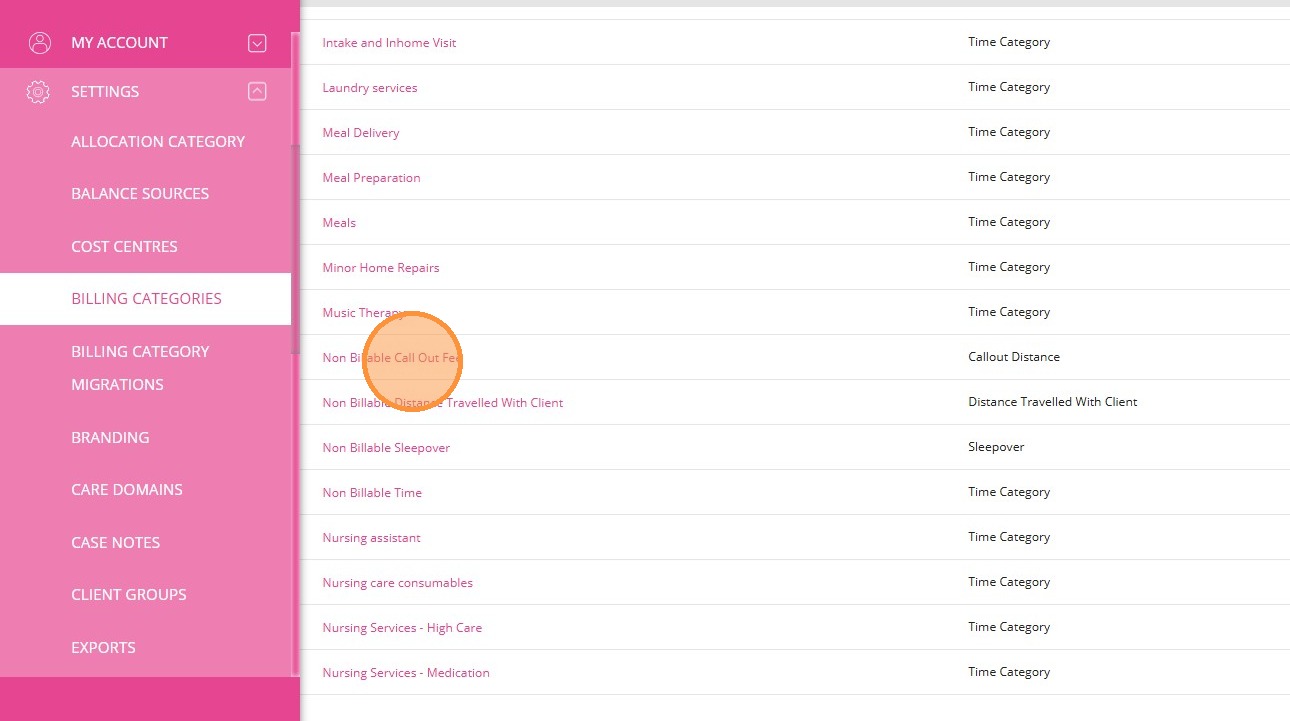
3. Enter the following details for the new billing category. Example:
- Name: Enter Non-billable Callout Fee
- Type: Select Callout Distance
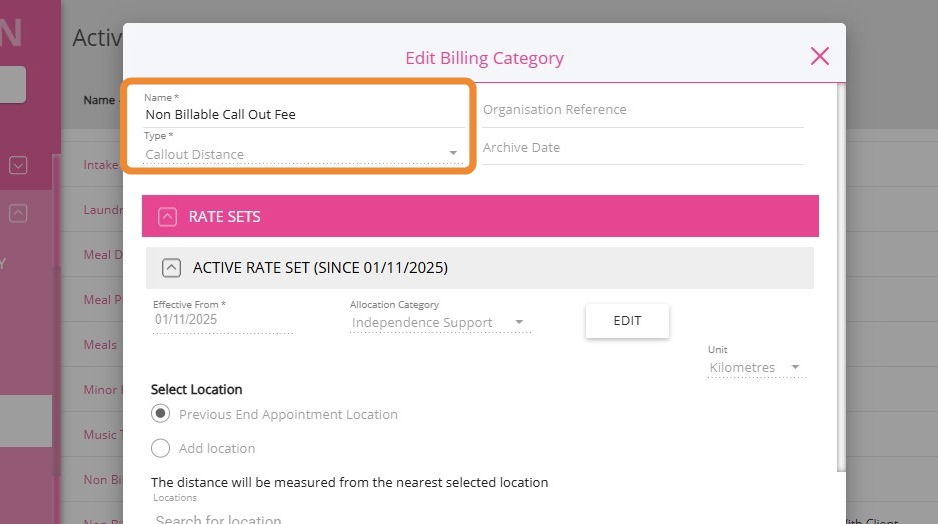
4. Under Draft Rate Sets, specify the Effective From date.
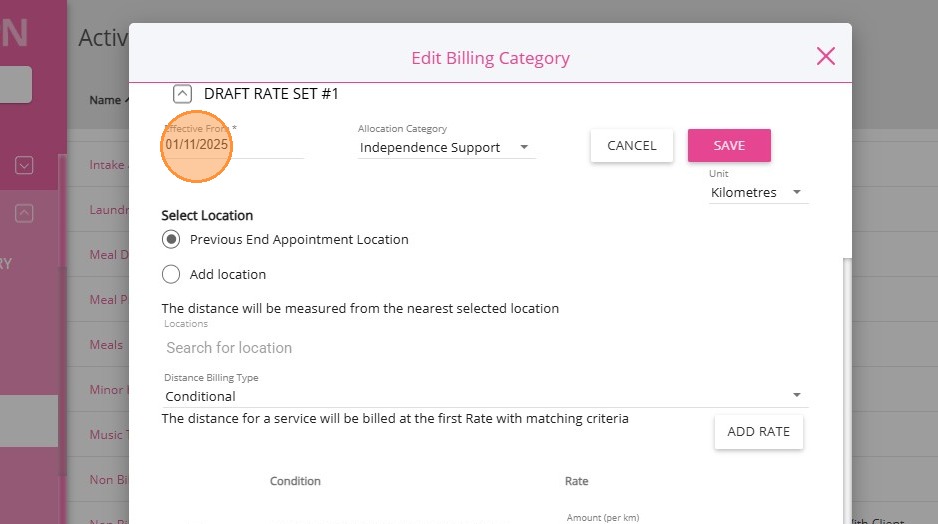
5. Set the Unit field to Kilometers.
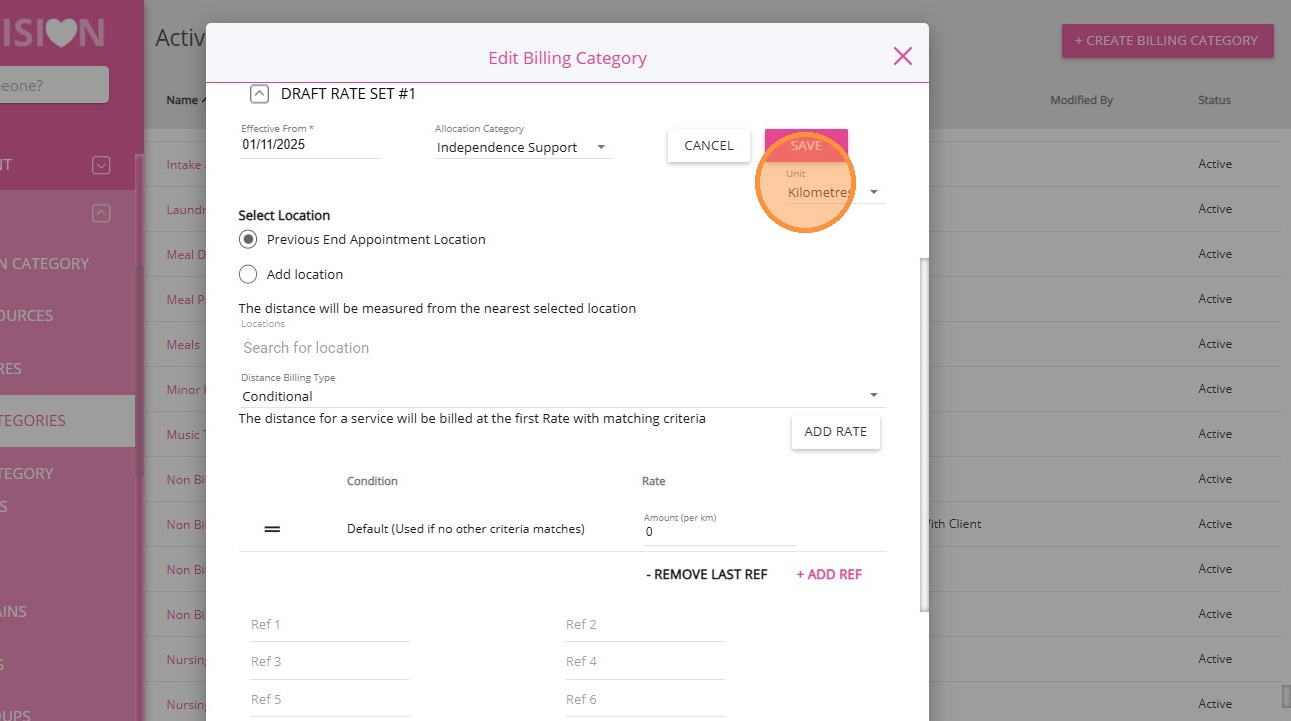
6. Set the Amount field to 0.
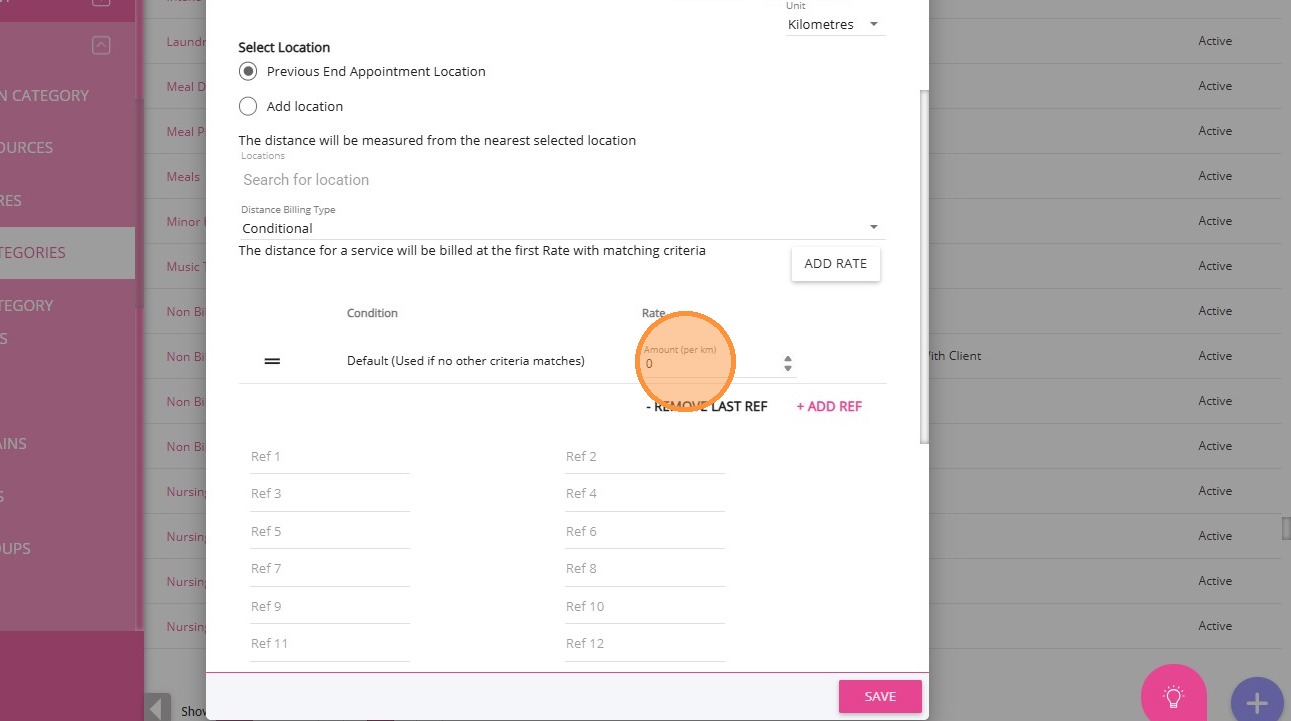
7. Use your organisation’s standard Reference code for Ref 2.
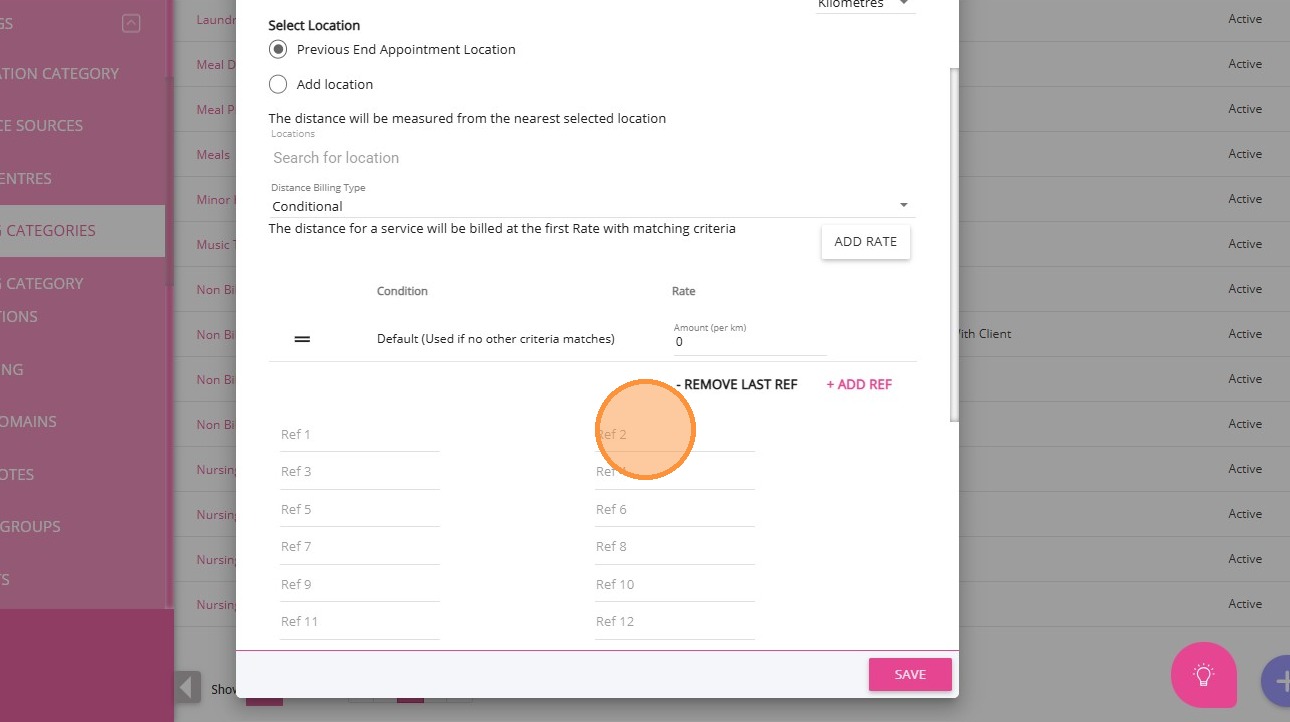
8. Click Save.
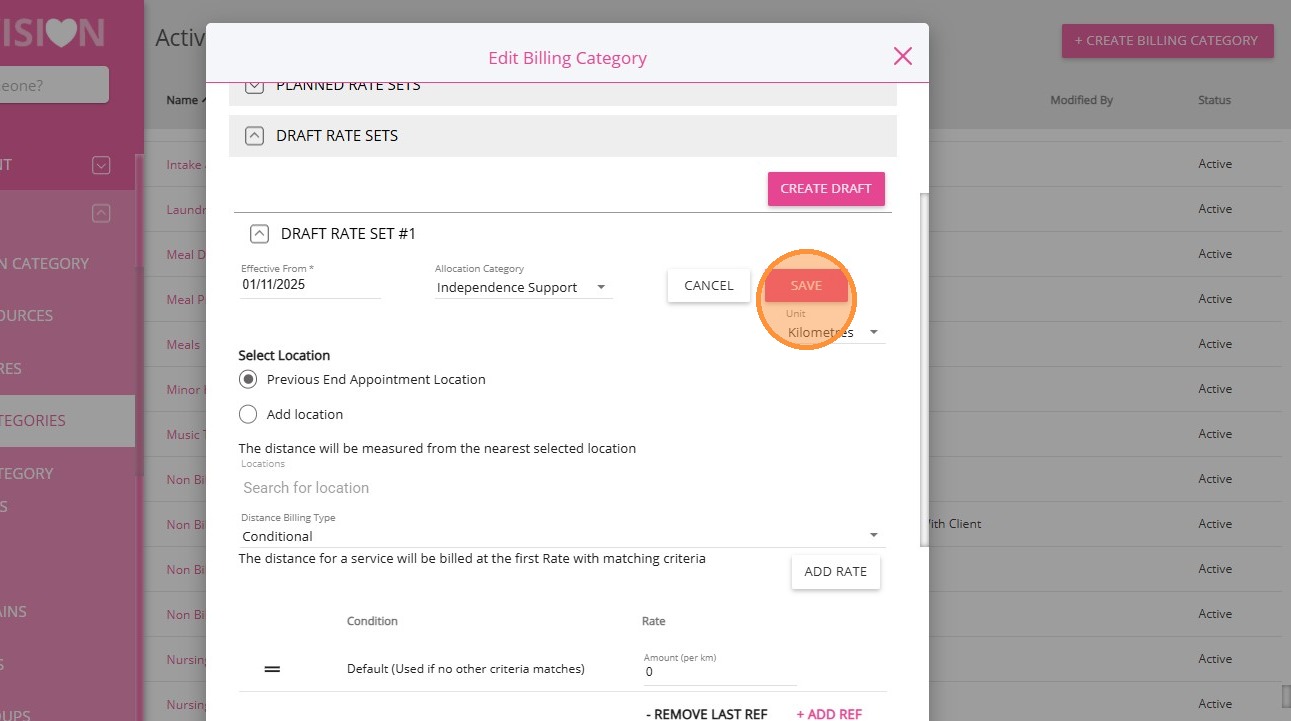
9. Click Publish.
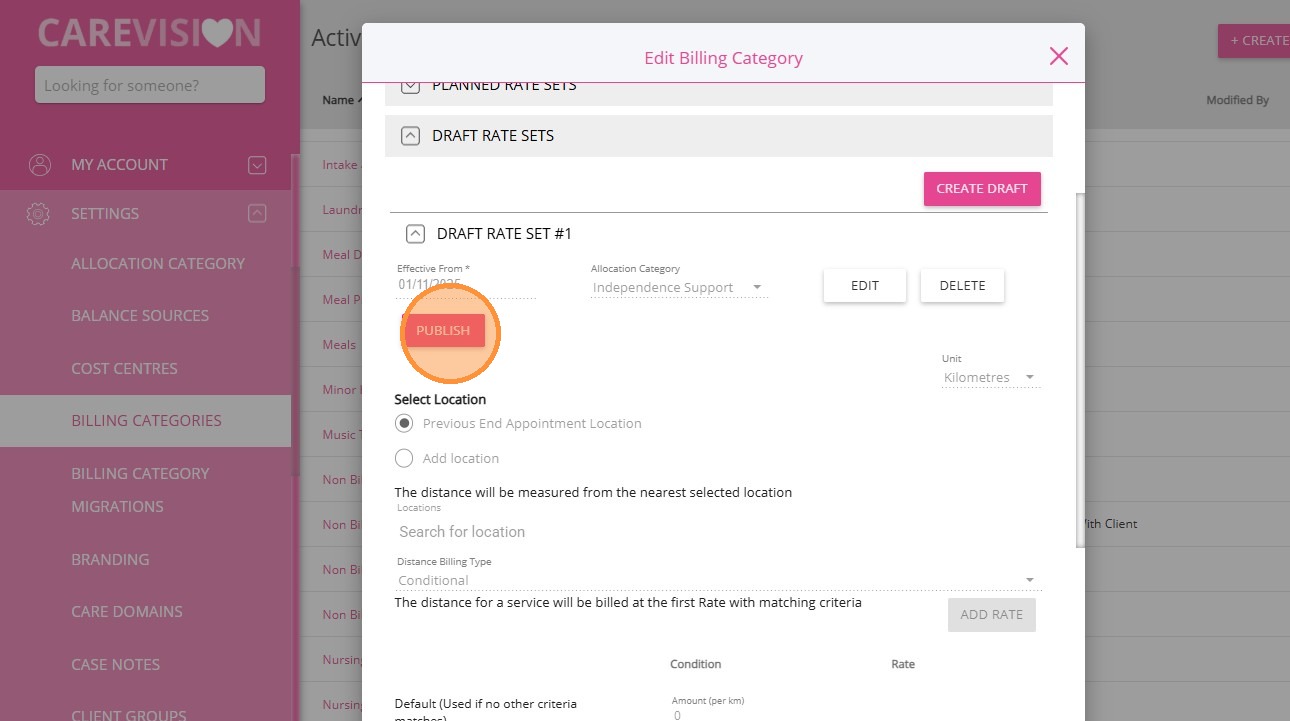
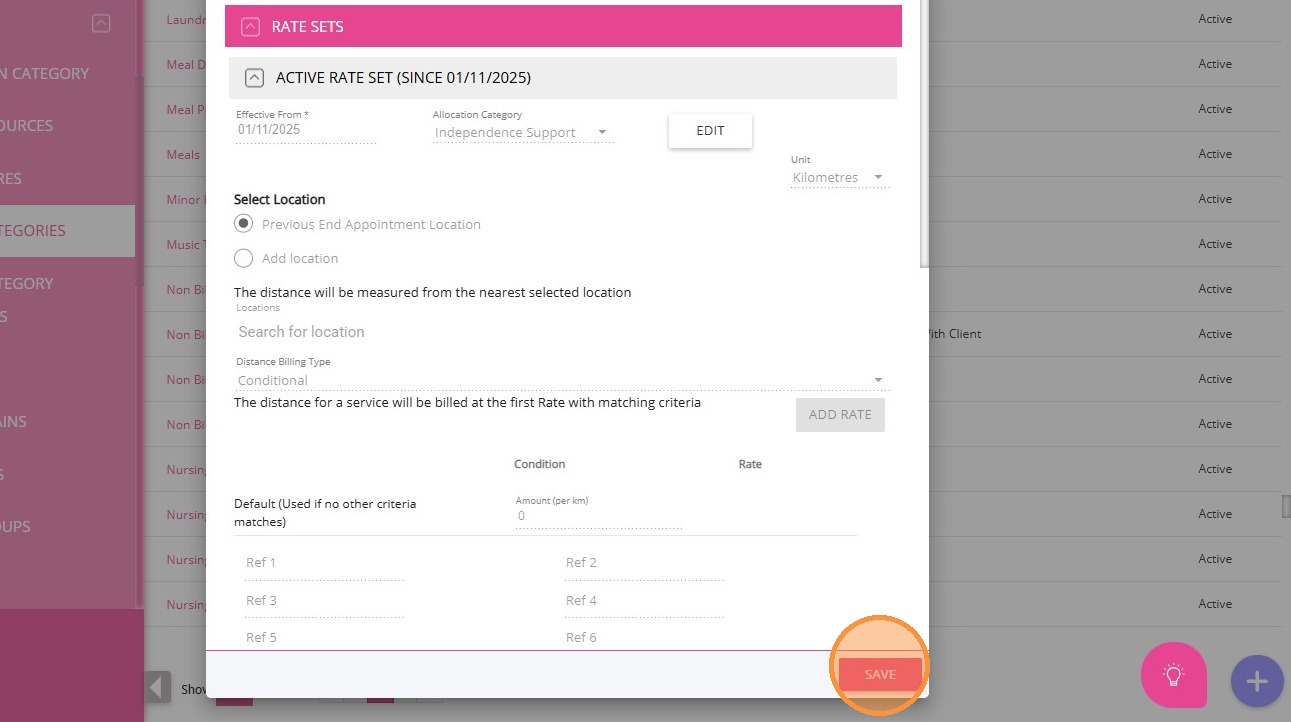
10. Then, click Save again.
2. Link the Billing Categories to the SAH Transport Service
Link the billing categories to the SAH transport service
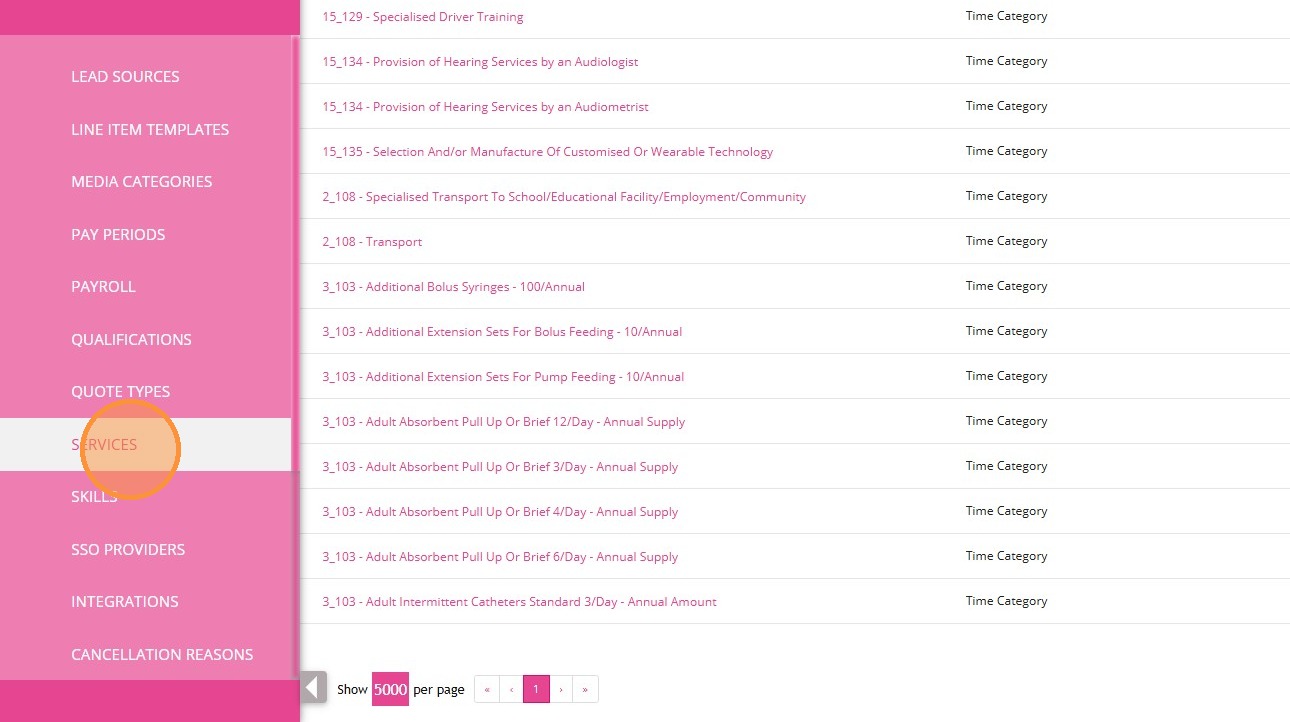
1. In the left navigation pane, click Settings > Services.
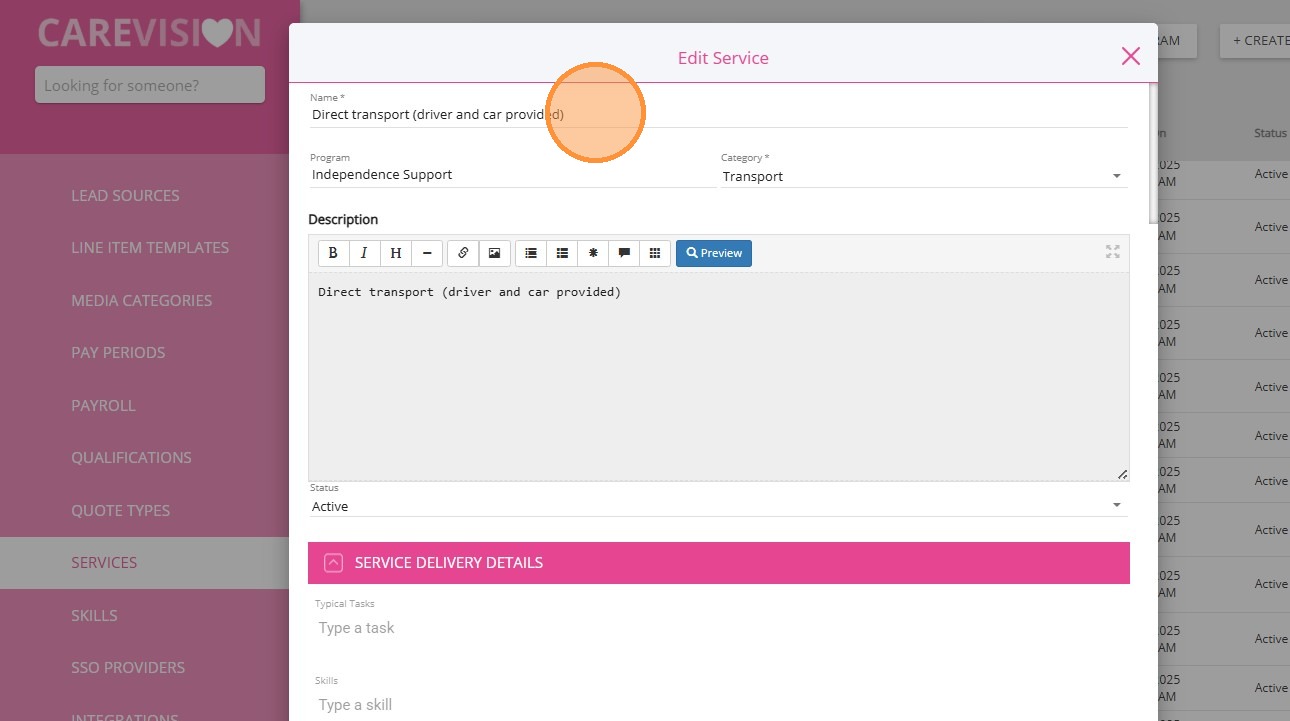
2. Find the relevant SAH transport service. For example, Direct transport (driver and car provided).
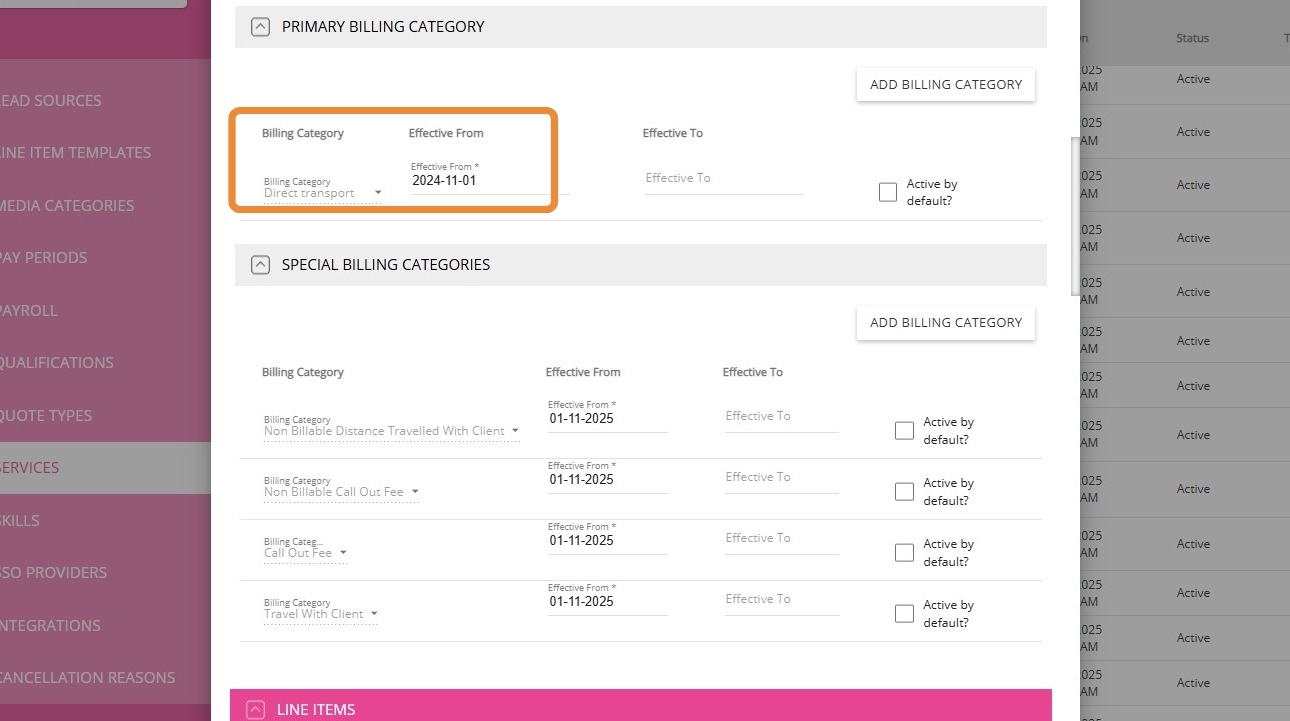
3. Link the billing categories you set up earlier to the service:
- Add the Direct transport billing category.
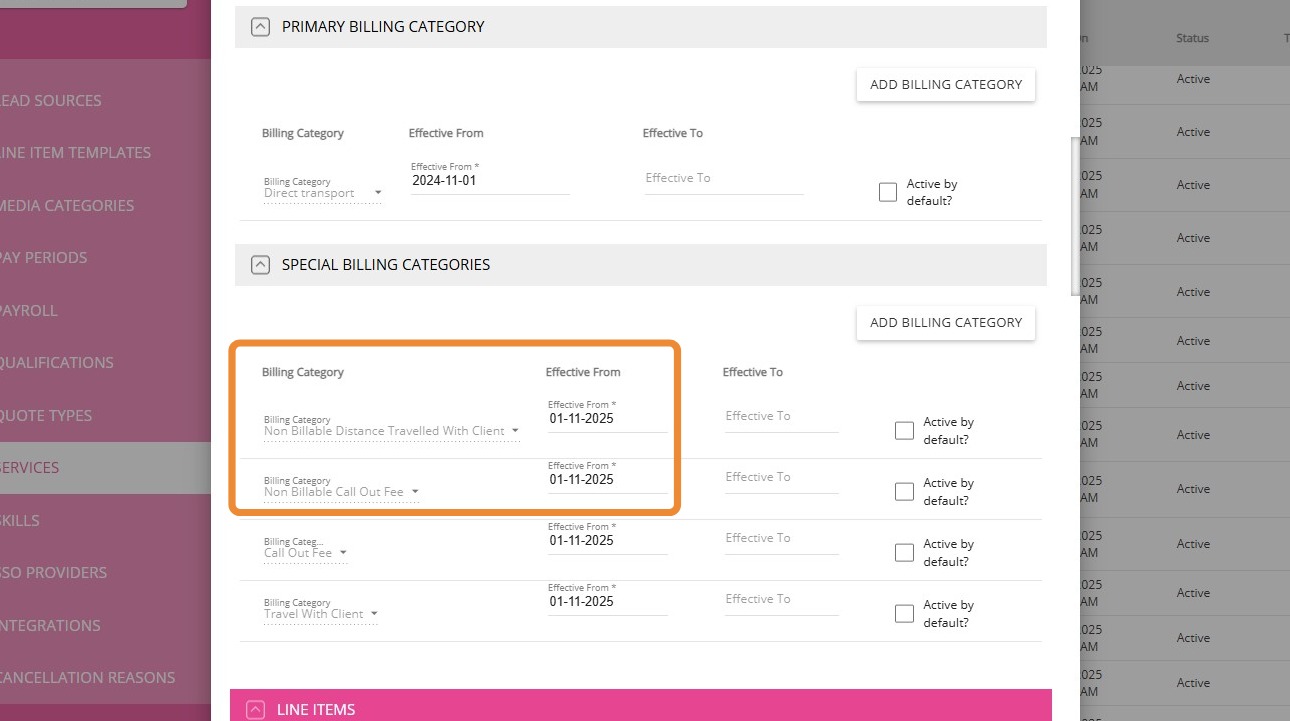
- Add the Non-billable Distance Travelled With Client billing category.
- Add the Non-billable Callout Fee billing category.
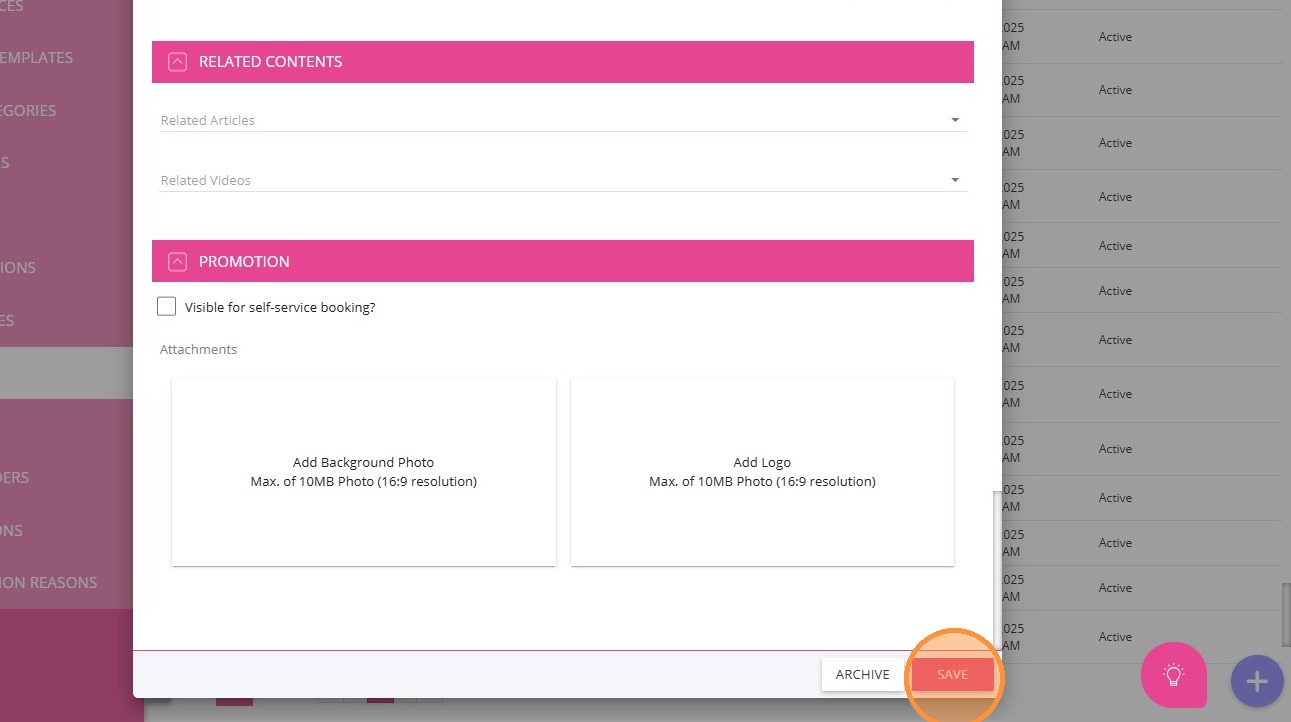
4 Click Save.
3. Create Manual Line Items for Transport
Create Manual Line Item Templates for Transport
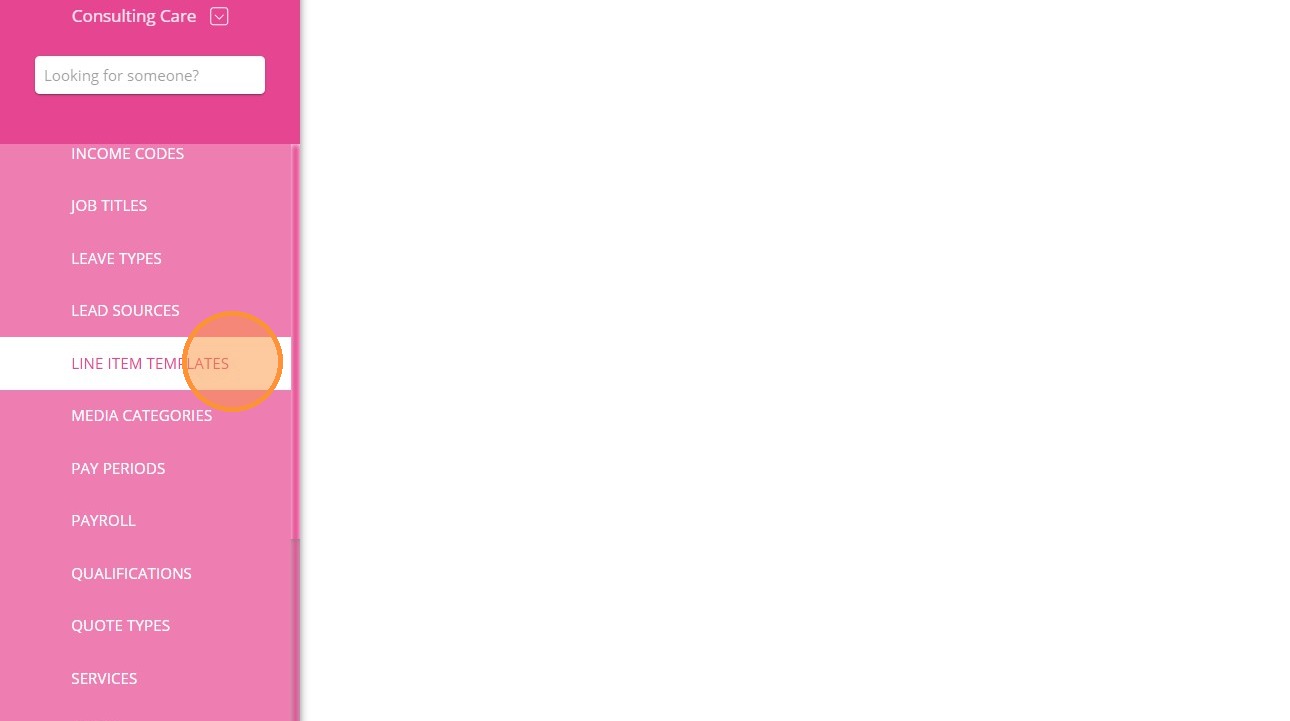
1 In the left navigation pane, click Settings > Line Item Templates.
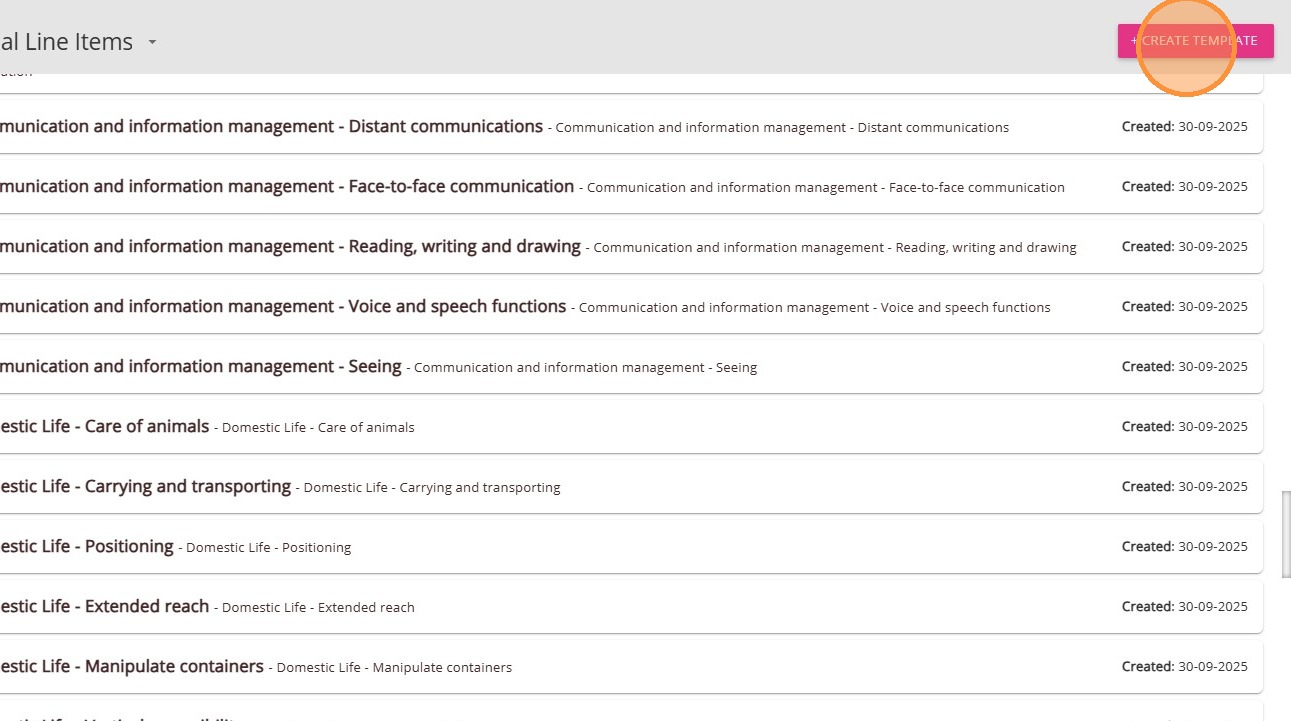
2. Check for existing Manual Line Item Templates for Transport.
- If it exists: Open the template and edit as needed.
- If it does not exist: Click +Create Template to start a new one.
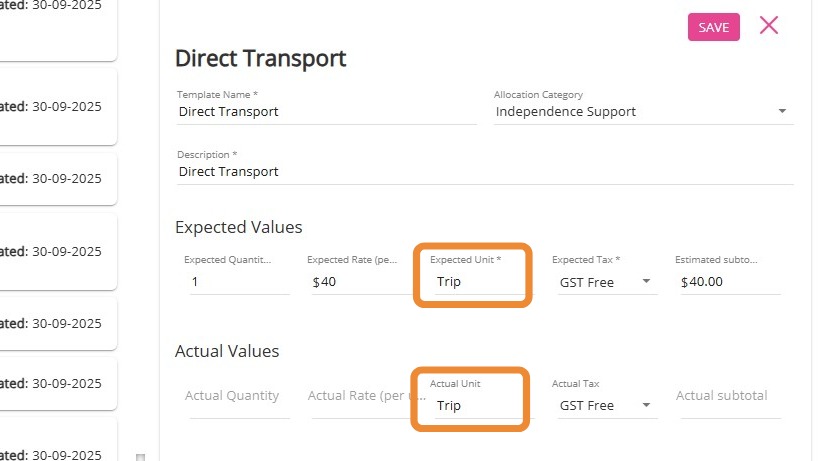
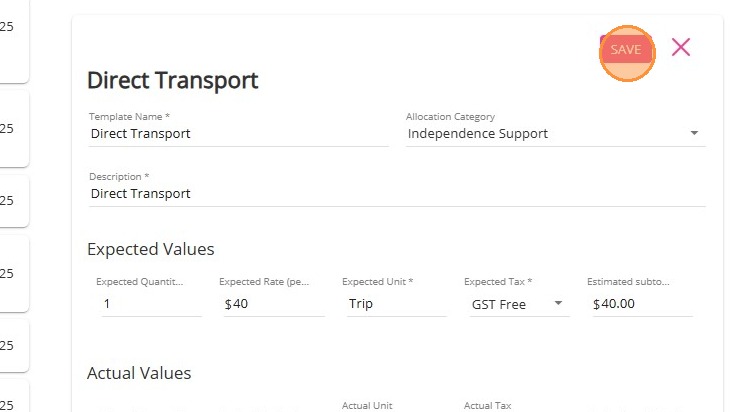
3. Fill in all required fields:
- Template Name: Enter a name for the template.
- Description: Provide a brief description.
- Expected Values: Enter values based on your business requirements. Make sure that the Expected Unit field is set to Trip.
- Actual Values: Enter values based on your business requirements. Make sure that the Actual Unit field is set to Trip.
4. Add Reference Codes
Use your organisation’s standard income and cost codes.
For Support at Home, the Reference codes under Reference 30 to 35 are:
Ref 30: SERV-0016
Ref 31: Direct transport
Ref 32: SERT-0005
Ref 33: Transport
Ref 34: SERG-0001
Ref 35: PROG-0003
If these codes already exist in your billing category setup, copy them into the template.
5. Click Save to complete the setup.
 Notes:
For taxi vouchers, set both the Expected Unit and Actual Unit fields to Voucher.
For meals, set both the Expected Unit and Actual Unit fields to Meal.
4. Link the Service, Billing Categories, and Manual Line Item Template to SAH Funding Source Templates
Link Billing Categories and Services to SAH Funding Source Templates
- Support at Home Level 1–8
- Support at Home – HCP Transitional – Level 1–4
1. In the left navigation pane, click Settings > Funding Sources.
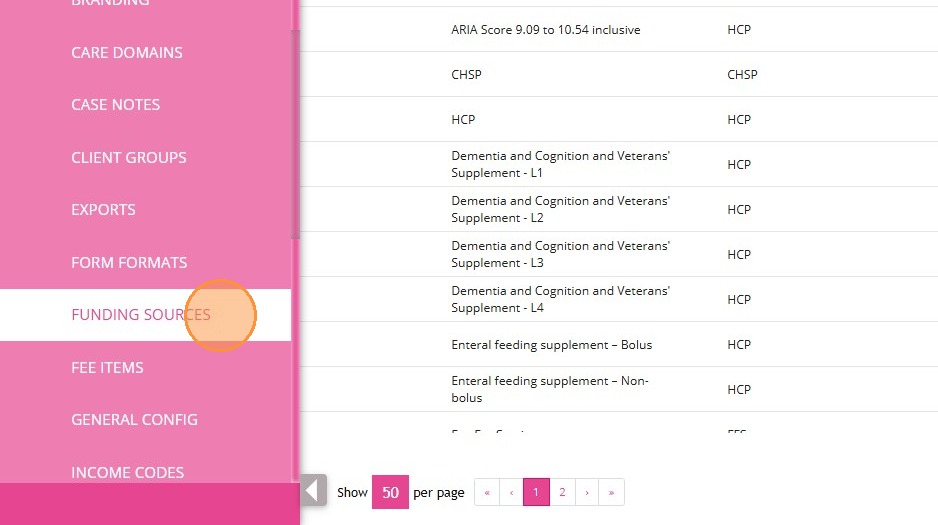
2. Find the relevant Support at Home funding source template (for example, "Support at Home Level 1").
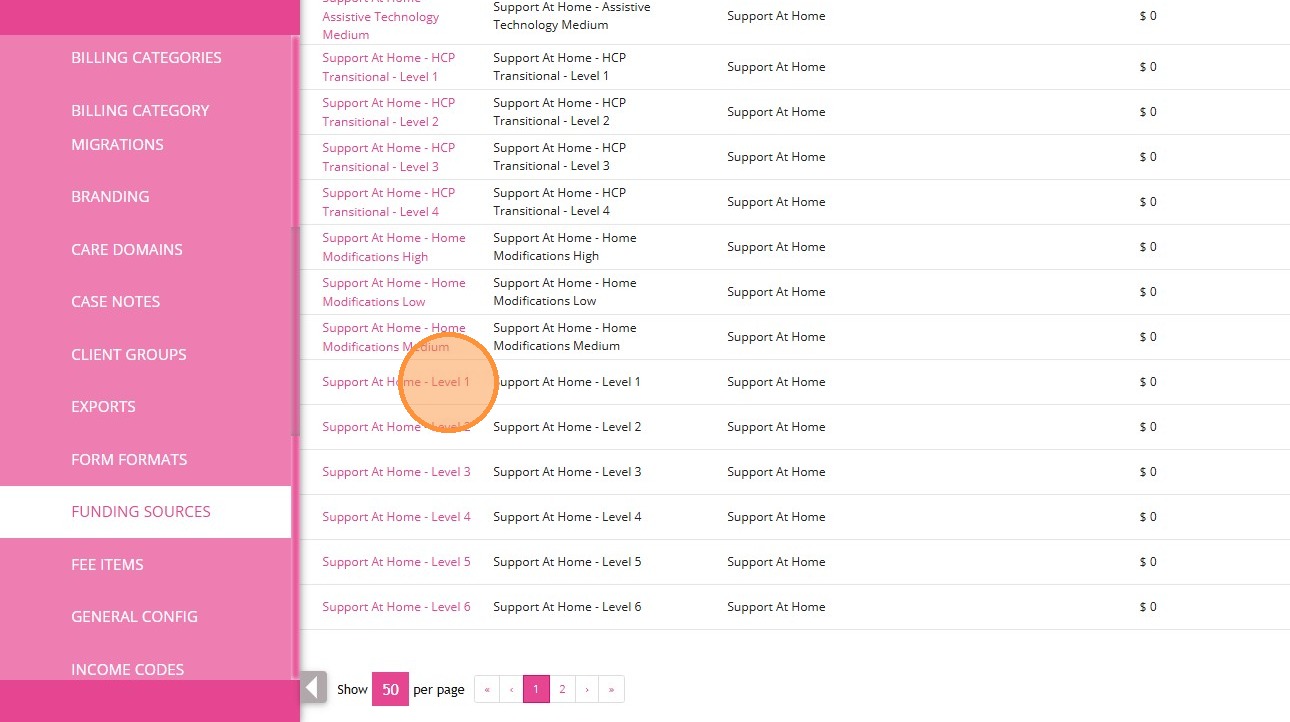
3. Click the Fee Items, Services, Billing Categories, and Line Item Templates section.
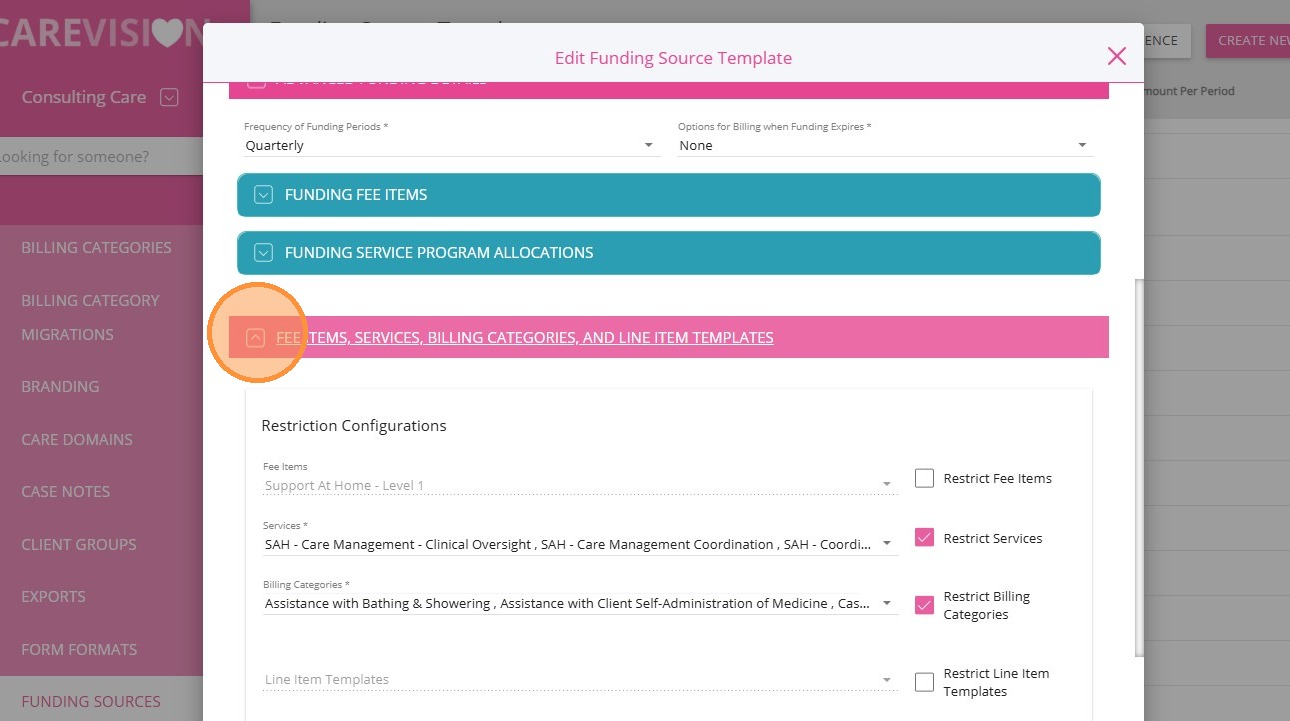
4. Under Services, link the transport service. Click the Restrict Services box to ensure that only the services you selected will be available under the funding source.
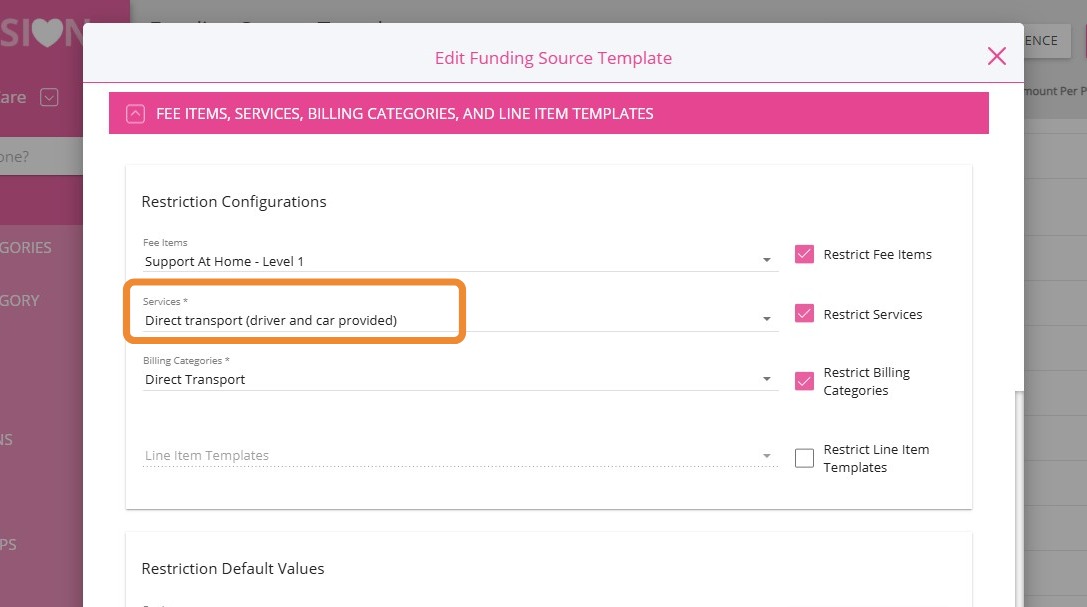
5. Under Billing Categories, link the transport billing category. Click the Restrict Billing Categories box to ensure that only the billing categories you selected will be available under the funding source.
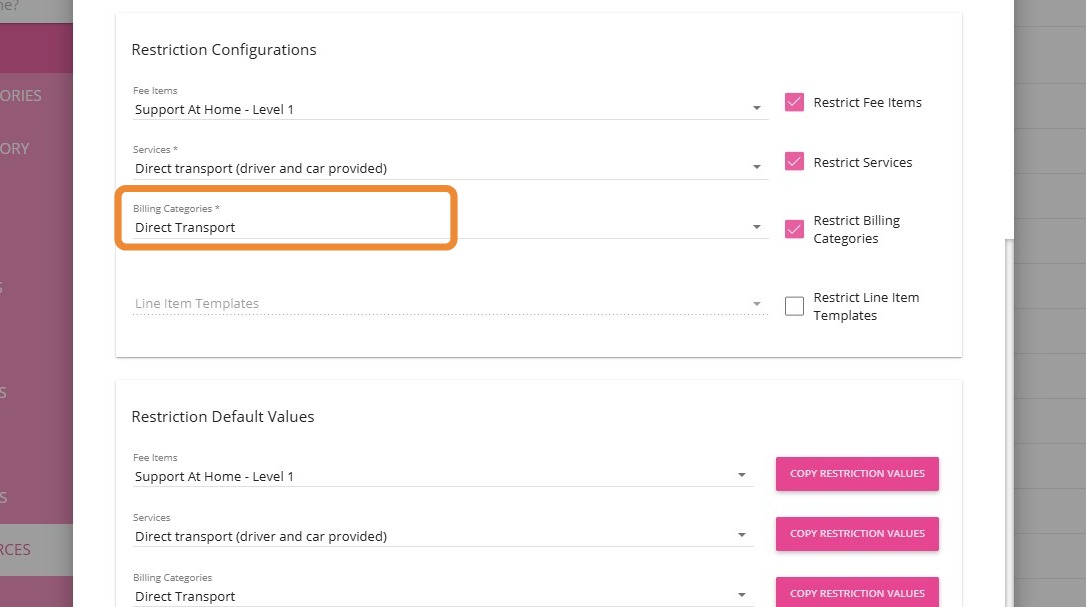
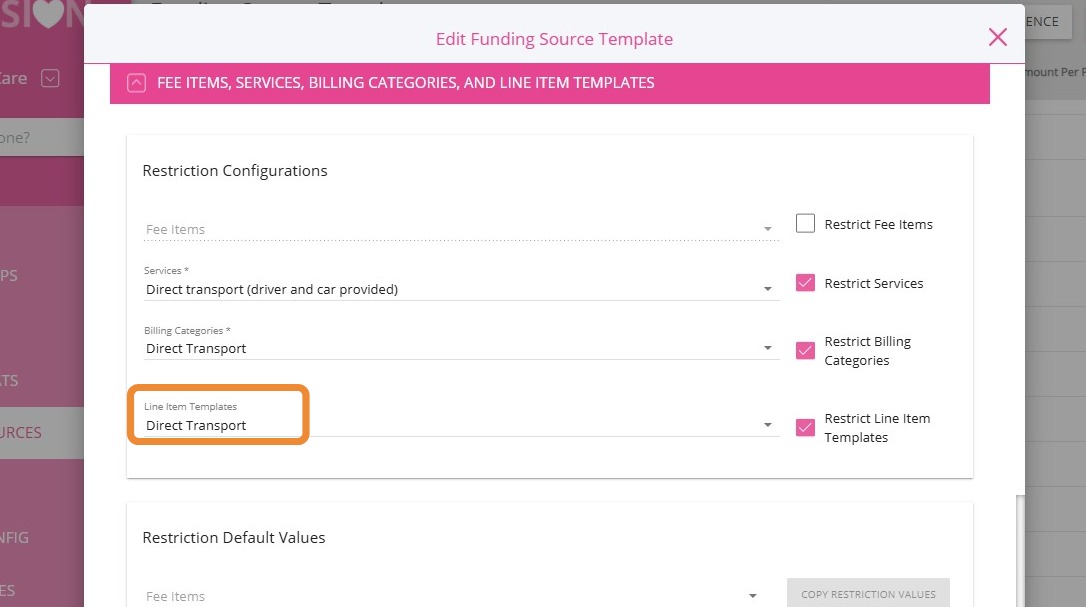
6. Under Line Item Templates, link the relevant Line Item Templates for Transport. Click the Restrict Billing Categories box to ensure that only the Line Item Templates you selected will be available under the funding source.
7. Scroll down and click Copy Restriction Values for Services, Billing Categories, and Line Item Templates to apply the same restriction settings across related items.
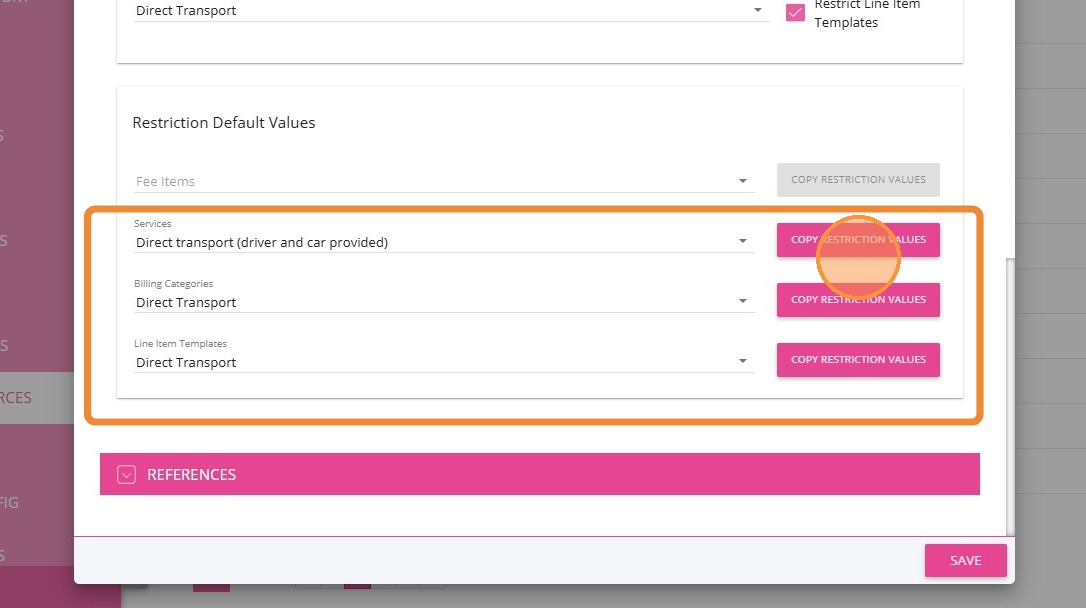
8. Click Save
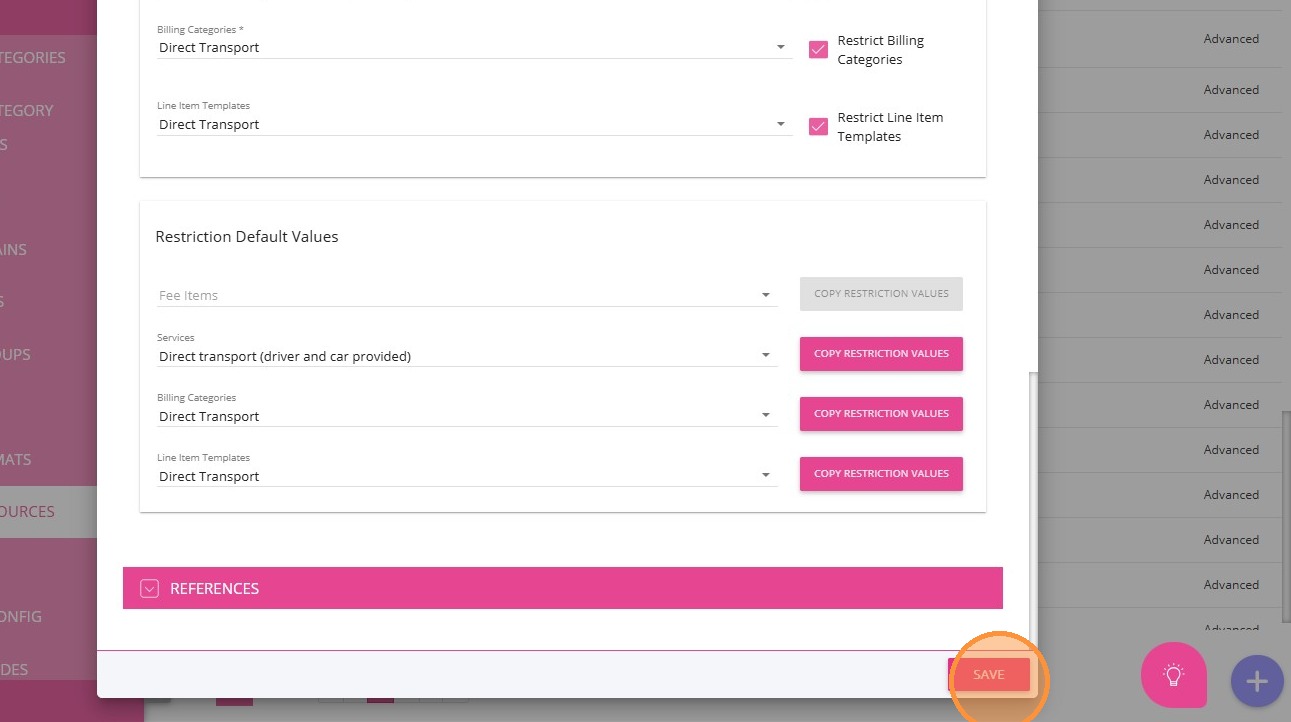
5. Quote for Transport Services
1. When preparing a quote for a client, go to the Service section. In this example, a Direct Transport service will be added under the Recurring Services section.
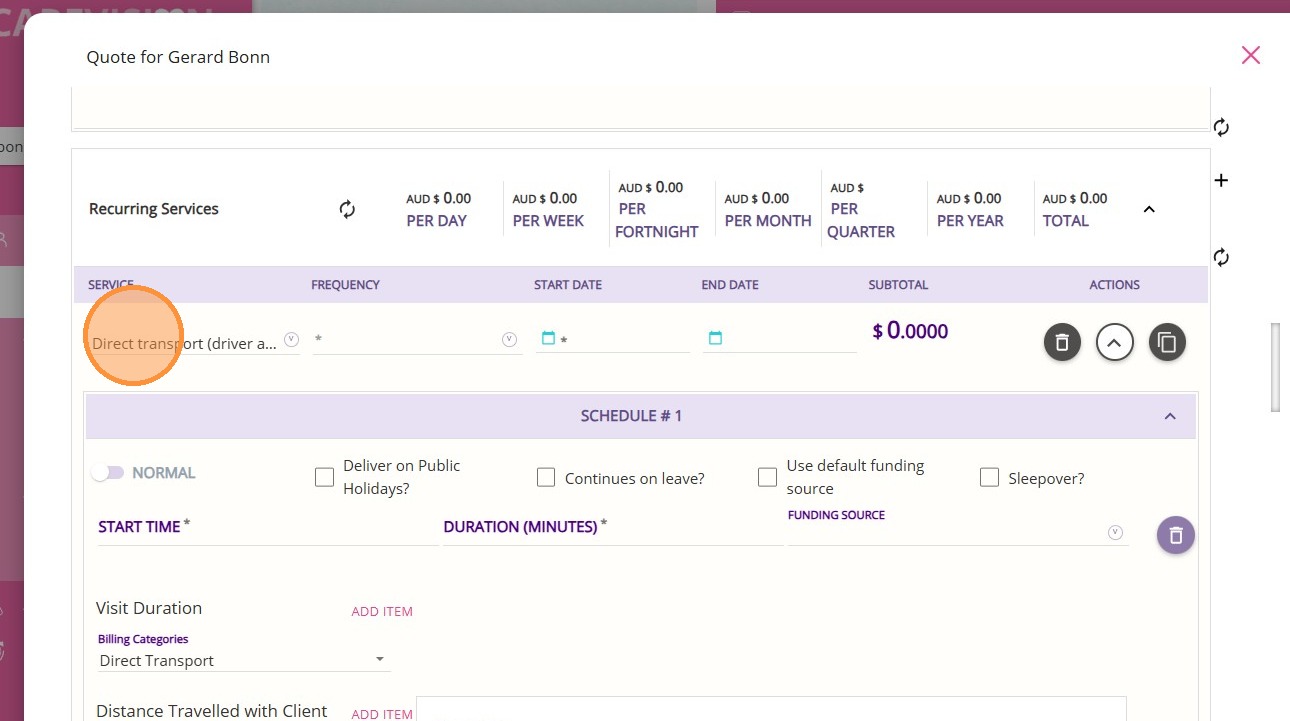
2. Tick the Use default funding source box.
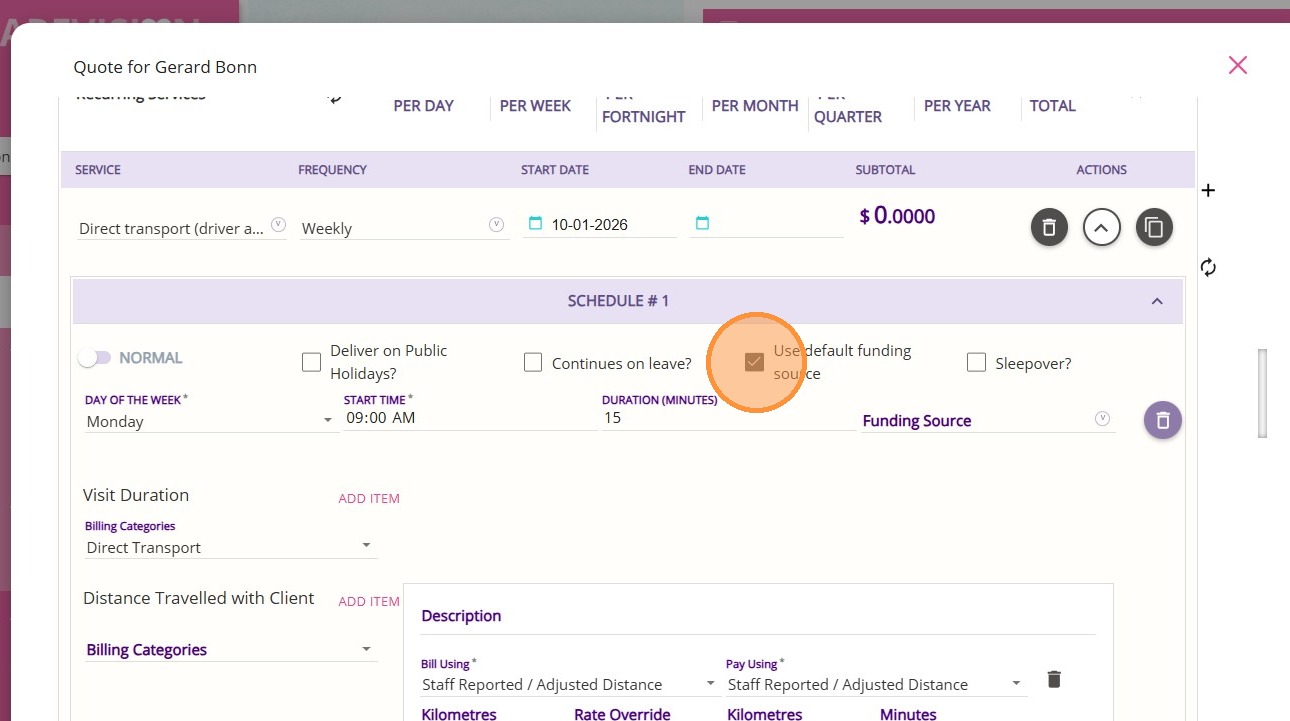
3. For Visit Duration, select the Direct Transport billing category.
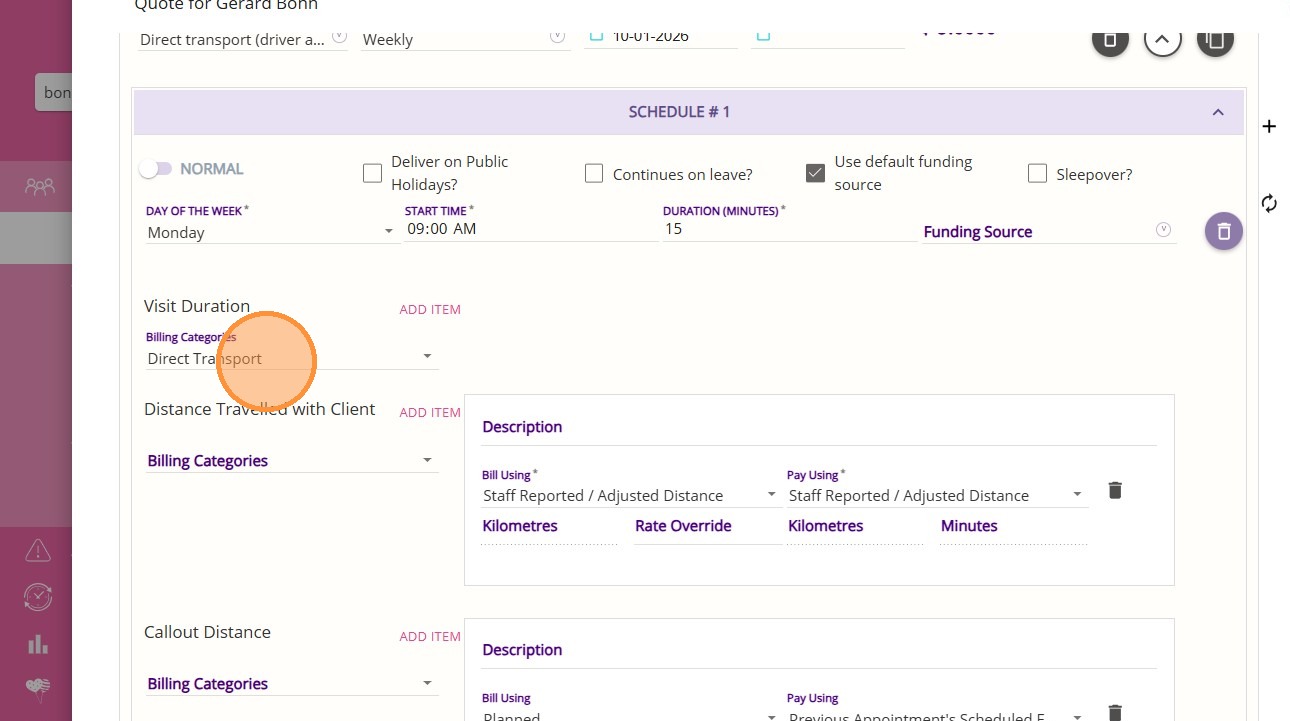
4. For Distance Travelled with Client, select the Non-billable Distance Travelled With Client billing category.
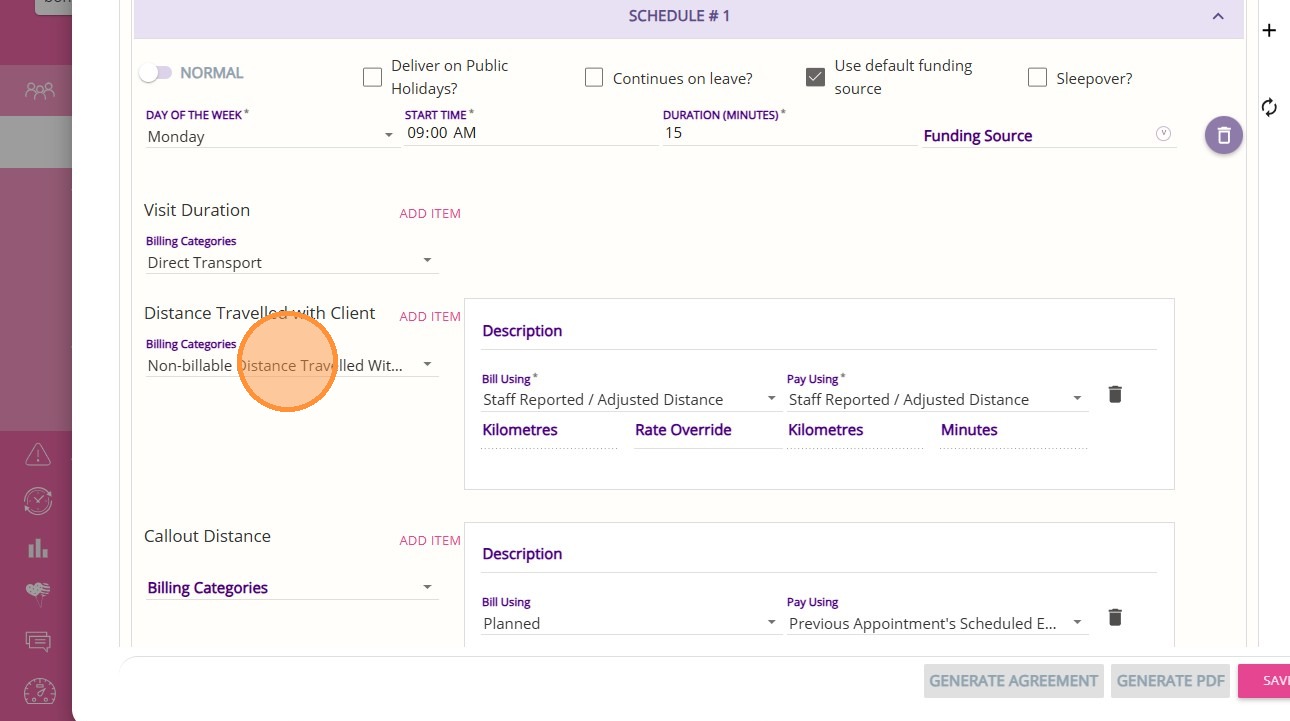
5. For Callout Distance, select the Non-billable Callout Fee billing category.
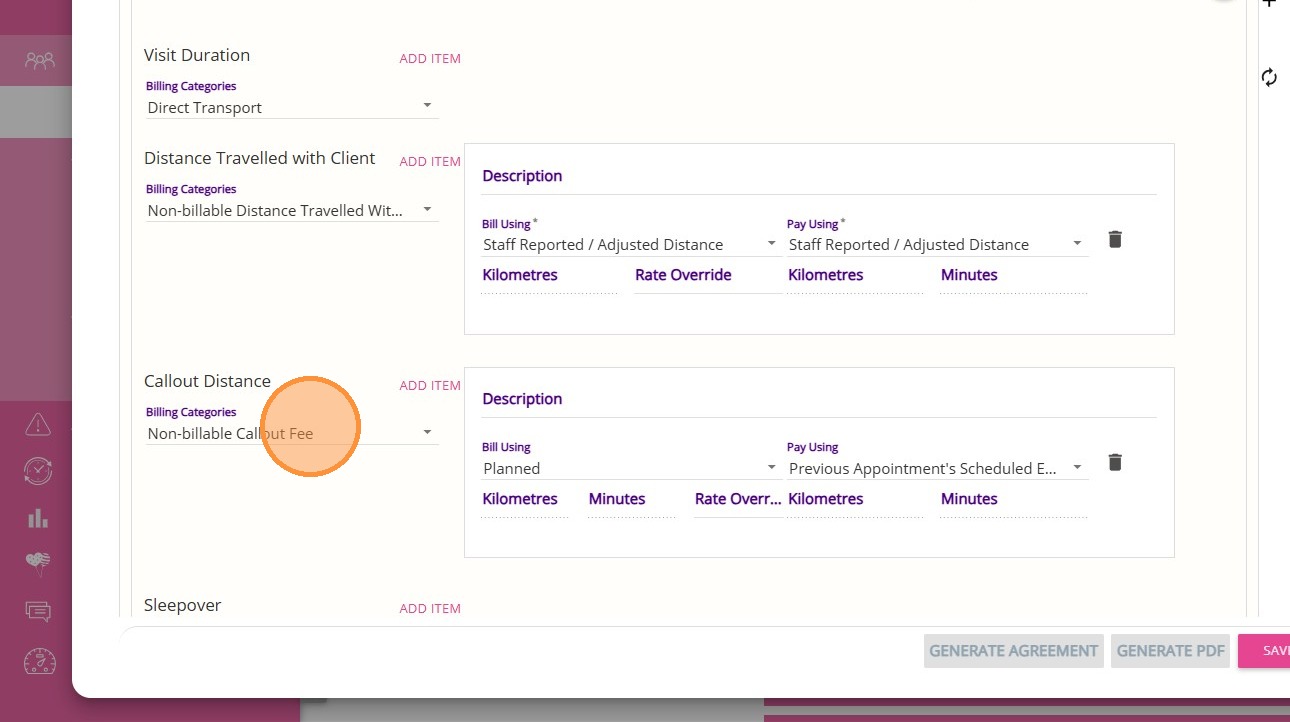
6. In the Manual Line Items section, click Add Item.
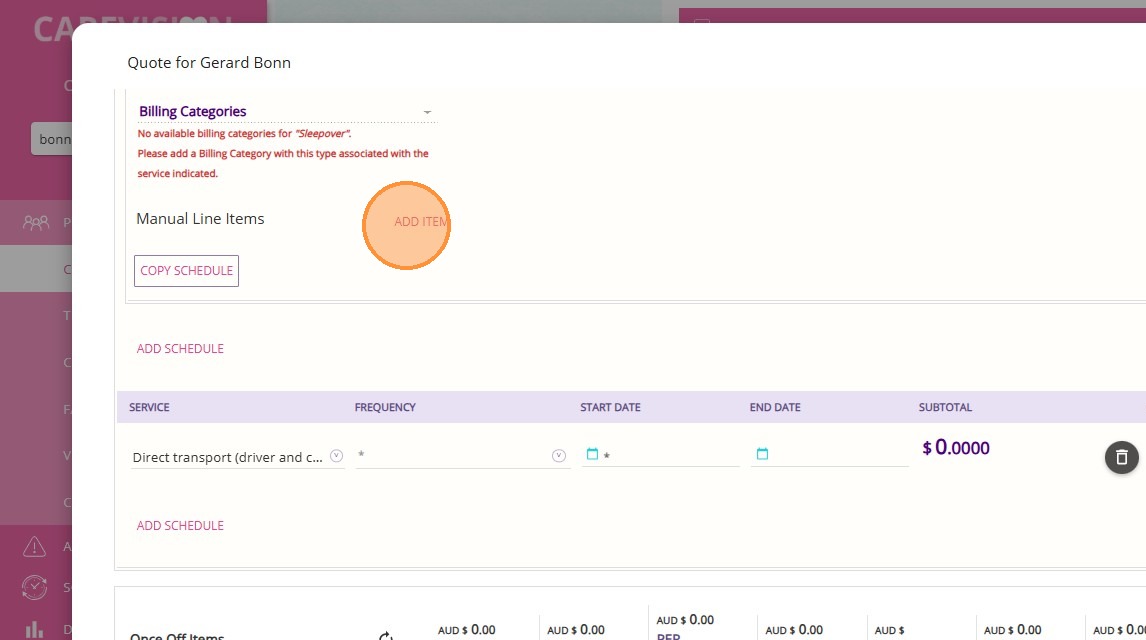
7. Select the Manual Line Item Template for Transport (for example, Direct Transport) where the Expected Unit and Actual Unit fields are set to Trip as set up in the template.
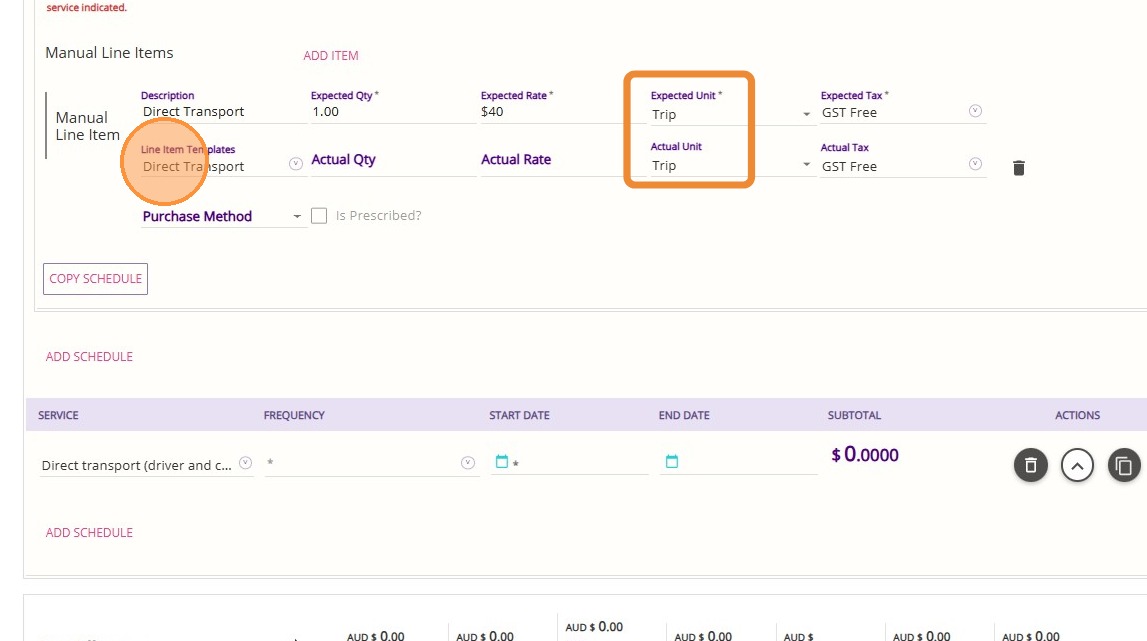
8. Complete other service details based on your business requirements. Review the overall quote, then click Save.
For more information about managing transport services for Support at Home, contact the CareVision Support Team.