How to use the Close Quarter Button
This topic explains how to use the Close Quarter button to calculate and roll over remaining SAH balances.
Keywords: close quarter sah, support at home rollover, sah remaining balance, claims management carevision, finalize period, statement periods management, sah funding rollover, quarter close process, carevision claims, sah calculations
Prerequisite
Before using the Close Quarter button, make sure the final period of the quarter (March, June, September, or December) is set to Closed. For steps, see How to Finalize a Period.
What the Close Quarter Button Does
The Close Quarter button calculates and rolls over any remaining SAH balance for a participant at the end of a quarter.
- The system calculates the rollover based on the participant’s remaining balance.
- A cap is applied to the rollover amount:
- $1,000, or
- 10% of the participant’s quarterly budget (whichever is higher)
When You Can Use It
You can use the Close Quarter button 60 days after the end of the quarter.
- This 60-day period allows time for corrections and adjustments.
- If you’re unable to close a quarter, it may mean the 60-day correction window is still in effect. In this case, the system will display the following message:
“The 60-day correction window has not yet passed. Rollovers can only be calculated from 2026-09-01 onwards.”
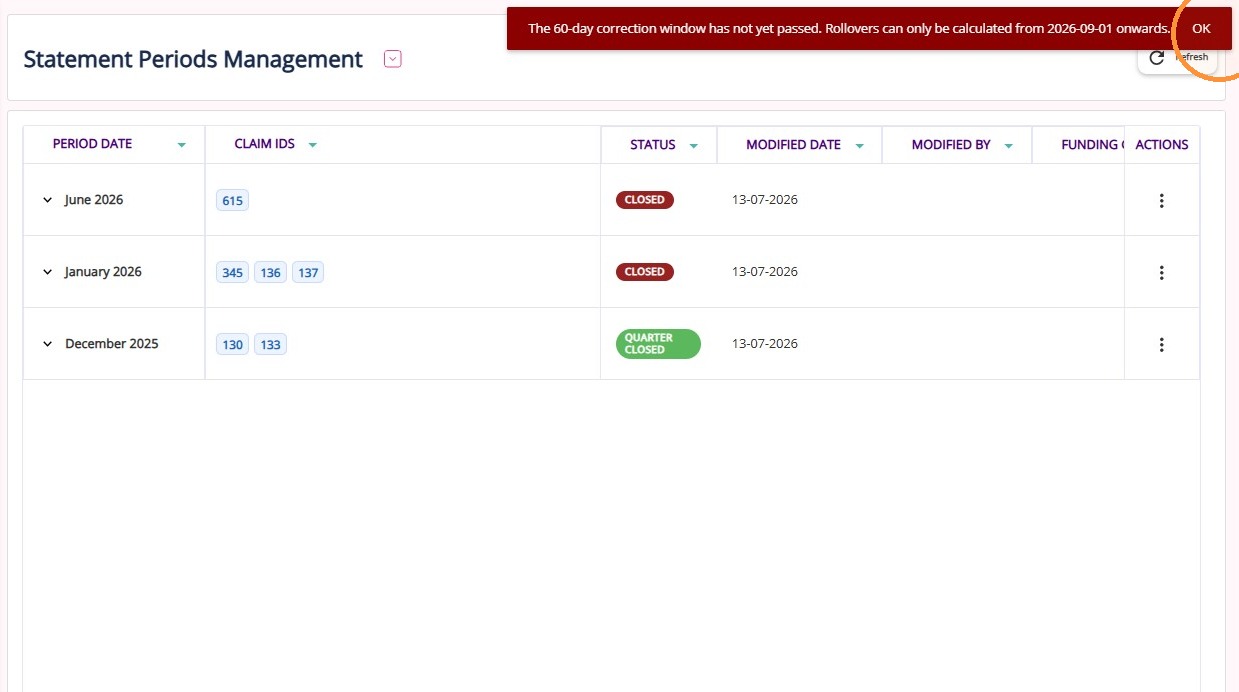

Note: This restriction is currently disabled until further notice. This means you can close the quarter even if the 60-day period has not yet passed.
Steps
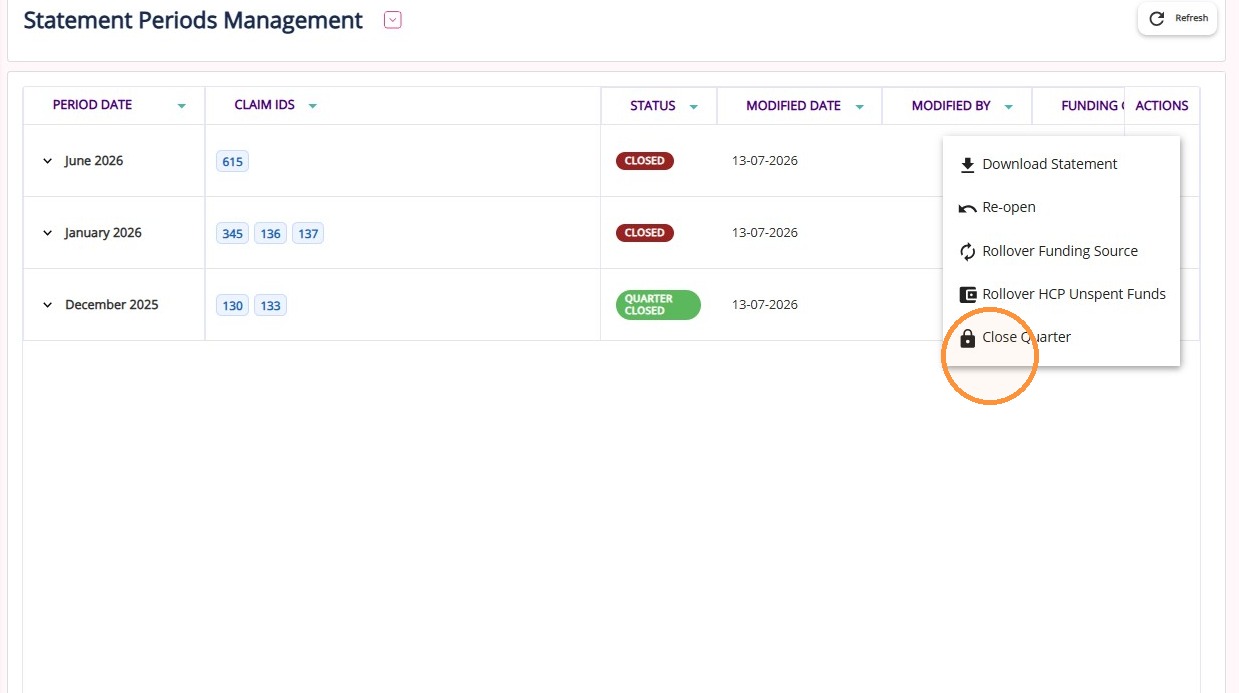
- Go to Actions > Claims Management.
- Open Statement Periods Management.
- Locate the final period of the relevant quarter.
- Click Close Quarter.
Where to View the Rollover Amount
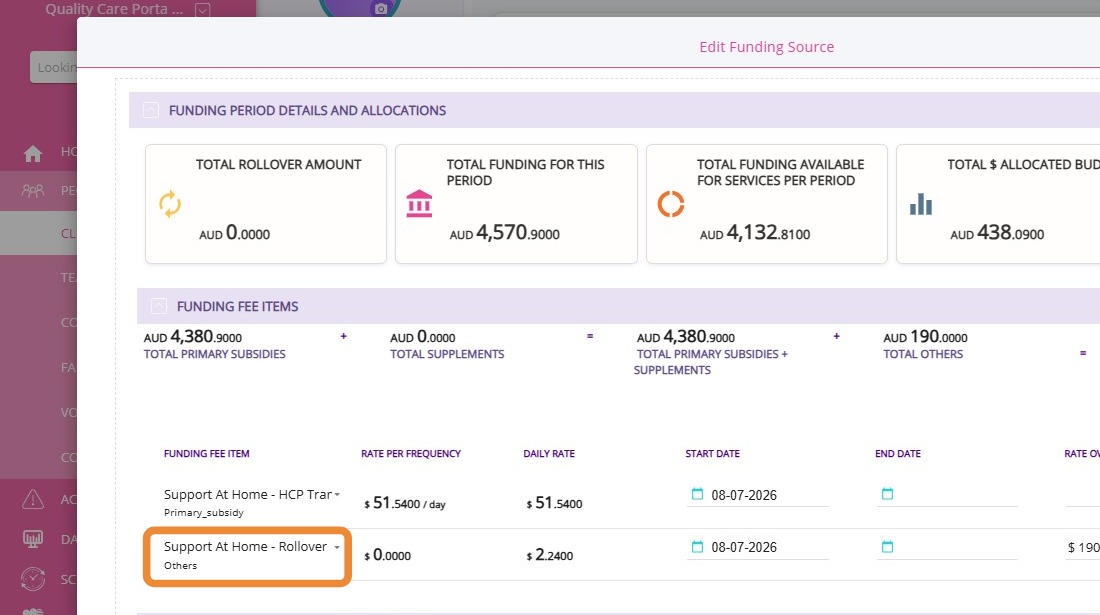
After processing, you can view the rollover amount in the client record:
- Go to the client’s Funding Source
- Go to Funding Fee Items
- Locate Support at Home – Rollover Funding. This shows the calculated rollover value applied to the participant.
This topic explained how to use the Close Quarter button to roll over remaining SAH balances. For more information about SAH rollover calculations, contact the CareVision Support Team.
See related articles