How to Roll Over HCP Unspent Funds
This topic describes how to roll over HCP unspent funds, including where to view updated balances in the client profile.
Keywords: hcp unspent funds, rollover hcp funds, finalize period, statement periods management, claims management, funding sources, services australia rollover, unspent funds provider, client funding balance, carevision hcp
Prerequisite
All periods within the quarter must be set to Closed before rolling over HCP Unspent funds.
Example: If you want to roll over HCP Unspent funds to Quarter 3, make sure that the April, May, and June periods (Quarter 2) are all set to Closed.
 For instructions, see How to Finalize a Period.
Steps
1. Go to Actions > Claims Management and open the Statement Periods Management section.
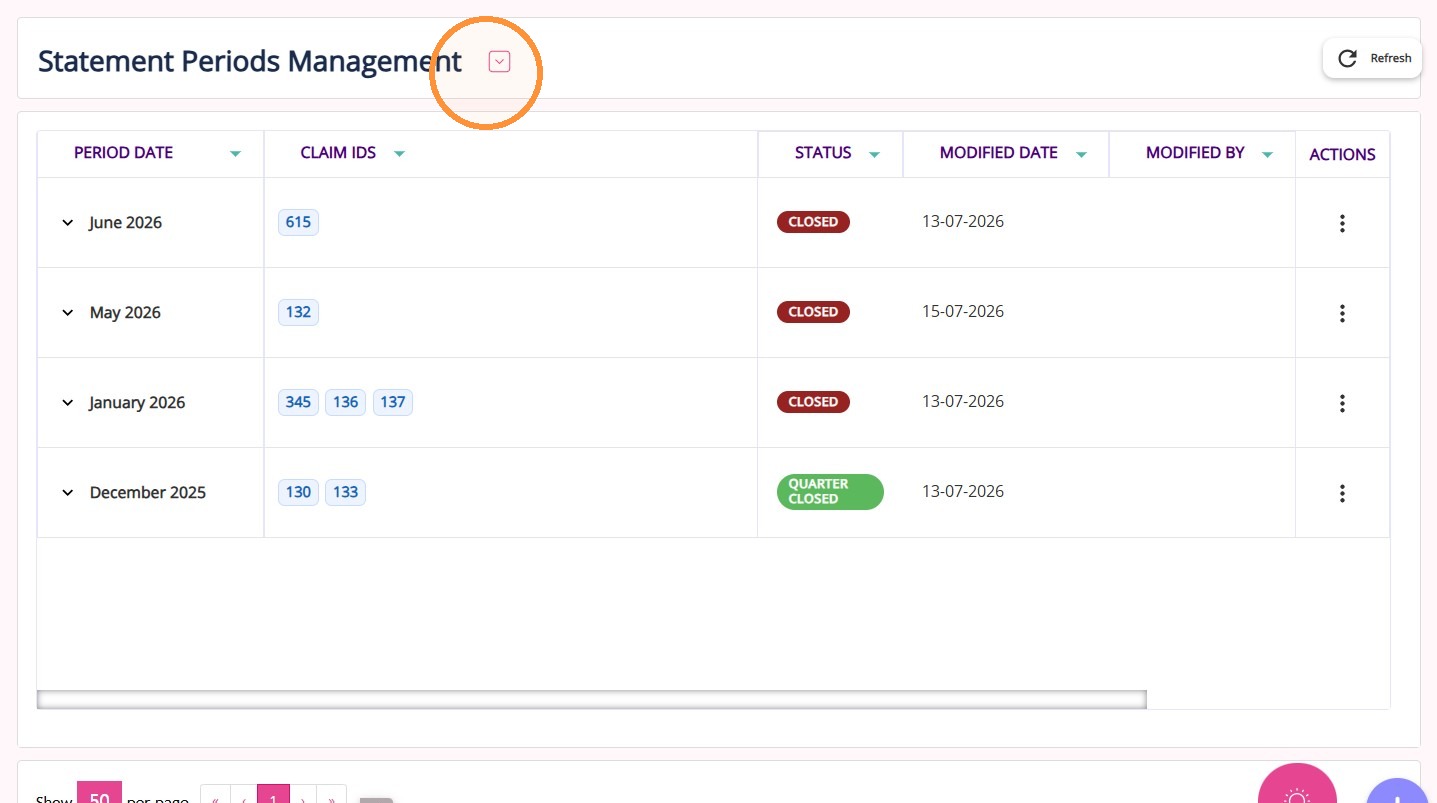
2. Locate the last period of the quarter (March, June, September, or December), as the Rollover HCP Unspent Funds button is only available for these periods.
 Note: All periods within the quarter must have their Status set to Closed. Example: If you want to roll over HCP Unspent funds to Quarter 3, make sure that the April, May, and June periods (Quarter 2) all have their Status set to Closed.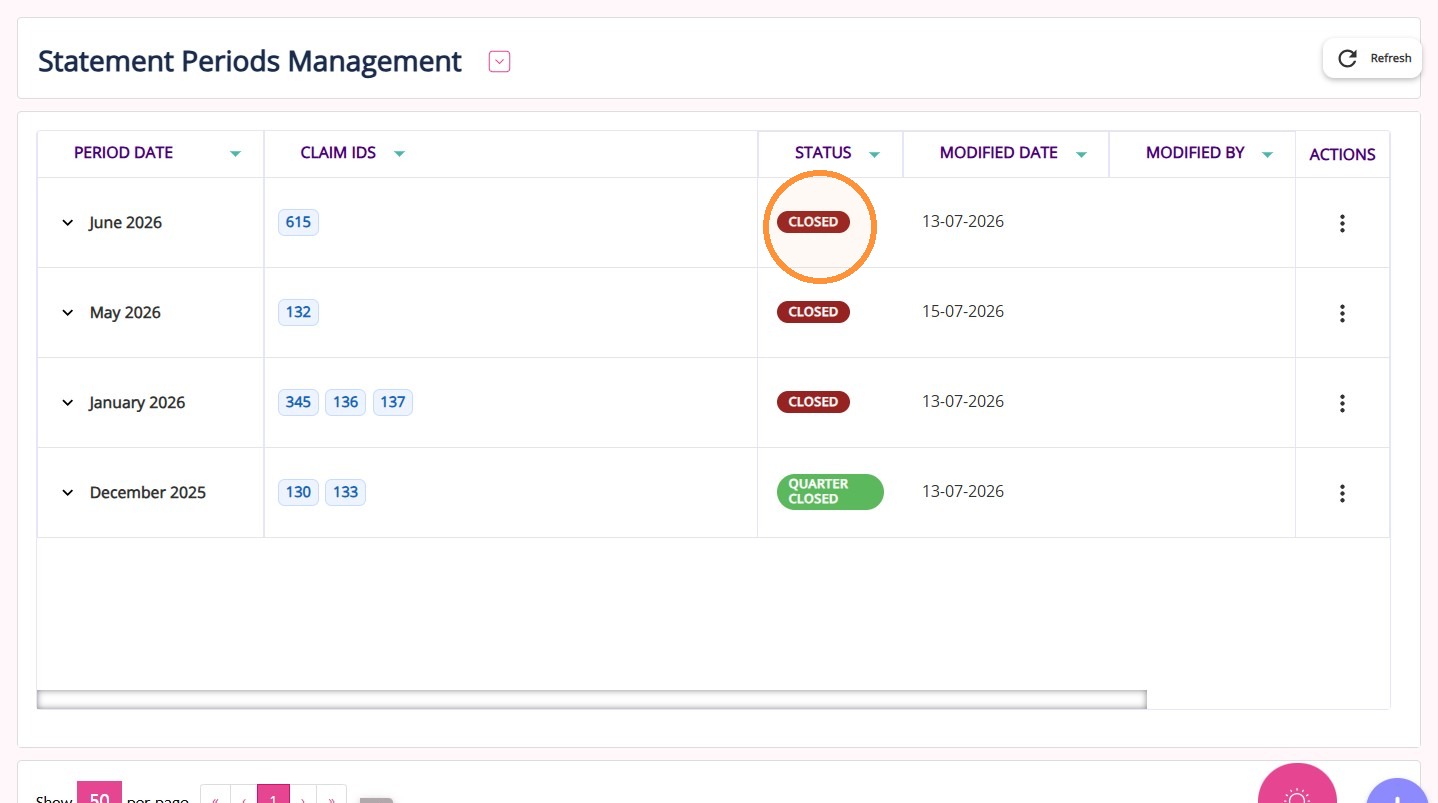
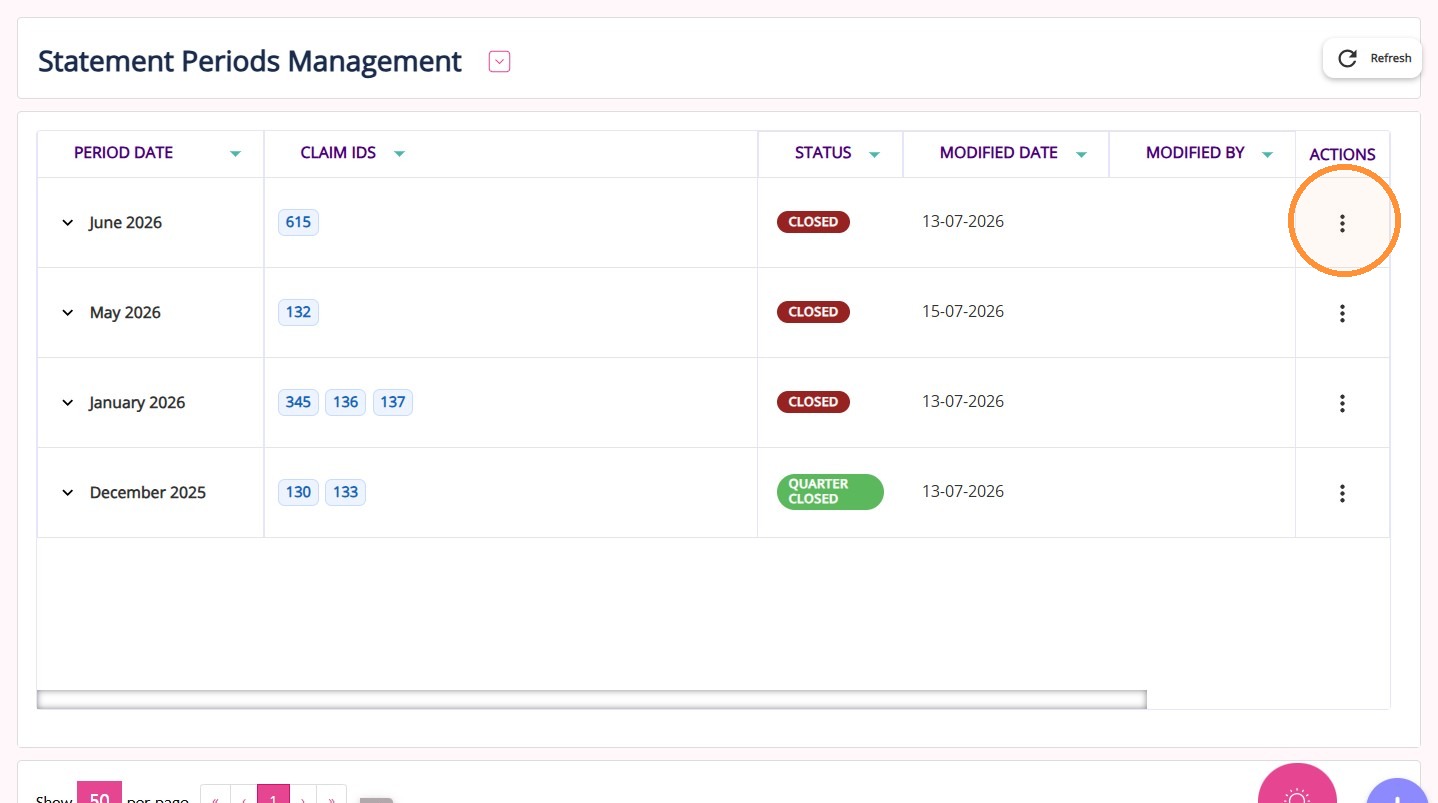
3. Under the Actions column click the three dots.
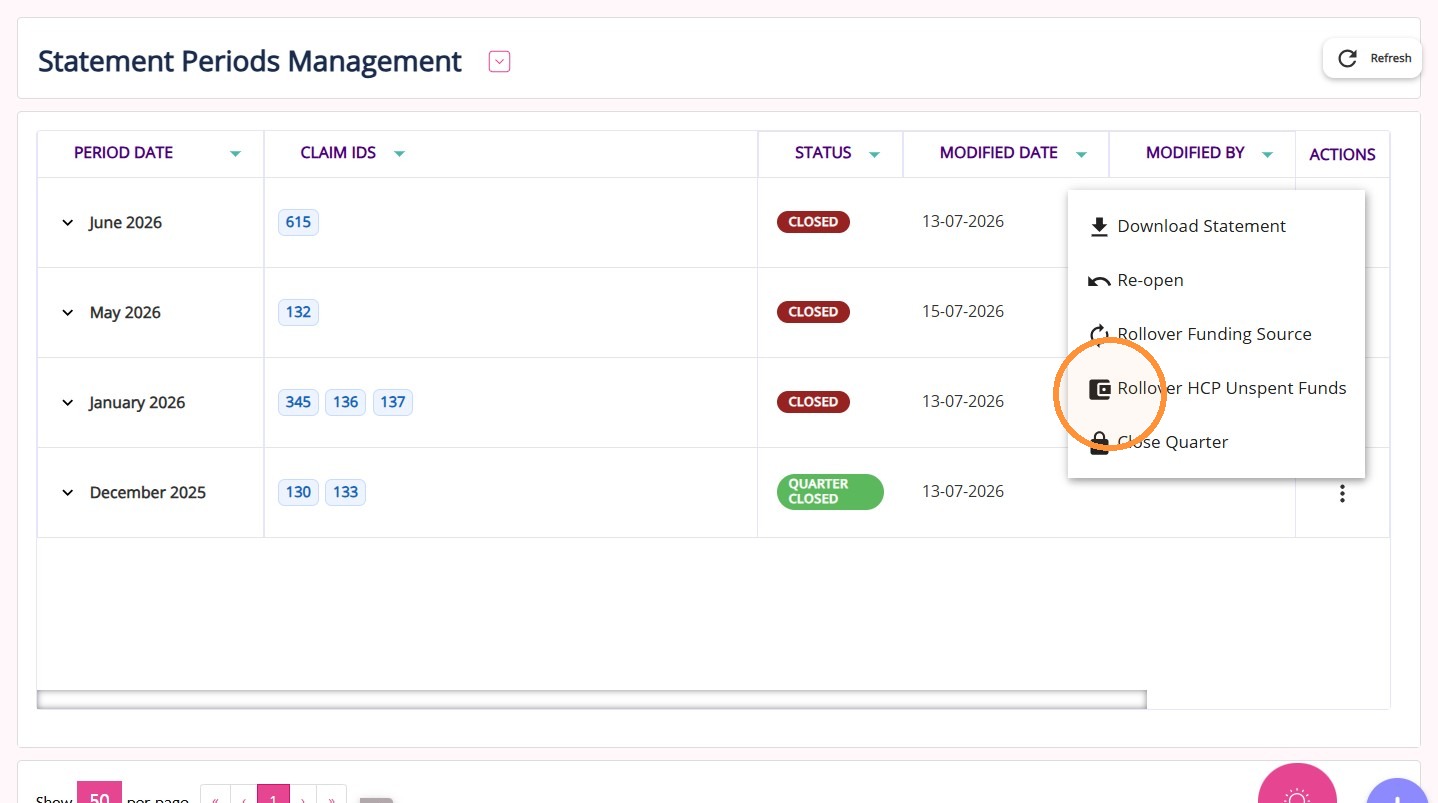
4. Then, click Rollover HCP Unspent Funds.
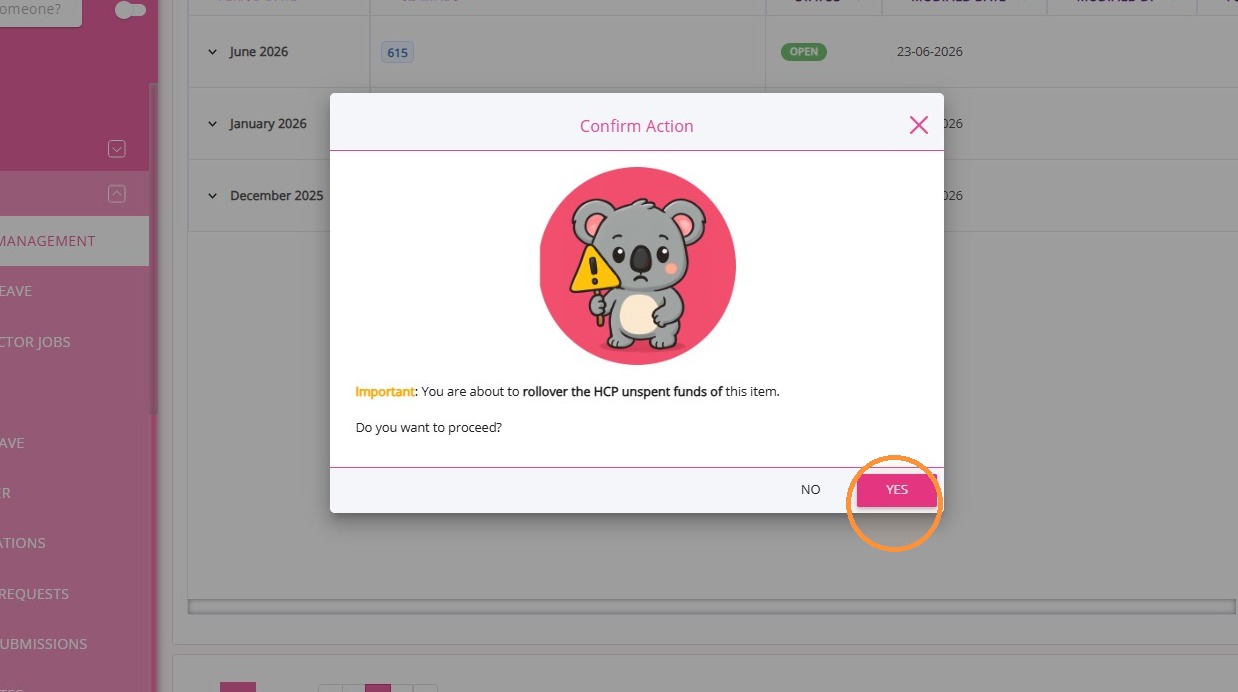
5. Click Yes to confirm.
Check the Funding Source section in the client profile.
- Go to the client’s profile, then select Funding Sources.
- The HCP Unspent Funds will be displayed in the Rollover section.
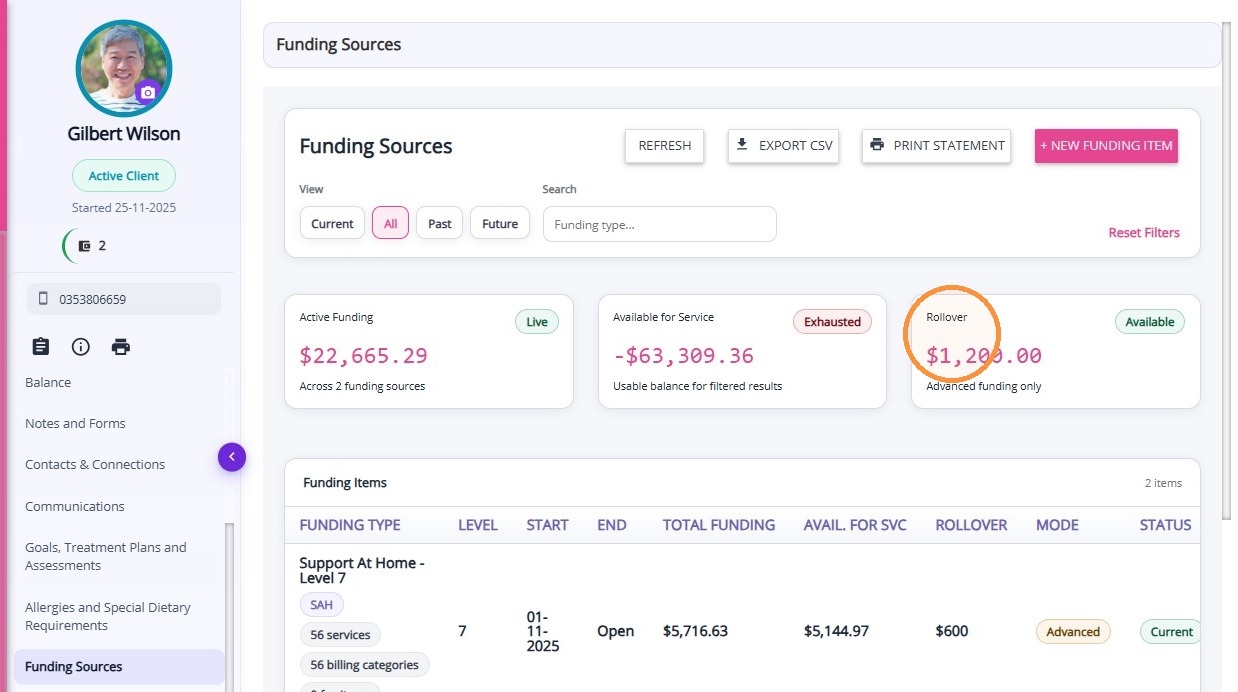
The HCP Unspent Funds include:
Services Australia Rollover Balance
Refers to the amount of funds held by Services Australia on behalf of a client. This is typically shown in the payment statement summary after claims are processed.
Unspent Govt Held Funds by Provider
Refers to the closing balance of government funds from before the IPA that the provider is still holding as of the completion of the final claim.
Unspent Client Funds Held by Provider
Refers to the remaining HCP funds held by the provider on behalf of the client.
This topic walked you through how to roll over HCP unspent funds. For more information, contact the CareVision Support Team.