Uploading Multiple Payment Files to a Claim
You can now upload multiple payment files against a single claim. This supports scenarios where Services Australia issues supplementary or corrected payment files after the original (for example, when a previously rejected item is later paid).
Previously, each new upload replaced all existing files. You can now choose whether to add to, or replace, the existing files.
Keywords: payment files, claims management, multiple uploads, sah claims, payment reconciliation, services australia, csv upload, claim payments, duplicate handling, payment override
Uploading Files
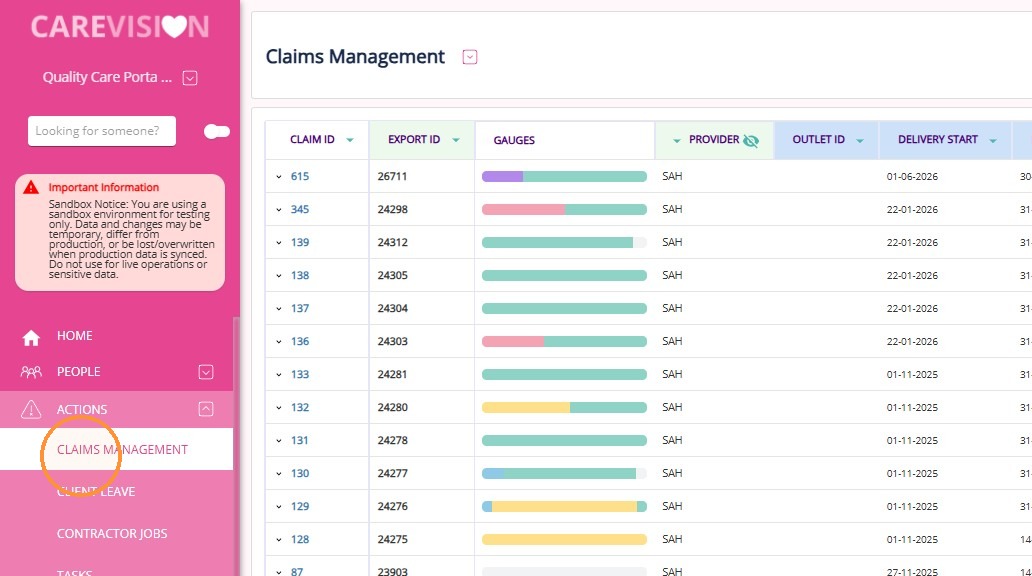
In the left menu, go to Actions > Claims Management.
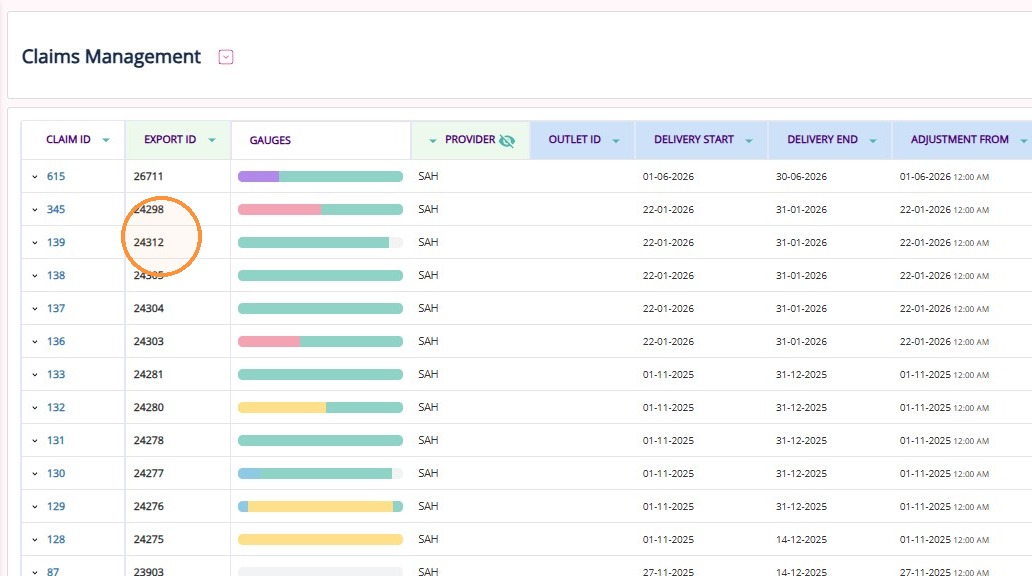
Locate the relevant SAH claim using the export ID.
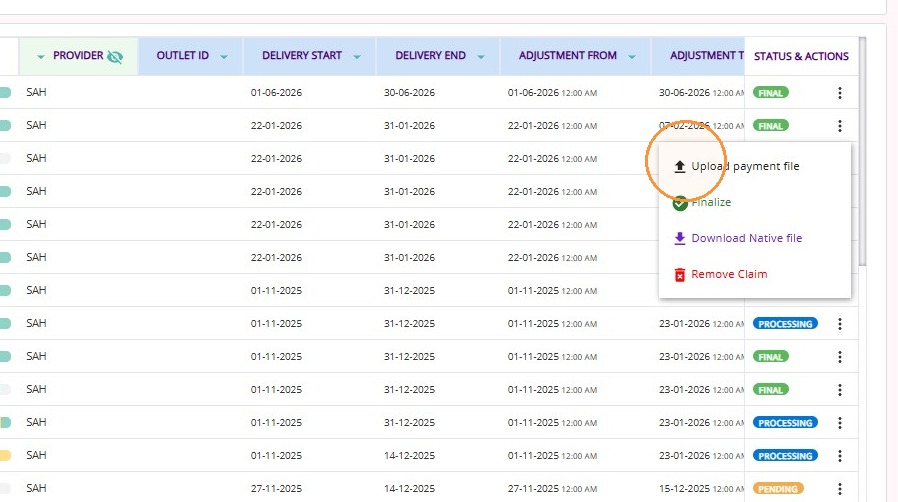
In the Status & Actions section, click the three dots and select Upload Payment File.
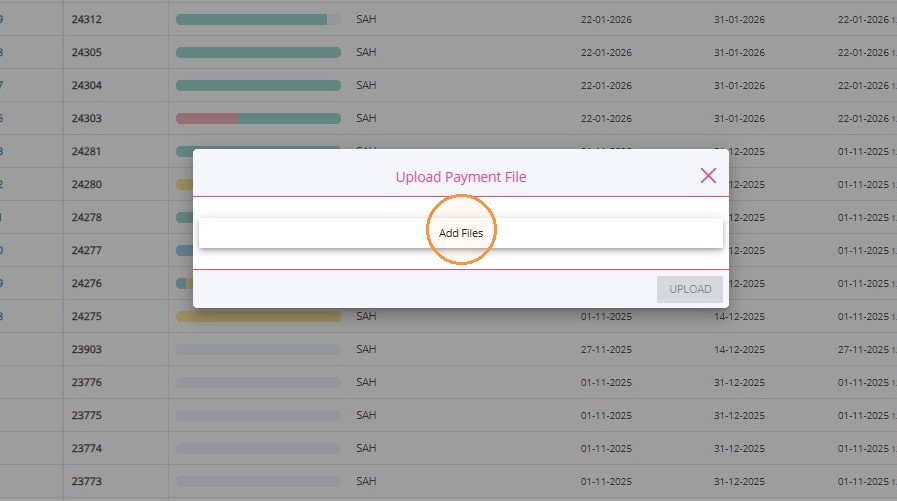
Click Add Files.
Click + Add more files to add one or more CSV files.
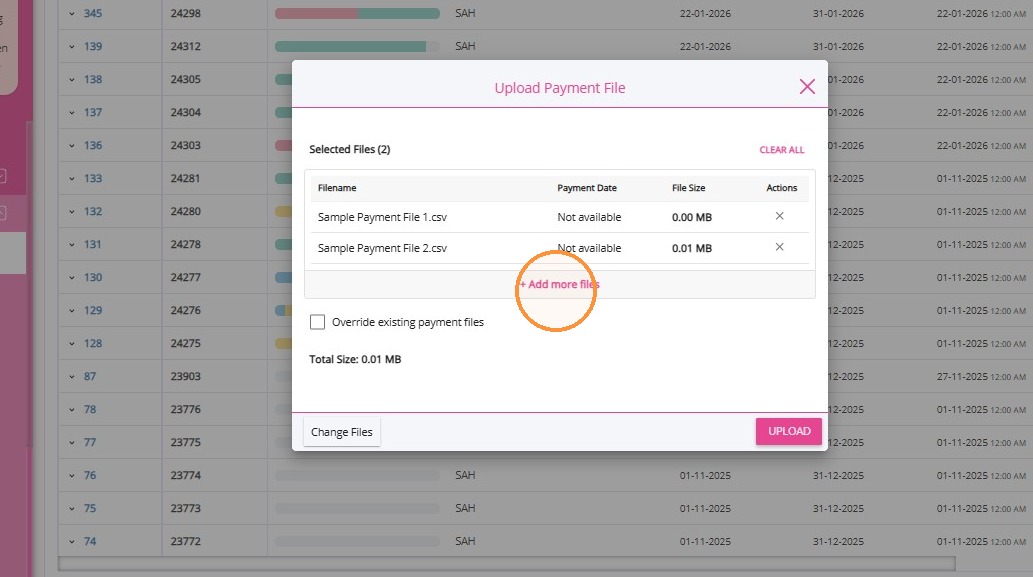
Adjust your selection if needed:
Available Actions
- Add more files: append files without losing current selection
- Change files: replace the current selection
- Clear all: remove all selected files
- Remove individual files: delete a single file from the list
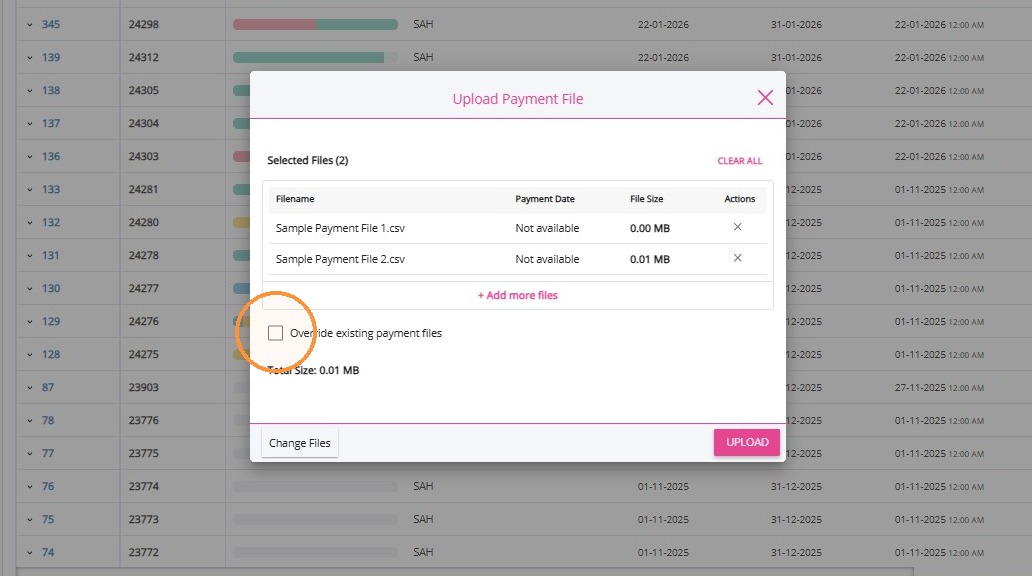
Choose whether to Override Existing Payment Files (see next section).
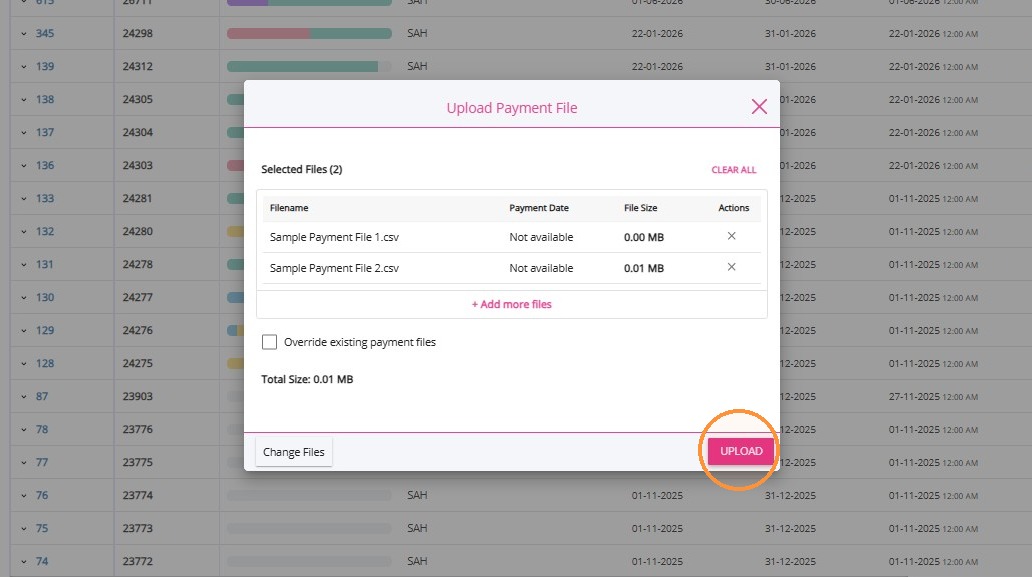
Click Upload.
Limits
- Total upload size must not exceed 10 MB
- Duplicate files are automatically blocked
- Empty files will be flagged as having no payment data
Override Existing Payment Files
Unticked (recommended):
Existing payment files are retained. New files are added, and CareVision reconciles them automatically.
Existing payment files are retained. New files are added, and CareVision reconciles them automatically.
Ticked (override):
All existing payment files and their details are permanently deleted before new files are imported.
A confirmation warning will appear. Use this option only when you need to fully replace prior uploads.
All existing payment files and their details are permanently deleted before new files are imported.
A confirmation warning will appear. Use this option only when you need to fully replace prior uploads.
Handling Duplicate Payment Records
Handling Duplicate Payment Records
If a newly uploaded file contains an item already present in a previous file (matched by item_external_reference_identifier):
- CareVision keeps the record with the latest payment date
Older records are marked as Auto Excluded
Worked example
What Auto Excluded means
What Auto Excluded means
Auto Excluded records are retained in full for audit purposes and remain visible on the reconciliation page. They are excluded from:
- Claim reconciliation
- Claim invoice generation
- Statement generation
- Statement period close calculations
Downloading uploaded files
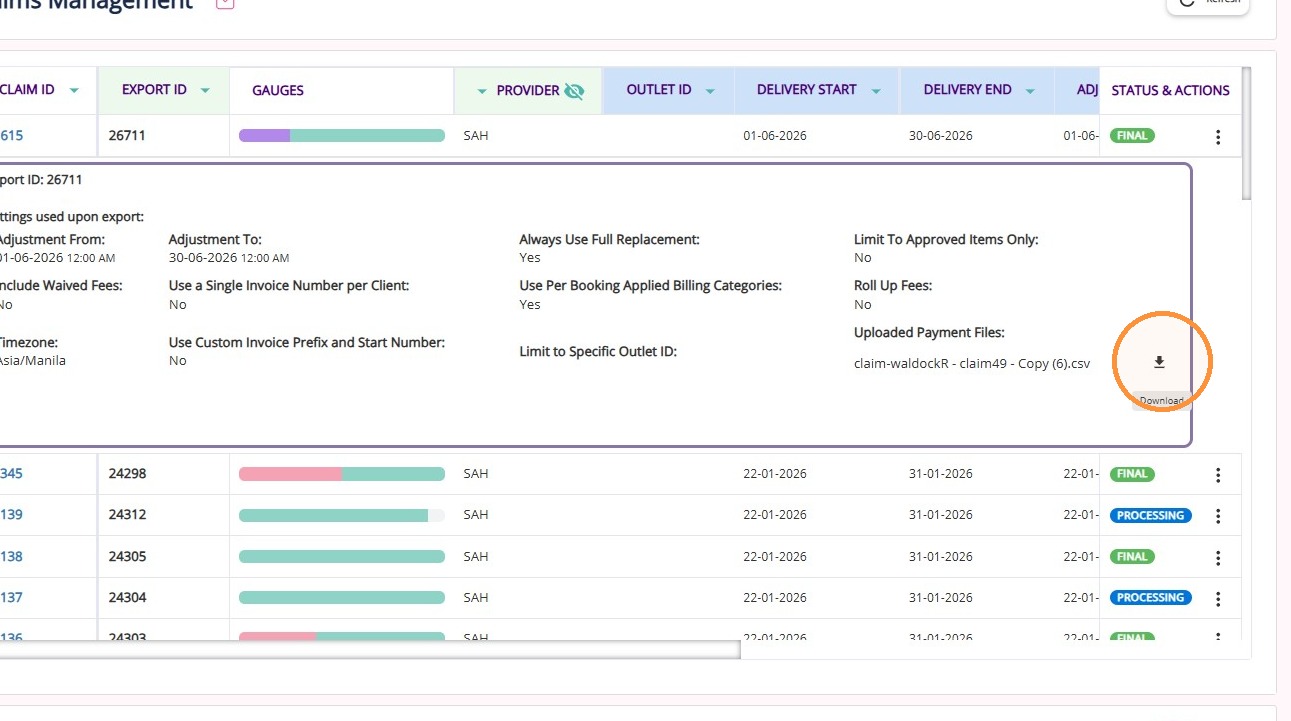
Each uploaded payment file can be downloaded individually. Expand the Claim ID to view the file list.
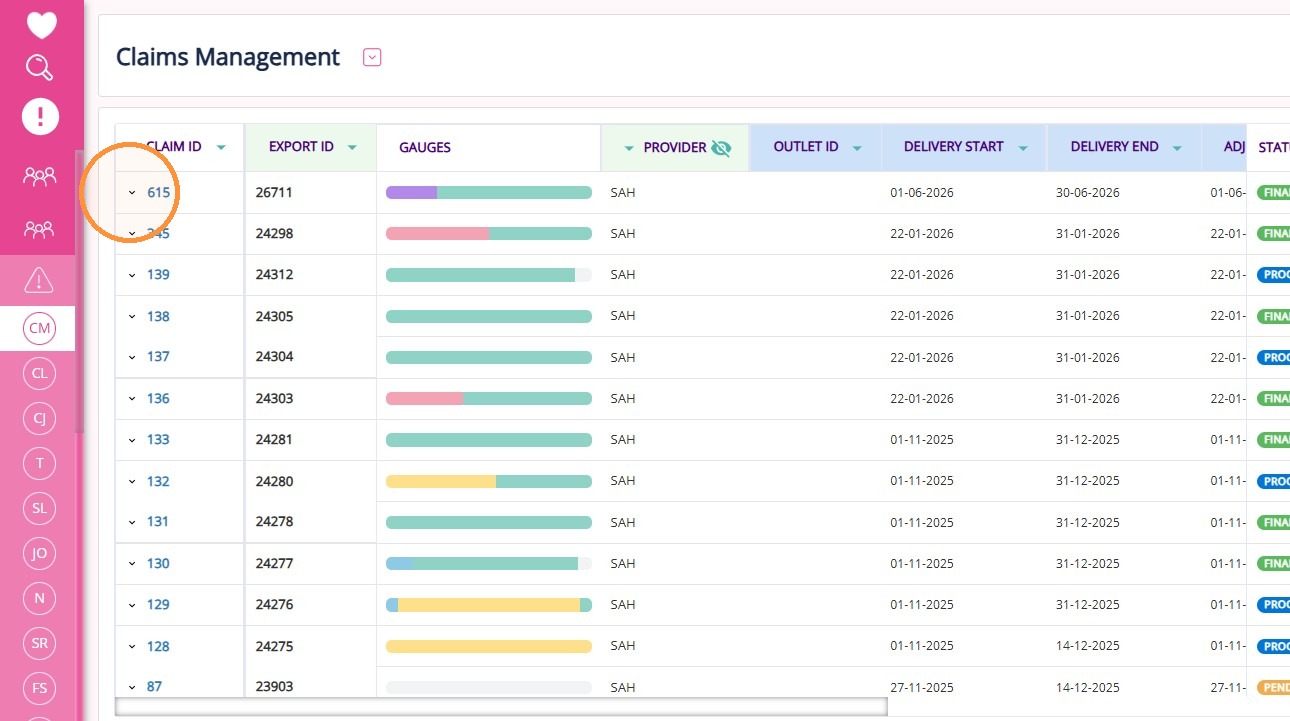
Then, click the Download button.
This topic explained how to upload multiple payment files in the Care Management Dashboard. For more information about claims management and payment uploads, contact the CareVision Support Team.