Detailed Profile Section in Client Profile

Detailed Profile Section in Client Profile

The Detailed Profile section in the client profile provides an overview of each client, supporting personalized care and efficient communication. This topic describes the Detailed Profile section, explains how to complete client profile details, and introduces the quick action buttons.


Keywords: client profile, detailed profile, carevision, client information, profile picture, quick actions, client management


I. Access the Detailed Profile Section

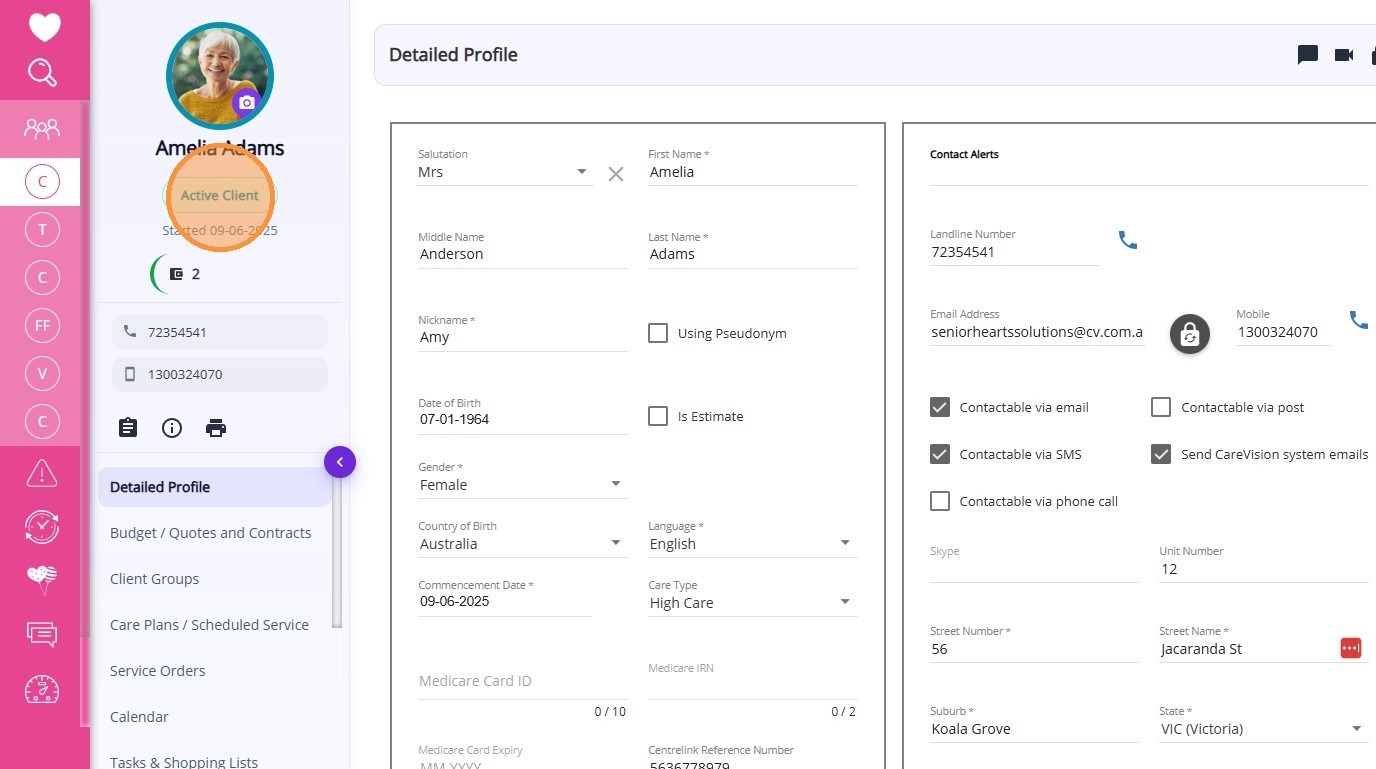
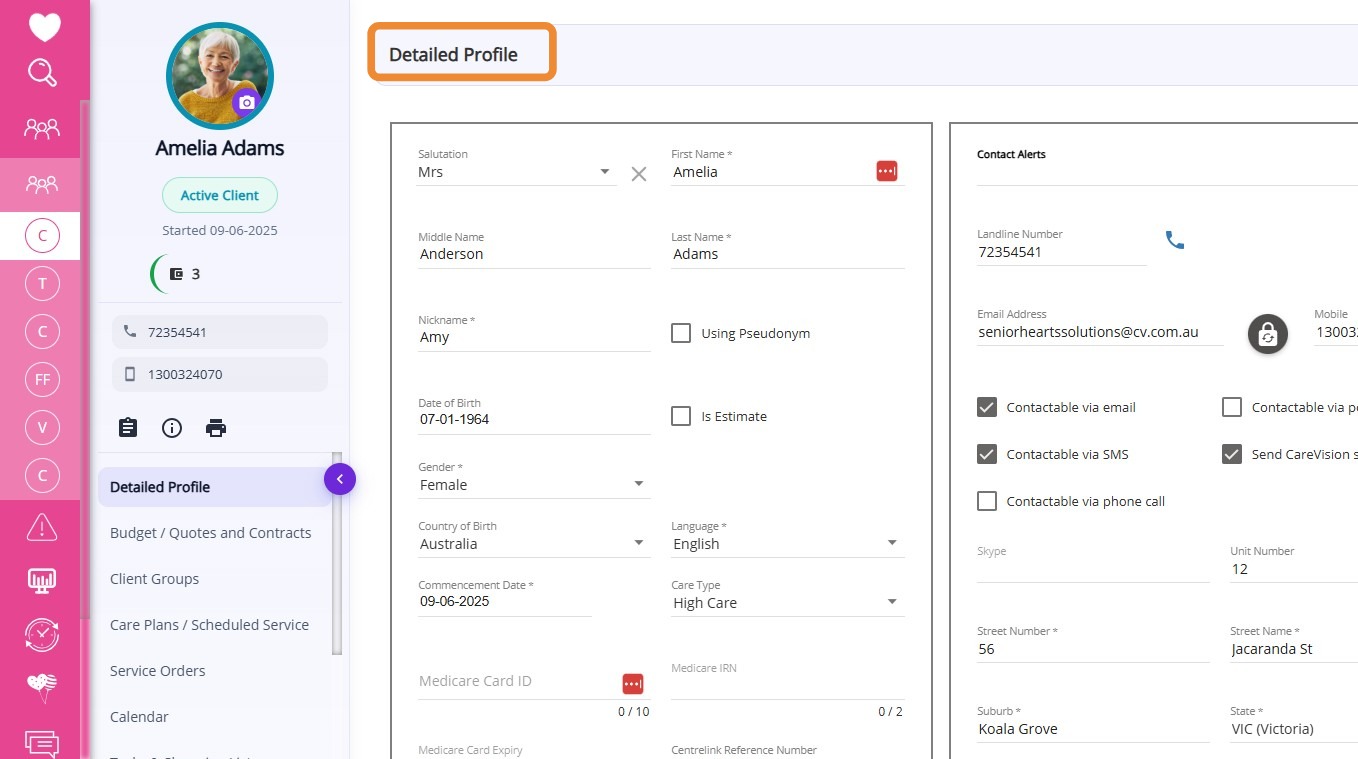
To access the Detailed Profile, navigate to People > Clients in the left navigation pane and select a client. The first section you see upon opening a client record is the Detailed Profile. Once a client profile has been created, you can return to this section at any time to complete or update their information.
II. Profile Picture Section

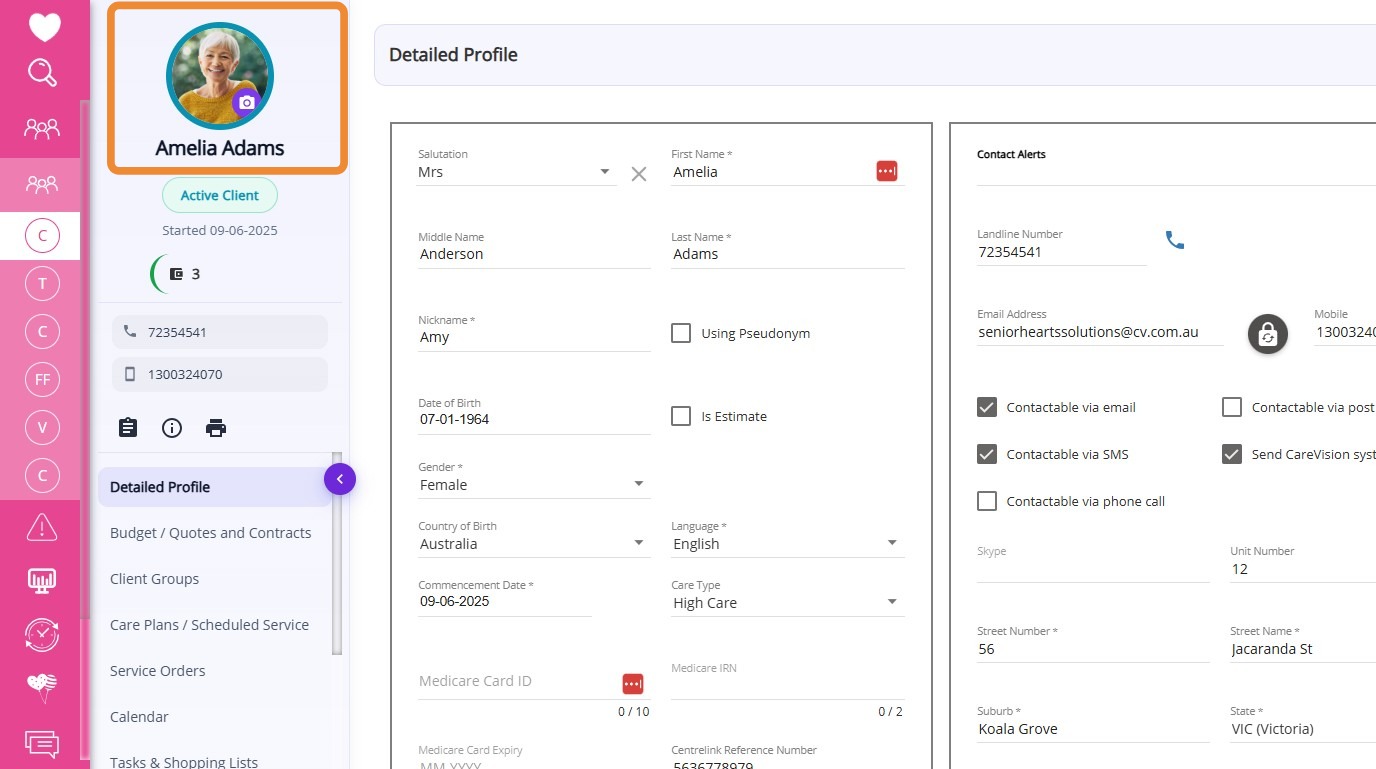
You can personalize the client’s profile by adding a profile photo and a cover photo. These visual elements help team members quickly identify clients.

III. Quick Action Buttons

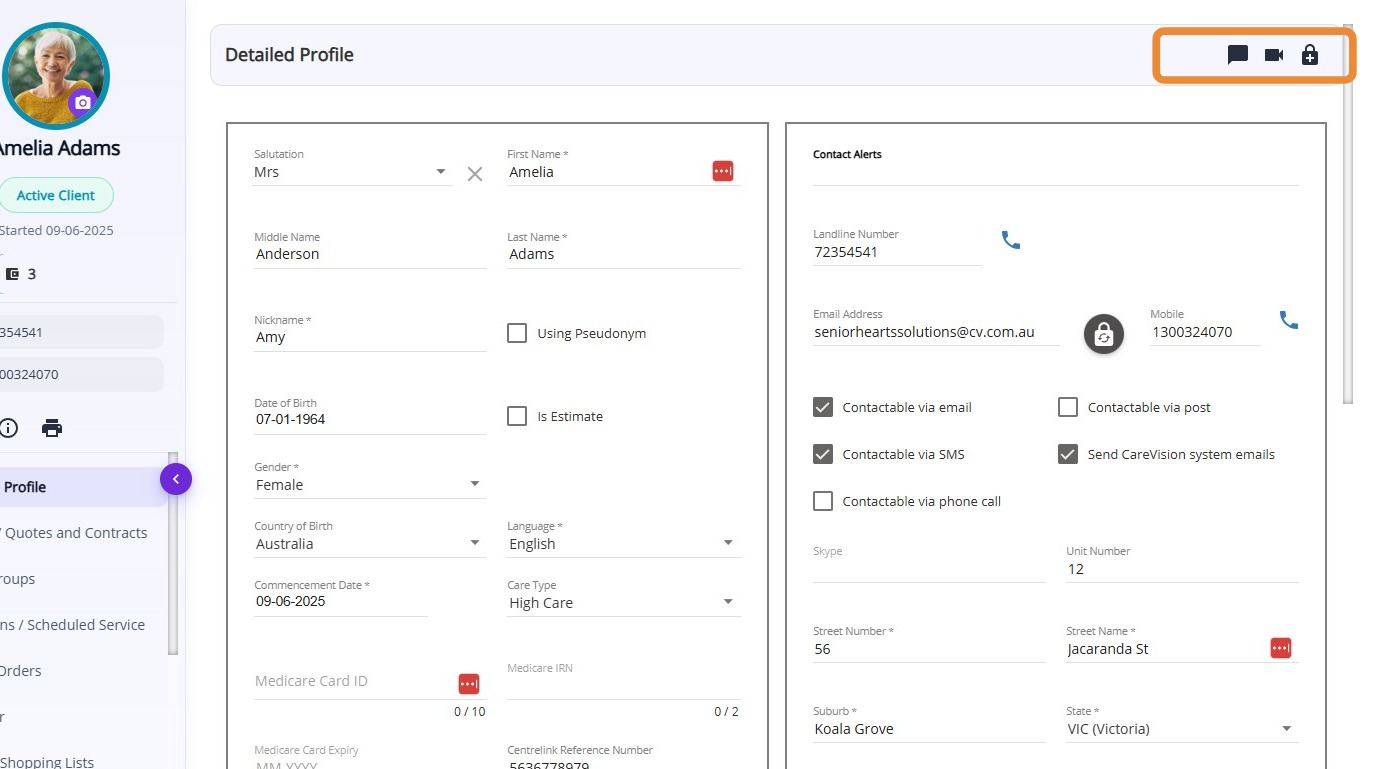
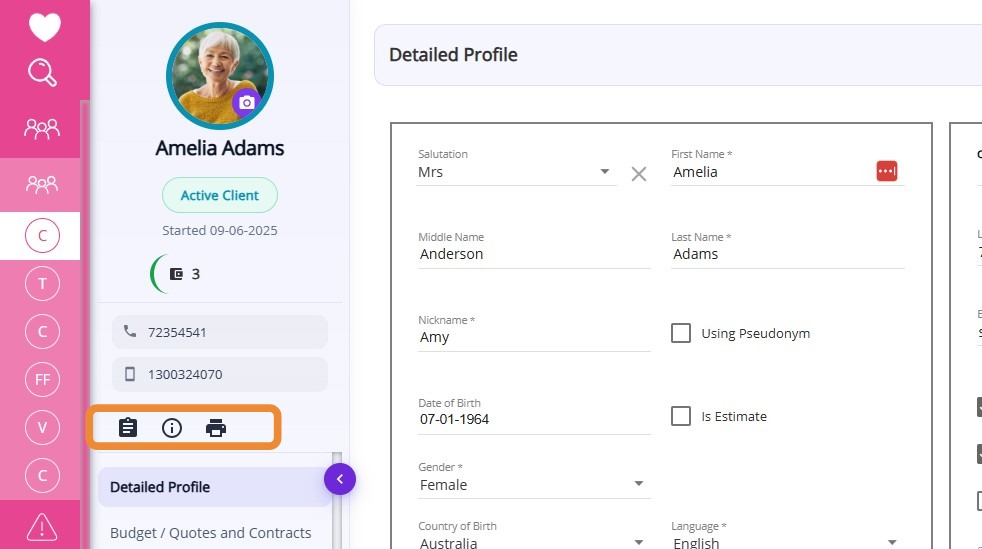
Directly below the client profile, you’ll find quick action buttons for common tasks:
  • Send Message

  • Create Task

  • Set Reminder

  • Start Video Call

  • Reset Password

  • Client Account Status

  • Create Quote/Contract

  • Print Care/Support Plan

IV. Client Information

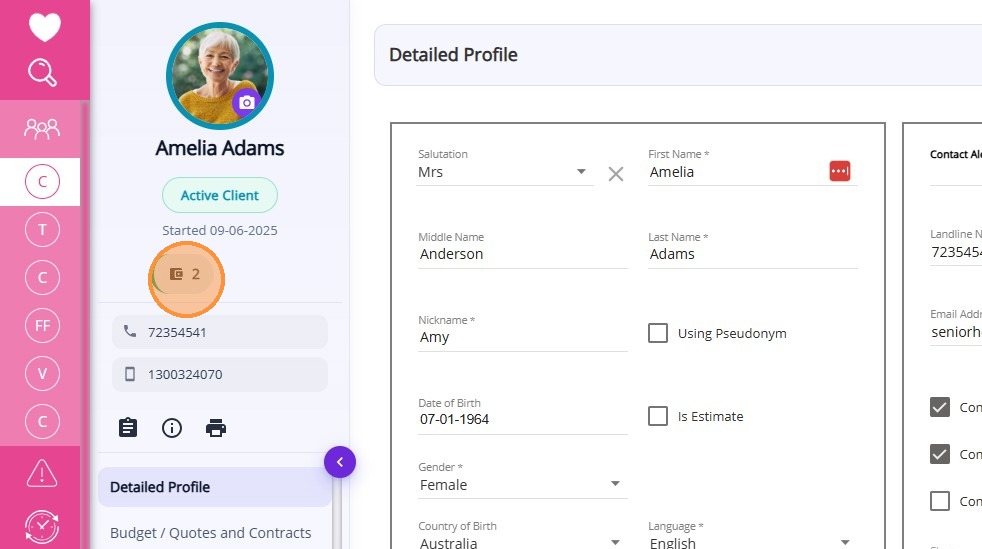
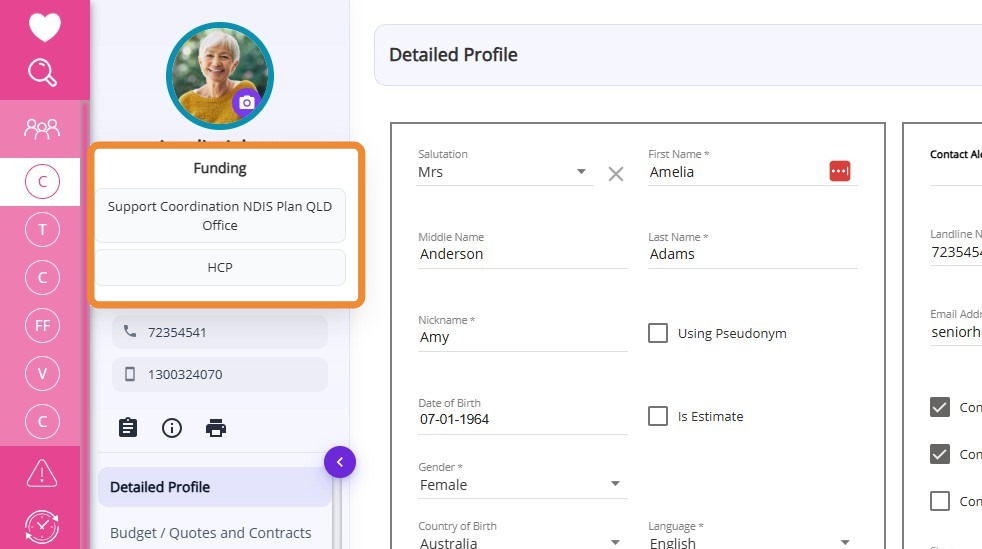
The detailed profile displays basic information about the client, such as contact details and account status. Some fields are required based on the client's funding arrangement and requirements for claiming. Please complete those fields that are relevant.
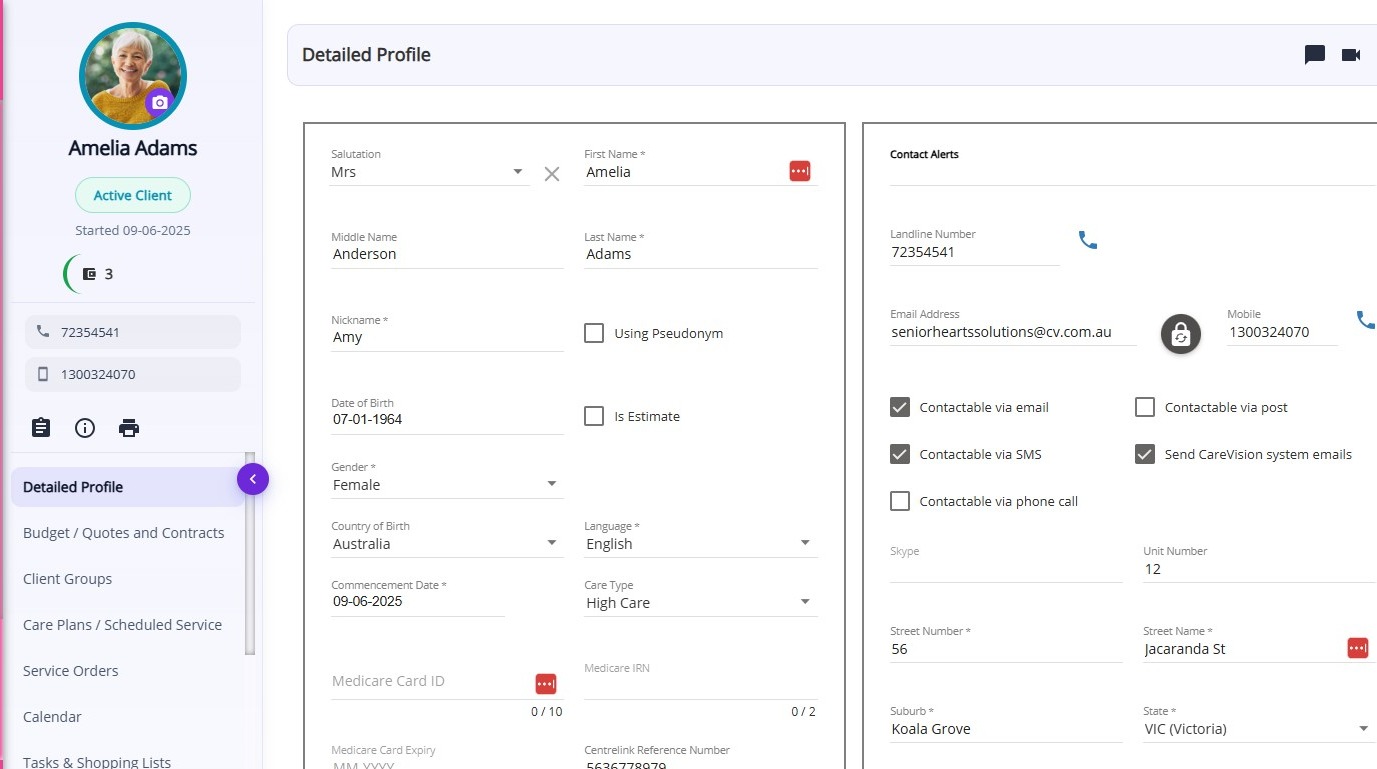
FieldDefinition
SalutationThe formal greeting or title used before the client’s name (such as Mr., Mrs., Ms., Dr.).
First NameThe client’s given name.
Middle NameThe client’s middle name(s), if applicable.
Last NameThe client’s family or surname.
NicknameThe preferred name or nickname the client uses.
Using PseudonymIndicates if the client is using a pseudonym (tickbox).
Date of BirthThe client’s date of birth in DD-MM-YYYY format, which can be selected from a calendar picker.
Is EstimateIndicates if the date of birth is an estimate (tickbox).
GenderThe client’s gender. Options include Female, Male, Other, or Prefer Not to Say.
Country of BirthThe country where the client was born.
LanguageThe client’s preferred language for communication.
Commencement DateThe date when the client’s care or service officially begins.
Care TypeIndicates whether the client requires high care or low care.
Medicare Card IDThe unique identification number found on the client’s Medicare card.
Centrelink Reference NumberThe reference number assigned to the client by Centrelink for government services.
DVA Card StatusIndicates the status of the client’s DVA card.
DVA File NumberThe unique file number assigned to the client by the DVA.
My Aged Care Reference NumberThe client’s unique reference number in the My Aged Care system.
Aged Care Department IDThe identifier assigned to the client by the Aged Care Department.
Pension Card CRNThe client’s Pension Card CRN
Pension Card ExpiryThe expiry date of the client’s pension card.
Organisation Reference IdentificationUnique identifier or reference number of the organisation.
Organisation Global Reference ID for ClientThe globally unique identifier assigned to the client by the organisation.
Concession NumberThe number associated with the client’s concession or discount entitlement card.
Contact AlertsAny important alerts or notes regarding contacting the client.
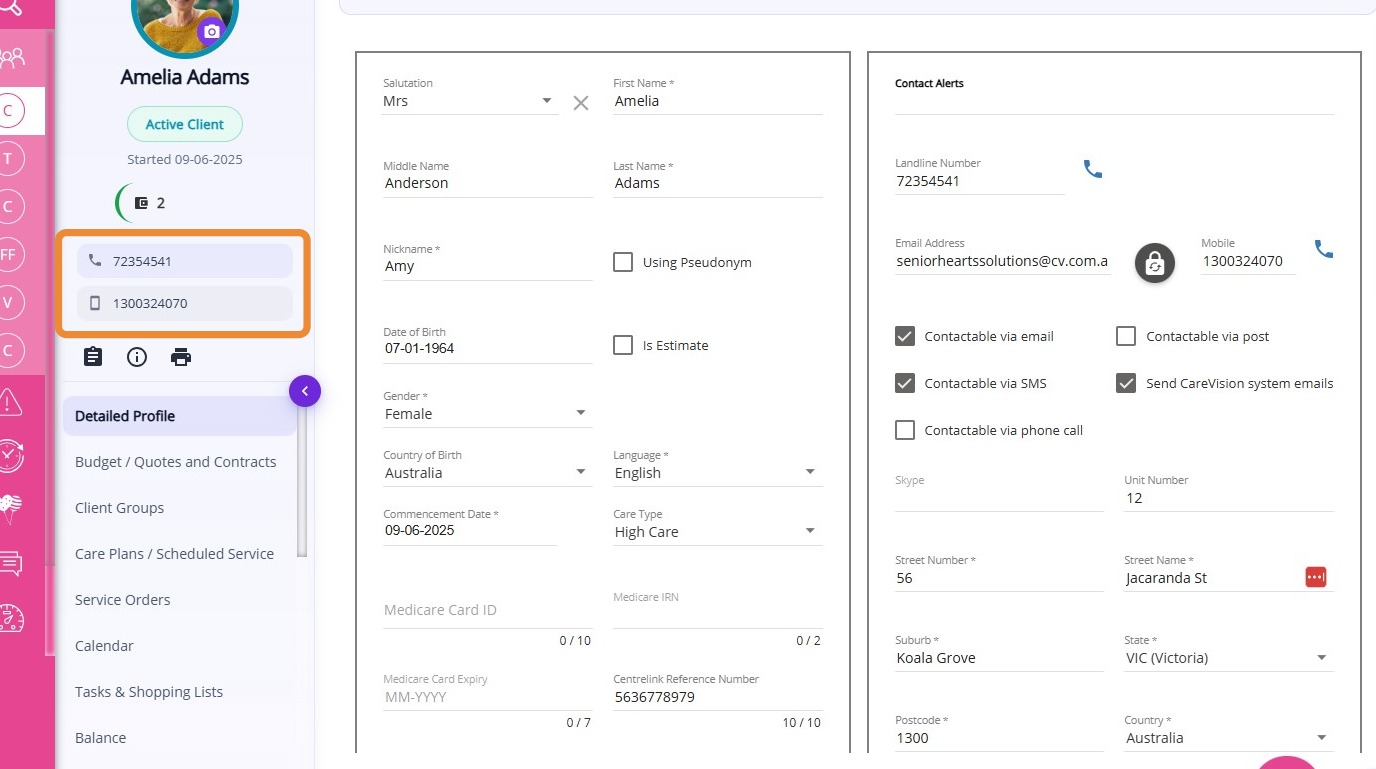
Landline NumberThe client’s landline phone number, if available.
Email AddressThe client’s email address. If the client does not have an email, the organisation can assign a general email address to receive notifications on their behalf.
MobileThe client’s mobile or primary phone number.
Contactable via EmailIndicates if the client can be contacted by email (checkbox).
Contactable via SMSIndicates if the client can be contacted by SMS (checkbox).
Contactable via Phone CallIndicates if the client can be contacted by phone call (checkbox).
Contactable via PostIndicates if the client can be contacted by postal mail (checkbox).
Send CareVision System EmailsIndicates if the client should receive system-generated emails from CareVision (tickbox).
SkypeThe client’s Skype ID for online communication.
Unit NumberThe unit or apartment number in the client’s address, if applicable.
Street NumberThe street number in the client’s address.
Street NameThe name of the street in the client’s address.
SuburbThe suburb or locality of the client’s address.
StateThe state or territory of the client’s address.
PostcodeThe postal code of the client’s address.
Country of BirthThe country where the client was born.
DepartmentsRelevant departments associated with the client.
TimezoneThe time zone in which the client resides.
RegionsThe geographic region associated with the client.
Address DescriptionAdditional details or notes describing the client’s address (such as access instructions, landmarks).
Lead Source CategoryThe general category of how the lead was sourced (referral, website, word of mouth, social media).
Lead Source ChannelThe particular channel, campaign, or advertisement that generated the lead.
MediumThe specific method or subcategory through which the lead was acquired (LinkedIn, Facebook, Instagram).

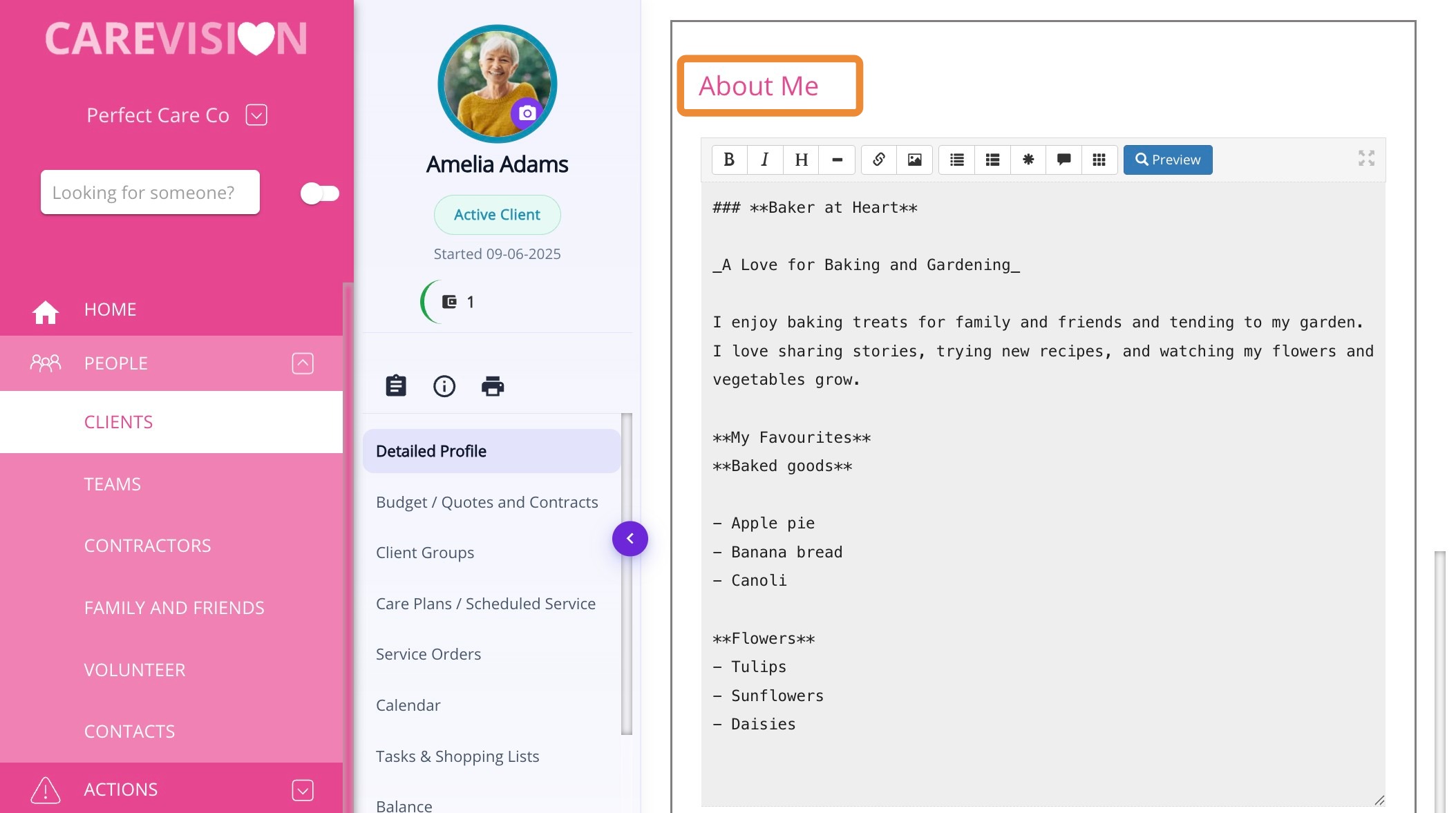
V. About Me Section

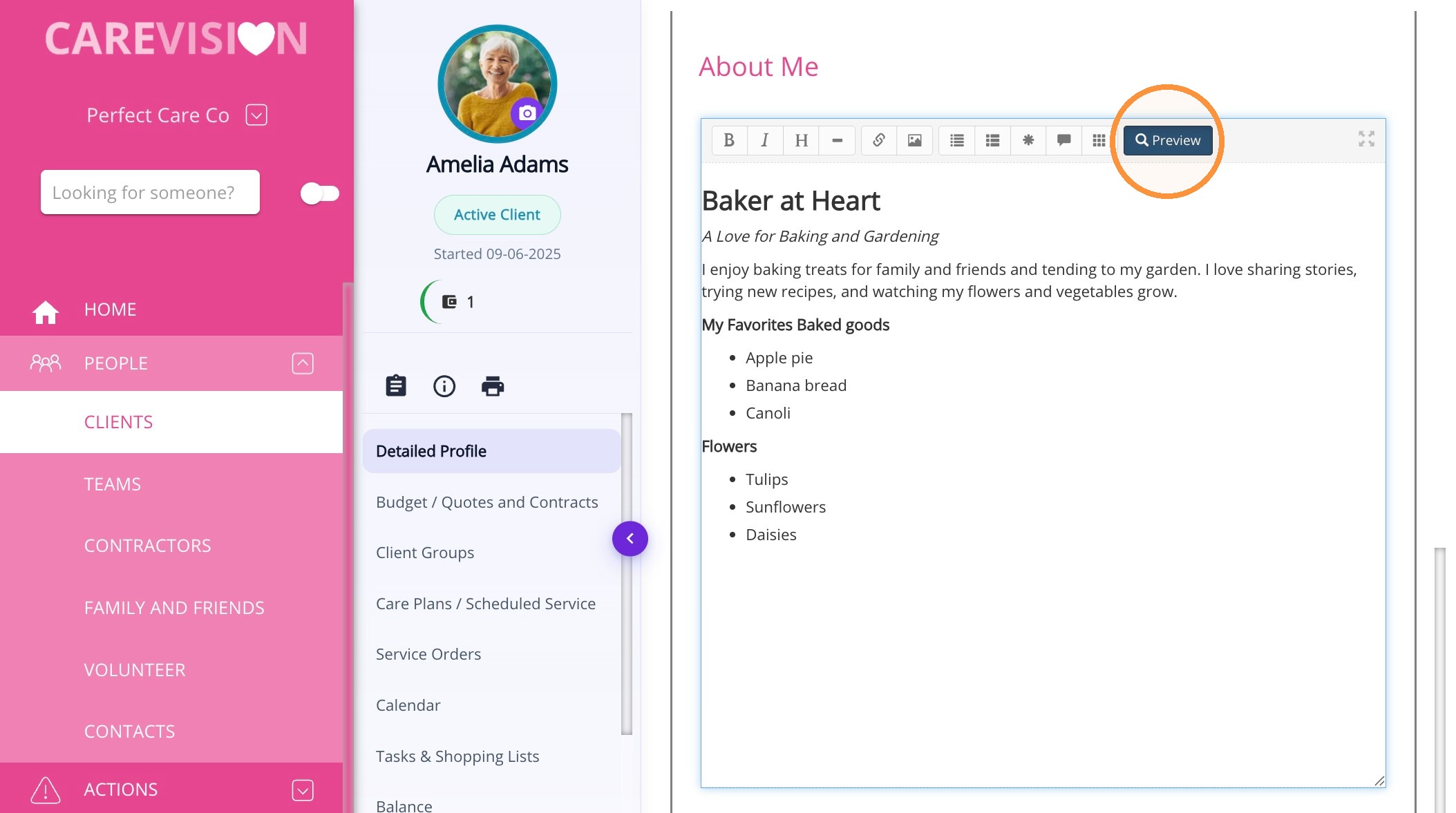
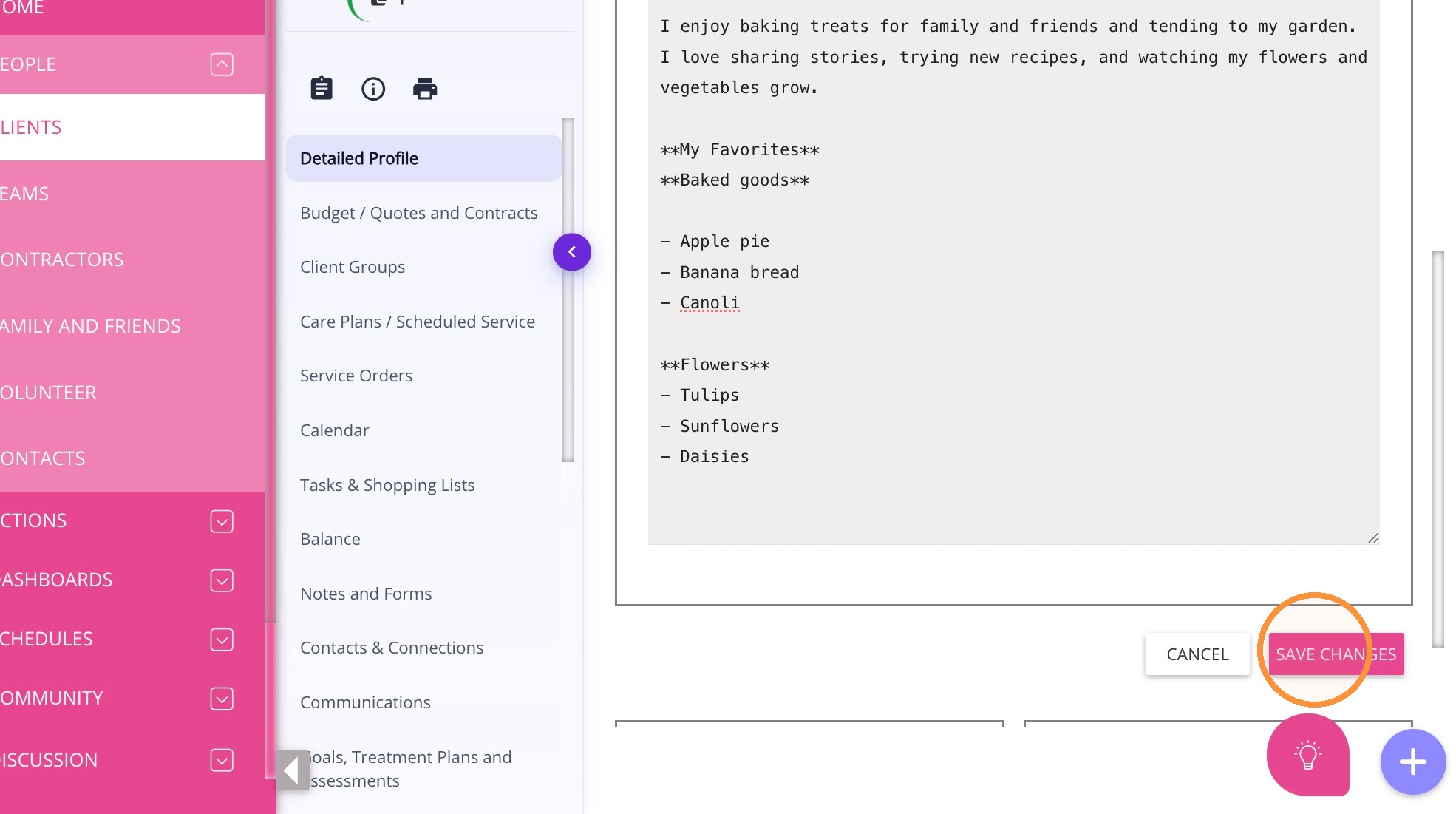
This section provides an overview of the client, including their background and preferences, supporting a more personalized approach to care.


VI. Likes and Dislikes Sections

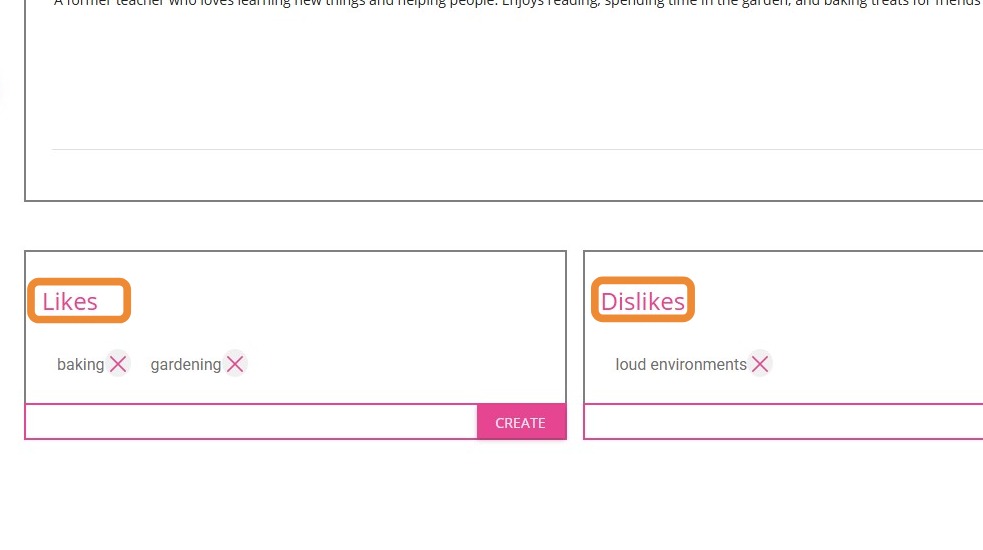
Likes: In this section, you can add the client’s preferences, interests, or activities they enjoy.

Dislikes: In this section, you can add the client’s aversions, sensitivities, or activities they prefer to avoid.

This topic described the Detailed Profile section in a client profile. For more information about clients in CareVision, contact the CareVision Support Team.

    • Related Articles

    • How to create a client

      When do you add a client A client is to be added when you need their information on the system for future service planning or history archive, e.g. when you source a new lead, transfer a client's information from paper documents to CareVision ...
    • Client Status and Stages

      In CareVision, Client Status indicates the current phase of a client’s journey with your organisation, from initial contact through active service and subsequent exit. Keeping client status up to date is important for ensuring that records reflect ...
    • Converting Clients from Leads to Active

      Managing the transition from lead to active client helps your organisation track and convert potential individuals into engaged clients who can benefit from your services. Leads are prospective clients who may come to your organisation through ...
    • Set Up Staff Member's Detailed Profile

      Accurate and complete staff profiles are essential for effective team management and quality care delivery. After creating a staff profile, you may need to update it with additional details to ensure all information is current. This documentation ...
    • Notifications for Lead Management and Client Onboarding

      Lead to Onboarding Workflow Organisations regularly receive new client leads and it is important that the proper team is notified at the appropriate stage of the lead nurture and client onboarding process so they can follow up on and complete the ...

    Request an Article or Guide

    We are keen to know what you want to know more about? Let us know on chat or raise a ticket for an article or topic you would like covered in more detail. We have a team of technical writers and learning content creators keen for your suggestions.