The Client and Staff Profile sections in the management portal have been redesigned. This update is part of CareVision’s ongoing efforts to enhance the look and feel of the portal while improving the user experience. This article outlines the key changes to staff and client profiles.
Keywords: client profile redesign, staff profile redesign, management portal, user experience, profile ring color coding, quick action buttons, client status display, staff contact details, funding source visibility, redesigned portal features
Key Improvements in the Client Profile
New Module Layout
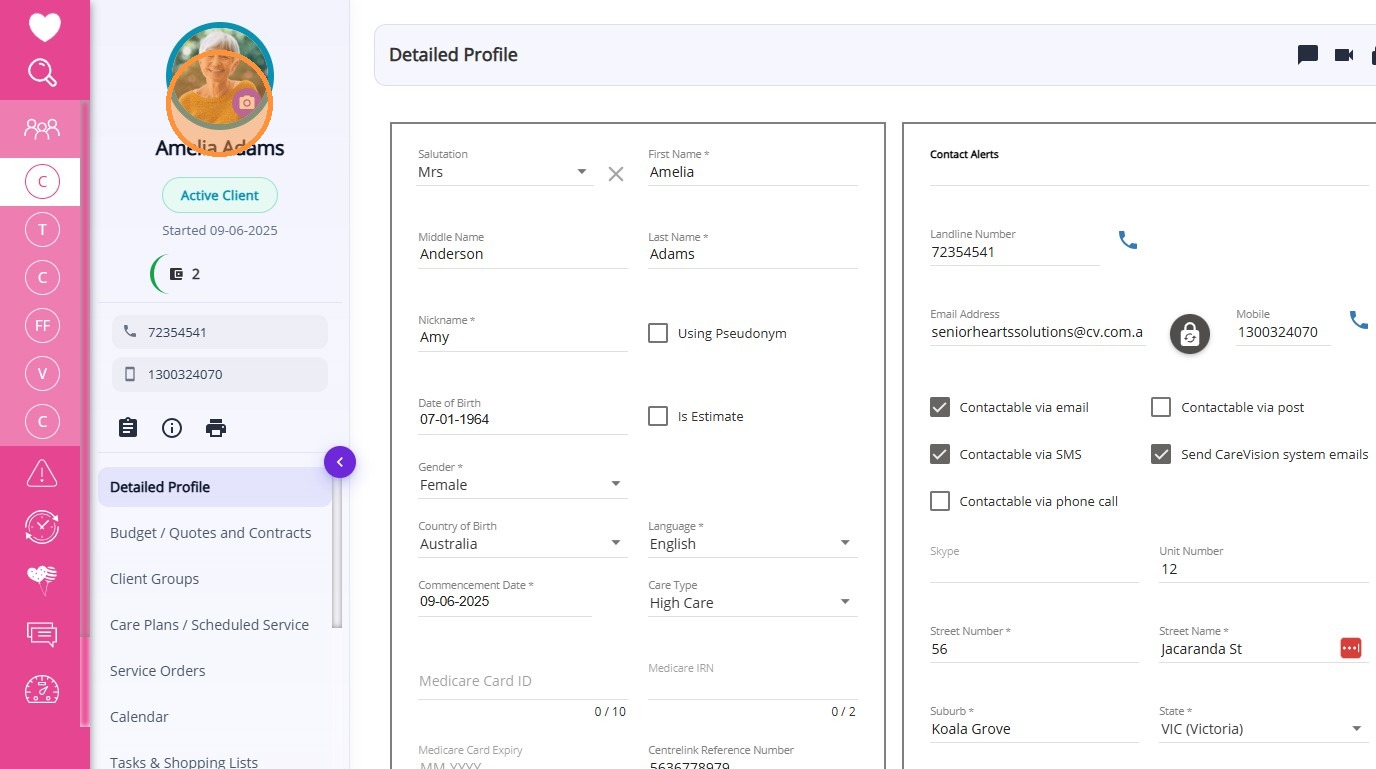
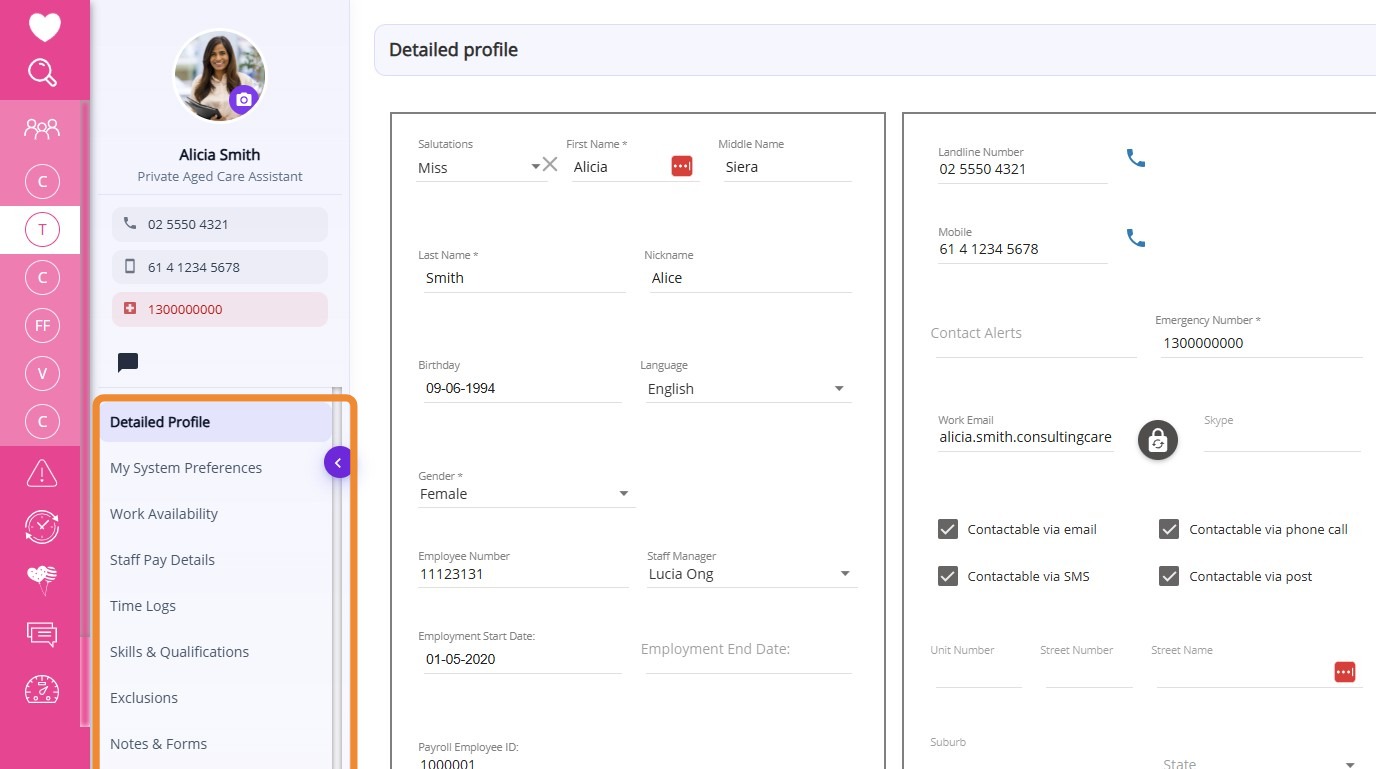
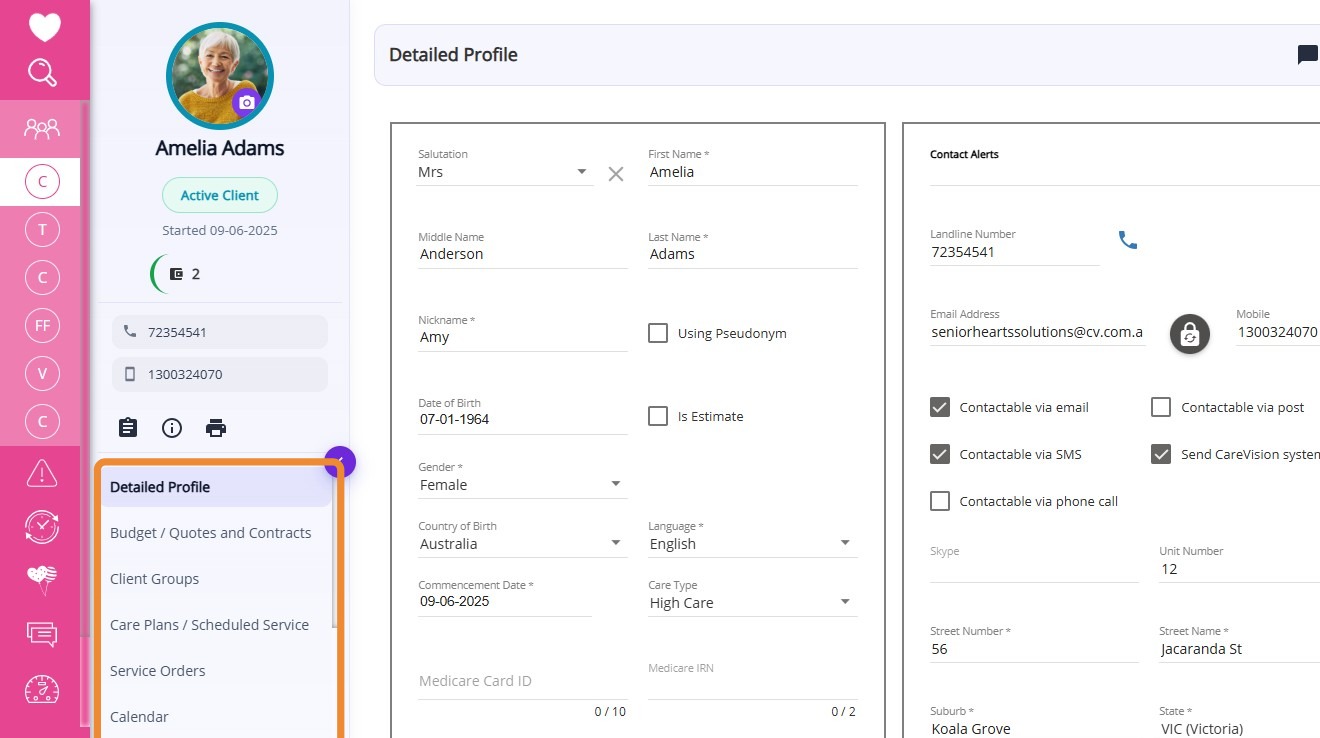
Modules for staff and client profiles are now on the left below the profile picture, replacing the previous tile layout on the right. Scroll and click to access any module. All modules previously available in the profile remain accessible.
What’s next? We will be redesigning the individual modules within the client profile. Stay tuned for more updates!
Profile Picture
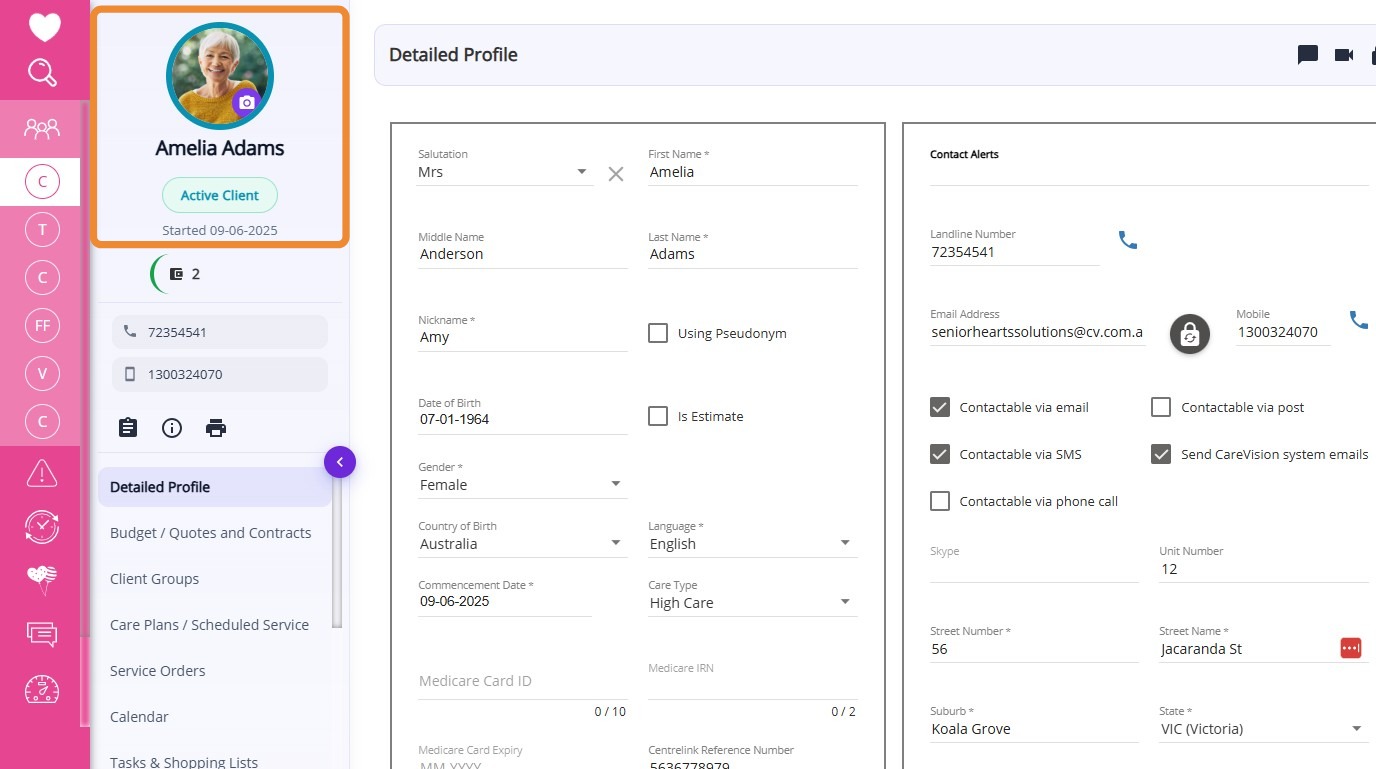
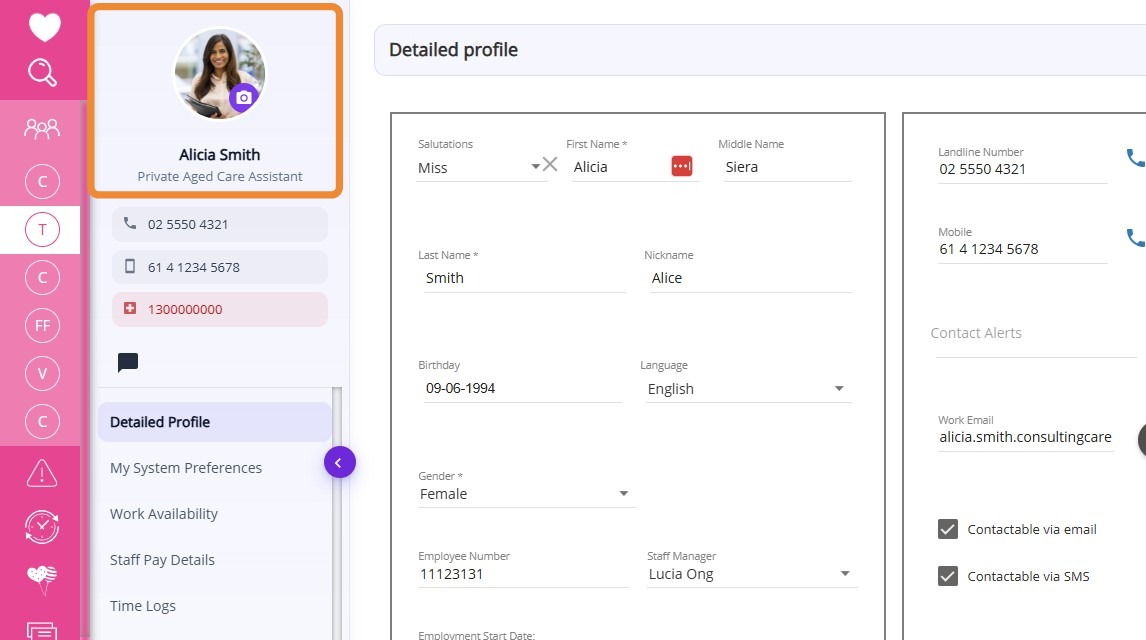
The profile picture is displayed for both staff and clients for identification. The cover photo has been removed for a simpler layout.
Profile Ring Color Coding
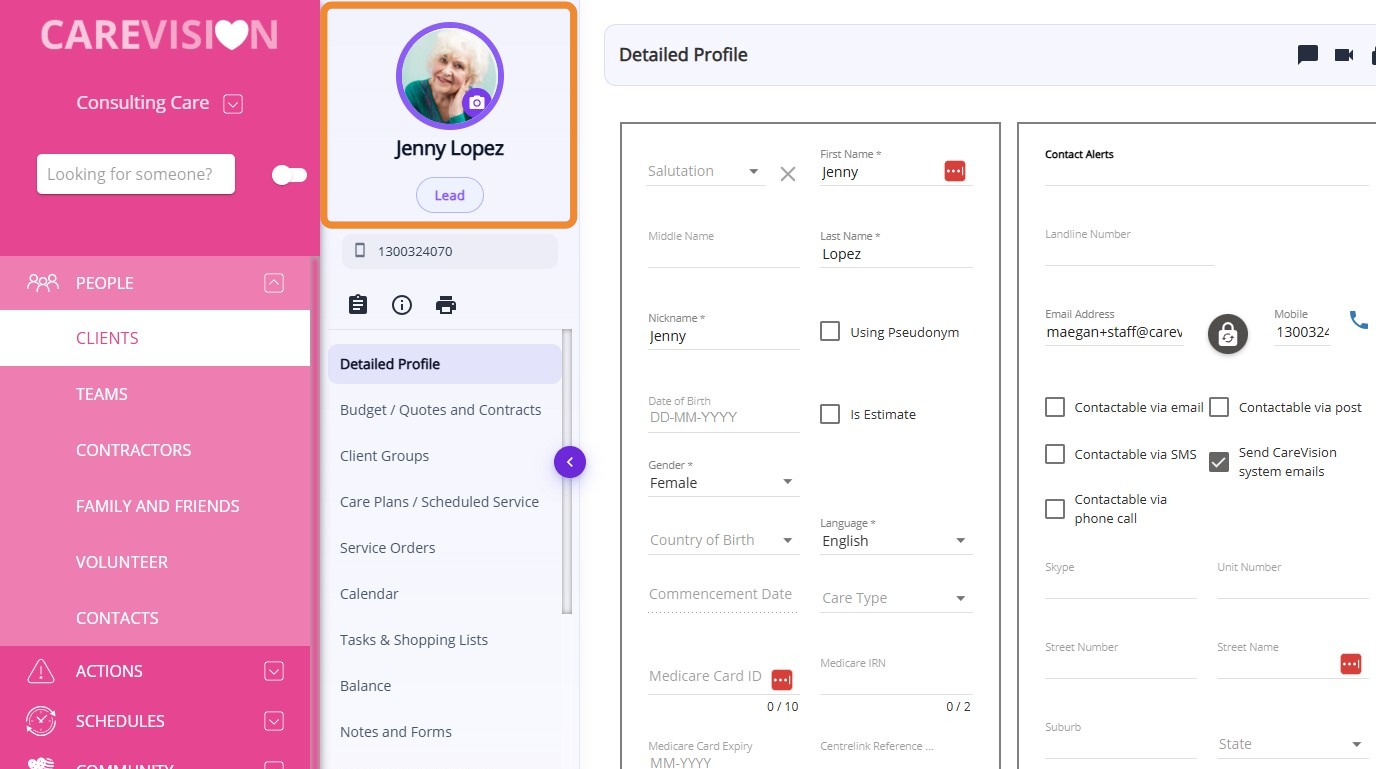
The color of the ring frame circling a client’s profile changes based on their status: blue-green for active clients, purple for leads, red for exiting clients, and gray for all other statuses.
Sample Lead client with purple ring frame.
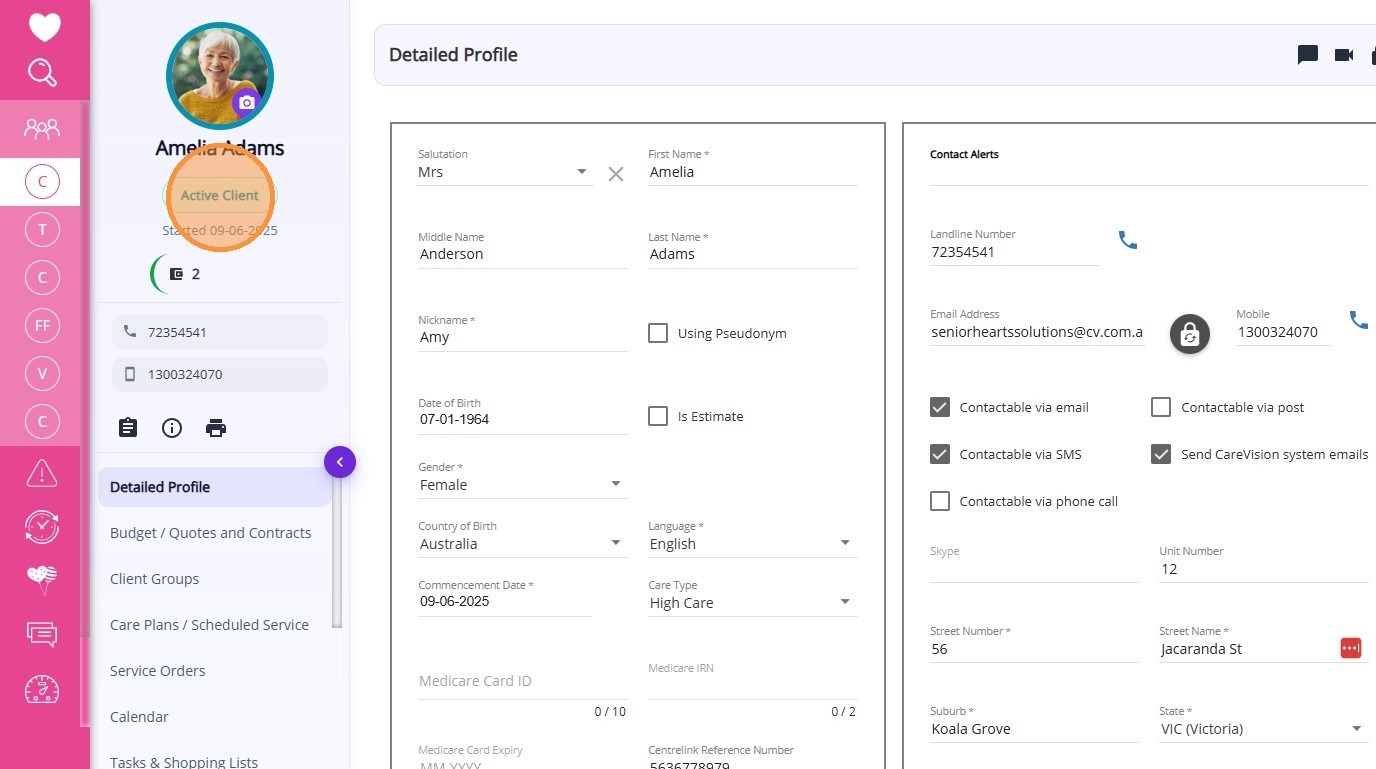
Status Display
For clients, their current status (Example: active , lead, inactive) appears below the profile picture.
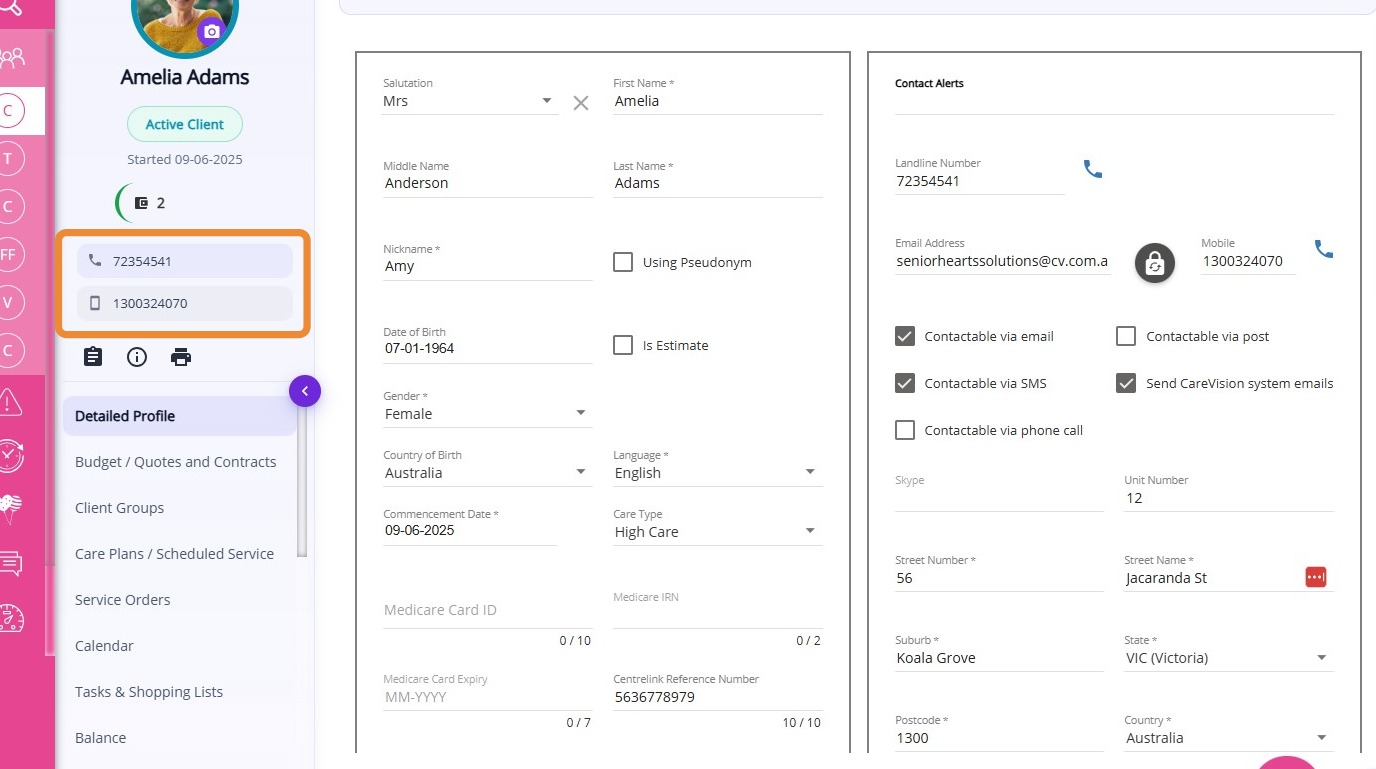
Landline and mobile numbers, along with emergency contact details (if available), are now listed under the profile for easy visibility and quick access.
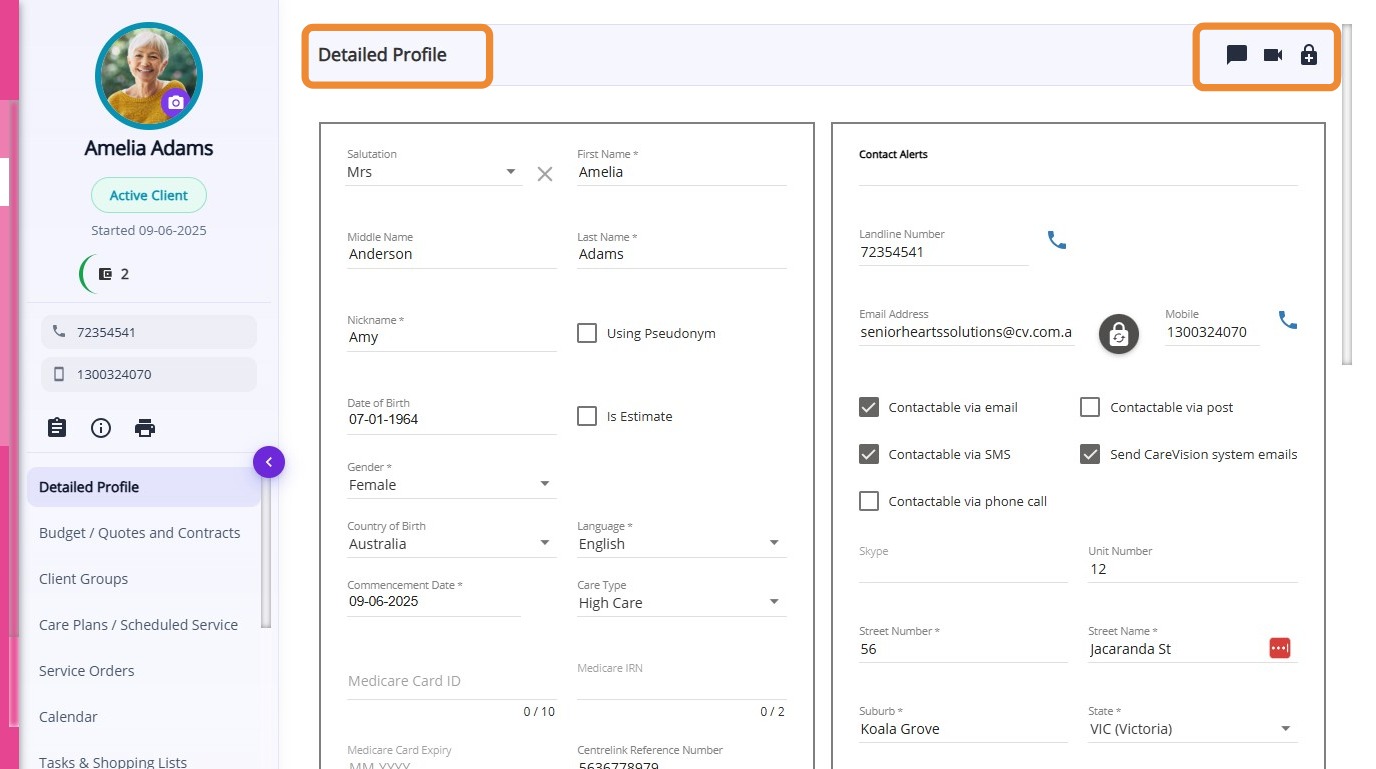
The quick action buttons are aligned with the Detailed Profile header. Use these icons to send messages, start video calls, or reset passwords from the client profile.
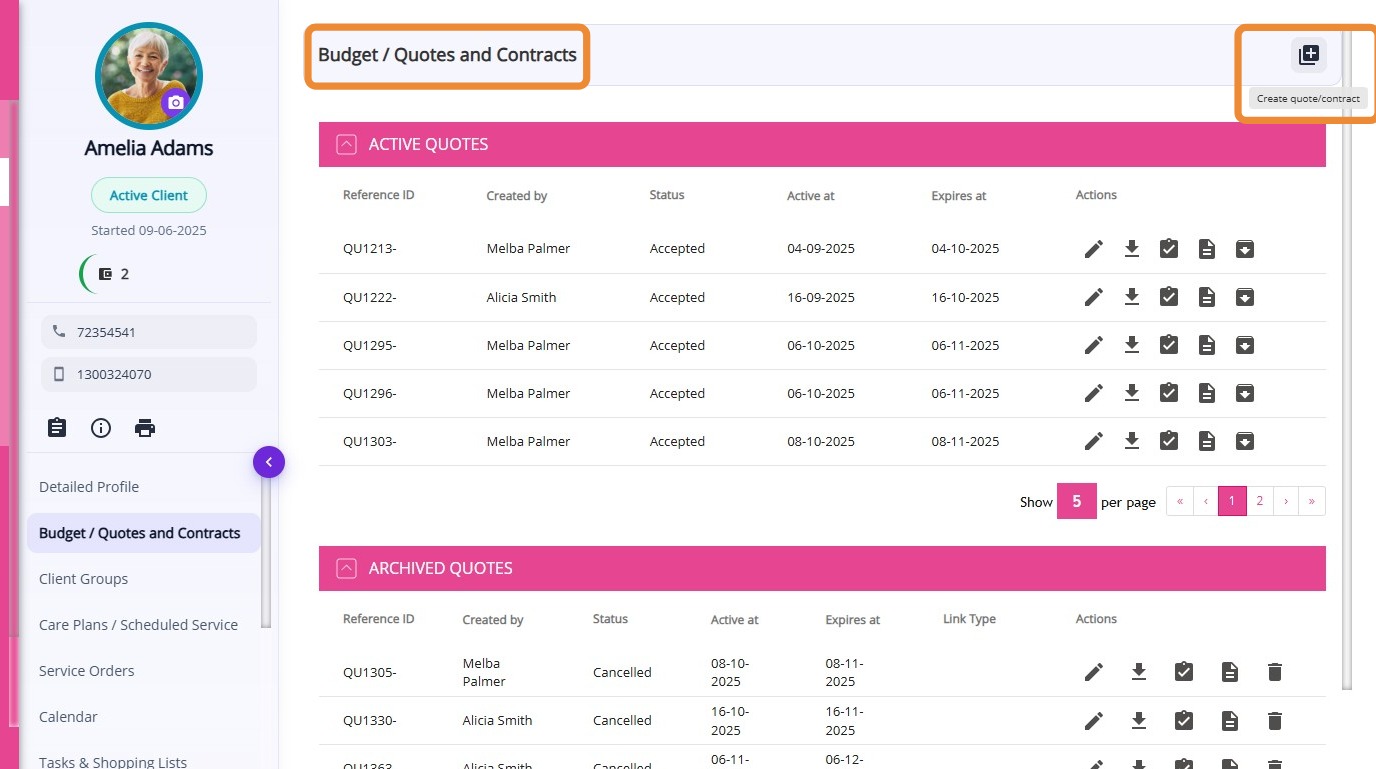
The Create Quote quick action button has been moved to the Budget/Quote and Contracts section.
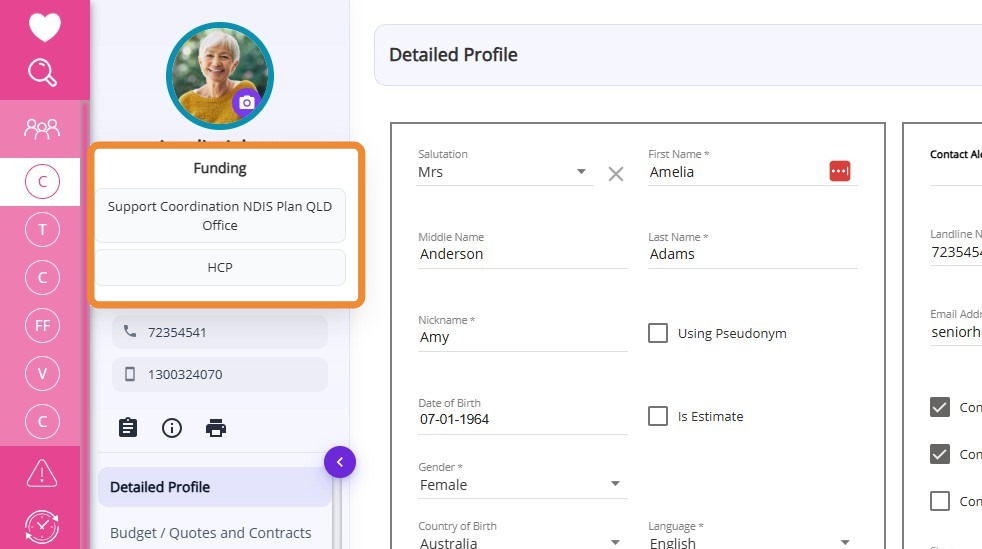
Client Funding Source
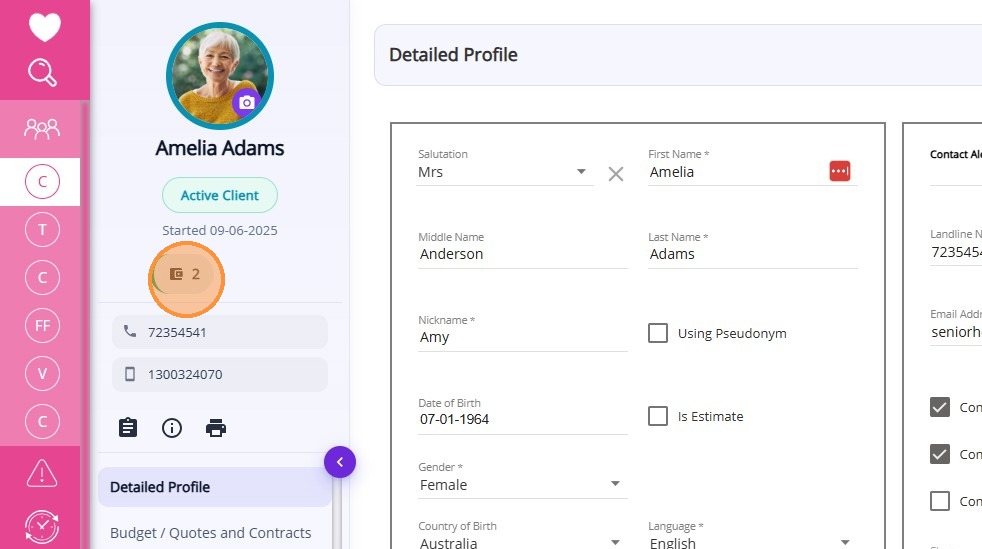
The client’s funding source is displayed, and you can click the icon to see the details of their funding source.
Clicking the icon will display the client’s funding source(s).
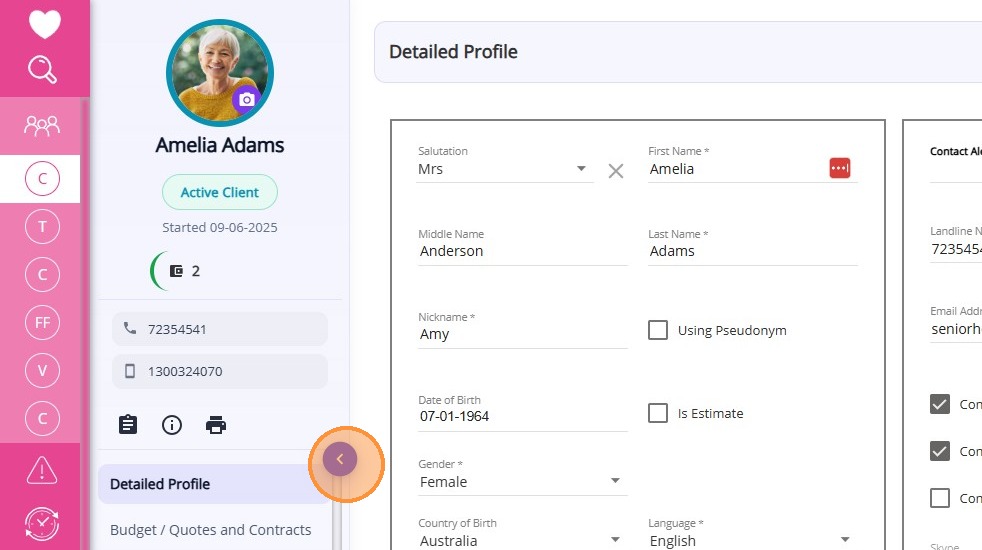
Expandable Detailed Profile View
Click the left-pointing arrow to expand the profile for a wider view. This allows you to see more information without leaving the page.
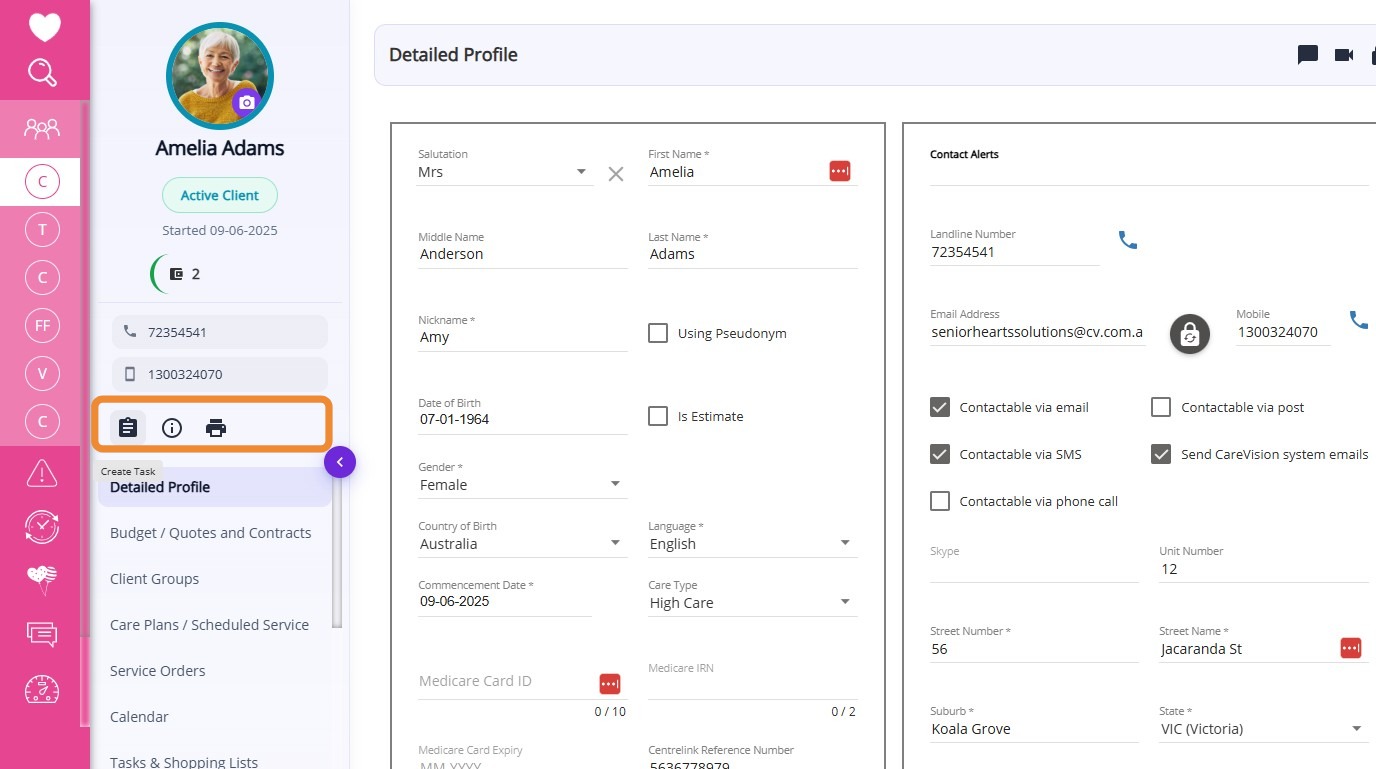
Quick action buttons below the client’s contact information allow you to create tasks, check account status, or print care/support plans.
Key Improvements in the Staff Profile
All modules previously available in the profile remain accessible.
The profile picture is displayed for staff profiles for identification. The cover photo has been removed for a simpler layout.
Profile ring color coding applies only to client profiles and does not apply to staff profiles.
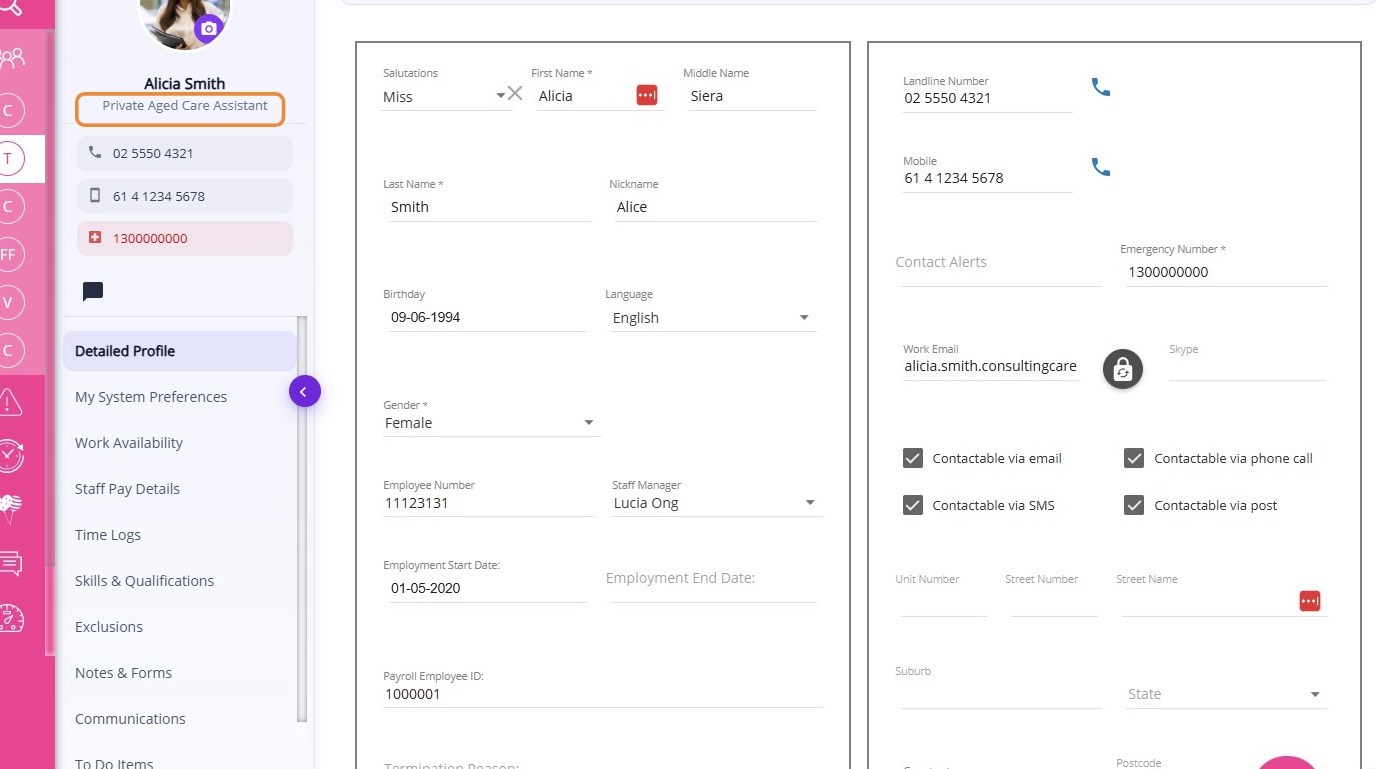
Status Display: For staff, their role is shown below the profile picture.
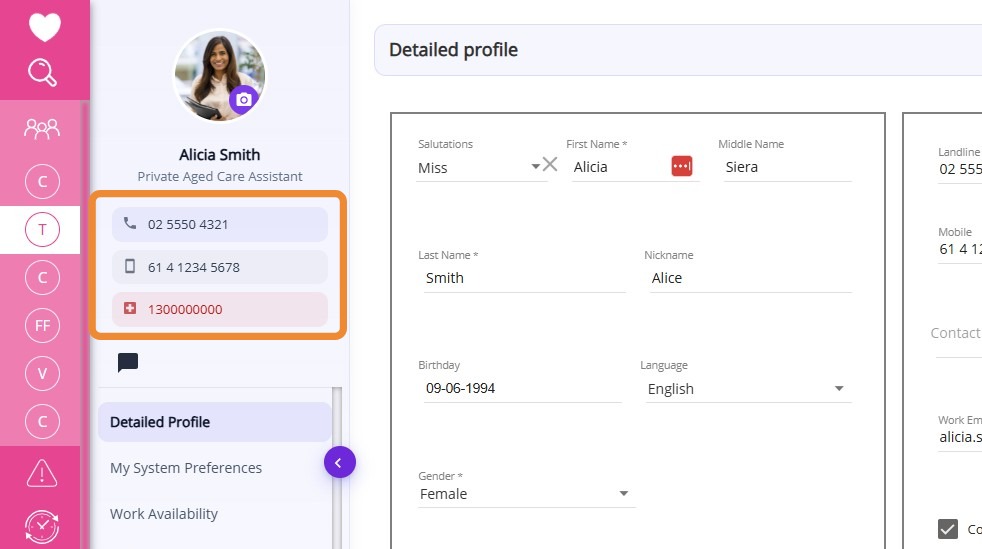
Landline and mobile numbers, along with emergency contact details (if available), are now listed under the profile for easy visibility and quick access.
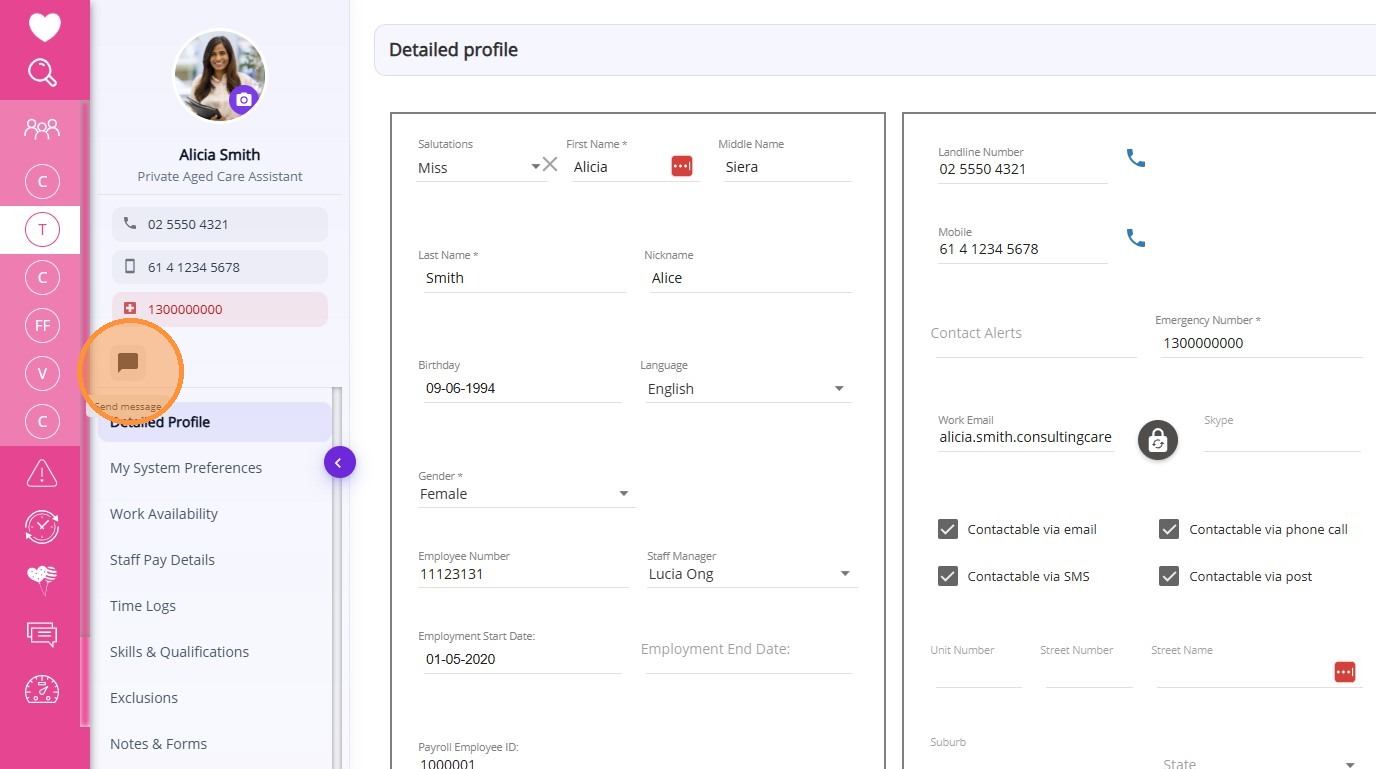
The quick action available under the staff profile is Send Message. By clicking the message icon, you can compose and send a message directly to the selected staff member.
The redesigned client and staff profiles are now available in Production for you to explore. This is the initial stage of the update. We encourage you to try out the new design and share any feedback or questions with the CareVision Team as we continue to make improvements.