Advanced Search Toggle

Advanced Search Toggle

The Advanced Search Toggle is a new feature developed to help Head Office users quickly locate staff members or clients across all branches. The toggle allows users to search by multiple identifiers, making it easier to find staff and clients across branches.

Keywords: advanced search, head office, staff search, client search, multi-branch, user profile, identifiers, search bar


Main Features

1. Search by Multiple Identifiers

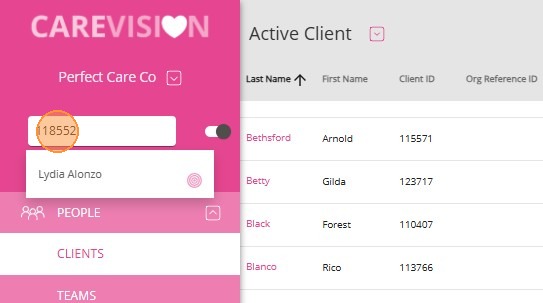
The Advanced Search toggle, located to the right of the search bar, allows Head Office users to find staff or clients across all branches. You can search using the following identifiers:

  1. User ID
  2. First name
  3. Last name
  4. Nickname
  5. Phone number
  6. Employee number
  7. Care recipient ID
  8. Organisation global ID

In this example, the client’s user ID is entered in the search bar, and the client with the matching user ID, Lydia Alonzo, appears in the results.
2. Quick Profile Access in a New Tab

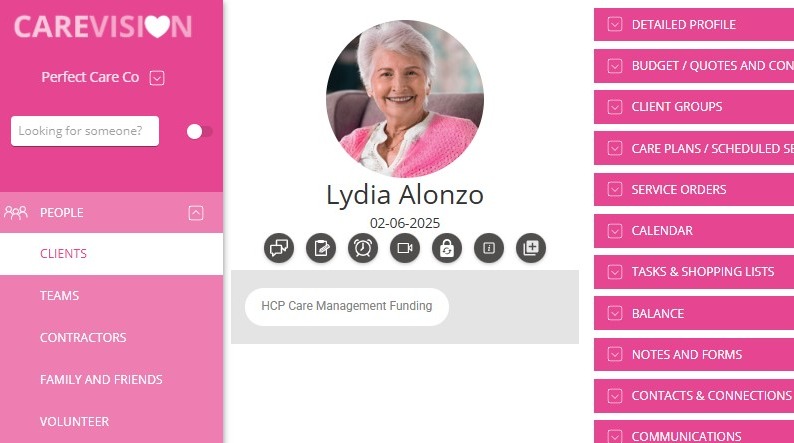
Selecting a user from the search results will automatically open their profile in a new browser tab. This makes it easy to view multiple profiles without manually opening new tabs.
3. Seamless Cross-Branch Searching

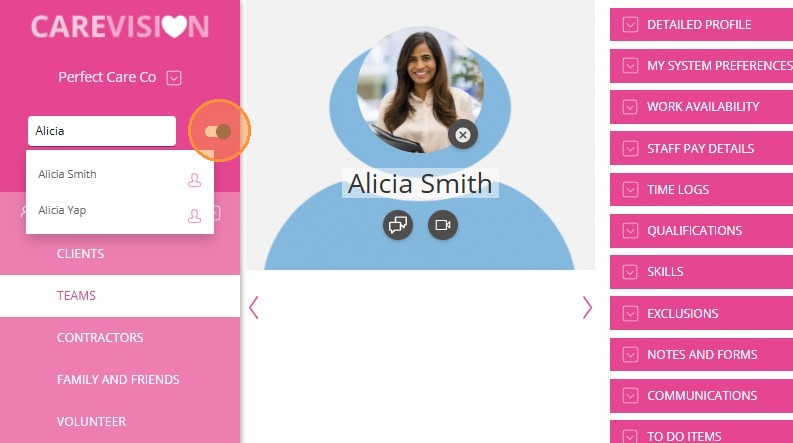
If you have staff accounts in multiple branches, turn on the Advanced Search toggle. This allows you to locate users regardless of their branch. The system will automatically select the corresponding branch, so you do not need to switch branches manually.
Notes
Note: Non-head office users will only see results for their assigned branch.

  1. Make sure you are logged in as a Head Office user.

  2. In the left navigation pane, locate the search bar.

  3. Turn on the Advanced Search toggle.

  4. Enter any of the supported identifiers to find the user you need.

  5. Click a user in the results to open their profile in a new browser tab.


The Advanced Search Toggle streamlines the process of locating staff and clients across all branches, saving time and enhancing workflow efficiency for Head Office users. For more information about this feature, please contact the CareVision Support Team.
    • Related Articles

    • Quoting for Support at Home Clients in Advanced Mode

      With the introduction of the Support at Home (SAH) program, CareVision has launched an Advanced Mode to meet new quoting requirements. Compared to Basic, Advanced Mode provides enhanced features such as budget tracking, live budget updates, and the ...
    • Introduction to the Advanced Funding Source Template

      Funding source templates are structured configurations in CareVision that define how specific funding streams, such as primary subsidies and supplements, are managed and allocated. The templates also set rules for how funds are applied to client ...
    • Goals, Conditions and Treatment Settings Toggle

      The system allows administrators to view or hide Goals, Conditions, and Treatment Plans on a Field Staff view when they are looking at Client details from their Mobile App. When switched on, field staff can access this information, and when switched ...
    • How to Requote Clients for the Support at Home Transition

      As Support at Home (SAH) launches on November 1, clients may experience changes to their funding and care arrangements. You may need to transition existing Home Care Packages (HCP) clients to the new program or assist new clients as they receive ...
    • Support at Home Q&A

      This document compiles questions submitted by participants in the Q&A box during Support at Home Training Sessions and provides corresponding answers. For each training session, click the topic to expand. Questions and answers are organised under ...

    Request an Article or Guide

    We are keen to know what you want to know more about? Let us know on chat or raise a ticket for an article or topic you would like covered in more detail. We have a team of technical writers and learning content creators keen for your suggestions.