Payroll Timesheet Dashboard
This topic introduces the Payroll Timesheet Dashboard on the CareVision portal. Learn how to navigate the dashboard to review timesheet and allowance data in compliance with Australian award interpretation rules.
Keywords: payroll timesheet dashboard, payroll validation, timesheet export, allowance data, payroll audit, payroll review, keypay, finance dashboard, payroll compliance, payroll data accuracy
I. Access the Dashboard
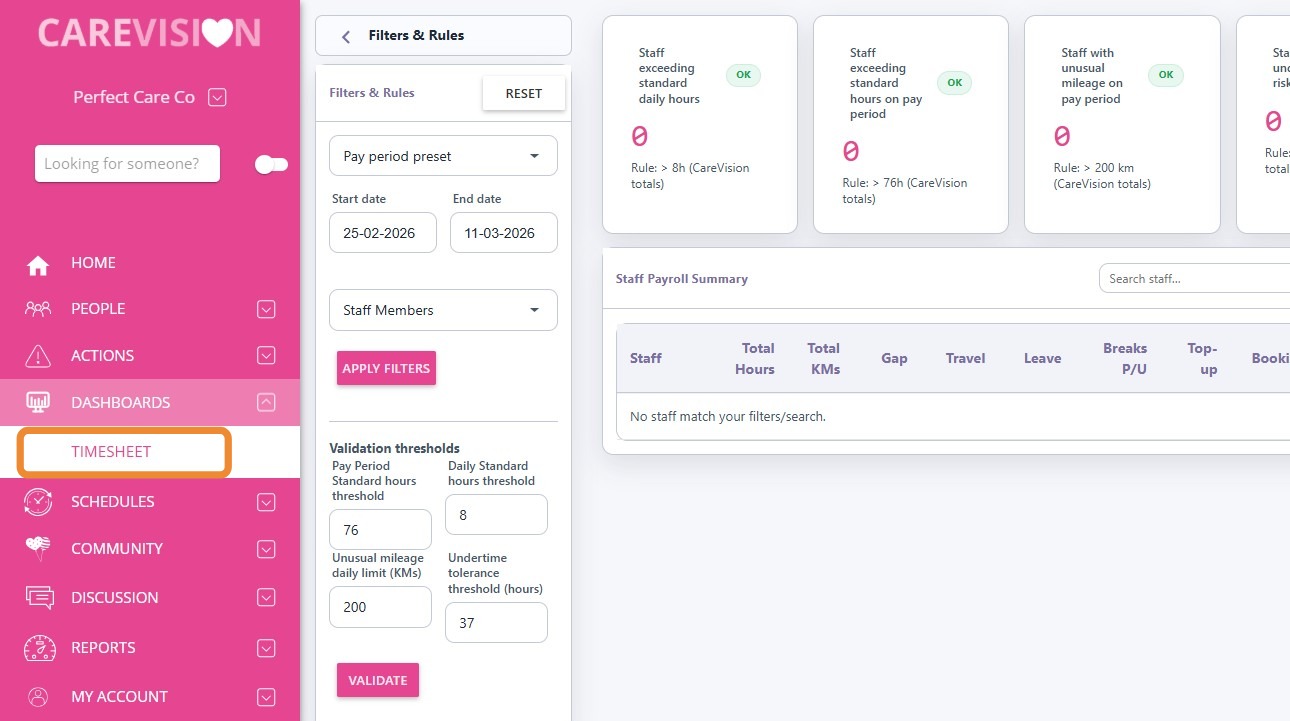
To access the Payroll Timesheet Dashboard, go to the left navigation pane, select Dashboards > Timesheet. The dashboard is available for Payroll and Finance users.
II. Filters and Rules
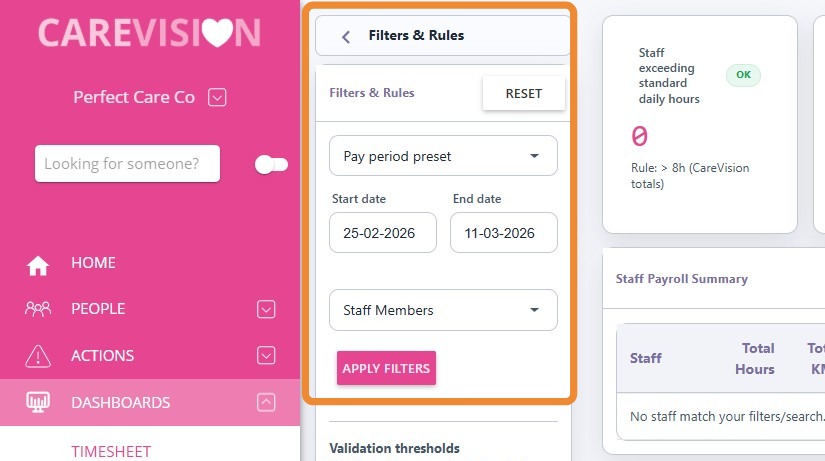
Set the scope of your review by selecting the pay period, start and end dates, and specific staff members.
Field | Description |
Pay period preset | The predefined time interval for grouping payroll data uses the Day-Month-Year (DD-MM-YYYY) format. To view payroll information for a specific period, select the desired pay period from the available options. |
Start date | The calendar date marking the start of the selected pay period. |
End date | The calendar date marking the end of the selected pay period. |
Staff members | The staff members whose payroll data records are included in the current view. If they have no payroll ID, their data will not be included. |

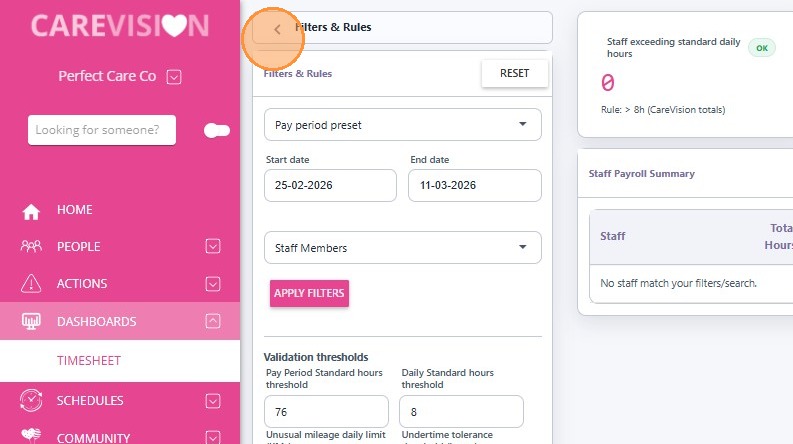
Tip: Click the left-pointing arrow in the Filters and Rules section to hide the filters and view the dashboard in full screen.
III. Validation Thresholds
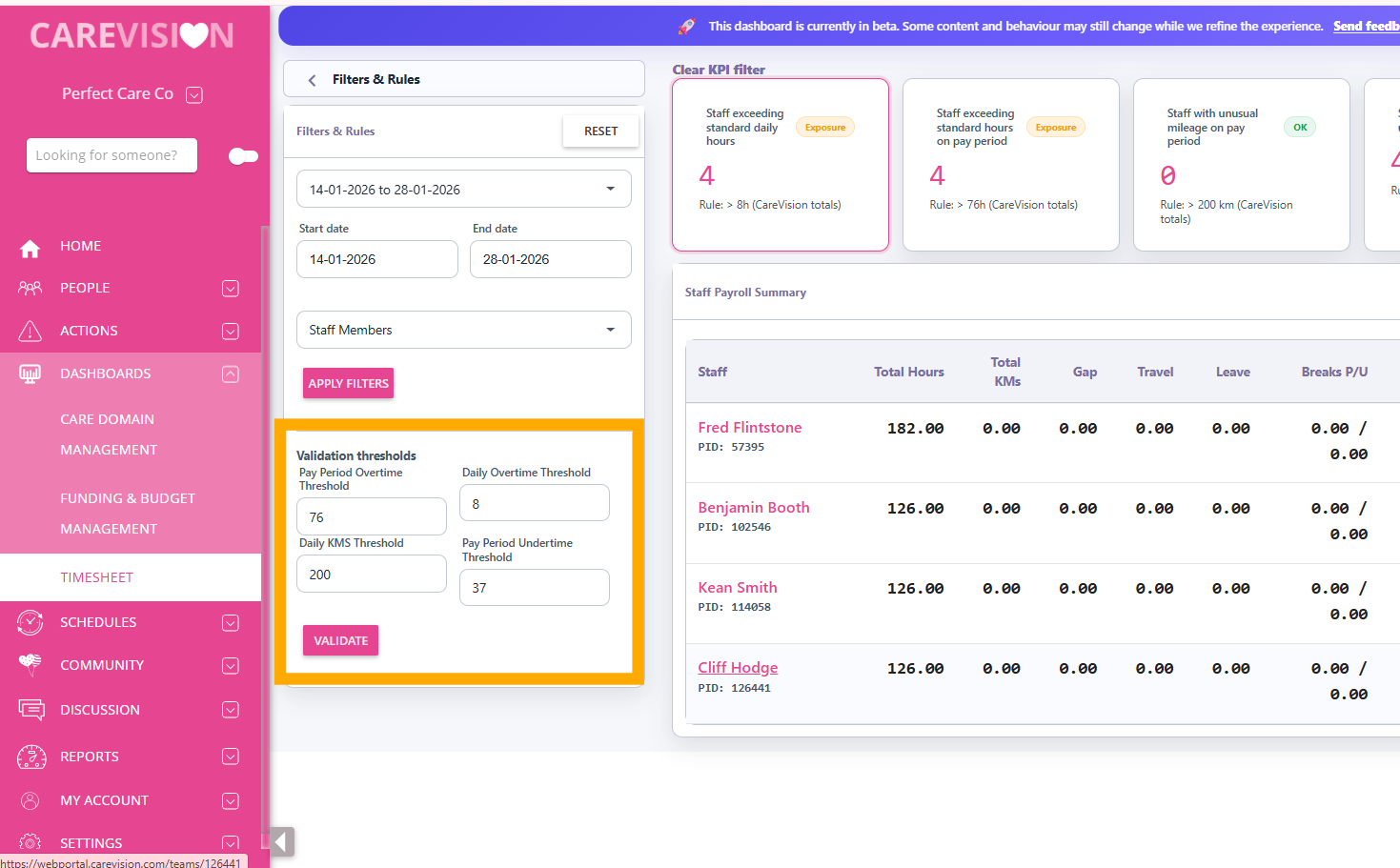
Validation Thresholds allow you to define limits for standard working hours, unusual mileage, and undertime risk. The dashboard comes with placeholder values, but you can set specific thresholds based on your requirements.
Field | Description |
Pay Period Overtime Threshold | The maximum total hours a staff member can work within a pay period before being flagged for overtime. |
Daily KMS Threshold | The maximum number of kilometers a staff member can travel within a defined period before being flagged for unusual mileage. |
Daily Overtime Threshold | The maximum number of hours a staff member can work in a single day before being flagged for overtime risk. |
Pay Period Undertime Threshold | The minimum number of hours a staff member is expected to work within a pay period. If the total hours fall below this threshold, the staff member is flagged as under time |
IV. Summary Cards
At the top of the dashboard, summary cards display total counts of payroll issues for quick visibility and action. These cards provide an instant overview of staff exceeding standard daily hours, staff exceeding standard hours on the pay period, staff with unusual mileage on the pay period, and staff with undertime risk. This allows you to quickly identify and address payroll exceptions as they arise.
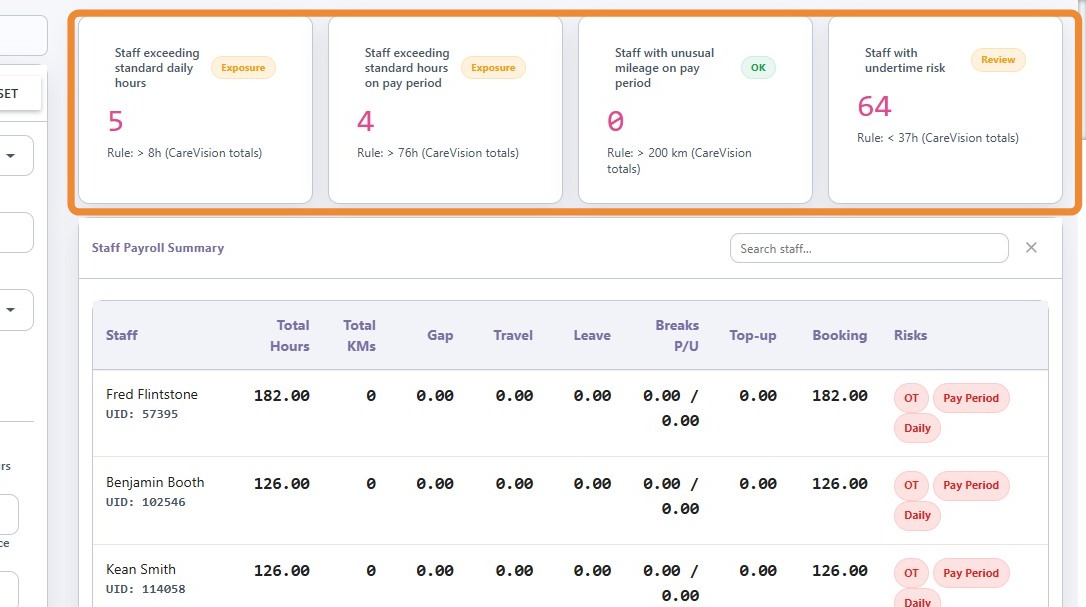
Card | Description |
Staff exceeding standard daily hours | Number of staff who have worked above the daily hours threshold. Identifies potential overtime. |
Staff exceeding standard hours on pay period | Number of staff who have worked above the total hours threshold for the pay period. Flags excessive work hours. |
Staff with unusual mileage on pay period | Number of staff flagged for unusual mileage during the pay period. Detects possible mileage issues. |
Staff with undertime risk | Number of staff identified as at risk of undertime. Highlights insufficient hours. |
Card-Based Filtering
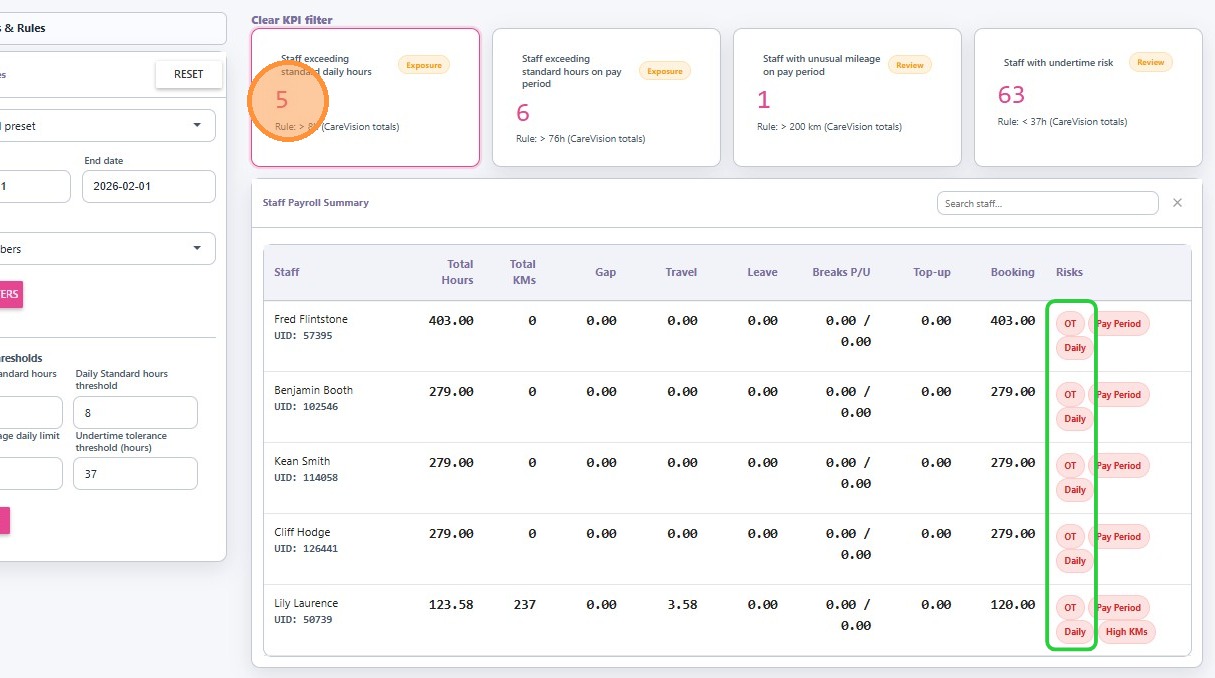
The cards also function as filters. For example, if you click on the Staff Exceeding Standard Daily Hours card, the staff payroll summary table will display only those staff members who have exceeded the standard daily hours or have overtime (OT).
V. Staff Payroll Summary
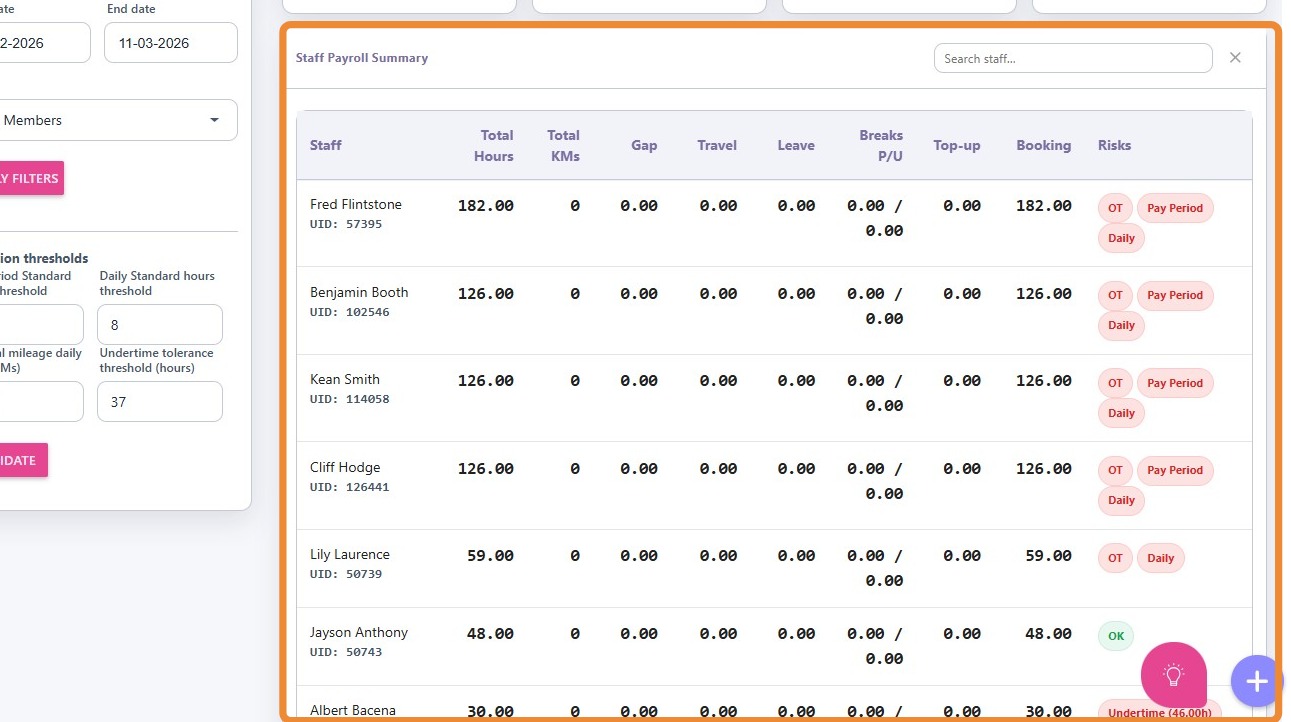
The Staff Payroll Summary provides a table displaying detailed payroll data for each staff member.
You can check total hours worked, kilometers recorded, travel time, leave taken, and any payroll-related risks for each staff member.
Column | Description |
Staff | Name of the staff member |
Total Hours | Total hours worked in the period |
Total KMs | Total kilometers recorded |
Gap Time | Total time between bookings that is counted as paid time, but only if each gap (after subtracting travel time) is 30 minutes or less. Longer gaps are not included. Only short breaks within a Run Shift are paid. For more information, see the Run Shifts vs Broken Shifts documentation. |
Travel Time | Total time spent traveling between bookings within the same Run Shift, which is included in paid working hours. Travel time before the first booking of the day is excluded. |
Leave | Leave taken during the period |
Breaks P/U | Total duration of breaks that are classified as paid (P) or unpaid (U) within the shift. |
Top Up | Additional hours added if total paid hours are less than the staff member’s contracted hours. |
Booking | Total hours spent delivering services during scheduled bookings. |
Risks | Payroll-impacting issues flagged for review, such as overtime, high kilometers (KMs), or other anomalies that may affect payroll compliance. |
This topic described the Payroll Timesheet Dashboard on the CareVision portal. Please try out this feature and share your feedback with us by emailing hello@carevision.com with the subject Dashboard Demo.