How to Create a Quote for Support at Home Clients

How to Create a Quote for Support at Home Clients

This topic provides a step-by-step guide to quoting for Support at Home clients.

Keywords: quote, create quote, sah quote, quoting workflow, support at home quote, funding source, billing contact, co-contribution, recurring services, default funding source, quote modal, recalculate quote, funding allocation

Step 1: Access Quotes & Contracts Window

There are 3 ways to access the Quotes and Contracts window:
Option 1: Go to the Budget / Quotes and Contracts section in the client profile

Option 1: Go to the Budget / Quotes and Contracts section in the client profile

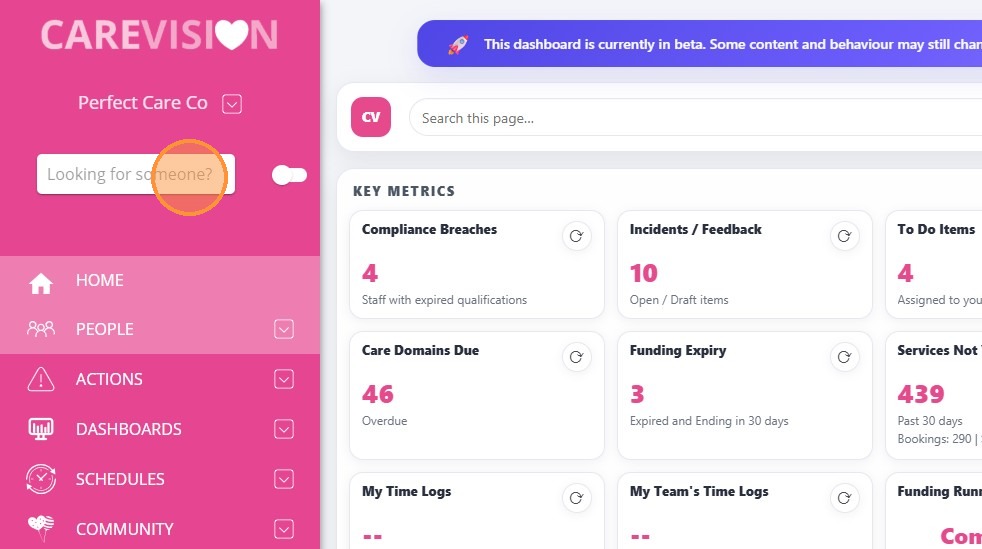
1. In the search bar, type the name of the lead or client.
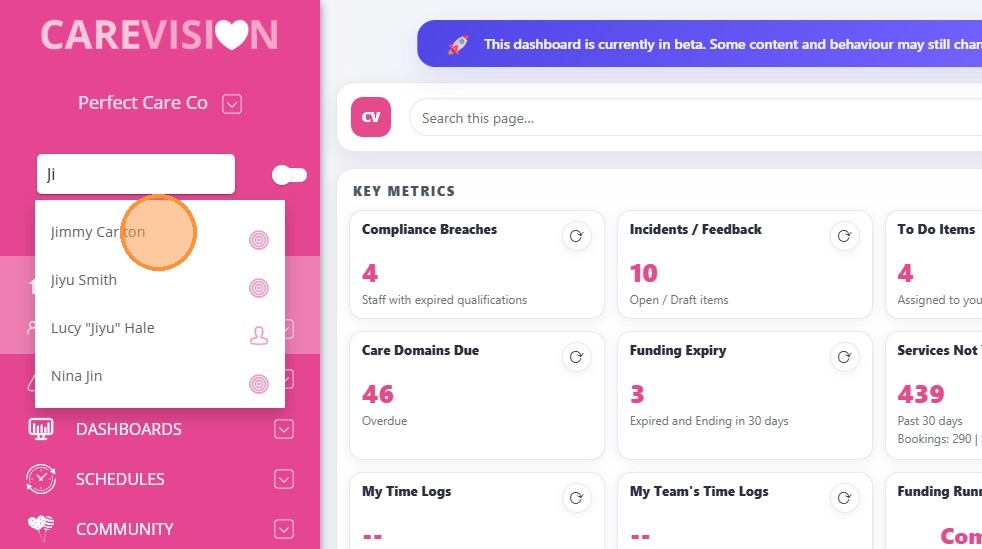
2. From the search results, select the client you want to create a quote for. Clients are identified by a circle (target) icon.
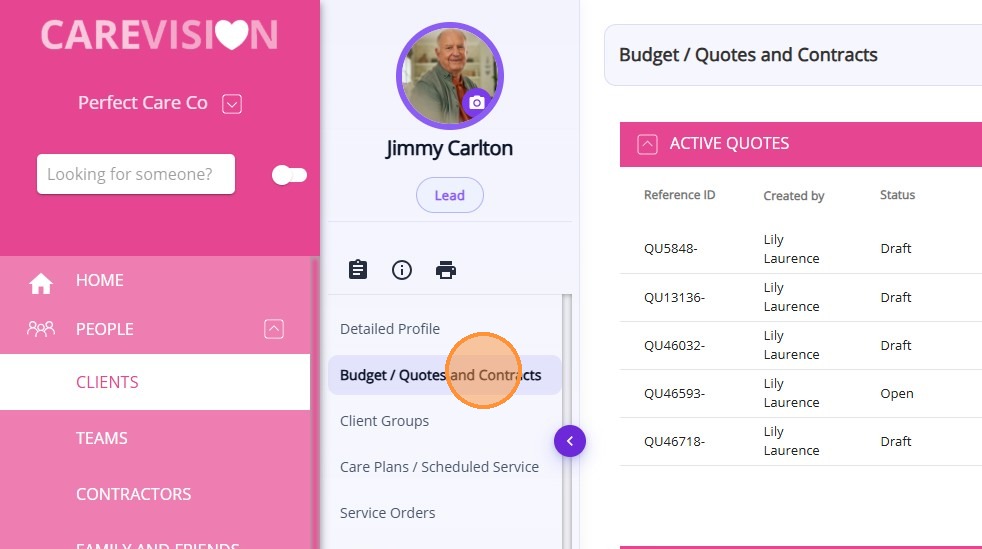
3. Click Budget / Quotes and Contracts.
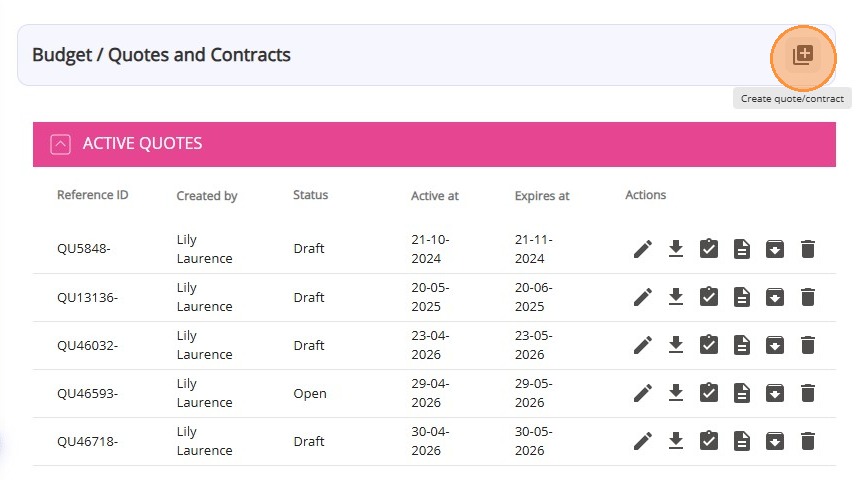
3. Click the Create quote/contract icon at the top right of the client profile.
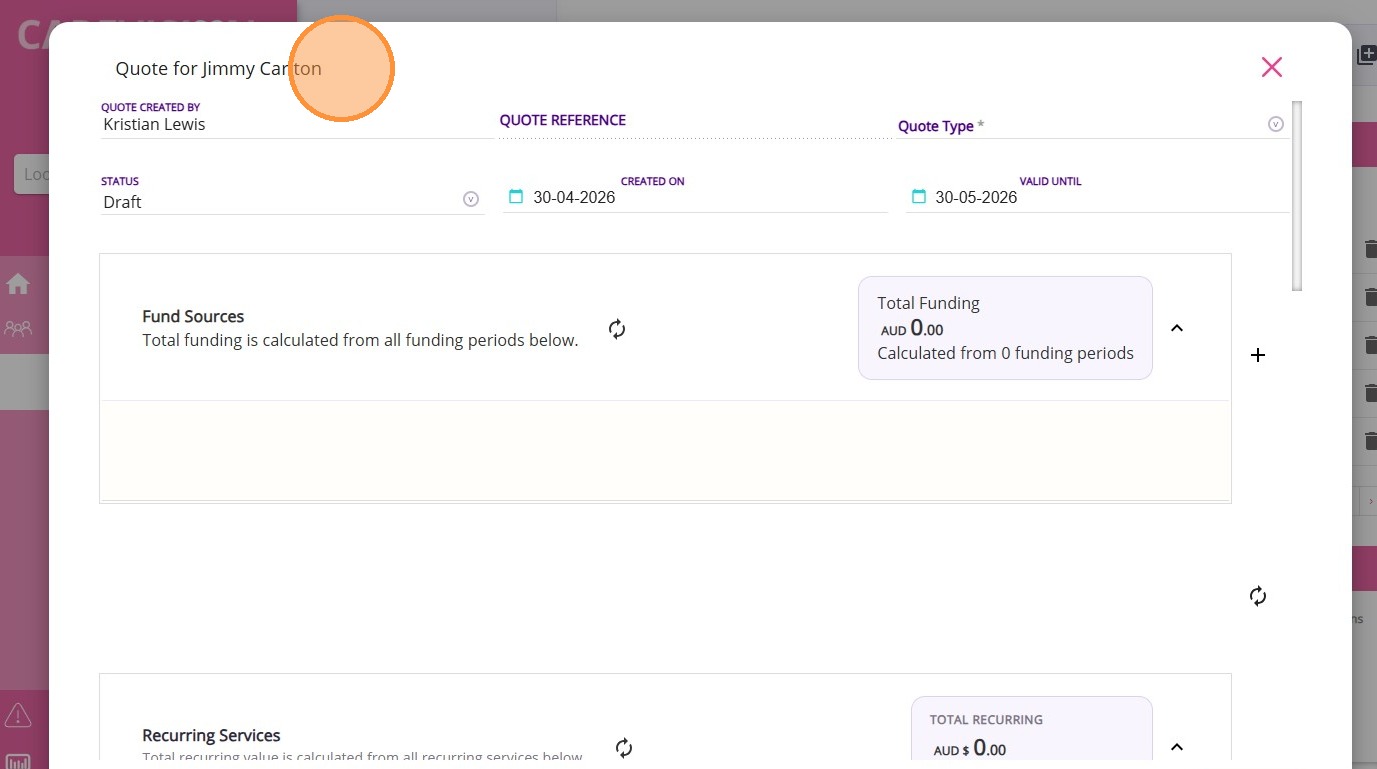
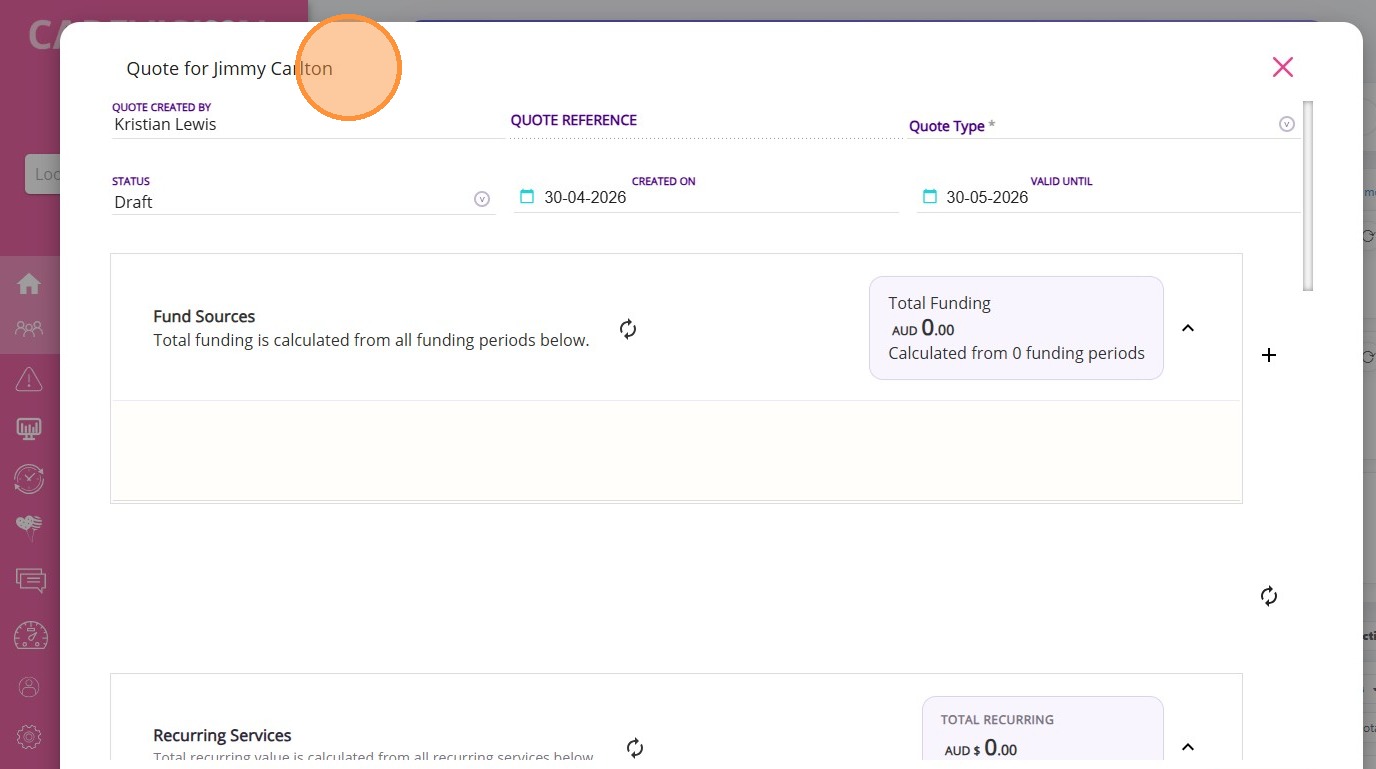
The Quotes Window will appear.
Option 2: Use Quick Actions (fastest option)

Option 2: Using Quick Actions (fast option)

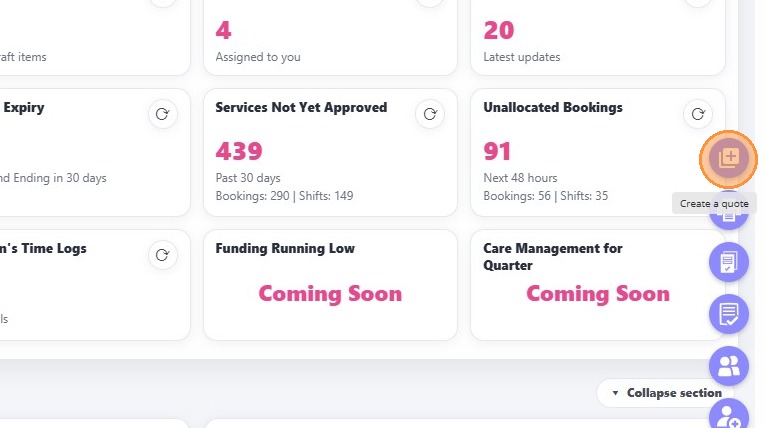
1. Click the plus or Quick Actions icon in the bottom-right corner of the screen.
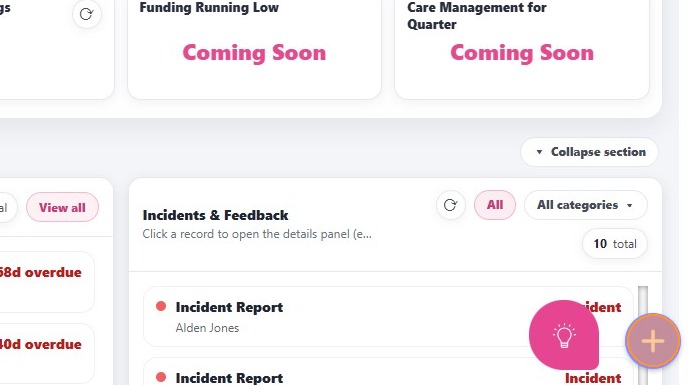
2. Click the topmost icon to Create a Quote.
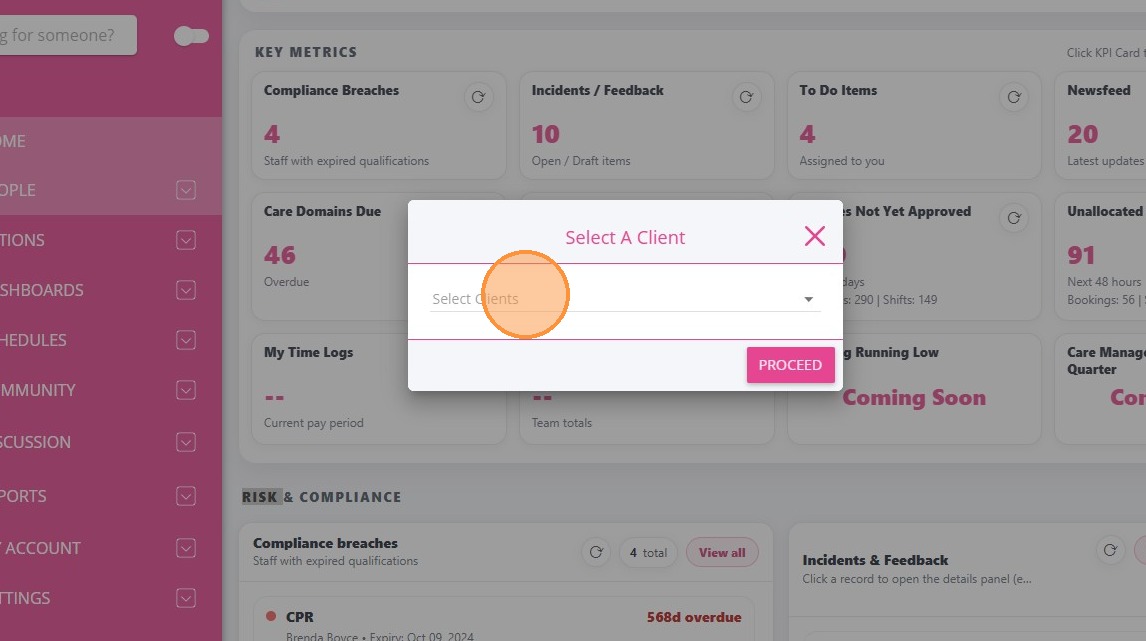
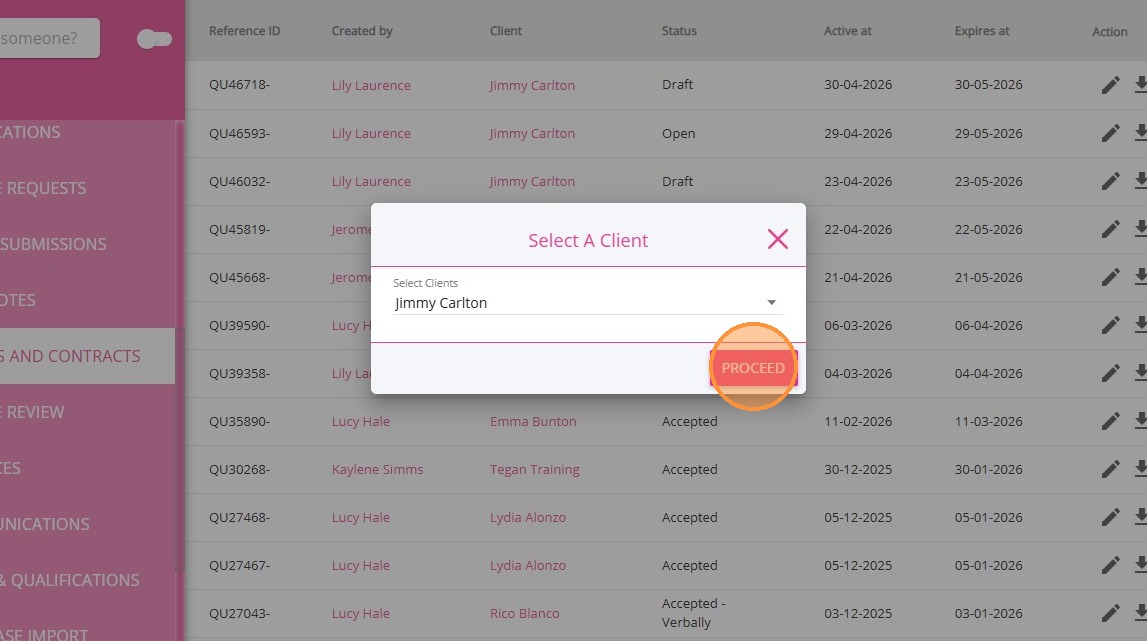
3. In the Select Clients field, either scroll to find the client or type the client’s name in the search bar.
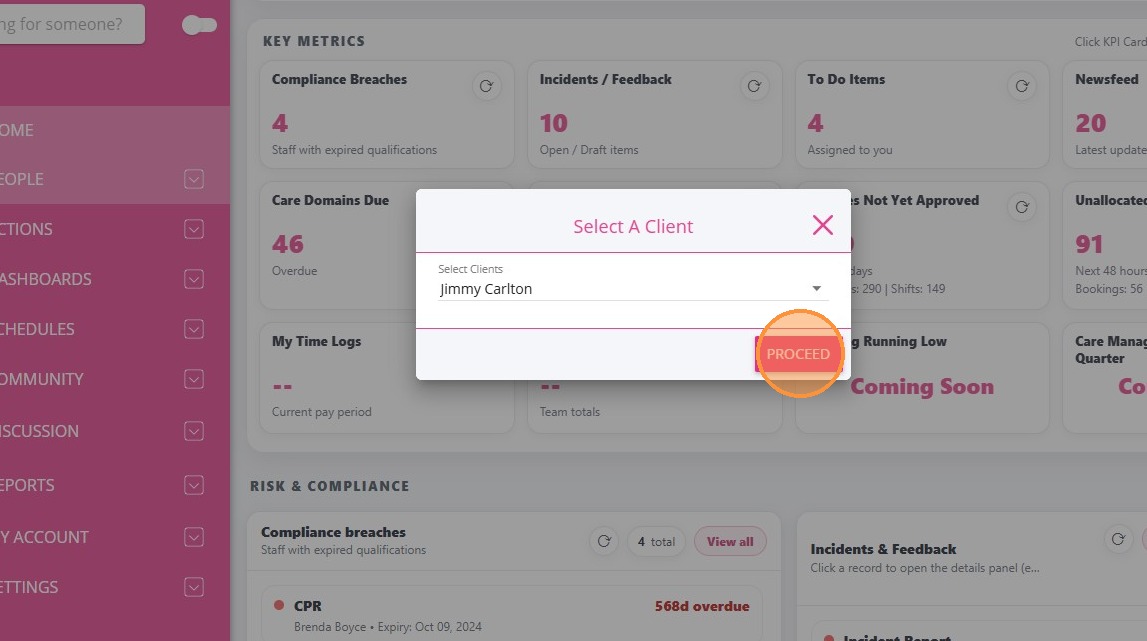
4. Click Proceed.
The Quotes Window will appear.
Option 3: Access it from the Quotes & Contracts Action Board

Option 3: From the Quotes & Contracts Action Board


Notes
Note: Use this method if you are reviewing or creating multiple quotes across the organization.

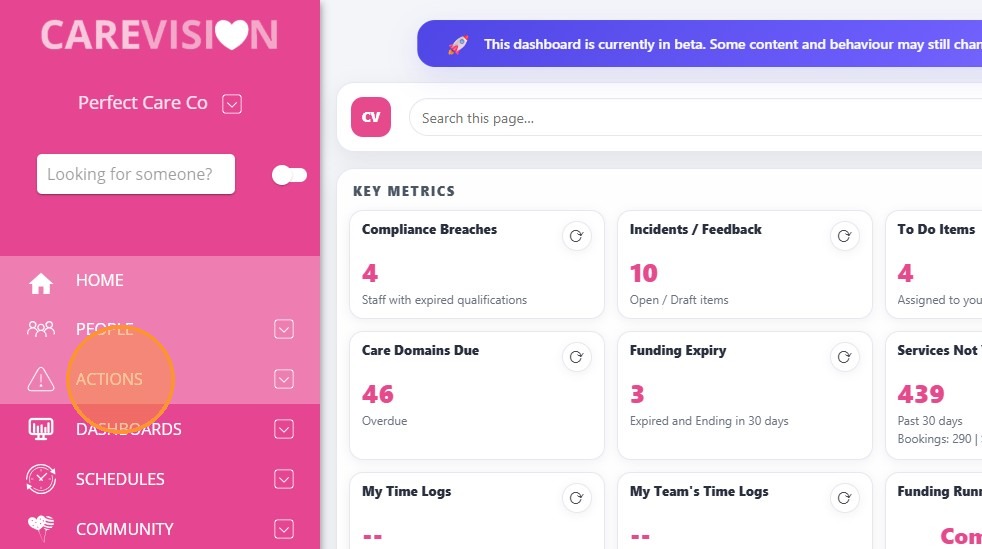
1. In the left navigation pane, click Actions.
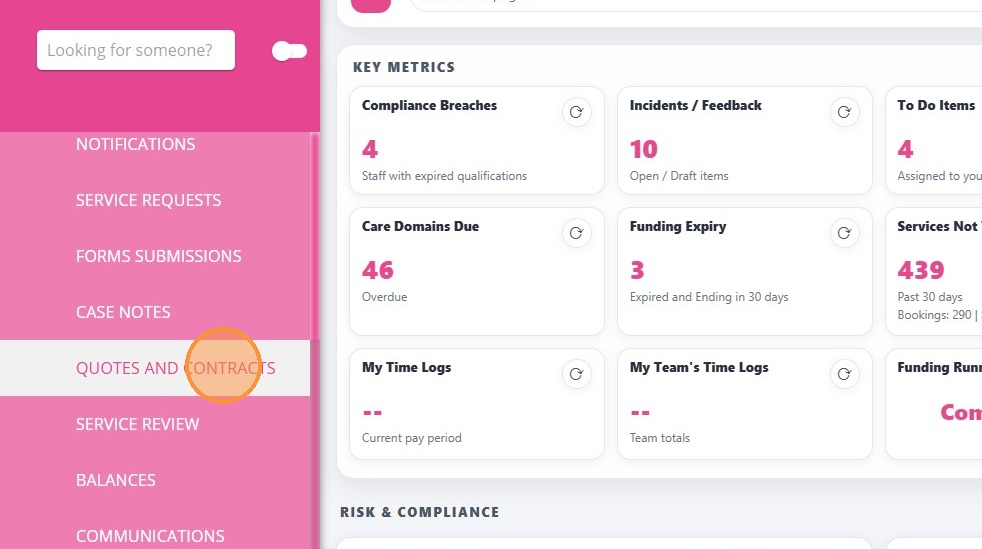
2. Select Quotes and Contracts.
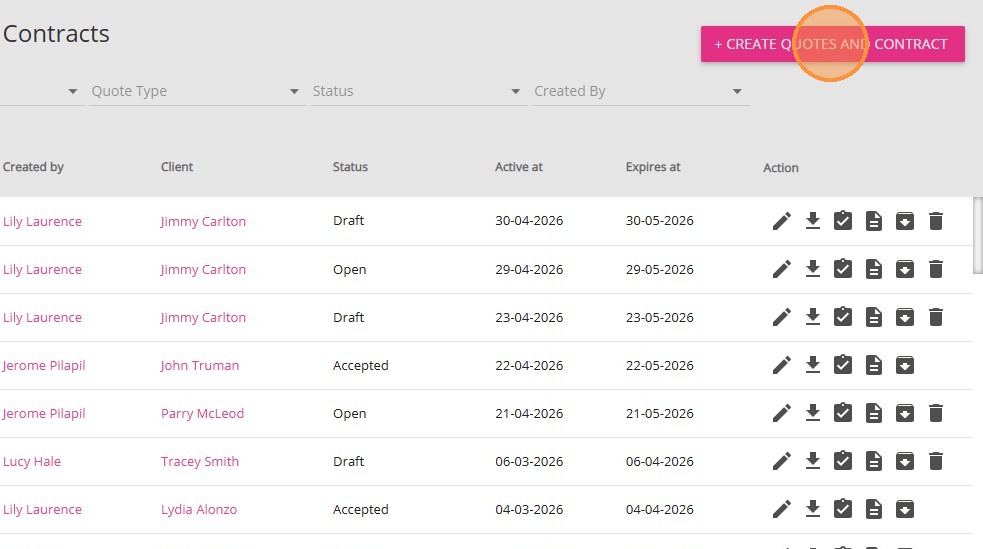
3. In the upper-right corner, click +Create Quotes and Contract.
4. In the Select Clients field, either scroll to find the client or type the client’s name in the search bar.
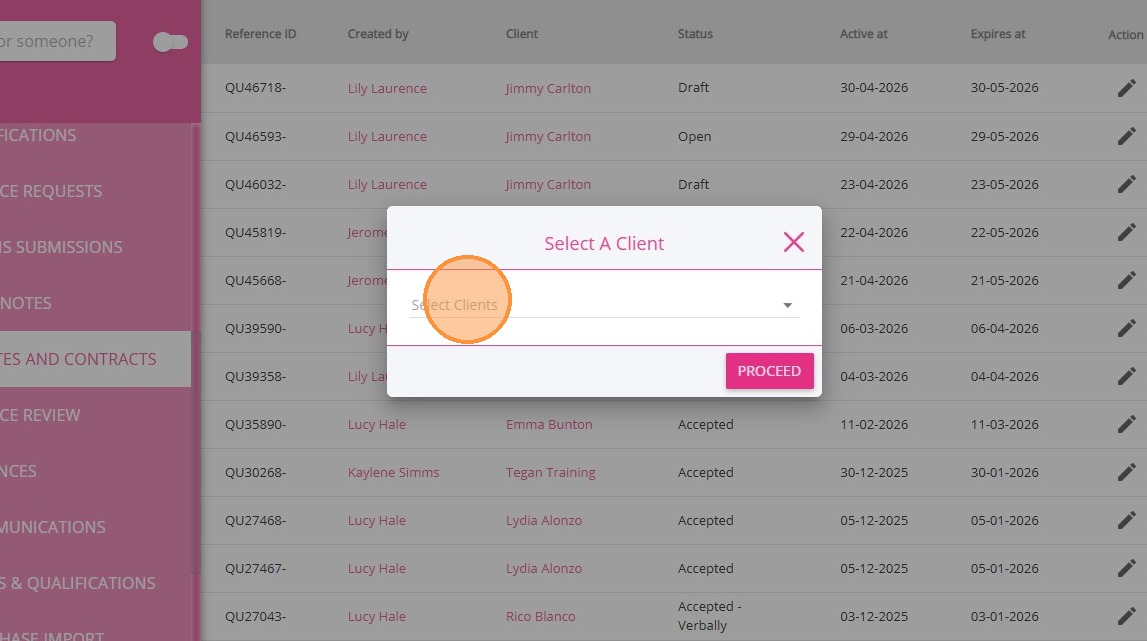
5. Click Proceed.
The Quotes Window will appear.
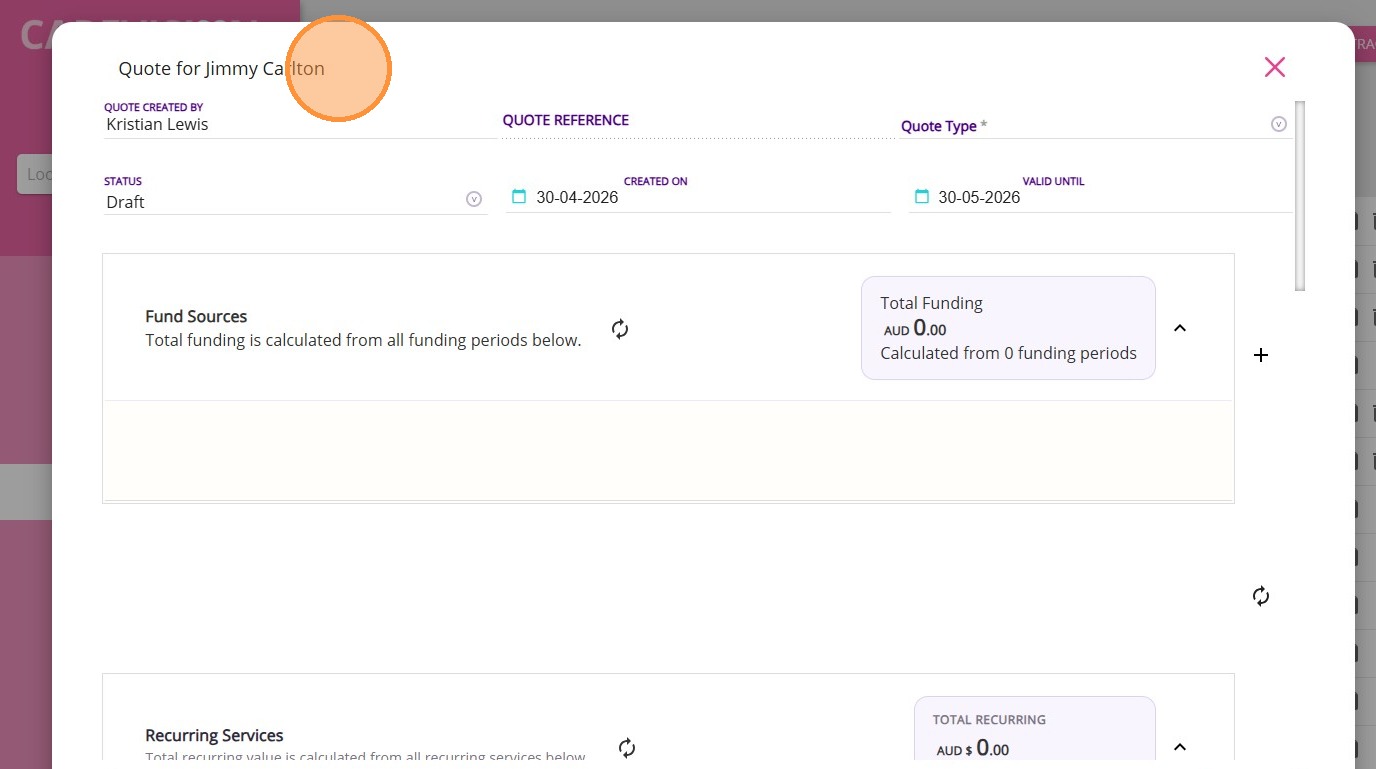
Step 2: Review Quote Header
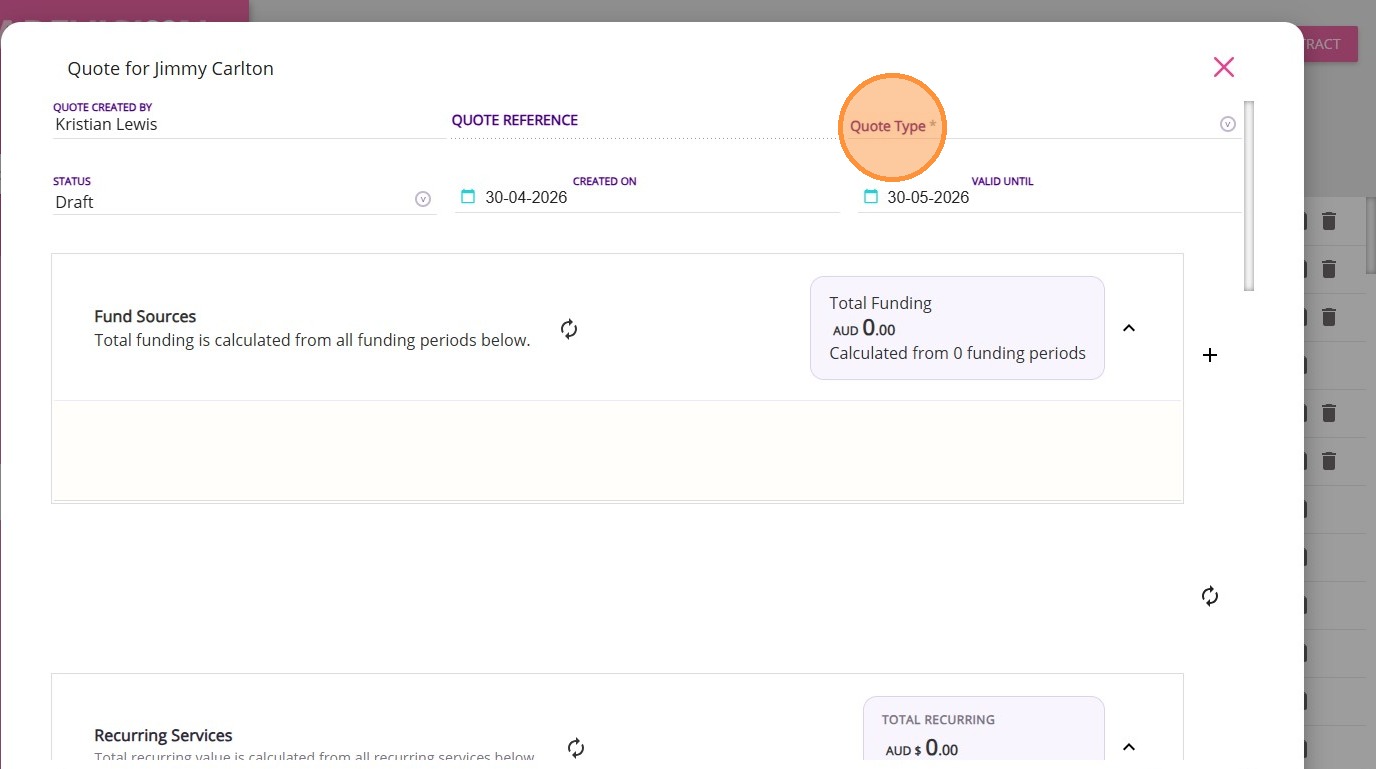
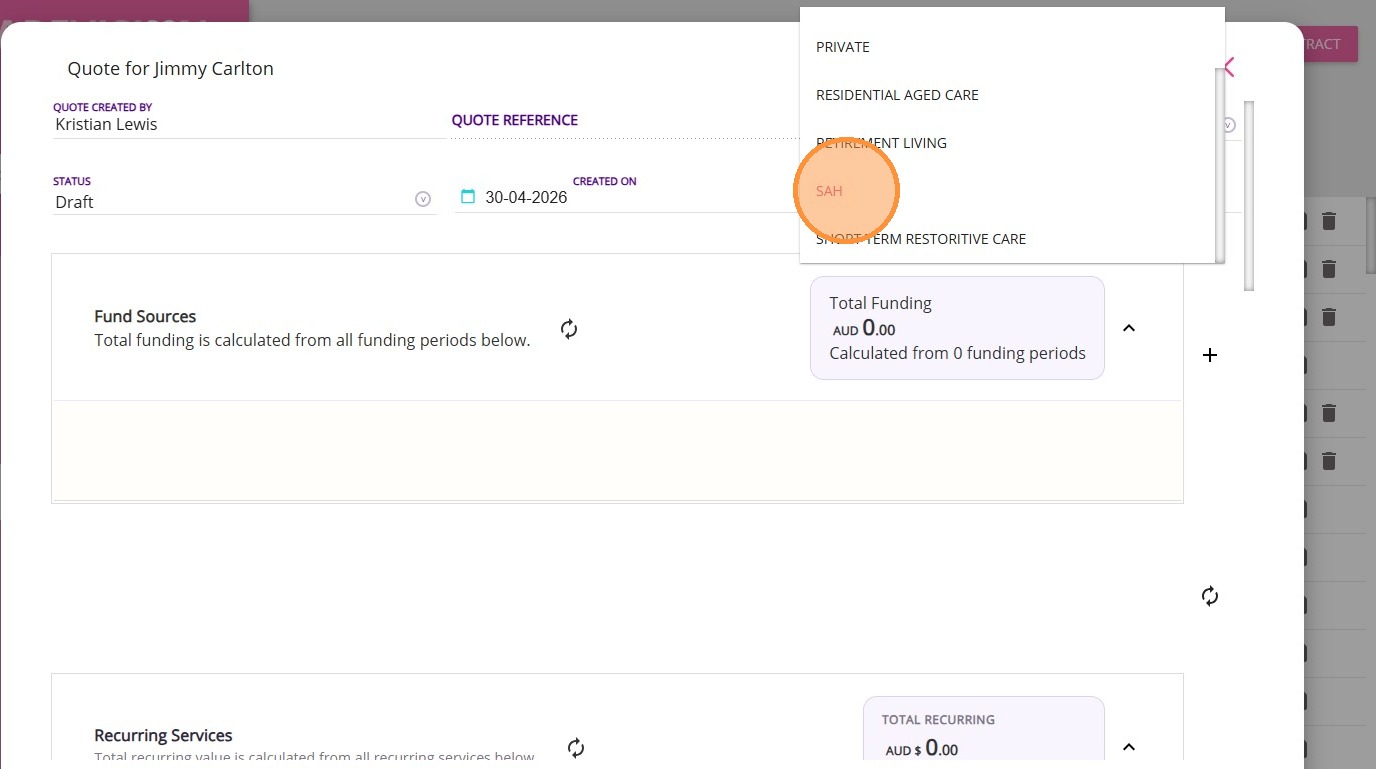
Set the Quote Type to the appropriate funding program

Example: SAH


Step 3: Manage the Fund Sources Section
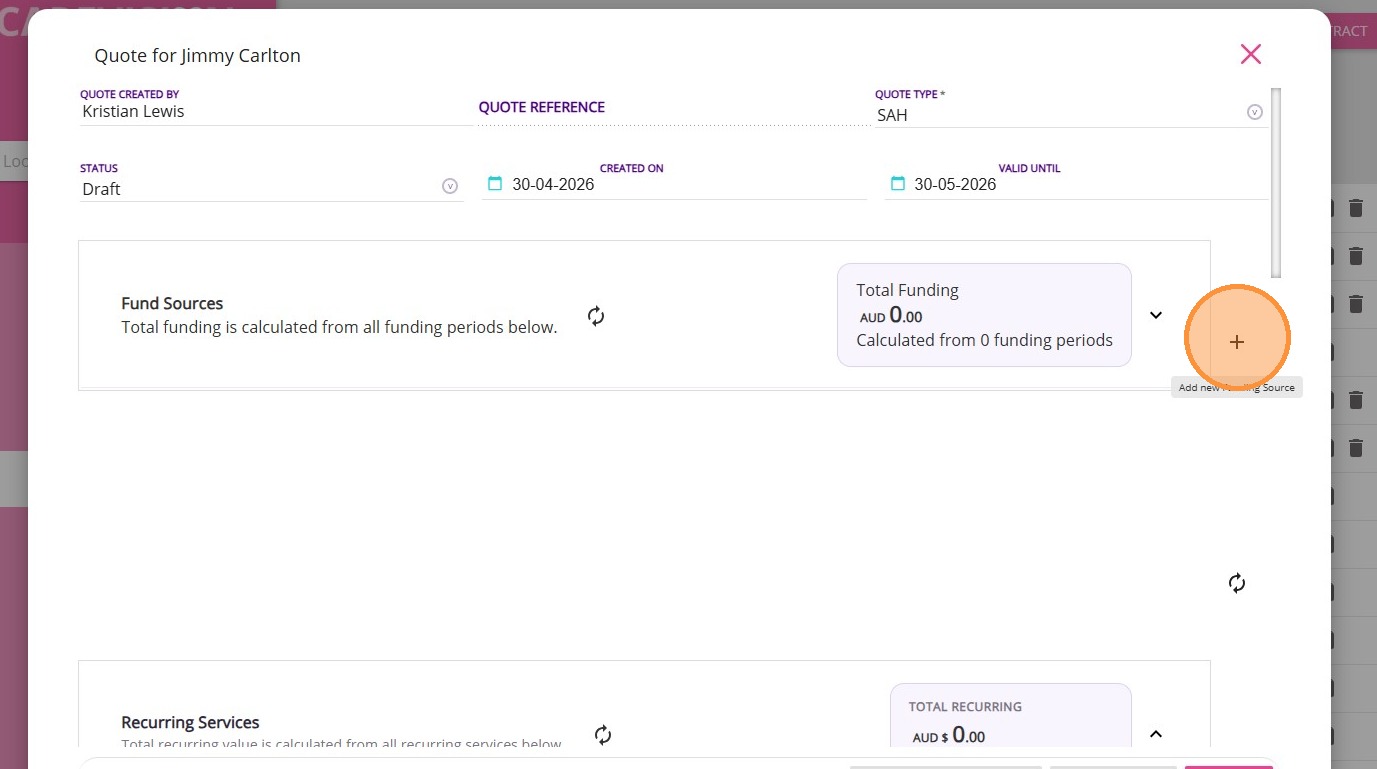
The Fund Sources section in the Quoting window provides an overview of all funding streams linked to a client. You can add a funding source template, which automatically pulls in all relevant information and pre-configured settings from that template.
A. Add a Funding Source Template
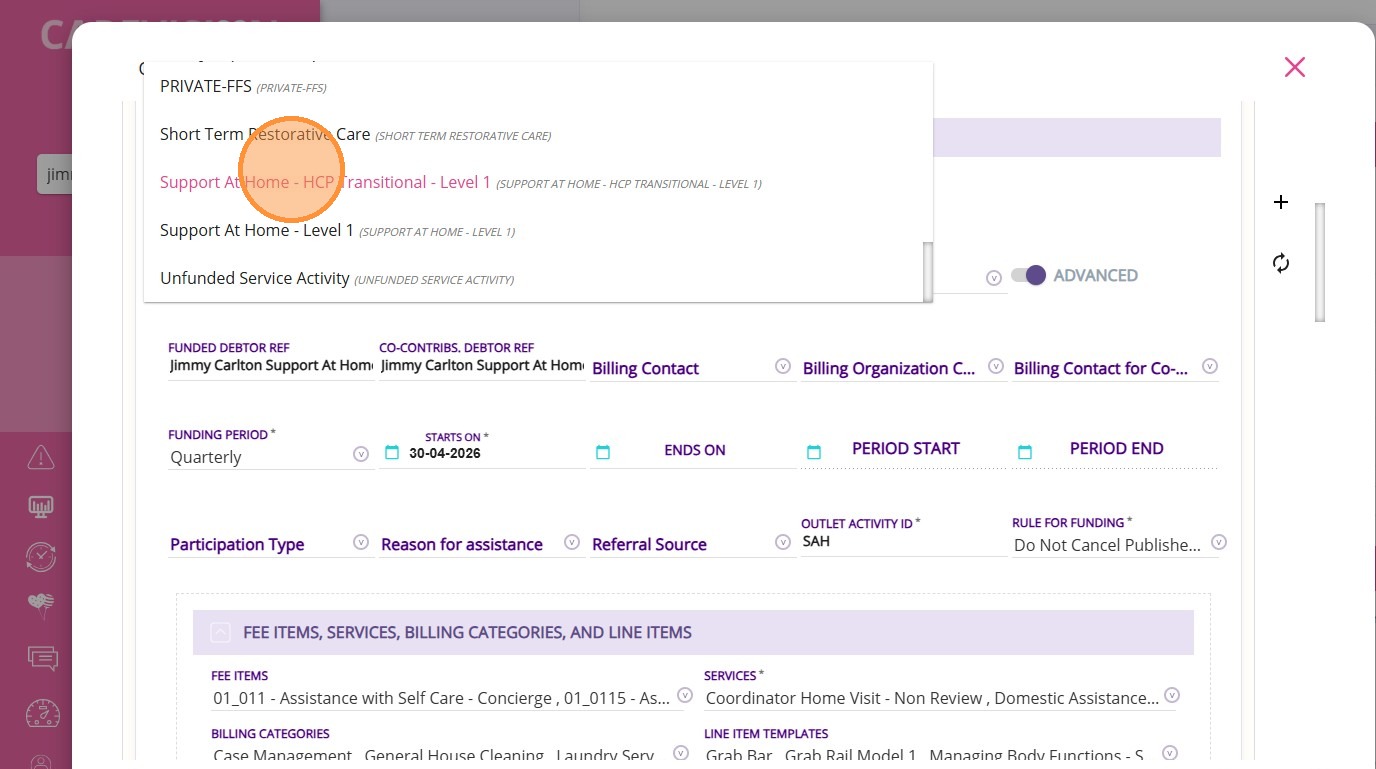
1. Click the plus icon on the right to add a new funding source template.

2. From the list, select a funding source template.
NotesNote: When you add a funding source template, most fields will automatically populate with data from the template you set up. The template includes all the rules and pre-configured information specific to the funding type you have selected. For more details, see the Introduction to the Advanced Funding Source Template.
B. Add a Start Date to the Funding Source
B. Add a start date to the funding source

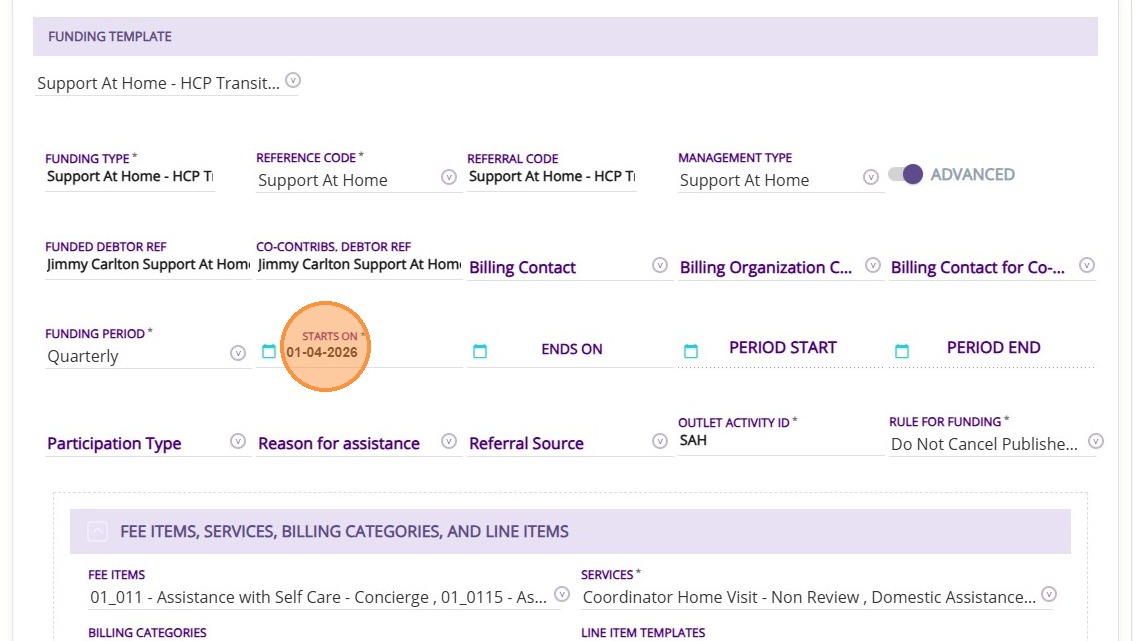
Set the “Starts On” field to the correct funding commencement date.
Info
Although funding is displayed and allocated on a quarterly basis, the system calculates it using a daily rate set by the department. This means the start date directly affects how much funding is calculated for each quarter. An incorrect start date may result in inaccurate funding amounts being applied to the client’s quote.

NotesNote: You can only change the Starts On date when you first add the funding template. After that, it stays the same unless the client moves to a different funding level.  If you can’t edit the Starts On date, it’s because the funding has moved into a new period and the system locks this date to keep everything in line with the quarterly schedule.
C. Specify Billing Contacts
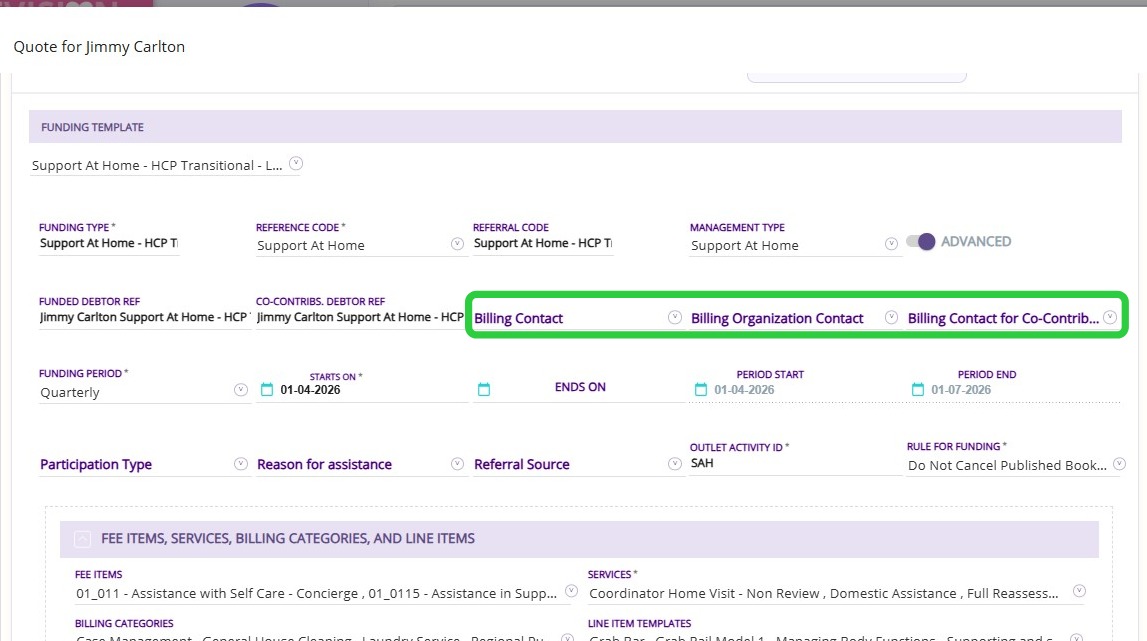
Complete the following fields as needed:
  • Billing Contact
  • Billing Organisation Contact
  • Billing Contact for Co-Contributions

FieldDescription
Billing ContactThe Billing Contact is a person known to the client, such as a family member who will be the main recipient of statements and billing information. This contact must be added to the client’s profile before you can select them in a quote. If the Billing Contact field is left blank, invoices will automatically be sent to the client’s own contact details by default.
Billing Organisation ContactA Billing Organisation Contact is a generic organization or third party, such as a plan manager or an entity that receives invoices or statements on behalf of the client. This could also include a shared contact, such as an enduring power of attorney, who manages billing for multiple clients. A billing organisation contact is used when an external organization or representative is responsible for handling the client’s billing matters.
Billing Contact for Co-ContributionsThe Billing Contact for Co-Contributions is a specific person designated to receive invoices related to the client’s co-contribution payments. This could be a different individual from the main billing contact, such as a family member or representative responsible for paying the co-contribution portion.
NotesNote: Before you can add values to the fields, you must set up the contacts in the client profile. See How to Add Billing Contacts to a Client Profile.
D. Add Supplements (if Applicable)

D. Add Supplements (if Applicable)

1. Go to the Funding Fee Items section.
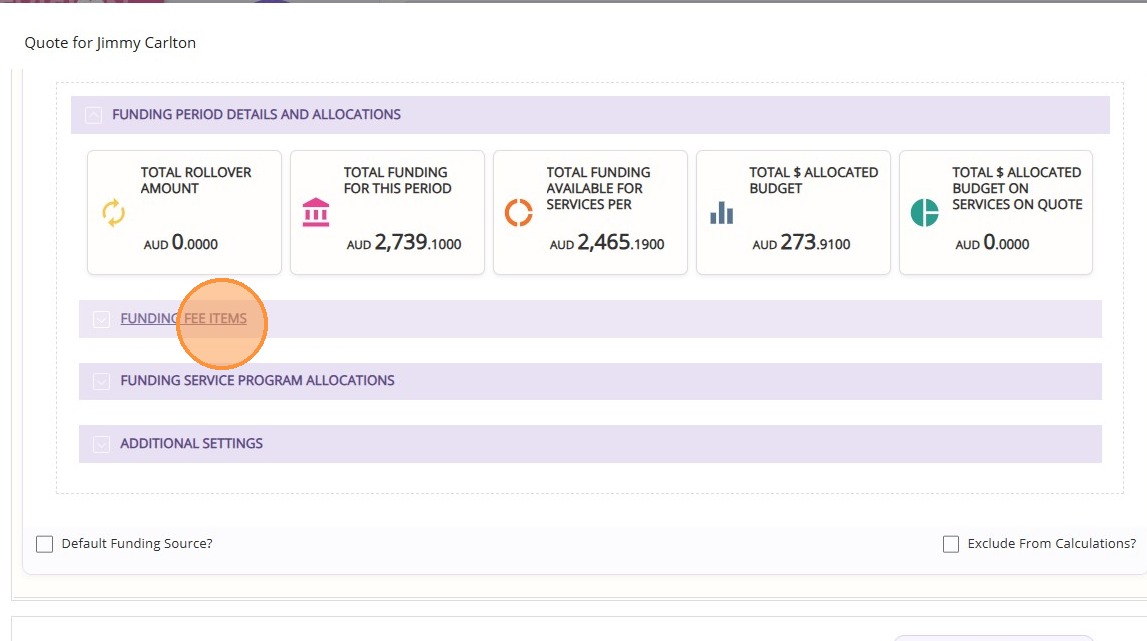
2. Click Add Funding Fee Item to include additional funding fee items. These items are set by default when you add a funding source template. But, you can modify them if your clients have a supplement or another subsidy to add.
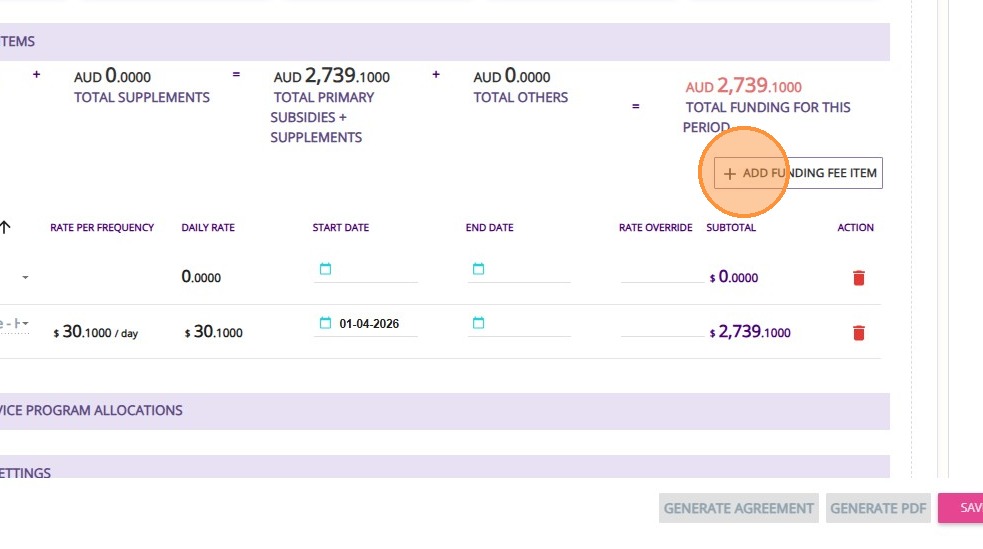
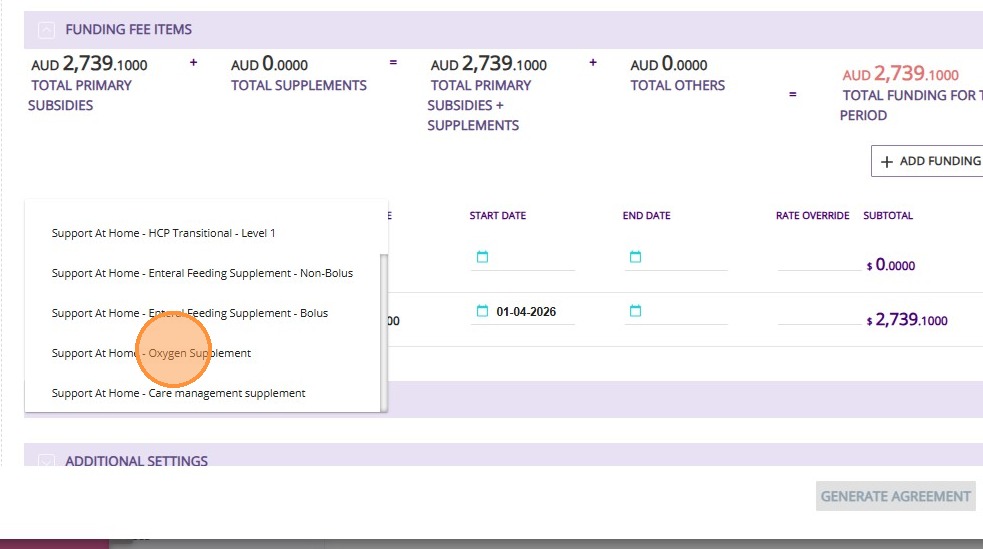
3. You can add multiple funding fee items to a single funding source. For example, if your client needs an additional supplement or subsidy, such as an oxygen supplement, you can add it to the list.
E. Set Co-contribution (or Leave Blank if Unknown)

E. Set Co-contribution (or Leave Blank if Unknown)

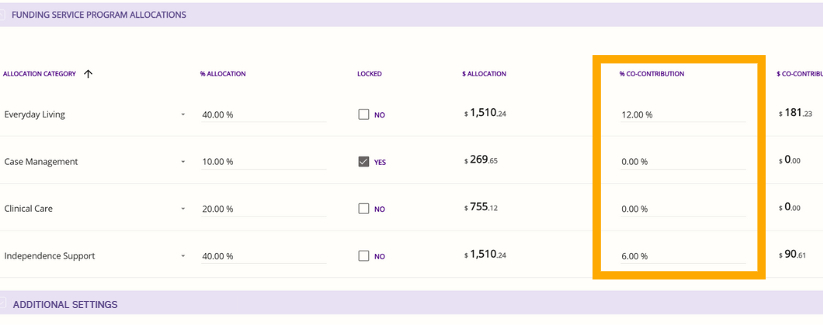
1. Click Funding Service Program Allocations. In this section, you can manage both the allocation of funding and the co-contribution rates.
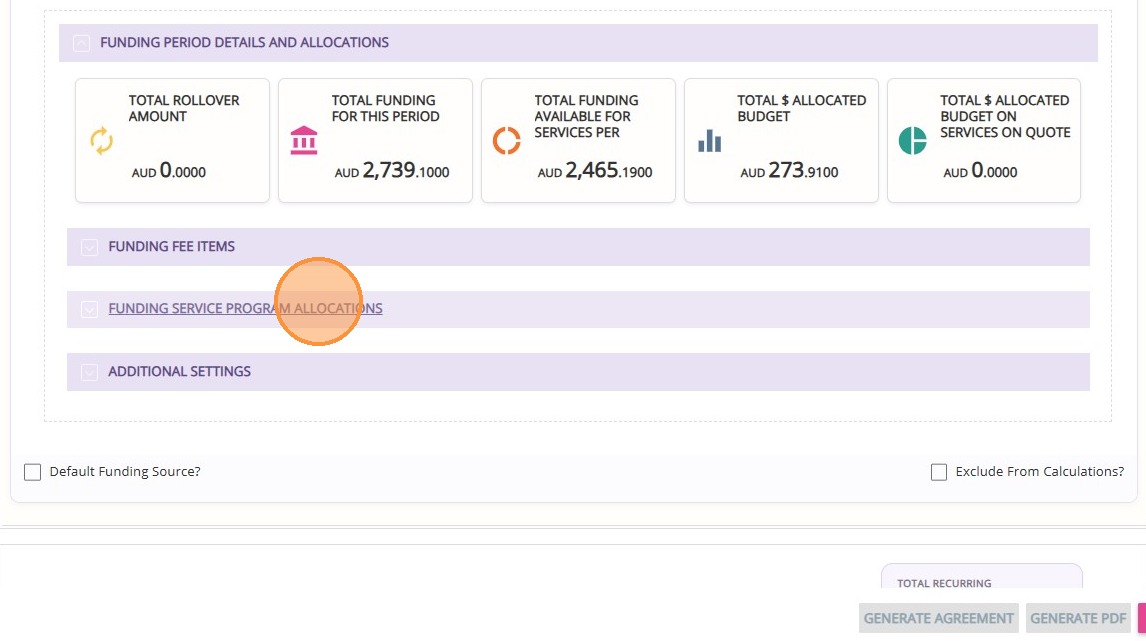
2. Under the Allocation Category column, the allocation options will be listed based on the funding source template you selected. For Level 1 to 8 or Transitional funding sources, the available categories are Care Management, Clinical Care, Everyday Living, and Independence Support.
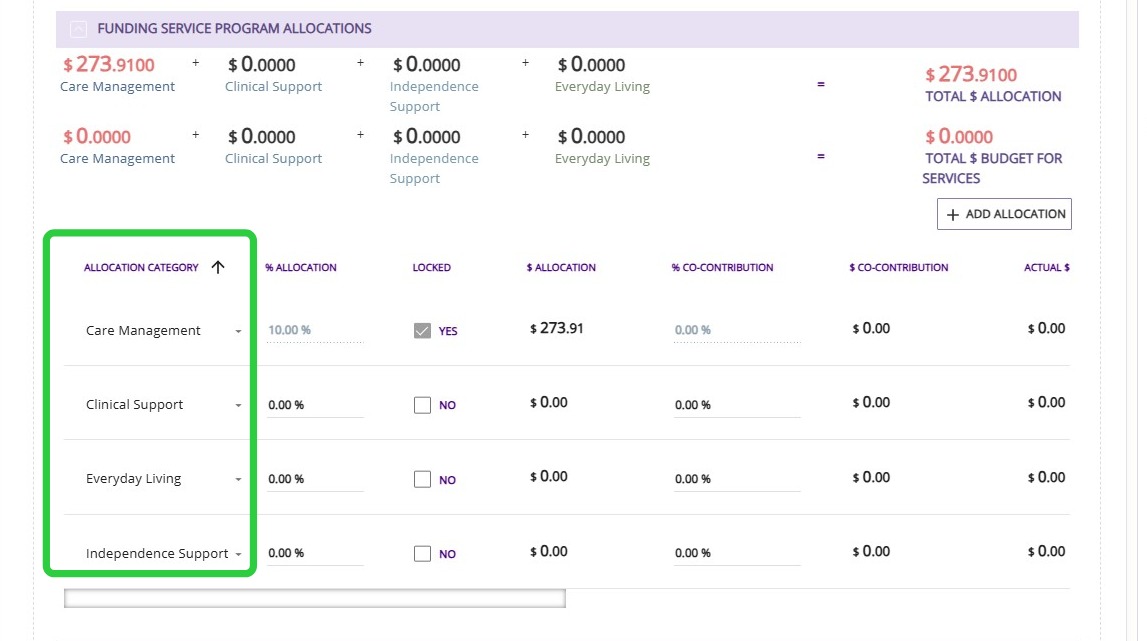
3. The % Co-contribution column shows the percentage of costs that the client is required to contribute for each allocation category. By default, Co-contributions are set to zero. When preparing a quote, enter the relevant co-contribution percentages for each category, or leave them as 0 if unknown.
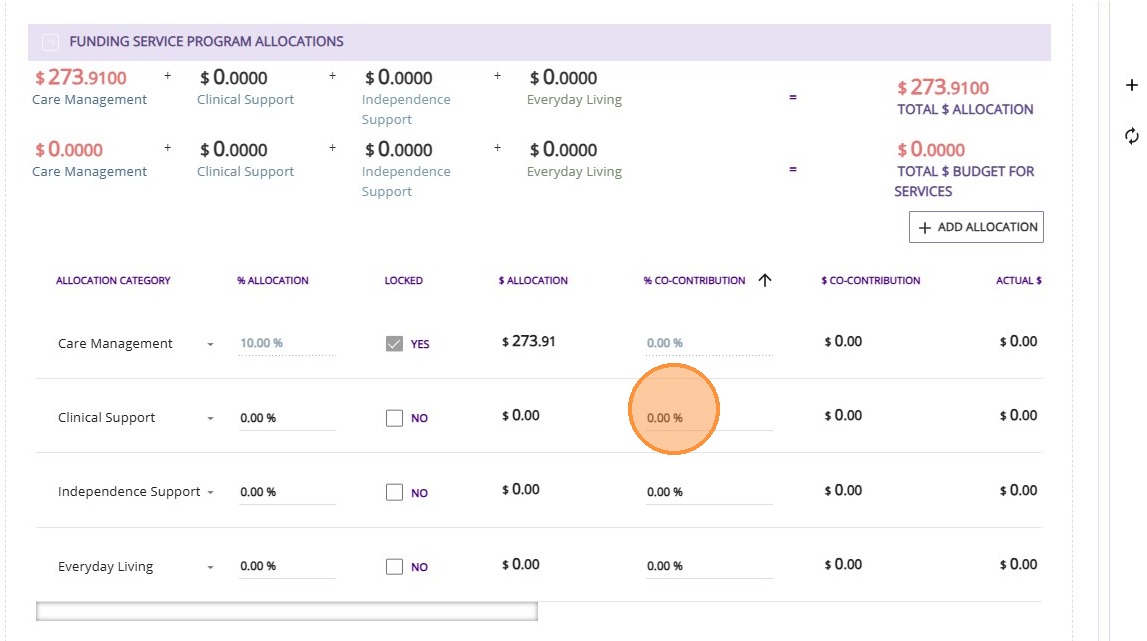
Glossary of Terms in the Funding Service Program Allocations Section

ColumnDescription
Allocation CategoryThe Allocation Category column lists the allocation options based on the selected funding source template. For Level 1 to 8 or Transitional funding sources, the available categories are Care Management, Clinical Care, Everyday Living, and Independence Support.
% AllocationThe % Allocation column shows the percentage of total funding assigned to each allocation category. Transitional clients may not have specific allocations set, so these categories can remain at zero until allocation details are provided by the department. Allocations can be updated later to support accurate budgeting and quoting.
LockedThe Locked column indicates whether the allocation percentage for a category can be edited. If a category such as Care Management is locked, its allocation cannot be modified as it is fixed by the funding template.
$ AllocationThe $ Allocation column shows the dollar amount allocated to each category, calculated from the specified percentage and the Budget Inclusion. For example, if Care Management is allocated 10% and the Budget Inclusion is Primary Subsidy only, the 10% is applied to the primary subsidy amount rather than the total funding amount.
% Co-contributionThe % Co-contribution column shows the percentage of costs the client is required to contribute for each allocation category. By default, co-contributions are set to zero. When preparing a quote, enter the relevant co-contribution percentages for each category, or leave them as 0 if unknown.
$ Co-contributionThe $ Co-contribution column shows the dollar amount the client is required to contribute for each allocation category, based on the entered co-contribution percentage.
Actual $ Co-contributionThe Actual $ Co-contribution column shows the calculated dollar amount the client will contribute for each category, based on their co-contribution percentage and the services included in the quote.
Budget InclusionsThe Budget Inclusions column shows which funding components are included in the allocation calculation, such as Primary Subsidy only or both Primary Subsidy and Supplements.

For example, Care Management typically includes only the Primary Subsidy, so allocations are calculated from that amount. Other categories, such as Everyday Living or Clinical Care, may include both Primary Subsidy and Supplements, resulting in a larger funding base.
$ Budget for ServicesThe $ Budget for Services column shows the dollar value of the budget allocated to services in each category, calculated based on the % Budget for Services and the total available funding.
% Budget for ServicesThe % Budget for Services column shows the portion of the total budget allocated specifically for services within each category, indicating how much is dedicated to direct service delivery versus other costs.
$ Co-contribs for ServicesThe $ Co-contribs for Services column shows the calculated dollar amount of the client’s co-contribution for each category, based on the entered percentage and the services included in the quote.
F. Add rollover balance (HCP clients transitioning to SAH)

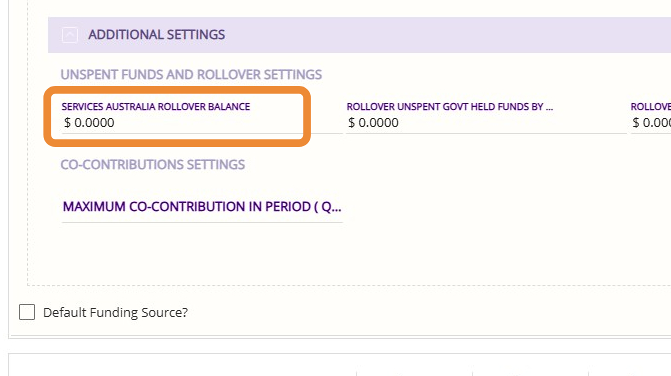
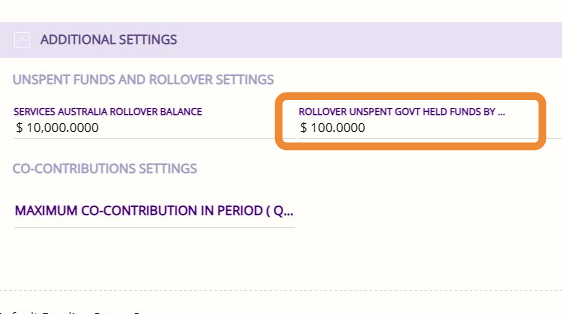
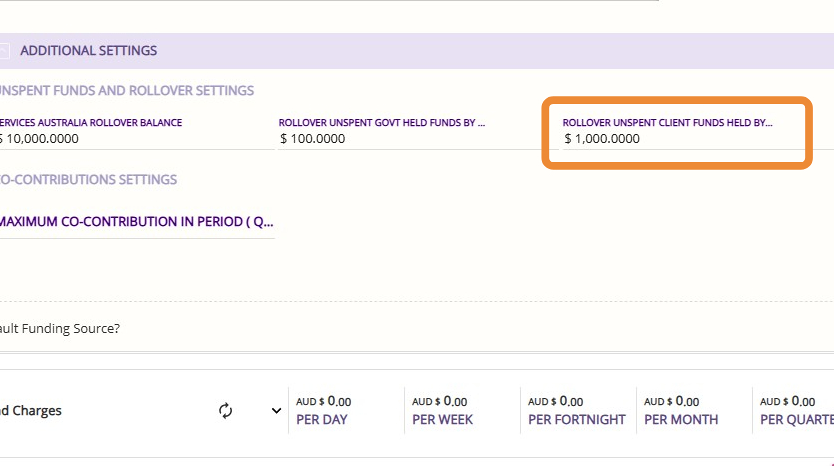
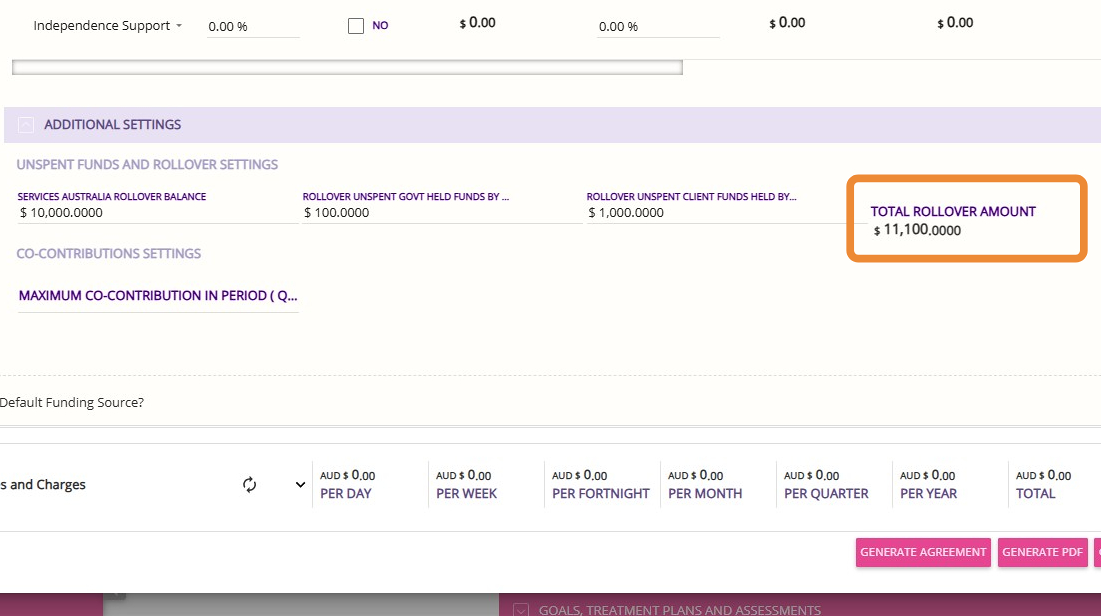
1. Go to the Additional Settings section.
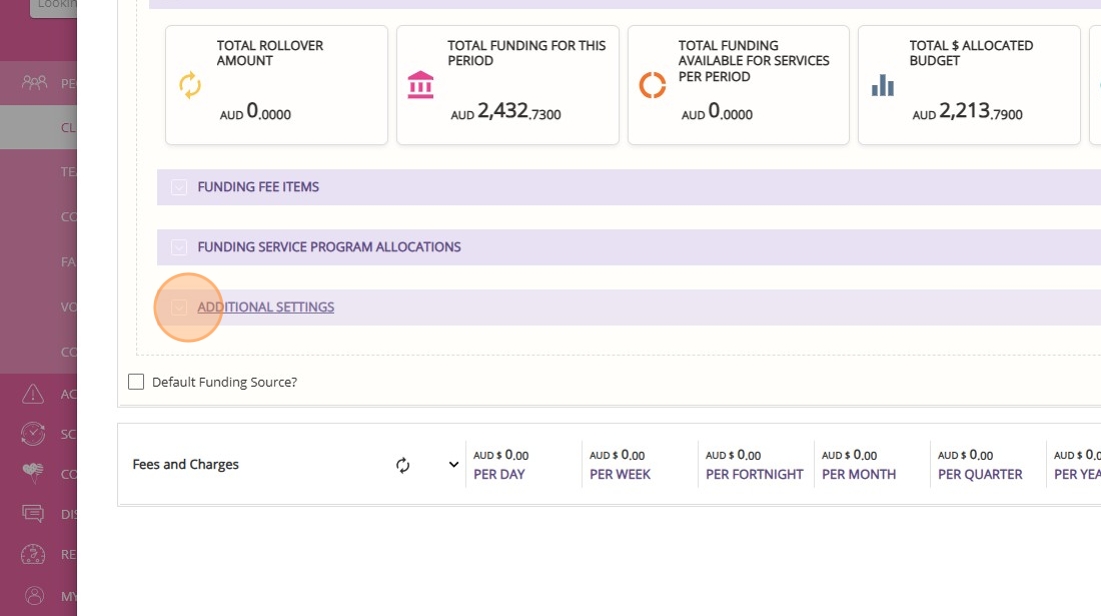
2. Services Australia Rollover Balance refers to the amount of funds that Services Australia holds on behalf of a client. This balance is typically shown in the payment statement summary after claims are processed, usually in a column indicating the funds held for each client. When setting up a client, you may enter an estimated amount in this field. Once the monthly claim is finalized, update this field with the actual value from the payment statement.

Notes
Note: Bulk updates or imports of the Services Australia rollover balance are available. Contact the CareVision support team to arrange this process.

3. Rollover Unspent Govt Held Funds by Provider refers to the closing balance of government funds from before the IPA that the provider is still holding as of the completion of the final claim. You can enter an estimated amount in this field and update it with the confirmed value once the claim is finalized. Some organisations may choose to leave this field blank until the final claim is complete.

4. Rollover Unspent Client Funds Held by Provider refers to the balance of unspent Home Care Package (HCP) funds that the provider is holding on behalf of the client. This field allows you to record any remaining client funds managed by the provider at the time of transition, if a balance exists.

5. Total Rollover Amount is a calculated field that represents the sum of all rollover balances previously entered, providing the total home care rollover amount available for the client. For transitioning clients, this total is required to ensure all rollover funds are accurately brought into their client funding records.

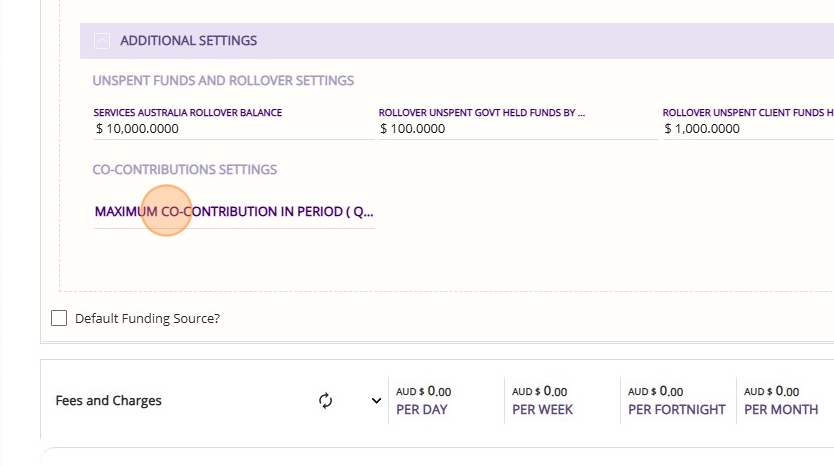
6. The Maximum Co-Contribution in Period field allows you to set a cap on the total co-contribution amount a client is required to pay within a specific period. This is important for clients with "no worse-off" status who previously paid an income-tested fee.

The system will track co-contributions as services are delivered, and once the client reaches the maximum set in this field, no further co-contributions will be charged for that period.
Example:
If a client has a co-contribution rate of 12% and the maximum co-contribution per period is set at $100, the client will be charged 12% per booking until their total co-contributions reach $100.

After reaching this cap, no further co-contributions will be collected for the remainder of the period, even if 12% of their total funding would exceed $100. The maximum is calculated as the ITF daily rate of the home care package multiplied by the number of days in the period.
G. Set Default Funding

G. Set Default Funding

Tick the Default Funding Source? box. This ensures ongoing services automatically use the correct funding as it rolls over each quarter.
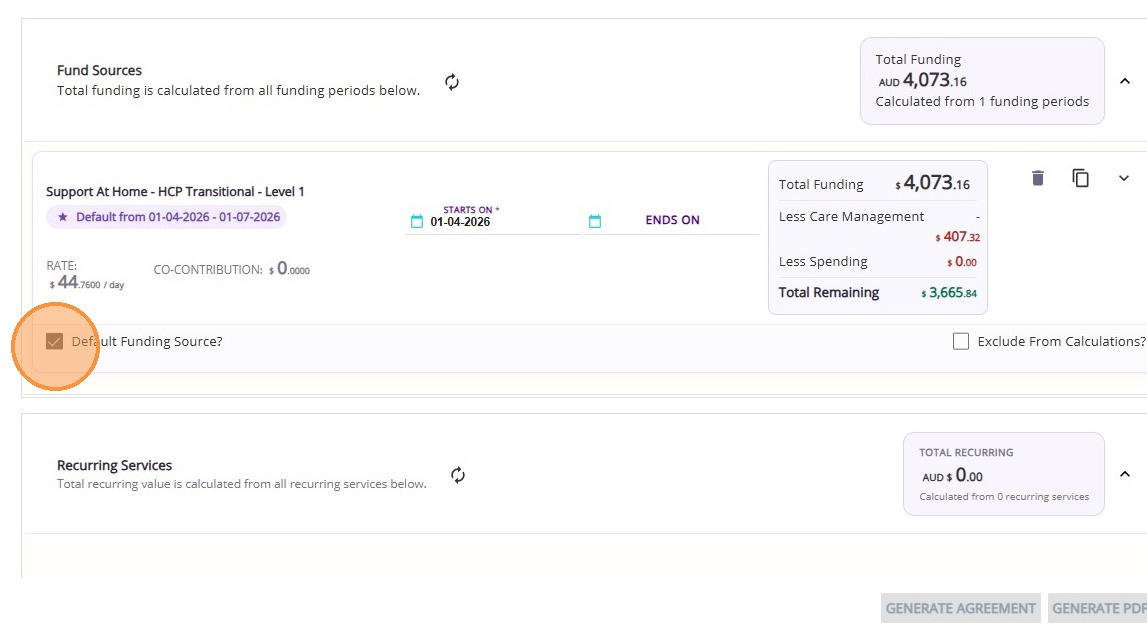
If you tick it:
  1. Services automatically link to the active funding each quarter
  2. No need to update care plans or bookings
  3. Quotes, bookings, and statements stay aligned with current funding

If you don’t tick it:

  1. Services stay tied to a specific funding period
  2. You’ll need to manually update them each quarter
  3. Higher risk of errors (such as incorrect funding, booking or claiming issues)
Notes
Note: You can specify multiple default funding source in a quote. See Multiple Default Funding Source in a Quote.

Step 4: Add Recurring Services

Recurring services refer to any service provided to a client as part of their care plan that is delivered on a regular basis. These services must clearly specify the service name, frequency, and appropriate billing rates.
See Detailed Steps Here

Step 4: Add Recurring Services

1. Select from the dropdown, which displays services linked to the chosen funding source template, then complete the remaining required fields.
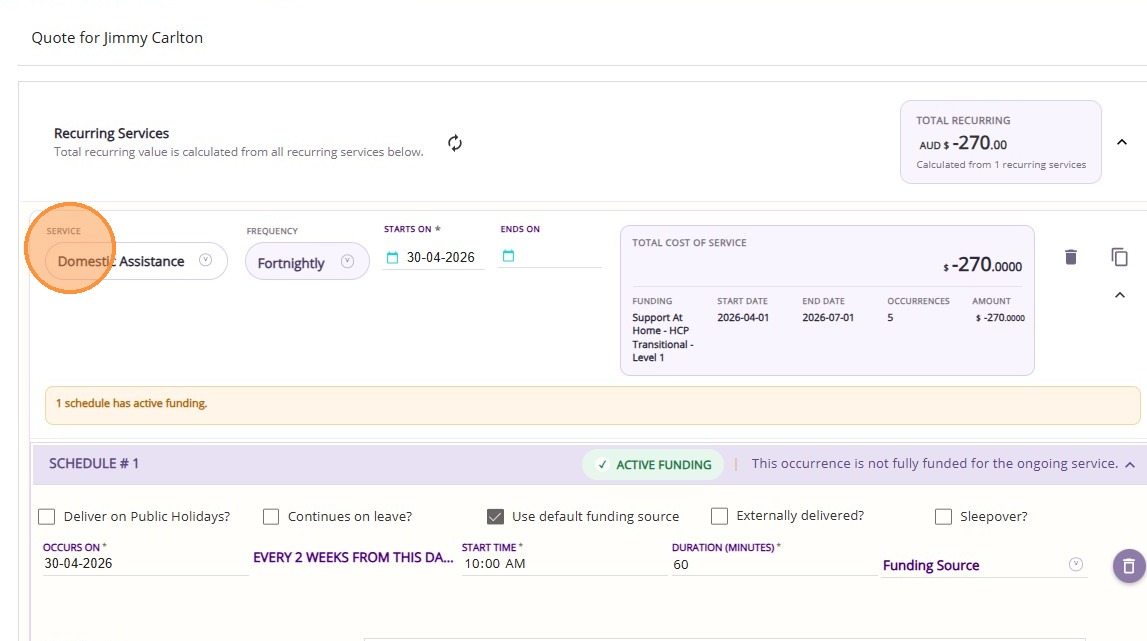
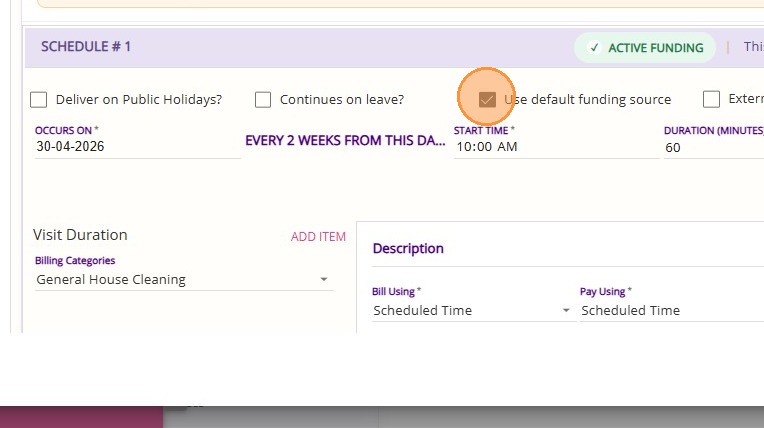
2. Tick Use default funding source. This ensures ongoing services automatically use the correct funding as it rolls over each quarter.

3. Complete the required fields in the Schedule section and adjust as needed to align with the client’s service requirements.
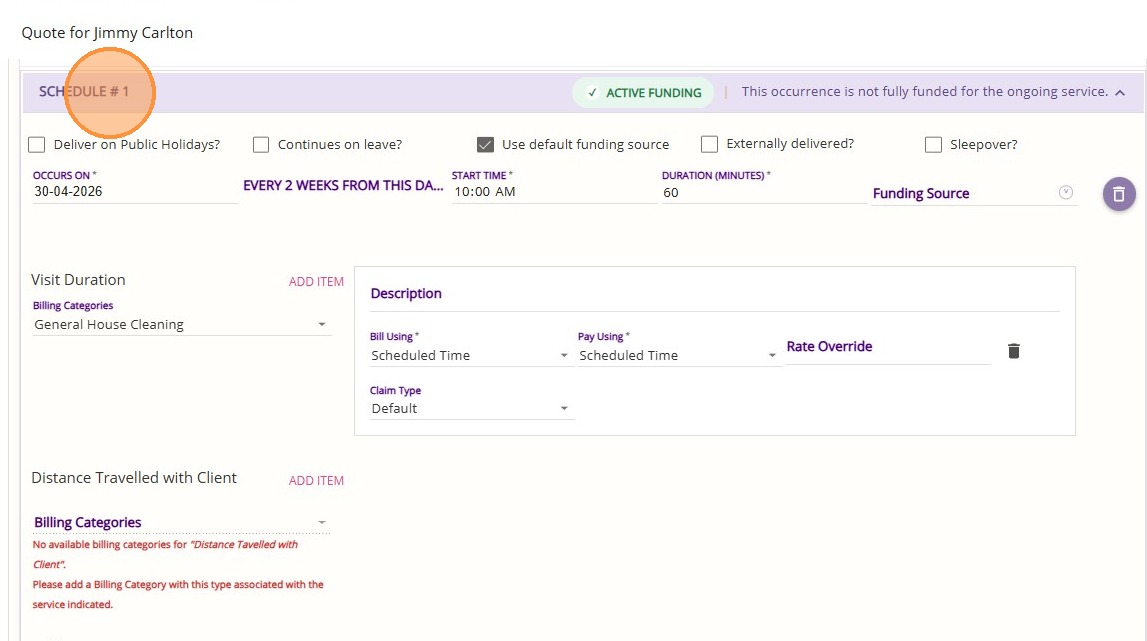
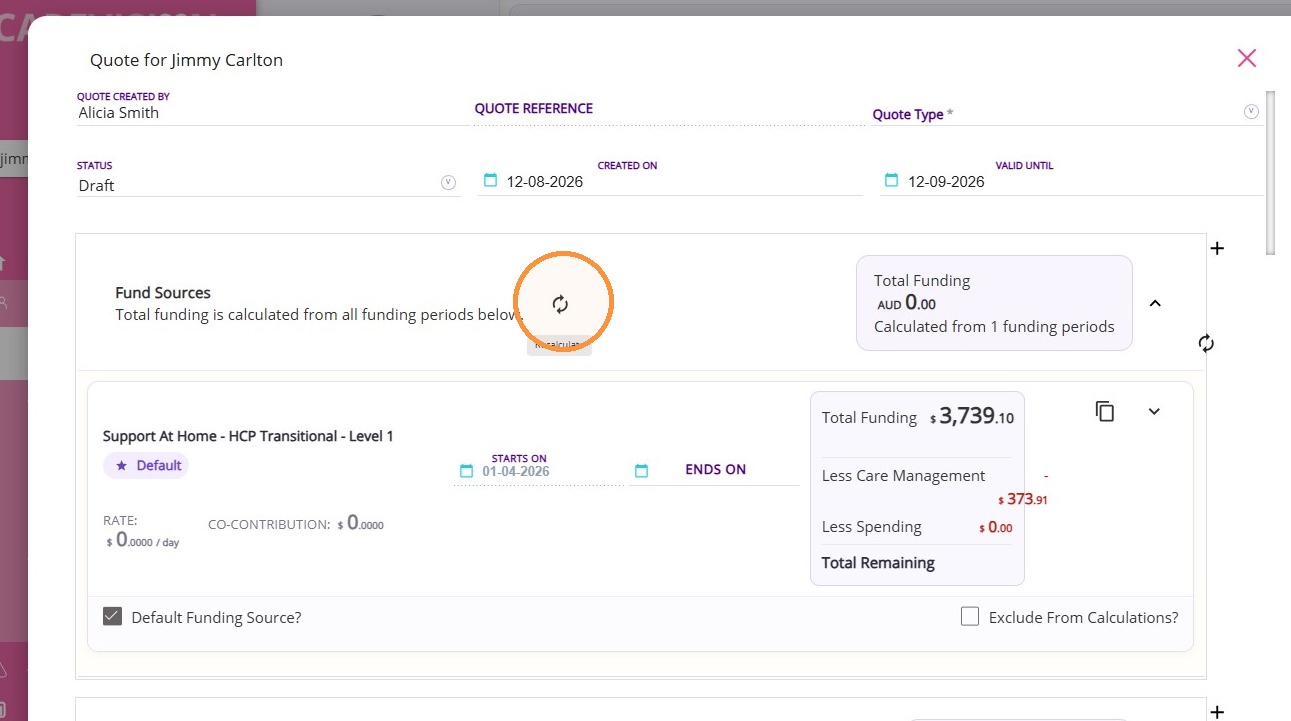
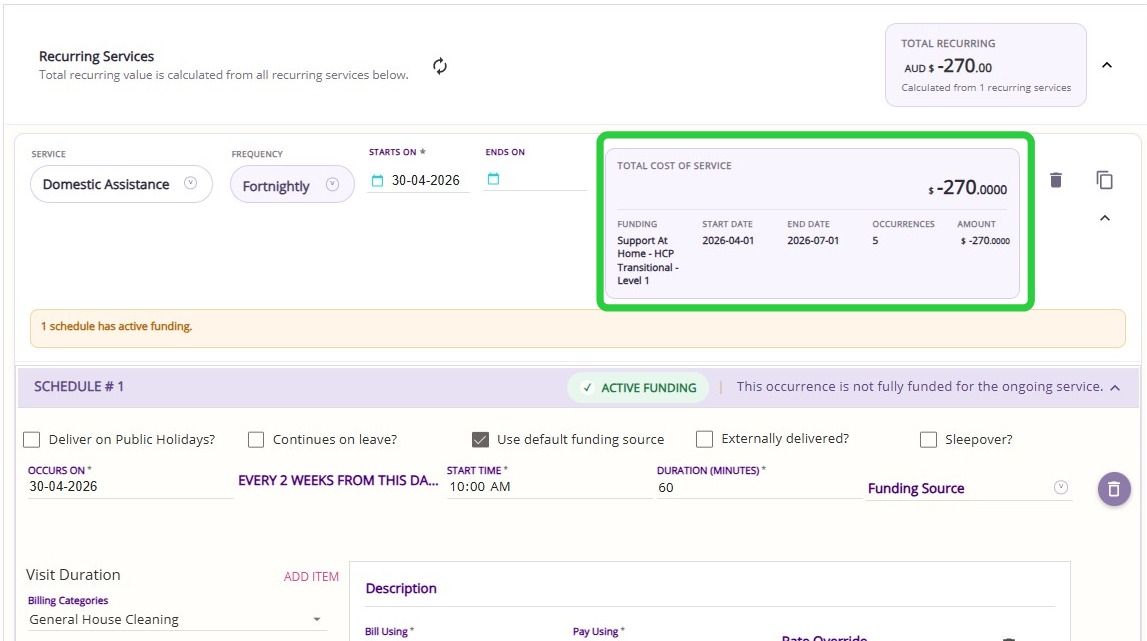
4. Click the Recalculate button.

The Total Cost of Service card will update to display the start date, end date, number of occurrences, and total cost. It provides a clear summary of the service. For example, showing how many occurrences fall between the selected dates and the total cost for that service.

This allows you to see a detailed cost breakdown for each service within the quote.

Glossary of Terms in the Recurring Services Section

Recurring Services Section
FieldDescription
ServiceDefines the service to be added. Select from the dropdown, which displays services linked to the chosen funding source template.
FrequencyDefines how often the service occurs. Select from available options (daily, weekly, fortnightly, monthly (date-based or weekly-based).
Starts OnDefines the service start date. Enter the date the service is to commence.
Ends OnDefines the service end date. Enter the end date or leave blank if the service is ongoing.
Schedule Section
FieldDescription
Deliver on Public Holidays?Determines if the service is delivered on public holidays. Tick to include public holidays.
Continues on leave?Determines if the service continues while the client is on leave. Tick to continue service during leave periods.
Use default funding sourceDetermines whether the default funding source is applied. Tick to ensure services automatically use the correct funding as it rolls over each quarter.
Externally delivered?Determines if the service is provided by a third-party provider. Tick to mark as externally delivered.
Sleepover?Determines if the service includes a sleepover component. Tick to enable.
Occurs onDefines the date the service is scheduled. Select the applicable date.
Start TimeDefines the time the service begins. Enter the scheduled start time.
Duration (mins)Defines the length of the service in minutes. Enter the total duration.
Funding sourceDefines an alternative funding source. Select if the service should be linked to a funding source other than the default.

Step 5: Add Once-Off Services

Once-off services are single, non-recurring services provided to a client as needed, rather than on a regular schedule. Add any known once-off services required by the client so they can be included in the quote.
See Detailed Steps Here

Step 5: Add Once-Off Services

1. Select a once-off service as needed. Then, complete the remaining required fields.
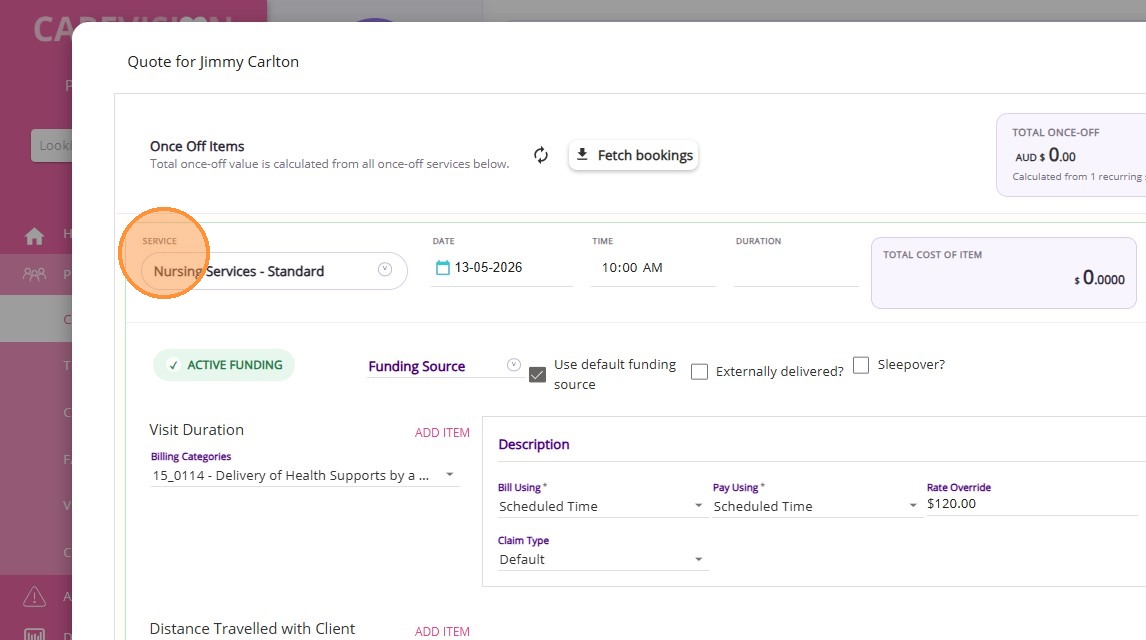
2. Tick Use default funding source.
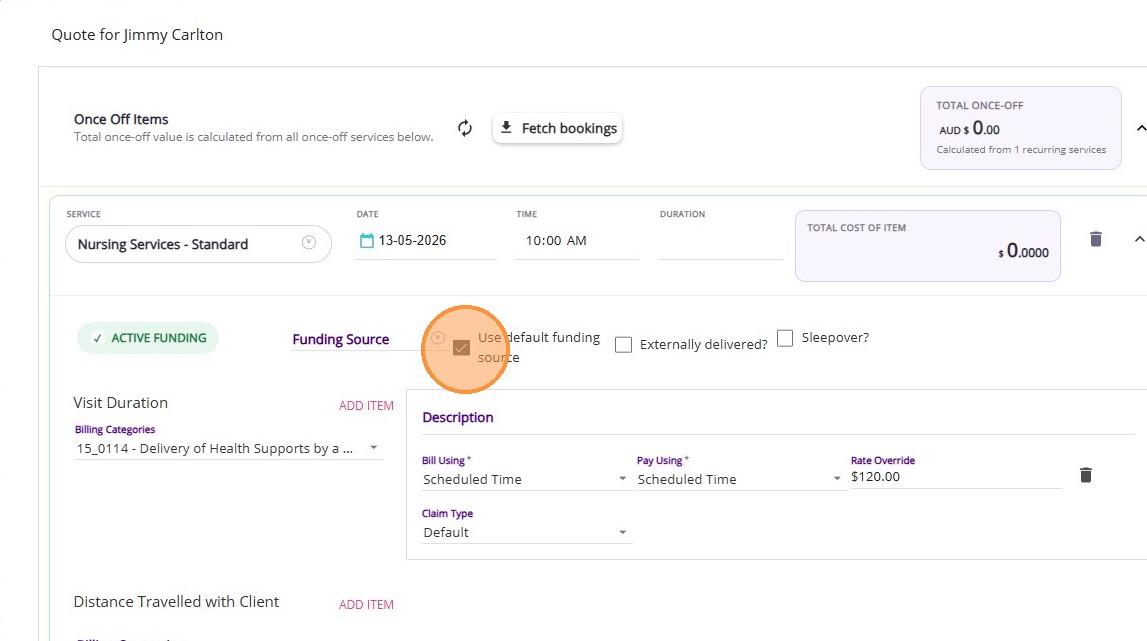
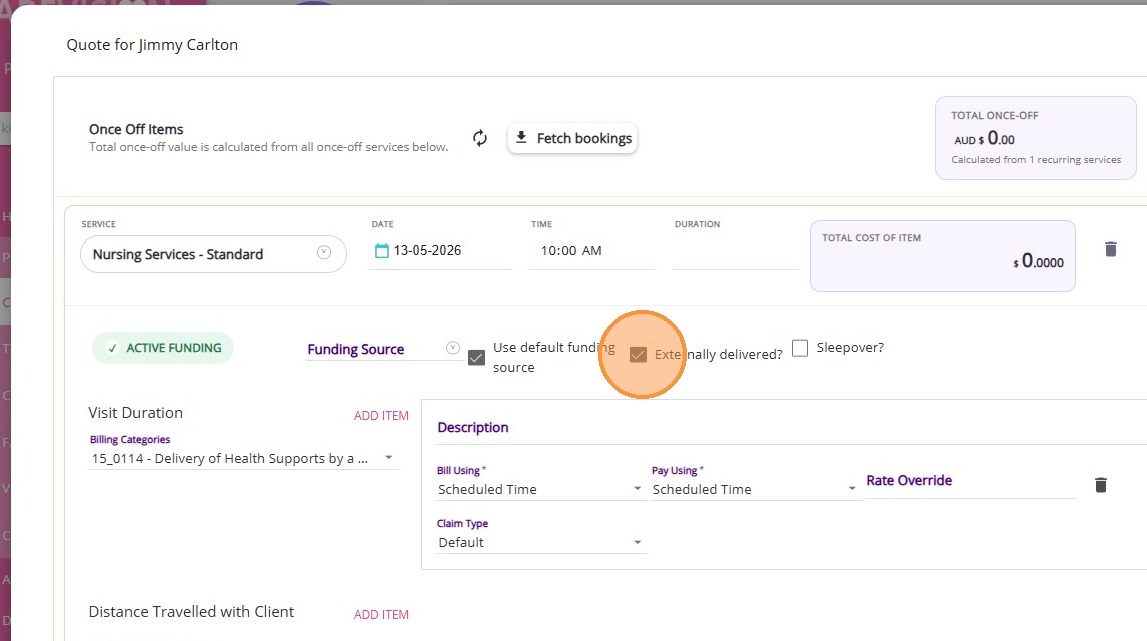
3. Optional. Tick Externally delivered? if the service is being contracted to an external provider.
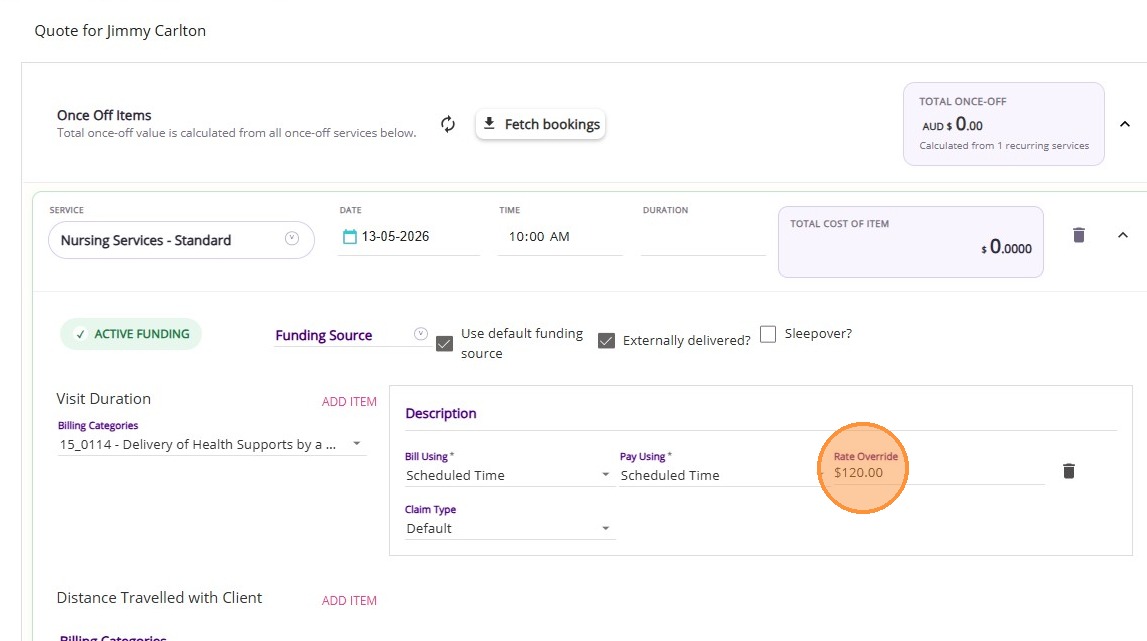
4. Optional. Enter a value in the Rate Override field if you need to apply a custom rate, either for your organisation or when contracting the service to an external provider.
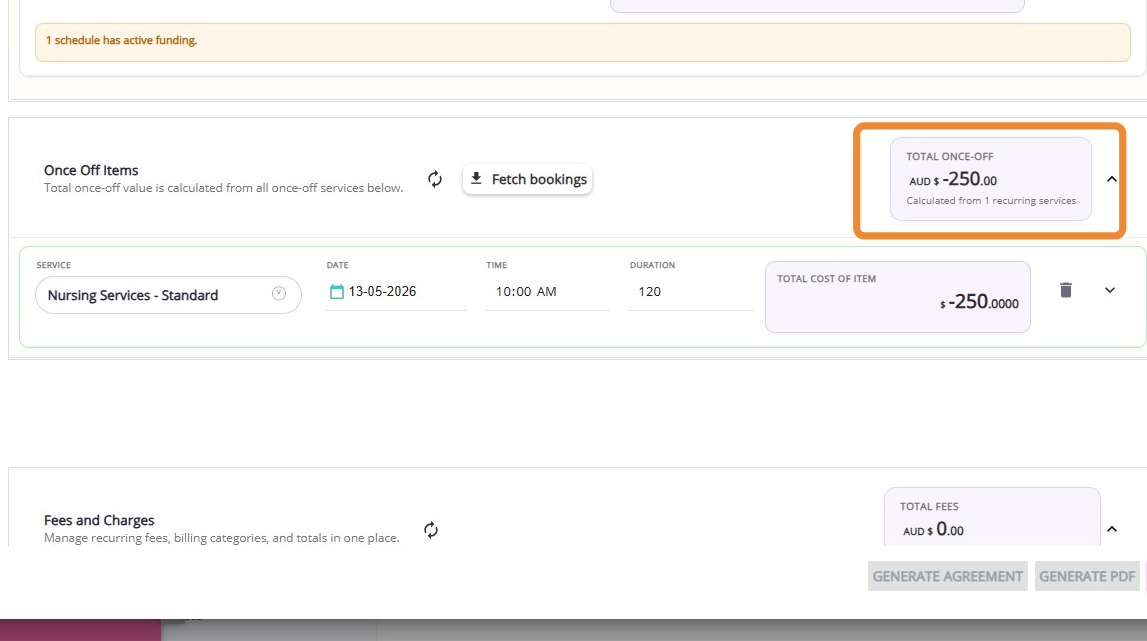
The Total Once-Off card displays a detailed cost breakdown for each once-off service within the quote.
Glossary of Terms in the Once Off Items Section
FieldDescription
ServiceDefines the once-off service to be added. Select from the dropdown, which displays services linked to the chosen funding source template.
DateDefines when the service will occur. Enter the service date.
TimeDefines the start time of the service. Enter the scheduled time.
DurationDefines the length of the service. Enter the total duration.
Funding sourceDefines an alternative funding source. Select if the service should be linked to a funding source other than the default.
Use default funding sourceDetermines whether the default funding source is applied. Tick to ensure services automatically use the correct funding as it rolls over each quarter.
Externally delivered?Determines if the service is provided by an external provider. Tick to mark as externally delivered.
Sleepover?Determines if the service includes a sleepover component. Tick to enable.

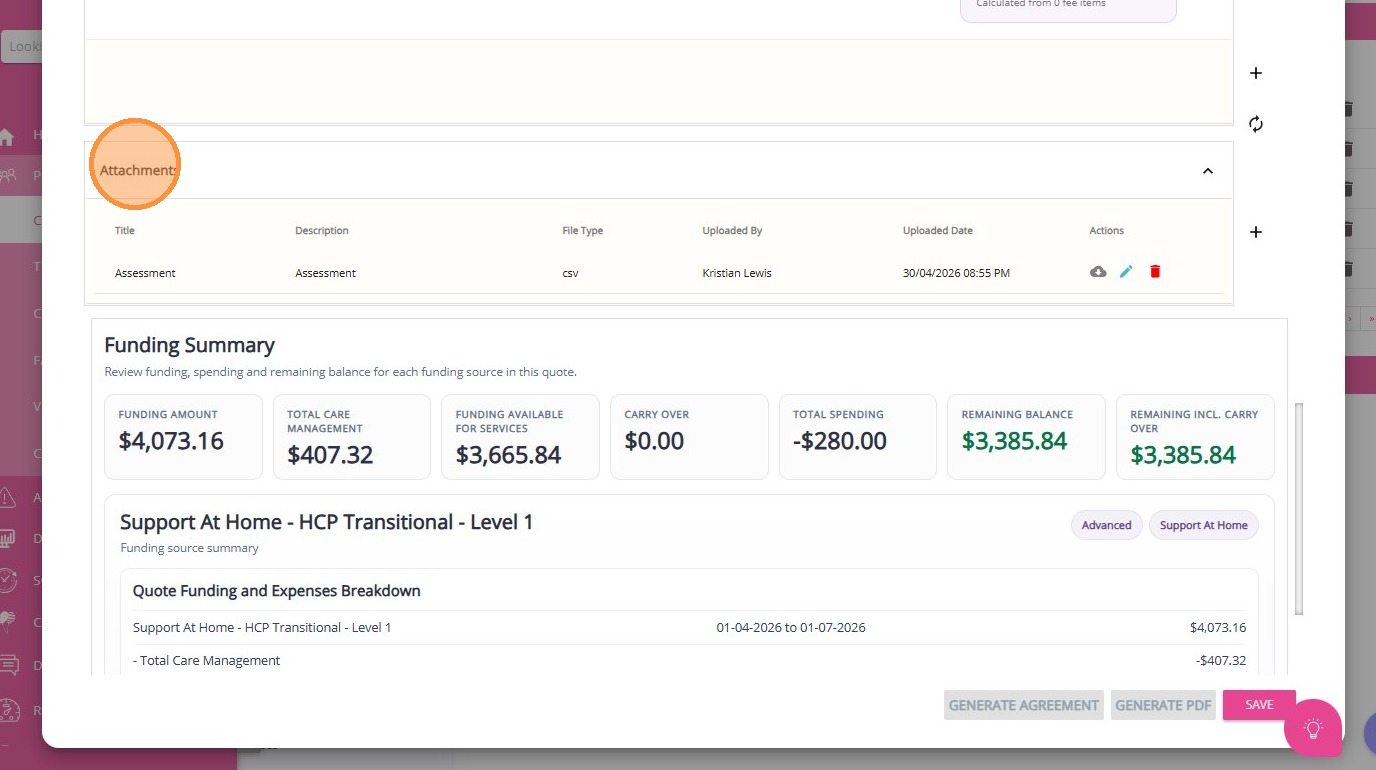
Step 6: Upload Attachments

See Detailed Steps Here
Under Support at Home, it is important to capture and report evidence for the services included in your quote and agreed upon with your client. At the quote stage, you can attach supporting documents such as prescriptions, occupational therapy reports, or allied health assessment reports that recommend specific activities.

Step 7: Review and Calculate Quote

See Detailed Steps Here
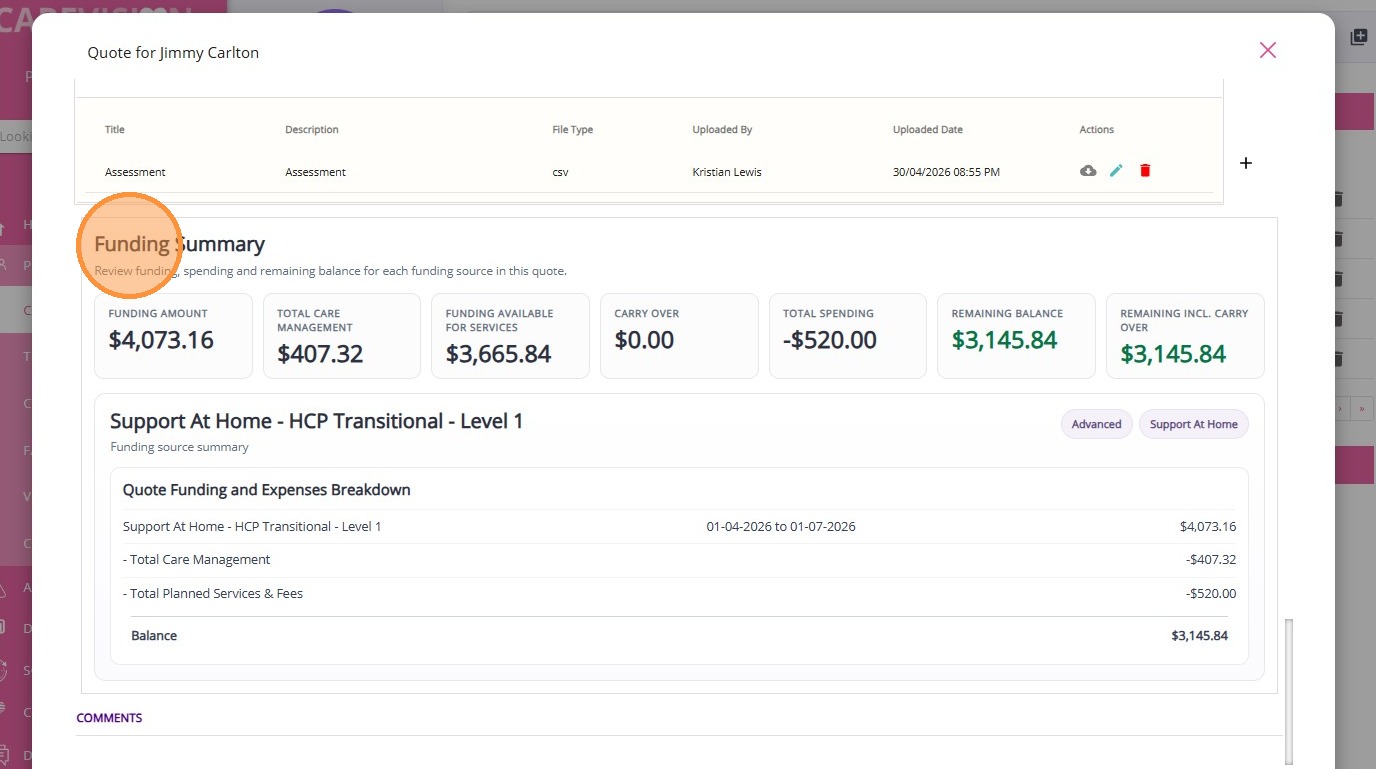
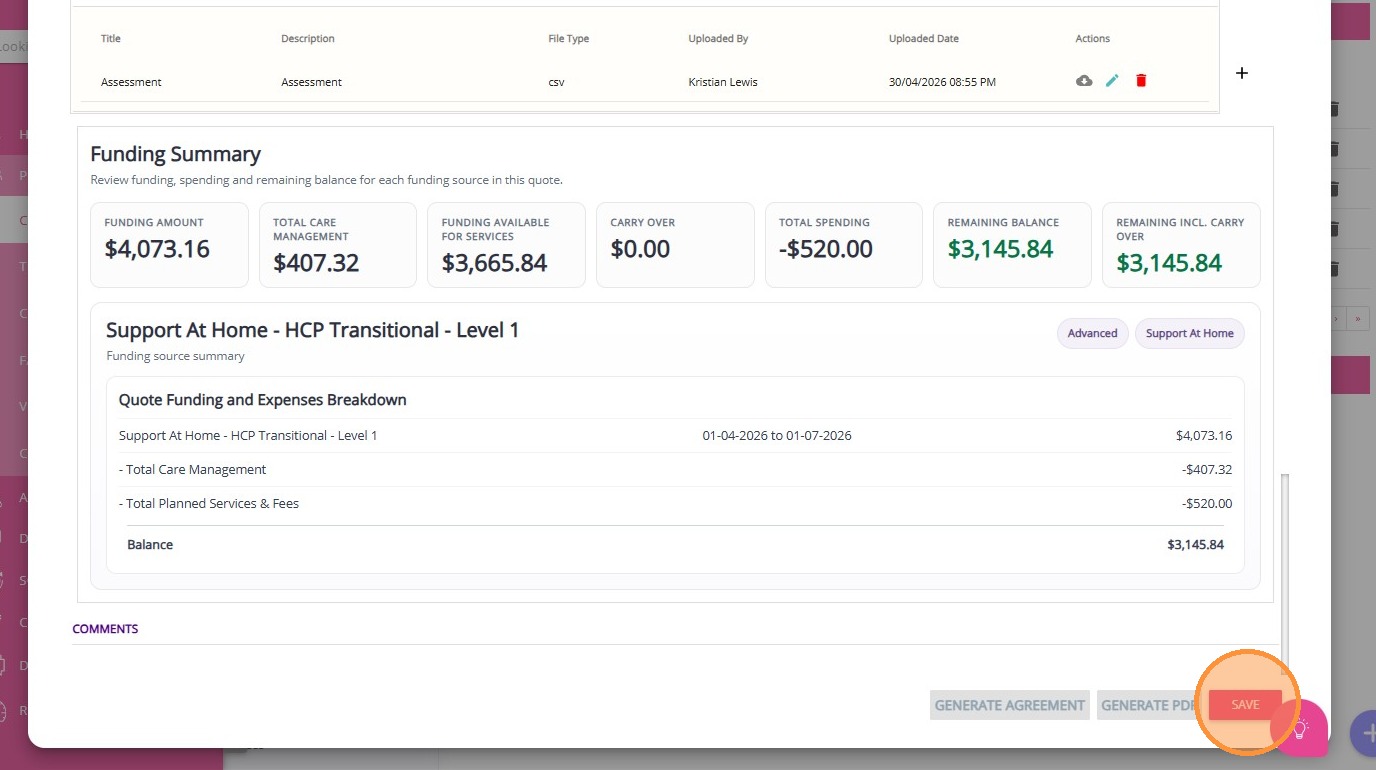
Review the Funding Summary section, which displays the funding amount, total care management, available funding for services, carryover, total planned spending, and remaining balance (including carryover).

A breakdown per funding source is also provided, showing funding, care management, planned services and fees, and the remaining balance.

You can add comments at the bottom if needed.

Step 8: Manage Quote Status

Quote status indicates the current stage or progress of a quote, such as draft, open, accepted, or rejected.

See Detailed Steps Here

Step 8: Manage Quote Status

  1. Save as the Quote as Draft: When you create a quote, it is automatically saved in Draft status. This allows for editing and internal review before presenting it to the client.
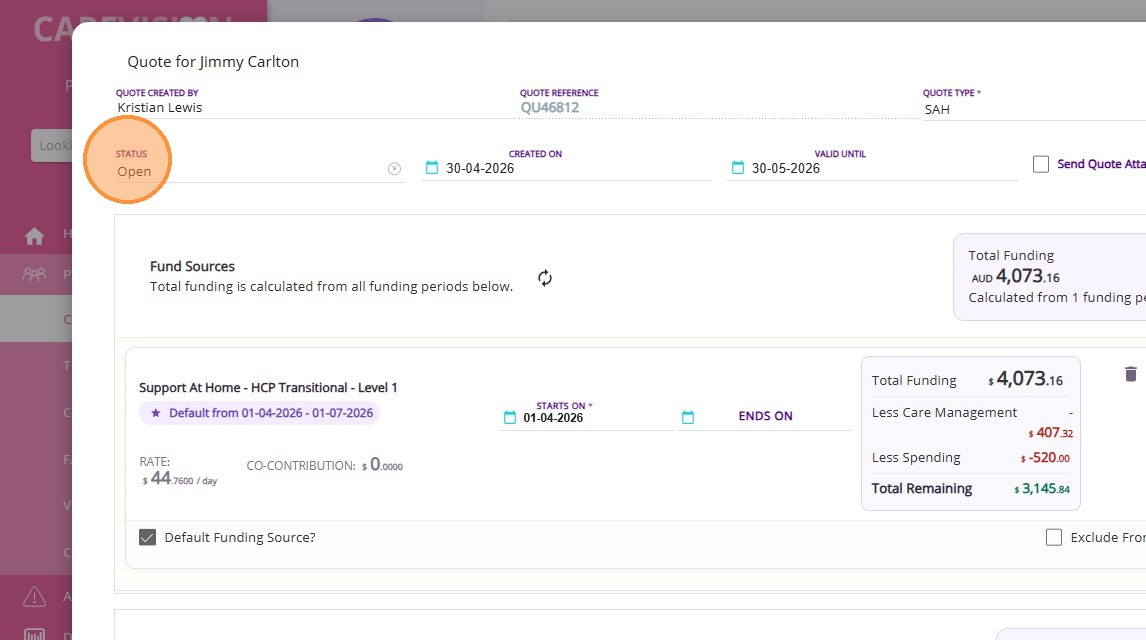
  1. Change Status to Open: Once the quote is ready for the client, update its status to Open.
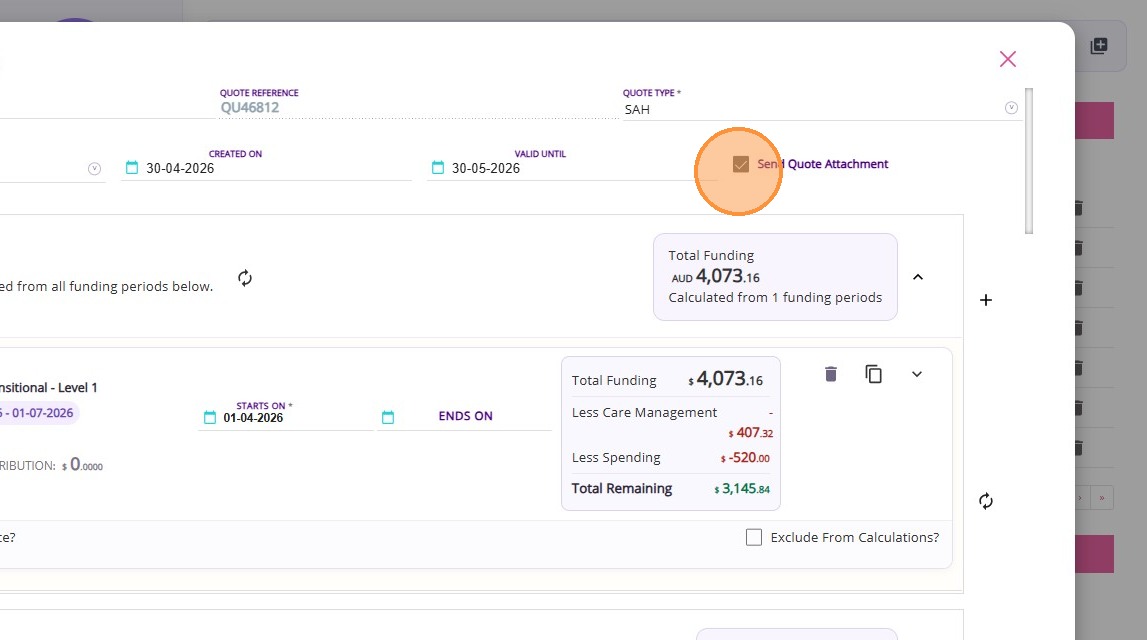
  1. Send Quote Attachment checkbox: When you set the quote status to Open, a checkbox labeled Send Quote Attachment appears. If you check this box before saving, a PDF copy of the quote will be automatically emailed to the client when you Save the quote.
Step 9: Generate Quote

See Detailed Steps Here

Step 9: Generate Quote

1. Click the Download button in the Budgets/Quotes and Contracts section of the client profile to download the quote for review.
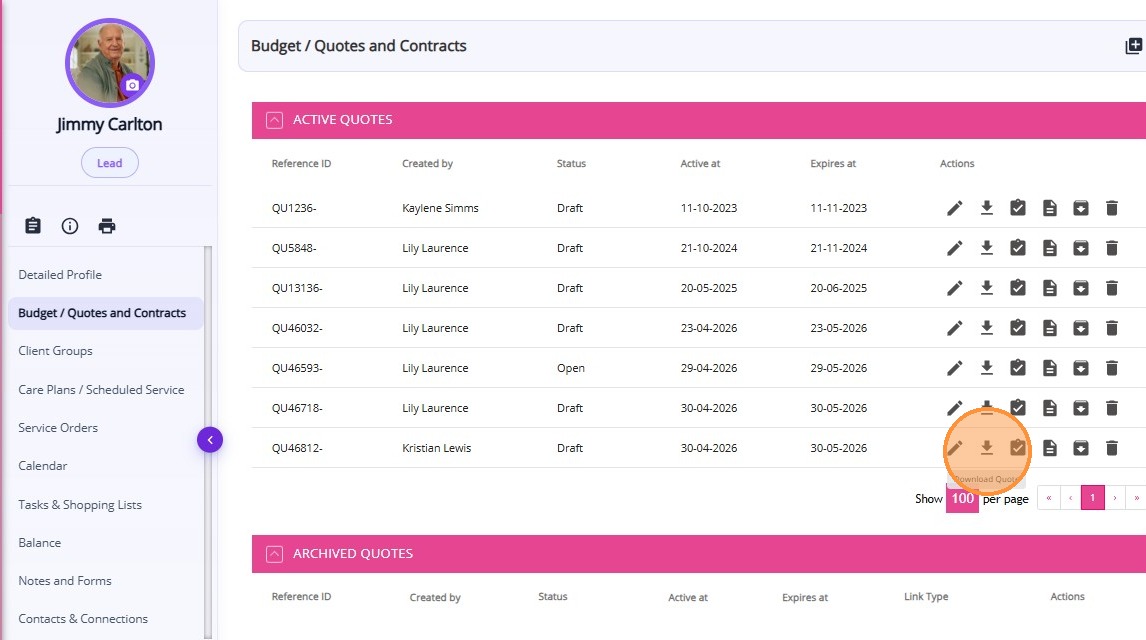
2. Select the Advanced option to generate a quote using advanced mode.
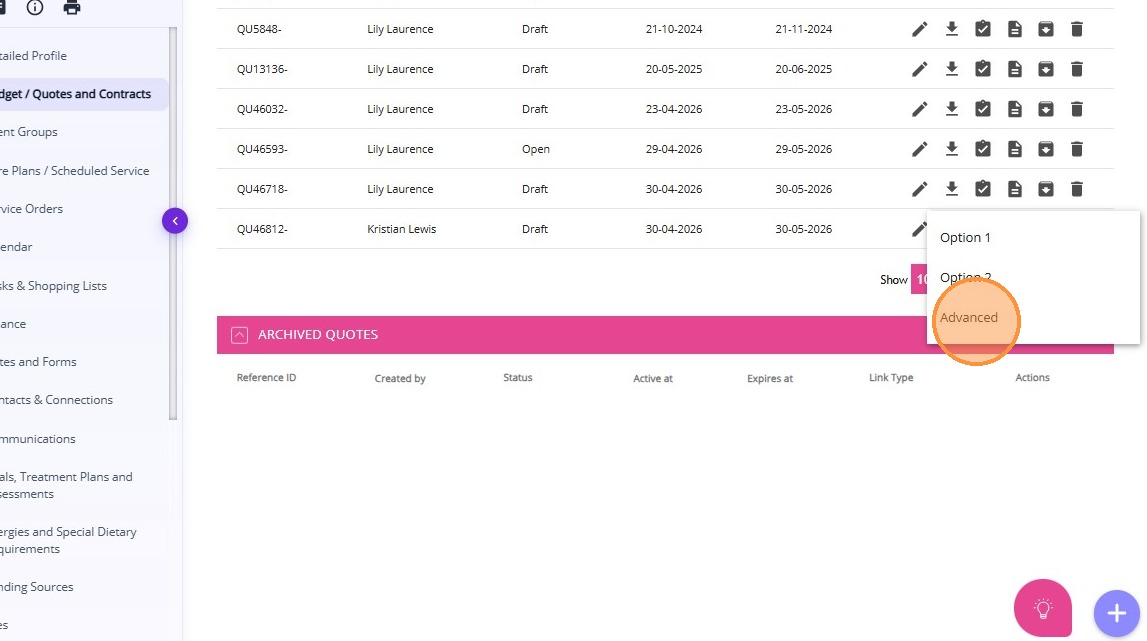
Sample Quote


Step 10: Generate Russel Kennedy Agreement

See Detailed Steps Here

Step 10: Generate Russel Kennedy Agreement

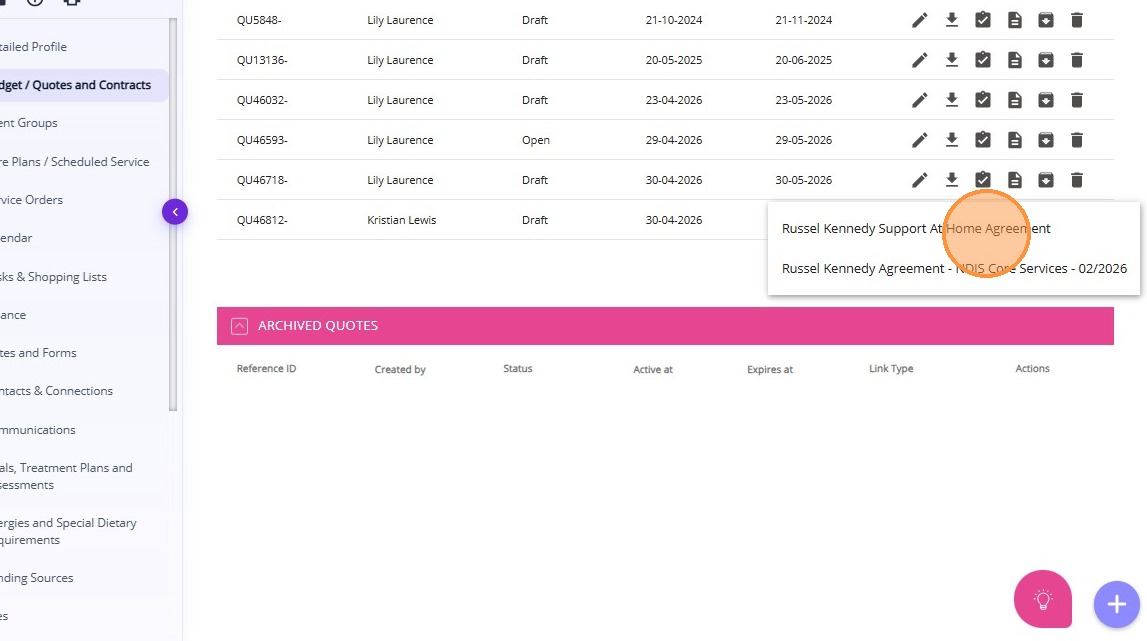
Click the Download Agreement button to download the client agreement.
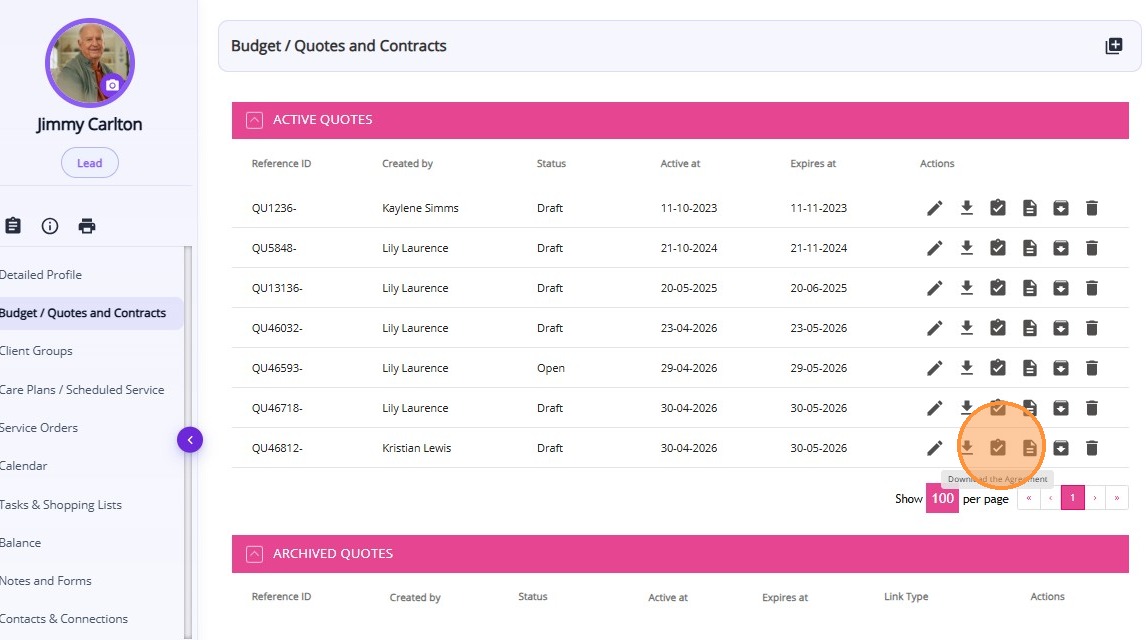
The agreement is an important resource to help your organisation meet legal and regulatory requirements under the Support at Home program.

This topic walked you through the step-by-step process of quoting for Support at Home (SAH) clients, including how to manage funding sources, allocations, and service requirements.

By following these steps, you can create quotes for new clients, ensuring each quote is tailored to the client’s specific needs under the SAH program.

    • Related Articles

    • How to Requote Clients for Rolled-Over SAH Funding Sources

      This topic describes the re-quote process to reflect rolled-over balances and support continuity of services in the new quarter. Keywords: support at home requote, sah funding rollover, client requote process, carevision quotes, funding source ...
    • Manage Transport Services for Support at Home

      This topic describes how to configure and manage transport services for Support at Home. It explains how to correctly set up and link billing categories, services, and funding source templates to support a smooth quoting and export process. Keywords: ...
    • Support at Home Billing and Claiming Workflow

      The Support at Home billing and claiming workflow in CareVision guides you through reviewing services, generating and checking your claim file, and submitting it to Services Australia. After you receive the Services Australia CSV payment statement, ...
    • How to Create a Quote for Assistive Technology and Home Modifications Package

      Assistive Technology and Home Modifications (AT&HM) provide Support at Home (SAH) participants with equipment and home changes to improve daily living, safety, and independence. Examples of assistive technology include mobility aids, toileting ...
    • How to Create Quotes Using the Mobile App

      As part of the Support at Home transition, CareVision helps you manage client transitions smoothly on the go with the mobile app. This guide shows you how to create and manage quotes for Support at Home clients using the CareVision Mobile Plus App. ...

    Request an Article or Guide

    We are keen to know what you want to know more about? Let us know on chat or raise a ticket for an article or topic you would like covered in more detail. We have a team of technical writers and learning content creators keen for your suggestions.