How to Perform a Requote
Re-quoting in CareVision helps keep client care plans accurate and aligned with changing needs and funding. This topic describes the re-quoting process in CareVision.
Keywords: requote process, carevision quoting, supported at home quoting, client budget management, service plan updates, aged care billing, quote recalculation, carevision workflows, quote modal
How to Perform a Requote
This following steps outline a service adjustment re-quote, where existing services are modified (such as frequency, duration, or scheduling) and reassessed against the client’s current funding and available budget.
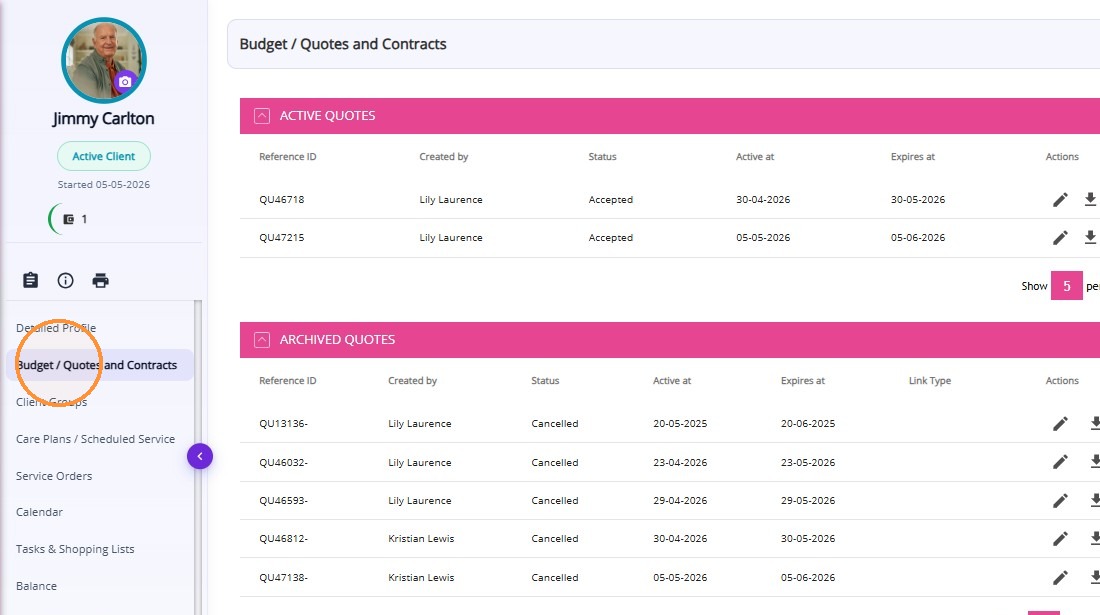
Step 1: Access Quotes & Contracts Window
Go to the Budget / Quotes and Contracts section in the client profile.
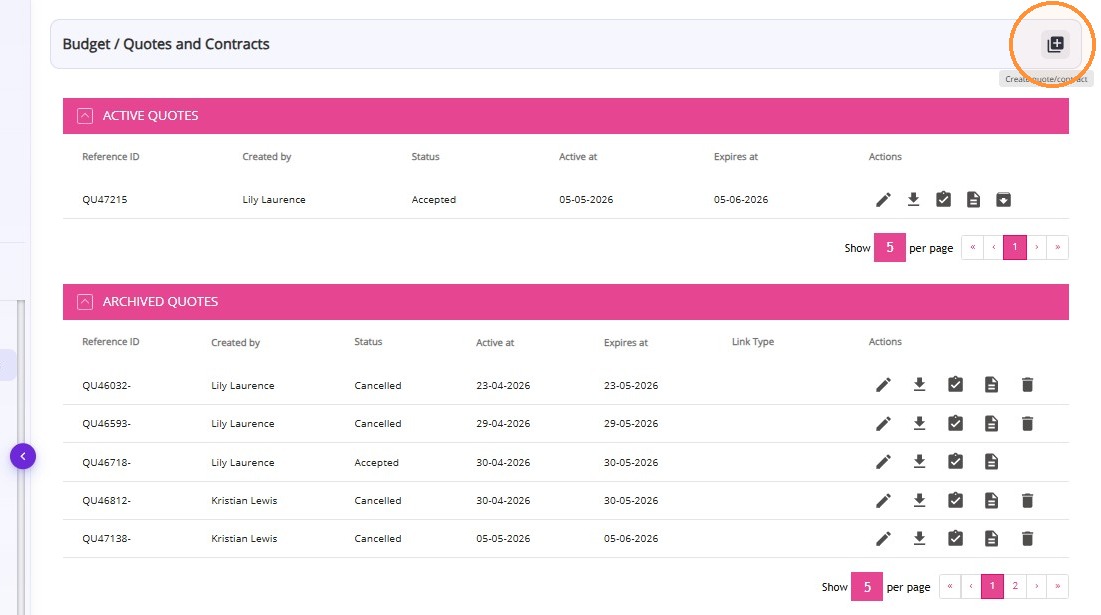
Click the Create Quote/Contract icon to create a new quote.
Step 2: Review Quote Header
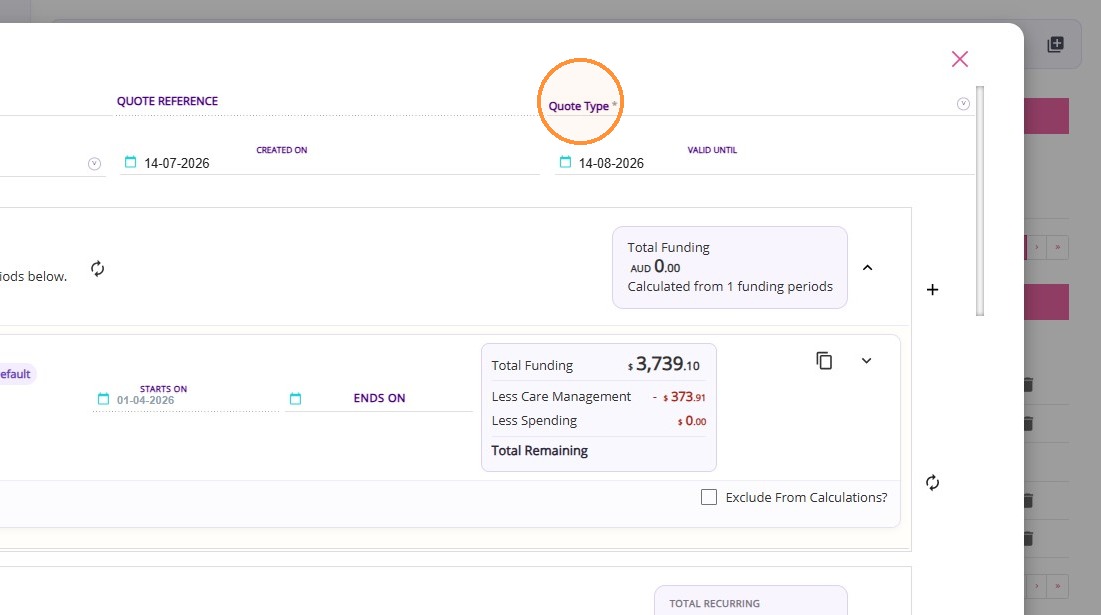
Set the Quote Type based on the type of quote you are creating. Example: SAH
Step 3: Review Current Budget
Click the Recalculate button after opening the quote.
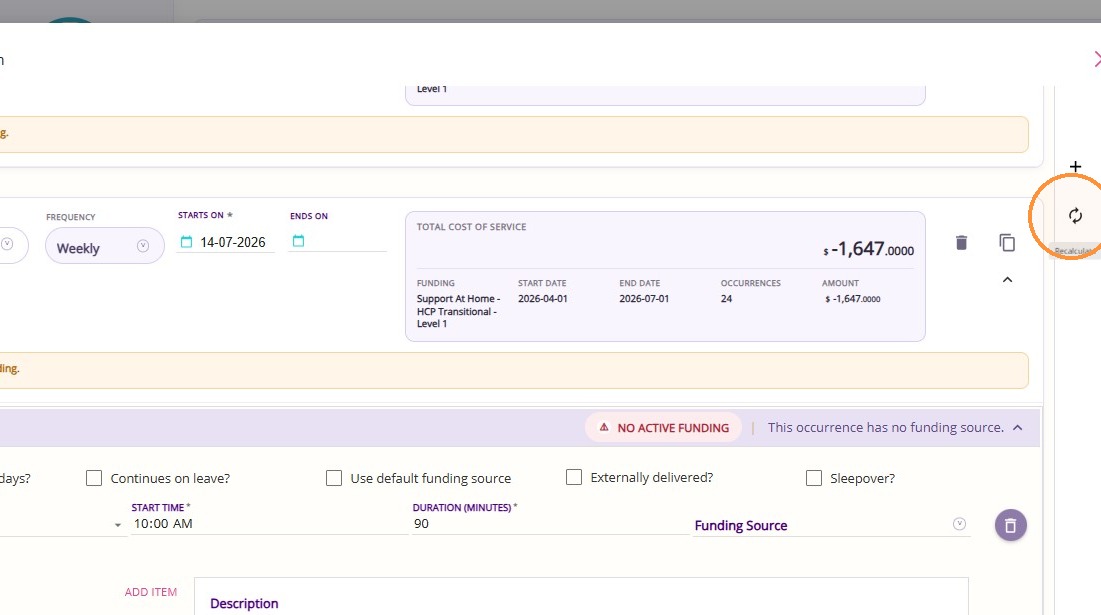
Recalculate refreshes the calculations for the entire quote. The button is located on the right side of the quote and within the section headers, and remains visible as you scroll.
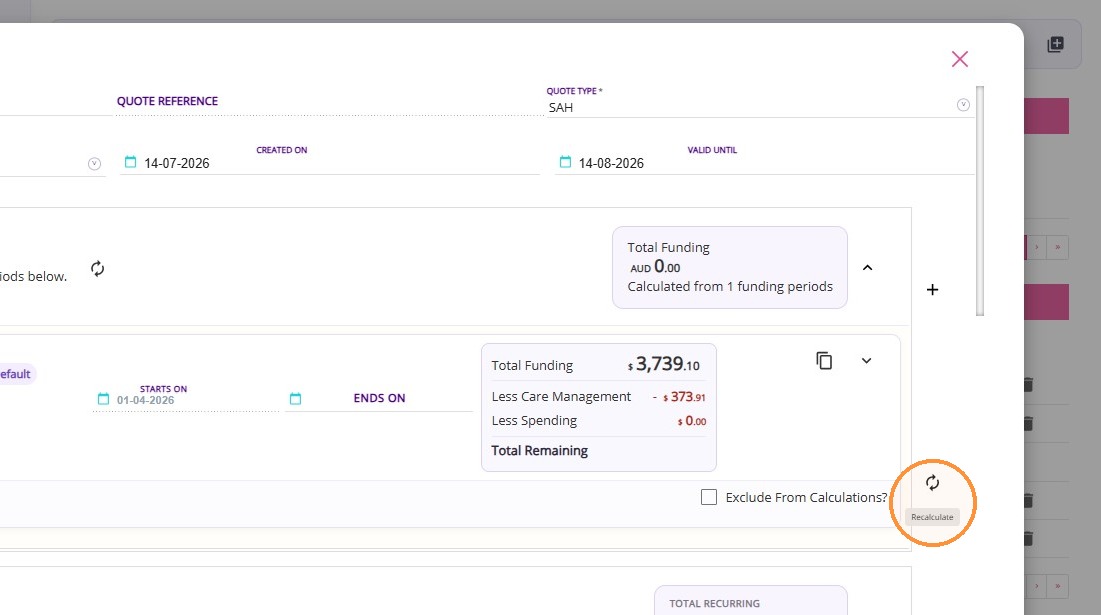
Review Current Budget.
Check the remaining balance for the quarter, as this guides how you manage and adjust services in the quote to fit within the available budget.
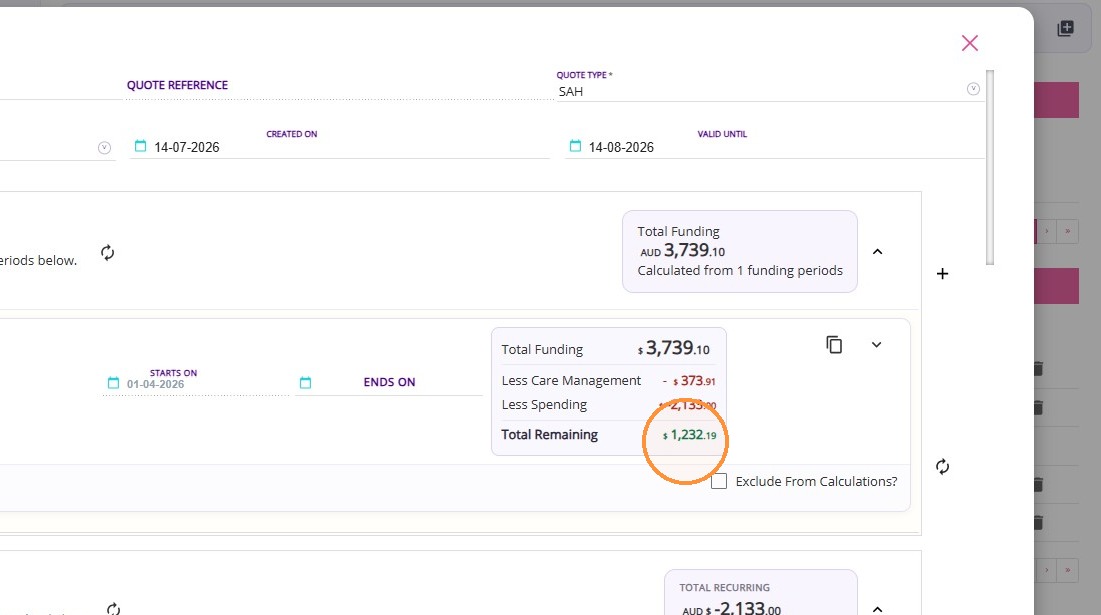
Step 4: Update / Add Services
Updating or adding services during a re-quote allows you to reflect changes in a client’s care needs while keeping their plan aligned with available funding. Depending on the type of change, services can either be added alongside existing ones or updated by end-dating and creating new schedules.
A. Adding Services
This scenario applies when completing a re-quote and the client wants to increase service frequency by adding additional services, without changing or replacing the existing service.
1. Go to the Recurring Services section within the quote.
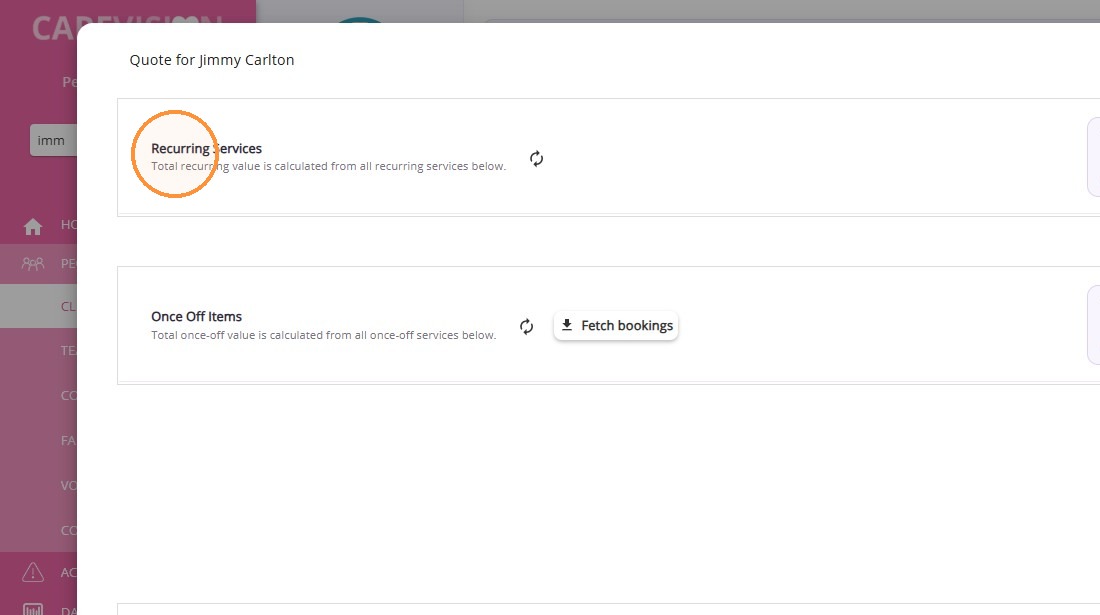
In this example, the client has an existing Domestic Assistance service set to Fortnightly.
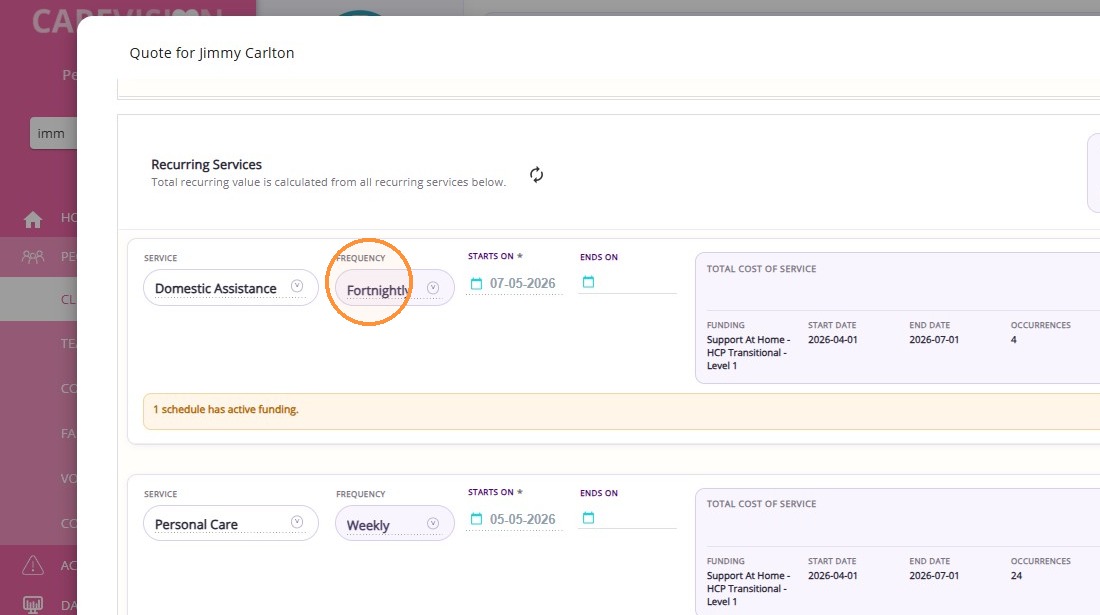
2. Click the plus (+) icon to add a new recurring service.
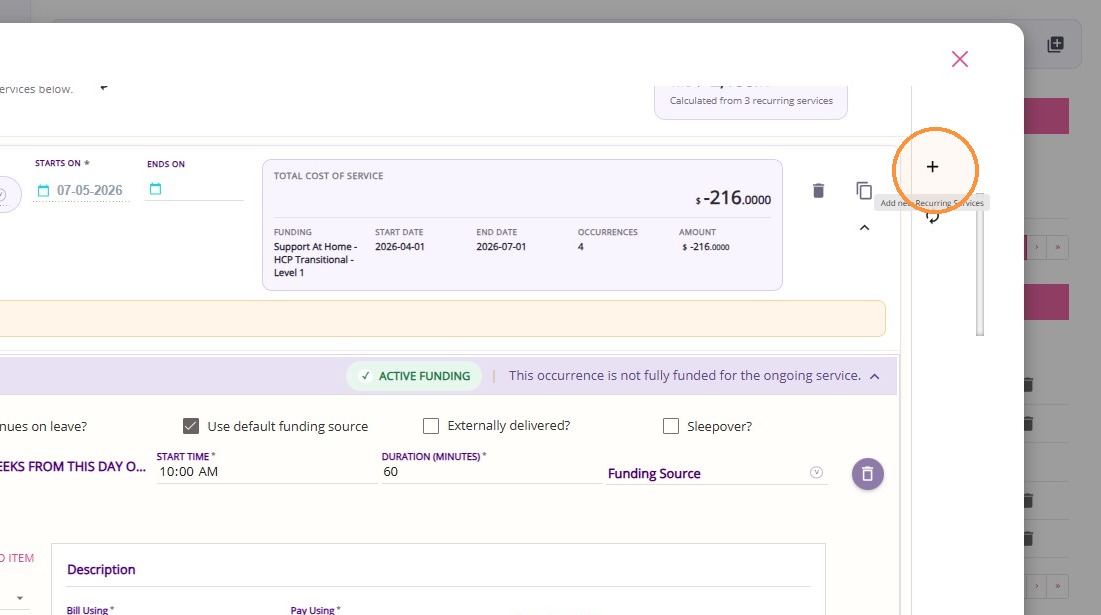
3. In the Service field, select Domestic Assistance.
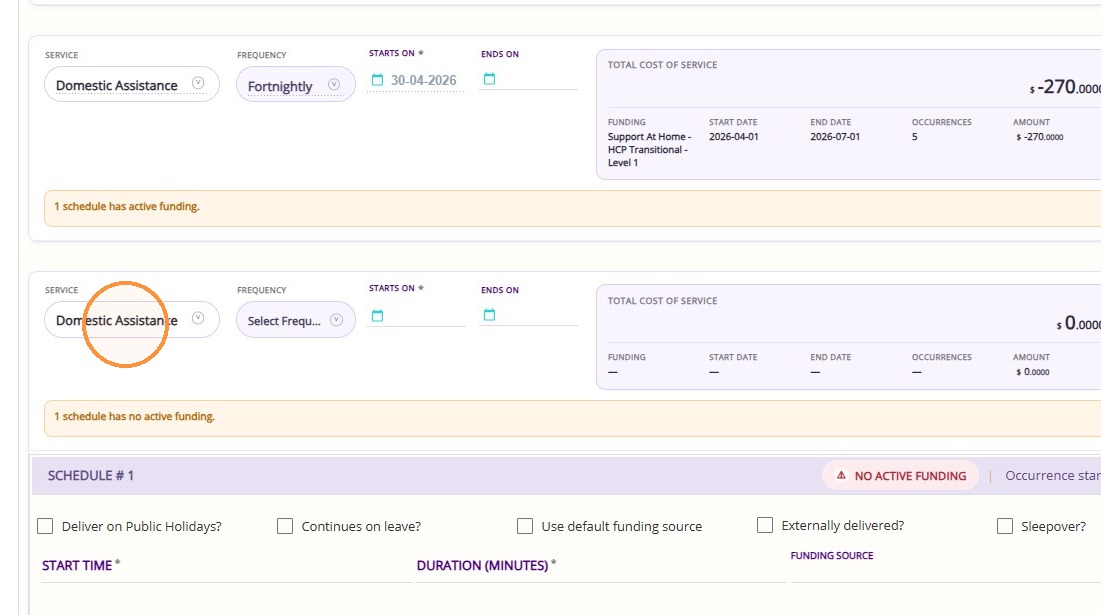
4. Leave the original frequency as Fortnightly.
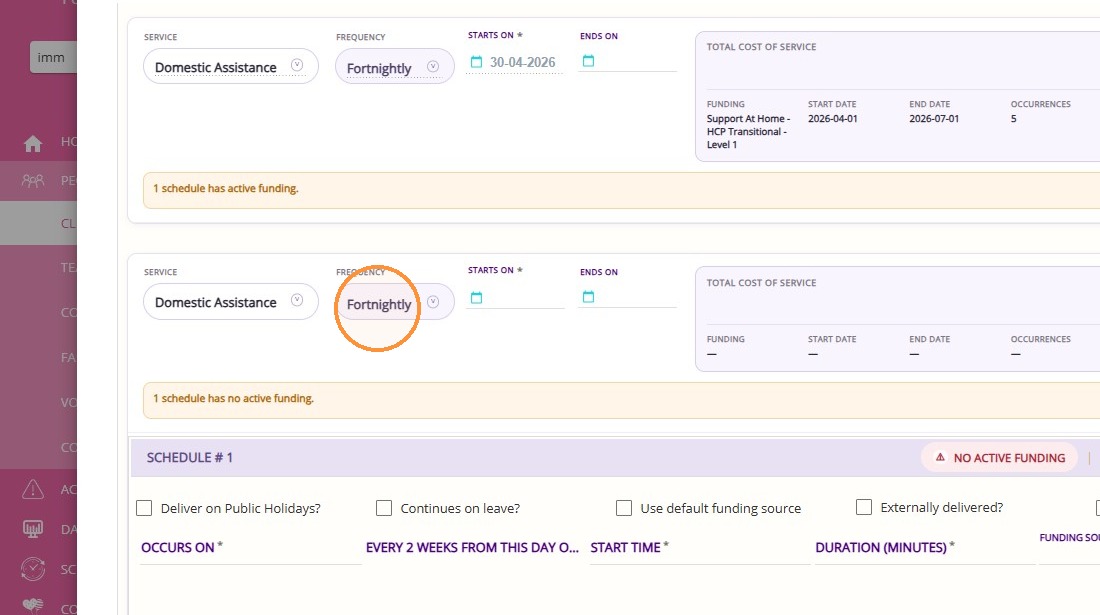

In this scenario, the client wants to increase Domestic Assistance from Fortnightly to Weekly. Instead of changing the existing service to weekly, a second fortnightly service is added on the alternate week to achieve the same outcome.
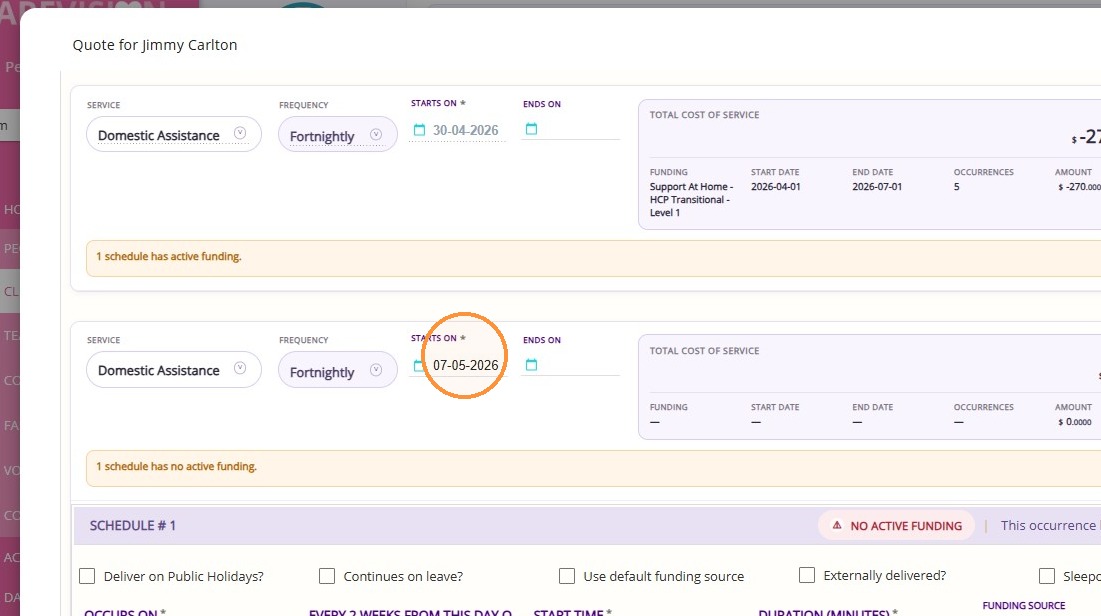
5. Set the Starts On date to the alternate week.
Example:
- Original service: April 30
- New service: May 7
6. Specify Service Details
- Set the Occurs On date to the alternate week.
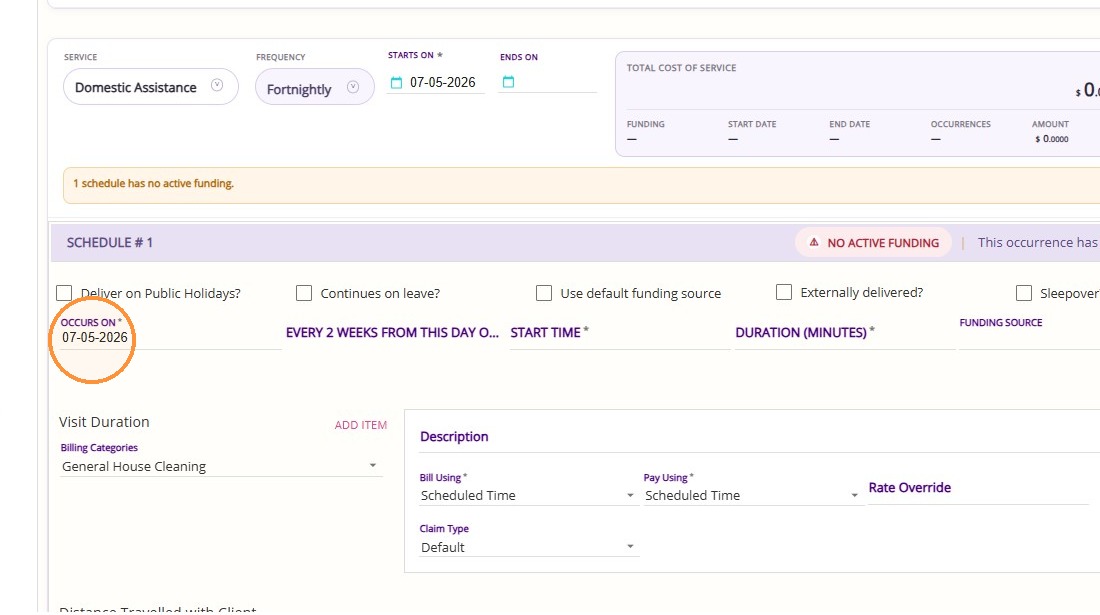
- Set the Start Time based on the client’s preferred service time
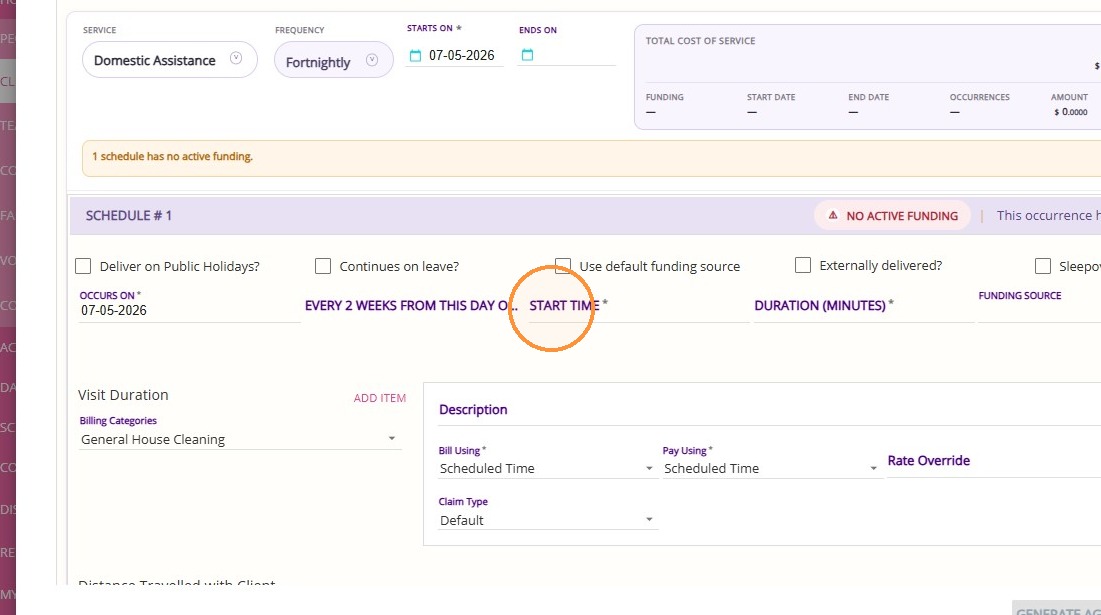
- Set the Duration according to the agreed length of the service
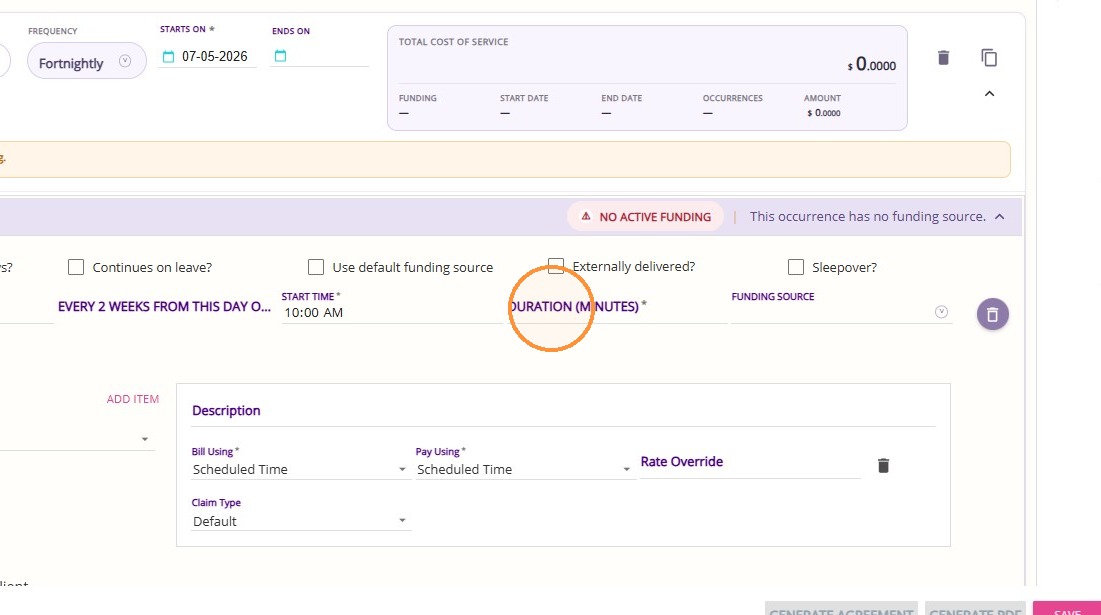
7. Assign Funding
If the service shows No Active Funding
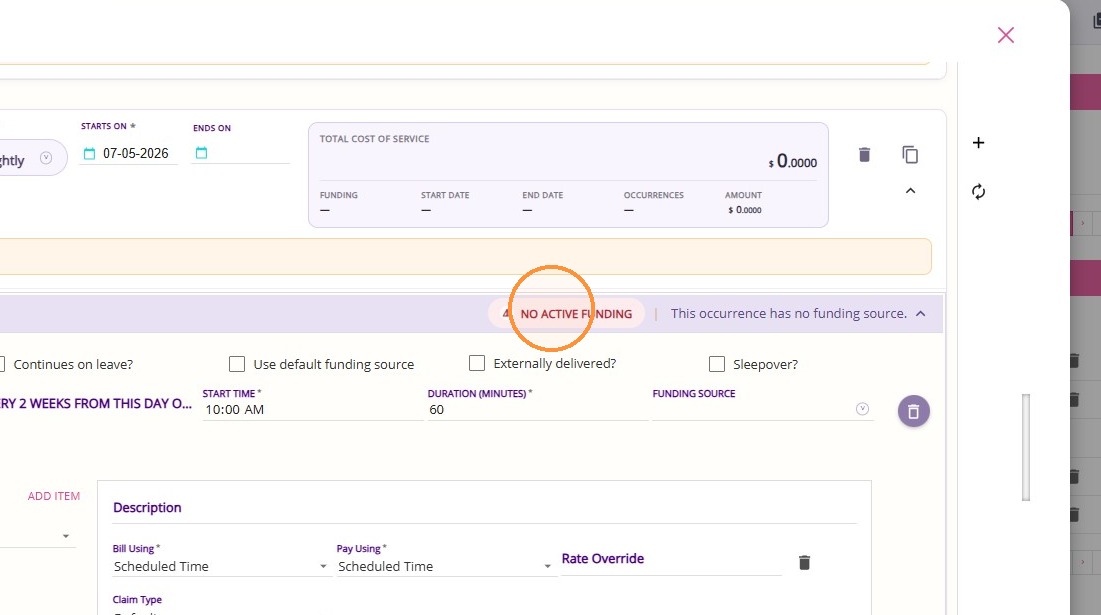
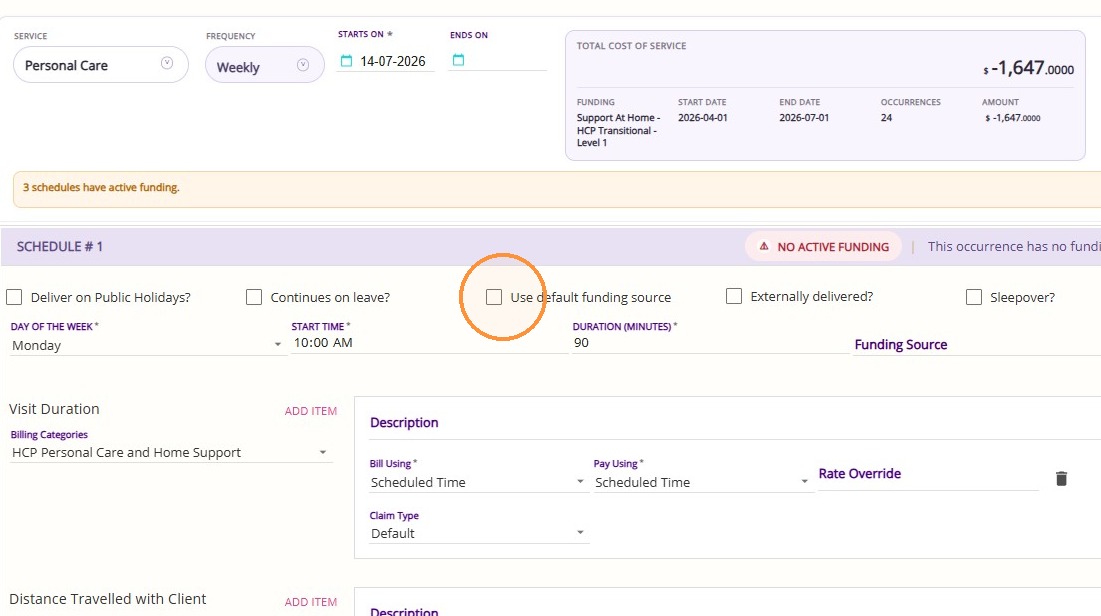
Tick Use Default Funding Source to link the service to the client’s available funding. This is recommended for all ongoing services to support automatic funding rollover.
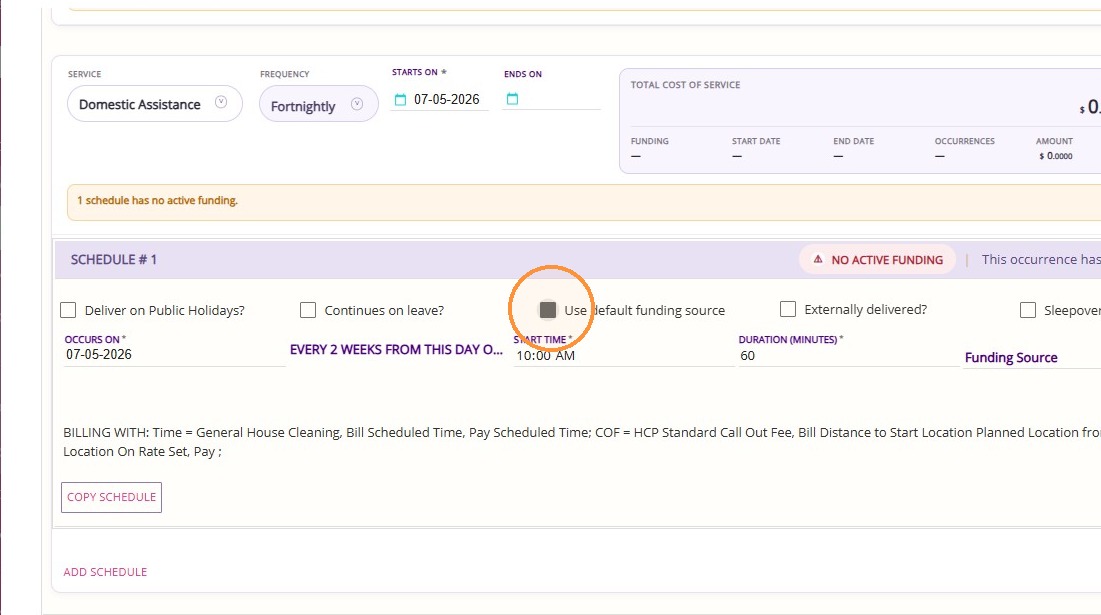
The status will update to Active Funding, confirming valid funding is applied.
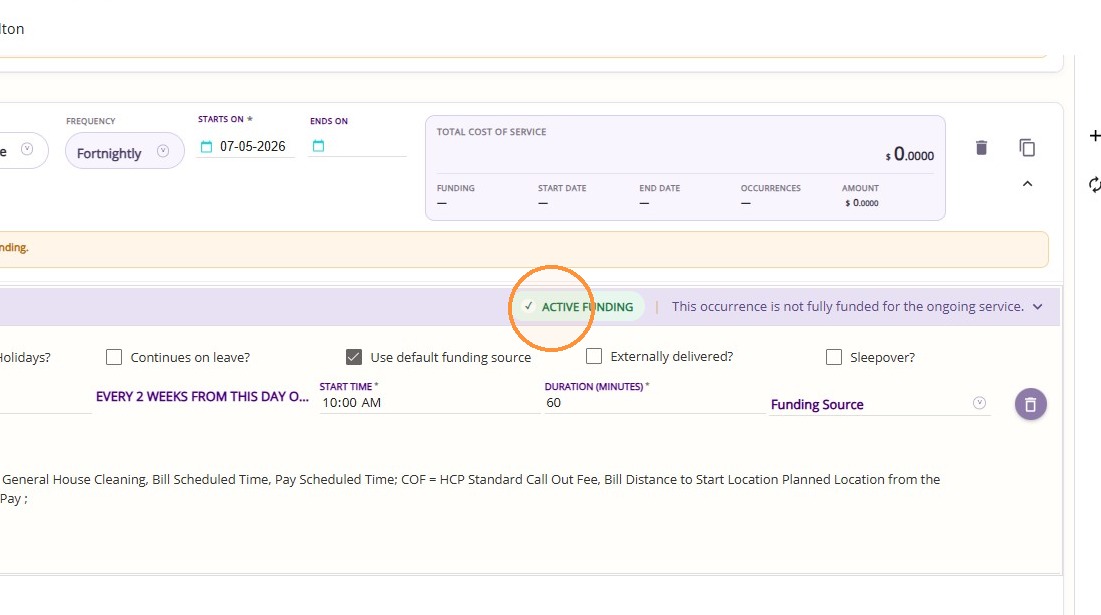
8. Click Recalculate to update the entire quote and reflect the added service in the total cost.
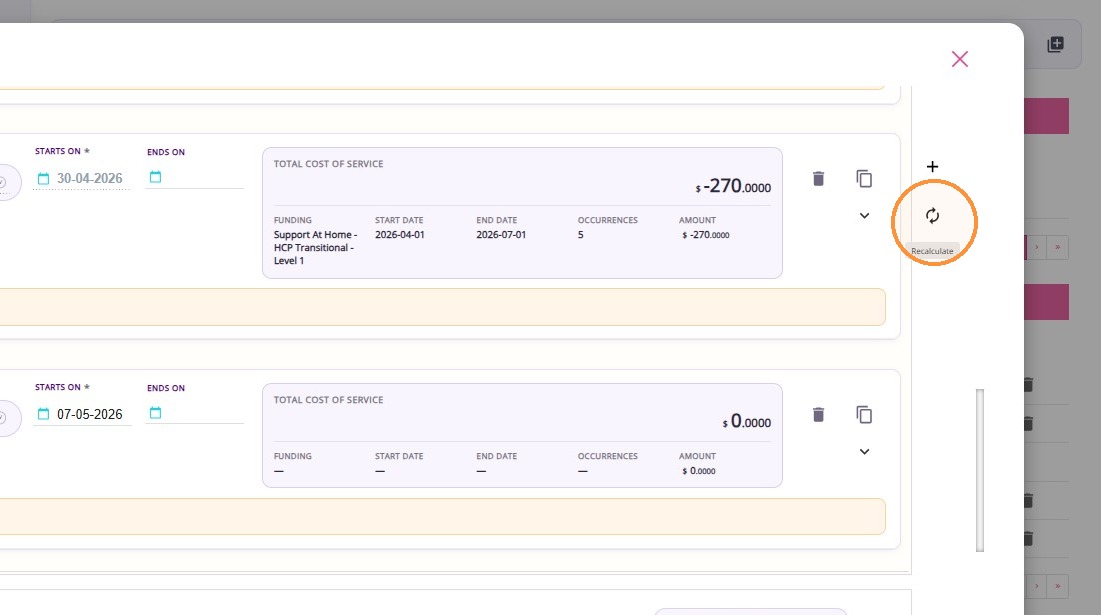
9. Review Costs
Confirm the total cost aligns with the client’s available budget and that the additional service does not cause the quote to exceed funding limits.
Confirm the total cost aligns with the client’s available budget and that the additional service does not cause the quote to exceed funding limits.
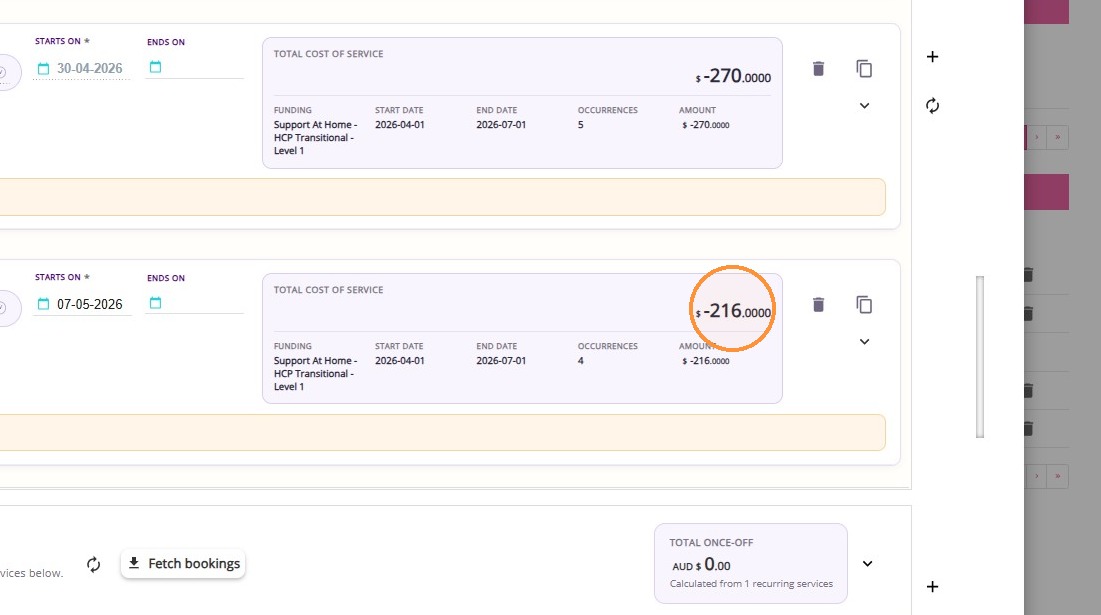
This example shows how to add services during a re-quote to increase frequency while retaining the original service and maintaining accurate funding and scheduling.
B. Changing Service Frequency
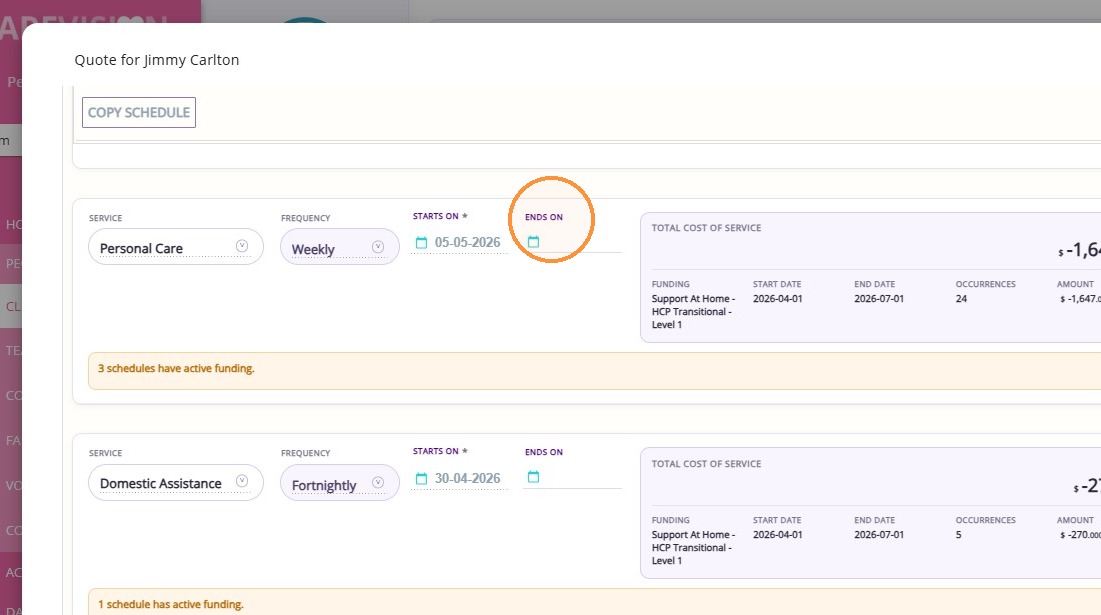
In this scenario, the client wants to increase Personal Care from once per week to three times per week. This requires end-dating the existing service and creating a new one, as the number of occurrences is changing.
The client has an existing Personal Care service scheduled once per week.
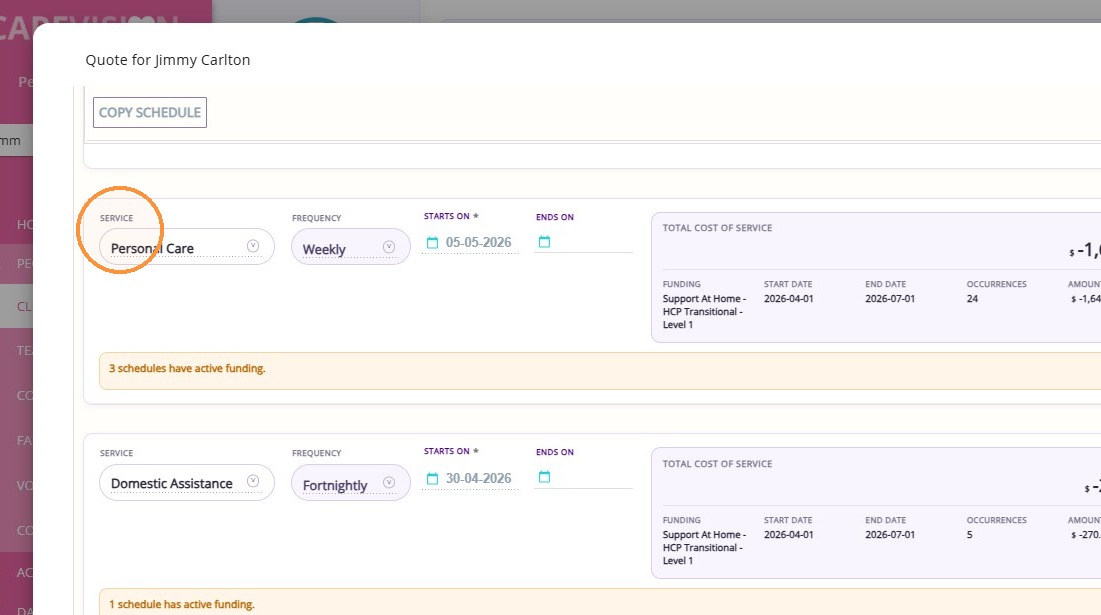
1. Set the Ends On field to the effective change date.
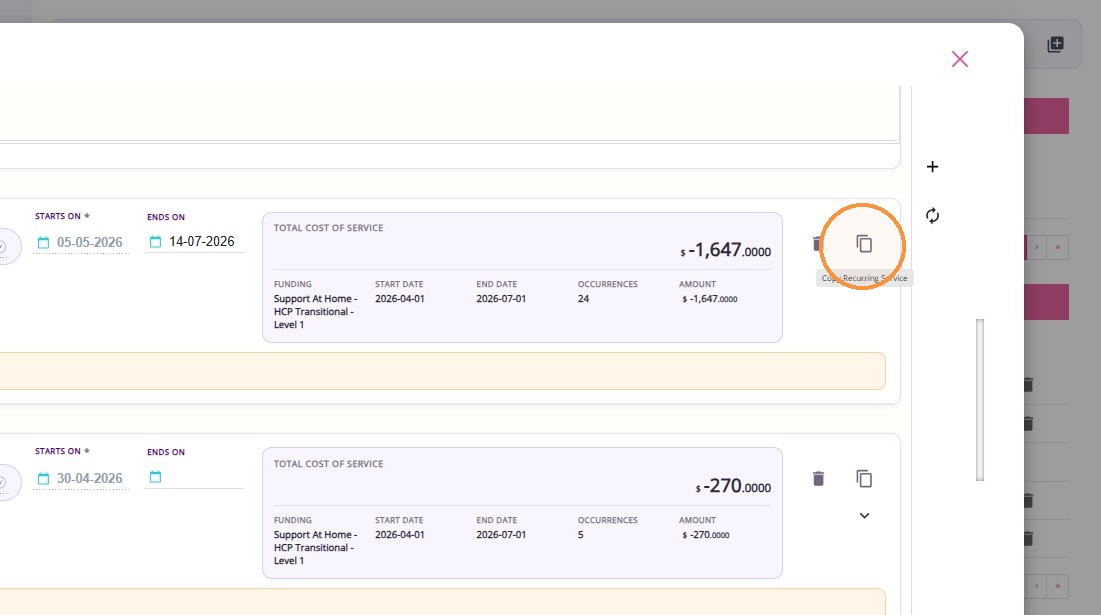
2. Click the Copy Recurring Service button to duplicate all existing details. This reduces manual re-entry and maintains consistency.
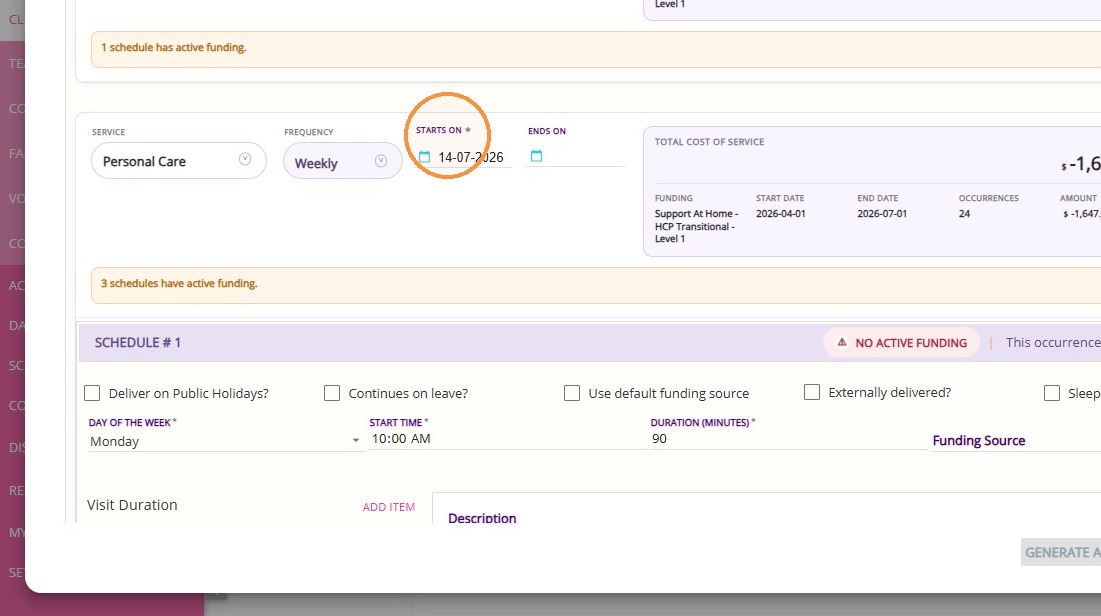
3. Update New Service Dates
- Set the Starts On date to the same date as the end date of the previous service to avoid gaps or overlaps.
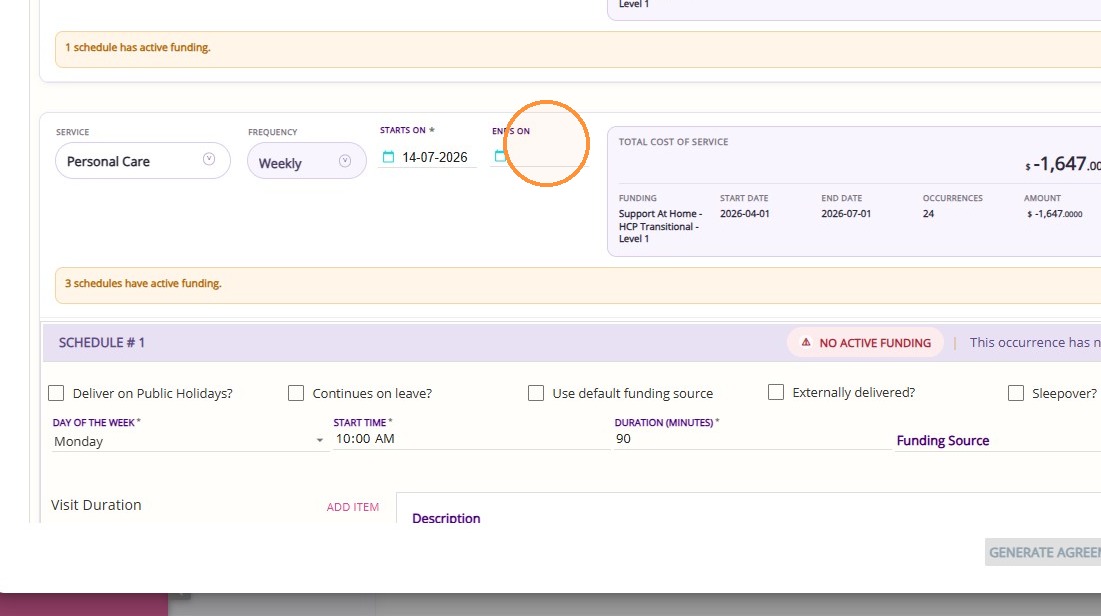
- Clear the Ends On date to make it ongoing.
4. Update Service Schedule
- Open the schedule
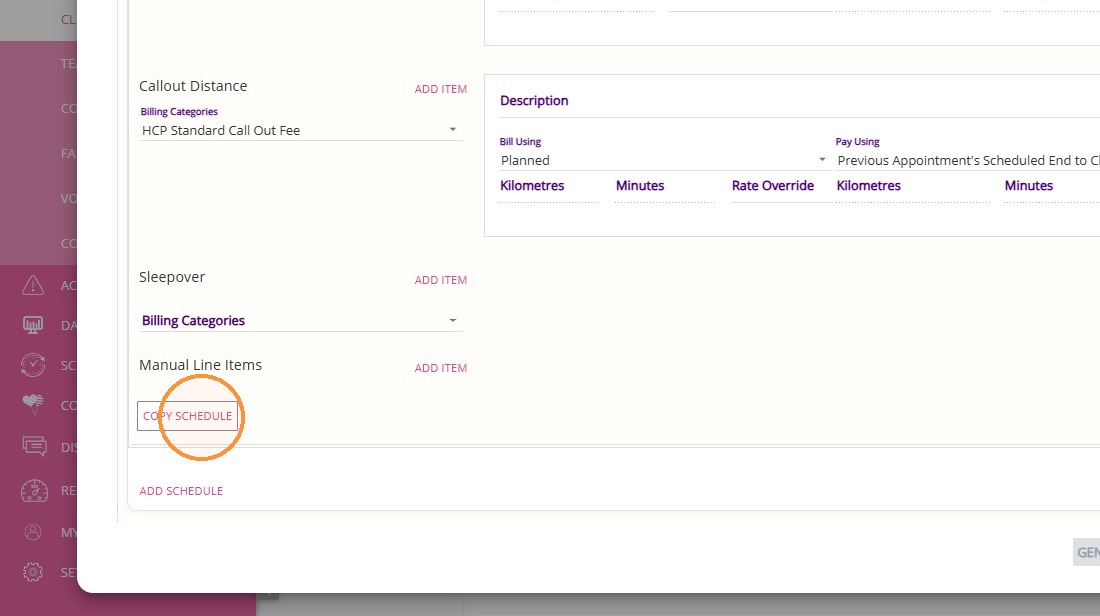
- Use Copy Schedule to duplicate the existing day
5. Enter Service Details
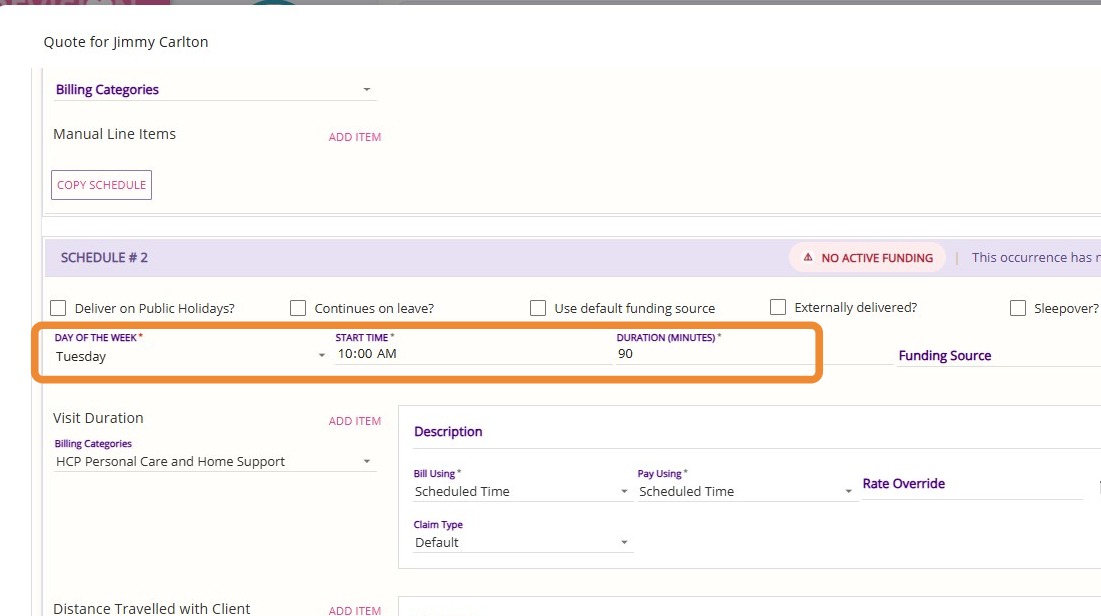
- For each entry, set the Day of the Week based on when the service will occur (Example: Monday, Tuesday, Wednesday).
- Set the Start Time according to the client’s preference.
- Set or adjust the Duration as agreed.
6. Tick the Use Default Funding Source.
7. Click Recalculate to update the quote with the new service frequency.
Step 5: Recalculate the quote
Recalculate the quote after any adjustments and check that there is a remaining balance or buffer, allowing flexibility for any additional or unplanned services.
Step 6: Review Funding Summary
Check the Funding Summary section to determine whether the quote remains within the client’s available budget or exceeds it.
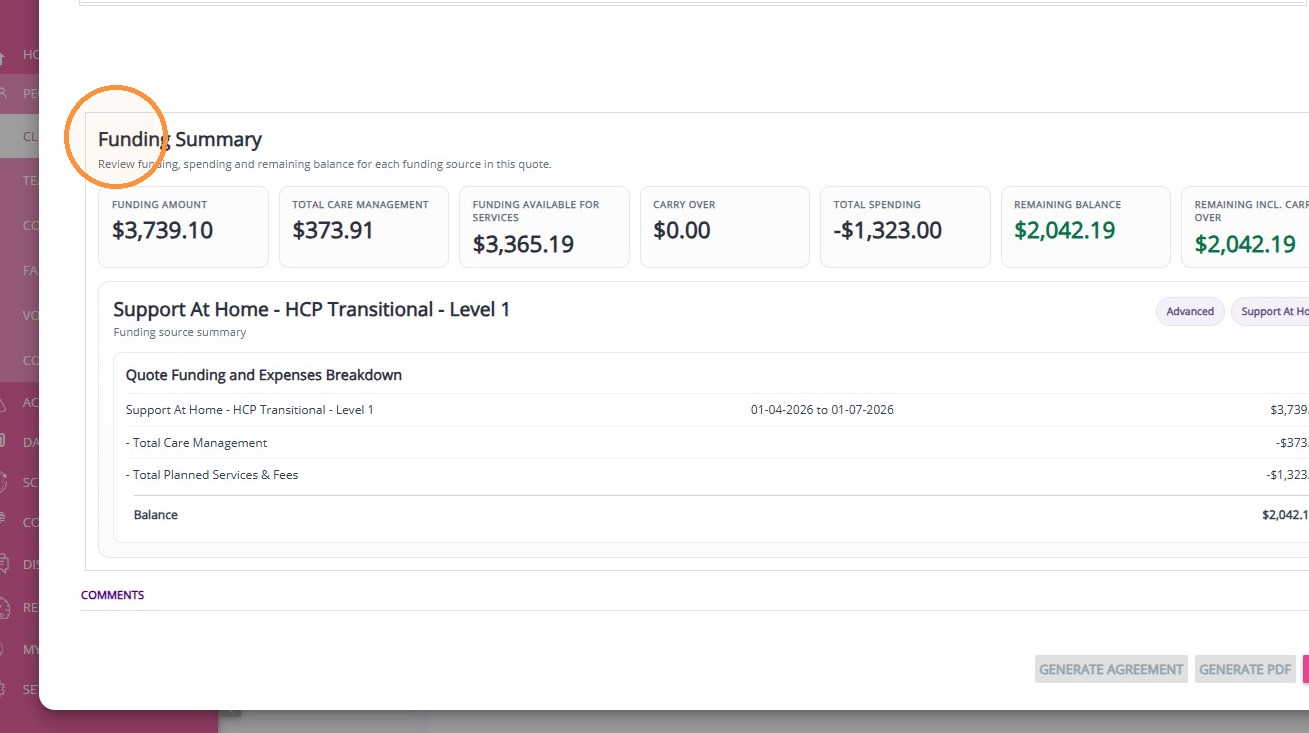
Over Budget
If the quote exceeds the available budget, consider the following options:
If the quote exceeds the available budget, consider the following options:
Option 1: Add Private Funding
- Discuss the shortfall with the client and, if agreed, set up private funding to cover the gap.
Option 2: Adjust Services
- Modify the service plan to reduce overall costs, such as:
- Reducing duration
- Adjusting the mix or frequency of services across the week
- Removing services on public holidays if not required
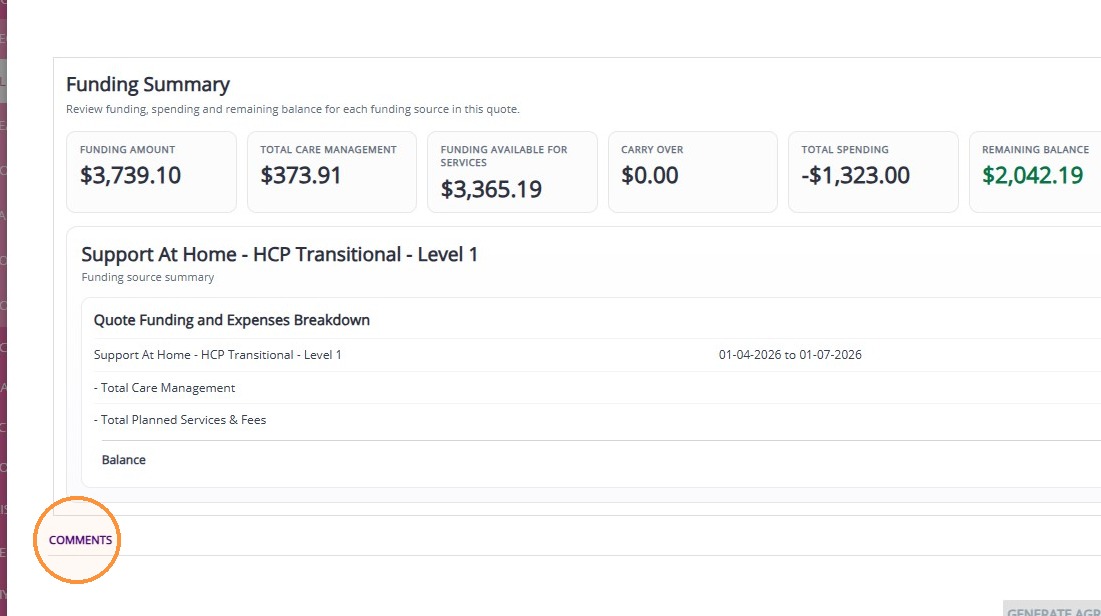
Step 7: Add Comments
Add comments by using the Comments section to document any changes made in the quote.
Step 8: Manage Quote Status
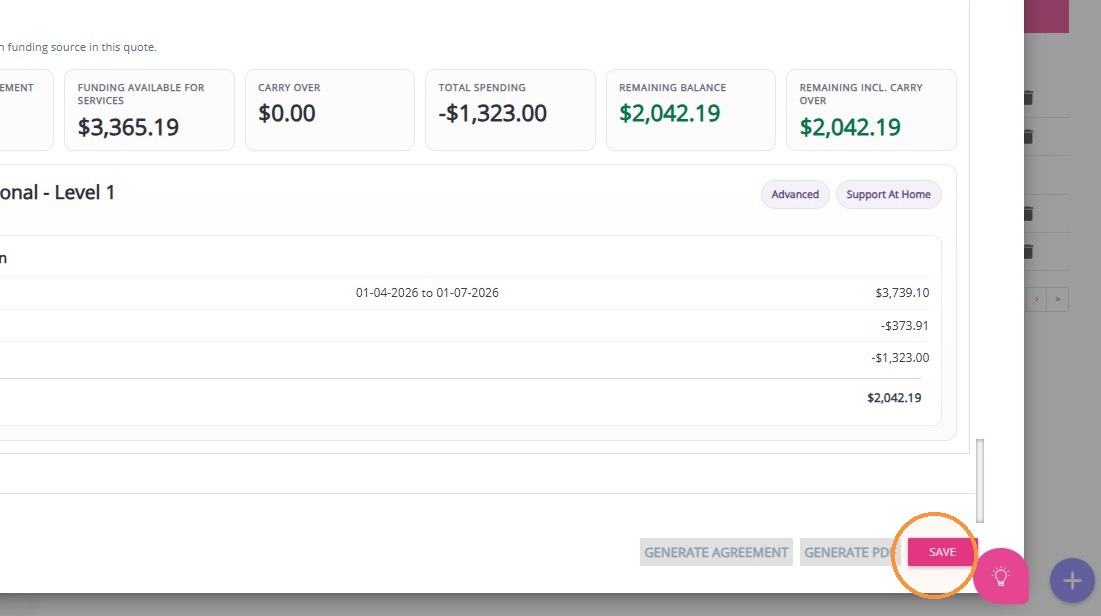
- Click Save to save the quote as Draft. When you create a quote, it is automatically saved in Draft status. This allows for editing and internal review before presenting it to the client.
- When you're ready to discuss with the client, set the status to Open.
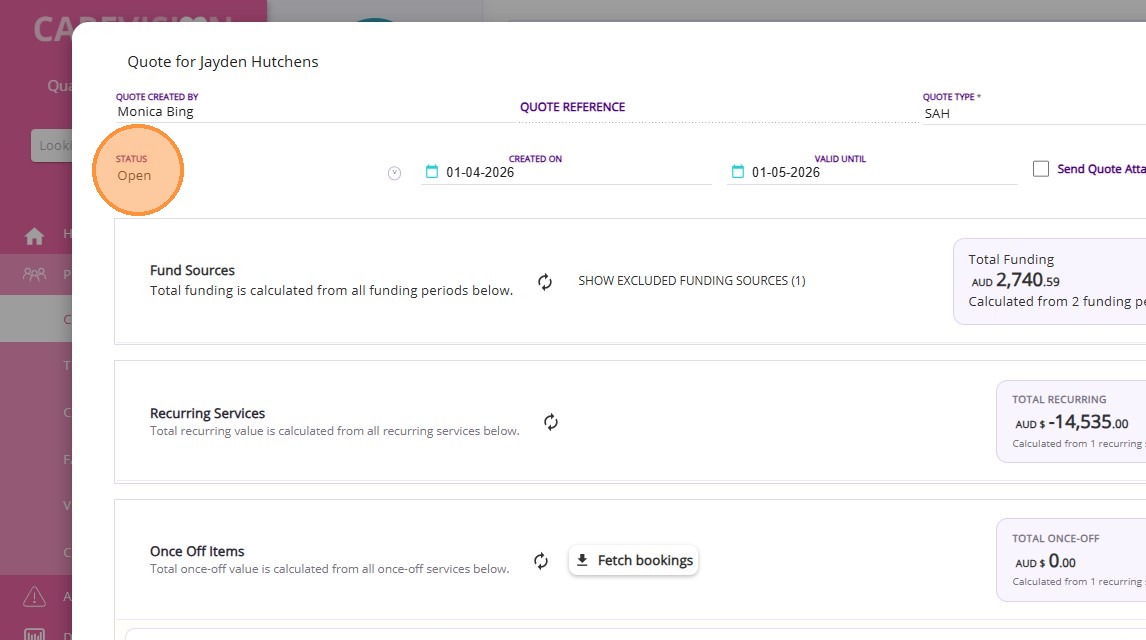
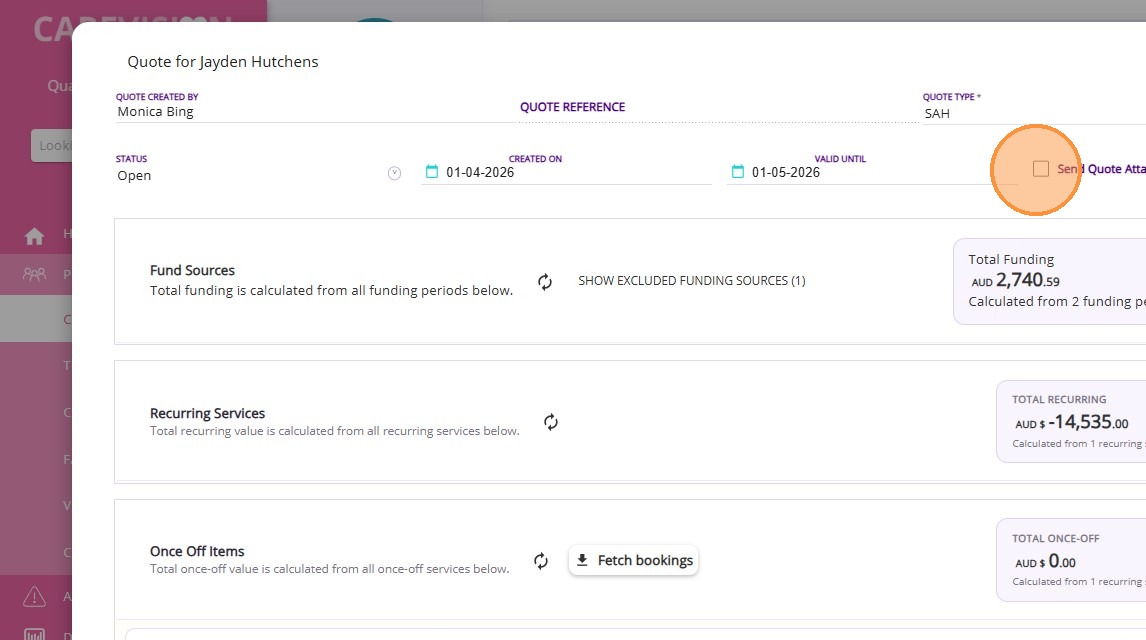
- When you set the quote status to Open, a checkbox labeled Send Quote Attachment appears. If you check this box, a PDF copy of the quote will be automatically emailed to the client when you Save the quote.
Step 9: Generate Quote
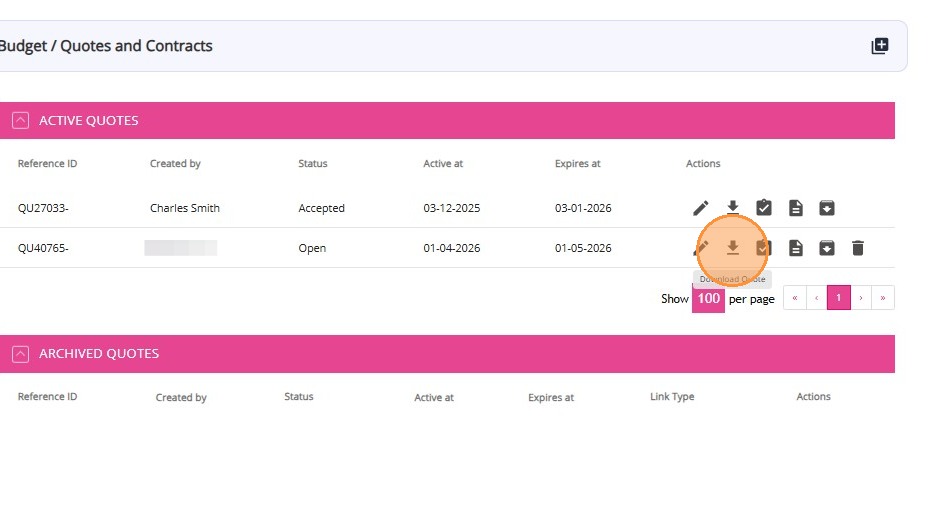
You can download the quote to discuss the new information with the client. Select the Advanced option to generate a quote using advanced mode.
Step 10: Accept Quote
Once the client is satisfied with the quote, change its status to Accepted.
Then, Save the quote. This will generate all relevant calculations and items on the client’s profile.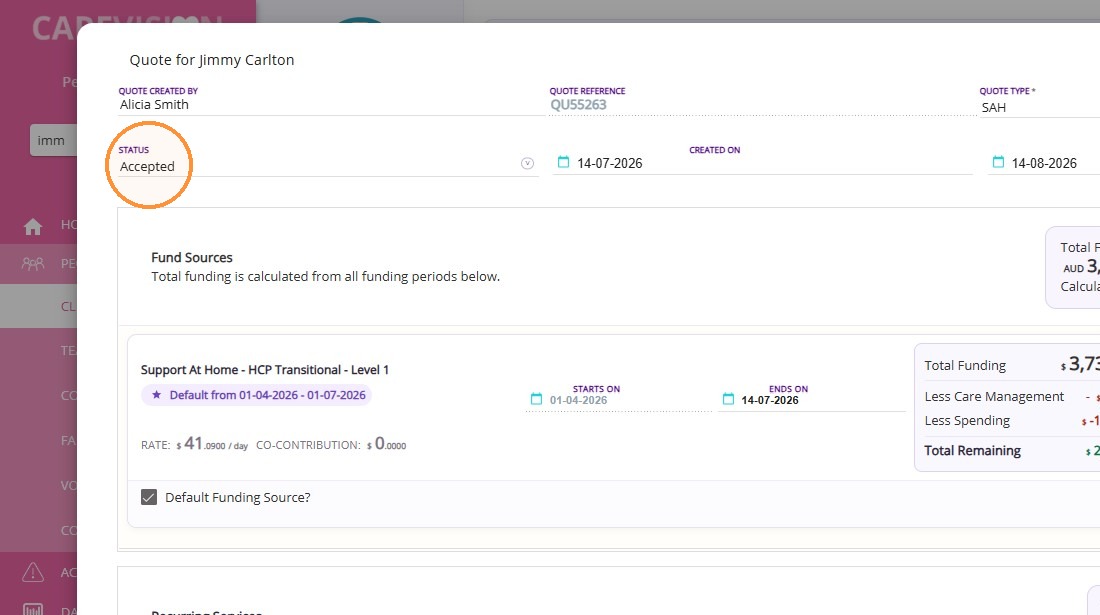
What Happens After a Re-Quote is Accepted
Once a re-quote is marked as Accepted, CareVision automatically applies the approved changes to the client’s services, aligning scheduling, care planning, and funding.
Client Calendar is Updated
The client’s calendar is updated to reflect the new and revised services, including any changes to frequency, duration, or scheduling.
Care Plan is Updated
The client’s care plan is also updated, where new services are added and any previous services that were end-dated are archived to maintain a clear and accurate record of changes.
Funding is Updated
The client’s funding allocation is updated in line with the accepted quote, and the budget reflects the cost of the updated services.
Notes
- Changes made in the re-quote are not reflected in the calendar or care plan until the quote is Accepted.
- Existing services retain their instructions, preferred workers, notes, and any associated forms from before the re-quote.
- Newly added services may require additional setup, such as adding service instructions or assigning workers through the rostering process.
This topic walked you through the re-quote process in CareVision, including how to add services and manage frequency changes. For more information about the requote process, contact the CareVision Support Team.