Configure Interim Funding Client Group for SAH
This topic describes how to configure the Interim Funding client group in the portal to ensure the correct percentage of each participant’s approved budget is allocated within the new Support at Home (SAH) funding setup. By following these steps, SAH participants, whether interim-funded or fully funded, will receive the appropriate funding allocation until their full package is approved.
I. Create a Group Set

2. In the dropdown at the top, click Group Sets.

3. Click + Create Group Sets.

4. In the Name of Group Set field, enter: Funding Status.

5. In the Description field, add a short description.

6. Tick the Minimum Data Set box.

7. Click Save.

II. Create Client Groups
1. In the dropdown at the top, click Client Groups.

2. Click + Create Client Group.

3. For Interim Funding:
- In the Client Group set field, select: Funding Status.
- In the Name field, enter: Interim Funding.
- Complete other fields as shown and click Save.

For Full Funding:
- In the Client Group set field, select: Funding Status.
- In the Name field, enter: Full Funding.
- Complete other fields as shown and click Save.

4. After saving, under Client Groups, you should see both groups listed: Interim Funding and Full Funding.

III. Apply Client Group Treatments to Fee Billing Categories
In this section, apply client group treatments (interim funding) to Fee billing categories for the following primary subsidies:
- Support at Home Level 1–8
- Support at Home – HCP Transitional – Level 1–4.
1. In the left navigation pane, click Settings > Billing Categories.

2. Click the Type column to display Fees.

3. Find the primary subsidy for Support at Home. In this example, Support At Home - HCP Transitional - Level 1 is selected.

4. Click Edit to edit the billing category.

5. Click Client Group Treatments.

6. Click Add Client Group Treatment.

7. Set the Client Group field to Interim funding.
- Set the Treatment field to % discount.
- Set the Rate field to 40

8. Click Save.

9. Click Publish.

`10. Scroll down and click Save again.

 Repeat steps for each of the remaining primary subsidies:
- Support at Home Level 1–8
- Support at Home – HCP Transitional – Level 1–4
IV. Apply Funding Status in Client Profile
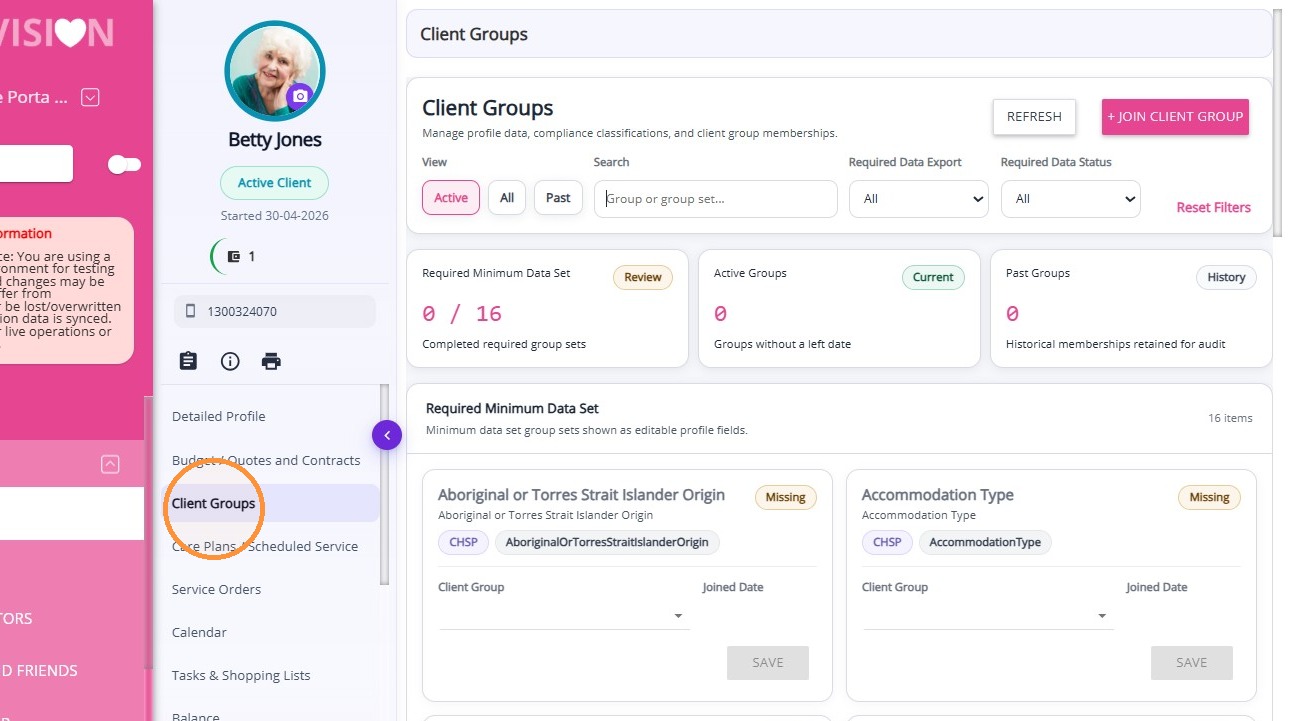
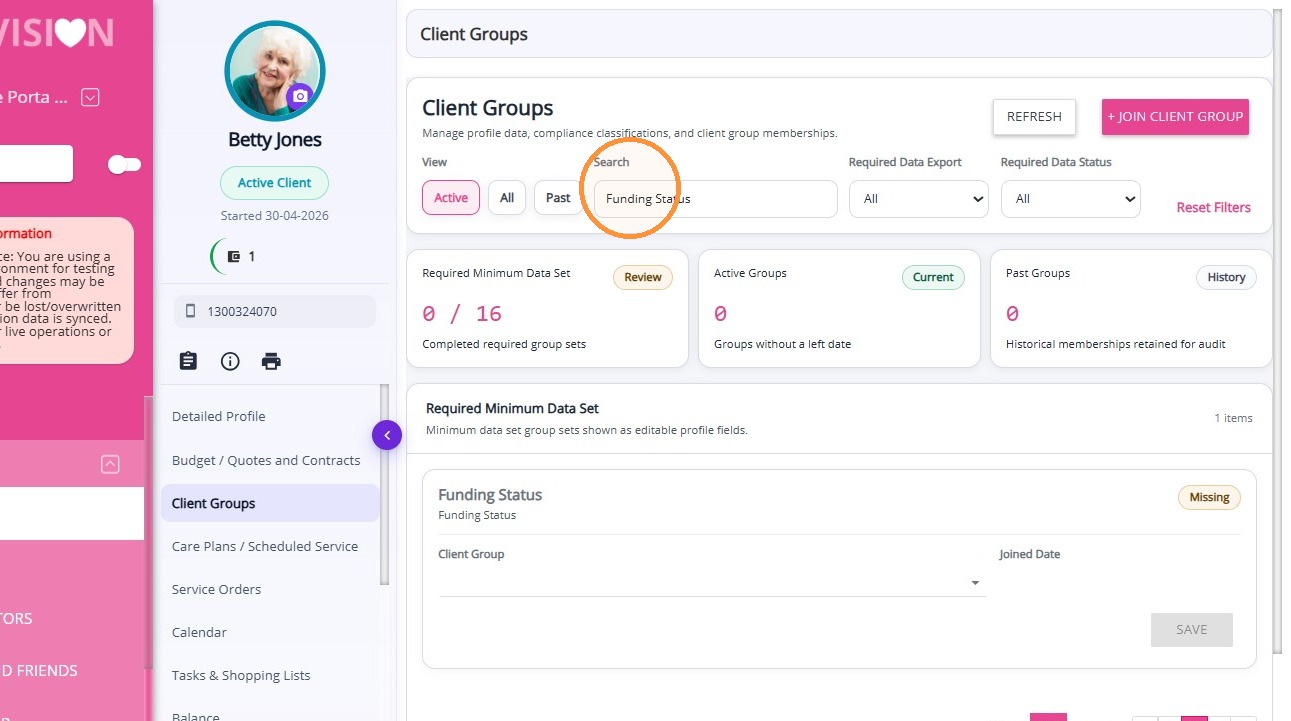
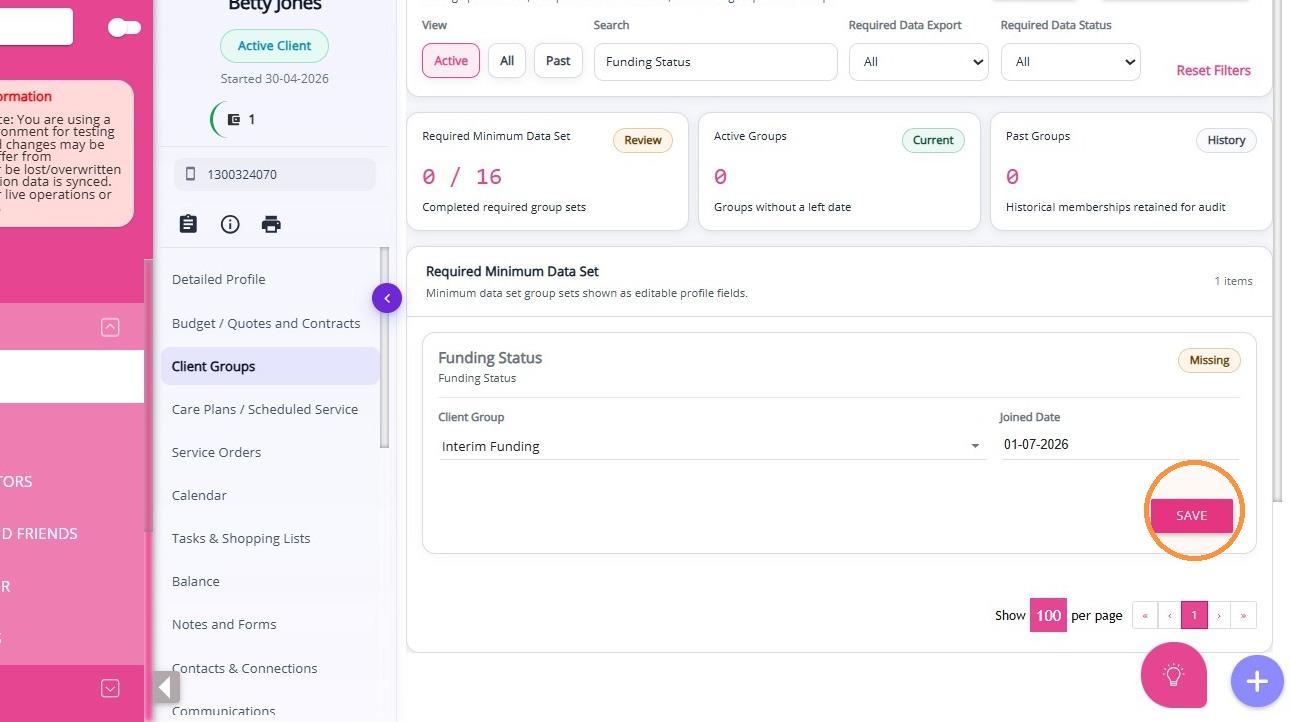
In the search bar, find the recently created Funding Status.
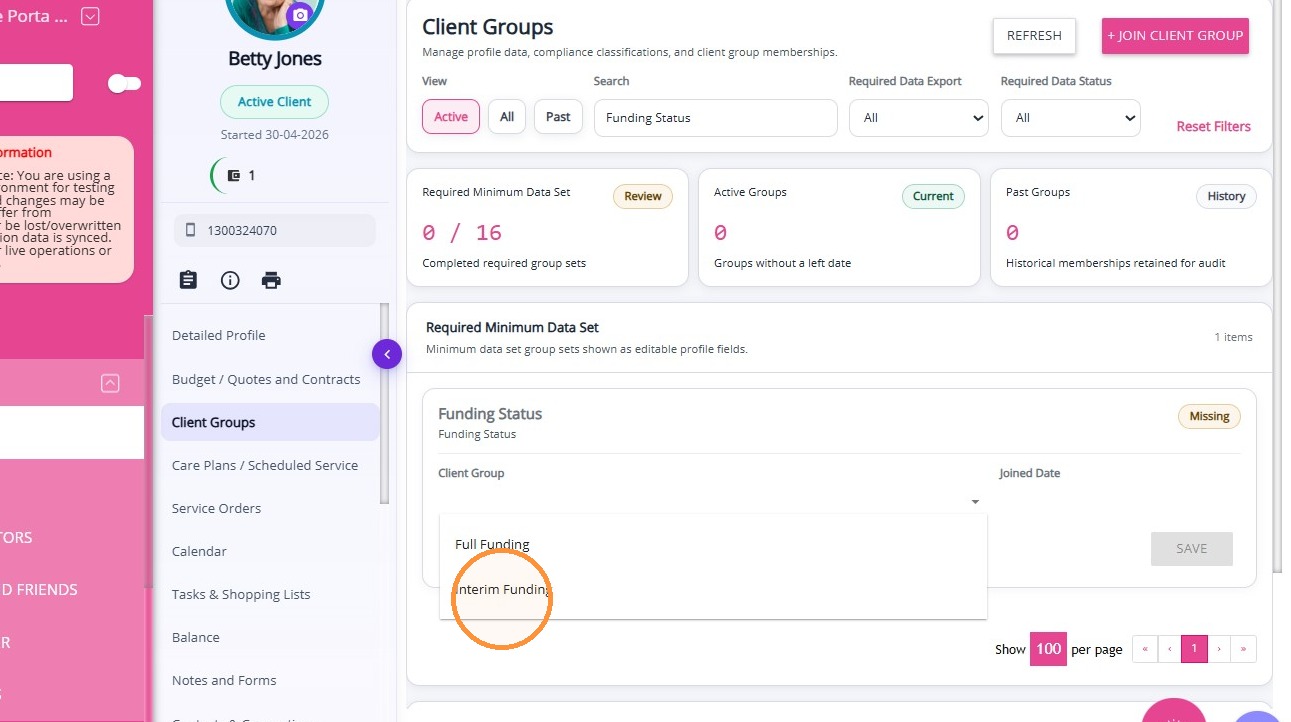
Select the appropriate status (Interim Funding or Full Funding) to indicate the client’s funding type.
Set the Joined Date.
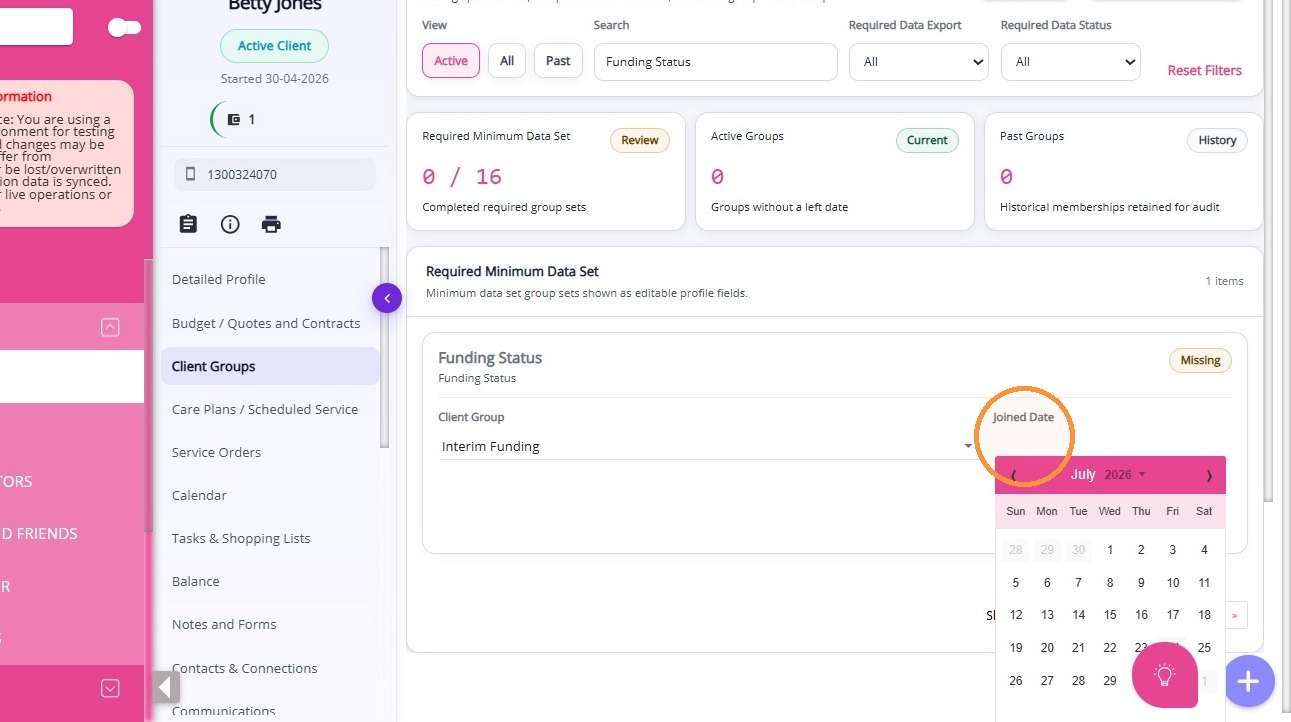
Click Save.
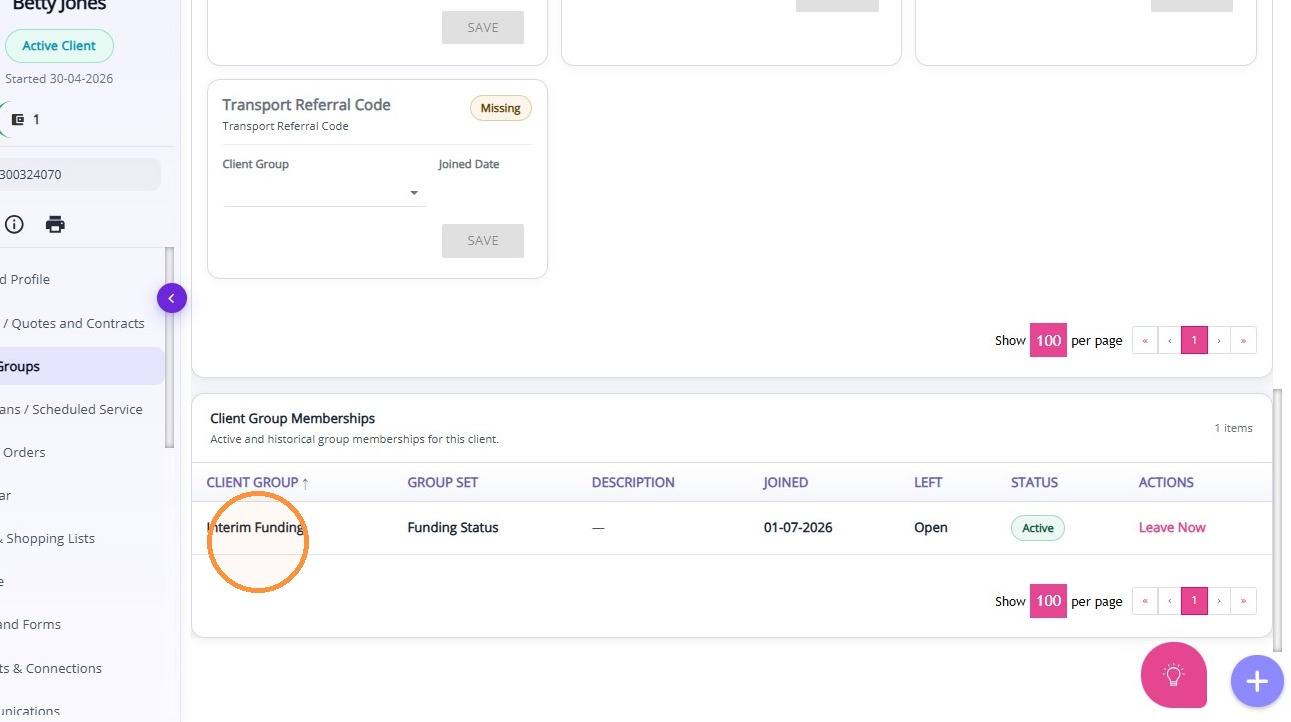
Under the Client Group Memberships section, check that the client has been successfully added to the Interim Funding client group.
This topic described how to set up the Interim Funding client group in the portal to allocate the correct budget percentage for each Support at Home (SAH) participant. For more information about configuring client groups, contact the CareVision Support Team.