How to Set Up Funding for Mid-Quarter Client Transfers
When a client transfers to a new provider mid-quarter, they do not carry over the full quarterly funding. Only the remaining balance must be applied, and it must be reflected in the funding setup.
This topic describes how to set up funding for clients who transfer mid-quarter, including calculating remaining funds and applying rate overrides.
Keywords: mid quarter transfer, funding setup, rate override, client onboarding, remaining funding, daily rate calculation, funding source, quote setup
Step 1: Add Funding Source in the Quote
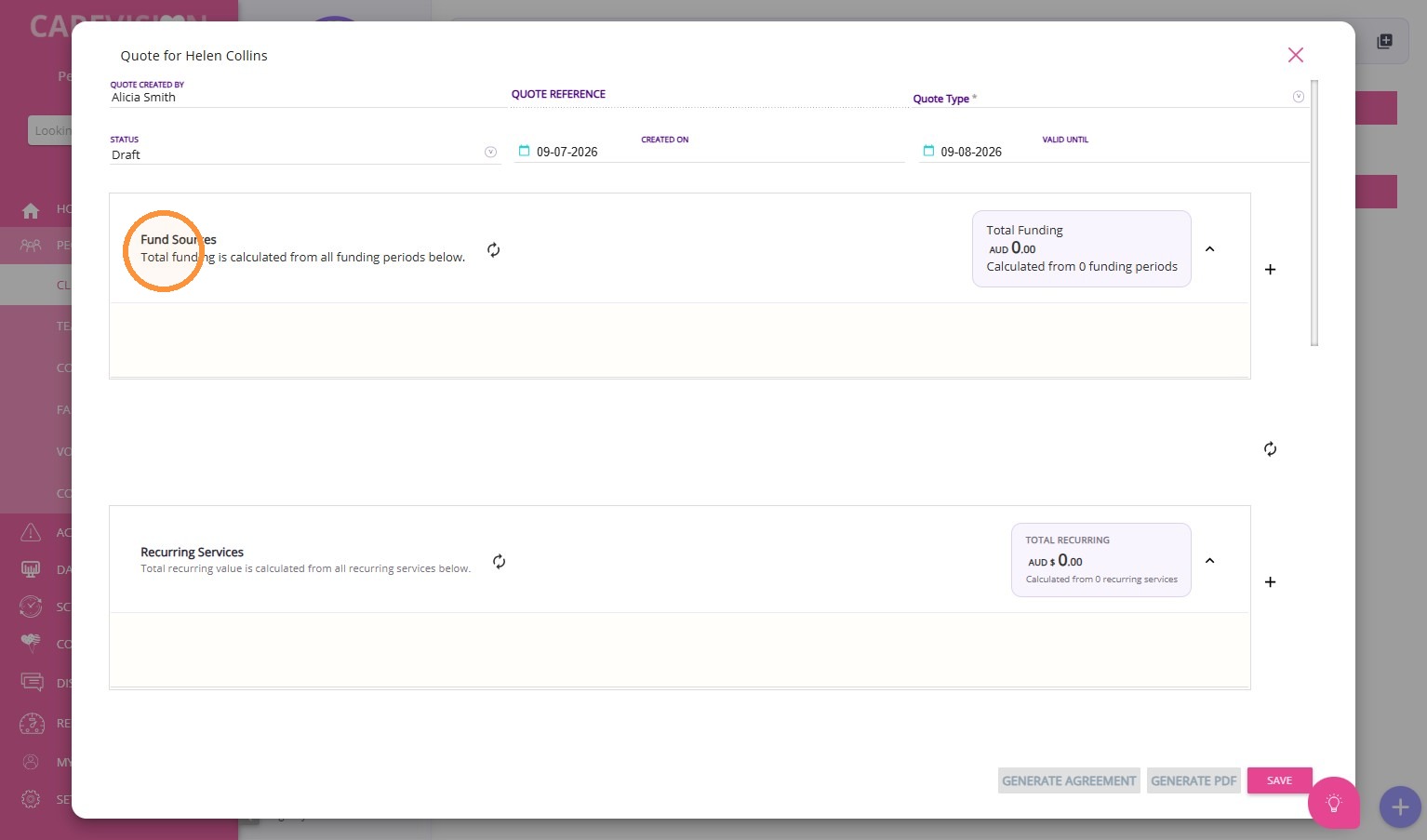
Create the client’s quote and add the relevant funding source.
Step 2: Set the Correct Start Date
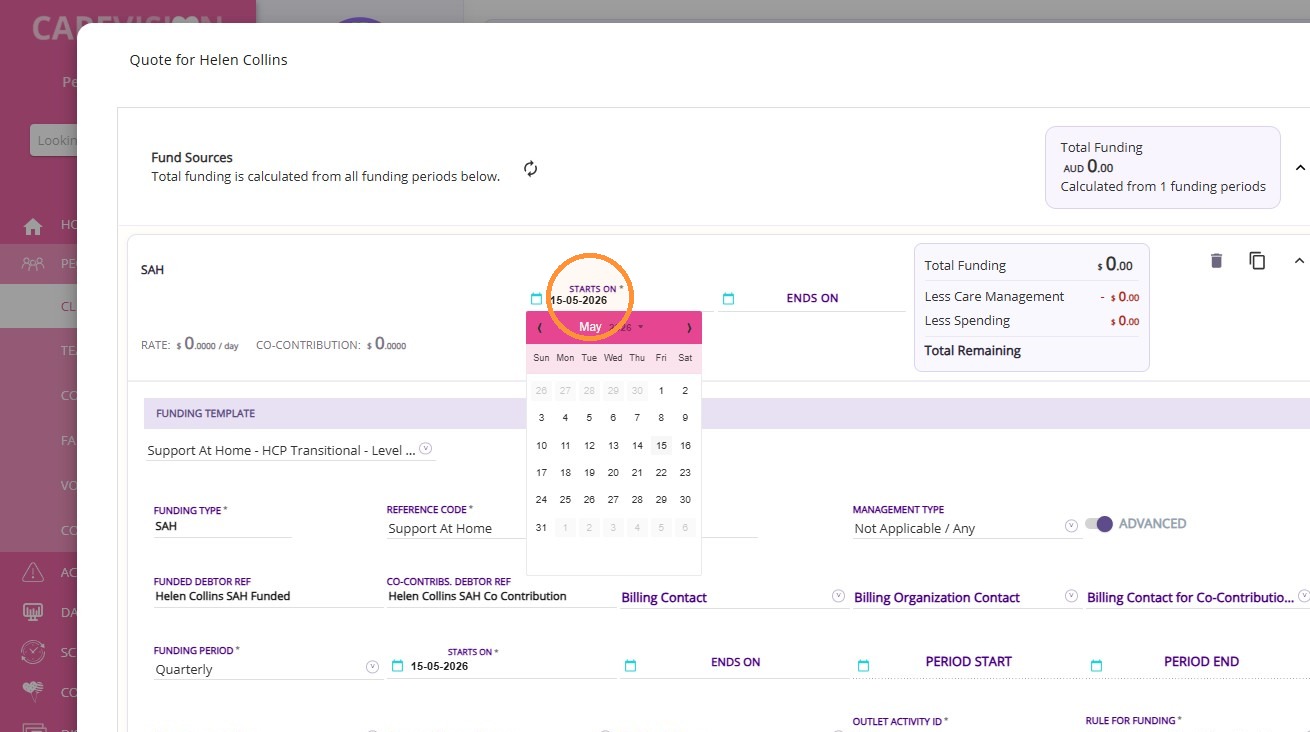
Set the Starts On date in the funding source to the actual transfer date. For example, if the client transfers on May 15 within the April 1- June 30 quarter, use May 15 as the start date for the quote.

Note: Do not backdate funding to the start of the quarter.
Step 3: Determine Remaining Funding
Confirm with the previous provider or funding body the client’s total remaining funds.
Step 4: Calculate Daily Rate
To calculate the daily rate, use the remaining funds (not the total funding allocation) and divide it by the remaining days in the quarter.
Formula:
Daily Rate = Remaining Funds ÷ Remaining Days
Daily Rate = Remaining Funds ÷ Remaining Days
Example:
- Total annual funding allocation: $10,000
- Remaining funds at transfer: $5,000
- Client transfers on May 15 (this is the ‘Starts On’ date) within the April 1–June 30 quarter
- Remaining days from May 15 to June 30: 47 days
Sample Calculation:
Daily Rate = $5,000 ÷ 47 = $106.38 per day
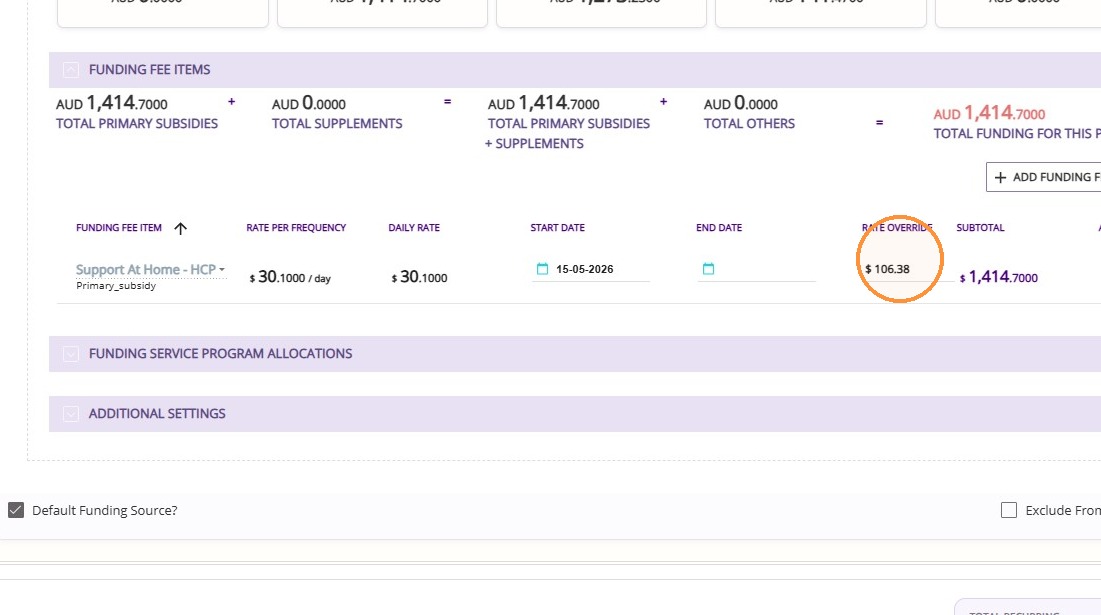
The Daily Rate is entered as a rate override in the funding item.
Step 5: Apply Rate Override
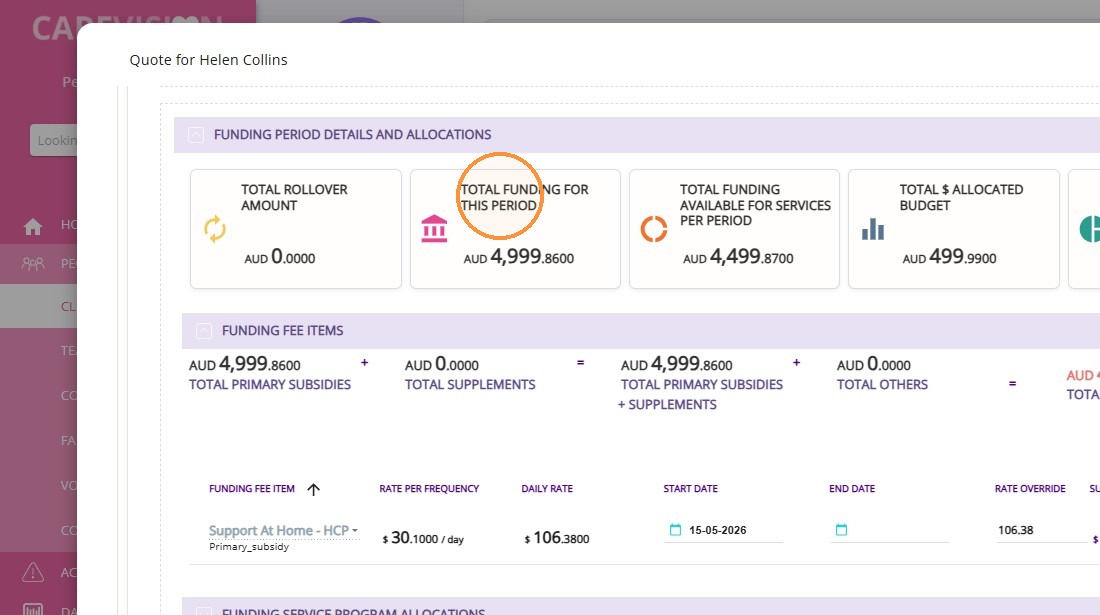
Go to the Funding Fee Items section of the quote. Enter the calculated Daily Rate as a Rate Override in the primary subsidy funding fee item.
Step 6: Recalculate the Quote
Click the Recalculate button.
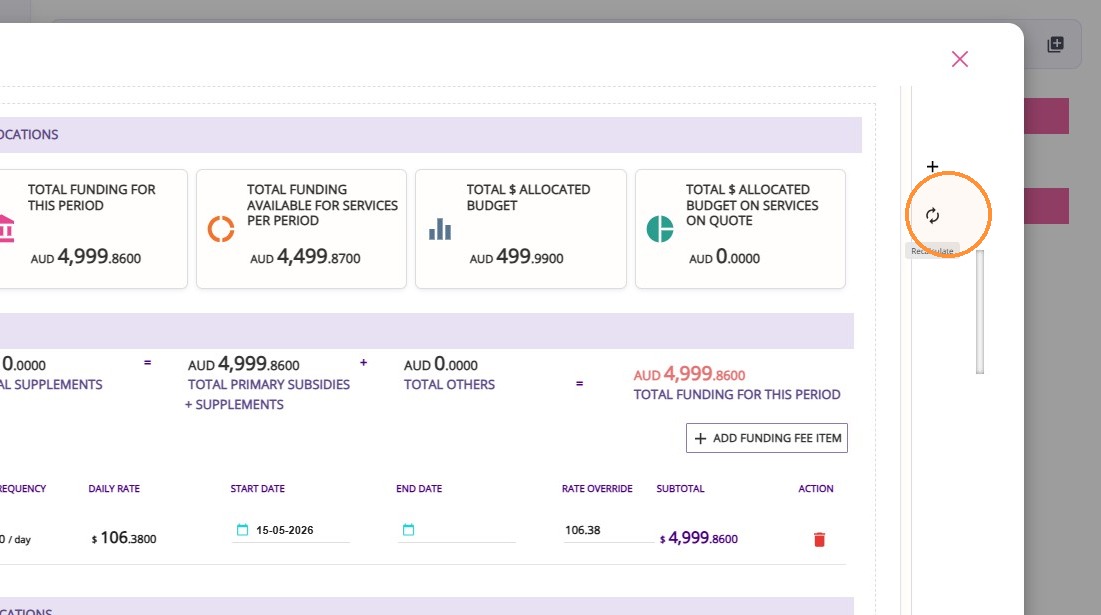
Confirm the total funding reflects only the remaining balance for the period, as shown in Total Funding for This Period.
Step 7: Complete and Save the Quote
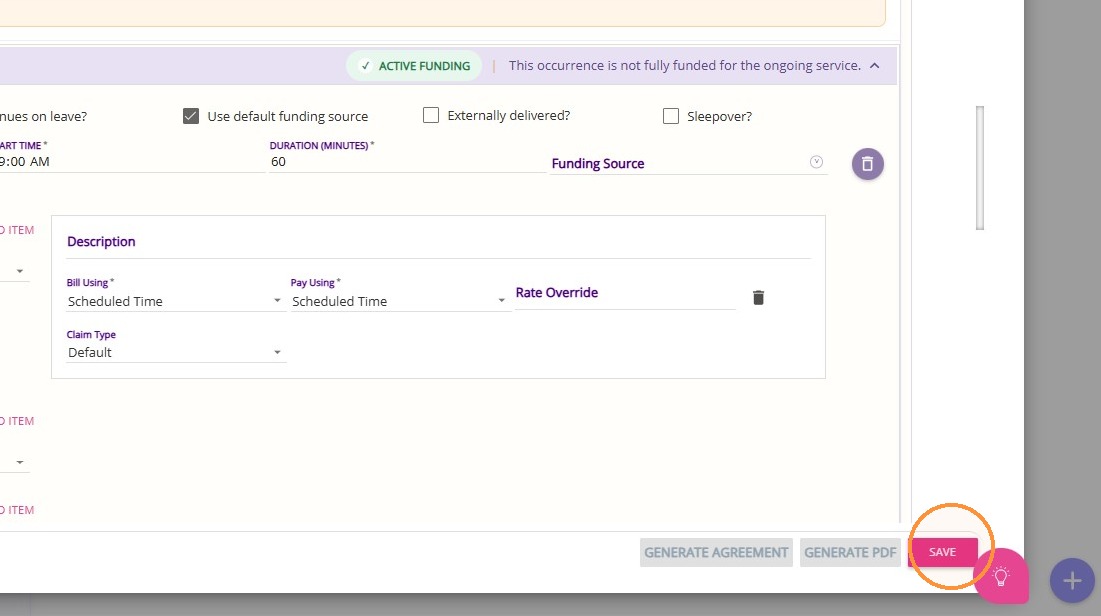
Complete all required fields and save the quote as a draft.
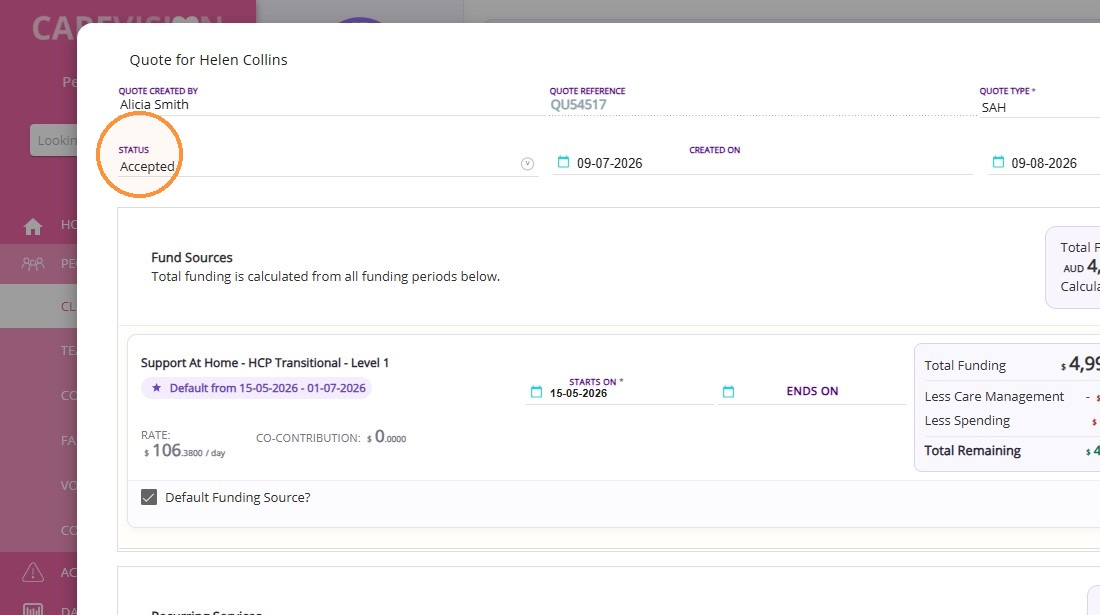
Step 8: After client discussion and approval, update the quote status to Accepted.
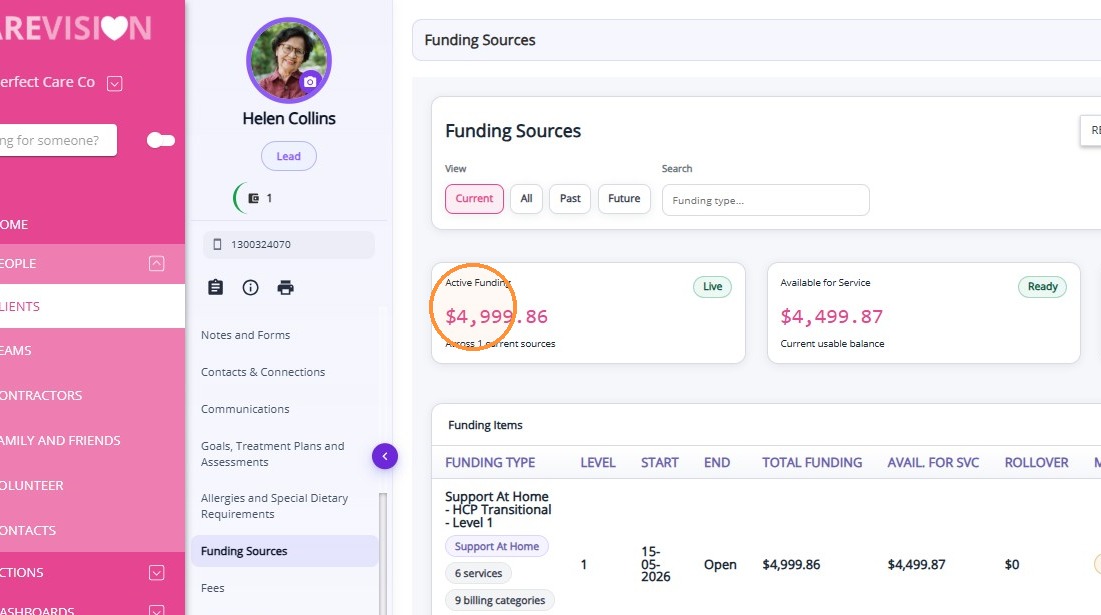
Step 9: Verify Funding Source
Check the client’s Funding Sources section and confirm the remaining budget for the quarter is correct.
This topic explained how to set up funding when a client transfers mid-quarter. For more information about setting up funding for clients, contact the CareVision Support Team.