How to Requote Clients for Rolled-Over SAH Funding Sources
This topic describes the re-quote process to reflect rolled-over balances and support continuity of services in the new quarter.
Keywords: support at home requote, sah funding rollover, client requote process, carevision quotes, funding source management, rollover balances sah, quote modal
Step 1: Access Quotes & Contracts Window
Go to the Budget / Quotes and Contracts section in the client profile.
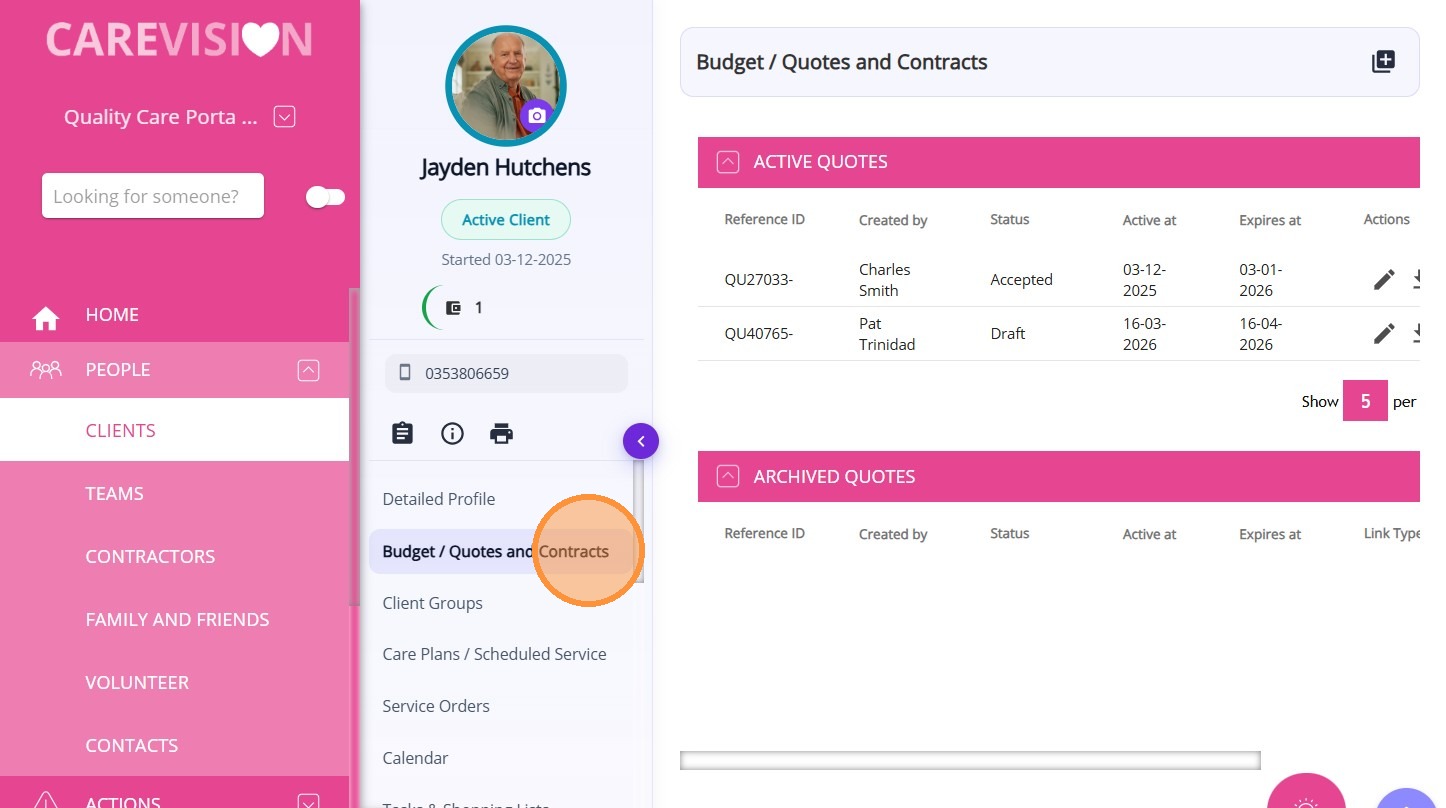
Click the Create Quote/Contract icon to create a new quote.
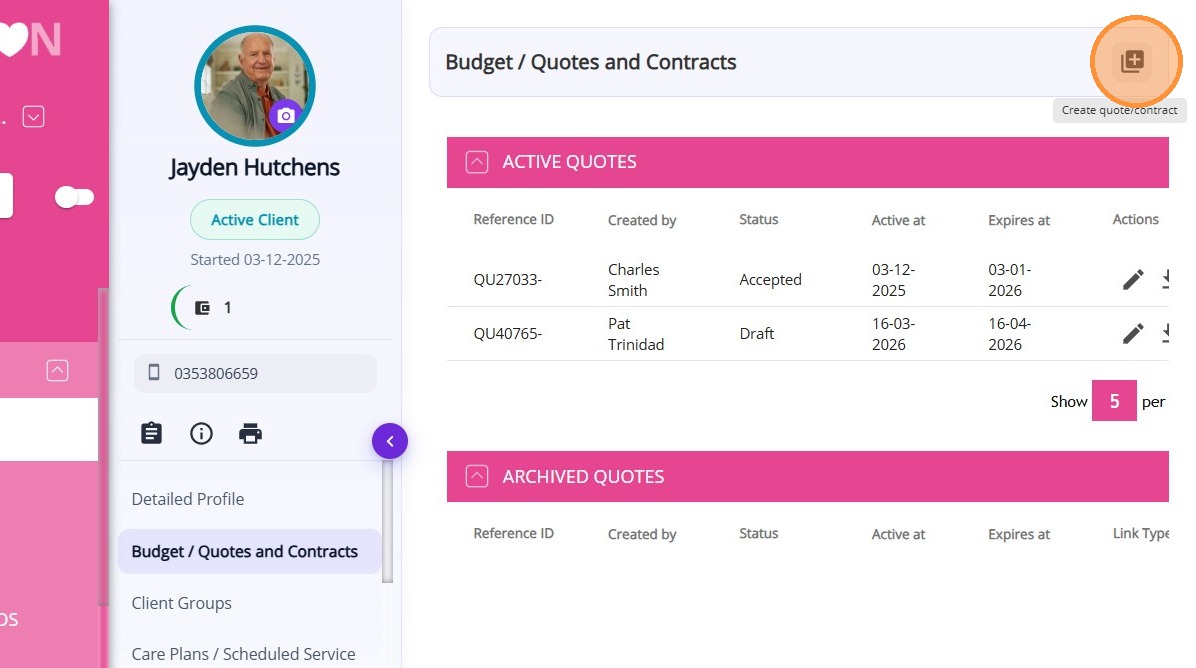
Step 2: Review Quote Header
Set the Quote Type to SAH.
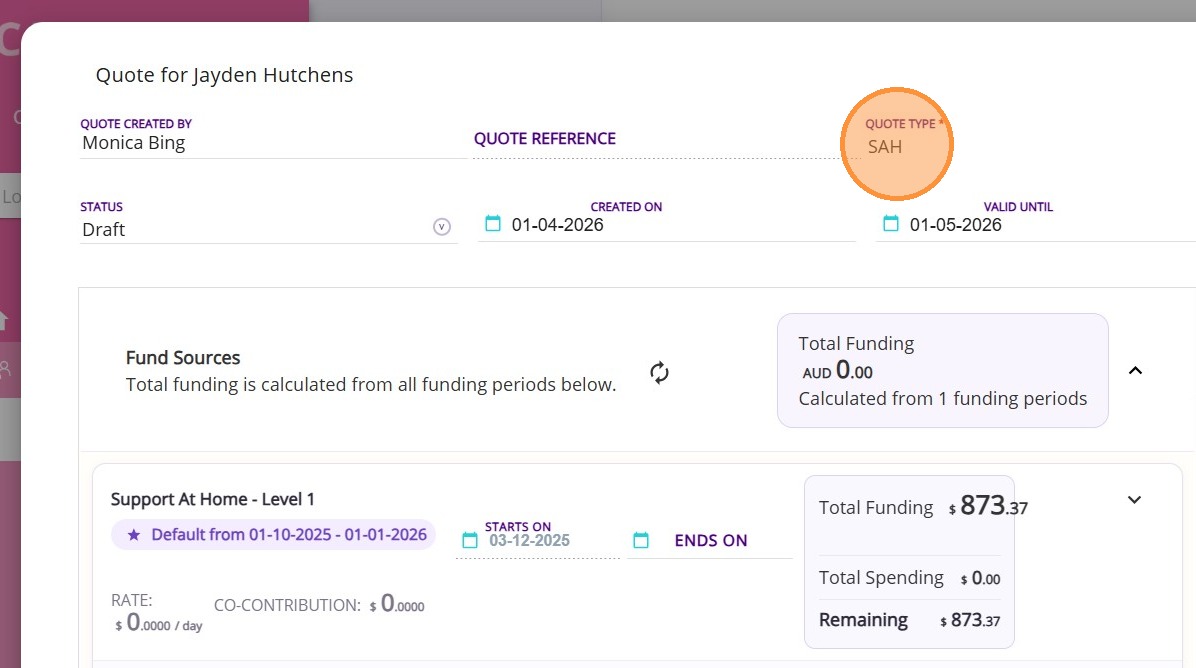
Step 3: Manage the Fund Sources Section
1. Update Existing Funding Source
Set the Ends On date to match the end date of the current funding source.
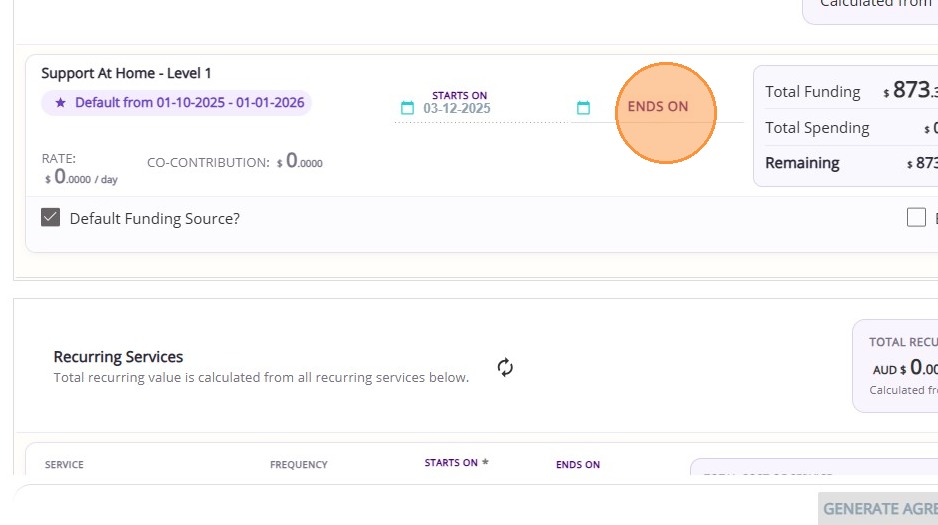
2. Add a Funding Source Template
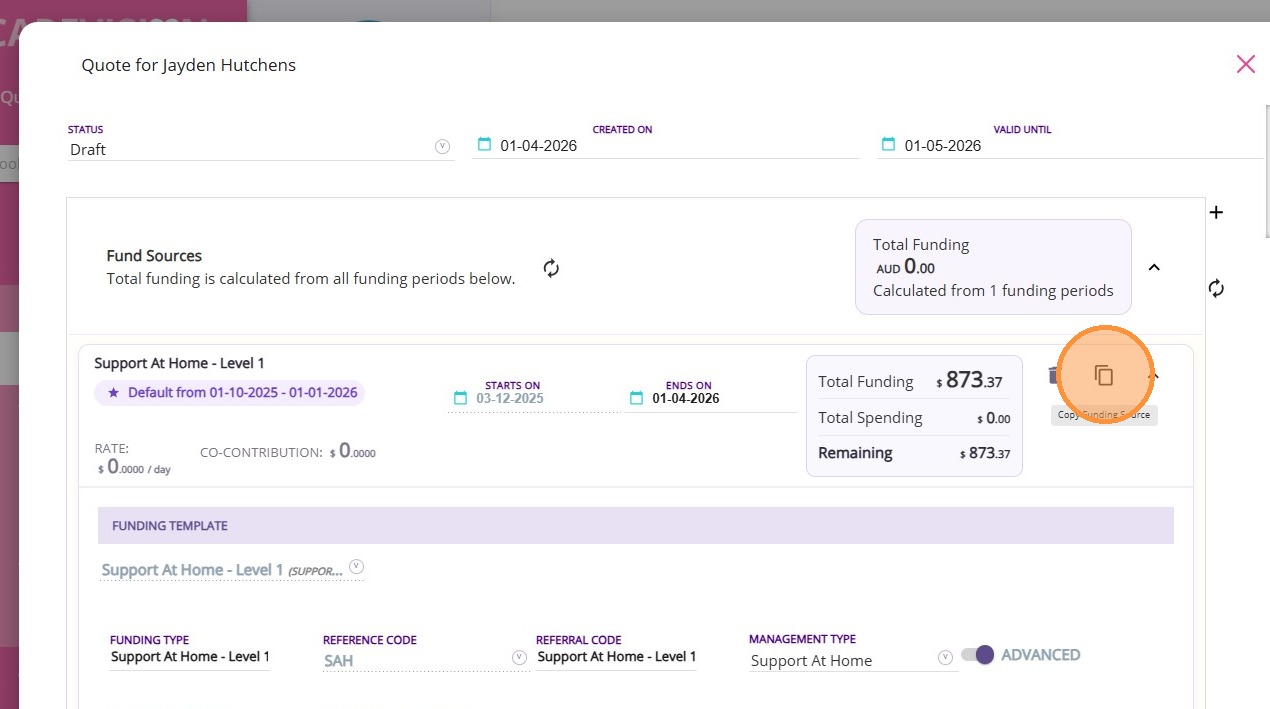
Click Copy Funding Source to create a new copy.
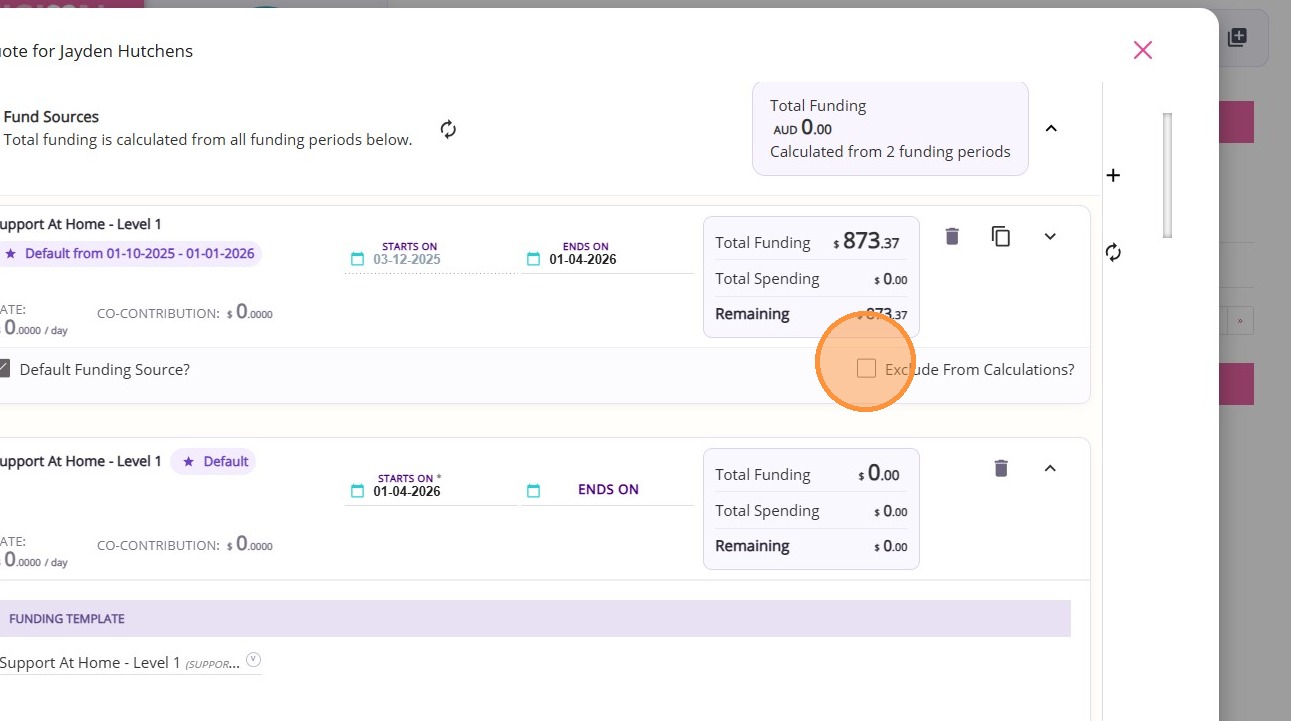
Tick the Exclude from Calculations box so the previous funding source is not included.
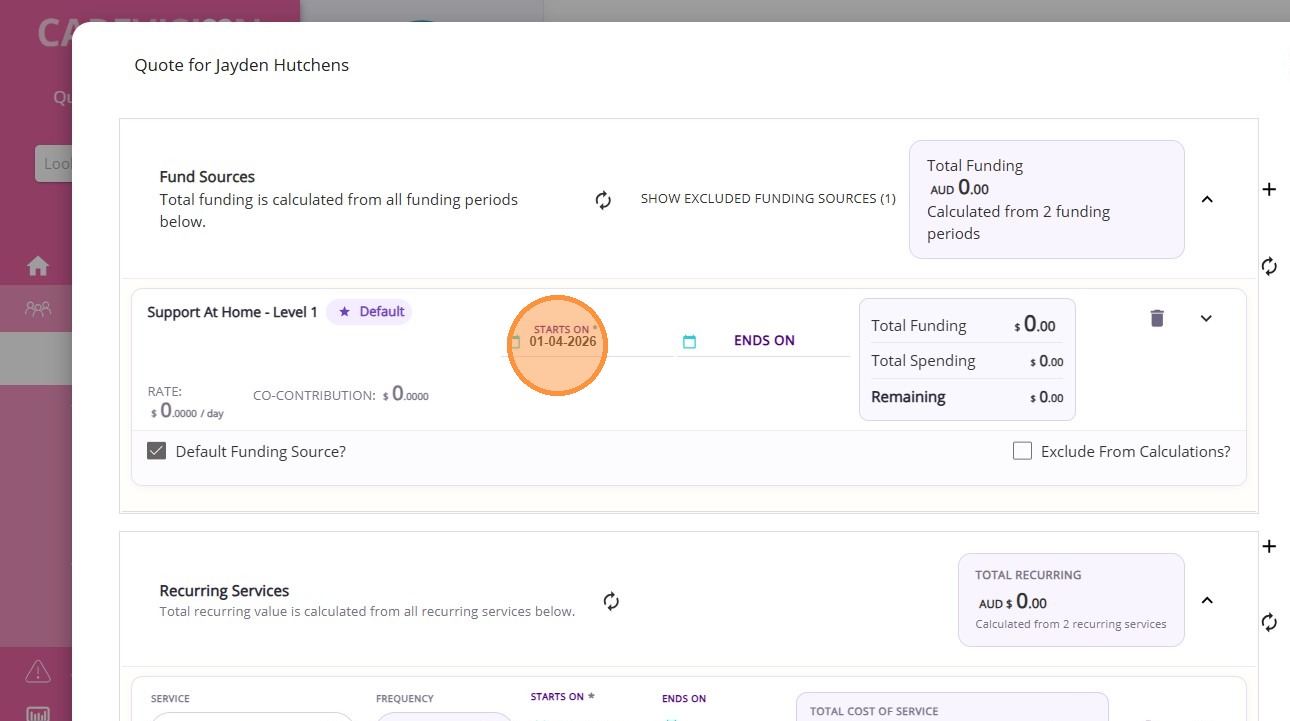
A new funding source will appear with the start date reflecting when the quote was created. Leave the Ends On date blank.
Most fields will automatically populate based on the copied template.
3. Complete Required Fields
- Billing Contact
- Billing Organisation Contact
- Billing Contact for Co-Contributions

Optional Fields: Participant Type, Reason for Assistance, and Referral Source are only required for CHSP funding templates; otherwise, they can be left blank.
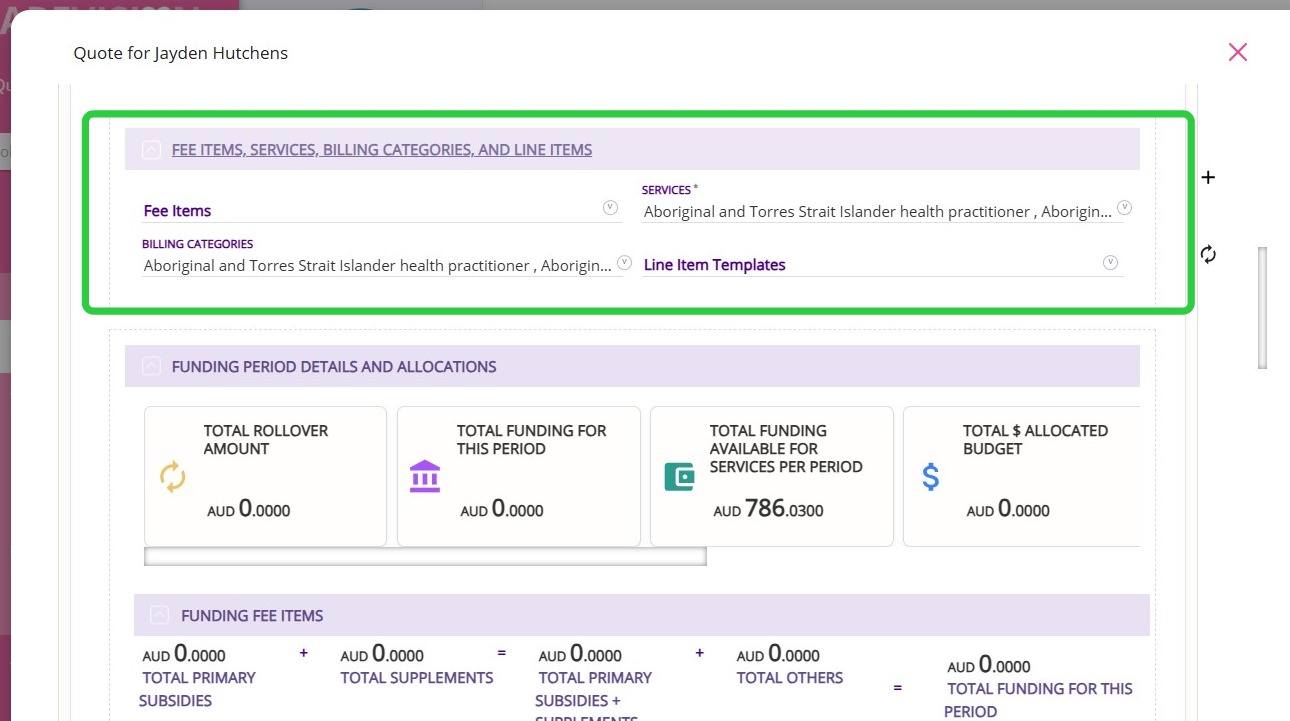
A. Fee Items, Services, Billing Categories, and Line Items
Check the the Fee Items, Services, Billing Categories, and Line Items section.
- Make sure the correct Services, Billing Categories, and Line Items are included in the quote.
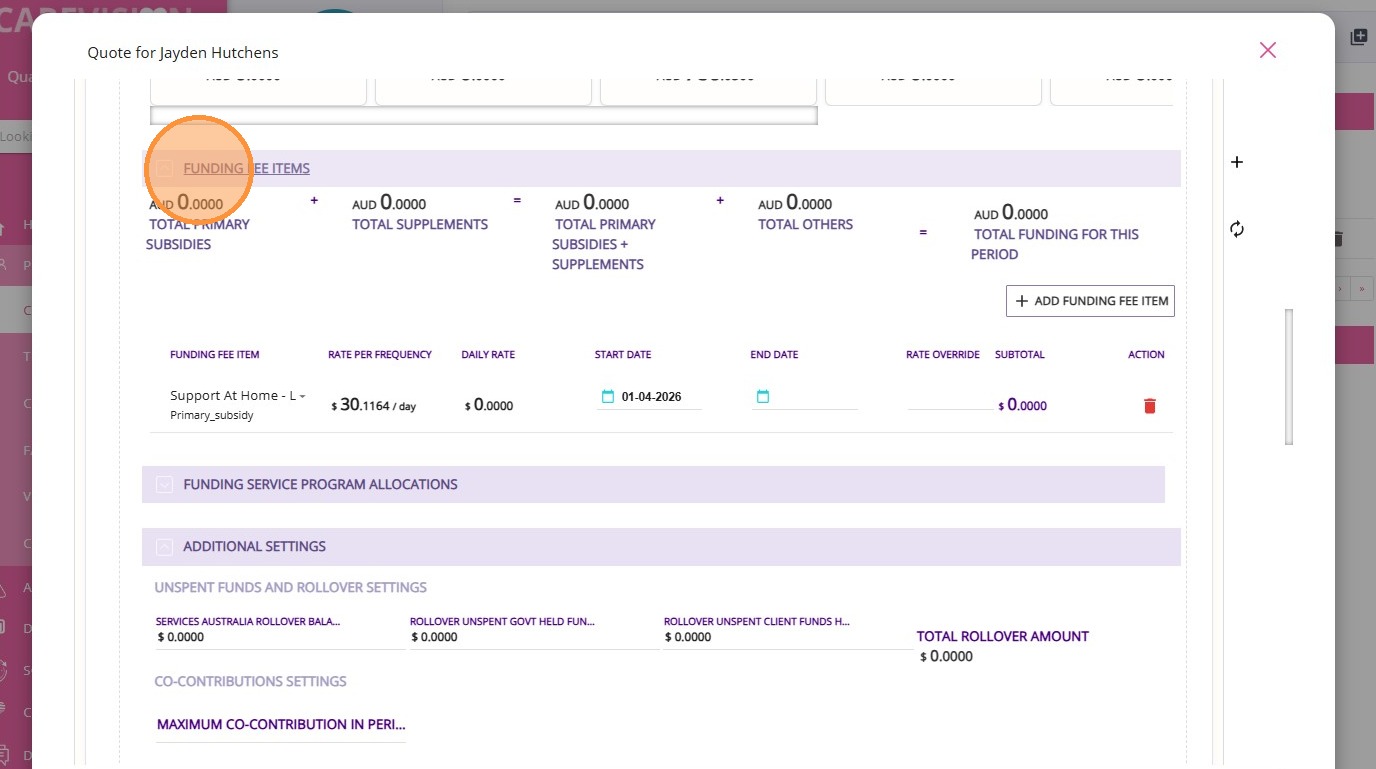
B. Funding Fee Items
Go to the Funding Fee Items section.
Check the primary subsidy and any client supplements. Most information should be automatically populated from the template.
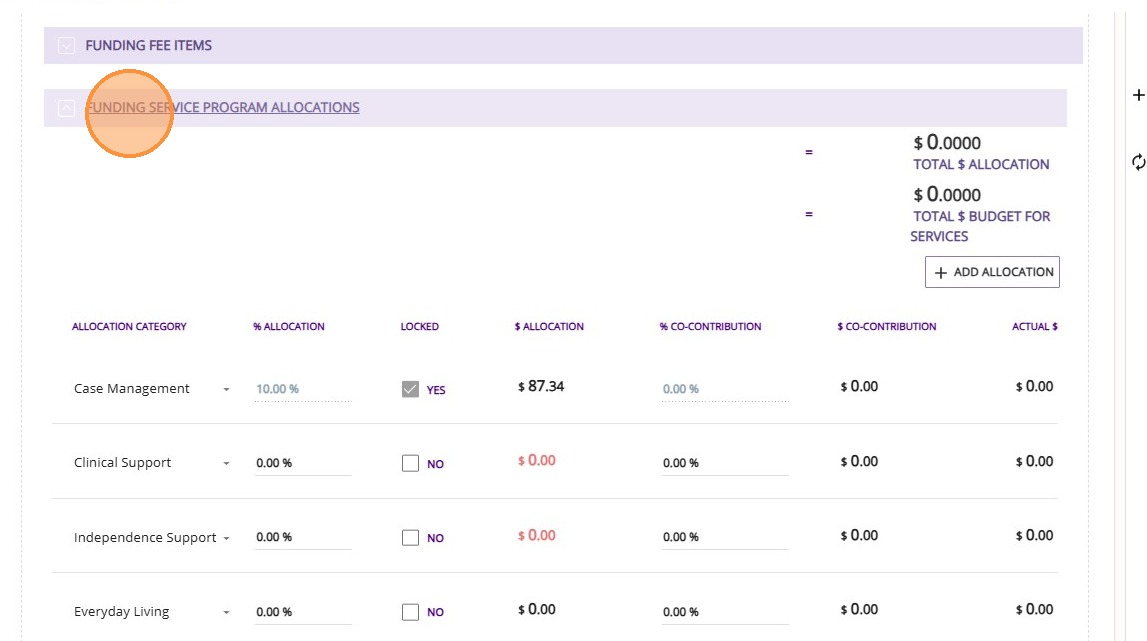
C. Funding Service Program Allocations
Go to the Funding Service Program Allocations. In this section, you can manage both the allocation of funding and the co-contribution rates.
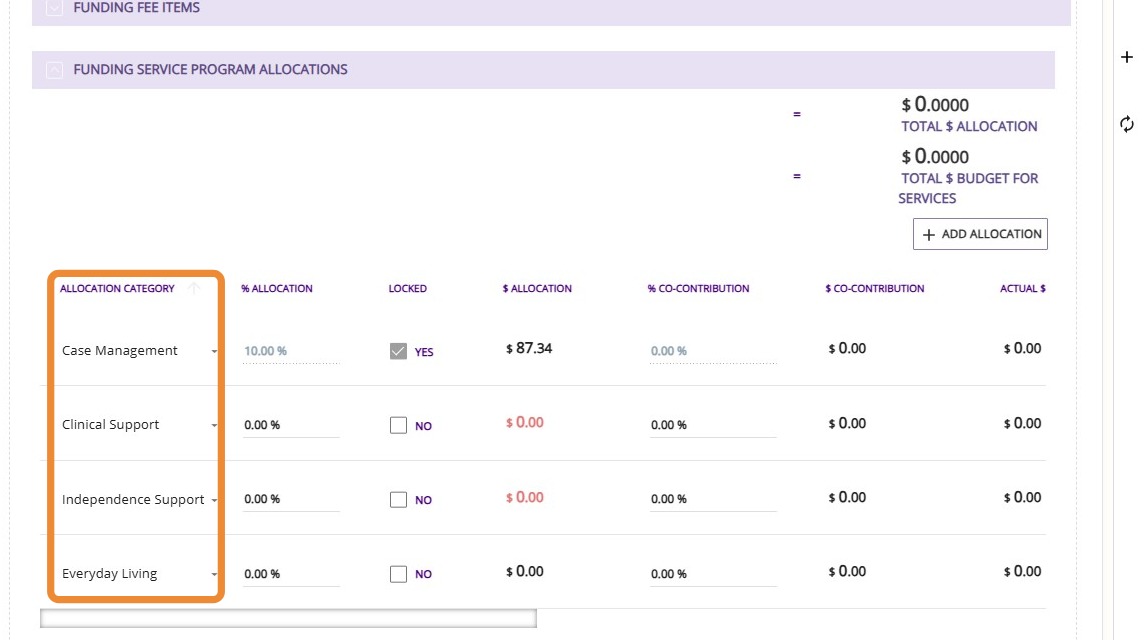
Under the Allocation Category column, the allocation options will be listed based on the funding source template you selected. For Level 1 to 8 or Transitional funding sources, the available categories are Care Management, Clinical Care, Everyday Living, and Independence Support.
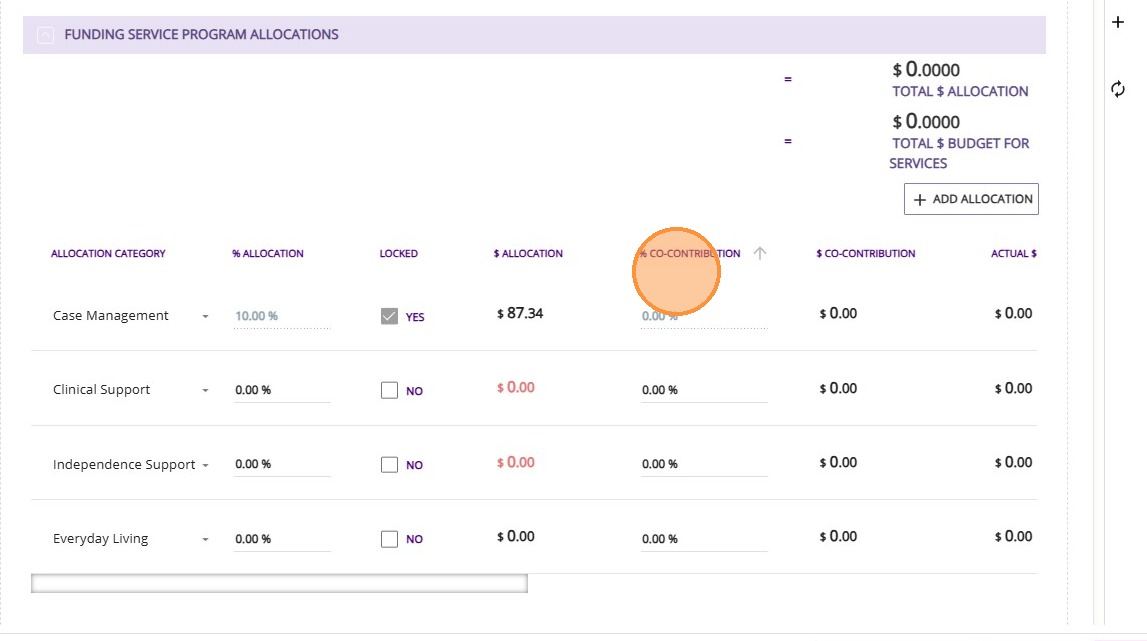
If your client has a co-contribution, enter the percentage under the % Co-Contribution column.
D. Manage Rollover Balances and Maximum Contribution
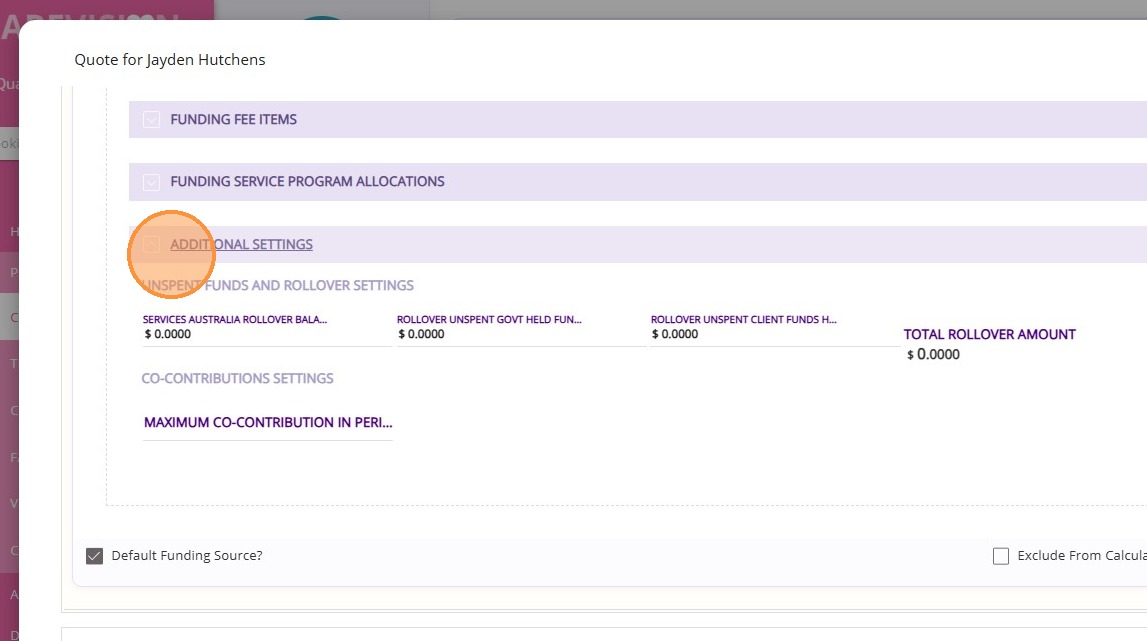
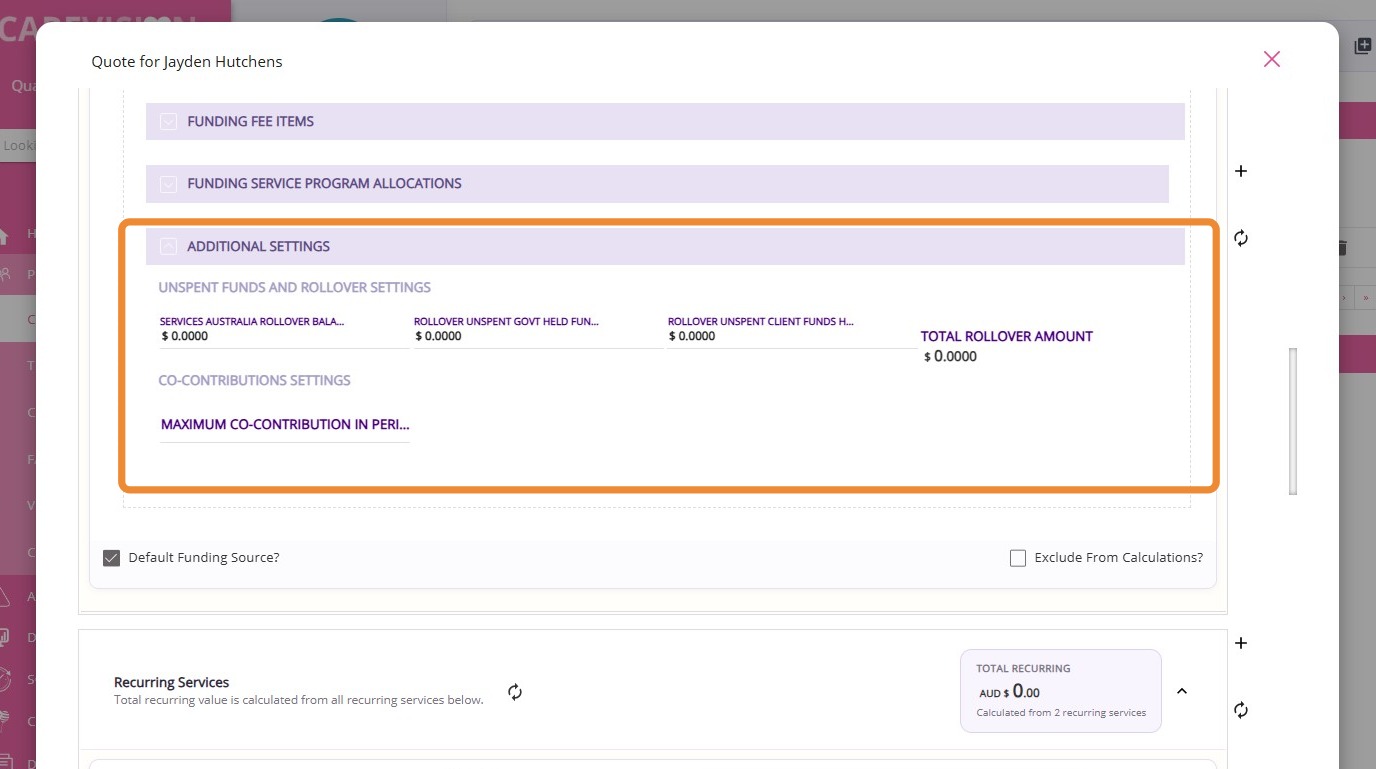
Go to the Additional Settings section to Manage Rollover Balances and Maximum Contribution.
This section contains extra fields used to track surplus balances.
Step 4: Review Recurring Services
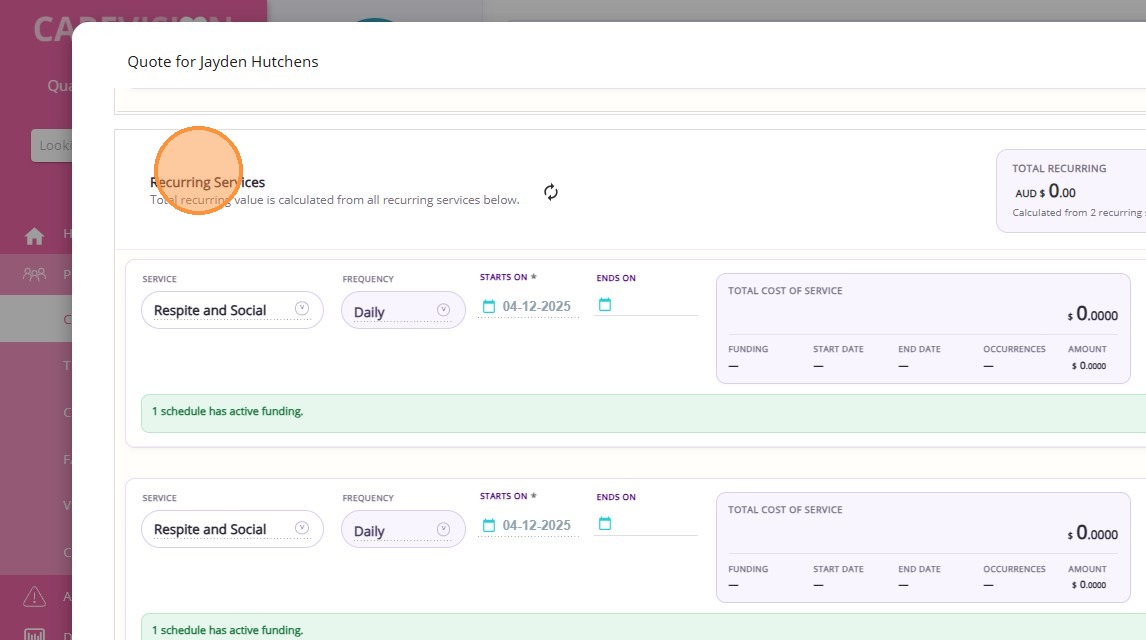
Go to the Recurring Services section.
Make sure that all services have the Use Default Funding box checked.
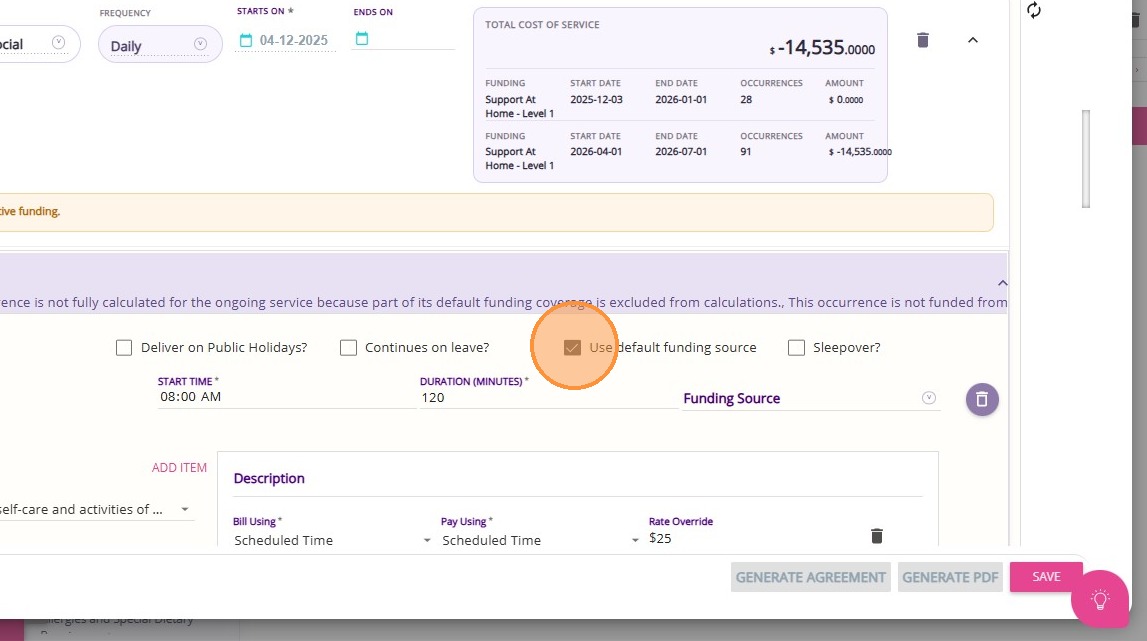

Note: If your organisation has not set this, you can contact the CareVision Support Team to opt into a process that will bulk update all relevant clients to use the default funding source for their plans.
Step 5: Add Once-Off Services
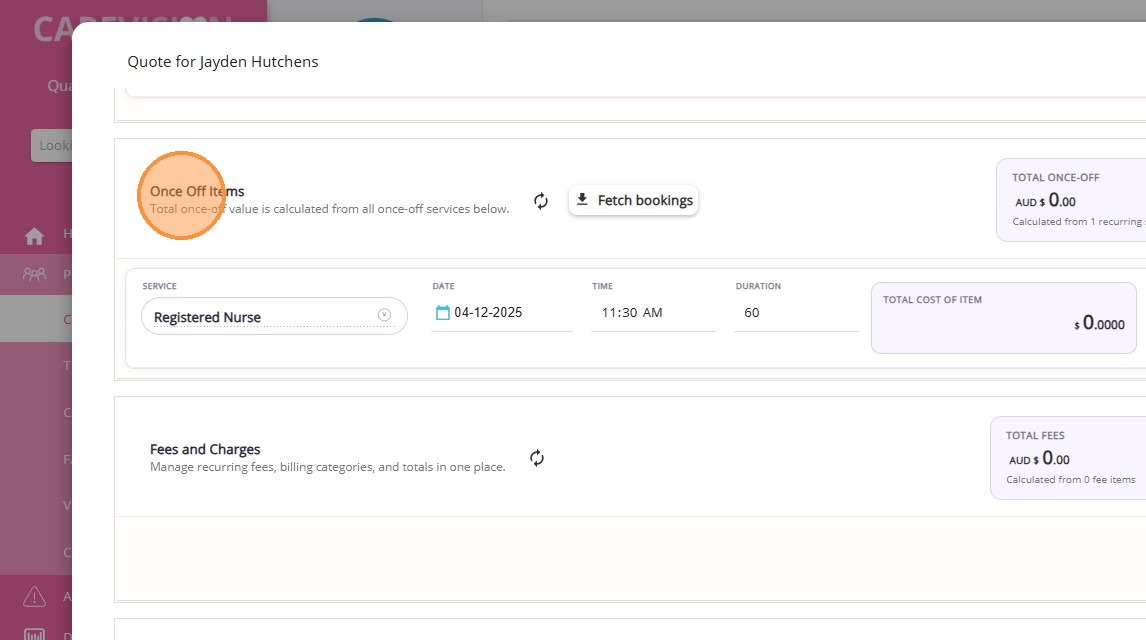
Once-off services are single, non-recurring services provided to a client as needed, rather than on a regular schedule.
Add any known once-off services required by the client so they can be included in the quote. Make sure that you specify all relevant details such as funding source, billing categories, and line items.
Step 6: Upload Attachments
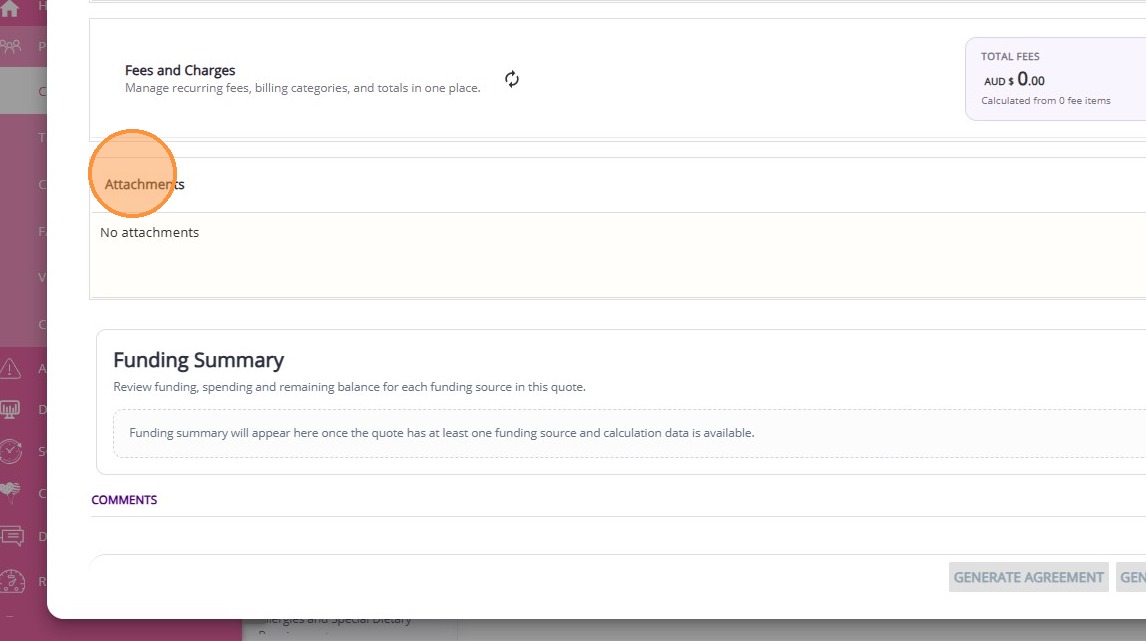
Under Support at Home, it is important to capture and report evidence for the services included in your quote and agreed upon with your client.
At the quote stage, you can attach supporting documents such as prescriptions, occupational therapy reports, or allied health assessment reports that recommend specific activities.
Step 7: Review and Recalculate Quote
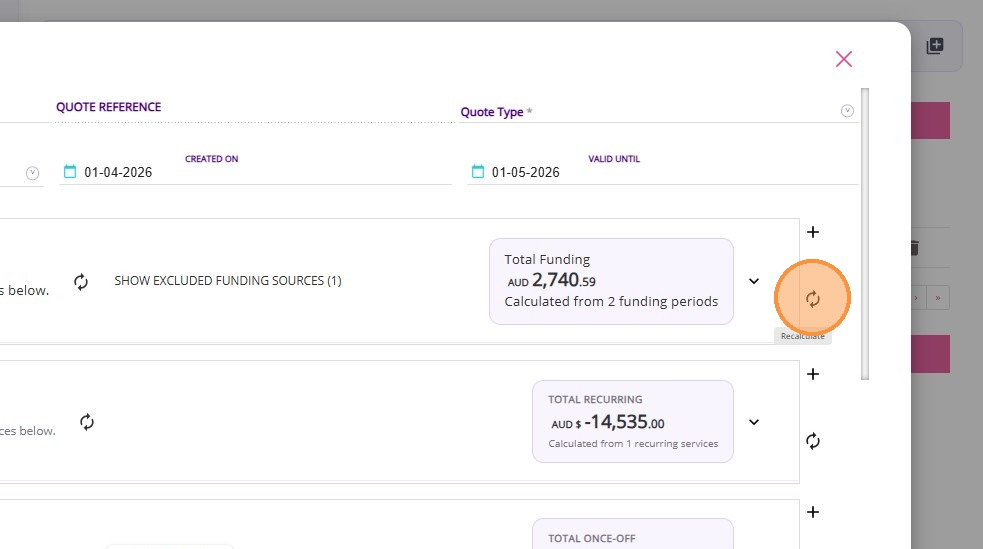
Click this button to recalculate the quote. The recalculate button now floats along the side, so you no longer need to scroll back up to find it.
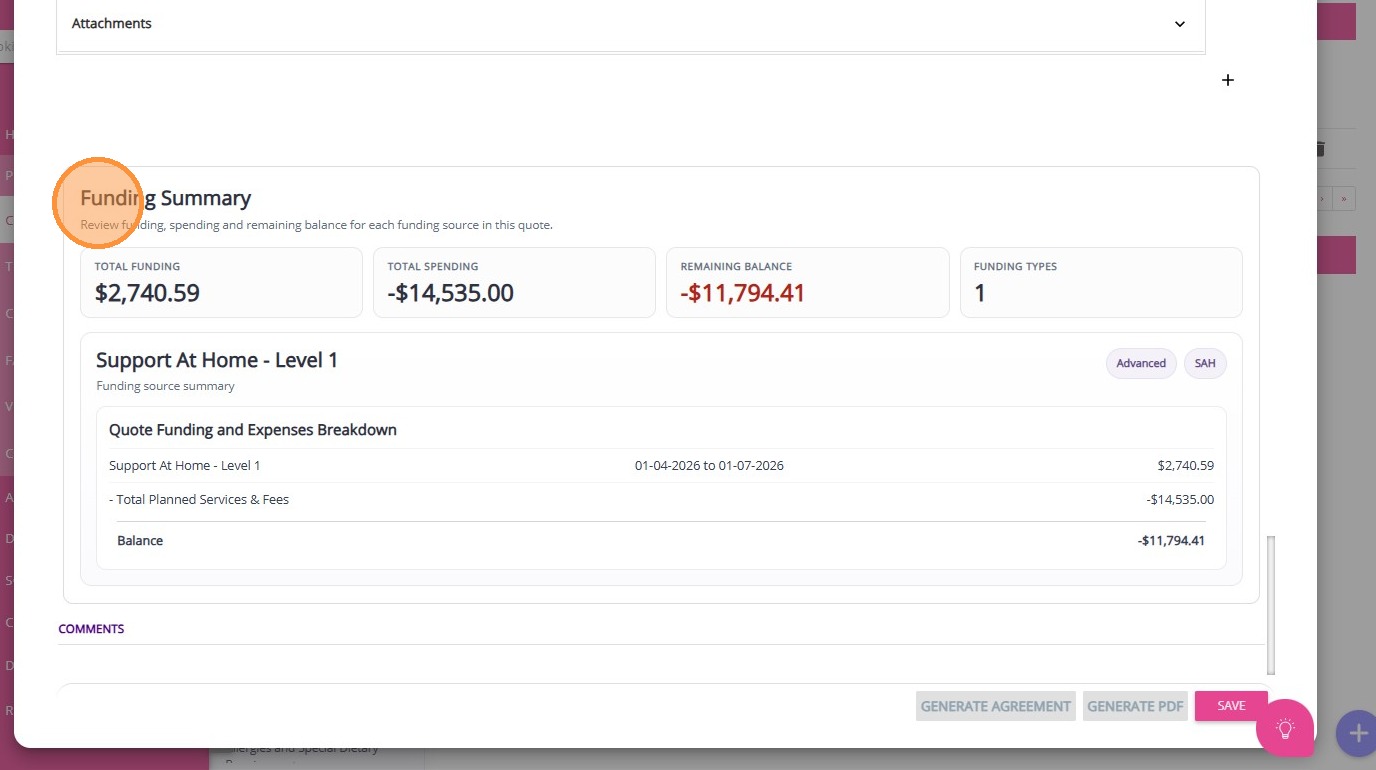
Check the Funding Summary to review the funding, spending, and remaining balance for each funding source in the quote
Step 8: Manage Quote Status
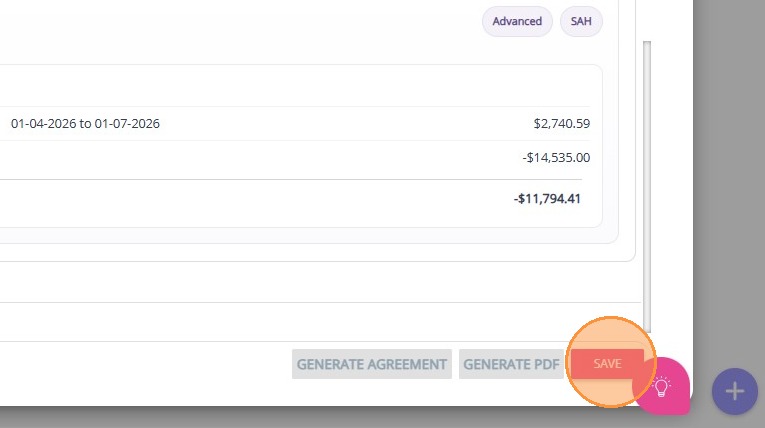
Click Save to save the quote as Draft. When you create a quote, it is automatically saved in Draft status. This allows for editing and internal review before presenting it to the client.
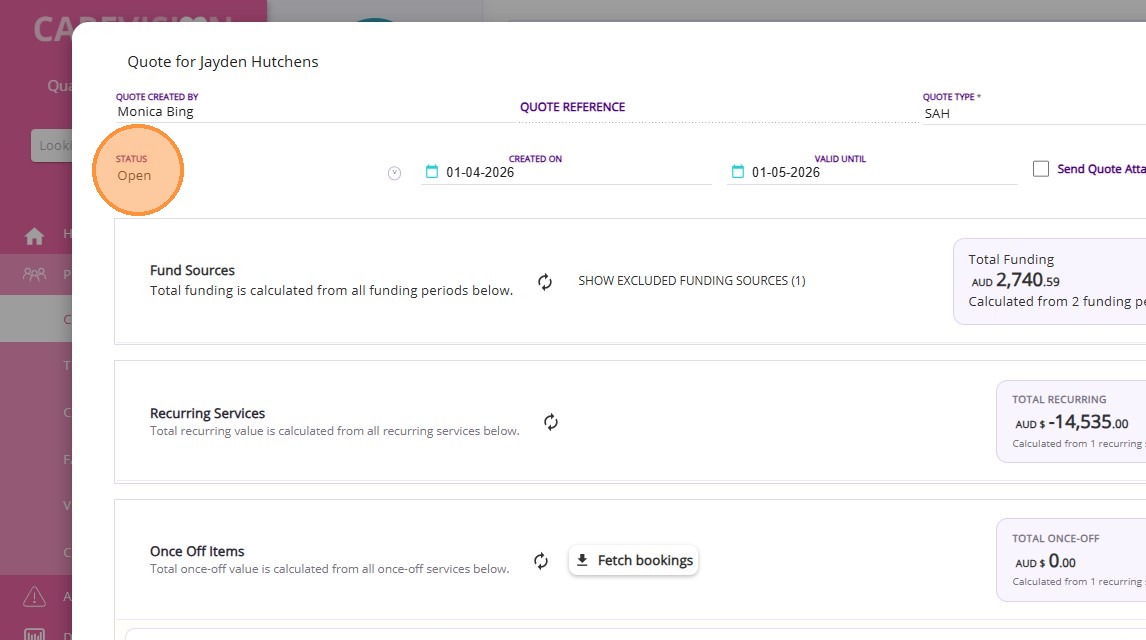
When you're ready to discuss with the client, set the status to Open.
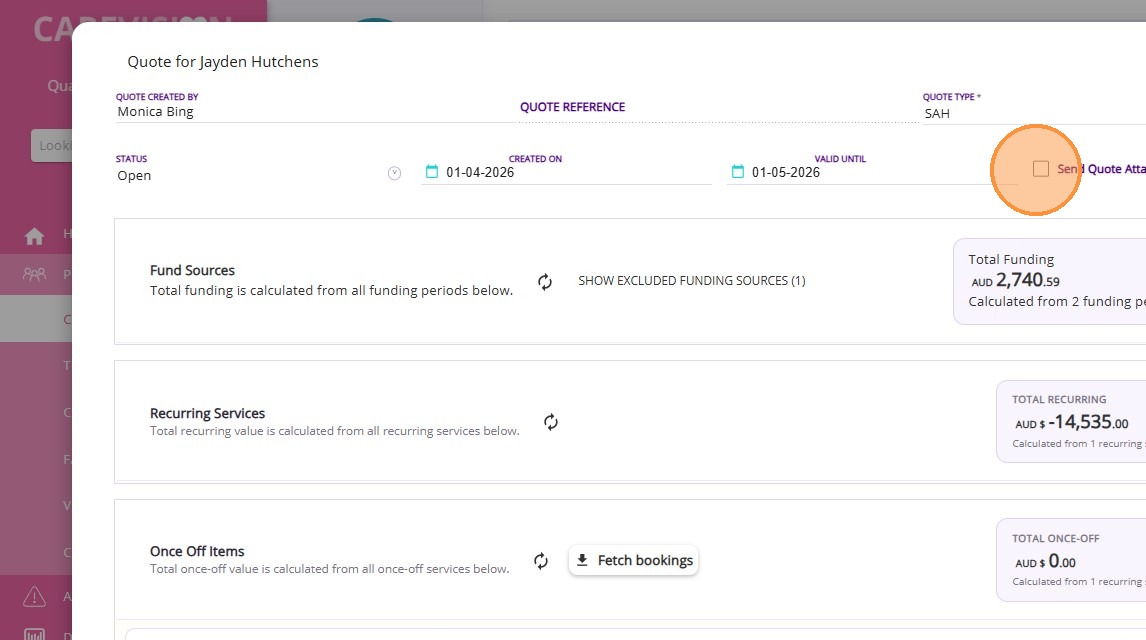
When you set the quote status to Open, a checkbox labeled Send Quote Attachment appears. If you check this box, a PDF copy of the quote will be automatically emailed to the client when you Save the quote.
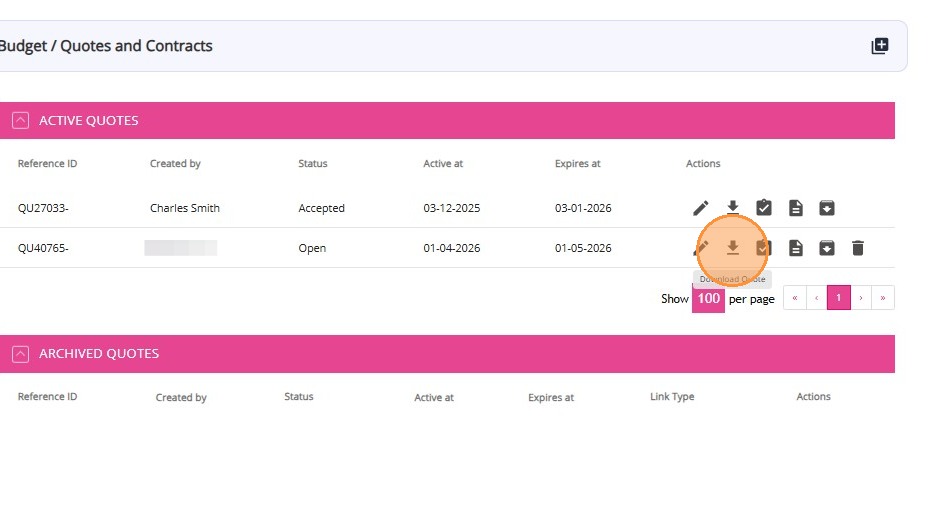
Step 9: Generate Quote
You can download the quote to discuss the new information with the client. Select the Advanced option to generate a quote using advanced mode.
Step 10: Accept Quote
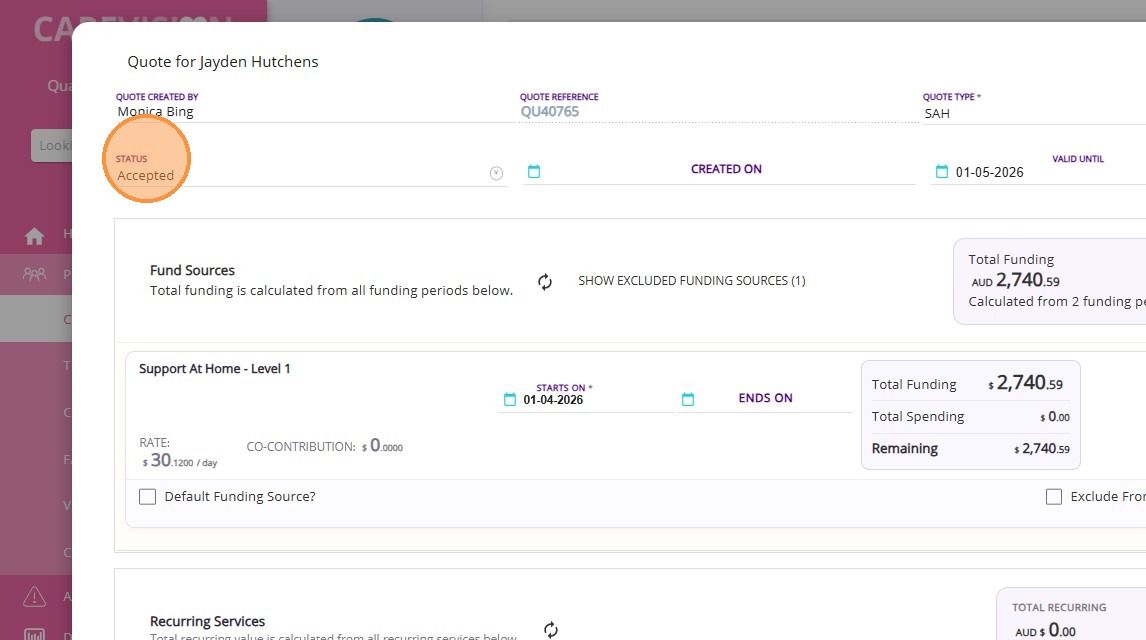
Once the client is satisfied with the quote, change its status to Accepted.
Then, Save the quote. This will generate all relevant calculations and items on the client’s profile.
This topic described the requote process for Support at Home clients. For more information about the requote process or assistance with client transitions, contact the CareVision Support Team.
Related Articles
Related Articles
How to Create a Quote for Support at Home Clients
This topic provides a step-by-step guide to quoting for Support at Home clients. Keywords: quote, create quote, sah quote, quoting workflow, support at home quote, funding source, billing contact, co-contribution, recurring services, default funding ...How to Create Quotes Using the Mobile App
As part of the Support at Home transition, CareVision helps you manage client transitions smoothly on the go with the mobile app. This guide shows you how to create and manage quotes for Support at Home clients using the CareVision Mobile Plus App. ...How to Create a Quote for Assistive Technology and Home Modifications Package
Assistive Technology and Home Modifications (AT&HM) provide Support at Home (SAH) participants with equipment and home changes to improve daily living, safety, and independence. Examples of assistive technology include mobility aids, toileting ...Configuring Funding Source Templates
What are Funding Sources Funding Source Templates define the standard parameters for client funding arrangements making it easy to assign and set up clients and quotes. When assigned to clients various additional details are captured that are client ...Manage Transport Services for Support at Home
This topic describes how to configure and manage transport services for Support at Home. It explains how to correctly set up and link billing categories, services, and funding source templates to support a smooth quoting and export process. Keywords: ...
Request an Article or Guide
We are keen to know what you want to know more about? Let us know on chat or raise a ticket for an article or topic you would like covered in more detail. We have a team of technical writers and learning content creators keen for your suggestions.