FAQ: What is the "Close Quarter" button?
What is the Close Quarter button?
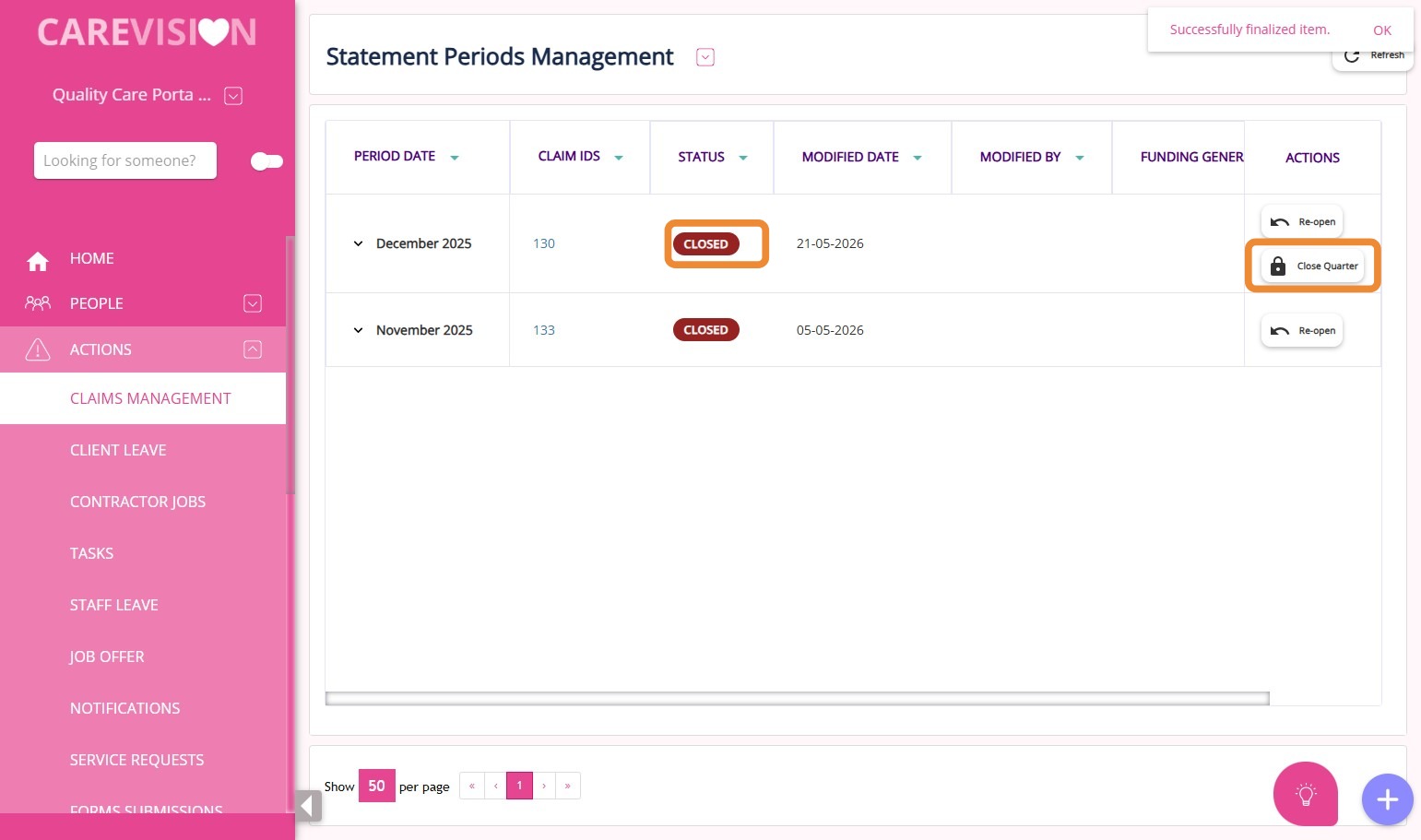
The Close Quarter button in Claims Management > Statement Periods Management allows you to finalise a quarter and automatically calculate rollover funds for the next period.
When will the Close Quarter button appear?
The button is available only when a statement period is already closed and the month is the end of a quarter (March, June, September, or December).
How do I use the Close Quarter button?
Click Close Quarter, confirm the action, and the system will process the rollover and refresh the table once complete.
What happens after I close a quarter?
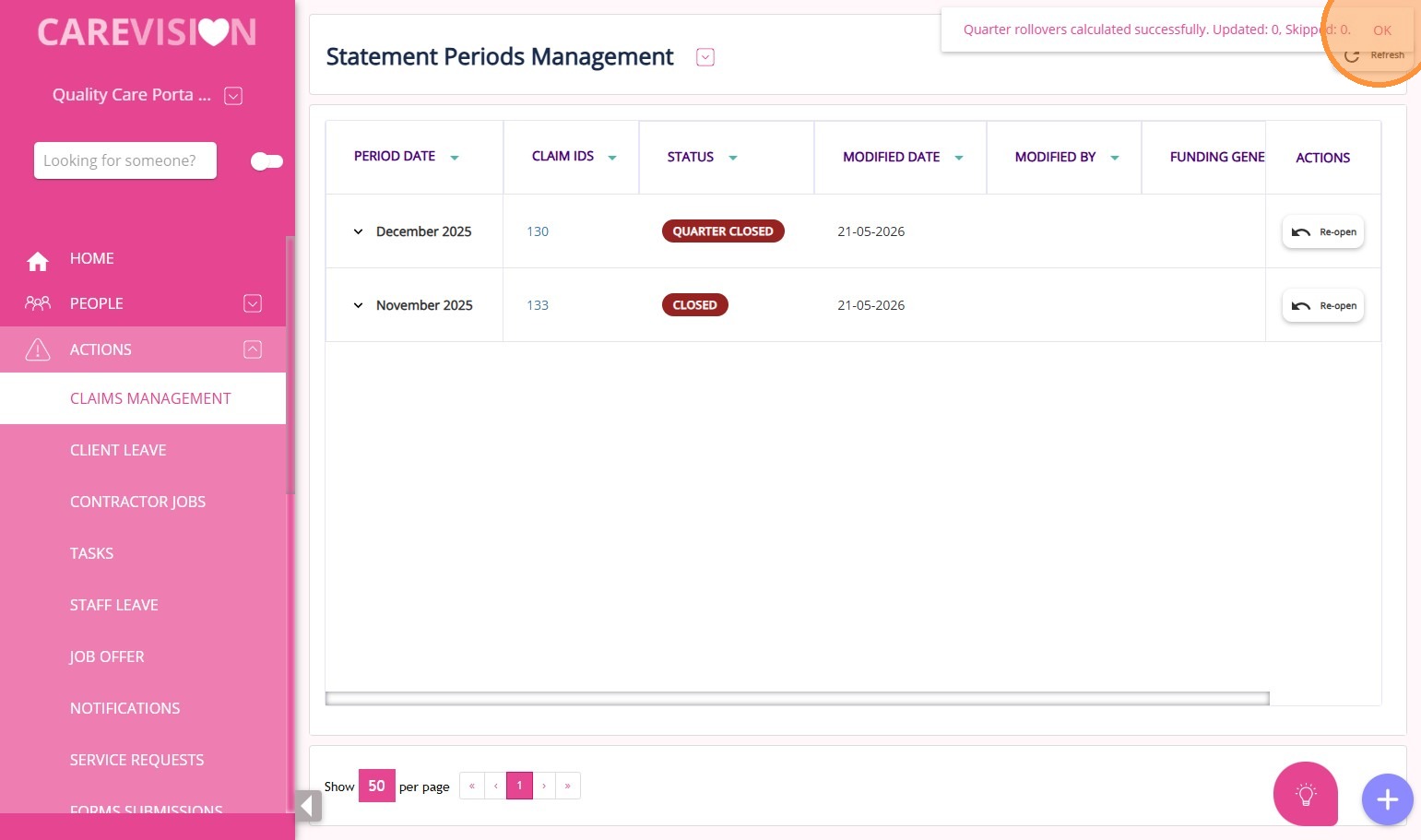
The system checks if the quarter can be closed, calculates rollover funds, and shows a success or error message based on the result.
Related Articles
How to Set Up Funding for Mid-Quarter Client Transfers
When a client transfers to a new provider mid-quarter, they do not carry over the full quarterly funding. Only the remaining balance must be applied, and it must be reflected in the funding setup. This topic describes how to set up funding for ...FAQ: Validate button in Scheduling page, how does it work?
Overview The Validate button calculates the total working hours of a Field Care Professional based on their Pay Period. This allow administrators to see how many hours a staff member has worked and will work for a certain pay period, enabling them to ...How to Use the “Approve & Apply External Details” Button
The Approve & Apply External Details button in the Service Review Board simplifies how you manage details for external services. This button allows you to approve multiple service items and apply the same invoice details without the need to enter the ...FAQ: How to Setup Care Domain, Goals, Condition and Treatment Plans in CareVision?
FAQ: How to Setup Care Domain, Goals, Condition and Treatment Plans in CareVision? OVERVIEW It's important to have a conversation with your clients about their goals, what they would like to achieve, and how they would like to achieve their goals. ...FAQ: How to setup Notifications in CareVision
FAQ: How to setup Notifications in CareVision Answer: Go to https://newportal.carevision.com/ Username and Password is the same as what you use in CareVision Management Portal Click Settings Click Notifications Settings Type in the notification you ...
Request an Article or Guide
We are keen to know what you want to know more about? Let us know on chat or raise a ticket for an article or topic you would like covered in more detail. We have a team of technical writers and learning content creators keen for your suggestions.