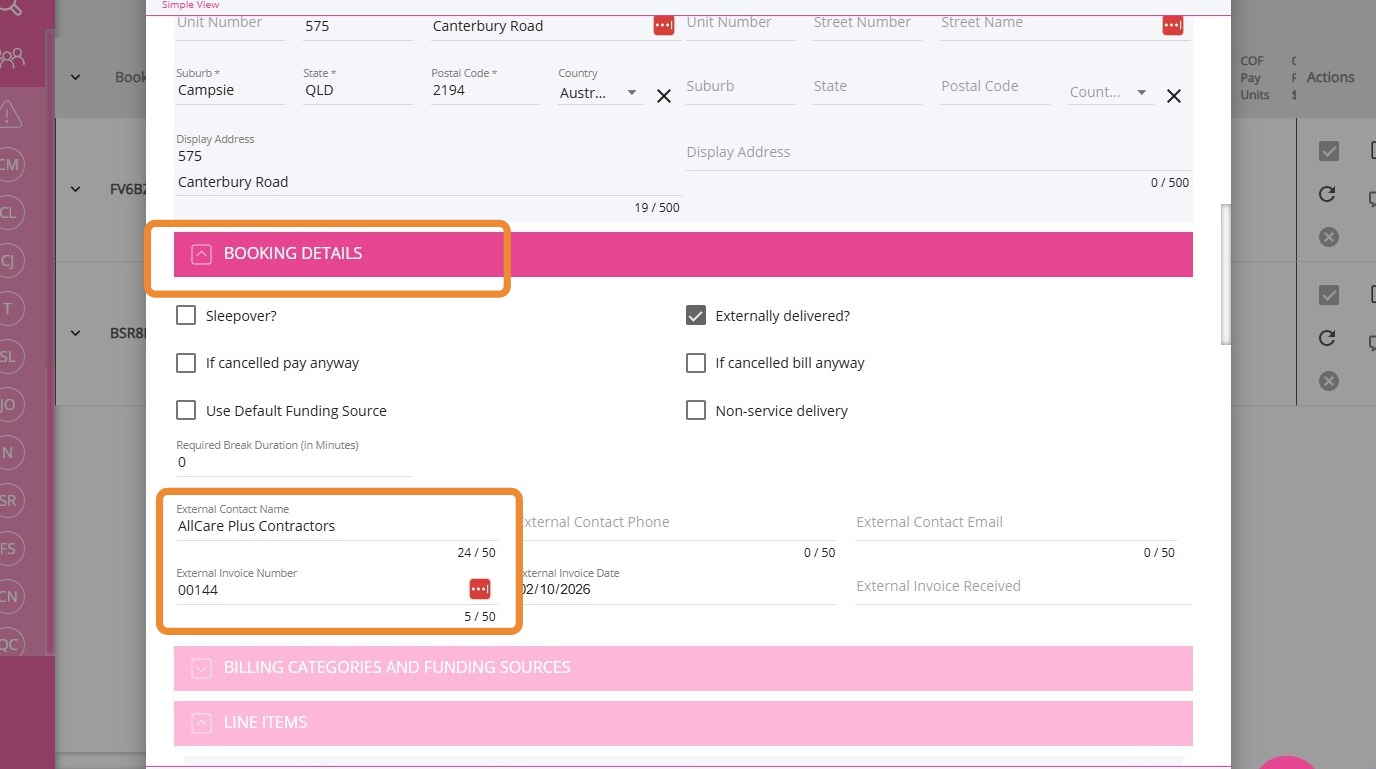
How to Use the “Approve & Apply External Details” Button
The Approve & Apply External Details button in the Service Review Board simplifies how you manage details for external services. This button allows you to approve multiple service items and apply the same invoice details without the need to enter the information repeatedly.
Keywords: approve external details, bulk service approval, service review, contractor invoice, apply invoice details, carevision, external contractor management, bulk processing, service review
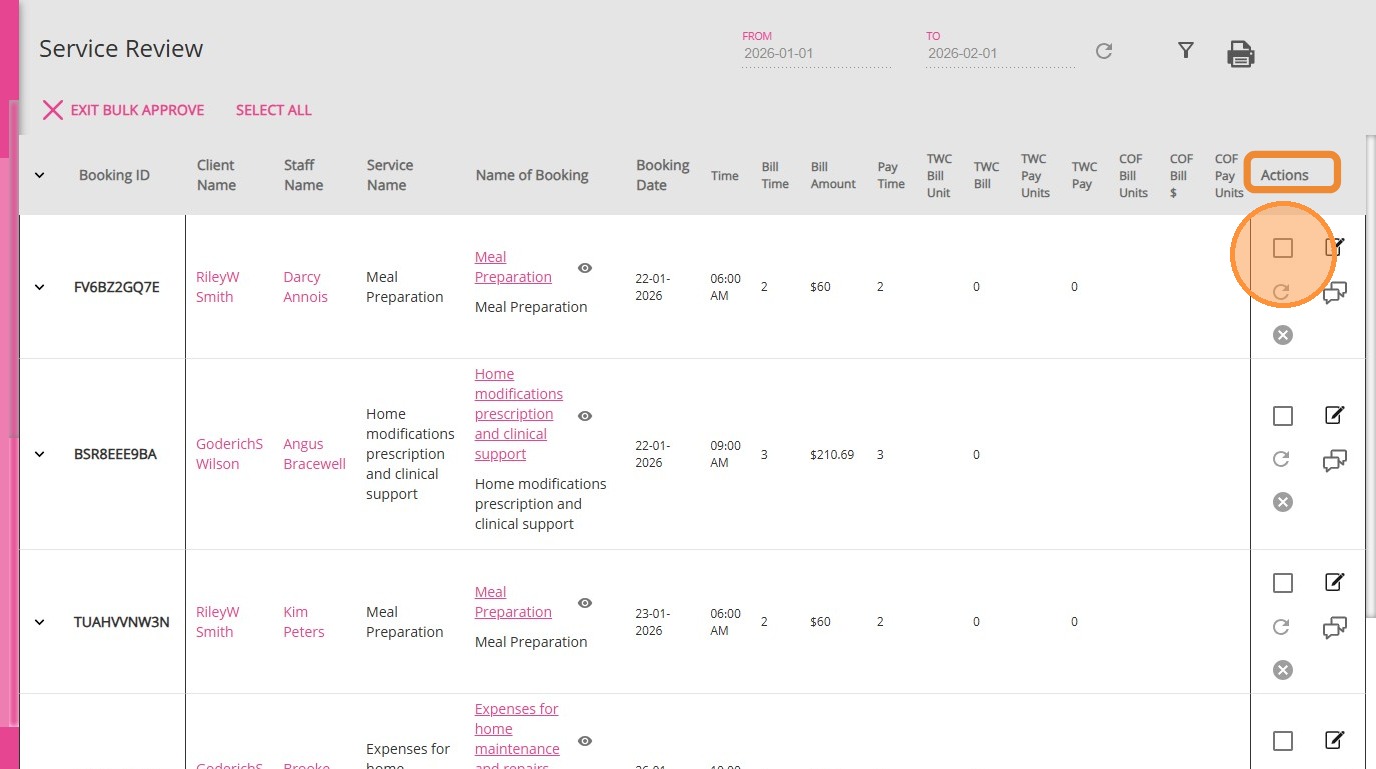
1. Under the Actions column, tick the boxes to select all relevant service review items you want to process in bulk.
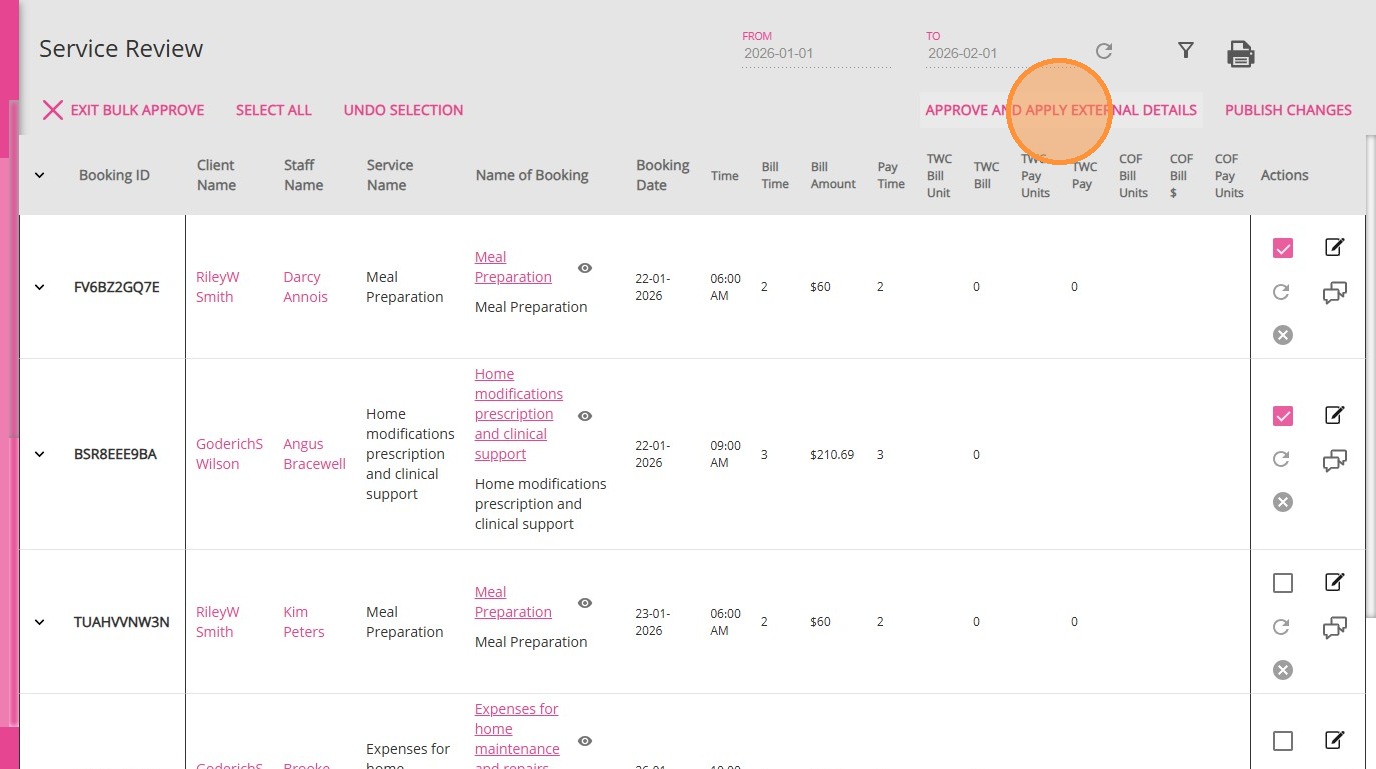
2. Click the Approve & Apply External Details button.
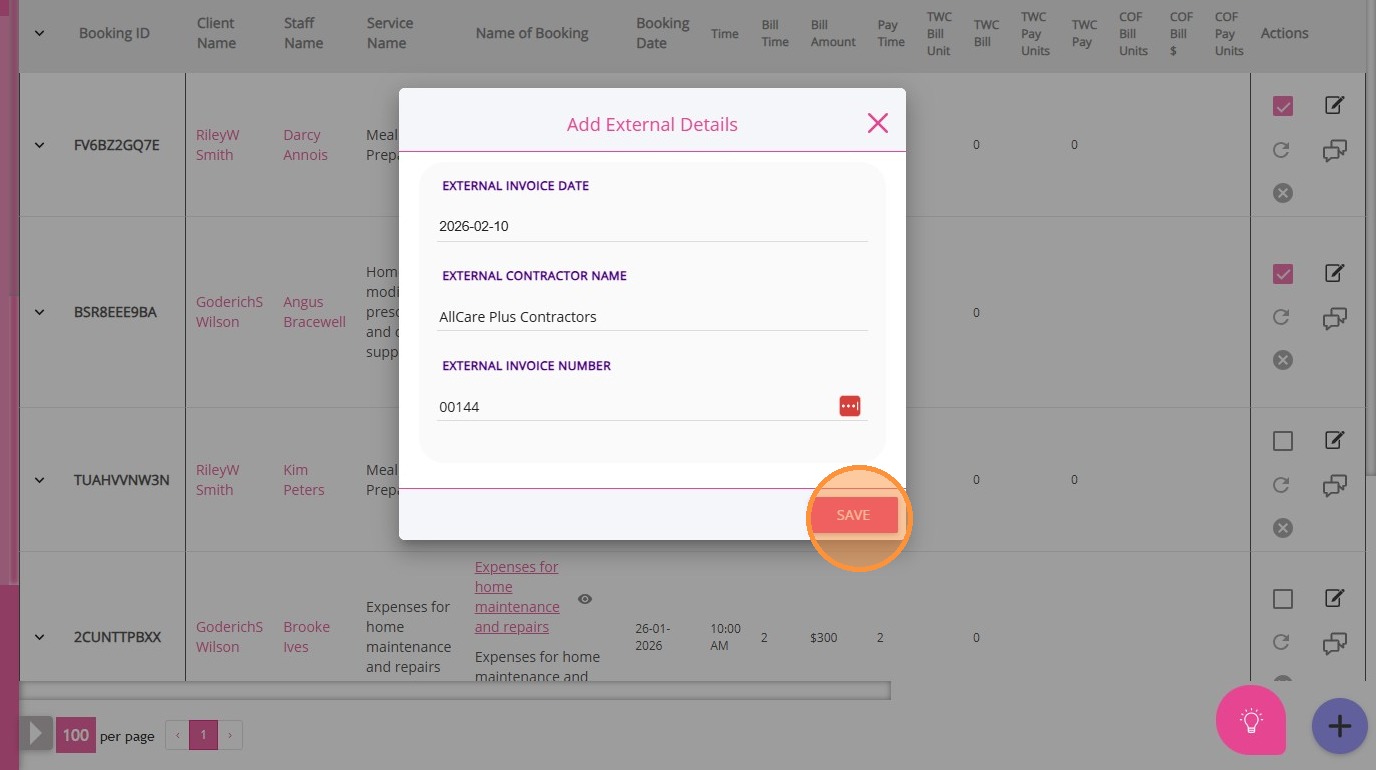
3. Enter the required details: External Contractor Name and External invoice Number.
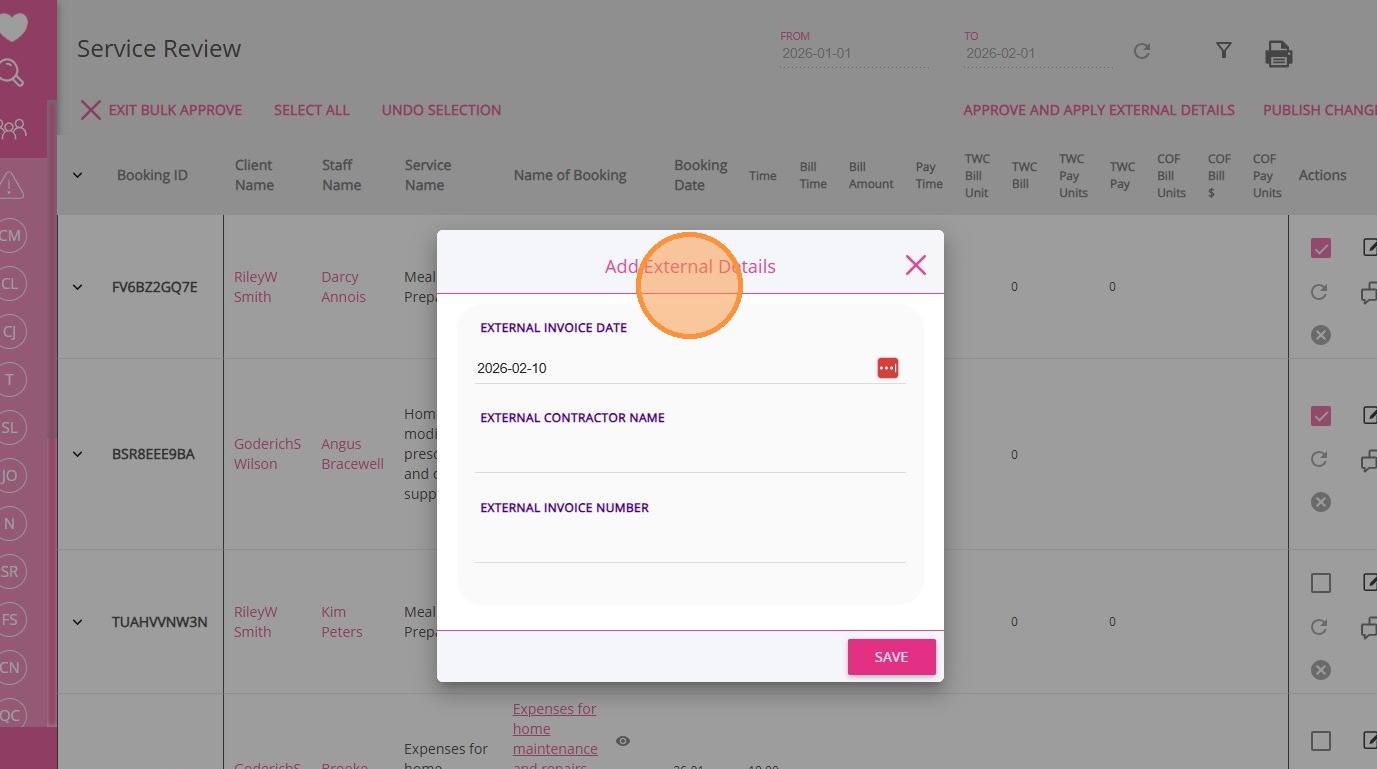
4. Click Save.
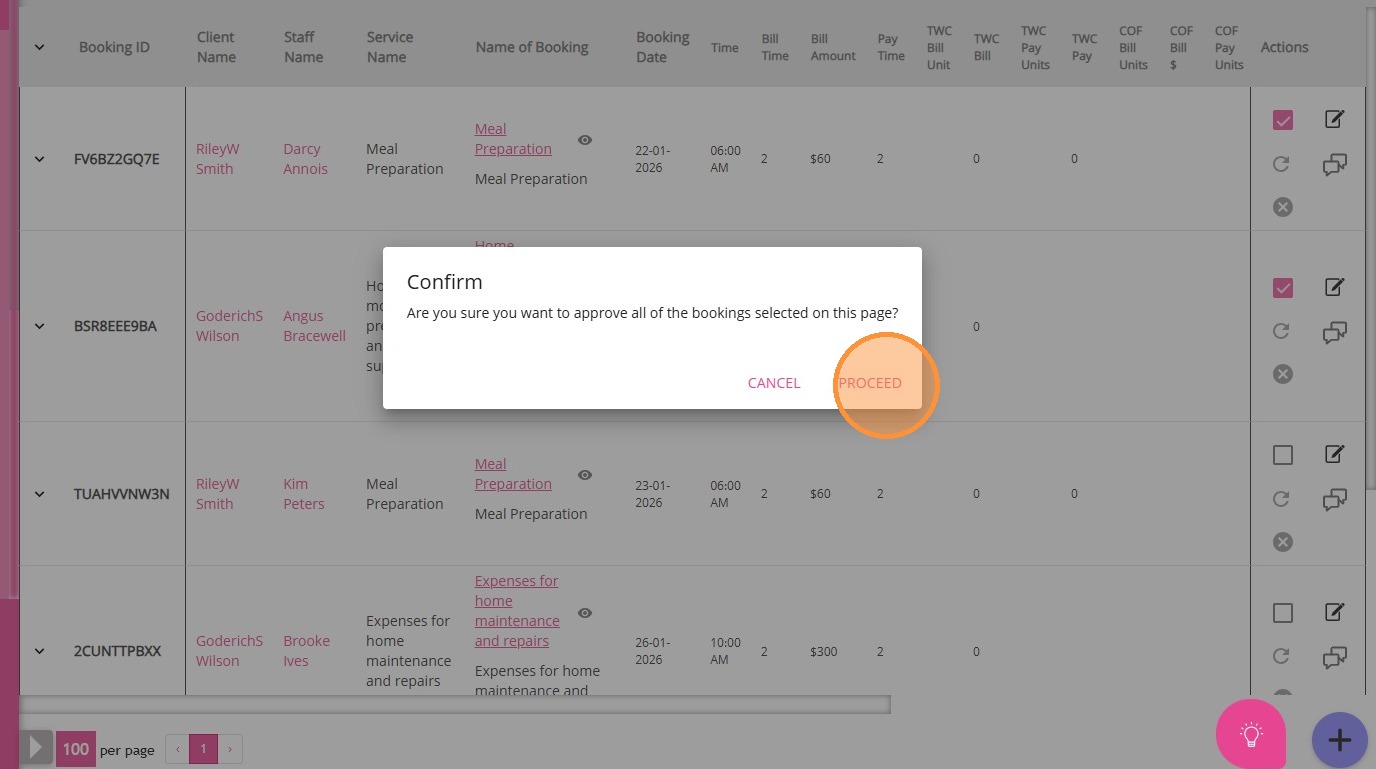
5. Click Proceed.
What Happens After You Save
- All selected items are approved.
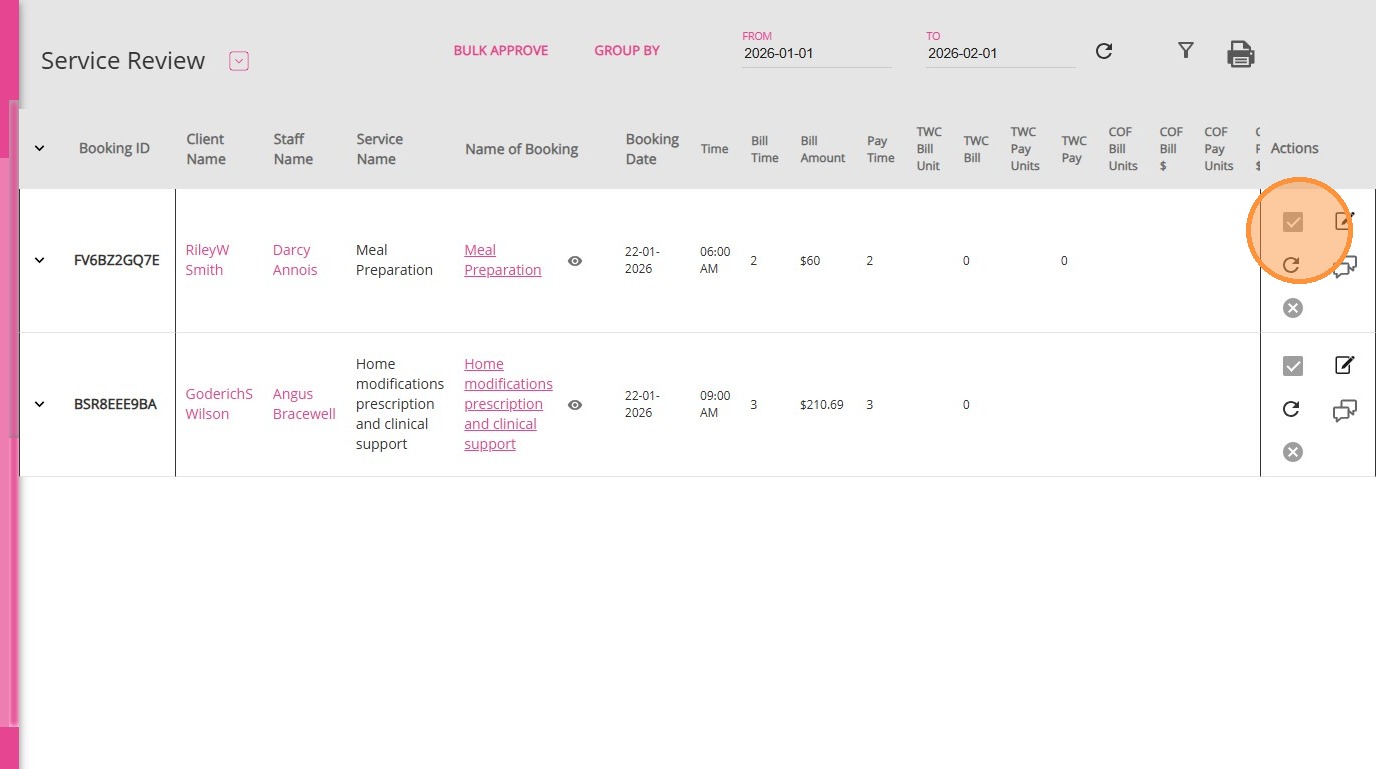
- The external details are applied to each item. When you open the booking details, the information you entered for the External Contractor Name and External Invoice Number fields will appear in the booking details.