Account Access and Security
I. Accessing Your Account
CareVision supports the following sign-in methods.
A. Username and Password
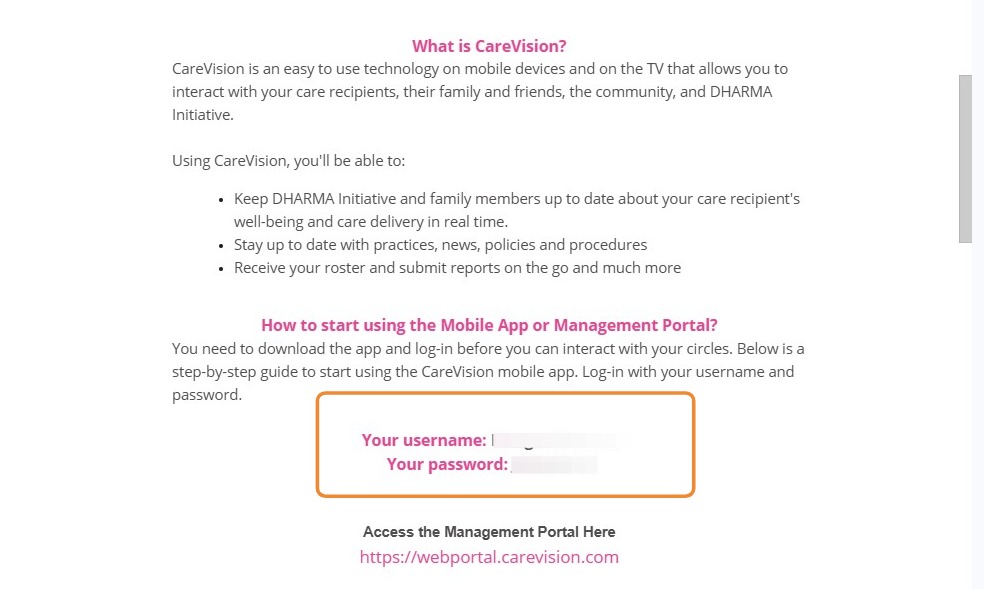
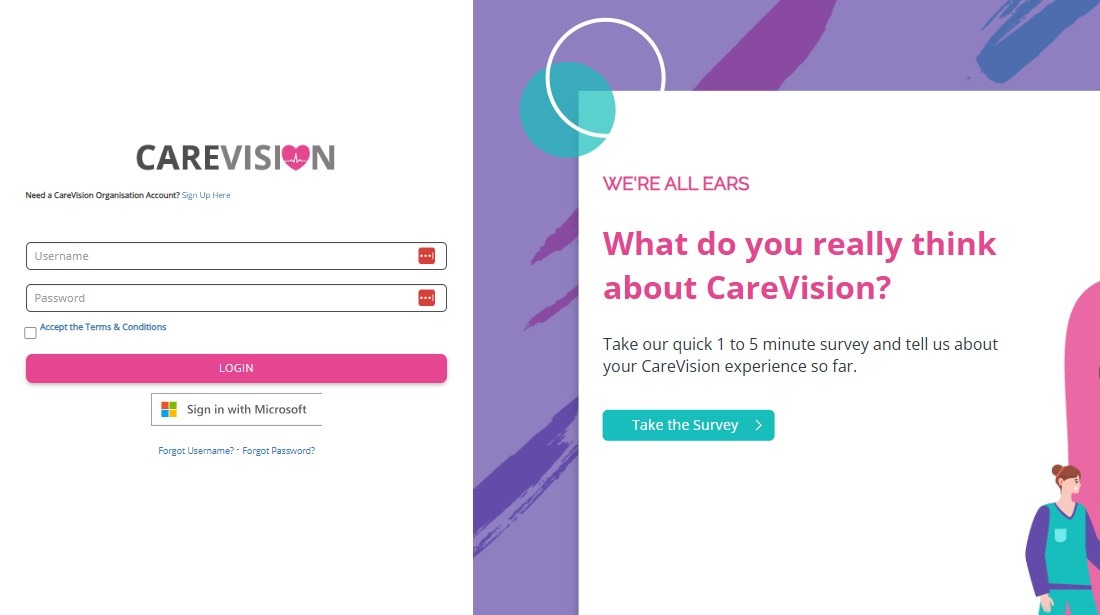
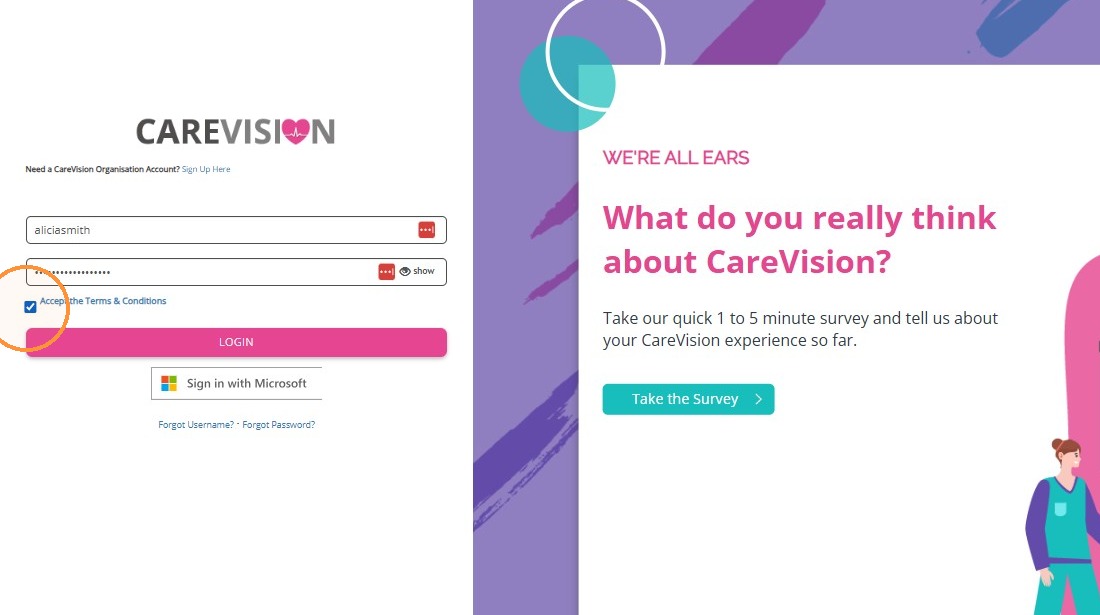
Enter your assigned username and password on the CareVision sign-in page.
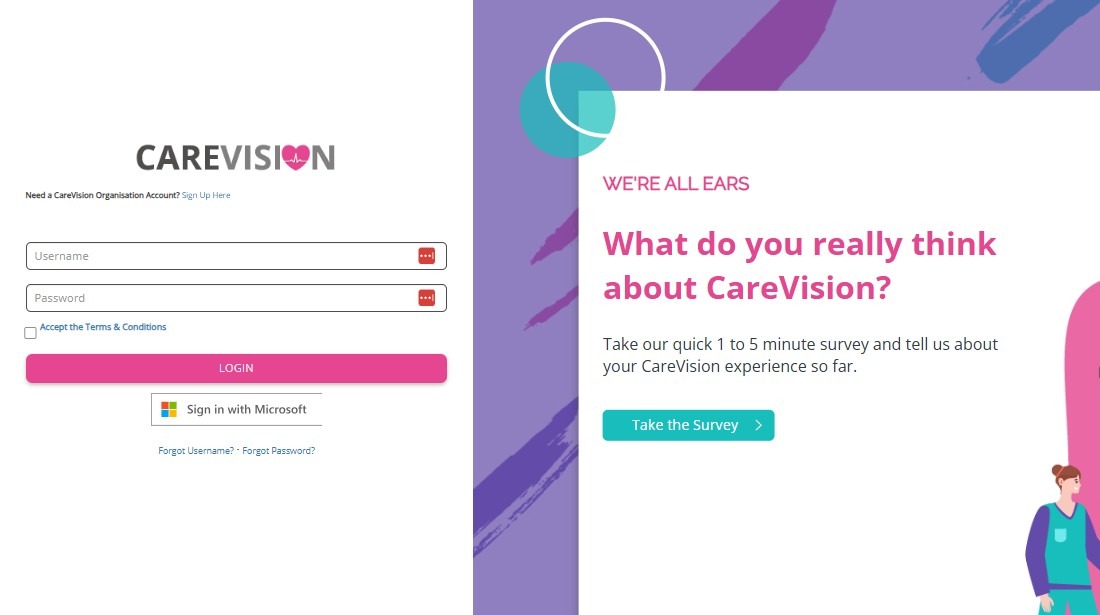
You must also tick the checkbox to accept the displayed terms and conditions before signing in.
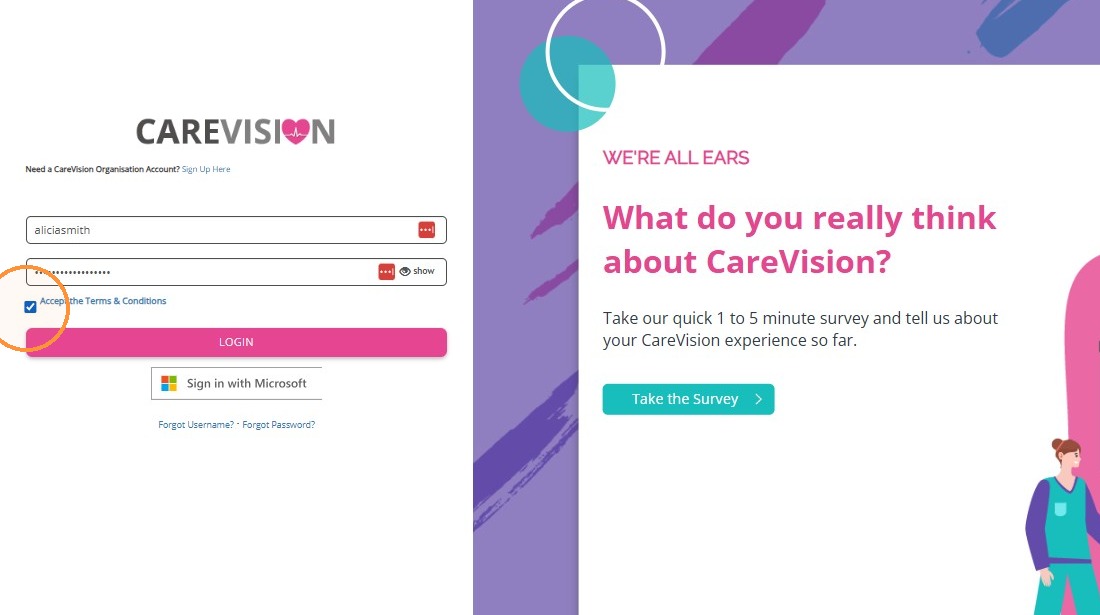
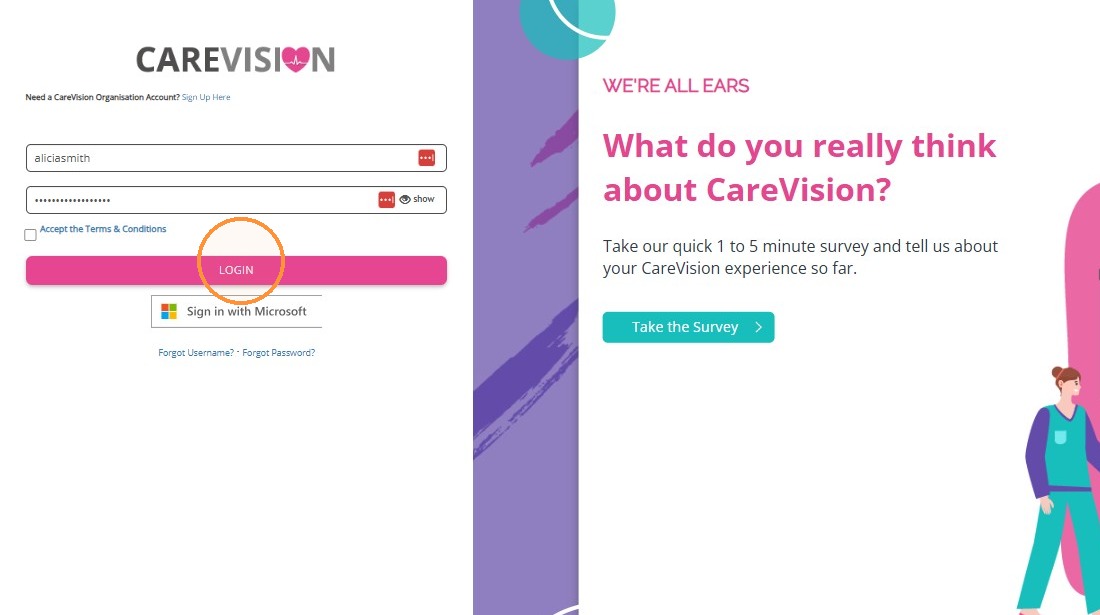
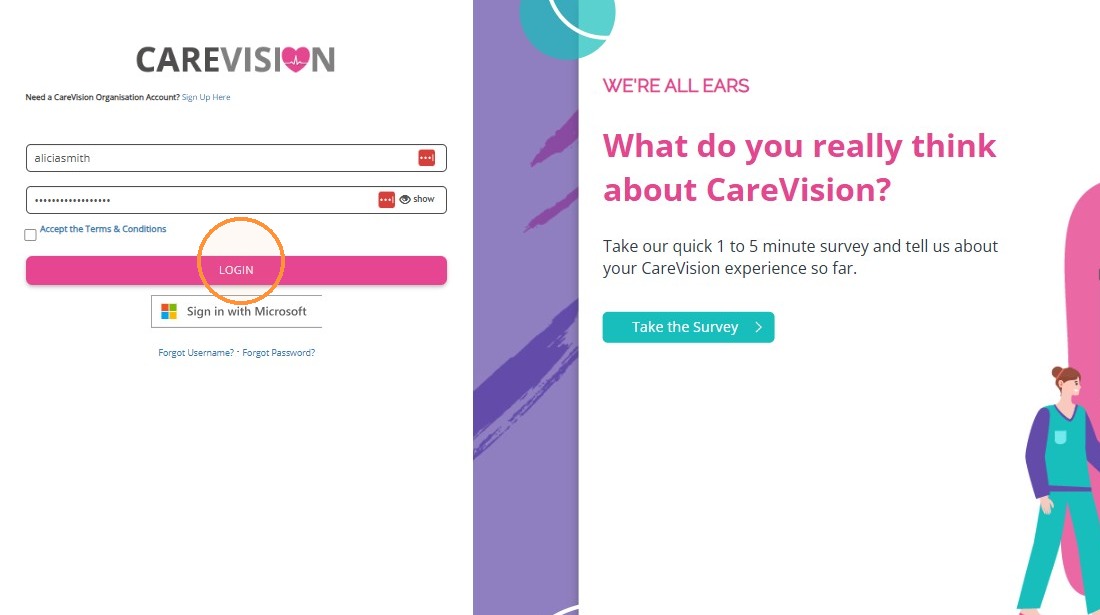
Then, click Login.
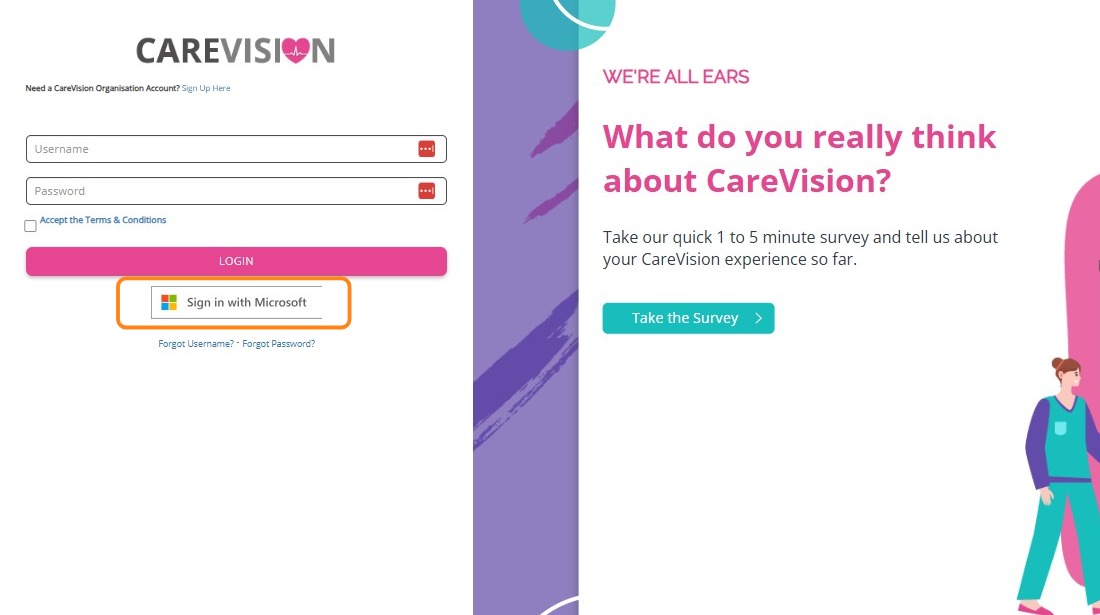
B. Sign In with Microsoft
If your organisation uses SSO, select Sign in with Microsoft and follow your organisation’s authentication process. You also need to complete multi-factor authentication.
Your organisation’s system administrator or IT team manages access to Microsoft SSO.

C. First-Time Account Access
When your organisation invites you to join CareVision, you will receive an email containing:
A link to the CareVision portal
Your username
A temporary password


 Note: Your organisation determines whether you can access the CareVision portal, mobile app or both based on your role and permissions. If you cannot access one of these options, contact your organisation’s system administrator to check your account settings.
 II. CareVision Environments
CareVision has separate environments for live work, testing and other controlled activities. Most users work only in Production unless their organisation provides access to another environment.
Check the environment before viewing, entering or changing information.
III. When to Contact Support
- Creating or activating a user
- Correcting a registered email address
- Changing a user’s role or permissions
- Microsoft SSO or multi-factor authentication issues
- Access controlled by your organisation’s IT policies
- Username or password recovery does not work.
- Your administrator confirms that your account is configured correctly, but you still cannot sign in.
- You see an unexpected error on the CareVision sign-in page.
- Several users cannot access CareVision at the same time.
- The platform appears unavailable.
- Your name and organisation
- The environment you are trying to access
- Whether you are using the web portal or mobile app
- Your sign-in method
- The exact error message
- When the problem began
- A screenshot, if appropriate
For more information about account access and security, contact the CareVision Support Team.
Related articles
How to Change Your Password in CareVision
Related Articles
Single Sign-On with Microsoft Entra
Single Sign-On (SSO) with Microsoft Entra provides a secure way for your organisation’s staff members to access CareVision using their existing Microsoft accounts. This reduces the need for separate credentials while supporting access to both the ...How to Change Your Password in CareVision
I. Change Your Password To keep your account secure, we recommend changing your password after your first login. Follow these steps to change your password: Log in to the CareVision portal using your username and password. In the left menu, click My ...CareVision Academy
CareVision Academy is the central learning hub for CareVision users, designed to support onboarding and continuous skill development. It provides a repository of training resources, including introductory system guides, major learning series such as ...Submit a Ticket to CareVision
CareVision aims to provide assistance so you can make the most of our platform and maintain smooth operations. We provide several ways for you to receive help quickly and easily. Submitting a ticket is one of the fastest ways to reach our support ...How to Change Your Username in CareVision
To change your username in the CareVision portal, follow these steps: 1. Log in to the CareVision portal using your username and password. 2. In the left navigation pane, click My Account. 3. Click Change Username. 4. In the New Username field, ...