Single Sign-On with Microsoft Entra
Single Sign-On (SSO) with Microsoft Entra provides a secure way for your organisation’s staff members to access CareVision using their existing Microsoft accounts. This reduces the need for separate credentials while supporting access to both the CareVision management portal and CareVision Plus Mobile App.
This topic covers Microsoft Entra Single Sign-On, including how to configure it for your organisation and staff members, and how to resolve common sign-in issues.
Keywords: single sign-on, microsoft entra, carevision sso, entra authentication, openid connect, microsoft login, sso setup, staff authentication, entra tenant, object id
SSO is configured at two levels:
| Level | What it does | Who completes it |
| 1. Organisation integration | Links your organisation’s CareVision entity to its Microsoft Entra tenant. This must be completed before SSO can be enabled for individual staff members. | A person from your organisation who has an account in the Microsoft Entra tenant being integrated. |
| 2. Enabling SSO for staff members | Links each staff member’s Microsoft Entra Object ID to their CareVision profile. The Object ID is the unique identifier used to connect the staff member’s identity across the two systems. | An authorised CareVision user updates each staff member’s profile.
|
A. Setting up the organisation integration
To link your organisation’s CareVision account to a Microsoft Entra tenant:
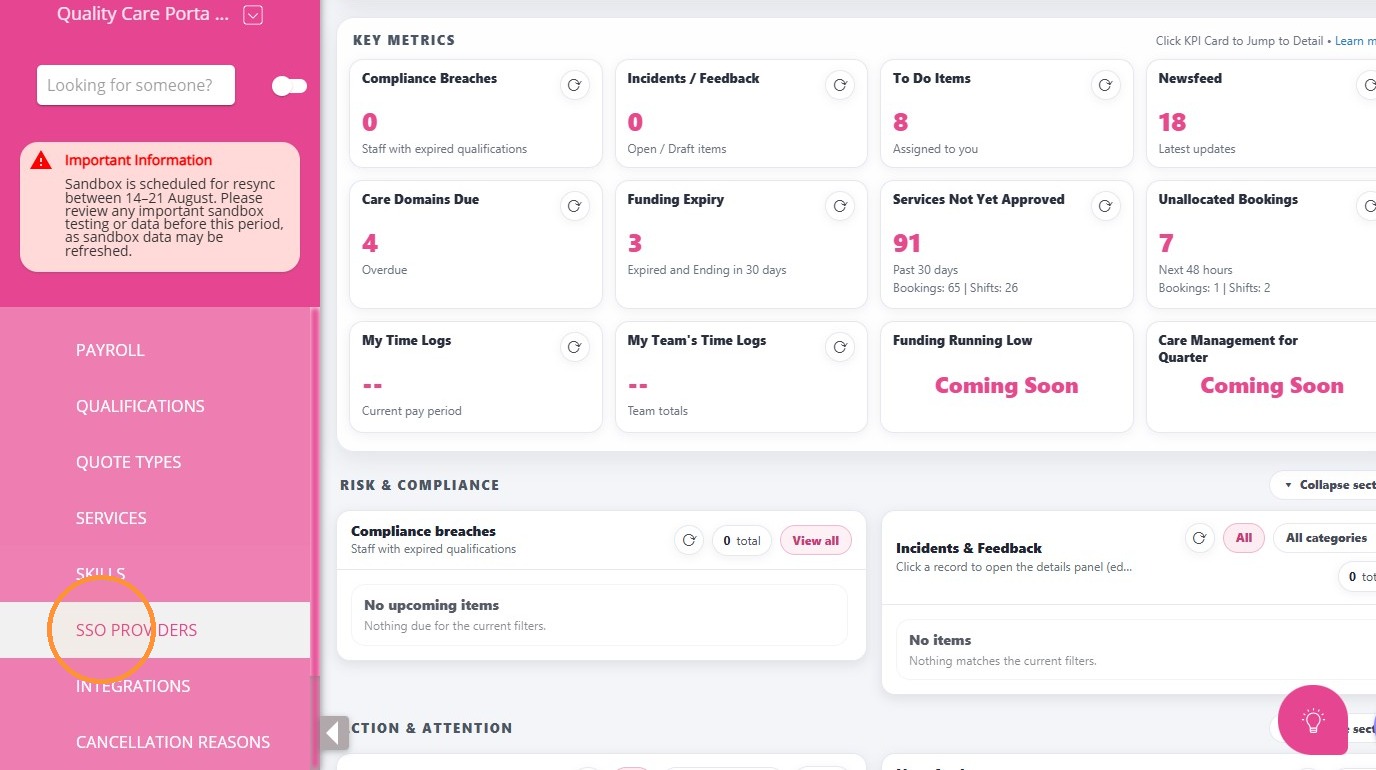
1. Go to Settings > SSO Providers
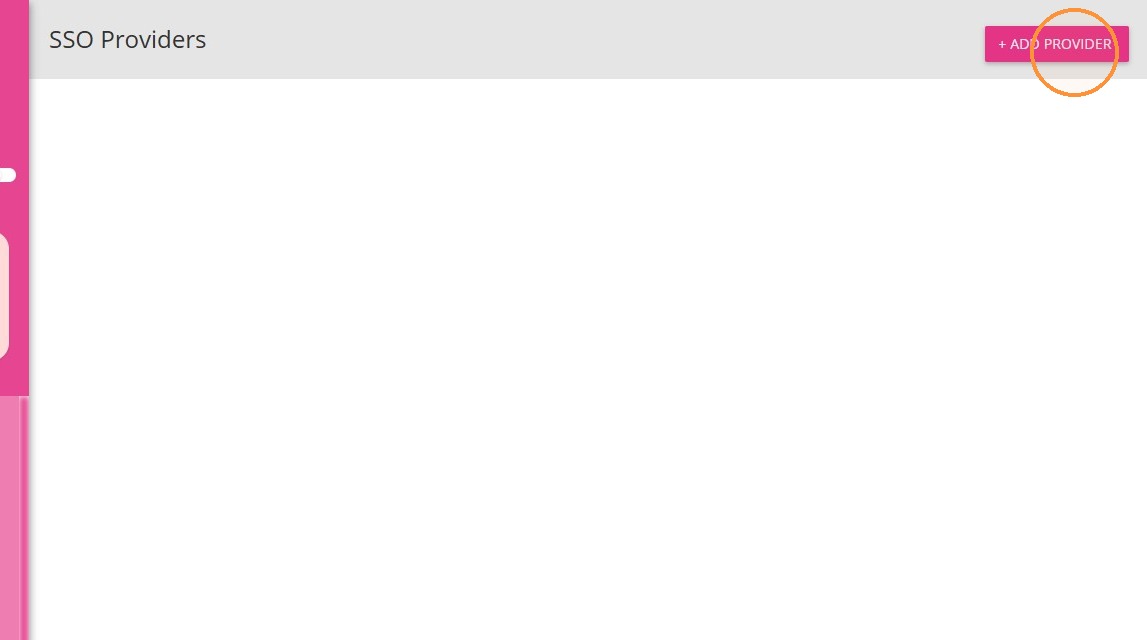
2. Click + Add Provider in the top-right corner.
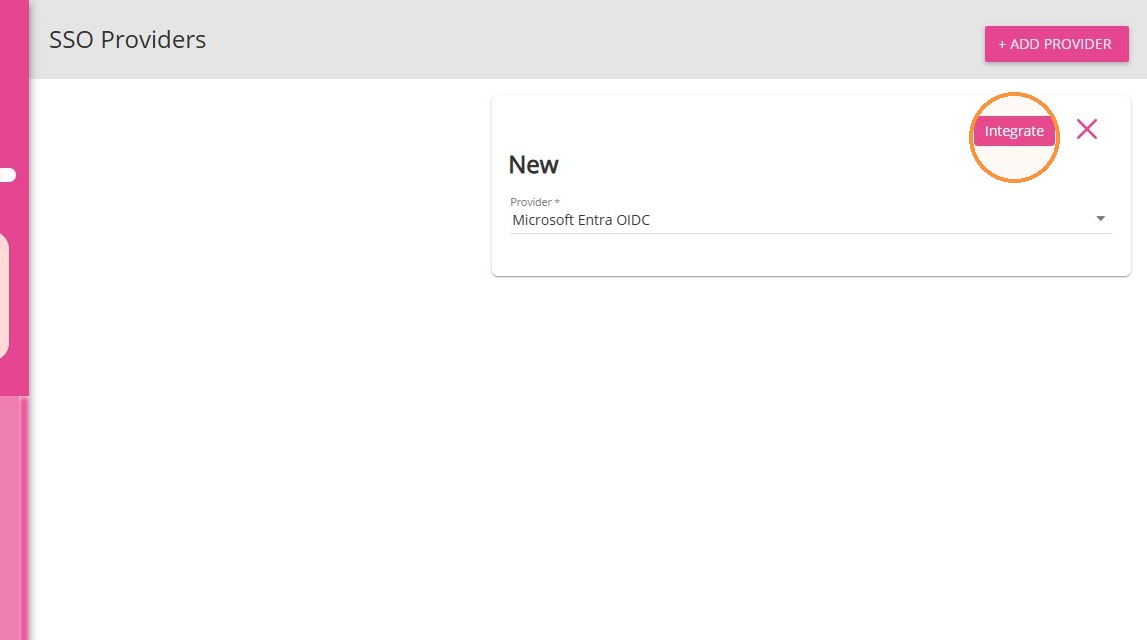
3. Select Microsoft Entra OIDC from the Provider dropdown.
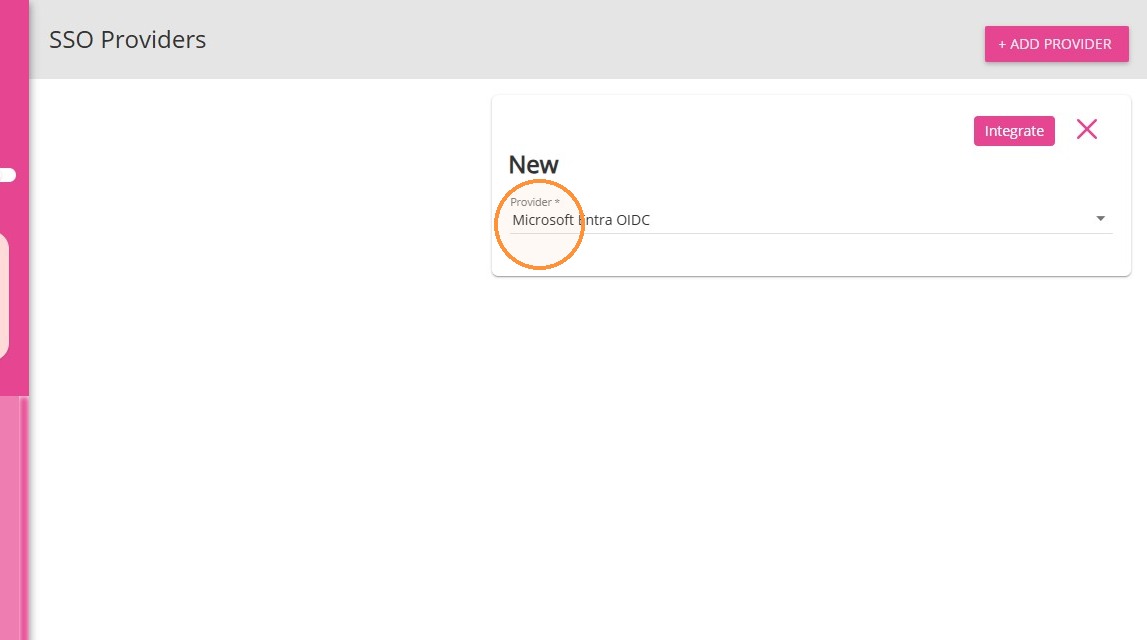
4. Click Integrate. You will be redirected to the Microsoft sign-in page.
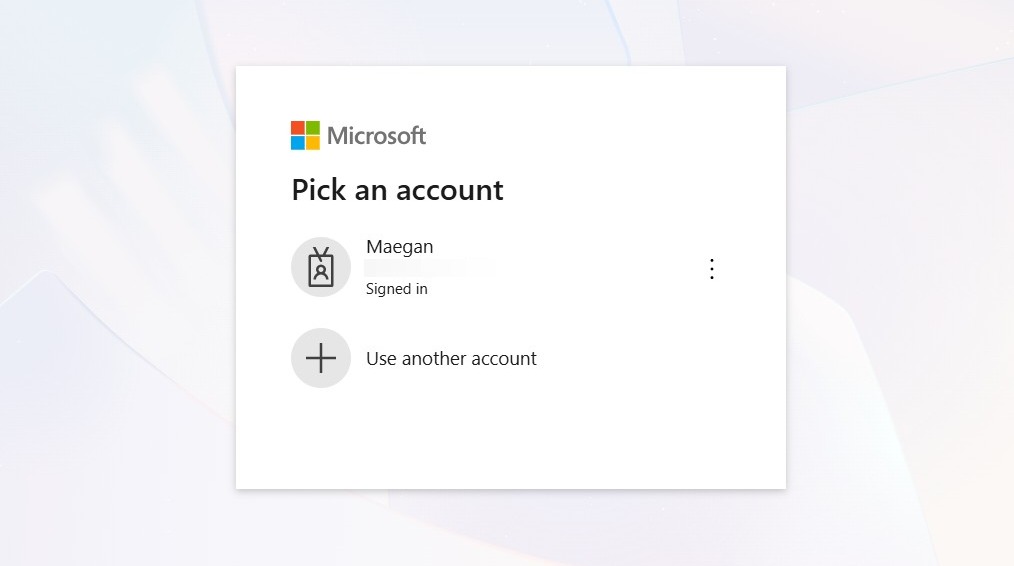
5. Sign in with a Microsoft account belonging to the tenant you want to integrate.
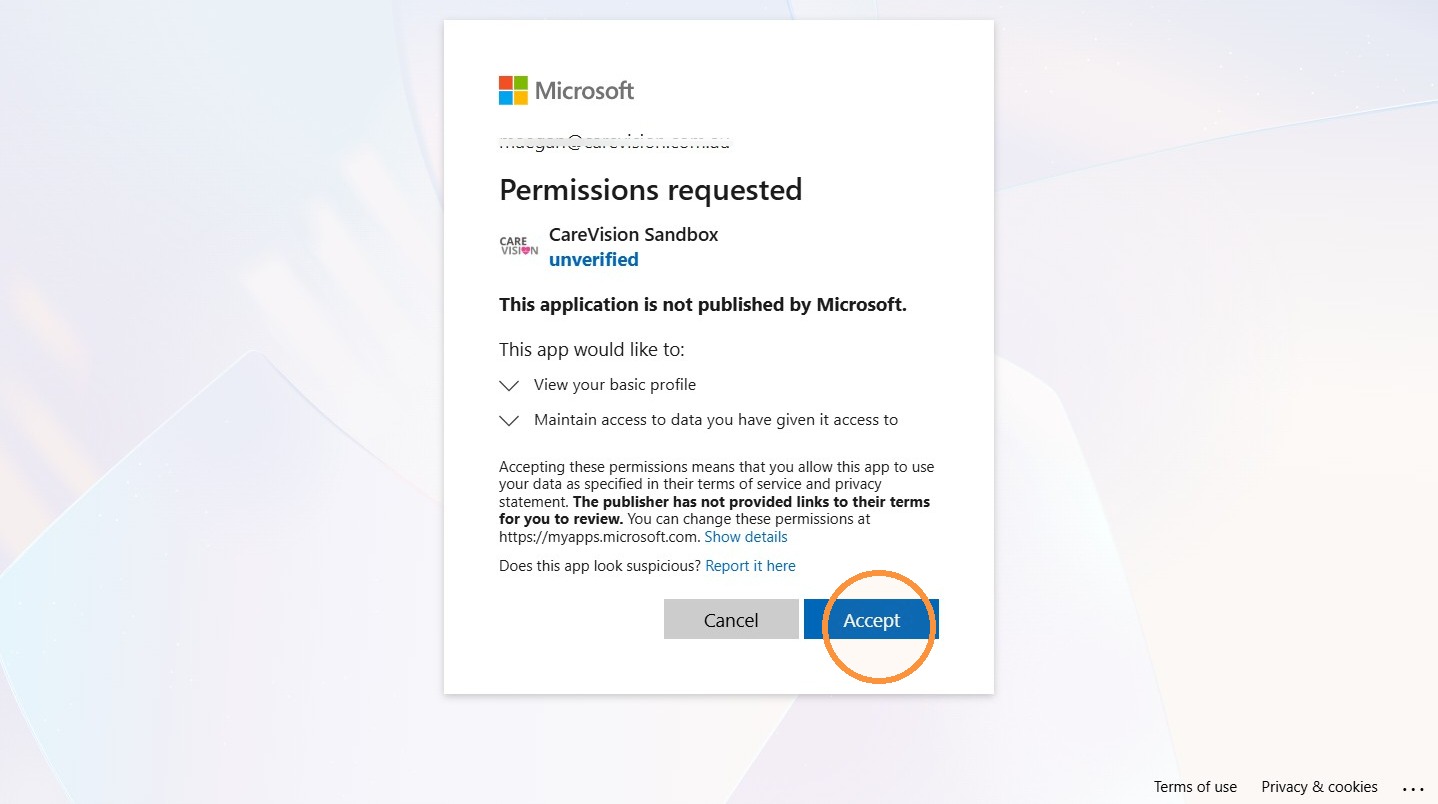
6. Review and Accept the permission request. CareVision requests access only to basic profile information, including the account holder’s name, profile picture and username.
7. (Optional) You can rename the provider to make it easier to recognize. This is recommended if your organisation has more than one Microsoft Entra tenant.
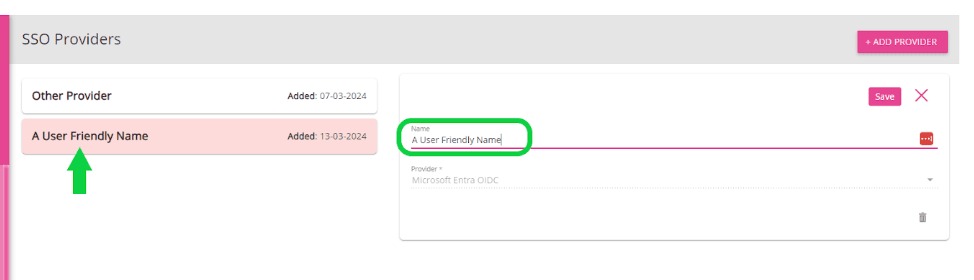
After authentication, CareVision automatically captures the tenant ID and links the current CareVision organisation to that Microsoft Entra tenant.
B. Enabling SSO for a staff member
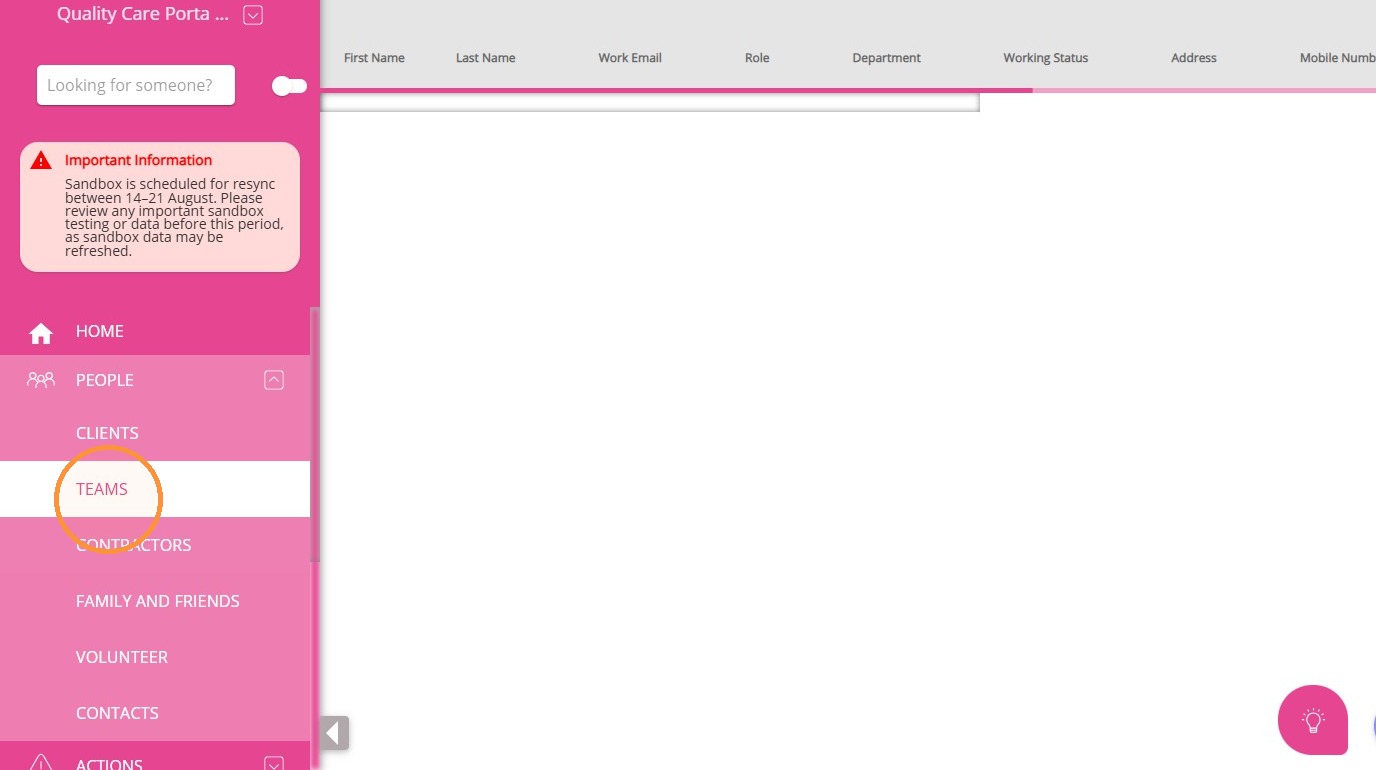
1. Go to People > Teams and open the staff member’s profile.
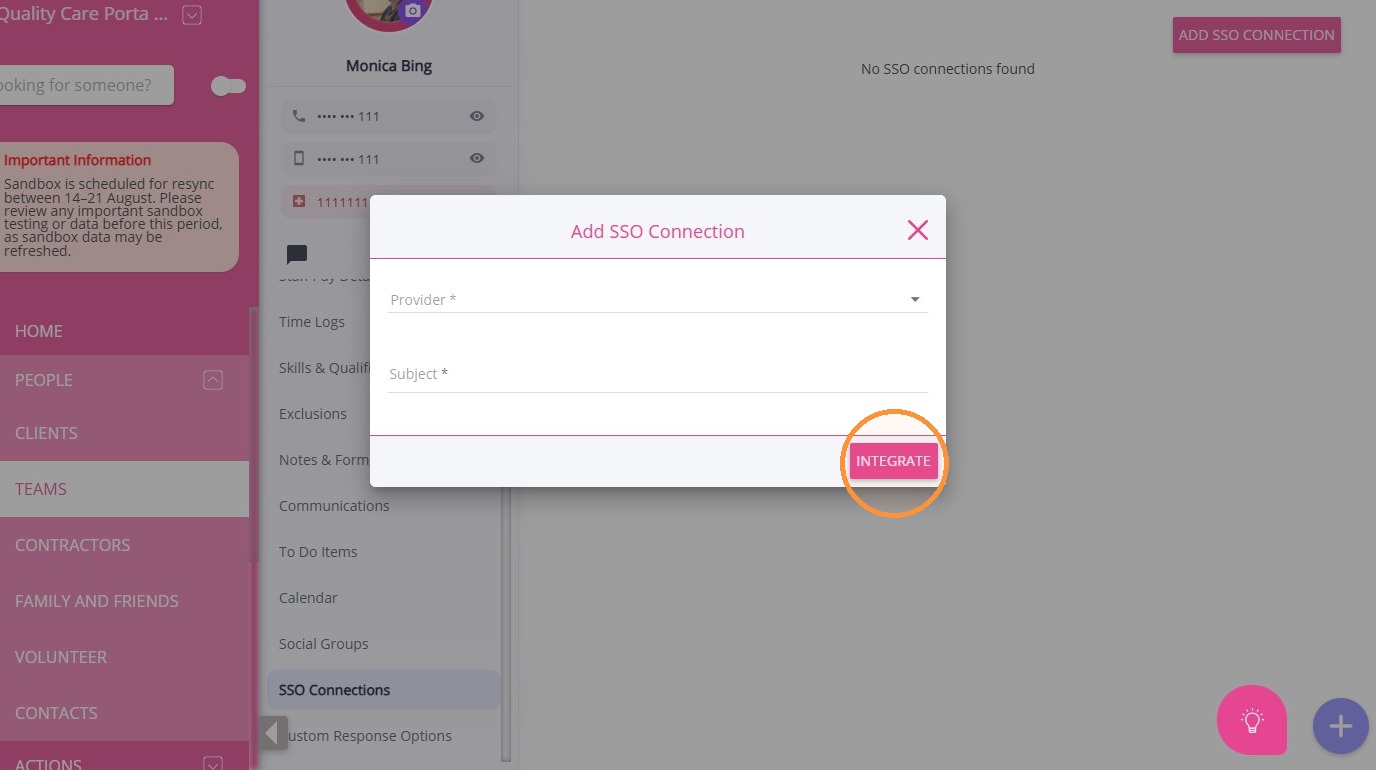
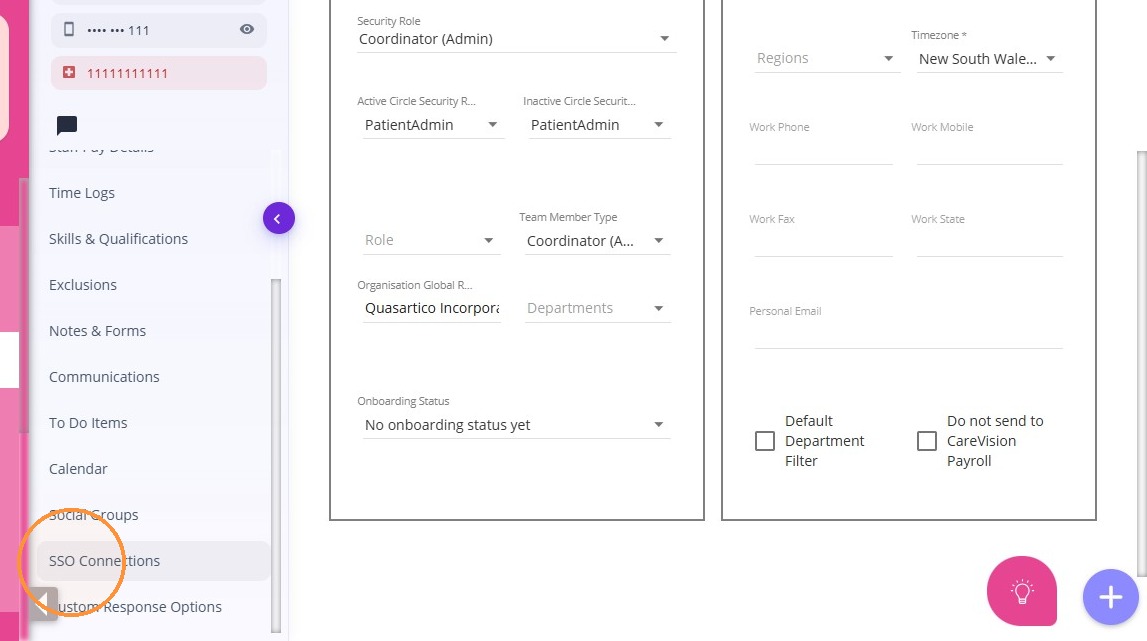
2. Expand the SSO Connections section. This section lists and manages all SSO connections for that staff member.
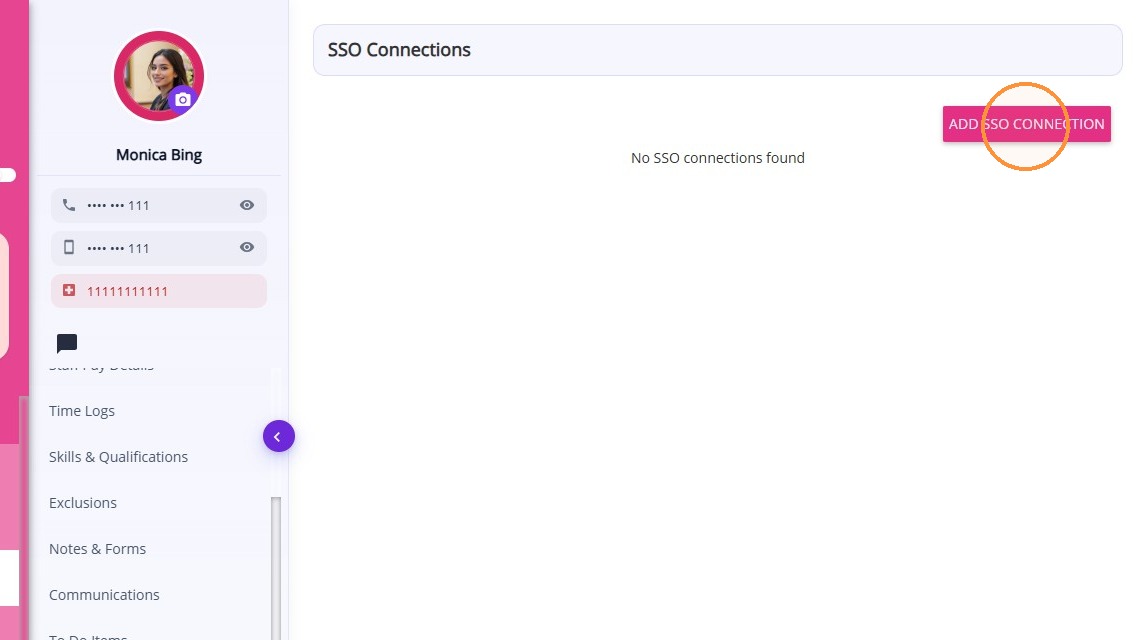
3. Click Add SSO Connection.
4. In the Provider field, choose the Microsoft Entra provider linked to your organisation.
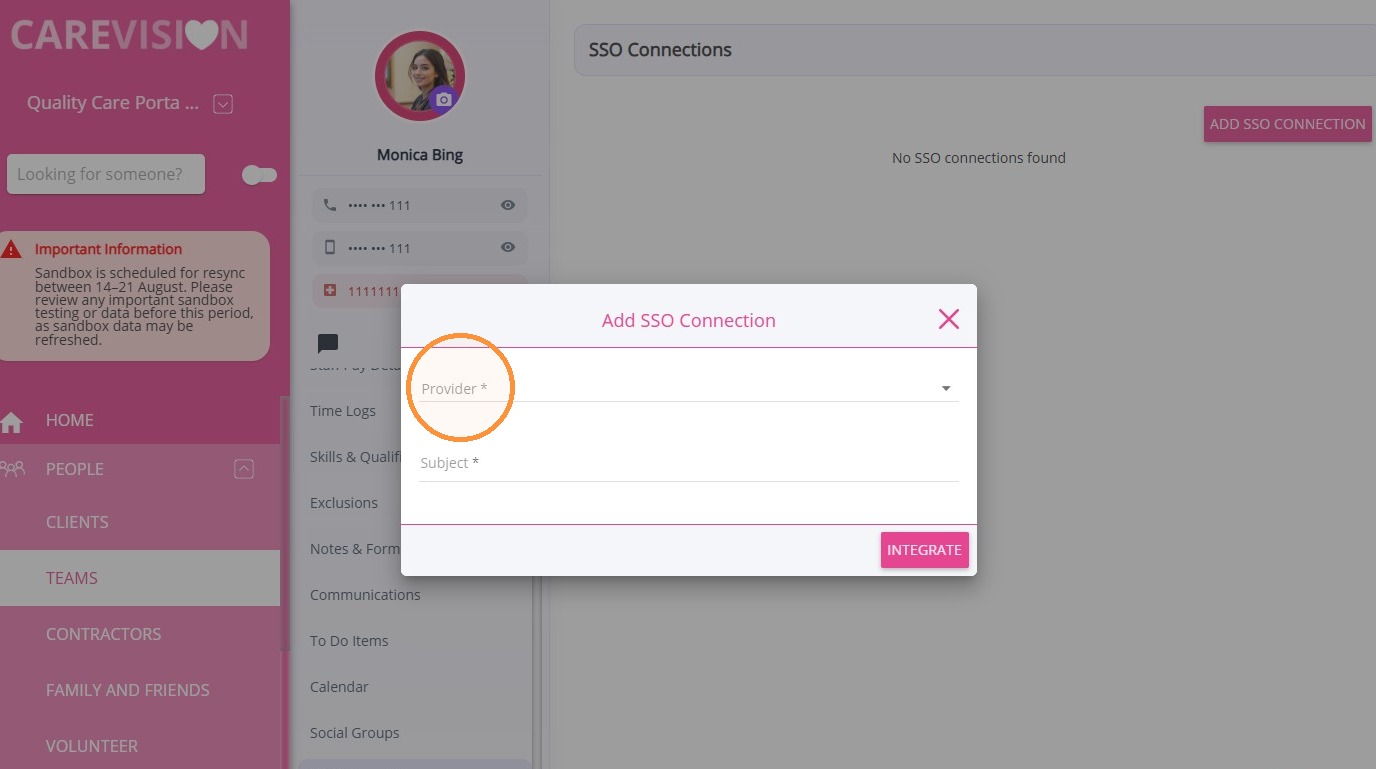
5. In the Subject field, enter the staff member’s Microsoft Entra Object ID.
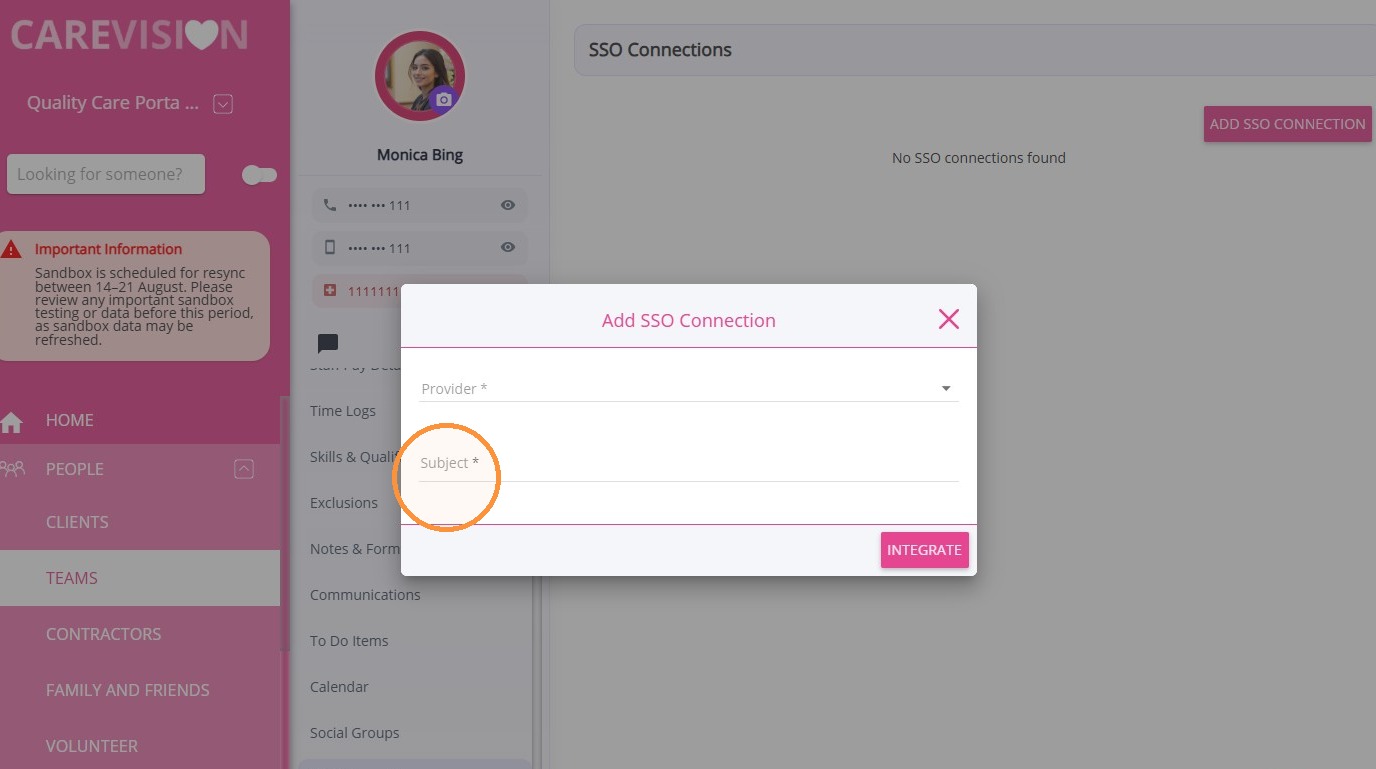
The staff member can now sign in to CareVision using their Microsoft account.
C. Enabling SSO in bulk
Your organisation can import staff members’ Object IDs in bulk by supplying a CSV file. The file must map each staff member’s Microsoft Object ID to one of the following CareVision identifiers:
Email address
Employee ID
CareVision user ID
Before completing a bulk import, check that the identifiers are accurate and that all intended staff members are included.
D. Signing in with SSO
Once your organisation is integrated and the staff member’s profile is linked:
1. Go to the CareVision sign-in page.
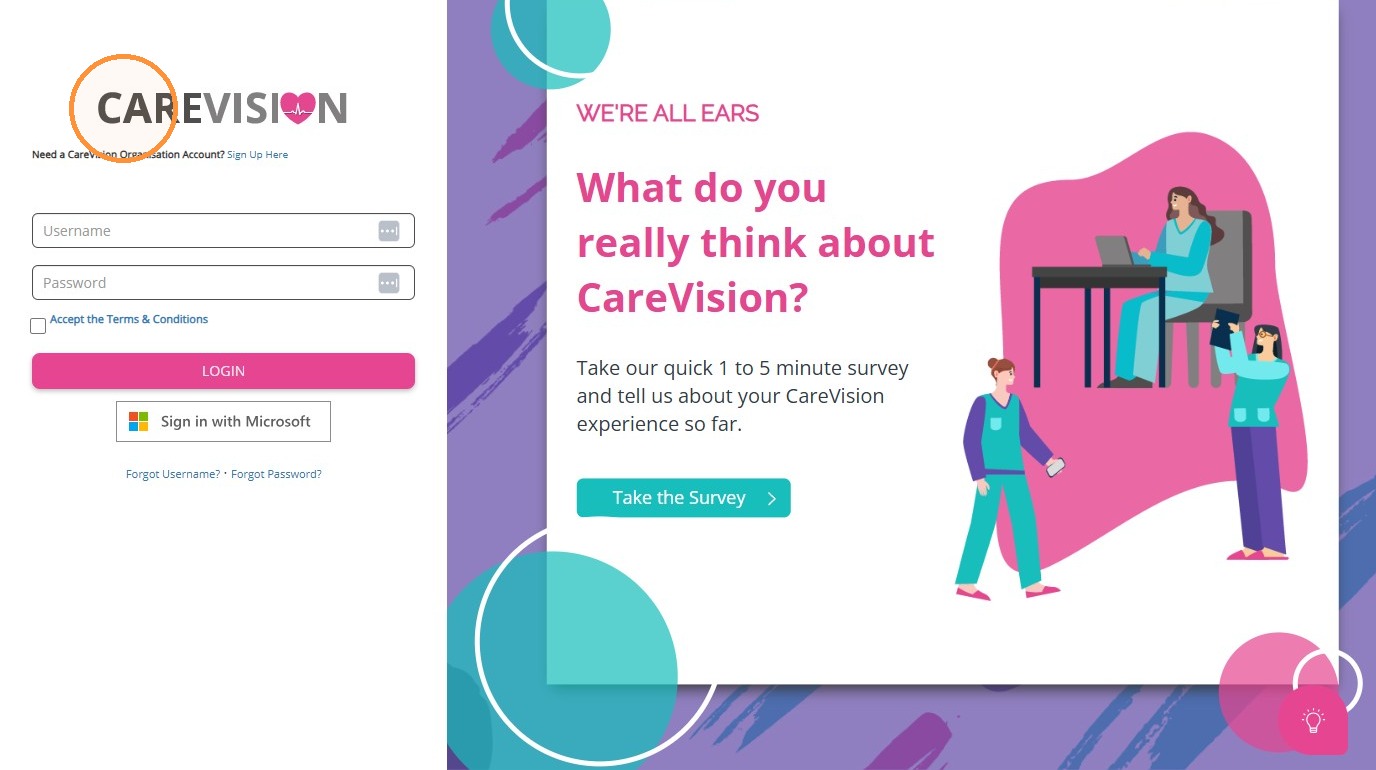
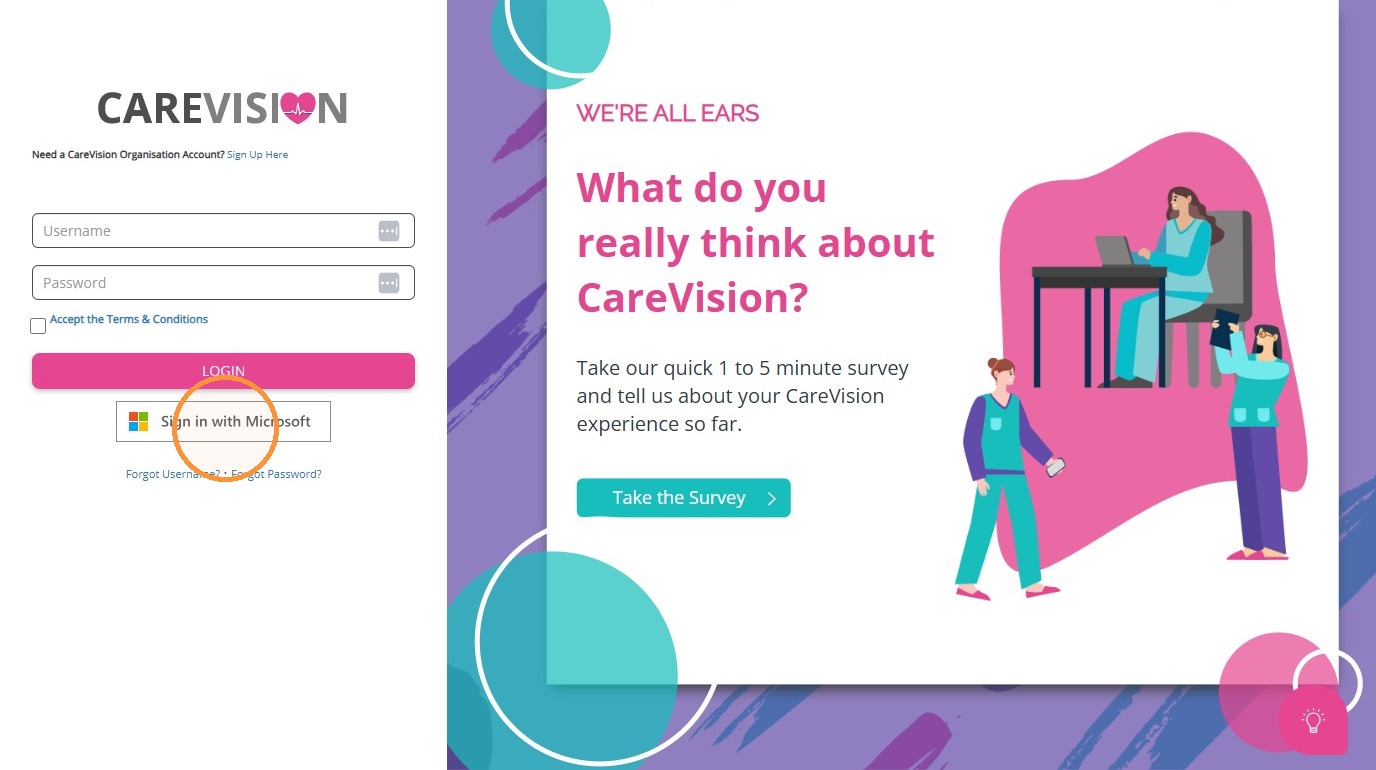
2. Click Sign in with Microsoft.
3. Sign in to Microsoft or choose an account that is already signed in.
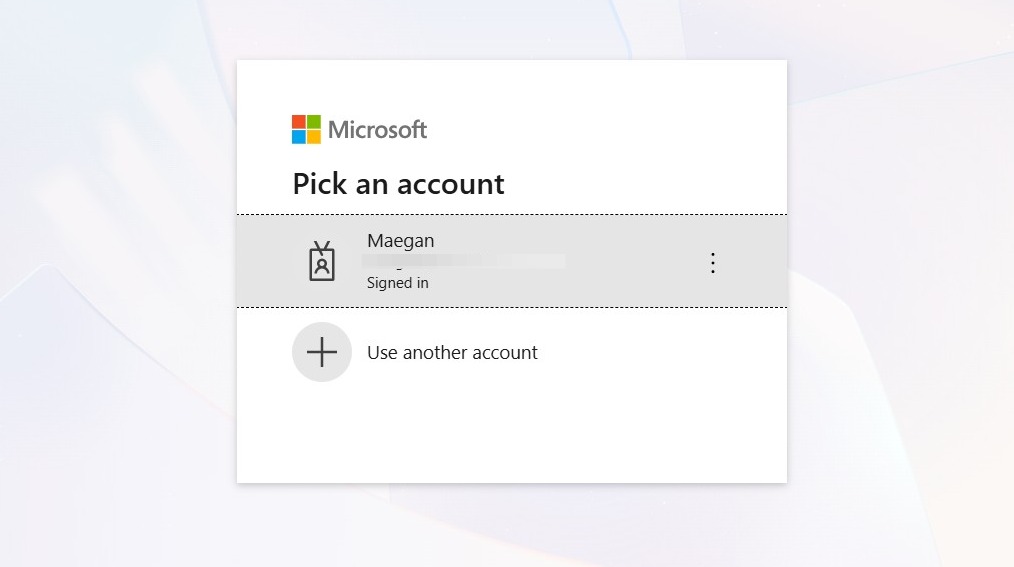
4. Click Accept. Microsoft authenticates the account and redirects the staff member to CareVision.
Note: The same process applies when signing in through the CareVision Plus Mobile App.Troubleshooting Microsoft Entra SSO
| Symptom | Likely cause | What to check |
| Selecting “Sign in with Microsoft” does nothing or displays an immediate error | The organisation integration was not completed or was configured for a different Microsoft Entra tenant. | Go to Settings > SSO Providers. Confirm that a provider is configured and check which tenant it is linked to. |
| One staff member cannot sign in, but everyone else can | The staff member’s Microsoft Entra Object ID is missing or incorrect. | Open the staff member’s profile and review SSO Connections. Confirm that a connection exists and that the Subject field contains the correct Object ID. |
| A group of new staff members cannot sign in | Their CareVision profiles were created without SSO connections, or they were omitted from a bulk import. | Review the affected staff members’ profiles. If your organisation used a CSV import, confirm that it was completed and that the affected staff members were included. |
| Staff members in one part of the organisation cannot sign in | Your organisation uses multiple Microsoft Entra tenants, but only some of them have been integrated. | Check how many providers are configured under SSO Providers and identify the tenant used by the affected staff members. |
| SSO worked previously but has stopped working | Something may have changed in your organisation’s Microsoft environment, such as a tenant or policy change, or a Microsoft account may have been disabled. | Ask your organisation’s IT team to confirm what changed and whether the affected Microsoft accounts and access policies remain active. |
Your organisation owns and manages its Microsoft Entra environment. CareVision cannot view or change settings inside your organisation’s Microsoft environment. This includes Microsoft account statuses, tenant settings, access policies and other identity-management controls.
Related Articles
Account Access and Security
CareVision provides authorized users with access to the platform based on their assigned roles and permissions. Secure login practices protect personal and vital information from unauthorized access. This topic describes how to access CareVision, use ...
CareVision Academy
CareVision Academy is the central learning hub for CareVision users, designed to support onboarding and continuous skill development. It provides a repository of training resources, including introductory system guides, major learning series such as ...
CareVision’s Knowledge Base
CareVision provides a Knowledge Base where you can find articles, step-by-step guides, troubleshooting resources, and tutorial videos to help you get the most out of CareVision products. The Knowledge Base is updated regularly, with new documentation ...
How to Change Your Password in CareVision
I. Change Your Password To keep your account secure, we recommend changing your password after your first login. Follow these steps to change your password: Log in to the CareVision portal using your username and password. In the left menu, click My ...
How to Change Your Username in CareVision
To change your username in the CareVision portal, follow these steps: 1. Log in to the CareVision portal using your username and password. 2. In the left navigation pane, click My Account. 3. Click Change Username. 4. In the New Username field, ...
Request an Article or Guide
We are keen to know what you want to know more about? Let us know on chat or raise a ticket for an article or topic you would like covered in more detail. We have a team of technical writers and learning content creators keen for your suggestions.