FAQ: What Do I Do When There Are Negative Claim Adjustments from Service Cancellations?
This scenario occurs when services that were previously scheduled or already claimed are later cancelled. These changes create adjustment transactions (credits), which appear as negative line items in the SAH Claim File generated from CareVision.
Keywords: negative claim adjustments, support at home, service cancellations, sah claim file, carevision billing, adjustment transactions, negative line items, services australia claims, claim reconciliation, claim submission process, payment statement summary
Why do I need to take action?
Services Australia does not accept negative values in claim uploads. Any negative line items must be removed from the claim file, and the corresponding adjustments must be made manually in the Services Australia portal.
What files are involved?
- SAH Claim File (CareVision): The original file generated for submission
- Adjusted SAH Claim File (CareVision): The updated file with all negative line items removed
- SAH Payment Statement Summary (Services Australia): The results file showing processed payments and adjustments
Steps to Handle Negative Claim Adjustments from Service Cancellations
Step 1: Generate the SAH Claim File in CareVision for the relevant period.
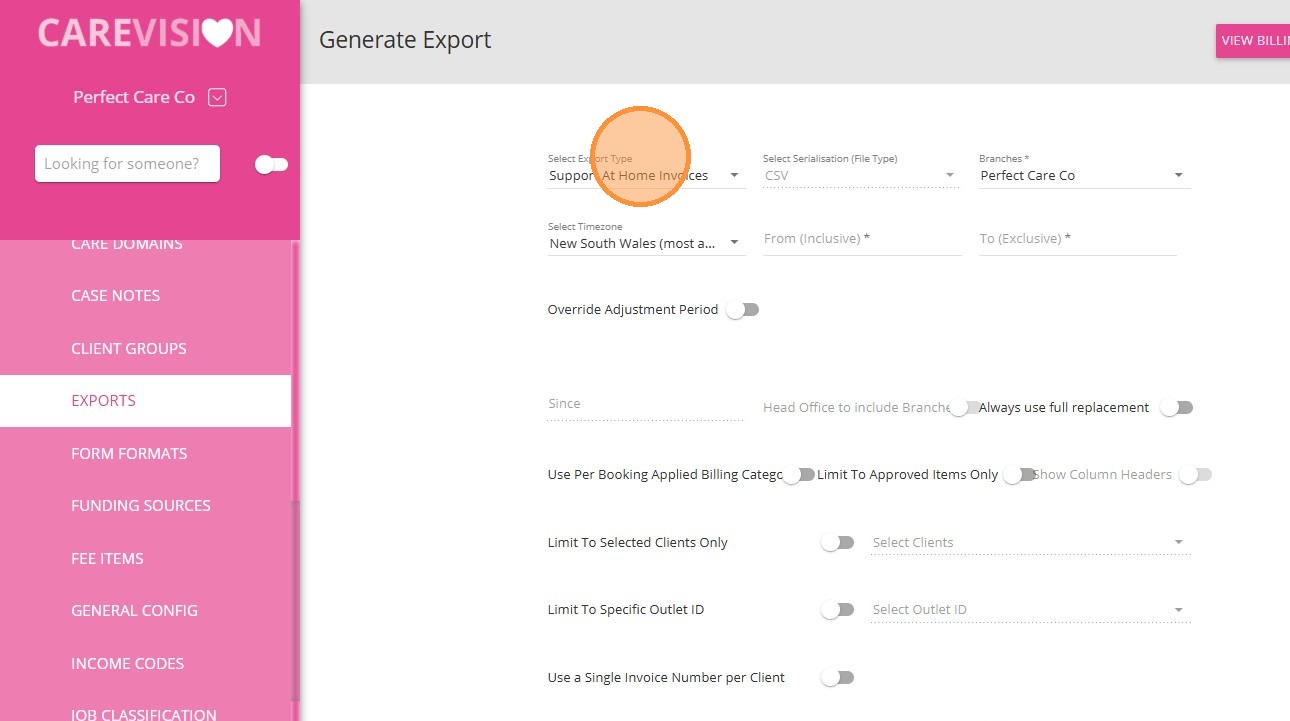
Step 2: Review and remove negative line items
Open the SAH Claim File and identify any negative values caused by cancellations or booking changes. These are indicated in Column A with the message: Adjustment transaction. Negative not allowed. Remove all identified negative line items and save the file as the Adjusted SAH Claim File.
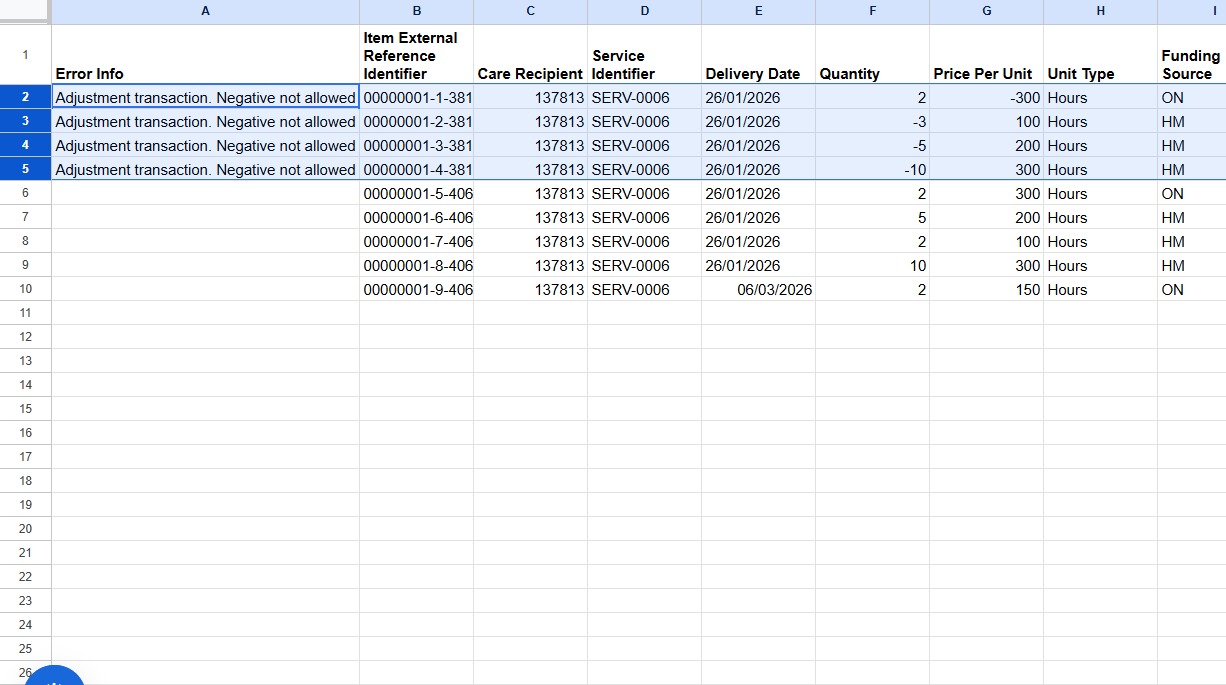
Step 3: Upload the Adjusted SAH Claim File to Services Australia
Make sure the file contains only valid (positive) line items.
Step 4: Mark the claim file you uploaded to Services Australia as “final.”
In CareVision, mark the claim file that was uploaded to Services Australia as “Final.”
 For detailed steps, refer to Step 6 in the Support at Home Billing and Claiming Workflow.
Step 5: Manually adjust in Services Australia
In the Services Australia portal:
In the Services Australia portal:
- Find the original claim
- Set affected line items to $0 (manual adjustment).
Step 6: Download the SAH Payment Statement Summary from Services Australia.
Step 7: Upload the SAH Payment Statement Summary into CareVision for reconciliation.
For detailed steps, refer to Step 8 in the Support at Home Billing and Claiming Workflow.What is the expected outcome?
CareVision reconciles the Adjusted SAH Claim File with the SAH Payment Statement Summary. Removed line items (negative values) will not be invoiced, as they are excluded from billing during reconciliation.
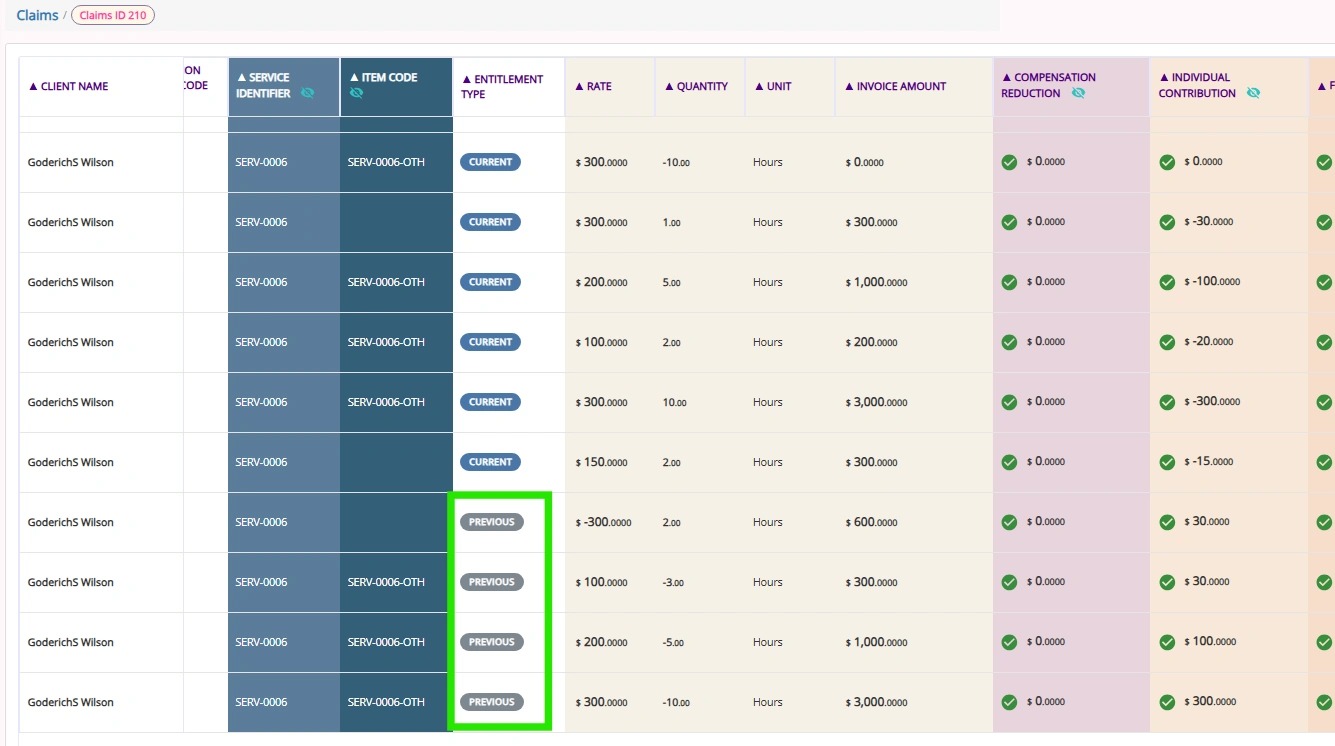
- In the Claims Management dashboard, these items display Entitlement Type as Previous, indicating they relate to past claims.
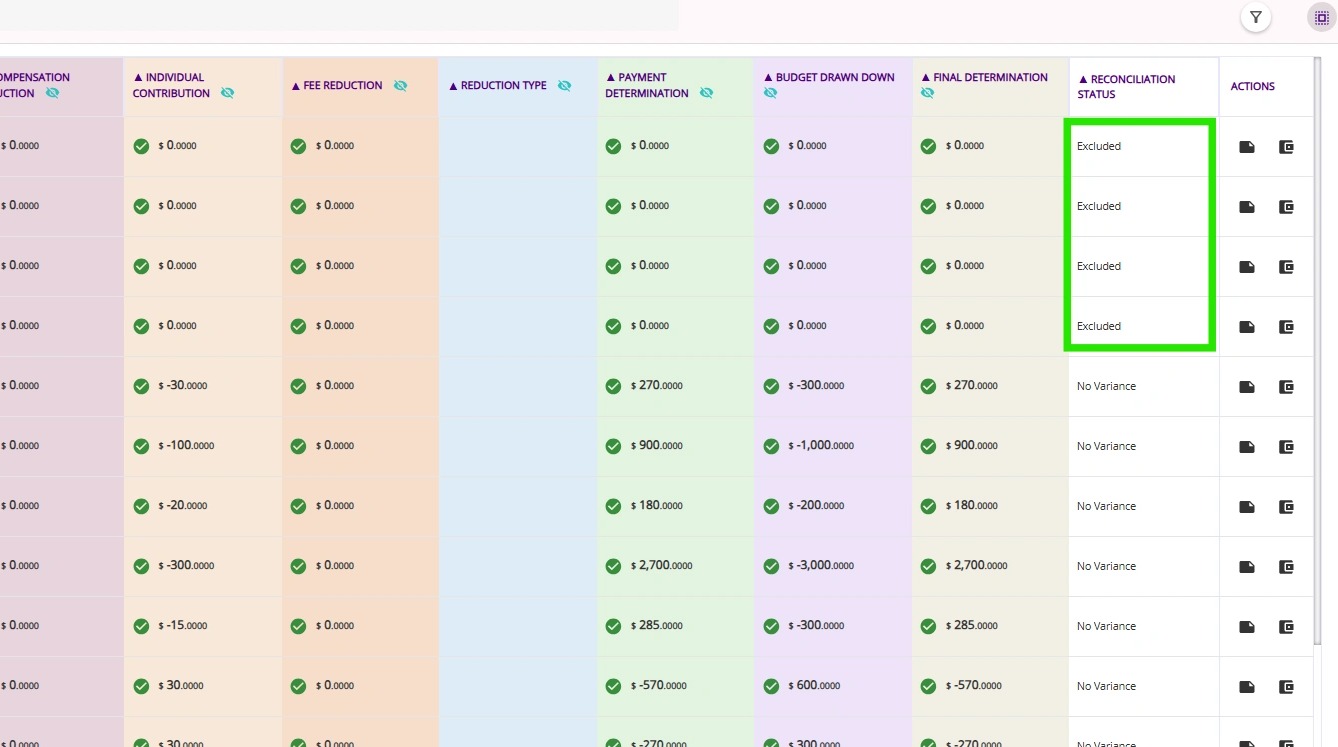
- These items also display Reconciliation Status as Excluded, confirming they are not included in current billing outcomes.
- In the SAH Statements, adjustments appear as negative values under Variations from past calendar months, showing corrections applied to earlier claims.
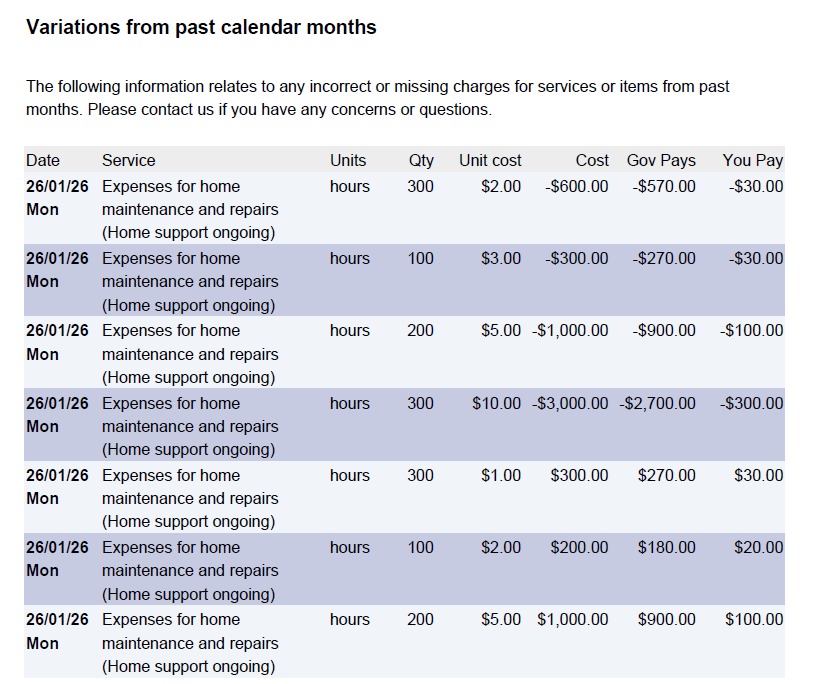
Previously overclaimed or changed services are correctly adjusted without affecting current valid charges.
For more information, see Support at Home Billing and Claiming Workflow.Related Articles
Handling Claims with Multiple Budget Allocations and Contributions
Scenario A. Multiple Budget Allocations (No Co-contribution) Question Answer How does CareVision handle scenarios where Services Australia returns a claim split across multiple funding categories? CareVision accepts the total amount from the SAH ...How to Create Quotes with Call-Out Distance Fee
Prerequisites Set up a Callout Fee Billing Category Set up a Callout Fee Billing Category 1. In the left navigation pane, go to Settings > Billing Categories. 2. Make sure you have a billing category with the Type set to Callout Distance. In this ...FAQ: How to Install CareVision Mobile App?
Apple (iOS) Click the Apple store Search for the ‘CareVision Plus' and click ‘Install/Get’ Open the app and input your credentials Android Open ‘Playstore’ Search for ‘Care Vision Plus’ and Click the Install button Open the app and log-in using your ...FAQ: What does the "Alert" filter mean on the Service Review Board?
Question: What does it mean when I filter for "Alert" on the Service Review Board? Some bookings show up as alerts, but they don't have any service warnings. What should I do? Answer: The "Alert" filter identifies bookings where an approved version ...FAQ: How do I add in the system if the amount being billed and paid are different?
Question: I have a 6 hour service booking that has been provided. However, part of the amount will be waived as the client does not have sufficient amount in the funding; whereas the staff member will be paid for the entire shift (6 hours). How can I ...
Request an Article or Guide
We are keen to know what you want to know more about? Let us know on chat or raise a ticket for an article or topic you would like covered in more detail. We have a team of technical writers and learning content creators keen for your suggestions.