FAQ: Update to Support at Home (SAH) Funding Templates

FAQ: Update to Support at Home (SAH) Funding Templates

What is this update about?

A system migration has been completed for organisations using Support at Home (SAH) funding templates. This introduces a new fee item to support rollover funding.


Where to find the new fee item?
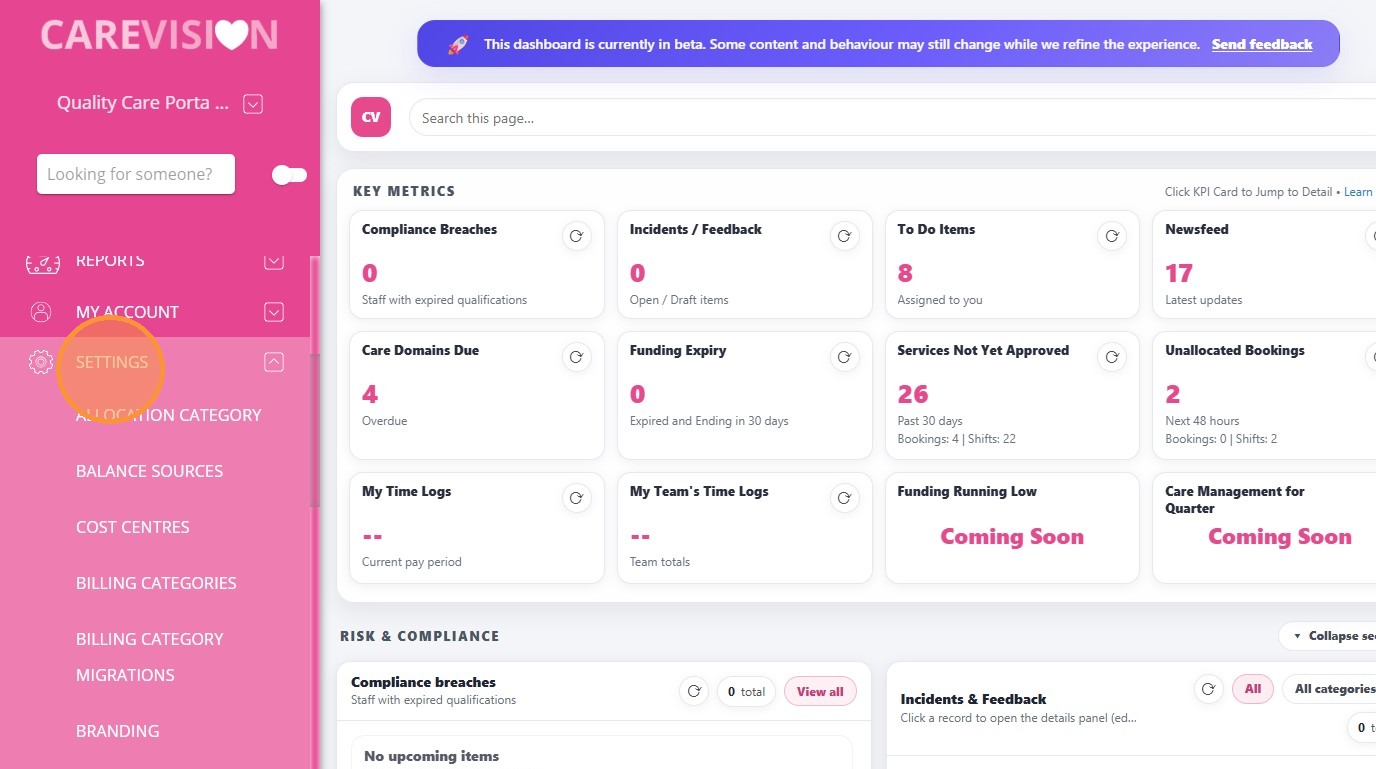
1. Go to the left-hand navigation menu and click Settings.
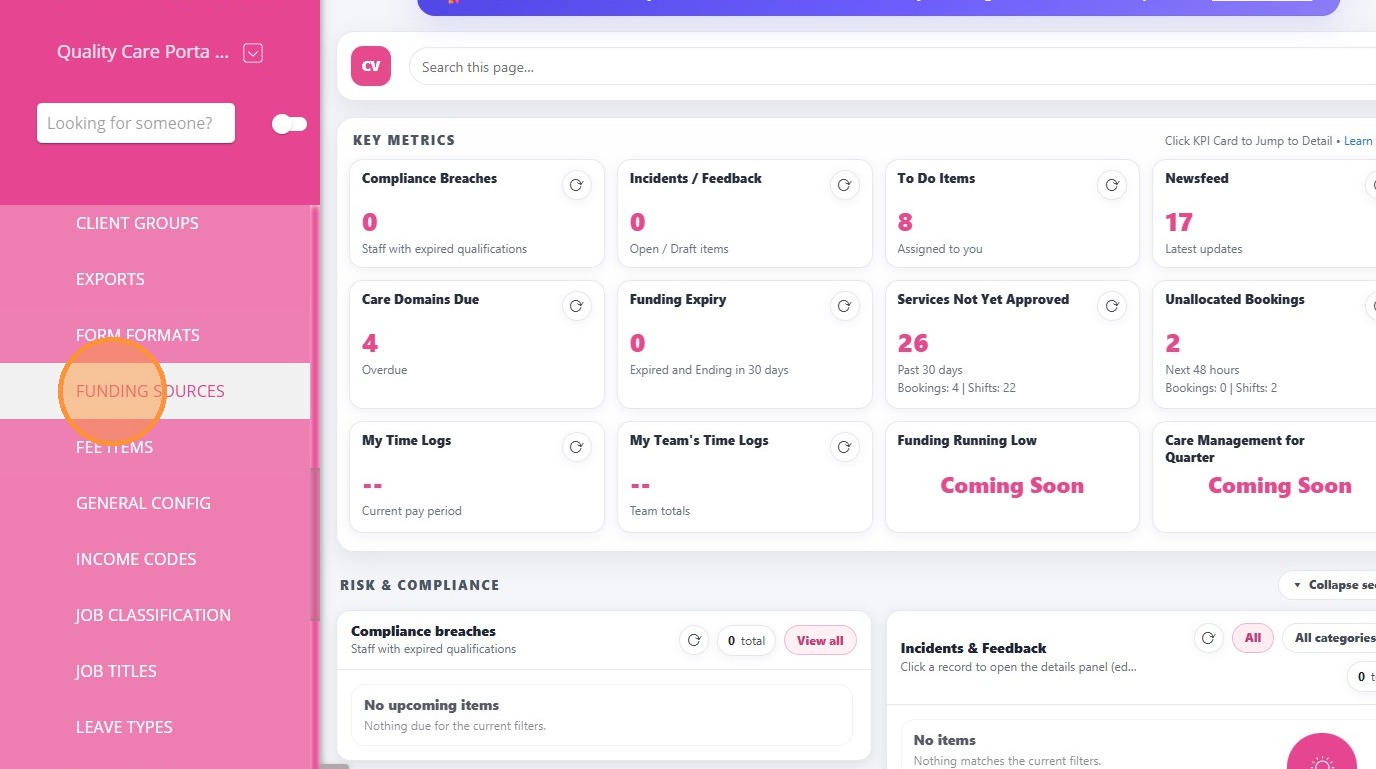
2. Select Funding Sources.
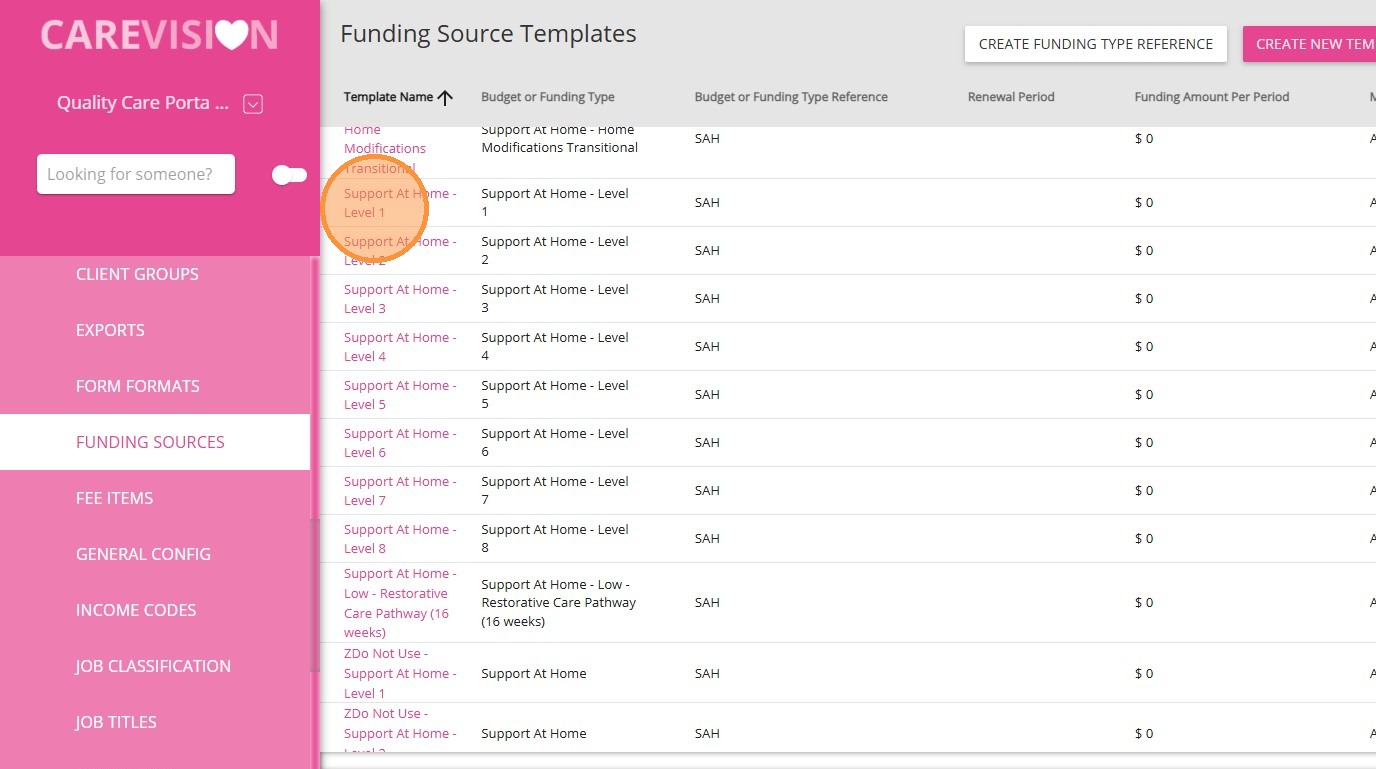
3. Open a Support at Home funding source template.
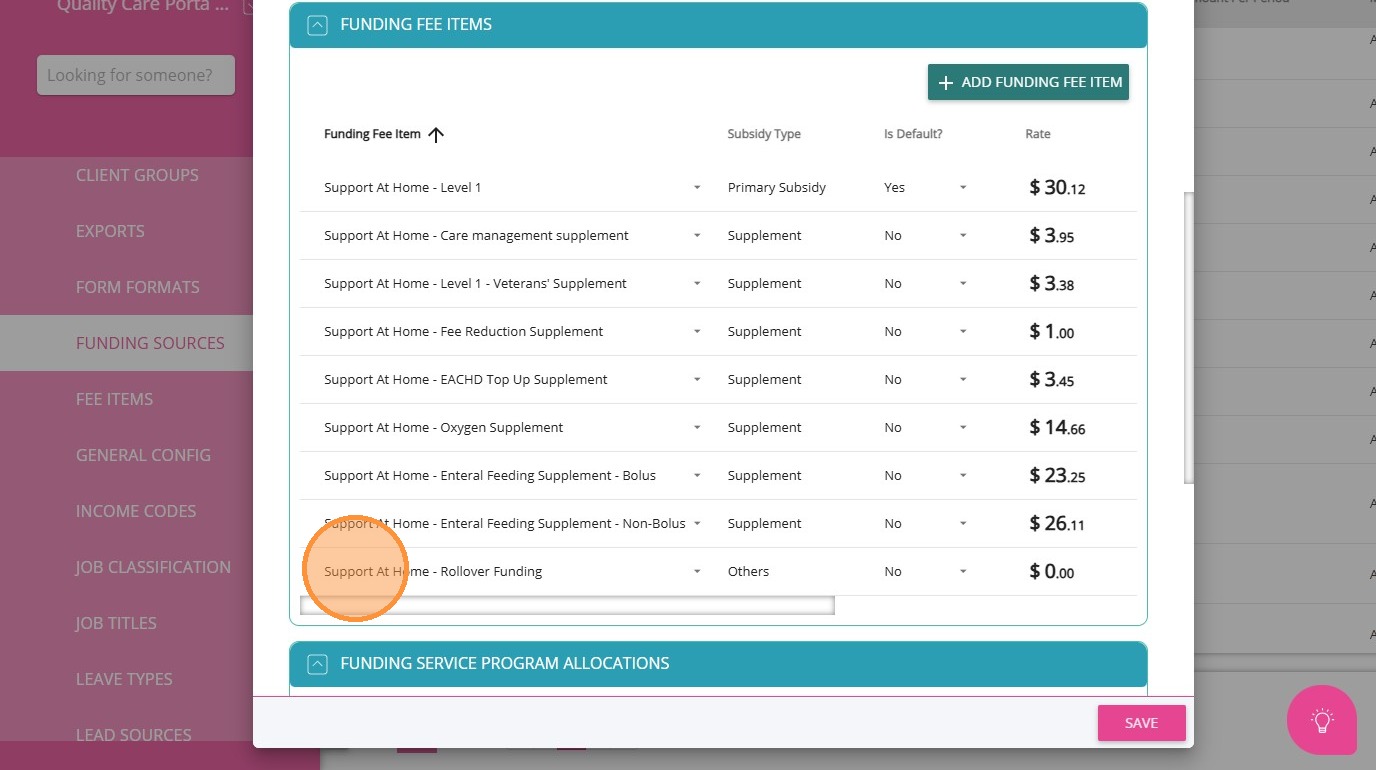
4. Scroll to Funding Fee Items and locate Support at Home – Rollover Funding.

What is the purpose of the new fee item?
It is used to capture and record rollover funding amounts for existing clients.


Which funding templates are affected?

This update applies to:

  • Support At Home - HCP Transitional - Level 1 to Level 8

  • Support At Home - Level 1 to Level 8


Notes
Note: Assistive Technology, Home Modifications, and Restorative Care templates are excluded.


What do I need to do for transfer clients?

When onboarding transfer clients:

1. Create a new quote.

2. Add the appropriate SAH funding template.

3. In the Funding Fee Items section, click + Add Funding Fee Item.

4. Select Support At Home - Rollover Funding.

5. Enter the calculated value in the Rate Override field.


How do I calculate the Rate Override?
  • Identify the client’s remaining budget in PRODA

  • Divide this amount by the number of days remaining in the current quarter

  • Apply the resulting daily rate as the override on the Rate Override field.

    • Related Articles

    • Pooled Funding

      Q: What is pooled funding? A: Pooled funding is a portion of a client’s budget that is set aside and combined into a shared pool at the provider level. This pooled amount (Example: Care management) is not spent per individual client but is used by ...
    • Multiple Default Funding Source in a Quote

      What is this functionality? This functionality allows you to select more than one funding source as default in a quote. The system checks service dates and applies the correct funding source when dates match. Key Terms Term Definition Starts On ...
    • FAQ: How to setup Notifications in CareVision

      FAQ: How to setup Notifications in CareVision Answer: Go to https://newportal.carevision.com/ Username and Password is the same as what you use in CareVision Management Portal Click Settings Click Notifications Settings Type in the notification you ...
    • How to Create Quotes with Call-Out Distance Fee

      Prerequisites Set up a Callout Fee Billing Category Set up a Callout Fee Billing Category 1. In the left navigation pane, go to Settings > Billing Categories. 2. Make sure you have a billing category with the Type set to Callout Distance. In this ...
    • FAQ: New Rates are coming, how to update Billing Categories?

      On the left-side navigation panel, go to Settings > Billing Categories Look for the Billing Category that you need to update. Open it by clicking the Billing Category Name. Highlighted would be the Active Rates, which is what is being used by the ...

    Request an Article or Guide

    We are keen to know what you want to know more about? Let us know on chat or raise a ticket for an article or topic you would like covered in more detail. We have a team of technical writers and learning content creators keen for your suggestions.