FAQ: Claims Management Dashboard
FAQ: Claims Management Dashboard

Q: Which values does the Claims Management Dashboard compare?
A: You can use the Claims Management Dashboard to reconcile CareVision-calculated claim values against government-calculated claim values. For Support at Home (SAH) claims, the government-calculated values come from the uploaded SAH Payment Statement Summary provided by Services Australia.

The Claims Management Dashboard compares the following values:
ValueDefinition
Compensation ReductionThe amount deducted from the claim to account for compensation or a payment received from another source.
Individual ContributionThe portion of the service cost that the client is required to pay. CareVision calculates this using the co-contribution configured in the client’s funding source.
Fee ReductionThe amount deducted from the claim because an applicable fee has been reduced or adjusted.
Payment DeterminationThe payment amount determined after applicable contributions, reductions, and adjustments have been applied. A difference in another field, such as Individual Contribution, may affect this amount.
Budget Drawn DownThe amount deducted, or drawn down, from the client’s available funding budget for the claim.
Final DeterminationThe final amount determined for the claim after all applicable contributions, reductions, and adjustments have been considered.
Q: How do I expand a value to see its related columns?
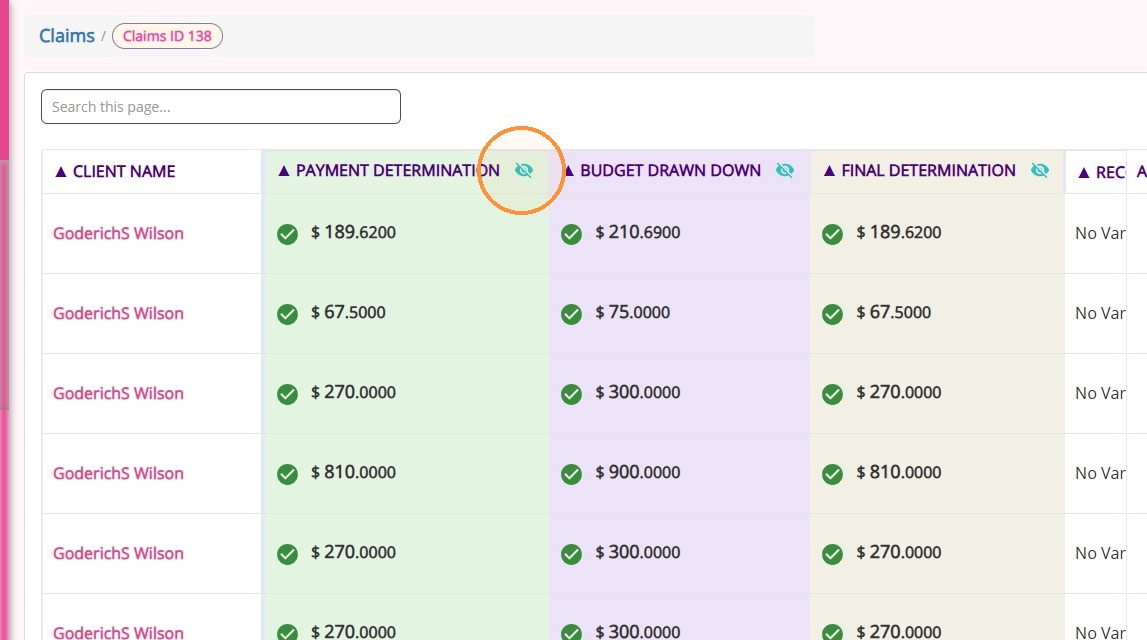
A: Each value listed above has an eye icon beside it in the Claims Management Dashboard. Select the eye icon to expand the value and display its related columns. Select it again to collapse the columns.

Q: Which columns are displayed when I expand a value?
A: Each expanded value displays four related columns:
ColumnWhat it shows
Govt CalculatedThe value provided in the uploaded government payment file.
CV CalculatedThe value calculated by CareVision.
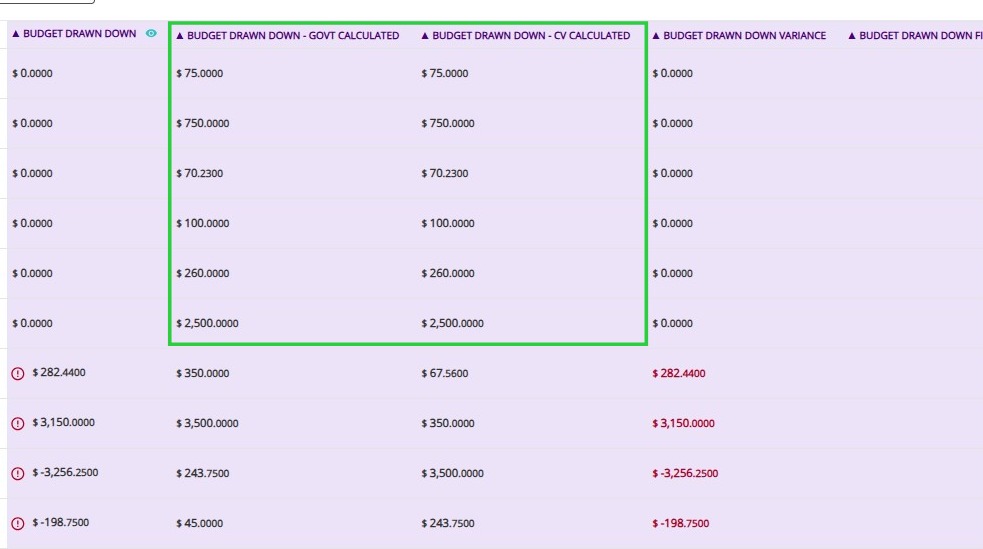
VarianceThe difference between the government-calculated and CareVision-calculated values.
FinalThe final value used after the government and CareVision calculations have been reconciled

For example, expanding Payment Determination displays:
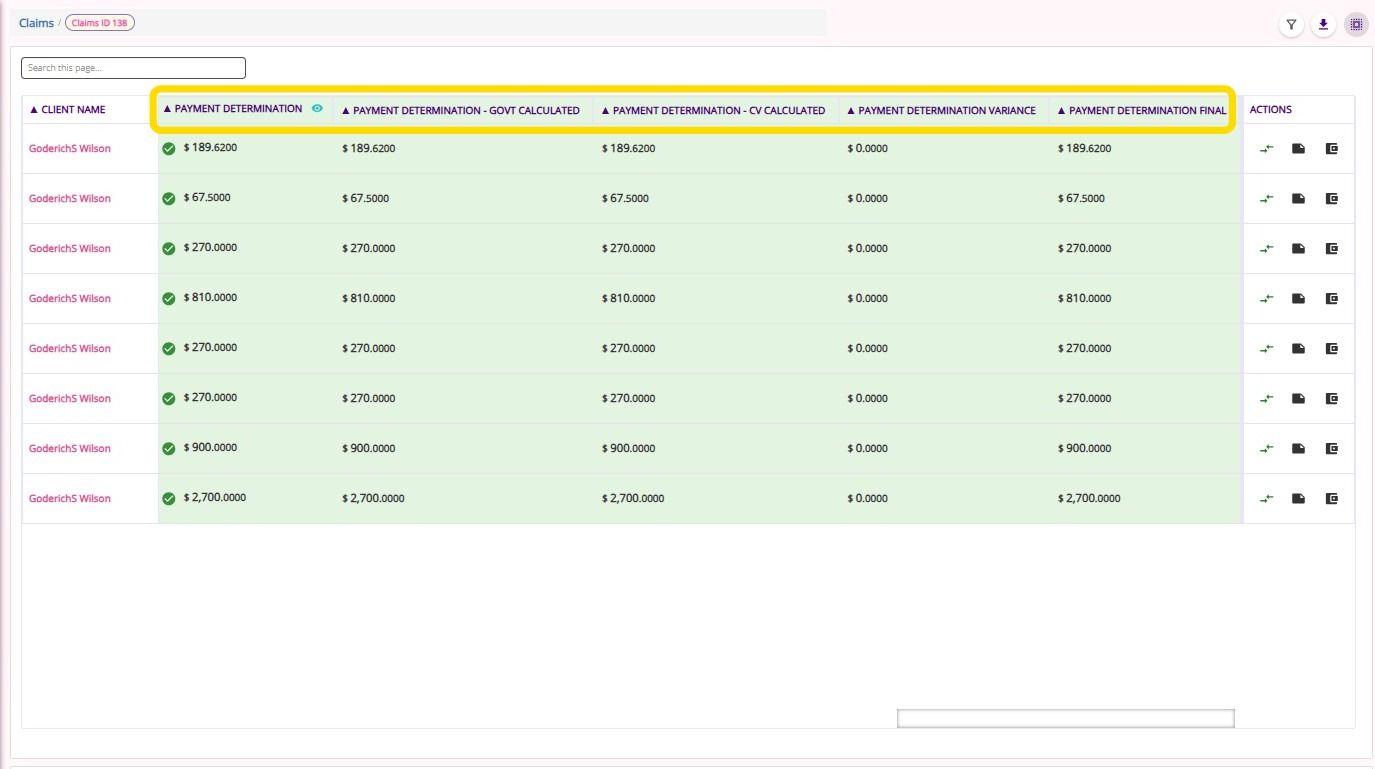
  • Payment Determination - Govt Calculated

  • Payment Determination - CV Calculated

  • Payment Determination Variance

  • Payment Determination Final

The same column structure applies to all other values. 

These expandable columns allow you to compare the government and CareVision calculations, identify any variance, and confirm the final value used for the claim.
Q: Why are the amounts in the Claims Management Dashboard not displaying as expected?
A: The amounts shown in the table depend on the item’s Reconciliation Status.
  1. If the Reconciliation Status is No Variance, the table shows the actual CV Calculated amount. This amount is the same as the Govt Calculated amount because the two calculations match.
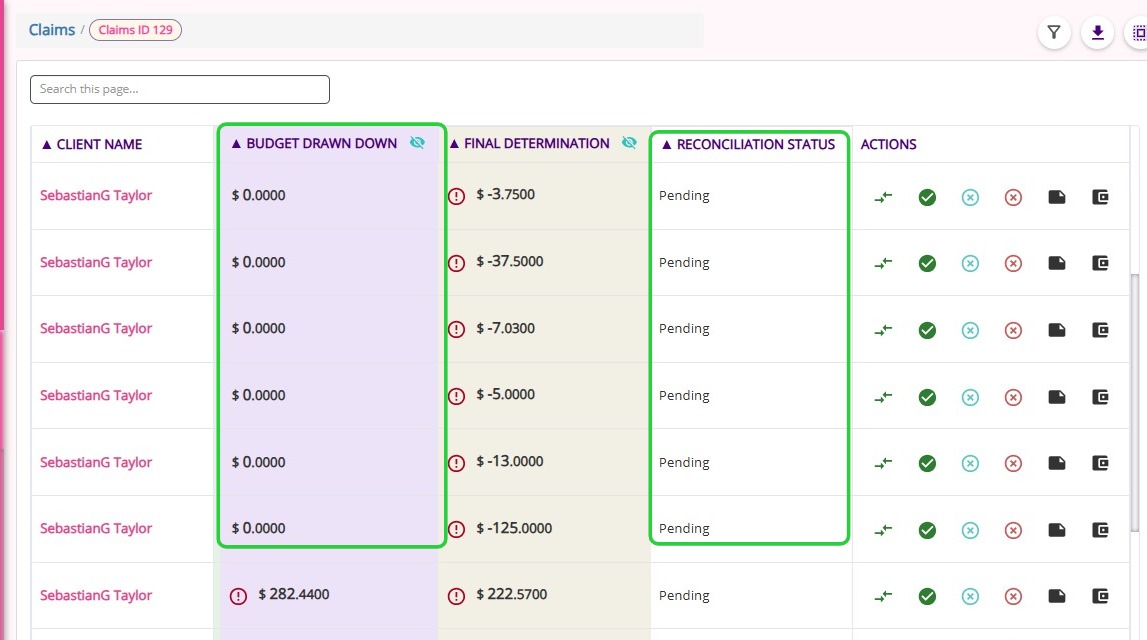
  2. If the Reconciliation Status is Pending, the main table shows the Variance amount—the difference between the Govt Calculated and CV Calculated amounts.
To view the actual Govt Calculated and CV Calculated amounts, select the eye icon to expand the relevant value.
Notes
Important Note: Always check the Reconciliation Status before interpreting the amounts shown in the table.

Follow these steps to understand the amounts shown in the table: 

1. Check the Reconciliation Status column

Find the item you want to review. Check whether its Reconciliation Status is No Variance or Pending.

2. Use the status to identify what the displayed amounts represent

Reconciliation StatusWhat the table displaysWhat this means
No VarianceThe actual CV Calculated amountsThe CareVision-calculated amounts match the government-calculated amounts.
PendingThe Variance amountsAt least one CareVision-calculated amount does not match the corresponding government-calculated amount. The amounts shown are the differences, not the actual calculated amounts.

3. Interpret each amount based on the status

If the status is…How to interpret the displayed amounts
No VarianceRead the displayed amounts as the actual calculated amounts.
PendingRead the displayed amounts as the differences between the Govt Calculated and CV Calculated amounts.
Pending with a displayed amount of $0The government-calculated and CareVision-calculated amounts match for that value. It does not necessarily mean the actual calculated amount is zero.

4. Expand a value when the status is Pending

Select the eye icon beside the value in the table header. The expanded view displays the following columns:

  • Govt Calculated

  • CV Calculated

  • Variance

  • Final

5. Compare the detailed amounts

Review the expanded columns to identify which calculations differ and confirm the final amount used for the claim.
Q: Why is my line item showing “No Variance”?
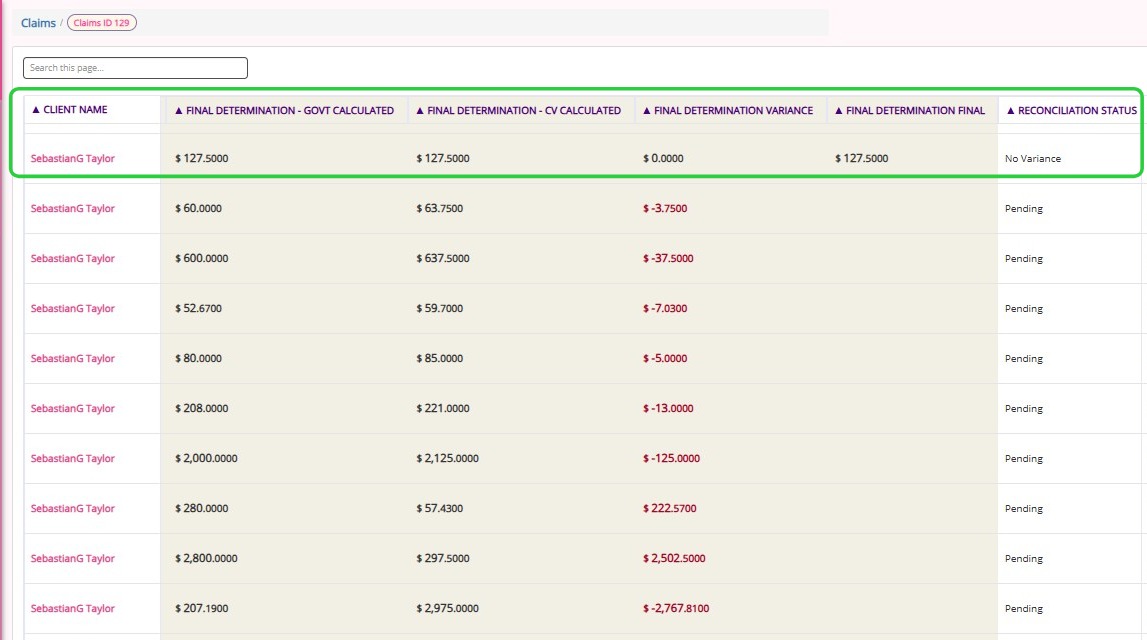
A: An item’s Reconciliation Status is automatically set to No Variance when the Govt Calculated and CV Calculated amounts match for all compared values.

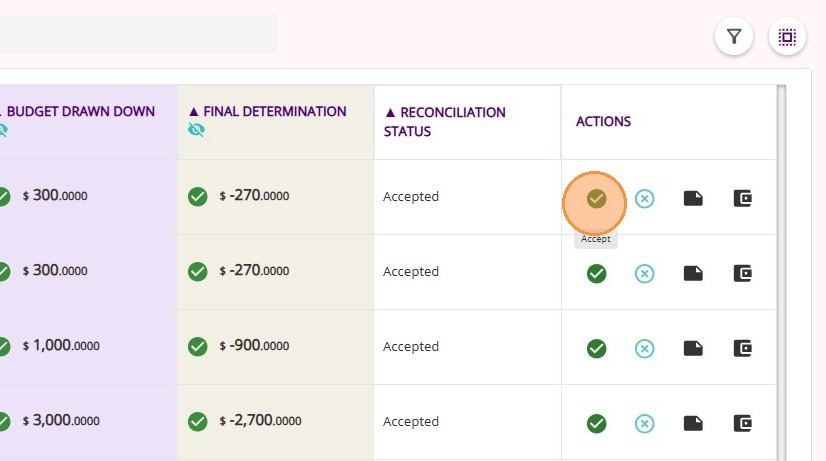
For example, let’s look at the sample below. The Reconciliation Status is No Variance because the amounts in the Govt Calculated and CV Calculated columns match for all compared values.
Q: Why is my line item showing “Pending”?
A: An item’s Reconciliation Status is automatically set to Pending when at least one Govt Calculated amount does not match the corresponding CV Calculated amount.

The variance is calculated using the following formula:

Govt Calculated − CV Calculated = Variance

  • If the CV Calculated amount is higher, the variance is negative.

  • If the Govt Calculated amount is higher, the variance is positive.

  • If the amounts match, the variance is $0.


When the Reconciliation Status is Pending, the compared values in the table display the Variance amounts rather than the actual calculated amounts.

For example, look at the Final Determination columns in the sample below:
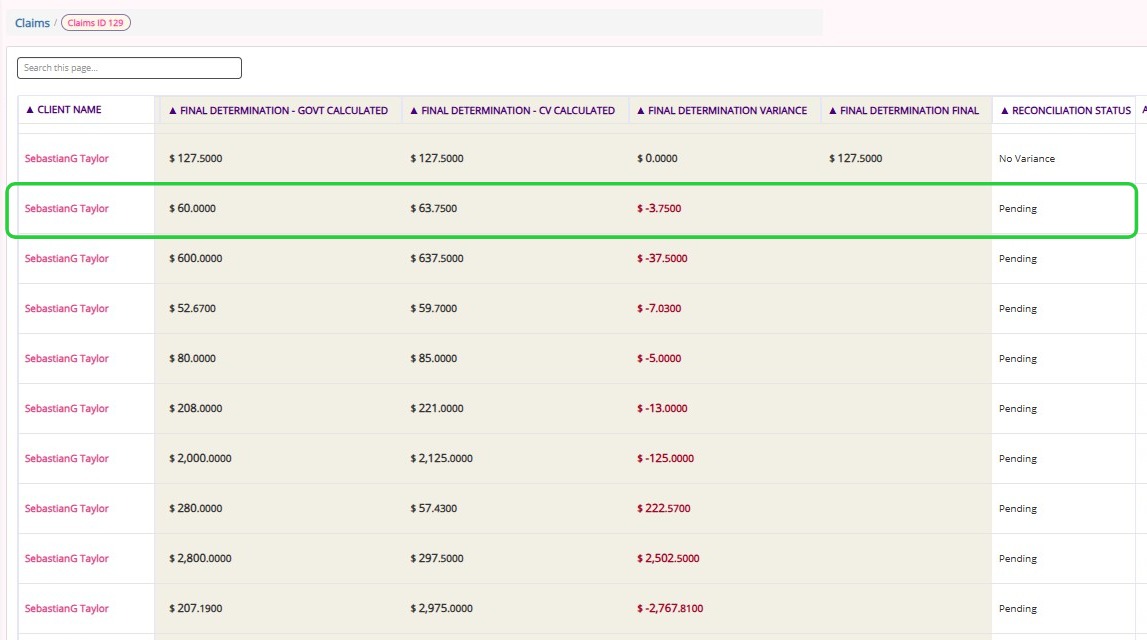

  • Final Determination - Govt Calculated: $60.0000

  • Final Determination - CV Calculated: $63.7500

  • Final Determination Variance: -$3.7500


The variance is calculated as follows:

$60.0000 − $63.7500 = -$3.7500


Notes
Important: When the Reconciliation Status is Pending, the amount displayed under Final Determination in the table is the Variance amount. It is not necessarily the actual Final Determination amount. Click the eye icon to view the actual Govt Calculated, CV Calculated, Variance, and Final amounts.
Q: Why does Budget Drawn Down show $0?
Q: Why does Budget Drawn Down show $0? 
A: If the item’s Reconciliation Status is Pending, a displayed amount of $0 means there is no difference between the Govt Calculated and CV Calculated amounts for that value.

In the sample below, the item’s Reconciliation Status is PendingThe amount displayed under Budget Drawn Down is the Variance, not the actual Budget Drawn Down amount.

Select the eye icon beside each value to view the actual amounts. In the expanded view, compare the Govt Calculated and CV Calculated amounts. If these amounts are the same, the Variance is $0.

This also applies to the other values compared in the Claims Management Dashboard:
  • Compensation Reduction
  • Individual Contribution
  • Fee Reduction
  • Payment Determination
  • Final Determination
For any of these values, select the eye icon to view the actual Govt Calculated, CV Calculated, Variance, and Final amounts.
Q: Why is Individual Contribution not calculating correctly?
A: An Individual Contribution discrepancy may occur when the client’s co-contribution has not been configured in their funding source.
Check the client’s funding source and confirm that the required co-contribution has been set up correctly.
A missing co-contribution can cause the CV Calculated Individual Contribution amount to differ from the Govt Calculated amount in the government payment file.

Q: Why does a value show $0 when the Reconciliation Status is still “Pending”?
A: A Pending Reconciliation Status applies to the entire item. It means at least one of the compared values has a discrepancy.
Not every value needs to have a variance.
For example:
  • Individual Contribution may have a non-zero variance.
  • Payment Determination may have a non-zero variance.
  • Budget Drawn Down may have a $0 variance.
  • Final Determination may have a $0 variance.

The item’s Reconciliation Status remains Pending until the discrepancy is reviewed, even when some values match.

Q: How do I find which value is causing the “Pending” Reconciliation Status?

Q: How do I find which value is causing the “Pending” Reconciliation Status?

A: Review the compared values for the item:

  1. Confirm that the Reconciliation Status is Pending.

  2. Check the amounts displayed under the compared values.

  3. Select the eye icon beside a value to expand its related columns.

  4. Compare the Govt Calculated amount with the CV Calculated amount.

  5. Review the Variance.

  6. Repeat these steps for the remaining values.

A non-zero Variance identifies a difference between the Govt Calculated and CV Calculated amounts.

Q: What should I do if the CareVision-calculated amounts are incorrect?
A: Review the client’s configuration and identify what is causing the discrepancy.
For an Individual Contribution variance, check whether the co-contribution has been configured correctly in the client’s funding source.
After correcting the setup, follow your organisation’s standard process for recalculating or reprocessing the claim.

Q: What should I do if the calculations still appear incorrect?
A: If the calculations still appear suspicious or incorrect after reviewing the expanded values and checking the client’s configuration, contact the CareVision Support Team for assistance.

Where possible, include:
  • The affected client
  • The relevant claim item
  • The affected calculated values
  • Screenshots showing the issue

This information will help the CareVision support team investigate.

Q: What should I do if the government-calculated amounts are correct?
A: If you have reviewed the expanded calculations and confirmed that the Govt Calculated amounts are correct, select Accept for the item.
The accepted government-calculated amounts will then flow through to the relevant statements and invoices.

 For more information about Claims Management Dashboard calculations and variances, contact the CareVision Support Team
    • Related Articles

    • Managing Gap Payments When Client Funding Is Exhausted

      Q: How do we manage clients whose funding has been exhausted or is insufficient, and who have agreed to pay the remaining balance privately? A: In CareVision, you don’t need to create a separate “private” profile for the client. Instead, you can ...
    • Pooled Funding

      Q: What is pooled funding? A: Pooled funding is a portion of a client’s budget that is set aside and combined into a shared pool at the provider level. This pooled amount (Example: Care management) is not spent per individual client but is used by ...
    • FAQ: Why are two invoices generated under Support at Home?

      Why are two invoices generated under Support at Home? Under Support at Home, client contributions are now calculated as a percentage of services delivered rather than a fixed fee. Because of this, billing outputs are split, resulting in two invoices ...
    • FAQs: Support at Home Rollover Funding

      Support at Home - Rollover Funding A new fee item, Support at Home - Rollover Funding, has been introduced to the following funding source templates: Support At Home - HCP Transitional - Level 1 to Level 8 Support At Home - Level 1 to Level 8 This ...
    • How to Fix PRODA Payment File Import Issue Before Upload in CareVision

      Fix the PRODA Payment Details CSV File Before Upload 1. Open the original PRODA payment details CSV file in Excel. 2. Save it as a new file. This becomes your working CSV file. Note: The “working CSV file” refers to the new file you save and modify. ...

    Request an Article or Guide

    We are keen to know what you want to know more about? Let us know on chat or raise a ticket for an article or topic you would like covered in more detail. We have a team of technical writers and learning content creators keen for your suggestions.