Quote Statuses
Understanding quote statuses helps you manage quotes throughout each stage of the client approval process. This topic describes quote statuses, common status workflows, and where to track the status of quotes.
Keywords: quote statuses, quote management, quote workflow, draft quote, open quote, accepted quote, verbal acceptance, rejected quote, cancelled quote, quote tracking
Quote Statuses
The following are the six main quote statuses:
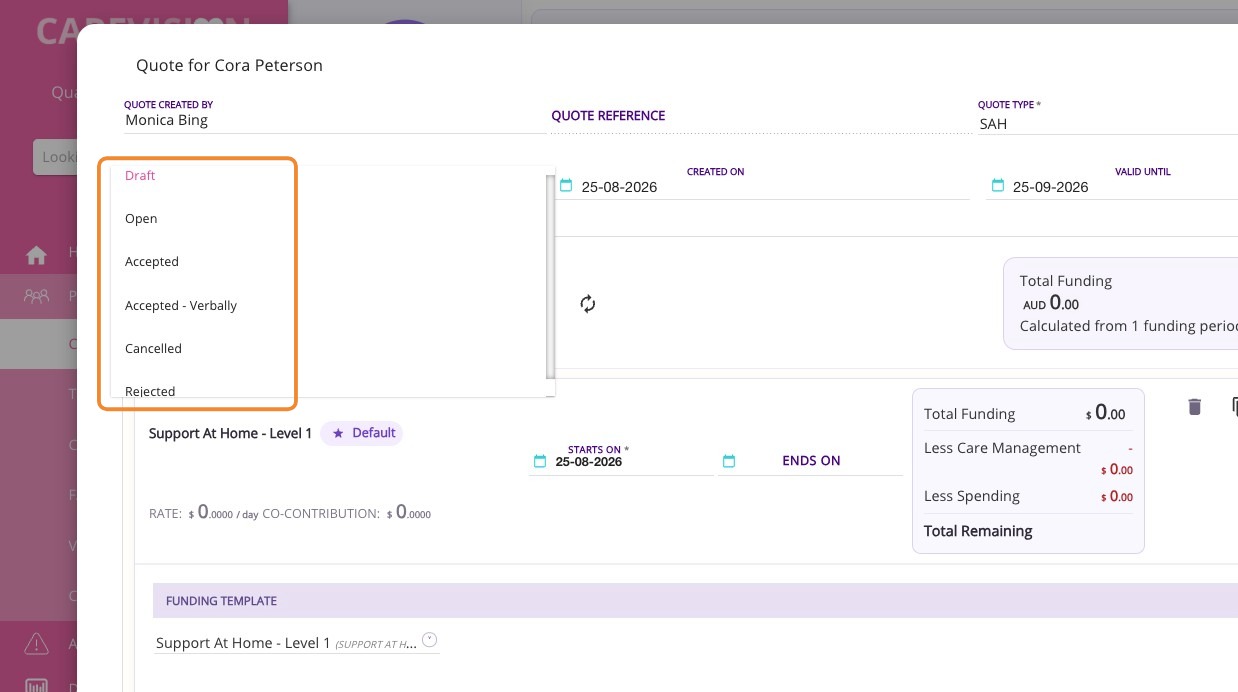
Common Quote Status Flow
Draft → Open → Accepted
When you prepare and save a quote, its default status is Draft.
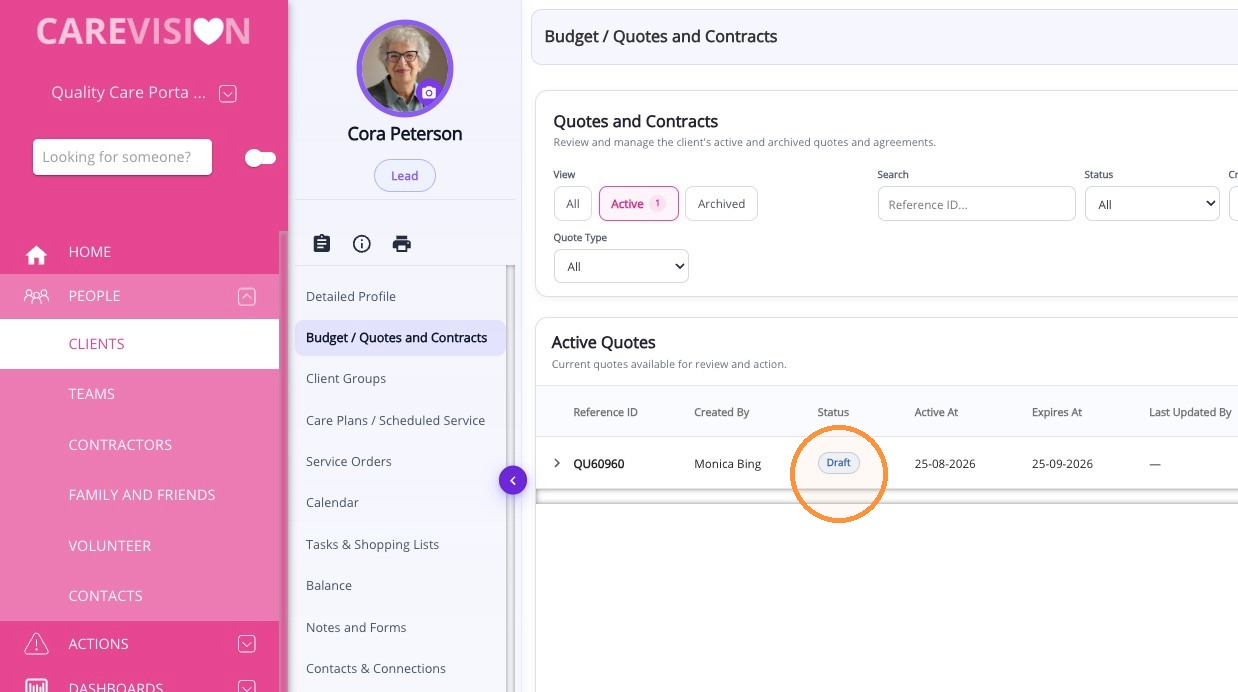
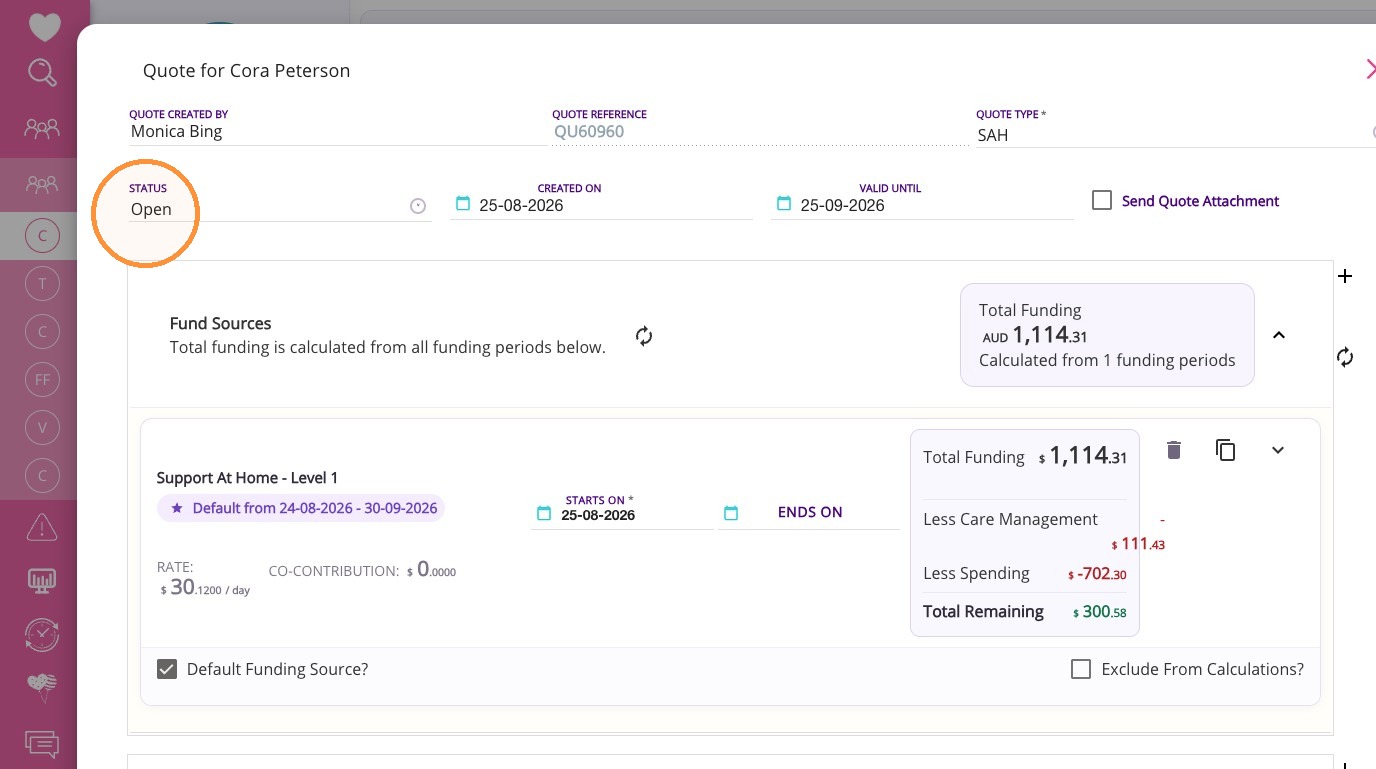
Change the quote to Open when you are ready to discuss it with the client or provide it to them.
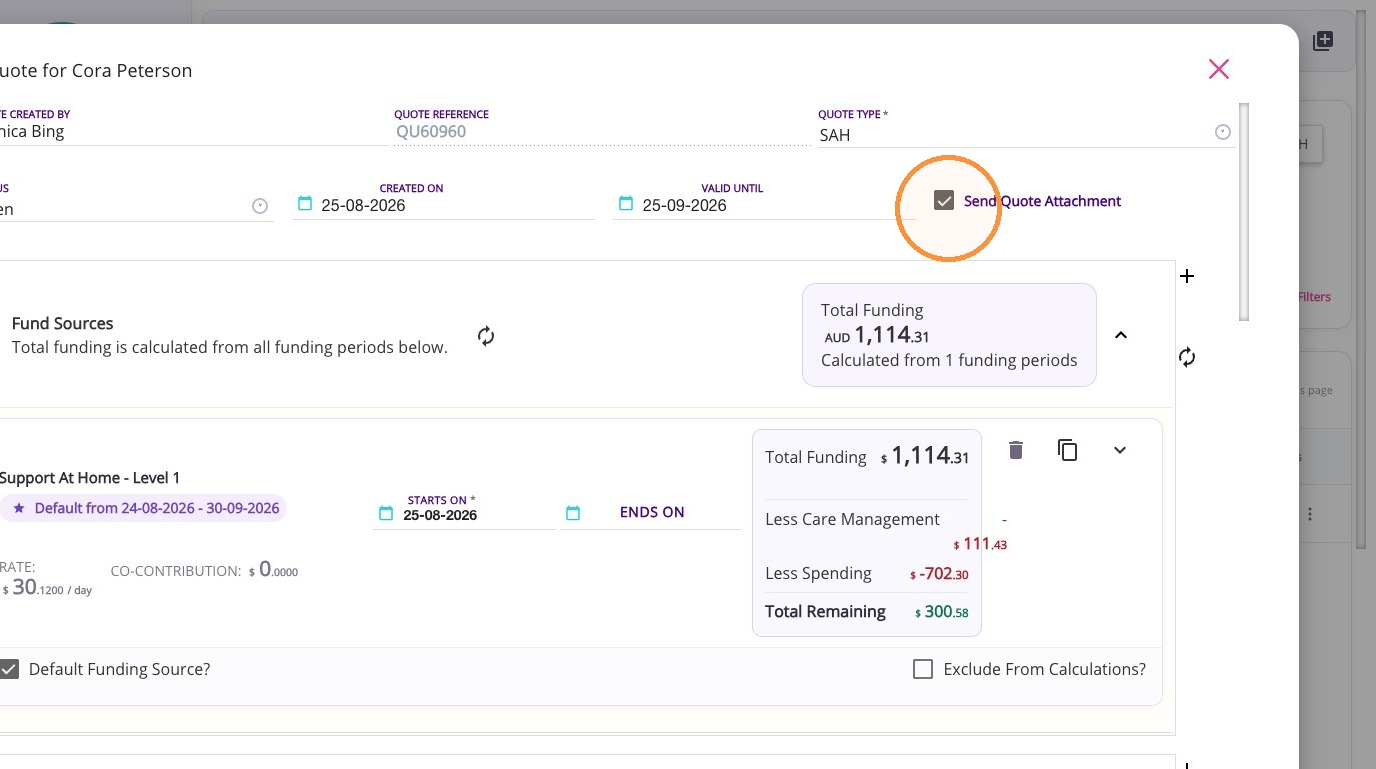
You may also have the option to email the quote to the client by ticking the Send Quote Attachment box.
When you save the quote, its status changes to Open, and the change is reflected in the table.
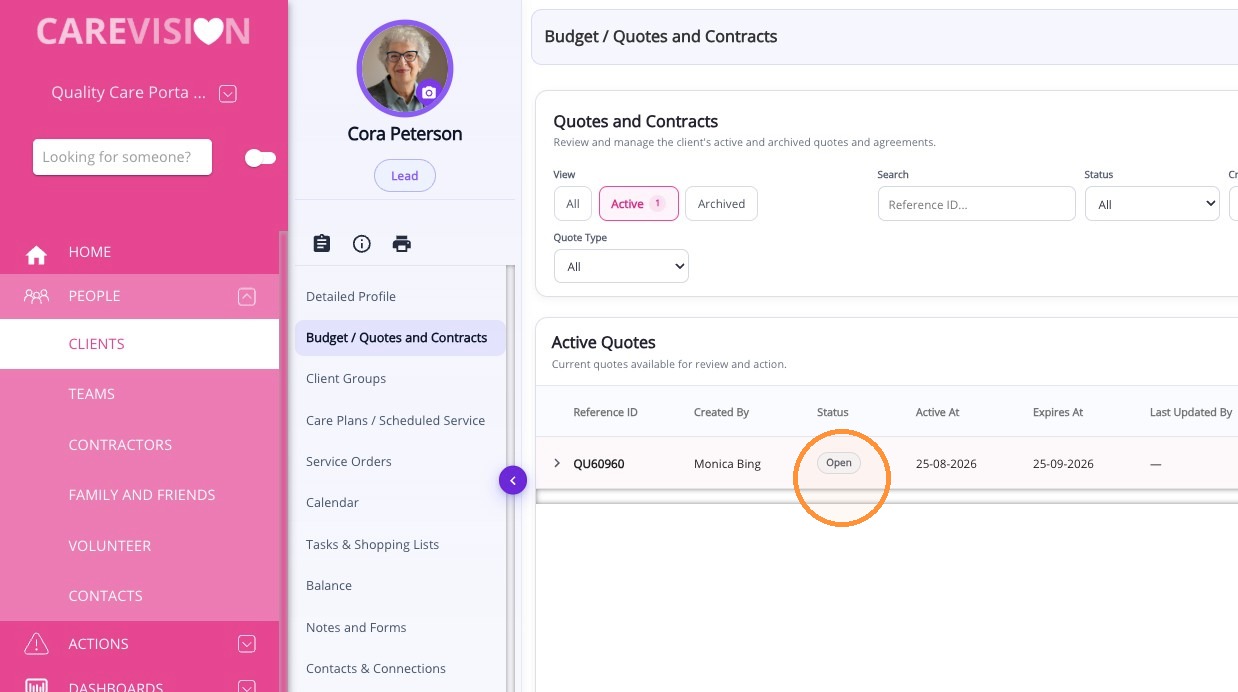
Move the quote to Accepted once the client has reviewed and agreed to its terms. The updated status will then be reflected in the table.
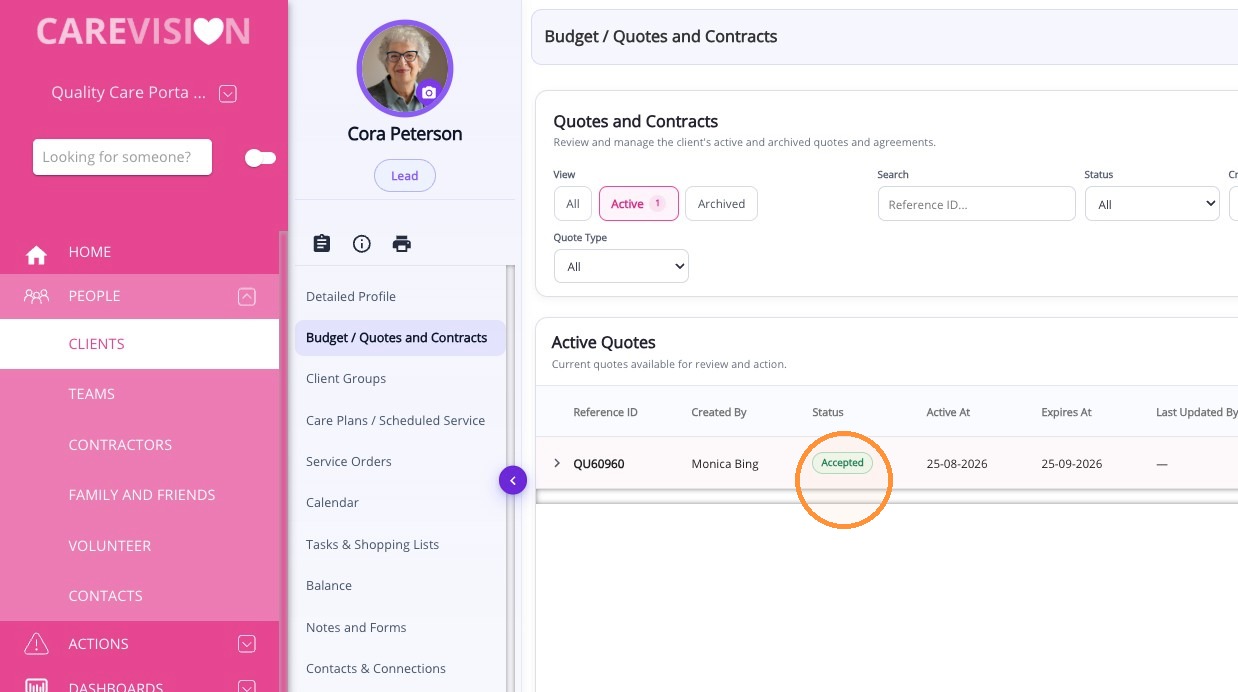
 Note: A quote no longer has to pass through Open before it can be accepted. However, skipping Open means the status history may not separately show when the quote was provided to the client.
Other Workflows:
- Draft or Open → Rejected: The client declines the quote or selects a different option.
- Accepted → New quote or requote: If an accepted arrangement needs to change, create a new quote rather than modifying the accepted record. See How to Perform a Requote.
- Draft or Open → Cancelled: The quote is withdrawn, the client does not proceed, or changes make the quote invalid. See FAQ: What happens if I change a funding source or care plan while the client has a Draft or Open quote?
Use the Budget/Quotes and Contracts section to track the status of an individual client’s quote. To track quote statuses for multiple clients, go to Actions > Quotes and Contracts.
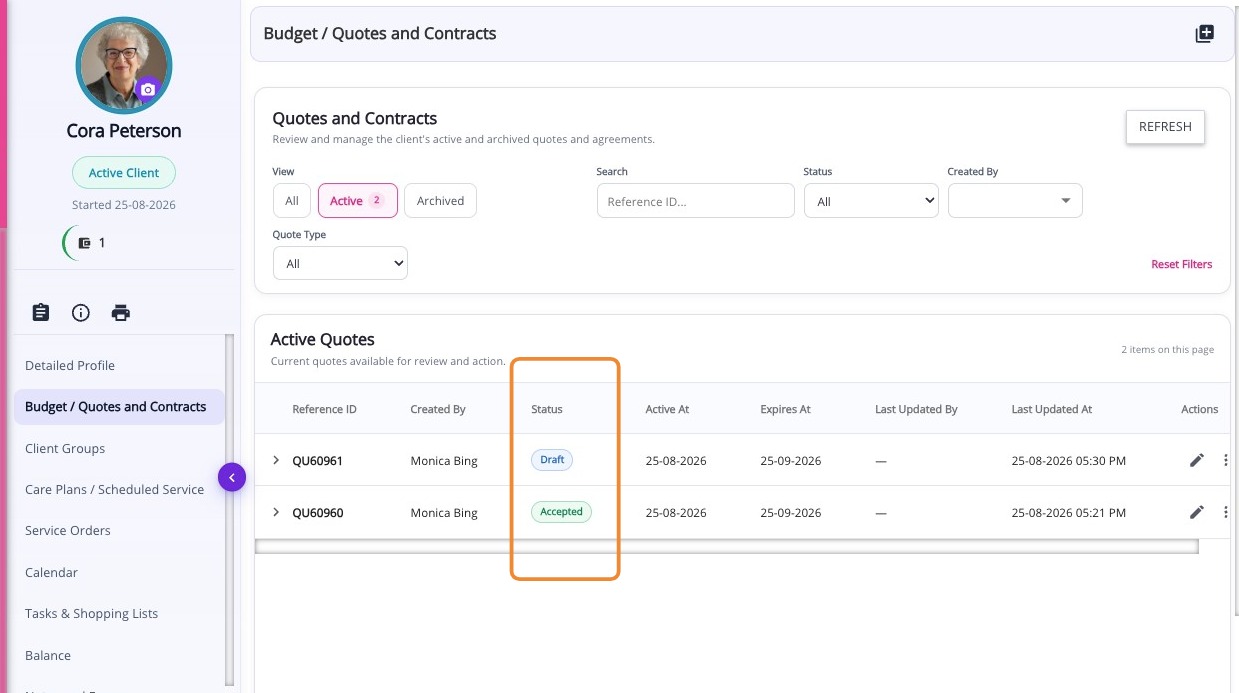
This topic explained the available quote statuses, quote status workflows, and where to track the status of quotes in the portal. For more information about quote statuses , contact the CareVision Support Team.