How to Set Up Your Organisation’s HACC Data

How to Set Up Your Organisation’s HACC Data

This topic describes the setup of your organisation’s Home and Community Care (HACC) data, including the process for creating Group Sets and Client Groups.

Keywords: hacc data setup, client groups, group sets, hacc export, indigenous status, living arrangement, government pension, functional status, accommodation, client profile, disability type, dependent children


I. Set Up Group Sets

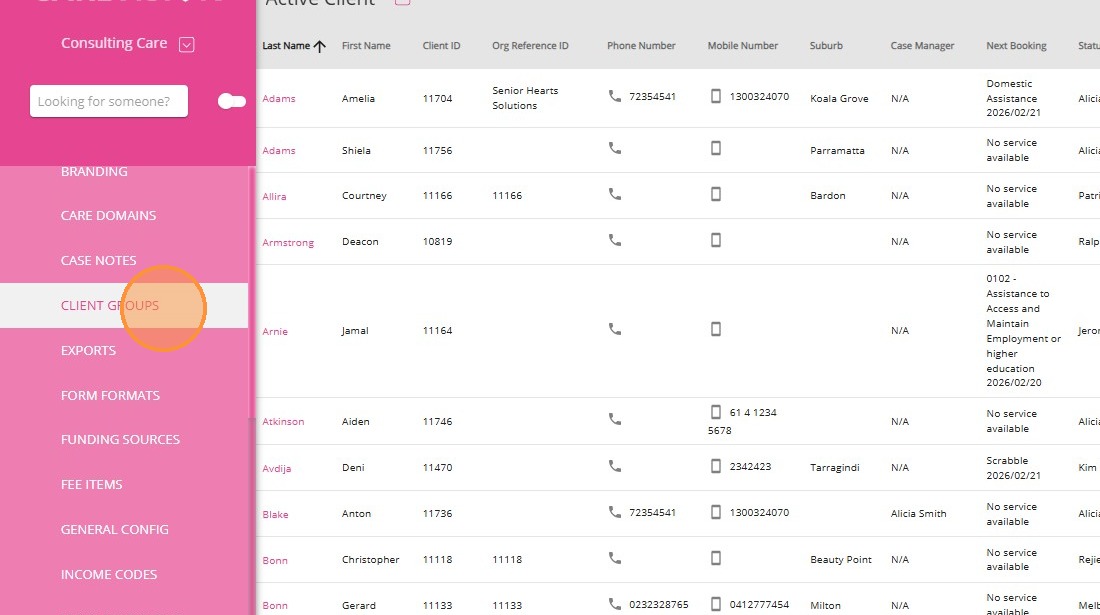
1. In the left navigation pane, go to Settings > Client Groups.

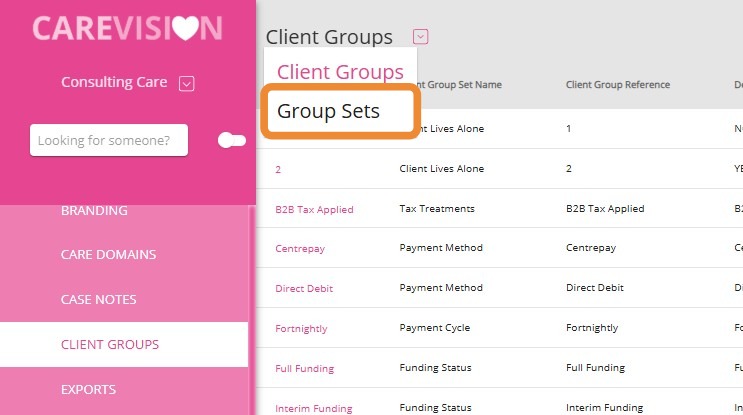
2. At the top, select Group Sets.

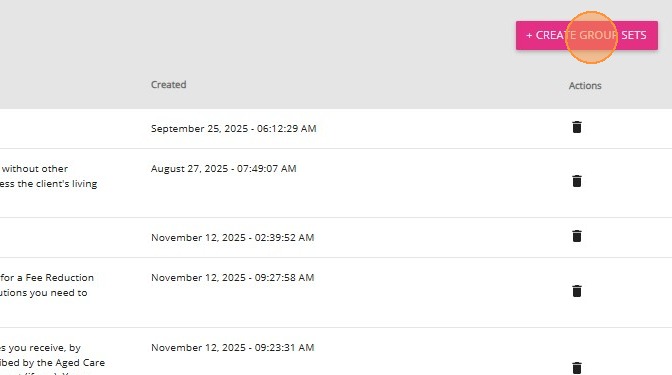
3. Click +Create Group Set.

4. Complete the Edit Group Set form. Refer to the provided table for the list of all group sets you need to create.

A. "Group Sets" Reference for HACC Data Setup

The columns in this table correspond to the fields in the Edit Group Set form that you need to complete for HACC data setup for your organisation. Create all group sets listed in the table, using the corresponding values provided.


Name of Group SetDescriptionInclude in exportRelates To
Need for InterpreterIndicates if the client requires an interpreter for communication.HACCNeed for Interpreter
Indigenous StatusIdentifies the client's Aboriginal or Torres Strait Islander background.HACCIndigenous Status
Living ArrangementDescribes the client's current living situation.HACCLiving Arrangement
Government Pension / Benefit StatusSpecifies the type of government pension or benefit the client receives.HACCGovernment Pension / Benefit Status
AccommodationType of accommodation or housing where the client resides.HACCAccommodation
Functional Status - HouseworkLevel of assistance required with housework tasks.HACCFunctional Status - Housework
Functional Status - TransportAbility to use transport, including need for specialised vehicles.HACCFunctional Status - Transport
Functional Status - ShoppingLevel of assistance required for shopping.HACCFunctional Status - Shopping
Functional Status - MedicationAbility to manage and take medication.HACCFunctional Status - Medication
Functional Status - MoneyAbility to manage finances and money.HACCFunctional Status - Money
Functional Status - WalkingAbility to walk or use mobility aids independently.HACCFunctional Status - Walking
Functional Status - MobilityLevel of assistance required for general mobility and movement.HACCFunctional Status - Mobility
Functional Status - Self-care screenLevel of assistance required for self-care activities.HACCFunctional Status - Self-care screen
Functional Status - BathingAbility to bathe independently.HACCFunctional Status - Bathing
Functional Status - DressingAbility to dress independently.HACCFunctional Status - Dressing
Functional Status - EatingAbility to eat independently or with assistance.HACCFunctional Status - Eating
Functional Status - ToiletAbility to use the toilet independently.HACCFunctional Status - Toilet
Functional Status - CommunicationAbility to communicate needs and information.HACCFunctional Status - Communication
Functional Status - MemoryAbility to remember and recall information.HACCFunctional Status - Memory
Functional Status - BehaviourAbility to manage behaviour independently.HACCFunctional Status - Behaviour
HRS Registered ClientIndicates if the client is registered for HRS (Home and Residential Support).HACCHRS Registered Client
HRS Confirmation CallType of confirmation contact made with the client.HACCHRS Confirmation Call
CCP Dependent ChildrenNumber of dependent children associated with the client (coded values).HACCCCP Dependent Children
CCP Disability TypeType of disability, coded as a two-digit number.HACCCCP Disability Type

B. Sample: Creating a Group Set

Let’s walk through creating a group set named Need for Interpreter:

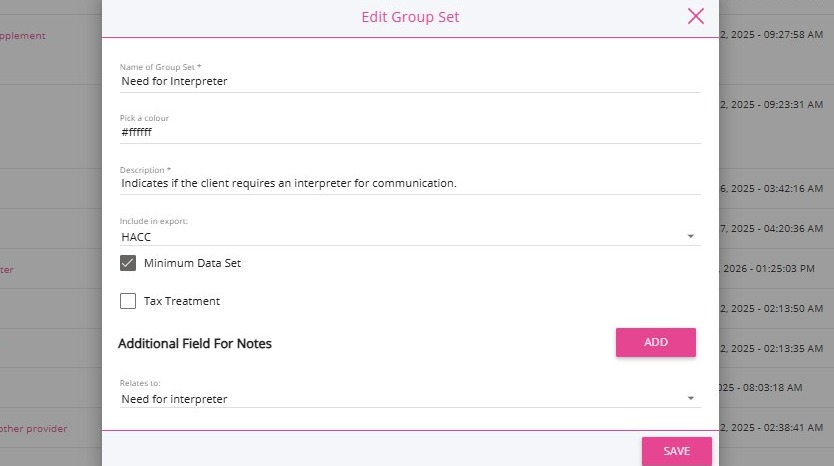
  1. In the Edit Group Set form, set the Name of Group Set field to Need for Interpreter.

  2. Set the Description field to the corresponding description from the table. You may use the provided description or tailor it to your organisation’s requirements.

  3. Set the Include in Export field to HACC to ensure the data is included in HACC-related exports.

  4. Tick the Minimum Data Set box if you want the group set to appear in the client profile for easier completion.

  5. Set the Relates To dropdown to the same name as the group set. This column will appear on the report. For example, the Need for Interpreter group set will be shown as Need for Interpreter in the HACC Export File you generate. This field must be populated so that when you create a client group later, you can assign the appropriate export value relevant to that group.

  6. Click Save. After you save, the group set you created will appear under the Group Sets section.

II. Set Up Client Groups

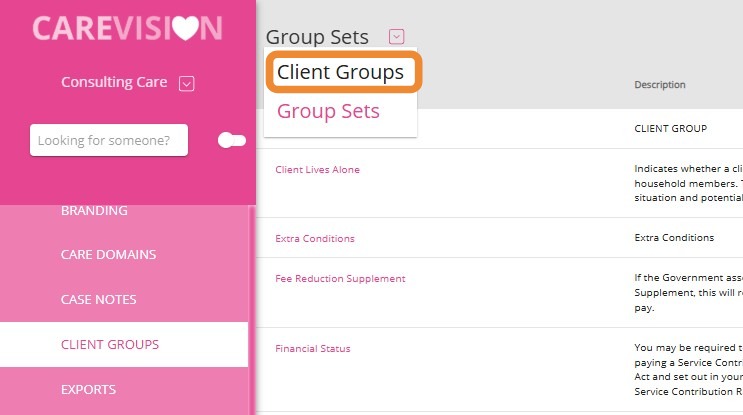
1. At the top, select Client Groups.

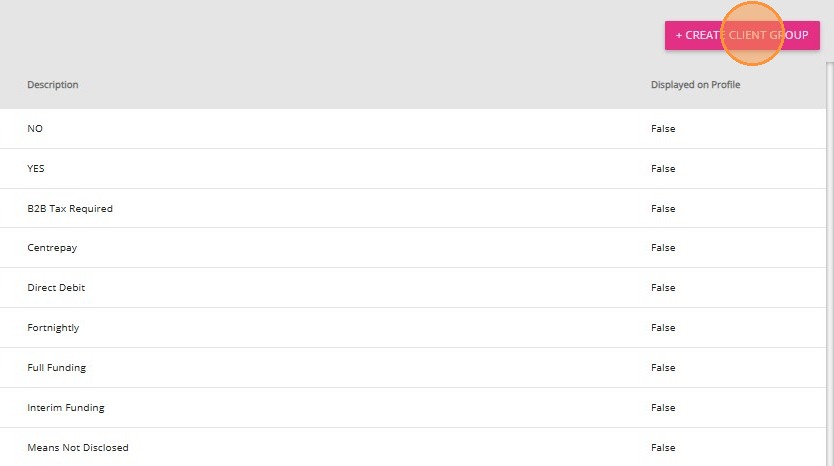
2. Click +Create Client Group.

3. Complete the Edit Client Group form. Refer to the provided table for a guide on how to create client group sets.

A. "Client Groups" Reference for HACC Data Setup

The columns in this table correspond to the fields in the Edit Client Group form that you need to complete for HACC data setup for your organisation. Create all client groups listed in the table, using the corresponding values provided.
Client Group SetName (Client Group)Client Group ReferenceExport Value
Need for InterpreterYes, No, UnknownYes, No, Unknown1=Yes, 2=No, 9=Unknown
Indigenous StatusAboriginal, Torres Strait Islander, Both, Neither, UnknownAboriginal, Torres Strait Islander, Both, Neither, Unknown1=Aboriginal, 2=Torres Strait Islander, 3=Both, 4=Neither, 9=Unknown
Living ArrangementLives alone, Lives with family, Lives with others, UnknownLives alone, Lives with family, Lives with others, Unknown1=Lives alone, 2=Lives with family, 3=Lives with others, 9=Unknown
Government Pension / Benefit StatusAged Pension, DVA Pension, Disability Pension, Carer Payment, Unemployment related benefits, Other Australian Government pension or benefit, No Australian pension or benefit, UnknownAged Pension, DVA Pension, Disability Pension, Carer Payment, Unemployment related benefits, Other Australian Government pension or benefit, No Australian pension or benefit, Unknown1=Aged Pension, 2=DVA Pension, 3=Disability Pension, 4=Carer Payment, 5=Unemployment related benefits, 6=Other Australian Government pension or benefit, 7=No Australian pension or benefit, 9=Unknown
AccommodationType of accommodation or housing where the client resides.Private residence - owned/purchasing, Private residence - private rental, Private residence - public rental, Independent living unit within a retirement village, Boarding house/private hotel, Short-term crisis/emergency/transitional accommodation facility, Supported accommodation or other supported living facility, Institutional setting, Public place/temporary shelter/homeless, Private residence rented from an Aboriginal Community, Alcohol and drug treatment residence, Prison/remand centre/youth training center, Statutory client accommodation, Other, Unknown1=Private residence - owned/purchasing, 2=Private residence - private rental, 3=Private residence - public rental, 4=Independent living unit within a retirement village, 5=Boarding house/private hotel, 6=Short-term crisis, emergency, or transitional accommodation facility, 7=Supported accommodation or other supported living facility, 8=Institutional setting, 9=Public place/temporary shelter/homeless, 10=Private residence rented from an Aboriginal Community, 11=Alcohol and drug treatment residence, 12=Prison/remand centre/youth training center, 13=Statutory client accommodation, 15=Other, 99=Unknown
Functional Status - HouseworkCompletely unable to do, Needs some help, Can do without helpCompletely unable to do, Needs some help, Can do without help1=Completely unable to do, 2=Needs some help, 3=Can do without help
Functional Status - TransportUnable to do (without specialised vehicle such as an ambulance), Needs some help, Without helpUnable to do (without specialised vehicle such as an ambulance), Needs some help, Without help1=Unable to do (without specialised vehicle such as an ambulance), 2=Needs some help, 3=Without help
Functional Status - ShoppingCompletely unable to do, Needs some help, Can do without helpCompletely unable to do, Needs some help, Can do without help1=Completely unable to do, 2=Needs some help, 3=Can do without help
Functional Status - MedicationCompletely unable to do, Needs some help, Can do without helpCompletely unable to do, Needs some help, Can do without help1=Completely unable to do, 2=Needs some help, 3=Can do without help
Functional Status - MoneyCompletely unable to do, Needs some help, Can do without helpCompletely unable to do, Needs some help, Can do without help1=Completely unable to do, 2=Needs some help, 3=Can do without help
Functional Status - WalkingCompletely unable to walk (or use a wheelchair without assistance), Needs help from a person or walker/crutches (or can use a wheelchair independently), Can do without helpCompletely unable to walk (or use a wheelchair without assistance), Needs help from a person or walker/crutches (or can use a wheelchair independently), Can do without help1=Completely unable to walk (or use a wheelchair without assistance), 2=Needs help from a person or walker/crutches (or can use a wheelchair independently), 3=Can do without help
Functional Status - MobilityMajor help needed, Needs some help (no heavy lifting), No help neededMajor help needed, Needs some help (no heavy lifting), No help needed1=Major help needed, 2=Needs some help (no heavy lifting) 3=No help needed
Functional Status - Self-care screenAssistance needed, No help neededAssistance needed, No help needed1=Assistance needed, 2=No help needed
Functional Status - BathingCompletely unable to do without help, Needs some help, Can do without helpCompletely unable to do without help, Needs some help, Can do without help1=Completely unable to do without help, 2=Needs some help, 3=Can do without help
Functional Status - DressingCompletely unable to do, Needs some help, Can do without helpCompletely unable to do, Needs some help, Can do without help1=Completely unable to do, 2=Needs some help, 3=Can do without help
Functional Status - EatingCompletely unable to do without help (spoon feeding), With some help (preparation), Without helpCompletely unable to do without help (spoon feeding), With some help (preparation), Without help1=Completely unable to do without help (spoon feeding), 2=With some help (preparation), 3=without help
Functional Status - ToiletCompletely unable to do without help, Needs some help, Can do without helpCompletely unable to do without help, Needs some help, Can do without help1=Completely unable to do without help, 2=Needs some help, 3=Can do without help
Functional Status - CommunicationCompletely unable to do without help, Needs some help, Can do without helpCompletely unable to do without help, Needs some help, Can do without help1=Completely unable to do without help, 2=Needs some help, 3=Can do without help
Functional Status - MemoryCompletely unable to do without help, Needs some help, Can do without helpCompletely unable to do without help, Needs some help, Can do without help1=Completely unable to do without help, 2=Needs some help, 3=Can do without help
Functional Status - BehaviourCompletely unable to do without help, Needs some help, Can do without helpCompletely unable to do without help, Needs some help, Can do without help1=Completely unable to do without help, 2=Needs some help, 3=Can do without help
HRS Registered ClientNo, YesNo, Yes0=No, 1=Yes
HRS Confirmation CallNo contact, Phone call, Home visitNo contact, Phone call, Home visit0=No contact, 1=Phone call, 2=Home visit
CCP Dependent Children0, 1, 2, 3, 90, 1, 2, 3, 9
CCP Disability Type(Enter two digit number)(Enter two digit number)

B. Sample: Creating a Client Group

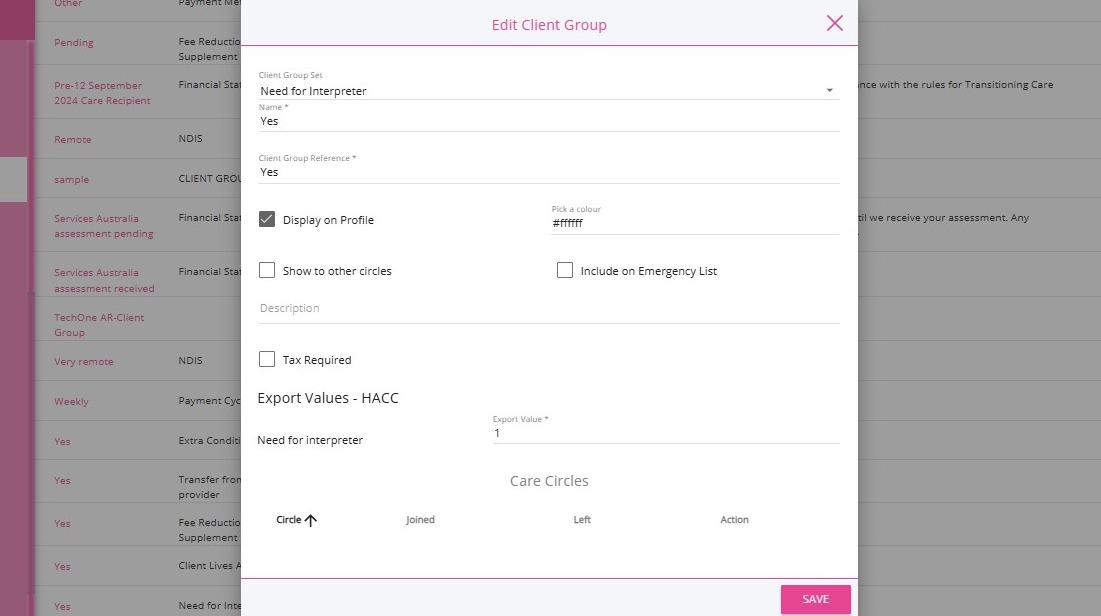
Let’s walk through creating a Client Group for the Need for Interpreter group set.


1. Set the Client Group Set field to Need for Interpreter.

2. Set the Name field to Yes.

3. Set the Client Group Reference field to Yes.

Notes
If there are multiple options listed under the Name (Client Groups) column for a group set, create each client group separately for that group set. For example, for the Need for Interpreter group set, you will need to create three different client groups: "Yes," "No," and "Unknown." Repeat the steps in this section, ensuring each client group is created with the corresponding details and export values.

4. Set the Export Value field to 1. Refer to the export values in the table to ensure accuracy.

5. Tick the Display on Profile box so the data appears on the client profile.

6. Click Save. After saving, the client group you created will appear under the Client Groups section.

III. Set Up Billing Categories

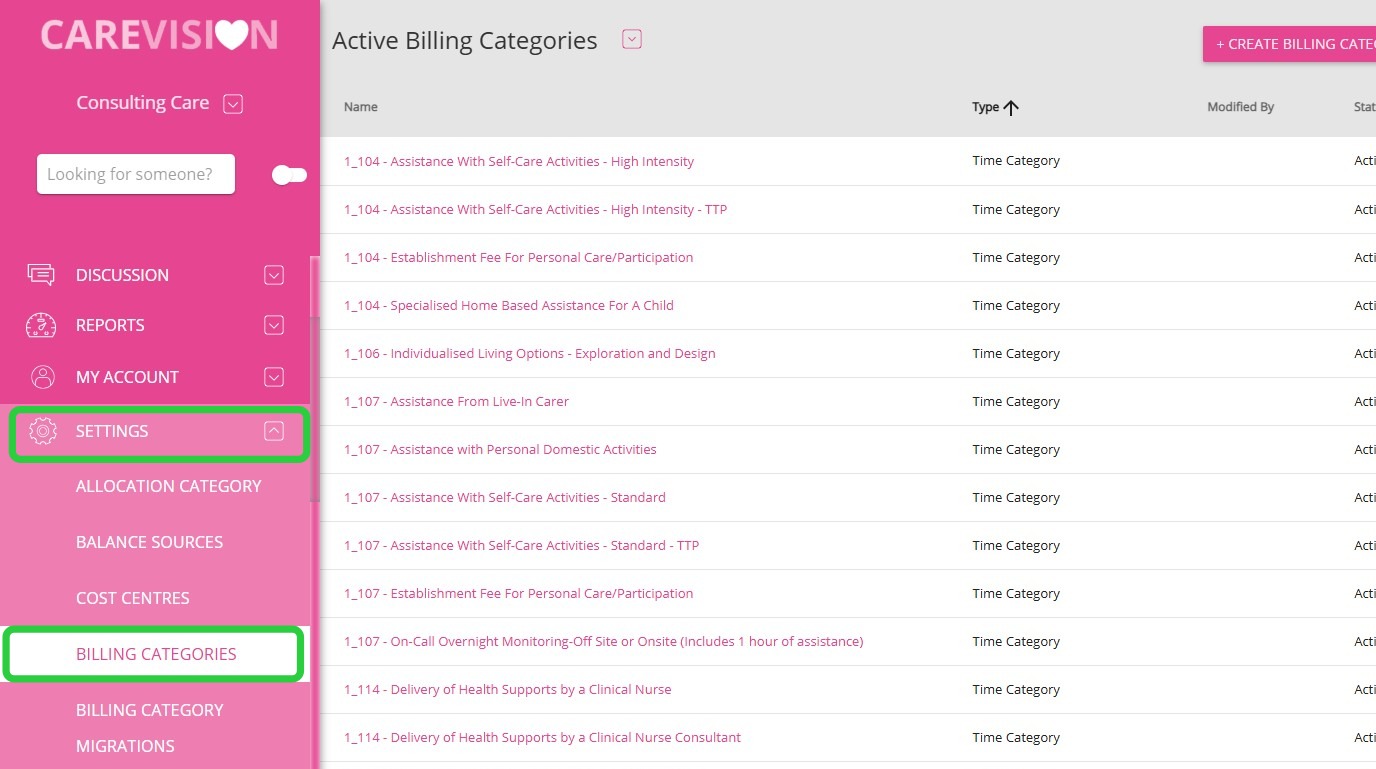
  1. Go to Settings > Billing Categories to set up HACC-related billing categories in your system. For HACC, the billing category type should be set to Time Category.
  2. Ref 16 is used for HACC billing categories. 


IV. Set Up Manual Line Item Templates for HACC
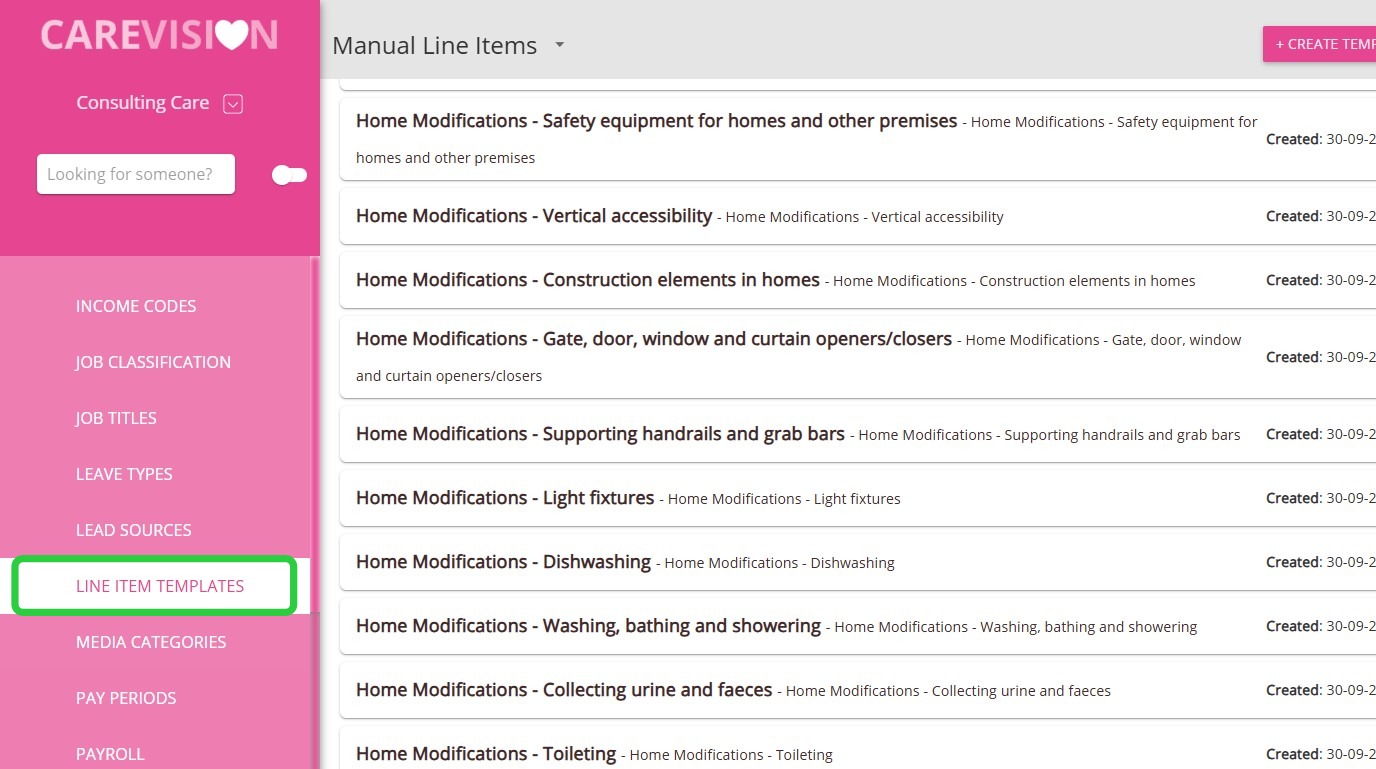
  1. Go to Settings > Line Item Templates to set up HACC-related manual line item templates. Refer to the table below for guidance.


Manual Line Item Template

Details

Provision of Goods and Equipment - Self Care Aids

Time Billing Category where references[16] = PROVISION OF GOODS AND EQUIPMENT Manual Line item Description of: Self Care Aids

Provision of Goods and Equipment - Supporting and Mobility Aids

Time Billing Category where references[16] = PROVISION OF GOODS AND EQUIPMENT Manual Line item Description of: Supporting and Mobility Aids

Provision of Goods and Equipment - Communication Aids

Time Billing Category where references[16] = PROVISION OF GOODS AND EQUIPMENT Manual Line item Description of: Communication Aids

Provision of Goods and Equipment - Aids for reading

Time Billing Category where references[16] = PROVISION OF GOODS AND EQUIPMENT Manual Line item Description of: Aids for reading

Provision of Goods and Equipment - Medical Care Aids

Time Billing Category where references[16] = PROVISION OF GOODS AND EQUIPMENT Manual Line item Description of: Medical Care Aids

Provision of Goods and Equipment - Care modifications

Time Billing Category where references[16] = PROVISION OF GOODS AND EQUIPMENT Manual Line item Description of: Care modifications

Provision of Goods and Equipment - Other goods/equipment

Time Billing Category where references[16] = PROVISION OF GOODS AND EQUIPMENT Manual Line item Description of: Other goods/equipment


V. Set Up Services

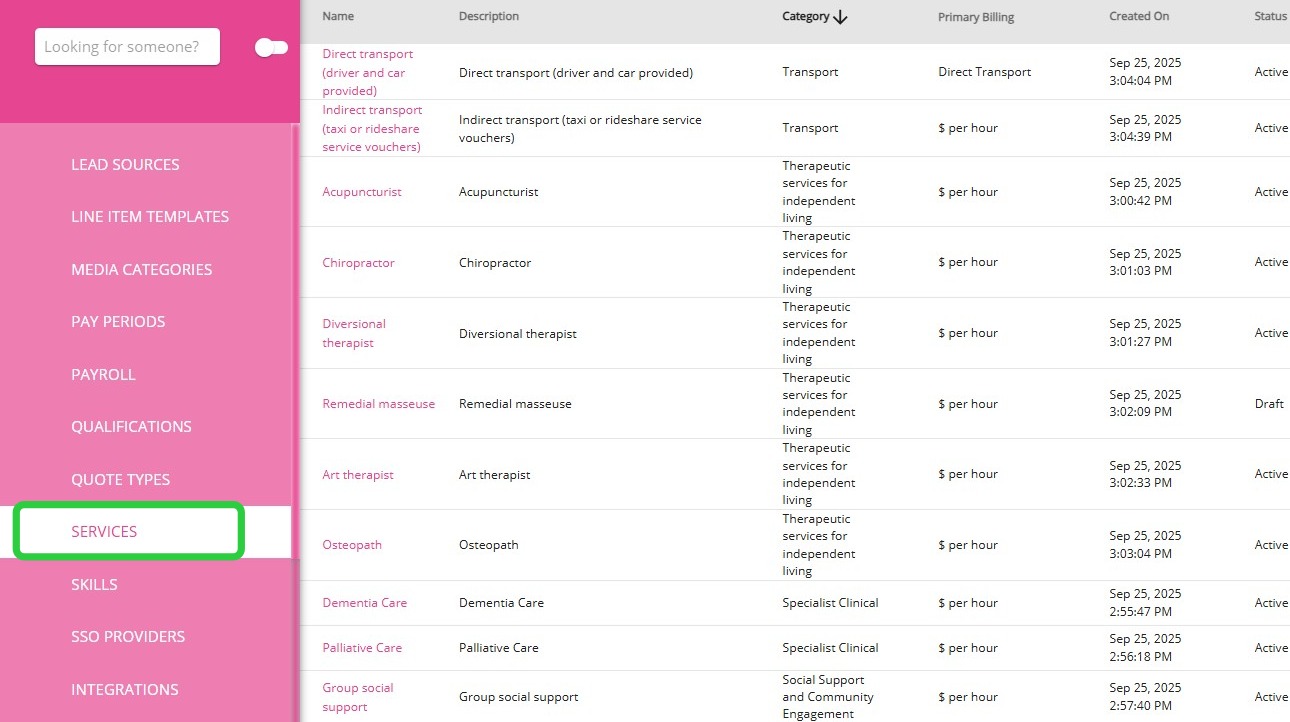
Go to Settings > Services to set up HACC-related services.

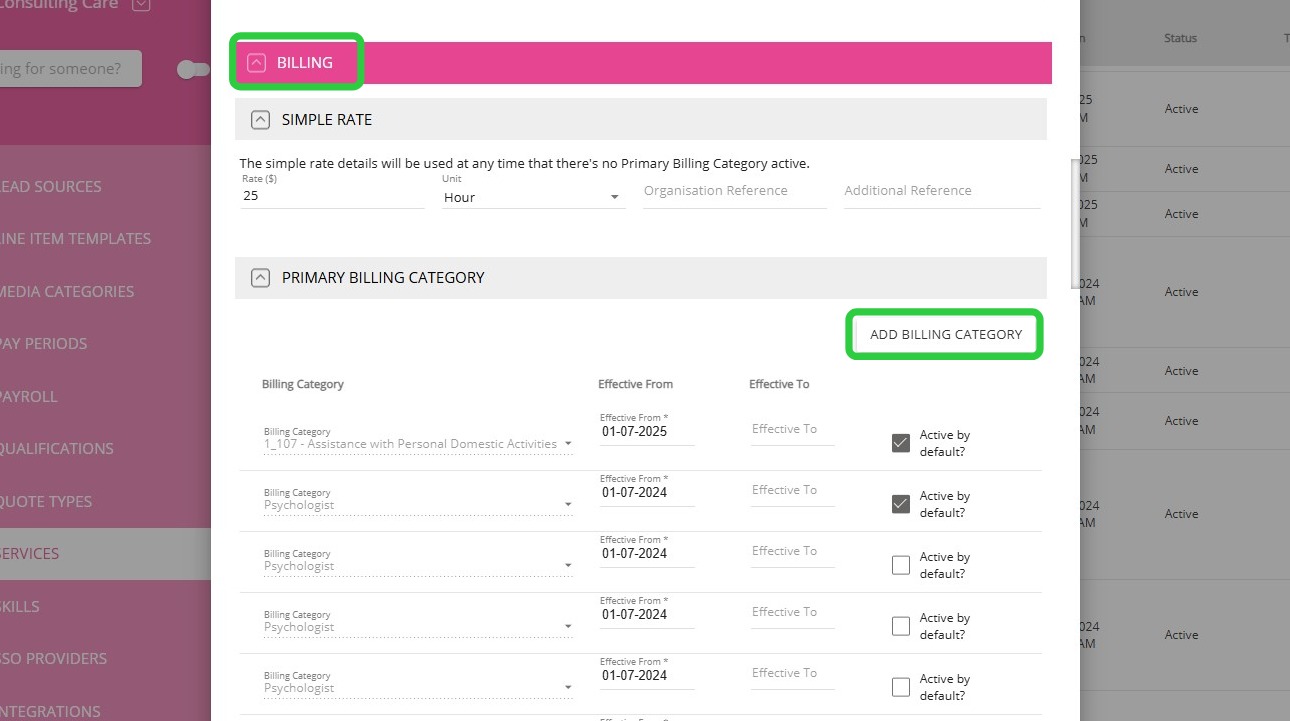
  1. When editing the service, go to the Billing section and click Add Billing Category to link the relevant billing categories to the HACC service.

VI. Set Up Funding Source Templates for HACC

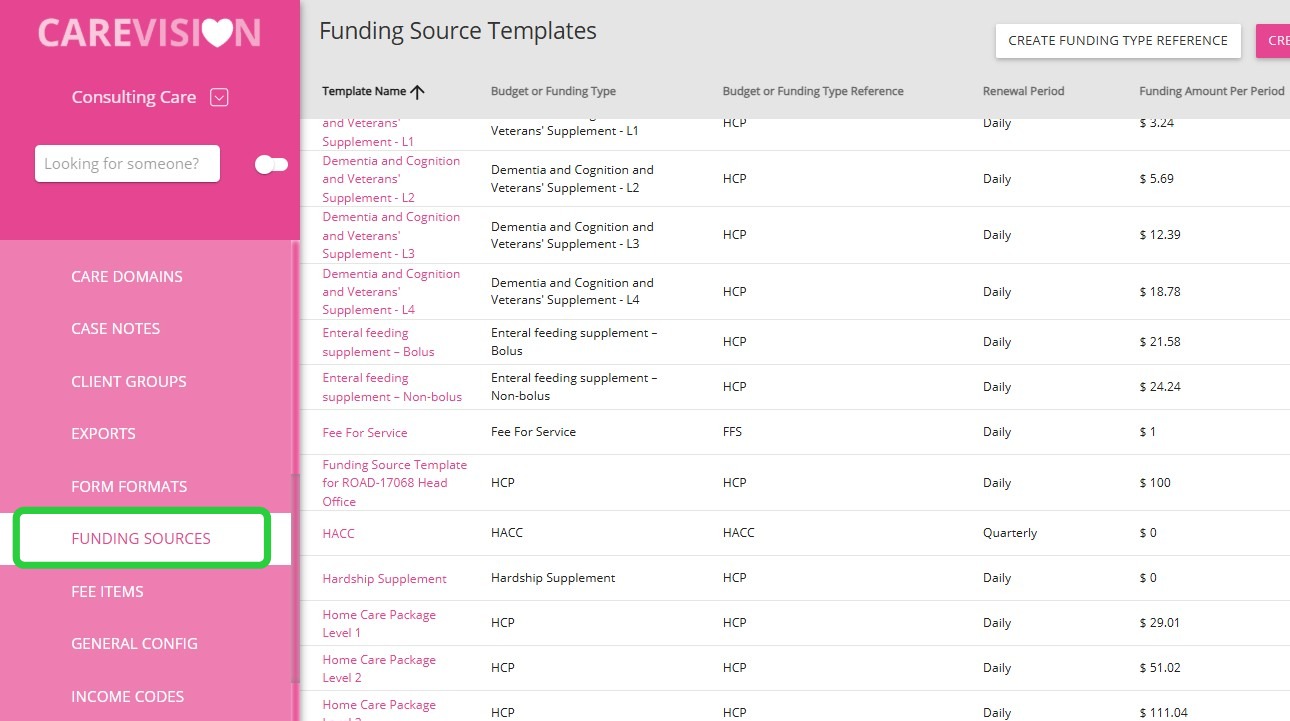
  1. Go to Settings > Funding Sources to set up a template for HACC.
  2. Link the Service, Billing Categories, and Manual Line Item Template to HACC Funding Source Templates.
  3. When creating a quote for a HACC client, use the HACC funding source template that you have set up.


This topic walked you through the steps for setting up your organisation’s HACC data, including how to create and configure Group Sets and Client Groups. For more information about HACC data setup, contact the CareVision Support Team.


    • Related Articles

    • General Payroll Concepts

      Payroll is the process of tracking hours worked, calculating compensation, and distributing payments to staff members to ensure they are paid accurately and on time. At CareVision, effective payroll management ensures reliable compensation for care ...
    • How to Create a Service

      This topic describes how to create and set up services in CareVision. Services represent the core activities your organization delivers to clients and can be linked to case notes for accurate billing and documentation. By setting up Services, your ...
    • How to Update Outlet IDs on Funding Source Templates

      Outlet ID is a unique code that identifies and links specific transactions to a particular outlet location within your organization. Regularly updating your Outlet IDs in CareVision helps ensure that all client funding exports are accurate and ...
    • How to Update NDIS Pricing in the Portal

      NDIS has released Pricing Arrangements and Price Limits document effective 24 November 2025. The rates for Art and Music Therapy will change from $193.99 to $156.16 per hour. This guide describes the steps on how you can update your rates in the ...
    • Configuration Workbook

      What is the workbook The CareVision Workbook is a shared resource used to collect and document all of the data elements required to configure the CareVision system. While technology continues to advance we have found that collecting this data in a ...

    Request an Article or Guide

    We are keen to know what you want to know more about? Let us know on chat or raise a ticket for an article or topic you would like covered in more detail. We have a team of technical writers and learning content creators keen for your suggestions.