How to Manage Your User Licenses
Managing user licenses in CareVision supports cost-efficient operations. HR, People & Culture, and Finance roles oversee license allocation at both Head Office and branch levels. Please note: If a staff member holds accounts at both levels, each account is considered a separate license. Therefore, you will need to manage each account individually if the staff member needs to be exited from both locations.
CareVision invoices are generated automatically based on the number of active users with assigned security roles. To maintain cost efficiency, assign licenses only to users who need access, as each active user with a security role is included in your licensing calculation.
Keywords: carevision user licenses, cost efficient license management, hr license allocation, people and culture roles, finance license oversight, active user security roles, branch level license management, staff exits process, manage suspended users
Steps to Manage User Licenses
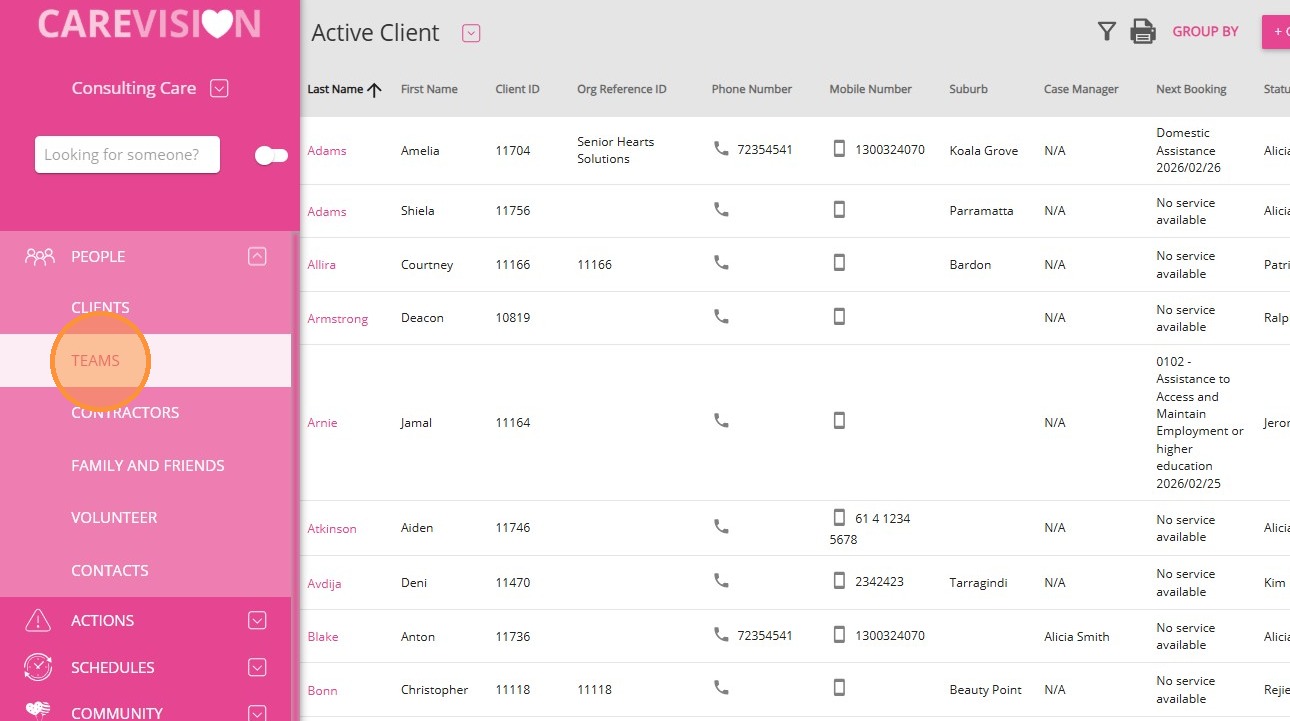
1. Navigate to People > Teams.
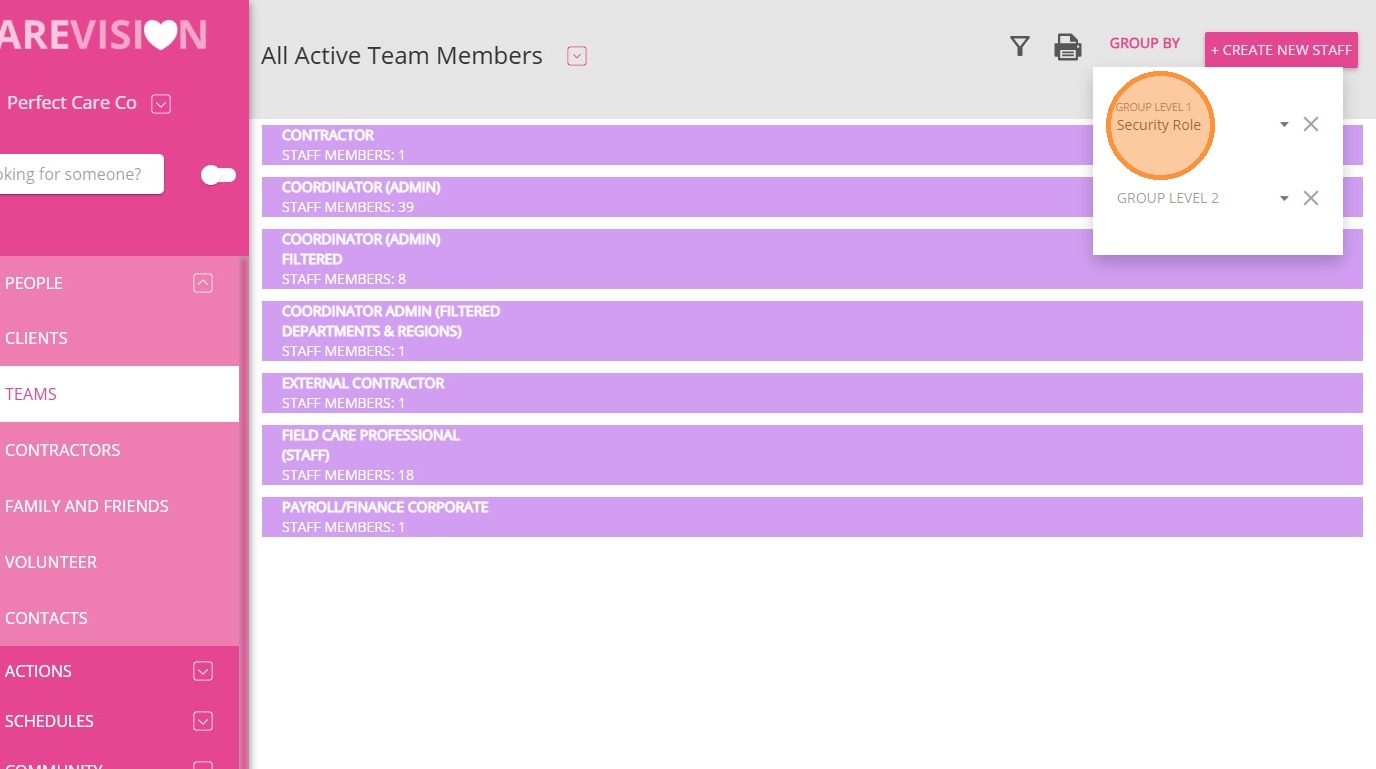
2. In the Group By section, set the Group Level 1 field to Security Role to display all active team members by their assigned security roles.
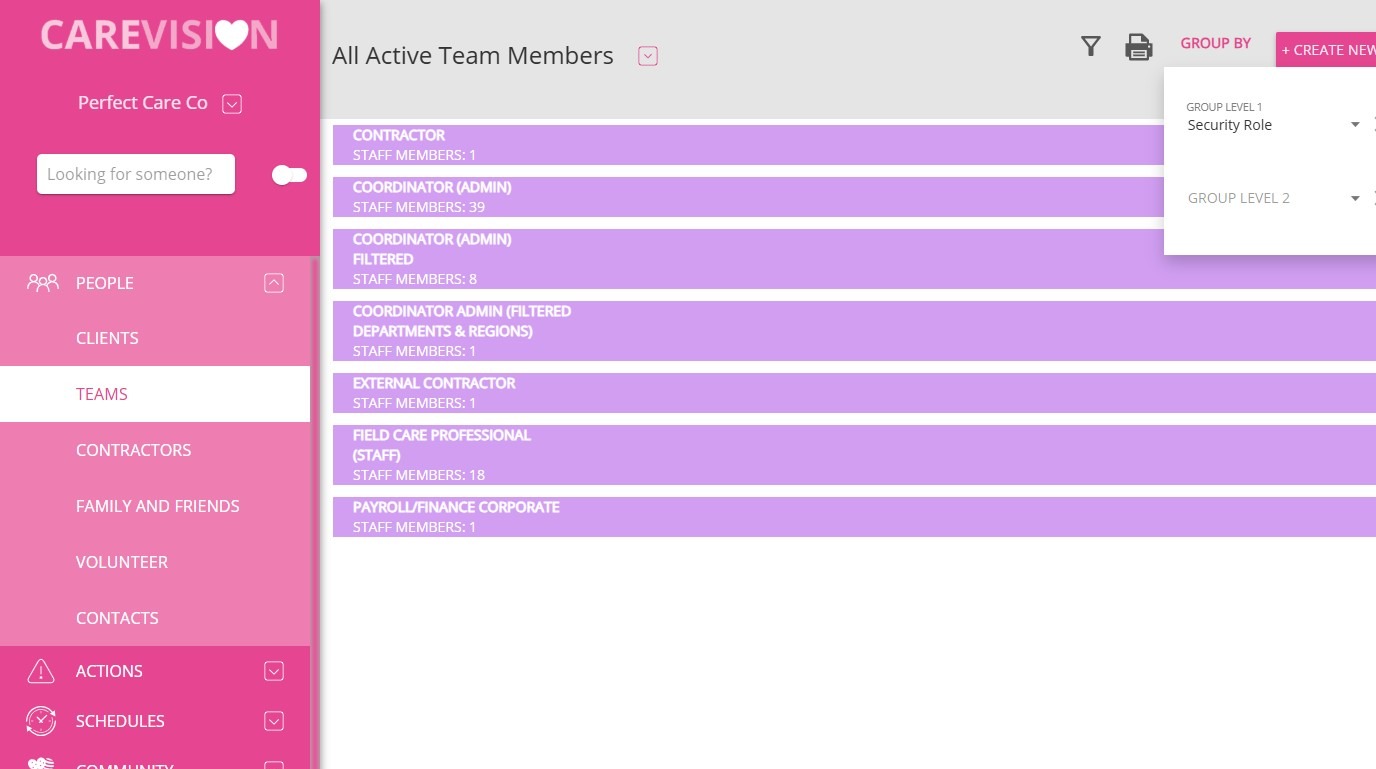
3. Review the list of active users and identify those with security roles, as these determine your license count.

 Important Note: Please do not remove CareVision Concierge users or any accounts created by CareVision. These accounts are not included in your licensing and are important for ongoing support. Removing them may affect your support services.
4. Identify staff members who no longer require access, such as unused or training users.
5. Suspend the profile of any staff member who should not have an active license. Once a staff member is exited, their license is automatically removed.
 For detailed instructions, refer to the Staff Exits documentation.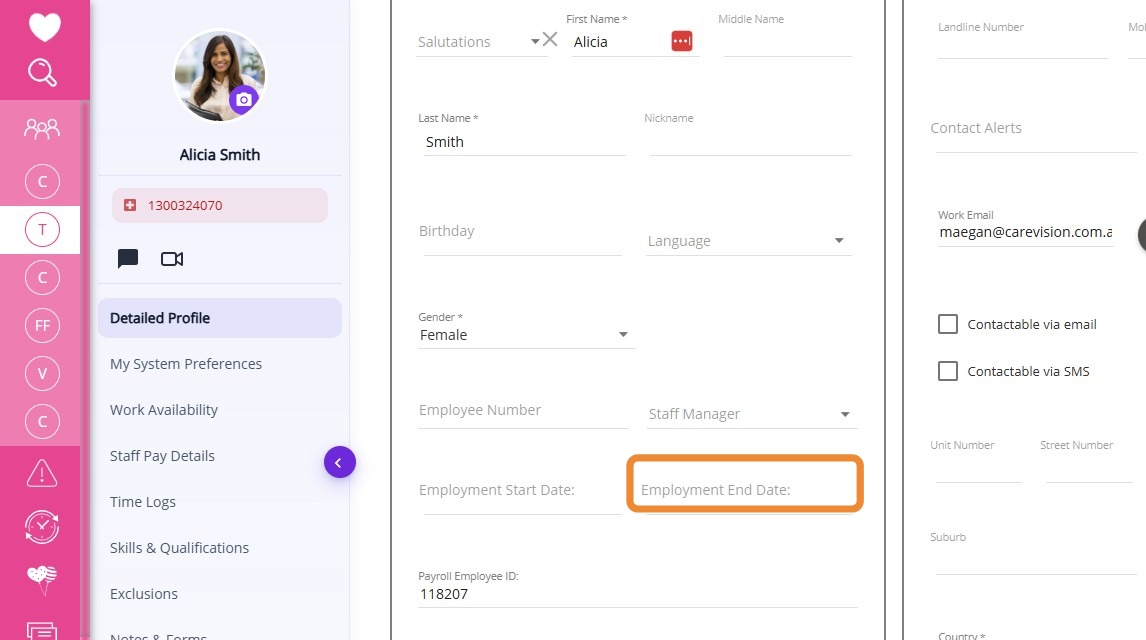
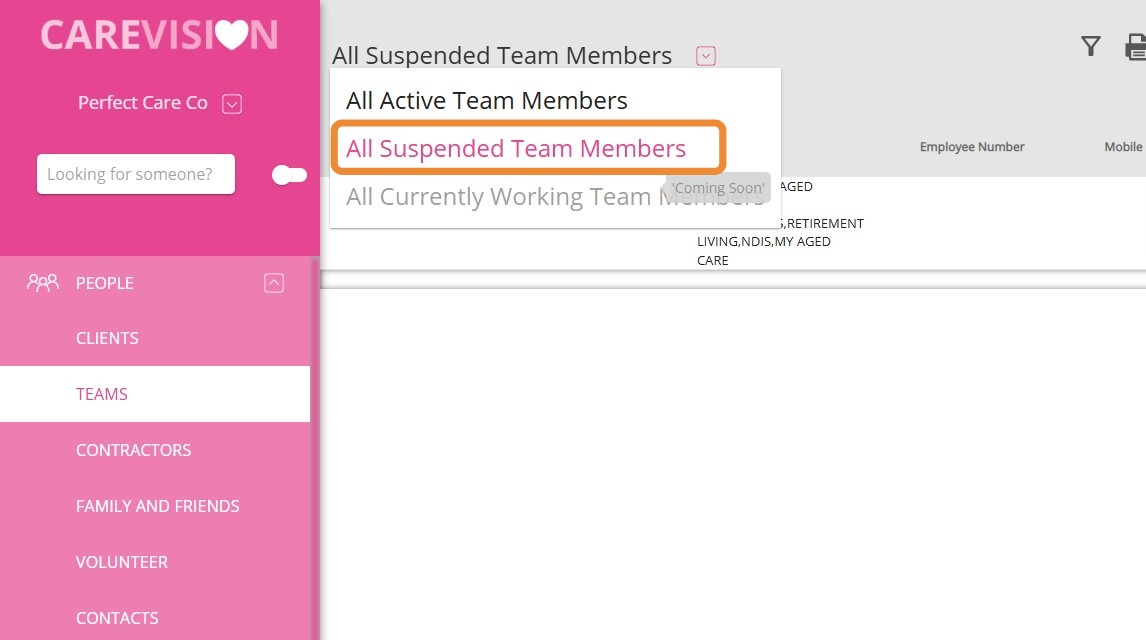
6. To monitor suspended users, click on All Suspended Team Members at the top of the Teams page.
Staying on top of your licensing helps your organization control expenses and remain cost efficient. For more information about user license management, contact the CareVision Support Team.