Approving Timesheets
Bookings capture all relevant work details, including date, time, staff, and service. When payroll is generated, these booking records are converted into timesheet data.
Reviewing and approving bookings before export is important for payroll accuracy. The Service Review board allows you to verify each booking’s details and resolve any issues before exporting to payroll. Approving only accurate bookings helps prevent errors and ensures staff are paid correctly.
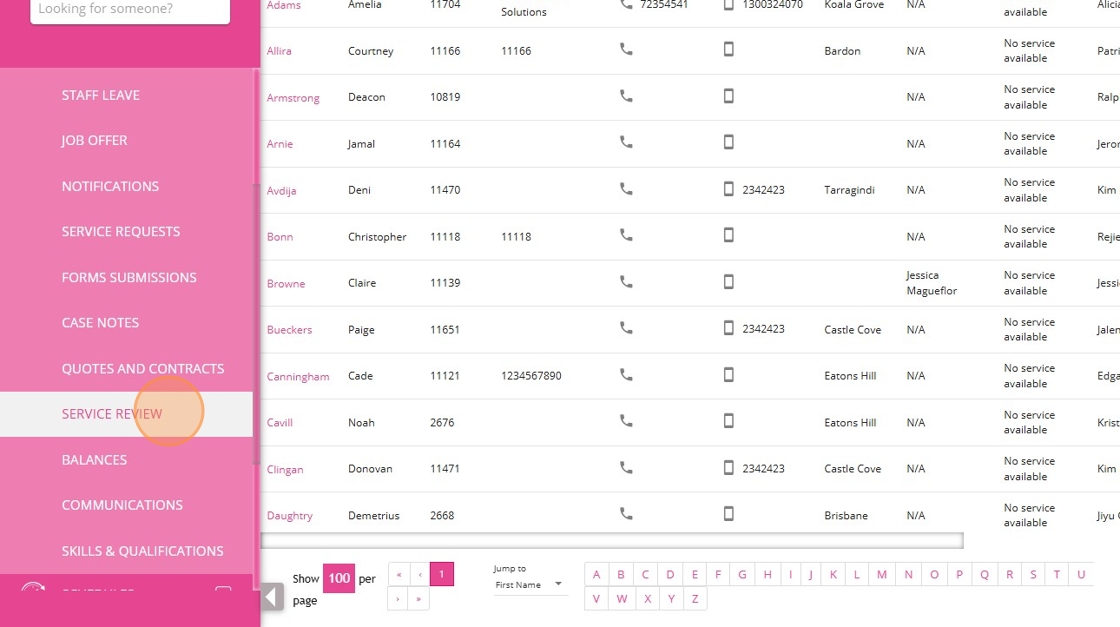
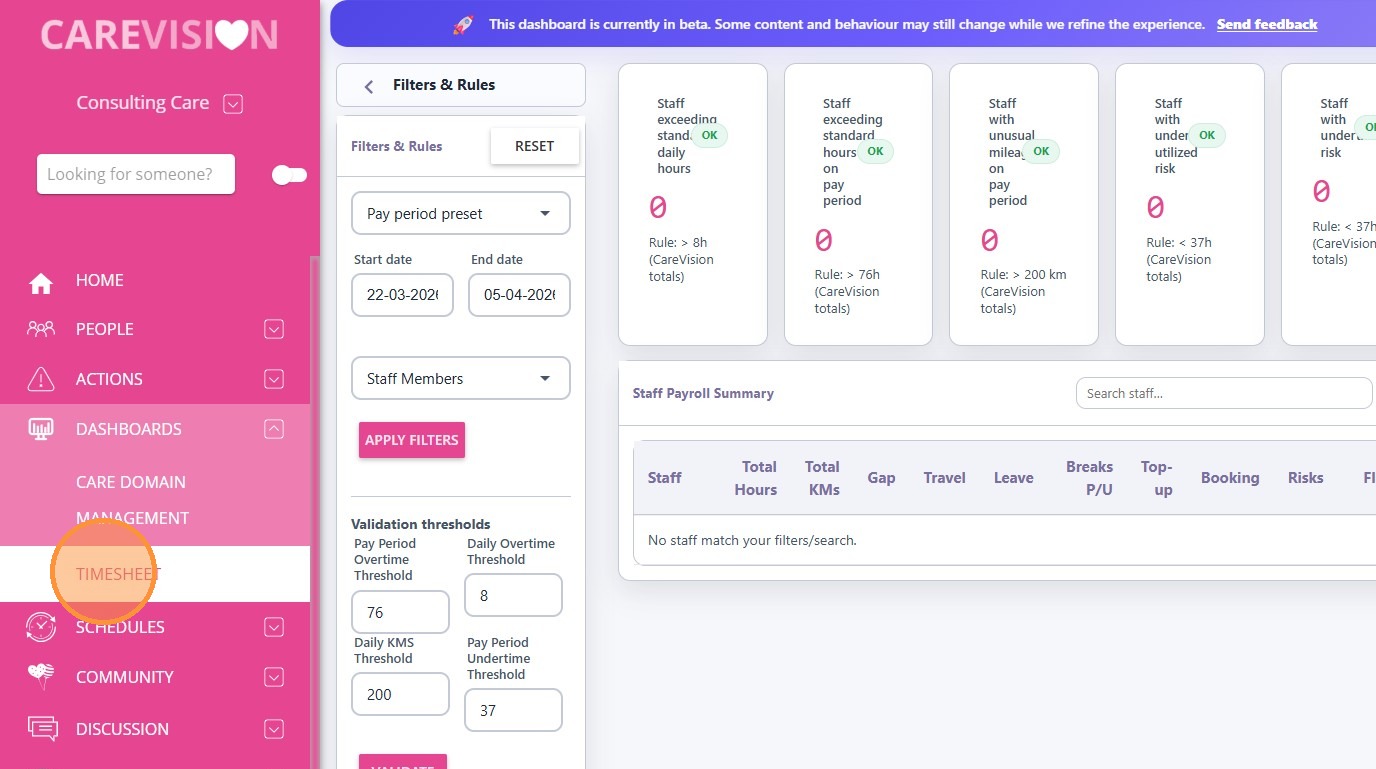
On the left menu bar, click Actions and then click Service Review.
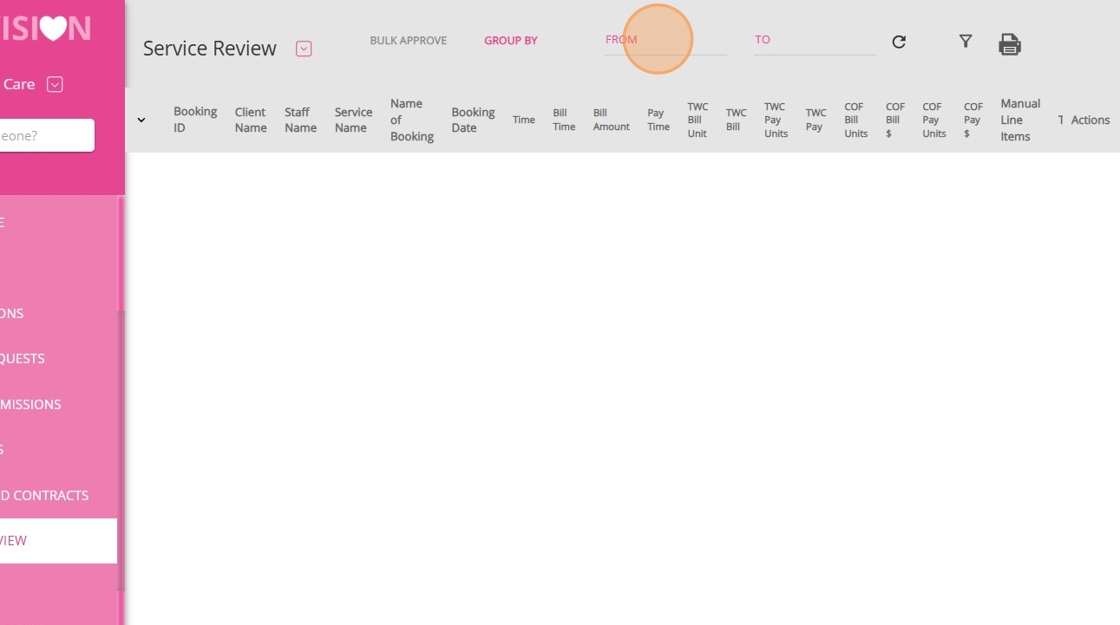
In the upper right, set the From date to the start of your pay period.
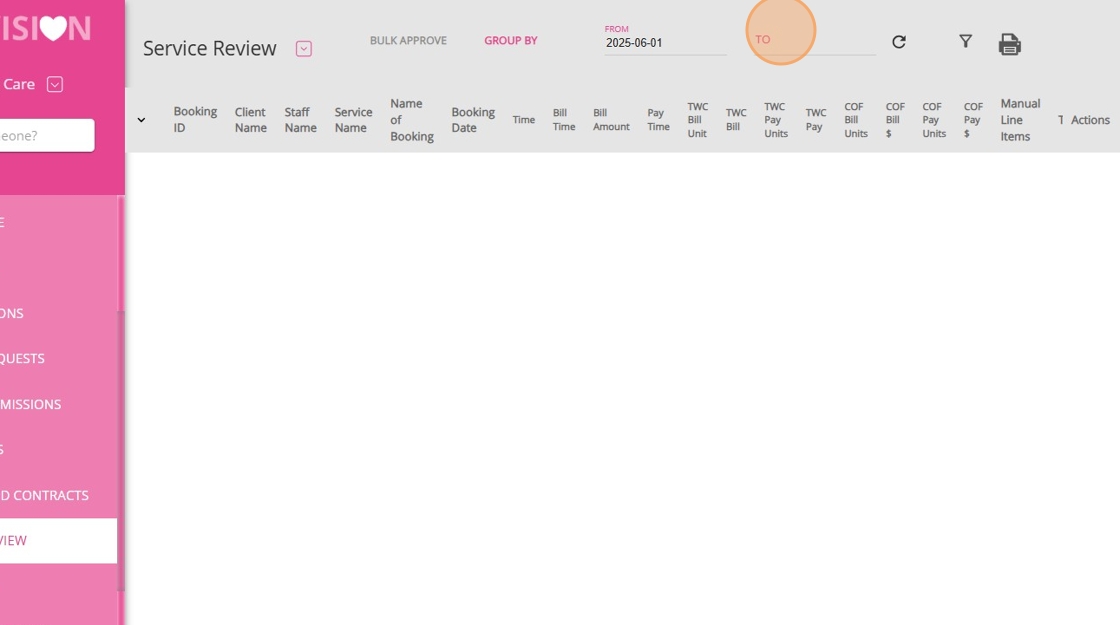
Set the To date to the end of your pay period.
Click the Refresh button to load the bookings.
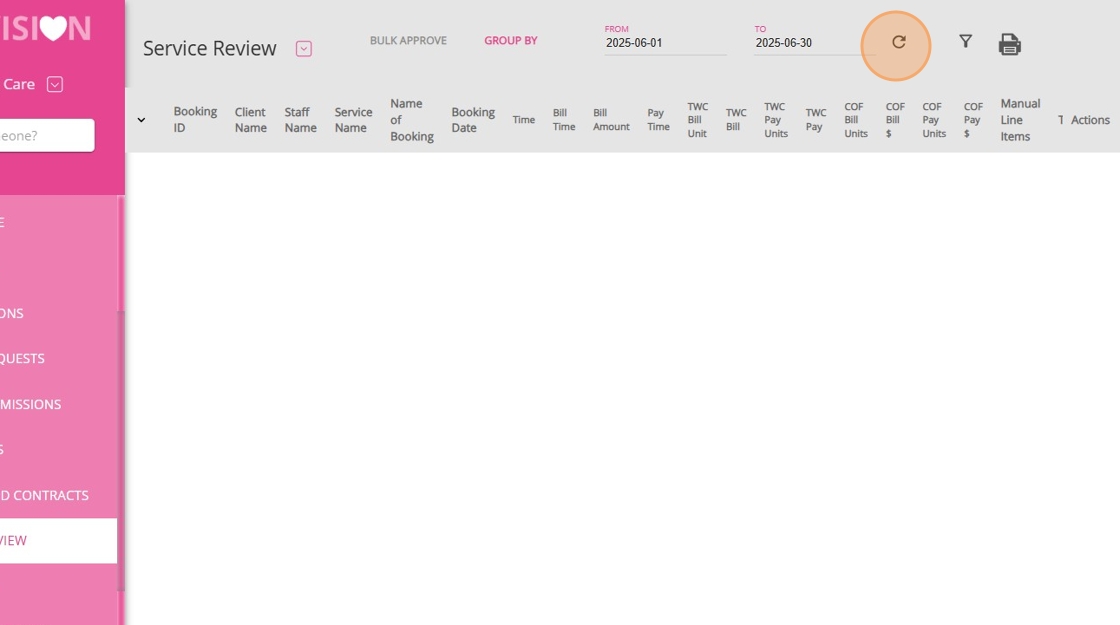
The Service Review board will display all bookings for the period you select.
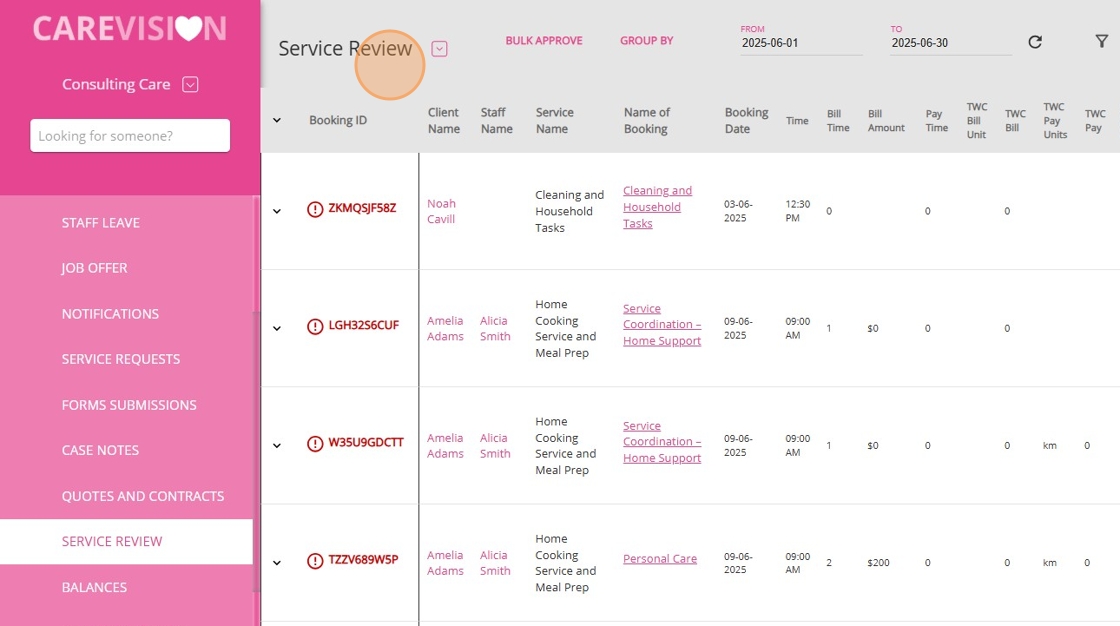
Review the booking outputs that may impact payroll.
The Service Review Board in CareVision provides a view of payroll columns for each staff member. Before approval, check the following pay columns:

Column | Definition |
Time | Pay Time represents the specific time period or time entries for which the staff member is being paid. This is commonly based on either the rostered (scheduled) time or the actual check-in/check-out times if there was a deviation and it was approved. The system defaults to paying scheduled time to avoid minor discrepancies, but this can be overridden if justified and approved. |
Travel With Client (TWC) | This column tracks the kilometers or travel units associated with transporting or accompanying a client during appointments. If a staff member logs travel with a client, this is recorded here and contributes to their pay. It’s important to check that any travel with a client is accurately logged and matches the staff member’s claims and the appointment details. |
Call Out Fee (COF) | COF refers to the call out fee, which is an additional payment for travel between appointments or for attending a client outside of regular scheduling. This field captures the calculated kilometres or fees for travel between appointments, excluding the first appointment of the day (as travel to the first appointment is not paid). Ensure that the call out fee is correctly calculated and applied according to the staff member’s bookings and travel records. |
Duration | This column reflects the total hours a staff member has worked for a particular shift or booking. By default, CareVision pays based on the scheduled time unless there’s a manual adjustment (such as when a staff member stayed longer with client approval, the duration can be modified to reflect actual check-in/check-out times). It is important to verify that the Pay Duration aligns with the actual time worked and any approved changes. |
Time | Pay Time represents the specific time period or time entries for which the staff member is being paid. This is commonly based on either the rostered (scheduled) time or the actual check-in/check-out times if there was a deviation and it was approved. The system defaults to paying scheduled time to avoid minor discrepancies, but this can be overridden if justified and approved. |
If any data is missing, the Service Review Board will flag it before export.
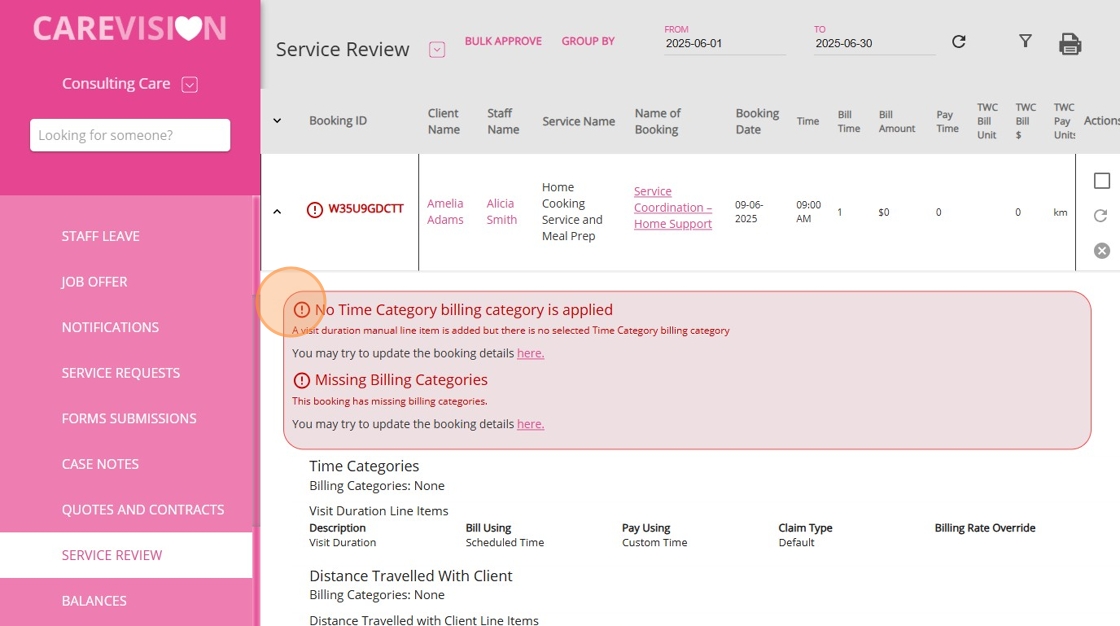
Bookings with issues are indicated by booking IDs highlighted in red. For each highlighted booking ID, click the downward arrow to expand and view the alert details.
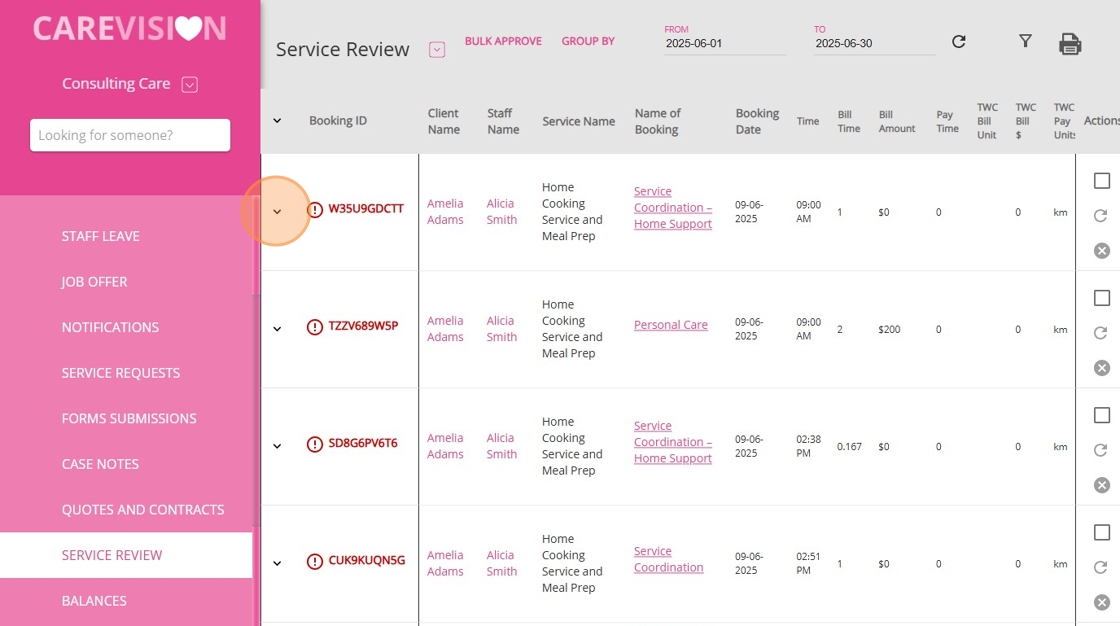
Review and resolve booking issues.

After you have verified that a booking is correct, you can approve it. Under the Actions column, click the checkbox to approve a booking.
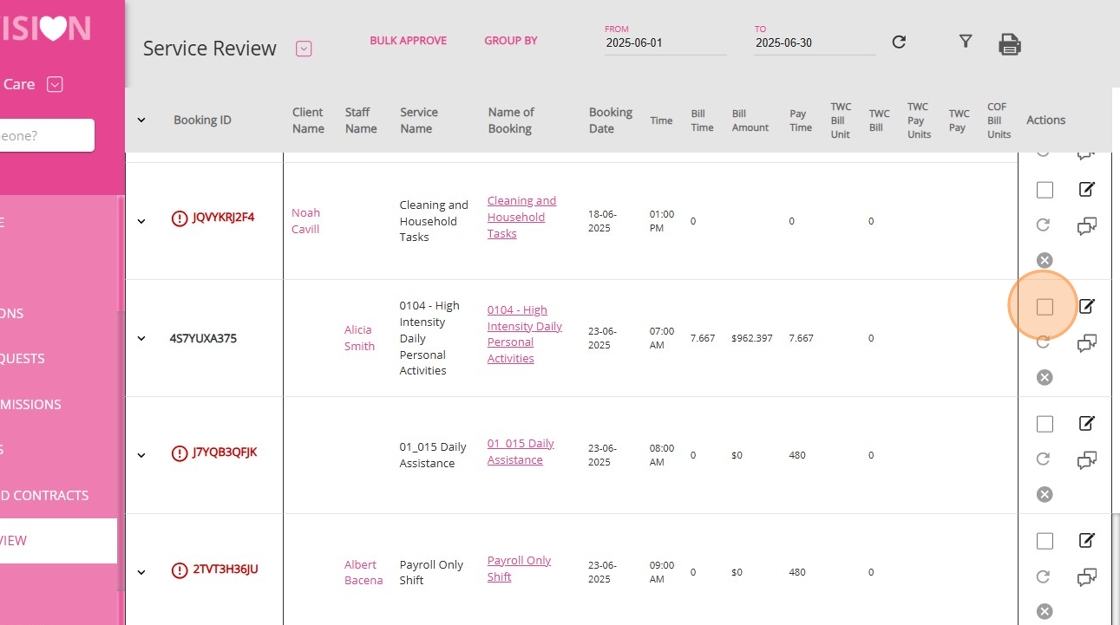
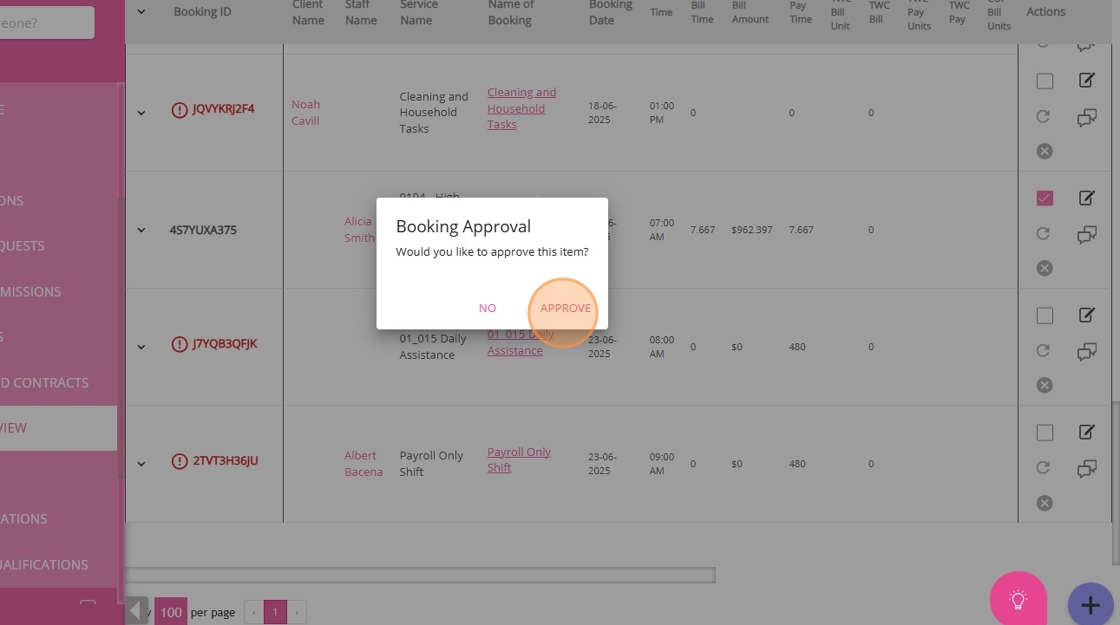
A prompt will appear asking you to confirm whether you want to approve the booking. Click Approve to proceed.
Once you are confident that all information is accurate and complete, you can proceed with generating timesheet files.
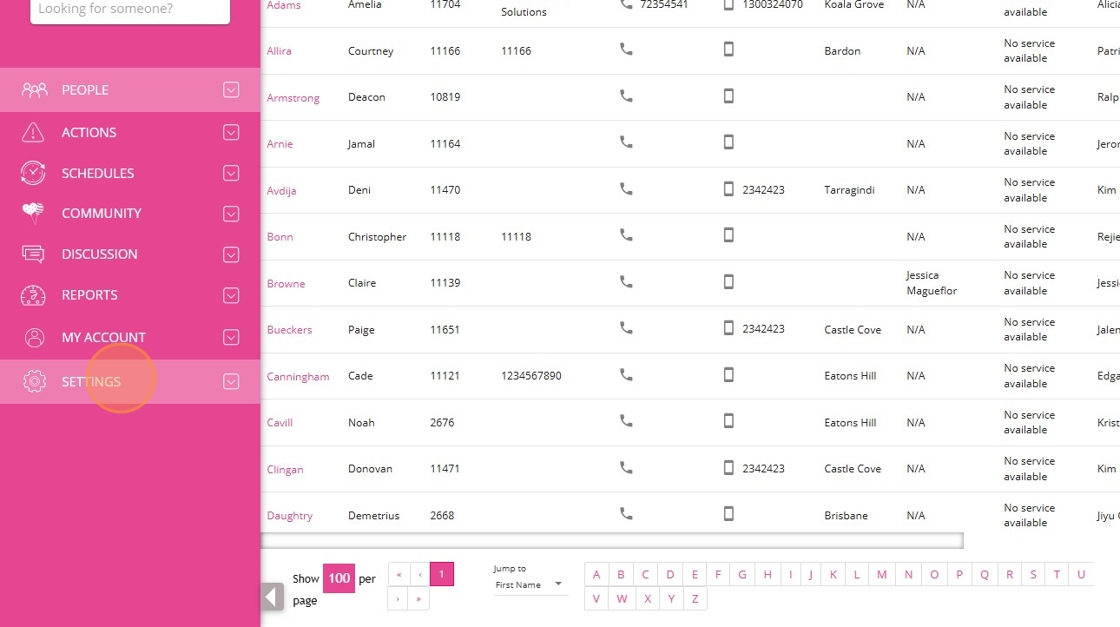
In the left menu, click Settings.
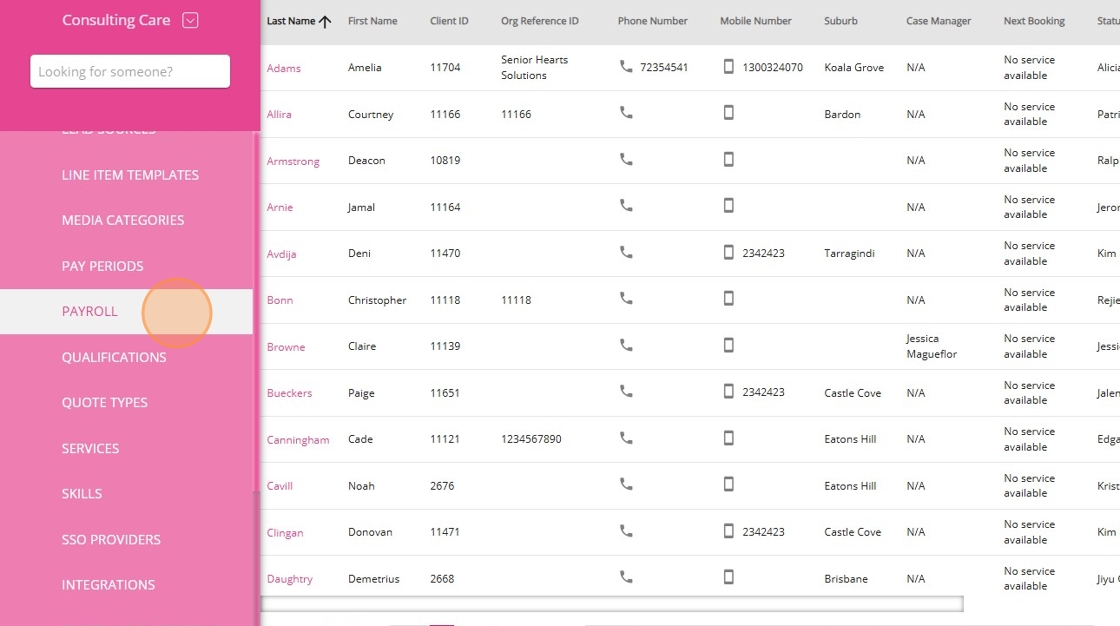
2. Select Payroll.
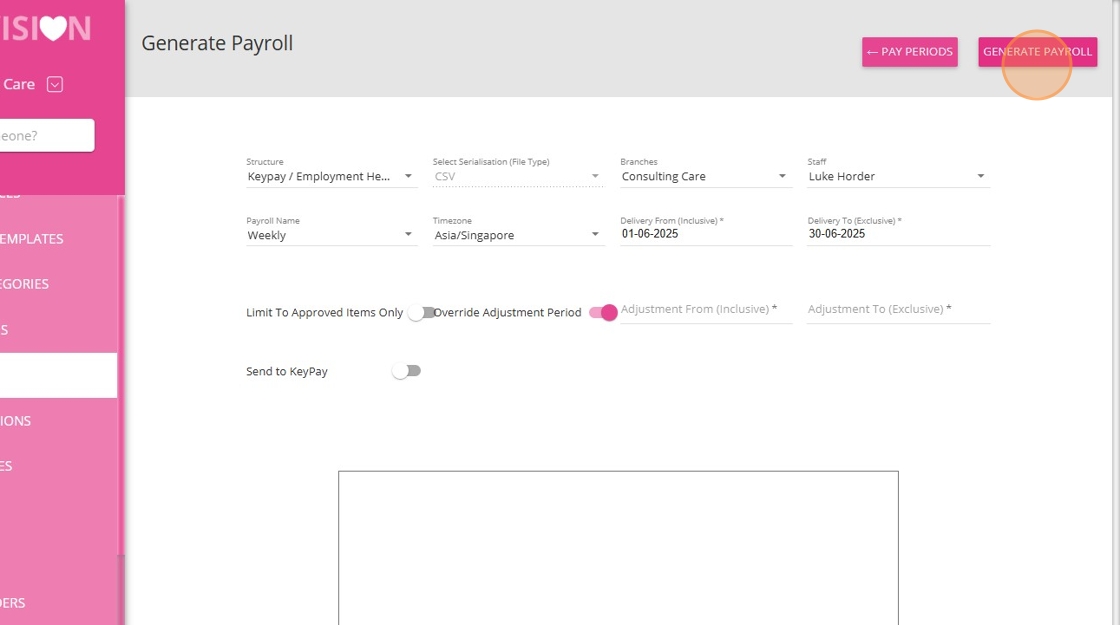
Set the Structure field to KeyPay/Employment Hero.
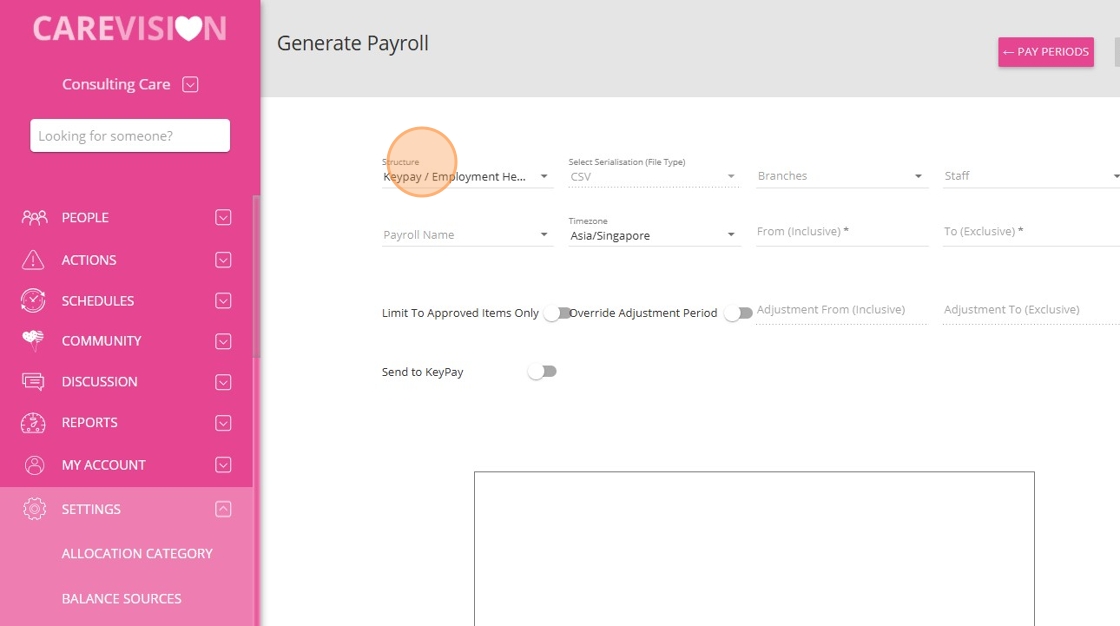
4. Set the Branch field to the relevant branch.
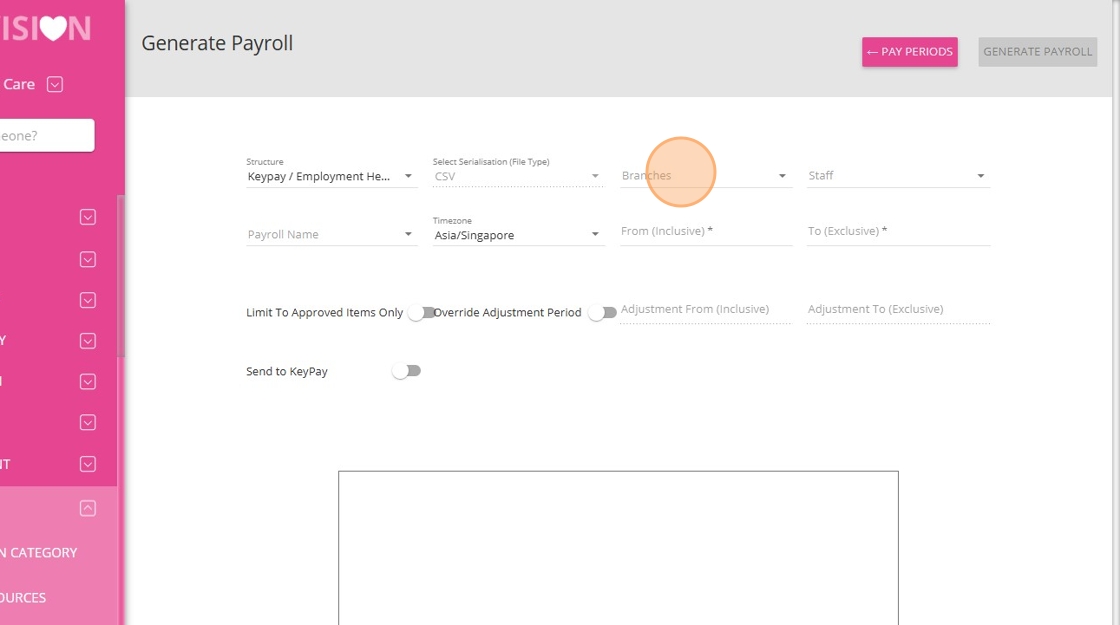
5. Set the Staff payroll name field to the appropriate payroll name(s).
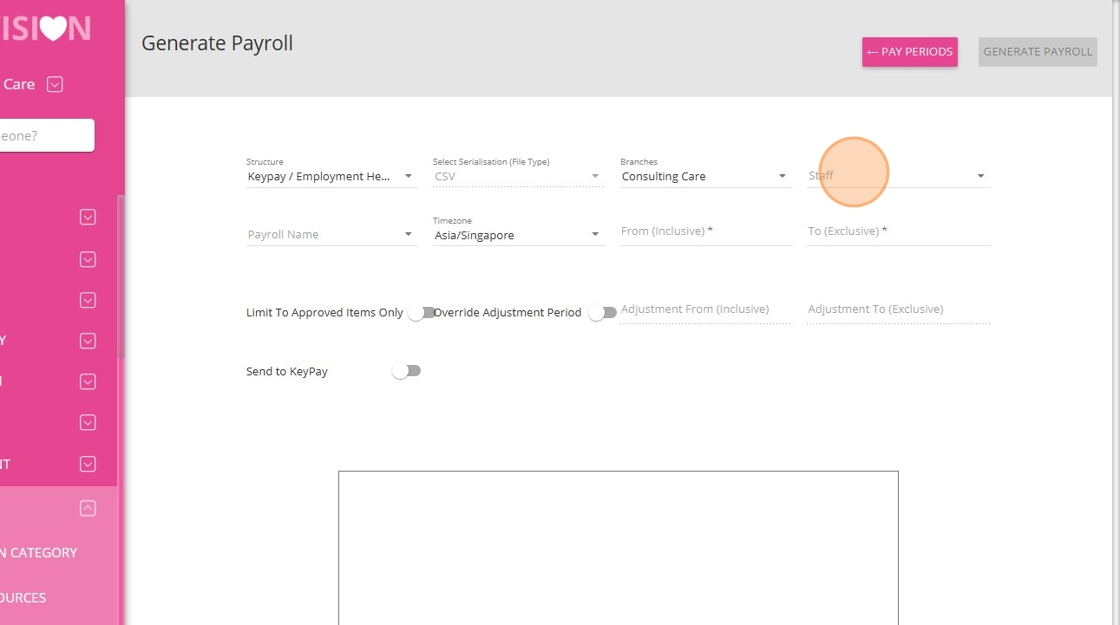
6. Set the Payroll Name field to the appropriate payroll name(s).
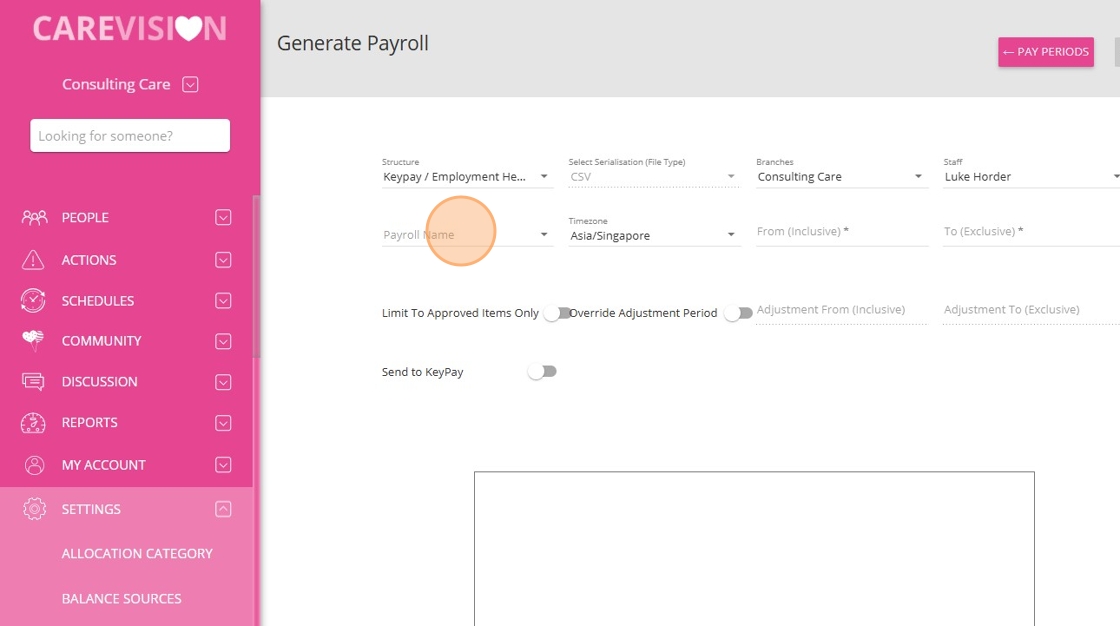
7. Set the Timezone field to the appropriate Australia timezone.
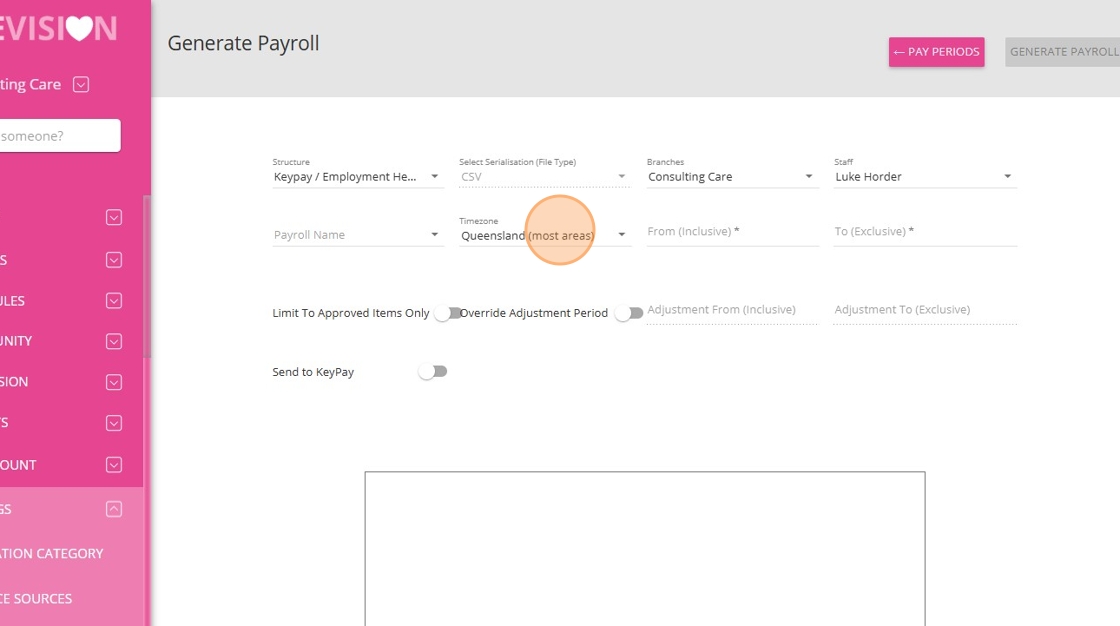
8. Set the From (Inclusive) date field to the start of the payroll period.
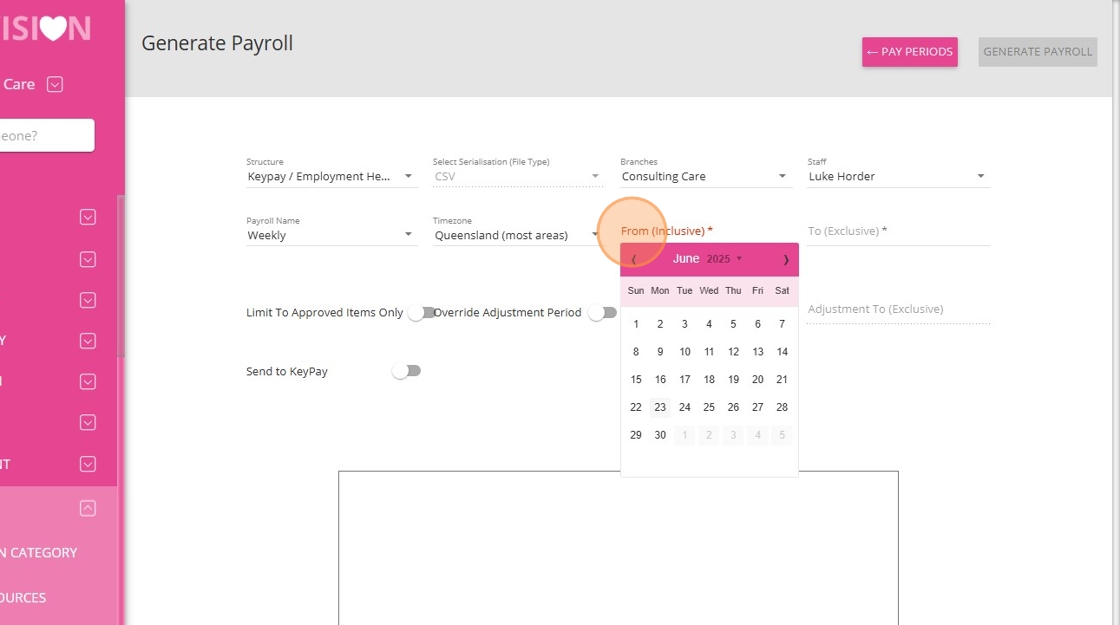
9. Set the To (Exclusive) date field to the end of the payroll period.
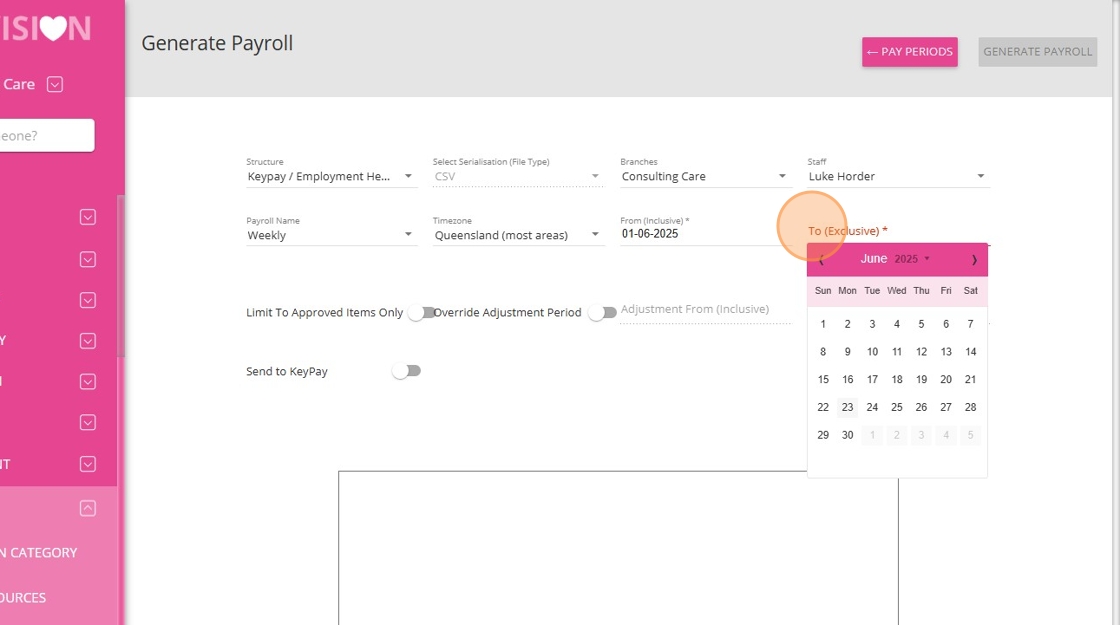
Turn on the Limit To Approved Items Only toggle if you want to limit your export to include only the approved items in the service review.
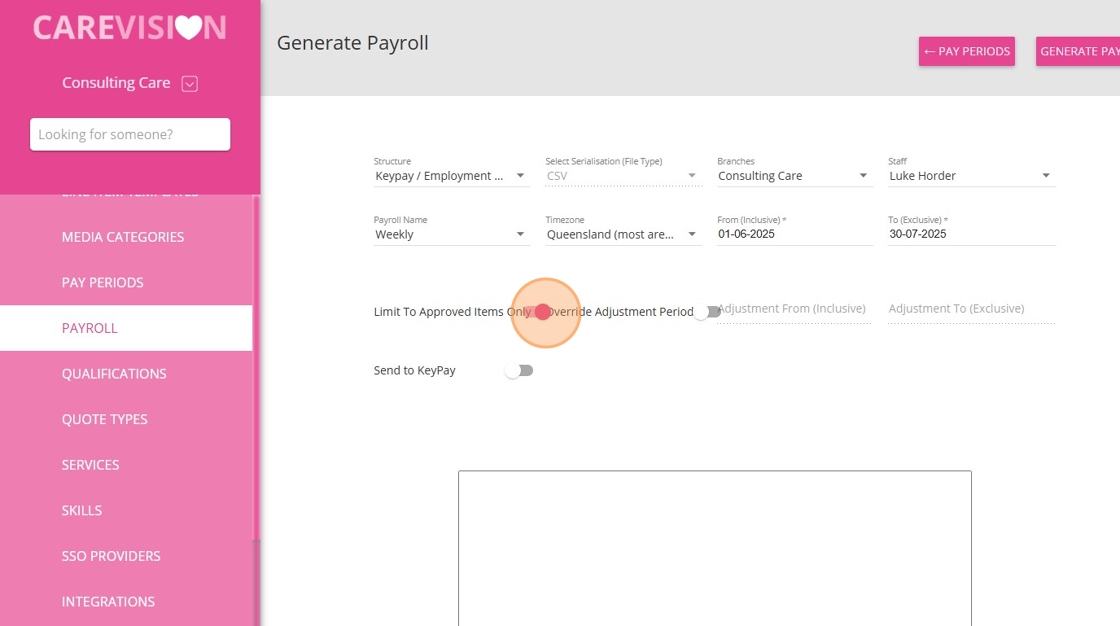

(Optional) Turn on the toggle Override Adjustment Period to allow additional days after your export period for capturing any late changes. This ensures that all updates up to the selected adjustment to date are automatically included, helping to keep your reports accurate and complete. When you turn on this toggle, specify the Adjustment From (Inclusive) and Adjustment To (Exclusive) fields.
For example, if your standard export period is June 1, 2025 to June 29, 2025, but approvals and adjustments are finalized on July 1, 2025, you should set:
Adjustment From (Inclusive): June 29, 2025
Adjustment To (Exclusive): July 2, 2025
This ensures that any changes made from June 29 up to, but not including, July 2 are captured in your export, keeping your June 2025 reports accurate and complete.
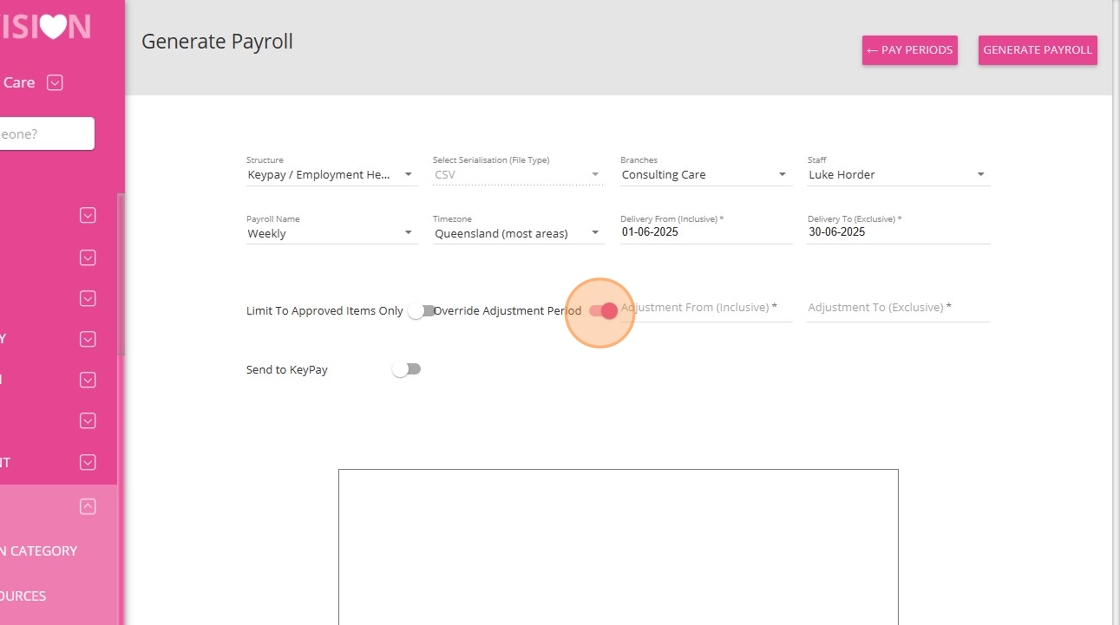
12. Click Generate Payroll to compile payroll data.
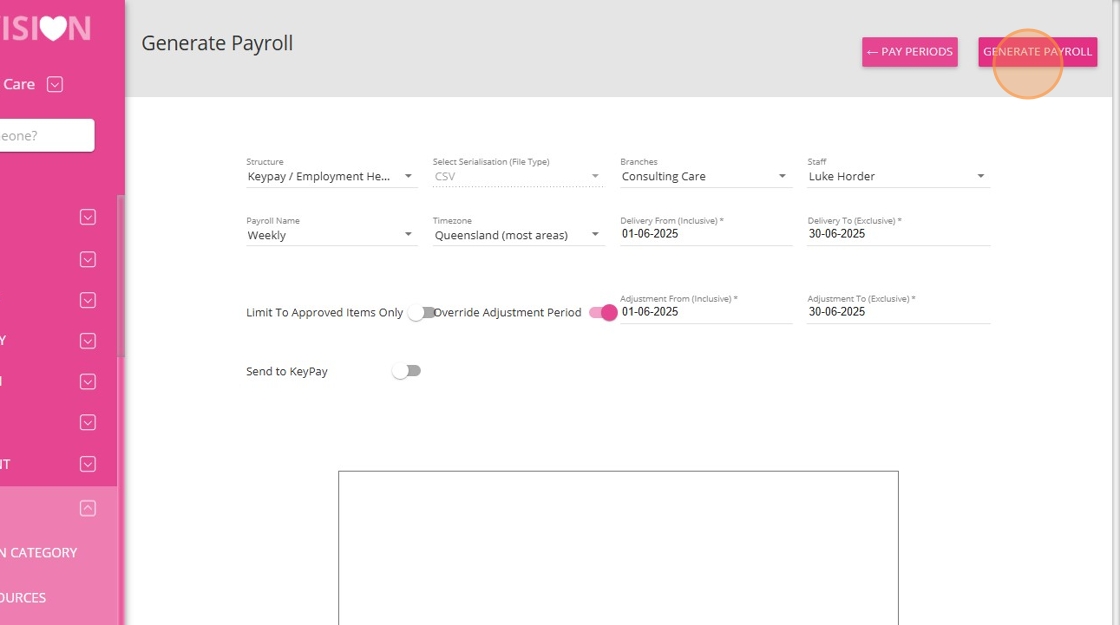
13. Download and extract the ZIP file containing Mileage and Timesheet files.

14. Review both files to ensure all payroll information is accurate.
- The Timesheet file includes data on hours worked by staff for each shift. This file contains columns such as Employee External ID, Start Date and Time, End Date and Time, Break Start Date and Time, Break End Date and Time, Location External ID, Work Type External ID, Rate, Comments, and Units.

- The Mileage file provides information on kilometers traveled by staff, including callout distances. It contains columns for Employee External ID, Date, Units, and Work Type External ID.
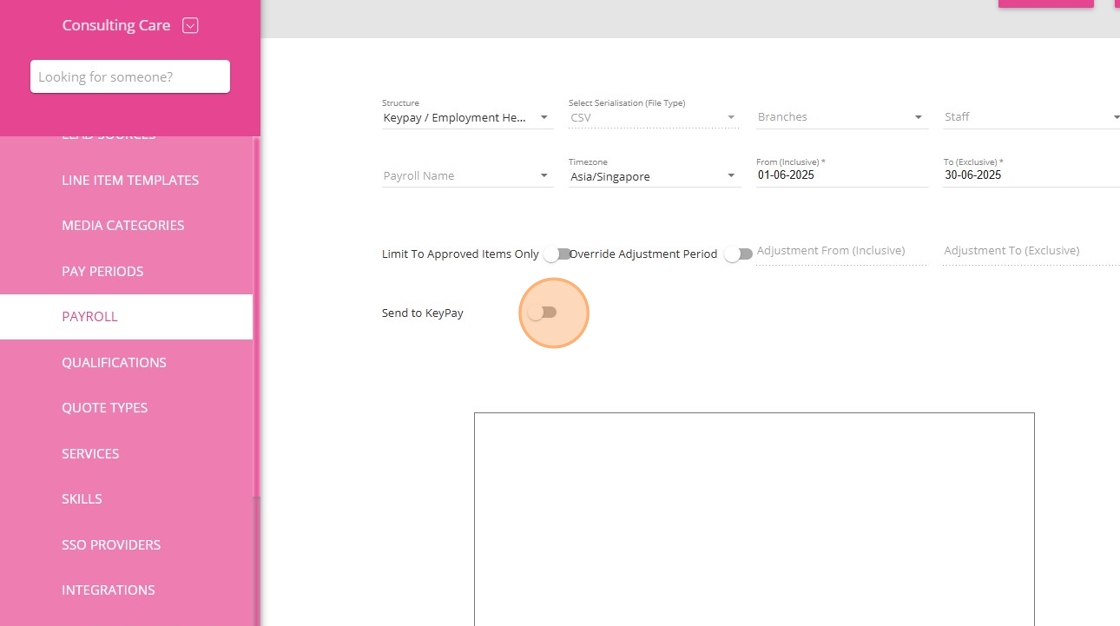
Then, click Generate Payroll to proceed with submitting the payroll to KeyPay/Employment Hero.