Rostering Sleepovers

Rostering Sleepovers

CareVision allows you to roster, track, bill, and pay for sleepover bookings based on rules configured in your organisation. This topic describes how to roster sleepovers in CareVision.

Keywords: sleepover rostering, carevision scheduling, roster sleepover shift, staff allocation carevision, sleepover booking setup, carevision teams schedule, sleepover shift management, aged care rostering software, carevision support scheduling, sleepover shift rules

I. Set up a sleepover booking

Complete Setup for Sleepover Bookings

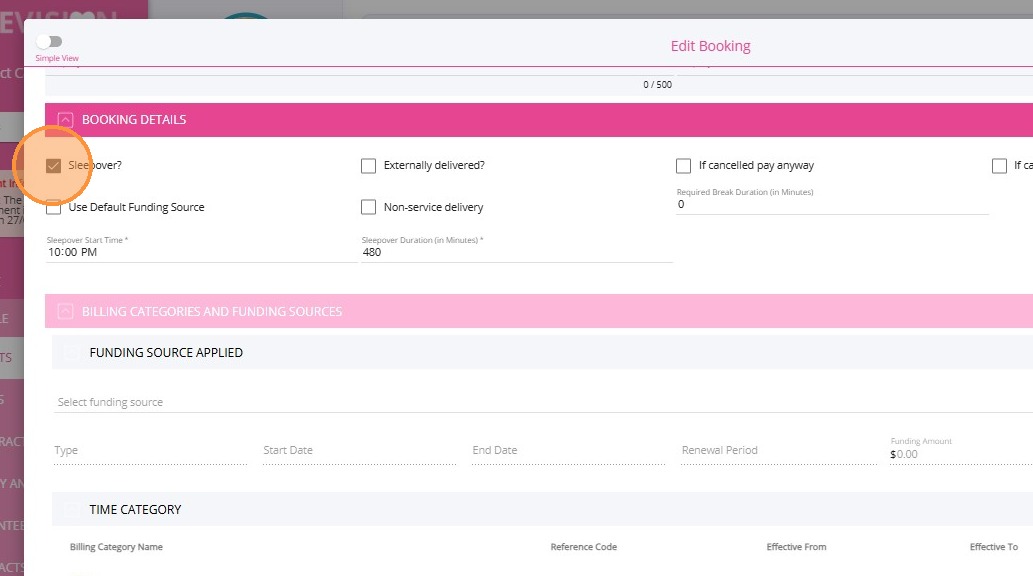
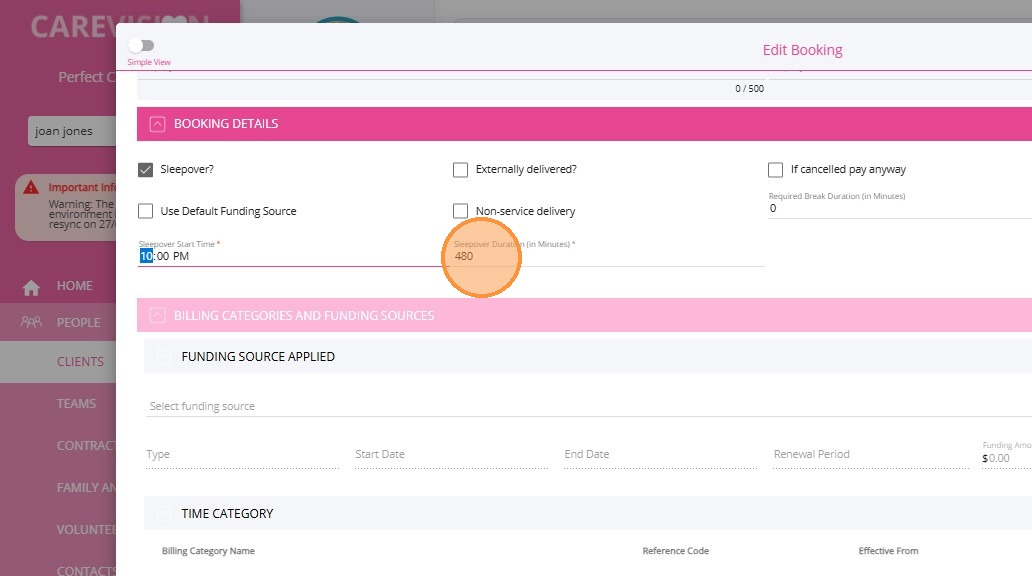
In the Booking Details section make sure:

  • The Sleepover? checkbox is ticked

  1. The Sleepover Start Time field is specified
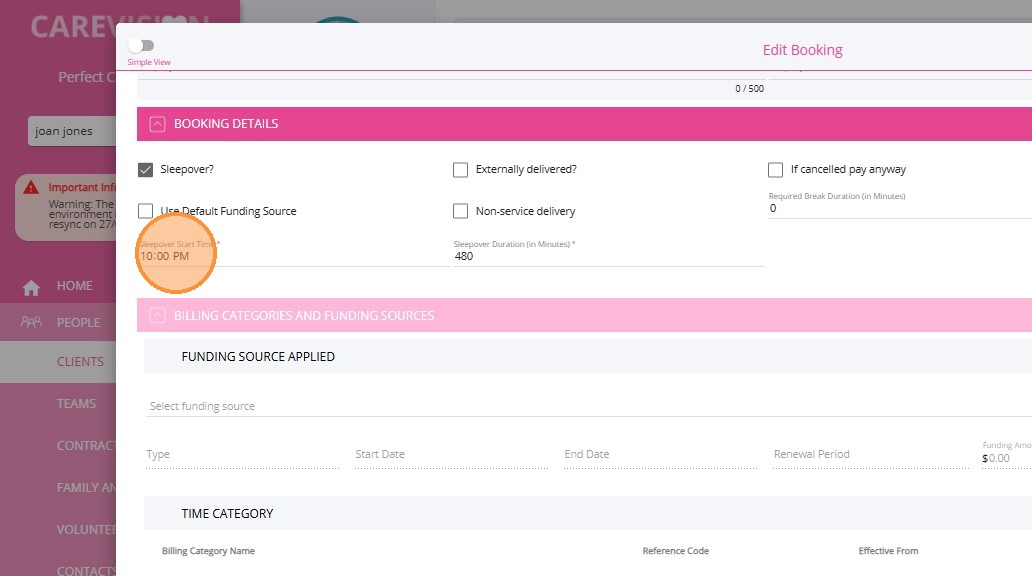
  1. The Sleepover Duration (in minutes) field is specified
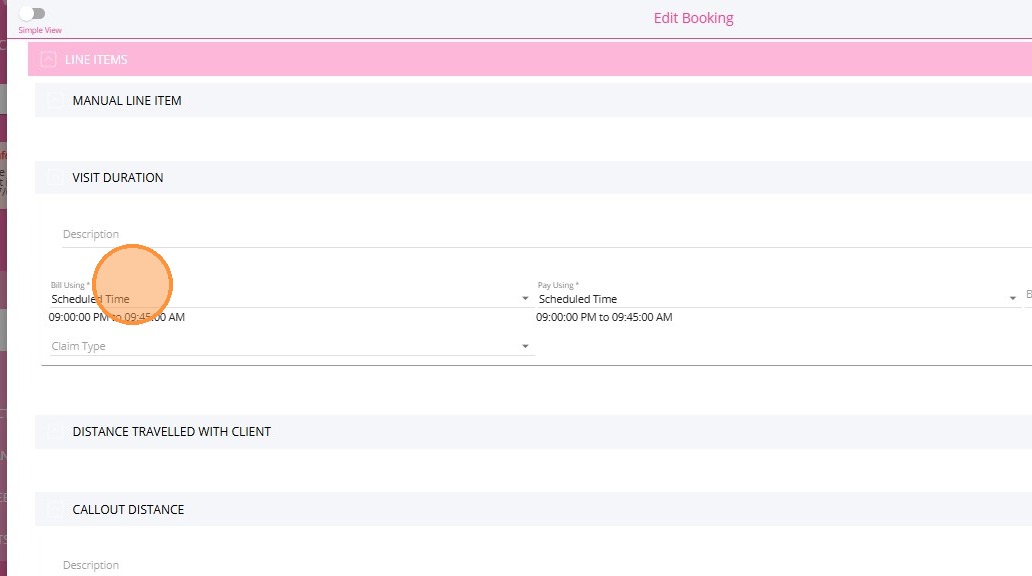
  1. The correct sleepover billing category is applied
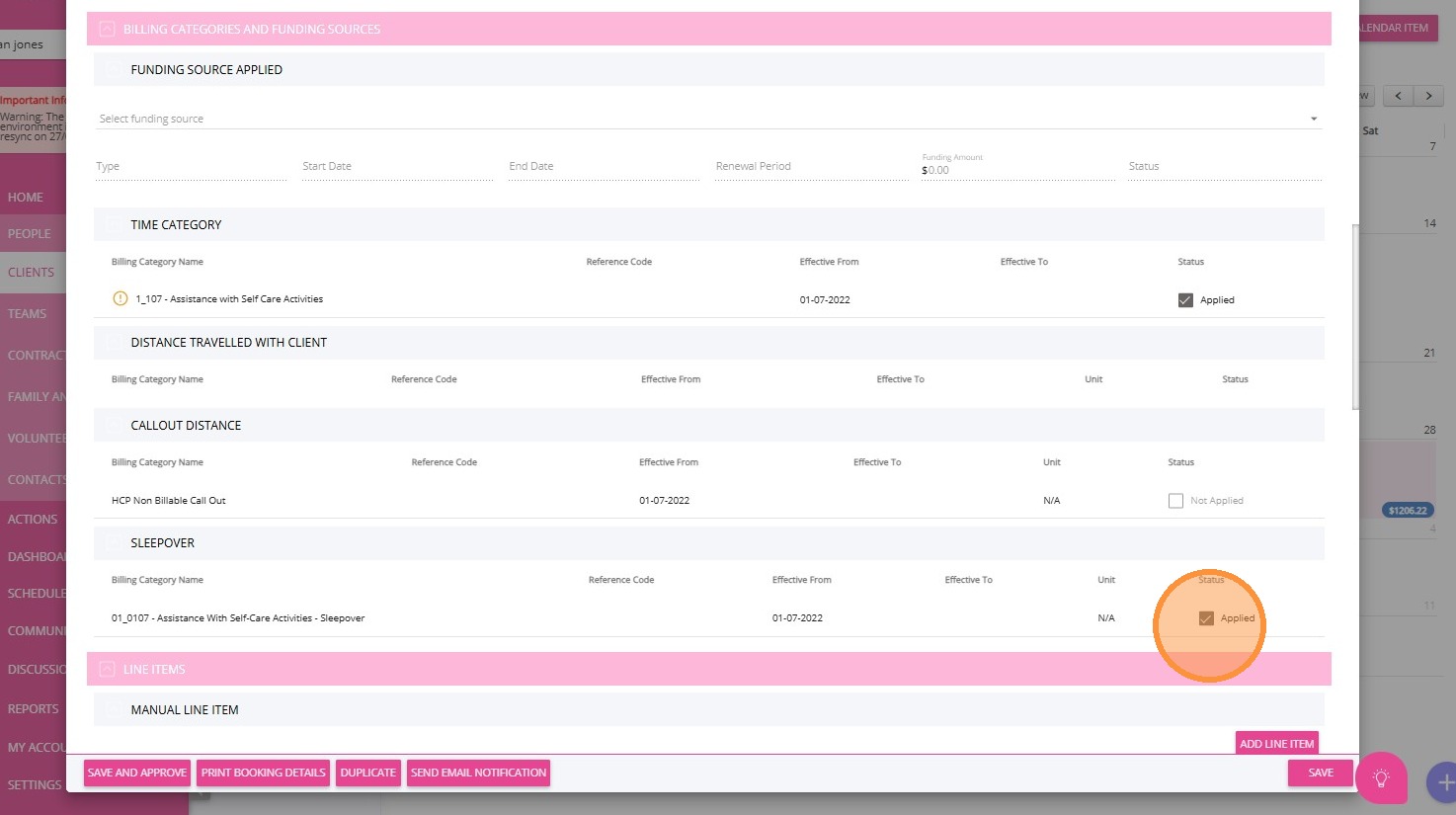
  1. The appropriate line item is present


II. Allocate the sleepover booking to a staff member
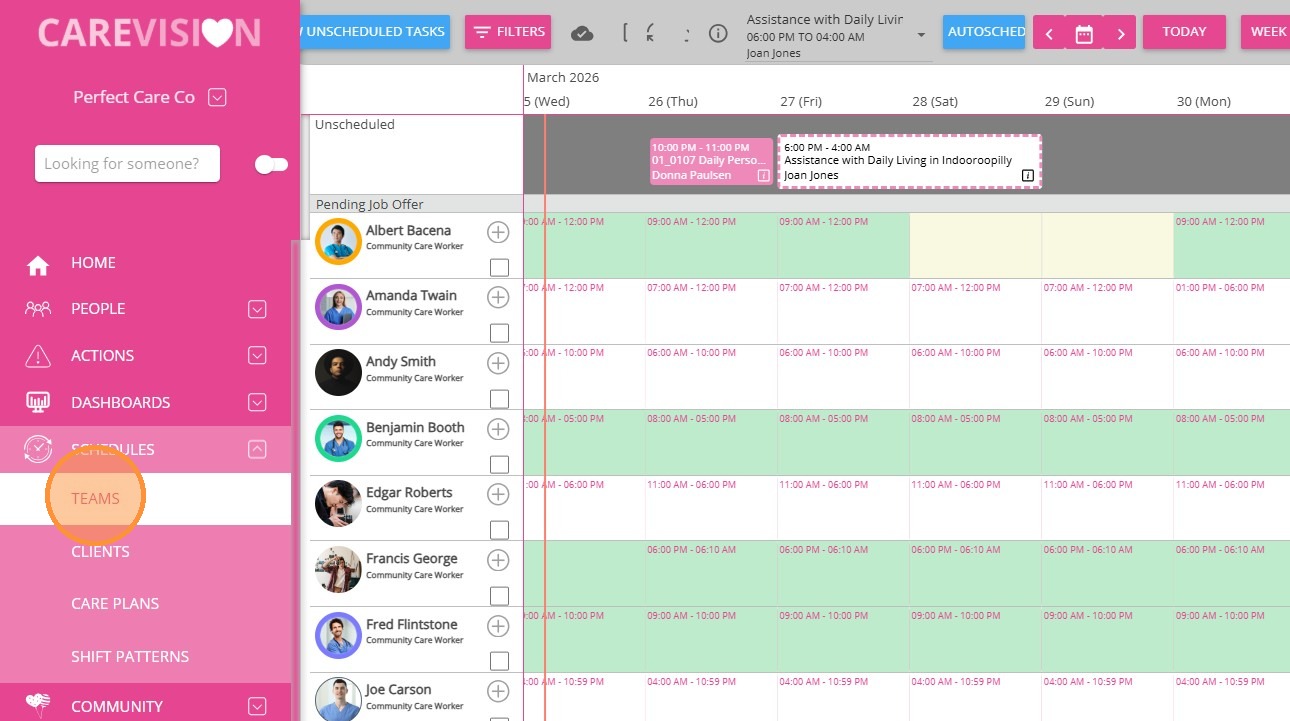
1. Go to Schedules > Teams

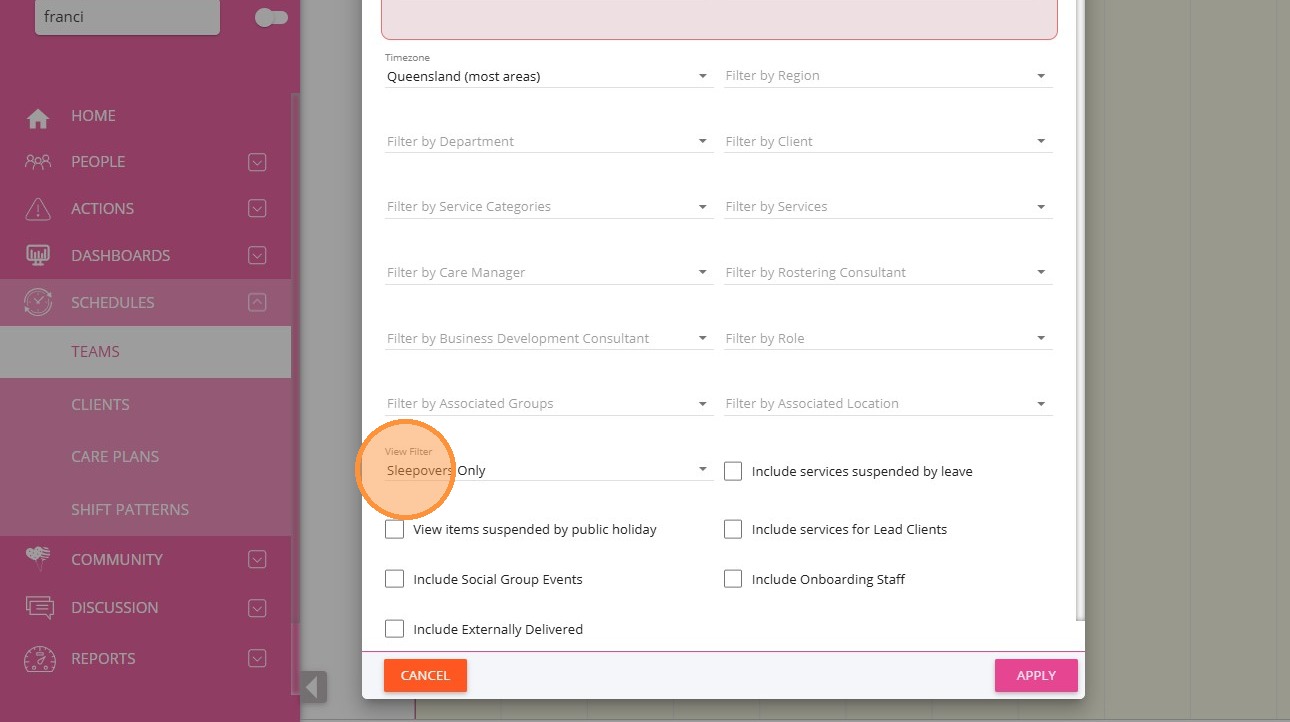
You can set the filter to  Sleepover Only to view sleepover bookings.
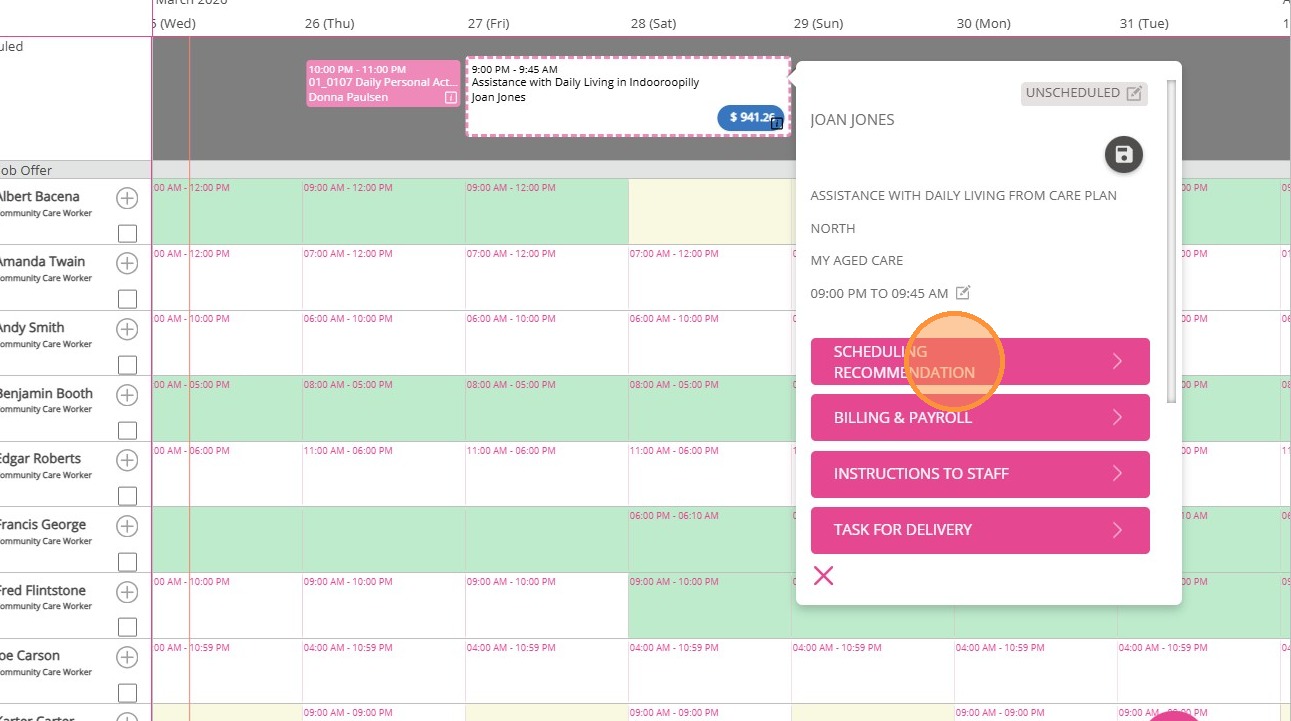
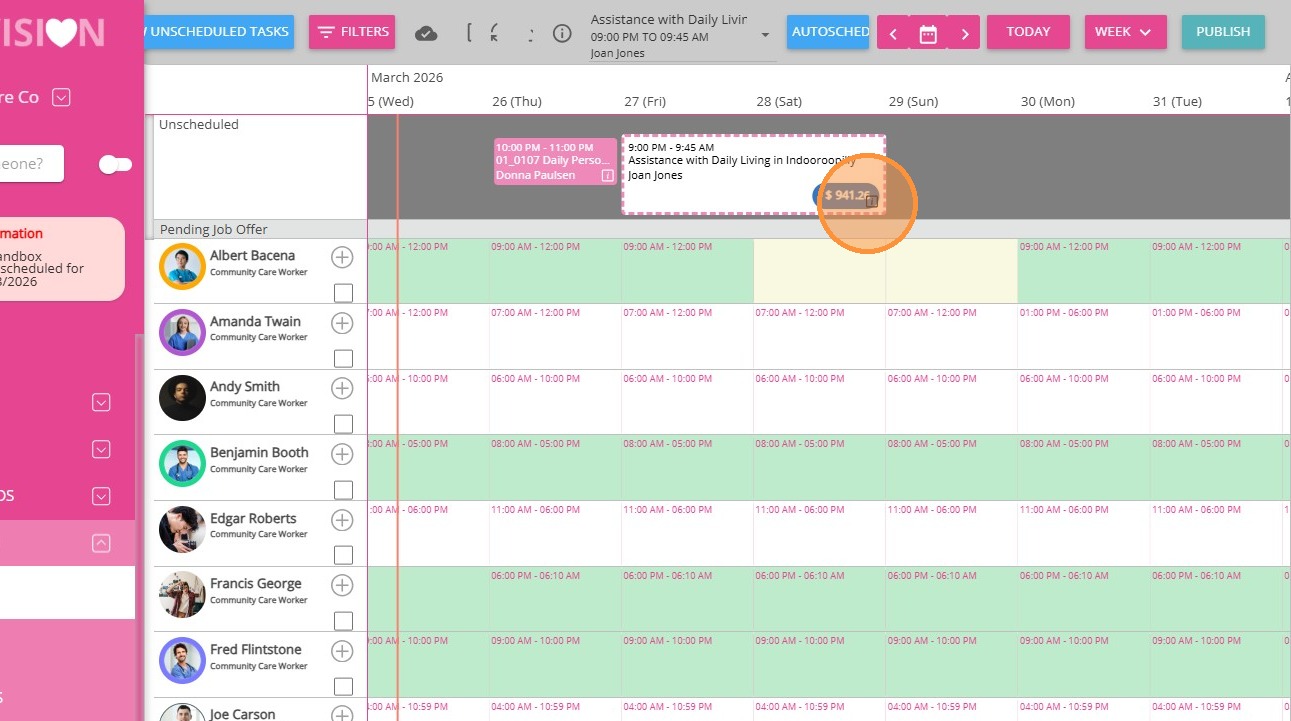
2. In the scheduling area, locate any unscheduled bookings. Click the i icon on the booking to allocate it to a staff member

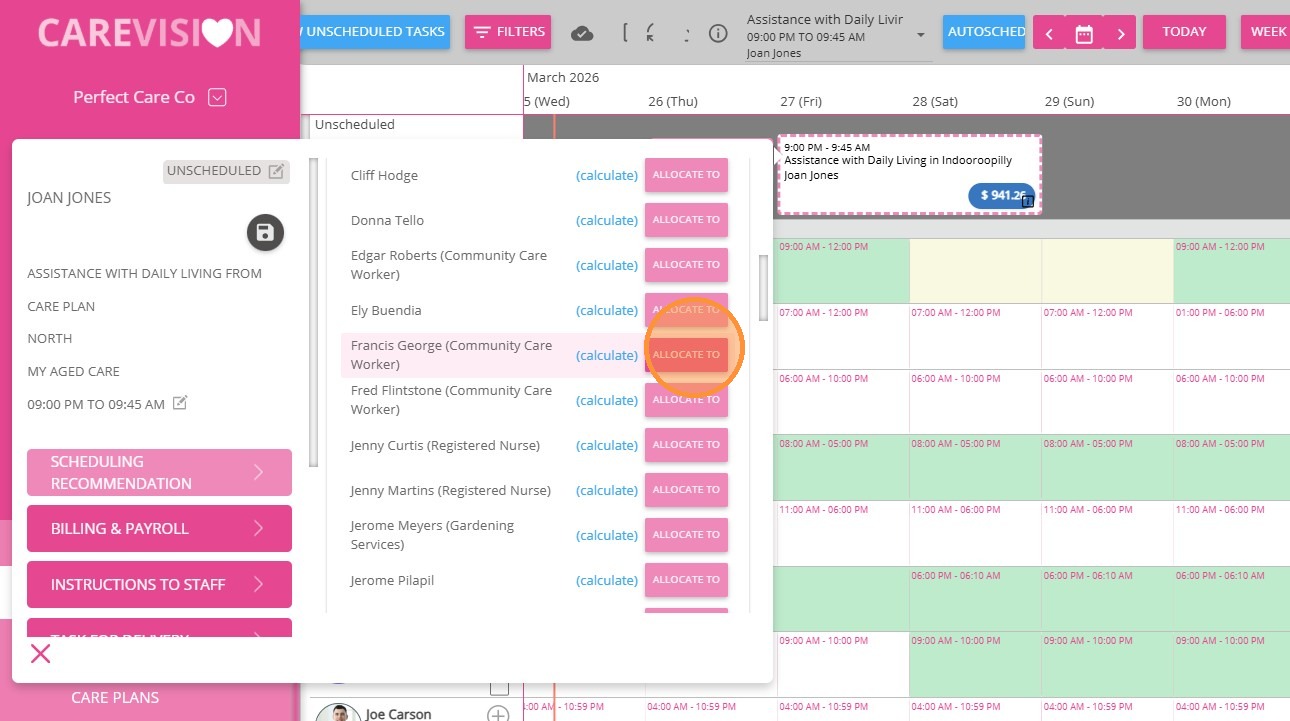
3. Click Scheduling Recommendations to view a list of staff who are:

  1. Qualified and Available
  2. Qualified and Working on Day
  3. Qualified but Not Working on Day

4. Select a staff member by clicking Allocate to
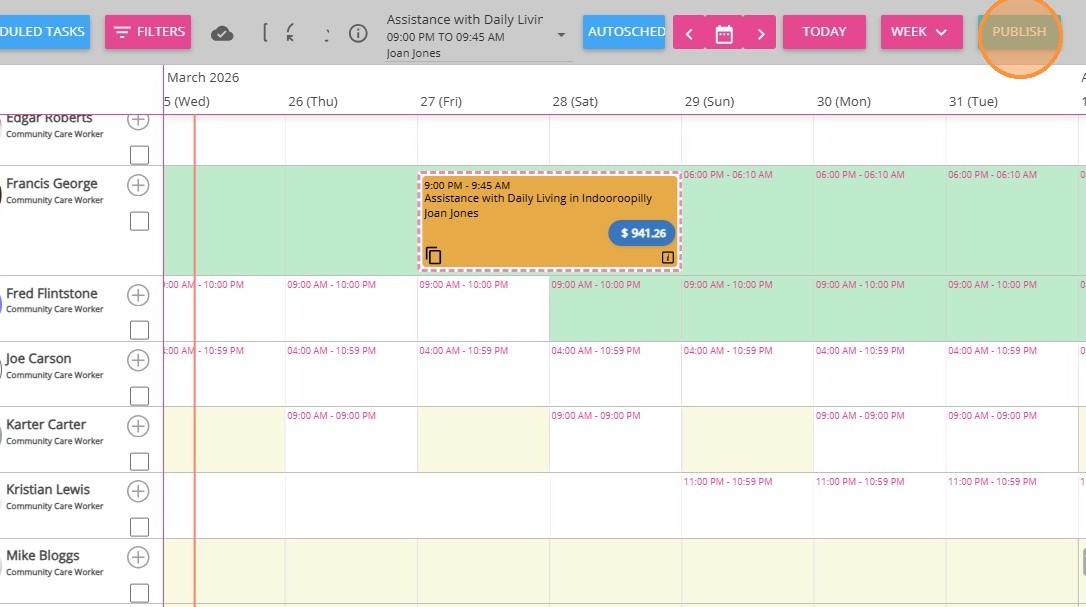
5. Once allocated, click Publish in the scheduling area.

 6. After reviewing your roster, click Publish again to finalize.
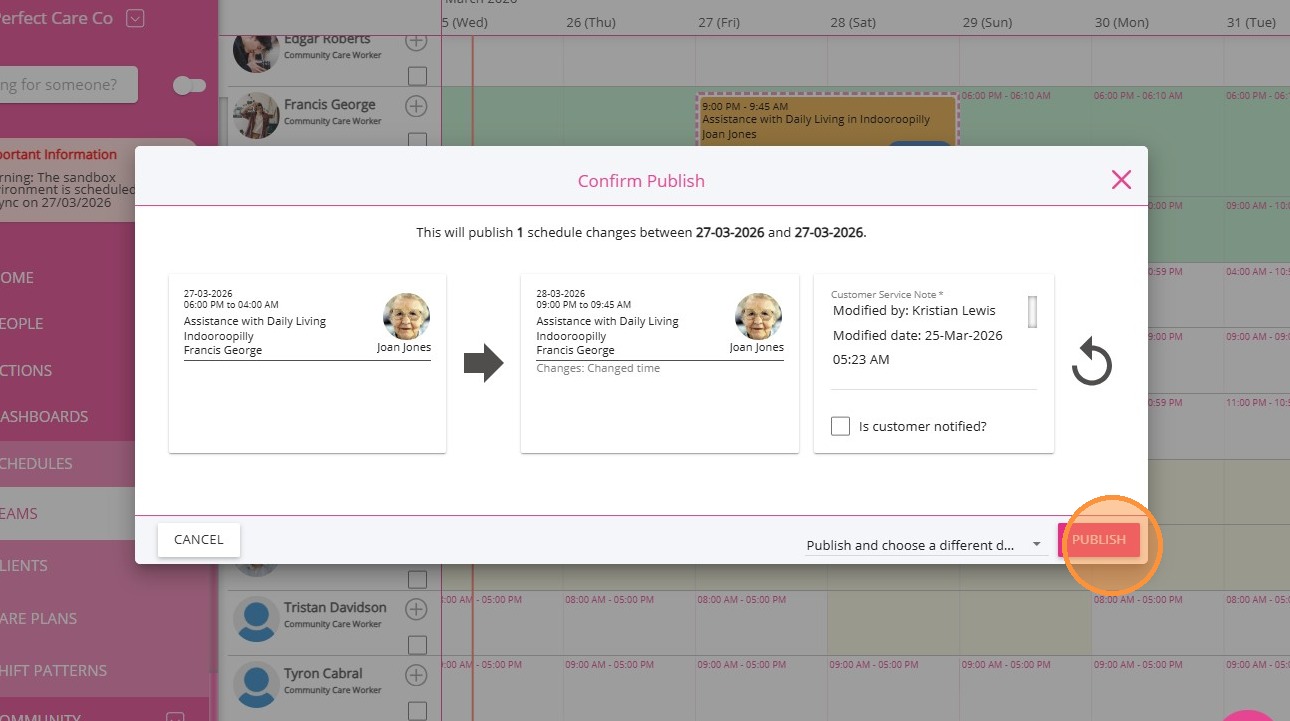

 The booking is allocated to a staff member, who can accept it and then sign in and sign out of the booking once accepted.
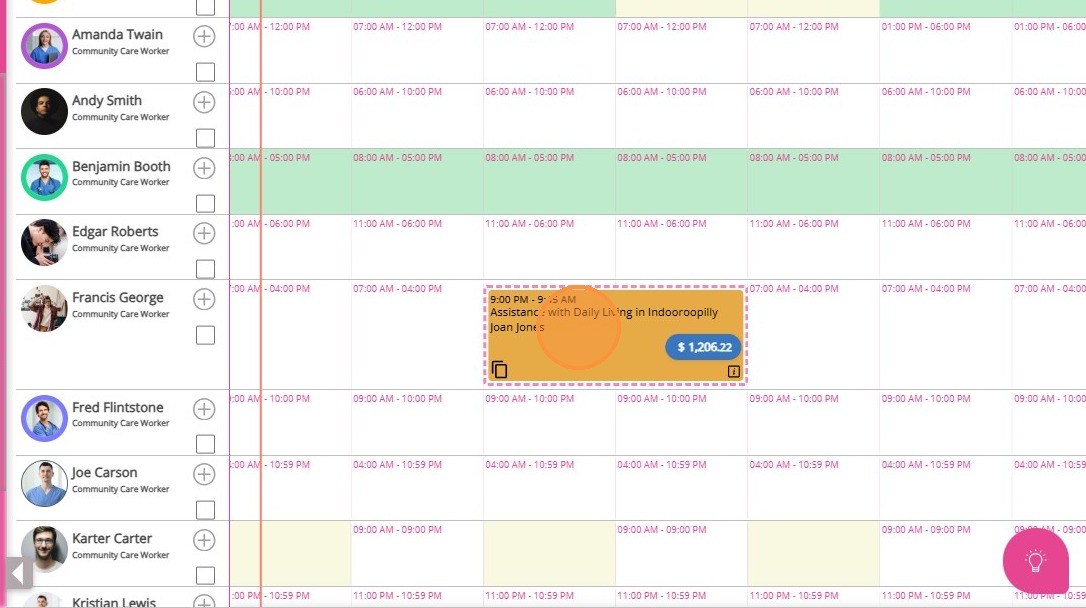

Sample Scenario

A staff member is rostered for a sleepover booking from 9:00 PM to 9:45 AM the following day.
Based on your organisation’s configured rules, the system automatically splits the booking into:

  • Active Time (before sleep period): 9:00 PM – 10:00 PM
  • Sleep Period: 10:00 PM – 6:00 AM (standard 8 hours)
  • Active Time (after sleep period): 6:00 AM – 9:45 AM

Time Breakdown:
1 hour (Active Time) + 8 hours (Sleep Period) + 3.75 hours (Active Time) =
12.75 total hours

Totals:

  • Active Time: 4.75 hours
  • Sleep Period: 8 hours
Info
Notes:
Sleep interruptions (also called "recalls") during the sleep period are recorded separately and handled based on your organisation’s rules.
Active time, sleep periods, and interruptions are automatically calculated using these rules. For more information, see Sleepover Rules Explained and Sleepover Billing & Payroll.

This topic explained how to roster sleepovers in CareVision. For more information about sleepover rostering, contact the CareVision Support Team.

    • Related Articles

    • How to Use Enhanced Scheduling Features in Teams V2

      CareVision aims to deliver efficient scheduling experiences for users. With improved performance and user-friendly updates, CareVision strive to help teams to manage bookings with ease. This topic describes the key differences between Teams ...
    • Publishing your Staff Roster

      Overview The Scheduling area is where you will organise and publish out the roster to your staff. As you allocate bookings to Staff Members, it is necessary for Coordinators to publish their Staff Roster. Doing so will finalise the bookings and ...
    • Using the "Auto Schedule" Feature to Create your Staff Roster

      Overview The Auto Schedule feature on the CareVision Management Portal's Scheduling Area allows Coordinators to take all unscheduled bookings and match them with the appropriate Staff Member. This will be based on their Work Availability schedule (if ...
    • Scheduling Page Filters

      Why do we need the filters in the scheduling area When the size of the care organisation is great, there will be a huge amount of service bookings planned everyday. It is easy to get lost and time-consuming to do scheduling with detailed and specific ...
    • Guide to the Teams Scheduling Area

      Overview The CareVision Management Portal's Teams Scheduling Area is where you make the necessary arrangements to your Staff's Roster for a particular day, week, or month. From here, you can: Allocate and schedule a booking or a service to a Carer ...

    Request an Article or Guide

    We are keen to know what you want to know more about? Let us know on chat or raise a ticket for an article or topic you would like covered in more detail. We have a team of technical writers and learning content creators keen for your suggestions.