Managing Duplicate Staff Profiles
Understanding Active, Suspend, and Remove
CareVision uses the terms Active, Suspend, and Remove when managing staff profiles:
- Active means the staff profile is available for normal operations.
- Suspend should be used when the profile and its history need to be retained or the staff member may return.
- Remove permanently deletes the profile and cannot be undone.
CareVision does not have a separate Archive status. Suspend is the recommended option when a profile needs to be retained but is no longer required for current operations.
Suspending a duplicate staff profile
To remove a duplicate staff profile from scheduling while preserving its details and history:
1. Identify which profile will remain Active.
Review the profiles and identify the duplicate profile that needs to be suspended.
Review the profiles and identify the duplicate profile that needs to be suspended.
2. Check for active bookings.
Confirm that the duplicate profile has no active or upcoming bookings. Any assigned bookings may need to be unscheduled, cancelled, or reallocated to another staff member to prevent service interruptions.
Confirm that the duplicate profile has no active or upcoming bookings. Any assigned bookings may need to be unscheduled, cancelled, or reallocated to another staff member to prevent service interruptions.
3. Change the duplicate profile’s email address.
Replace its email address with an approved alias or alternative email address.
For example, change:
firstname.lastname@organisation.com
to:
firstname.lastname+duplicate@organisation.com
This releases the original email address so it can be assigned to the profile that will remain Active.
Replace its email address with an approved alias or alternative email address.
For example, change:
firstname.lastname@organisation.com
to:
firstname.lastname+duplicate@organisation.com
This releases the original email address so it can be assigned to the profile that will remain Active.

Note: Before using email aliases, your organisation should discuss and agree internally on its preferred aliasing practice and naming convention. Confirm that the organization’s email system and any SSO or identity provider support plus-sign aliases. If plus-sign aliases are not supported or approved, use another authorized alternative email address.
4. Check the username and SSO settings
If the email address is also the username, confirm if the username must be changed separately. Also consider whether the change could affect single sign-on (SSO), login, password recovery, or notifications.
If the email address is also the username, confirm if the username must be changed separately. Also consider whether the change could affect single sign-on (SSO), login, password recovery, or notifications.
5. Suspend the duplicate profile.
Steps:
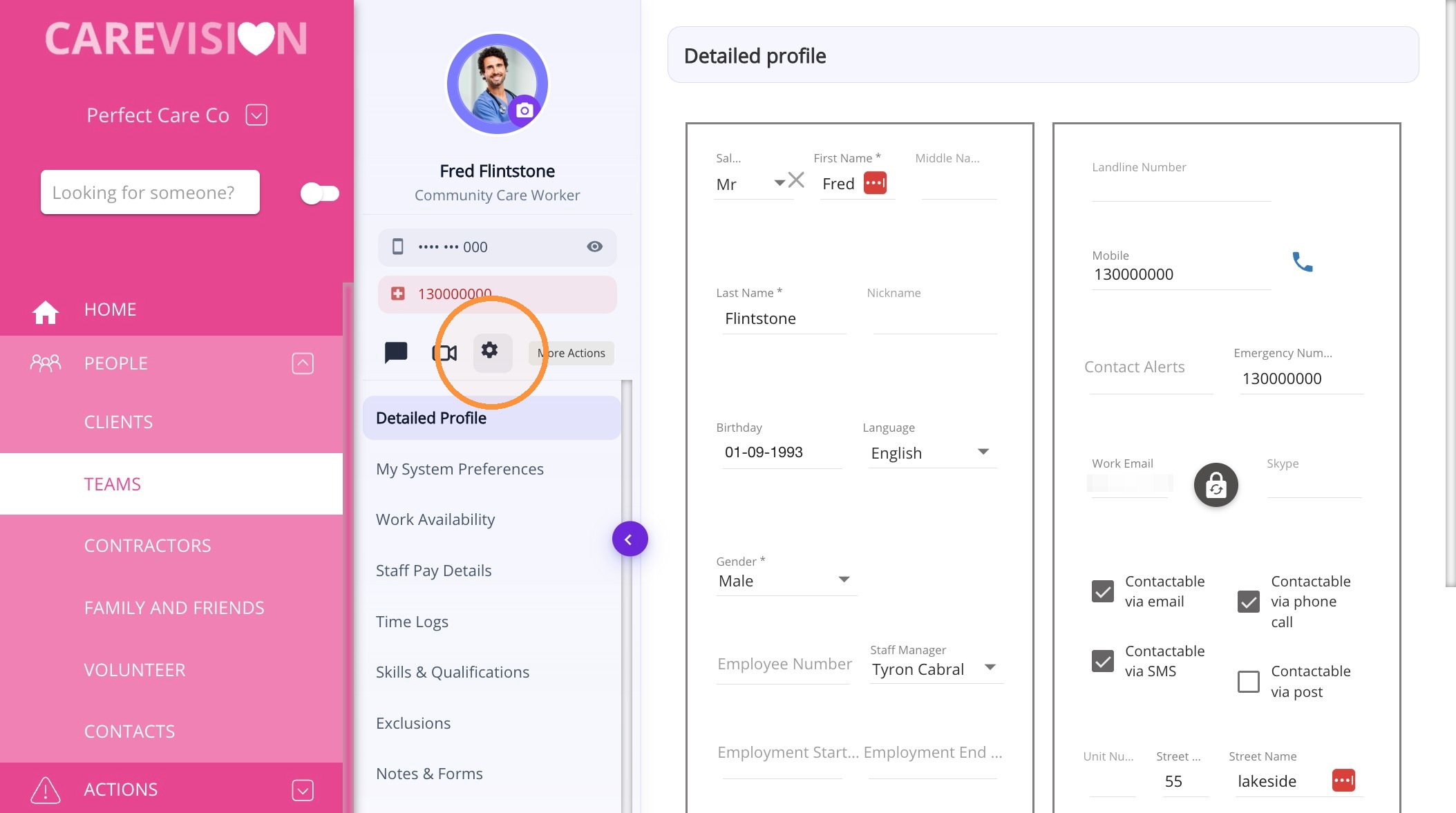
- Go to the duplicate Staff Profile.
- Click the gear icon to open More Actions.
- Click Suspend.
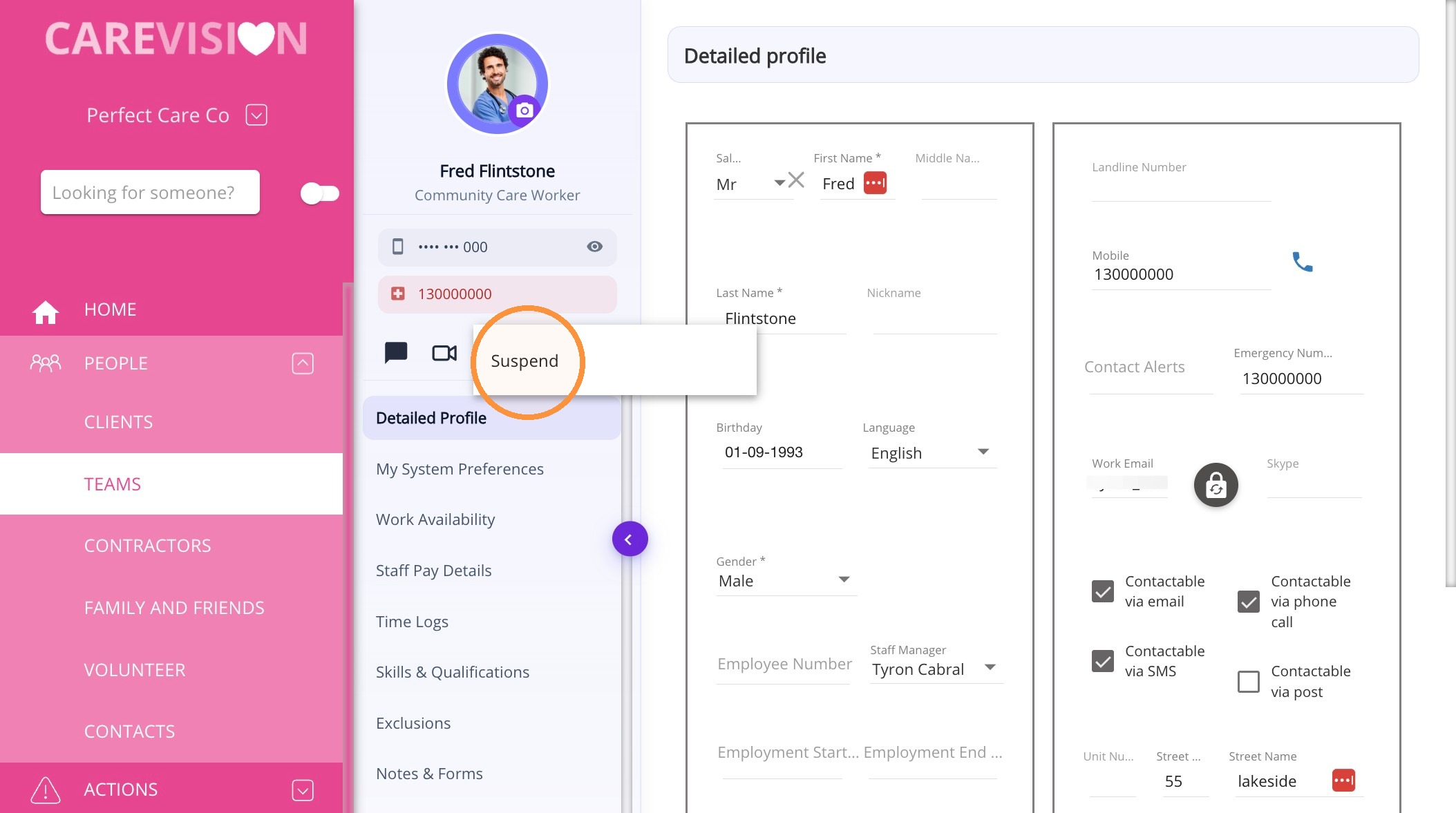
- Confirm that you want to suspend the profile.
- The staff profile will move to the Suspended section.
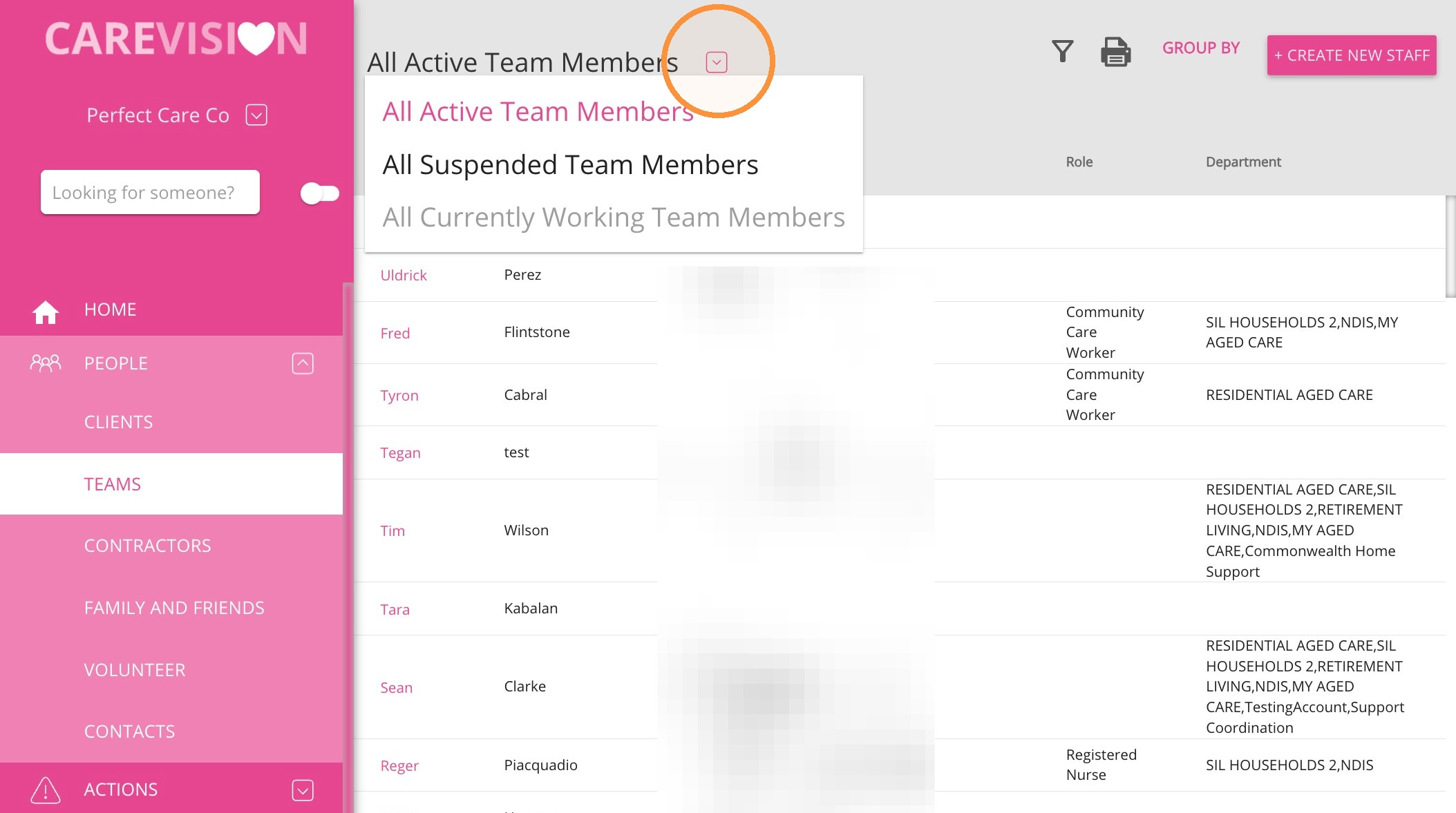
What happens when a staff profile is suspended?
Suspending the profile:
- Removes the staff member from the scheduling board.
- Keeps the staff member’s details and historical records.
- Retains the replacement email address and username while the profile is suspended.
- Allows the profile to be made Active again if required. See How to Reactivate a Staff Member
6. Assign the original email address to the Active profile.
Add the released email address to the profile that will remain Active.
Add the released email address to the profile that will remain Active.
7. Confirm that the Active profile works correctly.
Ask the staff member to test their login, password recovery, notifications, and SSO access where applicable.
Ask the staff member to test their login, password recovery, notifications, and SSO access where applicable.
For more information about managing duplicate staff profiles, contact the CareVision Support Team.