How to Exit Contractors

How to Exit Contractors

When contractors are no longer engaged with the organisation, an end date and termination reason must be recorded to exit them from the system. This topic describes the exit process for contractors in CareVision.

Keywords: contractor exit process, contractor termination carevision, end contractor record system, contractor offboarding steps, carevision contractors module, contractor termination reason, contractor end date setup, contractor documentation management, contractor profile notes carevision, contractor system exit procedure

I. Recommended Practices Before Contractor Exit

1. Unschedule or Cancel a Booking
2. Re-allocate a Booking
3. Check Preferred Worker Assignments
Info
For detailed steps, see related documentation: Staff Exits.

II. Record Termination Date and Reason

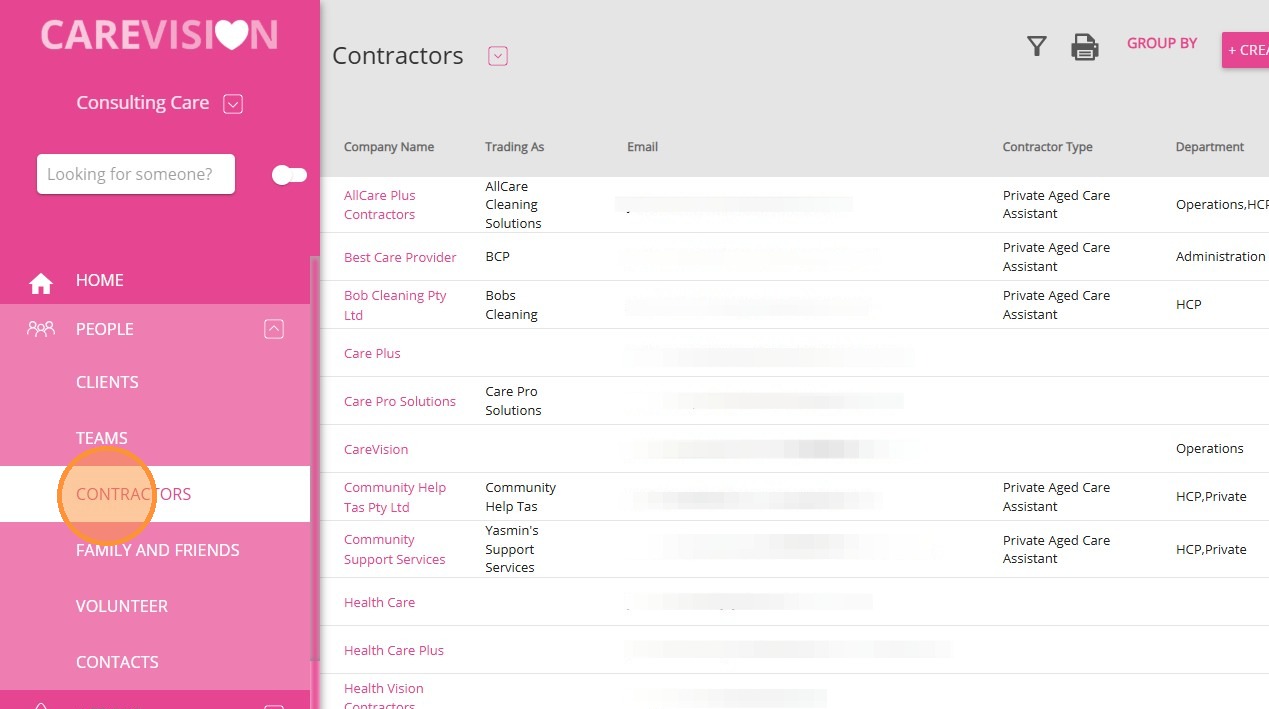
1. In the left navigation panel, go to PeopleContractors.
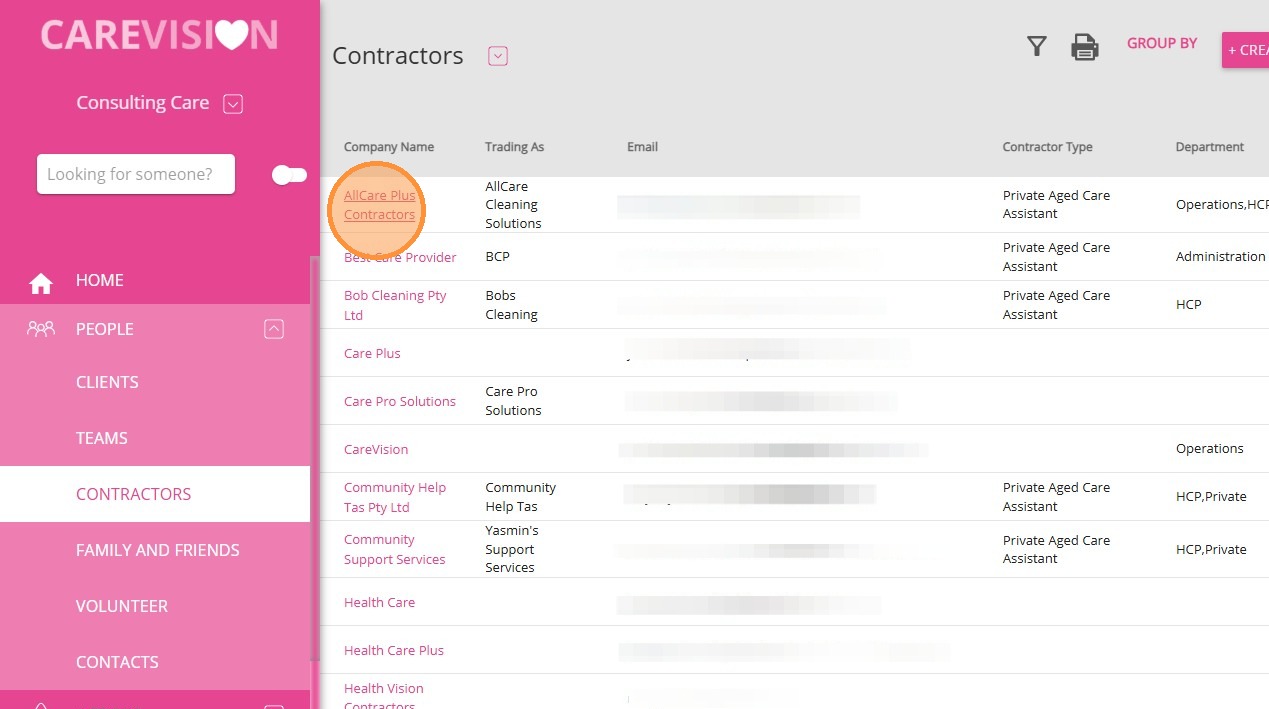
2. From the list, select the contractor you want to exit
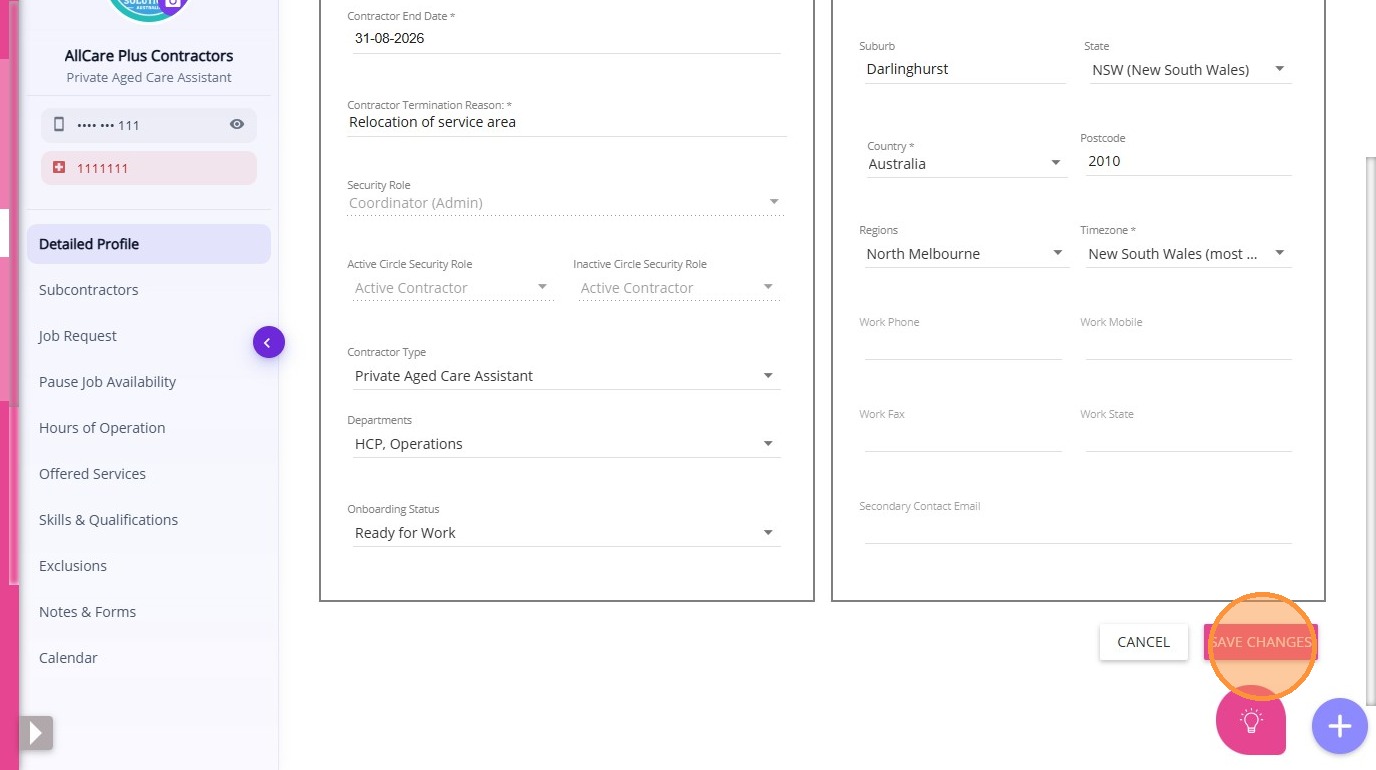
3. Set the Contractor End Date to the agreed date of termination.
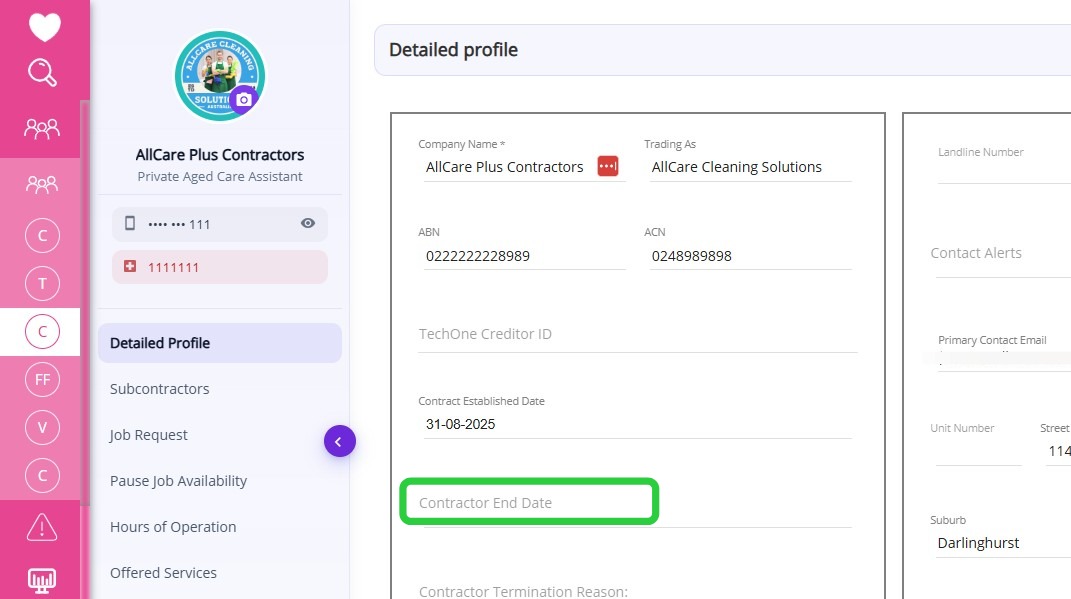
4. Specify the Contractor Termination Reason for record-keeping and reporting purposes.
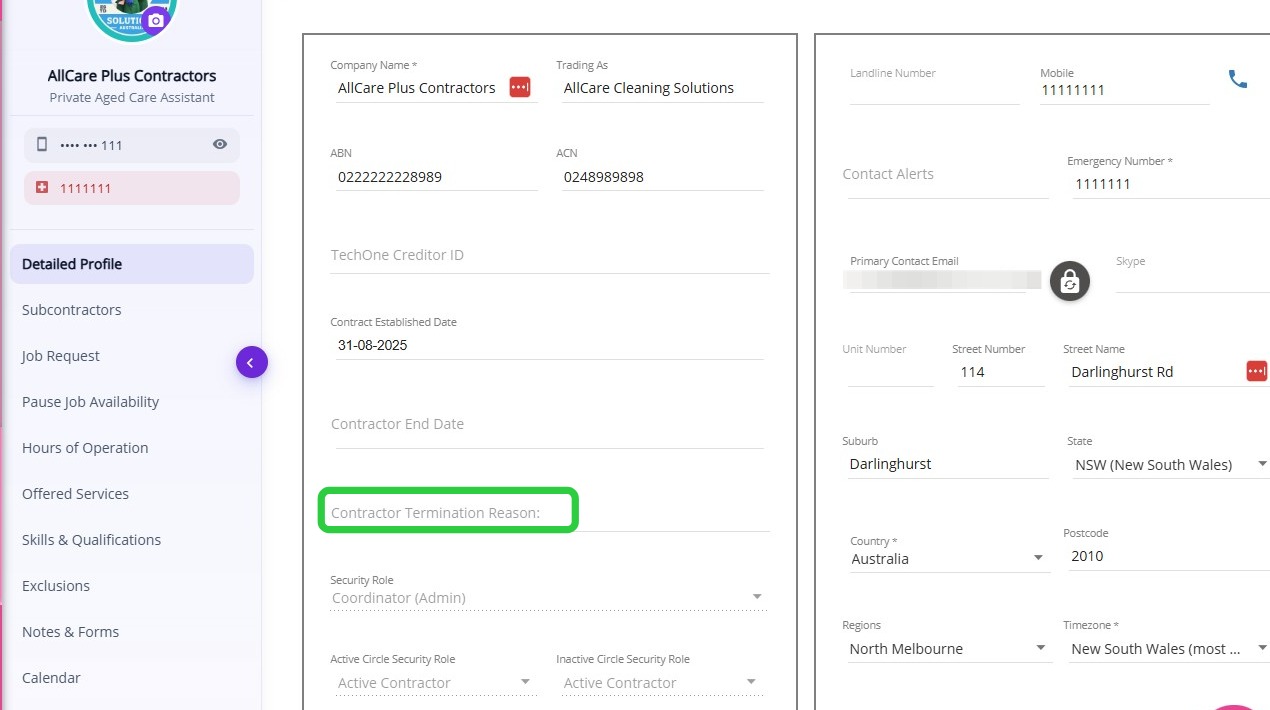
5. Click Save Changes to apply and confirm the update in the system.
III. Add Resignation Letter or Notice as a Note

If the contractor has provided a resignation letter, file it as a note.
1. On the contractor’s profile, click the Notes and Forms section.
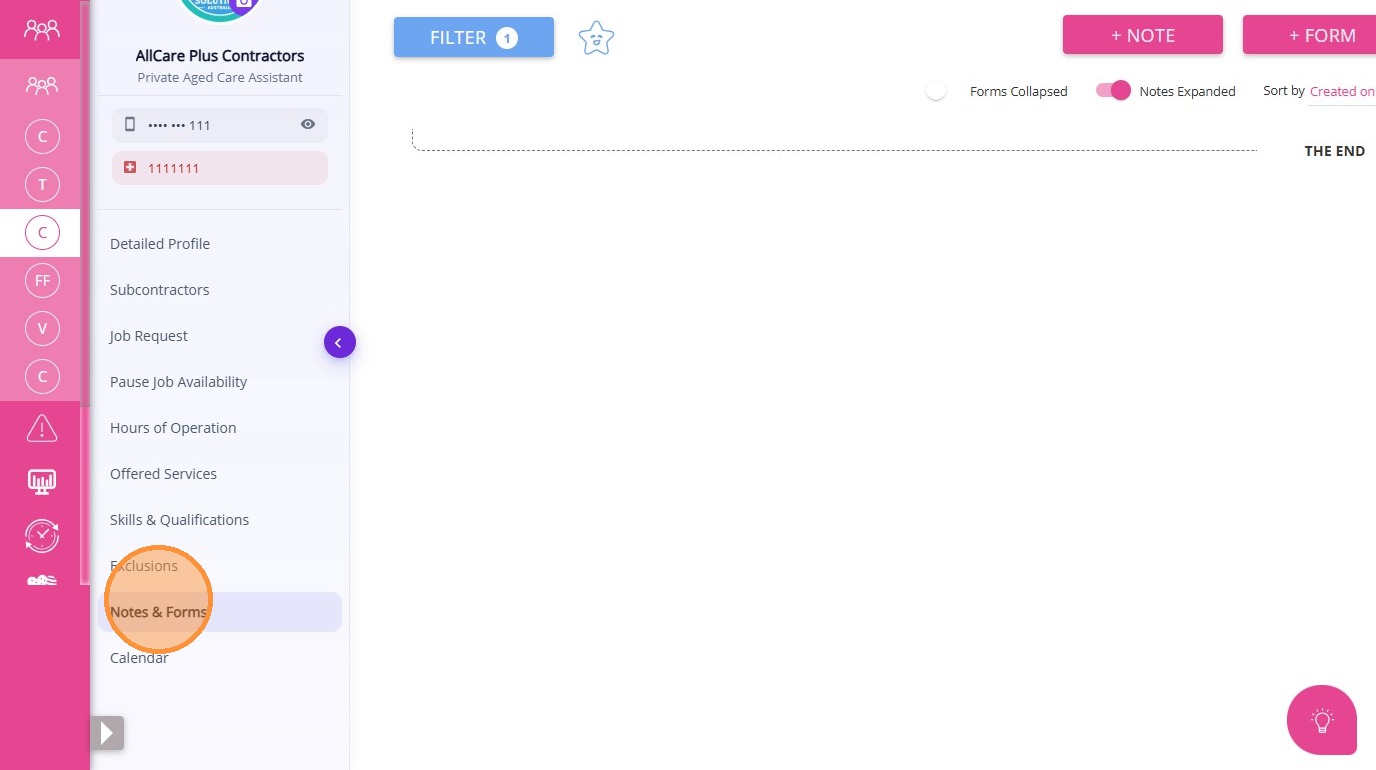
2. On the contractor’s profile, click the Notes and Forms section
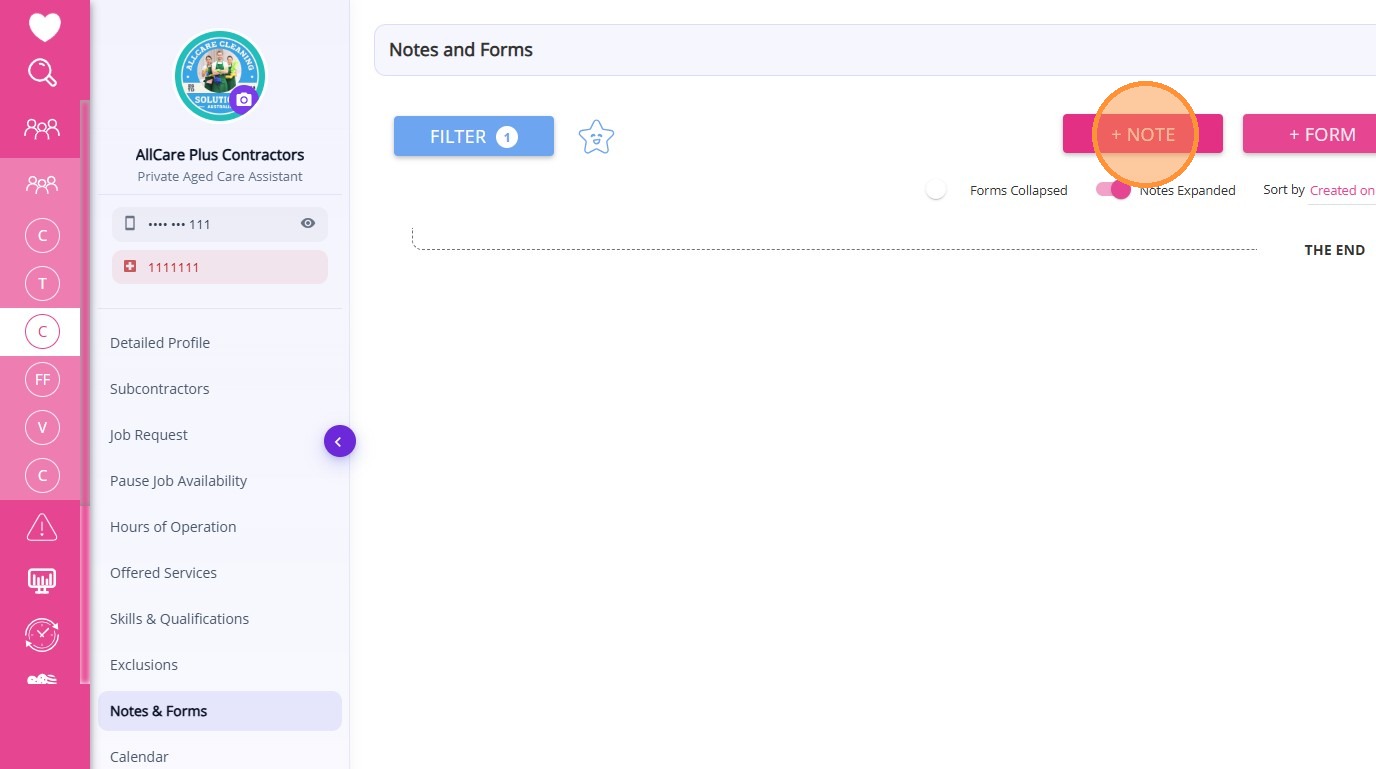
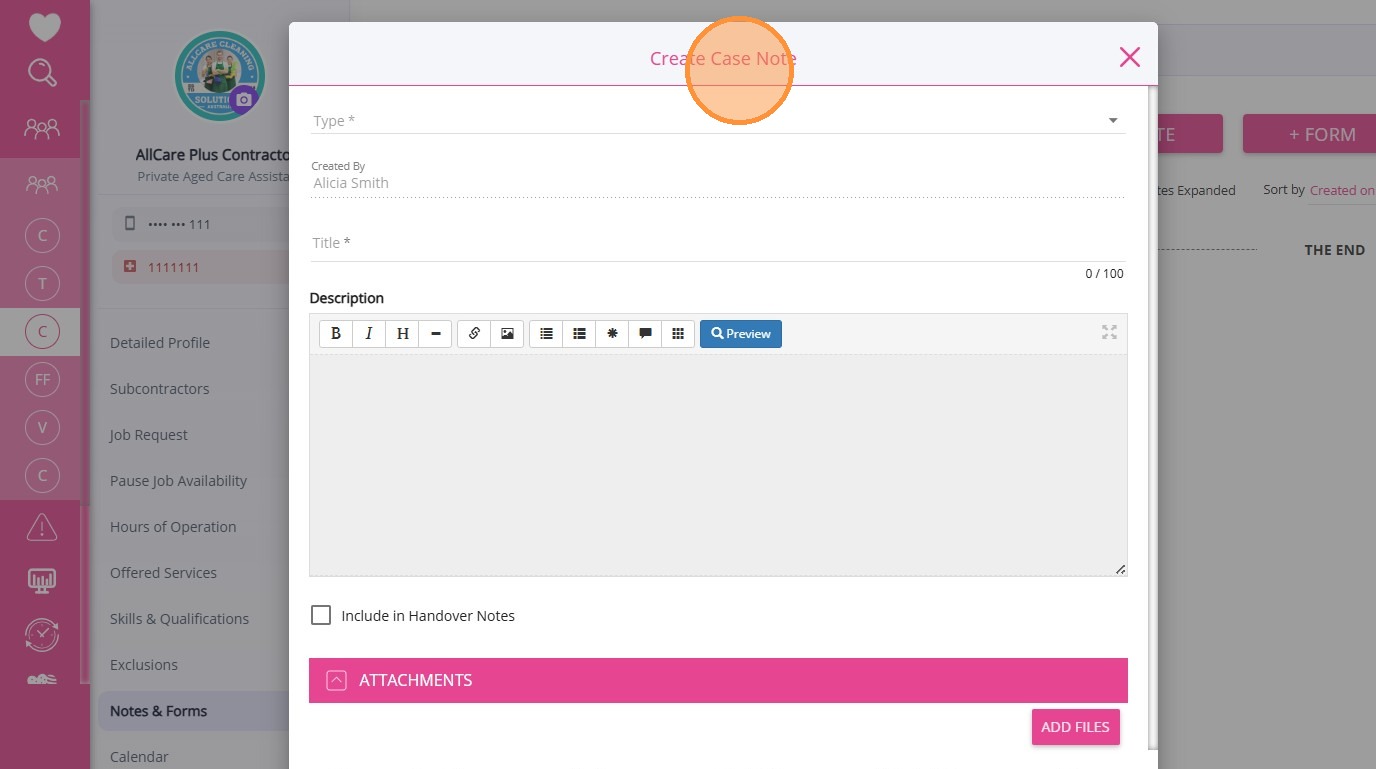
3. Complete the Create Case Note form
  1. In the Case Note Type field, select the appropriate category for HR or staff exit purposes.
  2. Add a title for the note.
  3. Provide a description with relevant details about the exit.
  4. Attach a PDF or image of the resignation letter.
  5. Click Save.

Info
See related documentation: Contractor (Add-On Module)

For more information about contractor exit processes, contact the CareVision Support Team.
    • Related Articles

    • Contractor (Add-On Module)

      Providing quality care to clients often requires coordination between different people and organisations. To meet each client’s needs, a care organisation may engage contractors to provide specific services. CareVision provides the Contractor add-on ...
    • Contractor Add-On Module: A Guide for Contractors

      CareVision’s Contractor Add-On Module makes it easier for contractors and care organisations to connect, communicate, and deliver high-quality care across a wide range of service arrangements. As a contractor, whether you’re an independent provider, ...
    • Set Up Service Agreement Form for Contractors

      Disclaimer: This topic is subject to rapid product changes. While documentation is updated regularly, it may not reflect the most current information at the time of viewing. The Contractor Service Agreement includes several properties that ...
    • Notes and Forms Section in Client Profile

      The Notes and Forms section in the Client Profile displays all notes and submitted forms associated with the client. Keywords: client notes management, client forms tracking, care management forms, client case notes, healthcare documentation forms, ...
    • Notifications for Lead Management and Client Onboarding

      Lead to Onboarding Workflow Organisations regularly receive new client leads and it is important that the proper team is notified at the appropriate stage of the lead nurture and client onboarding process so they can follow up on and complete the ...

    Request an Article or Guide

    We are keen to know what you want to know more about? Let us know on chat or raise a ticket for an article or topic you would like covered in more detail. We have a team of technical writers and learning content creators keen for your suggestions.