Client Groups Section in Client Profile
The Client Groups section in the Client Profile is used to classify and manage important information about a client based on categories defined by your organisation. These classifications help organise clients based on their care needs, medical requirements, funding rules, status, or other operational specifications.
Keywords: client groups carevision, client profile client groups, carevision group sets configuration, carevision required minimum data set, classify clients carevision, carevision client group sets, client categories carevision, carevision government reporting client data, manage client groups carevision, carevision client profile management
Glossary
To access this section:
- Open the Client Profile.
- Select Client Groups.
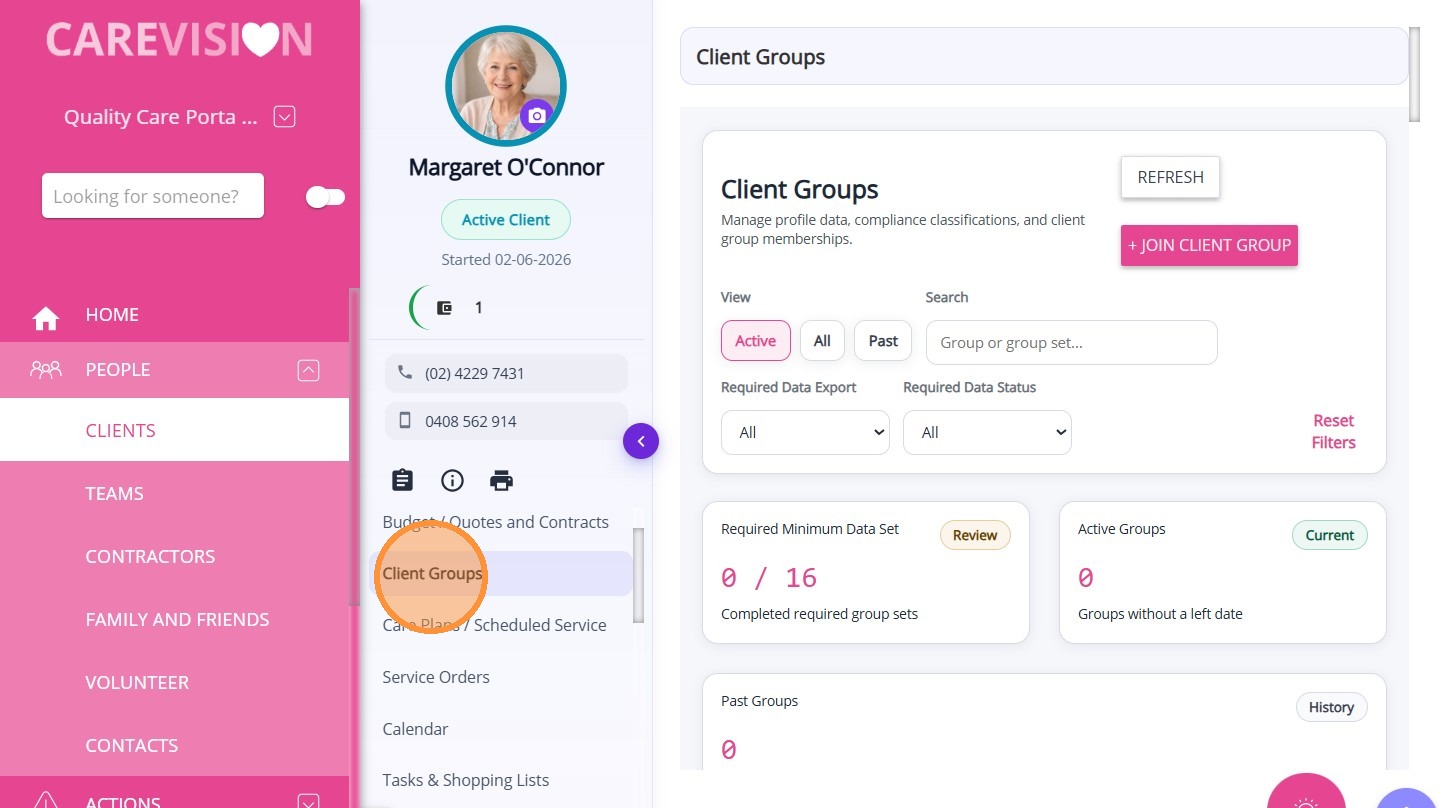
Manage Client Groups
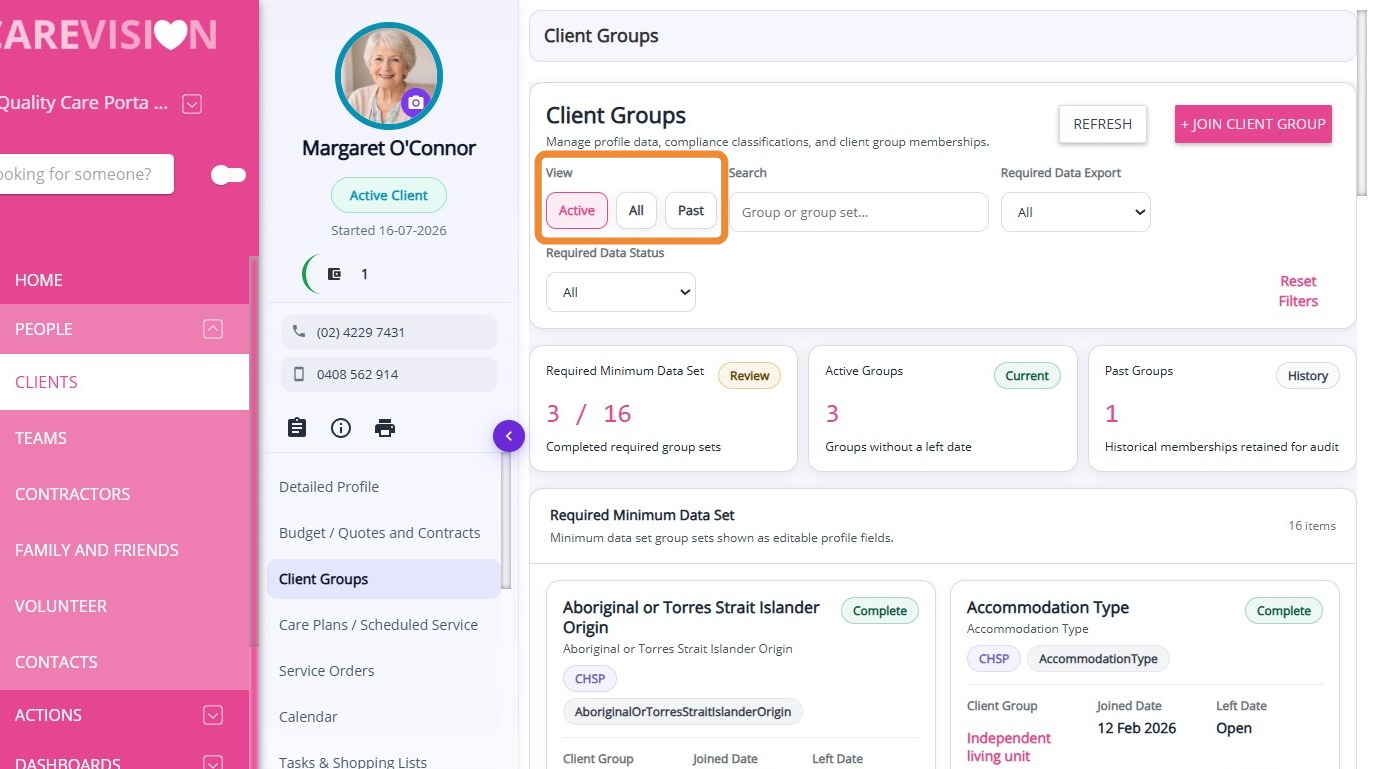
View Options
Switch between Active, All, or Past views to display relevant groups or group sets.
Switch between Active, All, or Past views to display relevant groups or group sets.
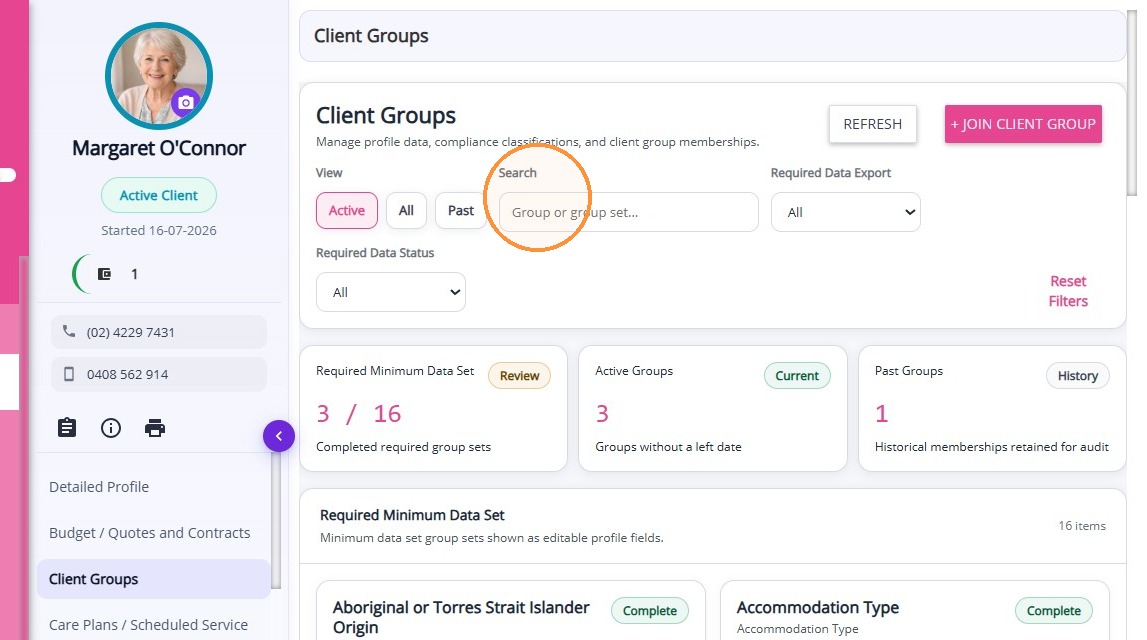
Search
Use the search bar to find a group or group set by name.
Use the search bar to find a group or group set by name.
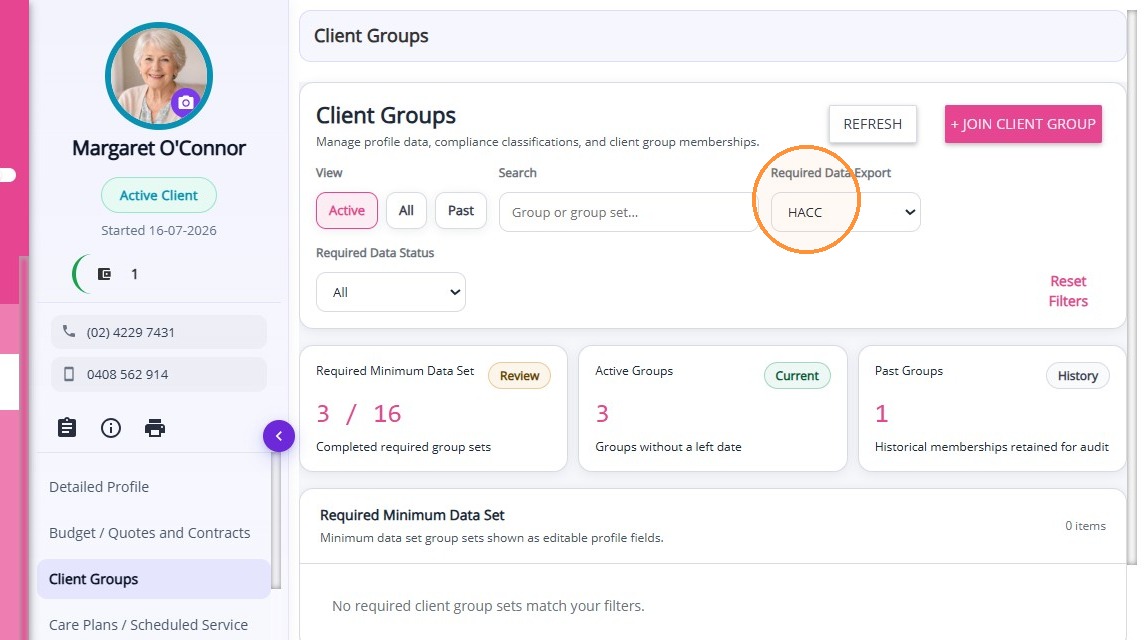
Required Data Export
Use the Required Data Export dropdown to filter groups based on the linked funding export.
Use the Required Data Export dropdown to filter groups based on the linked funding export.
Required Data Status
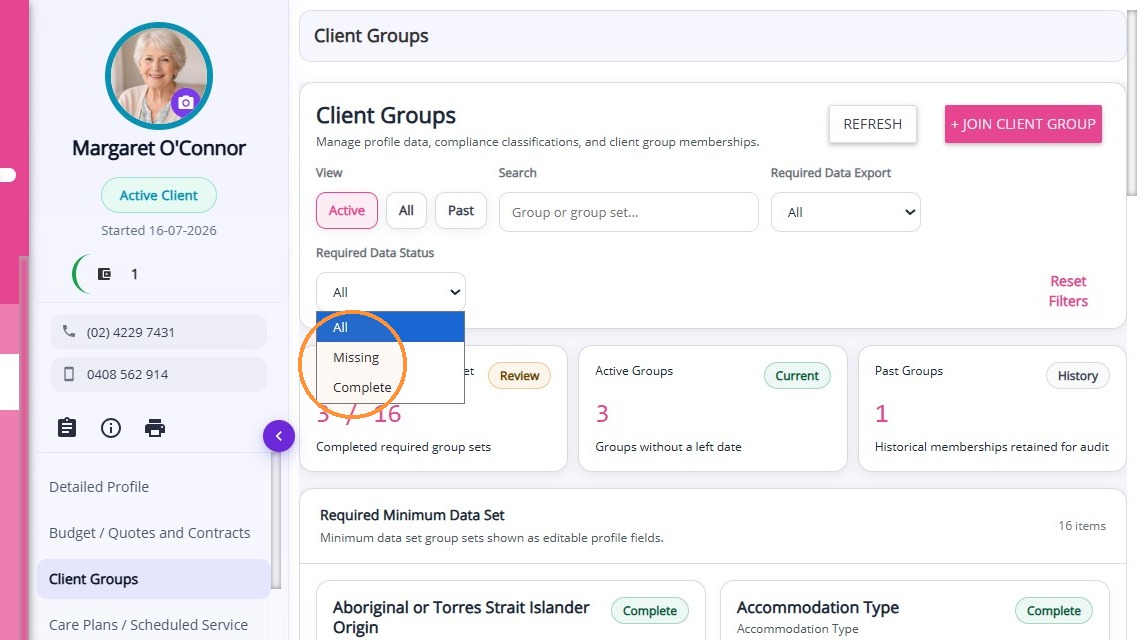
Use the Required Data Status dropdown to filter by All, Missing, or Complete group sets.
Use the Required Data Status dropdown to filter by All, Missing, or Complete group sets.
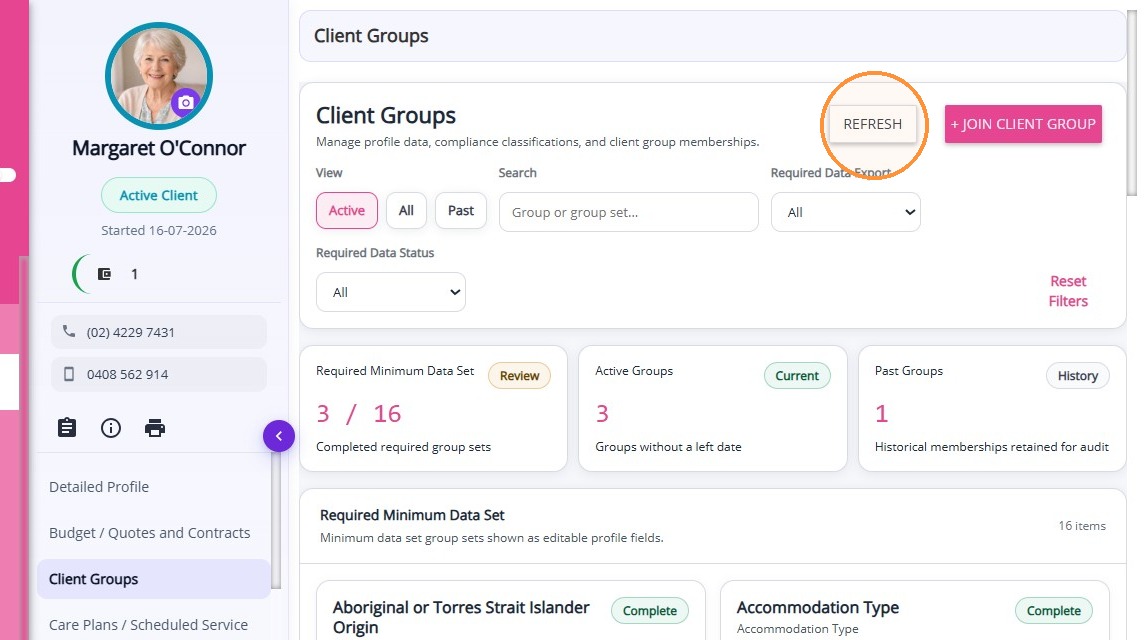
Refresh
Click the refresh icon to reload and update the displayed data.
Click the refresh icon to reload and update the displayed data.
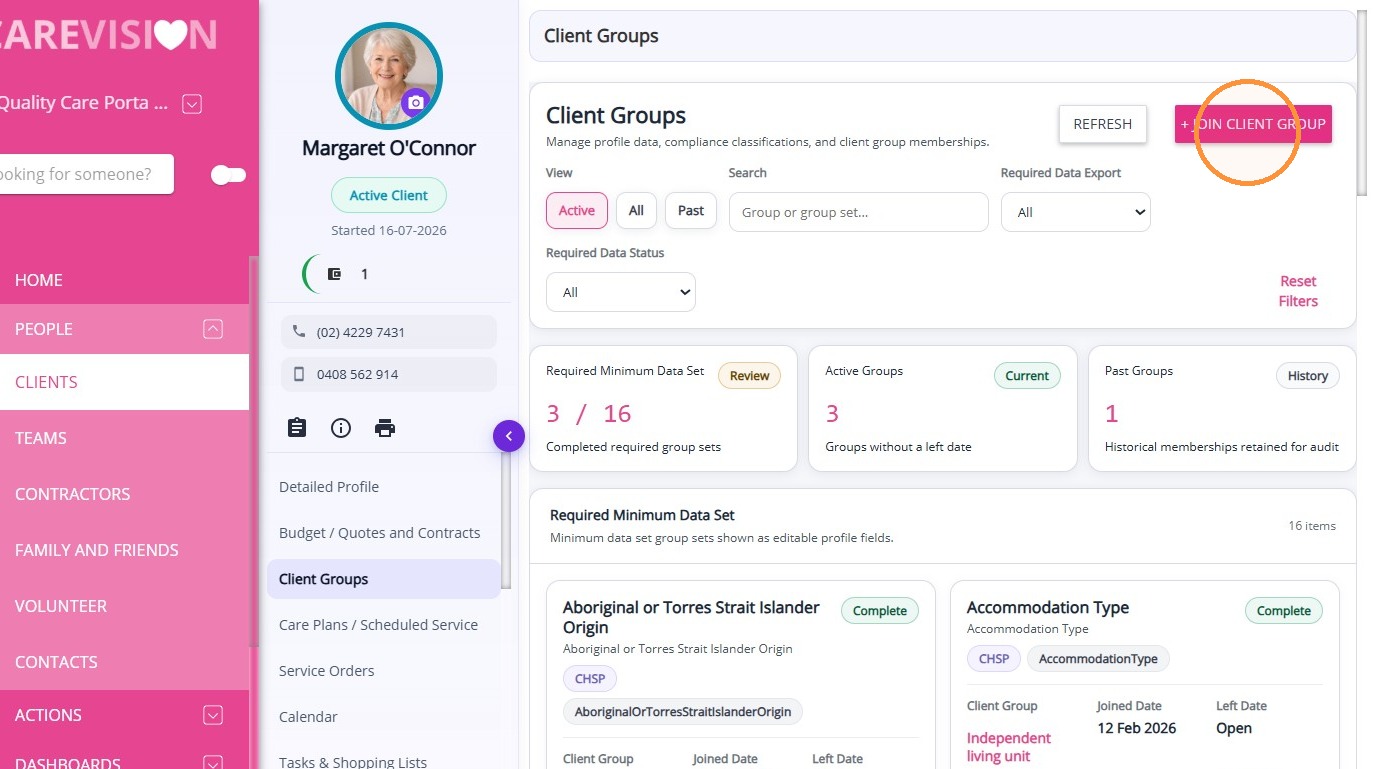
Join Client Group
Select “Join Client Group” to add a client to a group or group set.
Select “Join Client Group” to add a client to a group or group set.
The Client Group – Join form will appear. Enter the required group details and membership dates.
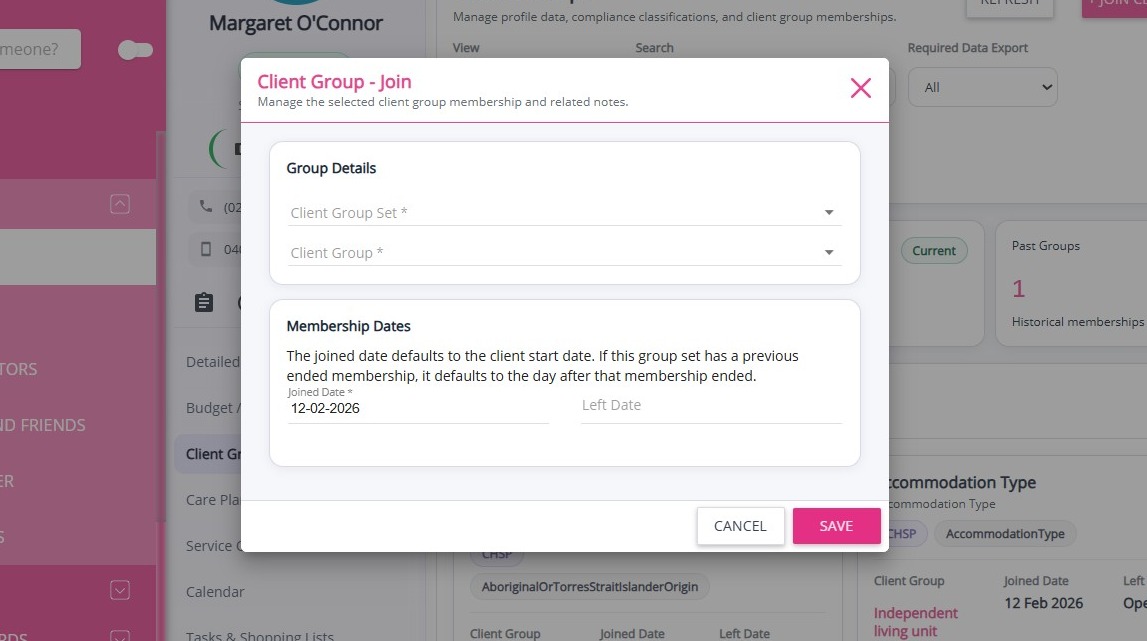

Note: The Joined Date field is automatically populated based on the client’s start date. If the client is transferring from one group option to another within the same set, the start date of the new group will align with the end date of the previous group.
Client Groups Summary Cards
Cards display key group information for quick reference.
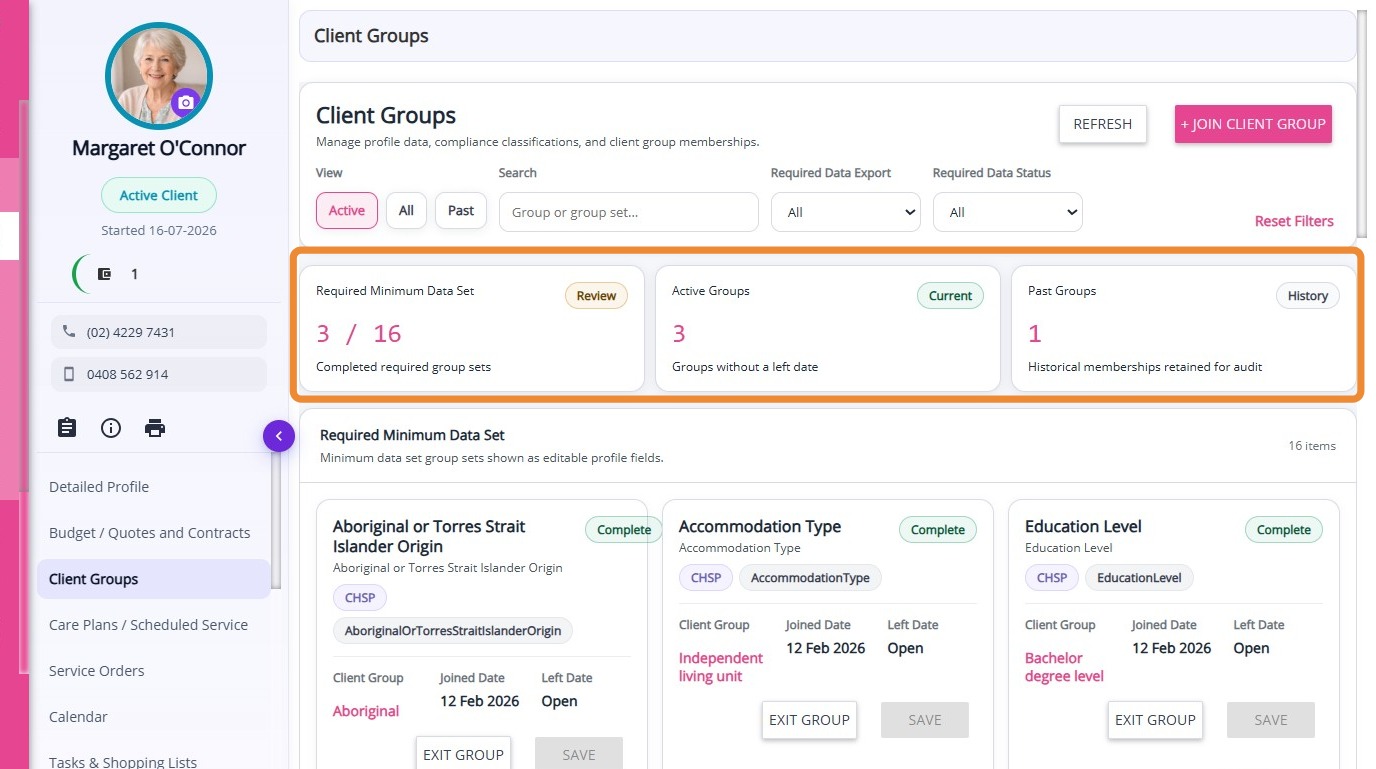
Required Minimum Data Set
Displays the status of required data across groups and prompts you if the minimum data set needs review.
Displays the status of required data across groups and prompts you if the minimum data set needs review.
Active Groups
Displays the number of currently active groups.
Displays the number of currently active groups.
Past Groups
Displays the number of past groups the client has belonged to.
Displays the number of past groups the client has belonged to.
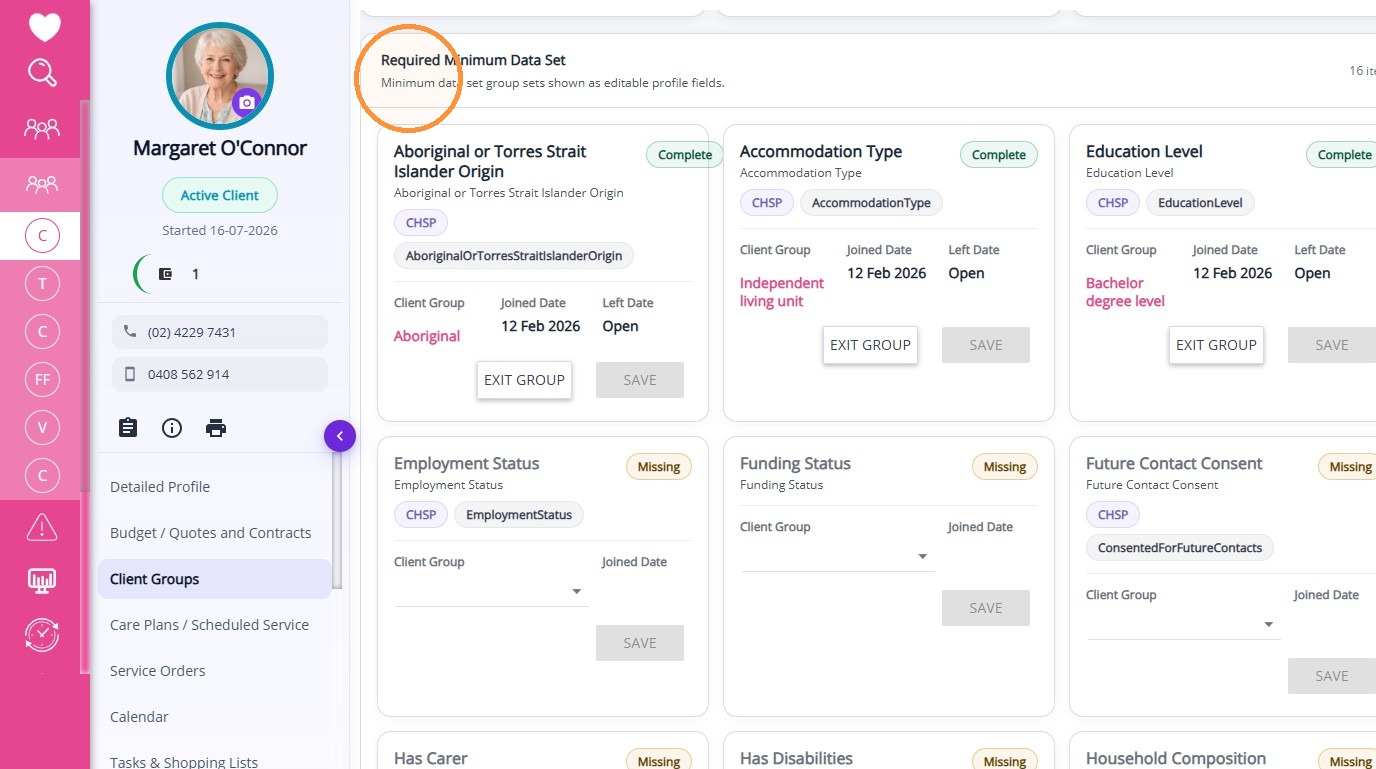
Required Minimum Data Set
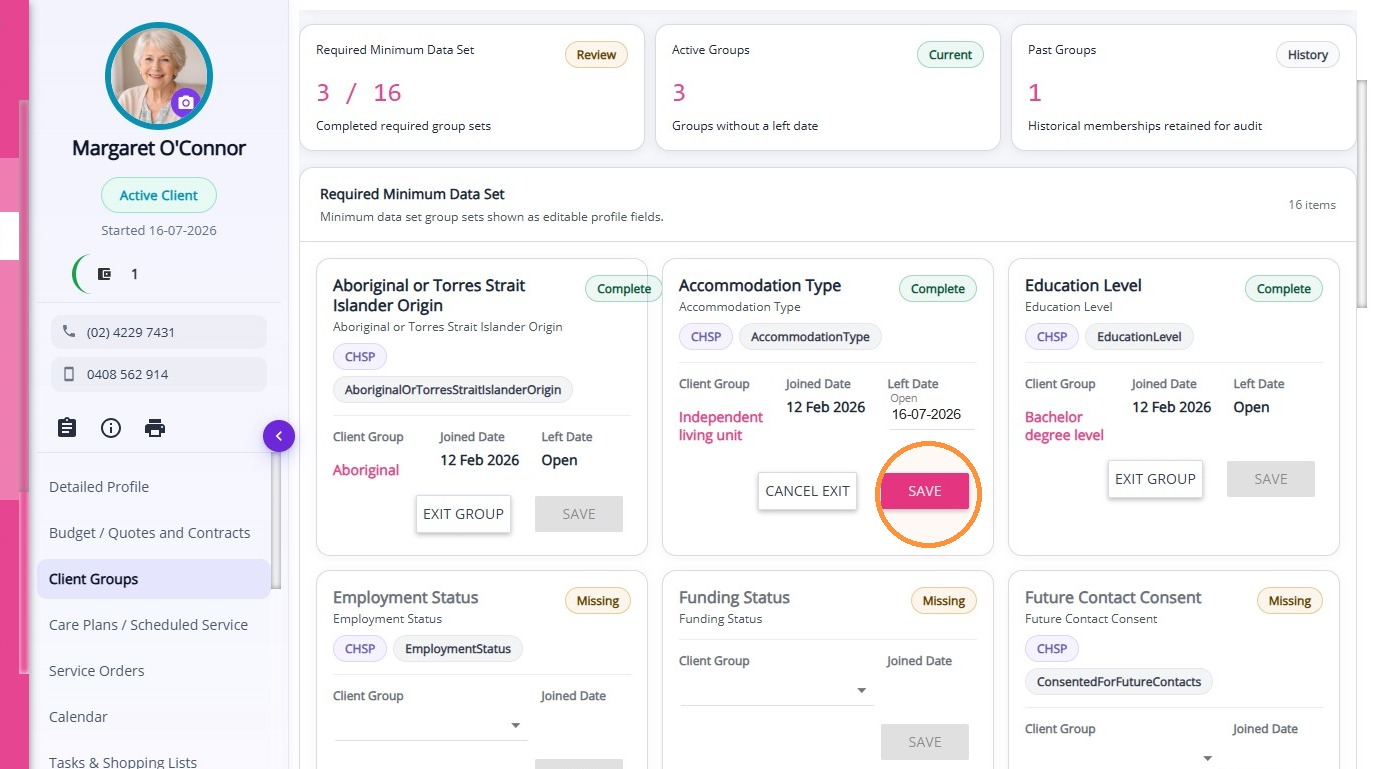
The Required Minimum Data Set section displays essential client information needed for compliance, reporting, and operations. In this section, you can assign the client to a group set, add a join date, or remove them as needed.
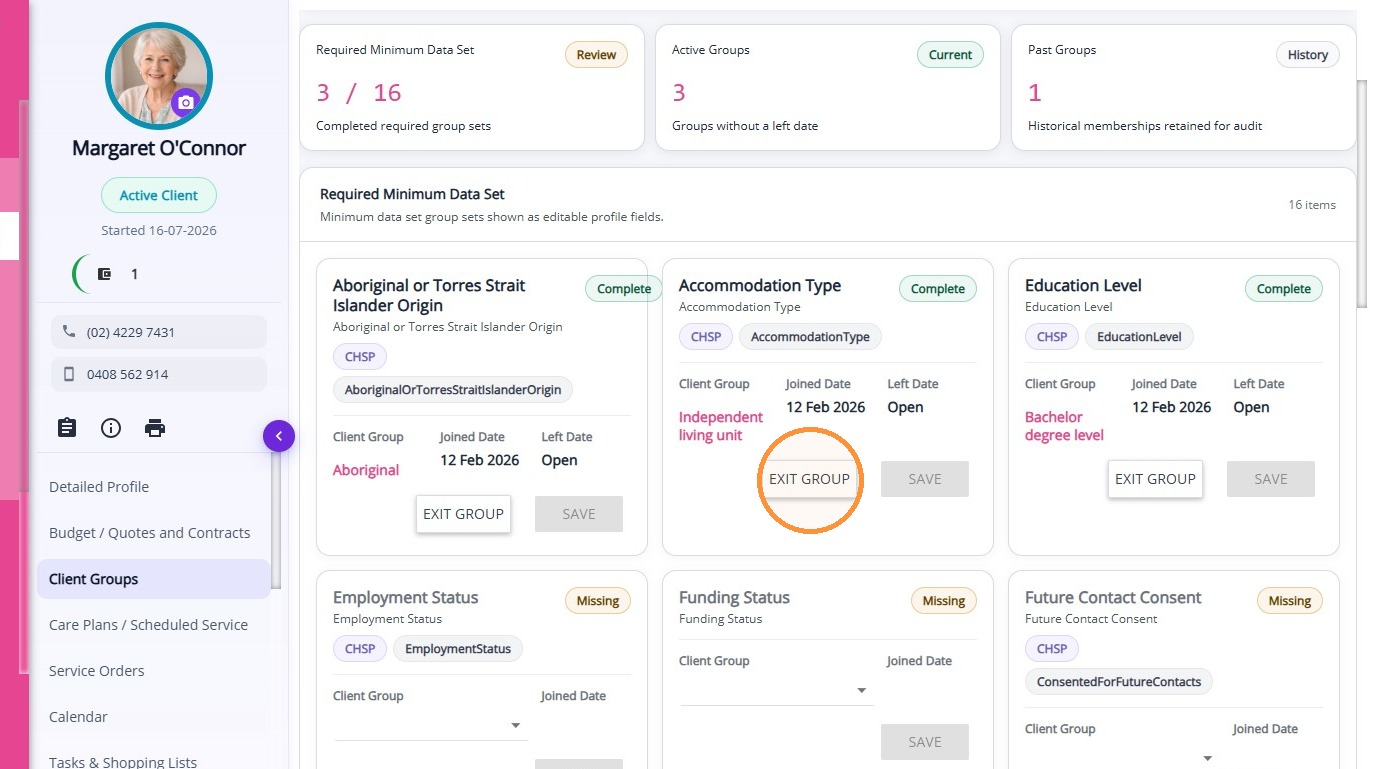
Exit Group
Click the Exit Group button on the card of the relevant group.
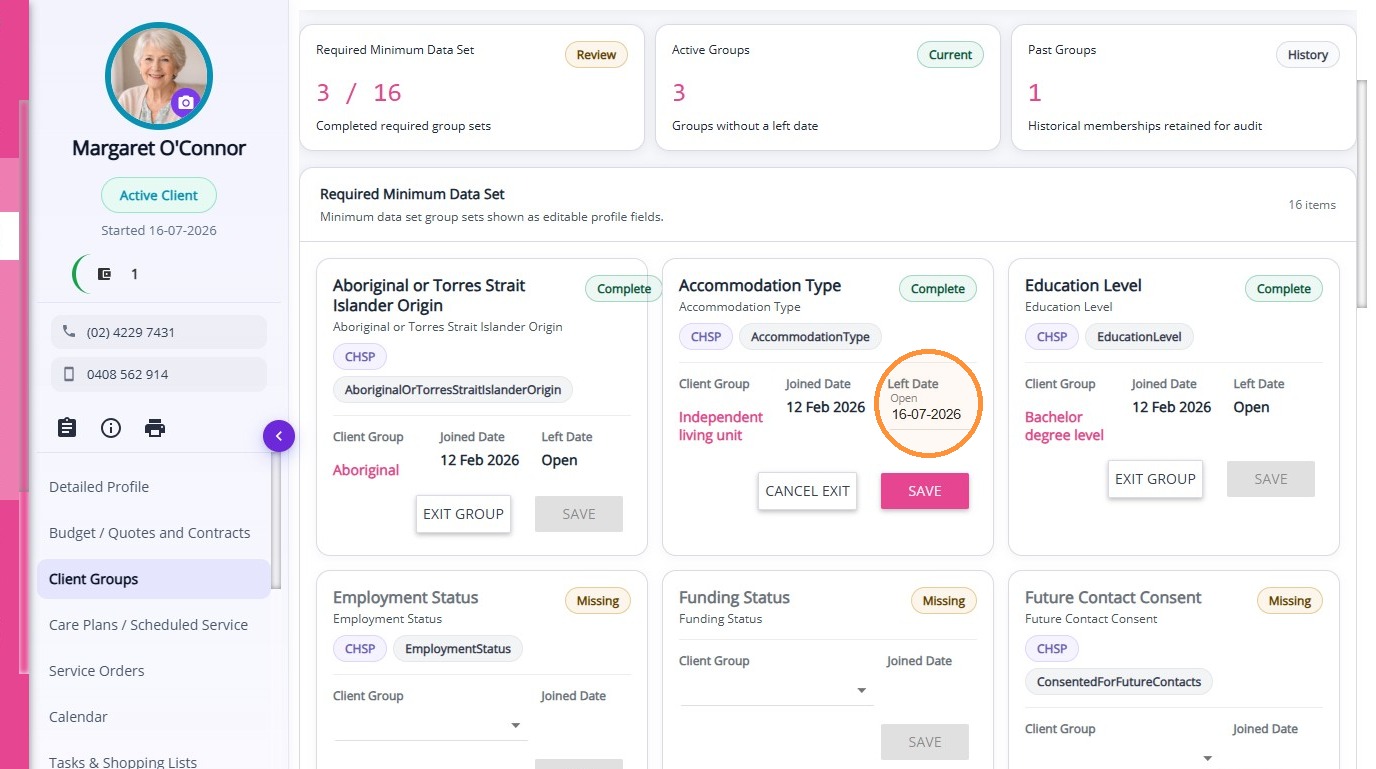
Enter an exit date (this defaults to the current date but can be changed).
Click Save. The Past Groups card above will update to reflect the new total.
Client Group Memberships
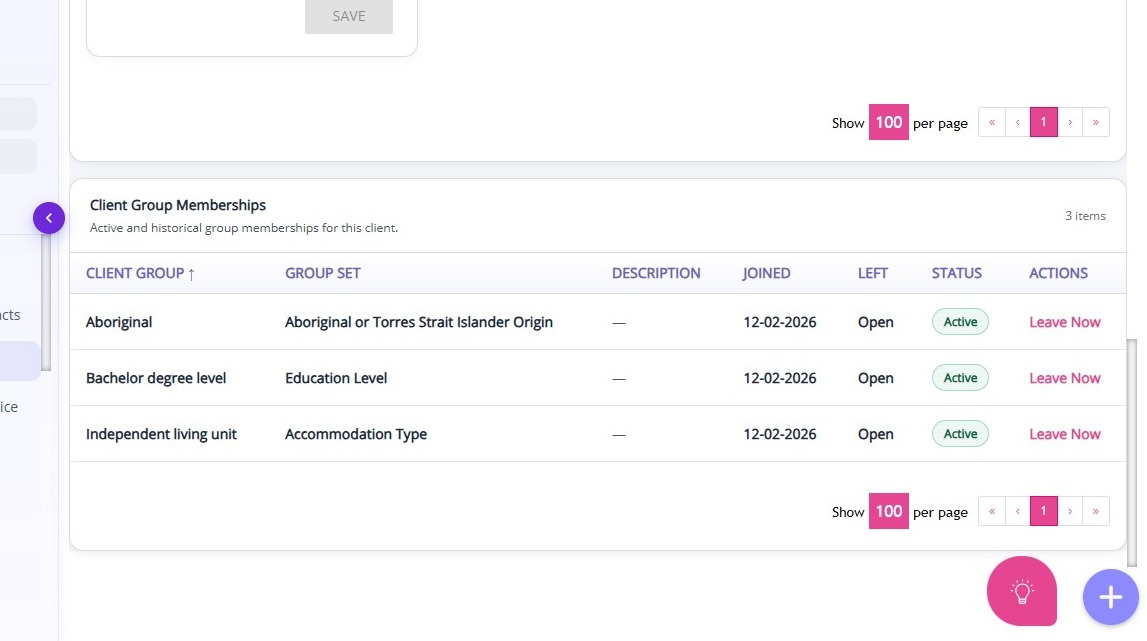
Client Group Memberships
Displays the groups or group sets where the client is a member. You can also perform actions such as Leave Now to exit a group.
Configuration
Configuration
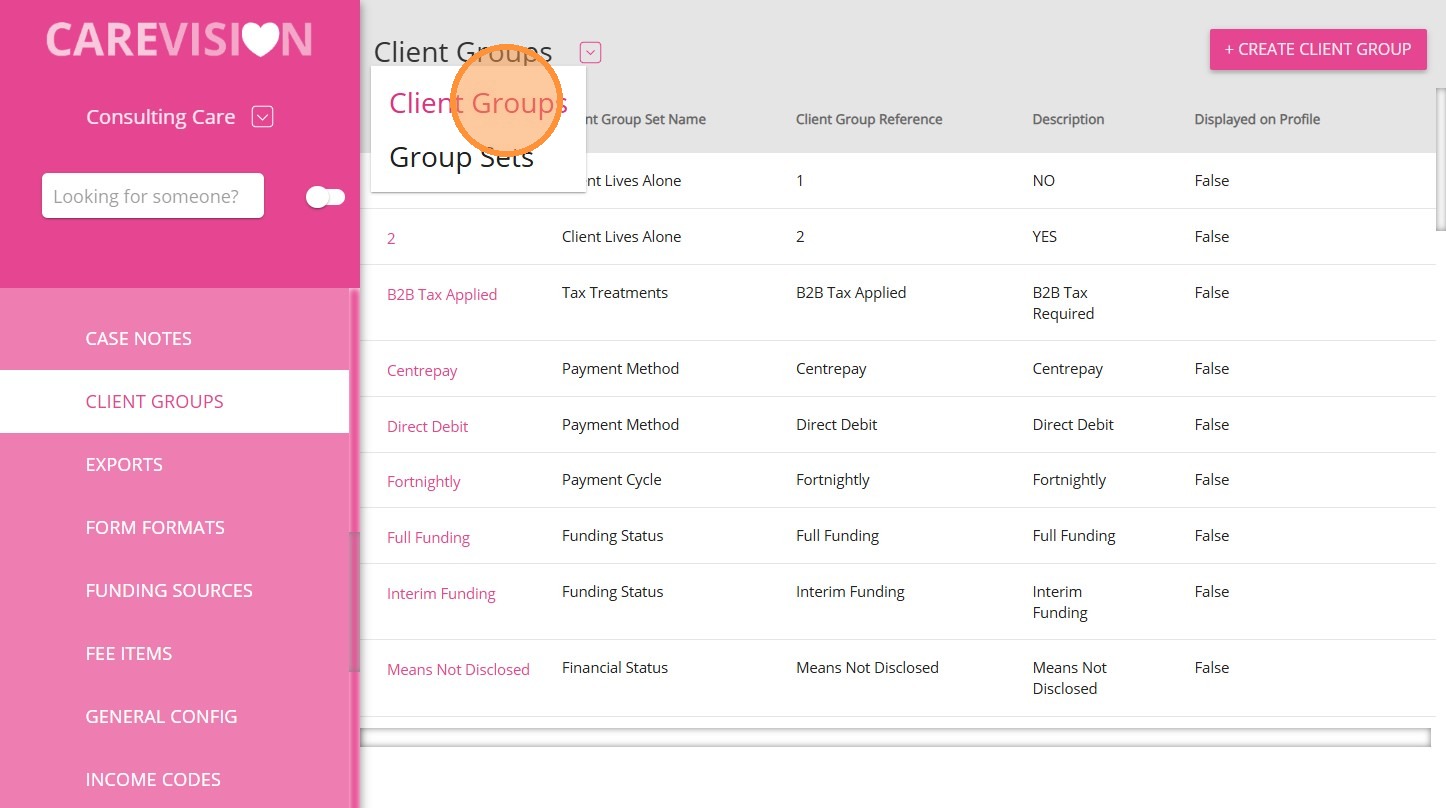
- Client Groups can be configured by navigating to Settings > Client Groups > Client Groups in the left navigation pane.
- Group Sets can be configured by navigating to Settings > Client Groups > Group Sets in the left navigation pane.
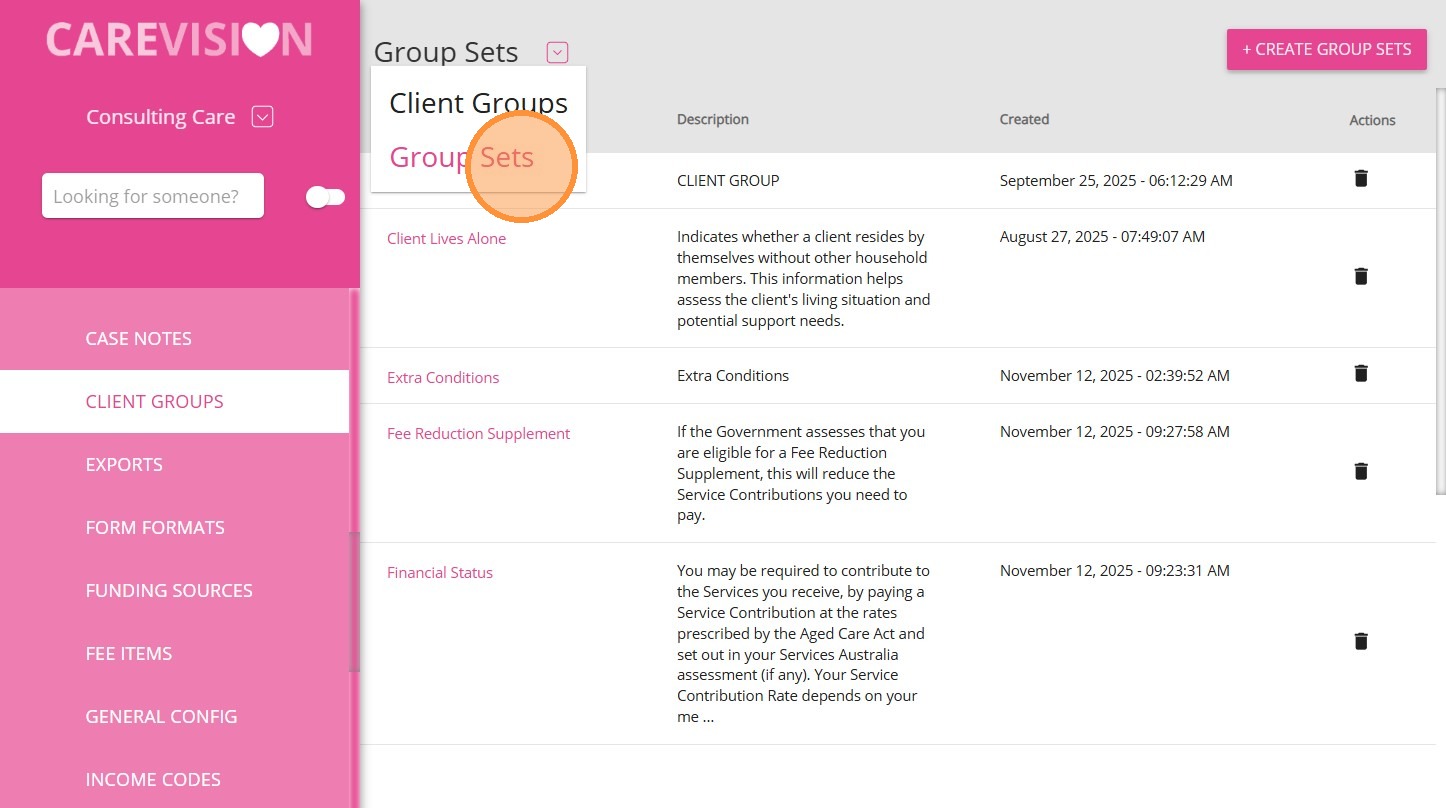
- Group Sets can be configured by navigating to Settings > Client Groups > Group Sets in the left navigation pane.

For an example of how client groups and group sets are used in the system, see How to Set Up Your Organisation’s HACC Data.
This topic explained how Client Groups and Group Sets are used within the Client Profile to classify clients, manage essential data, and support reporting workflows. For more information about Client Groups, contact the CareVision Support Team.