Applying Modifications from Funding Source Templates to Client Funding Sources
This topic describes how to apply modifications from Funding Source Templates to Client Funding Sources using both single and bulk sync options. This way, if you want to make changes to a funding source template, you can quickly apply those modifications to all linked client funding sources at once.
Keywords: funding source templates, client funding sources, bulk sync, funding template modifications, bulk sync templates, funding configuration, billing categories sync, line items sync, funding setup, sync client funding
Funding Source Template Modifications Included in Sync
The following sections from the Funding Source Template are included when modifications are synced:
- Advanced Funding Details (for advanced templates)
- Fee Items, Services, Billing Categories, and Line Item Templates
- References

Note: This functionality is available only to users with the following security roles: Concierge and Coordinator (Admin)
A. Apply Template Modifications to Client Funding Sources (Single Template)
Use this method when you want to apply modifications from one Funding Source Template to all linked Client Funding Sources.
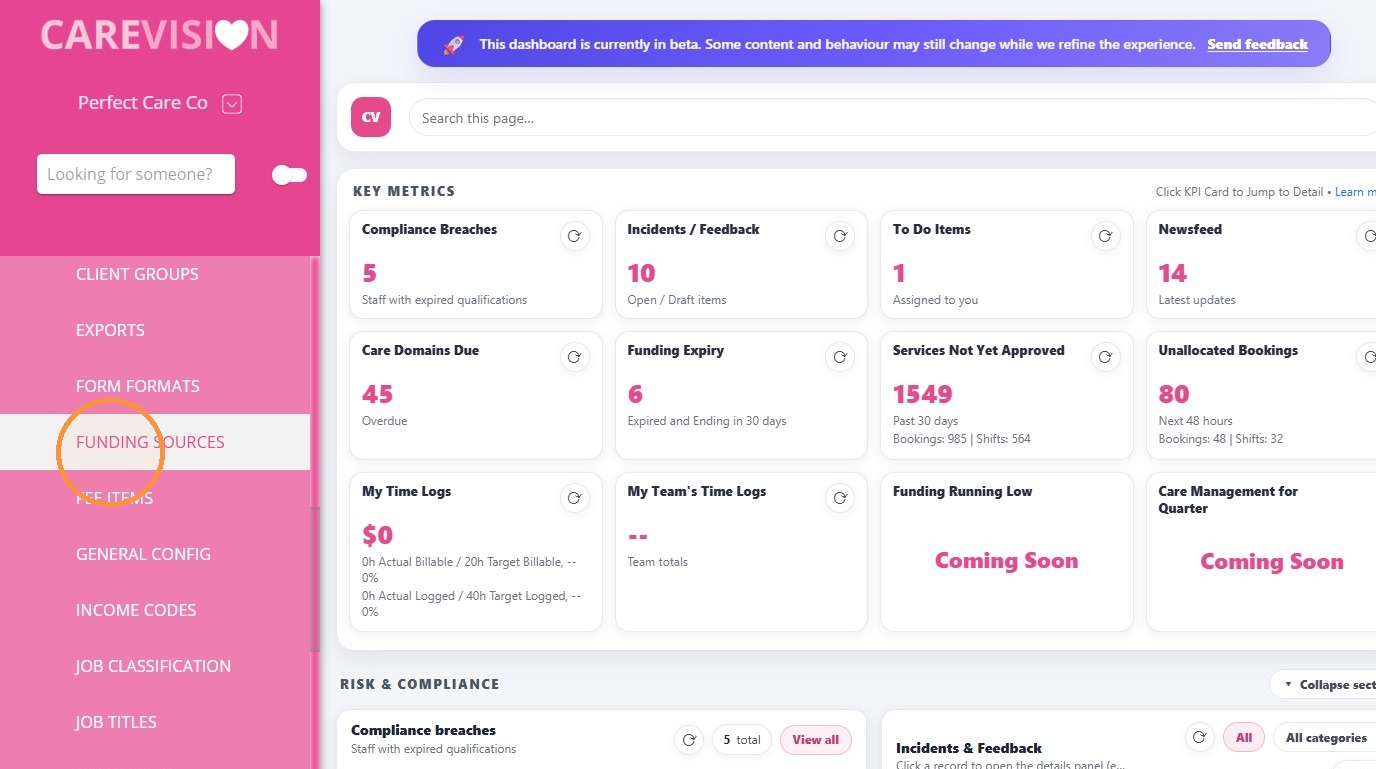
1. Go to Settings > Funding Sources
2. Open the Funding Source Template you want to modify. Navigate to the relevant sections and apply your modifications. For example, you may want to add services that are permitted to be funded under the funding source template.
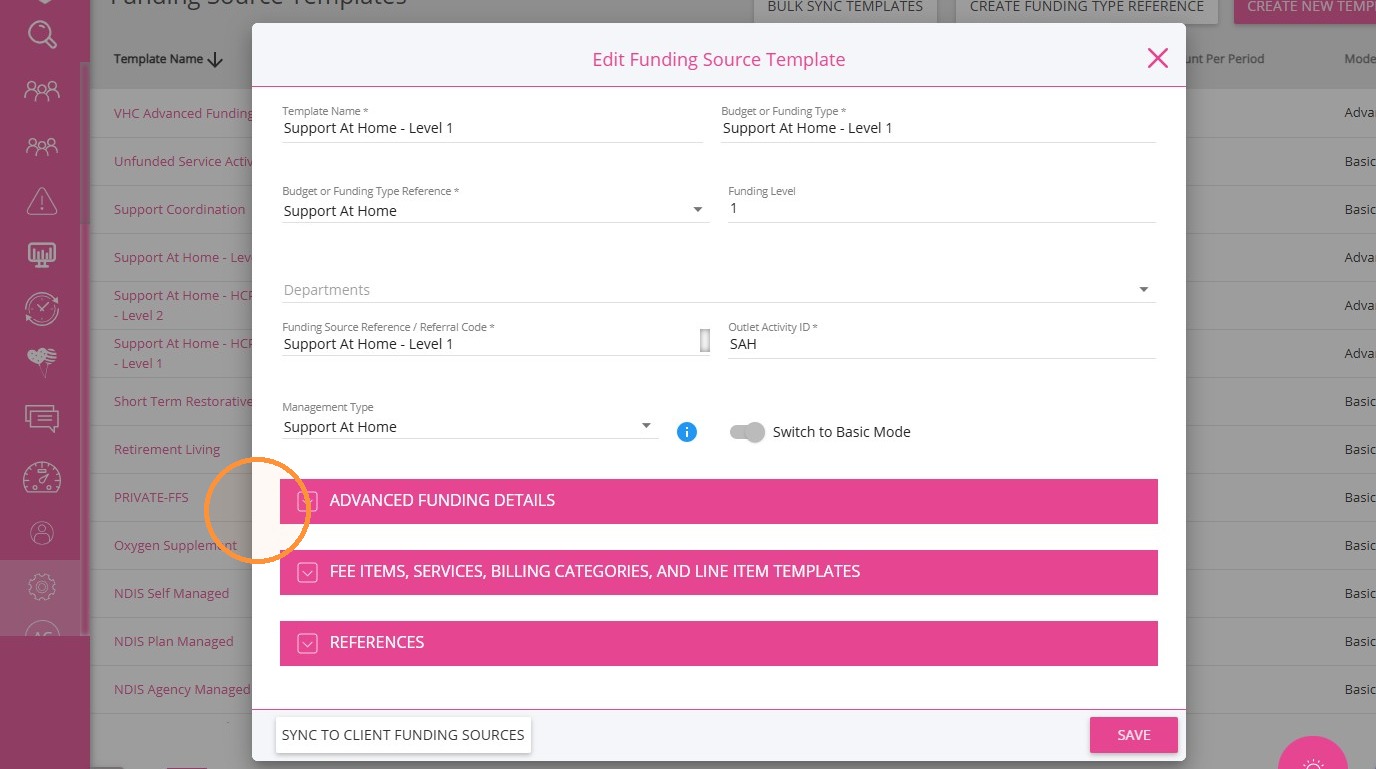
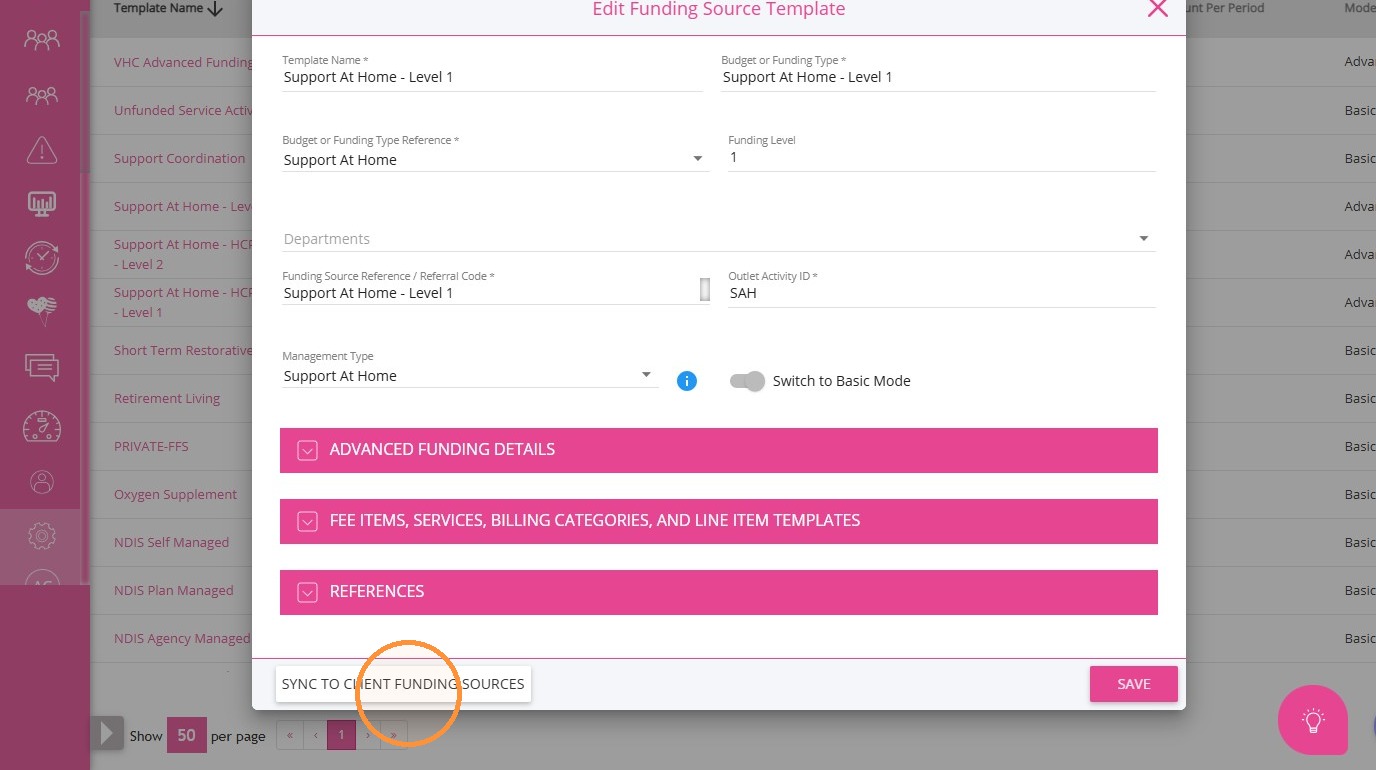
3. Scroll down and click Sync to Client Funding Sources.
If you have unsaved changes, this prompt will appear.
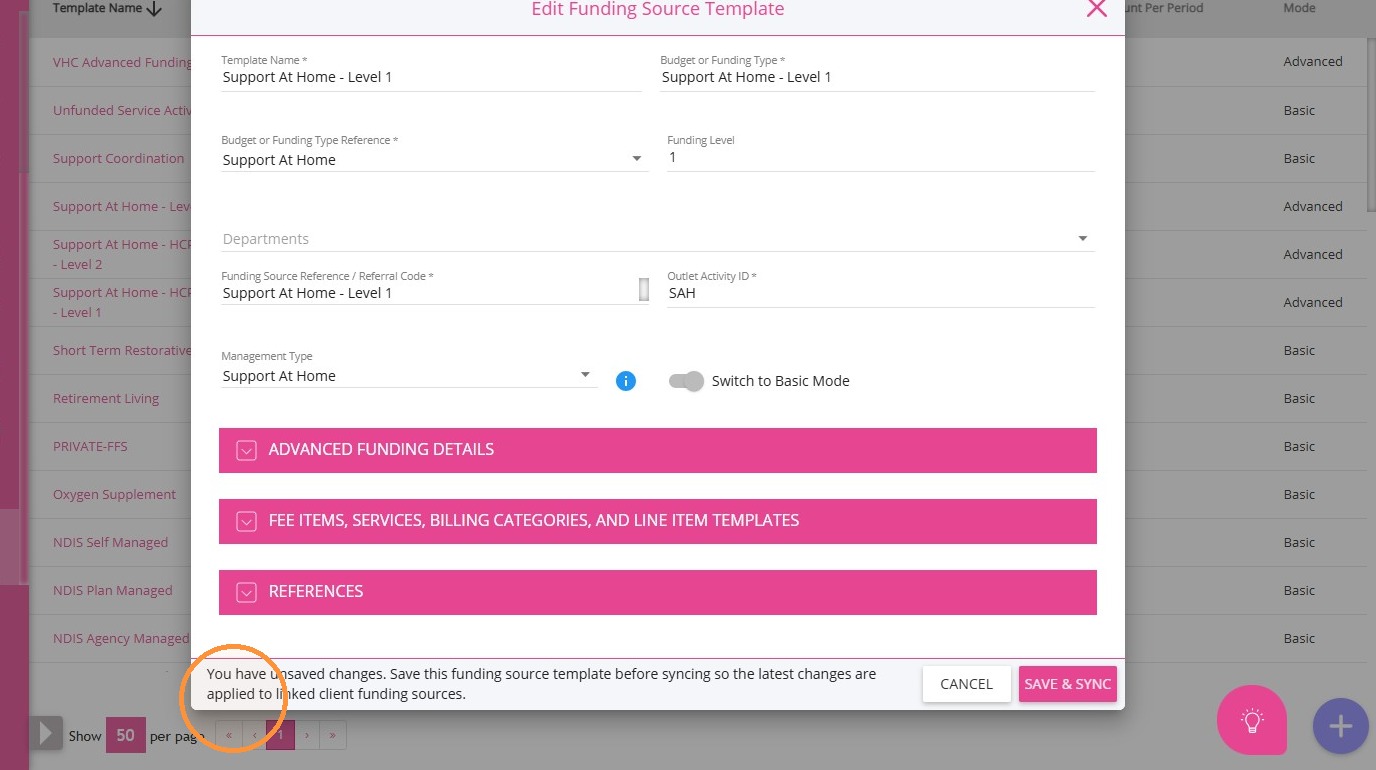
4. Click Save & Sync to proceed.
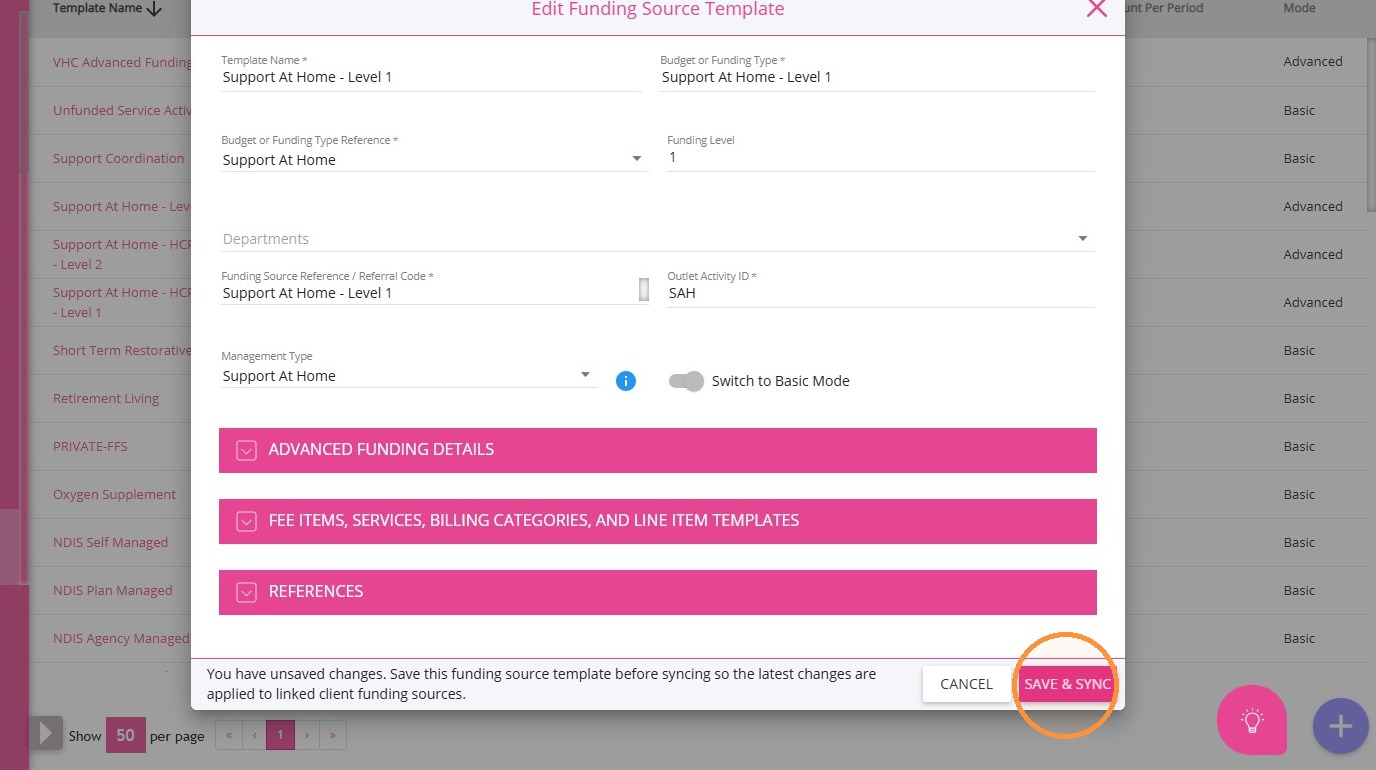
Result: All modifications from the selected Funding Source Template will be applied to linked Client Funding Sources.
B. Apply Template Modifications to Client Funding Sources (Bulk Sync)
Use this method when you need to apply modifications from multiple Funding Source Templates at once.
1. In Settings > Funding Sources, click Bulk Sync Templates.
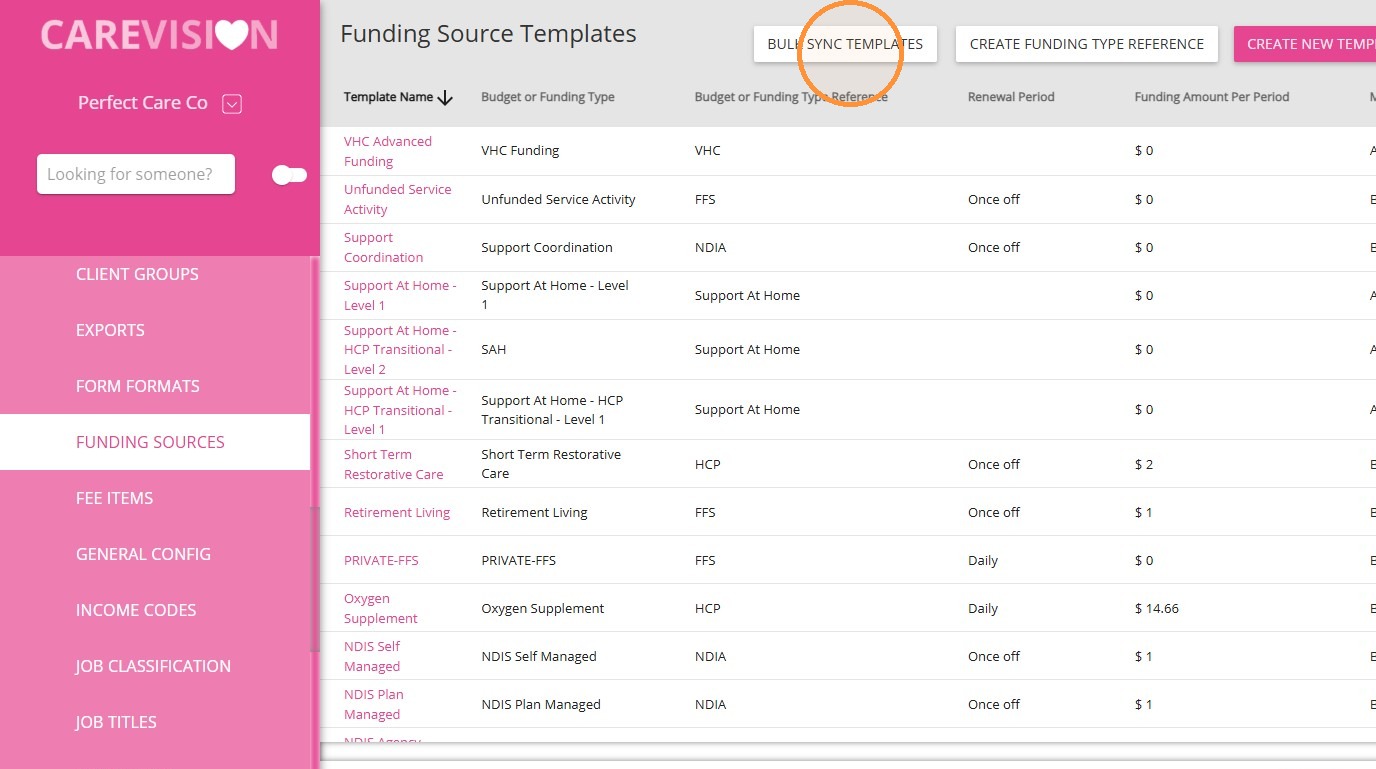
2. Select up to 5 Funding Source Templates.
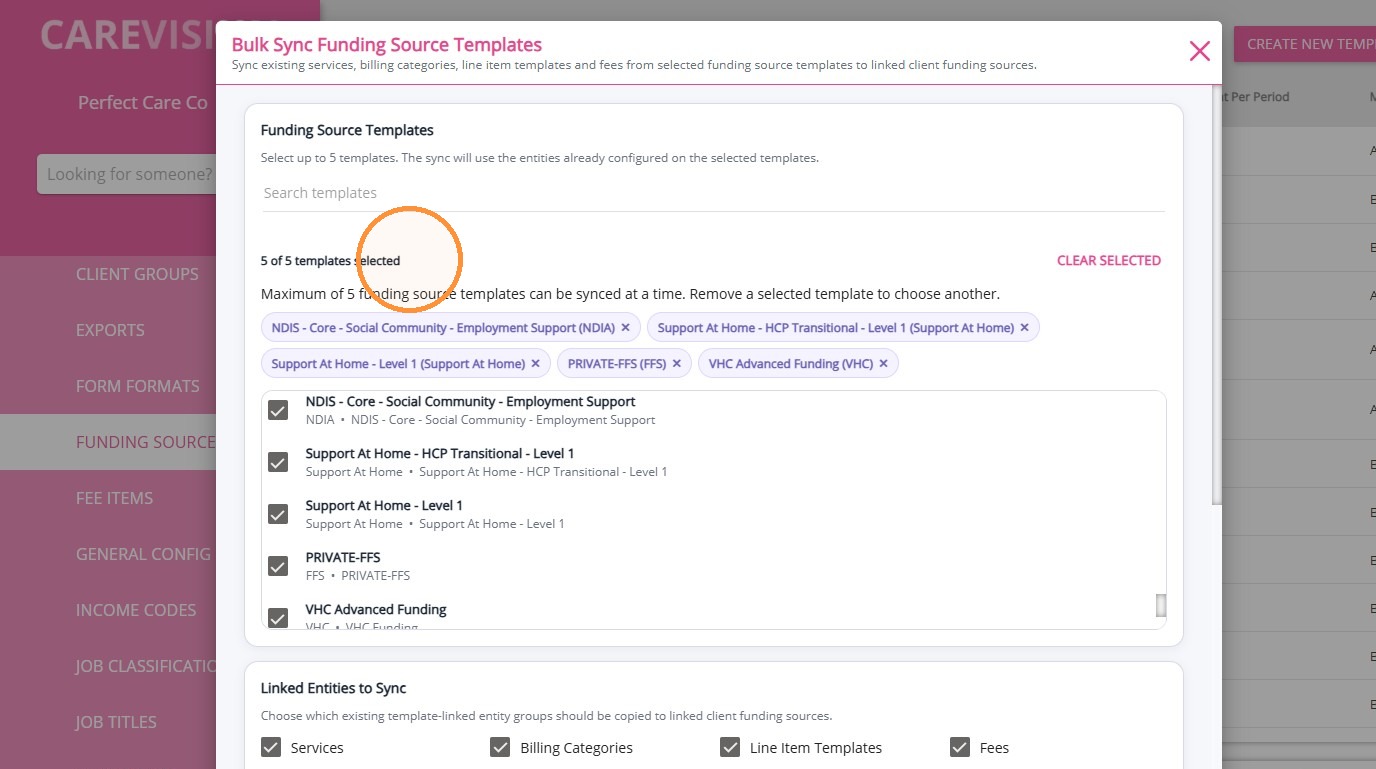
3. Choose which components of the template modifications to sync (Example: Services, Billing Categories, Line Items, Fees, Income/Cost Code Validation)
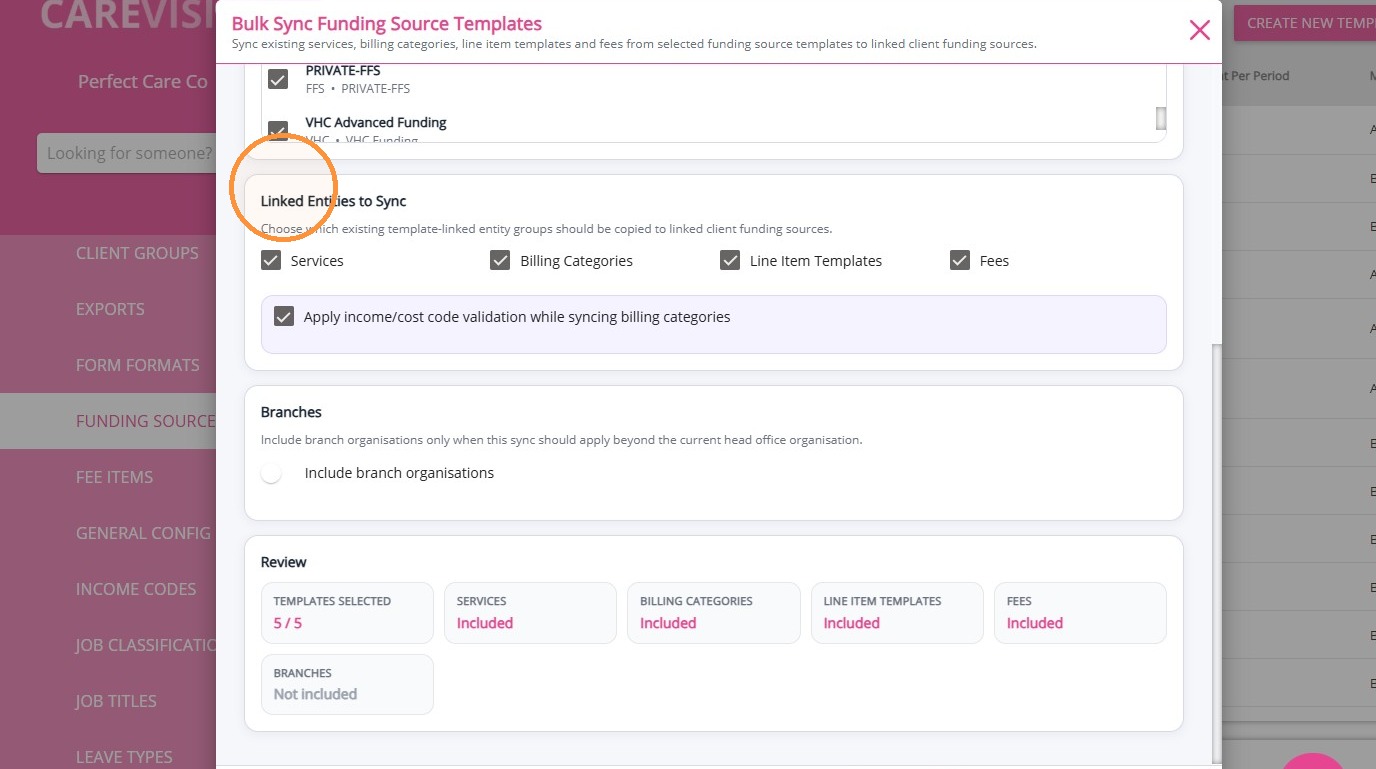
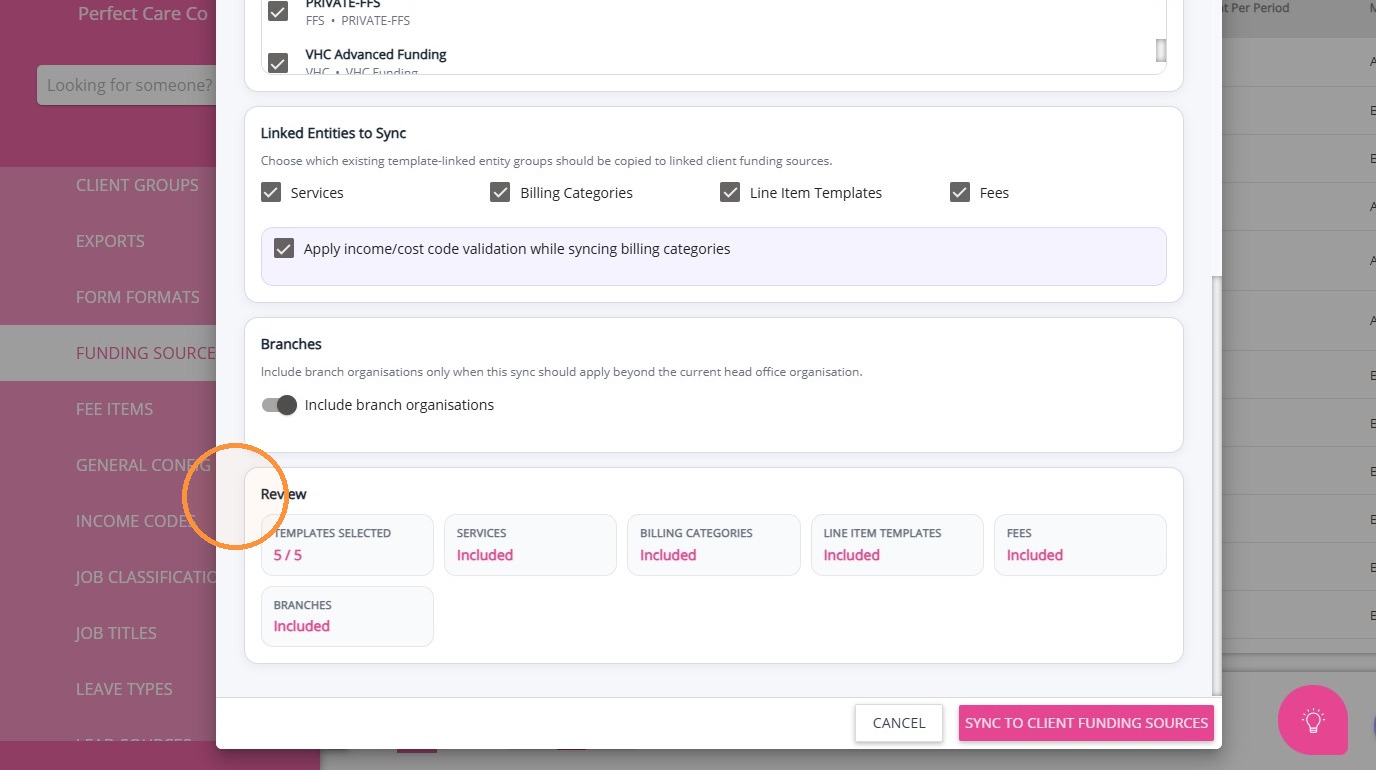
4. (Optional) Enable Include Branch Organisations if applicable. The sync will also apply the template modifications to Client Funding Sources under linked branch organisations, not just the head organisation.
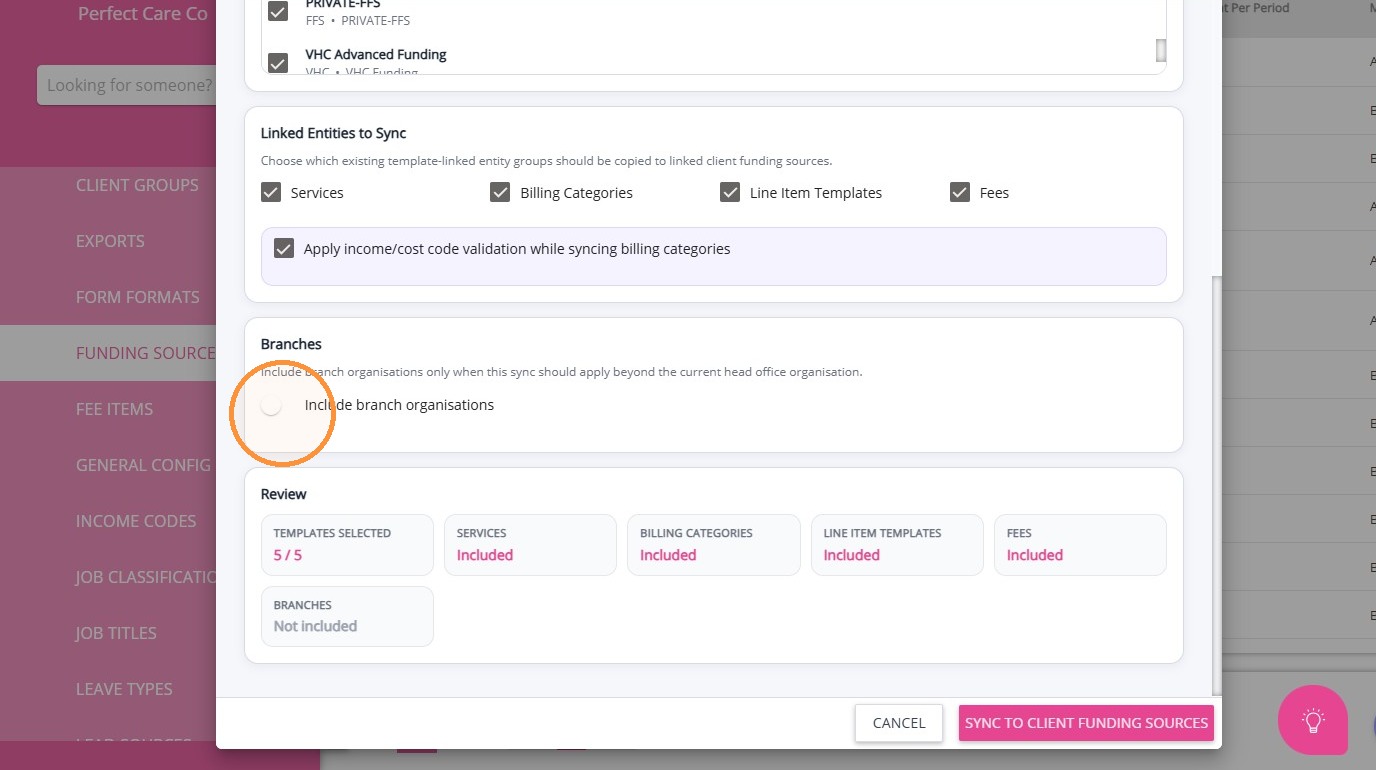
5. Review your selections before applying the sync.
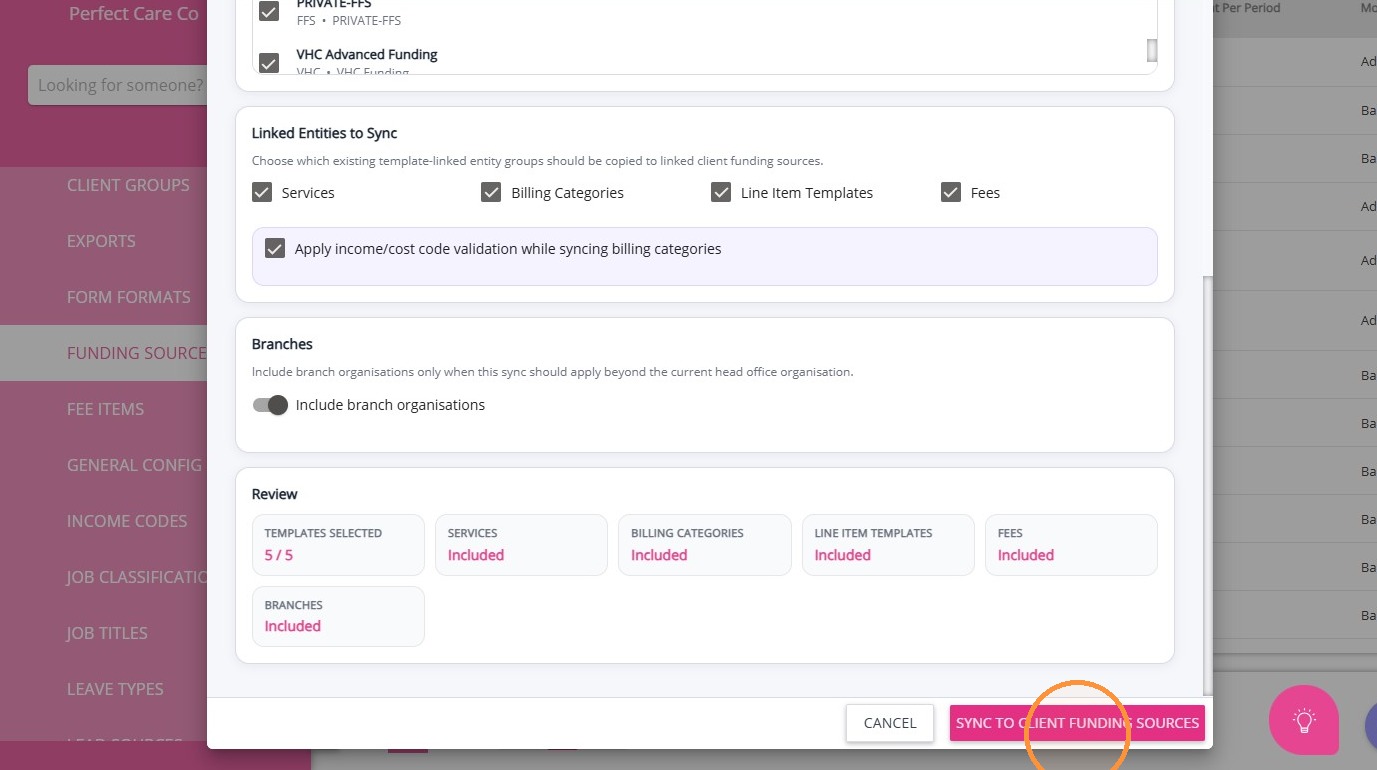
6. Click Sync to Client Funding Sources to initiate applying the template modifications to all linked client funding sources.
7. Click Confirm Sync to proceed and finalize the process.
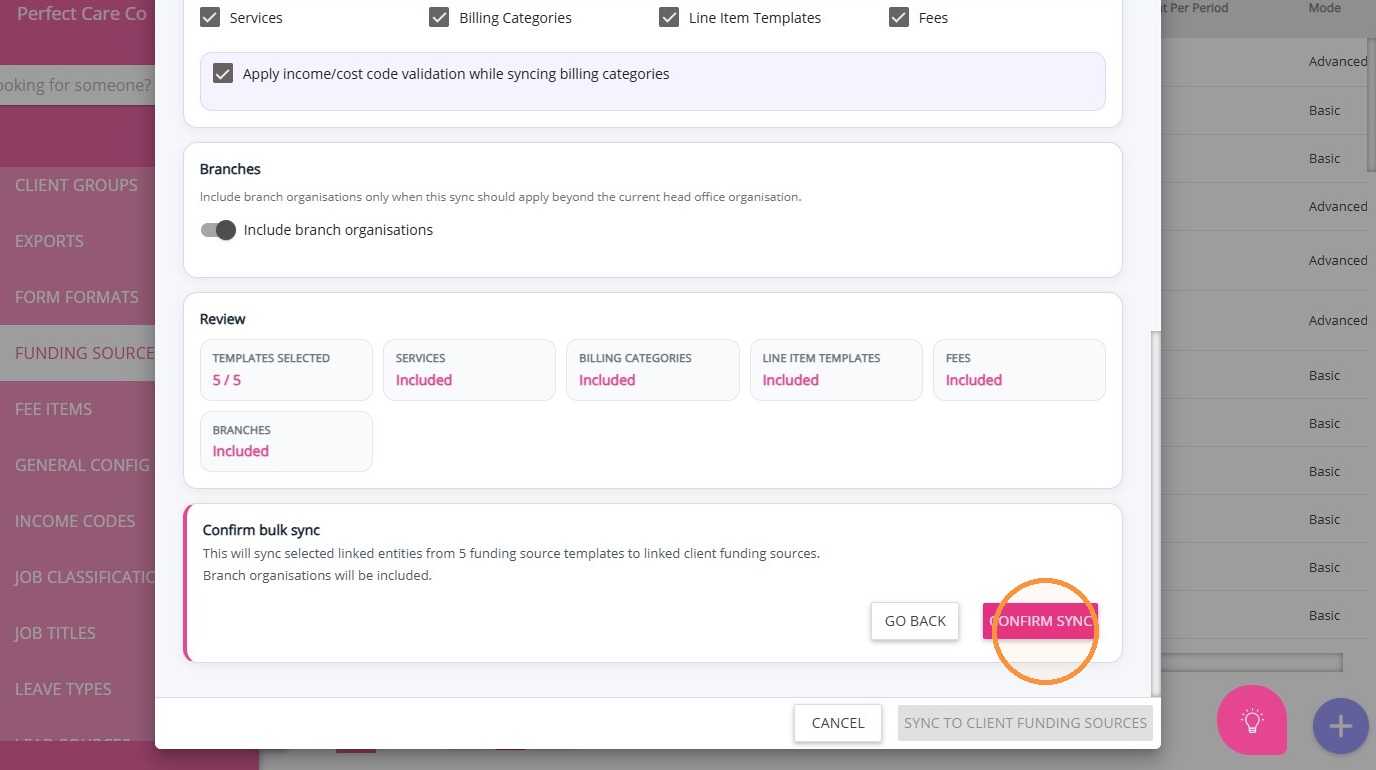
Result: Modifications from all selected Funding Source Templates will be applied to the relevant Client Funding Sources.
This topic explained how to apply modifications from Funding Source Templates to Client Funding Sources using both single and bulk sync options. Following this process helps maintain consistent funding data while reducing manual workload. For more information about syncing Funding Source Templates, contact the CareVision Support Team.