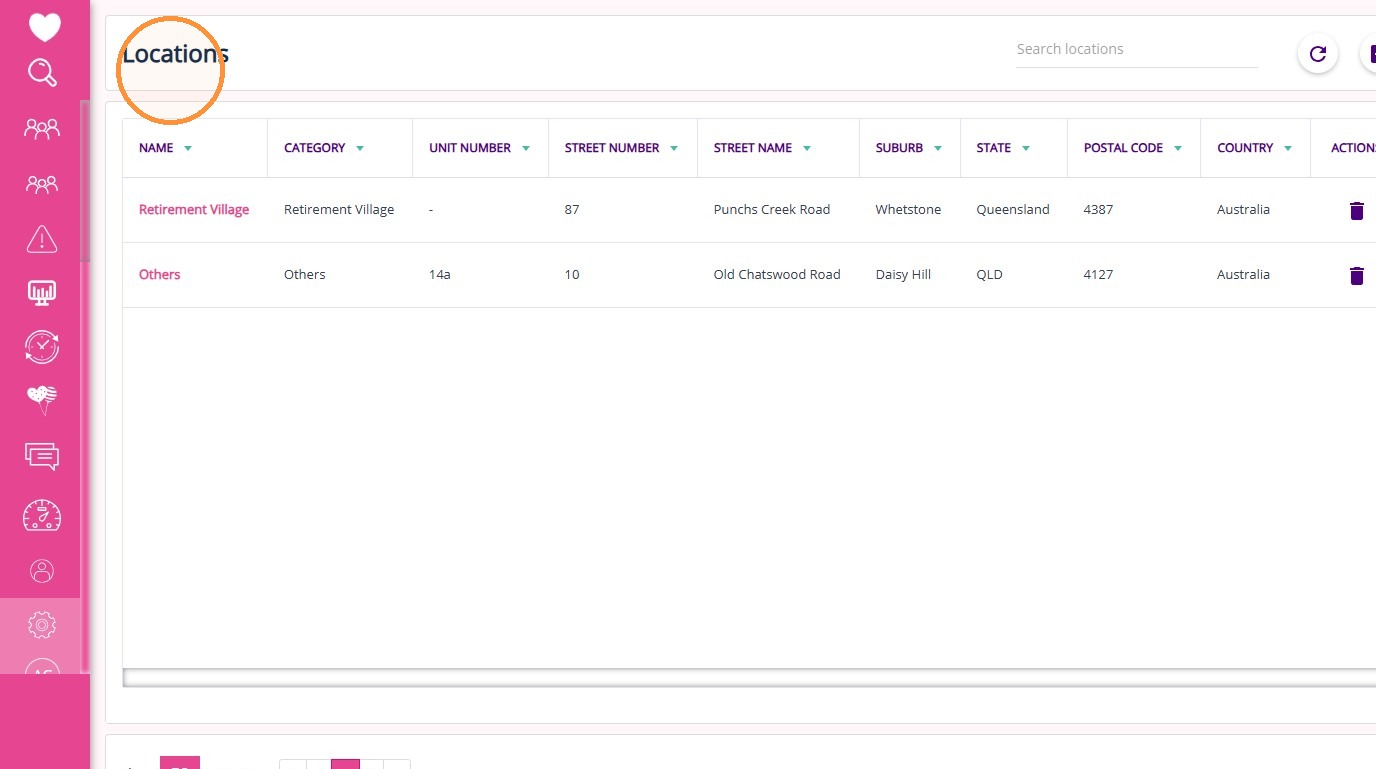
What is the Locations Section in Settings?

What is the Locations Section in Settings?

The Location Management feature in Settings > Locations allows you to manage all locations within your organisation from a single screen. From here, you can view, create, search, and delete location records.

Each organisation maintains its own set of locations. Locations created in one organisation are not visible or accessible in another.

Keywords: location management, settings locations, manage locations, create location, address management, organisation locations, location configuration


Access Locations

Go to Settings > Locations to open the Locations board.
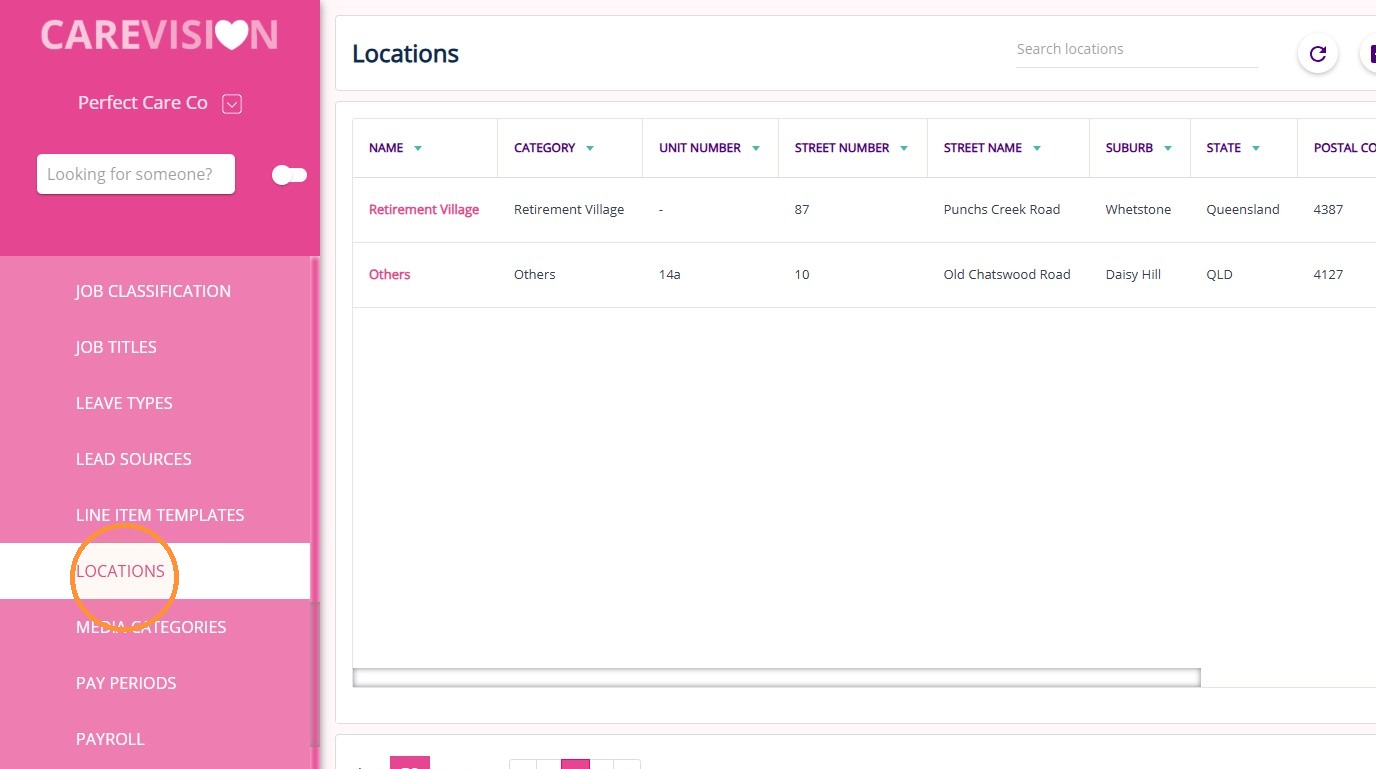

On this screen, you can:
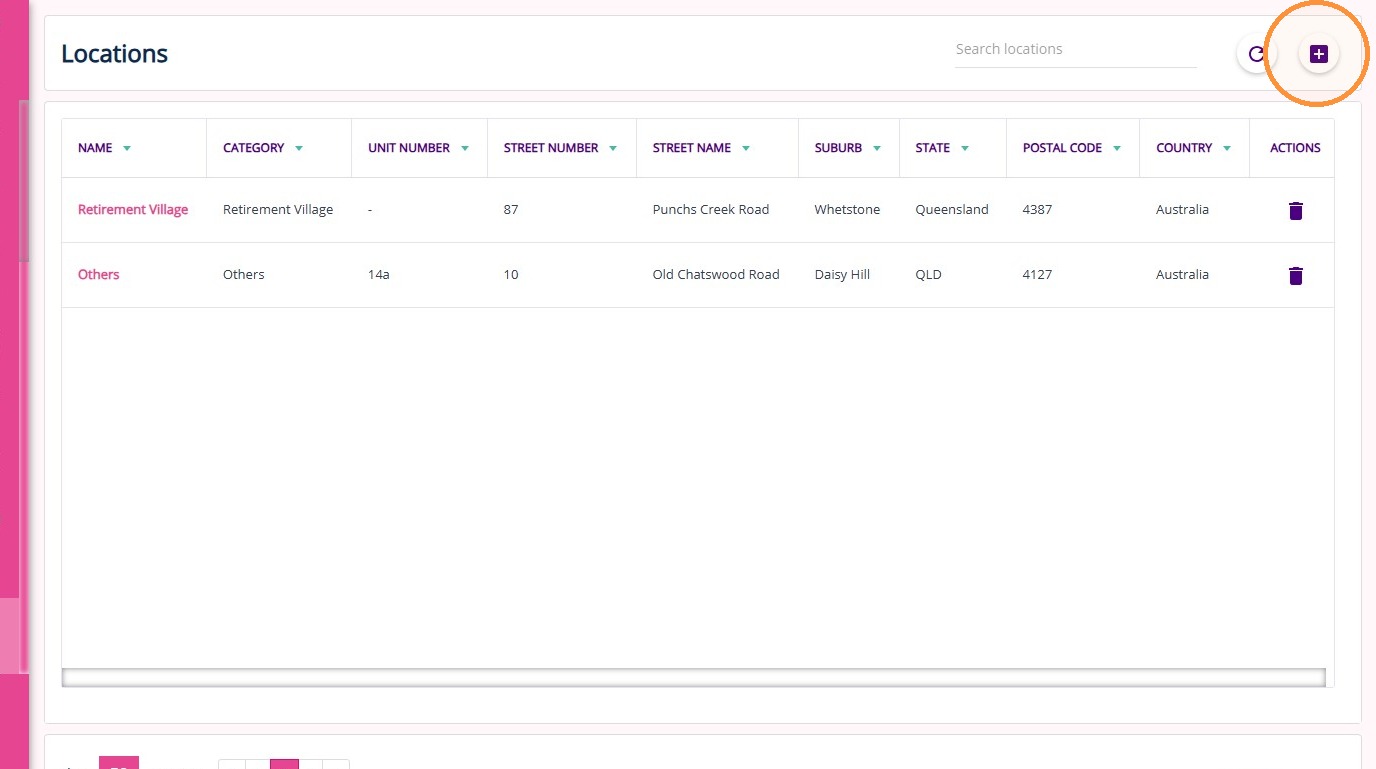
  1. View all existing locations

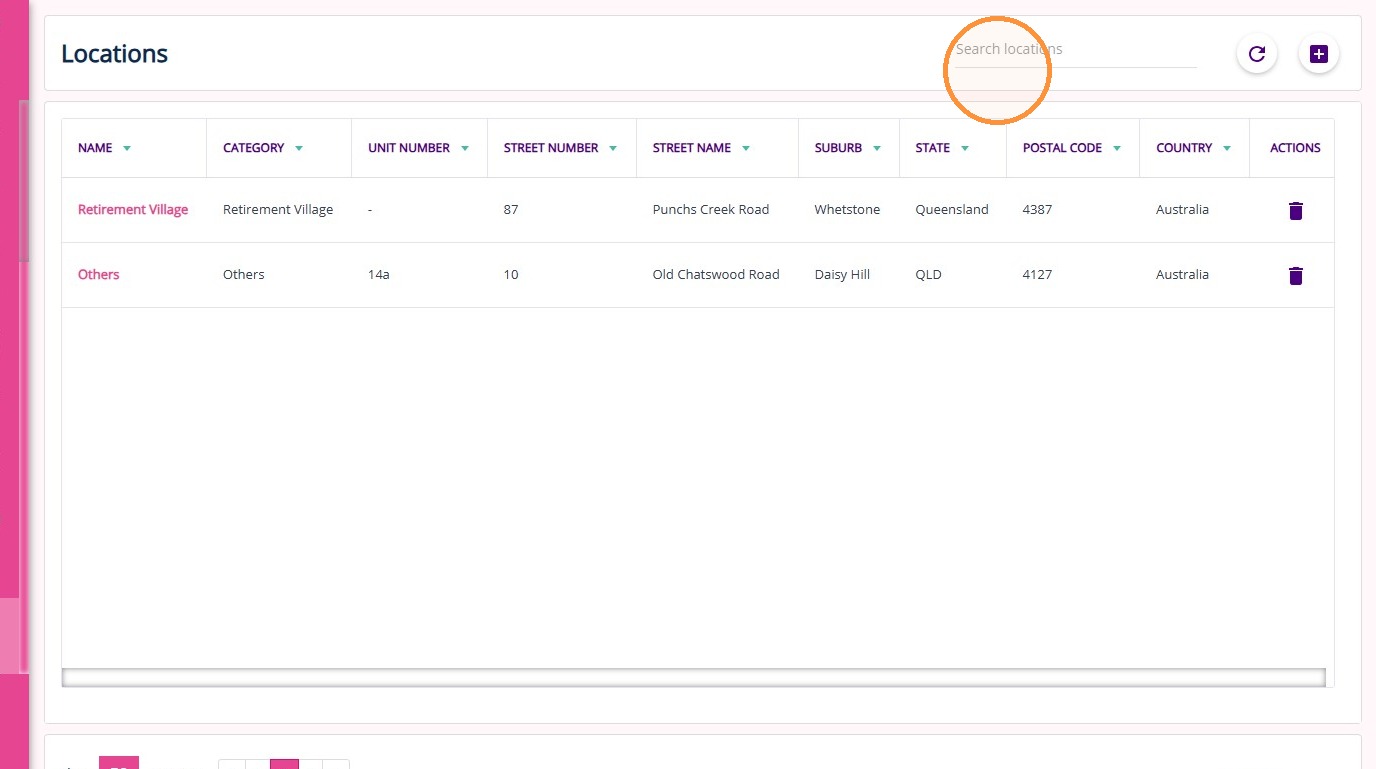
  1. Search for a location using the search bar

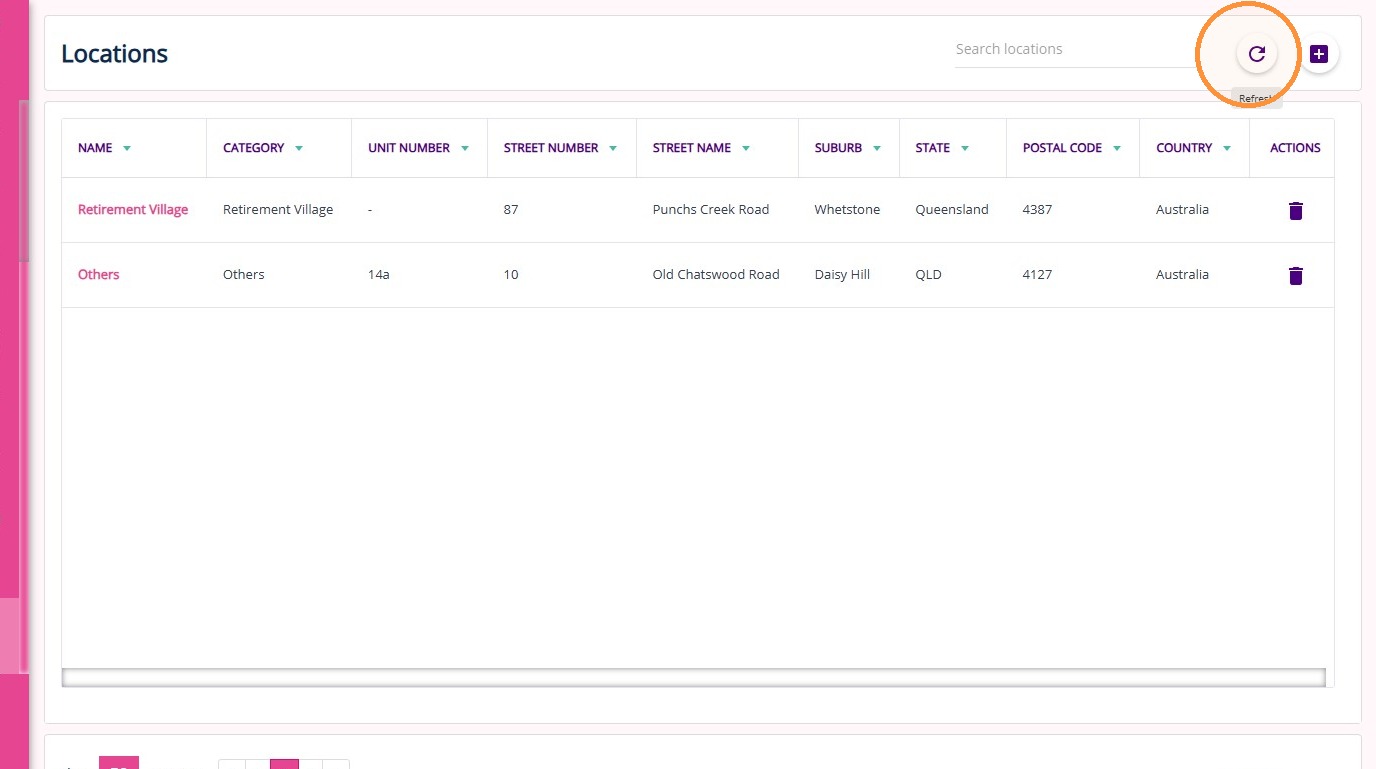
  1. Click the refresh icon to update the list
How to Create a Location

1. Click the plus (+) icon

The location form appears
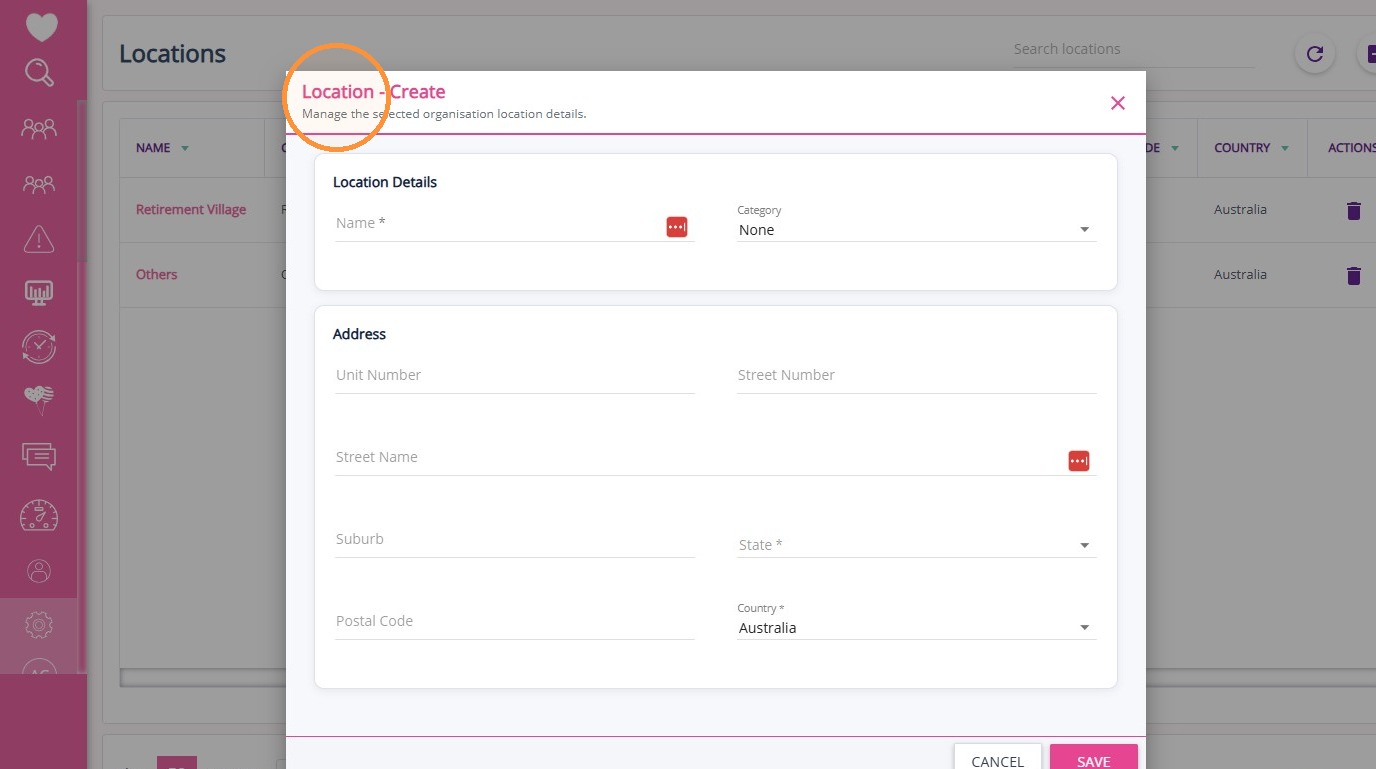

2. Enter the required details:
FieldDefinition
NameEnter the name of the location
CategorySelect the type of location (e.g. retirement village, home care, others)
Unit NumberEnter the unit or apartment number (if applicable)
Street NumberEnter the street number
Street NameEnter the street name
SuburbEnter the suburb
StateSelect the state
Postal CodeEnter the postal code
CountrySelect the country


3. Click Save. The new location appears on the Locations board.

Locations Board
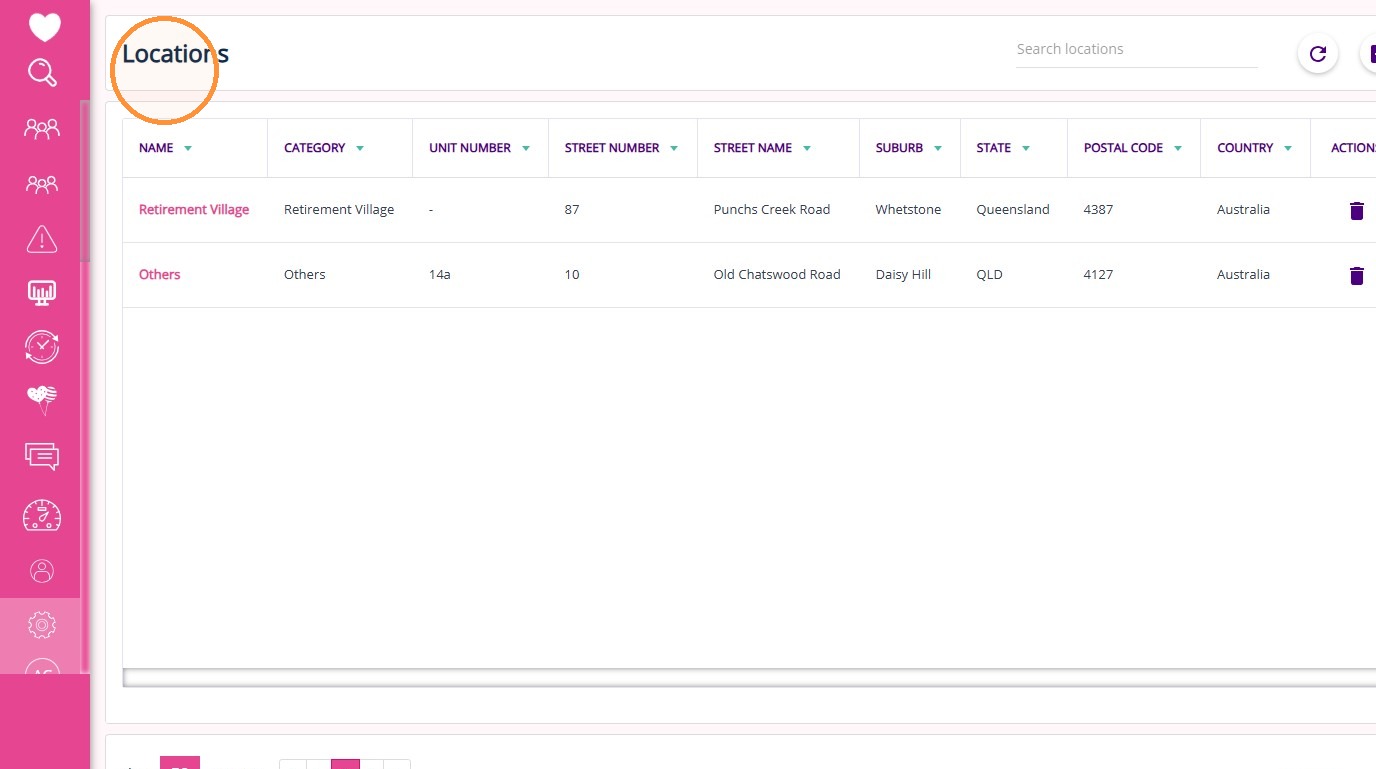


The Locations board displays all locations in a table with the following columns:
FieldDefinition
NameDisplays the name of the location
CategoryDisplays the type of location (e.g. retirement village, home care, others)
Unit NumberDisplays the unit or apartment number associated with the address
Street NumberDisplays the street number of the location
Street NameDisplays the street name of the location
SuburbDisplays the suburb of the location
StateDisplays the state of the location
Postal CodeDisplays the postal code of the location
CountryDisplays the country of the location
ActionsProvides the option to delete the location

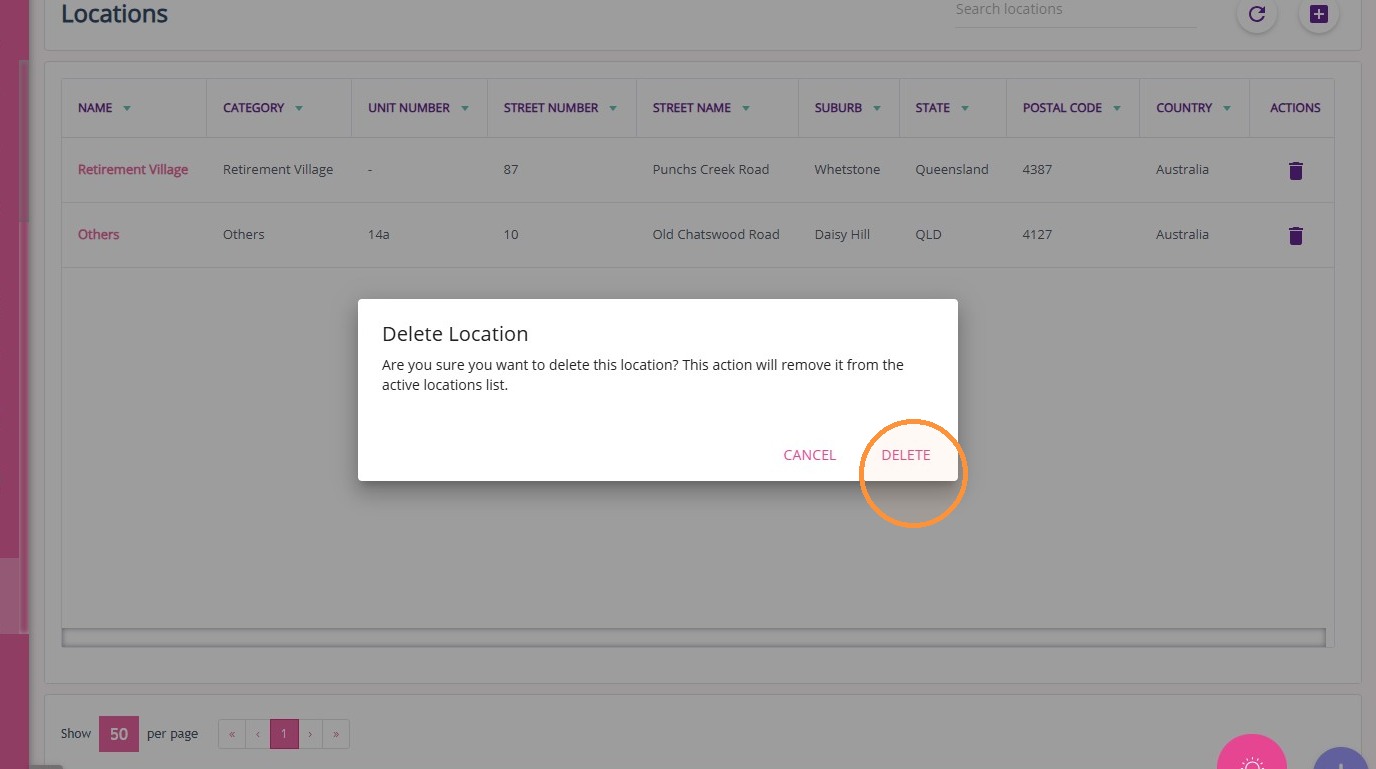
How to Delete a Location

1. Find the location on the Locations board.
2. Under the Actions column, click the trash icon next to the location.
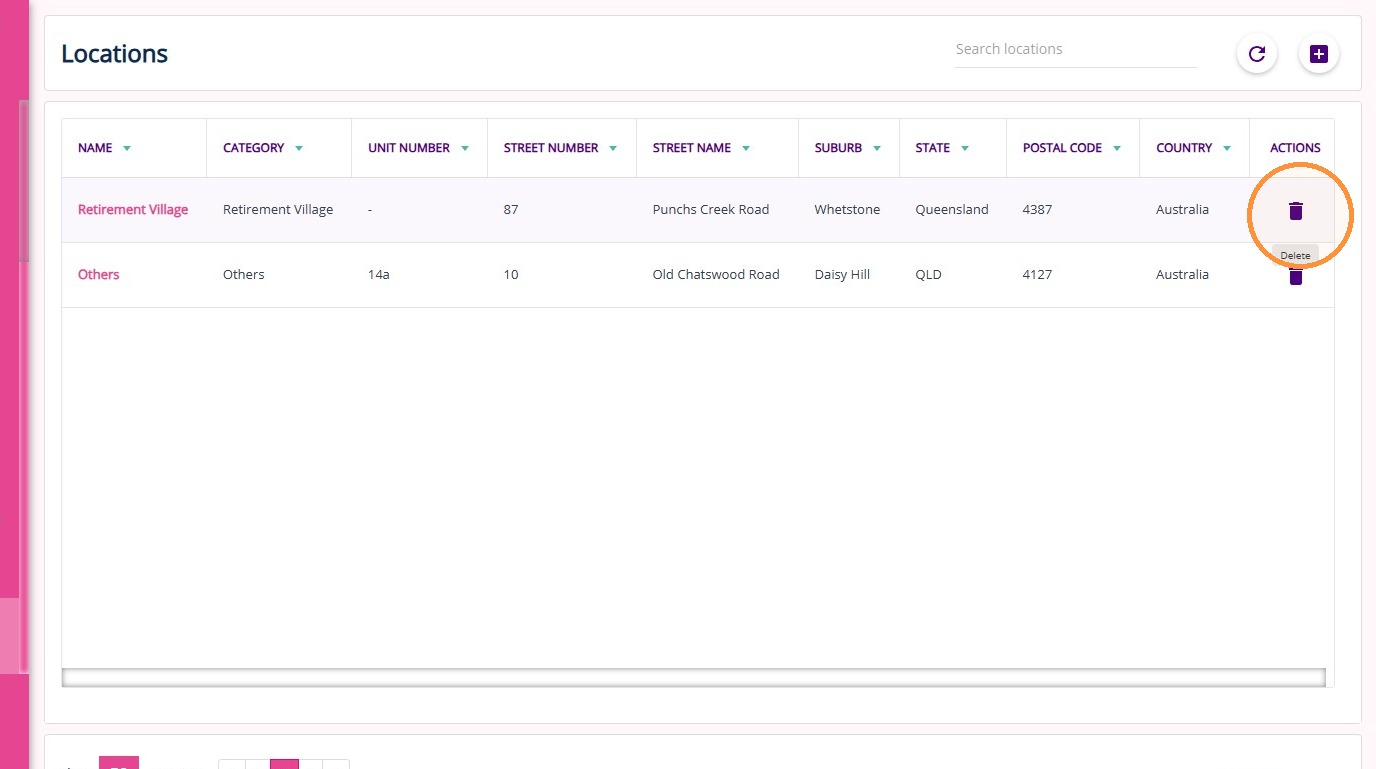
3. Click Delete to confirm the deletion.
This topic explained how to access and manage Locations in the Settings area. This supports efficient location data management across your organisation. For more information about location management, contact the CareVision Support Team.
    • Related Articles

    • Support Coordination Time Log Management and Claiming

      National Disability Insurance Scheme (NDIS) Support Coordinators assist clients in accessing and managing the support they need. Support Coordinators ensure that all client engagement hours are accurately recorded and compliant with program ...
    • How to Create a Service

      This topic describes how to create and set up services in CareVision. Services represent the core activities your organization delivers to clients and can be linked to case notes for accurate billing and documentation. By setting up Services, your ...
    • Configuration Workbook

      What is the workbook The CareVision Workbook is a shared resource used to collect and document all of the data elements required to configure the CareVision system. While technology continues to advance we have found that collecting this data in a ...
    • How to Set Up Your Organisation’s HACC Data

      This topic describes the setup of your organisation’s Home and Community Care (HACC) data, including the process for creating Group Sets and Client Groups. Keywords: hacc data setup, client groups, group sets, hacc export, indigenous status, living ...
    • General Payroll Concepts

      Payroll is the process of tracking hours worked, calculating compensation, and distributing payments to staff members to ensure they are paid accurately and on time. At CareVision, effective payroll management ensures reliable compensation for care ...

    Request an Article or Guide

    We are keen to know what you want to know more about? Let us know on chat or raise a ticket for an article or topic you would like covered in more detail. We have a team of technical writers and learning content creators keen for your suggestions.