Processing Pay Runs to Employment Hero
A. Verify Timesheets
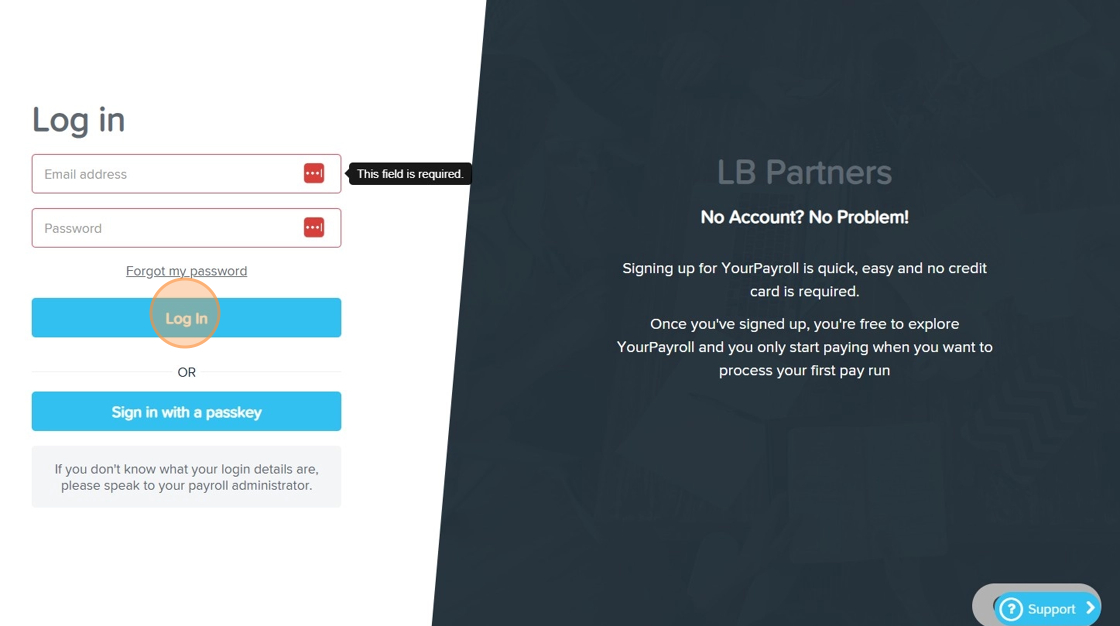
1. Log in to Employment Hero using your credentials.
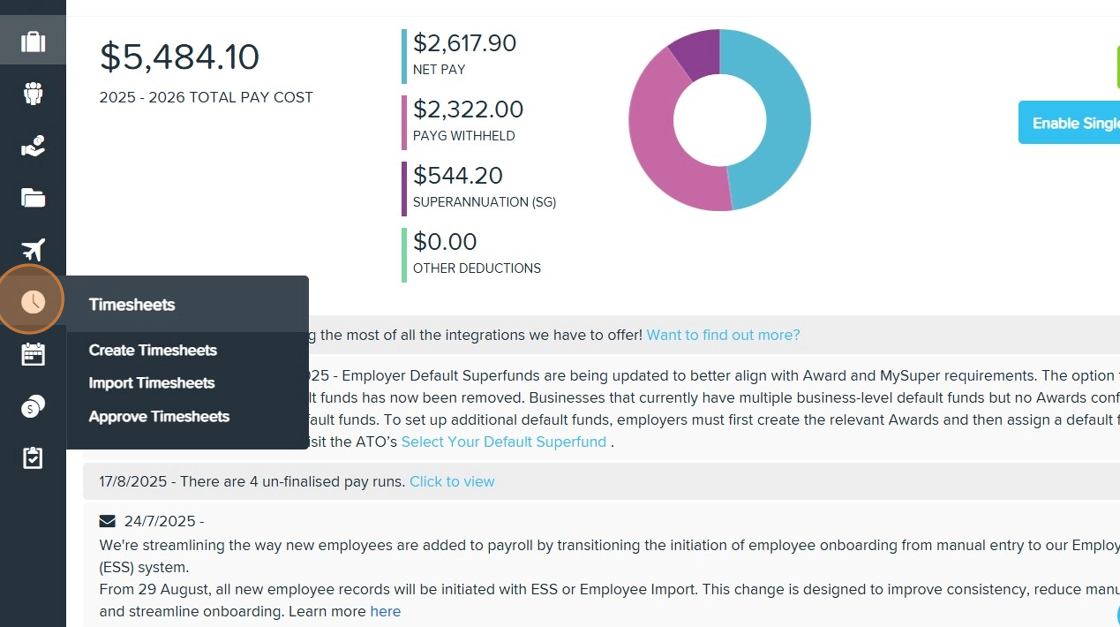
2. In the left navigation pane, click Timesheets.
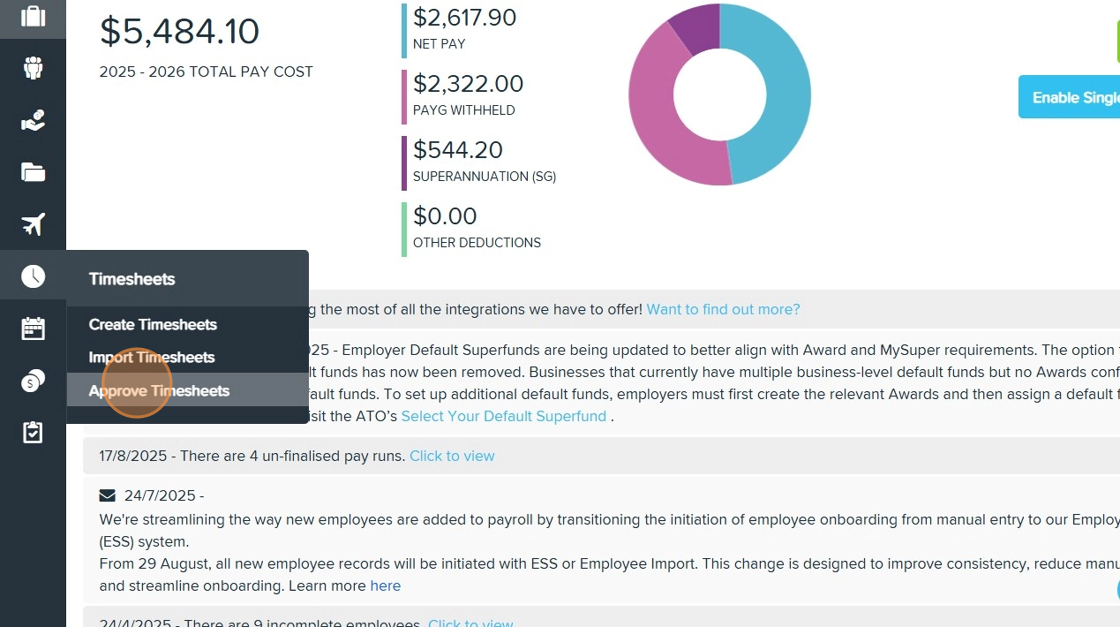
3. Select Approve Timesheets.
4. Review the imported timesheets to confirm all data from CareVision has synced correctly. The data from CareVision timesheet and mileage files should automatically appear in the Timesheet Approval board in Employment Hero. If you want to confirm that everything has synced correctly, you may find the following points helpful for your review:
The Employee External ID column from the CareVision timesheet file should match the Employee Name column in Employment Hero.
Compare the Start Date and Time and End Date and Time columns from the CareVision timesheet file with the Start and End columns in Employment Hero to ensure they match.
Ensure the Location External ID column from the CareVision timesheet matches the Location column in Employment Hero.
Check that the Work Type External ID in the CareVision timesheet matches the Work Type column in Employment Hero. For work types that include distance traveled, confirm that the relevant data from the mileage file is also reflected.
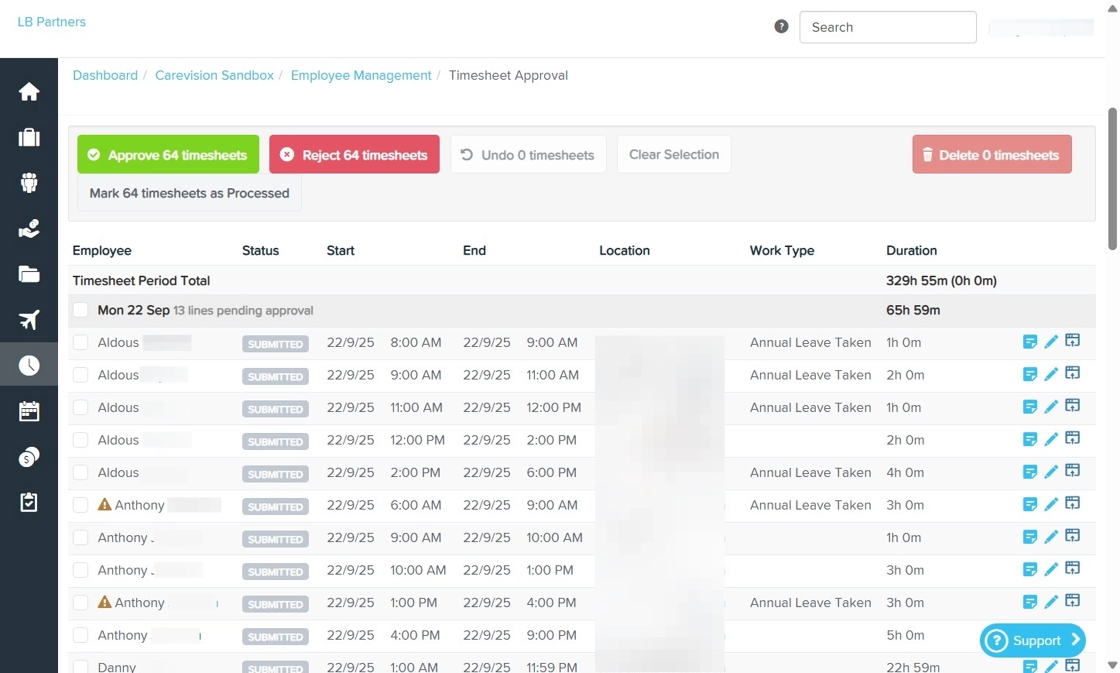
5. Check for any missing, duplicated, or incorrect timesheet entries and resolve any issues as needed.
6. When all timesheets are accurate, continue with your usual approval process in Employment Hero.

B. Process Pay Run
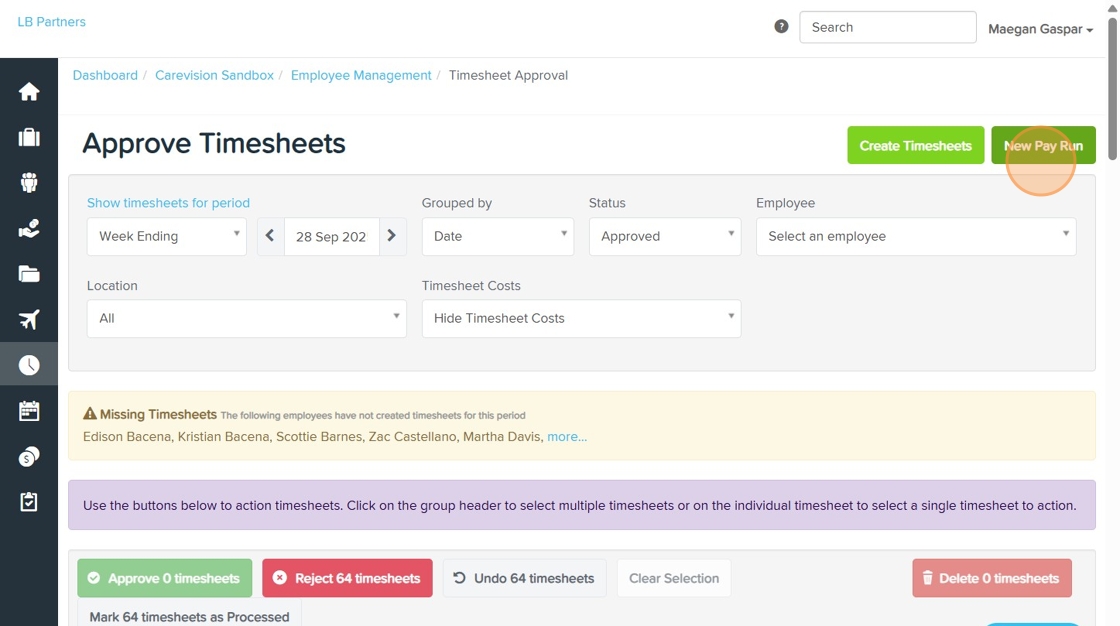
1. Set the Status field to Approved.

2. Click New Pay Run. Then, you will be redirected to the Pay Run section.
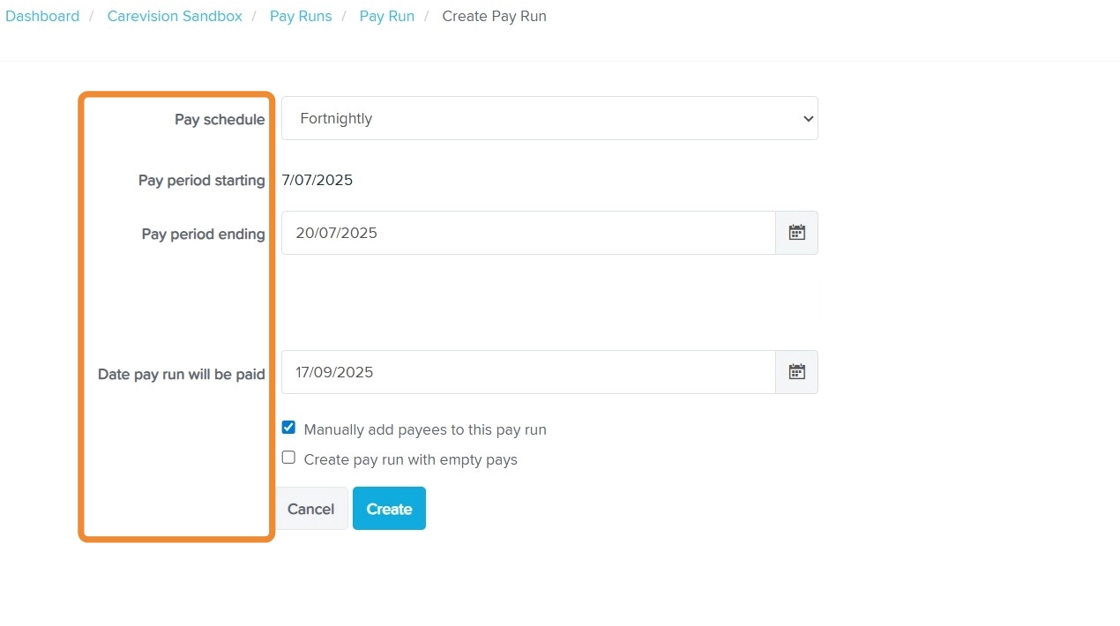
3. Complete the required fields based on your business requirements:
- Pay Schedule: Select the appropriate pay schedule for your business.
- Pay Period Starting: Enter the start date for the pay period.
- Pay Period Ending: Enter the end date for the pay period (Example: Set to Jul 20, 2025, to match the sample payroll period in CareVision).
- Date Pay Run Will Be Paid: Specify the payment date. Then, choose whether to manually add payees to the pay run or create pay run with empty pays. In this example, manually add payees to the pay run is selected
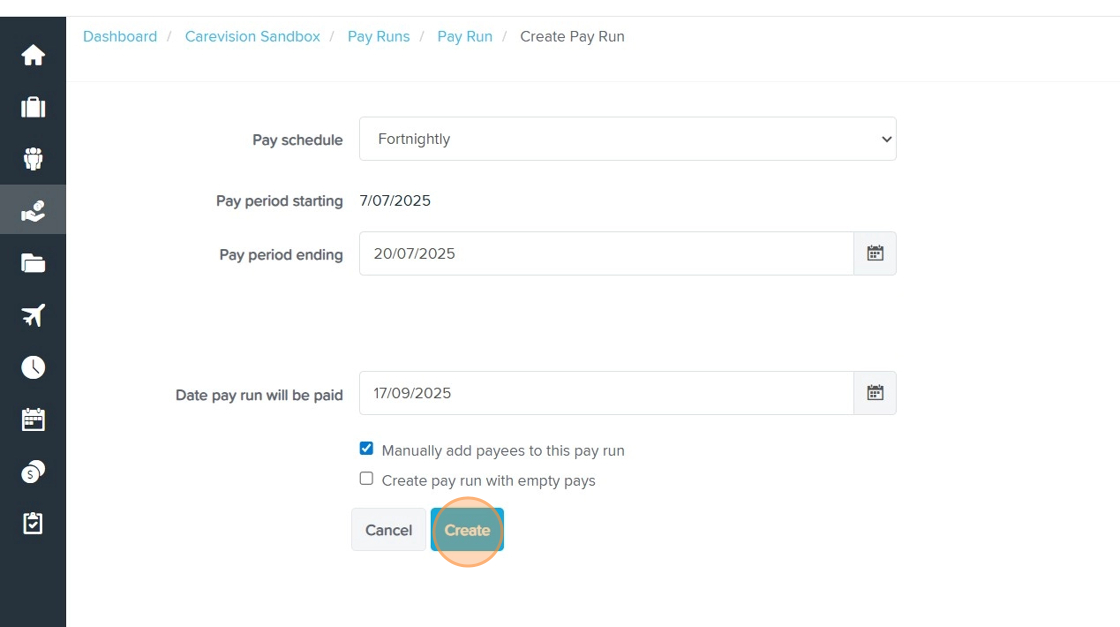
4. Click Create to generate the pay run. Then, you will be redirected to the Pay Run section.
5. Click Pay Run Actions > Add Payees, then select the staff members you want to include.
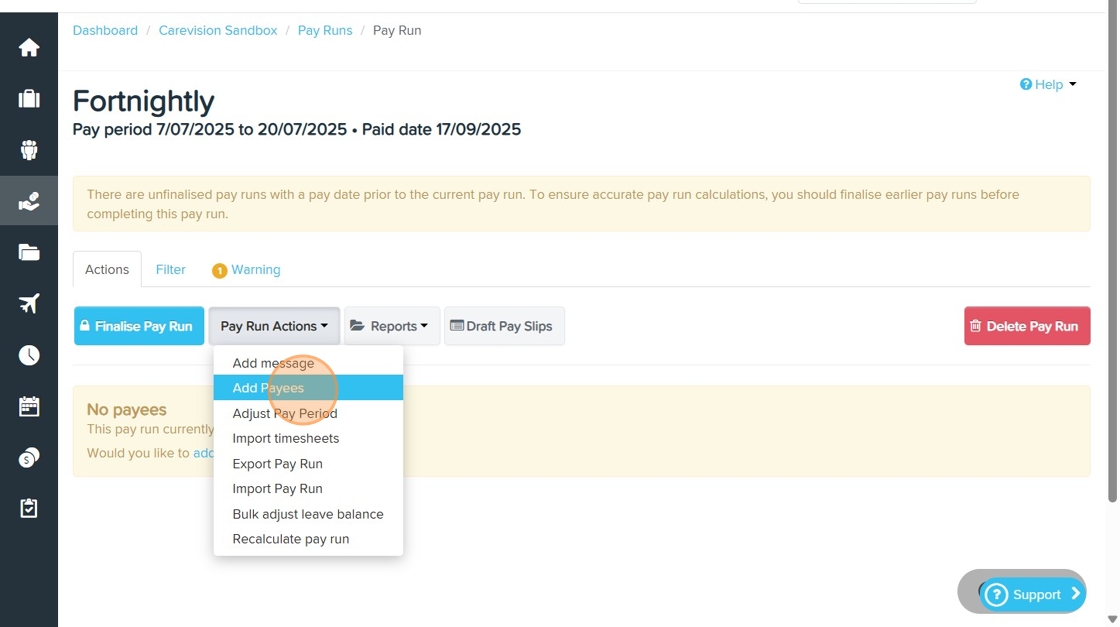
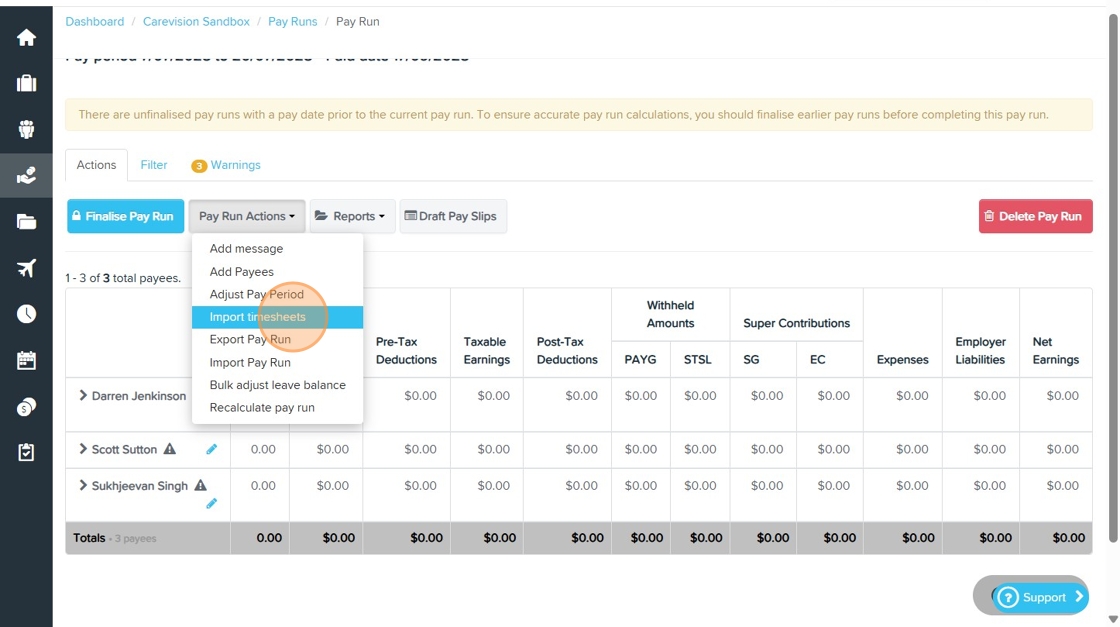
6. Click Pay Run Actions > Import Timesheets.
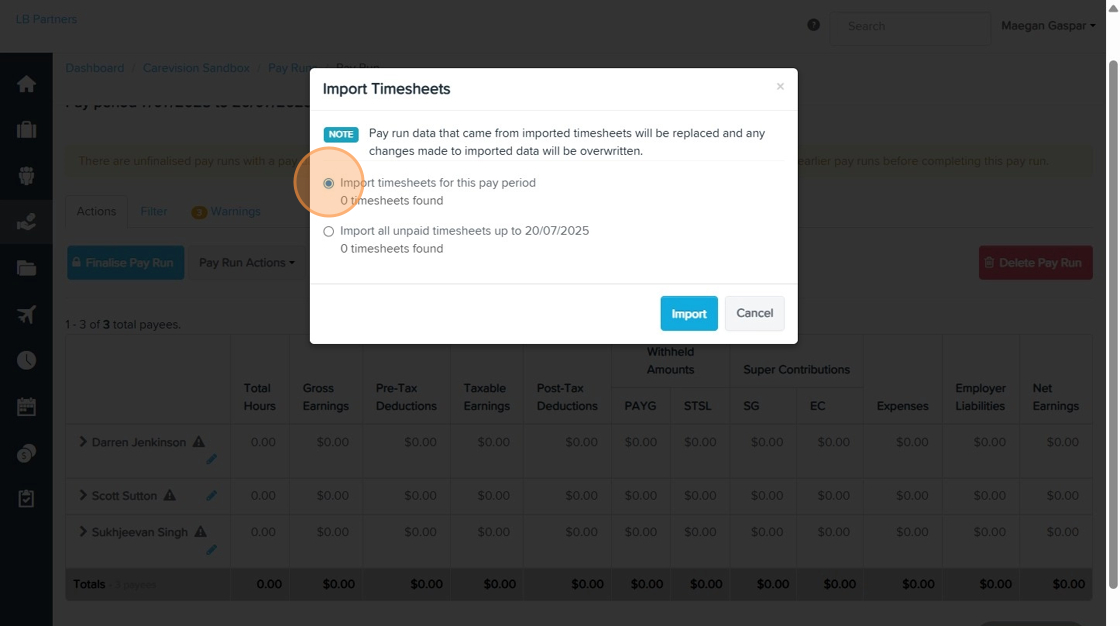
- Choose the timesheets you want to include, such as timesheets for the pay period or all unpaid timesheets.
7. Click Import.
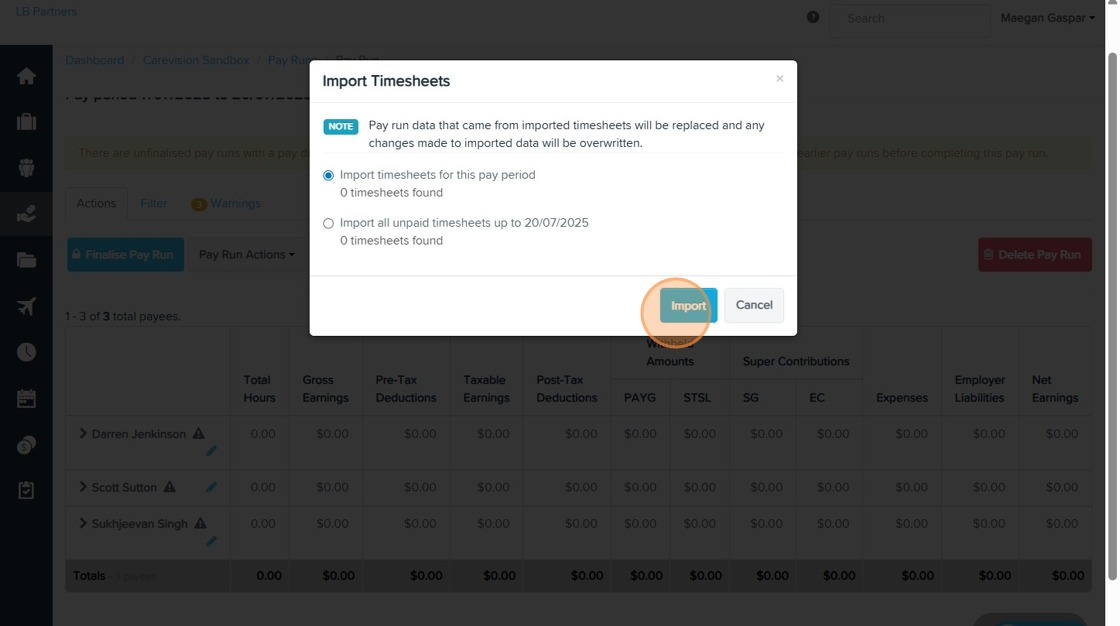
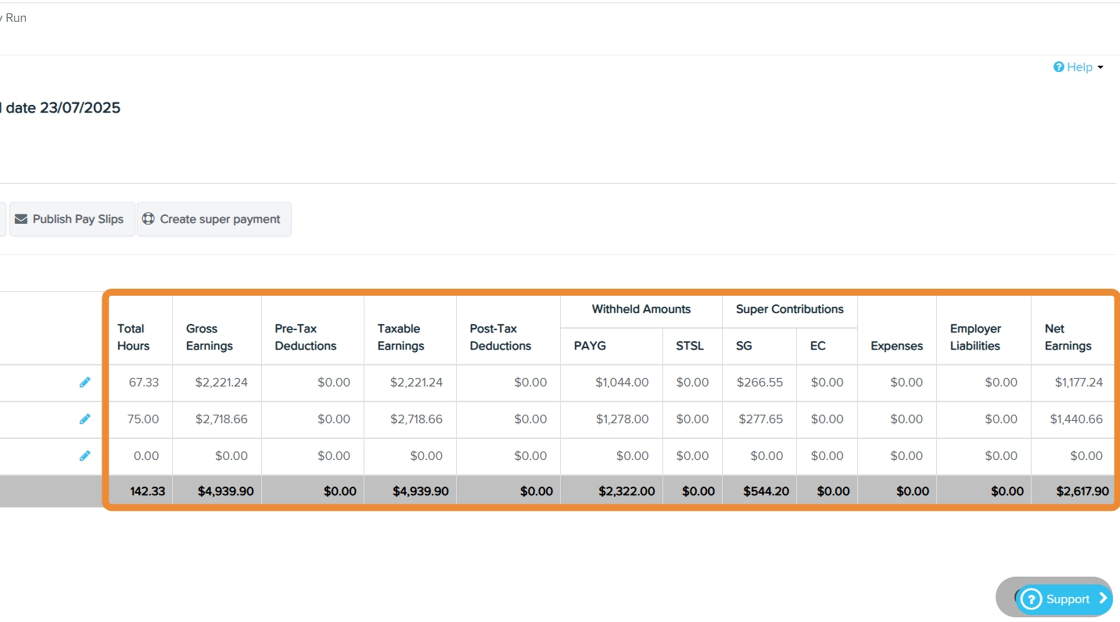
- The relevant columns such as Total Hours, Gross Earnings, Pre-tax Deductions, Taxable Earnings, Post-tax Deductions, Withheld Amounts, Super Contributions, Expenses, Employer Liabilities, and Net Earnings will be automatically populated and calculated.
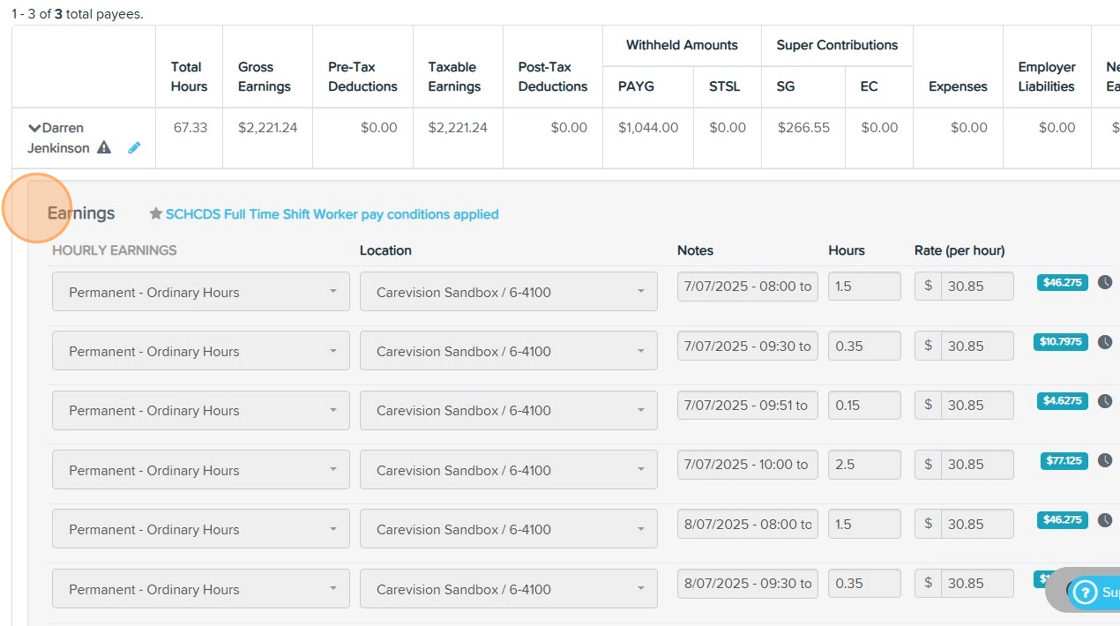
- Under each staff member’s earnings data, the applicable SCHADS Award pay conditions are applied.
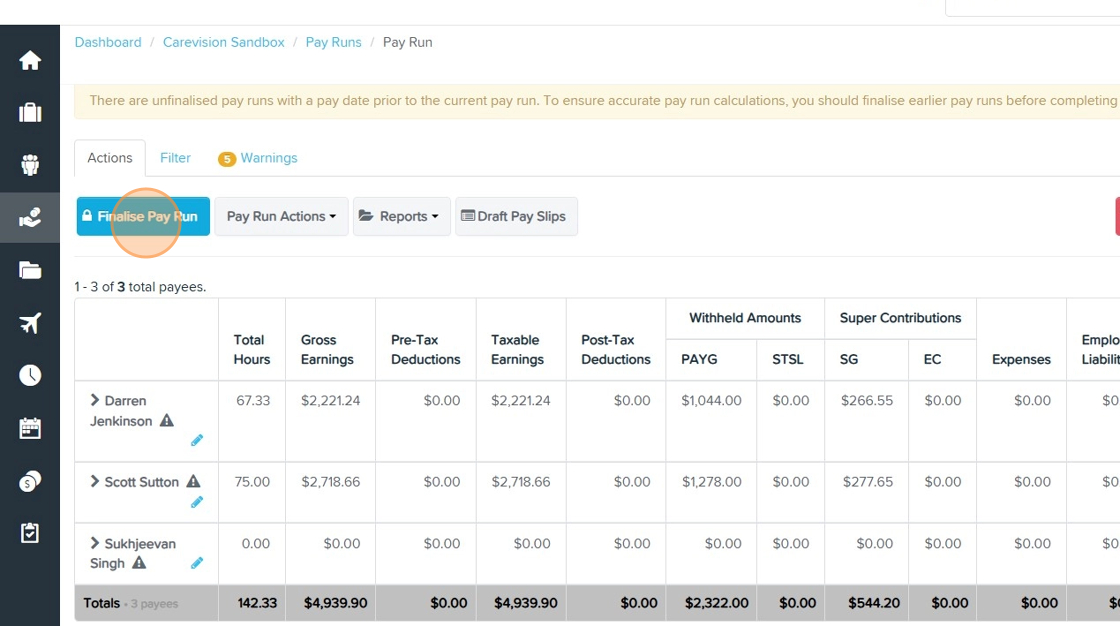
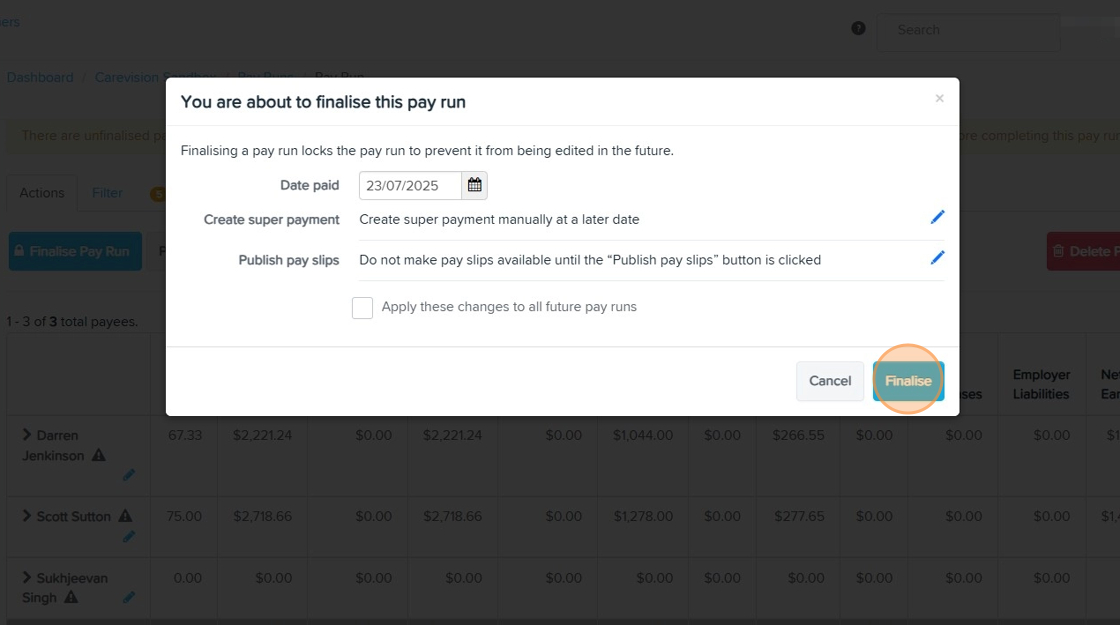
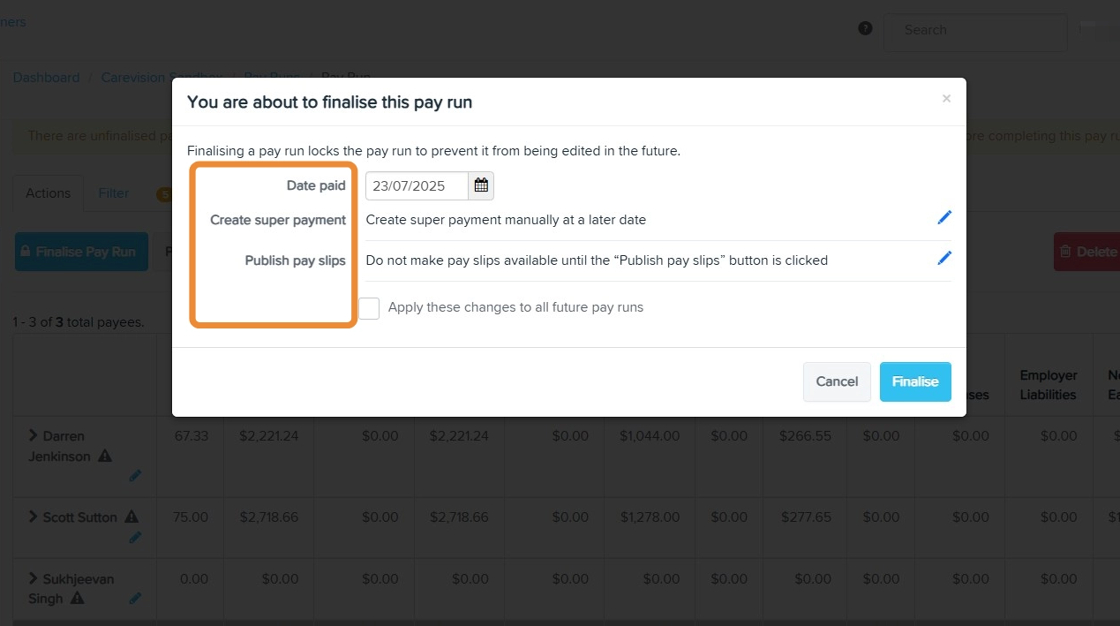
9. Complete Required Fields
- Date Paid: Specify the date employees will receive their payment.
- Create Super Payment: Initiate the superannuation payment process if applicable.
- Publish Pay Slips: Publish pay slips to make them available to employees.
10. Click Finalize to complete the pay run process.