Mark Attendance and Add Notes in Social Groups
This topic explains how to record participant attendance and add case notes for social group events. Recording attendance and notes supports accurate documentation, billing, and participant tracking.
Keywords: mark attendance, social group events, attendance tracking system, add case notes, participant attendance management, carevision social groups, event attendance check, case note logging, billable notes, client notes and forms
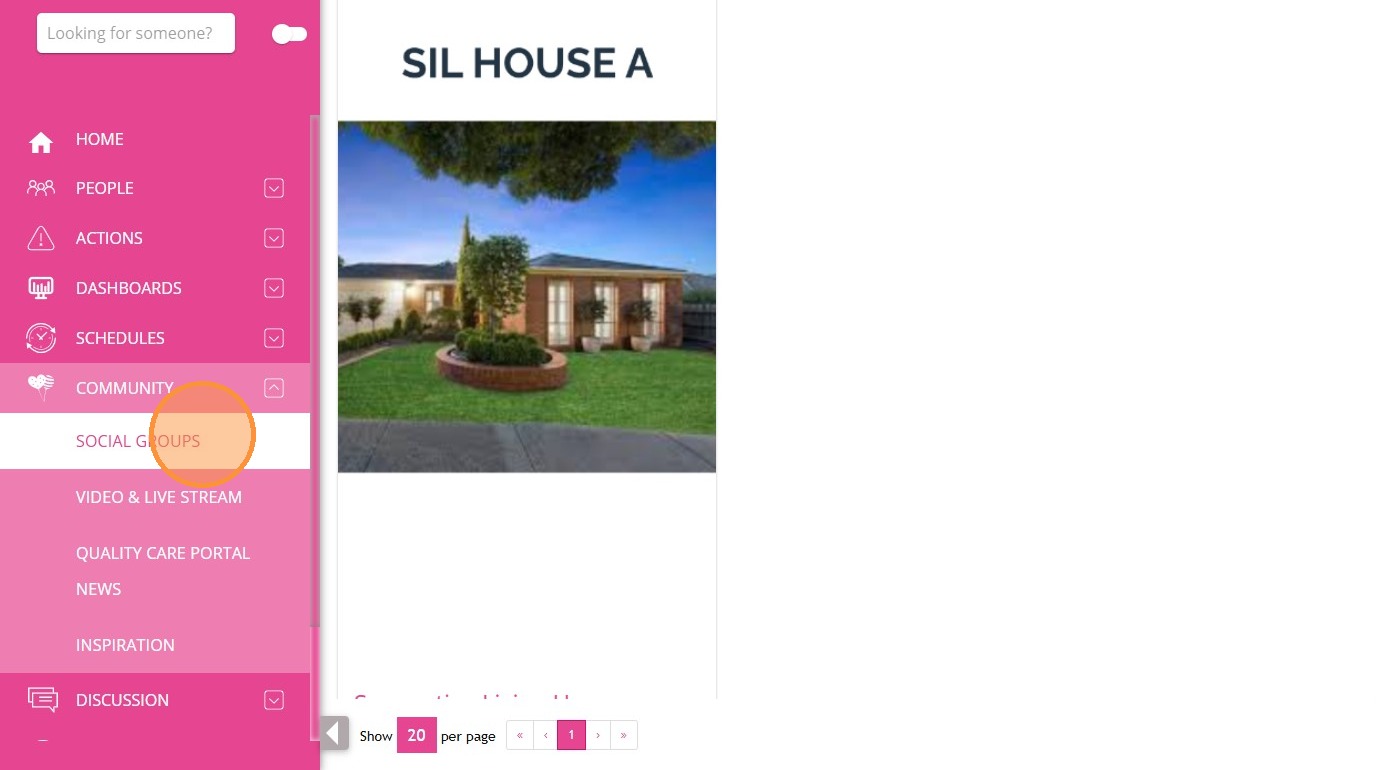
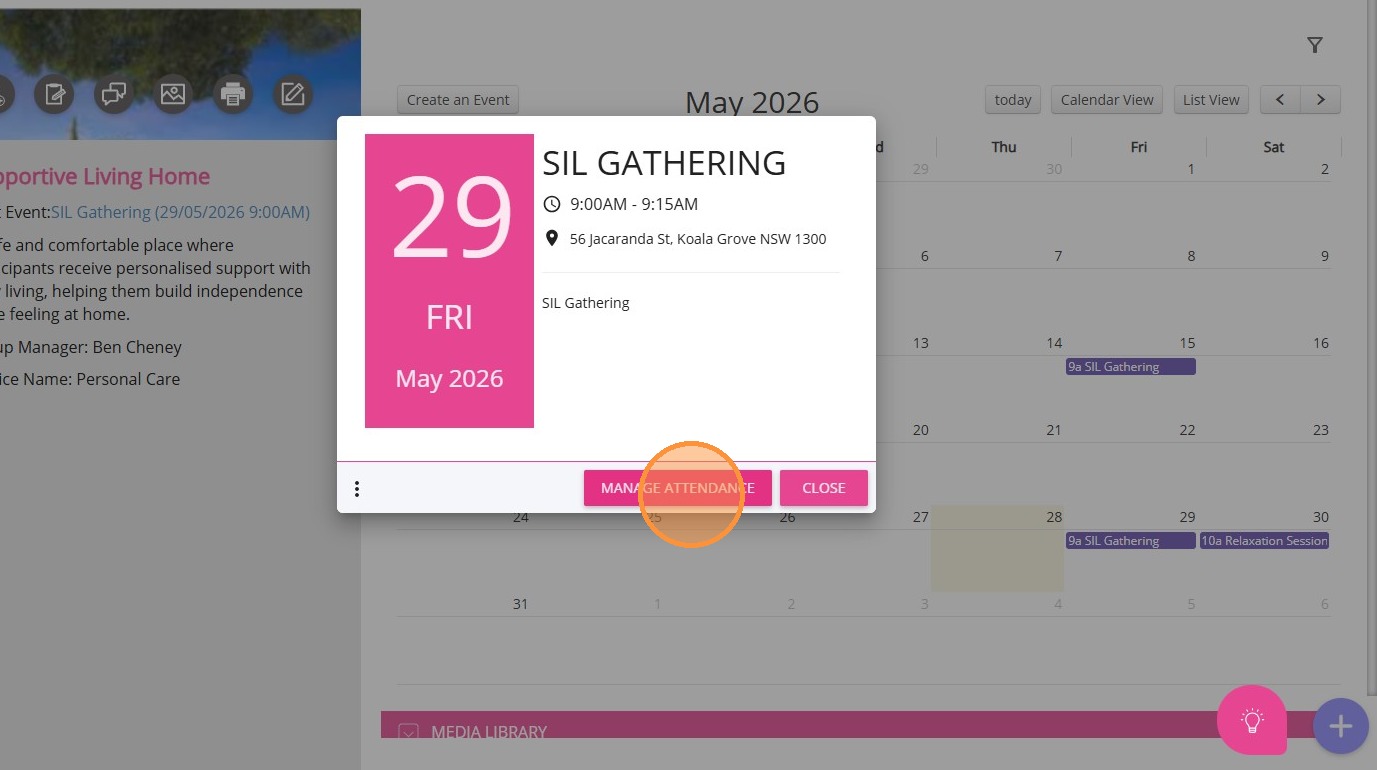
1. Navigate to Community > Social Groups and select a social group.
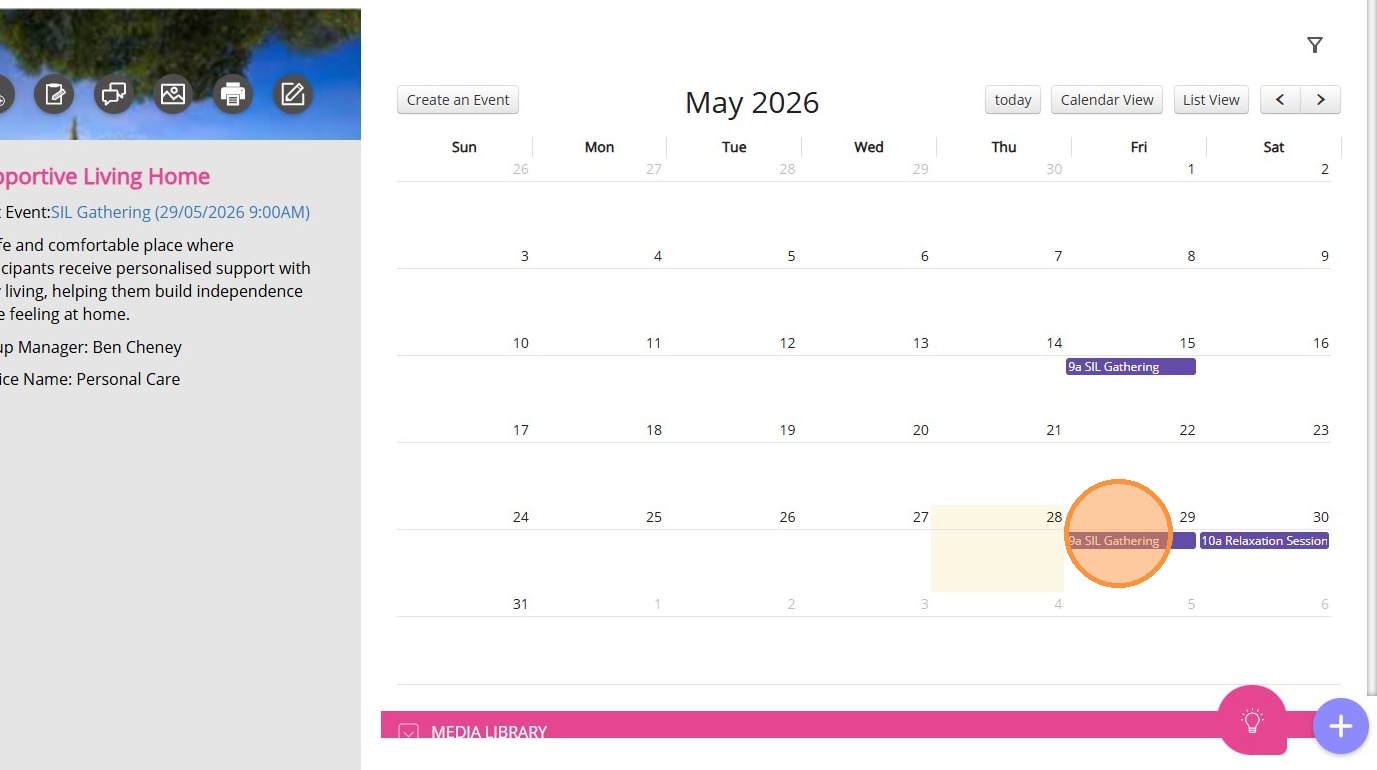
2. Click on a published event.
3. Select Manage Attendance.
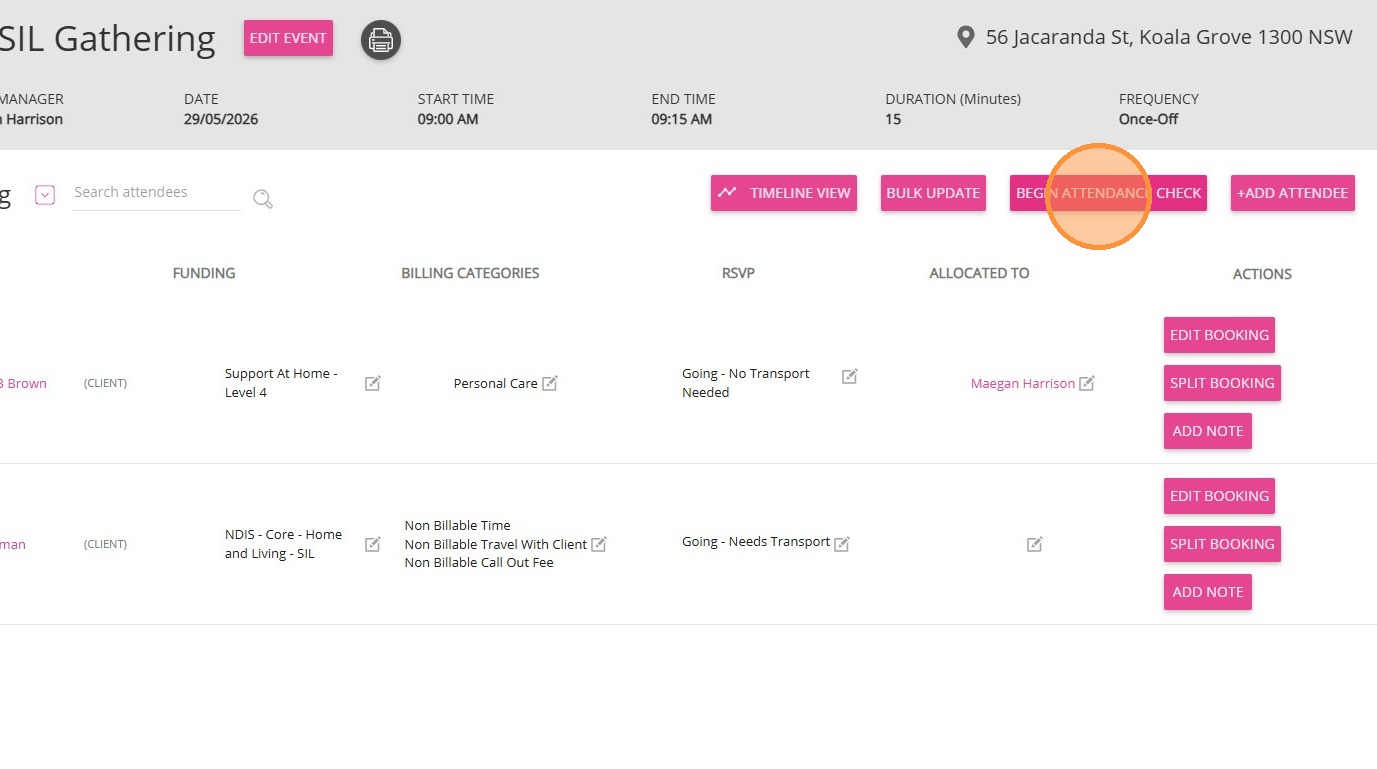
4. Click Begin Attendance Check.
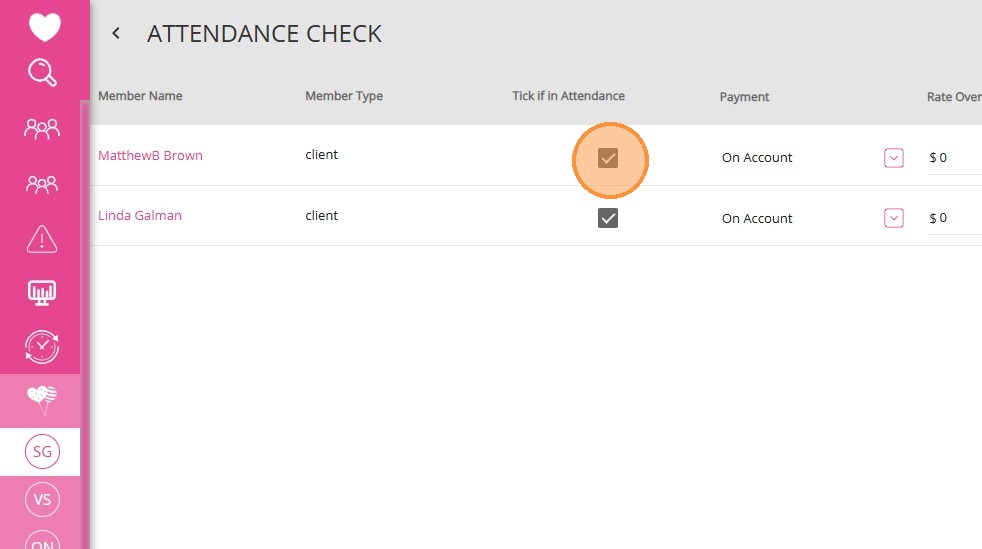
5. In the Tick if in Attendance column:
- Tick the box if the participant is in attendance.
- Leave it unticked if the participant is absent.
Add Notes
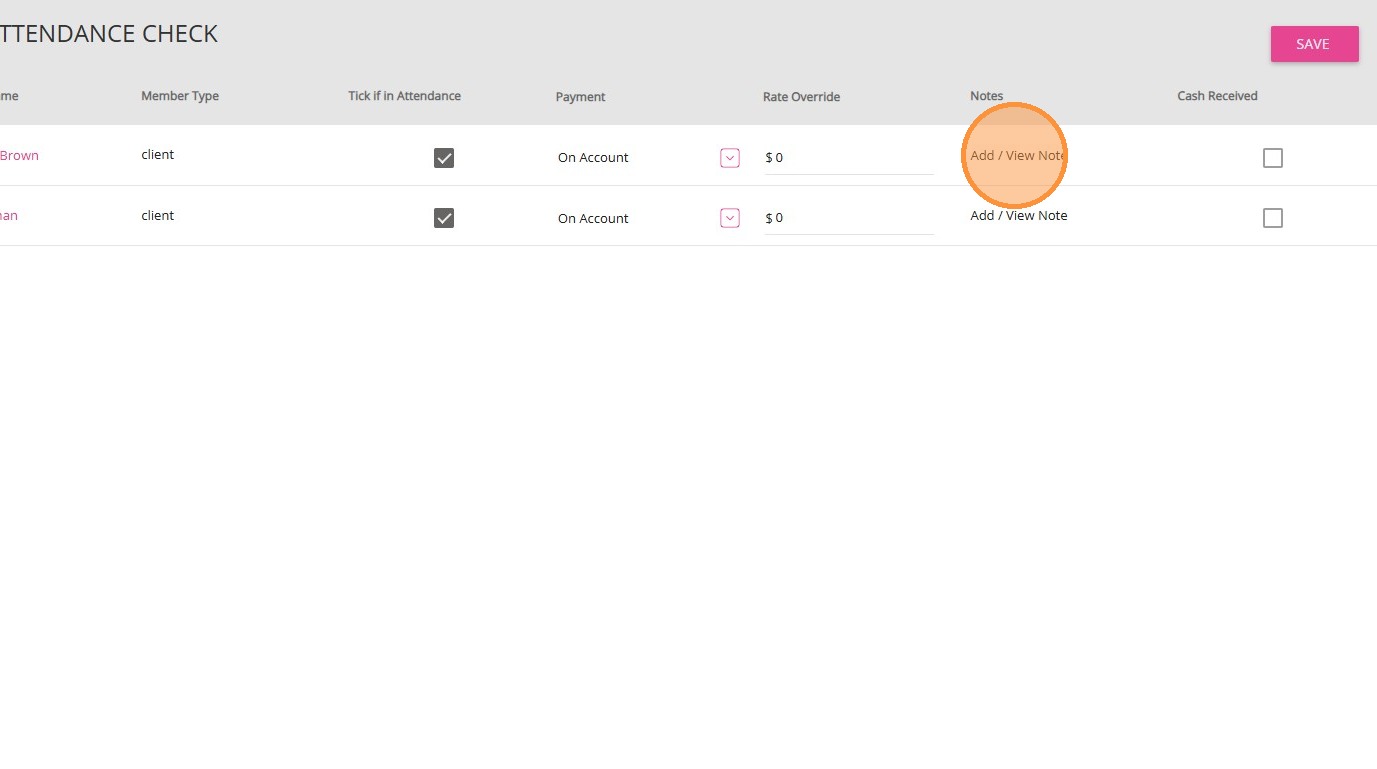
1. In the Notes column, click Add/View Note.

The Create Case Note modal will appear.
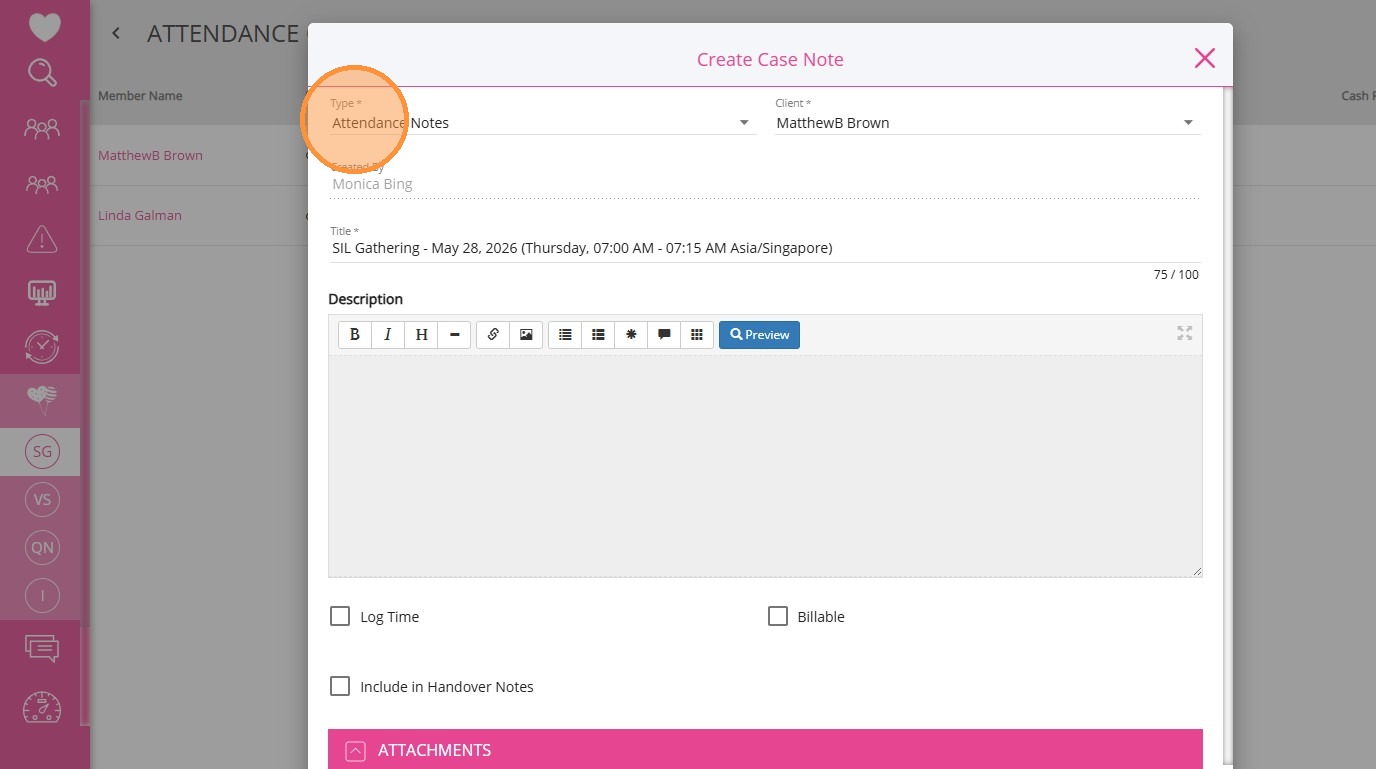
2. In the Type field, select a note type.

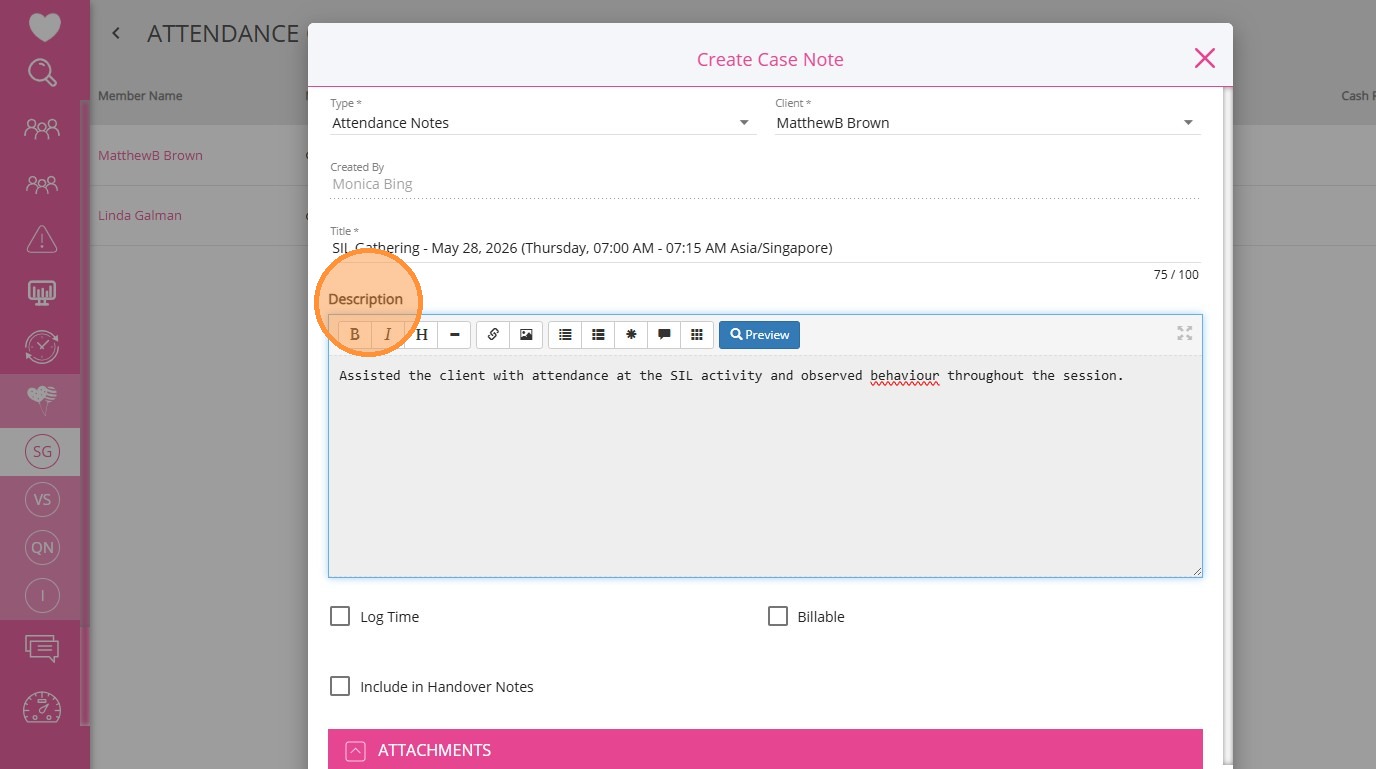
3. In the Description field, enter a brief summary or details.
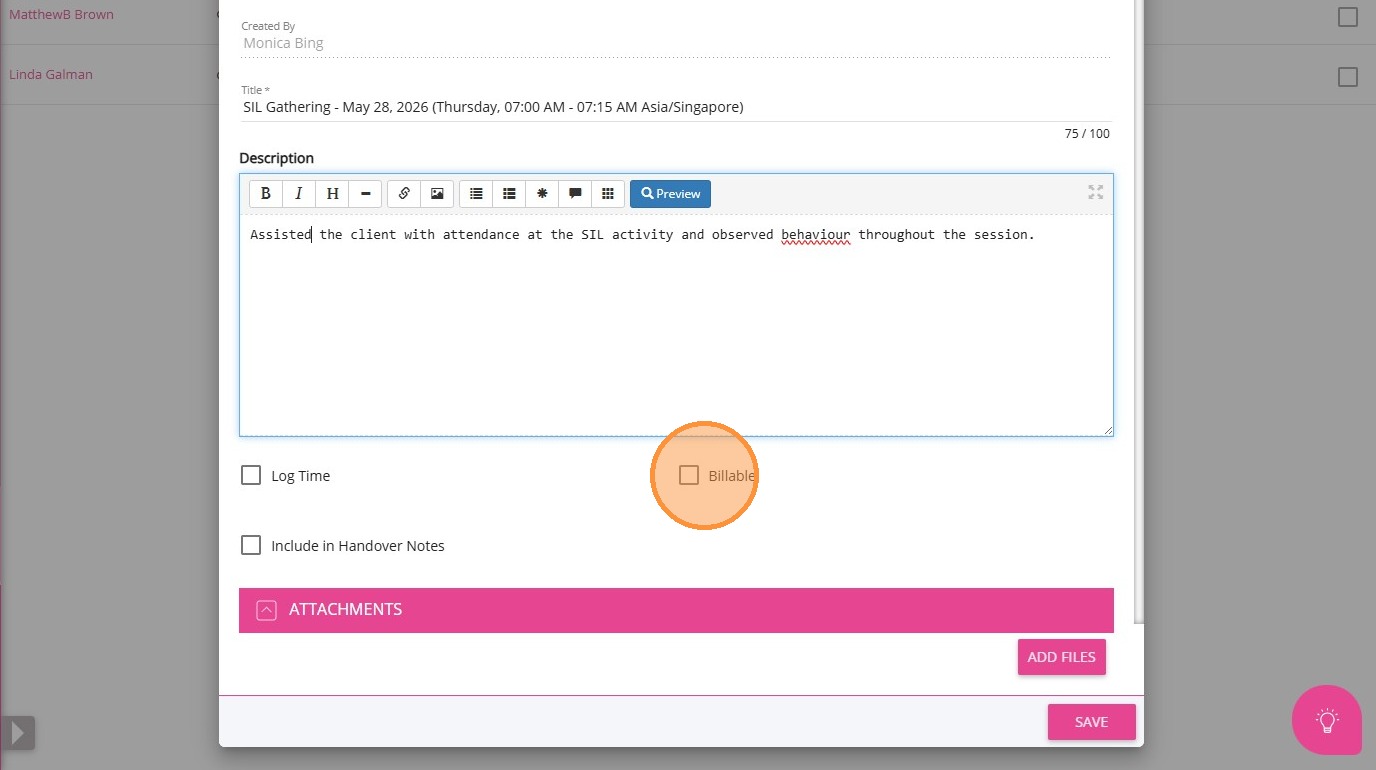
4. Tick the Billable checkbox if the note should be billed.
Time Log Details
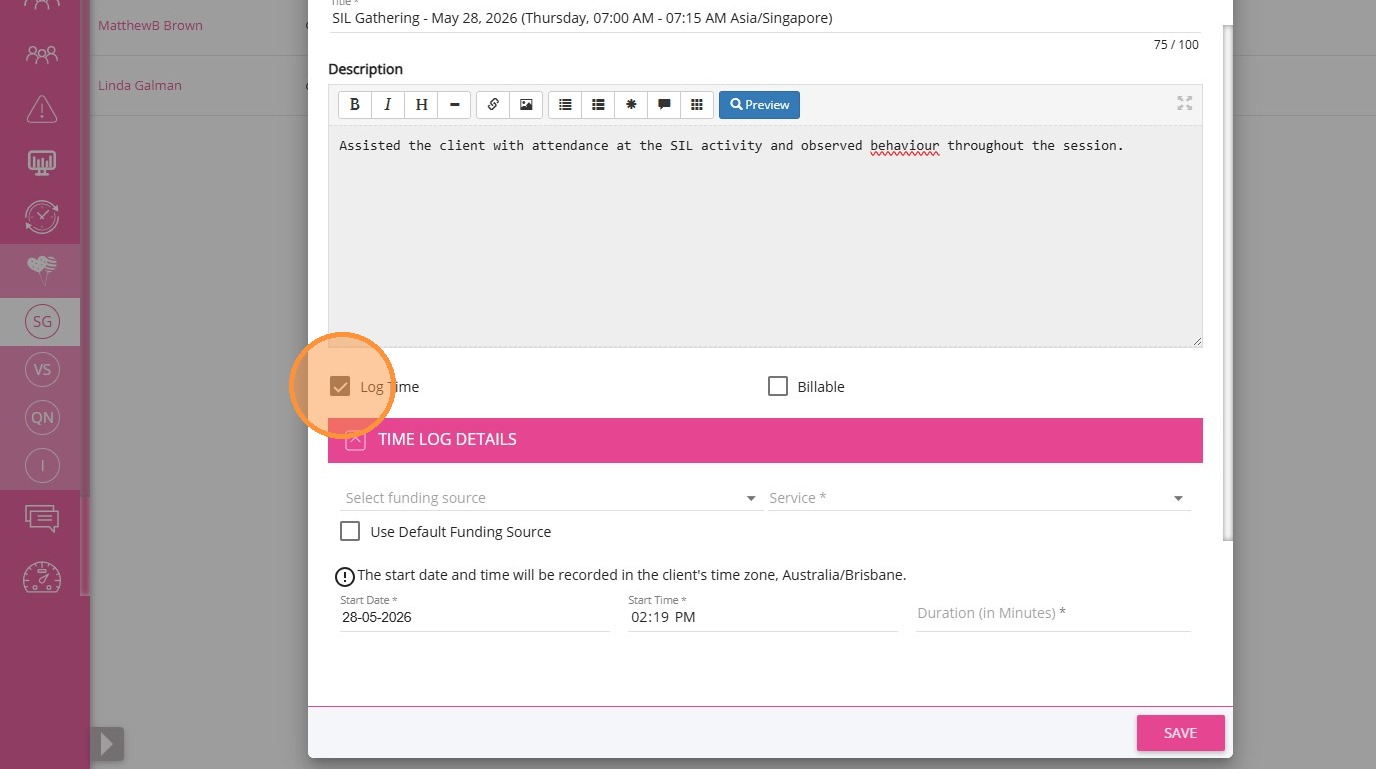
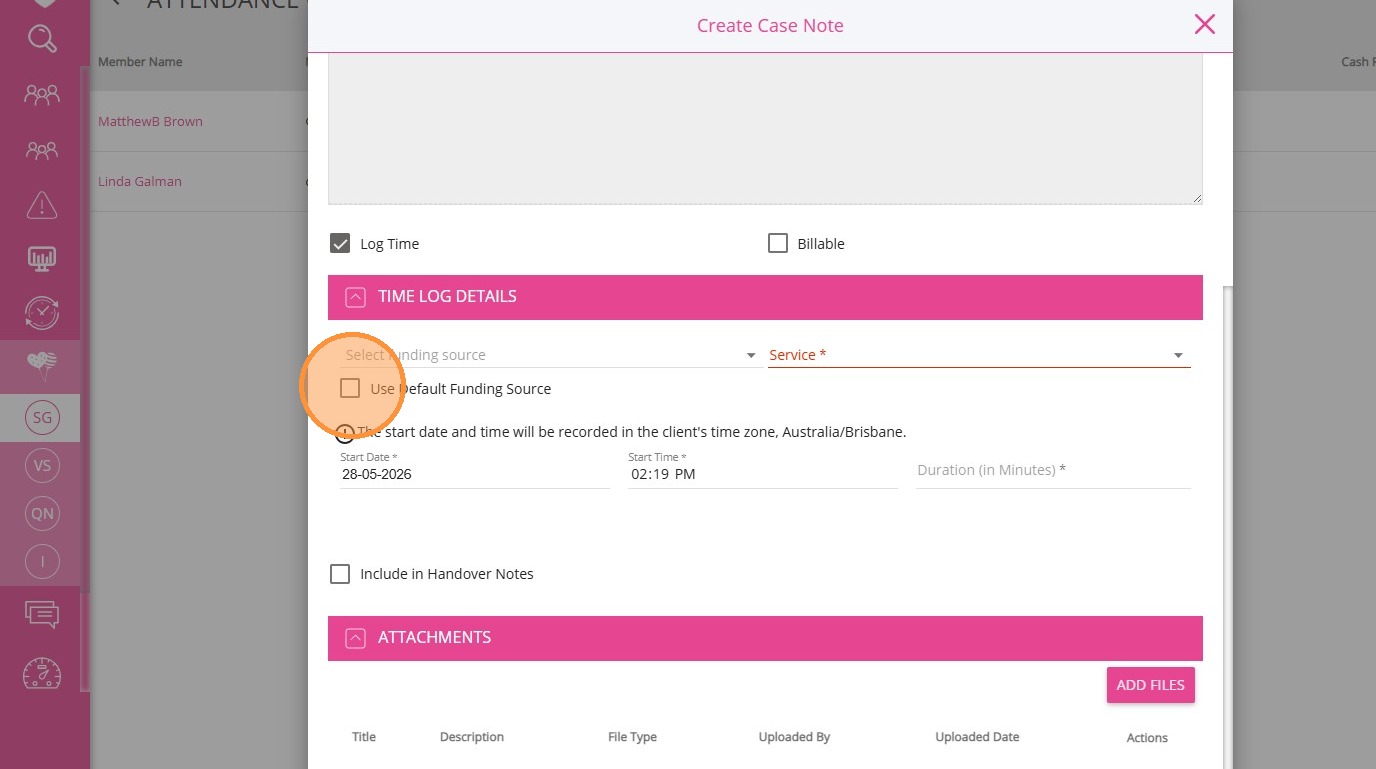
If you tick the Log Time box, complete the following:

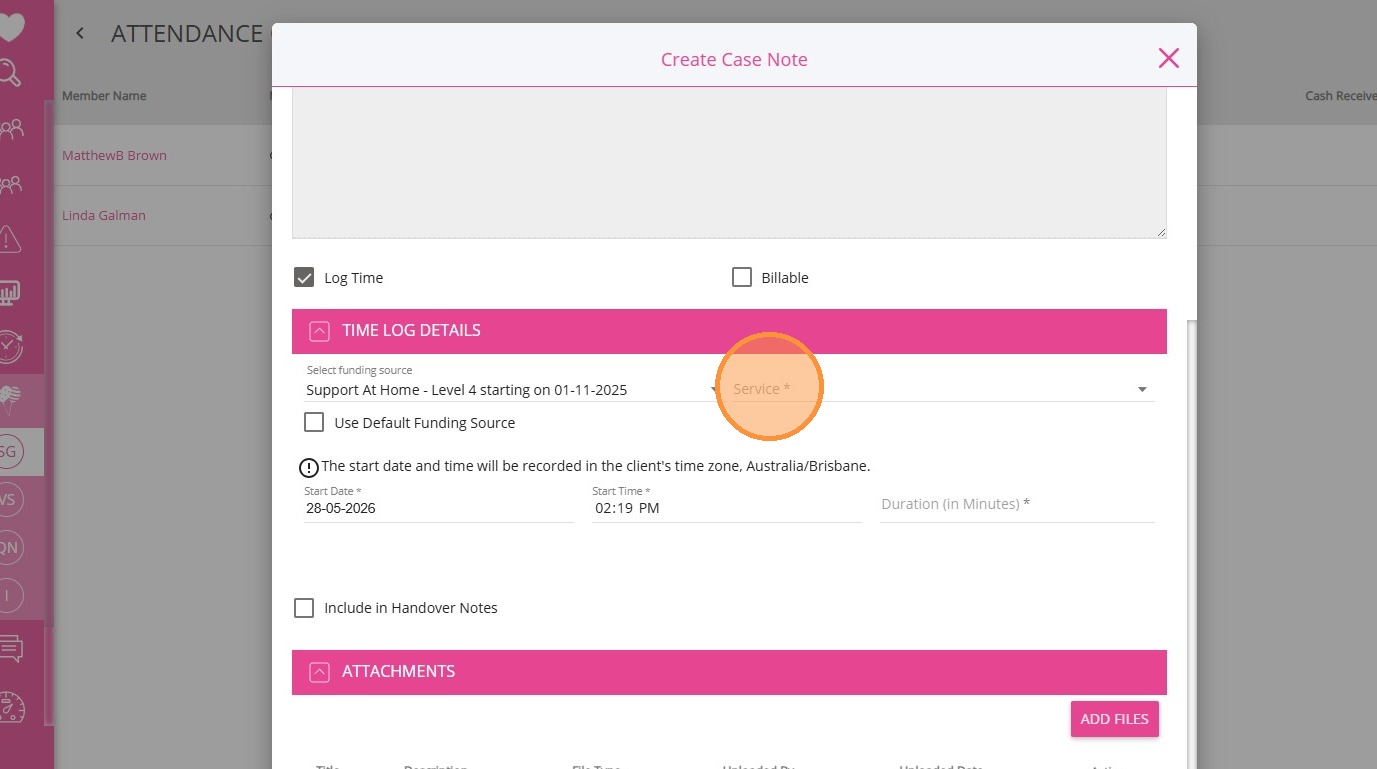
1. In the Select Funding Source field, select a funding source from the dropdown.
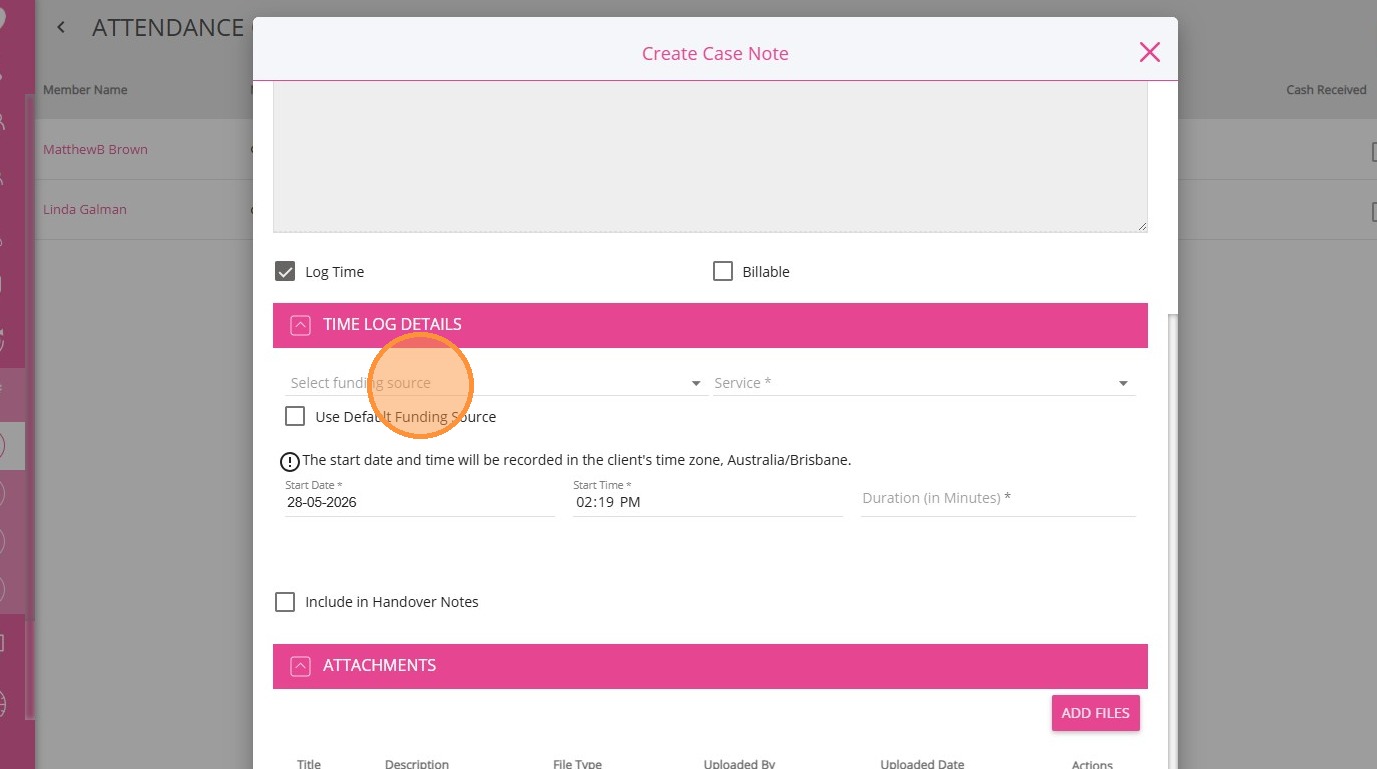
- You can also tick Use Default Funding Source to apply the default.
Make sure the client profile is complete and includes a funding source, or you may not be able to create a case note.

2. In the Service dropdown, select the relevant service.
Only services linked to the client’s funding source and appropriate to the note type will be available.

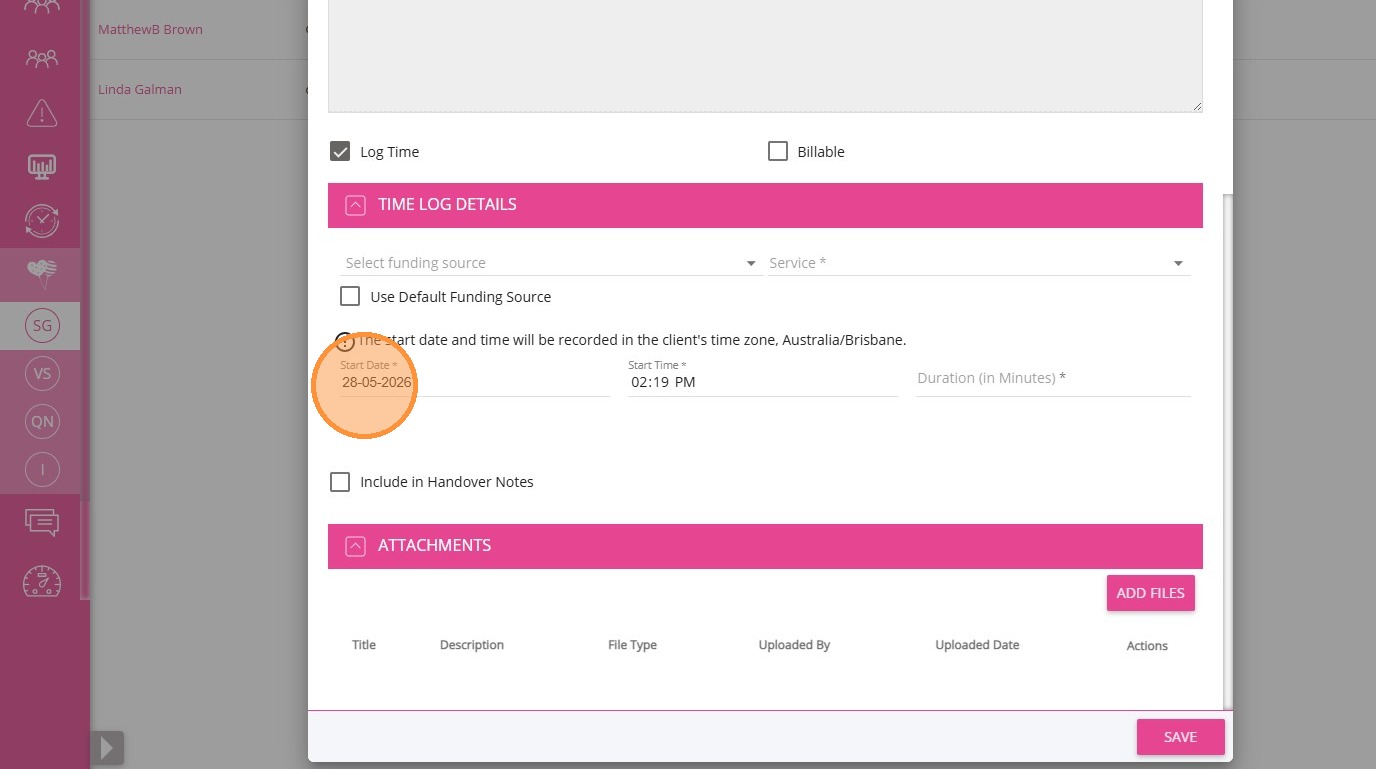
3. Enter the Start Date, Start Time, and Duration (Minutes). This creates a billable item based on the service’s default billing category.
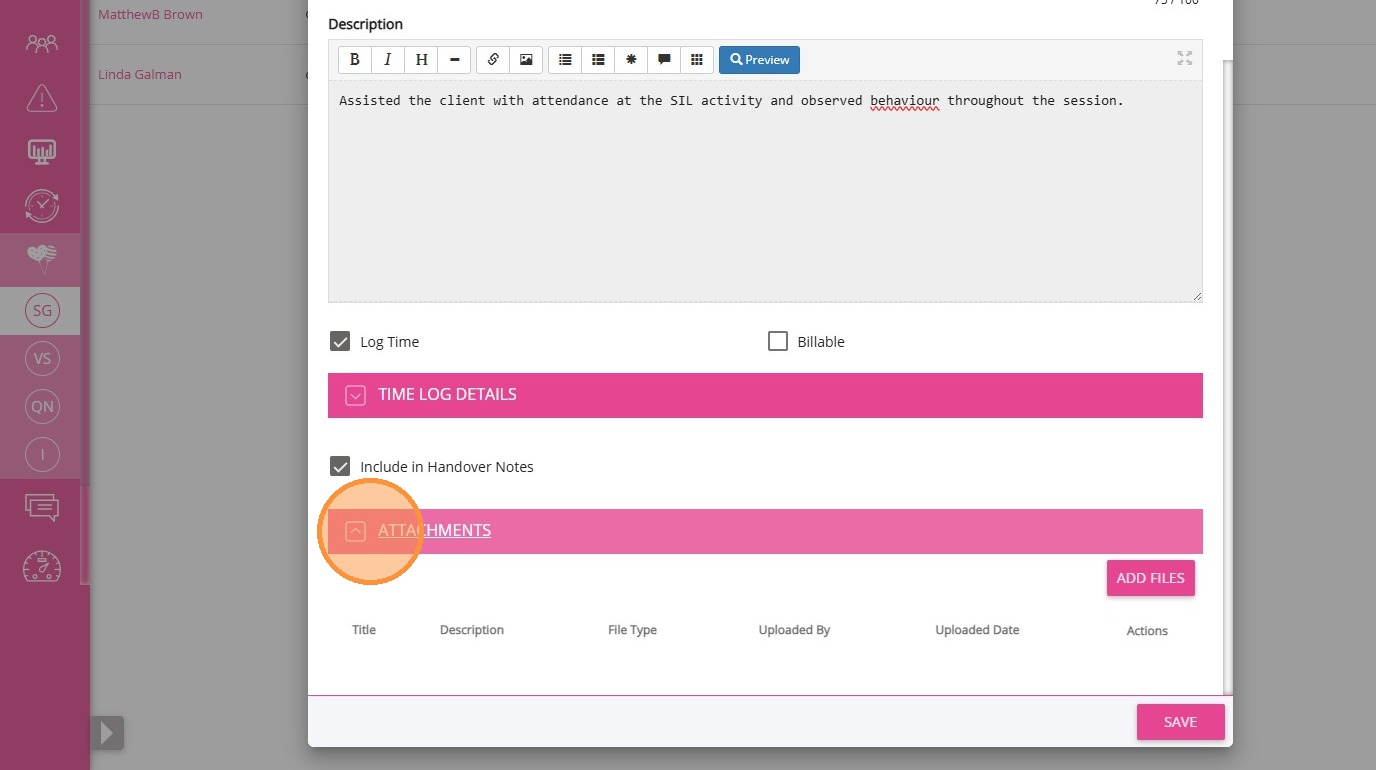
4. In the Attachments section, upload any relevant files.
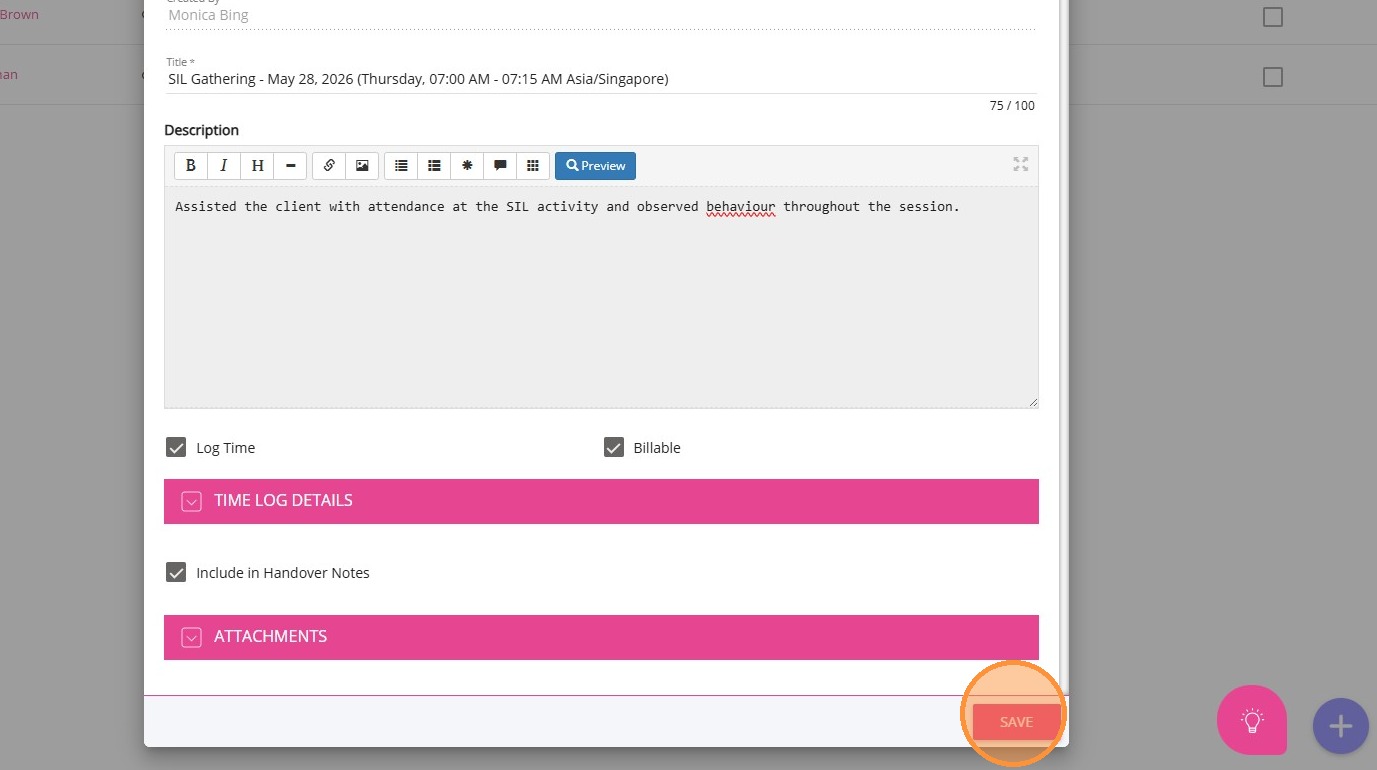
5. Review the details and click Save.
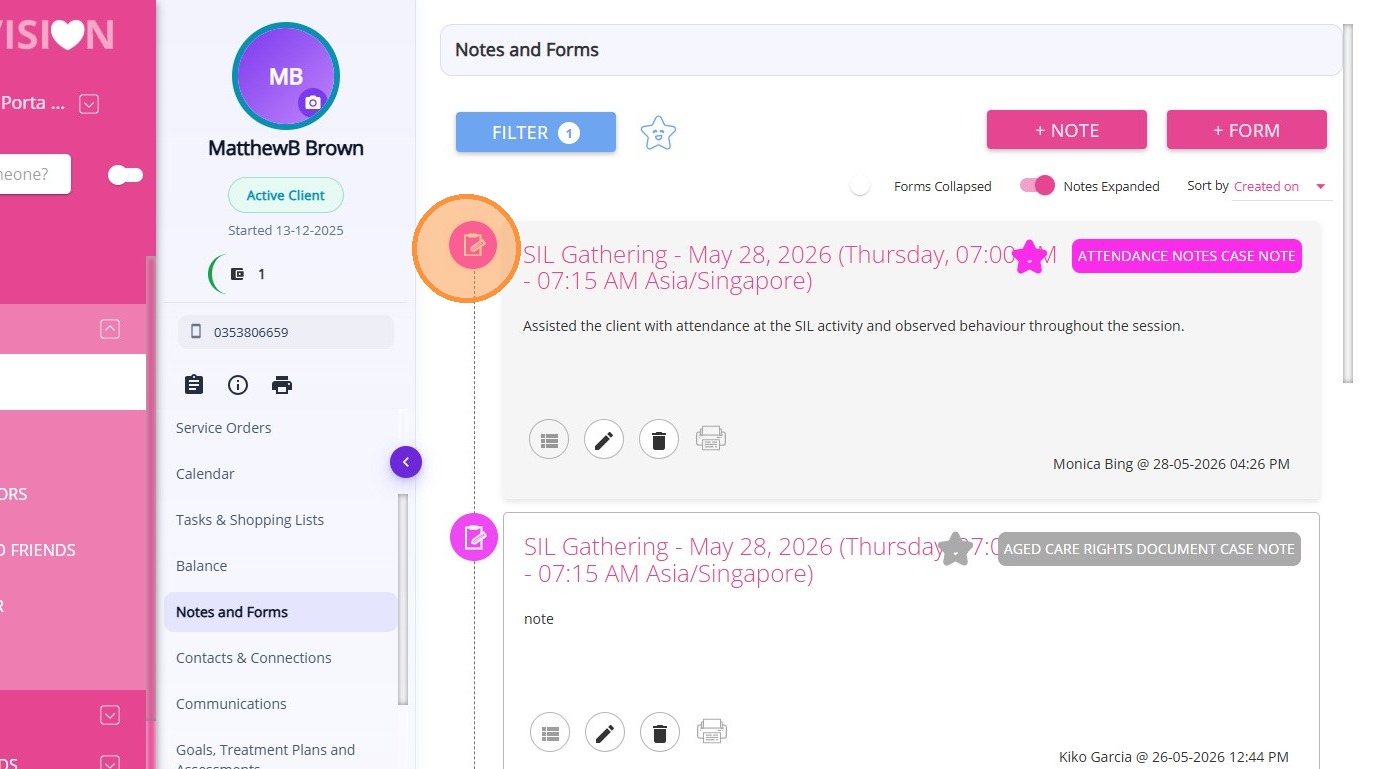
6. Go to the client’s Notes and Forms section to view the created note.
This topic explained how to mark participant attendance and add case notes for social group events. For more information about marking attendance in social groups, contact the CareVision Support Team.
Related Articles
Manage RSVPs for Social Group Events
This topic explains how to manage participant RSVP statuses for social group events in CareVision. Keywords: social group events, manage rsvp, event attendance tracking, rsvp status update, participant management, social group calendar, event ...
Use Bulk MPAS for Social Group Events
This topic explains how to use Bulk Member Planned Attendance Schedule (MPAS) to manage a client’s attendance across multiple social group events. Bulk MPAS allow you to assign multiple event attendances for a client in one process. Keywords: bulk ...
Generate Meal and Transport Documents for Social Group Events
This topic explains how to generate the Meals Delivery and Transport Run documents for social group events. This helps support accurate meal preparation and transport coordination for social group events. Keywords: social group events, meal delivery ...
Getting Started with Social Groups
A social group is a feature that allows your organisation to bring together clients who share common interests or require similar services. These groups can be created for various purposes, such as organising activities, coordinating services, or ...
How to Set Up Client MPAS
Social group events help participants, such as elders, NDIS participants, and individuals involved in respite centers, Supported Independent Living (SIL) households, and group activity programs, stay connected by engaging with others who share ...
Request an Article or Guide
We are keen to know what you want to know more about? Let us know on chat or raise a ticket for an article or topic you would like covered in more detail. We have a team of technical writers and learning content creators keen for your suggestions.