How to Bulk Add Case Notes for Social Groups
Managing event attendance and case notes supports organised participant record-keeping. Using bulk actions improves efficiency by reducing repetitive manual tasks and ensuring consistency across records.
This topic describes how to add bulk case notes and apply them to selected participants.
Keywords: social group attendance, manage attendance, case notes, bulk case note, participant records, attendance tracking, client notes, event documentation, bulk updates, carevision social groups
Accessing Event Attendance
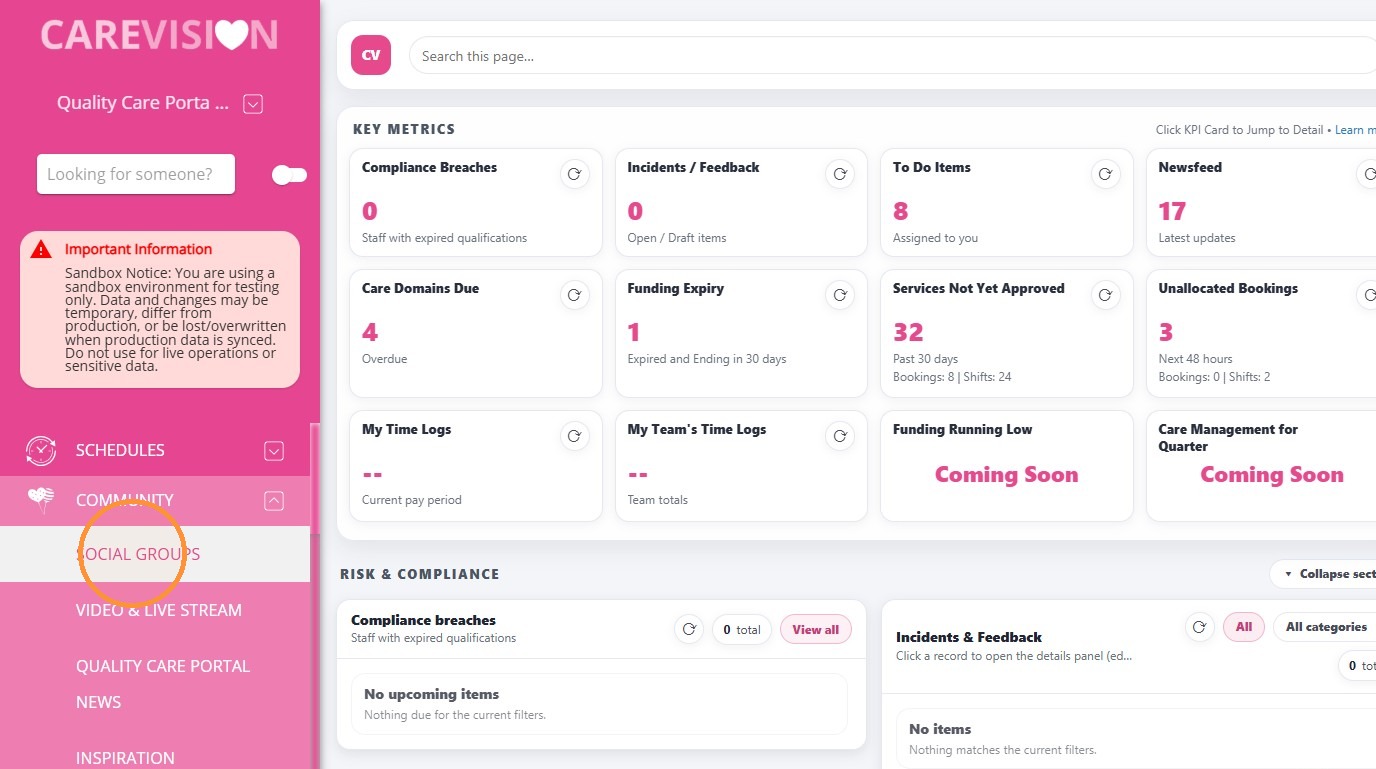
1. In the left navigation pane, go to Community > Social Groups.
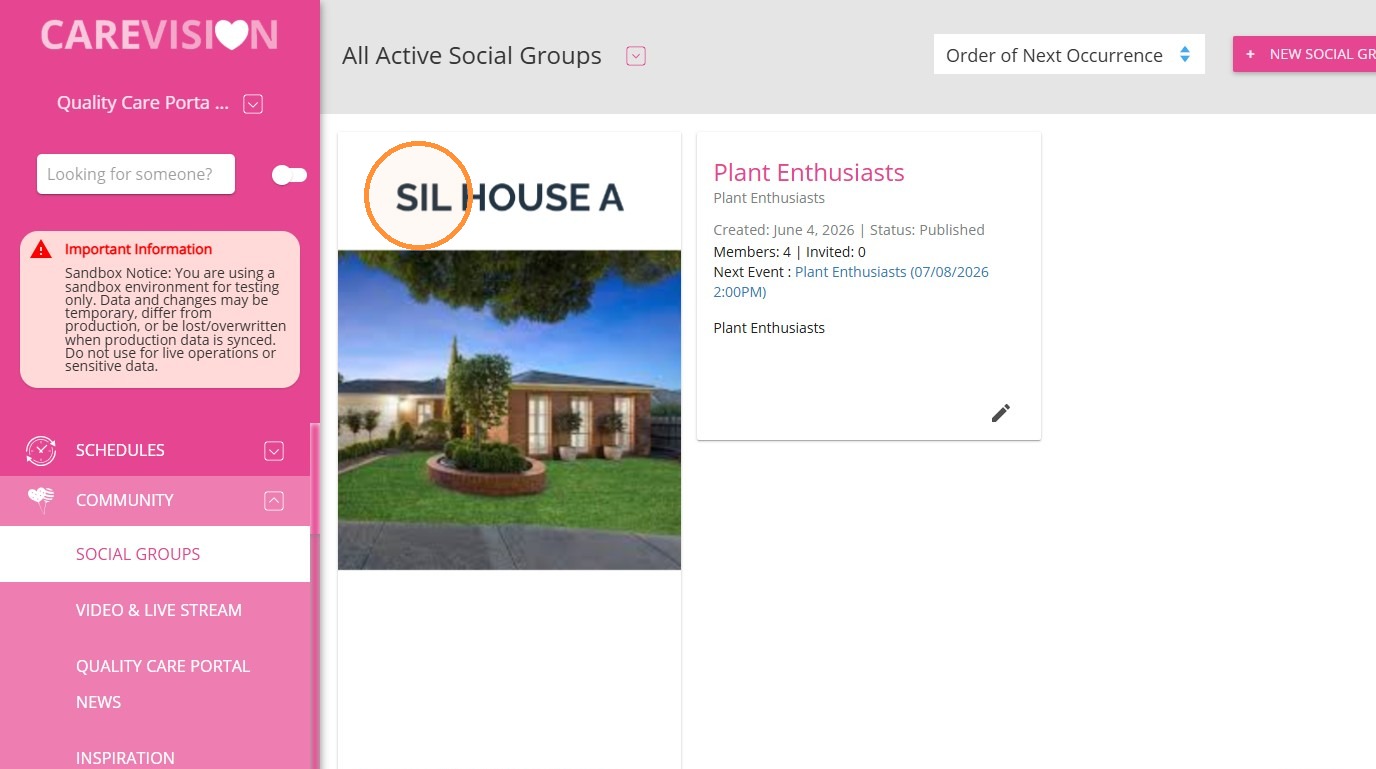
2. Select the relevant Social Group.
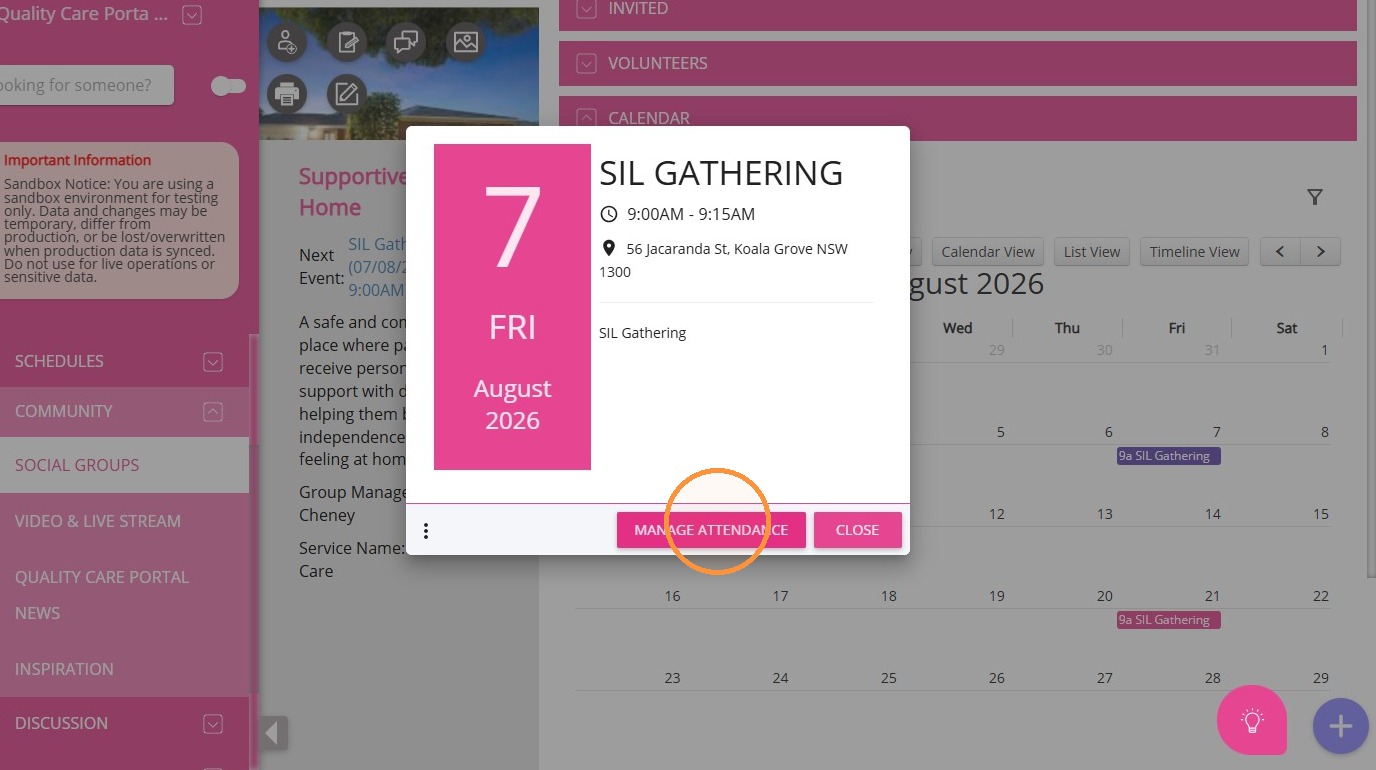
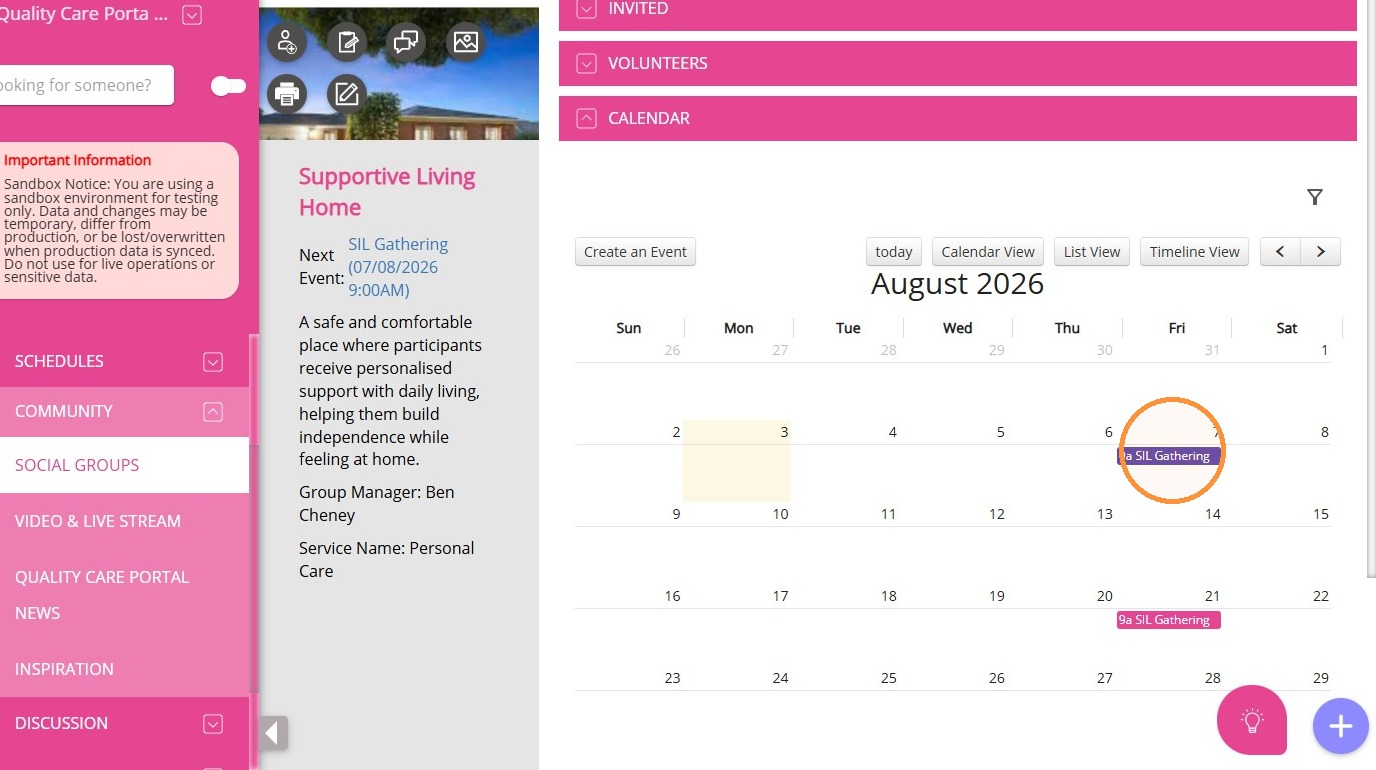
3. Choose an Event:
- Pink indicates the event is unpublished.
- Violet indicates the event is published.
4. Click Manage Attendance to view participants and manage notes.
Adding Case Notes
You can add case notes either individually or in bulk, depending on your needs.
A. Single Case Note
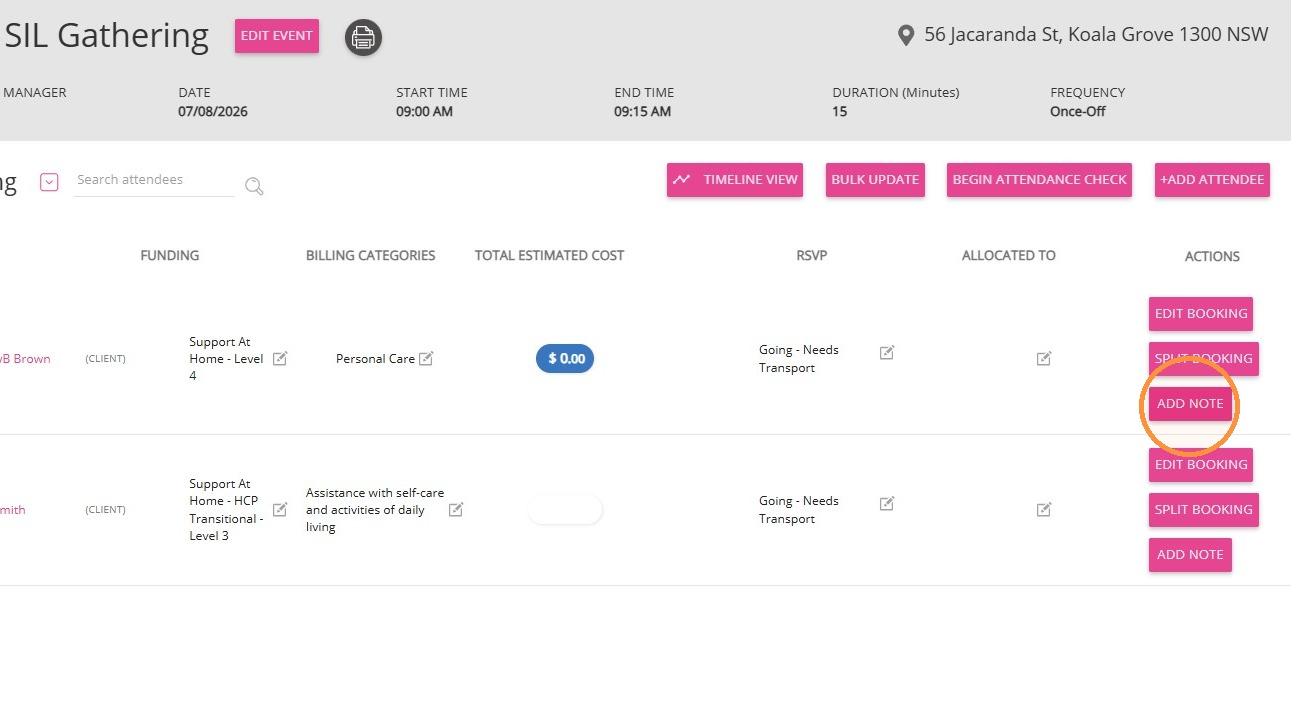
1. Locate the participant in the attendance list. Click Add Note next to the corresponding participant to link the note correctly.
2. The Create Case Note form will appear. Enter the required details, including relevant descriptions or supporting information.
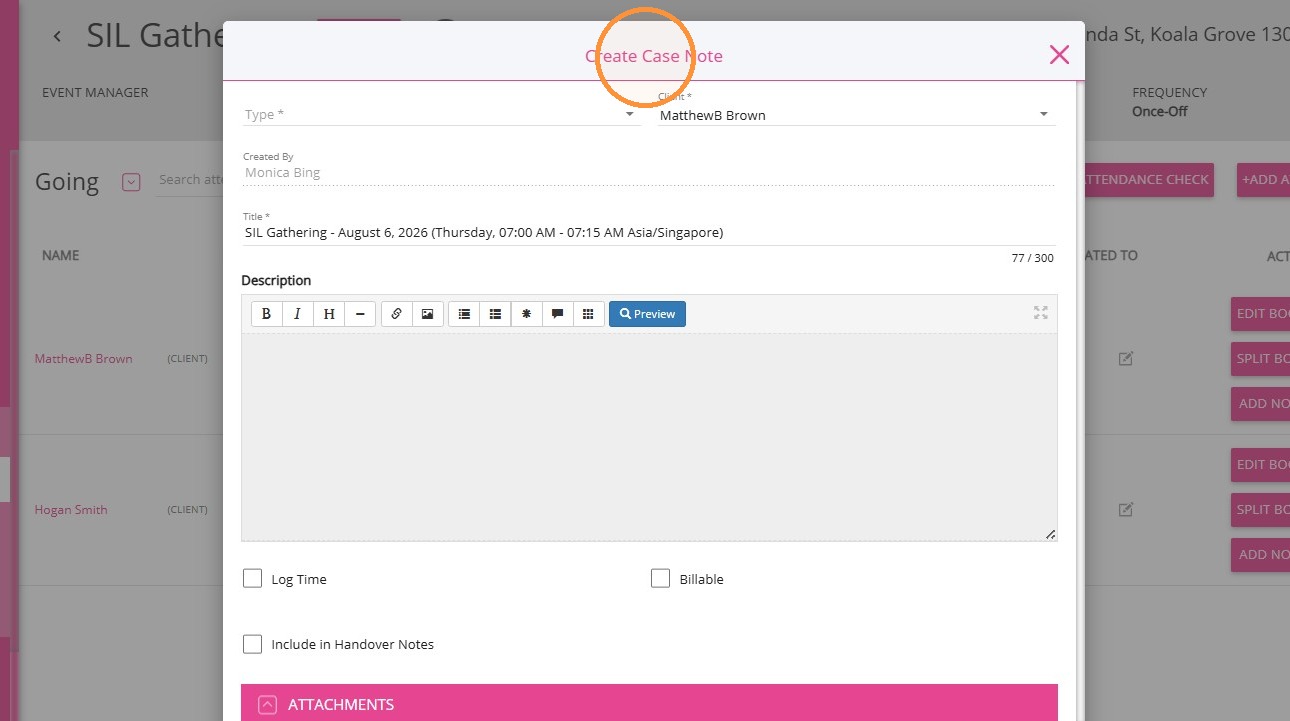
3. Click Save to record the note for that participant.
B. Bulk Case Notes
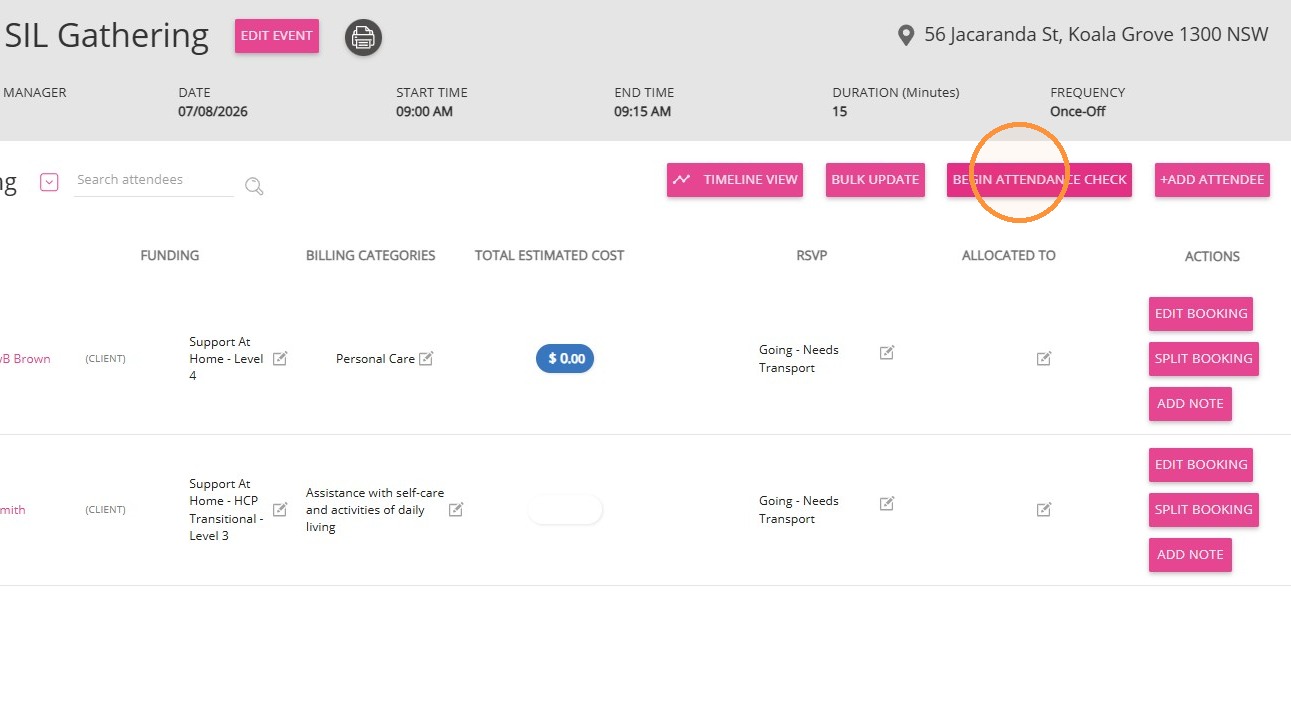
1. Click Begin Attendance Check to enable participant selection.
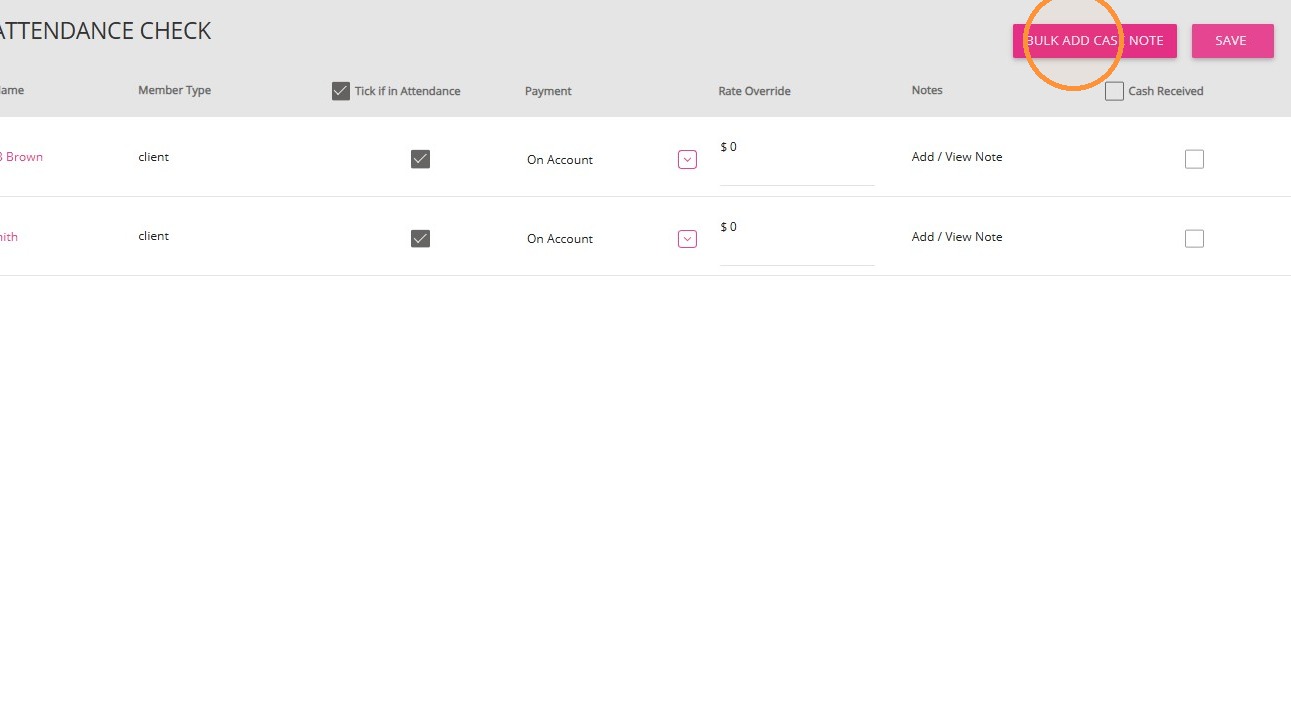
2. Select participants using individual checkboxes or the bulk selection option.
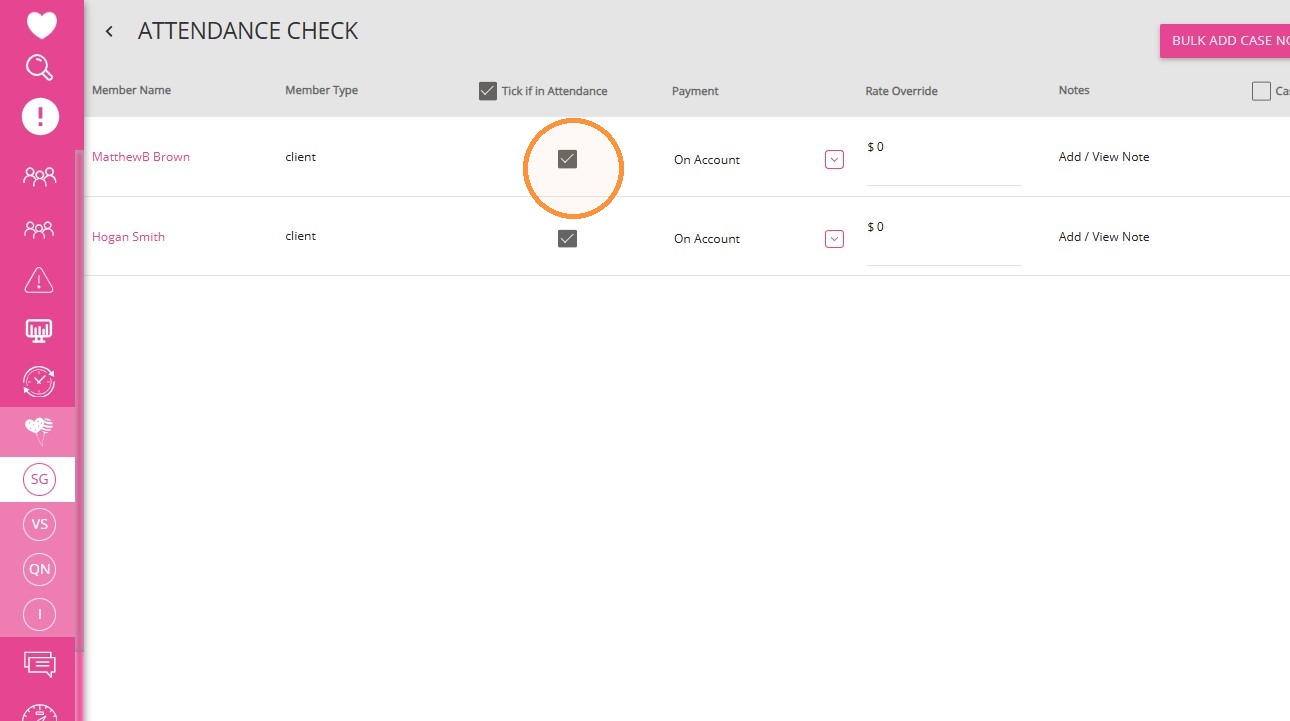
3. Click Bulk Add Case Note once participants are selected.
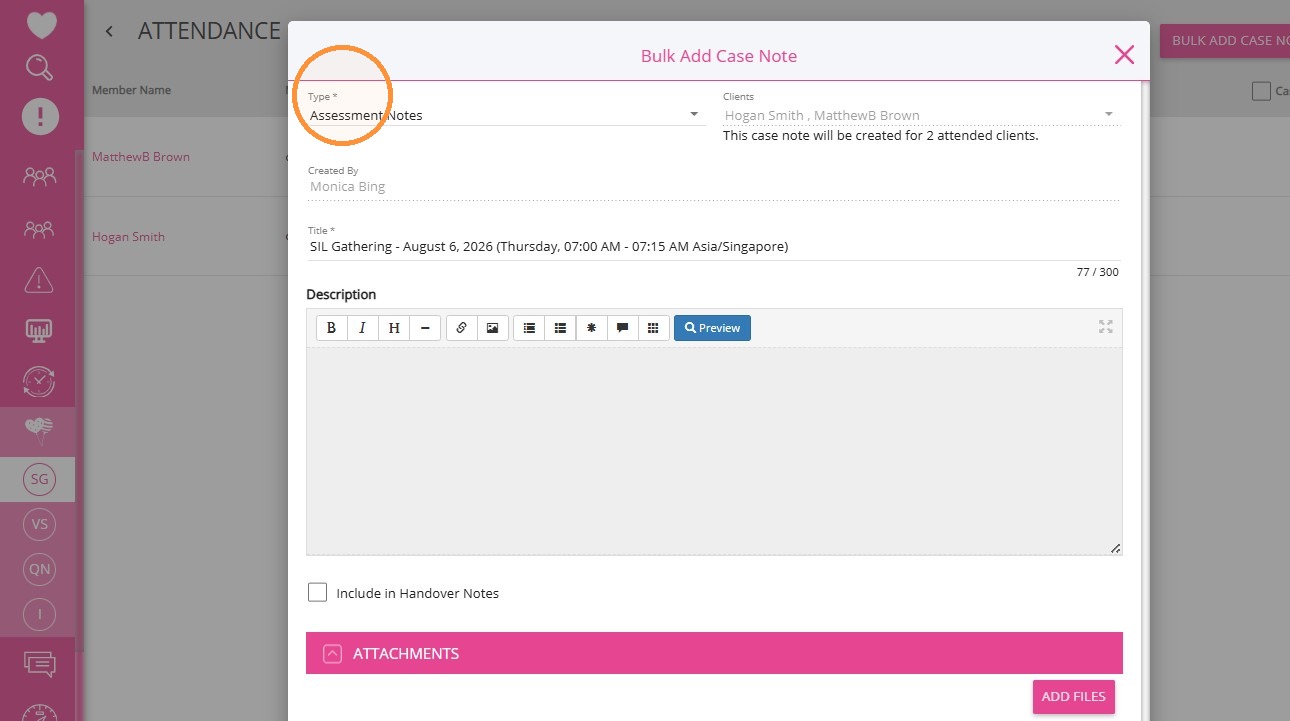
4. The Bulk Add Case Note form will appear.
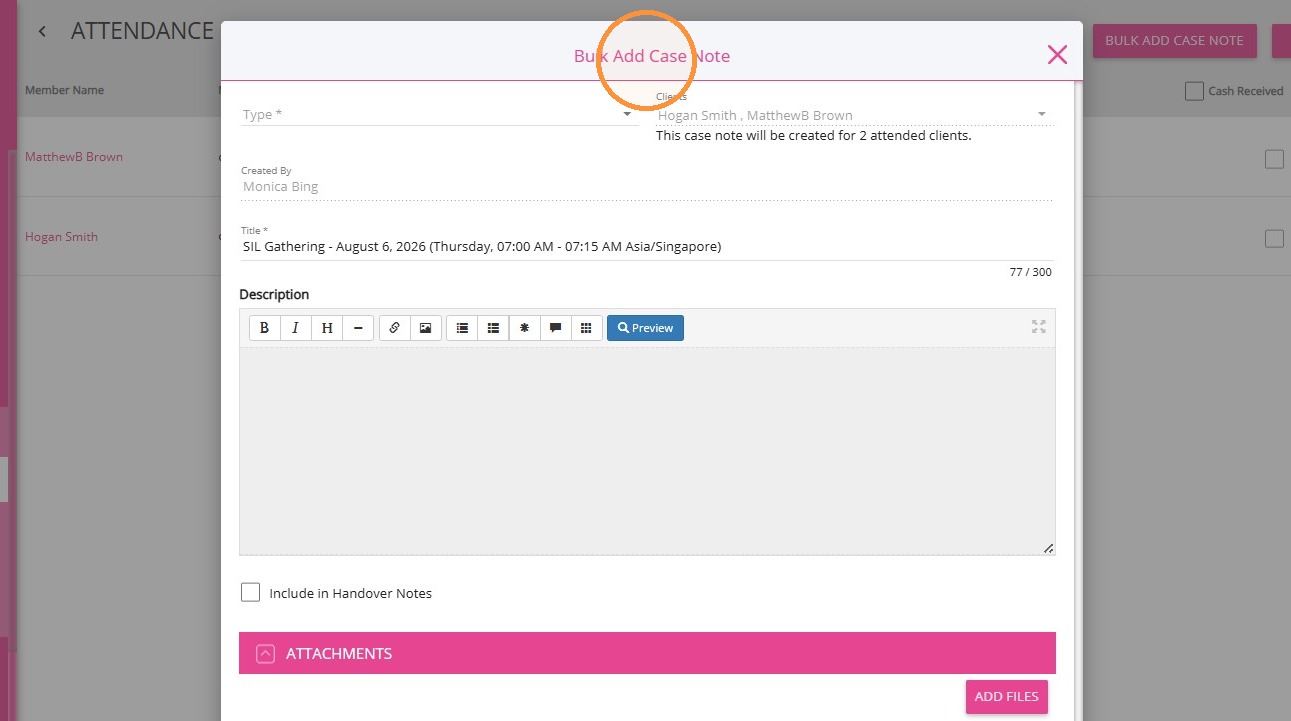
5. Complete the required fields:
- Select the Case Note Type
- The Clients field auto-populates based on selected participants.
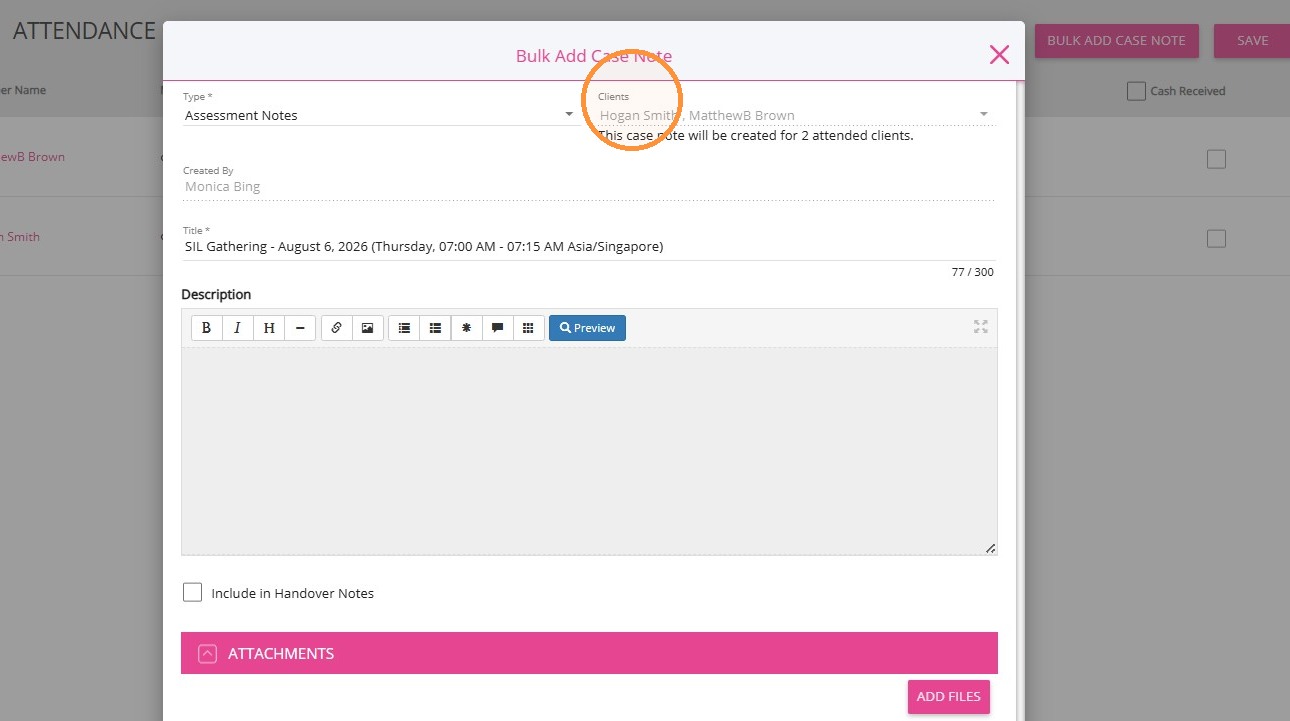
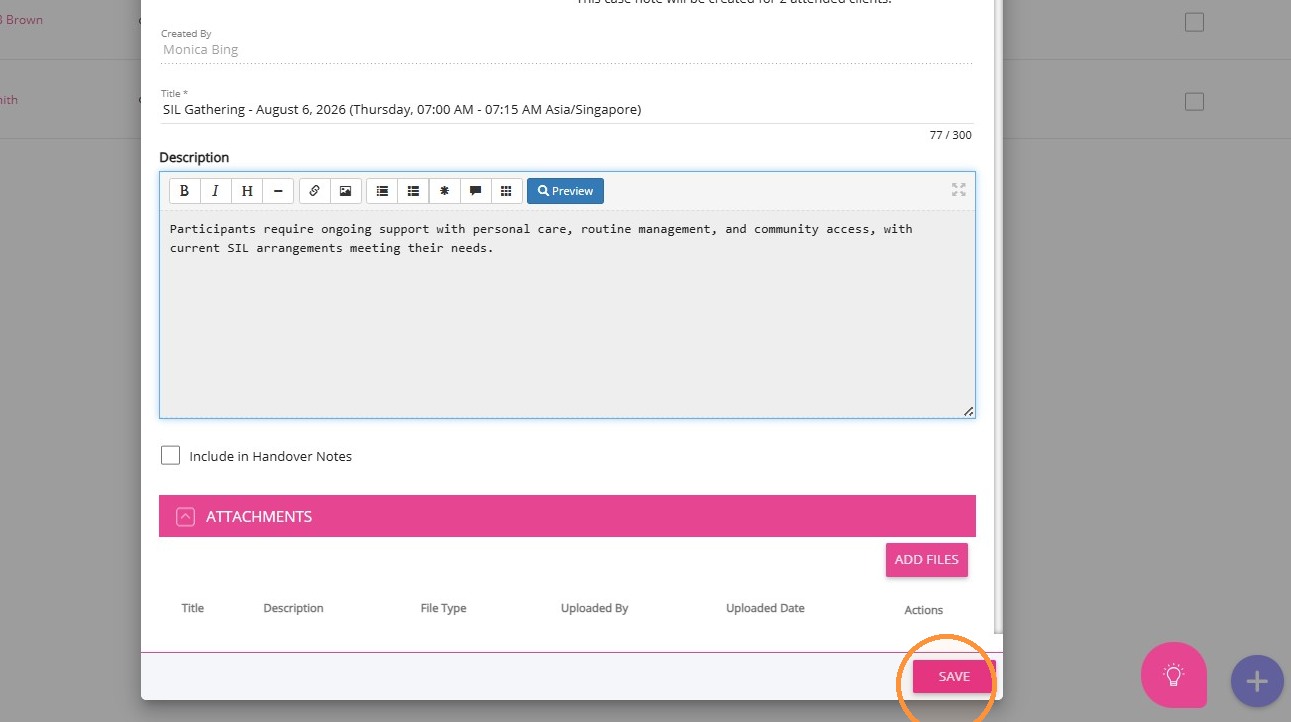
- Add a description and any relevant attachments
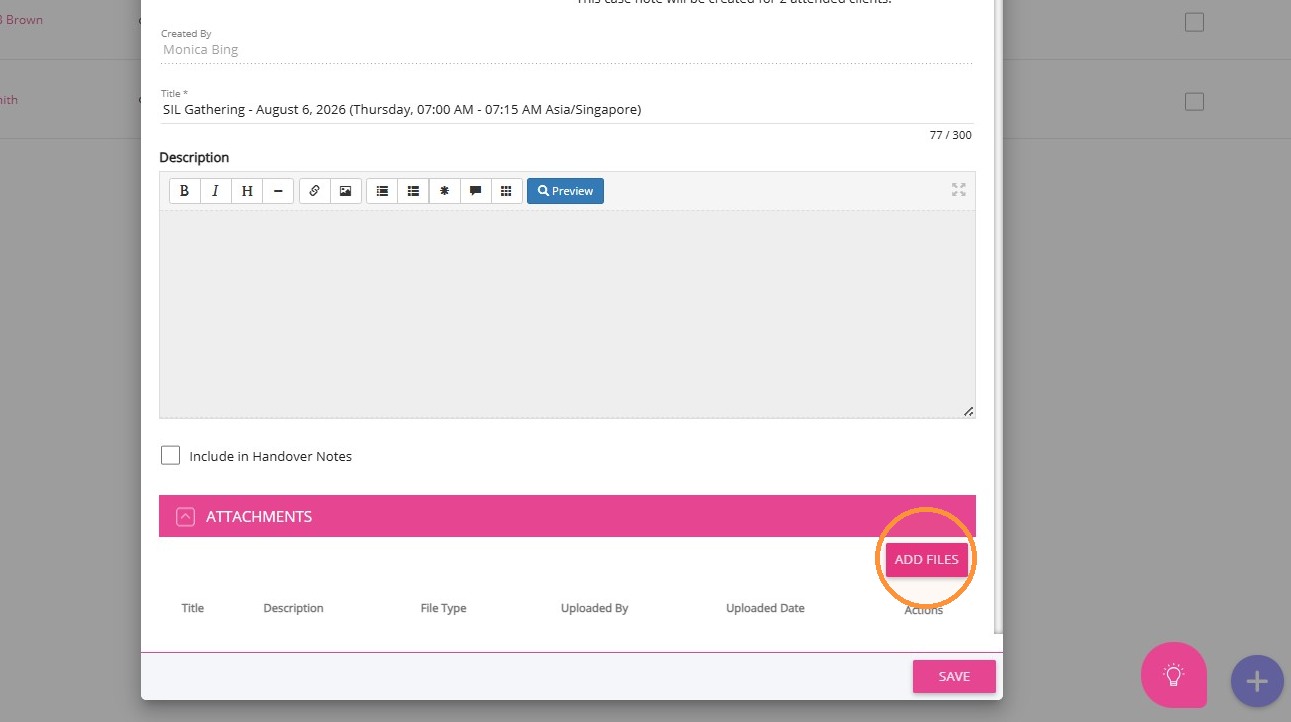
6. Click Save to apply the case note to all selected participants.
Result
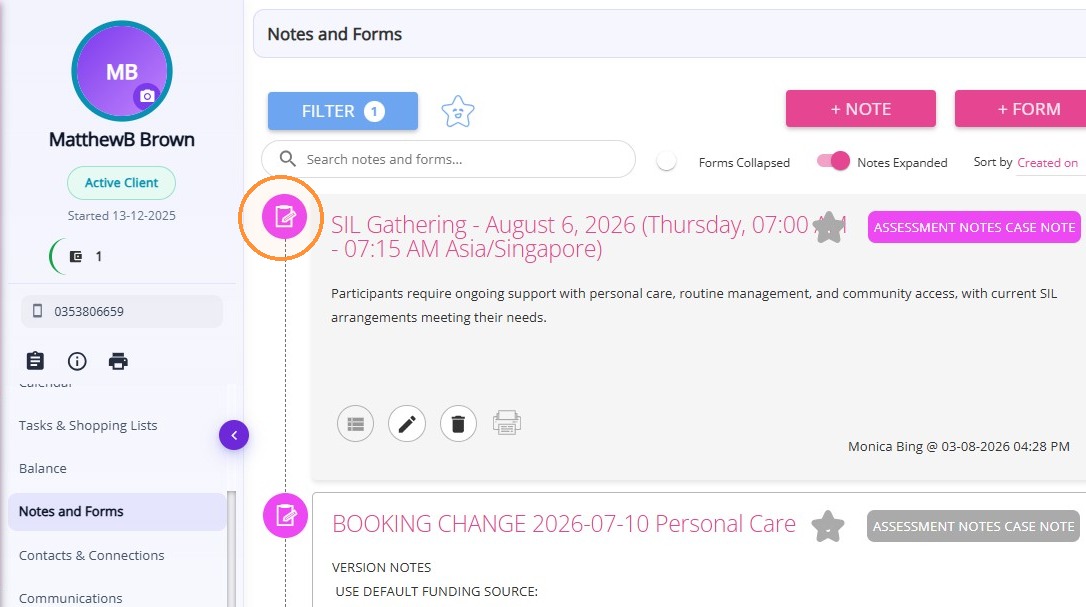
The case notes are automatically saved to each selected participant’s client profile under Notes and Forms. Only participants marked as present will receive the case notes, which reduces manual work and ensures accurate documentation.
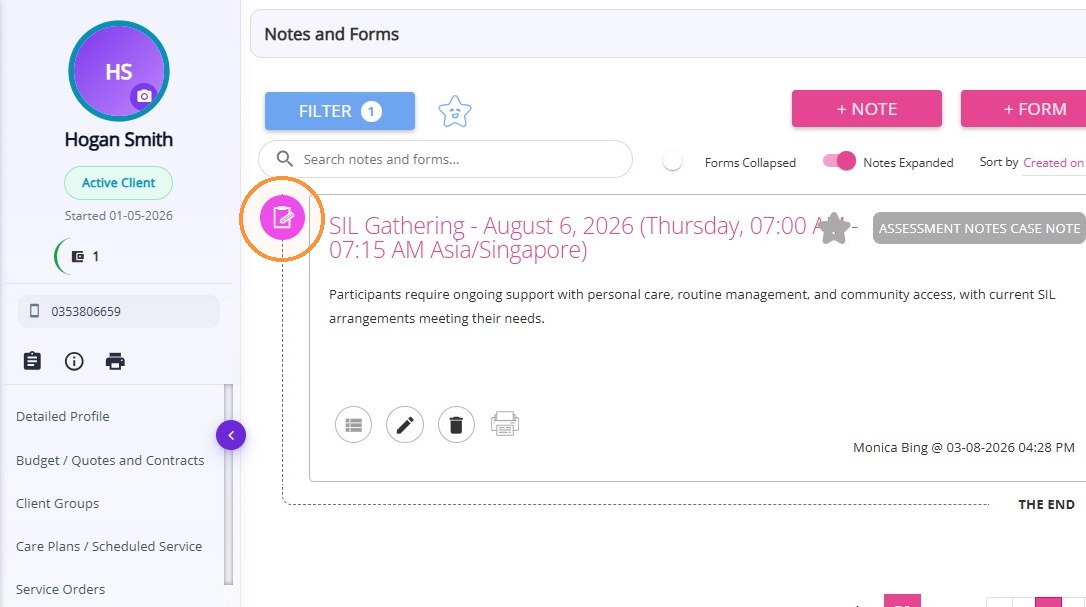
Sample case note:
This topic explained how to use the bulk feature to efficiently add notes to multiple social group participants. For more information about managing attendance and case notes, contact the CareVision Support Team.
Related Articles
Mark Attendance and Add Notes in Social Groups
This topic explains how to record participant attendance and add case notes for social group events. Recording attendance and notes supports accurate documentation, billing, and participant tracking. Keywords: mark attendance, social group events, ...
Use Bulk MPAS for Social Group Events
This topic explains how to use Bulk Member Planned Attendance Schedule (MPAS) to manage a client’s attendance across multiple social group events. Bulk MPAS allow you to assign multiple event attendances for a client in one process. Keywords: bulk ...
Manage RSVPs for Social Group Events
This topic explains how to manage participant RSVP statuses for social group events in CareVision. Keywords: social group events, manage rsvp, event attendance tracking, rsvp status update, participant management, social group calendar, event ...
Getting Started with Social Groups
A social group is a feature that allows your organisation to bring together clients who share common interests or require similar services. These groups can be created for various purposes, such as organising activities, coordinating services, or ...
Generate Meal and Transport Documents for Social Group Events
This topic explains how to generate the Meals Delivery and Transport Run documents for social group events. This helps support accurate meal preparation and transport coordination for social group events. Keywords: social group events, meal delivery ...
Request an Article or Guide
We are keen to know what you want to know more about? Let us know on chat or raise a ticket for an article or topic you would like covered in more detail. We have a team of technical writers and learning content creators keen for your suggestions.