Linking Services to Forms
This article explains how to associate services with a form. Once configured, you can add relevant services after selecting that form for a client.
Prerequisites
Before starting, make sure that:
- The form has been created and is available under Settings > Form Formats.
- The required services have been set up under Settings > Services, with the appropriate billing categories assigned.
- Each service is suitable for the form’s intended purpose.
Steps
1. Go to Settings > Services.
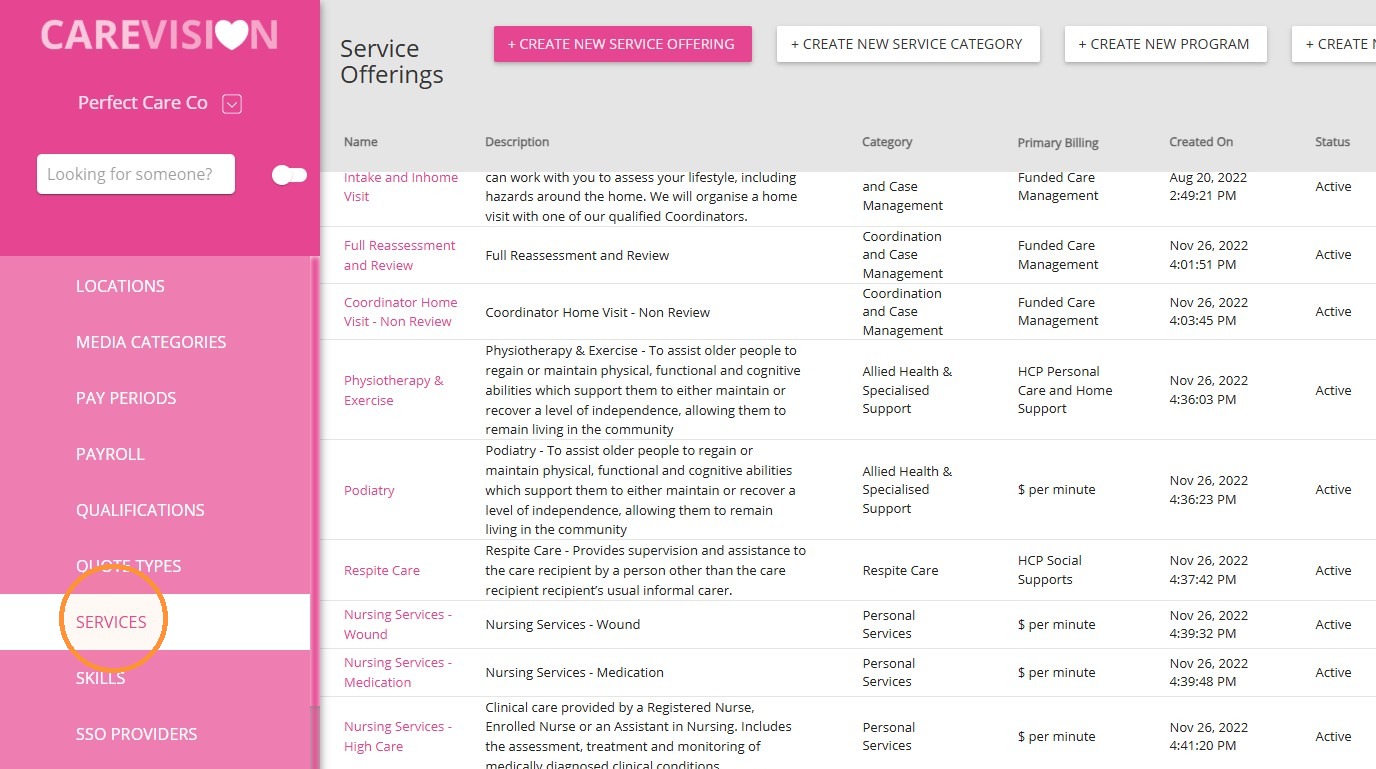
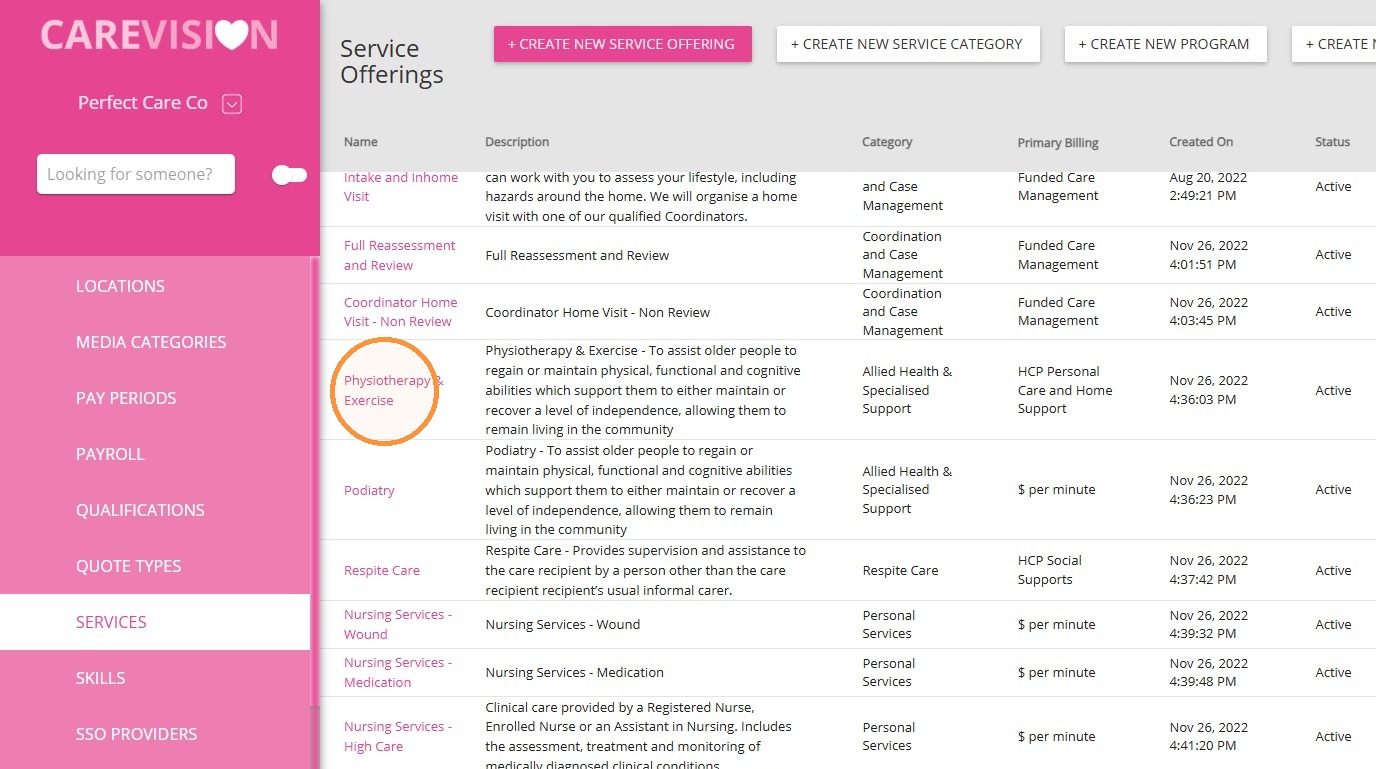
2. Find and open the service you want to link.
Example: Physiotherapy & Exercise
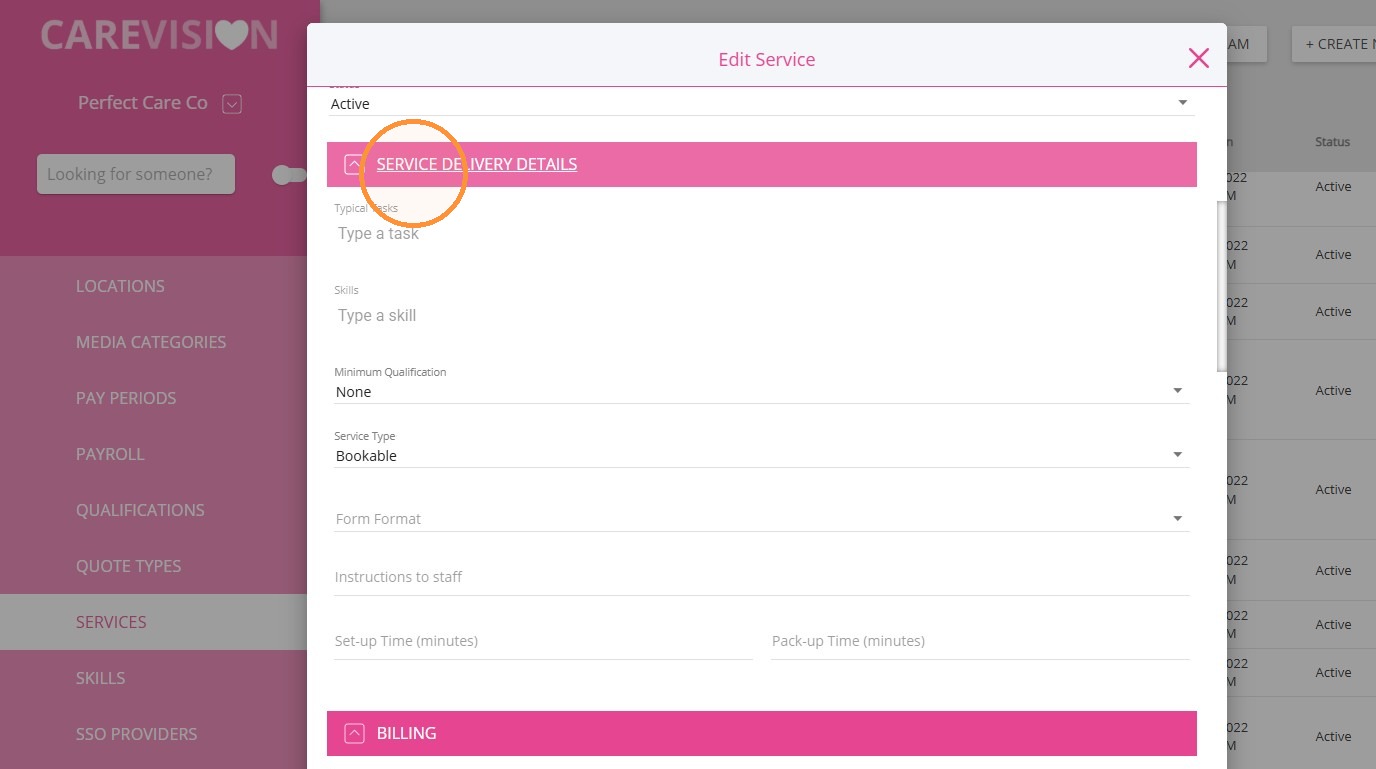
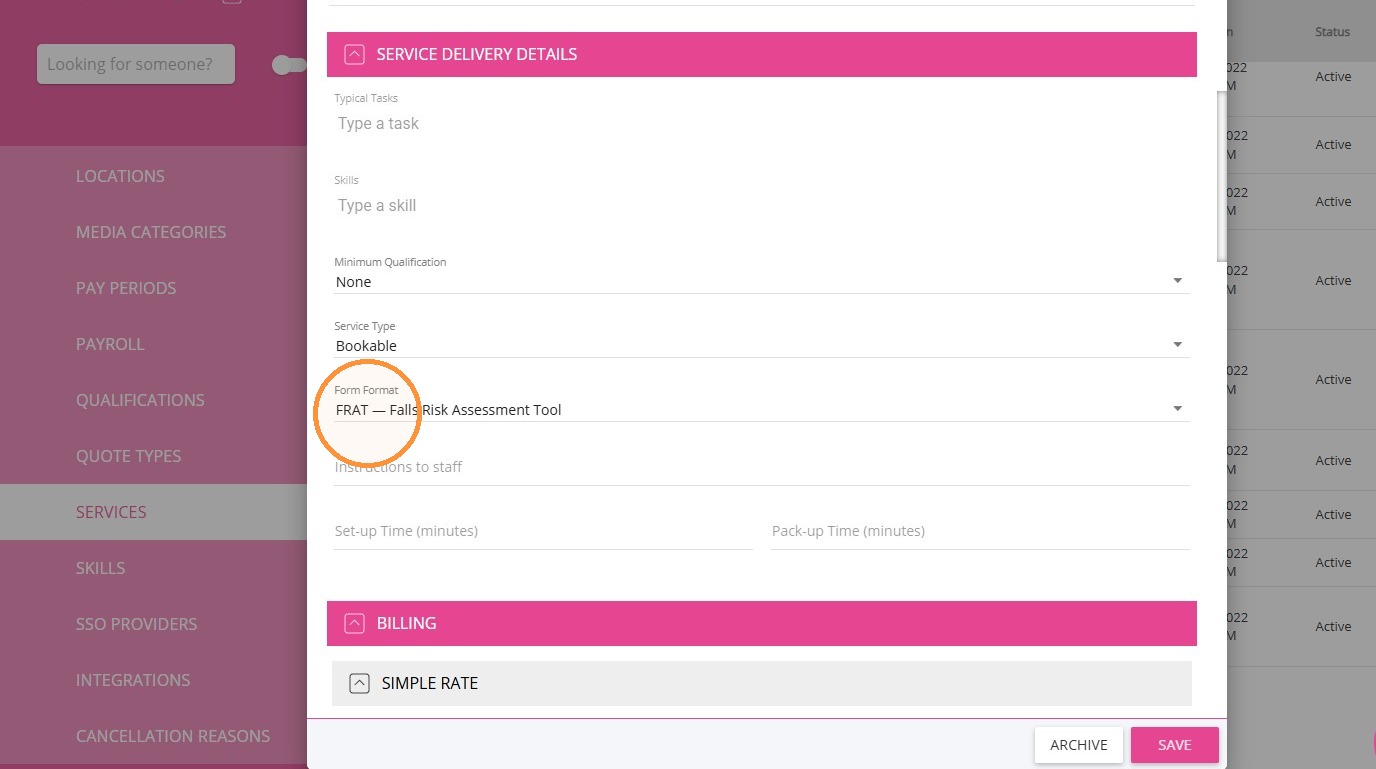
3. Go to the Service Delivery Details section.
4. Locate the Form Format field.
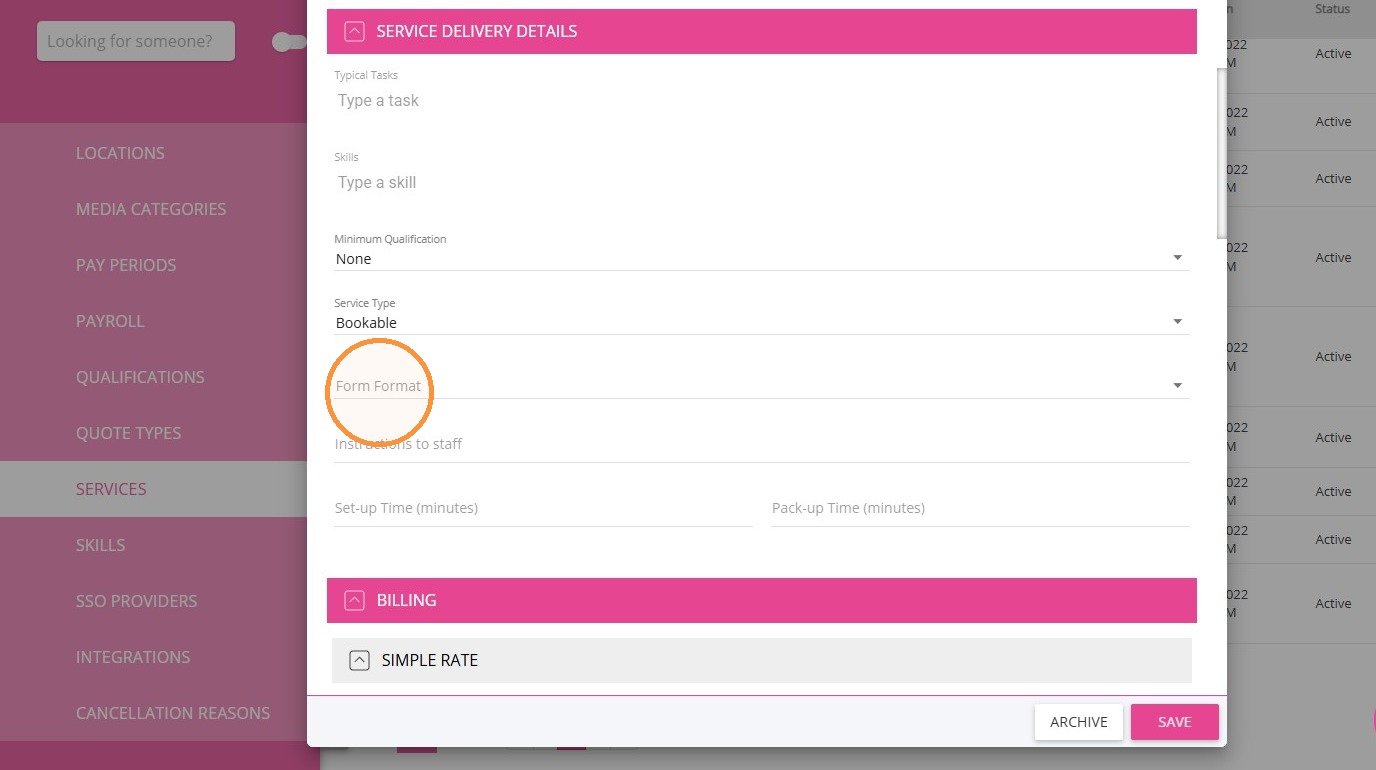
5. Select the appropriate form format.
Example: Select FRAT (Falls Risk Assessment Tool) for the Physiotherapy & Exercise service.
If required, select additional form formats. Multiple forms can be linked to the same service.
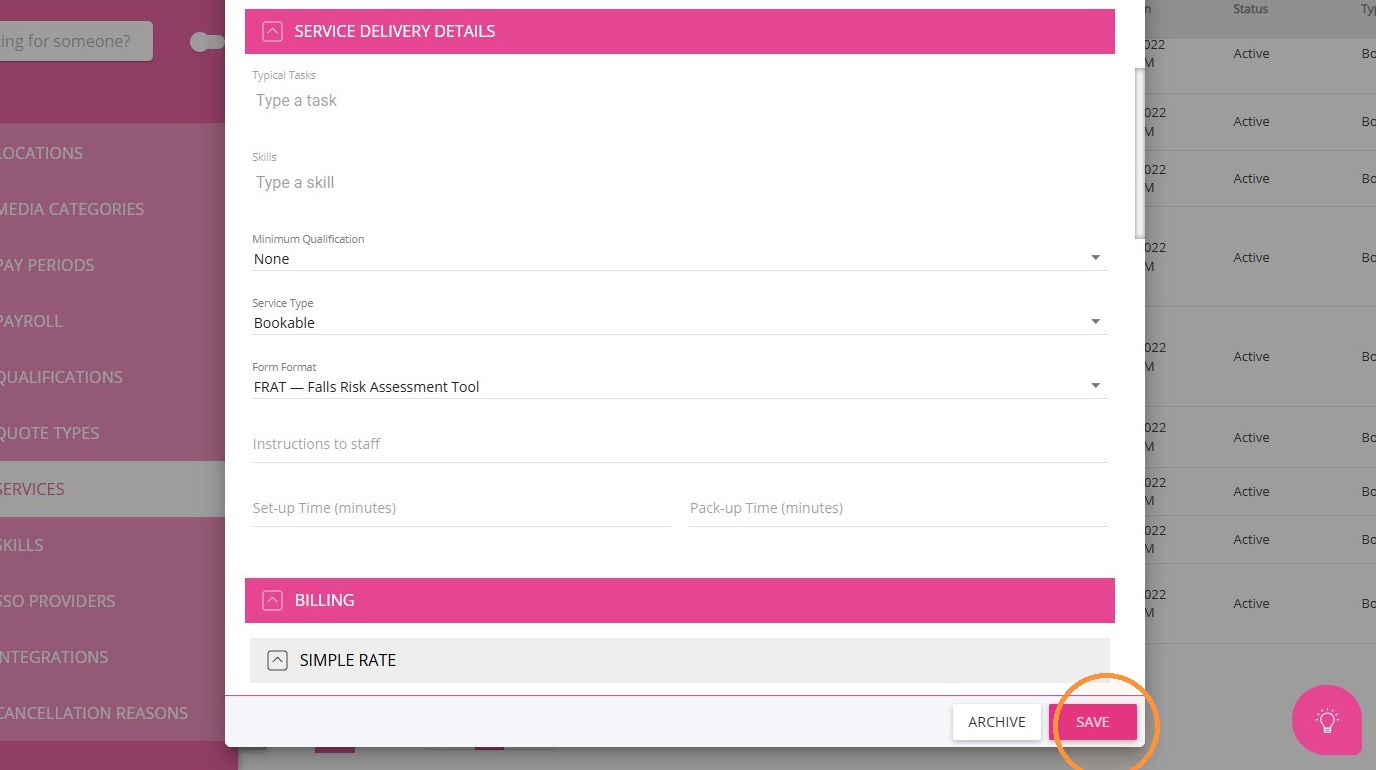
6. Click Save.
7. Repeat these steps for any other services you want to link.
Once linked, the related service can also be added when a form is selected for a client. For example, selecting the FRAT form allows the Physiotherapy & Exercise service to be added.