How to Change the Preferred Carer for a Published Booking

How to Change the Preferred Carer for a Published Booking

To change the preferred carer for a published booking, you must update the care plan and cancel the existing published bookings. Then, re-schedule and publish the bookings so they are assigned to the new preferred carer.


Steps:
1. Update Care Plan

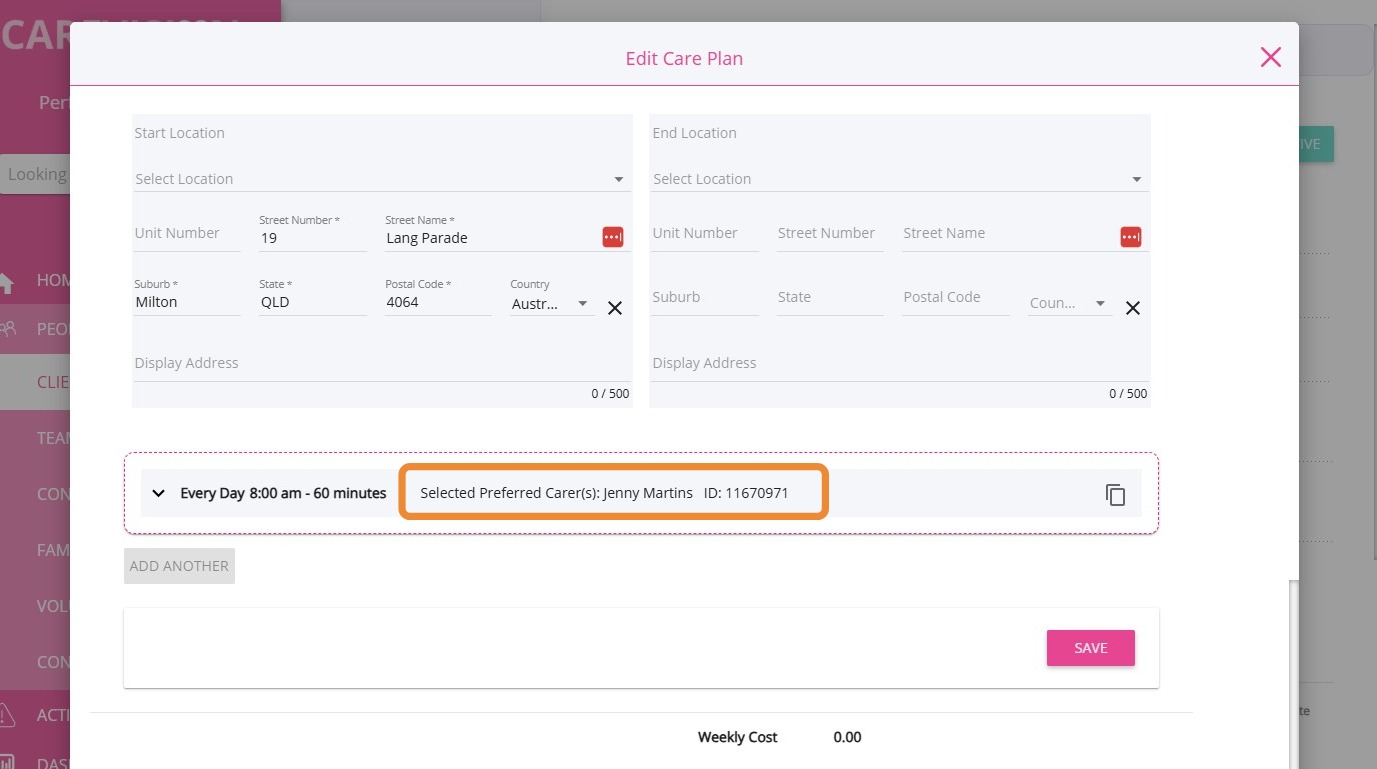
Go to the Care Plans / Scheduled Services in the client profile and click Update Care Plan.
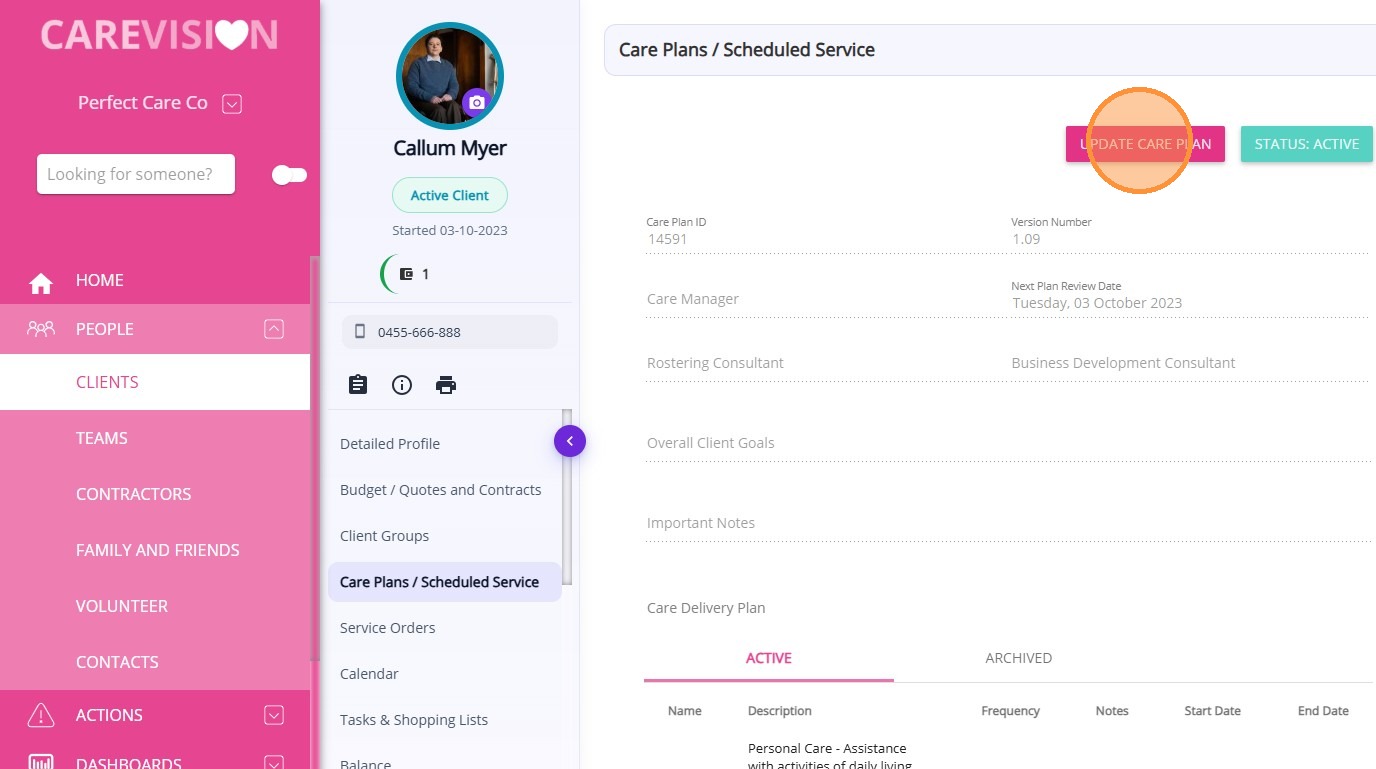
In this example, Jenny Martins is the current preferred carer.
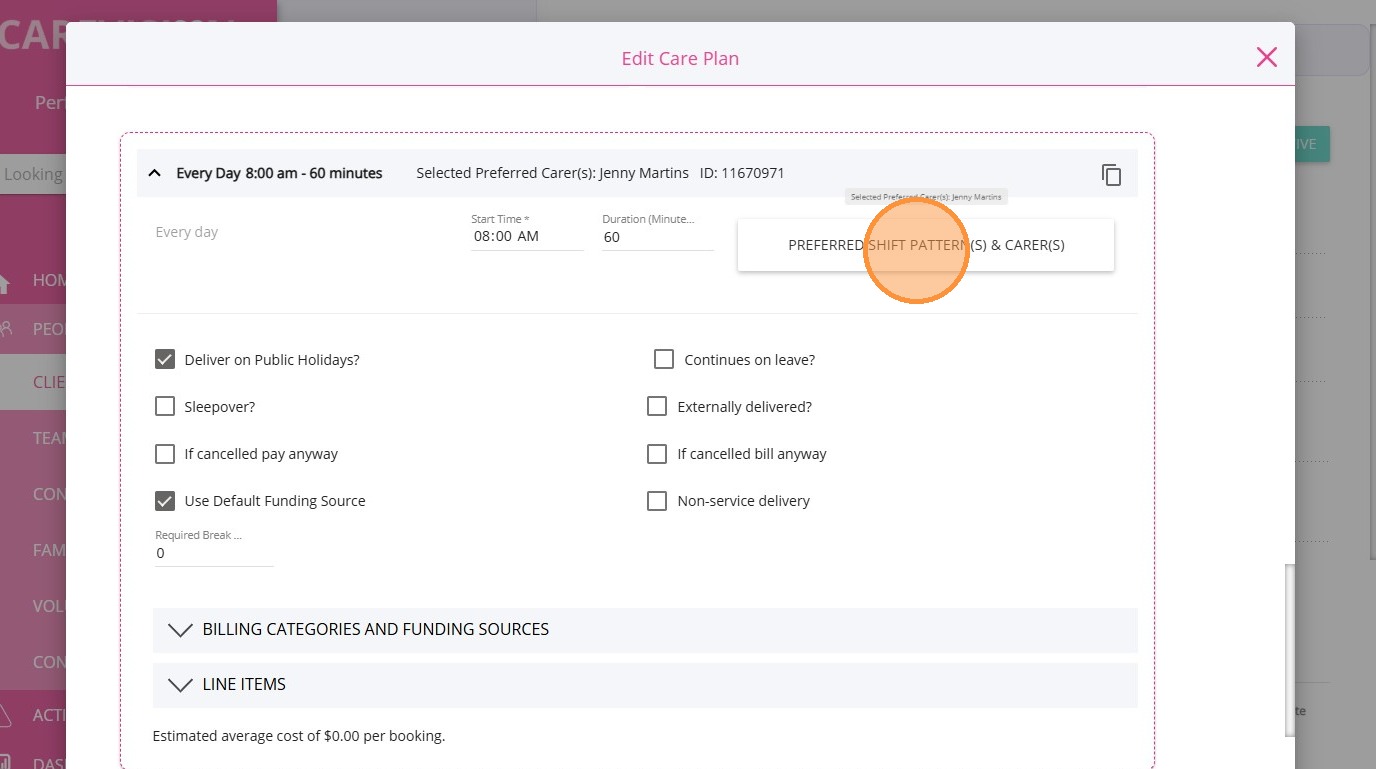
Edit the Care Plan and click Preferred Shift Pattern(s) & Carer(s).
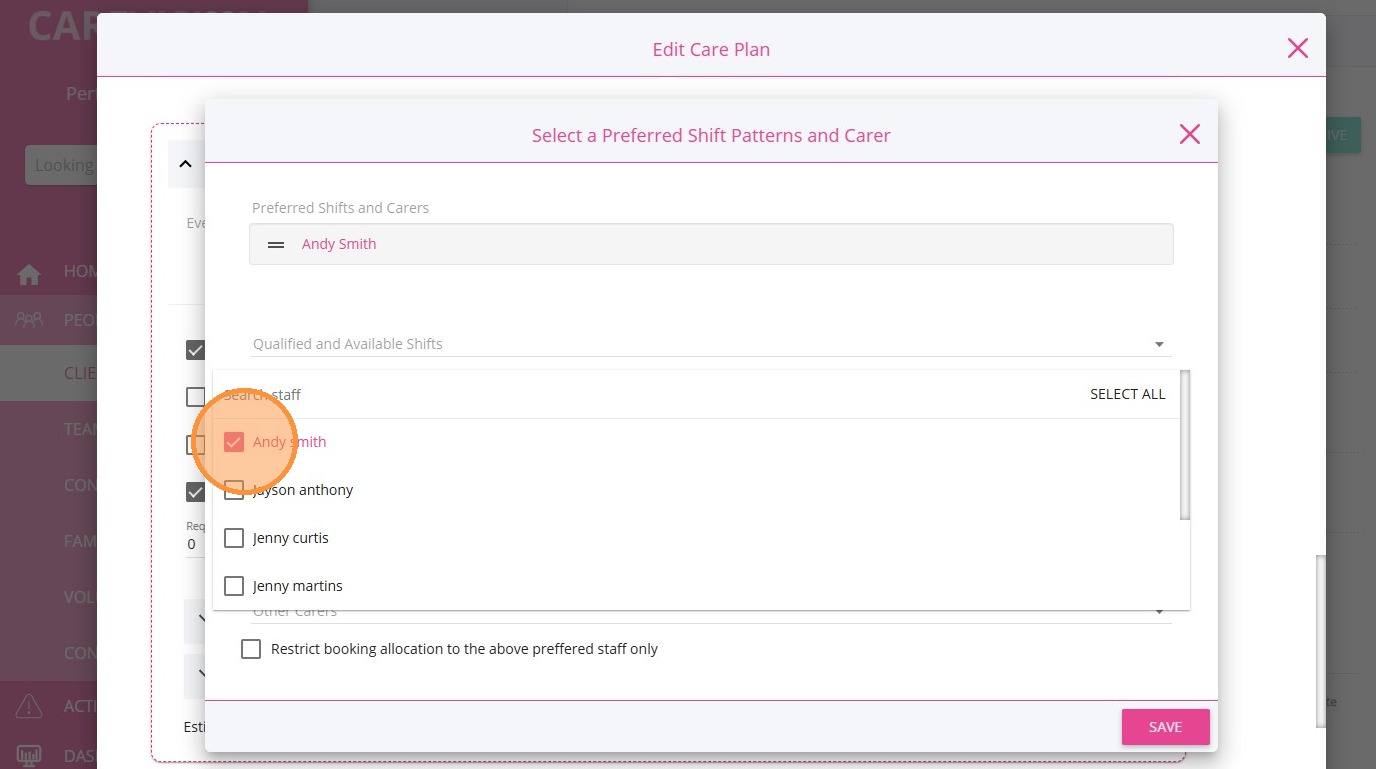
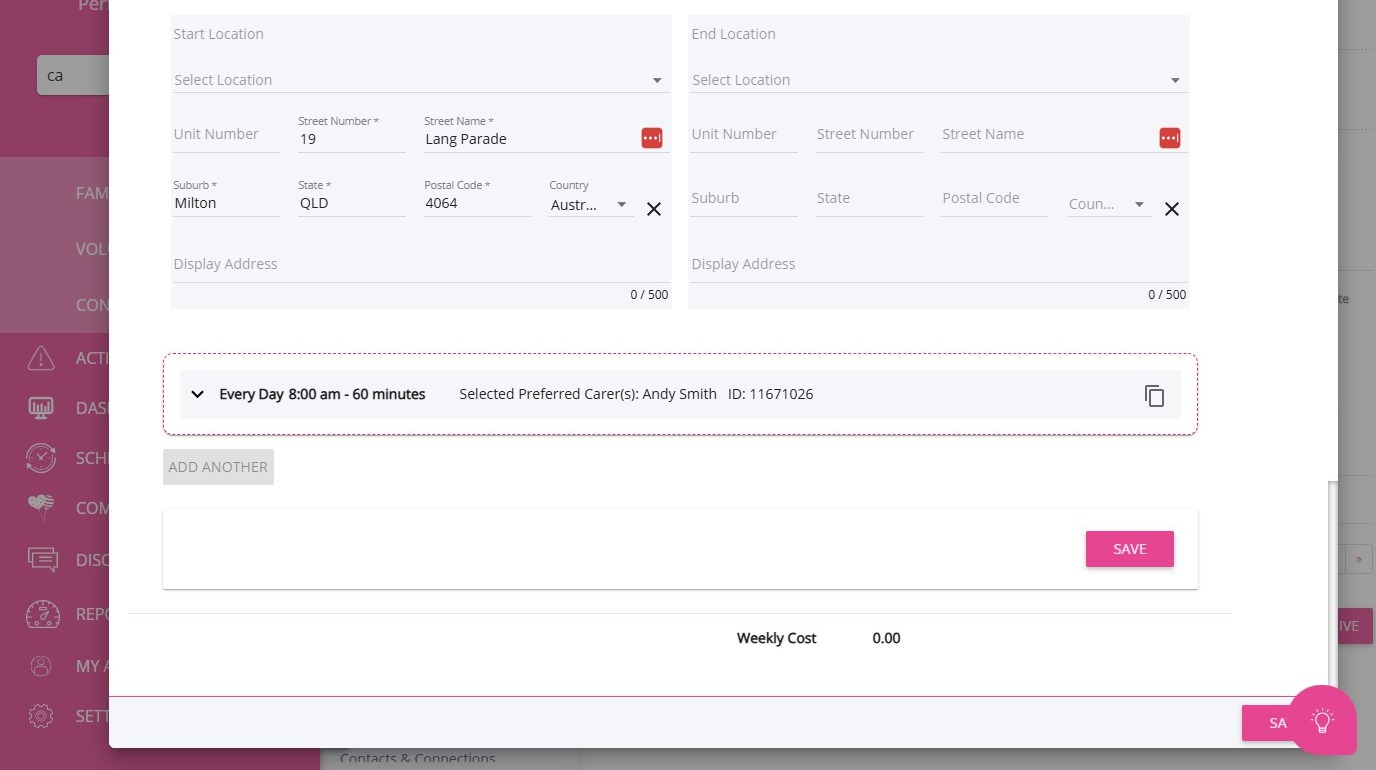
Select a new preferred carer. In this example, the preferred carer will be changed from Jenny Martins to Andy Smith.
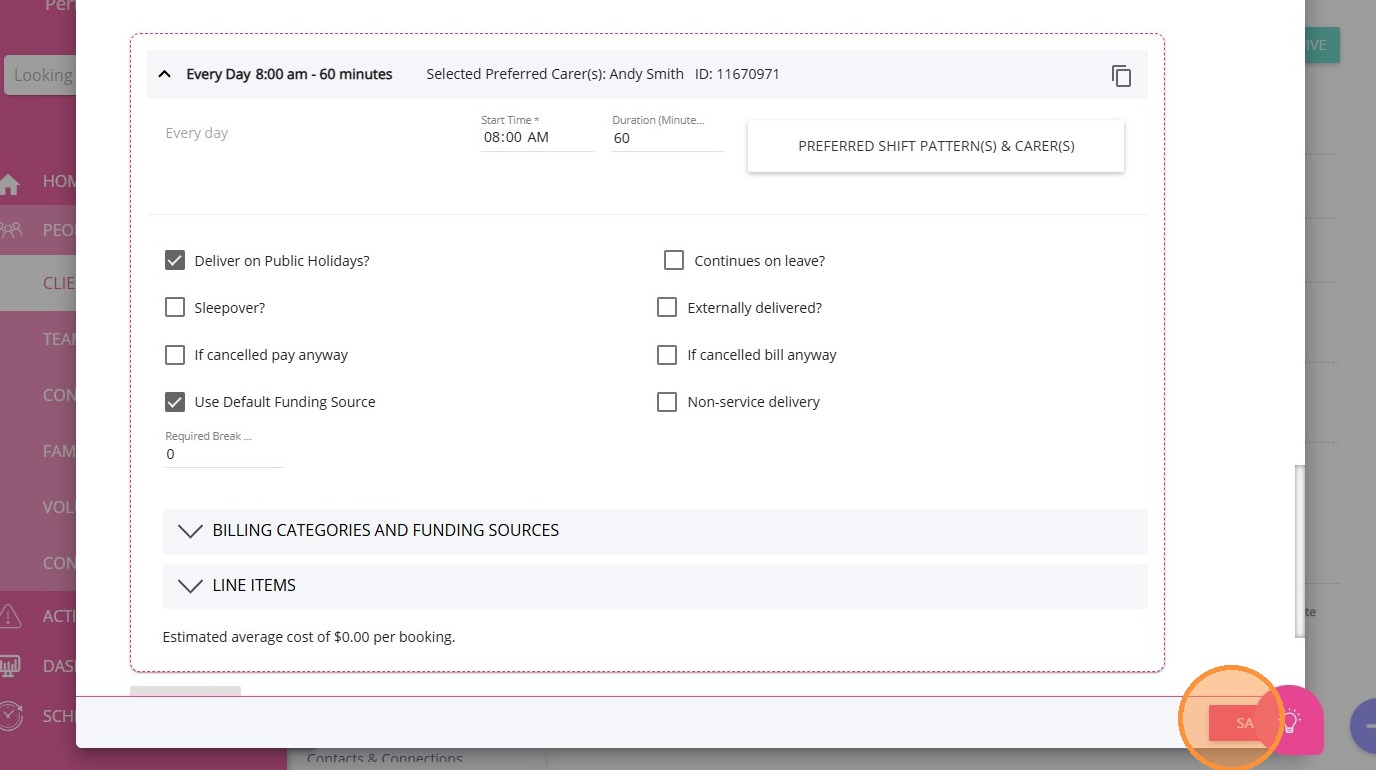
Click Save.
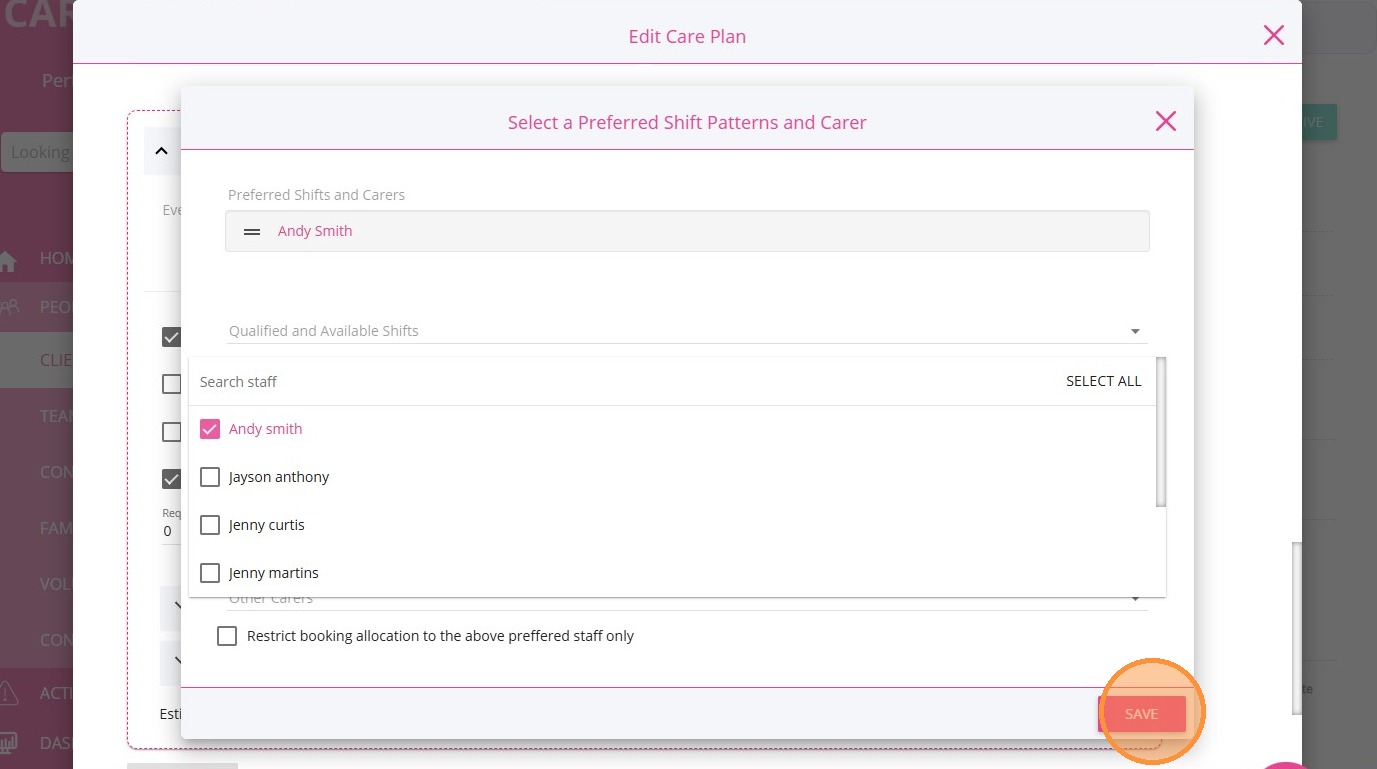
Click Save again.
Click Yes to update the care plan.
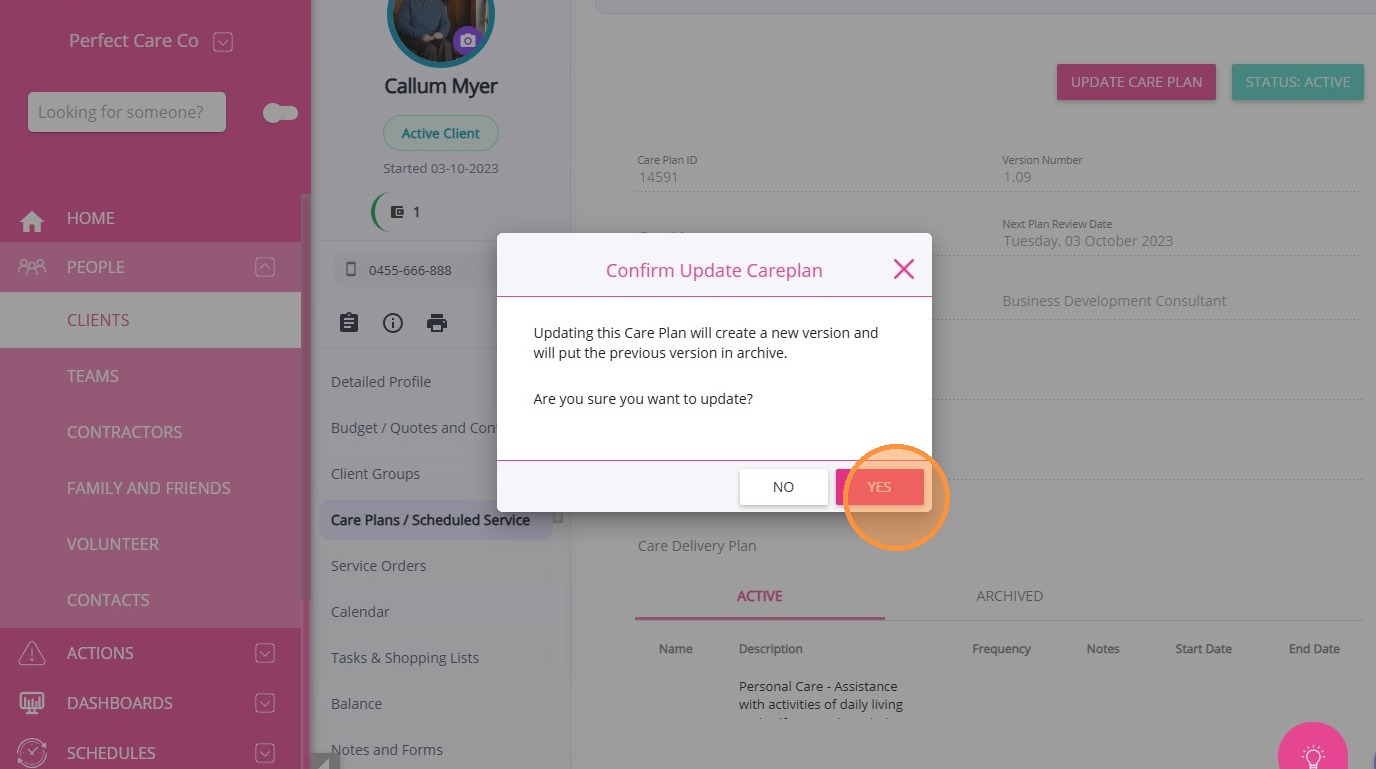
Note: If you click Update, only the booking details will be updated. The preferred carer assigned to the booking will remain the same.
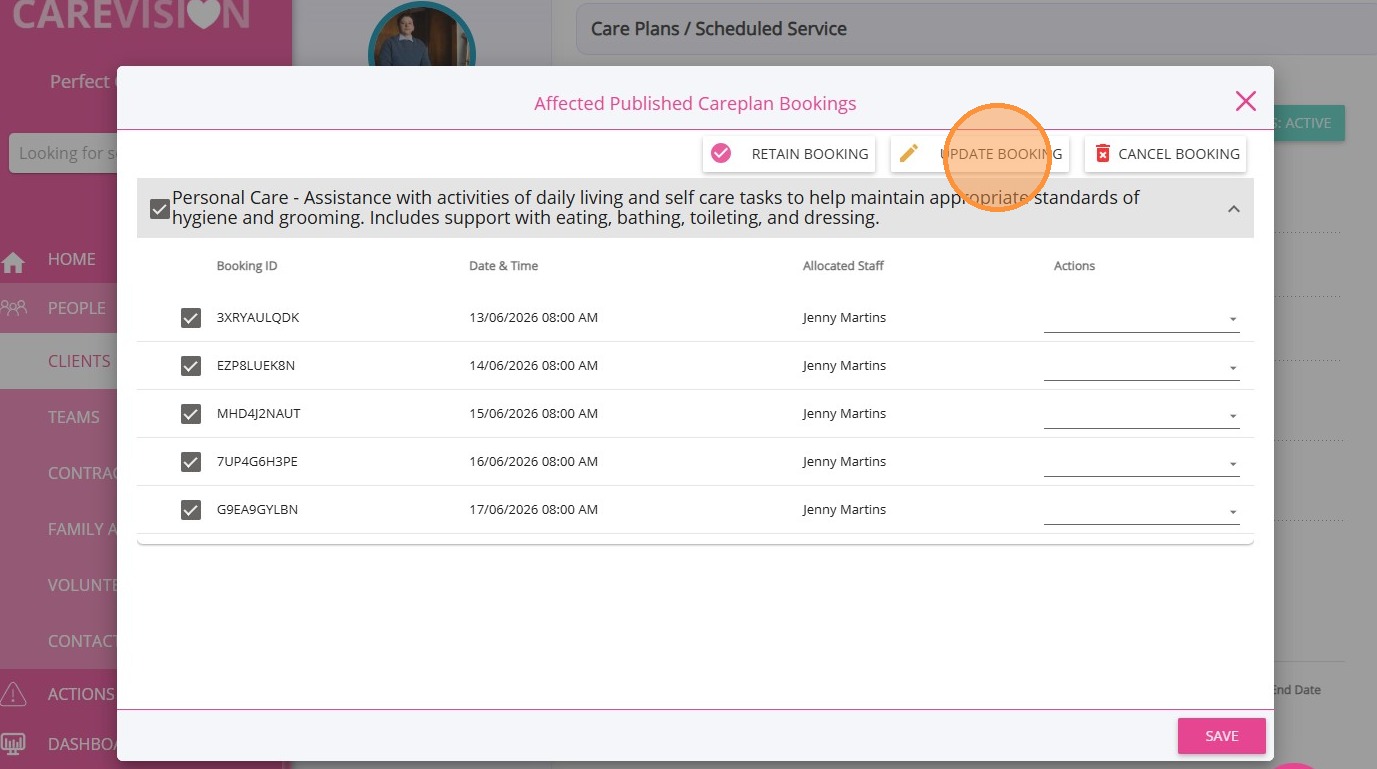
2. Cancel Published Bookings
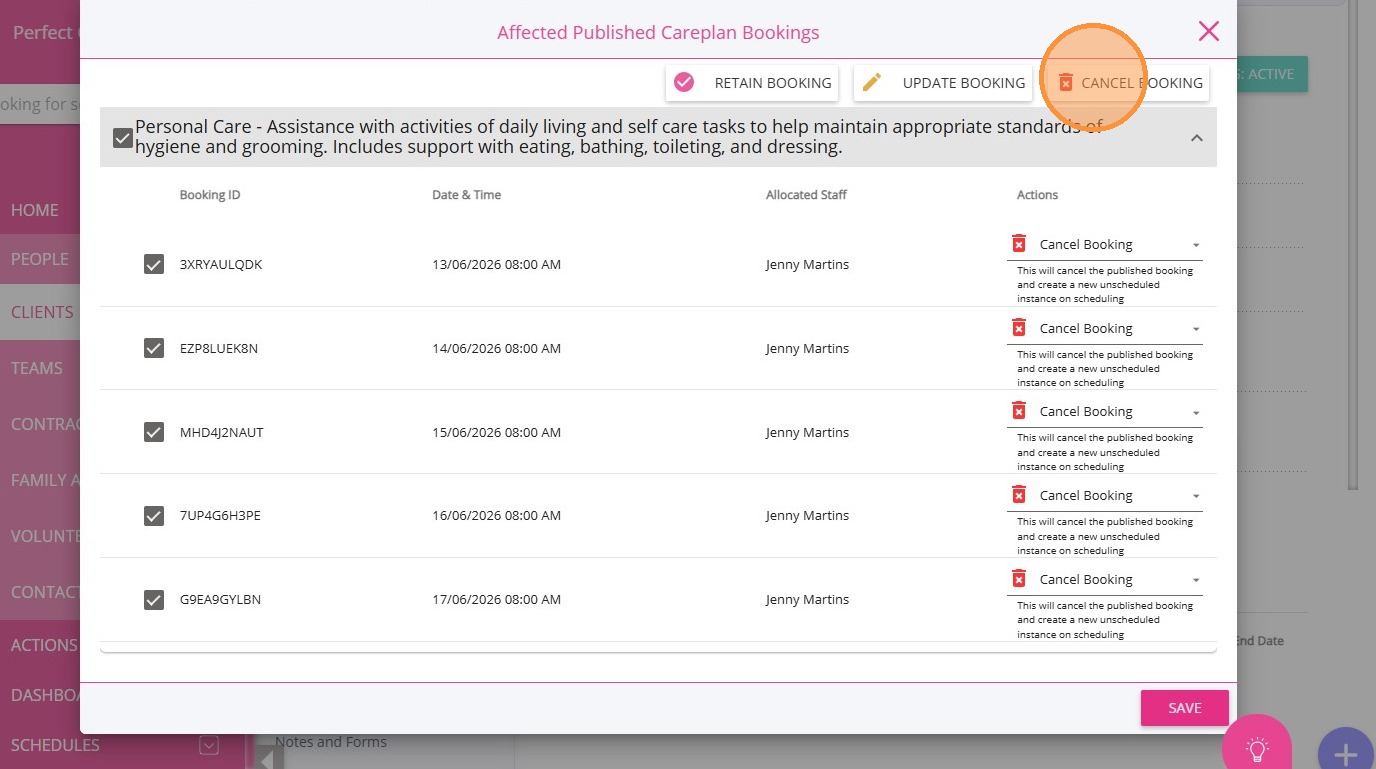
To change the preferred carer, you must click Cancel to cancel the published bookings associated with the current carer and then publish the booking to the new preferred carer.


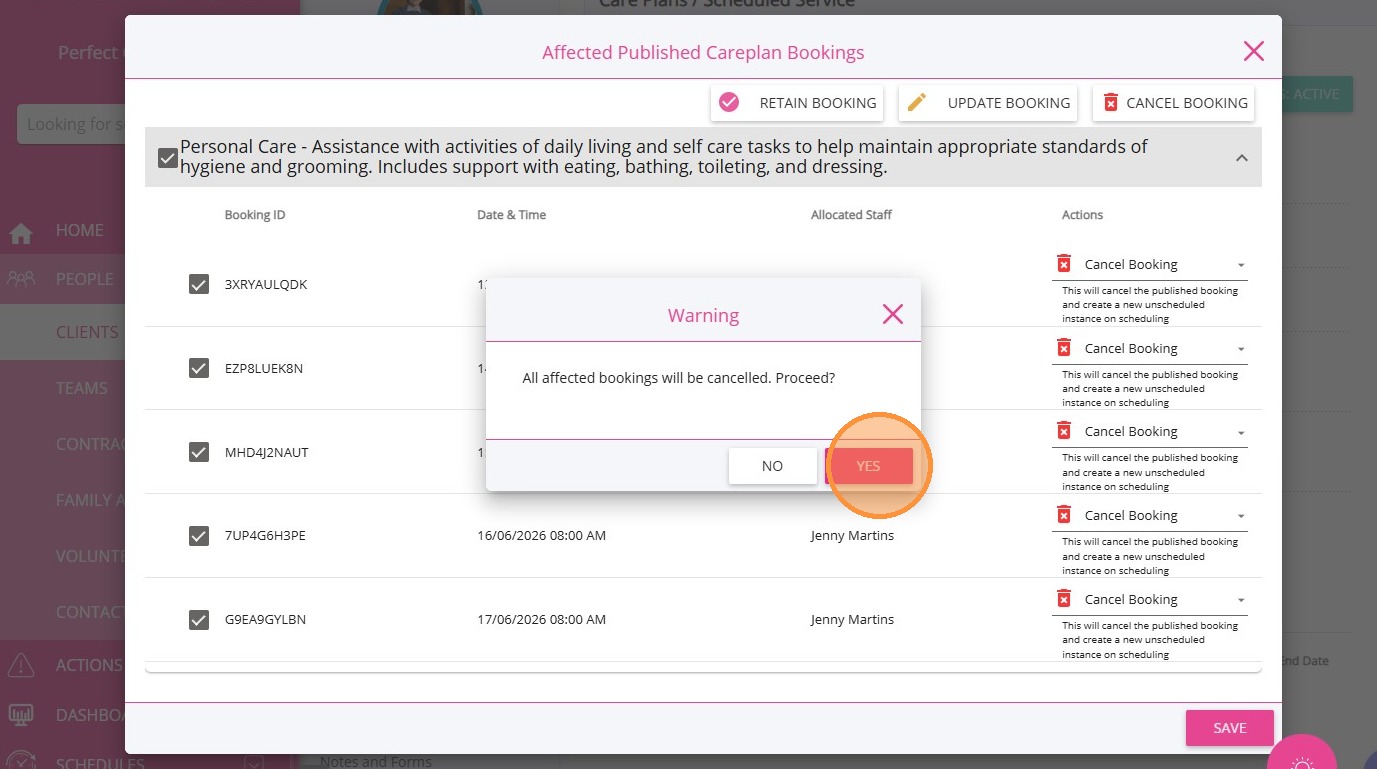
Click Save.

Click Yes to proceed.

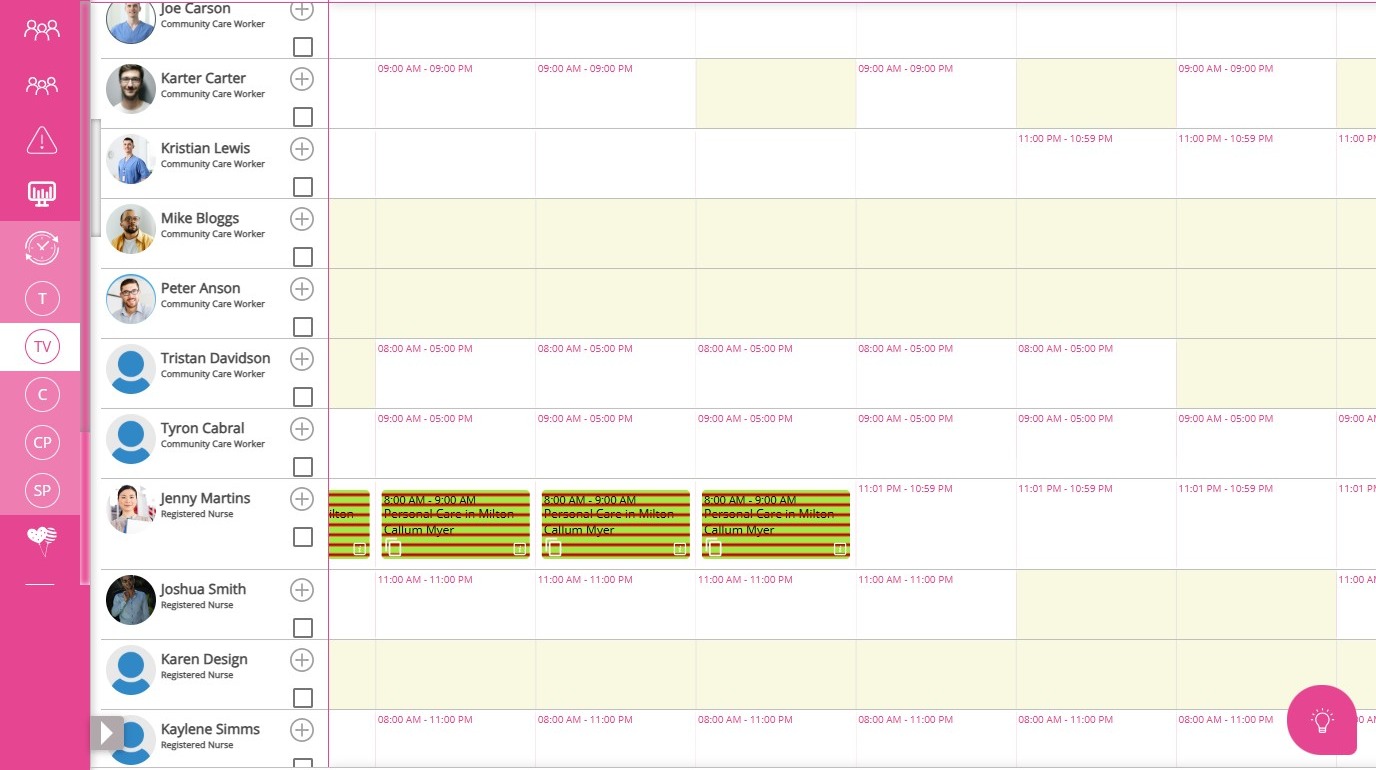
On the Scheduling Board (Teams V2), the published bookings where Jenny Martins is the preferred carer will be cancelled.

3. Re-schedule the bookings using Auto Schedule
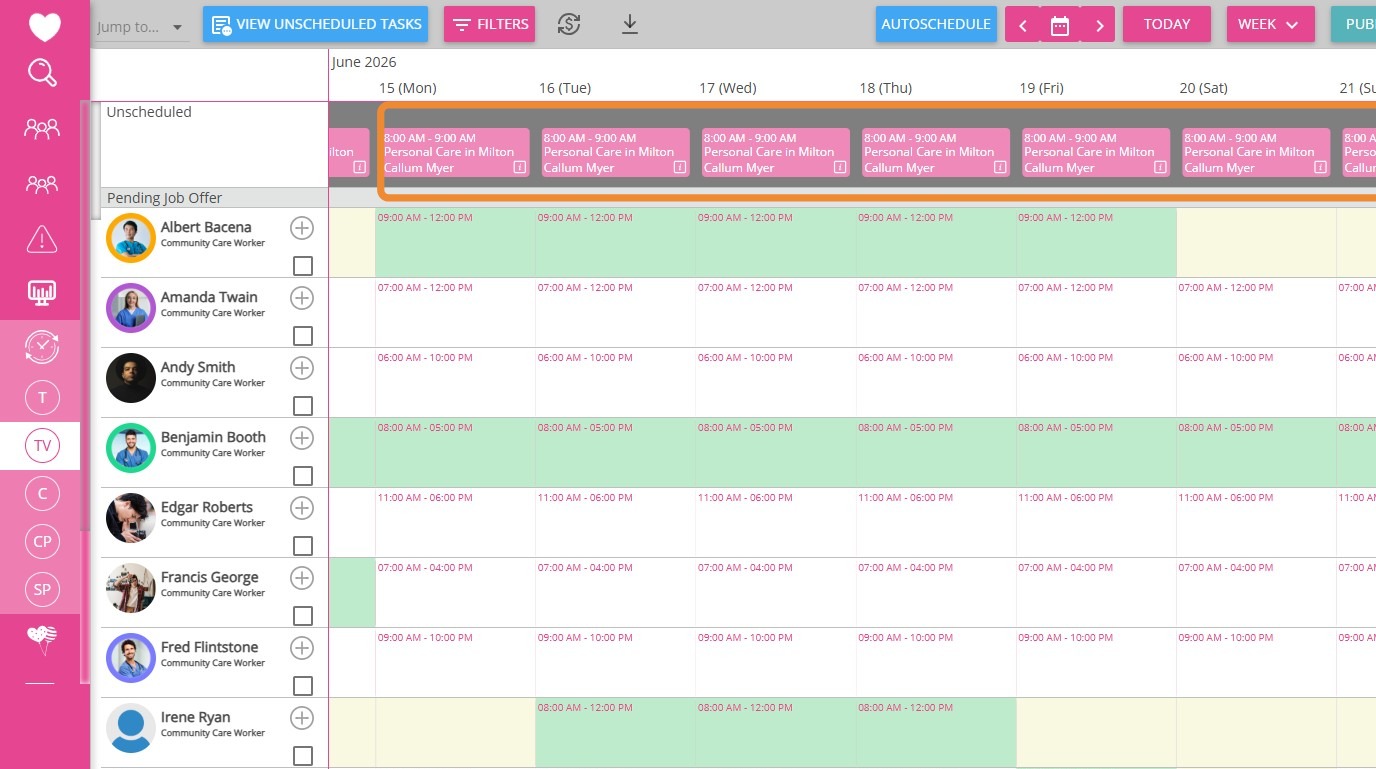
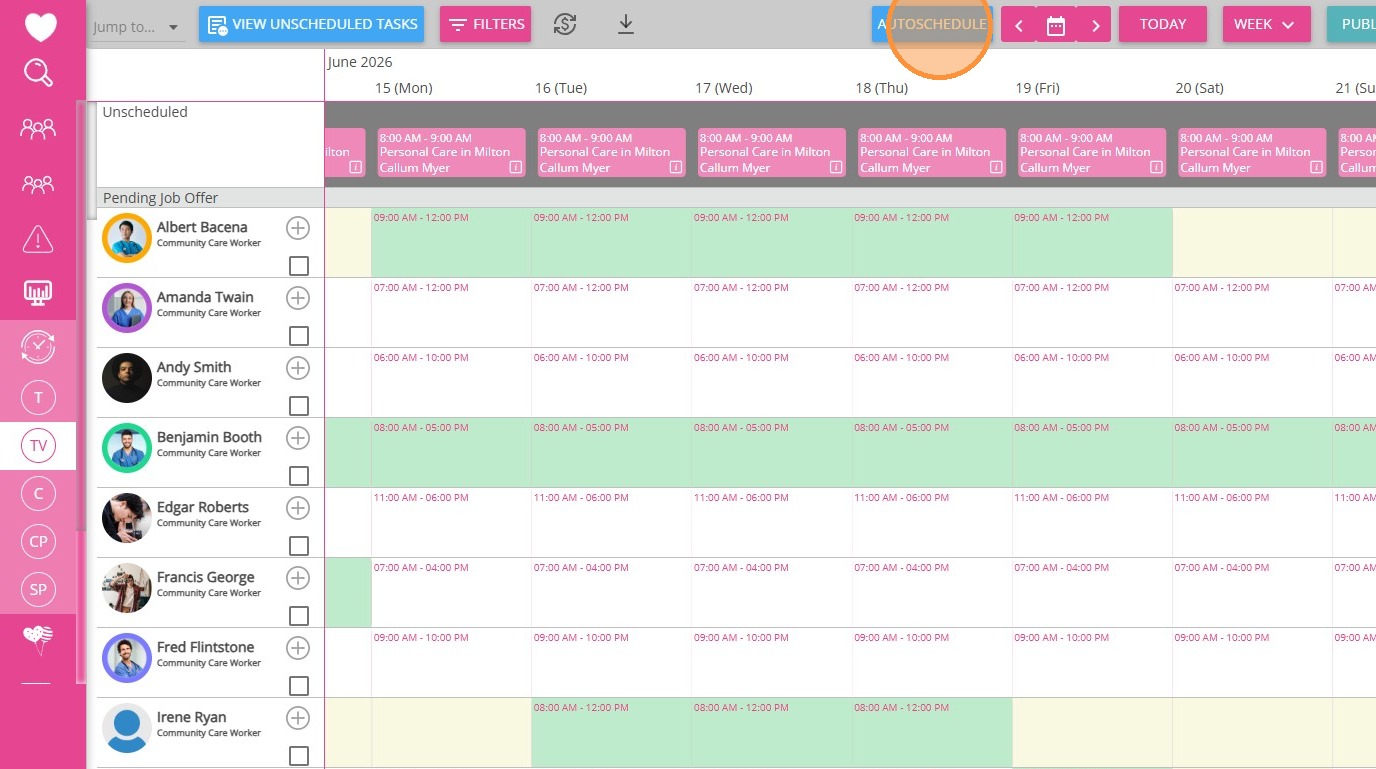
Above the scheduling board, unpublished bookings will be created.

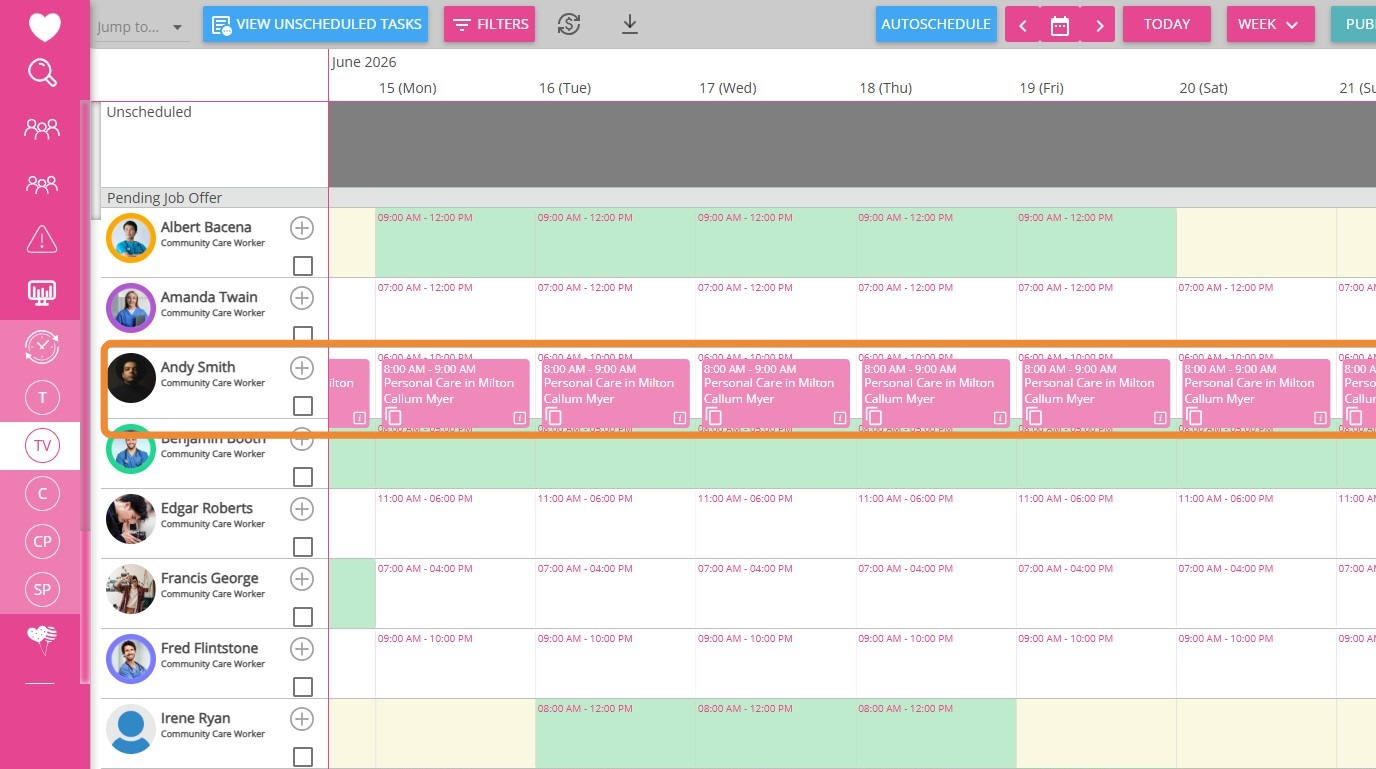
Click Auto Schedule.

The bookings will now be scheduled to Andy Smith.
4. Publish the bookings so they are assigned to the new preferred carer
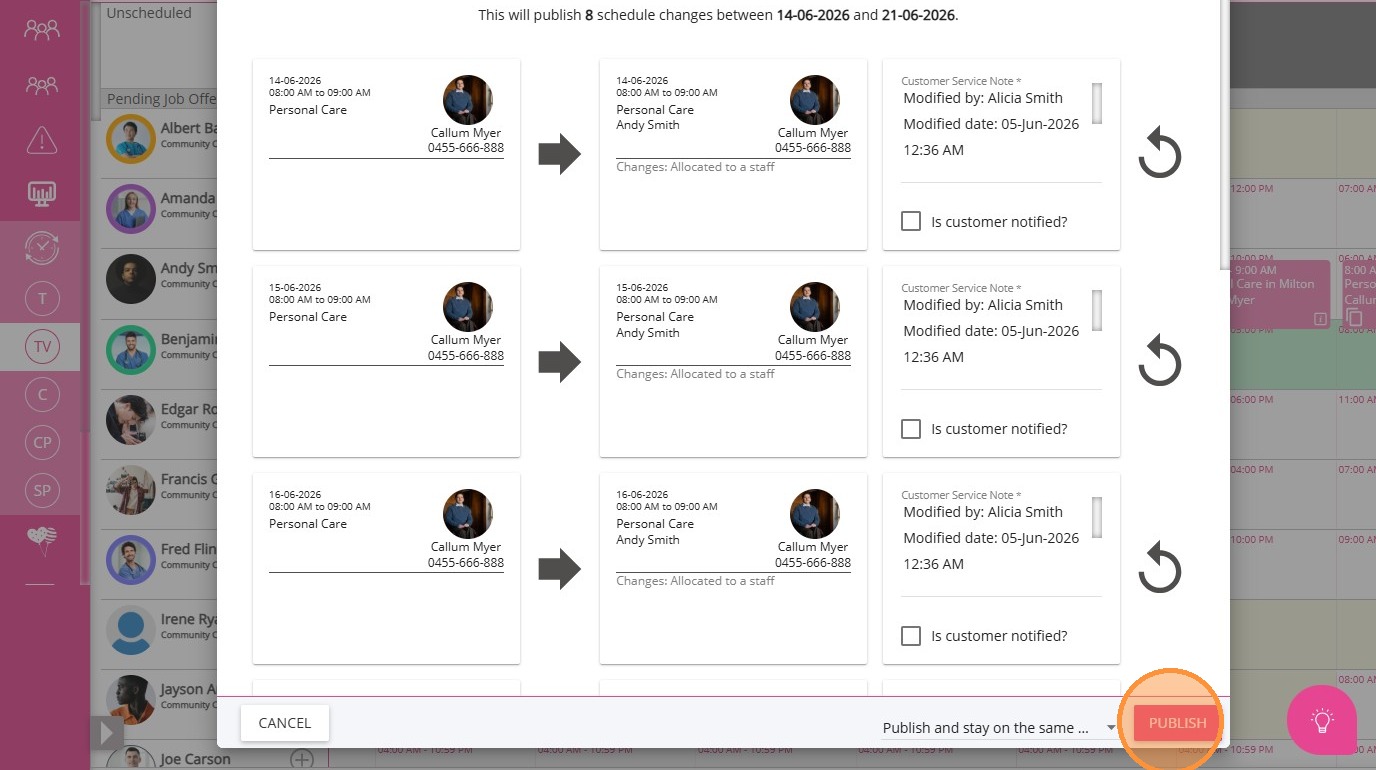
Click Publish.

The bookings are now allocated to Andy Smith.
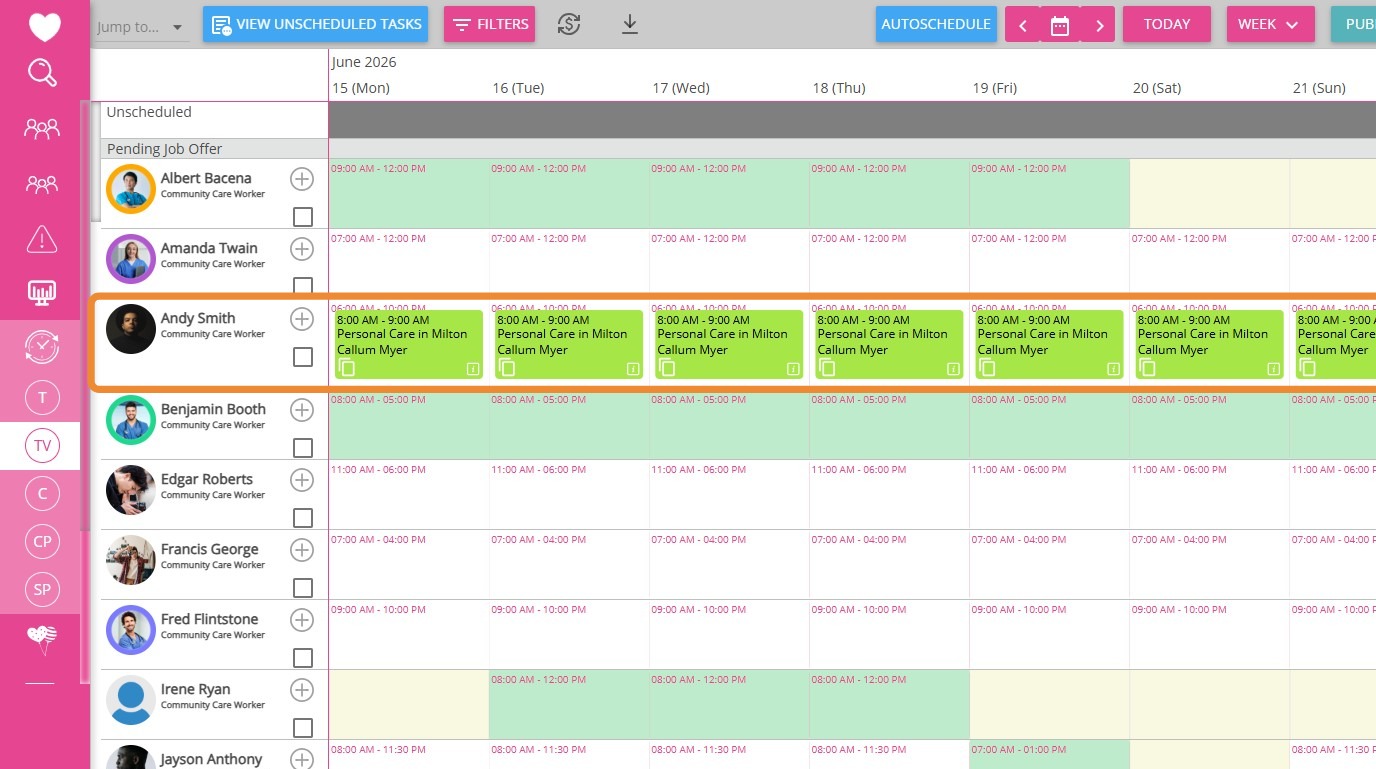
Go back to the client profile and confirm that Andy Smith is now the preferred carer.
    • Related Articles

    • FAQs: Changes to the Client Profile

      Several changes have been introduced to the Client Profile to improve overall user experience. Below are answers to common questions about what’s changed and where to learn more. Question: Which sections have been updated? Answer: Several sections ...
    • Missing or Unable to Select Billing Categories on Care Plan

      Things to check if there are missing or unable to Select Billing Categories when creating a Care Plan In this scenario we used a different Service, Funding Source and Billing Category. This basic troubleshooting guide is also applicable to Billing ...
    • FAQ: What does the "Alert" filter mean on the Service Review Board?

      Question: What does it mean when I filter for "Alert" on the Service Review Board? Some bookings show up as alerts, but they don't have any service warnings. What should I do? Answer: The "Alert" filter identifies bookings where an approved version ...
    • FAQ: How to Setup Care Domain, Goals, Condition and Treatment Plans in CareVision?

      FAQ: How to Setup Care Domain, Goals, Condition and Treatment Plans in CareVision? OVERVIEW It's important to have a conversation with your clients about their goals, what they would like to achieve, and how they would like to achieve their goals. ...
    • FAQ: Validate button in Scheduling page, how does it work?

      Overview The Validate button calculates the total working hours of a Field Care Professional based on their Pay Period. This allow administrators to see how many hours a staff member has worked and will work for a certain pay period, enabling them to ...

    Request an Article or Guide

    We are keen to know what you want to know more about? Let us know on chat or raise a ticket for an article or topic you would like covered in more detail. We have a team of technical writers and learning content creators keen for your suggestions.