Generate and Export a Service Report

Generate and Export a Service Report

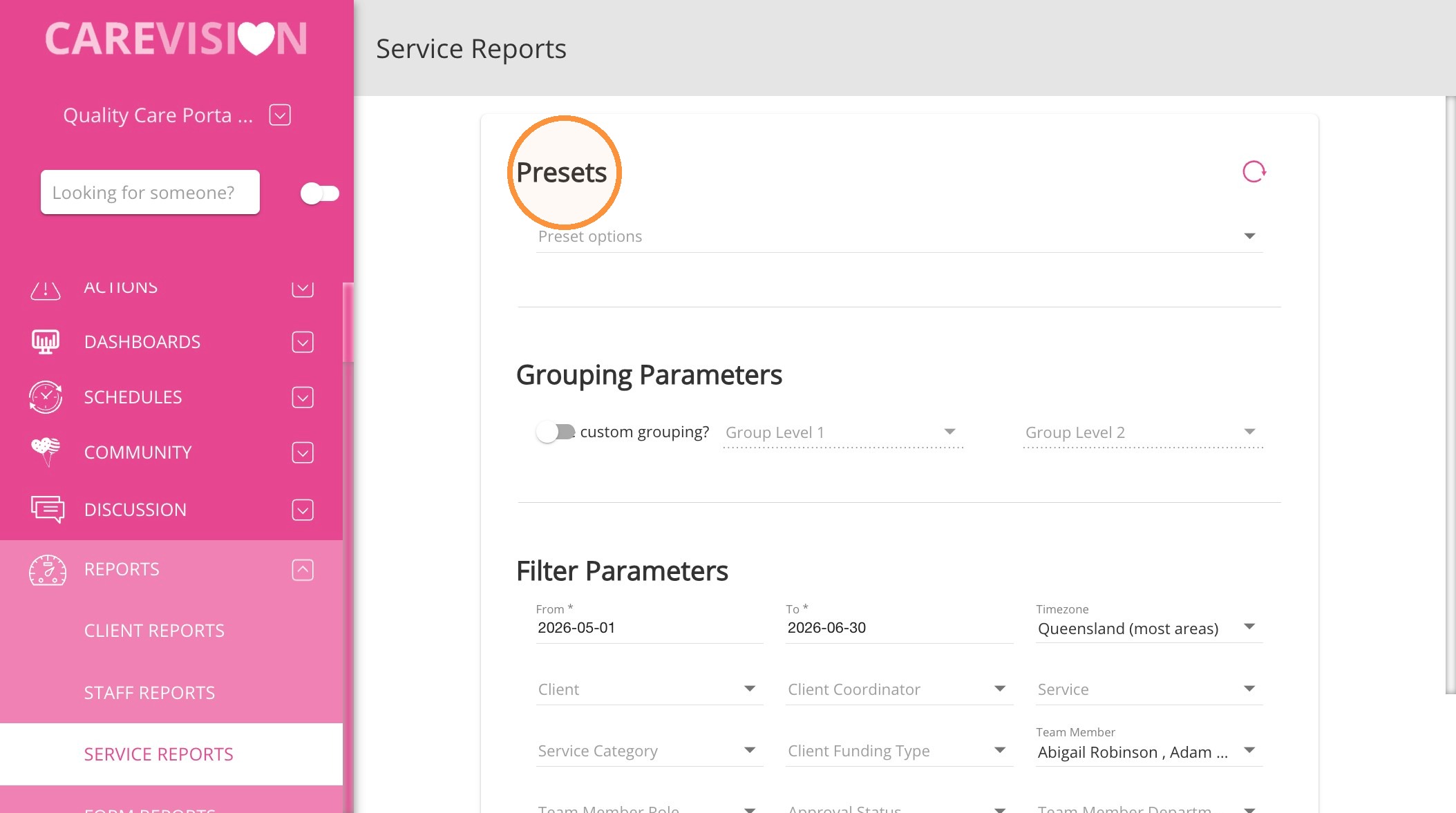
To create a report, go to Reports > Service Reports. Use the available settings to define the report period, filter the included bookings, group the results, and select the columns displayed in the export.

Steps to Generate and Export a Service Report


1. Go to Reports > Service Reports.
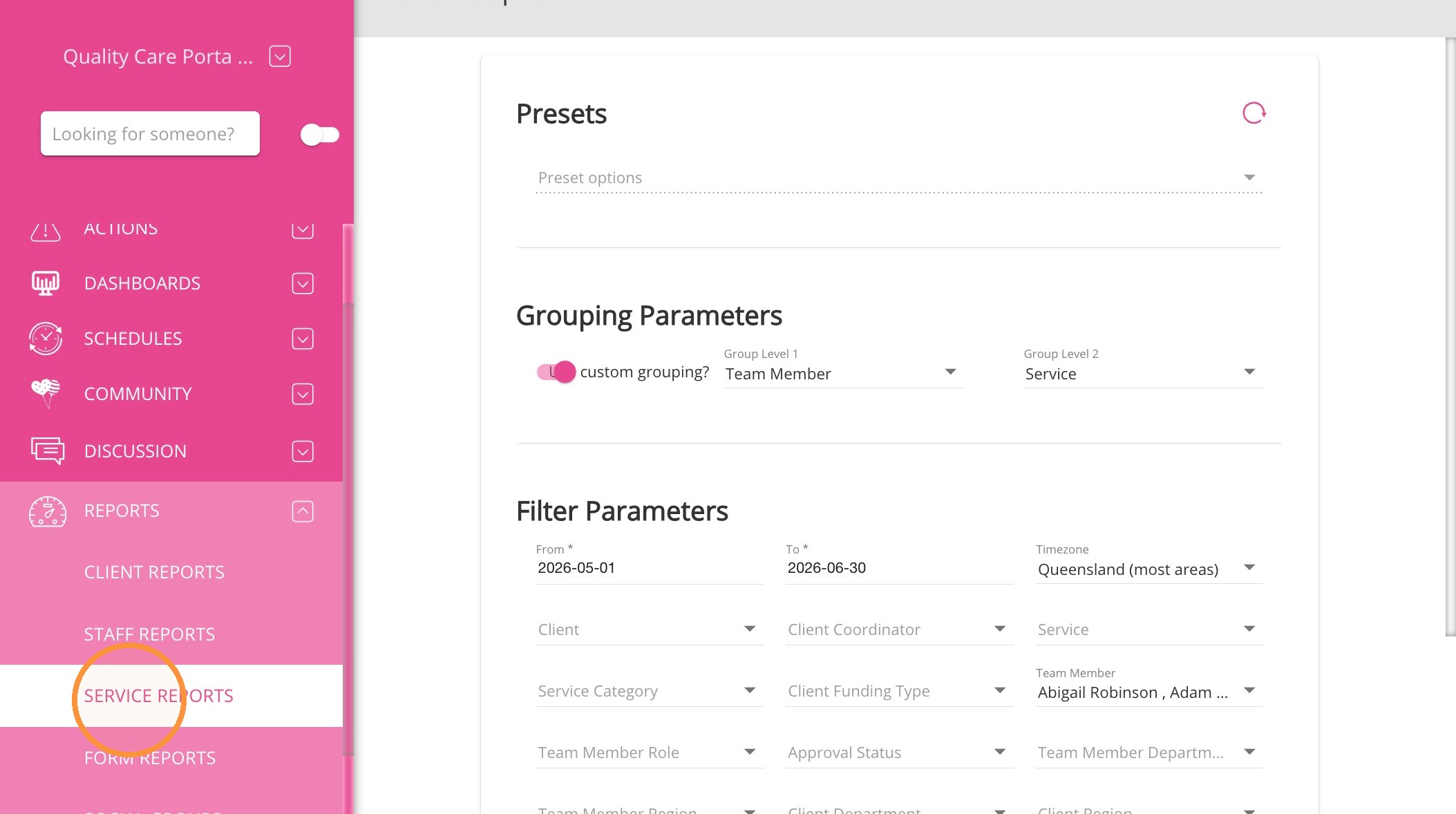

2.

Option 1: Select a Preset.

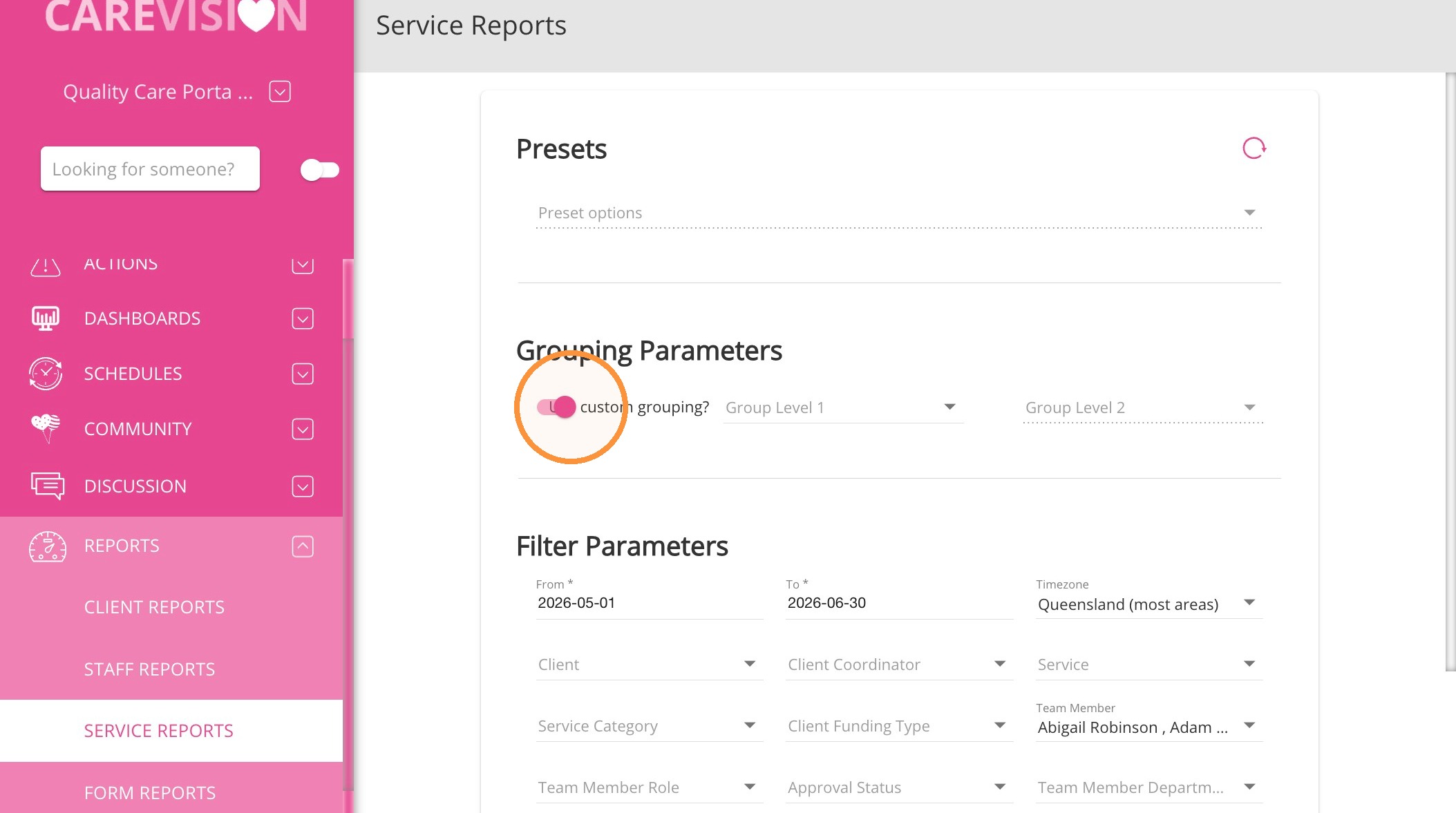
Option 2: Configure the Grouping Parameters.

SettingDescription
Use custom groupingTurn on this option to configure custom grouping instead of relying on the selected preset or default grouping.
Group Level 1Select the primary category used to group the report results.
Group Level 2Select an optional secondary category. Results are first grouped by Group Level 1 and then divided by Group Level 2.


Group Level 1 options
OptionDescription
Approval StatusGroups bookings according to their approval status.
ClientGroups bookings by client.
Client CoordinatorGroups bookings by the coordinator assigned to the client.
Client DepartmentGroups bookings by the client’s department.
Client RegionGroups bookings by the client’s region.
Funding SourceGroups bookings by funding source.
RoleGroups bookings by the associated role.
Service CategoryGroups bookings by service category.
Team MemberGroups bookings by the team member who delivered or was assigned to the service.
Team Member DepartmentGroups bookings by the team member’s department.
Team Member RegionGroups bookings by the team member’s region.
Warning TypesGroups bookings by warning type.

Group Level 2 options
OptionDescription
Approval StatusSubgroups bookings according to their approval status.
ClientSubgroups bookings by client.
Client CoordinatorSubgroups bookings by the coordinator assigned to the client.
Client DepartmentSubgroups bookings by the client’s department.
Client RegionSubgroups bookings by the client’s region.
Funding SourceSubgroups bookings by funding source.
RoleSubgroups bookings by the associated role.
ServiceSubgroups bookings by the selected or delivered service.
Service CategorySubgroups bookings by service category.
Team Member DepartmentSubgroups bookings by the team member’s department.
Team Member RegionSubgroups bookings by the team member’s region.
Warning TypesSubgroups bookings by warning type.

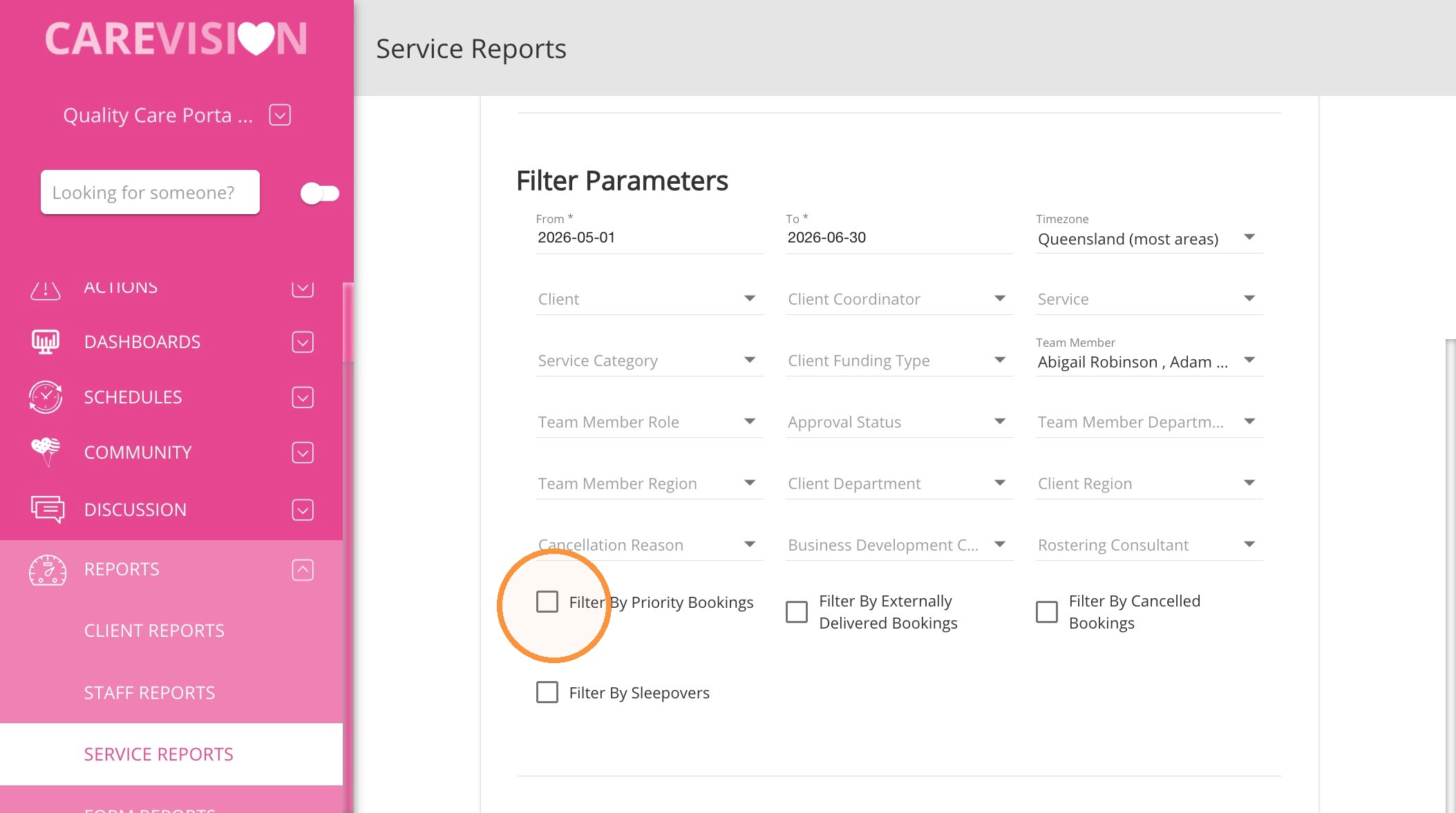
3. Enter the required Filter Parameters. Filter Parameters determine which records are included in the Service Report. Leave optional filters blank when you do not need to restrict the report by that field.


FieldDescription
FromSets the beginning of the reporting period.
ToSets the end of the reporting period.
TimezoneSets the timezone used to interpret and display report dates and times.
ClientIncludes bookings for the selected client or clients.
Client CoordinatorIncludes bookings associated with the selected client coordinator.
ServiceIncludes bookings for the selected service.
Service CategoryIncludes bookings within the selected service category.
Client Funding TypeIncludes bookings associated with the selected client funding type.
Team MemberIncludes bookings assigned to or delivered by the selected team member.
Team Member RoleIncludes bookings associated with the selected team member role.
Approval StatusIncludes bookings with the selected approval status.
Team Member DepartmentIncludes bookings associated with the selected team member department.
Team Member RegionIncludes bookings associated with the selected team member region.
Client DepartmentIncludes bookings associated with the selected client department.
Client RegionIncludes bookings associated with the selected client region.
Cancellation ReasonIncludes cancelled bookings with the selected cancellation reason.
Business Development ConsultantIncludes records associated with the selected business development consultant.
Rostering ConsultantIncludes records associated with the selected rostering consultant.

4. Tick any additional Filter boxes. Filter boxes provide additional booking-level controls. Select only the options relevant to the report you want to generate.

FilterDescription
Filter by priority bookingsRestricts the report according to whether bookings are marked as priority bookings.
Filter by externally delivered bookingsRestricts the report according to whether bookings were delivered externally.
Filter by cancelled bookingsRestricts the report according to whether bookings were cancelled.
Filter by sleepoversRestricts the report according to whether bookings are classified as sleepovers.


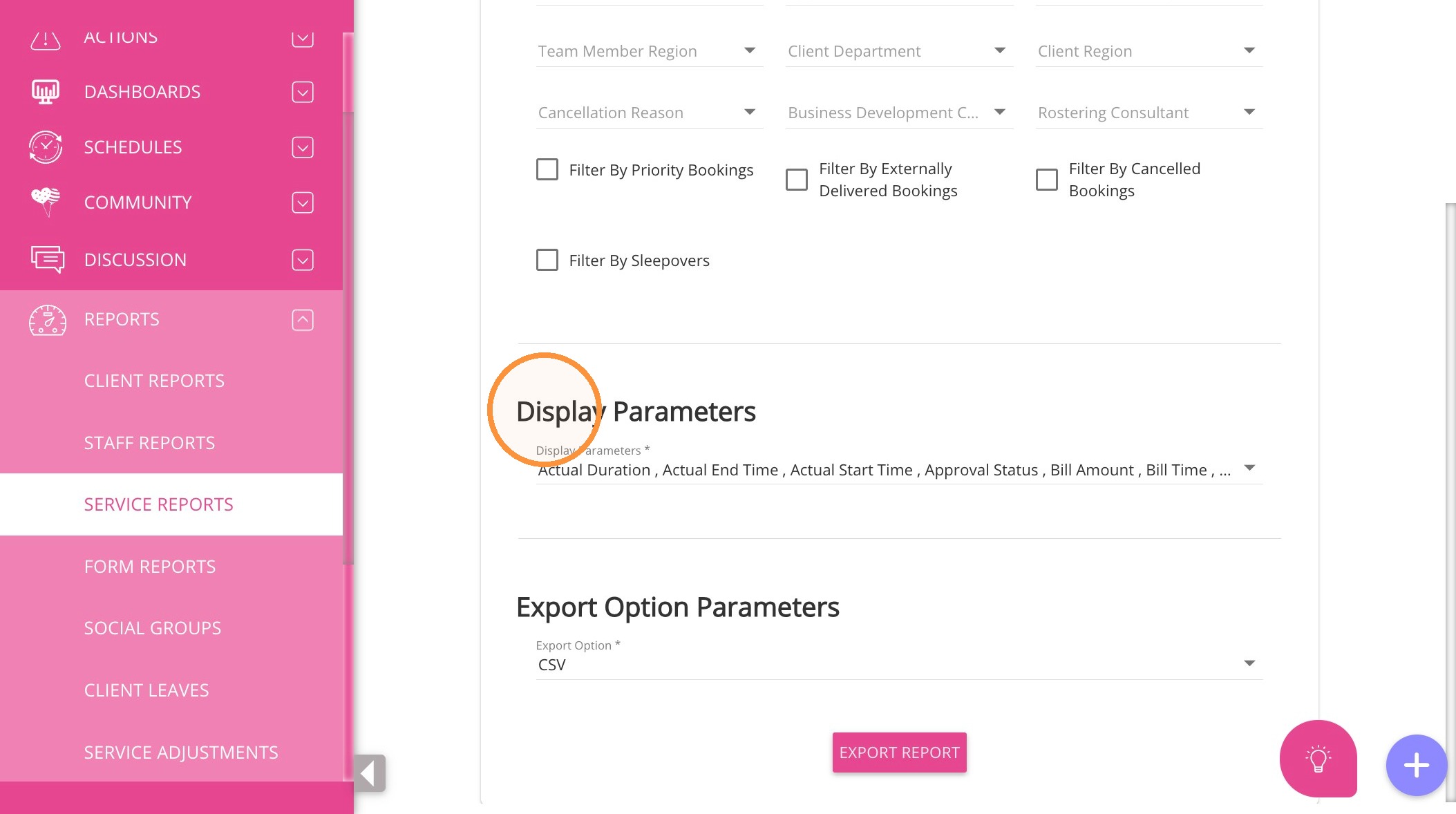
5. Select the required Display Parameters. Display Parameters determine which column headers appear in the exported report.

Column headerDescription
Actual DurationThe actual length of the delivered service.
Actual End TimeThe recorded time at which the service ended.
Actual Start TimeThe recorded time at which the service started.
Approval StatusThe booking or service report’s approval status.
Bill AmountThe billable amount associated with the booking.
Bill TimeThe quantity of time used for billing.
Booking DateThe date of the booking.
Booking IDThe unique identifier assigned to the booking.
Cancellation ReasonThe recorded reason the booking was cancelled.
Client CoordinatorThe name of the coordinator assigned to the client.
Client Coordinator IDThe unique identifier of the client coordinator.
Client Department IDsThe unique identifiers of the client’s associated departments.
Client DepartmentsThe client’s associated departments.
Client NameThe name of the client associated with the booking.
Client Region IDsThe unique identifiers of the client’s associated regions.
Client RegionsThe client’s associated regions.
Client User IDThe unique user identifier assigned to the client.
COF Bill AmountThe COF billing amount associated with the booking.
COF Bill UnitThe unit used to calculate the COF billing amount.
COF Pay AmountThe COF payment amount associated with the booking.
COF Pay UnitThe unit used to calculate the COF payment amount.
Duration DifferenceThe difference between the scheduled and actual service duration.
Duration MinutesThe service duration expressed in minutes.
Funding SourceThe funding source associated with the booking or client.
InterruptionsDetails of interruptions recorded during the service.
Invoice NumberThe invoice number associated with the booking.
LocationThe location associated with the booking or delivered service.
Manual Line ItemIndicates whether the report row relates to a manually entered line item.
Name of BookingThe name or title assigned to the booking.
Pay TimeThe quantity of time used to calculate payment.
Service CategoryThe category assigned to the service.
Service IDThe unique identifier assigned to the service.
Service NameThe name of the service delivered or booked.
Staff Department IDsThe unique identifiers of the team member’s associated departments.
Staff DepartmentsThe team member’s associated departments.
Staff NameThe name of the team member associated with the booking.
Staff Region IDsThe unique identifiers of the team member’s associated regions.
Staff RegionsThe team member’s associated regions.
Staff RoleThe role of the team member associated with the booking.
Staff User IDThe unique user identifier assigned to the team member.
TardinessInformation about a late service start or team member arrival.
TimeThe time associated with the booking or report entry.
TWC BillThe TWC billing amount associated with the booking.
TWC Bill UnitThe unit used to calculate the TWC billing amount.
TWC Pay AmountThe TWC payment amount associated with the booking.
TWC Pay UnitThe unit used to calculate the TWC payment amount.
WarningsWarnings associated with the booking or service report.


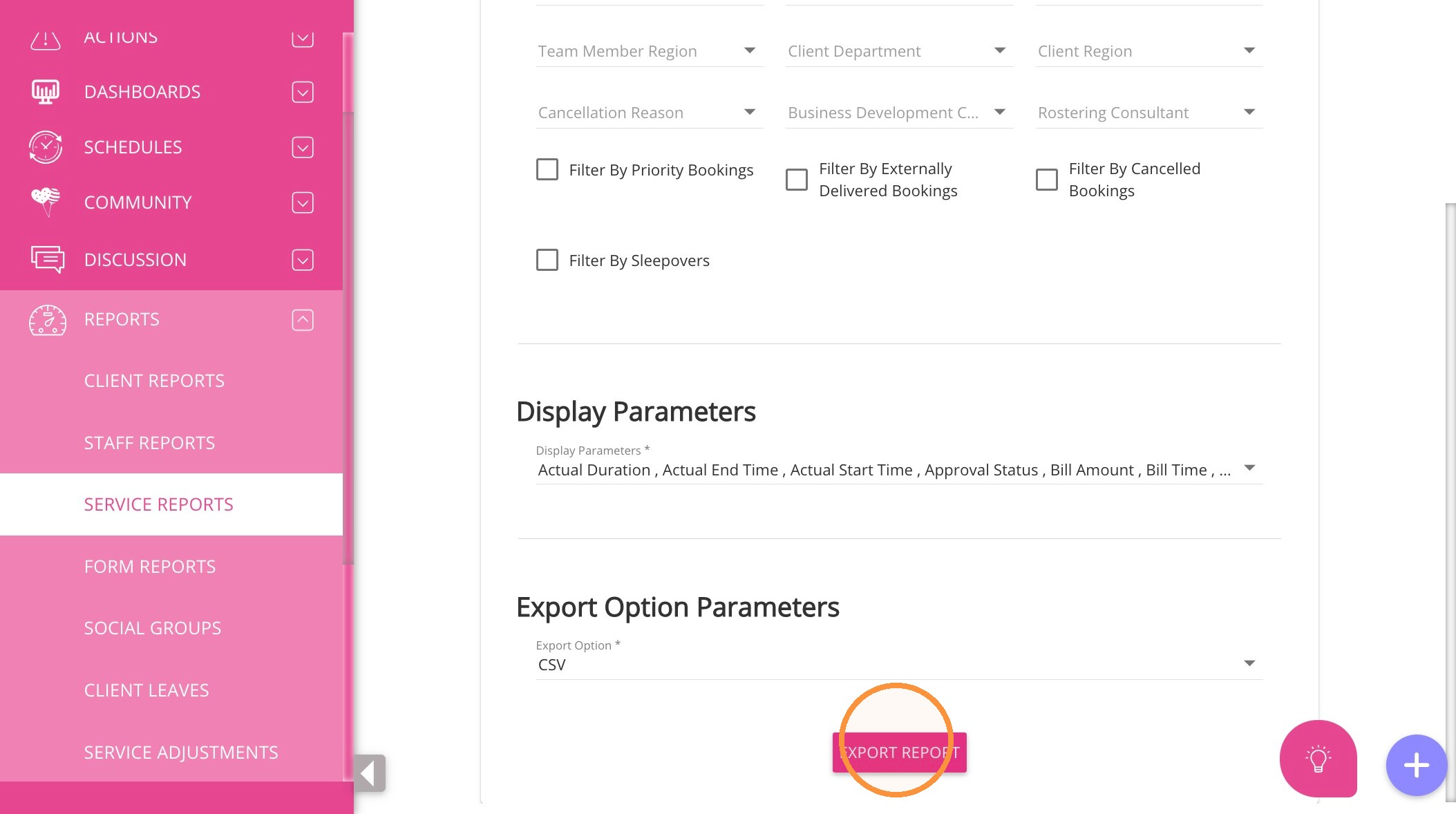
6. Select Export Report, then choose CSV or Summary to generate and download the report.

Scenario 1: Care hours worked by each care worker, by month

Scenario 1: Care hours worked by each care worker, by month

1.Go to Reports > Service Reports.

2.Set From and To to the required month.

3.Turn on Use custom grouping.

4.Set Group Level 1 to Team Member.

5. If required, filter by Team Member, Team Member Role, Team Member Department or Team Member Region.

6.Select the following Display Parameters:

  1. Staff Name
  2. Booking Date
  3. Actual Duration
  4. Duration Minutes
  5. Pay Time
  6. Service Name
7.Select Export Report, then choose Summary for totals or CSV for detailed analysis.

Run the report separately for each month, or export a wider date range to CSV and group Booking Date by month.


Scenario 2: Total care hours delivered by the organisation, by month

Scenario 2: Total care hours delivered by the organisation, by month

  1. Go to Reports > Service Reports.

  2. Set From and To to the required month or reporting period.

  3. Use the default grouping or select a suitable preset.

  4. Leave the client, service and team-member filters blank to include the whole organisation.

  5. Select the following Display Parameters:

    • Booking Date

    • Actual Duration

    • Duration Minutes

    • Service Category

    • Service Name

  6. Select Export Report, then choose Summary for the total or CSV to calculate monthly totals.

For a multi-month report, export to CSV and group Booking Date by month.


Scenario 3: Care hours by client

Scenario 3: Care hours by client

  1. Go to Reports > Service Reports.

  2. Set the required From and To dates.

  3. Turn on Use custom grouping.

  4. Set Group Level 1 to Client.

  5. If required, use the Client filter to include selected clients only.

  6. Select the following Display Parameters:

    • Client Name

    • Booking Date

    • Actual Duration

    • Duration Minutes

    • Service Name

    • Funding Source

  7. Select Export Report, then choose CSV or Summary.


Scenario 4: Care hours by funding program

Scenario 4: Care hours by funding program

Use this report for programs such as CHSP, brokered services and Support at Home, provided they are configured as funding sources or client funding types.

  1. Go to Reports > Service Reports.

  2. Set the required From and To dates.

  3. Turn on Use custom grouping.

  4. Set Group Level 1 to Funding Source.

  5. Use Client Funding Type to restrict the report to the required program, if applicable.

  6. Select the following Display Parameters:

    • Funding Source

    • Client Name

    • Booking Date

    • Actual Duration

    • Duration Minutes

    • Service Name

    • Service Category

  7. Select Export Report, then choose CSV or Summary.

Scenario 5: Care hours by service type

Scenario 5: Care hours by service type

Use this report for service types such as Domestic Assistance, Personal Care, Social Support, Respite and Transport.

  1. Go to Reports > Service Reports.

  2. Set the required From and To dates.

  3. Turn on Use custom grouping.

  4. Set Group Level 1 to Service Category.

  5. Set Group Level 2 to Service if a more detailed breakdown is required.

  6. Use the Service or Service Category filters to include the required service types.

  7. Select the following Display Parameters:

    • Service Category

    • Service Name

    • Booking Date

    • Actual Duration

    • Duration Minutes

    • Client Name

  8. Select Export Report, then choose CSV or Summary.