Calendar Section in Client Profile
The Calendar section in the Client Profile displays all scheduled client services and bookings in a calendar or list format.
Keywords: client calendar view, service booking calendar, client schedule management, care service calendar, client appointment scheduling, ad hoc service booking, client service timeline, care plan calendar view, external service scheduling, client booking management
The Calendar section allows users to view, manage, and generate a schedule of services for a client. It provides a visual overview of upcoming and past bookings, helping users quickly understand when services are scheduled and who is assigned.
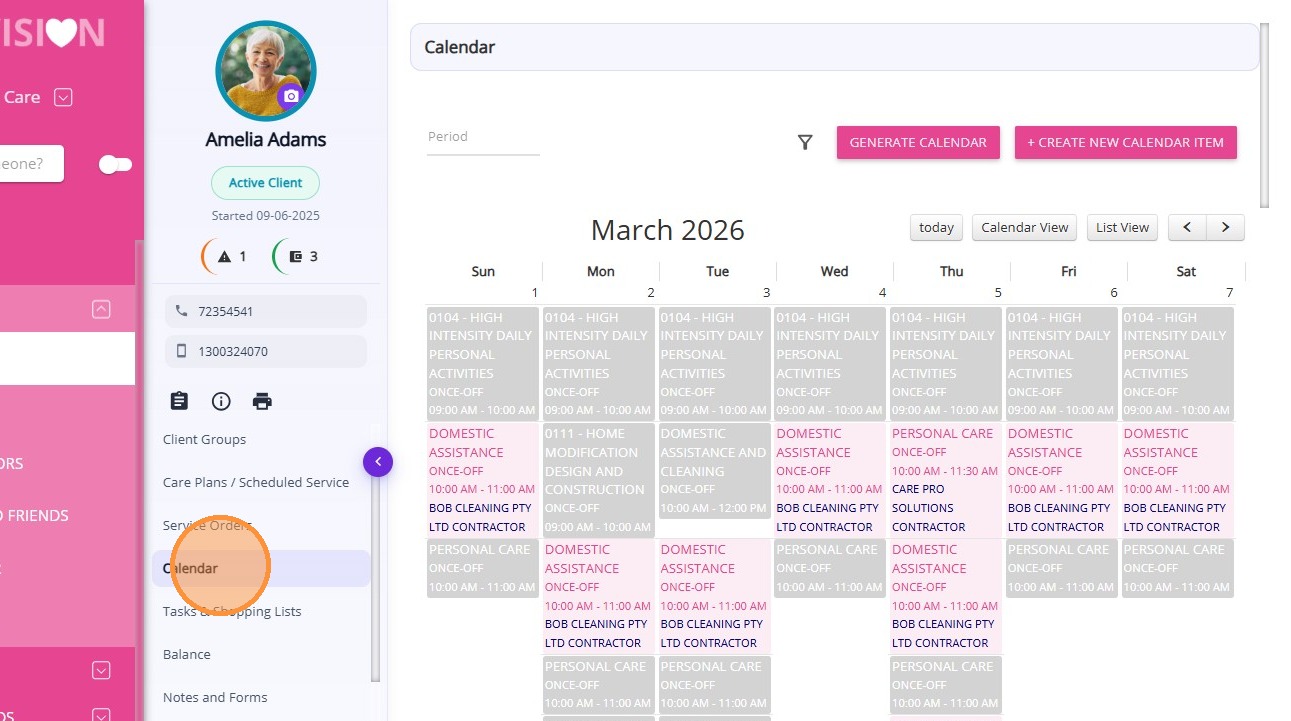
Calendar Views
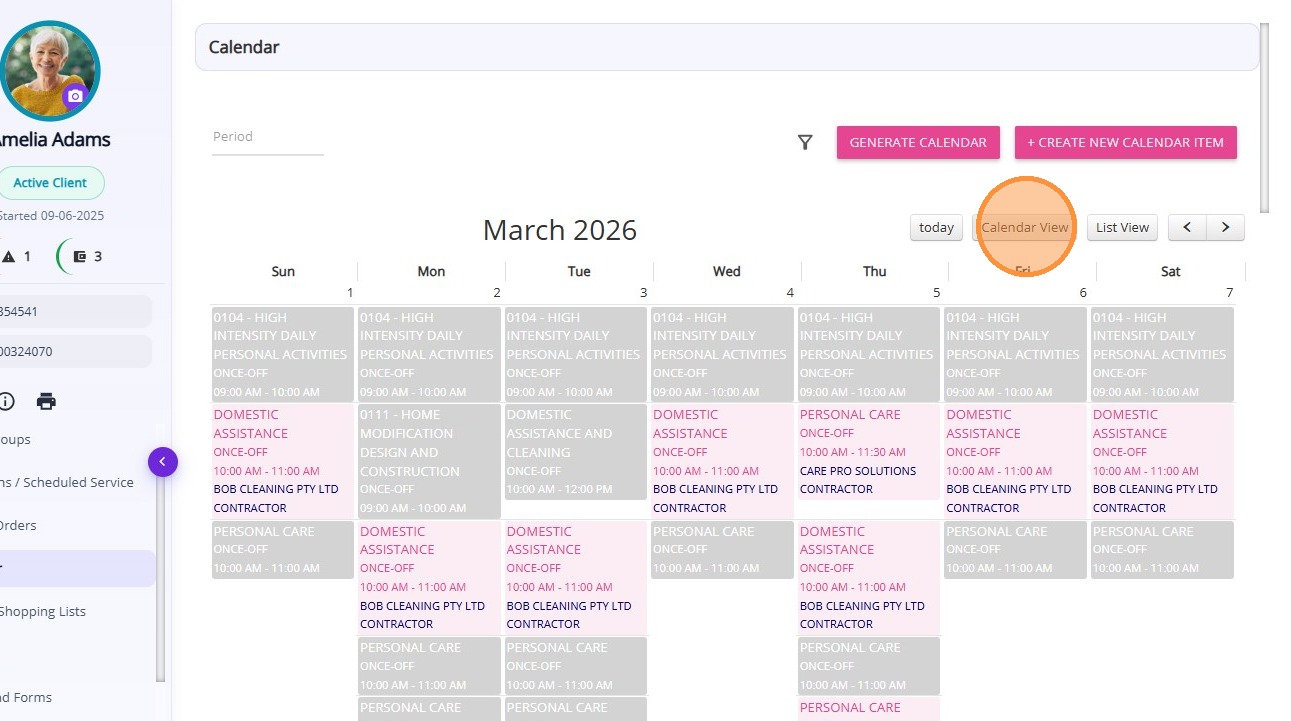
You can choose between two viewing formats:
- Calendar View: Displays services in a calendar layout based on date and time.
- List View: Displays services in a chronological list.
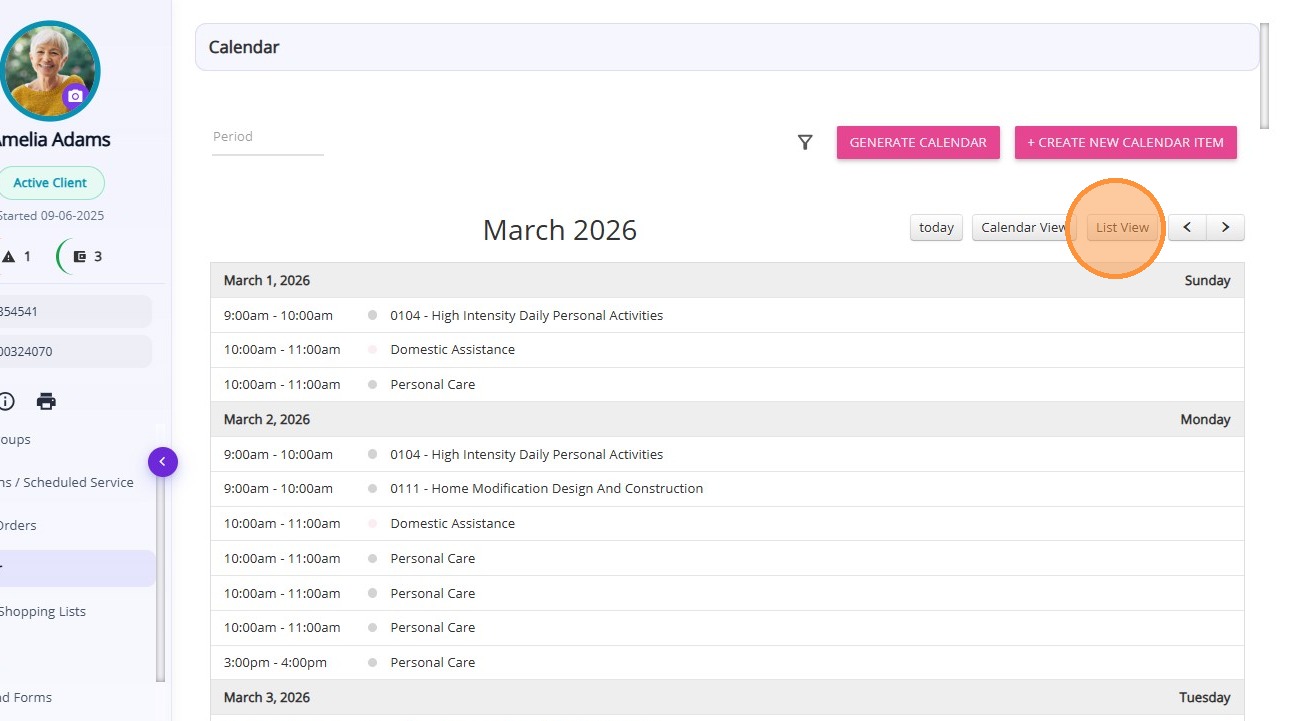
Each event shown in the calendar displays:
- Service name
- Frequency
- Start time
- End time
- Contractor name (if the service is delivered by an external provider)
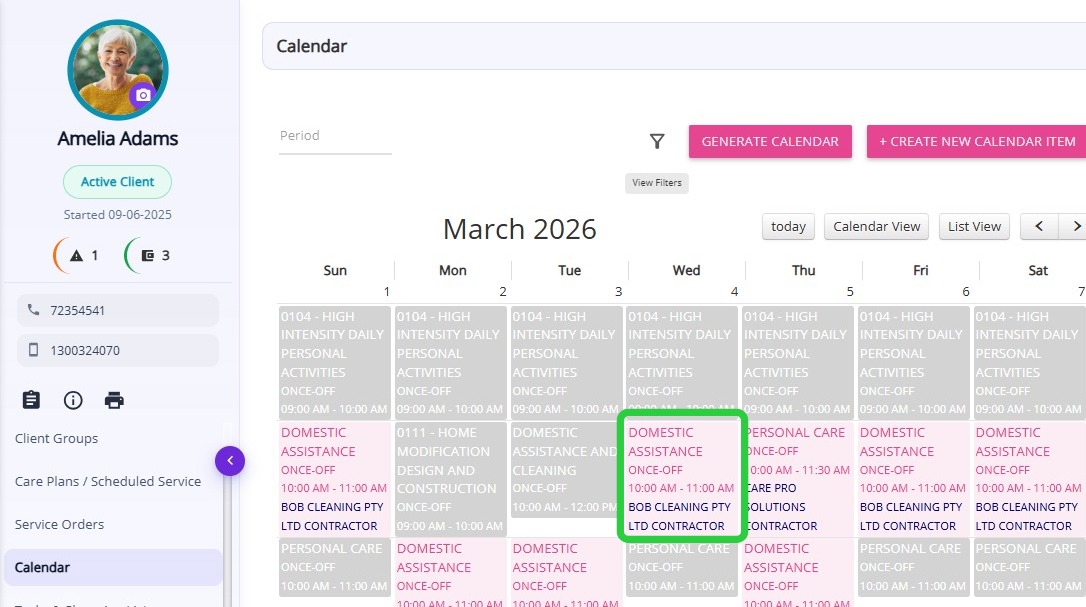
 Note: In both Client and Staff Calendars, after editing a booking and saving, the calendar remains on the selected month. This allows you to continue working on bookings without being returned to the present month.
View Filters
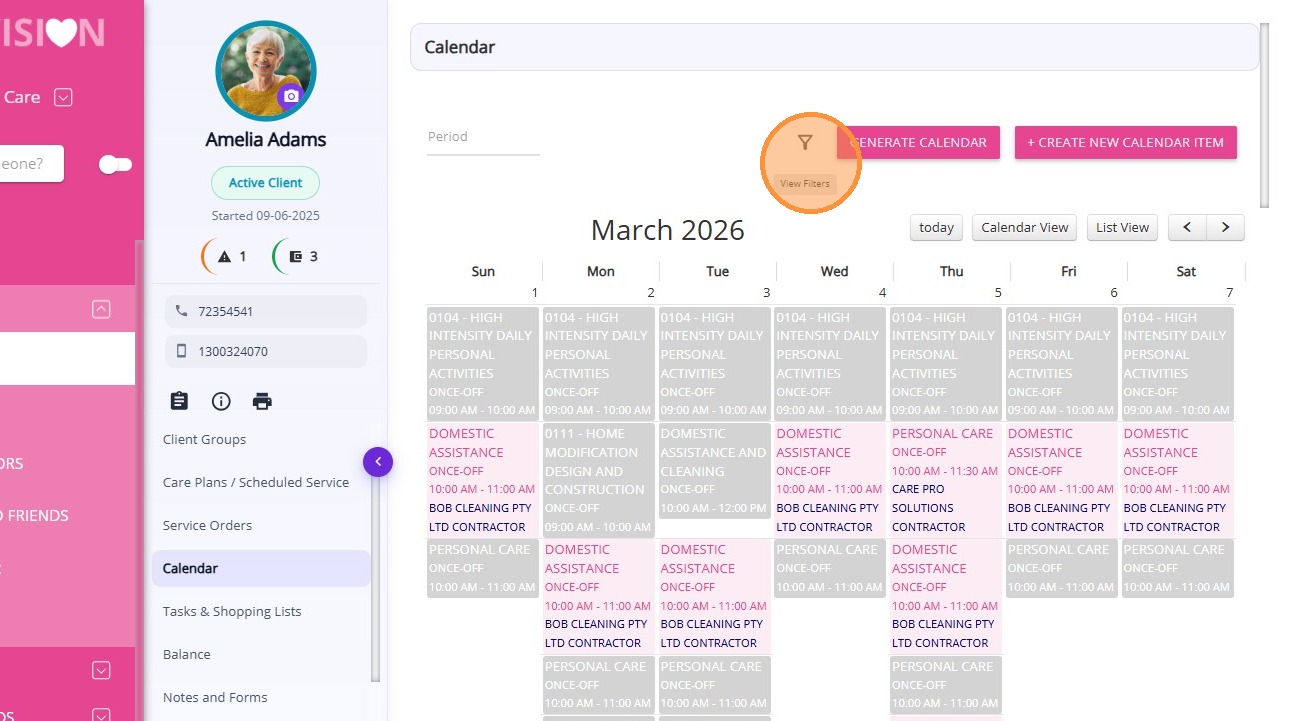
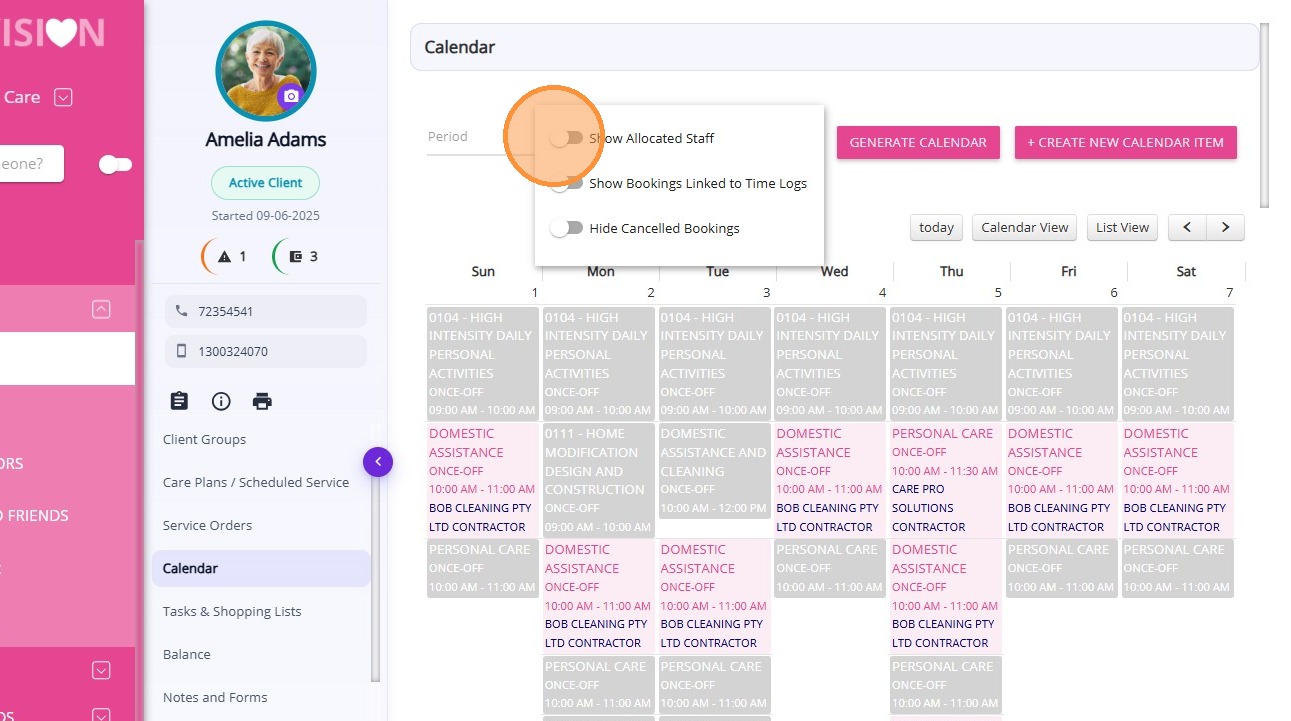
You can filter the calendar display by selecting the following options:
- Show Allocated Staff
- Show Bookings Linked to Time Logs
- Hide Cancelled Bookings
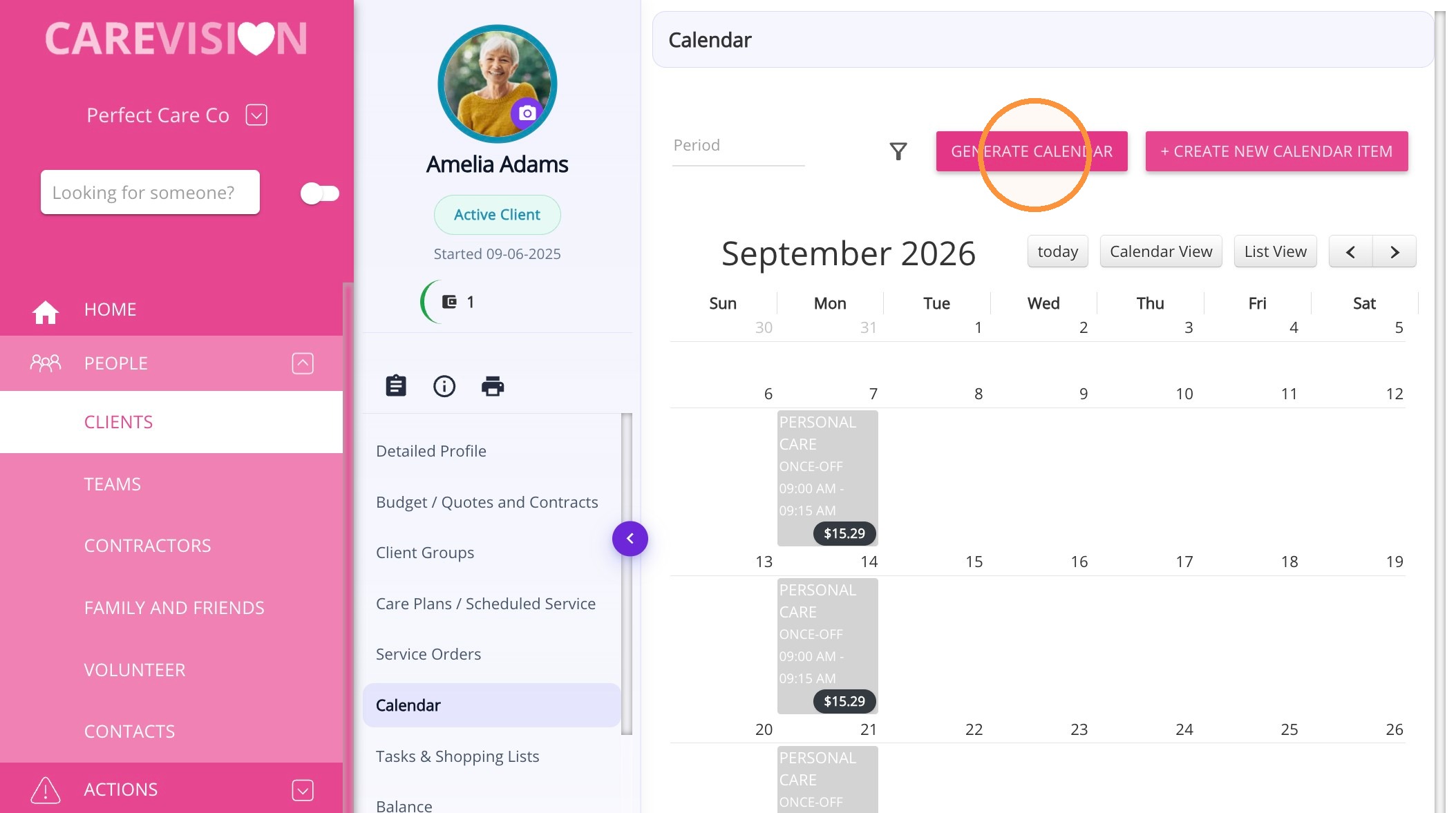
Generate Calendar
To generate the calendar: Click Generate Calendar.
- Set Orientation: Choose Landscape or Portrait.
- Set Start Date and End Date: Set the calendar date range.
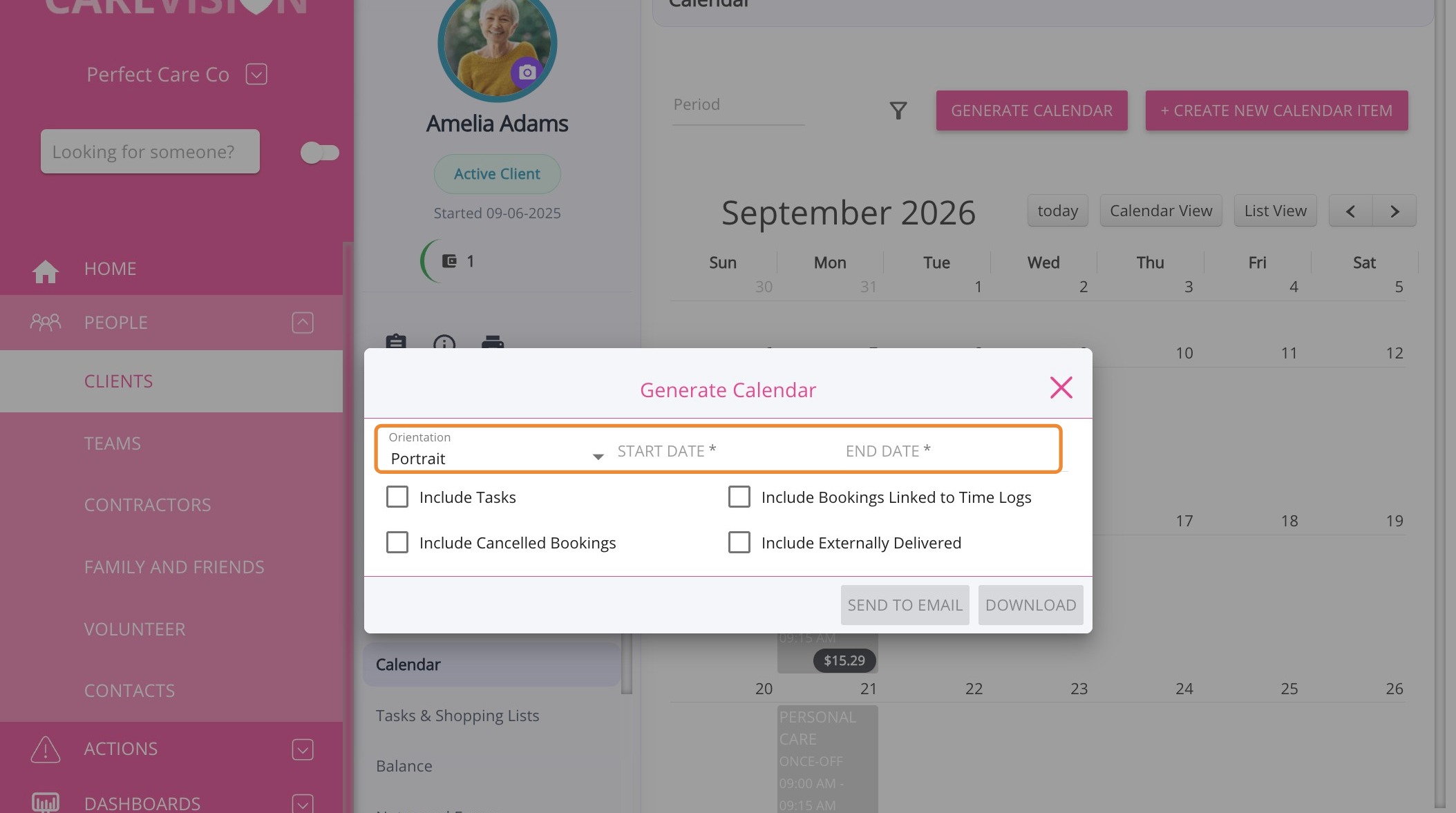
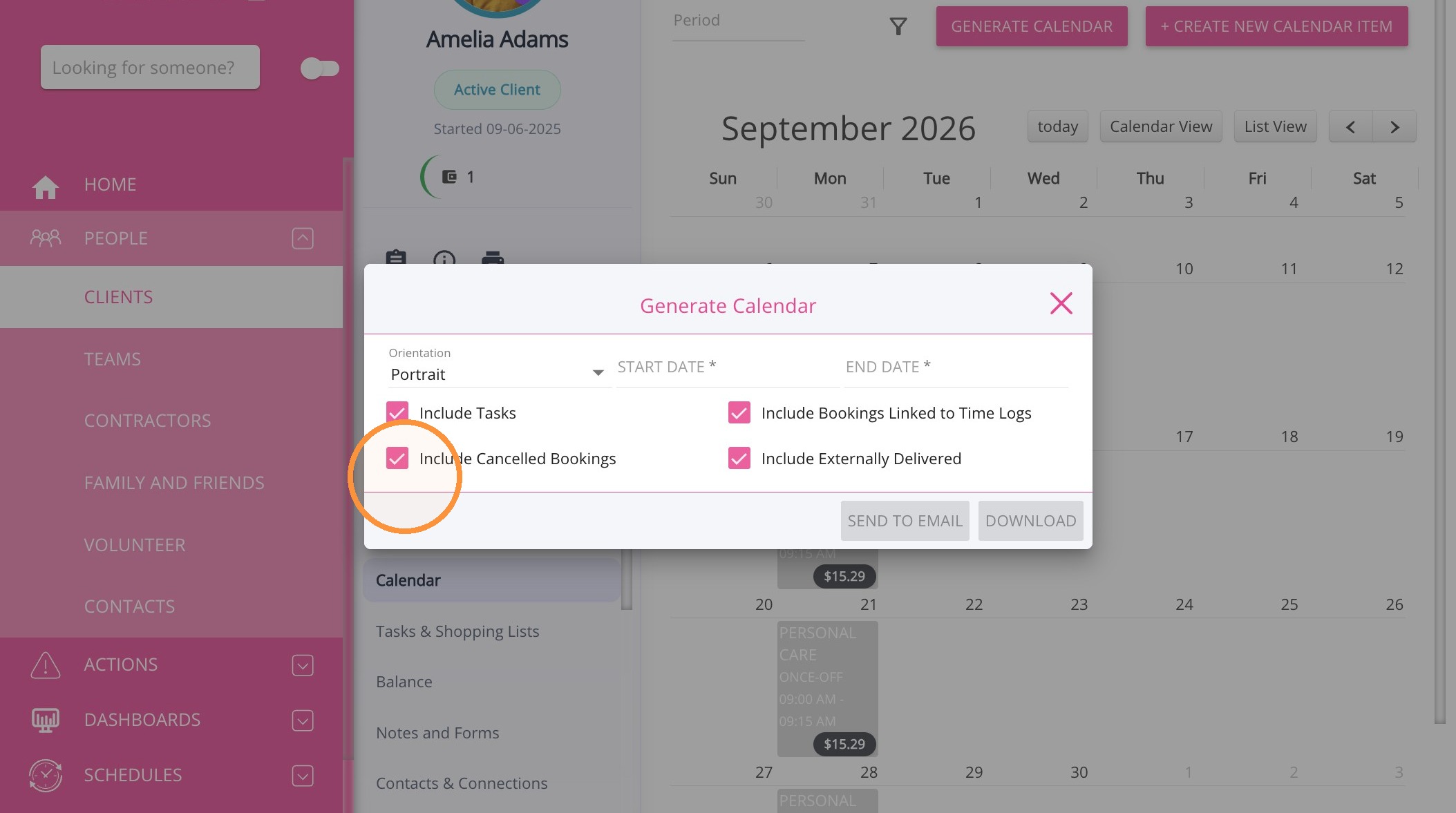
You can now select what to include when generating a client calendar:
- Include Tasks
- Include Cancelled Bookings
- Include Bookings Linked to Time Logs
- Include Externally Delivered Bookings
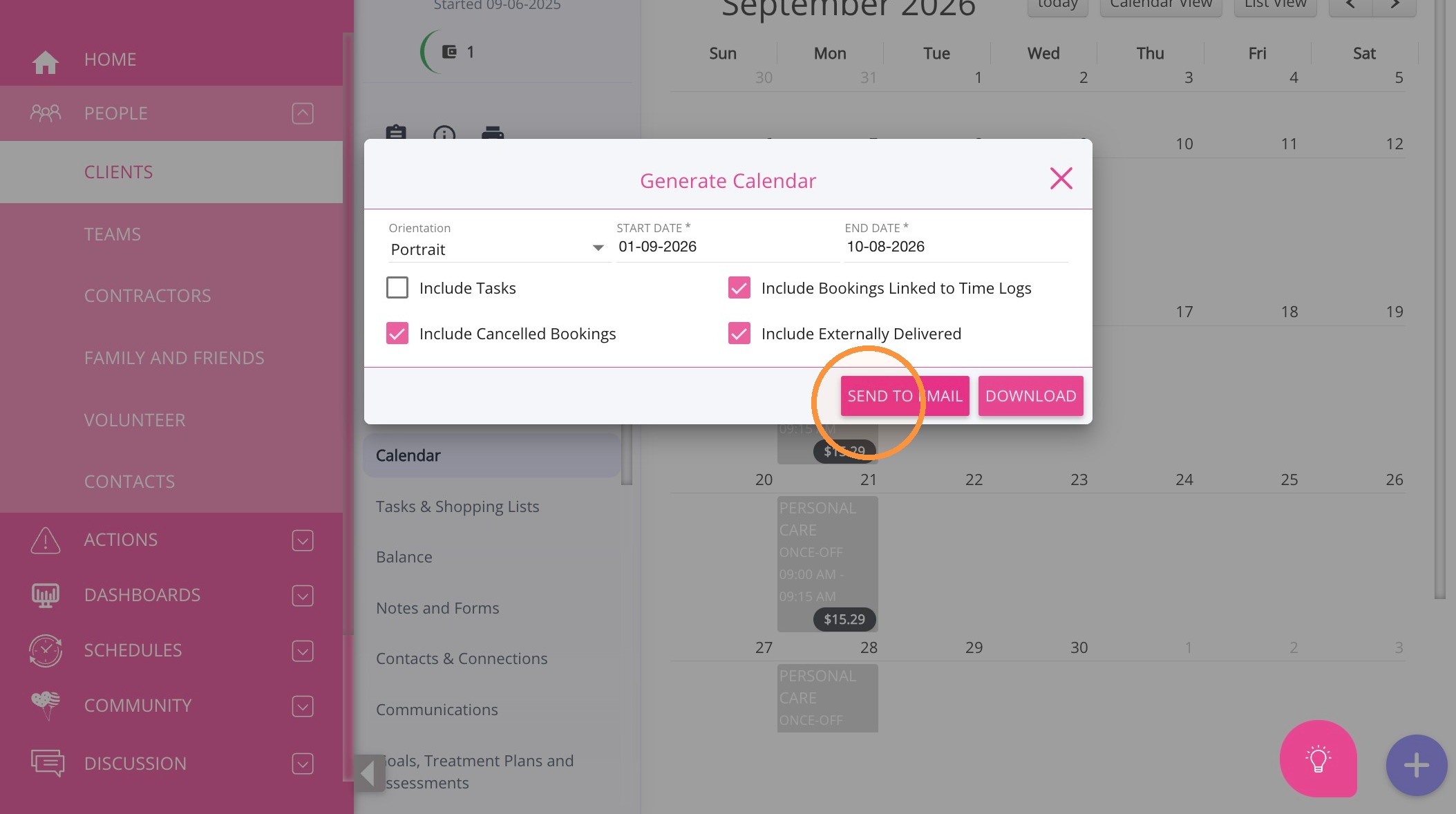
Choose how to receive the client calendar:
- Send to Email: Email the PDF to the staff member generating the calendar.
- Download: Download the calendar as a PDF.
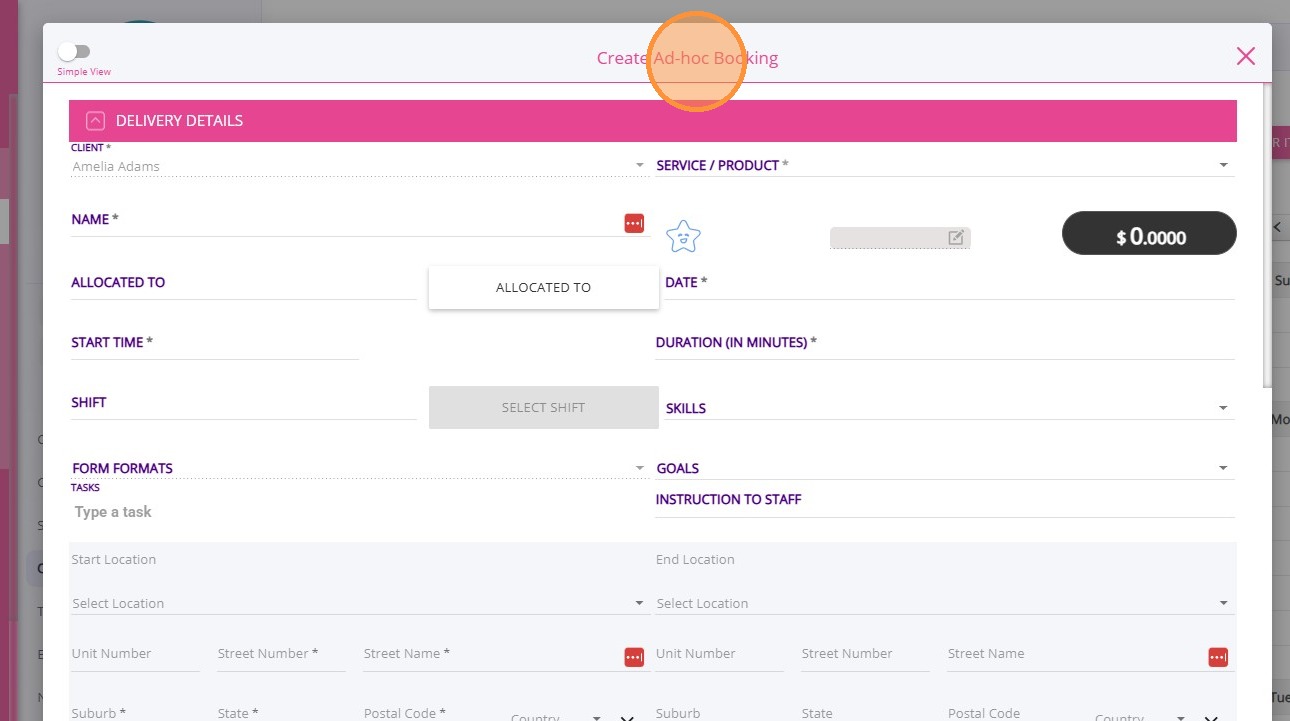
Create Ad Hoc Booking
You can create a one‑time booking directly from the calendar.
To create an ad‑hoc booking:
- Click + Create New Calendar Item.
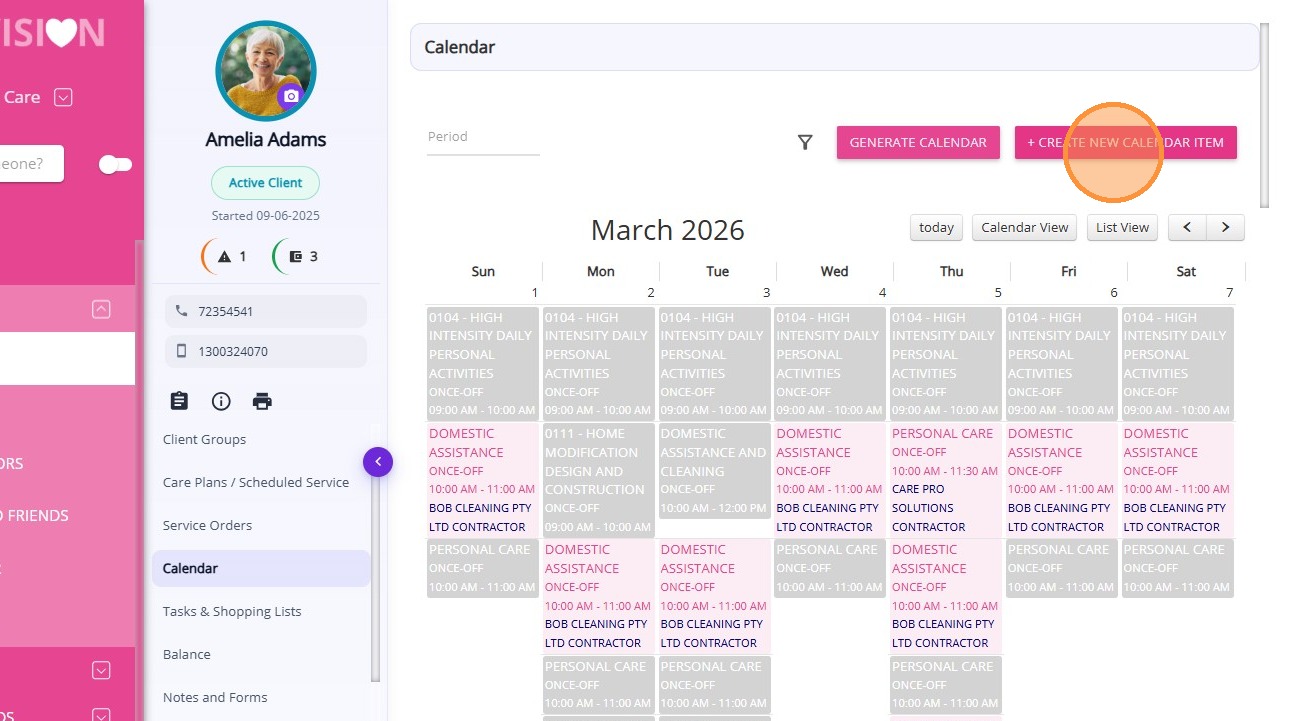
- The Ad‑hoc Booking modal will open.
- Enter the required booking details and Save.